Instant Connection for Pixel Streaming
— New Feature Automated Setup

Automate Surfer Contour Mapping with Claude and Codex
Automate Surfer Contour Mapping with Claude and Codex
Automate Surfer Contour Mapping with Claude and Codex
Table of Contents
A new survey file should not mean rebuilding the same contour map from scratch. Yet even a familiar Surfer workflow involves repeated decisions: assign the XYZ columns, choose gridding settings, set contour intervals, adjust labels, and export the results. Repeat those steps manually across several datasets, and small inconsistencies can make the maps harder to compare.
Claude and Codex can help turn that process into a reusable script. Through Surfer’s automation interface, they can help prepare code that creates grids, builds contour maps, and saves outputs using settings you review and approve. Surfer performs the mapping calculations; the assistant helps organize and automate the work.
Vagon Cloud Computer brings the workflow into one Windows desktop, with Surfer, your chosen AI assistant, scripts, and datasets together. You can develop the automation, inspect the resulting surface, refine the map, and prepare deliverables in the same environment.
This guide follows that process from an XYZ file to a repeatable mapping workflow, with checks before you scale it to multiple datasets.

Source: Golden Software
What Should Your Automated Mapping Workflow Produce?
Before asking Claude or Codex to write a script, define what a successful run should leave behind. A contour image is useful for a report, but it does not replace the underlying grid or an editable Surfer project.
For this walkthrough, each input dataset should produce four deliverables:
Output | What it preserves |
|---|---|
| The interpolated surface used to generate contours |
| The editable map, including its layers and presentation settings |
PDF or PNG | A review copy for checking and sharing |
Settings file and run log | The requested parameters, input path, processing status, and output locations |
Keeping these outputs separate makes revisions easier. If a reviewer requests different labels, you can adjust the saved map without necessarily recalculating the surface. If the interpolation settings change, you can regenerate the grid and rebuild the corresponding outputs.
Give the assistant a clear first assignment:
This establishes a practical boundary: the assistant can prepare the workflow, but unresolved mapping decisions remain visible for your approval.
Prepare the Surfer and AI Workspace on Vagon
Keep Surfer, the AI assistant, and the automation files on the same Windows computer. The script needs access to both the installed application and the dataset, so running it inside the cloud desktop keeps those paths together.
1. Select your applications
During computer creation, use application selection to choose Surfer and the available Claude or Codex tools you plan to use. Include Python if you will follow the Python automation route in this guide.
Once the desktop is ready, open Surfer and complete any required activation. Sign in to your chosen AI assistant separately. Application installation does not automatically include a Surfer license or an AI subscription.
You only need one assistant to follow the workflow. Using both is optional, and they should not run competing scripts against the same Surfer session.
2. Check the Python environment
Open a terminal inside the Windows desktop and check that Python is available:
Golden Software’s Python automation examples use win32com.client, provided by pywin32. If that dependency is missing, install it into the interpreter you intend to use:
Ask the assistant to use that same interpreter when running the script. Installing a dependency into one Python environment will not make it available to every other environment.
3. Bring in your data and organize the project
Use Vagon Files to transfer the XYZ dataset and any supporting boundary files or reference maps. Place working copies in a dedicated project folder:
Keep the original measurements unchanged in input. Generated grids, projects, and review images belong in separate output folders.
Before processing data, confirm that Surfer opens normally and the terminal can access the project directory. The next step is a small automation connection test, not a full mapping run.
Connect Through Surfer’s Automation Interface
For this workflow, Claude or Codex prepares a Python script that communicates with Surfer through its Windows COM automation interface. Surfer then executes the supported mapping operations.
The connection is straightforward:
Claude or Codex → Python script → Surfer → saved mapping outputs
This does not require an MCP server. MCP could provide another tool-access layer through a compatible integration, but it is not necessary for the direct scripting route used here.
Test the connection before processing data
Save the following as scripts/check_surfer.py:
Run it from the project directory:
The script requests a Surfer application object and makes its window visible. It does not load measurements, create a grid, or change a map. Golden Software documents this connection pattern in its Python automation examples.
If the connection fails, give the assistant the complete error message and the Python interpreter path. Ask it to investigate the environment before changing the mapping script. Missing dependencies, application registration, and activation issues require different fixes.
Keep the first interaction narrow
Use a bounded instruction:
An assistant with authorized terminal access can execute this test inside the cloud desktop. Otherwise, run the command yourself and share the result.
Computer use is a separate capability. Where configured, it can help inspect the application window and visible results, but the Python connection itself does not grant screenshot, mouse, or keyboard access.
Inspect the XYZ Data Before Building a Surface
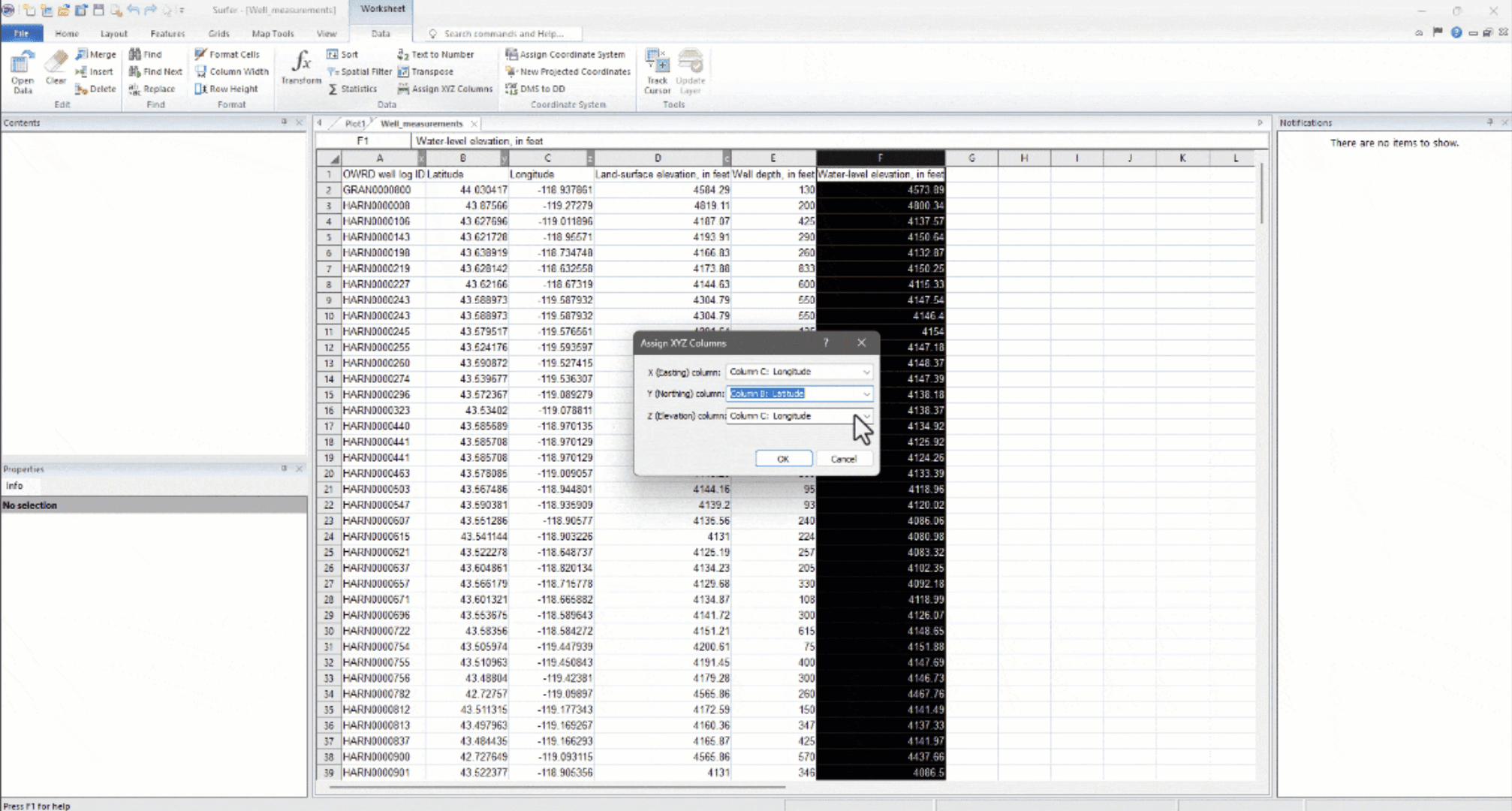
A successful connection does not mean the measurements are ready for gridding. Before creating a surface, have Claude or Codex inspect the input file without changing it.
Source: Golden Software
Start with a narrow request:
A file containing columns named Easting, Northing, and Elevation still needs context. The labels do not establish the coordinate reference system, and elevation values could use a different unit or vertical reference from another survey.
Resolve ambiguities before cleaning
The inspection should distinguish a detected issue from a proposed correction:
Finding | Decision needed |
|---|---|
Two measurements share XY coordinates but have different elevations | Determine whether they are repeated observations, errors, or distinct features |
Some rows contain missing Z values | Decide whether to exclude them from a derived working file |
Coordinates contain unexpected ranges | Check units, column assignments, and source metadata |
A few elevations differ sharply from surrounding measurements | Investigate them rather than automatically deleting them |
Surfer’s gridding interface supports explicit XYZ column assignments and duplicate-handling parameters. Those settings should reflect your decisions, not silently substitute for them.
If cleaning is necessary, preserve the original file and write a separate working copy with a record of excluded or altered rows. Finish this stage with a confirmed column mapping and documented spatial references. Choosing the interpolation method comes next.
Build the First Contour Map in Three Controlled Stages
Start with one inspected dataset. The goal is to produce a map you can review before applying the same process to an entire folder.
Keep processing choices in a configuration file rather than scattering them throughout the script. That file should record the input path, XYZ columns, gridding method and its parameters, grid boundaries, resolution, and output locations.
1. Create the grid with explicit settings
Ask Claude or Codex to prepare the gridding step using GridData6. This method exposes the settings needed to control how measurements become a regularly spaced surface.

Source: Golden Software
Do not ask the assistant to select the “best” interpolation method from the filename or a few sample rows. Approve a method based on the measurements, their distribution, and the purpose of the map. Where the choice is uncertain, compare small test grids first.

Source: Golden Software
The core Python operation can follow this pattern:
from pathlib import Path
import win32com.client

surfer = win32com.client.gencache.EnsureDispatch(
    "Surfer.Application"
)
surfer.Visible = True

# approved_grid_parameters must be loaded and validated first.
grid_path = Path(approved_grid_parameters["OutGrid"]
from pathlib import Path
import win32com.client

surfer = win32com.client.gencache.EnsureDispatch(
    "Surfer.Application"
)
surfer.Visible = True

# approved_grid_parameters must be loaded and validated first.
grid_path = Path(approved_grid_parameters["OutGrid"]
This is the execution core, not a complete script. The configuration-loading step must supply valid Surfer arguments and resolve any algorithm constants correctly.
Set grid boundaries and resolution deliberately. A smaller cell size creates more grid nodes, but it does not add measurements or automatically improve accuracy. Also decide whether areas outside the data coverage should remain blank rather than allowing unsupported extrapolation.

Source: Golden Software
2. Apply consistent contour settings
Once the grid exists, create a plot document and add the contour map:
Then apply the approved contour levels, line styles, fill colors, and labels. Surfer’s Levels collection provides access to individual contour levels.

Source: Golden Software
For maps intended for comparison, keep the contour interval and color scale consistent. Automatically stretching colors to each dataset’s minimum and maximum can make different surfaces appear misleadingly similar.
Include a title identifying the dataset and state the Z units clearly. Do not label the map with a coordinate reference system that has not been confirmed.
3. Save an editable project and a review image
Save the plot as .srf, then use Export2 to generate the PNG review copy. Specify export settings explicitly so the script does not depend on options left over from an earlier manual export.

Source: Golden Software
Give the assistant a bounded implementation request:
Finish by opening the saved project and review image yourself. File creation confirms that the workflow ran; inspecting the surface establishes whether it is ready for further use.
Turn One Approved Map into a Repeatable Batch
Once the first map passes review, ask Claude or Codex to extend the script to multiple datasets. Surfer already supports this pattern: Golden Software’s batch mapping example loops through data files, creates grids and contour maps, and saves the resulting projects.
The important change is not simply adding a loop. It is deciding what stays consistent and what can vary.
Keep consistent for comparable maps | Update for each dataset |
|---|---|
Coordinate references and units | Input filename |
Grid boundaries and node spacing | Survey date or dataset identifier |
Approved interpolation settings | Map title |
Contour levels and color scale | Output folder and filenames |
Export dimensions and styling | Processing status and warnings |
This assumes the datasets describe the same area and measured quantity. A file with different units, column structure, or spatial coverage should trigger a review rather than being forced through the existing settings.

Source: Golden Software
Process files sequentially and record each result
For the first batch, use one Surfer session and process one dataset at a time. Save each dataset’s outputs in its own folder, then close only the documents created by that run. Avoid launching parallel jobs against the same application session.
Use a prompt such as:
Test the batch on two files before expanding it. Include a deliberately invalid copy to check that the script reports the problem without producing a misleading “successful” map.
Consistent settings make repeated maps easier to compare, but they do not prove that every dataset supports the same interpretation. Retain warnings about sparse coverage or changed measurement conditions alongside the outputs.
Check the Surface, Not Just the Appearance
A clean export can hide a poor surface. Before accepting a batch, review both the numerical result and the map presentation. Claude or Codex can help summarize checks, but a script completing without errors is not evidence of mapping accuracy.
Start with the relationship between the measurements and the grid. Overlay the source points on the contours and look for unexpected behavior: isolated peaks, depressions around individual observations, abrupt changes, or contours extending into areas with little supporting data.
Some patterns may represent real features. Others may come from incorrect column assignments, duplicate handling, or unsuitable interpolation settings. Investigate before asking the assistant to smooth them away.
Compare grid values with measurements
Surfer’s grid residuals calculate differences between observed Z values and grid values at the same XY locations. Ask the assistant to summarize the residuals and identify records with large discrepancies.

Source: Golden Software
Review absolute differences as well as signed values. Positive and negative errors can cancel, making a simple average look reassuring.
However, agreement with the points used to build the surface measures fit, not independent predictive accuracy. Where available, use withheld measurements or independent checkpoints to assess performance beyond the input observations.
Reopen the actual deliverables
Check the saved files, not only the live Surfer window:
Open the
.srfproject and confirm the expected layers, levels, and units.Inspect the exported image for clipped labels, missing legends, and unreadable text.
Confirm the grid boundaries, resolution, and NoData areas match the approved configuration.
Compare the batch summary with the output folders to identify missing or failed runs.
If a configured computer-use tool helps inspect the interface, treat its findings as another review aid. Screenshots can reveal presentation problems, but they cannot establish coordinate accuracy or validate the interpolated surface on their own.

Source: Golden Software
Fix Common Failures Before Scaling Up
When a run fails, keep the original error message and identify which stage stopped: application connection, data validation, gridding, map creation, or export. Give Claude or Codex that evidence before asking it to revise the script.
Symptom | First check |
|---|---|
| Confirm |
Surfer automation connection fails | Check that Surfer opens normally, activation is complete, and the application is registered correctly |
Grid creation fails or produces unexpected blank areas | Inspect valid XYZ records, coordinate ranges, search settings, and blanking rules |
Contours look different between datasets | Compare the effective gridding settings, contour levels, and color scale |
Export is missing or incomplete | Check the export return value, destination permissions, and format-specific options |
Avoid “fixes” that silently change the mapping assumptions. Increasing a search radius or disabling blanking may produce an output, but it also changes the surface being modeled.
Match resources to the processing task
Before increasing workstation performance, check the grid dimensions. Halving node spacing across the same area produces approximately four times as many nodes, increasing processing and memory demands.
Surfer documents many gridding and contouring operations as multithreaded and processor reliant. Prioritize suitable CPU resources and enough RAM rather than assuming a larger GPU will accelerate every step.
Time one representative dataset, record the settings, and then estimate the batch workload. Keep the computer running until processing and saving finish; disconnecting your viewing session and shutting down the workstation are different actions.
Final Thoughts
Automating Surfer contour mapping is most useful when the result is repeatable, not merely faster. An approved configuration, preserved source data, editable projects, and clear logs make each new dataset easier to process and review.
Claude and Codex can help build and maintain that workflow. Surfer performs the gridding and mapping, while you approve the assumptions and verify the deliverables.
With Vagon Cloud Computer, the application, assistant, scripts, and data stay together in a Windows workspace you can access remotely. Start with one verified map, then expand the automation once its outputs meet your requirements.
FAQs
Can Claude and Codex automate Surfer without MCP?
Yes. They can help write Python scripts that use Surfer’s Windows automation interface. An assistant with authorized terminal access can also run those scripts. MCP is not required for this approach.
Do I need Python, or can I use Surfer Scripter?
You can use either. Golden Software provides Scripter examples and documents Python automation. This guide uses Python for data inspection and workflow scripting, but Scripter is another supported route.
Which gridding method should I use?
Choose based on the measured phenomenon, data distribution, and modeling requirements. Compare suitable methods and validate the results. Neither assistant should select a method solely because it produces smoother contours.
Can I process multiple XYZ files automatically?
Yes. Validate each file, process it with approved settings, and save separate outputs and logs. Start with a small batch before processing the full dataset collection.
Does a PNG preserve usable contour geometry?
No. A PNG is a raster review image. If you need contour line geometry for another application, use an appropriate vector export and verify its coordinates, elevation information, and format limitations.
Are Surfer and AI subscriptions included with the cloud computer?
Preinstallation and licensing are separate. You need the applicable Surfer license and access to your chosen AI service. Confirm their activation and usage requirements before running the workflow.
A new survey file should not mean rebuilding the same contour map from scratch. Yet even a familiar Surfer workflow involves repeated decisions: assign the XYZ columns, choose gridding settings, set contour intervals, adjust labels, and export the results. Repeat those steps manually across several datasets, and small inconsistencies can make the maps harder to compare.
Claude and Codex can help turn that process into a reusable script. Through Surfer’s automation interface, they can help prepare code that creates grids, builds contour maps, and saves outputs using settings you review and approve. Surfer performs the mapping calculations; the assistant helps organize and automate the work.
Vagon Cloud Computer brings the workflow into one Windows desktop, with Surfer, your chosen AI assistant, scripts, and datasets together. You can develop the automation, inspect the resulting surface, refine the map, and prepare deliverables in the same environment.
This guide follows that process from an XYZ file to a repeatable mapping workflow, with checks before you scale it to multiple datasets.
Source: Golden Software
What Should Your Automated Mapping Workflow Produce?
Before asking Claude or Codex to write a script, define what a successful run should leave behind. A contour image is useful for a report, but it does not replace the underlying grid or an editable Surfer project.
For this walkthrough, each input dataset should produce four deliverables:
Output | What it preserves |
|---|---|
| The interpolated surface used to generate contours |
| The editable map, including its layers and presentation settings |
PDF or PNG | A review copy for checking and sharing |
Settings file and run log | The requested parameters, input path, processing status, and output locations |
Keeping these outputs separate makes revisions easier. If a reviewer requests different labels, you can adjust the saved map without necessarily recalculating the surface. If the interpolation settings change, you can regenerate the grid and rebuild the corresponding outputs.
Give the assistant a clear first assignment:
This establishes a practical boundary: the assistant can prepare the workflow, but unresolved mapping decisions remain visible for your approval.
Prepare the Surfer and AI Workspace on Vagon
Keep Surfer, the AI assistant, and the automation files on the same Windows computer. The script needs access to both the installed application and the dataset, so running it inside the cloud desktop keeps those paths together.
1. Select your applications
During computer creation, use application selection to choose Surfer and the available Claude or Codex tools you plan to use. Include Python if you will follow the Python automation route in this guide.
Once the desktop is ready, open Surfer and complete any required activation. Sign in to your chosen AI assistant separately. Application installation does not automatically include a Surfer license or an AI subscription.
You only need one assistant to follow the workflow. Using both is optional, and they should not run competing scripts against the same Surfer session.
2. Check the Python environment
Open a terminal inside the Windows desktop and check that Python is available:
Golden Software’s Python automation examples use win32com.client, provided by pywin32. If that dependency is missing, install it into the interpreter you intend to use:
Ask the assistant to use that same interpreter when running the script. Installing a dependency into one Python environment will not make it available to every other environment.
3. Bring in your data and organize the project
Use Vagon Files to transfer the XYZ dataset and any supporting boundary files or reference maps. Place working copies in a dedicated project folder:
Keep the original measurements unchanged in input. Generated grids, projects, and review images belong in separate output folders.
Before processing data, confirm that Surfer opens normally and the terminal can access the project directory. The next step is a small automation connection test, not a full mapping run.
Connect Through Surfer’s Automation Interface
For this workflow, Claude or Codex prepares a Python script that communicates with Surfer through its Windows COM automation interface. Surfer then executes the supported mapping operations.
The connection is straightforward:
Claude or Codex → Python script → Surfer → saved mapping outputs
This does not require an MCP server. MCP could provide another tool-access layer through a compatible integration, but it is not necessary for the direct scripting route used here.
Test the connection before processing data
Save the following as scripts/check_surfer.py:
Run it from the project directory:
The script requests a Surfer application object and makes its window visible. It does not load measurements, create a grid, or change a map. Golden Software documents this connection pattern in its Python automation examples.
If the connection fails, give the assistant the complete error message and the Python interpreter path. Ask it to investigate the environment before changing the mapping script. Missing dependencies, application registration, and activation issues require different fixes.
Keep the first interaction narrow
Use a bounded instruction:
An assistant with authorized terminal access can execute this test inside the cloud desktop. Otherwise, run the command yourself and share the result.
Computer use is a separate capability. Where configured, it can help inspect the application window and visible results, but the Python connection itself does not grant screenshot, mouse, or keyboard access.
Inspect the XYZ Data Before Building a Surface
A successful connection does not mean the measurements are ready for gridding. Before creating a surface, have Claude or Codex inspect the input file without changing it.
Source: Golden Software
Start with a narrow request:
A file containing columns named Easting, Northing, and Elevation still needs context. The labels do not establish the coordinate reference system, and elevation values could use a different unit or vertical reference from another survey.
Resolve ambiguities before cleaning
The inspection should distinguish a detected issue from a proposed correction:
Finding | Decision needed |
|---|---|
Two measurements share XY coordinates but have different elevations | Determine whether they are repeated observations, errors, or distinct features |
Some rows contain missing Z values | Decide whether to exclude them from a derived working file |
Coordinates contain unexpected ranges | Check units, column assignments, and source metadata |
A few elevations differ sharply from surrounding measurements | Investigate them rather than automatically deleting them |
Surfer’s gridding interface supports explicit XYZ column assignments and duplicate-handling parameters. Those settings should reflect your decisions, not silently substitute for them.
If cleaning is necessary, preserve the original file and write a separate working copy with a record of excluded or altered rows. Finish this stage with a confirmed column mapping and documented spatial references. Choosing the interpolation method comes next.
Build the First Contour Map in Three Controlled Stages
Start with one inspected dataset. The goal is to produce a map you can review before applying the same process to an entire folder.
Keep processing choices in a configuration file rather than scattering them throughout the script. That file should record the input path, XYZ columns, gridding method and its parameters, grid boundaries, resolution, and output locations.
1. Create the grid with explicit settings
Ask Claude or Codex to prepare the gridding step using GridData6. This method exposes the settings needed to control how measurements become a regularly spaced surface.
Source: Golden Software
Do not ask the assistant to select the “best” interpolation method from the filename or a few sample rows. Approve a method based on the measurements, their distribution, and the purpose of the map. Where the choice is uncertain, compare small test grids first.
Source: Golden Software
The core Python operation can follow this pattern:
from pathlib import Path
import win32com.client

surfer = win32com.client.gencache.EnsureDispatch(
    "Surfer.Application"
)
surfer.Visible = True

# approved_grid_parameters must be loaded and validated first.
grid_path = Path(approved_grid_parameters["OutGrid"]
This is the execution core, not a complete script. The configuration-loading step must supply valid Surfer arguments and resolve any algorithm constants correctly.
Set grid boundaries and resolution deliberately. A smaller cell size creates more grid nodes, but it does not add measurements or automatically improve accuracy. Also decide whether areas outside the data coverage should remain blank rather than allowing unsupported extrapolation.
Source: Golden Software
2. Apply consistent contour settings
Once the grid exists, create a plot document and add the contour map:
Then apply the approved contour levels, line styles, fill colors, and labels. Surfer’s Levels collection provides access to individual contour levels.
Source: Golden Software
For maps intended for comparison, keep the contour interval and color scale consistent. Automatically stretching colors to each dataset’s minimum and maximum can make different surfaces appear misleadingly similar.
Include a title identifying the dataset and state the Z units clearly. Do not label the map with a coordinate reference system that has not been confirmed.
3. Save an editable project and a review image
Save the plot as .srf, then use Export2 to generate the PNG review copy. Specify export settings explicitly so the script does not depend on options left over from an earlier manual export.
Source: Golden Software
Give the assistant a bounded implementation request:
Finish by opening the saved project and review image yourself. File creation confirms that the workflow ran; inspecting the surface establishes whether it is ready for further use.
Turn One Approved Map into a Repeatable Batch
Once the first map passes review, ask Claude or Codex to extend the script to multiple datasets. Surfer already supports this pattern: Golden Software’s batch mapping example loops through data files, creates grids and contour maps, and saves the resulting projects.
The important change is not simply adding a loop. It is deciding what stays consistent and what can vary.
Keep consistent for comparable maps | Update for each dataset |
|---|---|
Coordinate references and units | Input filename |
Grid boundaries and node spacing | Survey date or dataset identifier |
Approved interpolation settings | Map title |
Contour levels and color scale | Output folder and filenames |
Export dimensions and styling | Processing status and warnings |
This assumes the datasets describe the same area and measured quantity. A file with different units, column structure, or spatial coverage should trigger a review rather than being forced through the existing settings.
Source: Golden Software
Process files sequentially and record each result
For the first batch, use one Surfer session and process one dataset at a time. Save each dataset’s outputs in its own folder, then close only the documents created by that run. Avoid launching parallel jobs against the same application session.
Use a prompt such as:
Test the batch on two files before expanding it. Include a deliberately invalid copy to check that the script reports the problem without producing a misleading “successful” map.
Consistent settings make repeated maps easier to compare, but they do not prove that every dataset supports the same interpretation. Retain warnings about sparse coverage or changed measurement conditions alongside the outputs.
Check the Surface, Not Just the Appearance
A clean export can hide a poor surface. Before accepting a batch, review both the numerical result and the map presentation. Claude or Codex can help summarize checks, but a script completing without errors is not evidence of mapping accuracy.
Start with the relationship between the measurements and the grid. Overlay the source points on the contours and look for unexpected behavior: isolated peaks, depressions around individual observations, abrupt changes, or contours extending into areas with little supporting data.
Some patterns may represent real features. Others may come from incorrect column assignments, duplicate handling, or unsuitable interpolation settings. Investigate before asking the assistant to smooth them away.
Compare grid values with measurements
Surfer’s grid residuals calculate differences between observed Z values and grid values at the same XY locations. Ask the assistant to summarize the residuals and identify records with large discrepancies.
Source: Golden Software
Review absolute differences as well as signed values. Positive and negative errors can cancel, making a simple average look reassuring.
However, agreement with the points used to build the surface measures fit, not independent predictive accuracy. Where available, use withheld measurements or independent checkpoints to assess performance beyond the input observations.
Reopen the actual deliverables
Check the saved files, not only the live Surfer window:
Open the
.srfproject and confirm the expected layers, levels, and units.Inspect the exported image for clipped labels, missing legends, and unreadable text.
Confirm the grid boundaries, resolution, and NoData areas match the approved configuration.
Compare the batch summary with the output folders to identify missing or failed runs.
If a configured computer-use tool helps inspect the interface, treat its findings as another review aid. Screenshots can reveal presentation problems, but they cannot establish coordinate accuracy or validate the interpolated surface on their own.
Source: Golden Software
Fix Common Failures Before Scaling Up
When a run fails, keep the original error message and identify which stage stopped: application connection, data validation, gridding, map creation, or export. Give Claude or Codex that evidence before asking it to revise the script.
Symptom | First check |
|---|---|
| Confirm |
Surfer automation connection fails | Check that Surfer opens normally, activation is complete, and the application is registered correctly |
Grid creation fails or produces unexpected blank areas | Inspect valid XYZ records, coordinate ranges, search settings, and blanking rules |
Contours look different between datasets | Compare the effective gridding settings, contour levels, and color scale |
Export is missing or incomplete | Check the export return value, destination permissions, and format-specific options |
Avoid “fixes” that silently change the mapping assumptions. Increasing a search radius or disabling blanking may produce an output, but it also changes the surface being modeled.
Match resources to the processing task
Before increasing workstation performance, check the grid dimensions. Halving node spacing across the same area produces approximately four times as many nodes, increasing processing and memory demands.
Surfer documents many gridding and contouring operations as multithreaded and processor reliant. Prioritize suitable CPU resources and enough RAM rather than assuming a larger GPU will accelerate every step.
Time one representative dataset, record the settings, and then estimate the batch workload. Keep the computer running until processing and saving finish; disconnecting your viewing session and shutting down the workstation are different actions.
Final Thoughts
Automating Surfer contour mapping is most useful when the result is repeatable, not merely faster. An approved configuration, preserved source data, editable projects, and clear logs make each new dataset easier to process and review.
Claude and Codex can help build and maintain that workflow. Surfer performs the gridding and mapping, while you approve the assumptions and verify the deliverables.
With Vagon Cloud Computer, the application, assistant, scripts, and data stay together in a Windows workspace you can access remotely. Start with one verified map, then expand the automation once its outputs meet your requirements.
FAQs
Can Claude and Codex automate Surfer without MCP?
Yes. They can help write Python scripts that use Surfer’s Windows automation interface. An assistant with authorized terminal access can also run those scripts. MCP is not required for this approach.
Do I need Python, or can I use Surfer Scripter?
You can use either. Golden Software provides Scripter examples and documents Python automation. This guide uses Python for data inspection and workflow scripting, but Scripter is another supported route.
Which gridding method should I use?
Choose based on the measured phenomenon, data distribution, and modeling requirements. Compare suitable methods and validate the results. Neither assistant should select a method solely because it produces smoother contours.
Can I process multiple XYZ files automatically?
Yes. Validate each file, process it with approved settings, and save separate outputs and logs. Start with a small batch before processing the full dataset collection.
Does a PNG preserve usable contour geometry?
No. A PNG is a raster review image. If you need contour line geometry for another application, use an appropriate vector export and verify its coordinates, elevation information, and format limitations.
Are Surfer and AI subscriptions included with the cloud computer?
Preinstallation and licensing are separate. You need the applicable Surfer license and access to your chosen AI service. Confirm their activation and usage requirements before running the workflow.
Get Beyond Your Computer Performance
Run applications on your cloud computer with the latest generation hardware. No more crashes or lags.

Trial includes 1 hour usage + 7 days of storage.
Summarize with AI

Ready to focus on your creativity?
Vagon gives you the ability to create & render projects, collaborate, and stream applications with the power of the best hardware.

Run heavy applications on any device with
your personal computer on the cloud.
San Francisco, California
Solutions
Vagon Teams
Vagon Streams
Use Cases
© 2026 Vagon. All rights reserved.
Run heavy applications on any device with
your personal computer on the cloud.
San Francisco, California
Solutions
Vagon Teams
Vagon Streams
Use Cases
© 2026 Vagon. All rights reserved.
Run heavy applications on any device with
your personal computer on the cloud.
San Francisco, California
Solutions
Vagon Teams
Vagon Streams
Use Cases
© 2026 Vagon. All rights reserved.