Instant Connection for Pixel Streaming
— New Feature Automated Setup

How to Run Unity on Googlebook: Complete Development Guide
GameDevelopment
-
How to Run Unity on Googlebook: Complete Development Guide
GameDevelopment
How to Run Unity on Googlebook: Complete Development Guide
GameDevelopment
-
Table of Contents
Unity development brings scene design, C# programming, animation, physics, and interface design into the same project. Whether you are creating a 2D platformer, a 3D game, or an interactive presentation, you need a workspace where you can build, test, and prepare the finished application.
You can access that workspace from a Googlebook with Vagon Cloud Computer. The desktop Unity Editor runs on a cloud Windows computer, alongside your code editor, development tools, and project files. Your Googlebook connects through the browser, while the cloud computer handles the development workload.
This gives you more than a way to open an existing scene. You can create projects through Unity Hub, build reusable Prefabs, write and debug C#, and produce builds for supported target platforms.
This guide covers Googlebook compatibility, workspace setup, and the decisions that take a Unity project from its first scene to a tested application.

Source: Unity Documentation
What Actually Runs on Your Googlebook?
The key distinction is between running Unity Editor and running something created with Unity. A game might work in your Googlebook’s browser or as an Android application without providing any access to the scenes, scripts, and tools used to build it.
Unity’s desktop Editor supports Windows, macOS, and specific Linux configurations. Android support refers to applications you build, not an Android edition of the desktop Editor. The same distinction applies to Web builds: playing a Unity game in Chrome does not turn Chrome into a Unity development environment.
What About Googlebook’s Linux Environment?
Googlebook’s Terminal app provides a Debian Linux environment and can display graphical applications. However, Unity’s Linux requirements specify supported operating systems, processor architecture, graphics APIs, and drivers.
Having a Linux terminal is therefore not enough to establish compatibility. Google also lists GPU acceleration among its planned Linux environment improvements. We would not treat this as a verified, straightforward route to a production Unity Editor setup.
The available approaches serve different purposes:
Approach | What it provides |
|---|---|
Local Unity Editor | Requires a compatible operating system and development hardware |
Cloud Windows desktop | Runs Unity Editor, an IDE, and supporting tools remotely |
Unity Web or Android application | Runs the finished experience, not the development workspace |
With Vagon, the Windows desktop is where Unity runs and where your working project lives. Your Googlebook displays that desktop and sends your keyboard and mouse input. Importing assets, compiling scripts, and rendering the editor’s views happen on the cloud computer.
Your connection affects responsiveness, while the cloud computer’s resources affect the development workload. Neither should be confused with the requirements of the finished application, which you still need to test on its intended devices.
Set Up Unity, Your Code Editor, and Project Storage
Prepare the workspace around the project you intend to build. Unity Editor is the core application, but a practical development setup also includes a code editor, platform modules, and an organized place for assets and project files.
1. Choose Your Cloud Computer
Create your Vagon account and select a performance option suited to your work. A lightweight 2D project has different demands from a detailed 3D environment with complex lighting and large textures.
For visually demanding projects, choose a GPU-equipped configuration. Also consider system memory, CPU resources, and storage: asset importing, script compilation, and running Unity alongside an IDE do not depend on the GPU alone.
Use the Unity system requirements as a starting point, then allow room for your project’s needs. Select a nearby available region and check connection responsiveness before beginning extended development sessions.
2. Select Unity and Check the Editor Installation
During computer creation, look under Game Design for Unity in Vagon’s application library.
Once your Windows desktop is available, check which Editor version is installed. Use Unity Hub to manage installations and projects, installing it if necessary. Sign in with your Unity account and activate the license appropriate to your use.
For an existing project, match its recorded Editor version before considering an upgrade. For a new project, choose a supported release compatible with the packages and assets you plan to use. A preinstalled application does not guarantee that every project’s required version is already present.
3. Add Development Tools and Build Modules
Install a supported C# IDE, such as Visual Studio or Rider, on the cloud desktop and configure Unity’s external editor integration. This keeps code editing, debugging, and scene development together.
Through Unity Hub, add the platform modules you need to the relevant Editor installation. Web builds require Web Build Support. Android development requires Android Build Support and the appropriate SDK, NDK, and OpenJDK components.
You do not need every available module on day one. Install for your intended targets, leaving storage available for assets and generated build data.
4. Organize Assets with Vagon Files
Use Vagon Files to transfer sprite sheets, models, textures, audio, and reference material from your Googlebook. You can prepare transfers even while the cloud computer is stopped.
For an existing Unity project, preserve Assets, Packages, and ProjectSettings, including the associated .meta files. Transferring only a Scene file will not preserve the complete project.
Keep editable projects, incoming assets, and finished builds in separate folders. With those foundations in place, you can create and develop projects directly in the workspace rather than repeatedly assembling the tools for each session.
Start with the Right Project, Not Just an Empty Scene
Before creating your first Scene, decide what you are building and where people will use it. Those choices influence the project template, rendering setup, input, and performance budget.
A 2D puzzle game, a mobile product configurator, and a high-detail desktop experience can all use Unity, but they should not automatically begin with the same configuration.
Choose a Template That Fits the Work
Unity Hub offers templates that prepare projects for different workflows. A 2D template provides a suitable starting point for sprite-based development, while a 3D template establishes a different rendering and scene setup. Available templates depend on your installed Editor version.
Treat the template as a starting configuration, not a finished framework. You will still need to organize scenes, configure input, and add the packages your application requires.
For example, an interactive exhibition could begin with one room, a controllable camera, and a single selectable display. Establish that basic interaction before importing an entire building or a large asset collection. This gives you an early opportunity to check scale, navigation, and the intended user experience.
Make the Rendering Decision Early
Unity’s render pipelines affect how materials, lighting, and visual effects work.
The Universal Render Pipeline, or URP, provides a scalable approach for projects targeting a range of platforms. It can support both 2D and 3D workflows, with settings you can adjust to the intended hardware.
The High Definition Render Pipeline, or HDRP, targets higher-fidelity rendering on compatible hardware. It can suit demanding desktop visualizations, but it is not simply a higher-quality setting you should enable for every project.
Project direction | Starting consideration |
|---|---|
Sprite-based game | A suitable 2D template and lighting setup |
Mobile or browser-focused 3D experience | A pipeline and asset budget appropriate to those targets |
High-fidelity desktop visualization | Rendering features balanced against supported hardware |
Check asset compatibility before committing to a pipeline. Materials authored for one pipeline may need conversion or replacement in another, and custom shaders can require additional work. Changing pipelines later can therefore affect much more than the appearance of a single Scene.
Separate Development Power from Target Requirements
Your cloud computer might comfortably display a scene that is too expensive for the intended player device. Use its resources to develop efficiently, but make design decisions around the application’s destination.
For a browser experience, consider download size, memory use, and keyboard, mouse, or touch interaction. For mobile, plan around screen layouts and device performance. For desktop, define the hardware you intend to support.
Once those decisions are clear, save an initial version of the project and begin building a small, representative Scene. A suitable foundation reduces avoidable rework as the project grows.
Build Scenes with GameObjects, Components, and Prefabs
A Unity Scene contains the objects that make up a level, menu, or interactive space. You organize those objects in the Hierarchy, position them in the Scene view, and configure their properties in the Inspector.
The important concept is that a GameObject gets its behavior from its Components. A model might provide the visible surface, a Collider defines its collision shape, and a script adds interaction. These parts need to work together for the object to function as intended.
Assemble a Small, Usable Scene
Start with the elements needed to test the experience: a camera, the environment, appropriate lighting, and one interactive object. Import assets into clearly named project folders, then check their scale, orientation, and material appearance before placing them throughout the Scene.

Source: Unity Documentation
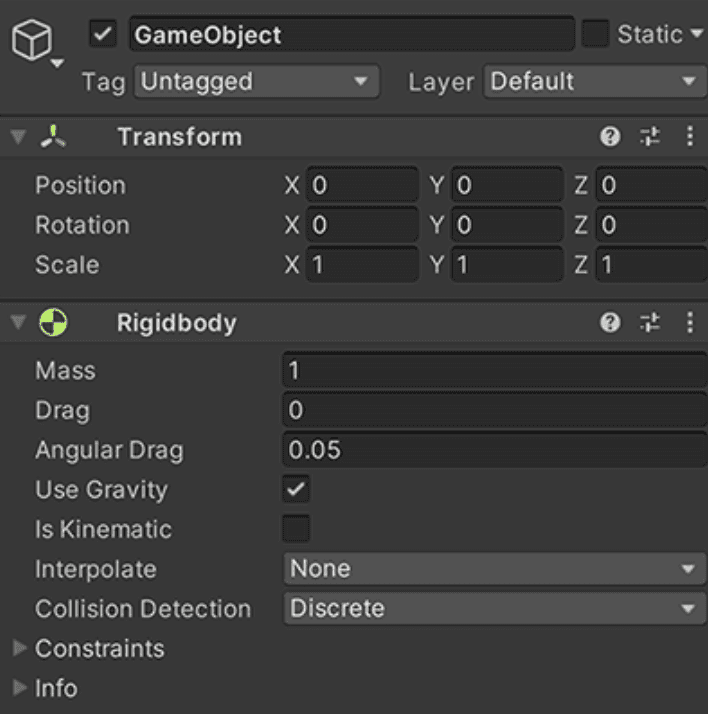
For a physics-driven object, inspect its Collider and Rigidbody settings together. A visible mesh does not automatically have the collision behavior you need. Likewise, adding a Rigidbody without considering gravity, constraints, or collision settings can produce unintended movement.
Keep the Hierarchy readable. Group related objects under suitable parents, but remember that parent transforms affect their children. Unexpected scale or rotation can come from the hierarchy rather than the imported model itself.
Source: Unity Documentation
Turn Repeated Objects into Prefabs
Use Prefabs when an object needs to appear more than once or be reused across Scenes. A Prefab stores a reusable configuration of GameObjects and Components, helping you maintain consistent behavior without rebuilding each instance manually.
An exhibition display, for example, could combine a model, an interaction script, a selection indicator, and an audio source. Once that configuration works, create a Prefab and reuse it for additional displays.

Source: Unity Documentation
Before duplicating it extensively, check:
Required Components and references are assigned.
Collision and interaction work from the intended viewpoint.
Changes belong in the shared Prefab or only in a particular instance.
Instance overrides are useful, but they can also explain why one copy behaves differently from the others.

Source: Unity Documentation
Connect Visuals, Audio, and Interface Feedback
Complete the interaction with feedback the user can understand. Selecting an object might reveal a UI panel, play a sound, or trigger an animation.
Test UI at representative aspect ratios, check audio levels during actual interaction, and verify that animations do not interfere with collision or object positioning. Use the Game view to review what the player sees, rather than relying only on the freely navigable Scene view.
At this stage, the goal is a coherent working Scene. More assets can come later, once the underlying object structure is dependable.
Write C# and Test Behavior in the Same Workspace
With Unity and your IDE installed on the cloud desktop, you can edit scripts, inspect the Scene, and debug behavior without moving the project between computers. Your Googlebook provides access to both applications through the same desktop session.
Create a C# script, open it in your configured IDE, and attach the appropriate component script to a GameObject. After saving, return to Unity and allow compilation to finish. Resolve Console errors before testing, since compilation failures can prevent updated code from running.

Source: Unity Documentation
Check Scene Connections Alongside the Code
A script can compile successfully while its feature still fails. The cause may be an unassigned Inspector reference, a disabled GameObject, or a Component attached to the wrong instance.
Suppose selecting an exhibition display should update an information panel. The script needs more than a method containing the right text. It also needs a reference to the intended UI element and a working connection to the selection event.
Check the complete chain:
Does the input or interaction reach the expected object?
Is the correct method called?
Are its required references assigned?
Does the visible interface reflect the change?
This approach is more useful than repeatedly rewriting code that was not the source of the problem.
Use Play Mode and the Debugger Deliberately
Enter Play Mode to test behavior, then use the Console to inspect exceptions and relevant diagnostic messages. For deeper investigation, attach your IDE’s debugger through Unity’s supported editor integration. Breakpoints let you inspect values and execution order at the moment a problem occurs.

Source: Unity Documentation
Remember that ordinary Scene and Component changes made during Play Mode generally reset when you stop. Apply intended permanent adjustments outside Play Mode, and avoid treating a successful runtime experiment as a saved project change.
Repeat tests after restarting the Scene, not just during one uninterrupted session. Initialization, object spawning, and event subscriptions can behave differently on subsequent runs.
Finally, separate application behavior from remote input responsiveness. A delayed click does not by itself identify a C# problem. Use debugging evidence to establish whether the issue is in the project or in how you are interacting with the desktop.
Find the Bottleneck Before Adding More Power
When Unity slows down, identify which part of the workflow is responsible. Importing a large asset collection, compiling scripts, and rendering a complex Scene place different demands on the computer. Upgrading the GPU will not improve all three equally.
Start by separating development workload, application performance, and connection quality.
Symptom | What to investigate |
|---|---|
Asset imports or script compilation take too long | CPU resources, storage activity, and the import or compilation workload |
Frame rate drops in the Game view | CPU and GPU frame time, rendering costs, scripts, and physics |
Large Scenes cause memory pressure | System RAM, texture and mesh usage, and GPU memory |
The desktop becomes blurry or input feels delayed | Connection stability, streaming settings, and region selection |
Measure a Representative Scene
Use the Unity Profiler to investigate what happens during actual interaction. Test a representative workload, such as moving through a populated area or opening a busy interface, rather than measuring only an empty Scene.
Look for patterns. Frequent memory allocations and garbage collection can cause interruptions. Expensive scripts or physics calculations can limit CPU performance, while demanding lighting, effects, and high rendering resolution can increase GPU costs.

Source: Unity Documentation
The Editor also adds overhead. For meaningful performance decisions, profile a Development Build on representative target hardware where possible. A smooth Game view on a powerful cloud computer does not establish that the finished application will run equally well on a phone or Googlebook browser.
Scale Resources Around the Task
Vagon’s performance options let you change resources while retaining your desktop, applications, and files. You can select a configuration appropriate to routine work, then increase resources when heavier Scenes or other demanding tasks justify it.
Save the project and finish active operations before changing configurations. Keep enough storage available for imported data, Editor installations, and builds.
Finally, do not optimize the wrong layer. Lowering streaming quality may help a constrained connection, but it will not fix excessive allocations in your game. Reducing Scene complexity may improve application frame time, but it will not repair an unstable network. Diagnose first, then make a targeted adjustment.
Keep the Project Reproducible as It Grows
A Unity project depends on more than its Scenes and scripts. Editor versions, package dependencies, asset references, and project settings all affect whether another installation can open it correctly.
Keep the team on an agreed Editor version and review package compatibility before upgrading. Test changes in a separate copy or source-control branch instead of upgrading the only working project.

Source: Unity Documentation
Preserve Assets and Their References
Unity’s project directories serve different purposes. For a typical editable project, preserve:
Assets: Scenes, scripts, Prefabs, media, and their associated
.metafiles.Packages: Package configuration and dependency information.
ProjectSettings: The settings that define how the project behaves and builds.
Include any additional external dependencies your project uses. Keep .meta files with their corresponding assets, since Unity uses their identifiers to maintain references. Moving assets through the Project window helps preserve those relationships.
The Library folder largely contains generated caches and imported data. It can normally be rebuilt, although doing so may require substantial import time. It should not be confused with the original assets.
Separate Transfers, History, and Backups
Use Vagon Files to transfer assets and deliverables. Use source control to track revisions, coordinate changes, and recover earlier project states. Maintain backups appropriate to the importance of the work.
These tools have different roles. Uploading the latest folder does not automatically provide a reliable revision history.
Keep builds outside the editable project’s asset folders, and monitor storage as caches and outputs accumulate. This makes the workspace easier to maintain and reduces unnecessary imports or accidental inclusion of generated files.
Build for Windows, Web, or Android
Choose the target platform before the project reaches its final stage. Platform-specific input, graphics, and packaging requirements are easier to address through regular builds than during a last-minute export.
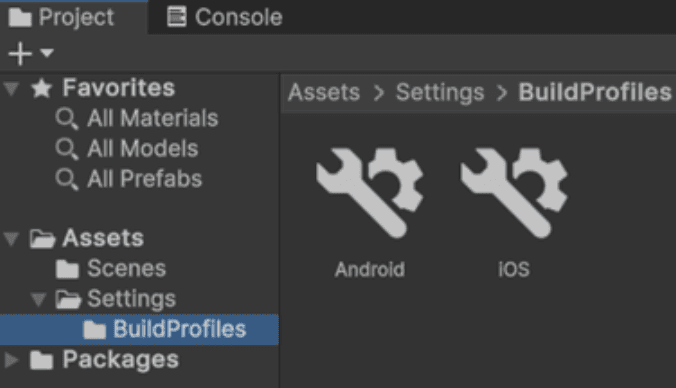
Use Build Profiles to configure the target, included Scenes, and build settings. Confirm that the required platform module is installed for your Editor version. Development Builds provide debugging and profiling options, but also test the release configuration you intend to distribute.
Source: Unity Documentation
Windows
Build and run the application on your cloud Windows desktop to check startup, controls, Scene transitions, and file dependencies independently of the Editor.
The resulting Windows executable does not run natively on Googlebook. Distribute the complete build output, not just the .exe, and test on hardware representative of your intended Windows users.
Web
Install Web Build Support, create the build, and serve it through appropriately configured hosting. Opening the generated HTML file directly from local storage is not a dependable deployment test.
Test the hosted application in your actual Googlebook browser. Check loading time, memory use, audio, input, and display scaling against Unity’s browser compatibility requirements.
Here, the application runs locally in the browser. That is separate from streaming the development desktop.
Android
Android builds require the appropriate SDK, NDK, and OpenJDK components. Configure application identity and signing for the intended distribution method, then test on representative devices.
Do not assume a device connected to your Googlebook by USB is automatically available to the cloud computer. Plan a supported method for transferring and installing test builds.
For iOS, Windows development does not remove Apple’s build requirements. The final local compilation requires macOS and Xcode, or an appropriate cloud build service. Treat that as a separate part of the iOS build workflow.
Final Thoughts
A Googlebook can be your access point to an ongoing Unity development workspace, not just a device for playing finished games. With the Editor, IDE, assets, and build tools on the same cloud desktop, you can move from a new project to scene design, C# development, testing, and delivery.
Vagon Cloud Computer provides that Windows workspace, with resources you can adjust as the project develops. Set up the tools for your intended platforms, preserve the editable project, and test on the devices your audience will actually use. The result is a workflow you can continue beyond the first prototype.
FAQs
Can I install Unity Editor directly on Googlebook?
Unity does not provide an Android version of its desktop Editor. Googlebook’s Linux environment can display graphical applications, but that alone does not satisfy Unity’s supported Linux configuration and graphics requirements. This guide uses a cloud Windows desktop instead.
Can I create both 2D and 3D games?
Yes. You can create either type of project using the desktop Unity Editor. Choose an appropriate template, rendering setup, and asset workflow for your intended platform. The cloud workspace is not limited to opening existing projects.
Can I write and debug C# from Googlebook?
Yes. Install a supported IDE on the cloud desktop and configure its Unity integration. You can edit scripts, attach the debugger, inspect variables, and return to the Editor within the same desktop session.
Can I test a Unity Web build on my Googlebook?
Yes, provided the browser and device meet the build’s requirements. Host the output appropriately, then test loading, input, audio, memory use, and performance on your Googlebook. A successful test inside Unity Editor does not guarantee equivalent browser behavior.
Can I build Android and iOS apps from the cloud desktop?
You can prepare Android builds with the required platform tools and signing configuration. Test them on representative devices. For iOS, you can develop the project on Windows, but final compilation requires macOS and Xcode or an appropriate cloud build service.
Is Unity included with Vagon, and do I need a paid Unity license?
Vagon offers Unity through its application selection, but installation and licensing are separate. You still need a Unity account and an appropriate license. Unity Personal is available to eligible users; paid plans apply when required by Unity’s terms. Vagon usage, paid assets, and additional services have separate costs.
Unity development brings scene design, C# programming, animation, physics, and interface design into the same project. Whether you are creating a 2D platformer, a 3D game, or an interactive presentation, you need a workspace where you can build, test, and prepare the finished application.
You can access that workspace from a Googlebook with Vagon Cloud Computer. The desktop Unity Editor runs on a cloud Windows computer, alongside your code editor, development tools, and project files. Your Googlebook connects through the browser, while the cloud computer handles the development workload.
This gives you more than a way to open an existing scene. You can create projects through Unity Hub, build reusable Prefabs, write and debug C#, and produce builds for supported target platforms.
This guide covers Googlebook compatibility, workspace setup, and the decisions that take a Unity project from its first scene to a tested application.
Source: Unity Documentation
What Actually Runs on Your Googlebook?
The key distinction is between running Unity Editor and running something created with Unity. A game might work in your Googlebook’s browser or as an Android application without providing any access to the scenes, scripts, and tools used to build it.
Unity’s desktop Editor supports Windows, macOS, and specific Linux configurations. Android support refers to applications you build, not an Android edition of the desktop Editor. The same distinction applies to Web builds: playing a Unity game in Chrome does not turn Chrome into a Unity development environment.
What About Googlebook’s Linux Environment?
Googlebook’s Terminal app provides a Debian Linux environment and can display graphical applications. However, Unity’s Linux requirements specify supported operating systems, processor architecture, graphics APIs, and drivers.
Having a Linux terminal is therefore not enough to establish compatibility. Google also lists GPU acceleration among its planned Linux environment improvements. We would not treat this as a verified, straightforward route to a production Unity Editor setup.
The available approaches serve different purposes:
Approach | What it provides |
|---|---|
Local Unity Editor | Requires a compatible operating system and development hardware |
Cloud Windows desktop | Runs Unity Editor, an IDE, and supporting tools remotely |
Unity Web or Android application | Runs the finished experience, not the development workspace |
With Vagon, the Windows desktop is where Unity runs and where your working project lives. Your Googlebook displays that desktop and sends your keyboard and mouse input. Importing assets, compiling scripts, and rendering the editor’s views happen on the cloud computer.
Your connection affects responsiveness, while the cloud computer’s resources affect the development workload. Neither should be confused with the requirements of the finished application, which you still need to test on its intended devices.
Set Up Unity, Your Code Editor, and Project Storage
Prepare the workspace around the project you intend to build. Unity Editor is the core application, but a practical development setup also includes a code editor, platform modules, and an organized place for assets and project files.
1. Choose Your Cloud Computer
Create your Vagon account and select a performance option suited to your work. A lightweight 2D project has different demands from a detailed 3D environment with complex lighting and large textures.
For visually demanding projects, choose a GPU-equipped configuration. Also consider system memory, CPU resources, and storage: asset importing, script compilation, and running Unity alongside an IDE do not depend on the GPU alone.
Use the Unity system requirements as a starting point, then allow room for your project’s needs. Select a nearby available region and check connection responsiveness before beginning extended development sessions.
2. Select Unity and Check the Editor Installation
During computer creation, look under Game Design for Unity in Vagon’s application library.
Once your Windows desktop is available, check which Editor version is installed. Use Unity Hub to manage installations and projects, installing it if necessary. Sign in with your Unity account and activate the license appropriate to your use.
For an existing project, match its recorded Editor version before considering an upgrade. For a new project, choose a supported release compatible with the packages and assets you plan to use. A preinstalled application does not guarantee that every project’s required version is already present.
3. Add Development Tools and Build Modules
Install a supported C# IDE, such as Visual Studio or Rider, on the cloud desktop and configure Unity’s external editor integration. This keeps code editing, debugging, and scene development together.
Through Unity Hub, add the platform modules you need to the relevant Editor installation. Web builds require Web Build Support. Android development requires Android Build Support and the appropriate SDK, NDK, and OpenJDK components.
You do not need every available module on day one. Install for your intended targets, leaving storage available for assets and generated build data.
4. Organize Assets with Vagon Files
Use Vagon Files to transfer sprite sheets, models, textures, audio, and reference material from your Googlebook. You can prepare transfers even while the cloud computer is stopped.
For an existing Unity project, preserve Assets, Packages, and ProjectSettings, including the associated .meta files. Transferring only a Scene file will not preserve the complete project.
Keep editable projects, incoming assets, and finished builds in separate folders. With those foundations in place, you can create and develop projects directly in the workspace rather than repeatedly assembling the tools for each session.
Start with the Right Project, Not Just an Empty Scene
Before creating your first Scene, decide what you are building and where people will use it. Those choices influence the project template, rendering setup, input, and performance budget.
A 2D puzzle game, a mobile product configurator, and a high-detail desktop experience can all use Unity, but they should not automatically begin with the same configuration.
Choose a Template That Fits the Work
Unity Hub offers templates that prepare projects for different workflows. A 2D template provides a suitable starting point for sprite-based development, while a 3D template establishes a different rendering and scene setup. Available templates depend on your installed Editor version.
Treat the template as a starting configuration, not a finished framework. You will still need to organize scenes, configure input, and add the packages your application requires.
For example, an interactive exhibition could begin with one room, a controllable camera, and a single selectable display. Establish that basic interaction before importing an entire building or a large asset collection. This gives you an early opportunity to check scale, navigation, and the intended user experience.
Make the Rendering Decision Early
Unity’s render pipelines affect how materials, lighting, and visual effects work.
The Universal Render Pipeline, or URP, provides a scalable approach for projects targeting a range of platforms. It can support both 2D and 3D workflows, with settings you can adjust to the intended hardware.
The High Definition Render Pipeline, or HDRP, targets higher-fidelity rendering on compatible hardware. It can suit demanding desktop visualizations, but it is not simply a higher-quality setting you should enable for every project.
Project direction | Starting consideration |
|---|---|
Sprite-based game | A suitable 2D template and lighting setup |
Mobile or browser-focused 3D experience | A pipeline and asset budget appropriate to those targets |
High-fidelity desktop visualization | Rendering features balanced against supported hardware |
Check asset compatibility before committing to a pipeline. Materials authored for one pipeline may need conversion or replacement in another, and custom shaders can require additional work. Changing pipelines later can therefore affect much more than the appearance of a single Scene.
Separate Development Power from Target Requirements
Your cloud computer might comfortably display a scene that is too expensive for the intended player device. Use its resources to develop efficiently, but make design decisions around the application’s destination.
For a browser experience, consider download size, memory use, and keyboard, mouse, or touch interaction. For mobile, plan around screen layouts and device performance. For desktop, define the hardware you intend to support.
Once those decisions are clear, save an initial version of the project and begin building a small, representative Scene. A suitable foundation reduces avoidable rework as the project grows.
Build Scenes with GameObjects, Components, and Prefabs
A Unity Scene contains the objects that make up a level, menu, or interactive space. You organize those objects in the Hierarchy, position them in the Scene view, and configure their properties in the Inspector.
The important concept is that a GameObject gets its behavior from its Components. A model might provide the visible surface, a Collider defines its collision shape, and a script adds interaction. These parts need to work together for the object to function as intended.
Assemble a Small, Usable Scene
Start with the elements needed to test the experience: a camera, the environment, appropriate lighting, and one interactive object. Import assets into clearly named project folders, then check their scale, orientation, and material appearance before placing them throughout the Scene.
Source: Unity Documentation
For a physics-driven object, inspect its Collider and Rigidbody settings together. A visible mesh does not automatically have the collision behavior you need. Likewise, adding a Rigidbody without considering gravity, constraints, or collision settings can produce unintended movement.
Keep the Hierarchy readable. Group related objects under suitable parents, but remember that parent transforms affect their children. Unexpected scale or rotation can come from the hierarchy rather than the imported model itself.
Source: Unity Documentation
Turn Repeated Objects into Prefabs
Use Prefabs when an object needs to appear more than once or be reused across Scenes. A Prefab stores a reusable configuration of GameObjects and Components, helping you maintain consistent behavior without rebuilding each instance manually.
An exhibition display, for example, could combine a model, an interaction script, a selection indicator, and an audio source. Once that configuration works, create a Prefab and reuse it for additional displays.
Source: Unity Documentation
Before duplicating it extensively, check:
Required Components and references are assigned.
Collision and interaction work from the intended viewpoint.
Changes belong in the shared Prefab or only in a particular instance.
Instance overrides are useful, but they can also explain why one copy behaves differently from the others.
Source: Unity Documentation
Connect Visuals, Audio, and Interface Feedback
Complete the interaction with feedback the user can understand. Selecting an object might reveal a UI panel, play a sound, or trigger an animation.
Test UI at representative aspect ratios, check audio levels during actual interaction, and verify that animations do not interfere with collision or object positioning. Use the Game view to review what the player sees, rather than relying only on the freely navigable Scene view.
At this stage, the goal is a coherent working Scene. More assets can come later, once the underlying object structure is dependable.
Write C# and Test Behavior in the Same Workspace
With Unity and your IDE installed on the cloud desktop, you can edit scripts, inspect the Scene, and debug behavior without moving the project between computers. Your Googlebook provides access to both applications through the same desktop session.
Create a C# script, open it in your configured IDE, and attach the appropriate component script to a GameObject. After saving, return to Unity and allow compilation to finish. Resolve Console errors before testing, since compilation failures can prevent updated code from running.
Source: Unity Documentation
Check Scene Connections Alongside the Code
A script can compile successfully while its feature still fails. The cause may be an unassigned Inspector reference, a disabled GameObject, or a Component attached to the wrong instance.
Suppose selecting an exhibition display should update an information panel. The script needs more than a method containing the right text. It also needs a reference to the intended UI element and a working connection to the selection event.
Check the complete chain:
Does the input or interaction reach the expected object?
Is the correct method called?
Are its required references assigned?
Does the visible interface reflect the change?
This approach is more useful than repeatedly rewriting code that was not the source of the problem.
Use Play Mode and the Debugger Deliberately
Enter Play Mode to test behavior, then use the Console to inspect exceptions and relevant diagnostic messages. For deeper investigation, attach your IDE’s debugger through Unity’s supported editor integration. Breakpoints let you inspect values and execution order at the moment a problem occurs.
Source: Unity Documentation
Remember that ordinary Scene and Component changes made during Play Mode generally reset when you stop. Apply intended permanent adjustments outside Play Mode, and avoid treating a successful runtime experiment as a saved project change.
Repeat tests after restarting the Scene, not just during one uninterrupted session. Initialization, object spawning, and event subscriptions can behave differently on subsequent runs.
Finally, separate application behavior from remote input responsiveness. A delayed click does not by itself identify a C# problem. Use debugging evidence to establish whether the issue is in the project or in how you are interacting with the desktop.
Find the Bottleneck Before Adding More Power
When Unity slows down, identify which part of the workflow is responsible. Importing a large asset collection, compiling scripts, and rendering a complex Scene place different demands on the computer. Upgrading the GPU will not improve all three equally.
Start by separating development workload, application performance, and connection quality.
Symptom | What to investigate |
|---|---|
Asset imports or script compilation take too long | CPU resources, storage activity, and the import or compilation workload |
Frame rate drops in the Game view | CPU and GPU frame time, rendering costs, scripts, and physics |
Large Scenes cause memory pressure | System RAM, texture and mesh usage, and GPU memory |
The desktop becomes blurry or input feels delayed | Connection stability, streaming settings, and region selection |
Measure a Representative Scene
Use the Unity Profiler to investigate what happens during actual interaction. Test a representative workload, such as moving through a populated area or opening a busy interface, rather than measuring only an empty Scene.
Look for patterns. Frequent memory allocations and garbage collection can cause interruptions. Expensive scripts or physics calculations can limit CPU performance, while demanding lighting, effects, and high rendering resolution can increase GPU costs.
Source: Unity Documentation
The Editor also adds overhead. For meaningful performance decisions, profile a Development Build on representative target hardware where possible. A smooth Game view on a powerful cloud computer does not establish that the finished application will run equally well on a phone or Googlebook browser.
Scale Resources Around the Task
Vagon’s performance options let you change resources while retaining your desktop, applications, and files. You can select a configuration appropriate to routine work, then increase resources when heavier Scenes or other demanding tasks justify it.
Save the project and finish active operations before changing configurations. Keep enough storage available for imported data, Editor installations, and builds.
Finally, do not optimize the wrong layer. Lowering streaming quality may help a constrained connection, but it will not fix excessive allocations in your game. Reducing Scene complexity may improve application frame time, but it will not repair an unstable network. Diagnose first, then make a targeted adjustment.
Keep the Project Reproducible as It Grows
A Unity project depends on more than its Scenes and scripts. Editor versions, package dependencies, asset references, and project settings all affect whether another installation can open it correctly.
Keep the team on an agreed Editor version and review package compatibility before upgrading. Test changes in a separate copy or source-control branch instead of upgrading the only working project.
Source: Unity Documentation
Preserve Assets and Their References
Unity’s project directories serve different purposes. For a typical editable project, preserve:
Assets: Scenes, scripts, Prefabs, media, and their associated
.metafiles.Packages: Package configuration and dependency information.
ProjectSettings: The settings that define how the project behaves and builds.
Include any additional external dependencies your project uses. Keep .meta files with their corresponding assets, since Unity uses their identifiers to maintain references. Moving assets through the Project window helps preserve those relationships.
The Library folder largely contains generated caches and imported data. It can normally be rebuilt, although doing so may require substantial import time. It should not be confused with the original assets.
Separate Transfers, History, and Backups
Use Vagon Files to transfer assets and deliverables. Use source control to track revisions, coordinate changes, and recover earlier project states. Maintain backups appropriate to the importance of the work.
These tools have different roles. Uploading the latest folder does not automatically provide a reliable revision history.
Keep builds outside the editable project’s asset folders, and monitor storage as caches and outputs accumulate. This makes the workspace easier to maintain and reduces unnecessary imports or accidental inclusion of generated files.
Build for Windows, Web, or Android
Choose the target platform before the project reaches its final stage. Platform-specific input, graphics, and packaging requirements are easier to address through regular builds than during a last-minute export.
Use Build Profiles to configure the target, included Scenes, and build settings. Confirm that the required platform module is installed for your Editor version. Development Builds provide debugging and profiling options, but also test the release configuration you intend to distribute.
Source: Unity Documentation
Windows
Build and run the application on your cloud Windows desktop to check startup, controls, Scene transitions, and file dependencies independently of the Editor.
The resulting Windows executable does not run natively on Googlebook. Distribute the complete build output, not just the .exe, and test on hardware representative of your intended Windows users.
Web
Install Web Build Support, create the build, and serve it through appropriately configured hosting. Opening the generated HTML file directly from local storage is not a dependable deployment test.
Test the hosted application in your actual Googlebook browser. Check loading time, memory use, audio, input, and display scaling against Unity’s browser compatibility requirements.
Here, the application runs locally in the browser. That is separate from streaming the development desktop.
Android
Android builds require the appropriate SDK, NDK, and OpenJDK components. Configure application identity and signing for the intended distribution method, then test on representative devices.
Do not assume a device connected to your Googlebook by USB is automatically available to the cloud computer. Plan a supported method for transferring and installing test builds.
For iOS, Windows development does not remove Apple’s build requirements. The final local compilation requires macOS and Xcode, or an appropriate cloud build service. Treat that as a separate part of the iOS build workflow.
Final Thoughts
A Googlebook can be your access point to an ongoing Unity development workspace, not just a device for playing finished games. With the Editor, IDE, assets, and build tools on the same cloud desktop, you can move from a new project to scene design, C# development, testing, and delivery.
Vagon Cloud Computer provides that Windows workspace, with resources you can adjust as the project develops. Set up the tools for your intended platforms, preserve the editable project, and test on the devices your audience will actually use. The result is a workflow you can continue beyond the first prototype.
FAQs
Can I install Unity Editor directly on Googlebook?
Unity does not provide an Android version of its desktop Editor. Googlebook’s Linux environment can display graphical applications, but that alone does not satisfy Unity’s supported Linux configuration and graphics requirements. This guide uses a cloud Windows desktop instead.
Can I create both 2D and 3D games?
Yes. You can create either type of project using the desktop Unity Editor. Choose an appropriate template, rendering setup, and asset workflow for your intended platform. The cloud workspace is not limited to opening existing projects.
Can I write and debug C# from Googlebook?
Yes. Install a supported IDE on the cloud desktop and configure its Unity integration. You can edit scripts, attach the debugger, inspect variables, and return to the Editor within the same desktop session.
Can I test a Unity Web build on my Googlebook?
Yes, provided the browser and device meet the build’s requirements. Host the output appropriately, then test loading, input, audio, memory use, and performance on your Googlebook. A successful test inside Unity Editor does not guarantee equivalent browser behavior.
Can I build Android and iOS apps from the cloud desktop?
You can prepare Android builds with the required platform tools and signing configuration. Test them on representative devices. For iOS, you can develop the project on Windows, but final compilation requires macOS and Xcode or an appropriate cloud build service.
Is Unity included with Vagon, and do I need a paid Unity license?
Vagon offers Unity through its application selection, but installation and licensing are separate. You still need a Unity account and an appropriate license. Unity Personal is available to eligible users; paid plans apply when required by Unity’s terms. Vagon usage, paid assets, and additional services have separate costs.
Get Beyond Your Computer Performance
Run applications on your cloud computer with the latest generation hardware. No more crashes or lags.

Trial includes 1 hour usage + 7 days of storage.
Summarize with AI

Ready to focus on your creativity?
Vagon gives you the ability to create & render projects, collaborate, and stream applications with the power of the best hardware.

Vagon Blog
Run heavy applications on any device with
your personal computer on the cloud.
San Francisco, California
Solutions
Vagon Teams
Vagon Streams
Use Cases
Resources
Vagon Blog
How to Run Cinema 4D on Googlebook
How to Run DaVinci Resolve on Googlebook
How to Run Godot on Googlebook: Game Development Guide
How to Run Premiere Pro on Googlebook: Editing Guide
How to Run Revit on Googlebook: Complete BIM Guide
How to Run SOLIDWORKS on Googlebook: Complete CAD Guide
How to Run AutoCAD on Googlebook
How to Run Photoshop on Googlebook
How to Run Unity on Googlebook: Complete Development Guide
Vagon Blog
Run heavy applications on any device with
your personal computer on the cloud.
San Francisco, California
Solutions
Vagon Teams
Vagon Streams
Use Cases
Resources
Vagon Blog
How to Run Cinema 4D on Googlebook
How to Run DaVinci Resolve on Googlebook
How to Run Godot on Googlebook: Game Development Guide
How to Run Premiere Pro on Googlebook: Editing Guide
How to Run Revit on Googlebook: Complete BIM Guide
How to Run SOLIDWORKS on Googlebook: Complete CAD Guide
How to Run AutoCAD on Googlebook
How to Run Photoshop on Googlebook
How to Run Unity on Googlebook: Complete Development Guide
Vagon Blog
Run heavy applications on any device with
your personal computer on the cloud.
San Francisco, California
Solutions
Vagon Teams
Vagon Streams
Use Cases
Resources
Vagon Blog