Instant Connection for Pixel Streaming
— New Feature Automated Setup

How to Use Claude Code Securely on a Cloud Computer
Freelance
How to Use Claude Code Securely on a Cloud Computer
Freelance
How to Use Claude Code Securely on a Cloud Computer
Freelance
Table of Contents
Claude Code can turn a short instruction into file changes, terminal commands, and a working automation script. That becomes useful quickly, but it also raises a practical question: how much of your everyday computer should be part of the job?
A dedicated cloud computer gives you a separate place to work. With Vagon Cloud Computer, you can run Claude Code alongside the applications, dependencies, and project files the task needs, without moving your personal browser profile or unrelated documents into that environment. You can then inspect the generated code, test it, and open its output on the same desktop.
Separation is a starting point, not a security guarantee. Files you upload, accounts you connect, and tools you authorize still need attention. This guide explains how to build a practical Claude Code workspace on Vagon, choose appropriate permissions, and complete a first task without granting unnecessary access.

Source: Anthropic
Give Claude Code Its Own Computer, Not Your Everyday Desktop
Your everyday computer carries more context than most AI tasks need: personal downloads, saved browser sessions, unrelated client folders, and credentials for services you use throughout the week. A script that organizes a project’s assets does not need that entire environment.
Running Claude Code inside a Vagon cloud computer lets you build a workspace around the task instead. The terminal, project files, dependencies, and relevant desktop applications live on that separate machine. Your personal computer becomes the device you use to access the workspace.
That distinction depends on where Claude Code actually runs. Launching it locally and asking it to interact with a cloud desktop does not move its local file access or terminal permissions into the cloud. For this setup, install and run Claude Code inside the Vagon desktop.
A useful starting split looks like this:
Keep on your personal computer | Bring into the cloud workspace |
|---|---|
Personal documents and unrelated client work | Copies of files needed for the task |
Everyday browser profile and saved sessions | Only the service sign-ins the workflow requires |
Unrelated credentials and account access | Task-specific credentials with limited permissions |
Original project files and independent backups | Working copies, dependencies, and generated outputs |
The benefit extends beyond keeping files separate. If Claude Code generates a Blender script, for example, you can inspect the script and test it in Blender on the same cloud desktop. There is no need to move unfinished output between machines just to discover whether it works.
However, anything you add to that workspace becomes part of its potential access surface. Connecting a broadly privileged account can expose remote resources even when no personal files are present. The goal is therefore not to give Claude Code an empty computer followed by unlimited permissions. It is to give it a useful computer containing only what the job requires.
Set Up Your Vagon Workspace for the Actual Task
Start with the work Claude Code needs to complete. A Python utility, a Blender automation script, and a video-processing workflow require different applications, but they do not each need a separate collection of unrelated tools.
1. Choose Performance for the Workload
Create your Vagon account and choose a performance option suited to the applications you intend to run.
Claude Code does not require a powerful GPU simply because it is an AI tool. For a typical hosted-model setup, local hardware handles the terminal, development tools, and processes Claude launches. GPU requirements come from workloads such as rendering, local image generation, or GPU-accelerated video processing.
Choose for those workloads, rather than treating the highest configuration as a security requirement.
2. Select the Applications You Need
During Application Selection, choose the tools your project requires. Depending on the task, that might include Visual Studio Code and Python, or a desktop application such as Blender or DaVinci Resolve.

Source: Microsoft
Keep the initial selection focused. You can build a complete working environment without installing every application you might eventually use.
The Claude application is also available in the selection, but selecting Claude does not by itself confirm that Claude Code is installed and ready. Application installation, account authentication, and any additional integrations are separate checks. Commercial software may also require your own license.
3. Install and Verify Claude Code Inside Vagon
Open a terminal on the Vagon desktop and check whether Claude Code is available:
If it is missing, follow Anthropic’s current Windows installation instructions. Use the official installation source and avoid running your everyday Claude Code session with administrator privileges.
Complete authentication inside the cloud desktop. Do not copy your personal machine’s entire credential directory just to reproduce an existing setup.
Installing Claude Code does not automatically connect it to Blender, Resolve, or another application. Those workflows may use scripts or separately configured integrations.
4. Start in a Dedicated Project Folder
Create a project folder with separate locations for inputs, working files, and outputs:
From PowerShell, enter that folder and explicitly select Manual mode:
This gives you a deliberate starting permission mode. It does not make the project folder an operating-system sandbox or prevent every possible read outside it. We will configure and review access separately before approving substantive work.
Bring Project Copies, Not Your Entire Digital Life
A useful workspace needs enough context to complete the job, not a replica of your personal computer. Before transferring anything, identify the inputs Claude Code actually needs. For an asset inventory, that might be a sample media folder. For a script revision, it might be the source code and a small test dataset.
Use Vagon Files to transfer those selected files, then place working copies in the project directory. You can upload files even when your Vagon computer is not running, so preparation does not have to happen during an active desktop session.
Keep the folder roles straightforward:
input/holds the source copies you want to preserve.working/contains files Claude may modify.output/receives reports, exports, and other deliverables.
These names communicate intent, but they do not enforce permissions. Calling a folder input does not make it read-only. If preserving its contents is essential, use appropriate filesystem permissions and keep an independent copy outside the agent’s accessible workspace.
Leave Unnecessary Credentials Behind
Check project folders before uploading them. A seemingly ordinary repository can contain .env files, API tokens, private keys, or configuration pointing to production services.
Do not transfer those automatically. When a task genuinely requires a service connection, use a credential with the narrowest practical access, preferably against a test project or non-production account. Avoid pasting secrets into prompts, where they can become part of the conversation history.
The same principle applies to browser sign-ins. Signing into one required service is different from synchronizing your everyday browser profile and its saved accounts.
Finally, distinguish storage from backup. Keeping a project on the cloud computer or in Vagon Files does not, by itself, establish version history or recovery from accidental changes. Preserve originals separately, and use version control where it fits the project. That gives you something reliable to compare against when Claude finishes.

Source: Microsoft
Choose Permissions Before You Start Automating
The next decision is not what Claude Code should do, but what it can do without asking you first. A separate computer limits what you bring into the environment. Claude Code’s permission settings provide another layer of control over tool use within it.
Start with Manual mode, selected through claude --permission-mode default, and run:
Review existing rules before adding new ones. Previously approved commands or user-level settings can affect a new session, so opening a different project folder does not necessarily mean starting with no permissions.
Match Approval to the Action
Consider three stages of the same asset-reporting task:
Proposed action | What to check |
|---|---|
Inspect filenames and metadata | Which directories will be read, and whether file contents are necessary |
Generate and run a reporting script | What the script executes, where it writes, and whether it modifies inputs |
Install a dependency or send results elsewhere | Where the software comes from, what data leaves, and which account is used |
Manual mode does not mean every file read produces a prompt. It also does not turn every approved command into a harmless operation. When Claude requests approval to execute a script, inspect the script itself, not just the command that launches it.

Source: Anthropic
For example, approving a Python command can authorize code that reads files, starts other processes, or makes network requests. A familiar interpreter name is not enough to establish that the operation is appropriate.
Keep Repeat Approvals Narrow
Approve unfamiliar operations once before deciding whether they deserve a reusable rule. A recurring test command may justify a focused allowance. Broad access to a shell, interpreter, or package manager deserves more scrutiny because those tools can perform many unrelated actions.
Treat deletion, publishing, uploads, permission changes, and installations as distinct decisions. An instruction to “generate a report” should not silently become approval to install software or upload source files.
Permission rules also have limits. A command-pattern rule matches particular invocations; it is not an operating-system restriction around everything that program could do. Likewise, a file-tool restriction should not be assumed to constrain an independently running MCP server or every shell command.
Use Planning Without Mistaking It for Isolation
For an unfamiliar task, Plan mode can help you review Claude’s proposed approach before implementation. It is still capable of investigation, including file reads and exploratory commands. It is not a substitute for access controls.
You can record project conventions in CLAUDE.md, such as preserving inputs and writing reports to output/. Those instructions improve consistency, but they do not enforce a boundary.
For this workflow, keep permission bypass disabled. Running on Vagon is a reason to separate the workspace, not a reason to remove oversight.
Understand What Windows Isolation Does and Does Not Cover
There are several layers between “Claude asked to run a command” and “that command can access a file.” Keeping them separate helps you choose controls that actually address the risk.
Layer | What it does | What it does not establish |
|---|---|---|
Separate cloud computer | Keeps the working environment separate from your everyday desktop | That files and accounts inside it are protected from authorized tools |
Claude Code permissions | Controls tool approvals through modes and rules | A universal filesystem or network boundary |
Supported shell sandbox | Restricts shell commands and their child processes at the operating-system level | Protection around every Claude Code tool or integration |
The platform detail matters here: according to Anthropic’s sandbox documentation, Claude Code’s built-in shell sandbox supports macOS, Linux, and WSL2. Native Windows commands run without that sandbox.
For the Windows-native Vagon setup in this guide, do not assume that selecting Manual mode also enables filesystem or network isolation. The separate computer still provides a useful division from your personal environment, but commands you approve run with the access available to their Windows process.
WSL2 can be an alternative when supported by the environment and appropriate for the workflow. However, it should not be treated as an automatic Vagon setup step without confirming availability. Windows desktop application workflows may also require access that crosses the Linux environment’s boundaries.
Even on a supported platform, sandboxing needs configuration. Enabling it does not necessarily limit reads to the project folder, and its boundary does not automatically contain MCP servers, hooks, or Claude’s separate file tools.
The practical approach is layered: keep unnecessary data off the cloud computer, avoid elevated everyday sessions, review permissions, and configure stronger restrictions where available. If a project requires enforced directory access or restricted network destinations, establish and verify those controls before supplying sensitive files or credentials. Do not rely on a prompt saying “stay inside this folder.”
Add MCP Servers, Skills, and Accounts One at a Time
A workspace can start with a narrow purpose and gradually accumulate access. You add a file connector, install a skill, sign into a service, and approve a helper script. Each addition may be useful, but together they can give Claude Code far more reach than the original task required.
Keep the first task free of unnecessary integrations. Then add capabilities individually, checking what changes before proceeding.
Review What an Integration Actually Runs
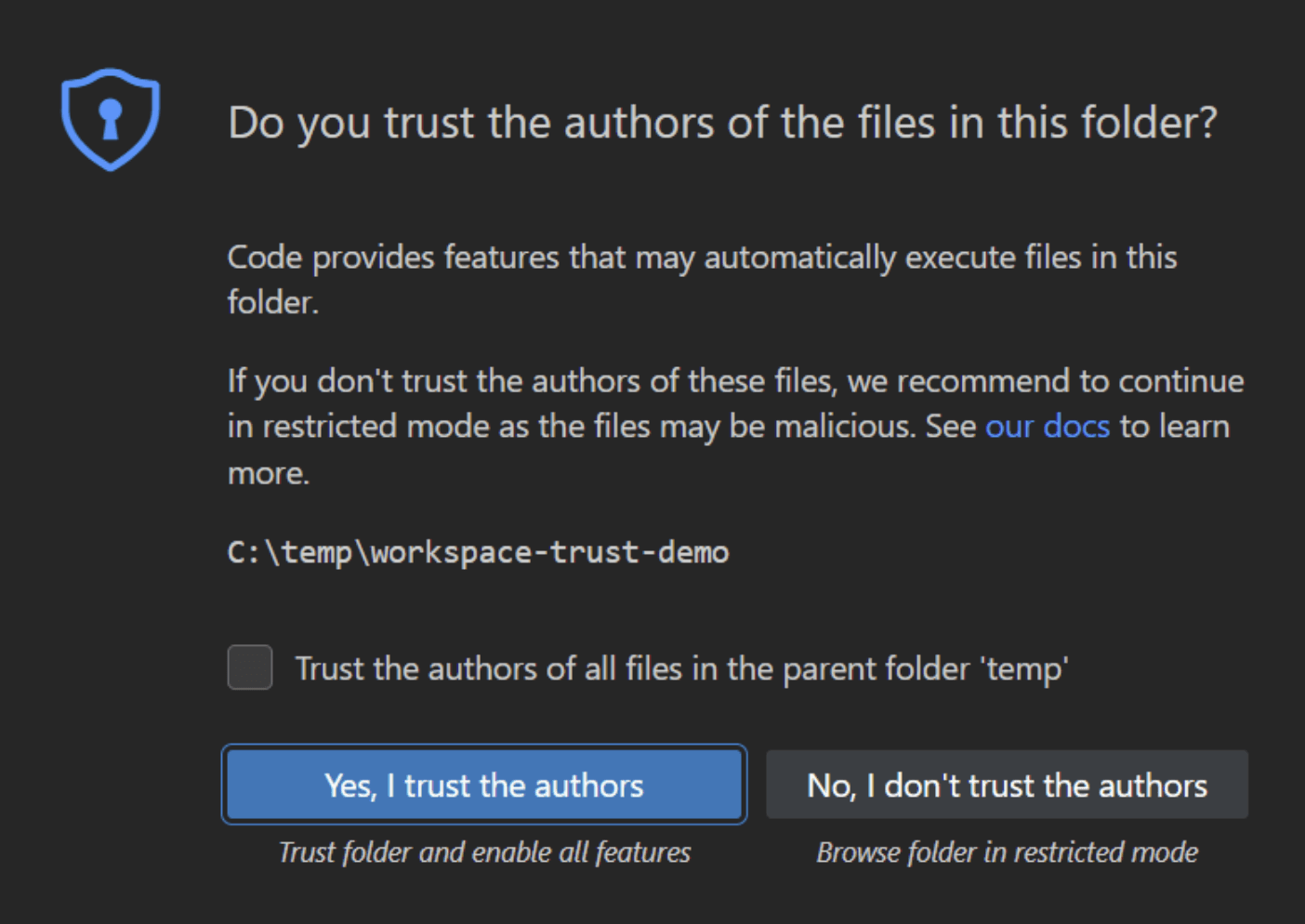
An MCP server can expose tools for reading files, controlling applications, or interacting with remote services. A locally launched server is also a program running on the cloud computer. Reviewing its tool descriptions is not a substitute for reviewing its installation source, startup command, and required access.
Similarly, a skill may include instructions, executable scripts, and supporting resources. Read those components before enabling an unfamiliar package. Inspect repository-provided hooks and configuration too, rather than accepting them simply because they arrived with the project.
Source: Microsoft
Use four questions to guide the review:
What code will run, including during installation or startup?
Which files, applications, and external services can it reach?
What credentials does it require, and can their permissions be reduced?
How do you stop it and revoke its access?
After enabling one integration, test a small operation against sample data. Check both the result and any unexpected changes before adding another.
Keep Account Access Proportional
A cloud workspace containing no personal documents can still affect important remote resources through a signed-in account. Prefer a test project, limited repository access, or narrowly scoped service credentials where available.

Source: GitHub Docs
Disabling a connector does not necessarily revoke its token, stop an independently running process, or undo changes already made. Treat those as separate cleanup actions.
Computer use introduces another access path. If you configure a compatible desktop-control tool, review its permissions separately and run the controlled applications inside the cloud workspace. Installing Claude Code alone does not establish that setup.
Finally, treat instructions found in webpages, project files, and tool results as potentially untrusted. If content asks Claude to reveal credentials, expand permissions, or upload unrelated files, stop and review it. The fact that the instruction appeared inside a useful workflow does not make it authorized.
Run a Small First Task and Inspect the Result
Your first task should produce something useful without requiring broad access. A media inventory is a good starting point: Claude Code can create a script that lists project assets and produces a CSV report, without opening a production application or connecting an external service.
Use a small folder of non-sensitive sample files. Keep an independent copy outside the workspace so you can compare the inputs afterward.

Source: Anthropic
Ask for the Approach First
Start in Plan mode and use a request like this:
These instructions define the task, not an enforced access boundary. Keep the permission controls discussed earlier in place.
Review the plan for unnecessary steps. This report can be generated with Python’s standard library, so a proposal to install packages or upload files needs an explanation before you proceed.
Review the Script Before Execution
Switch to Manual mode when you are ready to implement. Ask Claude to create the script in working/, then inspect it in your editor before approving execution.

Source: Anthropic
Check that it:
Reads from the intended input directory.
Writes only the specified report.
Contains no deletion, renaming, network, or subprocess operations.
Handles an existing output file without silently replacing a report you need.
For this example, ask it to skip symbolic links and directory junctions rather than following them. Otherwise, a path inside the input folder could lead somewhere outside the intended dataset.
Check the Artifact, Not Just the Completion Message
Run the reviewed script and open the CSV in an editor or spreadsheet application. Compare several entries with the actual files. Check the relative paths, file sizes, and total number of reported files, accounting for anything deliberately excluded.

Source: Microsoft
Use a before-and-after file hash comparison if you need to verify that source contents remained unchanged. Checking filenames alone would not establish that.
If something unexpected happens, stop before granting more access. Inspect the error and proposed correction rather than approving a broader command just to make the task finish.
This exercise does not certify the workspace as secure. It establishes a practical habit: define a bounded task, review the implementation, approve the necessary execution, and verify the result independently.
Finish the Session Without Leaving Unnecessary Access Behind
A completed task can leave more than an output file: a running helper process, a temporary credential, a signed-in service, or an approval rule you no longer need. Review those before ending the session.
First, inspect the deliverables and copy the files you want to keep to your chosen storage or backup location. Preserve reviewed scripts alongside their outputs when you may need to reproduce the work. Do not automatically carry temporary files, credentials, or unreviewed configuration back into your everyday environment.
Then check the access you added:
Stop task-specific processes and integrations that no longer need to run.
Remove temporary permission allowances.
Revoke disposable tokens through the service that issued them.
Sign out of accounts that were needed only for the task.
Disabling an MCP connection is not the same as revoking its credentials. Likewise, signing out of a browser does not necessarily invalidate a token stored by a command-line tool.

Source: GitHub Docs
Stopping the Computer Is Not a Reset
A persistent cloud workspace is useful because you can return to your applications and files. That also means you should not treat stopping the computer as deleting its contents or clearing its saved access.
If you suspect a credential was exposed, revoke or rotate it through the issuing service. Simply ending the cloud session is not a substitute.
Finally, distinguish the costs involved. Vagon computer usage and storage, Claude subscriptions or API usage, and commercial application licenses are separate considerations. Check the current Vagon pricing, save your work, and stop the computer when you no longer need it running.
Final Thoughts
Using Claude Code securely on a cloud computer starts with separation, then depends on the access you grant. Keep the workspace focused, bring project copies rather than unrelated files, and review commands and outputs before expanding automation.
Vagon Cloud Computer gives Claude Code and your desktop applications a separate place to work together. It does not replace permissions, backups, or credential management.
Create your workspace, select the applications your task needs, and begin with a small, non-sensitive project. Add capabilities only when the work calls for them.
FAQs
Is Claude Code completely secure on a cloud computer?
No environment eliminates every risk. A separate cloud computer keeps the work away from your everyday desktop, but files, credentials, and accounts available inside it still require protection. Appropriate permissions, reviewed commands, and independent backups remain important.
Can Claude Code on Vagon access files on my personal computer?
Running Claude Code inside Vagon does not, by itself, give it access to your personal computer’s filesystem. However, files you transfer, folders you expose through another connection, and resources available through connected accounts may become accessible. Keep those connections intentional and limited to the task.
Is Claude Code preinstalled with the Claude app?
Do not assume that selecting the Claude application also installs or configures Claude Code. Check availability with claude --version inside the cloud desktop. If needed, follow Anthropic’s official installation instructions and complete authentication there.
Does Claude Code support sandboxing on Windows?
Anthropic’s built-in shell sandbox is not supported on native Windows. It is supported on macOS, Linux, and WSL2. A Windows cloud computer therefore should not be described as automatically running Claude Code commands inside that sandbox. WSL2 availability must be confirmed before relying on it.
Should I disable permission prompts on a cloud computer?
Not simply because the computer is separate. Start with Manual mode and review existing approval rules. Grant reusable permissions narrowly when you understand the operation. Broad permission bypass can expose the cloud workspace and connected services to unintended actions.
Do I need a GPU to use Claude Code?
Not for typical hosted-model coding tasks. Choose hardware for the processes and applications running alongside Claude Code. Rendering, local model inference, and GPU-accelerated media processing may need GPU resources; generating or reviewing an ordinary script generally does not.
Does stopping the cloud computer remove my files and credentials?
No. Stopping a persistent cloud computer is not a factory reset or a credential-revocation procedure. Save your work, stop unnecessary processes, and remove temporary access separately. Revoke tokens through their issuing services when they are no longer needed.
Does using Vagon mean my project data stays entirely on that computer?
No. Claude Code communicates with its configured model provider, and connected tools may send data to other services. Review the applicable data policies and account settings before supplying confidential material. A remote desktop is not an offline AI environment.
Claude Code can turn a short instruction into file changes, terminal commands, and a working automation script. That becomes useful quickly, but it also raises a practical question: how much of your everyday computer should be part of the job?
A dedicated cloud computer gives you a separate place to work. With Vagon Cloud Computer, you can run Claude Code alongside the applications, dependencies, and project files the task needs, without moving your personal browser profile or unrelated documents into that environment. You can then inspect the generated code, test it, and open its output on the same desktop.
Separation is a starting point, not a security guarantee. Files you upload, accounts you connect, and tools you authorize still need attention. This guide explains how to build a practical Claude Code workspace on Vagon, choose appropriate permissions, and complete a first task without granting unnecessary access.
Source: Anthropic
Give Claude Code Its Own Computer, Not Your Everyday Desktop
Your everyday computer carries more context than most AI tasks need: personal downloads, saved browser sessions, unrelated client folders, and credentials for services you use throughout the week. A script that organizes a project’s assets does not need that entire environment.
Running Claude Code inside a Vagon cloud computer lets you build a workspace around the task instead. The terminal, project files, dependencies, and relevant desktop applications live on that separate machine. Your personal computer becomes the device you use to access the workspace.
That distinction depends on where Claude Code actually runs. Launching it locally and asking it to interact with a cloud desktop does not move its local file access or terminal permissions into the cloud. For this setup, install and run Claude Code inside the Vagon desktop.
A useful starting split looks like this:
Keep on your personal computer | Bring into the cloud workspace |
|---|---|
Personal documents and unrelated client work | Copies of files needed for the task |
Everyday browser profile and saved sessions | Only the service sign-ins the workflow requires |
Unrelated credentials and account access | Task-specific credentials with limited permissions |
Original project files and independent backups | Working copies, dependencies, and generated outputs |
The benefit extends beyond keeping files separate. If Claude Code generates a Blender script, for example, you can inspect the script and test it in Blender on the same cloud desktop. There is no need to move unfinished output between machines just to discover whether it works.
However, anything you add to that workspace becomes part of its potential access surface. Connecting a broadly privileged account can expose remote resources even when no personal files are present. The goal is therefore not to give Claude Code an empty computer followed by unlimited permissions. It is to give it a useful computer containing only what the job requires.
Set Up Your Vagon Workspace for the Actual Task
Start with the work Claude Code needs to complete. A Python utility, a Blender automation script, and a video-processing workflow require different applications, but they do not each need a separate collection of unrelated tools.
1. Choose Performance for the Workload
Create your Vagon account and choose a performance option suited to the applications you intend to run.
Claude Code does not require a powerful GPU simply because it is an AI tool. For a typical hosted-model setup, local hardware handles the terminal, development tools, and processes Claude launches. GPU requirements come from workloads such as rendering, local image generation, or GPU-accelerated video processing.
Choose for those workloads, rather than treating the highest configuration as a security requirement.
2. Select the Applications You Need
During Application Selection, choose the tools your project requires. Depending on the task, that might include Visual Studio Code and Python, or a desktop application such as Blender or DaVinci Resolve.
Source: Microsoft
Keep the initial selection focused. You can build a complete working environment without installing every application you might eventually use.
The Claude application is also available in the selection, but selecting Claude does not by itself confirm that Claude Code is installed and ready. Application installation, account authentication, and any additional integrations are separate checks. Commercial software may also require your own license.
3. Install and Verify Claude Code Inside Vagon
Open a terminal on the Vagon desktop and check whether Claude Code is available:
If it is missing, follow Anthropic’s current Windows installation instructions. Use the official installation source and avoid running your everyday Claude Code session with administrator privileges.
Complete authentication inside the cloud desktop. Do not copy your personal machine’s entire credential directory just to reproduce an existing setup.
Installing Claude Code does not automatically connect it to Blender, Resolve, or another application. Those workflows may use scripts or separately configured integrations.
4. Start in a Dedicated Project Folder
Create a project folder with separate locations for inputs, working files, and outputs:
From PowerShell, enter that folder and explicitly select Manual mode:
This gives you a deliberate starting permission mode. It does not make the project folder an operating-system sandbox or prevent every possible read outside it. We will configure and review access separately before approving substantive work.
Bring Project Copies, Not Your Entire Digital Life
A useful workspace needs enough context to complete the job, not a replica of your personal computer. Before transferring anything, identify the inputs Claude Code actually needs. For an asset inventory, that might be a sample media folder. For a script revision, it might be the source code and a small test dataset.
Use Vagon Files to transfer those selected files, then place working copies in the project directory. You can upload files even when your Vagon computer is not running, so preparation does not have to happen during an active desktop session.
Keep the folder roles straightforward:
input/holds the source copies you want to preserve.working/contains files Claude may modify.output/receives reports, exports, and other deliverables.
These names communicate intent, but they do not enforce permissions. Calling a folder input does not make it read-only. If preserving its contents is essential, use appropriate filesystem permissions and keep an independent copy outside the agent’s accessible workspace.
Leave Unnecessary Credentials Behind
Check project folders before uploading them. A seemingly ordinary repository can contain .env files, API tokens, private keys, or configuration pointing to production services.
Do not transfer those automatically. When a task genuinely requires a service connection, use a credential with the narrowest practical access, preferably against a test project or non-production account. Avoid pasting secrets into prompts, where they can become part of the conversation history.
The same principle applies to browser sign-ins. Signing into one required service is different from synchronizing your everyday browser profile and its saved accounts.
Finally, distinguish storage from backup. Keeping a project on the cloud computer or in Vagon Files does not, by itself, establish version history or recovery from accidental changes. Preserve originals separately, and use version control where it fits the project. That gives you something reliable to compare against when Claude finishes.
Source: Microsoft
Choose Permissions Before You Start Automating
The next decision is not what Claude Code should do, but what it can do without asking you first. A separate computer limits what you bring into the environment. Claude Code’s permission settings provide another layer of control over tool use within it.
Start with Manual mode, selected through claude --permission-mode default, and run:
Review existing rules before adding new ones. Previously approved commands or user-level settings can affect a new session, so opening a different project folder does not necessarily mean starting with no permissions.
Match Approval to the Action
Consider three stages of the same asset-reporting task:
Proposed action | What to check |
|---|---|
Inspect filenames and metadata | Which directories will be read, and whether file contents are necessary |
Generate and run a reporting script | What the script executes, where it writes, and whether it modifies inputs |
Install a dependency or send results elsewhere | Where the software comes from, what data leaves, and which account is used |
Manual mode does not mean every file read produces a prompt. It also does not turn every approved command into a harmless operation. When Claude requests approval to execute a script, inspect the script itself, not just the command that launches it.
Source: Anthropic
For example, approving a Python command can authorize code that reads files, starts other processes, or makes network requests. A familiar interpreter name is not enough to establish that the operation is appropriate.
Keep Repeat Approvals Narrow
Approve unfamiliar operations once before deciding whether they deserve a reusable rule. A recurring test command may justify a focused allowance. Broad access to a shell, interpreter, or package manager deserves more scrutiny because those tools can perform many unrelated actions.
Treat deletion, publishing, uploads, permission changes, and installations as distinct decisions. An instruction to “generate a report” should not silently become approval to install software or upload source files.
Permission rules also have limits. A command-pattern rule matches particular invocations; it is not an operating-system restriction around everything that program could do. Likewise, a file-tool restriction should not be assumed to constrain an independently running MCP server or every shell command.
Use Planning Without Mistaking It for Isolation
For an unfamiliar task, Plan mode can help you review Claude’s proposed approach before implementation. It is still capable of investigation, including file reads and exploratory commands. It is not a substitute for access controls.
You can record project conventions in CLAUDE.md, such as preserving inputs and writing reports to output/. Those instructions improve consistency, but they do not enforce a boundary.
For this workflow, keep permission bypass disabled. Running on Vagon is a reason to separate the workspace, not a reason to remove oversight.
Understand What Windows Isolation Does and Does Not Cover
There are several layers between “Claude asked to run a command” and “that command can access a file.” Keeping them separate helps you choose controls that actually address the risk.
Layer | What it does | What it does not establish |
|---|---|---|
Separate cloud computer | Keeps the working environment separate from your everyday desktop | That files and accounts inside it are protected from authorized tools |
Claude Code permissions | Controls tool approvals through modes and rules | A universal filesystem or network boundary |
Supported shell sandbox | Restricts shell commands and their child processes at the operating-system level | Protection around every Claude Code tool or integration |
The platform detail matters here: according to Anthropic’s sandbox documentation, Claude Code’s built-in shell sandbox supports macOS, Linux, and WSL2. Native Windows commands run without that sandbox.
For the Windows-native Vagon setup in this guide, do not assume that selecting Manual mode also enables filesystem or network isolation. The separate computer still provides a useful division from your personal environment, but commands you approve run with the access available to their Windows process.
WSL2 can be an alternative when supported by the environment and appropriate for the workflow. However, it should not be treated as an automatic Vagon setup step without confirming availability. Windows desktop application workflows may also require access that crosses the Linux environment’s boundaries.
Even on a supported platform, sandboxing needs configuration. Enabling it does not necessarily limit reads to the project folder, and its boundary does not automatically contain MCP servers, hooks, or Claude’s separate file tools.
The practical approach is layered: keep unnecessary data off the cloud computer, avoid elevated everyday sessions, review permissions, and configure stronger restrictions where available. If a project requires enforced directory access or restricted network destinations, establish and verify those controls before supplying sensitive files or credentials. Do not rely on a prompt saying “stay inside this folder.”
Add MCP Servers, Skills, and Accounts One at a Time
A workspace can start with a narrow purpose and gradually accumulate access. You add a file connector, install a skill, sign into a service, and approve a helper script. Each addition may be useful, but together they can give Claude Code far more reach than the original task required.
Keep the first task free of unnecessary integrations. Then add capabilities individually, checking what changes before proceeding.
Review What an Integration Actually Runs
An MCP server can expose tools for reading files, controlling applications, or interacting with remote services. A locally launched server is also a program running on the cloud computer. Reviewing its tool descriptions is not a substitute for reviewing its installation source, startup command, and required access.
Similarly, a skill may include instructions, executable scripts, and supporting resources. Read those components before enabling an unfamiliar package. Inspect repository-provided hooks and configuration too, rather than accepting them simply because they arrived with the project.
Source: Microsoft
Use four questions to guide the review:
What code will run, including during installation or startup?
Which files, applications, and external services can it reach?
What credentials does it require, and can their permissions be reduced?
How do you stop it and revoke its access?
After enabling one integration, test a small operation against sample data. Check both the result and any unexpected changes before adding another.
Keep Account Access Proportional
A cloud workspace containing no personal documents can still affect important remote resources through a signed-in account. Prefer a test project, limited repository access, or narrowly scoped service credentials where available.
Source: GitHub Docs
Disabling a connector does not necessarily revoke its token, stop an independently running process, or undo changes already made. Treat those as separate cleanup actions.
Computer use introduces another access path. If you configure a compatible desktop-control tool, review its permissions separately and run the controlled applications inside the cloud workspace. Installing Claude Code alone does not establish that setup.
Finally, treat instructions found in webpages, project files, and tool results as potentially untrusted. If content asks Claude to reveal credentials, expand permissions, or upload unrelated files, stop and review it. The fact that the instruction appeared inside a useful workflow does not make it authorized.
Run a Small First Task and Inspect the Result
Your first task should produce something useful without requiring broad access. A media inventory is a good starting point: Claude Code can create a script that lists project assets and produces a CSV report, without opening a production application or connecting an external service.
Use a small folder of non-sensitive sample files. Keep an independent copy outside the workspace so you can compare the inputs afterward.
Source: Anthropic
Ask for the Approach First
Start in Plan mode and use a request like this:
These instructions define the task, not an enforced access boundary. Keep the permission controls discussed earlier in place.
Review the plan for unnecessary steps. This report can be generated with Python’s standard library, so a proposal to install packages or upload files needs an explanation before you proceed.
Review the Script Before Execution
Switch to Manual mode when you are ready to implement. Ask Claude to create the script in working/, then inspect it in your editor before approving execution.
Source: Anthropic
Check that it:
Reads from the intended input directory.
Writes only the specified report.
Contains no deletion, renaming, network, or subprocess operations.
Handles an existing output file without silently replacing a report you need.
For this example, ask it to skip symbolic links and directory junctions rather than following them. Otherwise, a path inside the input folder could lead somewhere outside the intended dataset.
Check the Artifact, Not Just the Completion Message
Run the reviewed script and open the CSV in an editor or spreadsheet application. Compare several entries with the actual files. Check the relative paths, file sizes, and total number of reported files, accounting for anything deliberately excluded.
Source: Microsoft
Use a before-and-after file hash comparison if you need to verify that source contents remained unchanged. Checking filenames alone would not establish that.
If something unexpected happens, stop before granting more access. Inspect the error and proposed correction rather than approving a broader command just to make the task finish.
This exercise does not certify the workspace as secure. It establishes a practical habit: define a bounded task, review the implementation, approve the necessary execution, and verify the result independently.
Finish the Session Without Leaving Unnecessary Access Behind
A completed task can leave more than an output file: a running helper process, a temporary credential, a signed-in service, or an approval rule you no longer need. Review those before ending the session.
First, inspect the deliverables and copy the files you want to keep to your chosen storage or backup location. Preserve reviewed scripts alongside their outputs when you may need to reproduce the work. Do not automatically carry temporary files, credentials, or unreviewed configuration back into your everyday environment.
Then check the access you added:
Stop task-specific processes and integrations that no longer need to run.
Remove temporary permission allowances.
Revoke disposable tokens through the service that issued them.
Sign out of accounts that were needed only for the task.
Disabling an MCP connection is not the same as revoking its credentials. Likewise, signing out of a browser does not necessarily invalidate a token stored by a command-line tool.
Source: GitHub Docs
Stopping the Computer Is Not a Reset
A persistent cloud workspace is useful because you can return to your applications and files. That also means you should not treat stopping the computer as deleting its contents or clearing its saved access.
If you suspect a credential was exposed, revoke or rotate it through the issuing service. Simply ending the cloud session is not a substitute.
Finally, distinguish the costs involved. Vagon computer usage and storage, Claude subscriptions or API usage, and commercial application licenses are separate considerations. Check the current Vagon pricing, save your work, and stop the computer when you no longer need it running.
Final Thoughts
Using Claude Code securely on a cloud computer starts with separation, then depends on the access you grant. Keep the workspace focused, bring project copies rather than unrelated files, and review commands and outputs before expanding automation.
Vagon Cloud Computer gives Claude Code and your desktop applications a separate place to work together. It does not replace permissions, backups, or credential management.
Create your workspace, select the applications your task needs, and begin with a small, non-sensitive project. Add capabilities only when the work calls for them.
FAQs
Is Claude Code completely secure on a cloud computer?
No environment eliminates every risk. A separate cloud computer keeps the work away from your everyday desktop, but files, credentials, and accounts available inside it still require protection. Appropriate permissions, reviewed commands, and independent backups remain important.
Can Claude Code on Vagon access files on my personal computer?
Running Claude Code inside Vagon does not, by itself, give it access to your personal computer’s filesystem. However, files you transfer, folders you expose through another connection, and resources available through connected accounts may become accessible. Keep those connections intentional and limited to the task.
Is Claude Code preinstalled with the Claude app?
Do not assume that selecting the Claude application also installs or configures Claude Code. Check availability with claude --version inside the cloud desktop. If needed, follow Anthropic’s official installation instructions and complete authentication there.
Does Claude Code support sandboxing on Windows?
Anthropic’s built-in shell sandbox is not supported on native Windows. It is supported on macOS, Linux, and WSL2. A Windows cloud computer therefore should not be described as automatically running Claude Code commands inside that sandbox. WSL2 availability must be confirmed before relying on it.
Should I disable permission prompts on a cloud computer?
Not simply because the computer is separate. Start with Manual mode and review existing approval rules. Grant reusable permissions narrowly when you understand the operation. Broad permission bypass can expose the cloud workspace and connected services to unintended actions.
Do I need a GPU to use Claude Code?
Not for typical hosted-model coding tasks. Choose hardware for the processes and applications running alongside Claude Code. Rendering, local model inference, and GPU-accelerated media processing may need GPU resources; generating or reviewing an ordinary script generally does not.
Does stopping the cloud computer remove my files and credentials?
No. Stopping a persistent cloud computer is not a factory reset or a credential-revocation procedure. Save your work, stop unnecessary processes, and remove temporary access separately. Revoke tokens through their issuing services when they are no longer needed.
Does using Vagon mean my project data stays entirely on that computer?
No. Claude Code communicates with its configured model provider, and connected tools may send data to other services. Review the applicable data policies and account settings before supplying confidential material. A remote desktop is not an offline AI environment.
Get Beyond Your Computer Performance
Run applications on your cloud computer with the latest generation hardware. No more crashes or lags.

Trial includes 1 hour usage + 7 days of storage.
Summarize with AI

Ready to focus on your creativity?
Vagon gives you the ability to create & render projects, collaborate, and stream applications with the power of the best hardware.

Run heavy applications on any device with
your personal computer on the cloud.
San Francisco, California
Solutions
Vagon Teams
Vagon Streams
Use Cases
© 2026 Vagon. All rights reserved.
Run heavy applications on any device with
your personal computer on the cloud.
San Francisco, California
Solutions
Vagon Teams
Vagon Streams
Use Cases
© 2026 Vagon. All rights reserved.
Run heavy applications on any device with
your personal computer on the cloud.
San Francisco, California
Solutions
Vagon Teams
Vagon Streams
Use Cases
© 2026 Vagon. All rights reserved.