Instant Connection for Pixel Streaming
— New Feature Automated Setup

How to Use Codex With Maya: Python, MEL & Cloud Workflow
DigitalArt
How to Use Codex With Maya: Python, MEL & Cloud Workflow
DigitalArt
How to Use Codex With Maya: Python, MEL & Cloud Workflow
DigitalArt
Table of Contents
Codex can help Maya users create, explain, debug, and maintain Python or MEL scripts. The most practical workflow is to use Codex through the CLI or a supported IDE, generate a focused script, run it in Maya’s Script Editor, and review the result before applying it to a production scene.
This approach works well for repetitive tasks such as renaming objects, creating scene utilities, validating assets, building shelf tools, and automating parts of a modeling or animation workflow. Maya supports both MEL and Python, including libraries such as maya.cmds and the Maya Python API.
Codex does not automatically control an open Maya scene. Direct scene control requires an additional bridge, such as an MCP server or Maya’s commandPort, to connect the coding agent with the running application. That is an advanced and optional workflow, so most users should begin with reviewed script files and test them on a copy of the scene.
What Can Codex Do With Maya?
Codex is most useful in Maya when the task can be described as code. Instead of manually repeating the same operation across multiple scenes, you can ask Codex to create a script that performs the task consistently.
For example, Codex can help you:
Rename selected objects using a consistent naming convention
Create lights, cameras, materials, or basic scene layouts
Build simple shelf tools and custom utilities
Select objects based on type, name, namespace, or attribute
Check scenes for missing assets, naming conflicts, or incorrect settings
Prepare scenes for export
Generate batch-processing scripts
Explain unfamiliar Maya scripts
Refactor repeated code into reusable functions
Debug Python errors and Maya tracebacks
Maya provides several scripting options for these workflows. The maya.cmds library gives Python access to many Maya commands, while maya.api.OpenMaya provides access to the Maya Python API. MEL is also built into Maya and can be used to automate interface actions and create custom tools, as explained in Autodesk’s MEL overview.
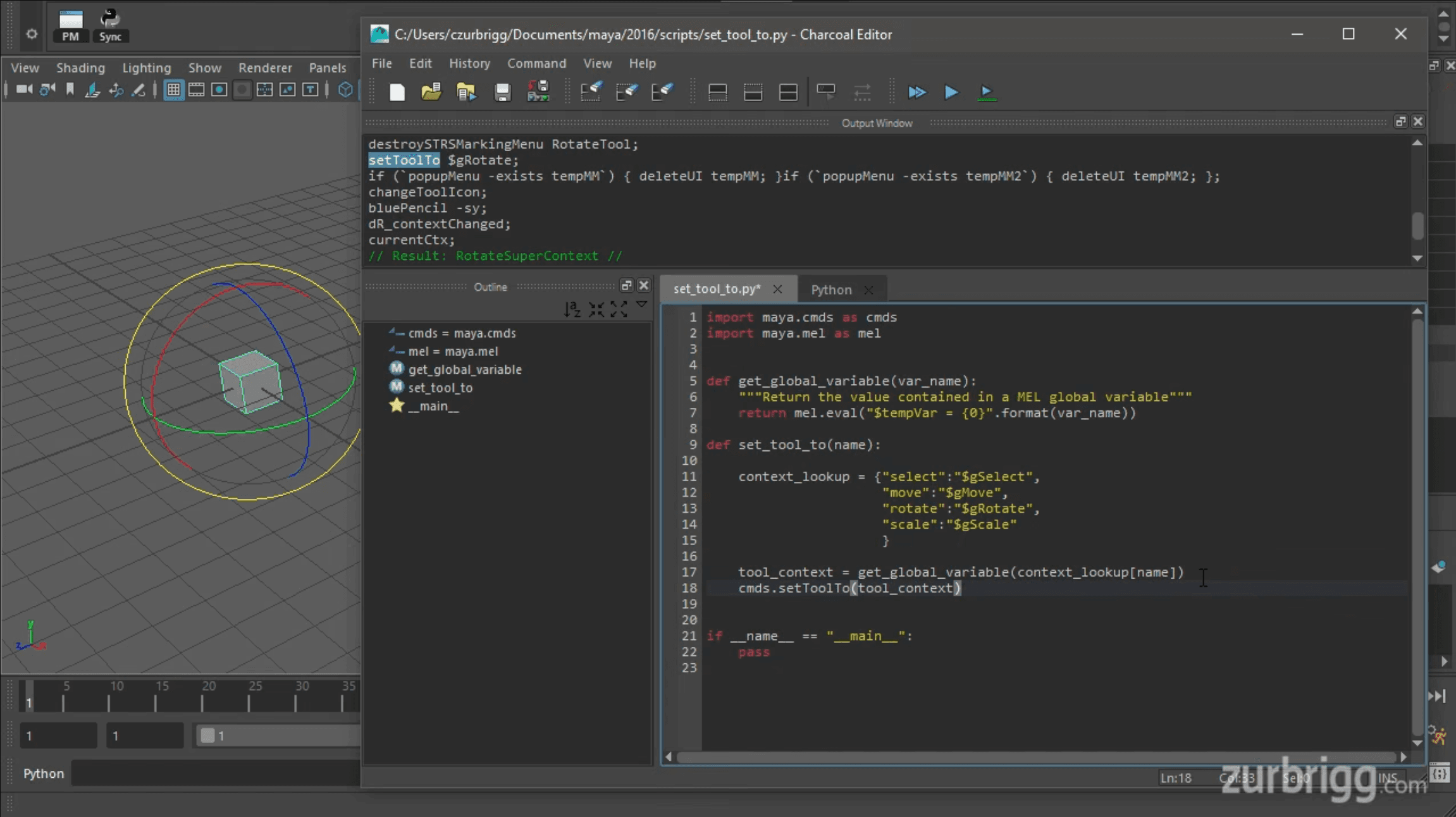
Source: Maya Python tool activation tutorial
The best results usually come from focused requests. “Automate my Maya workflow” is too broad to produce a reliable script. A clearer request would specify the Maya version, the objects the script should affect, the expected result, and what the script must leave unchanged.
For instance, you could ask Codex to rename only the currently selected mesh objects, add a numbered suffix, skip objects that already follow the naming convention, and print a summary of the changes. This gives Codex enough context to produce a script that is easier to review and test.
Codex can also work as a learning tool. If you find a Maya script difficult to understand, you can ask it to explain each function, identify which commands modify the scene, and point out potential problems. You can then make the final decision about whether to run, modify, or reject the code.
There is an important distinction, however. Codex can write code that operates on a Maya scene, but it does not automatically know the current contents of your open scene. Unless you provide that context through files, copied output, screenshots, or a separate integration, Codex cannot reliably see which objects are selected or how the scene is currently structured.
Choose the Right Codex Setup
There are several ways to use Codex with Maya, and the best option depends on how you prefer to work with scripts.
The simplest setup is Codex CLI. It runs in a terminal and can inspect files, edit scripts, run commands, and help automate repeatable work. You can keep your Maya project in a folder, open that folder in Codex, and ask it to create or modify Python and MEL files. The Codex CLI documentation explains how to install Codex, sign in, work from a project directory, and review changes.
This setup works well when your Maya tools are stored as separate files. For example, you might keep a procedural modeling script in a scripts folder, a shelf configuration in a shelves folder, and project notes in a docs folder. Codex can work across these files while preserving the structure of your project.
A second option is the Codex IDE extension. If you prefer writing code in Visual Studio Code, Cursor, Windsurf, or another supported editor, the extension lets you work with Codex beside your source files. You can ask it to explain an open script, edit selected code, review a proposed change, or delegate a larger task. The Codex IDE documentation describes these workflows in more detail.
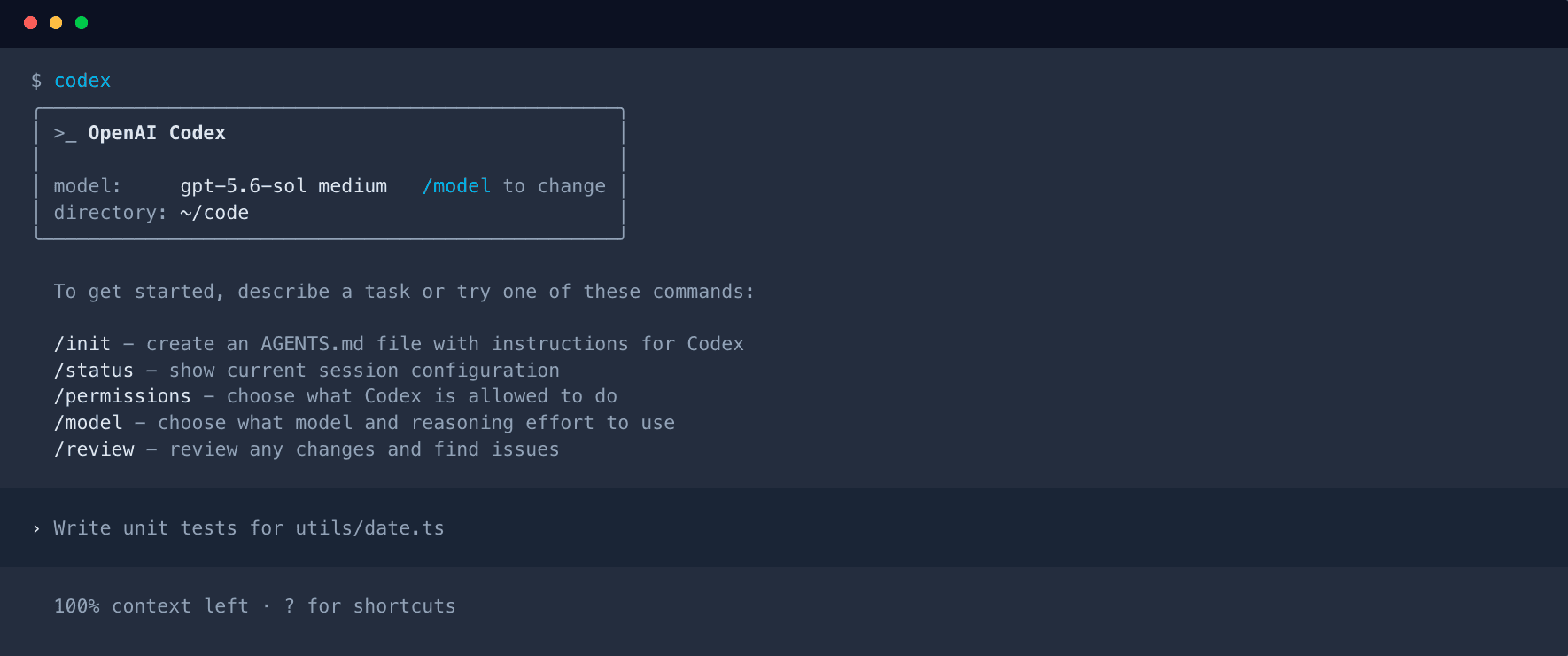
Source: OpenAI Codex CLI documentation
An IDE can be useful for technical artists who want more control over their scripts. You can inspect the code, compare changes, search through a project, and keep your Maya tools under version control. Maya itself remains the execution environment, while the editor becomes the place where you develop and review the code.
For larger tasks, Codex can also work through cloud-based workflows. This can be useful when you want to delegate a longer coding task and return later to review the result. However, the generated files still need to be tested in the Maya environment where they will run.
A simple project structure might look like this:
The AGENTS.md file can contain project-specific instructions for Codex. Include the Maya version, the preferred scripting language, naming conventions, file locations, testing steps, and actions the agent should avoid. Clear project instructions reduce ambiguity and make the generated code easier to review.
For most Maya users, Codex CLI or a supported IDE is enough to get started. You do not need MCP or a live scene connection to create useful Maya automation. A separate bridge becomes relevant only when you want Codex to inspect or modify an open Maya session directly.
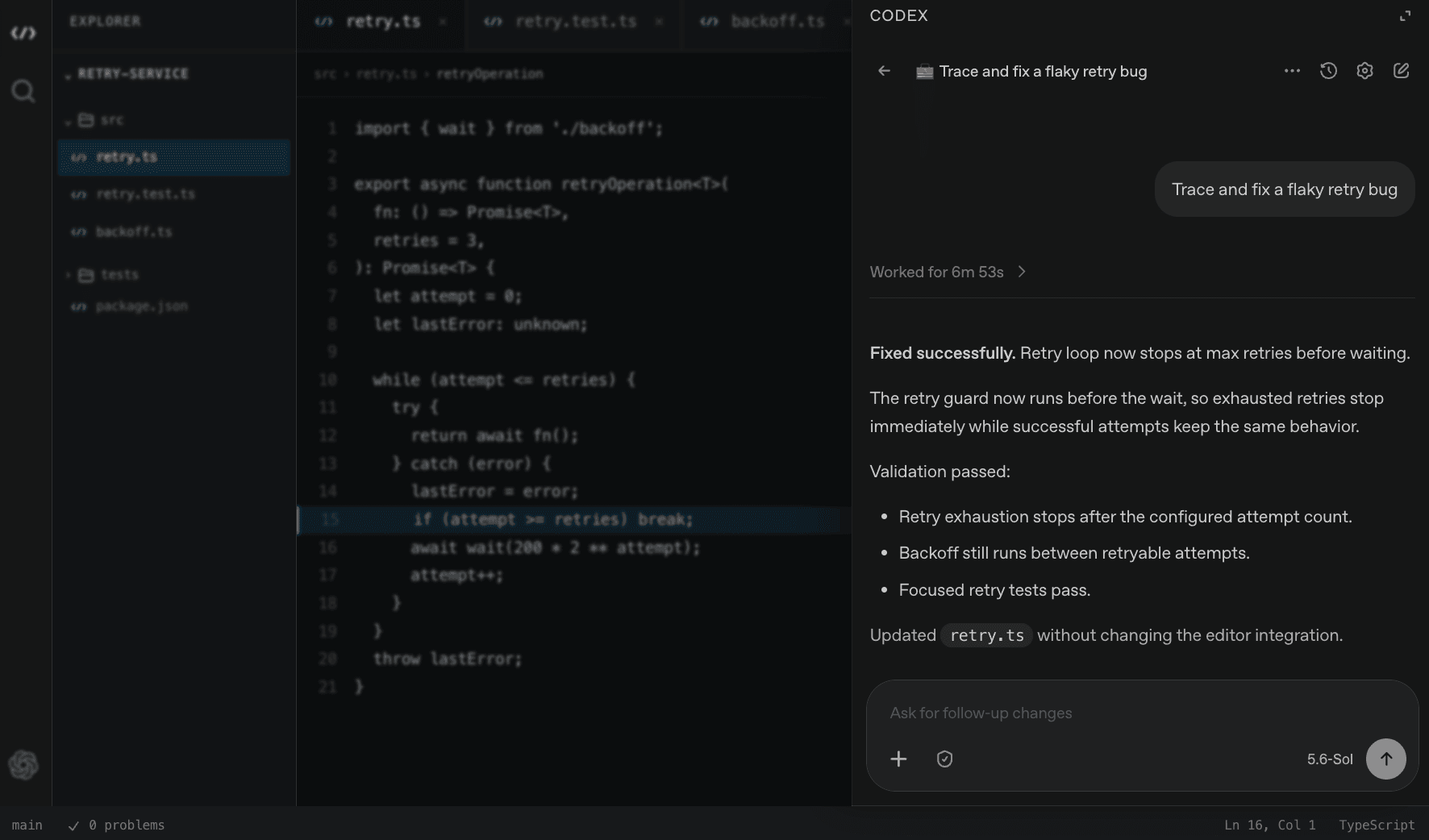
Source: OpenAI Codex IDE extension documentation
Set Up a Safe File-Based Maya Workflow
The safest way to begin using Codex with Maya is to keep your scripts as separate project files. This gives you a clear record of every change and makes it easier to test, review, and undo the work.
Start by creating a project folder for your Maya files. You can use an existing project or create a separate folder for experiments. Keep your Python and MEL scripts in a dedicated scripts directory instead of pasting every new version into the Script Editor without saving it.
Next, open the project folder in Codex CLI or in a supported IDE. If you are using Codex CLI, the official quickstart recommends installing Codex, signing in, and starting it from a project directory. If you are using an IDE, install or enable the Codex extension, sign in, and open the folder containing your Maya scripts.
Before asking Codex to make changes, add a short AGENTS.md file to the project. This file can explain:
Which Maya version the project uses
Whether scripts should use Python or MEL
Whether PyMEL is allowed
Where scripts should be saved
How scripts should be tested
Which scene elements must not be modified
Whether Codex should return a test plan with every script
For example, your instructions could tell Codex to use Maya 2026 Python, prefer maya.cmds, operate only on selected objects, avoid deleting nodes, and explain any assumptions before editing a file.
It is also important to create a checkpoint before running generated code. You can duplicate the Maya scene, create a Git commit, or save a new version of the project. Codex’s own documentation recommends creating Git checkpoints before and after a task so that changes can be reviewed or reverted.
Once the project is ready, start with a small request. Ask Codex to create one script that performs one clearly defined operation. Avoid beginning with a large request such as “build a complete procedural modeling system.” A smaller task makes it easier to identify incorrect assumptions and confirm that the connection between Codex and Maya is working.
When Codex returns the script, review it before opening Maya. Check which commands modify the scene, which objects they target, and whether the script can overwrite files or delete nodes. Then open the script in Maya’s Script Editor and run it on a duplicate or disposable scene.
Maya’s Script Editor documentation explains how users can work with MEL and recorded interface commands. You can also run Python scripts through Maya’s Python interface. After execution, inspect the scene, read the output, and save the result only after confirming that the script behaved as expected.
This workflow keeps Codex focused on writing and improving code while Maya remains the place where scene changes are executed and validated.
Write Better Prompts for Maya Scripts
The quality of Codex’s output depends heavily on the context you provide. Maya scripts often depend on the current selection, node type, scene structure, namespace, frame range, and installed plugins. If those details are missing, Codex may produce code that looks reasonable but does not match your scene.
A useful Maya prompt should define five things:
The Maya version
Maya commands and Python behavior can vary between releases. State the version you are targeting.The scripting language
Specify whether you want Python or MEL. For most new automation tools, Python is a practical starting point because Maya provides libraries such asmaya.cmds.The scope of the operation
Explain whether the script should affect the current selection, the entire scene, a specific namespace, or only objects that match a condition.The expected result
Describe what should change and what should remain untouched.The validation requirements
Ask Codex to include checks, useful error messages, and a short test plan.
For example, a vague prompt might say:
Create a Maya script that renames objectsA more useful version would be:
Write a Maya 2026 Python script using maya.cmds. The script should operate only on the current selection.
Verify that each selected item is a mesh transform, rename the objects with the prefix asset_, add a numbered suffix, and skip any object that already follows this naming convention.
Print a summary of renamed and skipped objects. If nothing is selected, make no changes and display a clear message. Return the complete script and a short test plan. Do not use PyMEL
The second prompt gives Codex clear boundaries. It identifies the software version, language, selection scope, naming rules, error behavior, and preferred library. It also tells Codex what to do when the expected input is missing.
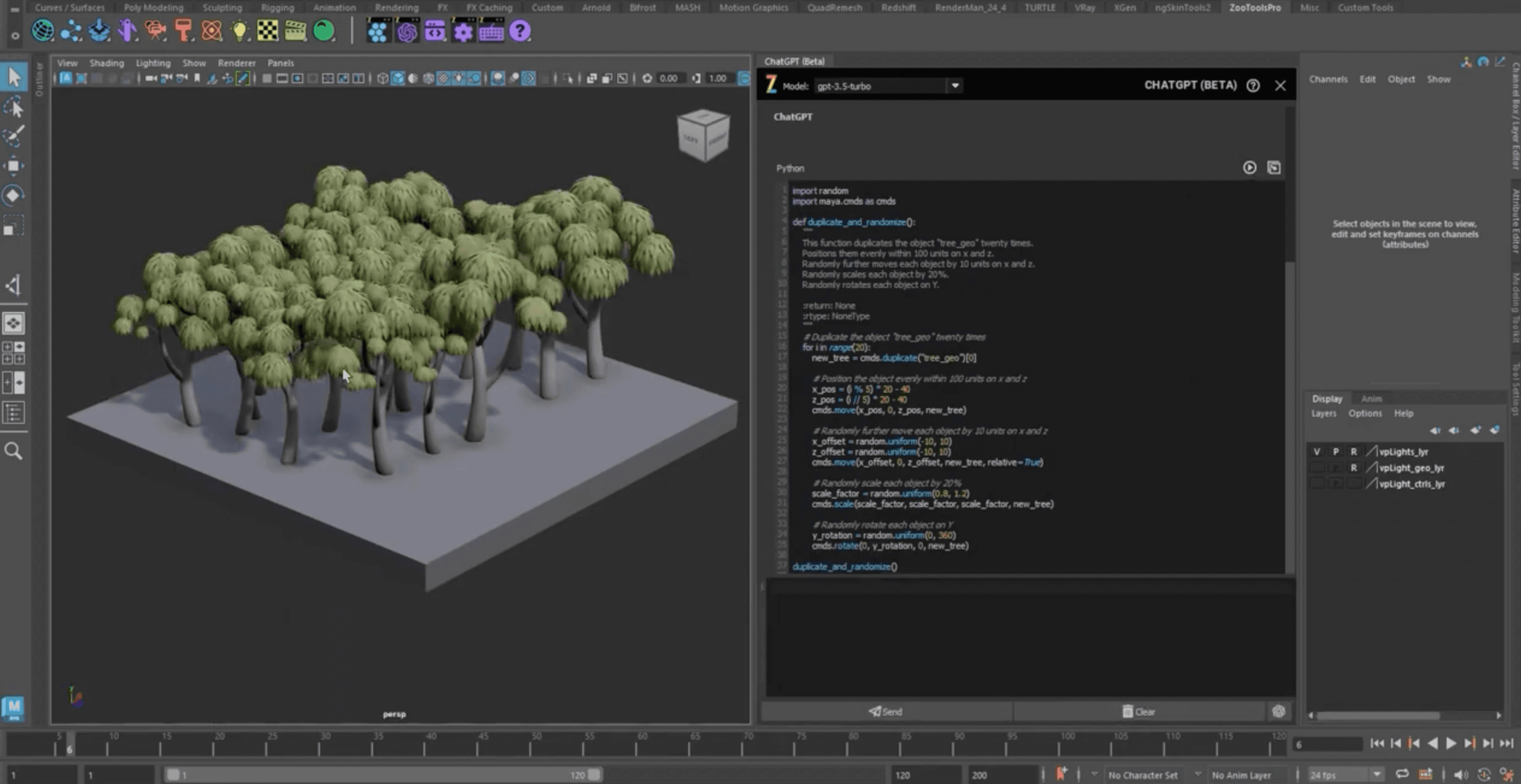
Source: 80 Level, AI-assisted Maya workflow
You can make the prompt more specific when working with complex scenes. Include the object type, naming pattern, namespace rules, export format, frame range, renderer, or plugin requirements. If the script must work with referenced assets, tell Codex how references should be handled. If it should preserve animation data, constraints, materials, or custom attributes, state that explicitly.
When debugging, include the full traceback instead of describing the error in general terms. Add the script that produced the error, the Maya version, the operating system, and the action that triggered the problem. You can ask Codex to identify the likely cause, explain the relevant command, and suggest the smallest possible fix.
A useful debugging prompt might look like this:
This Maya 2026 Python script raises RuntimeError: No object matches name.
Explain why this may happen when working with namespaces.
Suggest a minimal fix that validates the object path before editing the scene.
Do not rewrite unrelated parts of the script
It is also helpful to ask Codex to explain its assumptions before making a large change. For example, ask it to list the nodes it expects to find, describe which commands will modify the scene, and propose a test plan. This turns the interaction into a reviewable development process instead of a simple code generation request.
Test and Debug Codex-Generated Maya Code
A script can run without producing a Python error and still create the wrong result. It might rename the wrong objects, modify more nodes than expected, overwrite an existing file, or produce a scene that looks correct at first but contains hidden problems. Testing should therefore be part of the workflow from the beginning.
Start by running generated scripts on a duplicate scene or a small test file. Do not test an unfamiliar script on the only copy of a production scene. A simple test scene with a few objects, materials, cameras, and animation keys is often enough to reveal whether the script behaves as expected.
Before running the code, check its scope. Look for commands that:
Delete or replace nodes
Change the current selection
Modify namespaces
Rename existing objects
Change file paths
Export or overwrite files
Alter animation keys, materials, or render settings
Loop through the entire scene
Ask Codex to explain any unfamiliar command before executing it. You can also request a dry-run mode that reports the objects the script would affect without changing them. This is especially useful for batch renaming, cleanup tools, scene validation, and export scripts.
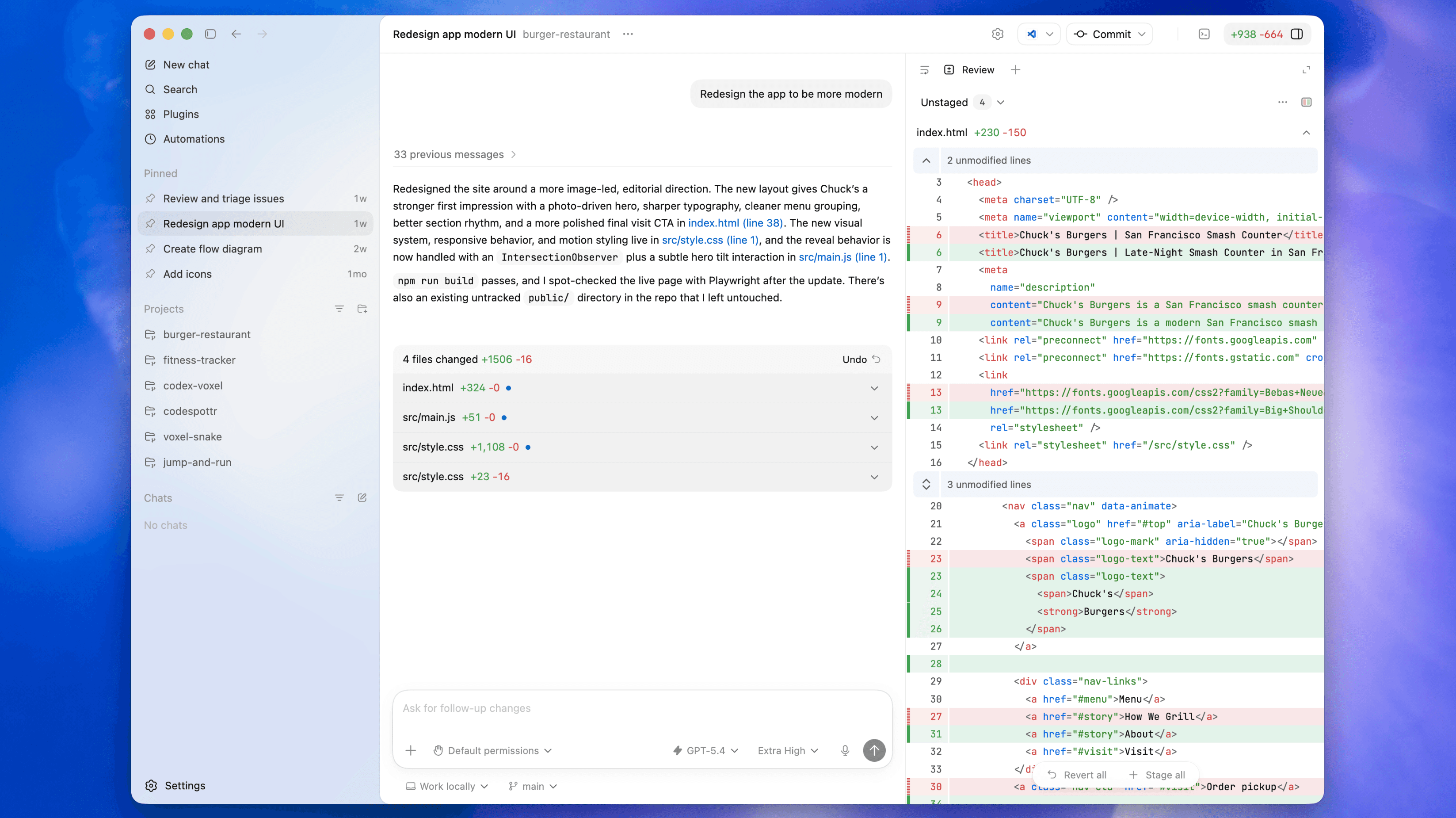
Source: OpenAI Codex App documentation
A good validation prompt might be:
Add a dry-run option to this Maya Python script.
In dry-run mode, list every object that would be changed and do not modify the scene.
Keep the current behavior unchanged when dry-run is disabled
Clear output makes debugging easier. Ask Codex to add concise print statements or logging that reports how many objects were found, changed, skipped, or rejected. Avoid excessive output that makes it difficult to identify the important information.
When a script fails, provide Codex with the complete traceback, the relevant code, and the action that caused the error. Also include the Maya version and any important scene details. Maya’s Python command documentation and Python API documentation can help identify whether the problem comes from syntax, an invalid command, an incorrect object path, or a version-specific API difference.
Ask Codex to fix one problem at a time. A focused debugging request is easier to verify than a complete rewrite. For example:
This script fails when an object is referenced from another namespace.
Explain the cause, propose the smallest fix, and preserve the current naming behavior.
Do not change the export logic
After the script works, review the changes in Codex and test the result again. Keep the working version under version control or save it as a new script revision. Codex’s review workflow makes it possible to inspect proposed edits before accepting them.
The final test should include both the expected case and failure cases. Test with valid selections, empty selections, duplicate names, referenced objects, missing assets, and unexpected scene states. This helps ensure that the script fails safely instead of silently making incorrect changes.
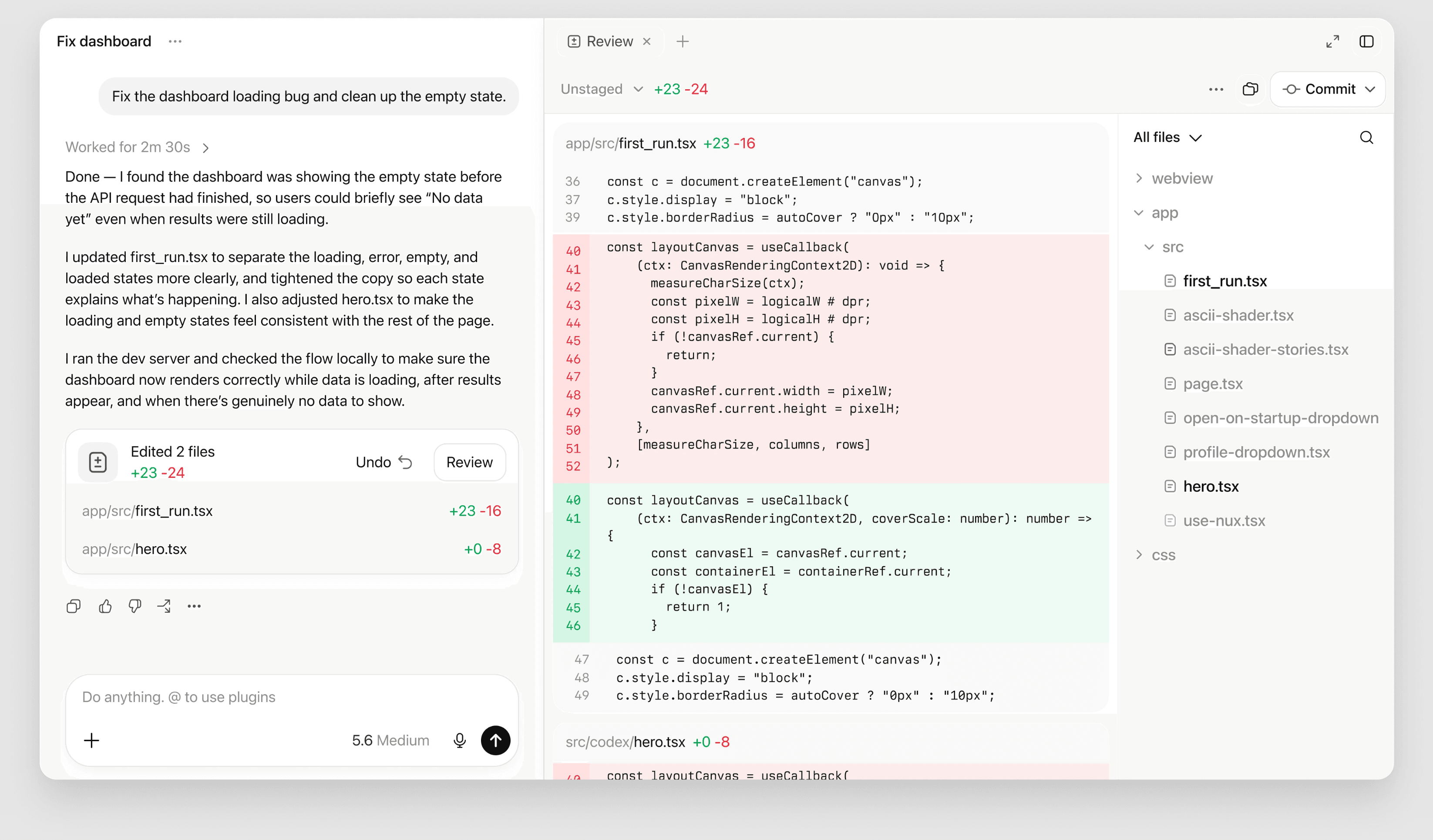
Source: OpenAI Codex
Connect Codex to a Live Maya Session
The file-based workflow is enough for most Maya automation tasks. However, some users may want Codex to inspect or modify an open Maya session directly. This requires an additional connection between Codex and the running application.
One possible method is Maya’s commandPort. Autodesk describes it as a socket that allows an external client program to send commands to Maya. It can receive MEL or Python input through the sourceType option, which makes it possible for another application to pass commands into the active Maya session. You can read more about the feature in the official commandPort documentation.
Another approach is to use a community-built MCP server. MCP, or Model Context Protocol, allows an AI client to communicate with external tools that expose specific actions or data. Some community Maya MCP projects include configuration examples for Codex CLI and other coding tools.
These integrations can make it possible to ask Codex to inspect the current scene, query selected objects, create nodes, or execute approved operations without manually copying a script into the Script Editor. However, this is not the same as using an official Maya plugin built by OpenAI or Autodesk. Compatibility, maintenance, permissions, and security depend on the specific bridge you choose.
The security risks also need to be taken seriously. Autodesk warns that a Maya command port can execute commands with the permissions of the Maya user. An exposed port may allow external input to run powerful commands, including system operations. For that reason, do not expose a command port publicly, and avoid using an unprotected network address.
If you test a live connection, use a disposable scene and keep the bridge restricted to localhost whenever possible. Add approval steps before destructive actions, limit the available tools, and close the connection when you are finished. You should also keep a backup of the scene before allowing an external agent to make changes.
For most readers, live control should be presented as an advanced option rather than the standard setup. Start by generating and reviewing scripts in Codex, then run them manually in Maya. Consider a live bridge only when the extra convenience justifies the additional setup and security responsibility.
Run the Workflow on Vagon Cloud Computer
Codex and Maya can work well together when the main challenge is not writing the script, but running the workflow on suitable hardware. Maya scenes, plugins, high-resolution assets, and viewport operations can quickly exceed the limits of a lightweight laptop.
Vagon Cloud Computer provides a browser-accessible workstation with GPU-backed performance options. You can run Maya, Codex, source-control tools, plugins, and project files in the same remote environment. This is useful when you work from a low-spec laptop, move between devices, or need access to a more capable workstation without buying and maintaining one locally.
The required performance depends on the Maya workload. A simple Python scripting workflow may not need the same resources as a scene with heavy geometry, large textures, complex rigs, or GPU-based rendering. Vagon offers different performance levels with varying CPU, GPU, and RAM configurations, allowing you to choose a lighter setup for scripting and scale up for demanding scenes or rendering tasks.
Autodesk lists 8 GB of RAM as the minimum requirement for Maya 2026 and recommends 16 GB or more in its official system requirements. Production scenes may require considerably more headroom, especially when several applications and plugins are running at the same time.
A cloud computer also keeps Maya, Codex, plugins, and project dependencies in one consistent environment. This can be helpful for freelancers, distributed teams, and artists who need to work across multiple devices.
Vagon solves the workstation problem, not the integration problem. It gives you a place to run Maya and Codex, but it does not automatically connect Codex to Maya’s open scene. You still need the file-based workflow described earlier, or a separate MCP or commandPort bridge for live scene control.
Before choosing a configuration, consider network latency, file transfer, software licensing, and Autodesk’s rules for virtualized environments. Check the current Vagon performance options and pricing before starting a production workflow.
Frequently Asked Questions
Can Codex directly control my open Maya scene?
Not by default. The standard workflow is to ask Codex to create or edit a Python or MEL script, then run that script in Maya’s Script Editor. Direct control requires an additional connection such as an MCP server or Maya’s commandPort.
Should I use Python or MEL with Codex?
Both are valid options. Python is usually the better starting point for new automation tools because Maya provides libraries such as maya.cmds and the Maya Python API. MEL remains useful for existing scripts, interface commands, and workflows built around Maya’s native scripting language.
Should I use PyMEL?
Use PyMEL only when your project specifically requires it. Autodesk describes PyMEL as a third-party wrapper for MEL commands and notes that it is not supported by Autodesk. For new scripts, ask Codex to use maya.cmds unless you have a reason to choose another library.
Can I use Codex with Maya on a Mac?
Yes. You can use Codex locally through its CLI or a supported IDE, while Maya runs on the same computer. You can also use a cloud workstation such as Vagon Cloud Computer to run the Maya environment remotely. Your experience will depend on software licensing, network quality, latency, and the specific Maya workflow.
Is MCP required to use Codex with Maya?
No. MCP is not required for generating, editing, explaining, or debugging Maya scripts. A file-based workflow is enough for many technical art and automation tasks. MCP becomes relevant when you want an AI client to communicate with a live Maya session through exposed tools.
Will Codex-generated Maya scripts always work?
No. The result depends on the Maya version, scene structure, selected objects, installed plugins, API assumptions, and the clarity of the prompt. A script can also run successfully while producing an incorrect scene change. Always review and test generated code on a duplicate or disposable scene.
Can Codex replace a Maya technical artist?
Codex can reduce repetitive coding work and help artists prototype tools faster, but it does not replace scene knowledge, artistic judgment, or technical review. Someone still needs to define the requirements, check the generated code, test it in Maya, and decide whether the result is suitable for production.
Codex can help Maya users create, explain, debug, and maintain Python or MEL scripts. The most practical workflow is to use Codex through the CLI or a supported IDE, generate a focused script, run it in Maya’s Script Editor, and review the result before applying it to a production scene.
This approach works well for repetitive tasks such as renaming objects, creating scene utilities, validating assets, building shelf tools, and automating parts of a modeling or animation workflow. Maya supports both MEL and Python, including libraries such as maya.cmds and the Maya Python API.
Codex does not automatically control an open Maya scene. Direct scene control requires an additional bridge, such as an MCP server or Maya’s commandPort, to connect the coding agent with the running application. That is an advanced and optional workflow, so most users should begin with reviewed script files and test them on a copy of the scene.
What Can Codex Do With Maya?
Codex is most useful in Maya when the task can be described as code. Instead of manually repeating the same operation across multiple scenes, you can ask Codex to create a script that performs the task consistently.
For example, Codex can help you:
Rename selected objects using a consistent naming convention
Create lights, cameras, materials, or basic scene layouts
Build simple shelf tools and custom utilities
Select objects based on type, name, namespace, or attribute
Check scenes for missing assets, naming conflicts, or incorrect settings
Prepare scenes for export
Generate batch-processing scripts
Explain unfamiliar Maya scripts
Refactor repeated code into reusable functions
Debug Python errors and Maya tracebacks
Maya provides several scripting options for these workflows. The maya.cmds library gives Python access to many Maya commands, while maya.api.OpenMaya provides access to the Maya Python API. MEL is also built into Maya and can be used to automate interface actions and create custom tools, as explained in Autodesk’s MEL overview.
Source: Maya Python tool activation tutorial
The best results usually come from focused requests. “Automate my Maya workflow” is too broad to produce a reliable script. A clearer request would specify the Maya version, the objects the script should affect, the expected result, and what the script must leave unchanged.
For instance, you could ask Codex to rename only the currently selected mesh objects, add a numbered suffix, skip objects that already follow the naming convention, and print a summary of the changes. This gives Codex enough context to produce a script that is easier to review and test.
Codex can also work as a learning tool. If you find a Maya script difficult to understand, you can ask it to explain each function, identify which commands modify the scene, and point out potential problems. You can then make the final decision about whether to run, modify, or reject the code.
There is an important distinction, however. Codex can write code that operates on a Maya scene, but it does not automatically know the current contents of your open scene. Unless you provide that context through files, copied output, screenshots, or a separate integration, Codex cannot reliably see which objects are selected or how the scene is currently structured.
Choose the Right Codex Setup
There are several ways to use Codex with Maya, and the best option depends on how you prefer to work with scripts.
The simplest setup is Codex CLI. It runs in a terminal and can inspect files, edit scripts, run commands, and help automate repeatable work. You can keep your Maya project in a folder, open that folder in Codex, and ask it to create or modify Python and MEL files. The Codex CLI documentation explains how to install Codex, sign in, work from a project directory, and review changes.
This setup works well when your Maya tools are stored as separate files. For example, you might keep a procedural modeling script in a scripts folder, a shelf configuration in a shelves folder, and project notes in a docs folder. Codex can work across these files while preserving the structure of your project.
A second option is the Codex IDE extension. If you prefer writing code in Visual Studio Code, Cursor, Windsurf, or another supported editor, the extension lets you work with Codex beside your source files. You can ask it to explain an open script, edit selected code, review a proposed change, or delegate a larger task. The Codex IDE documentation describes these workflows in more detail.
Source: OpenAI Codex CLI documentation
An IDE can be useful for technical artists who want more control over their scripts. You can inspect the code, compare changes, search through a project, and keep your Maya tools under version control. Maya itself remains the execution environment, while the editor becomes the place where you develop and review the code.
For larger tasks, Codex can also work through cloud-based workflows. This can be useful when you want to delegate a longer coding task and return later to review the result. However, the generated files still need to be tested in the Maya environment where they will run.
A simple project structure might look like this:
The AGENTS.md file can contain project-specific instructions for Codex. Include the Maya version, the preferred scripting language, naming conventions, file locations, testing steps, and actions the agent should avoid. Clear project instructions reduce ambiguity and make the generated code easier to review.
For most Maya users, Codex CLI or a supported IDE is enough to get started. You do not need MCP or a live scene connection to create useful Maya automation. A separate bridge becomes relevant only when you want Codex to inspect or modify an open Maya session directly.
Source: OpenAI Codex IDE extension documentation
Set Up a Safe File-Based Maya Workflow
The safest way to begin using Codex with Maya is to keep your scripts as separate project files. This gives you a clear record of every change and makes it easier to test, review, and undo the work.
Start by creating a project folder for your Maya files. You can use an existing project or create a separate folder for experiments. Keep your Python and MEL scripts in a dedicated scripts directory instead of pasting every new version into the Script Editor without saving it.
Next, open the project folder in Codex CLI or in a supported IDE. If you are using Codex CLI, the official quickstart recommends installing Codex, signing in, and starting it from a project directory. If you are using an IDE, install or enable the Codex extension, sign in, and open the folder containing your Maya scripts.
Before asking Codex to make changes, add a short AGENTS.md file to the project. This file can explain:
Which Maya version the project uses
Whether scripts should use Python or MEL
Whether PyMEL is allowed
Where scripts should be saved
How scripts should be tested
Which scene elements must not be modified
Whether Codex should return a test plan with every script
For example, your instructions could tell Codex to use Maya 2026 Python, prefer maya.cmds, operate only on selected objects, avoid deleting nodes, and explain any assumptions before editing a file.
It is also important to create a checkpoint before running generated code. You can duplicate the Maya scene, create a Git commit, or save a new version of the project. Codex’s own documentation recommends creating Git checkpoints before and after a task so that changes can be reviewed or reverted.
Once the project is ready, start with a small request. Ask Codex to create one script that performs one clearly defined operation. Avoid beginning with a large request such as “build a complete procedural modeling system.” A smaller task makes it easier to identify incorrect assumptions and confirm that the connection between Codex and Maya is working.
When Codex returns the script, review it before opening Maya. Check which commands modify the scene, which objects they target, and whether the script can overwrite files or delete nodes. Then open the script in Maya’s Script Editor and run it on a duplicate or disposable scene.
Maya’s Script Editor documentation explains how users can work with MEL and recorded interface commands. You can also run Python scripts through Maya’s Python interface. After execution, inspect the scene, read the output, and save the result only after confirming that the script behaved as expected.
This workflow keeps Codex focused on writing and improving code while Maya remains the place where scene changes are executed and validated.
Write Better Prompts for Maya Scripts
The quality of Codex’s output depends heavily on the context you provide. Maya scripts often depend on the current selection, node type, scene structure, namespace, frame range, and installed plugins. If those details are missing, Codex may produce code that looks reasonable but does not match your scene.
A useful Maya prompt should define five things:
The Maya version
Maya commands and Python behavior can vary between releases. State the version you are targeting.The scripting language
Specify whether you want Python or MEL. For most new automation tools, Python is a practical starting point because Maya provides libraries such asmaya.cmds.The scope of the operation
Explain whether the script should affect the current selection, the entire scene, a specific namespace, or only objects that match a condition.The expected result
Describe what should change and what should remain untouched.The validation requirements
Ask Codex to include checks, useful error messages, and a short test plan.
For example, a vague prompt might say:
Create a Maya script that renames objectsA more useful version would be:
Write a Maya 2026 Python script using maya.cmds. The script should operate only on the current selection.
Verify that each selected item is a mesh transform, rename the objects with the prefix asset_, add a numbered suffix, and skip any object that already follows this naming convention.
Print a summary of renamed and skipped objects. If nothing is selected, make no changes and display a clear message. Return the complete script and a short test plan. Do not use PyMEL
The second prompt gives Codex clear boundaries. It identifies the software version, language, selection scope, naming rules, error behavior, and preferred library. It also tells Codex what to do when the expected input is missing.
Source: 80 Level, AI-assisted Maya workflow
You can make the prompt more specific when working with complex scenes. Include the object type, naming pattern, namespace rules, export format, frame range, renderer, or plugin requirements. If the script must work with referenced assets, tell Codex how references should be handled. If it should preserve animation data, constraints, materials, or custom attributes, state that explicitly.
When debugging, include the full traceback instead of describing the error in general terms. Add the script that produced the error, the Maya version, the operating system, and the action that triggered the problem. You can ask Codex to identify the likely cause, explain the relevant command, and suggest the smallest possible fix.
A useful debugging prompt might look like this:
This Maya 2026 Python script raises RuntimeError: No object matches name.
Explain why this may happen when working with namespaces.
Suggest a minimal fix that validates the object path before editing the scene.
Do not rewrite unrelated parts of the script
It is also helpful to ask Codex to explain its assumptions before making a large change. For example, ask it to list the nodes it expects to find, describe which commands will modify the scene, and propose a test plan. This turns the interaction into a reviewable development process instead of a simple code generation request.
Test and Debug Codex-Generated Maya Code
A script can run without producing a Python error and still create the wrong result. It might rename the wrong objects, modify more nodes than expected, overwrite an existing file, or produce a scene that looks correct at first but contains hidden problems. Testing should therefore be part of the workflow from the beginning.
Start by running generated scripts on a duplicate scene or a small test file. Do not test an unfamiliar script on the only copy of a production scene. A simple test scene with a few objects, materials, cameras, and animation keys is often enough to reveal whether the script behaves as expected.
Before running the code, check its scope. Look for commands that:
Delete or replace nodes
Change the current selection
Modify namespaces
Rename existing objects
Change file paths
Export or overwrite files
Alter animation keys, materials, or render settings
Loop through the entire scene
Ask Codex to explain any unfamiliar command before executing it. You can also request a dry-run mode that reports the objects the script would affect without changing them. This is especially useful for batch renaming, cleanup tools, scene validation, and export scripts.
Source: OpenAI Codex App documentation
A good validation prompt might be:
Add a dry-run option to this Maya Python script.
In dry-run mode, list every object that would be changed and do not modify the scene.
Keep the current behavior unchanged when dry-run is disabled
Clear output makes debugging easier. Ask Codex to add concise print statements or logging that reports how many objects were found, changed, skipped, or rejected. Avoid excessive output that makes it difficult to identify the important information.
When a script fails, provide Codex with the complete traceback, the relevant code, and the action that caused the error. Also include the Maya version and any important scene details. Maya’s Python command documentation and Python API documentation can help identify whether the problem comes from syntax, an invalid command, an incorrect object path, or a version-specific API difference.
Ask Codex to fix one problem at a time. A focused debugging request is easier to verify than a complete rewrite. For example:
This script fails when an object is referenced from another namespace.
Explain the cause, propose the smallest fix, and preserve the current naming behavior.
Do not change the export logic
After the script works, review the changes in Codex and test the result again. Keep the working version under version control or save it as a new script revision. Codex’s review workflow makes it possible to inspect proposed edits before accepting them.
The final test should include both the expected case and failure cases. Test with valid selections, empty selections, duplicate names, referenced objects, missing assets, and unexpected scene states. This helps ensure that the script fails safely instead of silently making incorrect changes.
Source: OpenAI Codex
Connect Codex to a Live Maya Session
The file-based workflow is enough for most Maya automation tasks. However, some users may want Codex to inspect or modify an open Maya session directly. This requires an additional connection between Codex and the running application.
One possible method is Maya’s commandPort. Autodesk describes it as a socket that allows an external client program to send commands to Maya. It can receive MEL or Python input through the sourceType option, which makes it possible for another application to pass commands into the active Maya session. You can read more about the feature in the official commandPort documentation.
Another approach is to use a community-built MCP server. MCP, or Model Context Protocol, allows an AI client to communicate with external tools that expose specific actions or data. Some community Maya MCP projects include configuration examples for Codex CLI and other coding tools.
These integrations can make it possible to ask Codex to inspect the current scene, query selected objects, create nodes, or execute approved operations without manually copying a script into the Script Editor. However, this is not the same as using an official Maya plugin built by OpenAI or Autodesk. Compatibility, maintenance, permissions, and security depend on the specific bridge you choose.
The security risks also need to be taken seriously. Autodesk warns that a Maya command port can execute commands with the permissions of the Maya user. An exposed port may allow external input to run powerful commands, including system operations. For that reason, do not expose a command port publicly, and avoid using an unprotected network address.
If you test a live connection, use a disposable scene and keep the bridge restricted to localhost whenever possible. Add approval steps before destructive actions, limit the available tools, and close the connection when you are finished. You should also keep a backup of the scene before allowing an external agent to make changes.
For most readers, live control should be presented as an advanced option rather than the standard setup. Start by generating and reviewing scripts in Codex, then run them manually in Maya. Consider a live bridge only when the extra convenience justifies the additional setup and security responsibility.
Run the Workflow on Vagon Cloud Computer
Codex and Maya can work well together when the main challenge is not writing the script, but running the workflow on suitable hardware. Maya scenes, plugins, high-resolution assets, and viewport operations can quickly exceed the limits of a lightweight laptop.
Vagon Cloud Computer provides a browser-accessible workstation with GPU-backed performance options. You can run Maya, Codex, source-control tools, plugins, and project files in the same remote environment. This is useful when you work from a low-spec laptop, move between devices, or need access to a more capable workstation without buying and maintaining one locally.
The required performance depends on the Maya workload. A simple Python scripting workflow may not need the same resources as a scene with heavy geometry, large textures, complex rigs, or GPU-based rendering. Vagon offers different performance levels with varying CPU, GPU, and RAM configurations, allowing you to choose a lighter setup for scripting and scale up for demanding scenes or rendering tasks.
Autodesk lists 8 GB of RAM as the minimum requirement for Maya 2026 and recommends 16 GB or more in its official system requirements. Production scenes may require considerably more headroom, especially when several applications and plugins are running at the same time.
A cloud computer also keeps Maya, Codex, plugins, and project dependencies in one consistent environment. This can be helpful for freelancers, distributed teams, and artists who need to work across multiple devices.
Vagon solves the workstation problem, not the integration problem. It gives you a place to run Maya and Codex, but it does not automatically connect Codex to Maya’s open scene. You still need the file-based workflow described earlier, or a separate MCP or commandPort bridge for live scene control.
Before choosing a configuration, consider network latency, file transfer, software licensing, and Autodesk’s rules for virtualized environments. Check the current Vagon performance options and pricing before starting a production workflow.
Frequently Asked Questions
Can Codex directly control my open Maya scene?
Not by default. The standard workflow is to ask Codex to create or edit a Python or MEL script, then run that script in Maya’s Script Editor. Direct control requires an additional connection such as an MCP server or Maya’s commandPort.
Should I use Python or MEL with Codex?
Both are valid options. Python is usually the better starting point for new automation tools because Maya provides libraries such as maya.cmds and the Maya Python API. MEL remains useful for existing scripts, interface commands, and workflows built around Maya’s native scripting language.
Should I use PyMEL?
Use PyMEL only when your project specifically requires it. Autodesk describes PyMEL as a third-party wrapper for MEL commands and notes that it is not supported by Autodesk. For new scripts, ask Codex to use maya.cmds unless you have a reason to choose another library.
Can I use Codex with Maya on a Mac?
Yes. You can use Codex locally through its CLI or a supported IDE, while Maya runs on the same computer. You can also use a cloud workstation such as Vagon Cloud Computer to run the Maya environment remotely. Your experience will depend on software licensing, network quality, latency, and the specific Maya workflow.
Is MCP required to use Codex with Maya?
No. MCP is not required for generating, editing, explaining, or debugging Maya scripts. A file-based workflow is enough for many technical art and automation tasks. MCP becomes relevant when you want an AI client to communicate with a live Maya session through exposed tools.
Will Codex-generated Maya scripts always work?
No. The result depends on the Maya version, scene structure, selected objects, installed plugins, API assumptions, and the clarity of the prompt. A script can also run successfully while producing an incorrect scene change. Always review and test generated code on a duplicate or disposable scene.
Can Codex replace a Maya technical artist?
Codex can reduce repetitive coding work and help artists prototype tools faster, but it does not replace scene knowledge, artistic judgment, or technical review. Someone still needs to define the requirements, check the generated code, test it in Maya, and decide whether the result is suitable for production.
Get Beyond Your Computer Performance
Run applications on your cloud computer with the latest generation hardware. No more crashes or lags.

Trial includes 1 hour usage + 7 days of storage.
Summarize with AI

Ready to focus on your creativity?
Vagon gives you the ability to create & render projects, collaborate, and stream applications with the power of the best hardware.

Run heavy applications on any device with
your personal computer on the cloud.
San Francisco, California
Solutions
Vagon Teams
Vagon Streams
Use Cases
© 2026 Vagon. All rights reserved.
Run heavy applications on any device with
your personal computer on the cloud.
San Francisco, California
Solutions
Vagon Teams
Vagon Streams
Use Cases
© 2026 Vagon. All rights reserved.
Run heavy applications on any device with
your personal computer on the cloud.
San Francisco, California
Solutions
Vagon Teams
Vagon Streams
Use Cases
© 2026 Vagon. All rights reserved.