
How to Run Windows Apps on an iPad
TL;DR
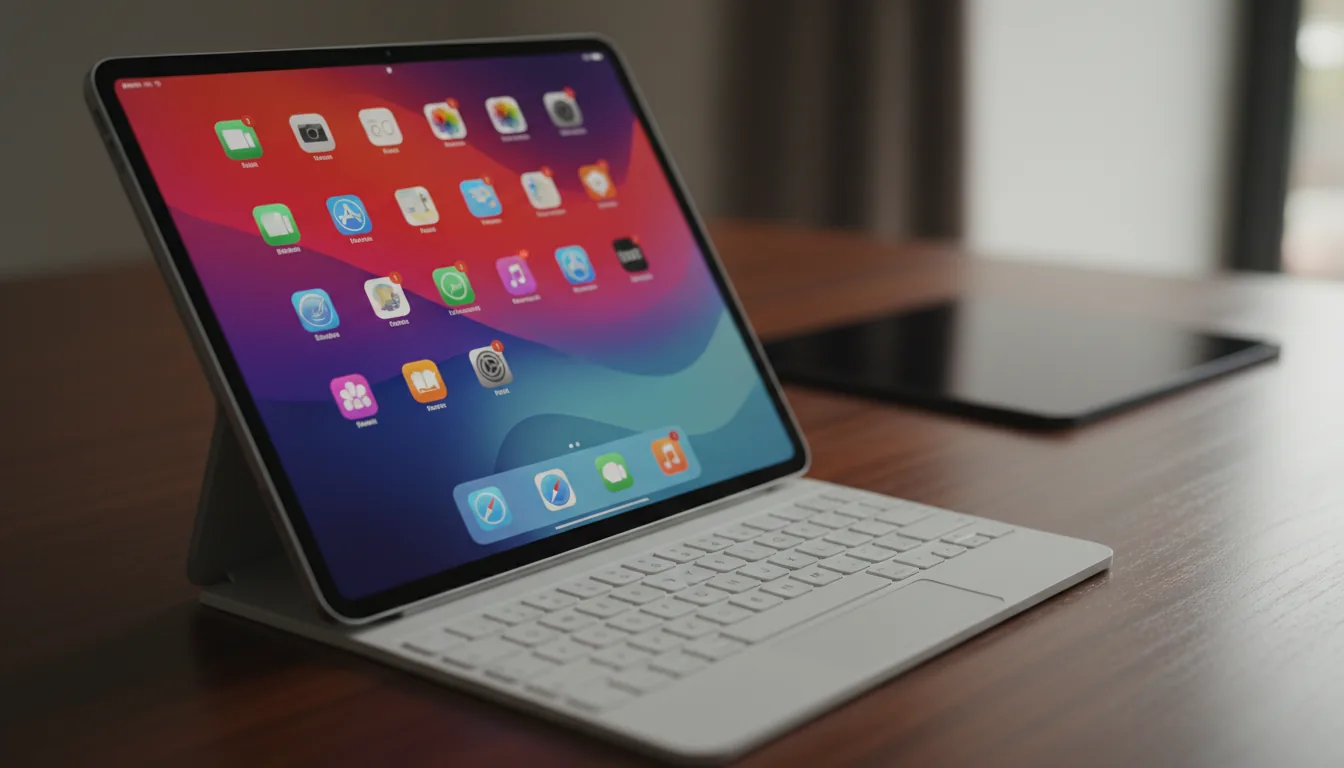
You can't install Windows or desktop apps on an iPad, but you can use them on it. The app runs on another computer and the iPad is the screen. For light work, native iPad apps are enough. For GPU-heavy or Windows-only software, a cloud computer you pay for by the minute is the simplest route.
Updated
·
4 chapters
·
7 min read
Start here: read the first post →
See the chapters ↓


Apps


In this guide
What you’ll learn
4 chapters

01
Four ways to get Windows on an iPad
Why the iPad can't run Windows itself, and the four places it can run instead.
Jump to chapter ↓
02
Blender, 3D and game engines on iPad
Heavy 3D apps have no iPad version, so the real question is where they run.
Jump to chapter ↓

03
Video and motion editors on iPad
Some editors have iPad versions with limits; others are desktop-only.
Jump to chapter ↓

04
CAD and BIM on iPad
Mobile apps cover viewing and markup; full modeling needs a Windows desktop.
Jump to chapter ↓
You own an iPad, and the app you need is a Windows .exe or a desktop program with no iPad version. This guide is for creatives, engineers and students in that spot. It explains why the iPad can't run those apps itself, the four places they can run instead, and which route fits Blender, Revit, DaVinci Resolve, AutoCAD and the rest. Start with How to Run Windows on an iPad for the full comparison of methods.
Four ways to get Windows on an iPad
The iPad can't install Windows. Our Windows-on-iPad post puts it plainly: iPadOS has no boot menu and no way in. So stop asking how to put Windows on the iPad and ask where it runs. There are four answers.
Your own PC. Use Microsoft's Windows App or Chrome Remote Desktop to reach a computer at home. It's free, but the PC has to stay awake and online, and your upload speed at home decides how it feels.
Emulation. UTM runs Windows on the iPad itself. The App Store build is slow, and the post notes there is no graphics acceleration, so it suits tinkering and old, light software only.
Windows 365. Microsoft hosts a Windows desktop for a flat monthly fee. It needs a business account, and the post says the base plans have no GPU.
An on-demand cloud computer. You rent a Windows machine with a GPU and pay for the minutes you use. That's the route this guide focuses on.
Linux works the same way. Ubuntu on an iPad is a cloud desktop streamed to the tablet, with a terminal, apt and GPU support, not an emulator.
Not every app needs a cloud computer. Photoshop on iPad shows the usual split. Adobe's iPad app handles lighter work. The full desktop version, with plug-ins and very large PSDs, belongs on a cloud computer.
Read next
Blender, 3D and game engines on iPad
No heavy 3D app has a real iPad version. Blender on iPad: what actually works lays out the idea: when someone says they use Blender on an iPad, Blender is running somewhere else and the iPad is the interface.
That post compares three setups. Sidecar turns the iPad into a second screen for a Mac, which is good for pencil sculpting but ties you to the desk and to the Mac's hardware. Remote desktop to your own machine frees you from the desk but depends on that machine staying on, and Blender is sensitive to latency. A cloud computer removes both dependencies, as long as your connection is stable.
If you want an AI assistant in the loop, Blender with Claude and Codex from an iPad keeps Blender, the assistant and your files on the cloud desktop. The iPad is where you give instructions and review results. It's honest about input: a keyboard and mouse help for sustained work, and Pencil pressure shouldn't be assumed.
The other 3D and engine posts follow the same pattern. Maya and Cinema 4D have no iPad app, so the answer is a cloud workstation. For game engines, Unreal Engine 5 and Unity split into two jobs. Companion tools such as Unreal Remote 2 and Unity Remote use the iPad as a test or control device while the editor runs elsewhere. Unity Remote is for testing, not development. To work in the full editor, run it on a cloud computer.
Read next
Video and motion editors on iPad
Video is where the iPad has the most native options, so check those first.
DaVinci Resolve for iPad includes the Cut and Color pages. Per our post it has no Fusion, no Fairlight and no third-party plug-ins, and it runs best on M-series iPad Pros. Final Cut Pro for iPad is a real tablet app too, with its own limits on plug-ins, file management and shared libraries.
When you need the full desktop tool, the picture changes. Premiere Pro, After Effects and Vegas Pro have no complete iPad app. Premiere Pro on iPad compares Premiere Rush for quick edits with the full app on a cloud computer for advanced color, plug-ins and long timelines. After Effects on iPad covers remote desktop, virtualization and cloud computers. Vegas Pro on iPad notes that Vegas Pro Connect is a companion app, not an editor, so the real options are remote desktop or a cloud computer.
A practical rule: rough cuts and basic grading on the native app, then switch to a cloud computer for finishing work that needs plug-ins or a GPU. Whichever you choose, a stable connection matters more than the iPad model.
Read next
CAD and BIM on iPad
Here the native-versus-cloud split is clearest. Autodesk's mobile tools are good at looking, measuring and marking up. They are not where you model.
Revit on iPad names two workflows. Workflow A uploads the model to Autodesk's cloud and uses the mobile viewer to navigate, comment and raise issues on site. Workflow B runs full Revit on a Windows cloud computer for modeling, families and add-ins. AutoCAD on iPad is similar: the mobile app handles drawing basics, annotation and measuring, but the post is blunt that 3D is not its strength. SketchUp on iPad walks through its iPad app and where a cloud computer takes over.
Twinmotion on iPad is the cleanest example. Twinmotion Cloud publishes a scene as a browser link you can present on an iPad, but you can't edit materials or lighting in it. To edit, run the full app on a cloud computer.
For client meetings, the viewer is often enough. For revisions on the spot, you need the full application.
Read next
Which route to pick
What you need | Best route | Why (from the posts above) |
|---|---|---|
Documents, email, one internal tool | Windows 365 or your own PC | No GPU needed; Windows 365 is a flat monthly fee |
You already own a capable PC and it stays on | Remote into your PC | Free, but depends on that PC and your home upload speed |
Tinkering, old light software | UTM emulation | No GPU acceleration |
Rough video edits, basic grading | Native iPad app (Resolve, Final Cut Pro) | No setup; limits on plug-ins and effects |
Premiere Pro, After Effects, plug-ins | Cloud computer | Full desktop app |
Blender, Maya, Cinema 4D, Unreal | Cloud computer | No iPad version; needs a GPU |
Revit or AutoCAD modeling | Cloud computer | Mobile apps cover viewing and markup |
Reviewing a model on site | Autodesk mobile viewer or Twinmotion Cloud | Viewer only, no editing |
Work that comes in bursts | Pay-per-minute cloud computer | You pay only while it runs |
Doing this on Vagon
Vagon Cloud Computer is the cloud route in this guide, and the simplest one: there is nothing to install on the iPad. Create a Windows computer, pick the apps to preinstall, choose a performance, and open it in the iPad's browser. Add a storage plan and your apps and files are there next time. Switch performance in seconds, so a light edit and a heavy render share one setup. The trial starts at $0.99 (pricing).
Everything depends on your internet connection, and if you run a powerful machine all day, every day, a flat monthly plan may cost less. Licenses for apps like Revit or Premiere are yours to bring.
FAQ
Can you install Windows on an iPad?
No. Our Windows-on-iPad post explains that the iPad runs only iPadOS, with no boot menu and no way to install another operating system. What you can do is run Windows on another machine and stream it to the iPad.
Can you use Blender on an iPad?
Not as a native app. In practice Blender runs on a Mac, a PC or a cloud computer, and the iPad is the interface. Sidecar, remote desktop and a cloud computer are the three routes we compare.
Does the Apple Pencil work with a cloud computer?
As a pointer, yes. Pressure sensitivity depends on the app and the connection, so test your exact app before relying on it. A hardware keyboard and a trackpad or mouse make desktop apps much easier to use.
How much does Vagon cost on an iPad?
You pay by the minute for the performance you pick, plus a monthly storage plan. Planet is listed at $0.99 per hour and storage starts at $7.99 per month. A trial from $0.99 includes one hour of Planet and 7 days of storage.


Read next
All posts in this guide
All guides →


Keep going
Related guides
All guides →


Cloud & IT
4 chapters
Best Cloud PC Services: How to Choose (2026)
Pick a cloud PC by the job and by how many hours you use it. Windows 365 suits office work, Shadow suits daily gaming, Paperspace and Runpod suit GPU compute, and a pay-per-minute cloud computer suits creative work that comes in bursts. Below roughly 30 hours a month, pay per use usually costs less than a flat plan.


Read →


Devices
4 chapters
How to Run Windows Apps on a Mac (Apple Silicon)
Boot Camp only works on Intel Macs. On an M-series Mac you can run Windows 11 on ARM in a local VM, run a single app with CrossOver, or use a cloud Windows computer. Local options are limited by ARM compatibility and your Mac's graphics. A cloud computer gives you real x86 Windows and a GPU.


Read →


Cloud & IT
4 chapters
Cloud Desktop Alternatives: Pick by What You Replace
Most alternative lists mix four different products: local virtual machines, game streamers, cloud PCs and remote-access tools. Decide which one you are replacing first. If you need a full Windows machine with a GPU that you only pay for while it runs, a cloud computer is the closest fit.
Read →
Software
Software in this guide
Browse software →
