Instant Connection for Pixel Streaming
— New Feature Automated Setup
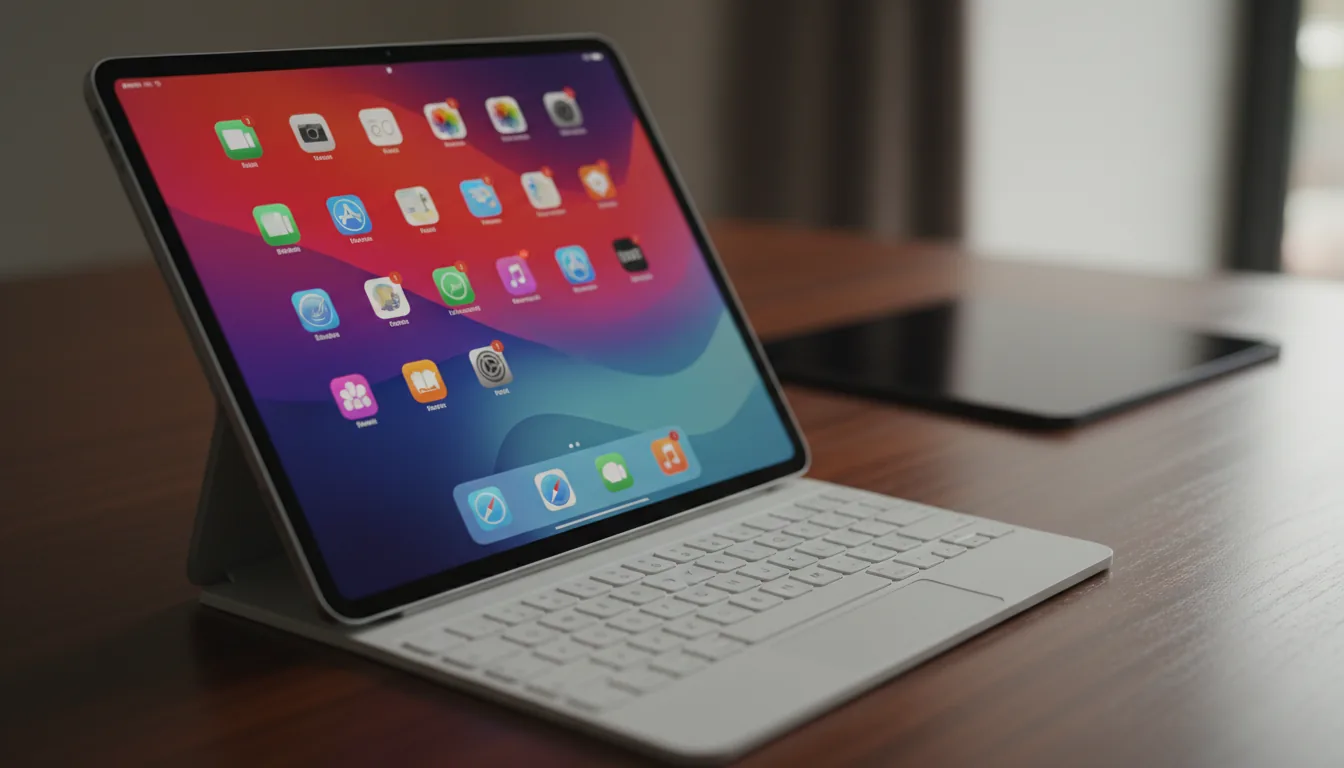
How to Use Blender on an iPad: What Actually Works in 2026
DigitalArt
-
How to Use Blender on an iPad: What Actually Works in 2026
DigitalArt
How to Use Blender on an iPad: What Actually Works in 2026
DigitalArt
-
Table of Contents
Let’s get this out of the way fast. You can’t install Blender on an iPad and just start working. There’s no App Store download, no native iPad version you can open next to Procreate. Not yet.
That surprises a lot of people, especially given how powerful modern iPads are. But Blender isn’t just demanding in terms of raw performance. It’s built around desktop workflows. Heavy keyboard use. Mouse-driven precision. A UI that assumes a big screen and active cooling. Making that feel right on a touch-first device is a real challenge, and the Blender team is still working through it.
So when someone says they’re “using Blender on an iPad,” Blender is almost always running somewhere else. On a Mac. On a PC. On a remote machine. The iPad is the interface, not the engine.
That distinction changes everything. If you miss it, the setup feels frustrating and limited. If you understand it, the whole problem becomes simpler. It’s no longer about whether Blender works on an iPad. It’s about where Blender runs, and how clean you want that connection to feel.
What “Using Blender on an iPad” Really Means
Once you stop thinking of the iPad as the machine doing the work, things click.
Blender isn’t struggling because the iPad is weak. It’s struggling because Blender expects a very specific environment. A full desktop operating system. A GPU that can sit under load for hours. A keyboard within arm’s reach. When you try to force all of that onto a tablet, something has to give.
So in practice, “using Blender on an iPad” really means this: Blender runs on another computer, and the iPad connects to it. Sometimes that computer is sitting right in front of you. Sometimes it’s at home. Sometimes it’s not even yours.
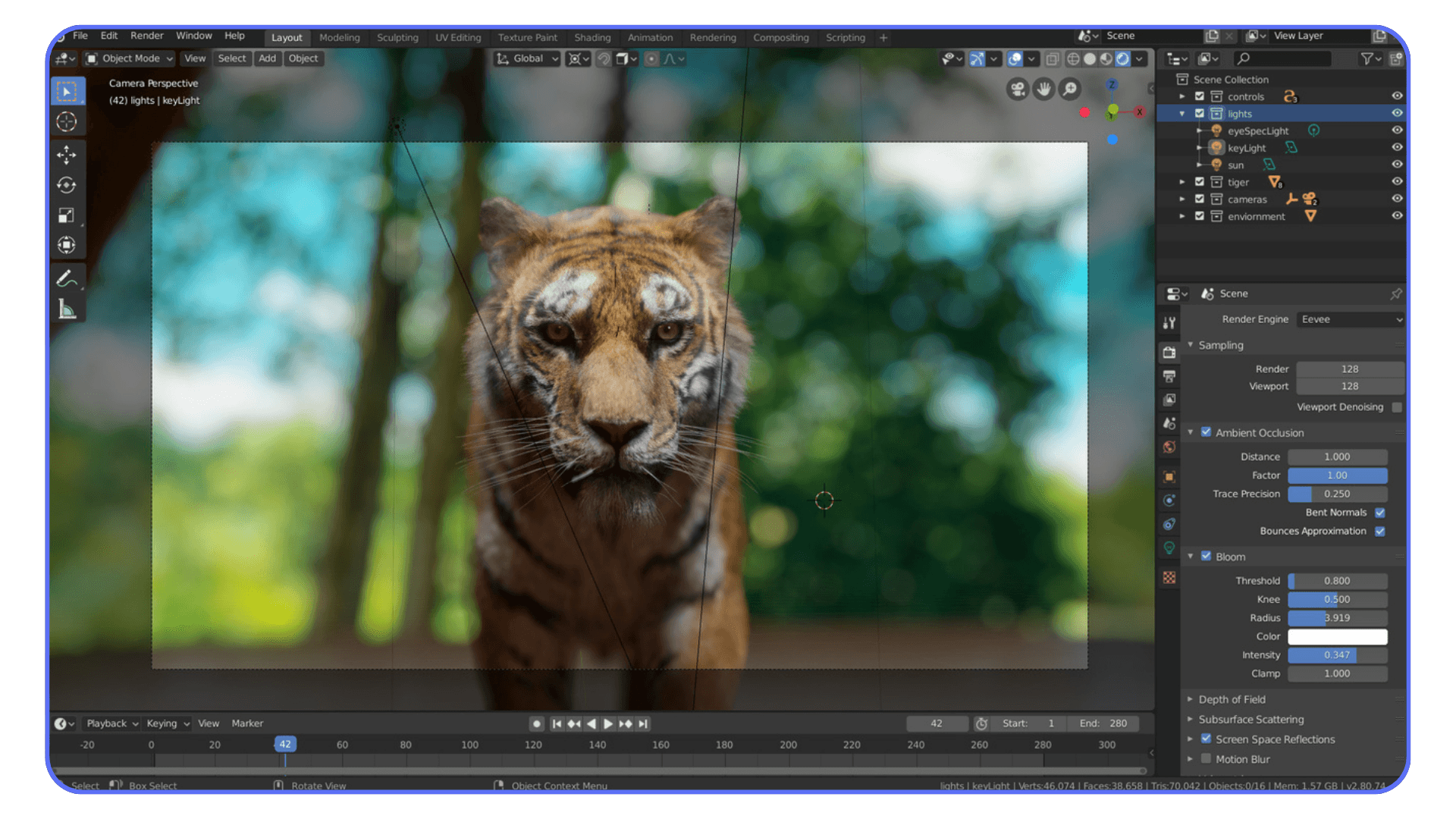
The iPad becomes a window into Blender. A very good one, when the setup is right. You can rotate the viewport with your fingers, sculpt with an Apple Pencil, tweak materials, even block out scenes. But the heavy lifting, the geometry crunching, the rendering, the simulations, all of that happens elsewhere.
This is why experiences vary so wildly. One person says Blender on iPad feels smooth and usable. Another says it’s a laggy mess. They’re not contradicting each other. They’re just running Blender in very different places, on very different hardware, with very different connections.
Once you understand this, you stop asking the wrong questions. It’s not “Does Blender work on an iPad?” It does, in a roundabout way. The real question is how you want to access it. Tethered to a nearby machine. Remoted into a computer you own. Or something cleaner that doesn’t depend on your personal hardware at all.
That’s where the different solution paths start to matter.
If you’re using Blender for more than just modeling, it’s worth knowing that many artists rely on it for 2D animation as well, especially with Grease Pencil workflows.
#1. Sidecar (When You’re Tied to a Mac)
If you already use a Mac, Sidecar is usually the first thing people try. It’s built into macOS, easy to enable, and doesn’t require learning a new tool. Blender runs normally on your Mac, and the iPad acts as a second screen that supports touch and Apple Pencil.
This setup works best when you lean into what the iPad is good at.
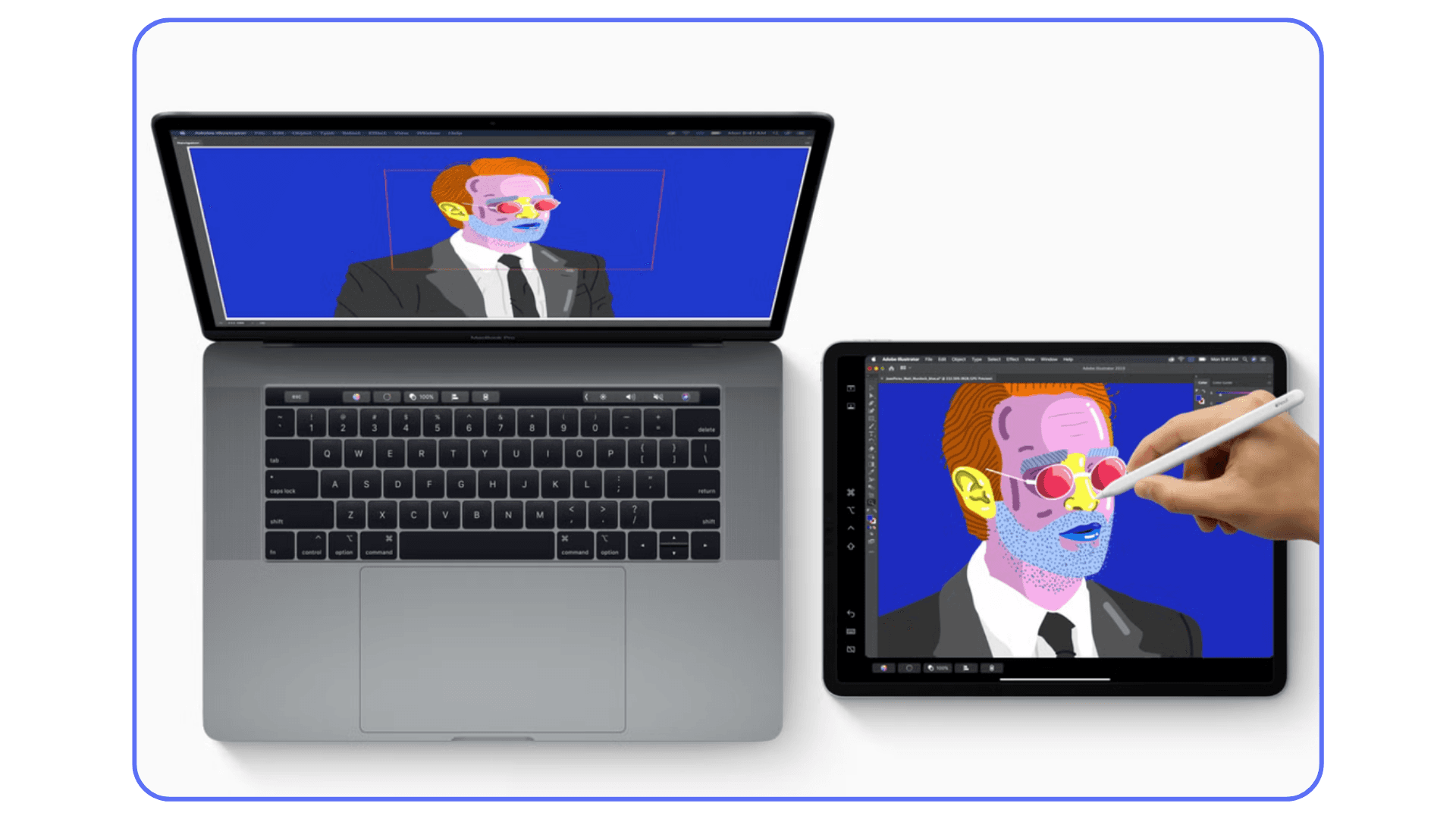
Sidecar shines in a few specific areas:
Sculpting with Apple Pencil feels more direct than a mouse
Grease Pencil workflows are smoother and more intuitive
Viewport navigation is faster when you’re not stuck on a trackpad
But Sidecar doesn’t magically change Blender itself. The interface is still desktop-first, and that shows pretty quickly.
The limitations are hard to ignore:
Performance is entirely dependent on your Mac’s hardware
Heavy scenes, simulations, and Cycles renders behave exactly as they did before
You still need a keyboard nearby for efficient work
The setup only works while you’re physically close to your Mac
In practice, Sidecar feels less like a mobile Blender solution and more like a quality-of-life upgrade for desktop work. It’s excellent for sculpting sessions, quick tweaks, and drawing-heavy tasks. It’s less convincing once you try to treat the iPad as your main Blender machine.
If your goal is to get away from the desk or work on demanding projects without worrying about local hardware, Sidecar starts to feel like a stepping stone rather than a destination.
#2. Remote Desktop Access (More Freedom, More Friction)
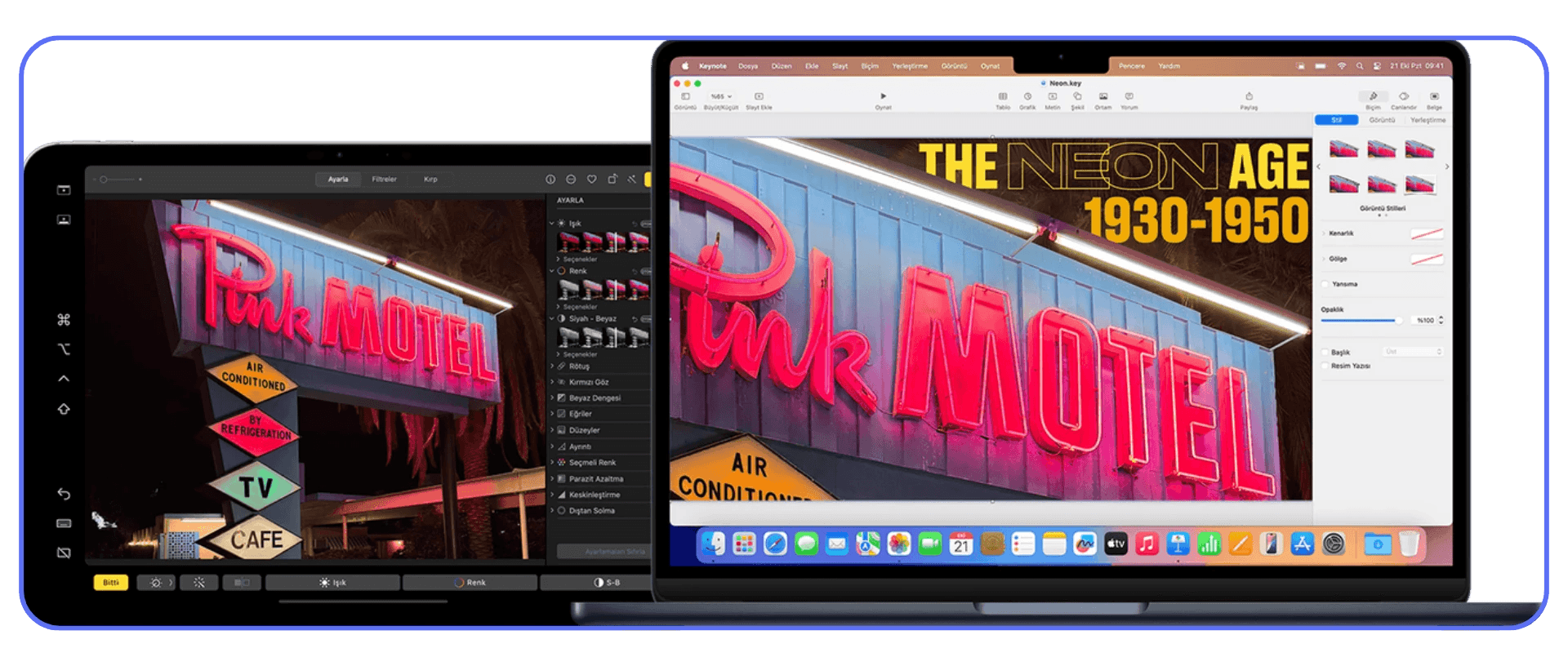
Remote desktop access is usually the next step once Sidecar starts to feel restrictive. Instead of keeping your iPad close to your computer, you connect to it over the internet. Blender still runs on your own machine, but now distance isn’t a factor.
This immediately unlocks more flexibility.
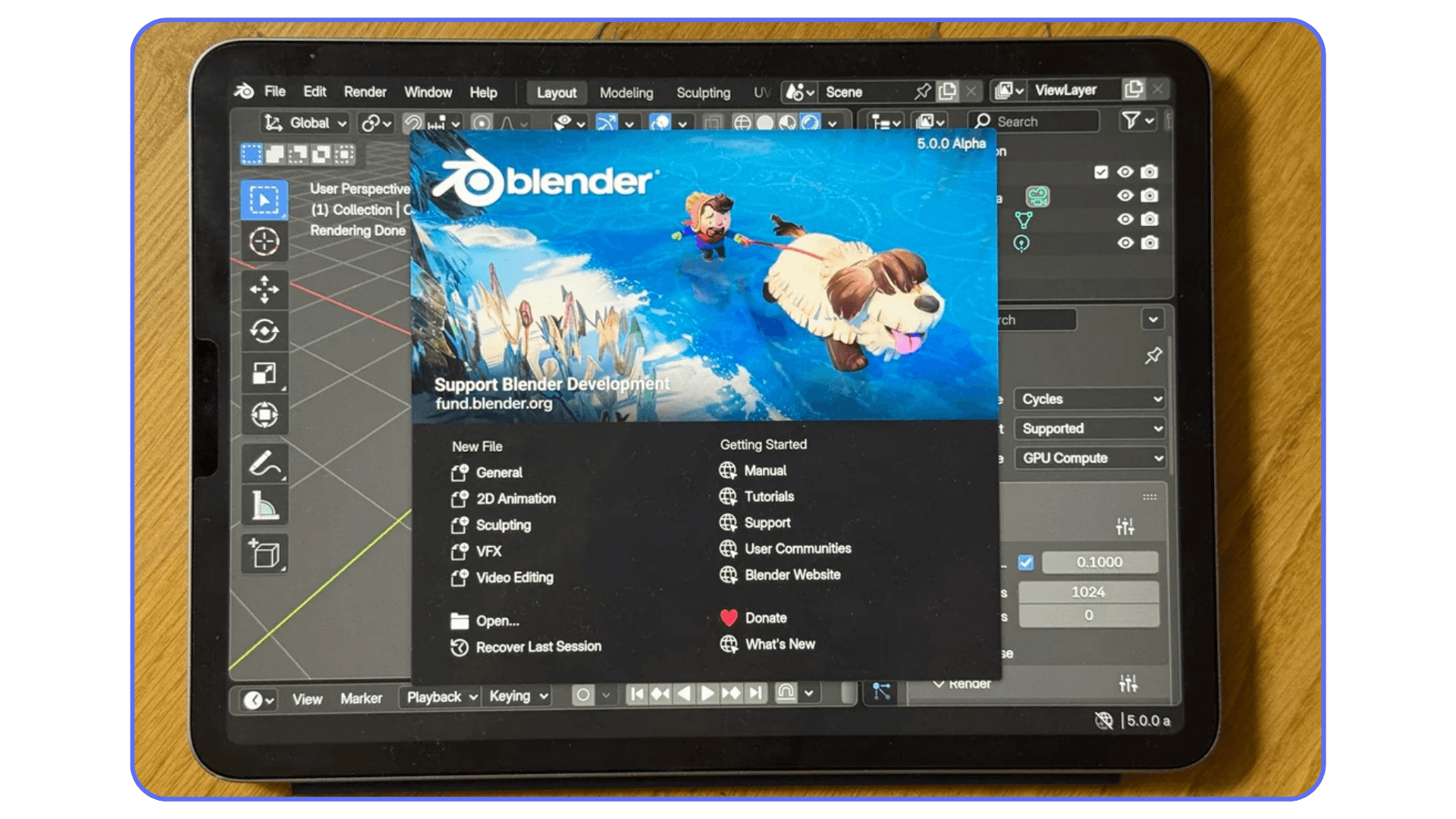
You can access Blender from anywhere with a decent connection
Your full Blender setup is available, including add-ons and preferences
The iPad becomes a portable entry point rather than a fixed display
For many artists, this is where the idea of Blender on an iPad starts to feel real.
But this setup has a fragile side. Blender is extremely sensitive to latency. Even slight delays can interrupt flow, especially during modeling, viewport navigation, or precise adjustments. When the connection stutters, the experience breaks quickly.
Input is another sticking point. Blender still expects a keyboard-driven workflow. Touch helps in some areas, but it doesn’t replace shortcuts or mouse-level precision. Without external input devices, even simple actions can feel slower than they should.
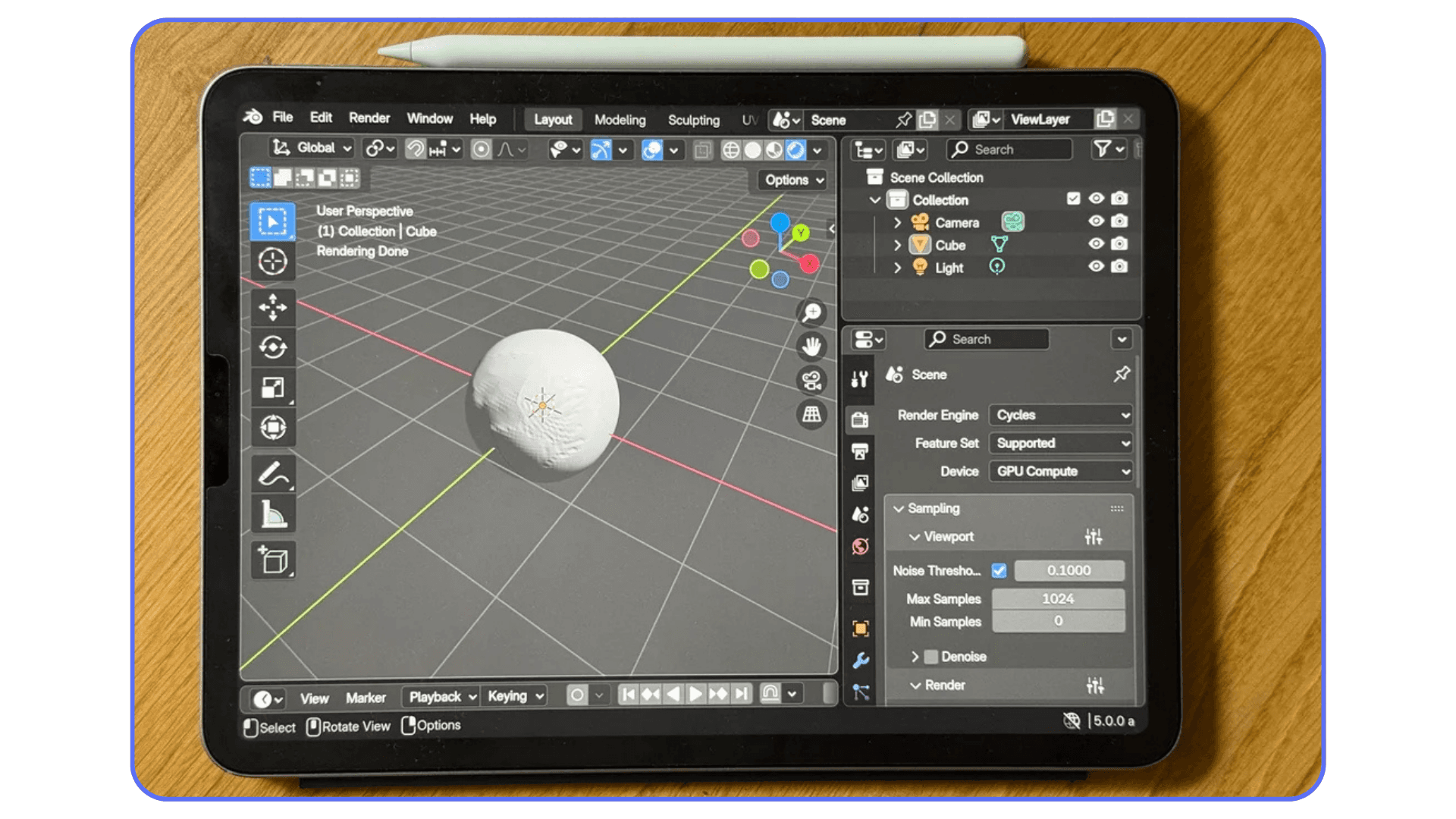
There’s also a dependency most people underestimate. Your main computer has to stay on, stay stable, and stay powerful enough for the work you’re doing. If it overheats, updates, crashes, or loses power, your iPad session ends with it.
Remote desktop access offers freedom, but it comes with constant trade-offs. You gain mobility, but you inherit every limitation of your own hardware and network. For some workflows, that’s acceptable. For others, it becomes a source of friction you’re always working around.
And once that friction adds up, the search for a cleaner setup usually begins.
If your scenes feel slow or renders take longer than expected, tweaking the right render settings often makes a bigger difference than upgrading hardware.
#3. Vagon Cloud Computer (The Cleanest Way to Use Blender on an iPad)
This is where most of the compromises disappear.
Instead of running Blender on your own machine and pushing it into an iPad, Vagon Cloud Computer changes the setup completely. Blender runs on a high-performance cloud workstation built for demanding 3D work. Your iPad becomes the way you access it. Simple as that.
What you notice first is consistency. Things behave the way they’re supposed to.
Heavy scenes stay responsive
Cycles renders perform like they would on a real workstation
Add-ons, shortcuts, and full Blender features work without limitations
There’s no laptop left running at home. No wondering if your GPU can survive the next project. No sudden slowdowns when a scene gets complex. As long as your internet connection is stable, Blender feels exactly like Blender.
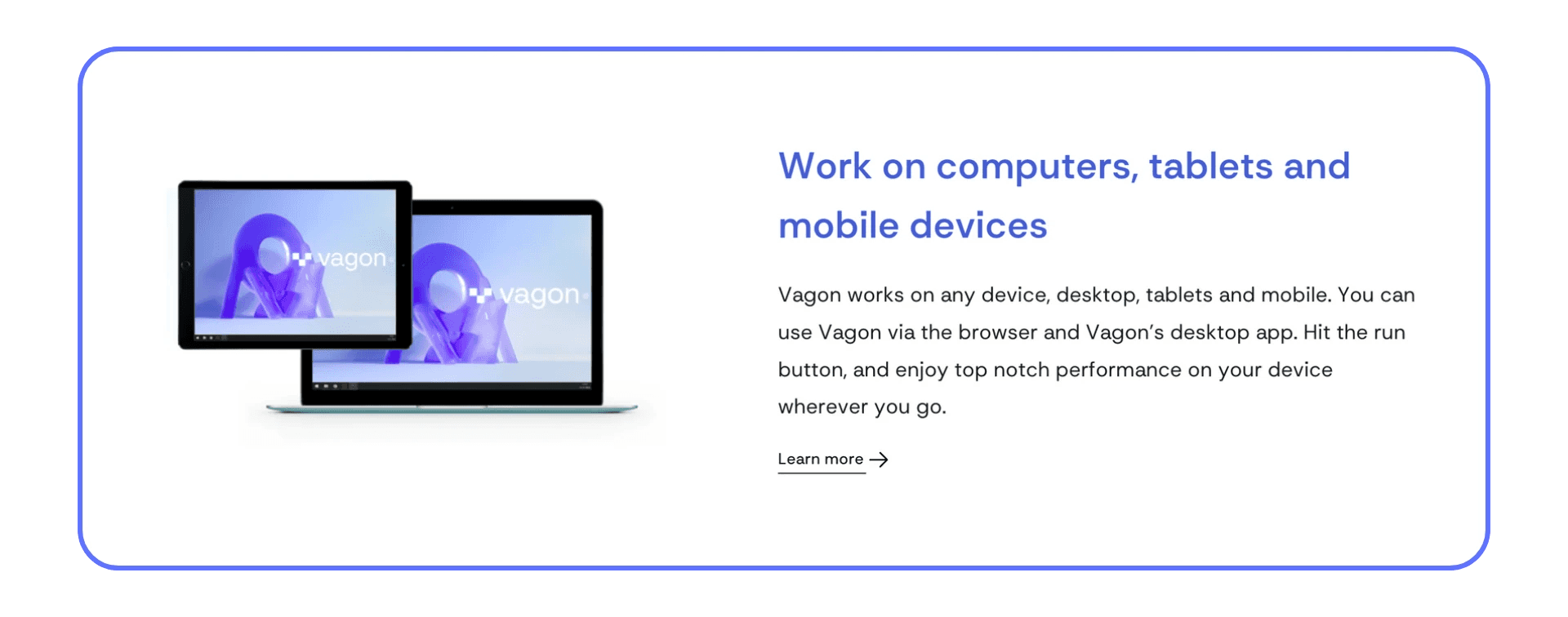
That reliability changes how you work. When performance is predictable, you stop making compromises without realizing it. You don’t simplify scenes just to keep things usable. You don’t avoid modifiers or lower texture quality out of habit. You work the way you actually want to work, even from an iPad.
There’s also a mental shift that’s easy to underestimate. Nothing to maintain. No updates breaking your setup. No fans spinning up. No thermal throttling halfway through a render. You open Vagon Cloud Computer, launch Blender, and get straight into your project.
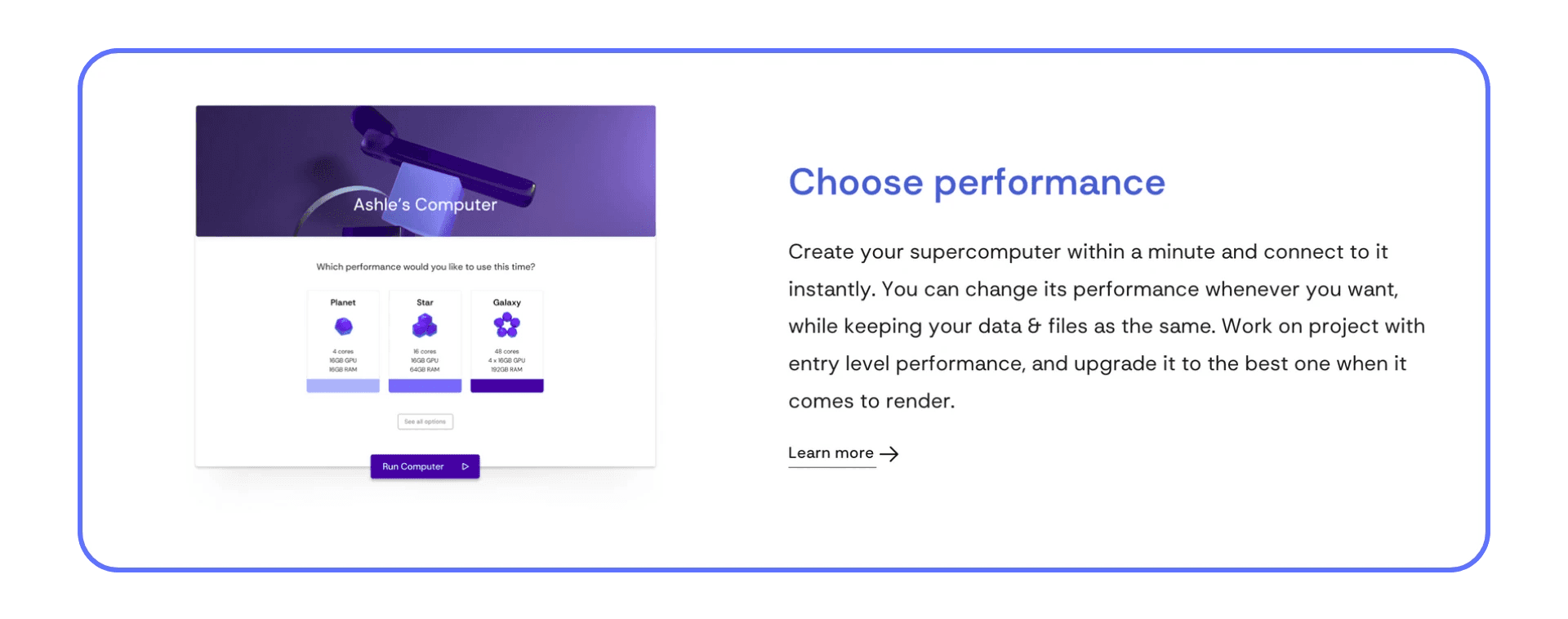
For artists who want to use an iPad as part of a serious Blender workflow, without owning or managing expensive hardware, this is the most straightforward option available right now. Vagon doesn’t try to reshape Blender or water it down for tablets. It gives you the real thing, running on proper hardware, accessible from anywhere.
Once you’ve worked this way, going back to juggling machines, connections, and performance limits feels unnecessarily complicated.
If Blender feels clunky on an iPad at first, it’s usually because the workflow is shortcut-heavy, and knowing the most important Blender hotkeys saves a lot of frustration.
How These Options Compare in Real Life
On paper, all three approaches get you to the same place. Blender on an iPad screen. In real use, they feel very different.
Sidecar is the most comfortable starting point. It feels familiar and safe, especially if you already live in the Apple ecosystem. But it’s clearly a desk-first setup. The moment you want to work from somewhere else, or push a heavier scene, its limits show up.
Remote desktop access improves mobility, but it adds a layer of unpredictability. When the connection is good and your hardware is behaving, it can feel surprisingly capable. When either of those slips, even slightly, the workflow starts to fight you. You spend more time managing the setup than focusing on the work.
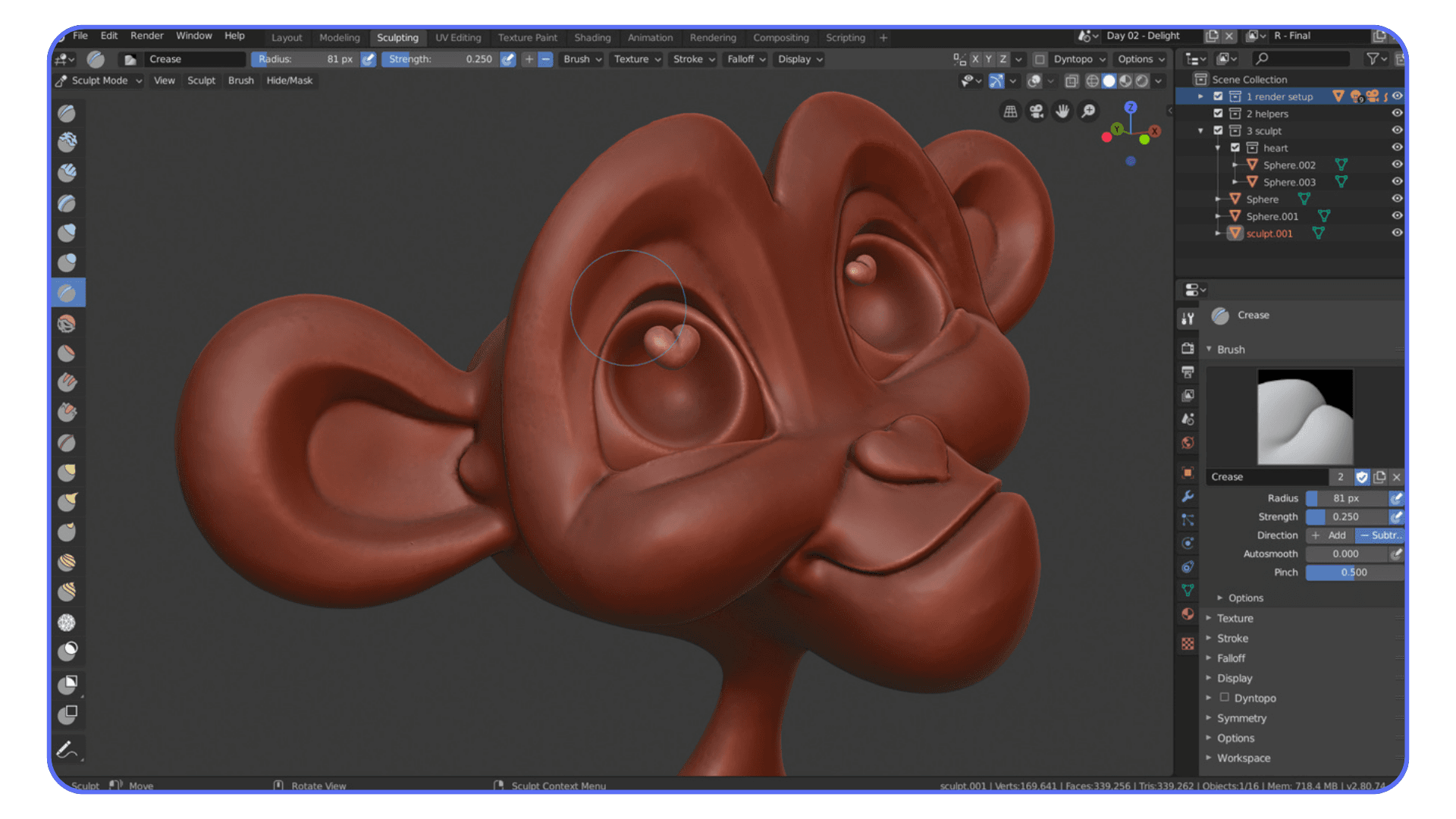
Using Blender through Vagon Cloud Computer feels different in a quieter way. There’s no tinkering phase. No wondering whether your machine can handle the scene. Performance doesn’t change because you switched locations. Blender just opens and works the way you expect it to.
That difference matters over time. Convenience is nice. Flexibility is useful. Reliability is what keeps you in flow. Once you’ve experienced Blender on an iPad without constantly thinking about hardware, connections, or compromises, it’s hard not to notice when those things come back.
At that point, the comparison stops being technical. It becomes personal. How much friction are you willing to accept to get your work done?
If you’re not sure whether Cycles or Eevee is the right choice for your project, understanding the different Blender render engines helps you avoid unnecessary compromises.
Real Blender-on-iPad Workflows That Actually Work
This is where things stop being theoretical.
The most successful Blender-on-iPad setups don’t try to force the iPad into doing everything. They treat it as part of a larger workflow. One that plays to its strengths instead of fighting its limits.
A common pattern looks like this. You use the iPad for the parts of the process that benefit from direct input and mobility. Sketching ideas. Blocking out forms. Sculpting rough shapes. Reviewing scenes on the couch or during travel. The Apple Pencil shines here. So does the ability to work without being glued to a desk.
When it’s time for heavier work, things shift. Dense meshes. Modifiers stacked ten layers deep. Lighting setups. Cycles renders. That’s where full Blender running on proper hardware matters. Trying to brute-force those steps on underpowered or unstable setups is usually where frustration creeps in.
What makes this workflow click is continuity. You’re not exporting between apps or rebuilding scenes. You’re opening the same Blender project, with the same settings, in the same environment. The iPad doesn’t feel like a compromise. It feels like a flexible entry point into serious work.
This approach also changes how people work day to day. Short sessions become productive. You don’t need a perfect setup to make progress. You can refine a sculpt, adjust proportions, or test an idea without committing to a full workstation session. Then, when you sit down for focused work, everything is already there waiting.
For freelancers and students especially, this kind of flexibility adds up. Less time managing tools. More time actually creating. And fewer moments where the hardware dictates what you’re allowed to do next.
When the workflow is right, the question stops being whether Blender works on an iPad. It becomes how often you choose to use it that way.
If you’re exploring Blender on non-traditional devices, many of the same limitations show up on Chromebooks, where access also depends on remote or cloud setups.
What About a Native Blender App for iPad?
Yes, it’s coming. And no, it won’t magically solve everything.
The Blender team has been open about working on a native iPad version. The focus so far has been touch-first interaction, Apple Pencil support, and making parts of Blender feel natural on a tablet instead of awkwardly squeezed onto one. That’s a good thing. It’s also a huge task.
Even when a native iPad version arrives, expectations need to stay realistic. Blender isn’t just a modeling app. It’s a full production suite. Sculpting and basic scene work will likely feel great on an iPad. Heavy simulations, complex node networks, and long Cycles renders are another story. Thermal limits and sustained performance still matter, no matter how powerful the hardware gets.
There’s also the workflow question. Many artists rely on add-ons, custom keymaps, and deeply ingrained shortcuts. Translating all of that cleanly to touch takes time. And even then, some workflows will always feel faster with a keyboard and mouse.
So a native Blender app on iPad will be a big step forward. It’ll make entry easier. It’ll open Blender to more people. But it won’t replace full desktop-grade setups overnight.
That’s why cloud-based workflows still matter, even looking ahead. They bridge the gap between mobility and power. And they let you work with Blender as it exists today, not as it might exist someday.
Waiting is an option. Working now is another.
If you find yourself repeating the same tasks in Blender, learning how Python works inside Blender can dramatically speed things up and unlock deeper customization.
Who This Setup Is Best For
Using Blender on an iPad isn’t a one-size-fits-all thing. It works best for certain people, in certain situations, with certain expectations.
It makes the most sense for artists who already enjoy working on an iPad. If sketching, sculpting, or ideation on a tablet feels natural to you, adding Blender into that mix feels like an extension, not a stretch.
It’s also a strong fit for freelancers and remote artists. When your workspace changes from day to day, carrying a single device that still gives you access to full Blender projects is hard to beat. You’re not tied to a specific desk or machine, and your workflow stays consistent.
Students benefit too. Accessing serious hardware without owning it removes a huge barrier. You can focus on learning Blender instead of fighting system requirements or upgrading parts just to keep up with coursework.
And then there are artists who simply don’t want to manage hardware anymore. No maintenance. No overheating laptops. No worrying whether the next project will push your system over the edge. Just open Blender and work.
If your workflow depends on offline access or you prefer a traditional desktop setup, this approach may feel unnecessary. But if flexibility, mobility, and predictable performance matter to you, using Blender through an iPad starts to feel less like a workaround and more like a smart choice.
At that point, it’s not about replacing your main setup. It’s about expanding how and where you can work.
If your Blender projects are headed for the real world, not just the screen, using it for 3D printing introduces a completely different set of considerations.
Final Thoughts
Using Blender on an iPad isn’t a gimmick anymore. It’s not a novelty trick or something you try once just to see if it works. When it’s set up properly, the iPad becomes a legitimate way to access serious 3D work.
The tools to make this happen already exist. You don’t have to wait for a perfect native app or redesign your entire workflow. What matters is how clean you want the experience to be and how much friction you’re willing to tolerate along the way.
If you’re comfortable working around limitations, simpler setups can get the job done. But if you want Blender to behave like Blender, without worrying about hardware, location, or performance drops, running it through Vagon Cloud Computer is the most straightforward path.
At that point, the question isn’t whether Blender works on an iPad. It’s whether you’re ready to use it without compromise.
FAQs
1. Can I install Blender directly on an iPad?
No. There’s no native iPadOS version of Blender you can download and run locally. When people use Blender on an iPad today, Blender is running on another machine and the iPad is used to access it.
2. Is a native Blender app for iPad coming?
Yes, the Blender team is actively working on it. Early development focuses on touch and Apple Pencil support. That said, it won’t replace full desktop workflows right away, especially for heavy scenes, simulations, and rendering.
3. Can I model and sculpt in Blender using Apple Pencil?
Yes, with the right setup. Sculpting and viewport navigation work well with Apple Pencil when Blender is accessed through a connected or remote environment. Precision tasks and shortcut-heavy workflows still benefit from a keyboard.
4. Do I need a powerful computer to use Blender on an iPad?
It depends on how you access Blender. If Blender runs on your own computer, that machine needs to be powerful enough for your projects. If Blender runs on a cloud computer, the iPad’s hardware isn’t the limiting factor.
5. Is Blender usable on an iPad without a keyboard and mouse?
For basic tasks like sculpting, reviewing scenes, or making small adjustments, yes. For full production work, a keyboard is strongly recommended. Blender relies heavily on shortcuts, regardless of platform.
6. Will Blender performance be worse on an iPad?
Performance depends on where Blender is running, not the iPad itself. When Blender runs on capable hardware, performance is consistent. When it runs on underpowered or unstable systems, the experience suffers.
7. Is this setup suitable for professional work?
Yes, as long as expectations are realistic. Many professionals already use iPads as part of hybrid workflows. With the right setup, accessing full Blender projects from an iPad can be practical and reliable.
Let’s get this out of the way fast. You can’t install Blender on an iPad and just start working. There’s no App Store download, no native iPad version you can open next to Procreate. Not yet.
That surprises a lot of people, especially given how powerful modern iPads are. But Blender isn’t just demanding in terms of raw performance. It’s built around desktop workflows. Heavy keyboard use. Mouse-driven precision. A UI that assumes a big screen and active cooling. Making that feel right on a touch-first device is a real challenge, and the Blender team is still working through it.
So when someone says they’re “using Blender on an iPad,” Blender is almost always running somewhere else. On a Mac. On a PC. On a remote machine. The iPad is the interface, not the engine.
That distinction changes everything. If you miss it, the setup feels frustrating and limited. If you understand it, the whole problem becomes simpler. It’s no longer about whether Blender works on an iPad. It’s about where Blender runs, and how clean you want that connection to feel.
What “Using Blender on an iPad” Really Means
Once you stop thinking of the iPad as the machine doing the work, things click.
Blender isn’t struggling because the iPad is weak. It’s struggling because Blender expects a very specific environment. A full desktop operating system. A GPU that can sit under load for hours. A keyboard within arm’s reach. When you try to force all of that onto a tablet, something has to give.
So in practice, “using Blender on an iPad” really means this: Blender runs on another computer, and the iPad connects to it. Sometimes that computer is sitting right in front of you. Sometimes it’s at home. Sometimes it’s not even yours.
The iPad becomes a window into Blender. A very good one, when the setup is right. You can rotate the viewport with your fingers, sculpt with an Apple Pencil, tweak materials, even block out scenes. But the heavy lifting, the geometry crunching, the rendering, the simulations, all of that happens elsewhere.
This is why experiences vary so wildly. One person says Blender on iPad feels smooth and usable. Another says it’s a laggy mess. They’re not contradicting each other. They’re just running Blender in very different places, on very different hardware, with very different connections.
Once you understand this, you stop asking the wrong questions. It’s not “Does Blender work on an iPad?” It does, in a roundabout way. The real question is how you want to access it. Tethered to a nearby machine. Remoted into a computer you own. Or something cleaner that doesn’t depend on your personal hardware at all.
That’s where the different solution paths start to matter.
If you’re using Blender for more than just modeling, it’s worth knowing that many artists rely on it for 2D animation as well, especially with Grease Pencil workflows.
#1. Sidecar (When You’re Tied to a Mac)
If you already use a Mac, Sidecar is usually the first thing people try. It’s built into macOS, easy to enable, and doesn’t require learning a new tool. Blender runs normally on your Mac, and the iPad acts as a second screen that supports touch and Apple Pencil.
This setup works best when you lean into what the iPad is good at.
Sidecar shines in a few specific areas:
Sculpting with Apple Pencil feels more direct than a mouse
Grease Pencil workflows are smoother and more intuitive
Viewport navigation is faster when you’re not stuck on a trackpad
But Sidecar doesn’t magically change Blender itself. The interface is still desktop-first, and that shows pretty quickly.
The limitations are hard to ignore:
Performance is entirely dependent on your Mac’s hardware
Heavy scenes, simulations, and Cycles renders behave exactly as they did before
You still need a keyboard nearby for efficient work
The setup only works while you’re physically close to your Mac
In practice, Sidecar feels less like a mobile Blender solution and more like a quality-of-life upgrade for desktop work. It’s excellent for sculpting sessions, quick tweaks, and drawing-heavy tasks. It’s less convincing once you try to treat the iPad as your main Blender machine.
If your goal is to get away from the desk or work on demanding projects without worrying about local hardware, Sidecar starts to feel like a stepping stone rather than a destination.
#2. Remote Desktop Access (More Freedom, More Friction)
Remote desktop access is usually the next step once Sidecar starts to feel restrictive. Instead of keeping your iPad close to your computer, you connect to it over the internet. Blender still runs on your own machine, but now distance isn’t a factor.
This immediately unlocks more flexibility.
You can access Blender from anywhere with a decent connection
Your full Blender setup is available, including add-ons and preferences
The iPad becomes a portable entry point rather than a fixed display
For many artists, this is where the idea of Blender on an iPad starts to feel real.
But this setup has a fragile side. Blender is extremely sensitive to latency. Even slight delays can interrupt flow, especially during modeling, viewport navigation, or precise adjustments. When the connection stutters, the experience breaks quickly.
Input is another sticking point. Blender still expects a keyboard-driven workflow. Touch helps in some areas, but it doesn’t replace shortcuts or mouse-level precision. Without external input devices, even simple actions can feel slower than they should.
There’s also a dependency most people underestimate. Your main computer has to stay on, stay stable, and stay powerful enough for the work you’re doing. If it overheats, updates, crashes, or loses power, your iPad session ends with it.
Remote desktop access offers freedom, but it comes with constant trade-offs. You gain mobility, but you inherit every limitation of your own hardware and network. For some workflows, that’s acceptable. For others, it becomes a source of friction you’re always working around.
And once that friction adds up, the search for a cleaner setup usually begins.
If your scenes feel slow or renders take longer than expected, tweaking the right render settings often makes a bigger difference than upgrading hardware.
#3. Vagon Cloud Computer (The Cleanest Way to Use Blender on an iPad)
This is where most of the compromises disappear.
Instead of running Blender on your own machine and pushing it into an iPad, Vagon Cloud Computer changes the setup completely. Blender runs on a high-performance cloud workstation built for demanding 3D work. Your iPad becomes the way you access it. Simple as that.
What you notice first is consistency. Things behave the way they’re supposed to.
Heavy scenes stay responsive
Cycles renders perform like they would on a real workstation
Add-ons, shortcuts, and full Blender features work without limitations
There’s no laptop left running at home. No wondering if your GPU can survive the next project. No sudden slowdowns when a scene gets complex. As long as your internet connection is stable, Blender feels exactly like Blender.
That reliability changes how you work. When performance is predictable, you stop making compromises without realizing it. You don’t simplify scenes just to keep things usable. You don’t avoid modifiers or lower texture quality out of habit. You work the way you actually want to work, even from an iPad.
There’s also a mental shift that’s easy to underestimate. Nothing to maintain. No updates breaking your setup. No fans spinning up. No thermal throttling halfway through a render. You open Vagon Cloud Computer, launch Blender, and get straight into your project.
For artists who want to use an iPad as part of a serious Blender workflow, without owning or managing expensive hardware, this is the most straightforward option available right now. Vagon doesn’t try to reshape Blender or water it down for tablets. It gives you the real thing, running on proper hardware, accessible from anywhere.
Once you’ve worked this way, going back to juggling machines, connections, and performance limits feels unnecessarily complicated.
If Blender feels clunky on an iPad at first, it’s usually because the workflow is shortcut-heavy, and knowing the most important Blender hotkeys saves a lot of frustration.
How These Options Compare in Real Life
On paper, all three approaches get you to the same place. Blender on an iPad screen. In real use, they feel very different.
Sidecar is the most comfortable starting point. It feels familiar and safe, especially if you already live in the Apple ecosystem. But it’s clearly a desk-first setup. The moment you want to work from somewhere else, or push a heavier scene, its limits show up.
Remote desktop access improves mobility, but it adds a layer of unpredictability. When the connection is good and your hardware is behaving, it can feel surprisingly capable. When either of those slips, even slightly, the workflow starts to fight you. You spend more time managing the setup than focusing on the work.
Using Blender through Vagon Cloud Computer feels different in a quieter way. There’s no tinkering phase. No wondering whether your machine can handle the scene. Performance doesn’t change because you switched locations. Blender just opens and works the way you expect it to.
That difference matters over time. Convenience is nice. Flexibility is useful. Reliability is what keeps you in flow. Once you’ve experienced Blender on an iPad without constantly thinking about hardware, connections, or compromises, it’s hard not to notice when those things come back.
At that point, the comparison stops being technical. It becomes personal. How much friction are you willing to accept to get your work done?
If you’re not sure whether Cycles or Eevee is the right choice for your project, understanding the different Blender render engines helps you avoid unnecessary compromises.
Real Blender-on-iPad Workflows That Actually Work
This is where things stop being theoretical.
The most successful Blender-on-iPad setups don’t try to force the iPad into doing everything. They treat it as part of a larger workflow. One that plays to its strengths instead of fighting its limits.
A common pattern looks like this. You use the iPad for the parts of the process that benefit from direct input and mobility. Sketching ideas. Blocking out forms. Sculpting rough shapes. Reviewing scenes on the couch or during travel. The Apple Pencil shines here. So does the ability to work without being glued to a desk.
When it’s time for heavier work, things shift. Dense meshes. Modifiers stacked ten layers deep. Lighting setups. Cycles renders. That’s where full Blender running on proper hardware matters. Trying to brute-force those steps on underpowered or unstable setups is usually where frustration creeps in.
What makes this workflow click is continuity. You’re not exporting between apps or rebuilding scenes. You’re opening the same Blender project, with the same settings, in the same environment. The iPad doesn’t feel like a compromise. It feels like a flexible entry point into serious work.
This approach also changes how people work day to day. Short sessions become productive. You don’t need a perfect setup to make progress. You can refine a sculpt, adjust proportions, or test an idea without committing to a full workstation session. Then, when you sit down for focused work, everything is already there waiting.
For freelancers and students especially, this kind of flexibility adds up. Less time managing tools. More time actually creating. And fewer moments where the hardware dictates what you’re allowed to do next.
When the workflow is right, the question stops being whether Blender works on an iPad. It becomes how often you choose to use it that way.
If you’re exploring Blender on non-traditional devices, many of the same limitations show up on Chromebooks, where access also depends on remote or cloud setups.
What About a Native Blender App for iPad?
Yes, it’s coming. And no, it won’t magically solve everything.
The Blender team has been open about working on a native iPad version. The focus so far has been touch-first interaction, Apple Pencil support, and making parts of Blender feel natural on a tablet instead of awkwardly squeezed onto one. That’s a good thing. It’s also a huge task.
Even when a native iPad version arrives, expectations need to stay realistic. Blender isn’t just a modeling app. It’s a full production suite. Sculpting and basic scene work will likely feel great on an iPad. Heavy simulations, complex node networks, and long Cycles renders are another story. Thermal limits and sustained performance still matter, no matter how powerful the hardware gets.
There’s also the workflow question. Many artists rely on add-ons, custom keymaps, and deeply ingrained shortcuts. Translating all of that cleanly to touch takes time. And even then, some workflows will always feel faster with a keyboard and mouse.
So a native Blender app on iPad will be a big step forward. It’ll make entry easier. It’ll open Blender to more people. But it won’t replace full desktop-grade setups overnight.
That’s why cloud-based workflows still matter, even looking ahead. They bridge the gap between mobility and power. And they let you work with Blender as it exists today, not as it might exist someday.
Waiting is an option. Working now is another.
If you find yourself repeating the same tasks in Blender, learning how Python works inside Blender can dramatically speed things up and unlock deeper customization.
Who This Setup Is Best For
Using Blender on an iPad isn’t a one-size-fits-all thing. It works best for certain people, in certain situations, with certain expectations.
It makes the most sense for artists who already enjoy working on an iPad. If sketching, sculpting, or ideation on a tablet feels natural to you, adding Blender into that mix feels like an extension, not a stretch.
It’s also a strong fit for freelancers and remote artists. When your workspace changes from day to day, carrying a single device that still gives you access to full Blender projects is hard to beat. You’re not tied to a specific desk or machine, and your workflow stays consistent.
Students benefit too. Accessing serious hardware without owning it removes a huge barrier. You can focus on learning Blender instead of fighting system requirements or upgrading parts just to keep up with coursework.
And then there are artists who simply don’t want to manage hardware anymore. No maintenance. No overheating laptops. No worrying whether the next project will push your system over the edge. Just open Blender and work.
If your workflow depends on offline access or you prefer a traditional desktop setup, this approach may feel unnecessary. But if flexibility, mobility, and predictable performance matter to you, using Blender through an iPad starts to feel less like a workaround and more like a smart choice.
At that point, it’s not about replacing your main setup. It’s about expanding how and where you can work.
If your Blender projects are headed for the real world, not just the screen, using it for 3D printing introduces a completely different set of considerations.
Final Thoughts
Using Blender on an iPad isn’t a gimmick anymore. It’s not a novelty trick or something you try once just to see if it works. When it’s set up properly, the iPad becomes a legitimate way to access serious 3D work.
The tools to make this happen already exist. You don’t have to wait for a perfect native app or redesign your entire workflow. What matters is how clean you want the experience to be and how much friction you’re willing to tolerate along the way.
If you’re comfortable working around limitations, simpler setups can get the job done. But if you want Blender to behave like Blender, without worrying about hardware, location, or performance drops, running it through Vagon Cloud Computer is the most straightforward path.
At that point, the question isn’t whether Blender works on an iPad. It’s whether you’re ready to use it without compromise.
FAQs
1. Can I install Blender directly on an iPad?
No. There’s no native iPadOS version of Blender you can download and run locally. When people use Blender on an iPad today, Blender is running on another machine and the iPad is used to access it.
2. Is a native Blender app for iPad coming?
Yes, the Blender team is actively working on it. Early development focuses on touch and Apple Pencil support. That said, it won’t replace full desktop workflows right away, especially for heavy scenes, simulations, and rendering.
3. Can I model and sculpt in Blender using Apple Pencil?
Yes, with the right setup. Sculpting and viewport navigation work well with Apple Pencil when Blender is accessed through a connected or remote environment. Precision tasks and shortcut-heavy workflows still benefit from a keyboard.
4. Do I need a powerful computer to use Blender on an iPad?
It depends on how you access Blender. If Blender runs on your own computer, that machine needs to be powerful enough for your projects. If Blender runs on a cloud computer, the iPad’s hardware isn’t the limiting factor.
5. Is Blender usable on an iPad without a keyboard and mouse?
For basic tasks like sculpting, reviewing scenes, or making small adjustments, yes. For full production work, a keyboard is strongly recommended. Blender relies heavily on shortcuts, regardless of platform.
6. Will Blender performance be worse on an iPad?
Performance depends on where Blender is running, not the iPad itself. When Blender runs on capable hardware, performance is consistent. When it runs on underpowered or unstable systems, the experience suffers.
7. Is this setup suitable for professional work?
Yes, as long as expectations are realistic. Many professionals already use iPads as part of hybrid workflows. With the right setup, accessing full Blender projects from an iPad can be practical and reliable.
Get Beyond Your Computer Performance
Run applications on your cloud computer with the latest generation hardware. No more crashes or lags.

Trial includes 1 hour usage + 7 days of storage.
Summarize with AI

Ready to focus on your creativity?
Vagon gives you the ability to create & render projects, collaborate, and stream applications with the power of the best hardware.

Vagon Blog
Run heavy applications on any device with
your personal computer on the cloud.
San Francisco, California
Solutions
Vagon Teams
Vagon Streams
Use Cases
Resources
Vagon Blog
How to Use SketchUp With Claude: MCP and Computer Use
How to Use ComfyUI With Codex: MCP and Computer Use
How to Use Godot With Codex: MCP & Computer Use Guide
How to Use Houdini With Codex: MCP, Computer Use & RBD
How to Use Cinema 4D With Codex: MCP & Computer Use
How to Use Higgsfield With Codex: MCP & Computer Use
How to Use DaVinci Resolve With Codex: MCP & Computer Use
How to Use ComfyUI With Claude: MCP & Computer Use Guide
How to Use Rhino With Codex: MCP & Computer Use Guide
Vagon Blog
Run heavy applications on any device with
your personal computer on the cloud.
San Francisco, California
Solutions
Vagon Teams
Vagon Streams
Use Cases
Resources
Vagon Blog
How to Use SketchUp With Claude: MCP and Computer Use
How to Use ComfyUI With Codex: MCP and Computer Use
How to Use Godot With Codex: MCP & Computer Use Guide
How to Use Houdini With Codex: MCP, Computer Use & RBD
How to Use Cinema 4D With Codex: MCP & Computer Use
How to Use Higgsfield With Codex: MCP & Computer Use
How to Use DaVinci Resolve With Codex: MCP & Computer Use
How to Use ComfyUI With Claude: MCP & Computer Use Guide
How to Use Rhino With Codex: MCP & Computer Use Guide
Vagon Blog
Run heavy applications on any device with
your personal computer on the cloud.
San Francisco, California
Solutions
Vagon Teams
Vagon Streams
Use Cases
Resources
Vagon Blog