Instant Connection for Pixel Streaming
— New Feature Automated Setup
The Best AI Photo Editors in 2026: Tools, Workflows, and Real Results
DigitalArt
The Best AI Photo Editors in 2026: Tools, Workflows, and Real Results
DigitalArt
The Best AI Photo Editors in 2026: Tools, Workflows, and Real Results
DigitalArt
Table of Contents
Editing a photo used to take 30 minutes. Now it takes 30 seconds… and somehow looks better.
I’m not exaggerating. I’ve watched people go from carefully dodging and burning in Adobe Photoshop to just typing “remove the background and make it golden hour” and calling it a day. And honestly? Half the time, the AI version wins.
That’s the weird part.
Over the last couple of years, photo editing didn’t just get faster. It changed shape completely. Tools stopped feeling like tools and started acting more like collaborators. You don’t just adjust sliders anymore. You describe what you want, and the software figures out how to get there. Sometimes better than you would.
I’ve tested most of the big names in this space. Some impressed me. Some looked great at first, then fell apart under real use. And a few… I still don’t trust with anything important.
So this isn’t going to be one of those generic “top 10 tools” lists.
This is what actually holds up when you’re editing real photos, on real deadlines, with real expectations. What works. What doesn’t. And where things get a little overhyped.
What Actually Changed in AI Photo Editing
Two years ago, AI in photo editing felt like a gimmick.
You clicked a button, it boosted some colors, maybe smoothed skin a bit too aggressively, and that was it. Useful, sure. But predictable. Limited.
Now? Completely different story.
The biggest shift isn’t just better results. It’s how you interact with the tools.
You’re Not Editing Anymore. You’re Directing.
This is the part that caught me off guard.
In tools like Adobe Photoshop, you’re no longer manually selecting, masking, refining every little detail. You just… describe what you want.
“Extend the background.”
“Remove the people.”
“Turn this into sunset lighting.”
And it actually works. Not perfectly every time, but often enough that you start trusting it.
That’s new.
Even a year ago, you’d still need to clean up edges or fix weird artifacts. Now the first result is often usable. Sometimes final.
Generative Editing Became Normal
There was a time when “adding things that weren’t in the photo” felt like cheating.
Now it’s just Tuesday.
Generative fill, background expansion, object replacement. These aren’t experimental features anymore, they’re core workflows. You’ll see it in Photoshop, but also in tools like Luminar Neo, where AI doesn’t just enhance photos, it reshapes them.
And here’s the interesting part: people stopped asking “is this real?”
They started asking “does it look good?”
That shift matters more than any feature update.
Speed vs Control Is the New Tradeoff
AI made editing faster. No question.
But there’s a catch.
The faster the tool, the less control you usually have.
Apps like Canva or Fotor can give you a polished result in seconds. Great for social media. Quick client work. Low-stakes edits.
But try doing something precise? Matching tones across a full shoot? Fixing subtle lighting inconsistencies?
That’s where they struggle.
So now you’re constantly choosing:
Do I want speed?
Or do I want control?
And most of the time, you can’t fully have both.
AI Started Making Decisions For You
This is subtle, but important.
Tools like Luminar Neo and Adobe Lightroom now analyze your photo before you even touch anything. They suggest edits. Apply masks automatically. Adjust lighting based on what they think the subject is.
Sometimes it’s brilliant.
Sometimes it’s… weirdly confident.
I’ve had AI decide that a shadow was a subject. Or that a face needed smoothing when it really didn’t. You still need taste. Probably more than before.
The Bar Got Higher
Here’s something I’ve noticed working with clients.
What used to count as a “good edit” in 2022 looks average now.
Because AI made high-quality edits accessible, expectations quietly went up. Sharper images, cleaner backgrounds, better lighting, all of it is just assumed.
No one says it out loud. But you feel it.
So yeah, AI didn’t just make editing easier.
It changed what editing even means.
And that’s exactly why picking the right tool matters more now than it did before.
If you’re starting to wonder whether your setup is the problem, not the software, it’s worth looking into what actually makes a machine capable of handling heavy creative workloads like this.
The Best AI Photo Editors in 2026
There are a lot of AI photo editors right now. Most of them look impressive in demos. Fewer hold up when you’re working on real images with real expectations.
These are the ones I keep coming back to. Not because they’re perfect. Because they’re reliable.
1. Adobe Photoshop
Let’s just get this out of the way. Adobe Photoshop is still the most powerful editor you can use. That hasn’t changed.
What has changed is how you use it.
Features like Generative Fill and Neural Filters turned Photoshop into something closer to a creative assistant than a manual editing tool. You can remove objects, expand scenes, even create entirely new elements just by typing a prompt.
And it’s not a gimmick. It’s genuinely good.
But here’s my honest take. Photoshop is starting to feel like two tools in one:
The old-school, precise editor professionals still rely on
The new AI-powered shortcut machine
Sometimes they work beautifully together. Sometimes it feels a bit… clunky.
Also, let’s be real. It’s still complex. If you’re not already comfortable with layers, masks, and workflows, Photoshop can feel overwhelming fast.
Who it’s for: Professionals, advanced users, anyone who wants full control
Who should skip it: Casual users who just want quick, clean edits

2. Luminar Neo
Luminar Neo is one of those tools that makes you feel like a better editor than you are.
And I mean that in a good way. Mostly.
Its AI tools handle things like sky replacement, relighting, and portrait enhancement in seconds. You can take a flat, boring image and turn it into something cinematic without much effort.
That’s the appeal.
But here’s where I get a bit skeptical. It’s very easy to push things too far. Colors get a little too rich. Lighting gets a little too perfect. After a while, you start recognizing the “Luminar look.”
If you’re not careful, everything starts to feel slightly artificial.
Still, for quick creative edits or content creation, it’s incredibly fun to use.
Best for: Creators, influencers, quick portfolio work
Watch out for: Over-editing without realizing it

3. Topaz Photo AI
Topaz Photo AI is not exciting.
It’s not creative. It doesn’t help you build a “style.” You’re not going to open it and experiment for fun.
But when you need it, nothing else does the job quite like it.
Blurry photo? It fixes it.
Noisy low-light shot? Cleaned up.
Low-resolution image? Upscaled in a way that actually looks usable.
I’ve personally saved shots I thought were completely unusable with this thing.
The downside is that it’s very task-specific. You’re not editing a full photo here. You’re fixing problems.
Also, it can be heavy on your system. More on that later.
Best for: Photographers who want to rescue imperfect shots
Not for: Creative editing or stylistic work

4. Lightroom + AI
Adobe Lightroom doesn’t get as much hype as Photoshop or the newer AI tools.
But it probably should.
Its AI features are less flashy, but incredibly practical. Subject detection, sky masking, automatic adjustments. All of it works in the background, speeding up your workflow without getting in your way.
And if you’re editing hundreds of photos? Nothing comes close.
That’s the key difference. Lightroom isn’t about creating dramatic transformations. It’s about consistency and efficiency.
I’ve noticed that most professionals still rely on Lightroom as their base, even if they use other tools on top.
Best for: Batch editing, workflow efficiency, professional shoots
Weak point: Not built for heavy creative manipulation
5. Canva, Pixlr, Fotor
Tools like Canva, Pixlr, and Fotor are easy to underestimate.
They’re not built for professionals. They don’t give you deep control.
But they’re fast. Really fast.
You can remove a background, clean up a portrait, adjust lighting, and export in under a minute. For social media, quick marketing visuals, or simple edits, that’s often more than enough.
The surprising part? The quality has improved a lot. To the point where, for certain use cases, you don’t need anything else.
But yeah, they hit a ceiling quickly.
Try doing anything complex and you’ll feel the limitations almost immediately.
Best for: Quick edits, non-designers, social content
Limit: Precision and flexibility
6. Mobile AI Editors
Apps like Lensa and Remini changed how people edit photos entirely.
You don’t sit down and edit anymore. You just tap a few buttons on your phone and get instant results.
Sharper faces, smoother skin, enhanced lighting. Sometimes almost too perfect.
And that’s where things get tricky.
These apps are great for convenience. But they often push edits into that uncanny valley where everything looks slightly… off.
You’ve probably seen it. Hyper-smooth skin, overly bright eyes, textures that don’t quite feel real.
Still, for quick fixes or casual use, they’re incredibly effective.
Best for: Instant edits, mobile workflows
Trade-off: Authenticity vs convenience

If there’s a pattern here, it’s this:
No single tool does everything well.
And honestly, the best setups I’ve seen don’t rely on just one. They combine a few of these depending on the task.
That’s where things start to get interesting.
What Nobody Tells You About AI Photo Editors
Here’s the part that doesn’t show up in product demos.
AI photo editors look incredible when everything goes right. Clean subject, decent lighting, simple background. You click a button, and boom, it feels like magic.
But real photos aren’t that clean.
AI Can Make Your Photos Worse. Quietly.
This one took me a while to notice.
You run an image through a tool like Luminar Neo or even Adobe Photoshop with generative features turned on, and at first glance it looks better.
Sharper. Brighter. More “finished.”
Then you zoom in.
Edges start to look weird. Skin loses texture. Lighting doesn’t quite match across the frame. It’s subtle, but once you see it, you can’t unsee it.
The problem is that AI optimizes for what looks good at a glance, not what holds up under scrutiny.
If you’re posting on Instagram, maybe that’s fine. If you’re printing or working professionally, it matters a lot.
“Perfect” Is Starting to Look Fake
There’s a certain look that’s everywhere now.
Perfect skin. Perfect lighting. Perfect composition. Everything slightly too clean.
You’ll see it a lot with mobile apps like Lensa or heavy AI retouching workflows.
At first, it feels impressive.
Then it starts to feel… repetitive.
I’ve had clients ask me to “make it look natural” after using AI tools themselves. That didn’t really happen a few years ago.
So ironically, the more powerful these tools get, the more valuable restraint becomes.
Everyone Is Using the Same Shortcuts
This is a weird side effect.
When thousands of people use the same AI presets, the same sky replacements, the same portrait enhancements… everything starts to look similar.
You can almost tell which tool was used just by looking at the image.
That’s not great if you’re trying to stand out.
It reminds me of when everyone discovered the same Instagram filters years ago. For a while, everything had that identical tone. We’re kind of back there again, just with better tech.
AI Is Confident. Not Always Right.
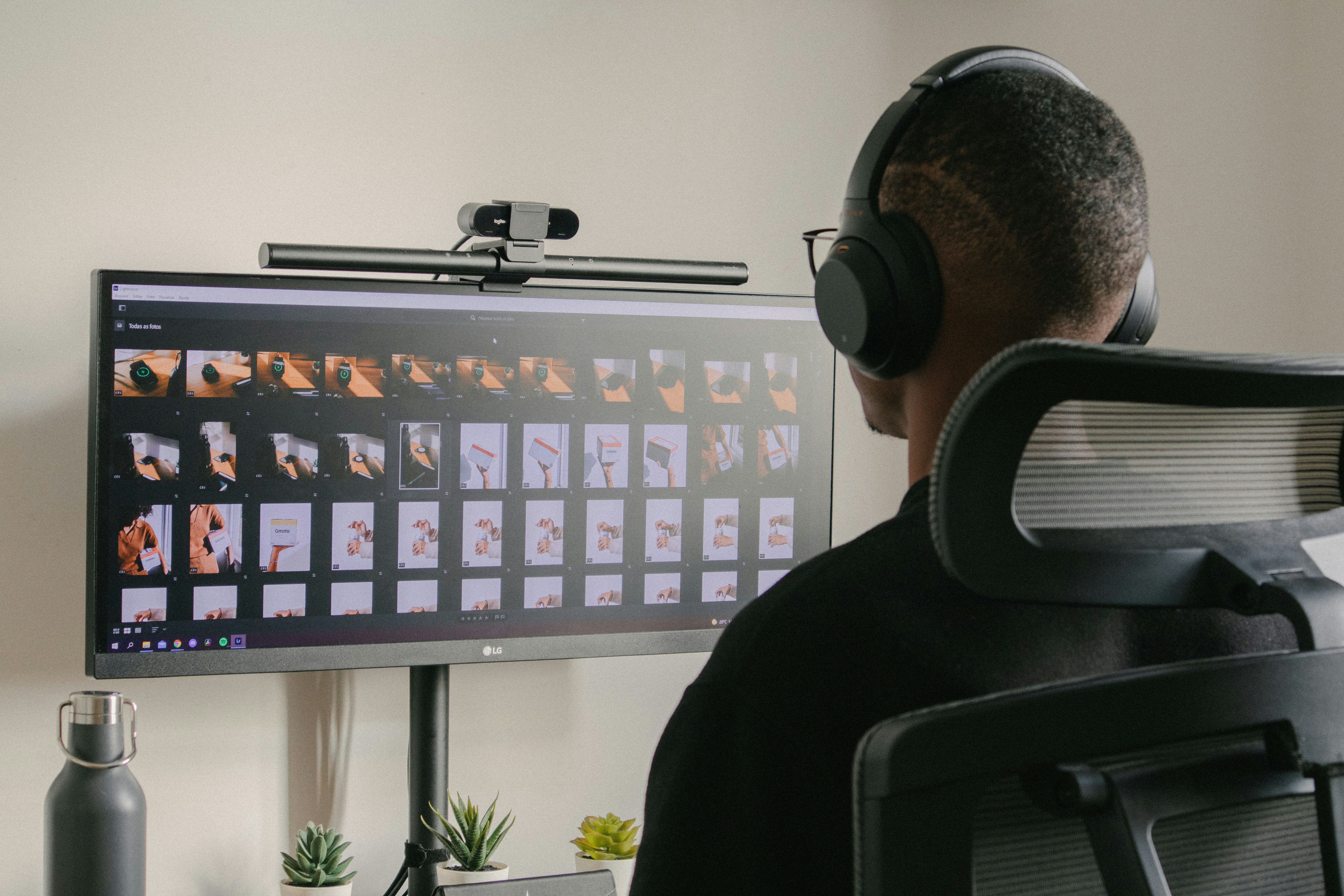
Tools like Adobe Lightroom or Topaz Photo AI will analyze your image and make decisions automatically.
Most of the time, they’re helpful.
But when they’re wrong, they’re really wrong.
I’ve seen:
Faces over-smoothed when they didn’t need it
Shadows treated as subjects
Details “enhanced” into something that wasn’t even there
And the tricky part? Beginners often trust those results without questioning them.
You Still Need Taste. Probably More Than Before.
This is the part I didn’t expect.
AI didn’t remove the need for skill. It shifted it.
You don’t need to know every technical step anymore. But you do need to know what looks good. What feels natural. What’s too much.
In a way, editing became less about execution and more about judgment.
And honestly, that’s harder to teach.
The Tools Are Getting Heavier
One more thing that doesn’t get talked about enough.
AI features aren’t lightweight.
Try running Topaz Photo AI on a large RAW file. Or doing multiple generative edits in Adobe Photoshop. You’ll feel it.
Fans spinning. Lag. Occasional crashes if your system isn’t strong enough.
It’s not just about knowing which tool to use anymore.
It’s also about whether your setup can actually handle it.
And that’s where a lot of people hit a wall.
Because the tools keep getting better… but the hardware requirements are quietly climbing with them.
If you’re trying to understand how much your GPU really matters in creative apps, especially under AI-heavy workloads, this breakdown makes it very clear.
Choosing the Right Tool
This is where most guides fall apart.
They list features. Compare pricing. Maybe throw in a score out of 10. But that’s not how people actually choose editing tools.
You don’t wake up thinking, “I need advanced masking capabilities today.”
You think, “I just want this photo to look better without wasting an hour.”
So let’s approach this the practical way.
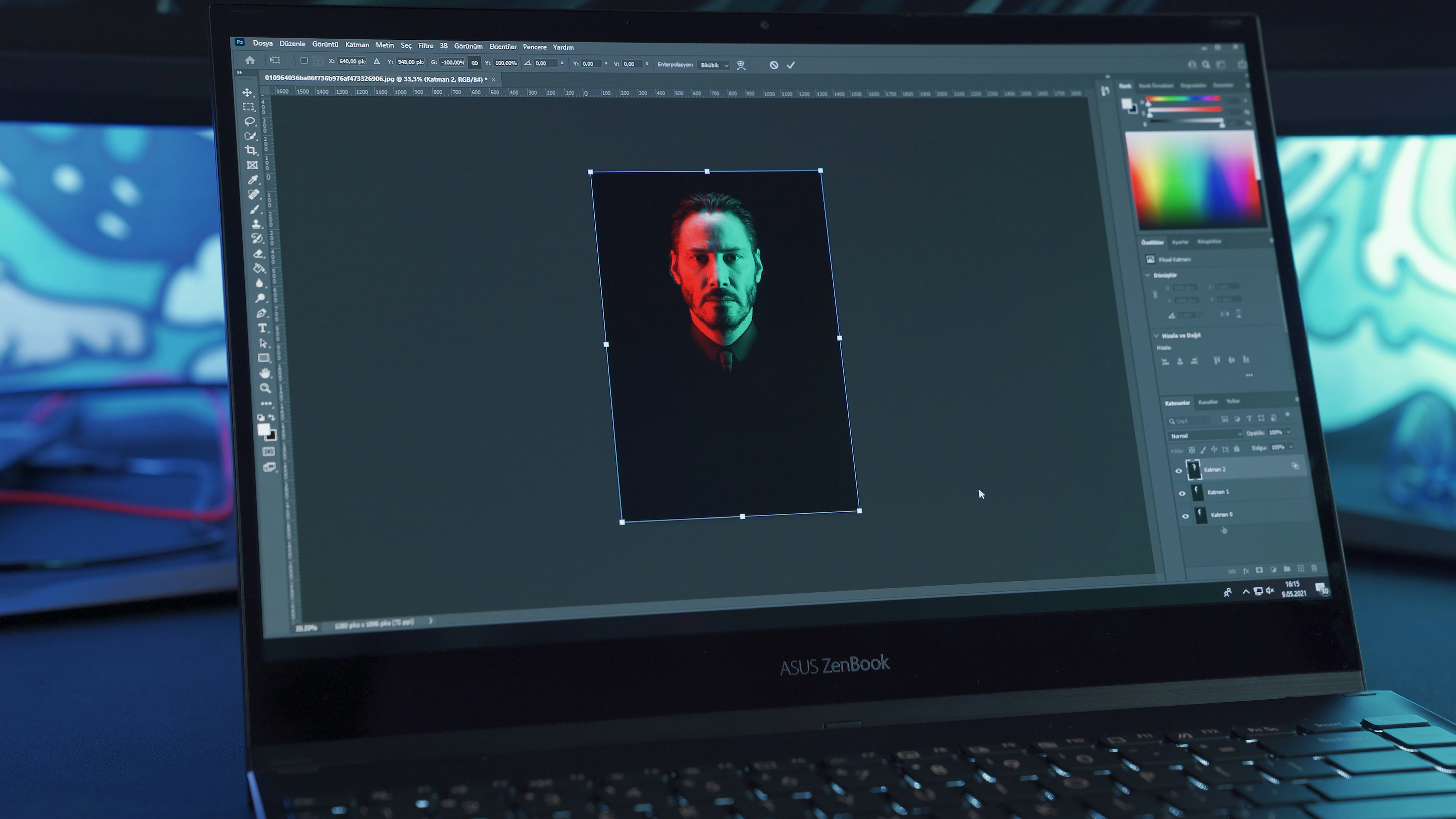
“I just want better Instagram photos”
Be honest. This is probably the most common use case.
You don’t need layers. You don’t need precision masking. You definitely don’t need to spend 20 minutes per image.
Tools like Canva or Fotor are more than enough here.
Upload. Click a few adjustments. Maybe remove the background. Done.
If you want something a bit more polished, apps like Lensa can give you that clean, sharp look in seconds.
Just don’t overdo it. That’s the trap. A little goes a long way.
If you want to understand how GPU acceleration actually impacts performance in creative software, this guide breaks it down in a very practical way.
“I shoot professionally and need speed”
Now we’re in a different category.
If you’re dealing with hundreds of photos from a shoot, speed matters more than anything. But not the “one-click edit” kind of speed. The workflow kind.
This is where Adobe Lightroom shines.
Batch editing, AI masking, consistent color grading across an entire set. It saves hours. Literally.
And here’s what I’ve seen a lot of professionals do:
Start in Lightroom for bulk edits
Jump into Adobe Photoshop only when something needs detailed work
It’s not flashy, but it works.
If your workflow includes video alongside photo editing, it’s worth exploring lighter editing tools that don’t demand as much from your system.
“I want cinematic, creative edits”
This is where things get fun.
If you’re trying to create something dramatic, something stylized, something that doesn’t look like it came straight out of a camera, then tools like Luminar Neo are hard to beat.
You can completely transform the mood of an image in seconds.
Golden hour lighting. Dramatic skies. Portrait relighting.
Just keep one thing in mind. Subtlety matters more than power. The best edits with Luminar are usually the ones where you dial things back, not push them all the way.
If you’re thinking about editing video on the go as well, this one shows what working with Premiere Pro on an iPad actually looks like.
“I need to fix bad photos, not create new ones”
This is a very specific need, but a very real one.
Blurry shot. Noisy image. Low resolution. Maybe an old photo that needs restoration.
This is where Topaz Photo AI comes in.
It’s not a creative tool. It’s a problem solver.
And if you’ve ever had a photo that’s almost perfect but not quite usable, you know how valuable that is.
If you’re trying to push creative work onto more portable setups like tablets, this guide gives a realistic look at running After Effects on an iPad.
“I don’t want to think. I just want results.”
Totally valid.
Some days you don’t want to tweak sliders or compare versions. You just want something that looks good fast.
That’s where the simpler tools win again.
Canva, Pixlr, even mobile apps. They remove friction. And honestly, that’s their biggest strength.
Not everything needs to be perfect.
If you’re curious about even more options outside the Adobe ecosystem, especially for performance or simplicity, this list expands on that.
A Small Reality Check
Most people don’t stick to one tool.
They mix.
Lightroom for organization. Photoshop for precision. Maybe Topaz for fixes. Something quick like Canva for fast exports.
That’s normal.
So instead of looking for the “best” AI photo editor, it’s better to think in terms of a setup that fits how you work.
Because the right tool isn’t the most powerful one.
It’s the one you’ll actually use without friction.
If you’ve ever worked with tools like After Effects and felt the same slowdown, you’ll probably relate to the hardware demands explained here.
The Hidden Problem: Your Hardware Becomes the Bottleneck
There’s a point where AI photo editing stops feeling exciting and starts feeling… slow.
Not because the tools aren’t good. They’re better than ever. But because your hardware quietly becomes the weakest link in the whole process.
You open a file in Adobe Photoshop, try a generative edit, and it takes longer than expected. Not terrible at first. Just enough to interrupt your flow. Then you stack a few edits together, maybe jump into Adobe Lightroom for batch work, and suddenly your system is struggling to keep up.
Fans kick in. Previews lag. Exports drag on longer than they should.
It’s not one big failure. It’s a series of small delays that slowly make editing feel heavier than it needs to be.
And once you start using tools like Topaz Photo AI for sharpening or upscaling, the difference becomes even more obvious. These tools rely heavily on GPU power. If your machine isn’t built for that kind of workload, you feel it immediately.
This is usually where people start thinking about upgrading their setup. Better GPU, more RAM, maybe a whole new system.
But that’s expensive. And honestly, not always necessary.
A more practical approach is to stop relying entirely on your local machine.
That’s where Vagon Cloud Computer comes in.
Instead of pushing your own hardware to its limits, you run your editing software on a high-performance cloud machine. The kind of setup that can handle AI-heavy workflows without slowing down. You still use tools like Photoshop, Lightroom, or Topaz, but without the lag, overheating, or long processing times.
What I like about this is how simple it feels in practice.
You can be working on a regular laptop, even something lightweight, and still access serious computing power when you need it. No upgrades, no complicated setup. Just open your session and continue working as if you’re on a much stronger machine.
It doesn’t change what tools you use.
It changes how those tools feel.
And once you experience smooth, uninterrupted editing with AI features running properly, it’s hard to go back to waiting on your own hardware.
So… Where Does This Leave You?
If you told me five years ago that people would edit photos by typing sentences instead of adjusting sliders, I probably wouldn’t have believed you.
And yet, here we are.
AI didn’t kill photo editing. It just changed what “being good at editing” actually means.
It’s less about knowing every tool inside Adobe Photoshop. More about knowing when to stop. When to trust the AI. When to override it. That judgment matters more now than any shortcut.
I’ve also noticed something else.
The gap between beginners and professionals didn’t disappear. It just shifted.
Beginners can get decent results faster than ever. That’s great. But the difference shows up in the details. Subtle lighting. Natural skin texture. Edits that don’t scream “AI touched this.”
That still takes a trained eye.
If you’re exploring lighter or more accessible tools beyond traditional Adobe workflows, there are some solid alternatives worth checking out here.
The Tools Are Getting Better. Your Workflow Matters More.
You don’t need all the tools we talked about.
You probably won’t even use half of them regularly.
But having the right combination? That makes a difference.
Maybe it’s:
Adobe Lightroom for organizing and batch edits
Adobe Photoshop for detailed work
Topaz Photo AI for fixing problem shots
Or maybe you keep it simple with Canva and call it a day.
There’s no single correct setup.
Just the one that fits how you work.
One Last Thought
AI made editing faster.
It didn’t make it effortless.
If anything, it raised expectations while quietly adding new challenges. Heavier tools. Higher standards. Less room for sloppy work.
That’s why the conversation is shifting beyond just software.
It’s about performance. Flexibility. Being able to actually use these tools without friction.
That’s where something like Vagon starts to make sense. Not as a flashy upgrade, but as a practical one.
Because at some point, the limiting factor isn’t the tool.
It’s everything around it.
And once you remove that bottleneck, the whole experience feels different.
FAQs
1. Are AI photo editors actually better than traditional editing?
Short answer? Sometimes. For speed and convenience, yes. Tools like Adobe Photoshop with generative features or Luminar Neo can get you results in seconds that used to take real effort. But “better” depends on what you care about. If you want precision, consistency, and full control, traditional editing techniques still matter. AI helps, but it doesn’t replace judgment. It just skips steps.
2. Do I need to learn Photoshop anymore?
You don’t have to. That’s the honest answer. If your goal is social media, quick edits, or casual use, tools like Canva or mobile apps will cover most of what you need. But if you’re serious about photography or design, Photoshop is still worth learning. Not because you’ll use every feature, but because it gives you control when AI falls short. AI gets you most of the way. Photoshop handles the details.
3. Which AI photo editor is best for beginners?
If you want the least friction, start simple. Canva, Fotor, and apps like Lensa are easy to pick up and fast to use. You don’t need tutorials to get decent results. Just keep expectations realistic. These tools are great for quick edits, but they’ll feel limiting once you try to do more advanced work.
4. What’s the best AI tool for professional photographers?
Most professionals don’t rely on just one tool. A common workflow usually includes Adobe Lightroom for organizing and batch editing, Adobe Photoshop for detailed adjustments, and Topaz Photo AI for sharpening or fixing problematic shots. It’s less about finding a single “best” option and more about building a setup that works smoothly together.
5. Can AI really fix blurry or low-quality photos?
Yes, but only up to a point. Tools like Topaz Photo AI are genuinely impressive when it comes to sharpening and upscaling. You can recover detail that looks lost at first glance. But if the image is too damaged, AI starts guessing. And those guesses don’t always look natural. It’s a tool for improvement, not miracles.
6. Why do my AI-edited photos sometimes look fake?
Because AI tends to push everything a bit too far. Sharpness, smoothness, contrast. Each adjustment looks good on its own, but together they can feel unnatural. This happens a lot with apps like Lensa or heavier edits in Luminar Neo. The fix is simple. Pull things back. Most strong edits come from restraint, not intensity.
7. Do I need a powerful computer for AI photo editing?
If you’re using advanced tools, yes, it helps. Working with features in Adobe Photoshop, processing large batches in Adobe Lightroom, or running enhancements in Topaz Photo AI can put real pressure on your system. If your machine starts slowing you down, solutions like Vagon can take that load off by letting you run everything on a more powerful setup remotely.
8. Is AI photo editing cheating?
I don’t think so. Photography has always evolved with technology. From darkrooms to digital tools, every step made things faster and more accessible. AI is just another step in that direction. What matters is how you use it and what you create with it.
9. Will AI replace photo editors completely?
No. But it is changing the role. Instead of spending time on repetitive edits, people focus more on creative decisions. Choosing what looks right, shaping the final image, knowing when to stop. If anything, having a good eye matters more now than it did before.
Editing a photo used to take 30 minutes. Now it takes 30 seconds… and somehow looks better.
I’m not exaggerating. I’ve watched people go from carefully dodging and burning in Adobe Photoshop to just typing “remove the background and make it golden hour” and calling it a day. And honestly? Half the time, the AI version wins.
That’s the weird part.
Over the last couple of years, photo editing didn’t just get faster. It changed shape completely. Tools stopped feeling like tools and started acting more like collaborators. You don’t just adjust sliders anymore. You describe what you want, and the software figures out how to get there. Sometimes better than you would.
I’ve tested most of the big names in this space. Some impressed me. Some looked great at first, then fell apart under real use. And a few… I still don’t trust with anything important.
So this isn’t going to be one of those generic “top 10 tools” lists.
This is what actually holds up when you’re editing real photos, on real deadlines, with real expectations. What works. What doesn’t. And where things get a little overhyped.
What Actually Changed in AI Photo Editing
Two years ago, AI in photo editing felt like a gimmick.
You clicked a button, it boosted some colors, maybe smoothed skin a bit too aggressively, and that was it. Useful, sure. But predictable. Limited.
Now? Completely different story.
The biggest shift isn’t just better results. It’s how you interact with the tools.
You’re Not Editing Anymore. You’re Directing.
This is the part that caught me off guard.
In tools like Adobe Photoshop, you’re no longer manually selecting, masking, refining every little detail. You just… describe what you want.
“Extend the background.”
“Remove the people.”
“Turn this into sunset lighting.”
And it actually works. Not perfectly every time, but often enough that you start trusting it.
That’s new.
Even a year ago, you’d still need to clean up edges or fix weird artifacts. Now the first result is often usable. Sometimes final.
Generative Editing Became Normal
There was a time when “adding things that weren’t in the photo” felt like cheating.
Now it’s just Tuesday.
Generative fill, background expansion, object replacement. These aren’t experimental features anymore, they’re core workflows. You’ll see it in Photoshop, but also in tools like Luminar Neo, where AI doesn’t just enhance photos, it reshapes them.
And here’s the interesting part: people stopped asking “is this real?”
They started asking “does it look good?”
That shift matters more than any feature update.
Speed vs Control Is the New Tradeoff
AI made editing faster. No question.
But there’s a catch.
The faster the tool, the less control you usually have.
Apps like Canva or Fotor can give you a polished result in seconds. Great for social media. Quick client work. Low-stakes edits.
But try doing something precise? Matching tones across a full shoot? Fixing subtle lighting inconsistencies?
That’s where they struggle.
So now you’re constantly choosing:
Do I want speed?
Or do I want control?
And most of the time, you can’t fully have both.
AI Started Making Decisions For You
This is subtle, but important.
Tools like Luminar Neo and Adobe Lightroom now analyze your photo before you even touch anything. They suggest edits. Apply masks automatically. Adjust lighting based on what they think the subject is.
Sometimes it’s brilliant.
Sometimes it’s… weirdly confident.
I’ve had AI decide that a shadow was a subject. Or that a face needed smoothing when it really didn’t. You still need taste. Probably more than before.
The Bar Got Higher
Here’s something I’ve noticed working with clients.
What used to count as a “good edit” in 2022 looks average now.
Because AI made high-quality edits accessible, expectations quietly went up. Sharper images, cleaner backgrounds, better lighting, all of it is just assumed.
No one says it out loud. But you feel it.
So yeah, AI didn’t just make editing easier.
It changed what editing even means.
And that’s exactly why picking the right tool matters more now than it did before.
If you’re starting to wonder whether your setup is the problem, not the software, it’s worth looking into what actually makes a machine capable of handling heavy creative workloads like this.
The Best AI Photo Editors in 2026
There are a lot of AI photo editors right now. Most of them look impressive in demos. Fewer hold up when you’re working on real images with real expectations.
These are the ones I keep coming back to. Not because they’re perfect. Because they’re reliable.
1. Adobe Photoshop
Let’s just get this out of the way. Adobe Photoshop is still the most powerful editor you can use. That hasn’t changed.
What has changed is how you use it.
Features like Generative Fill and Neural Filters turned Photoshop into something closer to a creative assistant than a manual editing tool. You can remove objects, expand scenes, even create entirely new elements just by typing a prompt.
And it’s not a gimmick. It’s genuinely good.
But here’s my honest take. Photoshop is starting to feel like two tools in one:
The old-school, precise editor professionals still rely on
The new AI-powered shortcut machine
Sometimes they work beautifully together. Sometimes it feels a bit… clunky.
Also, let’s be real. It’s still complex. If you’re not already comfortable with layers, masks, and workflows, Photoshop can feel overwhelming fast.
Who it’s for: Professionals, advanced users, anyone who wants full control
Who should skip it: Casual users who just want quick, clean edits
2. Luminar Neo
Luminar Neo is one of those tools that makes you feel like a better editor than you are.
And I mean that in a good way. Mostly.
Its AI tools handle things like sky replacement, relighting, and portrait enhancement in seconds. You can take a flat, boring image and turn it into something cinematic without much effort.
That’s the appeal.
But here’s where I get a bit skeptical. It’s very easy to push things too far. Colors get a little too rich. Lighting gets a little too perfect. After a while, you start recognizing the “Luminar look.”
If you’re not careful, everything starts to feel slightly artificial.
Still, for quick creative edits or content creation, it’s incredibly fun to use.
Best for: Creators, influencers, quick portfolio work
Watch out for: Over-editing without realizing it
3. Topaz Photo AI
Topaz Photo AI is not exciting.
It’s not creative. It doesn’t help you build a “style.” You’re not going to open it and experiment for fun.
But when you need it, nothing else does the job quite like it.
Blurry photo? It fixes it.
Noisy low-light shot? Cleaned up.
Low-resolution image? Upscaled in a way that actually looks usable.
I’ve personally saved shots I thought were completely unusable with this thing.
The downside is that it’s very task-specific. You’re not editing a full photo here. You’re fixing problems.
Also, it can be heavy on your system. More on that later.
Best for: Photographers who want to rescue imperfect shots
Not for: Creative editing or stylistic work
4. Lightroom + AI
Adobe Lightroom doesn’t get as much hype as Photoshop or the newer AI tools.
But it probably should.
Its AI features are less flashy, but incredibly practical. Subject detection, sky masking, automatic adjustments. All of it works in the background, speeding up your workflow without getting in your way.
And if you’re editing hundreds of photos? Nothing comes close.
That’s the key difference. Lightroom isn’t about creating dramatic transformations. It’s about consistency and efficiency.
I’ve noticed that most professionals still rely on Lightroom as their base, even if they use other tools on top.
Best for: Batch editing, workflow efficiency, professional shoots
Weak point: Not built for heavy creative manipulation
5. Canva, Pixlr, Fotor
Tools like Canva, Pixlr, and Fotor are easy to underestimate.
They’re not built for professionals. They don’t give you deep control.
But they’re fast. Really fast.
You can remove a background, clean up a portrait, adjust lighting, and export in under a minute. For social media, quick marketing visuals, or simple edits, that’s often more than enough.
The surprising part? The quality has improved a lot. To the point where, for certain use cases, you don’t need anything else.
But yeah, they hit a ceiling quickly.
Try doing anything complex and you’ll feel the limitations almost immediately.
Best for: Quick edits, non-designers, social content
Limit: Precision and flexibility
6. Mobile AI Editors
Apps like Lensa and Remini changed how people edit photos entirely.
You don’t sit down and edit anymore. You just tap a few buttons on your phone and get instant results.
Sharper faces, smoother skin, enhanced lighting. Sometimes almost too perfect.
And that’s where things get tricky.
These apps are great for convenience. But they often push edits into that uncanny valley where everything looks slightly… off.
You’ve probably seen it. Hyper-smooth skin, overly bright eyes, textures that don’t quite feel real.
Still, for quick fixes or casual use, they’re incredibly effective.
Best for: Instant edits, mobile workflows
Trade-off: Authenticity vs convenience
If there’s a pattern here, it’s this:
No single tool does everything well.
And honestly, the best setups I’ve seen don’t rely on just one. They combine a few of these depending on the task.
That’s where things start to get interesting.
What Nobody Tells You About AI Photo Editors
Here’s the part that doesn’t show up in product demos.
AI photo editors look incredible when everything goes right. Clean subject, decent lighting, simple background. You click a button, and boom, it feels like magic.
But real photos aren’t that clean.
AI Can Make Your Photos Worse. Quietly.
This one took me a while to notice.
You run an image through a tool like Luminar Neo or even Adobe Photoshop with generative features turned on, and at first glance it looks better.
Sharper. Brighter. More “finished.”
Then you zoom in.
Edges start to look weird. Skin loses texture. Lighting doesn’t quite match across the frame. It’s subtle, but once you see it, you can’t unsee it.
The problem is that AI optimizes for what looks good at a glance, not what holds up under scrutiny.
If you’re posting on Instagram, maybe that’s fine. If you’re printing or working professionally, it matters a lot.
“Perfect” Is Starting to Look Fake
There’s a certain look that’s everywhere now.
Perfect skin. Perfect lighting. Perfect composition. Everything slightly too clean.
You’ll see it a lot with mobile apps like Lensa or heavy AI retouching workflows.
At first, it feels impressive.
Then it starts to feel… repetitive.
I’ve had clients ask me to “make it look natural” after using AI tools themselves. That didn’t really happen a few years ago.
So ironically, the more powerful these tools get, the more valuable restraint becomes.
Everyone Is Using the Same Shortcuts
This is a weird side effect.
When thousands of people use the same AI presets, the same sky replacements, the same portrait enhancements… everything starts to look similar.
You can almost tell which tool was used just by looking at the image.
That’s not great if you’re trying to stand out.
It reminds me of when everyone discovered the same Instagram filters years ago. For a while, everything had that identical tone. We’re kind of back there again, just with better tech.
AI Is Confident. Not Always Right.
Tools like Adobe Lightroom or Topaz Photo AI will analyze your image and make decisions automatically.
Most of the time, they’re helpful.
But when they’re wrong, they’re really wrong.
I’ve seen:
Faces over-smoothed when they didn’t need it
Shadows treated as subjects
Details “enhanced” into something that wasn’t even there
And the tricky part? Beginners often trust those results without questioning them.
You Still Need Taste. Probably More Than Before.
This is the part I didn’t expect.
AI didn’t remove the need for skill. It shifted it.
You don’t need to know every technical step anymore. But you do need to know what looks good. What feels natural. What’s too much.
In a way, editing became less about execution and more about judgment.
And honestly, that’s harder to teach.
The Tools Are Getting Heavier
One more thing that doesn’t get talked about enough.
AI features aren’t lightweight.
Try running Topaz Photo AI on a large RAW file. Or doing multiple generative edits in Adobe Photoshop. You’ll feel it.
Fans spinning. Lag. Occasional crashes if your system isn’t strong enough.
It’s not just about knowing which tool to use anymore.
It’s also about whether your setup can actually handle it.
And that’s where a lot of people hit a wall.
Because the tools keep getting better… but the hardware requirements are quietly climbing with them.
If you’re trying to understand how much your GPU really matters in creative apps, especially under AI-heavy workloads, this breakdown makes it very clear.
Choosing the Right Tool
This is where most guides fall apart.
They list features. Compare pricing. Maybe throw in a score out of 10. But that’s not how people actually choose editing tools.
You don’t wake up thinking, “I need advanced masking capabilities today.”
You think, “I just want this photo to look better without wasting an hour.”
So let’s approach this the practical way.
“I just want better Instagram photos”
Be honest. This is probably the most common use case.
You don’t need layers. You don’t need precision masking. You definitely don’t need to spend 20 minutes per image.
Tools like Canva or Fotor are more than enough here.
Upload. Click a few adjustments. Maybe remove the background. Done.
If you want something a bit more polished, apps like Lensa can give you that clean, sharp look in seconds.
Just don’t overdo it. That’s the trap. A little goes a long way.
If you want to understand how GPU acceleration actually impacts performance in creative software, this guide breaks it down in a very practical way.
“I shoot professionally and need speed”
Now we’re in a different category.
If you’re dealing with hundreds of photos from a shoot, speed matters more than anything. But not the “one-click edit” kind of speed. The workflow kind.
This is where Adobe Lightroom shines.
Batch editing, AI masking, consistent color grading across an entire set. It saves hours. Literally.
And here’s what I’ve seen a lot of professionals do:
Start in Lightroom for bulk edits
Jump into Adobe Photoshop only when something needs detailed work
It’s not flashy, but it works.
If your workflow includes video alongside photo editing, it’s worth exploring lighter editing tools that don’t demand as much from your system.
“I want cinematic, creative edits”
This is where things get fun.
If you’re trying to create something dramatic, something stylized, something that doesn’t look like it came straight out of a camera, then tools like Luminar Neo are hard to beat.
You can completely transform the mood of an image in seconds.
Golden hour lighting. Dramatic skies. Portrait relighting.
Just keep one thing in mind. Subtlety matters more than power. The best edits with Luminar are usually the ones where you dial things back, not push them all the way.
If you’re thinking about editing video on the go as well, this one shows what working with Premiere Pro on an iPad actually looks like.
“I need to fix bad photos, not create new ones”
This is a very specific need, but a very real one.
Blurry shot. Noisy image. Low resolution. Maybe an old photo that needs restoration.
This is where Topaz Photo AI comes in.
It’s not a creative tool. It’s a problem solver.
And if you’ve ever had a photo that’s almost perfect but not quite usable, you know how valuable that is.
If you’re trying to push creative work onto more portable setups like tablets, this guide gives a realistic look at running After Effects on an iPad.
“I don’t want to think. I just want results.”
Totally valid.
Some days you don’t want to tweak sliders or compare versions. You just want something that looks good fast.
That’s where the simpler tools win again.
Canva, Pixlr, even mobile apps. They remove friction. And honestly, that’s their biggest strength.
Not everything needs to be perfect.
If you’re curious about even more options outside the Adobe ecosystem, especially for performance or simplicity, this list expands on that.
A Small Reality Check
Most people don’t stick to one tool.
They mix.
Lightroom for organization. Photoshop for precision. Maybe Topaz for fixes. Something quick like Canva for fast exports.
That’s normal.
So instead of looking for the “best” AI photo editor, it’s better to think in terms of a setup that fits how you work.
Because the right tool isn’t the most powerful one.
It’s the one you’ll actually use without friction.
If you’ve ever worked with tools like After Effects and felt the same slowdown, you’ll probably relate to the hardware demands explained here.
The Hidden Problem: Your Hardware Becomes the Bottleneck
There’s a point where AI photo editing stops feeling exciting and starts feeling… slow.
Not because the tools aren’t good. They’re better than ever. But because your hardware quietly becomes the weakest link in the whole process.
You open a file in Adobe Photoshop, try a generative edit, and it takes longer than expected. Not terrible at first. Just enough to interrupt your flow. Then you stack a few edits together, maybe jump into Adobe Lightroom for batch work, and suddenly your system is struggling to keep up.
Fans kick in. Previews lag. Exports drag on longer than they should.
It’s not one big failure. It’s a series of small delays that slowly make editing feel heavier than it needs to be.
And once you start using tools like Topaz Photo AI for sharpening or upscaling, the difference becomes even more obvious. These tools rely heavily on GPU power. If your machine isn’t built for that kind of workload, you feel it immediately.
This is usually where people start thinking about upgrading their setup. Better GPU, more RAM, maybe a whole new system.
But that’s expensive. And honestly, not always necessary.
A more practical approach is to stop relying entirely on your local machine.
That’s where Vagon Cloud Computer comes in.
Instead of pushing your own hardware to its limits, you run your editing software on a high-performance cloud machine. The kind of setup that can handle AI-heavy workflows without slowing down. You still use tools like Photoshop, Lightroom, or Topaz, but without the lag, overheating, or long processing times.
What I like about this is how simple it feels in practice.
You can be working on a regular laptop, even something lightweight, and still access serious computing power when you need it. No upgrades, no complicated setup. Just open your session and continue working as if you’re on a much stronger machine.
It doesn’t change what tools you use.
It changes how those tools feel.
And once you experience smooth, uninterrupted editing with AI features running properly, it’s hard to go back to waiting on your own hardware.
So… Where Does This Leave You?
If you told me five years ago that people would edit photos by typing sentences instead of adjusting sliders, I probably wouldn’t have believed you.
And yet, here we are.
AI didn’t kill photo editing. It just changed what “being good at editing” actually means.
It’s less about knowing every tool inside Adobe Photoshop. More about knowing when to stop. When to trust the AI. When to override it. That judgment matters more now than any shortcut.
I’ve also noticed something else.
The gap between beginners and professionals didn’t disappear. It just shifted.
Beginners can get decent results faster than ever. That’s great. But the difference shows up in the details. Subtle lighting. Natural skin texture. Edits that don’t scream “AI touched this.”
That still takes a trained eye.
If you’re exploring lighter or more accessible tools beyond traditional Adobe workflows, there are some solid alternatives worth checking out here.
The Tools Are Getting Better. Your Workflow Matters More.
You don’t need all the tools we talked about.
You probably won’t even use half of them regularly.
But having the right combination? That makes a difference.
Maybe it’s:
Adobe Lightroom for organizing and batch edits
Adobe Photoshop for detailed work
Topaz Photo AI for fixing problem shots
Or maybe you keep it simple with Canva and call it a day.
There’s no single correct setup.
Just the one that fits how you work.
One Last Thought
AI made editing faster.
It didn’t make it effortless.
If anything, it raised expectations while quietly adding new challenges. Heavier tools. Higher standards. Less room for sloppy work.
That’s why the conversation is shifting beyond just software.
It’s about performance. Flexibility. Being able to actually use these tools without friction.
That’s where something like Vagon starts to make sense. Not as a flashy upgrade, but as a practical one.
Because at some point, the limiting factor isn’t the tool.
It’s everything around it.
And once you remove that bottleneck, the whole experience feels different.
FAQs
1. Are AI photo editors actually better than traditional editing?
Short answer? Sometimes. For speed and convenience, yes. Tools like Adobe Photoshop with generative features or Luminar Neo can get you results in seconds that used to take real effort. But “better” depends on what you care about. If you want precision, consistency, and full control, traditional editing techniques still matter. AI helps, but it doesn’t replace judgment. It just skips steps.
2. Do I need to learn Photoshop anymore?
You don’t have to. That’s the honest answer. If your goal is social media, quick edits, or casual use, tools like Canva or mobile apps will cover most of what you need. But if you’re serious about photography or design, Photoshop is still worth learning. Not because you’ll use every feature, but because it gives you control when AI falls short. AI gets you most of the way. Photoshop handles the details.
3. Which AI photo editor is best for beginners?
If you want the least friction, start simple. Canva, Fotor, and apps like Lensa are easy to pick up and fast to use. You don’t need tutorials to get decent results. Just keep expectations realistic. These tools are great for quick edits, but they’ll feel limiting once you try to do more advanced work.
4. What’s the best AI tool for professional photographers?
Most professionals don’t rely on just one tool. A common workflow usually includes Adobe Lightroom for organizing and batch editing, Adobe Photoshop for detailed adjustments, and Topaz Photo AI for sharpening or fixing problematic shots. It’s less about finding a single “best” option and more about building a setup that works smoothly together.
5. Can AI really fix blurry or low-quality photos?
Yes, but only up to a point. Tools like Topaz Photo AI are genuinely impressive when it comes to sharpening and upscaling. You can recover detail that looks lost at first glance. But if the image is too damaged, AI starts guessing. And those guesses don’t always look natural. It’s a tool for improvement, not miracles.
6. Why do my AI-edited photos sometimes look fake?
Because AI tends to push everything a bit too far. Sharpness, smoothness, contrast. Each adjustment looks good on its own, but together they can feel unnatural. This happens a lot with apps like Lensa or heavier edits in Luminar Neo. The fix is simple. Pull things back. Most strong edits come from restraint, not intensity.
7. Do I need a powerful computer for AI photo editing?
If you’re using advanced tools, yes, it helps. Working with features in Adobe Photoshop, processing large batches in Adobe Lightroom, or running enhancements in Topaz Photo AI can put real pressure on your system. If your machine starts slowing you down, solutions like Vagon can take that load off by letting you run everything on a more powerful setup remotely.
8. Is AI photo editing cheating?
I don’t think so. Photography has always evolved with technology. From darkrooms to digital tools, every step made things faster and more accessible. AI is just another step in that direction. What matters is how you use it and what you create with it.
9. Will AI replace photo editors completely?
No. But it is changing the role. Instead of spending time on repetitive edits, people focus more on creative decisions. Choosing what looks right, shaping the final image, knowing when to stop. If anything, having a good eye matters more now than it did before.
Get Beyond Your Computer Performance
Run applications on your cloud computer with the latest generation hardware. No more crashes or lags.

Trial includes 1 hour usage + 7 days of storage.
Summarize with AI

Ready to focus on your creativity?
Vagon gives you the ability to create & render projects, collaborate, and stream applications with the power of the best hardware.

Run heavy applications on any device with
your personal computer on the cloud.
San Francisco, California
Solutions
Vagon Teams
Vagon Streams
Use Cases
© 2026 Vagon. All rights reserved.
Run heavy applications on any device with
your personal computer on the cloud.
San Francisco, California
Solutions
Vagon Teams
Vagon Streams
Use Cases
© 2026 Vagon. All rights reserved.
Run heavy applications on any device with
your personal computer on the cloud.
San Francisco, California
Solutions
Vagon Teams
Vagon Streams
Use Cases
© 2026 Vagon. All rights reserved.