Instant Connection for Pixel Streaming
— New Feature Automated Setup
Best Video Editing Software in 2026: Premiere Pro, DaVinci Resolve & More
VideoProduction
Best Video Editing Software in 2026: Premiere Pro, DaVinci Resolve & More
VideoProduction
Best Video Editing Software in 2026: Premiere Pro, DaVinci Resolve & More
VideoProduction
Table of Contents
The first time I tried editing a simple 4K clip with AI auto-captions turned on, my timeline froze. Not slowed down. Froze. On a machine that handled 4K just fine a year ago.
That’s the part nobody really warns you about.
Video editing didn’t just get better. It got heavier. A lot heavier.
In 2026, you’re not just trimming clips and adding music anymore. You’re running real-time transcription, background removal, object tracking, color grading, motion graphics, sometimes all at once. And somehow, we all just… accepted that this is normal now.
I’ve noticed something over the past year. People don’t complain about missing features anymore. Every major editor already does a lot. Instead, the complaints sound different:
“My timeline keeps stuttering.”
“Exports take forever.”
“Why is this crashing on a basic project?”
It’s not about what your software can do. It’s about whether your system can keep up while it’s doing it.
And that’s where things get interesting.
Because on paper, today’s video editing software is better than it’s ever been. Smarter. Faster. Packed with AI tools that would’ve felt ridiculous even two years ago. But in practice? A lot of editors feel slower than ever.
Not because the software is bad. But because the demands have quietly outpaced most hardware.
So if you’ve been wondering why editing feels harder lately, even though the tools are “better”… you’re not imagining it.
Let’s talk about what actually matters now.
What Actually Matters in Video Editing Software in 2026
A few years ago, choosing an editor was mostly about features.
Does it support this codec?
Can it handle multicam?
How good is the color grading?
That still matters. Just… less than it used to.
In 2026, most serious editing tools can do almost everything you need. The gap isn’t capability anymore. It’s how those capabilities behave when things get real.
Here’s what actually makes a difference now.
AI isn’t a bonus anymore. It’s the core of the workflow
I used to treat AI features like nice extras. Auto captions, background blur, maybe some smart cuts if I was feeling lazy.
Not anymore.
Now I expect my editor to:
Transcribe footage instantly
Let me cut video by editing text
Auto-detect scenes and silences
Clean up audio without sending it to another app
If it doesn’t do at least a few of these well, it feels outdated.
But there’s a catch.
Every AI feature you turn on adds weight. Sometimes a lot of it. Real-time transcription alone can push your system harder than basic editing ever did.
So yeah, AI saves time. Until your timeline starts lagging because of it.
Timeline performance > everything else
This one’s simple. If your timeline stutters, nothing else matters.
I don’t care how advanced the color tools are or how many transitions you have. If scrubbing feels choppy or playback drops frames, your entire workflow slows down.
And it’s not always about resolution anymore.
I’ve seen 1080p projects struggle. Not because of the footage, but because:
There are five AI tools running in the background
Two plugins are fighting each other
The system is juggling too many processes
Smooth playback used to be a given. Now it’s something you actively have to protect.
Plugin ecosystems still decide who wins
This hasn’t changed. If anything, it’s become more important.
The built-in tools are good. Sometimes great. But most professionals still rely on plugins for:
Advanced color workflows
Motion graphics templates
Audio cleanup
Effects that don’t look generic
The difference is, plugins now add another layer of complexity.
Each one eats resources. Each one can break after an update. And stacking too many can quietly wreck performance.
I’ve learned this the hard way. If your project feels unstable, plugins are often the first place to look.
Ease of use vs control is a real trade-off again
For a while, it felt like we were moving toward “easy but powerful” tools across the board.
Now it’s splitting again.
Some editors are going all-in on speed and simplicity. Fast edits, built-in effects, minimal setup. Great for content. Not great for precision work.
Others give you full control. Deep timelines, advanced panels, endless customization. But you pay for that with complexity and, often, performance overhead.
Neither approach is wrong. But choosing the wrong one for your workflow will frustrate you fast.
Collaboration is quietly becoming expected
Not everyone works in a team. I get that.
But even solo creators are starting to rely on shared workflows. Sending timelines, syncing assets, working across devices. It’s becoming normal.
Some tools handle this well. Others still feel like they were built for a single machine sitting in a corner.
And once you get used to flexible workflows, it’s hard to go back.
Here’s the honest take.
Most editing software in 2026 is good. Really good. You can pick almost any major tool and get professional results.
But the experience? That’s where things fall apart.
The best editor for you isn’t the one with the longest feature list. It’s the one that stays fast, stable, and predictable when your project gets messy.
And with that in mind, let’s look at the tools that actually stand out right now.
Best Video Editing Software in 2026
Let’s get one thing out of the way.
There’s no “best” editor for everyone. Anyone who tells you that is either selling something or hasn’t used enough tools.
What you can find is the best tool for your kind of work. Fast content, client projects, YouTube videos, film work. Different worlds, different priorities.
I’ve used most of these in real projects, not just quick tests. Some I keep coming back to. Others… I respect, but avoid when I can.
Let’s start with the obvious one.
1. Adobe Premiere Pro
Still the default. Just not untouchable anymore.
If you’ve worked in video even a little, you’ve probably used Premiere Pro. Or at least opened it once, got overwhelmed, and closed it again.
It’s still everywhere. Agencies, freelancers, YouTubers, corporate teams. There’s a reason for that.
Premiere is flexible. Almost too flexible.
It handles pretty much every format you throw at it. The integration with After Effects, Photoshop, and Audition is still one of its biggest strengths. And the plugin ecosystem is massive. If you need a specific effect or workflow, chances are someone has already built it.
The newer AI features are actually useful too. Text-based editing, automatic captions, speech cleanup. Not perfect, but good enough to save real time.
But here’s where I get a bit skeptical.
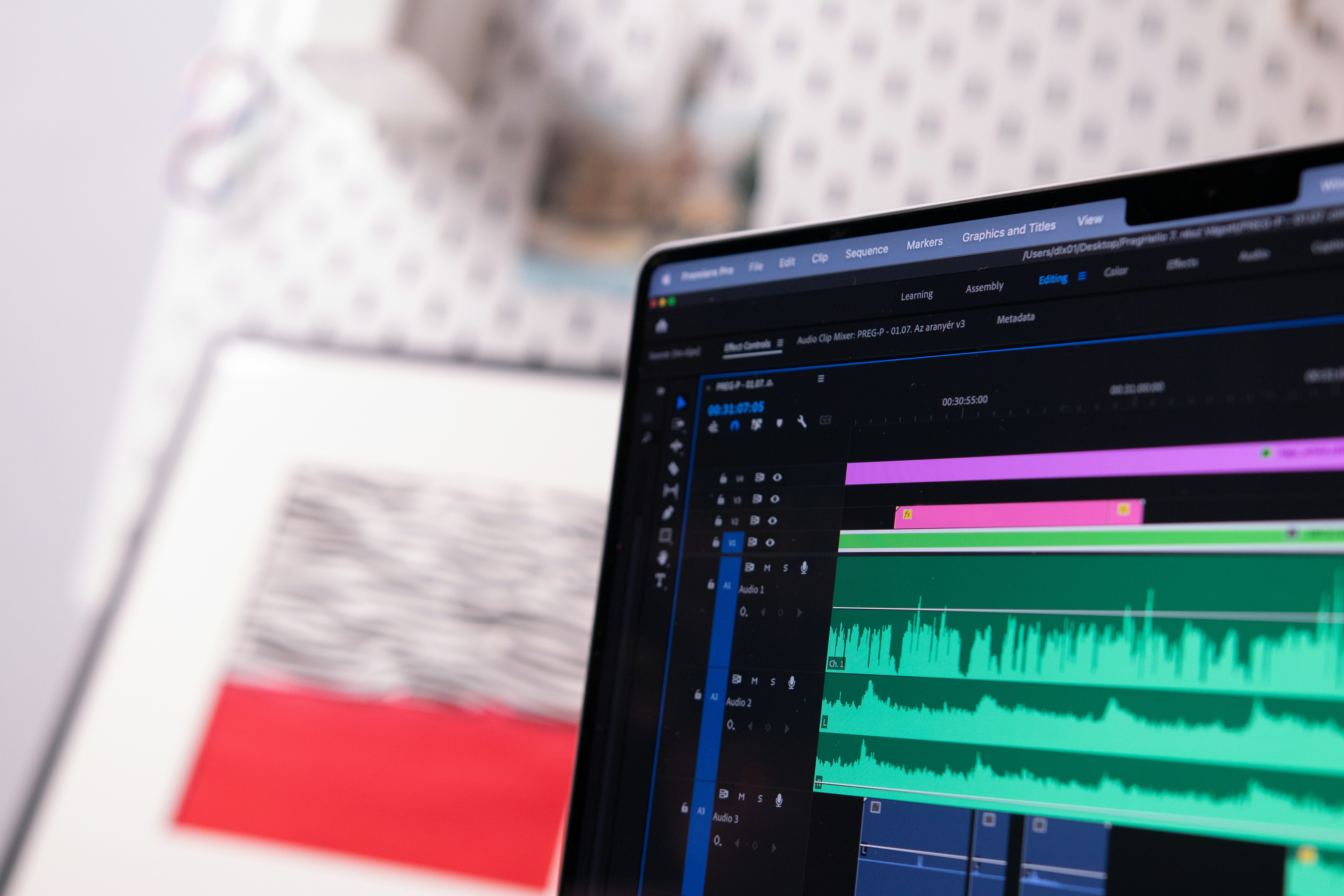
Premiere feels heavier than it used to. Projects that should be simple can start lagging once you stack a few effects or enable AI features. Stability is… better than before, but still inconsistent depending on your setup.
And then there’s the subscription. You’re always paying. Always.
In my experience, Premiere is at its best when:
You’re working across multiple Adobe apps
You rely on plugins
You need flexibility more than speed
It’s at its worst when:
Your hardware is struggling
You just want fast, clean edits without overhead
It’s still the industry standard. Just not the obvious choice anymore.
If you’re starting to feel like Premiere Pro is overkill for your needs or just too heavy for your system, you might want to explore some strong Premiere Pro alternatives here.
2. DaVinci Resolve
The one that makes you question why you ever paid for anything
I’ll be honest. The first time I used DaVinci Resolve seriously, I didn’t expect much.
Then it replaced half my workflow.
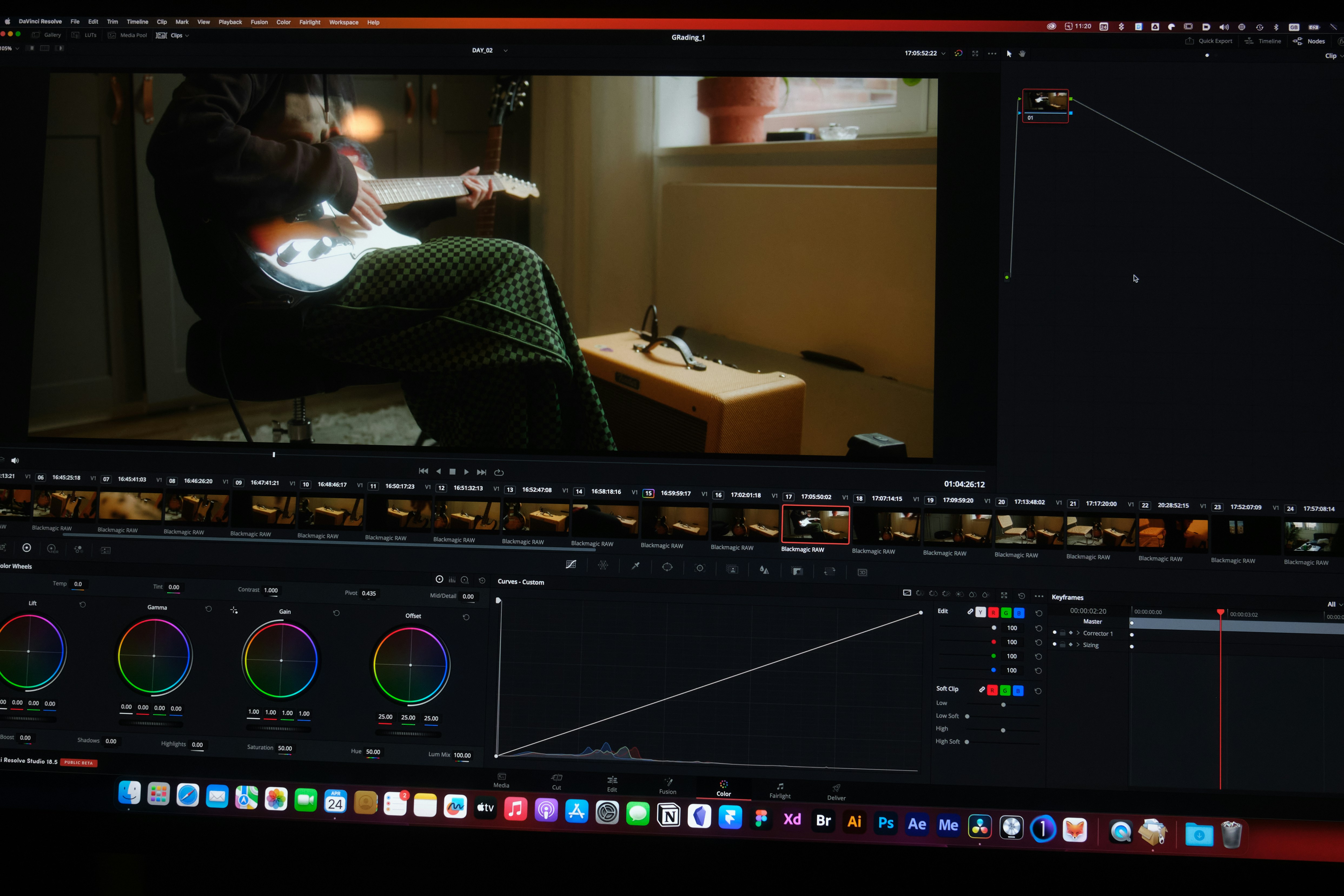
The free version alone is kind of ridiculous. Professional color grading tools, solid editing, audio post-production, even motion graphics with Fusion. All in one place.
And it keeps getting better.
Color grading is where Resolve still dominates. Nothing else feels as precise or as deep. If you care about color even a little, you’ll notice the difference immediately.
Performance is also surprisingly good. Not perfect, but more consistent than a lot of alternatives, especially on well-optimized systems.
But there’s a trade-off.
Resolve has a learning curve. Not a small one.
The interface is divided into “pages” for editing, color, audio, effects. Once it clicks, it makes sense. Before that, it can feel like you’re constantly switching contexts.
Also, Fusion (their motion graphics system) is powerful… but not exactly beginner-friendly.
In my experience, Resolve is perfect if:
You want an all-in-one tool
You care about color grading
You’re willing to invest time learning it
It’s less ideal if:
You need quick edits with minimal friction
You rely heavily on third-party plugins built for Adobe
If you stick with it, though, it’s hard to leave.
If you want to experiment with running After Effects on a more portable setup like an iPad, there are a few ways people are making that workflow possible.
3. Final Cut Pro
Fast. Clean. Quietly loved by people who hate waiting.
Final Cut Pro doesn’t get as much attention as it used to. But the people who use it? They rarely switch away.
There’s a reason for that.
It’s fast. Like, noticeably fast.
On Apple Silicon machines, playback is smooth, exports are quick, and the whole experience feels optimized in a way that most cross-platform tools just aren’t.
The magnetic timeline is still controversial. Some people love it because it removes a lot of manual track management. Others hate it because it feels restrictive.

I was in the “this is weird” camp at first. Then I got used to it. Now I kind of miss it when it’s not there.
Where Final Cut really shines:
YouTube workflows
Fast turnaround projects
Editors who don’t want to fight their timeline
Where it falls short:
Limited plugin ecosystem compared to Premiere
Mac-only, which is a dealbreaker for some
Less flexible for complex, layered projects
If speed is your priority, Final Cut is hard to beat.
4. CapCut Desktop
The tool nobody took seriously… until everyone did
A year or two ago, recommending CapCut for anything beyond TikTok edits would’ve sounded like a joke.
Not anymore.
CapCut Desktop has grown fast. And I mean really fast.
It’s built for speed and simplicity. You drop in clips, and it almost feels like the software is helping you edit. Auto captions, beat detection, smart cuts, built-in effects that don’t look terrible out of the box.
For short-form content, it’s incredibly efficient.
But let’s be clear. It’s not trying to replace professional editors.
Complex timelines, detailed color grading, advanced workflows. That’s not where CapCut shines.
Where it does shine:
Social media content
Quick edits
Creators who want results without digging through menus
The surprising part is how many people now use it alongside “pro” tools.
Edit fast in CapCut. Finish in something else.
That hybrid workflow is becoming more common than people admit.
5. Filmora
Beginner-friendly… but smarter than it used to be
Filmora has always been the “easy” option.
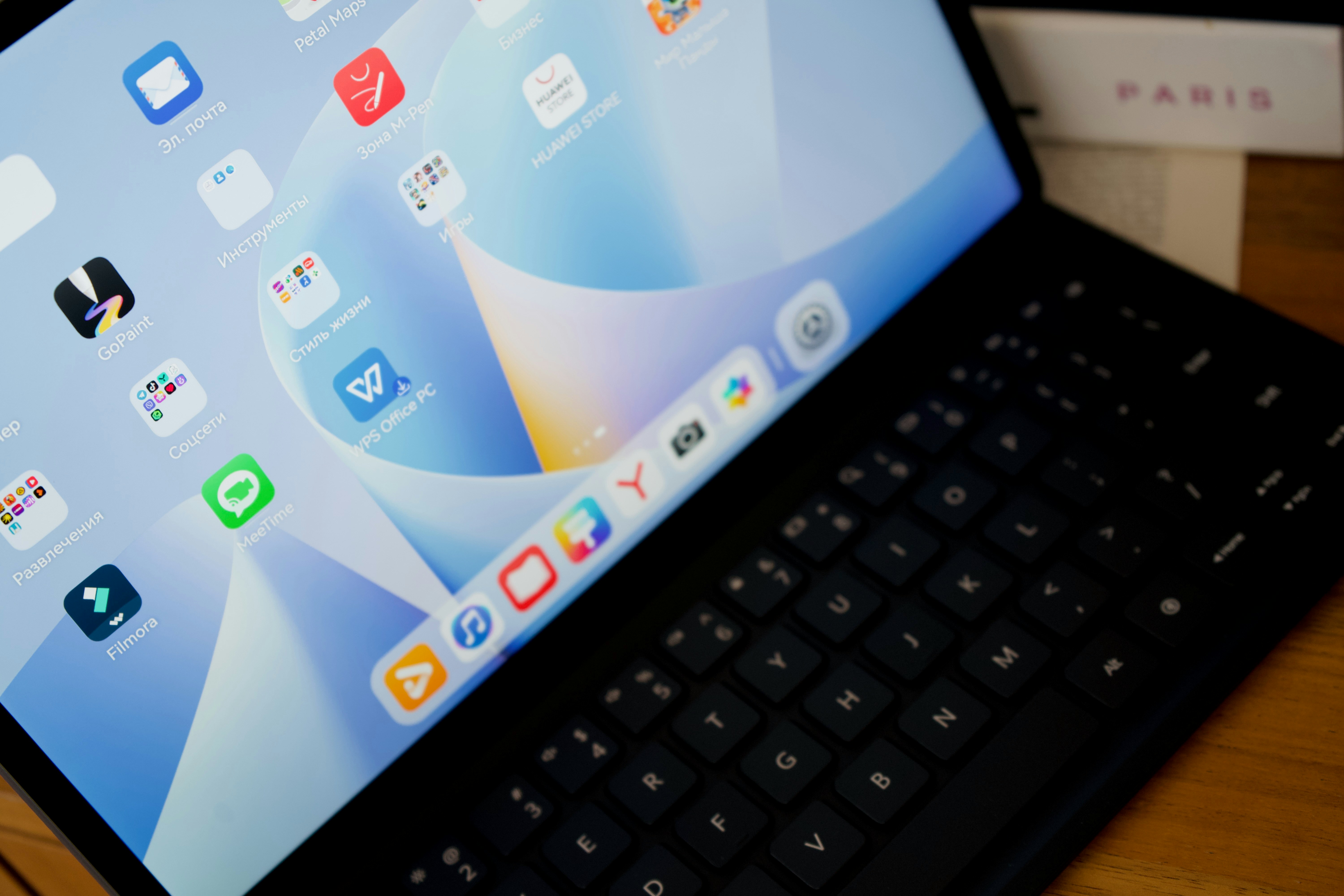
Simple interface, drag-and-drop editing, tons of presets. It’s designed for people who don’t want to spend weeks learning an editor.
What’s changed is how much it can do now.
AI tools have been added aggressively. Auto cuts, background effects, quick audio fixes. It’s trying to close the gap with more advanced software, without losing its simplicity.
And to be fair, it does a decent job.
But you’ll hit limits.
Precision editing, complex timelines, professional color work. Filmora isn’t built for that level of control.
In my experience, it’s best for:
Beginners getting into editing
Fast content creation
Projects where speed matters more than perfection
You’ll probably outgrow it. But that doesn’t make it a bad starting point.
6. Avid Media Composer
You don’t choose it. The industry chooses it for you.
Avid is still very much alive.
If you’re working in film or broadcast, there’s a good chance you’ll run into it. Not because it’s the most modern or the easiest. But because it’s deeply embedded in those workflows.
Its biggest strength is media management. Handling massive projects, organizing footage, collaborating across teams. Avid does this extremely well.

But for solo creators or freelancers?
It’s hard to recommend.
The interface feels dated. The learning curve is steep. And it doesn’t offer much that more modern tools can’t replicate in a more user-friendly way.
That said, if your career path leads into film or TV, you’ll probably have to learn it at some point.
Not optional.
7. Descript
Editing video by editing text still feels weird. Until it doesn’t.
Descript is one of those tools that changes how you think about editing.
Instead of scrubbing through a timeline, you edit text. Delete a sentence in the transcript, and the video cuts automatically.
For talking-head videos, podcasts, interviews. It’s incredibly efficient.

The AI features are also strong. Transcription, filler word removal, even voice cloning. Some of it feels a little uncanny, but it works.
Where it struggles:
Complex visual edits
Detailed timeline control
Projects that aren’t dialogue-driven
Still, it’s a glimpse into where editing is heading.
Less manual cutting. More intent-based editing.
8. Runway & AI-First Tools
Powerful, exciting… not replacements (yet)
Tools like Runway are pushing things in a different direction.
You can remove objects from video, generate clips, change backgrounds, even create scenes from prompts. A few years ago, this would’ve sounded like science fiction.
Now it’s just… another tab in your workflow.
But here’s the honest take.
These tools aren’t replacing traditional editors. At least not yet.
They’re supplements.
You use them for specific tasks:
Clean up footage
Generate assets
Speed up certain edits
Then you bring everything back into your main editor to finish the job.
Still, the pace of change here is wild. What feels experimental now might be standard in a year or two.
If you’re noticing a pattern, you’re right.
There’s no single tool doing everything perfectly. Each one leans toward a different kind of workflow.
So instead of asking “which one is best,” the better question is:
Which one actually fits the way you work?
Let’s make that easier to answer.
Choosing the Right Software
I’ve seen people spend days comparing editing software.
Watching reviews. Reading Reddit threads. Downloading three different tools just to test which one “feels right.”
Meanwhile, they could’ve finished the project already.
Here’s the honest truth. Most of these tools are more similar than they are different. The wrong choice won’t ruin your work. But overthinking it will slow you down way more than picking the “second-best” editor ever could.
So let’s simplify this.
If you’re dealing with lag or slow playback in Premiere, your GPU might be the bottleneck. This guide can help you figure out what actually makes a difference.
If you’re just starting out
You don’t need power. You need momentum.
Go with something like CapCut or Filmora. They remove friction. You can drop clips in, make something decent quickly, and actually enjoy the process.
That matters more than people admit.
I’ve noticed beginners who start with complex tools often get stuck learning the software instead of learning editing. Two very different things.
You can always switch later. And you probably will.
If you’re freelancing or working with clients
Now flexibility starts to matter.
Premiere Pro and DaVinci Resolve are the safe bets here. Not because they’re perfect, but because they handle almost anything you throw at them.
Different formats. Client requests. Revisions that don’t make sense at 2 AM.
Premiere is easier to integrate into existing workflows, especially if clients are already using Adobe tools.
Resolve gives you more control in one place, especially if you care about color or want to avoid jumping between apps.
Either way, this is where you start thinking less about “ease” and more about reliability.
If you’re on a Mac and care about speed
Final Cut Pro is hard to ignore.
If your priority is getting in, editing fast, and getting out without fighting your system, it just works. Especially on newer Apple Silicon machines.
I’ve seen people cut their editing time almost in half just by switching. Not because they became better editors overnight, but because the tool got out of their way.
That’s underrated.
If color grading is a big part of your work
This one’s easy.
DaVinci Resolve.
You can try to replicate its color tools elsewhere. People do. But it never feels quite the same.
If your projects depend on getting the look right, not just “good enough,” Resolve gives you that control without needing extra tools.
If you mostly edit talking-head content, podcasts, or courses
Descript is worth a serious look.
It feels strange at first. Editing video like a document doesn’t sound intuitive. But once it clicks, it’s hard to go back.
Cutting filler words, rearranging sections, cleaning up audio. It’s all faster when you’re working with text instead of scrubbing timelines for hours.
It’s not for everything. But for this type of content, it’s one of the most efficient workflows I’ve seen.
If your priority is speed over precision
CapCut is surprisingly strong here.
You can move fast, produce clean content, and not get lost in technical details. That’s exactly what a lot of creators need right now.
I’ve seen people go from idea to published video in under an hour using it. That wouldn’t happen in most traditional editors.
Here’s the part people don’t like hearing.
Your choice of software matters less than your ability to work smoothly inside it.
Switching tools won’t magically fix slow workflows. In fact, it often makes things worse for a while.
What actually helps:
Sticking with one tool long enough to get comfortable
Building a repeatable workflow
Avoiding unnecessary complexity
Most editors don’t fail because they picked the wrong software.
They struggle because their setup can’t keep up with what they’re trying to do.
And that’s where things start to get frustrating.
If you like the idea of editing on the go but still want access to Premiere Pro, there are a few ways to make that work on an iPad.
The Real Problem Nobody Talks About: Your Hardware
At some point, every editor hits this moment.
You upgrade your software. Learn new techniques. Maybe even get faster at editing. But somehow… everything still feels slow.
That’s usually when you realize it’s not you.
It’s your machine.
Modern video editing is brutal on hardware. Not in a dramatic, cinematic way. In a quiet, annoying, workflow-breaking way.
Your timeline stutters. Playback drops frames. Exports take way longer than they should. And the worst part? It doesn’t always happen on big projects.
I’ve seen simple edits struggle on decent laptops. Not because the footage was heavy, but because everything around it was.
AI features are quietly eating your performance
This is the big shift.
A few years ago, your system mostly dealt with video playback, effects, and rendering. Now it’s doing all that plus running AI processes in the background.
Things like:
Real-time transcription
Auto reframing
Object tracking
Background removal
Noise reduction
Each one sounds small on its own. Together, they stack up fast.
I’ve had projects where turning off one AI feature suddenly made the timeline usable again. Same footage. Same edits. Completely different experience.
That’s not a software issue. That’s a resource issue.
4K is normal. 6K isn’t rare anymore
Remember when 1080p was the standard?
Now it’s the “lightweight” option.
Most cameras shoot 4K by default. Some go way beyond that. And even if your final output is smaller, you’re still editing those larger files.
Higher resolution means:
More data to process
More strain on your GPU
More memory usage
And if you’re stacking effects or working with multiple layers, things escalate quickly.
RAM disappears faster than you think
People love to focus on GPUs. Fair enough. They matter a lot.
But RAM? That’s often where things fall apart first.
Open your editor. Add a few clips. Maybe a browser tab or two. Some background apps running quietly.
Suddenly your system is juggling more than it can handle.
When RAM runs out, everything slows down. Not gradually. All at once.
Storage speed is the hidden bottleneck
This one gets overlooked all the time.
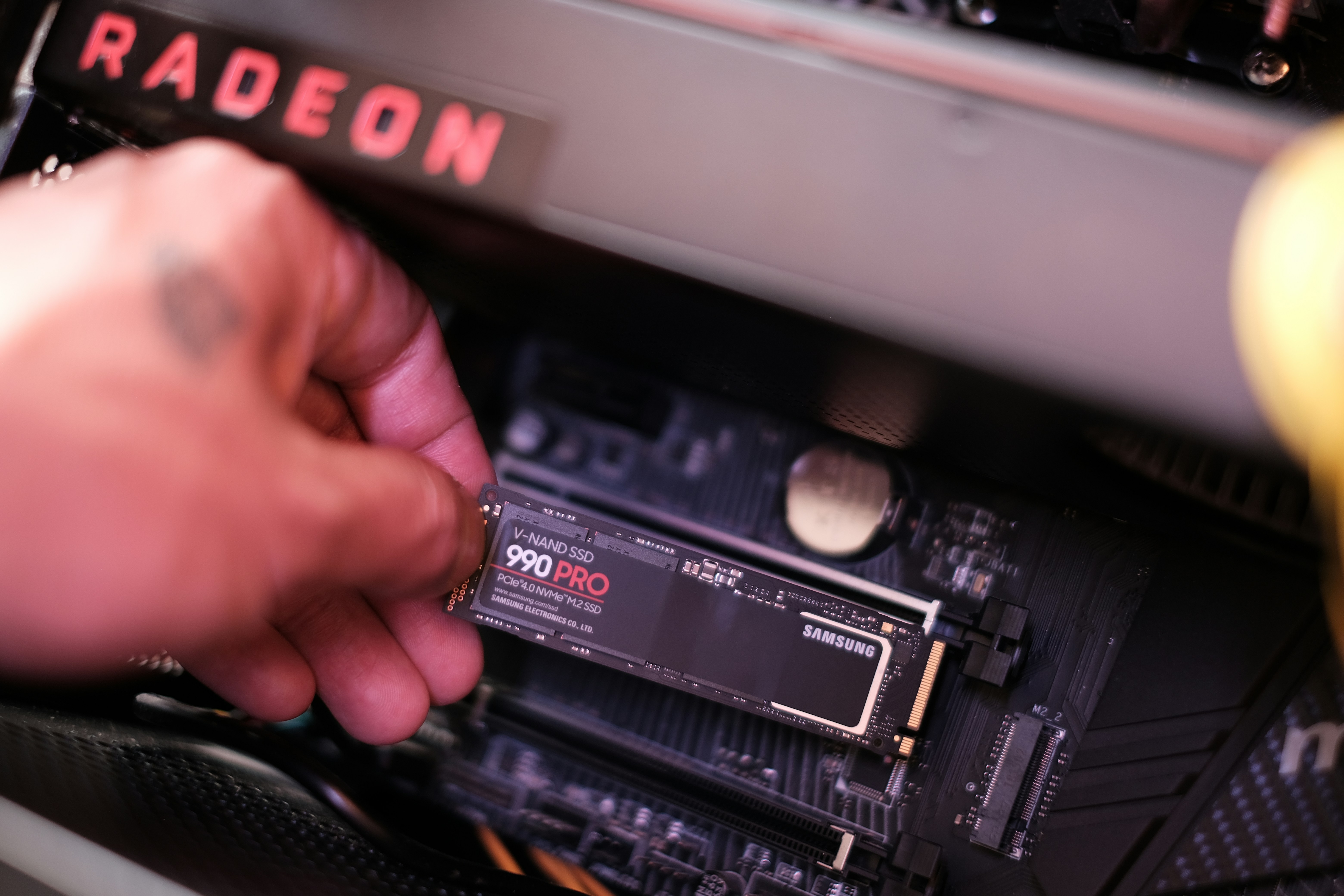
You can have a powerful CPU and a solid GPU, but if your storage is slow, your workflow will feel sluggish.
Footage takes longer to load. Scrubbing feels delayed. Caching becomes a bottleneck.
Switching from a standard drive to a fast SSD can make a bigger difference than some people expect.
Not exciting. But very real.
Proxy workflows help… but they cost time
Yes, proxies still work.
Lower-resolution versions of your footage. Smoother playback. Less strain on your system.
But let’s be honest. They add extra steps:
Generating proxies
Managing files
Switching back for export
It solves performance issues, but it also adds friction.
Sometimes you just want to edit. Not manage a system.
The frustrating part
Here’s what makes this tricky.
You can do everything right. Choose the right software. Build a clean workflow. Use optimized media.
And still run into slowdowns.
Because modern editing isn’t just demanding. It’s unpredictable.
One project runs smoothly. The next one, with similar specs, struggles for no obvious reason.
That’s when it starts to feel less like a creative process and more like troubleshooting.
And once you hit that point, you start looking for ways to remove that friction completely.
Not just optimize it. Remove it.
If you’re using a Chromebook and assuming Premiere Pro is off the table, it’s actually more possible than you’d think.
What Actually Slows You Down
Most people blame their editing software when things feel slow.
Sometimes that’s fair. But more often, it’s a mix of smaller issues stacking up until your workflow starts falling apart.
Individually, these don’t seem like a big deal. Together? They can turn a simple project into a frustrating one.
Rendering bottlenecks that break your flow
You make a small change. Add an effect. Adjust color.
Now you’re waiting.
Not long enough to take a break. Just long enough to lose focus.
That’s the worst kind of delay.
Frequent rendering interruptions kill momentum. You stop experimenting. You play it safe. And your edits end up more basic than they could’ve been.
I’ve noticed this especially with heavier effects or layered timelines. Even a short delay, repeated over and over, adds up fast.
Storage that can’t keep up
If your footage takes a second to respond every time you scrub, that’s not normal.
That’s your storage slowing you down.
High-bitrate footage needs fast read speeds. If your drive can’t keep up, everything feels delayed. Playback, previews, caching.
It’s subtle at first. Then it gets annoying. Then it starts affecting how you edit.
If exporting is where most of your time disappears, there are a few practical ways to reduce rendering times without changing your entire setup.
Too many plugins, not enough restraint
Plugins are great. I use them all the time.
But it’s easy to go overboard.
One for color. One for transitions. One for grain. One for sharpening. Maybe another for “cinematic look” because why not.
Each one adds load. Some more than others.
And sometimes they don’t play well together.
If your project feels unstable or randomly slow, plugins are often part of the problem. Not always. But often enough that it’s worth checking.
Poor optimization habits
This one’s on us.
Messy timelines. Unused clips sitting around. Effects stacked without thinking. Background apps eating resources.
It happens.
You get into the flow, focus on the creative side, and forget the technical side is still there, quietly struggling.
A little cleanup goes a long way. But most people don’t think about it until something breaks.
Multitasking is quietly hurting performance
Editing while running ten other things in the background sounds normal. Browser tabs, music, maybe a few other apps open.
But your system feels it.
Especially when you’re already pushing it with heavy footage or AI features.
I’ve had projects run smoother just by closing everything else. No upgrades. No changes. Just less noise.
You’re not slow. Your setup is
This is the part I wish more people understood earlier.
If your workflow feels clunky, it’s not because you’re bad at editing.
It’s because something in your setup is getting in the way.
And most of the time, it’s not one big issue. It’s five small ones working together.
Fixing those helps. Upgrading helps. Optimizing helps.
But eventually, you hit a limit.
And that’s when you start thinking differently about how you work.
If you’re also working with motion graphics or using After Effects alongside editing, having the right hardware becomes even more important.
Where Vagon Cloud Computer Fits In
At some point, you stop tweaking settings.
You’ve optimized your timeline. Closed background apps. Maybe even upgraded your RAM or switched to an SSD. It helps… until it doesn’t. The slowdowns come back, just in different places.
That’s usually when the question changes. Not “how do I fix this?” but “do I really want to keep fighting my hardware every time I edit?”
This is where Vagon Cloud Computer starts to make a lot of sense.
Instead of relying entirely on your local machine, you’re running your editing software on a high-performance cloud computer. Strong GPU, more RAM, better overall performance. And you’re accessing it from the device you already have. Laptop, desktop, even a lower-end machine that would normally struggle with heavier projects.
So your hardware stops being the bottleneck.
In practice, that means smoother timelines when you’re working with 4K or 6K footage. Faster exports when you’re stacking effects or using AI tools. Fewer moments where you’re sitting there wondering if your system is about to freeze.
And maybe more importantly, it’s consistent.
One of the most frustrating parts of editing right now is how unpredictable performance can be. A project runs fine one day, then starts lagging the next. With a setup like Vagon, you’re working with the same level of performance every time you open your project. That removes a lot of the guesswork.
It’s not something everyone needs. If your current setup handles everything smoothly, you’re fine.
But it becomes a very practical option if you’re working with heavier footage, relying on AI features, or just tired of adjusting your workflow to fit your machine’s limits. Instead of simplifying your edits or planning around performance, you can just… edit.
And that changes things more than you’d expect.
You try ideas without worrying about slowdowns. You stack effects without thinking twice. You focus on the creative side instead of constantly managing the technical side.
At that point, it’s not really about having more power.
It’s about finally getting out of your own way.
If After Effects feels too heavy or complicated for what you’re trying to do, there are some solid alternatives worth looking into.
Final Thoughts
Video editing didn’t get harder. It just got heavier.
The tools are better than ever. Smarter, faster, more capable. But they also demand more from your system than they used to.
So the real question isn’t just which software you choose.
It’s whether your setup lets you actually use it the way it’s meant to be used.
Because the best editing experience isn’t about having the most features.
It’s about having the freedom to use them without everything slowing down.
FAQs
1. Do I really need professional video editing software in 2026?
Not always. If you’re making quick social content, tools like CapCut or Filmora are more than enough. They’re fast, easy to learn, and surprisingly capable. But once your projects get more complex, things change. Multiple layers, color grading, client work, longer timelines. That’s when tools like Premiere Pro or DaVinci Resolve start to make more sense. It’s less about “professional vs beginner” and more about what your workflow actually demands.
2. Is DaVinci Resolve really better than Premiere Pro?
It depends on what you care about. DaVinci Resolve is stronger in color grading and gives you a lot for free. It also tends to feel more consistent performance-wise on the right setup. Premiere Pro still wins in flexibility, integrations, and plugin support. Especially if you’re already using other Adobe tools. I’ve seen people switch both ways. Usually not because one is objectively better, but because one fits their workflow better.
3. What’s the easiest video editing software to learn?
CapCut and Filmora are probably the easiest right now. They’re designed to get you editing quickly without a steep learning curve. You can figure out most things just by experimenting a bit. Descript is also easy, but in a different way. It feels more like editing a document than working on a timeline, which makes it very approachable for certain types of content.
4. Can AI replace video editors?
Not really. At least not in the way people expect. AI is great at speeding things up. It can cut silence, generate captions, clean up audio, and even suggest edits. But it doesn’t understand pacing, storytelling, or creative intent the way a human does. What I’ve noticed is that AI changes how you edit, not who does the editing.
5. Why is my video editing software lagging even on a good computer?
Usually it’s not just one issue. It’s often a mix of things happening at the same time. High-resolution footage, AI features running in the background, heavy effects, limited RAM, or slow storage can all add pressure to your system. That’s why performance can feel inconsistent. One project runs smoothly, the next one struggles even if it looks similar.
6. Is it worth upgrading my computer for video editing?
Sometimes, yes. But it’s not always the first or best solution. Upgrading your hardware can definitely help, especially if your current setup is clearly underpowered. More RAM, a stronger GPU, and faster storage can improve performance. But upgrades are expensive, and they don’t always solve everything long-term. Editing tools keep getting more demanding, so the cycle tends to repeat.
7. Can I run Premiere Pro or DaVinci Resolve without a powerful computer?
You can, but it won’t always feel smooth. You’ll probably end up using proxies, lowering playback resolution, or simplifying your timeline to keep things running. It works, but it adds extra steps and slows down your workflow. Another option is using something like Vagon Cloud Computer, where the heavy processing happens on a more powerful remote machine instead of your local device. That way, you can run demanding software without relying entirely on your own hardware.
8. Is Vagon Cloud Computer only for professionals?
Not at all. It’s useful for professionals handling larger or more complex projects, but it’s just as helpful for students, beginners, or anyone working on a machine that struggles with heavier editing. You don’t have to fully switch your workflow either. You can use it when you need extra power and stick to your own device the rest of the time.
9. What’s the biggest mistake people make when choosing editing software?
Overthinking it. People spend too much time comparing tools and not enough time actually editing. Most modern editors are already capable. The real difference comes from how comfortable you are using them and whether your setup can handle your workflow smoothly. Pick one, learn it well, and focus on creating. That’s what actually makes progress happen.
The first time I tried editing a simple 4K clip with AI auto-captions turned on, my timeline froze. Not slowed down. Froze. On a machine that handled 4K just fine a year ago.
That’s the part nobody really warns you about.
Video editing didn’t just get better. It got heavier. A lot heavier.
In 2026, you’re not just trimming clips and adding music anymore. You’re running real-time transcription, background removal, object tracking, color grading, motion graphics, sometimes all at once. And somehow, we all just… accepted that this is normal now.
I’ve noticed something over the past year. People don’t complain about missing features anymore. Every major editor already does a lot. Instead, the complaints sound different:
“My timeline keeps stuttering.”
“Exports take forever.”
“Why is this crashing on a basic project?”
It’s not about what your software can do. It’s about whether your system can keep up while it’s doing it.
And that’s where things get interesting.
Because on paper, today’s video editing software is better than it’s ever been. Smarter. Faster. Packed with AI tools that would’ve felt ridiculous even two years ago. But in practice? A lot of editors feel slower than ever.
Not because the software is bad. But because the demands have quietly outpaced most hardware.
So if you’ve been wondering why editing feels harder lately, even though the tools are “better”… you’re not imagining it.
Let’s talk about what actually matters now.
What Actually Matters in Video Editing Software in 2026
A few years ago, choosing an editor was mostly about features.
Does it support this codec?
Can it handle multicam?
How good is the color grading?
That still matters. Just… less than it used to.
In 2026, most serious editing tools can do almost everything you need. The gap isn’t capability anymore. It’s how those capabilities behave when things get real.
Here’s what actually makes a difference now.
AI isn’t a bonus anymore. It’s the core of the workflow
I used to treat AI features like nice extras. Auto captions, background blur, maybe some smart cuts if I was feeling lazy.
Not anymore.
Now I expect my editor to:
Transcribe footage instantly
Let me cut video by editing text
Auto-detect scenes and silences
Clean up audio without sending it to another app
If it doesn’t do at least a few of these well, it feels outdated.
But there’s a catch.
Every AI feature you turn on adds weight. Sometimes a lot of it. Real-time transcription alone can push your system harder than basic editing ever did.
So yeah, AI saves time. Until your timeline starts lagging because of it.
Timeline performance > everything else
This one’s simple. If your timeline stutters, nothing else matters.
I don’t care how advanced the color tools are or how many transitions you have. If scrubbing feels choppy or playback drops frames, your entire workflow slows down.
And it’s not always about resolution anymore.
I’ve seen 1080p projects struggle. Not because of the footage, but because:
There are five AI tools running in the background
Two plugins are fighting each other
The system is juggling too many processes
Smooth playback used to be a given. Now it’s something you actively have to protect.
Plugin ecosystems still decide who wins
This hasn’t changed. If anything, it’s become more important.
The built-in tools are good. Sometimes great. But most professionals still rely on plugins for:
Advanced color workflows
Motion graphics templates
Audio cleanup
Effects that don’t look generic
The difference is, plugins now add another layer of complexity.
Each one eats resources. Each one can break after an update. And stacking too many can quietly wreck performance.
I’ve learned this the hard way. If your project feels unstable, plugins are often the first place to look.
Ease of use vs control is a real trade-off again
For a while, it felt like we were moving toward “easy but powerful” tools across the board.
Now it’s splitting again.
Some editors are going all-in on speed and simplicity. Fast edits, built-in effects, minimal setup. Great for content. Not great for precision work.
Others give you full control. Deep timelines, advanced panels, endless customization. But you pay for that with complexity and, often, performance overhead.
Neither approach is wrong. But choosing the wrong one for your workflow will frustrate you fast.
Collaboration is quietly becoming expected
Not everyone works in a team. I get that.
But even solo creators are starting to rely on shared workflows. Sending timelines, syncing assets, working across devices. It’s becoming normal.
Some tools handle this well. Others still feel like they were built for a single machine sitting in a corner.
And once you get used to flexible workflows, it’s hard to go back.
Here’s the honest take.
Most editing software in 2026 is good. Really good. You can pick almost any major tool and get professional results.
But the experience? That’s where things fall apart.
The best editor for you isn’t the one with the longest feature list. It’s the one that stays fast, stable, and predictable when your project gets messy.
And with that in mind, let’s look at the tools that actually stand out right now.
Best Video Editing Software in 2026
Let’s get one thing out of the way.
There’s no “best” editor for everyone. Anyone who tells you that is either selling something or hasn’t used enough tools.
What you can find is the best tool for your kind of work. Fast content, client projects, YouTube videos, film work. Different worlds, different priorities.
I’ve used most of these in real projects, not just quick tests. Some I keep coming back to. Others… I respect, but avoid when I can.
Let’s start with the obvious one.
1. Adobe Premiere Pro
Still the default. Just not untouchable anymore.
If you’ve worked in video even a little, you’ve probably used Premiere Pro. Or at least opened it once, got overwhelmed, and closed it again.
It’s still everywhere. Agencies, freelancers, YouTubers, corporate teams. There’s a reason for that.
Premiere is flexible. Almost too flexible.
It handles pretty much every format you throw at it. The integration with After Effects, Photoshop, and Audition is still one of its biggest strengths. And the plugin ecosystem is massive. If you need a specific effect or workflow, chances are someone has already built it.
The newer AI features are actually useful too. Text-based editing, automatic captions, speech cleanup. Not perfect, but good enough to save real time.
But here’s where I get a bit skeptical.
Premiere feels heavier than it used to. Projects that should be simple can start lagging once you stack a few effects or enable AI features. Stability is… better than before, but still inconsistent depending on your setup.
And then there’s the subscription. You’re always paying. Always.
In my experience, Premiere is at its best when:
You’re working across multiple Adobe apps
You rely on plugins
You need flexibility more than speed
It’s at its worst when:
Your hardware is struggling
You just want fast, clean edits without overhead
It’s still the industry standard. Just not the obvious choice anymore.
If you’re starting to feel like Premiere Pro is overkill for your needs or just too heavy for your system, you might want to explore some strong Premiere Pro alternatives here.
2. DaVinci Resolve
The one that makes you question why you ever paid for anything
I’ll be honest. The first time I used DaVinci Resolve seriously, I didn’t expect much.
Then it replaced half my workflow.
The free version alone is kind of ridiculous. Professional color grading tools, solid editing, audio post-production, even motion graphics with Fusion. All in one place.
And it keeps getting better.
Color grading is where Resolve still dominates. Nothing else feels as precise or as deep. If you care about color even a little, you’ll notice the difference immediately.
Performance is also surprisingly good. Not perfect, but more consistent than a lot of alternatives, especially on well-optimized systems.
But there’s a trade-off.
Resolve has a learning curve. Not a small one.
The interface is divided into “pages” for editing, color, audio, effects. Once it clicks, it makes sense. Before that, it can feel like you’re constantly switching contexts.
Also, Fusion (their motion graphics system) is powerful… but not exactly beginner-friendly.
In my experience, Resolve is perfect if:
You want an all-in-one tool
You care about color grading
You’re willing to invest time learning it
It’s less ideal if:
You need quick edits with minimal friction
You rely heavily on third-party plugins built for Adobe
If you stick with it, though, it’s hard to leave.
If you want to experiment with running After Effects on a more portable setup like an iPad, there are a few ways people are making that workflow possible.
3. Final Cut Pro
Fast. Clean. Quietly loved by people who hate waiting.
Final Cut Pro doesn’t get as much attention as it used to. But the people who use it? They rarely switch away.
There’s a reason for that.
It’s fast. Like, noticeably fast.
On Apple Silicon machines, playback is smooth, exports are quick, and the whole experience feels optimized in a way that most cross-platform tools just aren’t.
The magnetic timeline is still controversial. Some people love it because it removes a lot of manual track management. Others hate it because it feels restrictive.
I was in the “this is weird” camp at first. Then I got used to it. Now I kind of miss it when it’s not there.
Where Final Cut really shines:
YouTube workflows
Fast turnaround projects
Editors who don’t want to fight their timeline
Where it falls short:
Limited plugin ecosystem compared to Premiere
Mac-only, which is a dealbreaker for some
Less flexible for complex, layered projects
If speed is your priority, Final Cut is hard to beat.
4. CapCut Desktop
The tool nobody took seriously… until everyone did
A year or two ago, recommending CapCut for anything beyond TikTok edits would’ve sounded like a joke.
Not anymore.
CapCut Desktop has grown fast. And I mean really fast.
It’s built for speed and simplicity. You drop in clips, and it almost feels like the software is helping you edit. Auto captions, beat detection, smart cuts, built-in effects that don’t look terrible out of the box.
For short-form content, it’s incredibly efficient.
But let’s be clear. It’s not trying to replace professional editors.
Complex timelines, detailed color grading, advanced workflows. That’s not where CapCut shines.
Where it does shine:
Social media content
Quick edits
Creators who want results without digging through menus
The surprising part is how many people now use it alongside “pro” tools.
Edit fast in CapCut. Finish in something else.
That hybrid workflow is becoming more common than people admit.
5. Filmora
Beginner-friendly… but smarter than it used to be
Filmora has always been the “easy” option.
Simple interface, drag-and-drop editing, tons of presets. It’s designed for people who don’t want to spend weeks learning an editor.
What’s changed is how much it can do now.
AI tools have been added aggressively. Auto cuts, background effects, quick audio fixes. It’s trying to close the gap with more advanced software, without losing its simplicity.
And to be fair, it does a decent job.
But you’ll hit limits.
Precision editing, complex timelines, professional color work. Filmora isn’t built for that level of control.
In my experience, it’s best for:
Beginners getting into editing
Fast content creation
Projects where speed matters more than perfection
You’ll probably outgrow it. But that doesn’t make it a bad starting point.
6. Avid Media Composer
You don’t choose it. The industry chooses it for you.
Avid is still very much alive.
If you’re working in film or broadcast, there’s a good chance you’ll run into it. Not because it’s the most modern or the easiest. But because it’s deeply embedded in those workflows.
Its biggest strength is media management. Handling massive projects, organizing footage, collaborating across teams. Avid does this extremely well.
But for solo creators or freelancers?
It’s hard to recommend.
The interface feels dated. The learning curve is steep. And it doesn’t offer much that more modern tools can’t replicate in a more user-friendly way.
That said, if your career path leads into film or TV, you’ll probably have to learn it at some point.
Not optional.
7. Descript
Editing video by editing text still feels weird. Until it doesn’t.
Descript is one of those tools that changes how you think about editing.
Instead of scrubbing through a timeline, you edit text. Delete a sentence in the transcript, and the video cuts automatically.
For talking-head videos, podcasts, interviews. It’s incredibly efficient.
The AI features are also strong. Transcription, filler word removal, even voice cloning. Some of it feels a little uncanny, but it works.
Where it struggles:
Complex visual edits
Detailed timeline control
Projects that aren’t dialogue-driven
Still, it’s a glimpse into where editing is heading.
Less manual cutting. More intent-based editing.
8. Runway & AI-First Tools
Powerful, exciting… not replacements (yet)
Tools like Runway are pushing things in a different direction.
You can remove objects from video, generate clips, change backgrounds, even create scenes from prompts. A few years ago, this would’ve sounded like science fiction.
Now it’s just… another tab in your workflow.
But here’s the honest take.
These tools aren’t replacing traditional editors. At least not yet.
They’re supplements.
You use them for specific tasks:
Clean up footage
Generate assets
Speed up certain edits
Then you bring everything back into your main editor to finish the job.
Still, the pace of change here is wild. What feels experimental now might be standard in a year or two.
If you’re noticing a pattern, you’re right.
There’s no single tool doing everything perfectly. Each one leans toward a different kind of workflow.
So instead of asking “which one is best,” the better question is:
Which one actually fits the way you work?
Let’s make that easier to answer.
Choosing the Right Software
I’ve seen people spend days comparing editing software.
Watching reviews. Reading Reddit threads. Downloading three different tools just to test which one “feels right.”
Meanwhile, they could’ve finished the project already.
Here’s the honest truth. Most of these tools are more similar than they are different. The wrong choice won’t ruin your work. But overthinking it will slow you down way more than picking the “second-best” editor ever could.
So let’s simplify this.
If you’re dealing with lag or slow playback in Premiere, your GPU might be the bottleneck. This guide can help you figure out what actually makes a difference.
If you’re just starting out
You don’t need power. You need momentum.
Go with something like CapCut or Filmora. They remove friction. You can drop clips in, make something decent quickly, and actually enjoy the process.
That matters more than people admit.
I’ve noticed beginners who start with complex tools often get stuck learning the software instead of learning editing. Two very different things.
You can always switch later. And you probably will.
If you’re freelancing or working with clients
Now flexibility starts to matter.
Premiere Pro and DaVinci Resolve are the safe bets here. Not because they’re perfect, but because they handle almost anything you throw at them.
Different formats. Client requests. Revisions that don’t make sense at 2 AM.
Premiere is easier to integrate into existing workflows, especially if clients are already using Adobe tools.
Resolve gives you more control in one place, especially if you care about color or want to avoid jumping between apps.
Either way, this is where you start thinking less about “ease” and more about reliability.
If you’re on a Mac and care about speed
Final Cut Pro is hard to ignore.
If your priority is getting in, editing fast, and getting out without fighting your system, it just works. Especially on newer Apple Silicon machines.
I’ve seen people cut their editing time almost in half just by switching. Not because they became better editors overnight, but because the tool got out of their way.
That’s underrated.
If color grading is a big part of your work
This one’s easy.
DaVinci Resolve.
You can try to replicate its color tools elsewhere. People do. But it never feels quite the same.
If your projects depend on getting the look right, not just “good enough,” Resolve gives you that control without needing extra tools.
If you mostly edit talking-head content, podcasts, or courses
Descript is worth a serious look.
It feels strange at first. Editing video like a document doesn’t sound intuitive. But once it clicks, it’s hard to go back.
Cutting filler words, rearranging sections, cleaning up audio. It’s all faster when you’re working with text instead of scrubbing timelines for hours.
It’s not for everything. But for this type of content, it’s one of the most efficient workflows I’ve seen.
If your priority is speed over precision
CapCut is surprisingly strong here.
You can move fast, produce clean content, and not get lost in technical details. That’s exactly what a lot of creators need right now.
I’ve seen people go from idea to published video in under an hour using it. That wouldn’t happen in most traditional editors.
Here’s the part people don’t like hearing.
Your choice of software matters less than your ability to work smoothly inside it.
Switching tools won’t magically fix slow workflows. In fact, it often makes things worse for a while.
What actually helps:
Sticking with one tool long enough to get comfortable
Building a repeatable workflow
Avoiding unnecessary complexity
Most editors don’t fail because they picked the wrong software.
They struggle because their setup can’t keep up with what they’re trying to do.
And that’s where things start to get frustrating.
If you like the idea of editing on the go but still want access to Premiere Pro, there are a few ways to make that work on an iPad.
The Real Problem Nobody Talks About: Your Hardware
At some point, every editor hits this moment.
You upgrade your software. Learn new techniques. Maybe even get faster at editing. But somehow… everything still feels slow.
That’s usually when you realize it’s not you.
It’s your machine.
Modern video editing is brutal on hardware. Not in a dramatic, cinematic way. In a quiet, annoying, workflow-breaking way.
Your timeline stutters. Playback drops frames. Exports take way longer than they should. And the worst part? It doesn’t always happen on big projects.
I’ve seen simple edits struggle on decent laptops. Not because the footage was heavy, but because everything around it was.
AI features are quietly eating your performance
This is the big shift.
A few years ago, your system mostly dealt with video playback, effects, and rendering. Now it’s doing all that plus running AI processes in the background.
Things like:
Real-time transcription
Auto reframing
Object tracking
Background removal
Noise reduction
Each one sounds small on its own. Together, they stack up fast.
I’ve had projects where turning off one AI feature suddenly made the timeline usable again. Same footage. Same edits. Completely different experience.
That’s not a software issue. That’s a resource issue.
4K is normal. 6K isn’t rare anymore
Remember when 1080p was the standard?
Now it’s the “lightweight” option.
Most cameras shoot 4K by default. Some go way beyond that. And even if your final output is smaller, you’re still editing those larger files.
Higher resolution means:
More data to process
More strain on your GPU
More memory usage
And if you’re stacking effects or working with multiple layers, things escalate quickly.
RAM disappears faster than you think
People love to focus on GPUs. Fair enough. They matter a lot.
But RAM? That’s often where things fall apart first.
Open your editor. Add a few clips. Maybe a browser tab or two. Some background apps running quietly.
Suddenly your system is juggling more than it can handle.
When RAM runs out, everything slows down. Not gradually. All at once.
Storage speed is the hidden bottleneck
This one gets overlooked all the time.
You can have a powerful CPU and a solid GPU, but if your storage is slow, your workflow will feel sluggish.
Footage takes longer to load. Scrubbing feels delayed. Caching becomes a bottleneck.
Switching from a standard drive to a fast SSD can make a bigger difference than some people expect.
Not exciting. But very real.
Proxy workflows help… but they cost time
Yes, proxies still work.
Lower-resolution versions of your footage. Smoother playback. Less strain on your system.
But let’s be honest. They add extra steps:
Generating proxies
Managing files
Switching back for export
It solves performance issues, but it also adds friction.
Sometimes you just want to edit. Not manage a system.
The frustrating part
Here’s what makes this tricky.
You can do everything right. Choose the right software. Build a clean workflow. Use optimized media.
And still run into slowdowns.
Because modern editing isn’t just demanding. It’s unpredictable.
One project runs smoothly. The next one, with similar specs, struggles for no obvious reason.
That’s when it starts to feel less like a creative process and more like troubleshooting.
And once you hit that point, you start looking for ways to remove that friction completely.
Not just optimize it. Remove it.
If you’re using a Chromebook and assuming Premiere Pro is off the table, it’s actually more possible than you’d think.
What Actually Slows You Down
Most people blame their editing software when things feel slow.
Sometimes that’s fair. But more often, it’s a mix of smaller issues stacking up until your workflow starts falling apart.
Individually, these don’t seem like a big deal. Together? They can turn a simple project into a frustrating one.
Rendering bottlenecks that break your flow
You make a small change. Add an effect. Adjust color.
Now you’re waiting.
Not long enough to take a break. Just long enough to lose focus.
That’s the worst kind of delay.
Frequent rendering interruptions kill momentum. You stop experimenting. You play it safe. And your edits end up more basic than they could’ve been.
I’ve noticed this especially with heavier effects or layered timelines. Even a short delay, repeated over and over, adds up fast.
Storage that can’t keep up
If your footage takes a second to respond every time you scrub, that’s not normal.
That’s your storage slowing you down.
High-bitrate footage needs fast read speeds. If your drive can’t keep up, everything feels delayed. Playback, previews, caching.
It’s subtle at first. Then it gets annoying. Then it starts affecting how you edit.
If exporting is where most of your time disappears, there are a few practical ways to reduce rendering times without changing your entire setup.
Too many plugins, not enough restraint
Plugins are great. I use them all the time.
But it’s easy to go overboard.
One for color. One for transitions. One for grain. One for sharpening. Maybe another for “cinematic look” because why not.
Each one adds load. Some more than others.
And sometimes they don’t play well together.
If your project feels unstable or randomly slow, plugins are often part of the problem. Not always. But often enough that it’s worth checking.
Poor optimization habits
This one’s on us.
Messy timelines. Unused clips sitting around. Effects stacked without thinking. Background apps eating resources.
It happens.
You get into the flow, focus on the creative side, and forget the technical side is still there, quietly struggling.
A little cleanup goes a long way. But most people don’t think about it until something breaks.
Multitasking is quietly hurting performance
Editing while running ten other things in the background sounds normal. Browser tabs, music, maybe a few other apps open.
But your system feels it.
Especially when you’re already pushing it with heavy footage or AI features.
I’ve had projects run smoother just by closing everything else. No upgrades. No changes. Just less noise.
You’re not slow. Your setup is
This is the part I wish more people understood earlier.
If your workflow feels clunky, it’s not because you’re bad at editing.
It’s because something in your setup is getting in the way.
And most of the time, it’s not one big issue. It’s five small ones working together.
Fixing those helps. Upgrading helps. Optimizing helps.
But eventually, you hit a limit.
And that’s when you start thinking differently about how you work.
If you’re also working with motion graphics or using After Effects alongside editing, having the right hardware becomes even more important.
Where Vagon Cloud Computer Fits In
At some point, you stop tweaking settings.
You’ve optimized your timeline. Closed background apps. Maybe even upgraded your RAM or switched to an SSD. It helps… until it doesn’t. The slowdowns come back, just in different places.
That’s usually when the question changes. Not “how do I fix this?” but “do I really want to keep fighting my hardware every time I edit?”
This is where Vagon Cloud Computer starts to make a lot of sense.
Instead of relying entirely on your local machine, you’re running your editing software on a high-performance cloud computer. Strong GPU, more RAM, better overall performance. And you’re accessing it from the device you already have. Laptop, desktop, even a lower-end machine that would normally struggle with heavier projects.
So your hardware stops being the bottleneck.
In practice, that means smoother timelines when you’re working with 4K or 6K footage. Faster exports when you’re stacking effects or using AI tools. Fewer moments where you’re sitting there wondering if your system is about to freeze.
And maybe more importantly, it’s consistent.
One of the most frustrating parts of editing right now is how unpredictable performance can be. A project runs fine one day, then starts lagging the next. With a setup like Vagon, you’re working with the same level of performance every time you open your project. That removes a lot of the guesswork.
It’s not something everyone needs. If your current setup handles everything smoothly, you’re fine.
But it becomes a very practical option if you’re working with heavier footage, relying on AI features, or just tired of adjusting your workflow to fit your machine’s limits. Instead of simplifying your edits or planning around performance, you can just… edit.
And that changes things more than you’d expect.
You try ideas without worrying about slowdowns. You stack effects without thinking twice. You focus on the creative side instead of constantly managing the technical side.
At that point, it’s not really about having more power.
It’s about finally getting out of your own way.
If After Effects feels too heavy or complicated for what you’re trying to do, there are some solid alternatives worth looking into.
Final Thoughts
Video editing didn’t get harder. It just got heavier.
The tools are better than ever. Smarter, faster, more capable. But they also demand more from your system than they used to.
So the real question isn’t just which software you choose.
It’s whether your setup lets you actually use it the way it’s meant to be used.
Because the best editing experience isn’t about having the most features.
It’s about having the freedom to use them without everything slowing down.
FAQs
1. Do I really need professional video editing software in 2026?
Not always. If you’re making quick social content, tools like CapCut or Filmora are more than enough. They’re fast, easy to learn, and surprisingly capable. But once your projects get more complex, things change. Multiple layers, color grading, client work, longer timelines. That’s when tools like Premiere Pro or DaVinci Resolve start to make more sense. It’s less about “professional vs beginner” and more about what your workflow actually demands.
2. Is DaVinci Resolve really better than Premiere Pro?
It depends on what you care about. DaVinci Resolve is stronger in color grading and gives you a lot for free. It also tends to feel more consistent performance-wise on the right setup. Premiere Pro still wins in flexibility, integrations, and plugin support. Especially if you’re already using other Adobe tools. I’ve seen people switch both ways. Usually not because one is objectively better, but because one fits their workflow better.
3. What’s the easiest video editing software to learn?
CapCut and Filmora are probably the easiest right now. They’re designed to get you editing quickly without a steep learning curve. You can figure out most things just by experimenting a bit. Descript is also easy, but in a different way. It feels more like editing a document than working on a timeline, which makes it very approachable for certain types of content.
4. Can AI replace video editors?
Not really. At least not in the way people expect. AI is great at speeding things up. It can cut silence, generate captions, clean up audio, and even suggest edits. But it doesn’t understand pacing, storytelling, or creative intent the way a human does. What I’ve noticed is that AI changes how you edit, not who does the editing.
5. Why is my video editing software lagging even on a good computer?
Usually it’s not just one issue. It’s often a mix of things happening at the same time. High-resolution footage, AI features running in the background, heavy effects, limited RAM, or slow storage can all add pressure to your system. That’s why performance can feel inconsistent. One project runs smoothly, the next one struggles even if it looks similar.
6. Is it worth upgrading my computer for video editing?
Sometimes, yes. But it’s not always the first or best solution. Upgrading your hardware can definitely help, especially if your current setup is clearly underpowered. More RAM, a stronger GPU, and faster storage can improve performance. But upgrades are expensive, and they don’t always solve everything long-term. Editing tools keep getting more demanding, so the cycle tends to repeat.
7. Can I run Premiere Pro or DaVinci Resolve without a powerful computer?
You can, but it won’t always feel smooth. You’ll probably end up using proxies, lowering playback resolution, or simplifying your timeline to keep things running. It works, but it adds extra steps and slows down your workflow. Another option is using something like Vagon Cloud Computer, where the heavy processing happens on a more powerful remote machine instead of your local device. That way, you can run demanding software without relying entirely on your own hardware.
8. Is Vagon Cloud Computer only for professionals?
Not at all. It’s useful for professionals handling larger or more complex projects, but it’s just as helpful for students, beginners, or anyone working on a machine that struggles with heavier editing. You don’t have to fully switch your workflow either. You can use it when you need extra power and stick to your own device the rest of the time.
9. What’s the biggest mistake people make when choosing editing software?
Overthinking it. People spend too much time comparing tools and not enough time actually editing. Most modern editors are already capable. The real difference comes from how comfortable you are using them and whether your setup can handle your workflow smoothly. Pick one, learn it well, and focus on creating. That’s what actually makes progress happen.
Get Beyond Your Computer Performance
Run applications on your cloud computer with the latest generation hardware. No more crashes or lags.

Trial includes 1 hour usage + 7 days of storage.
Summarize with AI

Ready to focus on your creativity?
Vagon gives you the ability to create & render projects, collaborate, and stream applications with the power of the best hardware.

Run heavy applications on any device with
your personal computer on the cloud.
San Francisco, California
Solutions
Vagon Teams
Vagon Streams
Use Cases
© 2026 Vagon. All rights reserved.
Run heavy applications on any device with
your personal computer on the cloud.
San Francisco, California
Solutions
Vagon Teams
Vagon Streams
Use Cases
© 2026 Vagon. All rights reserved.
Run heavy applications on any device with
your personal computer on the cloud.
San Francisco, California
Solutions
Vagon Teams
Vagon Streams
Use Cases
© 2026 Vagon. All rights reserved.