Instant Connection for Pixel Streaming
— New Feature Automated Setup

How to Run Ubuntu on an iPad (That Actually Works in 2026)
How to Run Ubuntu on an iPad (That Actually Works in 2026)
How to Run Ubuntu on an iPad (That Actually Works in 2026)
Table of Contents
Quick answer: You cannot install real desktop Ubuntu directly on an iPad, because iPadOS doesn't allow it and App Store emulators are too slow and can't use the GPU. The approach that actually works is to run a full Ubuntu GNOME desktop in the cloud and stream it to your iPad. On Vagon it boots in about 90 seconds, streams at up to 4K and 60 frames per second, supports a real GPU, and turns your iPad into the screen for a genuine Linux computer.
Key takeaways
Real Ubuntu can't run on the iPad itself. iPadOS restrictions and slow emulation make a native full desktop impossible.
The working method is a cloud Ubuntu desktop streamed to the iPad. It's the actual desktop, not an emulator.
You get a real terminal,
apt, GPU support, and every x86 Ubuntu desktop app, none of which the App Store can offer.A keyboard and a trackpad or mouse make it feel like a real computer; touch alone works but is a fallback.
Your internet connection is the single biggest factor in how good it feels.
It's billed by the minute, so it's ideal for sessions and a poor fit for an always-on server.
The first time I tried to get a real Linux desktop onto my iPad, I went straight down the usual rabbit hole. A terminal emulator from the App Store, a Linux emulation app, a forum thread about jailbreaking from 2019. I spent an evening on it and ended up with a slow shell that couldn't run anything with a graphical interface. The iPad is a genuinely powerful machine. Apple just does not want a full desktop Linux running on it, and no amount of App Store cleverness changes that.
So let me save you that evening. There is a way to get a genuine Ubuntu GNOME desktop on your iPad, with real apps, a real terminal, and even an NVIDIA GPU. It doesn't run on the iPad. It runs in the cloud, and your iPad becomes the screen. This guide covers exactly how to do it, how to make it feel like a real computer, what it costs, and the honest limitations, so you know precisely what you're getting into.
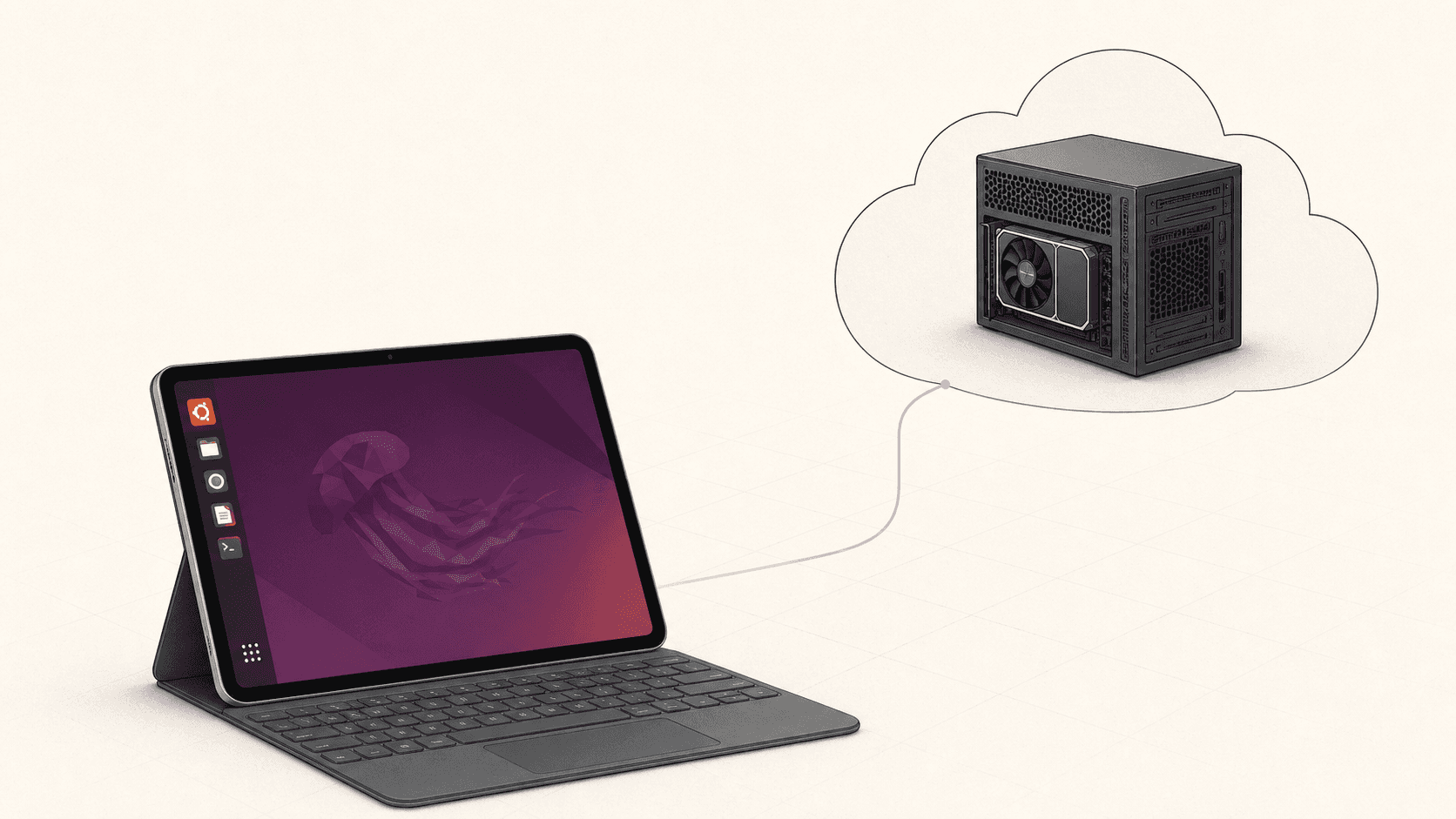
Why Native Ubuntu Doesn’t Run On iPad
Quick reality check first, because understanding the "why" saves a lot of wasted effort.
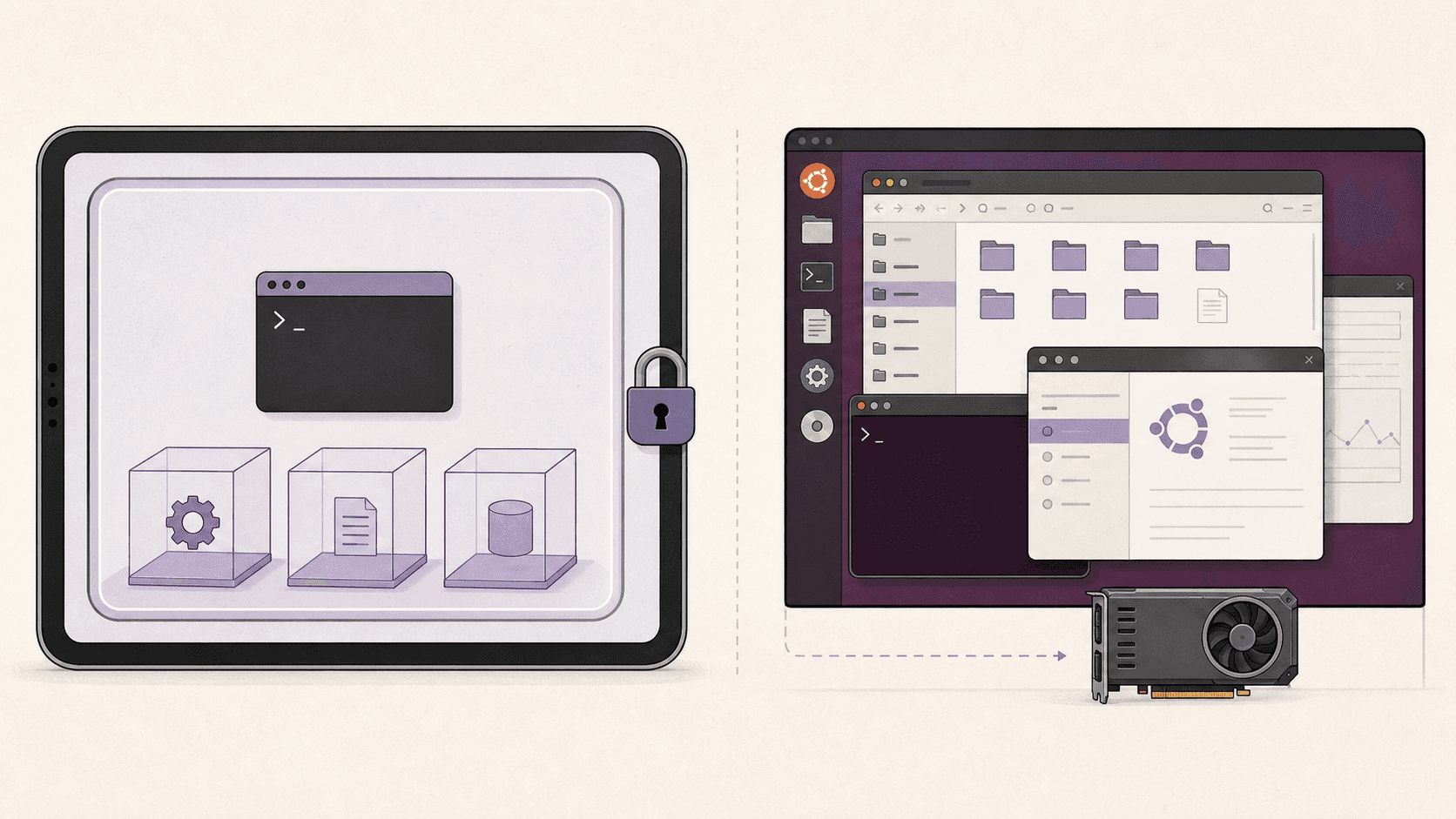
iPadOS doesn't let apps run arbitrary code the way a desktop operating system does. Every app is sandboxed, and Apple's rules block the kind of low-level access a real OS needs. So the "Linux" apps you find in the App Store take a different route: they emulate a stripped-down Linux user space in software.
These emulators are clever, and they're fine for light scripting or learning a few commands. But because they emulate rather than run natively, they come with hard limits:
They're slow. Software emulation is a fraction of native speed, so anything demanding crawls.
They can't touch the GPU. No hardware acceleration means no real graphics work, no CUDA, no rendering.
They can't run a full graphical desktop. You get a terminal, not GNOME with real windows and apps.
The iPad's own silicon is fast. The limitation is the software lock, not the hardware. So instead of fighting the lock, the trick is to move the Linux somewhere unlocked, a real machine in a data center, and stream the desktop back to your tablet.
Definition: what "Ubuntu on iPad" really means in practice
Running Ubuntu on an iPad, done the way that actually works, means a full Ubuntu desktop runs on remote hardware while your iPad displays it and sends your taps, keystrokes, and pointer movements back. The Linux is real and native. Your iPad is the screen and the input device.
If you’re testing private or open-source AI models, you can also learn how to run a local LLM on Ubuntu in the cloud.
The Approach That Works: Ubuntu In The Cloud
Here's the whole idea in one sentence. A real Ubuntu desktop runs on a machine in a data center, and your iPad displays it and controls it over the internet.
This isn't a watered-down version of Linux. It's the actual thing. Full GNOME, the apt package manager, GPU support when you want it, and every desktop app that runs on x86 Ubuntu. Your iPad is simply acting as a very nice display with a touchscreen and, ideally, a keyboard.
On Vagon, that stream runs at up to 4K and 60 frames per second, which on an iPad's sharp display looks crisp and moves smoothly. Boot time is around 90 seconds. And because the desktop lives in the cloud rather than on the tablet, you can start work on your iPad, then pick the same session back up later on a Mac or in a browser without missing a beat.
What you actually get
To be concrete, here's what this unlocks that an iPad alone never could:
A full Ubuntu GNOME desktop, not an emulator, with real windows, a file manager, and system settings.
A real terminal with
sudo,apt, and package installs that genuinely work.GPU-backed apps on the GPU plans, including Blender, machine learning tools, and CUDA workloads.
Desktop software the App Store will never have, from Linux-native developer tools to creative apps.
Files that persist between sessions if you add storage, so it behaves like a permanent computer.
The same machine across devices, so your iPad, Mac, and browser all reach the same desktop.
What you'll need
The list is short.
An iPad worth using for it
Any modern iPad works, but the experience gets better with more screen. An iPad Pro or Air with a larger display gives you more room for a desktop. A base iPad is completely fine for lighter work like coding, writing, and browsing.
A keyboard, and ideally a trackpad or mouse
This is the one honest ergonomic point. A desktop is built for a pointer and a keyboard. You can drive it with touch alone, and it works, but a Magic Keyboard, a keyboard folio with a trackpad, or a cheap Bluetooth mouse makes it feel like a real computer instead of a demo. iPadOS supports pointer input, and the Ubuntu cursor follows your trackpad naturally.
A decent internet connection
Because pixels are streaming to you, your connection matters more than your iPad's specs. Good Wi-Fi is ideal. A solid 5G connection also works well. On weak or high-latency connections the stream will feel laggy, so this is the one thing that can genuinely make or break the experience. The simple test: if your connection is fine for video calls and streaming video, it's fine for this.
How To Set It Up, Step By Step
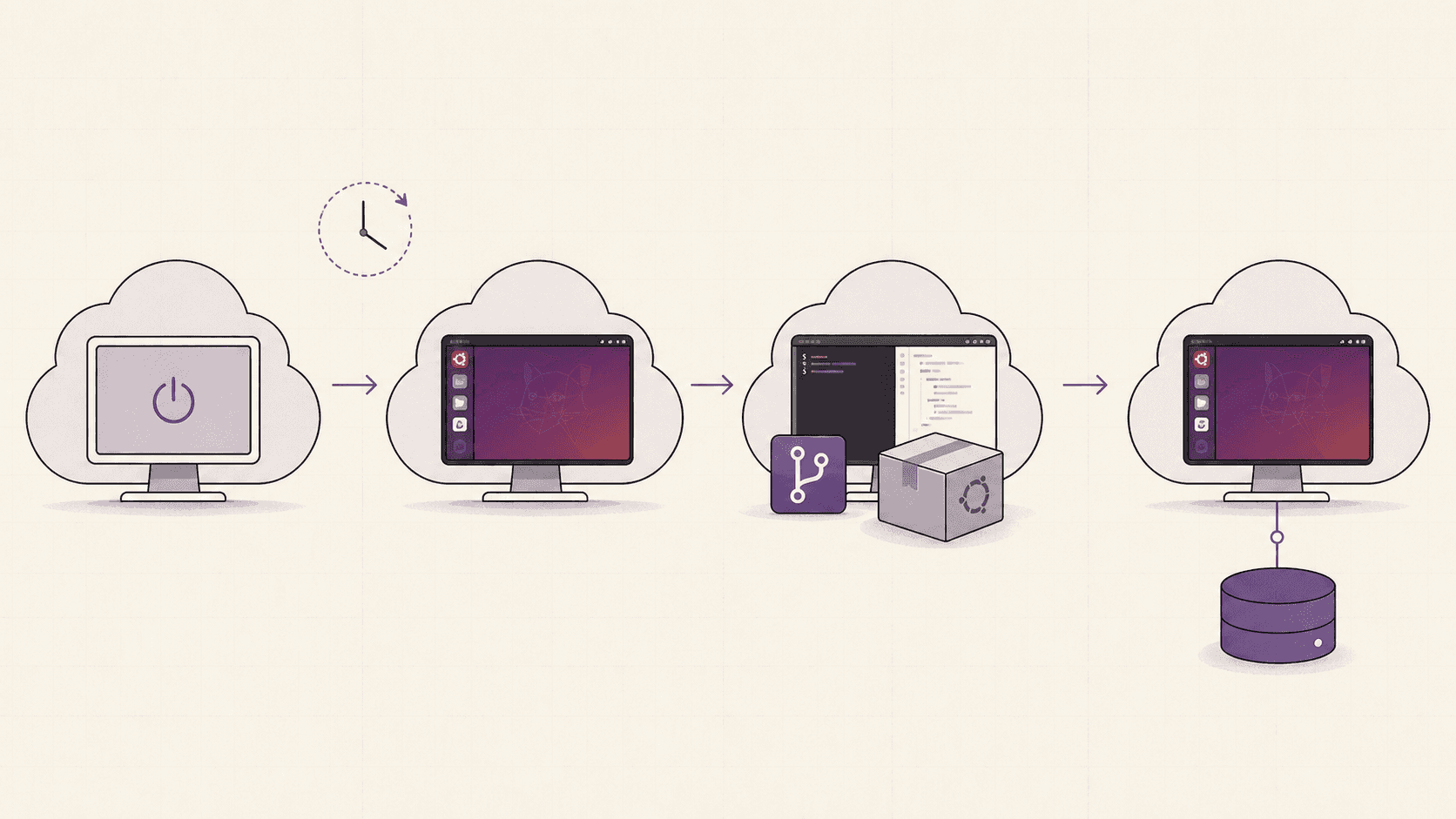
Step 1: Create a Vagon account
Sign up and add a payment method. You pay for the time your machine is running, so nothing costs anything until you launch a computer.
Step 2: Launch an Ubuntu machine
Create a computer and choose Linux as the operating system. Pick a plan that matches your work. Lighter tasks like coding, writing, and browsing don't need a GPU. If you're planning to render, train models, or run anything CUDA-heavy, choose a GPU plan with a T4 or an A10G. Linux plans are priced a bit lower than the Windows equivalents because there are no OS licensing fees baked in.
Step 3: Open Vagon in Safari
Open Safari on your iPad, sign in to Vagon, and open the Ubuntu computer from your dashboard. The cloud desktop runs directly in the browser, so there is no separate iPad app to install.
Step 4: Connect and wait about 90 seconds
Launch your machine and connect. In roughly a minute and a half you're looking at a live Ubuntu desktop filling your iPad screen.
Step 5: Set it up like a real machine
Open a terminal and run the usual first commands:
Install your editor, clone your repos, set up your environment. If you added persistent storage, this only has to happen once and it'll be waiting for you next session.
Step 6: Confirm the GPU, if you chose one
On a GPU plan, verify the card is live:
Drivers and CUDA come preconfigured, so a real GPU workflow, the kind an iPad could never do natively, just works.
Step 7: Add storage so your work sticks around
If you want your files, projects, and installed apps to survive between sessions, add persistent storage. On Vagon that's about five dollars per extra 50GB, up to 525GB. Now your iPad has, effectively, a permanent Linux computer behind it.
If you’re looking for a full Linux environment without setting up local hardware, this guide explains how to get an Ubuntu desktop in the cloud.
Getting Keyboard, Trackpad, And Pencil Input Right
This is where a little setup makes the difference between "neat trick" and "daily driver."
Keyboard
A hardware keyboard is the single biggest upgrade to the experience. Common desktop shortcuts work inside the streamed Ubuntu session, so you can copy, paste, switch windows, and navigate the way you would on a laptop. In the native app, full-screen mode gives you the most usable screen real estate.
Trackpad and mouse
iPadOS pointer support maps naturally onto the Linux cursor. A trackpad gives you precise clicking, right-click via a two-finger tap or a configured gesture, and smooth scrolling. If you only take one accessory beyond the keyboard, make it a trackpad or a small Bluetooth mouse.
Apple Pencil
The Pencil works as a pointer for tapping and navigating around the desktop. For pressure-sensitive drawing inside Linux creative apps, results vary by app, so treat Pencil support as basic pointing rather than a full pressure-sensitive artboard. If precise stylus input is central to your work, test your specific app first.
Touch
Touch works as a fallback. You can tap, scroll, and drag. But GNOME is a desktop environment that assumes a pointer, so some interactions are fiddly with fingers alone. Pair a trackpad and the whole thing clicks into place.
iPad-specific tips
A few habits that make the iPad experience noticeably better:
Use full-screen mode in the native app to reclaim every pixel, since a desktop benefits from all the space it can get.
Consider an external display. If your iPad supports driving an external monitor, you can run the cloud desktop on a bigger screen and get much closer to a laptop feel.
Keep the Vagon session as your "computer" and iPad apps for iPad things. Use the Files app, Safari, and native apps for quick tablet tasks, and switch to the cloud desktop when you need real Linux. They complement each other.
Mind battery on long sessions. Streaming and keeping the screen on drains the iPad, so keep a charger handy for long work sessions.
What You Can Actually Do With It: Real Workflows
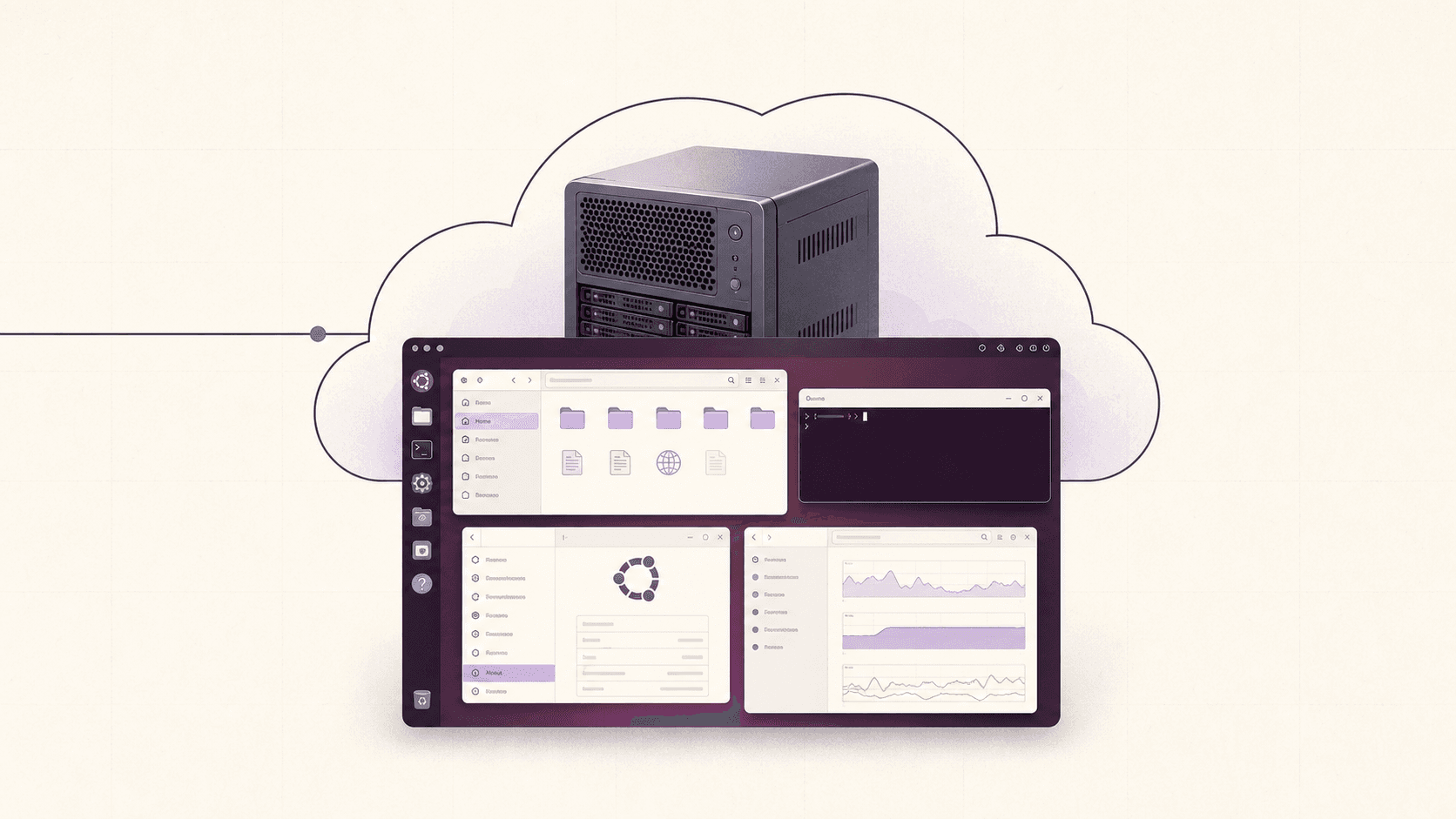
"A Linux desktop on your iPad" is abstract until you see what it replaces. Here are concrete workflows people run this way every day.
#1. Full-stack and backend development
Clone your repo, install your language runtime and tools, and develop against a real Linux environment that matches production. Run a local server, hit it from the machine's own browser, and iterate. Because it's a real desktop, you can have your editor, a terminal, a browser, and a database GUI open side by side, which is a far cry from an SSH session on a tablet.
#2. Data science and machine learning
On a GPU plan, install your Python stack, launch a notebook, and run the training cells that would kill a laptop kernel. You get CUDA already configured and a real GPU, so your iPad becomes the front end for genuine ML work. Load a dataset, train, visualize the results with real plotting, all on a tablet.
#3. 3D and rendering
Open Blender on a GPU machine and render scenes far faster than any tablet could manage locally, then review the output right there. Your iPad drives the interface, the data-center GPU does the work.
#4. Learning Linux, DevOps, and system administration
Because the machine is disposable, it's an ideal place to learn. Break things, run risky commands, experiment with configurations, and reset to a clean image when you're done. It's a safe sandbox that behaves exactly like a real Ubuntu server, which is perfect for practicing the skills that don't fit on a locked-down tablet.
#5. A second, disposable computer for risky tasks
Need to open an unfamiliar file, test an untrusted script, or try software you're not sure about? Doing it on an isolated cloud VM keeps it away from your personal iPad data entirely. When you're finished, reset the machine.
Troubleshooting: Lag, Disconnects, And Input Issues
Most problems with a streamed desktop come down to a handful of causes with quick fixes.
The desktop feels laggy or stutters
This is almost always the connection, not the machine. Try these, in order:
Move closer to your Wi-Fi router or switch to a less congested network.
Lower the stream resolution in the client, which reduces how much data has to reach you each second.
Close other bandwidth-heavy apps on your network, like large downloads or other video streams.
If you're on cellular, a strong 5G signal helps a lot; a weak signal will stutter.
The session disconnects
Brief drops usually trace back to an unstable connection. Your machine keeps running in the background, so reconnecting drops you back where you were. If disconnects are frequent, a flaky network with packet loss is the likely culprit rather than the tablet.
The keyboard or trackpad behaves oddly
Use the native Vagon app rather than the browser for the most reliable keyboard and pointer handling. If a specific shortcut doesn't pass through, it may be intercepted by iPadOS; the app's full-screen mode minimizes those conflicts.
Right-click isn't working
With a trackpad, use a two-finger tap or the configured secondary-click gesture. With a Bluetooth mouse, the right button works directly. Right-click is essential in a desktop environment, so it's worth setting up your pointer's secondary click early.
If you’re experimenting with private AI models, this guide walks through how to run Ollama in the cloud.
Which iPad Is Best For This?
Any modern iPad works, since the heavy lifting happens in the cloud. But a few things improve the experience:
Screen size. A larger display, like an iPad Pro or Air, gives a desktop more room to breathe. A desktop crammed onto a small screen is usable but tighter.
Keyboard support. Any iPad that pairs with a keyboard folio or a Bluetooth keyboard is fine. Models designed for the Magic Keyboard give the most laptop-like feel.
External display output. If you sometimes want a bigger screen, an iPad that can drive an external monitor lets you run the cloud desktop on a full-size display.
The honest truth: because the compute is remote, you do not need the latest or most expensive iPad. An older or base-model iPad with a keyboard and a good connection delivers nearly the same experience as a top-tier Pro. Spend your money on the connection and accessories, not the tablet.
The Honest Limitations
I'd rather you hear these from me than discover them mid-project.
It needs the internet
This is a streamed desktop. On a plane with no Wi-Fi, or in a dead zone, it doesn't work. If you need Linux fully offline on your iPad, this isn't your tool. For everywhere with a reasonable connection, it's excellent.
Latency is real on bad connections
On strong Wi-Fi the desktop feels local. On a congested network you'll notice a slight delay between your input and the response. It stays usable, just not as crisp. Your connection quality is the biggest single factor in how good this feels, so it's worth being on good Wi-Fi when you can.
It's billed by the minute, so it's for sessions, not parking
A cloud desktop is a burst tool. You turn it on, work, and turn it off. If you were hoping to keep a Linux server running around the clock from your iPad, a small always-on VPS would be far cheaper for that specific job. This is for the times you want a powerful desktop in your hands, then want it gone.
Touch is a fallback, not the main event
GNOME assumes a pointer. Touch works, but pairing a trackpad or mouse transforms the experience from awkward to genuinely comfortable.

Cloud Desktop vs The Other "Linux on iPad" Options
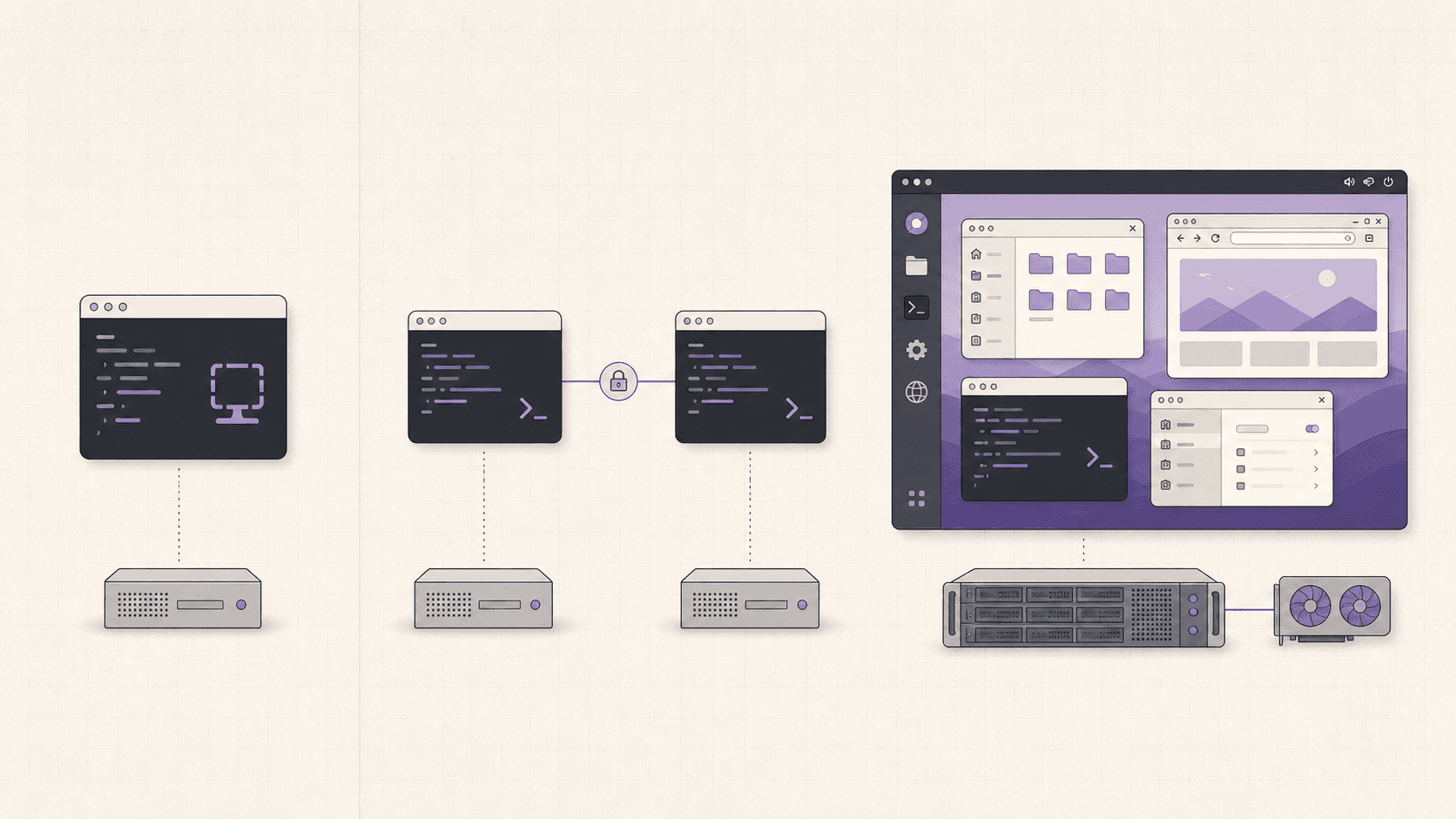
How the streamed-desktop approach stacks up against the alternatives people try:
Method | Real desktop | GPU | Speed | Setup | Verdict |
|---|---|---|---|---|---|
Cloud Ubuntu desktop (Vagon) | Yes, full GNOME | Yes, optional | Native, fast | Minimal | The approach that actually delivers a full Linux desktop |
App Store Linux emulators | No, terminal only | No | Slow (emulated) | Easy | Fine for light scripting, not a desktop |
SSH into a remote server | No, terminal only | Depends | Fast for CLI | Medium | Great for command line, no GUI |
Jailbreak | Partial, fragile | No | Varies | High, risky | Not worth it; voids warranty, breaks easily |
The takeaway: if you only need a shell, an emulator or SSH is fine. If you want an actual Linux desktop with apps and a GPU, streaming a cloud desktop is the method that works.
Building a Complete Linux Dev Environment, Start to Finish
If you want your iPad to genuinely replace a laptop for development, here's a practical setup that turns a fresh machine into a ready workspace in a few minutes. Add persistent storage first so this only has to be done once.
Start by updating and installing the essentials:
Install your editor of choice. VS Code runs beautifully on the desktop:
Set up your language runtimes. For example, a Node.js and Python setup:
Configure Git so your commits are attributed correctly:
Clone your projects and you're working:
From here, open the project in VS Code, spin up a terminal inside the editor, run your dev server, and preview it in the machine's own browser. Because everything runs on one real desktop, the whole loop, edit, run, test, debug, happens in one place, exactly like a laptop. With persistent storage, close the session and it all waits for you next time.
If you’re building node-based image generation workflows, here’s how to run ComfyUI in the cloud with access to more powerful GPUs.
iPad Plus Cloud Desktop vs iPad Plus Laptop
A question worth thinking through if you're deciding what to carry.
Carrying an iPad and a laptop gives you a powerful local machine but means two devices, two chargers, and the weight of both. Carrying just an iPad and using a cloud desktop means one light device, one charger, and a full Linux computer summoned only when you need it.
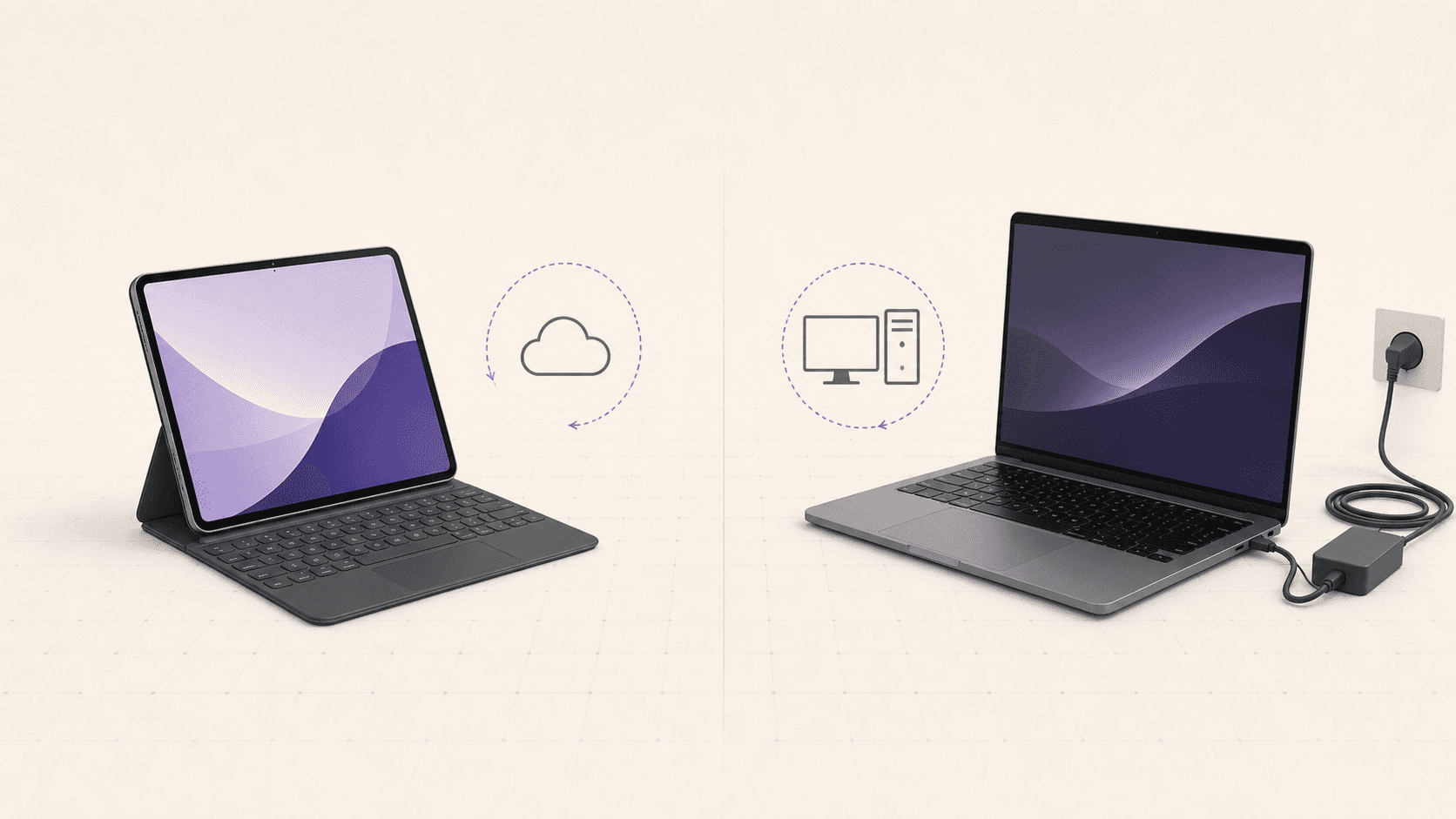
The trade is clear. The cloud approach wins on portability and on paying only for the compute you use, and it depends on having a connection. The laptop wins when you're regularly offline or doing constant heavy work where a monthly rental would add up. For a lot of people who mostly work where there's Wi-Fi and only occasionally need serious Linux horsepower, the iPad-plus-cloud combination is lighter, cheaper over time, and surprisingly capable.
There's also a nice middle ground: keep a modest laptop for offline work and use the cloud desktop for the GPU-heavy jobs your laptop can't handle. You don't have to pick one philosophy for everything.
Who This Is Great For
Developers who own an iPad and a phone but want a real Linux dev box without carrying a laptop.
Students who need Ubuntu for a class or lab and don't want to dual-boot their personal machine.
3D artists and ML folks who want to summon a GPU Linux desktop, run a heavy job, and shut it down.
Travelers who refuse to pack a laptop but occasionally need a full computer.
Anyone curious about Linux who wants to explore a real Ubuntu desktop without touching their main device.
What It Costs
You pay for the minutes the machine runs, plus a small monthly fee if you add persistent storage. GPU plans cost more than plans without a GPU. There's also outbound data transfer, where the first 10GB per month is included and additional transfer is modest, which most iPad workflows never approach.
The mental model that keeps it affordable:
Cheap for a few focused hours of real work.
Expensive if you leave it running all month.
So the single most important habit is to shut the machine down when you're done. Check the pricing page for current rates by plan and region.
Common Mistakes to Avoid
Trying to make a native emulator do desktop work. It can't. Go straight to the streamed-desktop approach.
Skipping the keyboard and trackpad. Touch-only is where people conclude "this isn't practical." A trackpad changes that verdict.
Working on weak Wi-Fi and blaming the machine. Lag is almost always the connection. Get on good Wi-Fi.
Forgetting to shut down. Per-minute billing only helps if you stop the clock.
Not adding storage, then losing your setup. If you'll use it regularly, persistent storage saves you rebuilding your environment each time.
Security and Privacy Notes
Because this runs a real machine you control, a few sensible habits keep it clean:
Use a dedicated account for any logins you perform inside the session rather than your primary personal accounts, especially on a machine you'll reset.
Prefer scoped, disposable API keys for anything the machine connects to, so a mistake can only affect a throwaway credential.
Save your work off the machine before shutting down if you're not on persistent storage, since a non-persistent machine returns to a clean image.
Reset when in doubt. If you ran something questionable, going back to a clean image is one action and removes any leftover state.
None of this is unique to the iPad, it's just good practice for any remote desktop, and the isolation model makes it easy to follow.
If you’re working on demanding 3D scenes or rendering projects, this guide explains how to run Blender on a cloud GPU with Ubuntu.
The Takeaway
You can't turn your iPad into a Linux machine, and honestly, streaming one is better anyway. You get a full GPU-capable Ubuntu desktop that boots in about 90 seconds, follows you across devices, and disappears when you're finished, all displayed on the screen you already carry everywhere. Pair it with a keyboard and trackpad, stay on a decent connection, and it becomes a genuinely capable computer that happens to weigh as much as a tablet.
Want to see it? Create a Vagon account, launch an Ubuntu machine, open the app on your iPad, and in about 90 seconds you'll be running real Linux from a tablet.
Frequently Asked Questions
Can you install Ubuntu directly on an iPad?
No. iPadOS doesn't allow a real desktop operating system to be installed, and App Store emulators can't run a full graphical Linux or use the GPU. The way to get real Ubuntu on an iPad is to run it in the cloud and stream the desktop to the tablet.
Is a cloud Ubuntu desktop a real desktop or an emulator?
Real. It's a full Ubuntu GNOME desktop running on actual hardware in a data center. Your iPad is displaying it, not emulating it, so everything that runs on x86 Ubuntu runs here at native speed.
Do I need a keyboard to use Ubuntu on my iPad?
Not strictly, but you'll want one. A hardware keyboard, and ideally a trackpad or mouse, turns the experience from a fiddly touch demo into a comfortable computer. Touch alone works as a fallback.
Can the Apple Pencil be used?
The Pencil works as a pointer for tapping and navigating. For pressure-sensitive drawing in Linux creative apps, support varies by app, so treat it as basic pointing rather than full stylus input and test your specific tool.
Will my files still be there next time?
Only if you add persistent storage. With it, your home directory, installed apps, and projects wait for you. Without it, treat each session as a fresh machine and script your setup or bring your files along.
Does the GPU actually work for Blender or machine learning on iPad?
Yes, on the GPU plans. You get an NVIDIA T4 or A10G with CUDA and drivers already set up, which is exactly the kind of workload an iPad could never handle on its own.
How much internet speed do I need?
If your connection handles video calls and streaming video smoothly, it handles a cloud desktop. Low latency matters more than raw bandwidth, so strong Wi-Fi or a solid 5G connection gives the best feel.
Can I use it offline?
No. It's a streamed desktop, so it needs an internet connection. For offline Linux on an iPad, there is no real full-desktop option today.
Is this better than a laptop?
It depends on your needs. For someone who wants to travel with just an iPad but occasionally needs a full GPU Linux desktop, it's a compelling way to avoid carrying a second machine. For constant heavy Linux work with no internet, a laptop is more reliable.
How much does it cost to run Ubuntu on an iPad this way?
You pay for the machine's running time, plus optional persistent storage. It's inexpensive for a few hours of work and gets pricey only if you leave it running all month. Shutting down when you're done keeps it affordable.
Is my data private on a cloud machine?
Each machine is an isolated virtual machine and the connection is encrypted, so your session is separate from everyone else's. As with any remote environment, avoid copying long-lived secrets onto a disposable machine, and use scoped, throwaway credentials for anything sensitive. The isolation contains risk to that single machine, but good credential hygiene is still on you.
Can I run a whole workday on this?
Yes, many people do. With a keyboard, a trackpad, a good connection, and persistent storage, a cloud Ubuntu desktop is capable of being a primary work environment for development, data work, and more. Keep the iPad charged, since streaming for hours uses battery.
Does it drain my iPad's battery quickly?
Streaming and keeping the screen active do use more battery than idle tablet use, similar to a long video call or video-streaming session. For extended work, keep a charger nearby.
Can two people share one machine?
A Vagon computer is a single desktop. For team scenarios with multiple people and centrally managed machines, Vagon Teams provides multi-seat management. For personal use, one account and one machine is the normal setup.
Quick answer: You cannot install real desktop Ubuntu directly on an iPad, because iPadOS doesn't allow it and App Store emulators are too slow and can't use the GPU. The approach that actually works is to run a full Ubuntu GNOME desktop in the cloud and stream it to your iPad. On Vagon it boots in about 90 seconds, streams at up to 4K and 60 frames per second, supports a real GPU, and turns your iPad into the screen for a genuine Linux computer.
Key takeaways
Real Ubuntu can't run on the iPad itself. iPadOS restrictions and slow emulation make a native full desktop impossible.
The working method is a cloud Ubuntu desktop streamed to the iPad. It's the actual desktop, not an emulator.
You get a real terminal,
apt, GPU support, and every x86 Ubuntu desktop app, none of which the App Store can offer.A keyboard and a trackpad or mouse make it feel like a real computer; touch alone works but is a fallback.
Your internet connection is the single biggest factor in how good it feels.
It's billed by the minute, so it's ideal for sessions and a poor fit for an always-on server.
The first time I tried to get a real Linux desktop onto my iPad, I went straight down the usual rabbit hole. A terminal emulator from the App Store, a Linux emulation app, a forum thread about jailbreaking from 2019. I spent an evening on it and ended up with a slow shell that couldn't run anything with a graphical interface. The iPad is a genuinely powerful machine. Apple just does not want a full desktop Linux running on it, and no amount of App Store cleverness changes that.
So let me save you that evening. There is a way to get a genuine Ubuntu GNOME desktop on your iPad, with real apps, a real terminal, and even an NVIDIA GPU. It doesn't run on the iPad. It runs in the cloud, and your iPad becomes the screen. This guide covers exactly how to do it, how to make it feel like a real computer, what it costs, and the honest limitations, so you know precisely what you're getting into.
Why Native Ubuntu Doesn’t Run On iPad
Quick reality check first, because understanding the "why" saves a lot of wasted effort.
iPadOS doesn't let apps run arbitrary code the way a desktop operating system does. Every app is sandboxed, and Apple's rules block the kind of low-level access a real OS needs. So the "Linux" apps you find in the App Store take a different route: they emulate a stripped-down Linux user space in software.
These emulators are clever, and they're fine for light scripting or learning a few commands. But because they emulate rather than run natively, they come with hard limits:
They're slow. Software emulation is a fraction of native speed, so anything demanding crawls.
They can't touch the GPU. No hardware acceleration means no real graphics work, no CUDA, no rendering.
They can't run a full graphical desktop. You get a terminal, not GNOME with real windows and apps.
The iPad's own silicon is fast. The limitation is the software lock, not the hardware. So instead of fighting the lock, the trick is to move the Linux somewhere unlocked, a real machine in a data center, and stream the desktop back to your tablet.
Definition: what "Ubuntu on iPad" really means in practice
Running Ubuntu on an iPad, done the way that actually works, means a full Ubuntu desktop runs on remote hardware while your iPad displays it and sends your taps, keystrokes, and pointer movements back. The Linux is real and native. Your iPad is the screen and the input device.
If you’re testing private or open-source AI models, you can also learn how to run a local LLM on Ubuntu in the cloud.
The Approach That Works: Ubuntu In The Cloud
Here's the whole idea in one sentence. A real Ubuntu desktop runs on a machine in a data center, and your iPad displays it and controls it over the internet.
This isn't a watered-down version of Linux. It's the actual thing. Full GNOME, the apt package manager, GPU support when you want it, and every desktop app that runs on x86 Ubuntu. Your iPad is simply acting as a very nice display with a touchscreen and, ideally, a keyboard.
On Vagon, that stream runs at up to 4K and 60 frames per second, which on an iPad's sharp display looks crisp and moves smoothly. Boot time is around 90 seconds. And because the desktop lives in the cloud rather than on the tablet, you can start work on your iPad, then pick the same session back up later on a Mac or in a browser without missing a beat.
What you actually get
To be concrete, here's what this unlocks that an iPad alone never could:
A full Ubuntu GNOME desktop, not an emulator, with real windows, a file manager, and system settings.
A real terminal with
sudo,apt, and package installs that genuinely work.GPU-backed apps on the GPU plans, including Blender, machine learning tools, and CUDA workloads.
Desktop software the App Store will never have, from Linux-native developer tools to creative apps.
Files that persist between sessions if you add storage, so it behaves like a permanent computer.
The same machine across devices, so your iPad, Mac, and browser all reach the same desktop.
What you'll need
The list is short.
An iPad worth using for it
Any modern iPad works, but the experience gets better with more screen. An iPad Pro or Air with a larger display gives you more room for a desktop. A base iPad is completely fine for lighter work like coding, writing, and browsing.
A keyboard, and ideally a trackpad or mouse
This is the one honest ergonomic point. A desktop is built for a pointer and a keyboard. You can drive it with touch alone, and it works, but a Magic Keyboard, a keyboard folio with a trackpad, or a cheap Bluetooth mouse makes it feel like a real computer instead of a demo. iPadOS supports pointer input, and the Ubuntu cursor follows your trackpad naturally.
A decent internet connection
Because pixels are streaming to you, your connection matters more than your iPad's specs. Good Wi-Fi is ideal. A solid 5G connection also works well. On weak or high-latency connections the stream will feel laggy, so this is the one thing that can genuinely make or break the experience. The simple test: if your connection is fine for video calls and streaming video, it's fine for this.
How To Set It Up, Step By Step
Step 1: Create a Vagon account
Sign up and add a payment method. You pay for the time your machine is running, so nothing costs anything until you launch a computer.
Step 2: Launch an Ubuntu machine
Create a computer and choose Linux as the operating system. Pick a plan that matches your work. Lighter tasks like coding, writing, and browsing don't need a GPU. If you're planning to render, train models, or run anything CUDA-heavy, choose a GPU plan with a T4 or an A10G. Linux plans are priced a bit lower than the Windows equivalents because there are no OS licensing fees baked in.
Step 3: Open Vagon in Safari
Open Safari on your iPad, sign in to Vagon, and open the Ubuntu computer from your dashboard. The cloud desktop runs directly in the browser, so there is no separate iPad app to install.
Step 4: Connect and wait about 90 seconds
Launch your machine and connect. In roughly a minute and a half you're looking at a live Ubuntu desktop filling your iPad screen.
Step 5: Set it up like a real machine
Open a terminal and run the usual first commands:
Install your editor, clone your repos, set up your environment. If you added persistent storage, this only has to happen once and it'll be waiting for you next session.
Step 6: Confirm the GPU, if you chose one
On a GPU plan, verify the card is live:
Drivers and CUDA come preconfigured, so a real GPU workflow, the kind an iPad could never do natively, just works.
Step 7: Add storage so your work sticks around
If you want your files, projects, and installed apps to survive between sessions, add persistent storage. On Vagon that's about five dollars per extra 50GB, up to 525GB. Now your iPad has, effectively, a permanent Linux computer behind it.
If you’re looking for a full Linux environment without setting up local hardware, this guide explains how to get an Ubuntu desktop in the cloud.
Getting Keyboard, Trackpad, And Pencil Input Right
This is where a little setup makes the difference between "neat trick" and "daily driver."
Keyboard
A hardware keyboard is the single biggest upgrade to the experience. Common desktop shortcuts work inside the streamed Ubuntu session, so you can copy, paste, switch windows, and navigate the way you would on a laptop. In the native app, full-screen mode gives you the most usable screen real estate.
Trackpad and mouse
iPadOS pointer support maps naturally onto the Linux cursor. A trackpad gives you precise clicking, right-click via a two-finger tap or a configured gesture, and smooth scrolling. If you only take one accessory beyond the keyboard, make it a trackpad or a small Bluetooth mouse.
Apple Pencil
The Pencil works as a pointer for tapping and navigating around the desktop. For pressure-sensitive drawing inside Linux creative apps, results vary by app, so treat Pencil support as basic pointing rather than a full pressure-sensitive artboard. If precise stylus input is central to your work, test your specific app first.
Touch
Touch works as a fallback. You can tap, scroll, and drag. But GNOME is a desktop environment that assumes a pointer, so some interactions are fiddly with fingers alone. Pair a trackpad and the whole thing clicks into place.
iPad-specific tips
A few habits that make the iPad experience noticeably better:
Use full-screen mode in the native app to reclaim every pixel, since a desktop benefits from all the space it can get.
Consider an external display. If your iPad supports driving an external monitor, you can run the cloud desktop on a bigger screen and get much closer to a laptop feel.
Keep the Vagon session as your "computer" and iPad apps for iPad things. Use the Files app, Safari, and native apps for quick tablet tasks, and switch to the cloud desktop when you need real Linux. They complement each other.
Mind battery on long sessions. Streaming and keeping the screen on drains the iPad, so keep a charger handy for long work sessions.
What You Can Actually Do With It: Real Workflows
"A Linux desktop on your iPad" is abstract until you see what it replaces. Here are concrete workflows people run this way every day.
#1. Full-stack and backend development
Clone your repo, install your language runtime and tools, and develop against a real Linux environment that matches production. Run a local server, hit it from the machine's own browser, and iterate. Because it's a real desktop, you can have your editor, a terminal, a browser, and a database GUI open side by side, which is a far cry from an SSH session on a tablet.
#2. Data science and machine learning
On a GPU plan, install your Python stack, launch a notebook, and run the training cells that would kill a laptop kernel. You get CUDA already configured and a real GPU, so your iPad becomes the front end for genuine ML work. Load a dataset, train, visualize the results with real plotting, all on a tablet.
#3. 3D and rendering
Open Blender on a GPU machine and render scenes far faster than any tablet could manage locally, then review the output right there. Your iPad drives the interface, the data-center GPU does the work.
#4. Learning Linux, DevOps, and system administration
Because the machine is disposable, it's an ideal place to learn. Break things, run risky commands, experiment with configurations, and reset to a clean image when you're done. It's a safe sandbox that behaves exactly like a real Ubuntu server, which is perfect for practicing the skills that don't fit on a locked-down tablet.
#5. A second, disposable computer for risky tasks
Need to open an unfamiliar file, test an untrusted script, or try software you're not sure about? Doing it on an isolated cloud VM keeps it away from your personal iPad data entirely. When you're finished, reset the machine.
Troubleshooting: Lag, Disconnects, And Input Issues
Most problems with a streamed desktop come down to a handful of causes with quick fixes.
The desktop feels laggy or stutters
This is almost always the connection, not the machine. Try these, in order:
Move closer to your Wi-Fi router or switch to a less congested network.
Lower the stream resolution in the client, which reduces how much data has to reach you each second.
Close other bandwidth-heavy apps on your network, like large downloads or other video streams.
If you're on cellular, a strong 5G signal helps a lot; a weak signal will stutter.
The session disconnects
Brief drops usually trace back to an unstable connection. Your machine keeps running in the background, so reconnecting drops you back where you were. If disconnects are frequent, a flaky network with packet loss is the likely culprit rather than the tablet.
The keyboard or trackpad behaves oddly
Use the native Vagon app rather than the browser for the most reliable keyboard and pointer handling. If a specific shortcut doesn't pass through, it may be intercepted by iPadOS; the app's full-screen mode minimizes those conflicts.
Right-click isn't working
With a trackpad, use a two-finger tap or the configured secondary-click gesture. With a Bluetooth mouse, the right button works directly. Right-click is essential in a desktop environment, so it's worth setting up your pointer's secondary click early.
If you’re experimenting with private AI models, this guide walks through how to run Ollama in the cloud.
Which iPad Is Best For This?
Any modern iPad works, since the heavy lifting happens in the cloud. But a few things improve the experience:
Screen size. A larger display, like an iPad Pro or Air, gives a desktop more room to breathe. A desktop crammed onto a small screen is usable but tighter.
Keyboard support. Any iPad that pairs with a keyboard folio or a Bluetooth keyboard is fine. Models designed for the Magic Keyboard give the most laptop-like feel.
External display output. If you sometimes want a bigger screen, an iPad that can drive an external monitor lets you run the cloud desktop on a full-size display.
The honest truth: because the compute is remote, you do not need the latest or most expensive iPad. An older or base-model iPad with a keyboard and a good connection delivers nearly the same experience as a top-tier Pro. Spend your money on the connection and accessories, not the tablet.
The Honest Limitations
I'd rather you hear these from me than discover them mid-project.
It needs the internet
This is a streamed desktop. On a plane with no Wi-Fi, or in a dead zone, it doesn't work. If you need Linux fully offline on your iPad, this isn't your tool. For everywhere with a reasonable connection, it's excellent.
Latency is real on bad connections
On strong Wi-Fi the desktop feels local. On a congested network you'll notice a slight delay between your input and the response. It stays usable, just not as crisp. Your connection quality is the biggest single factor in how good this feels, so it's worth being on good Wi-Fi when you can.
It's billed by the minute, so it's for sessions, not parking
A cloud desktop is a burst tool. You turn it on, work, and turn it off. If you were hoping to keep a Linux server running around the clock from your iPad, a small always-on VPS would be far cheaper for that specific job. This is for the times you want a powerful desktop in your hands, then want it gone.
Touch is a fallback, not the main event
GNOME assumes a pointer. Touch works, but pairing a trackpad or mouse transforms the experience from awkward to genuinely comfortable.
Cloud Desktop vs The Other "Linux on iPad" Options
How the streamed-desktop approach stacks up against the alternatives people try:
Method | Real desktop | GPU | Speed | Setup | Verdict |
|---|---|---|---|---|---|
Cloud Ubuntu desktop (Vagon) | Yes, full GNOME | Yes, optional | Native, fast | Minimal | The approach that actually delivers a full Linux desktop |
App Store Linux emulators | No, terminal only | No | Slow (emulated) | Easy | Fine for light scripting, not a desktop |
SSH into a remote server | No, terminal only | Depends | Fast for CLI | Medium | Great for command line, no GUI |
Jailbreak | Partial, fragile | No | Varies | High, risky | Not worth it; voids warranty, breaks easily |
The takeaway: if you only need a shell, an emulator or SSH is fine. If you want an actual Linux desktop with apps and a GPU, streaming a cloud desktop is the method that works.
Building a Complete Linux Dev Environment, Start to Finish
If you want your iPad to genuinely replace a laptop for development, here's a practical setup that turns a fresh machine into a ready workspace in a few minutes. Add persistent storage first so this only has to be done once.
Start by updating and installing the essentials:
Install your editor of choice. VS Code runs beautifully on the desktop:
Set up your language runtimes. For example, a Node.js and Python setup:
Configure Git so your commits are attributed correctly:
Clone your projects and you're working:
From here, open the project in VS Code, spin up a terminal inside the editor, run your dev server, and preview it in the machine's own browser. Because everything runs on one real desktop, the whole loop, edit, run, test, debug, happens in one place, exactly like a laptop. With persistent storage, close the session and it all waits for you next time.
If you’re building node-based image generation workflows, here’s how to run ComfyUI in the cloud with access to more powerful GPUs.
iPad Plus Cloud Desktop vs iPad Plus Laptop
A question worth thinking through if you're deciding what to carry.
Carrying an iPad and a laptop gives you a powerful local machine but means two devices, two chargers, and the weight of both. Carrying just an iPad and using a cloud desktop means one light device, one charger, and a full Linux computer summoned only when you need it.
The trade is clear. The cloud approach wins on portability and on paying only for the compute you use, and it depends on having a connection. The laptop wins when you're regularly offline or doing constant heavy work where a monthly rental would add up. For a lot of people who mostly work where there's Wi-Fi and only occasionally need serious Linux horsepower, the iPad-plus-cloud combination is lighter, cheaper over time, and surprisingly capable.
There's also a nice middle ground: keep a modest laptop for offline work and use the cloud desktop for the GPU-heavy jobs your laptop can't handle. You don't have to pick one philosophy for everything.
Who This Is Great For
Developers who own an iPad and a phone but want a real Linux dev box without carrying a laptop.
Students who need Ubuntu for a class or lab and don't want to dual-boot their personal machine.
3D artists and ML folks who want to summon a GPU Linux desktop, run a heavy job, and shut it down.
Travelers who refuse to pack a laptop but occasionally need a full computer.
Anyone curious about Linux who wants to explore a real Ubuntu desktop without touching their main device.
What It Costs
You pay for the minutes the machine runs, plus a small monthly fee if you add persistent storage. GPU plans cost more than plans without a GPU. There's also outbound data transfer, where the first 10GB per month is included and additional transfer is modest, which most iPad workflows never approach.
The mental model that keeps it affordable:
Cheap for a few focused hours of real work.
Expensive if you leave it running all month.
So the single most important habit is to shut the machine down when you're done. Check the pricing page for current rates by plan and region.
Common Mistakes to Avoid
Trying to make a native emulator do desktop work. It can't. Go straight to the streamed-desktop approach.
Skipping the keyboard and trackpad. Touch-only is where people conclude "this isn't practical." A trackpad changes that verdict.
Working on weak Wi-Fi and blaming the machine. Lag is almost always the connection. Get on good Wi-Fi.
Forgetting to shut down. Per-minute billing only helps if you stop the clock.
Not adding storage, then losing your setup. If you'll use it regularly, persistent storage saves you rebuilding your environment each time.
Security and Privacy Notes
Because this runs a real machine you control, a few sensible habits keep it clean:
Use a dedicated account for any logins you perform inside the session rather than your primary personal accounts, especially on a machine you'll reset.
Prefer scoped, disposable API keys for anything the machine connects to, so a mistake can only affect a throwaway credential.
Save your work off the machine before shutting down if you're not on persistent storage, since a non-persistent machine returns to a clean image.
Reset when in doubt. If you ran something questionable, going back to a clean image is one action and removes any leftover state.
None of this is unique to the iPad, it's just good practice for any remote desktop, and the isolation model makes it easy to follow.
If you’re working on demanding 3D scenes or rendering projects, this guide explains how to run Blender on a cloud GPU with Ubuntu.
The Takeaway
You can't turn your iPad into a Linux machine, and honestly, streaming one is better anyway. You get a full GPU-capable Ubuntu desktop that boots in about 90 seconds, follows you across devices, and disappears when you're finished, all displayed on the screen you already carry everywhere. Pair it with a keyboard and trackpad, stay on a decent connection, and it becomes a genuinely capable computer that happens to weigh as much as a tablet.
Want to see it? Create a Vagon account, launch an Ubuntu machine, open the app on your iPad, and in about 90 seconds you'll be running real Linux from a tablet.
Frequently Asked Questions
Can you install Ubuntu directly on an iPad?
No. iPadOS doesn't allow a real desktop operating system to be installed, and App Store emulators can't run a full graphical Linux or use the GPU. The way to get real Ubuntu on an iPad is to run it in the cloud and stream the desktop to the tablet.
Is a cloud Ubuntu desktop a real desktop or an emulator?
Real. It's a full Ubuntu GNOME desktop running on actual hardware in a data center. Your iPad is displaying it, not emulating it, so everything that runs on x86 Ubuntu runs here at native speed.
Do I need a keyboard to use Ubuntu on my iPad?
Not strictly, but you'll want one. A hardware keyboard, and ideally a trackpad or mouse, turns the experience from a fiddly touch demo into a comfortable computer. Touch alone works as a fallback.
Can the Apple Pencil be used?
The Pencil works as a pointer for tapping and navigating. For pressure-sensitive drawing in Linux creative apps, support varies by app, so treat it as basic pointing rather than full stylus input and test your specific tool.
Will my files still be there next time?
Only if you add persistent storage. With it, your home directory, installed apps, and projects wait for you. Without it, treat each session as a fresh machine and script your setup or bring your files along.
Does the GPU actually work for Blender or machine learning on iPad?
Yes, on the GPU plans. You get an NVIDIA T4 or A10G with CUDA and drivers already set up, which is exactly the kind of workload an iPad could never handle on its own.
How much internet speed do I need?
If your connection handles video calls and streaming video smoothly, it handles a cloud desktop. Low latency matters more than raw bandwidth, so strong Wi-Fi or a solid 5G connection gives the best feel.
Can I use it offline?
No. It's a streamed desktop, so it needs an internet connection. For offline Linux on an iPad, there is no real full-desktop option today.
Is this better than a laptop?
It depends on your needs. For someone who wants to travel with just an iPad but occasionally needs a full GPU Linux desktop, it's a compelling way to avoid carrying a second machine. For constant heavy Linux work with no internet, a laptop is more reliable.
How much does it cost to run Ubuntu on an iPad this way?
You pay for the machine's running time, plus optional persistent storage. It's inexpensive for a few hours of work and gets pricey only if you leave it running all month. Shutting down when you're done keeps it affordable.
Is my data private on a cloud machine?
Each machine is an isolated virtual machine and the connection is encrypted, so your session is separate from everyone else's. As with any remote environment, avoid copying long-lived secrets onto a disposable machine, and use scoped, throwaway credentials for anything sensitive. The isolation contains risk to that single machine, but good credential hygiene is still on you.
Can I run a whole workday on this?
Yes, many people do. With a keyboard, a trackpad, a good connection, and persistent storage, a cloud Ubuntu desktop is capable of being a primary work environment for development, data work, and more. Keep the iPad charged, since streaming for hours uses battery.
Does it drain my iPad's battery quickly?
Streaming and keeping the screen active do use more battery than idle tablet use, similar to a long video call or video-streaming session. For extended work, keep a charger nearby.
Can two people share one machine?
A Vagon computer is a single desktop. For team scenarios with multiple people and centrally managed machines, Vagon Teams provides multi-seat management. For personal use, one account and one machine is the normal setup.
Get Beyond Your Computer Performance
Run applications on your cloud computer with the latest generation hardware. No more crashes or lags.

Trial includes 1 hour usage + 7 days of storage.
Summarize with AI

Ready to focus on your creativity?
Vagon gives you the ability to create & render projects, collaborate, and stream applications with the power of the best hardware.

Run heavy applications on any device with
your personal computer on the cloud.
San Francisco, California
Solutions
Vagon Teams
Vagon Streams
Use Cases
© 2026 Vagon. All rights reserved.
Run heavy applications on any device with
your personal computer on the cloud.
San Francisco, California
Solutions
Vagon Teams
Vagon Streams
Use Cases
© 2026 Vagon. All rights reserved.
Run heavy applications on any device with
your personal computer on the cloud.
San Francisco, California
Solutions
Vagon Teams
Vagon Streams
Use Cases
© 2026 Vagon. All rights reserved.