Instant Connection for Pixel Streaming
— New Feature Automated Setup

How to Run a Local LLM on Ubuntu in the Cloud (2026 Guide)
How to Run a Local LLM on Ubuntu in the Cloud (2026 Guide)
How to Run a Local LLM on Ubuntu in the Cloud (2026 Guide)
Table of Contents
Quick answer: To run your own LLM in the cloud, launch a GPU Ubuntu desktop (for example on Vagon with an NVIDIA T4 or A10G), pick a runtime like Ollama, vLLM, or a web UI, install it, and load an open model such as Llama, Mistral, or Qwen. You get the privacy and control of self-hosting plus a real GPU, and you pay only for the hours the machine runs.
Key takeaways
Self-hosting an LLM is about control and privacy, not the literal word "local," and the cloud gives you the GPU to do it well.
Your prompts and data stay on an isolated machine you control, instead of going to a third-party API.
Drivers and CUDA are preconfigured, so your model runtime finds the GPU immediately.
Choose the runtime to fit the job: Ollama for ease, a web UI for a rich interface, vLLM for throughput.
It's billed by the minute, ideal for bursty building and experimentation and a poor fit for an always-on endpoint.
Credential hygiene is on you. Isolation contains a mess to one machine, but use scoped, throwaway keys.
"Local LLM" turns into a slightly funny phrase the moment you move it to the cloud. The point was never really the word "local." The point was control. You want the model running on a machine you command, with your data staying put, no per-token meter, no rate limits, and the freedom to run whatever open model you like. You can have all of that on a cloud GPU Ubuntu desktop, and you get a real NVIDIA card into the bargain, which your laptop probably doesn't have.
This guide is the practical, complete version. How to stand up an open large language model on a cloud Ubuntu machine, which tools to use and why, how to actually build against it, how to size a model to your GPU, how to do it safely, and where a cloud desktop is the right choice versus where you'd want something else.
Why run your own LLM instead of an API?
Hosted APIs are great. Let's not pretend otherwise. But there are real, concrete reasons people run their own models, and understanding them helps you decide whether self-hosting is right for you.
Privacy and control
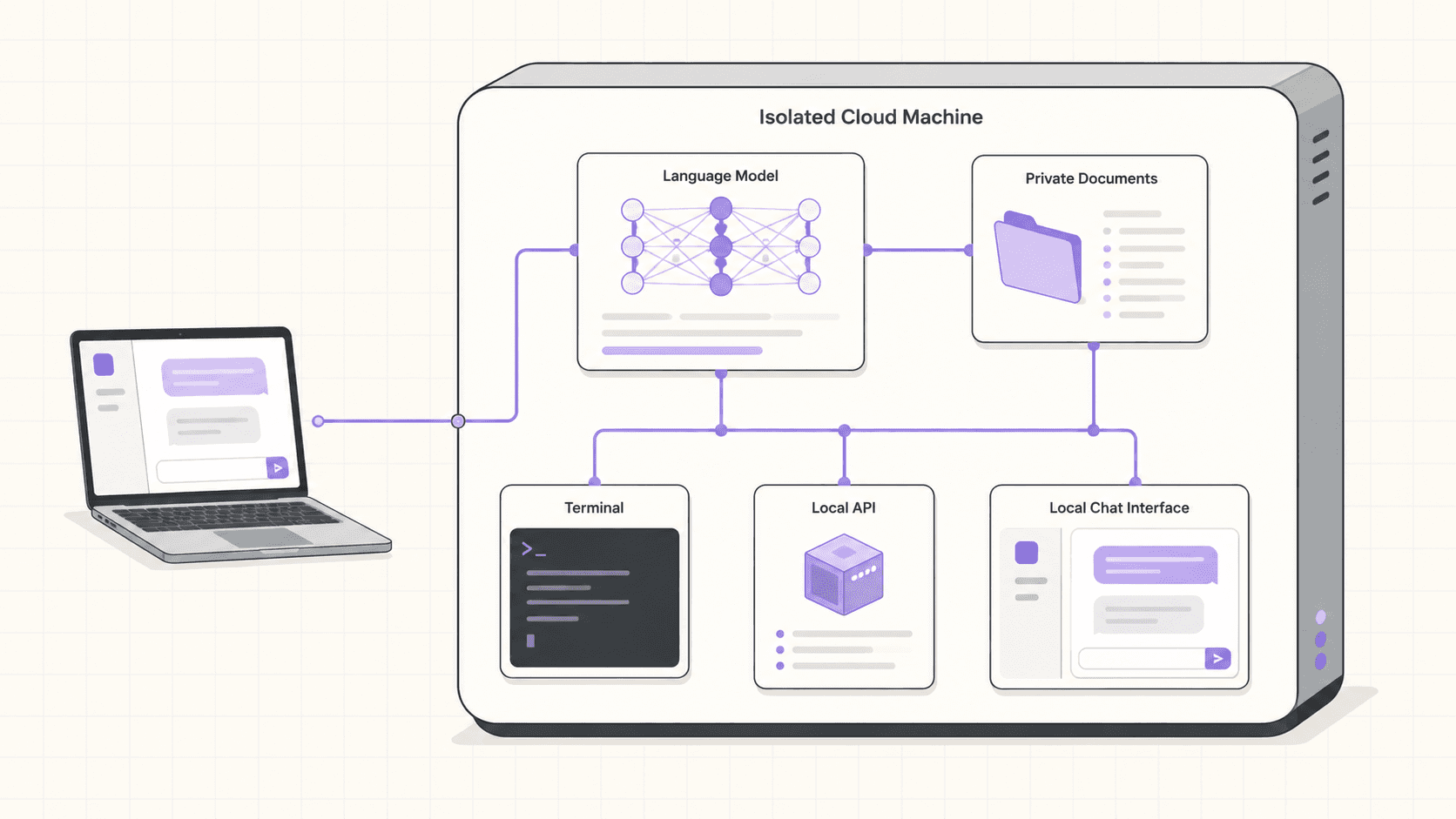
When you run the model yourself, your prompts and outputs stay on a machine you control. Nothing goes to a third-party inference provider. For proprietary code, sensitive documents, internal data, or anything you can't or won't send to an external API, that's the whole ballgame. You decide what the model sees and where it goes.
No per-token bill
Heavy experimentation on a hosted API can get expensive fast, especially if you're generating a lot of text, running evaluations across many prompts, or processing a large batch. Running your own model, you pay for the machine's time, not per token. For bursty, high-volume work, that can be a dramatically cheaper shape.
Freedom to run any open model
You're not limited to one provider's menu. Llama, Mistral, Qwen, Gemma, and the steady stream of new open-weights models, in whatever quantization fits your GPU. You can swap models freely, compare them head to head, and run older or specialized models that no API offers.
Independence from provider changes
Run your own model and it doesn't change under you. No surprise deprecations, no policy shifts, no rate limits imposed mid-project, no outages on someone else's schedule. For work that needs stability, controlling the model yourself is reassuring.
A clean, isolated environment
Every Vagon computer is an isolated VM. Pull models, experiment, break your Python environment, and reset to a clean image when you're done. None of it touches your real machine, which makes the cloud a low-risk place to try things.
If you’re looking for a full Linux environment without setting up local hardware, this guide explains how to get an Ubuntu desktop in the cloud.
What "local LLM in the cloud" really means
The phrase sounds contradictory, so let's define it clearly.
Running a "local" LLM in the cloud means self-hosting an open model on a remote machine you control, rather than calling a third-party inference API. The model runs on your cloud Ubuntu desktop, its weights sit on that machine's storage, and inference happens on that machine's GPU. You get the defining benefits of a local model, control, privacy, no per-token cost, any open model, combined with cloud hardware you don't have to buy. "Local" here describes the ownership and control model, not the physical location.
Choosing your runtime
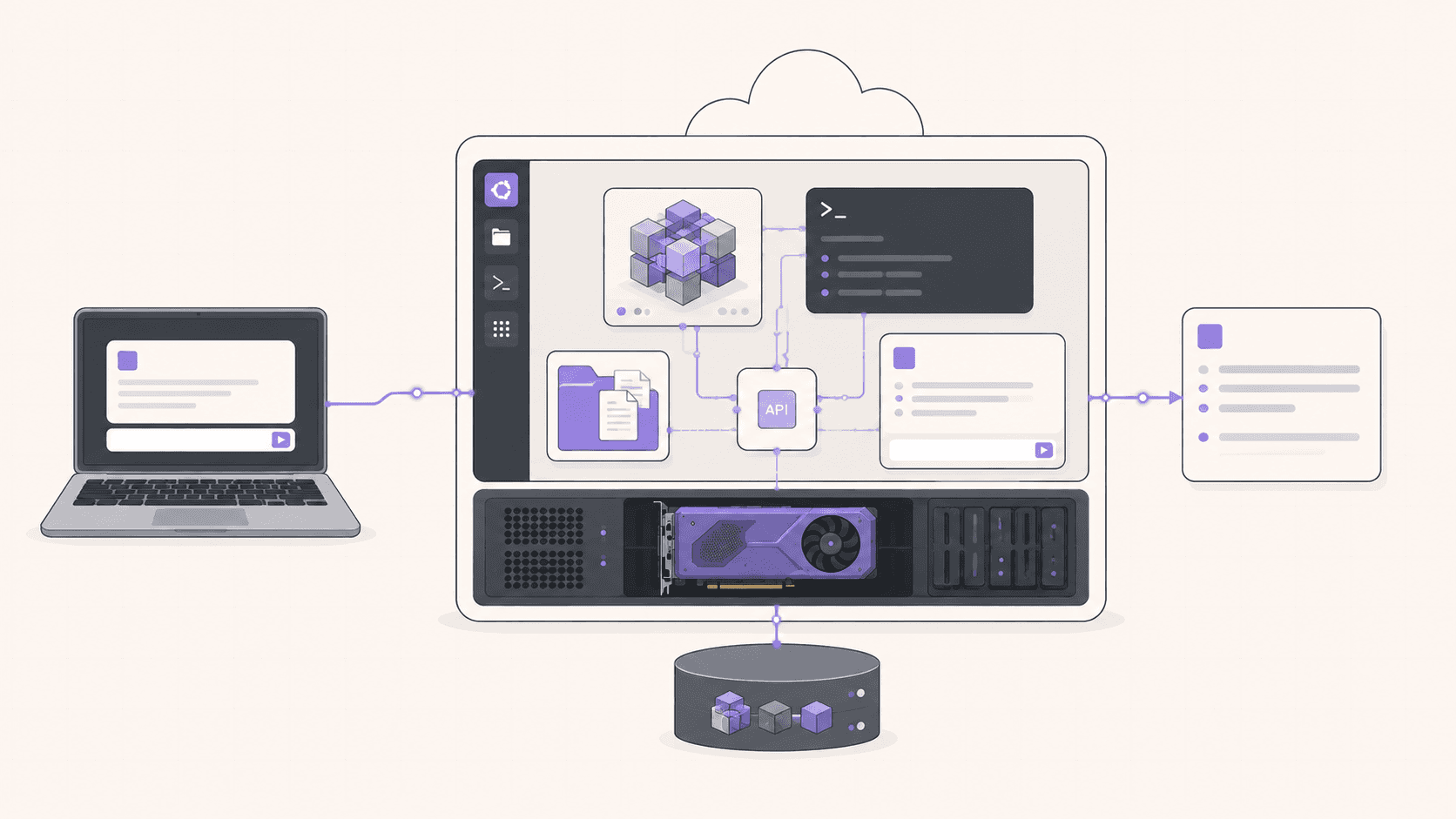
There are several good ways to run an open LLM on Ubuntu. Picking the right one depends on what you're doing, so here's the landscape.
Ollama, the easiest start
Ollama is the fastest path from zero to running a model. One install command, then simple commands to pull and run a model. It handles the GPU automatically and exposes a clean local API. If you just want a model running quickly for chat, prototyping, or building, start here. It's the sensible default for most people and the one this guide's steps use.
A web UI, for a rich interface
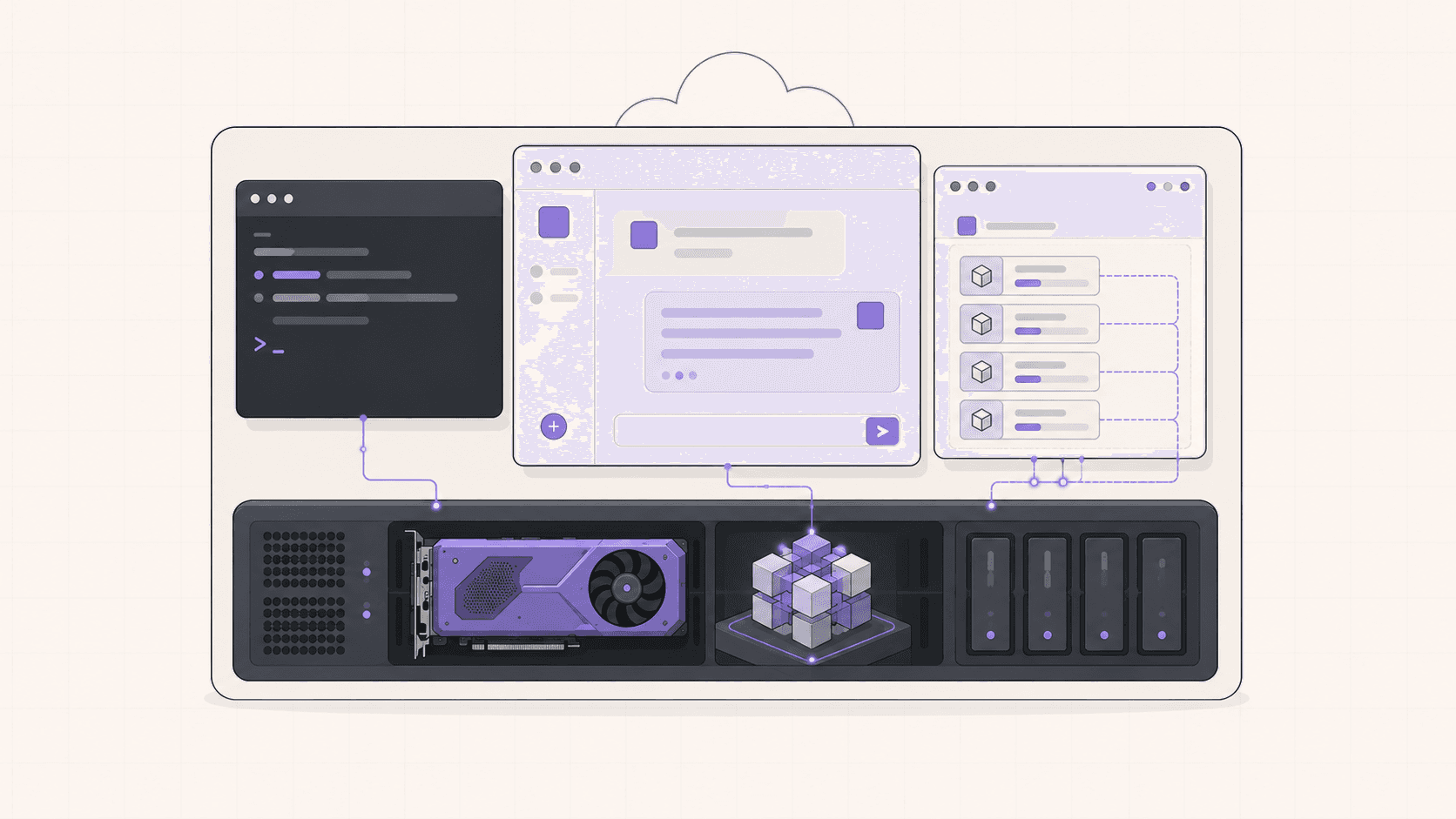
If you want a full graphical chat experience with model management, conversation history, and lots of controls, an open web UI gives you a browser front end you can open right on the desktop. These pair naturally with a real cloud desktop, since you have a browser available, and they turn a bare model into a polished chat application.
vLLM or a dedicated inference server, for throughput
If you're serving many concurrent requests or want the maximum tokens per second from your hardware, an inference server like vLLM is built for that. It's more setup, and it suits a "deploy and serve" mindset. This is the tool when performance and concurrency matter, for example when you're load-testing an application or serving real traffic.
Desktop apps
Polished desktop applications for running local models with a friendly interface exist too, and they run happily on a cloud desktop for convenient personal use.
The honest guidance: start with Ollama because it has the least friction. Move to a web UI when you want a richer interface, or to a dedicated inference server when throughput and concurrency become the priority.
When a cloud desktop is not the answer
I'd rather be straight with you than oversell this.
A cloud GPU desktop is billed by the minute at workstation rates. If your goal is a model that runs 24 hours a day behind an app or an API endpoint, always on, always ready, a per-minute desktop is the wrong tool and it will get expensive. For a permanent inference endpoint, a dedicated GPU server rented monthly, or a hosted API, will be cheaper and simpler.
A cloud desktop is built for bursts. You spin it up, run your model for a focused session of building, testing, or generating, and shut it down. If your usage looks like "a few hours at a time," this fits perfectly. If it looks like "on forever," rent a dedicated server.
Your usage | Best fit |
|---|---|
Building and experimenting in sessions | Cloud GPU desktop |
Batch processing jobs | Cloud GPU desktop |
Private work on sensitive data, bursty | Cloud GPU desktop |
Always-on production endpoint | Dedicated monthly server or hosted API |
Tiny models that fit your laptop | Run locally |
What you'll need
A Vagon account with a payment method.
A GPU plan with an NVIDIA T4 or A10G. Bigger models want more VRAM, so the A10G or a higher plan gives you room.
Persistent storage, recommended, so downloaded model weights survive between sessions instead of re-downloading gigabytes each time.
Step 1: Launch a GPU Ubuntu machine
Create a computer, choose Linux, pick a GPU plan. It boots in about 90 seconds, with drivers and CUDA already set up.
Step 2: Verify the GPU
You'll see the card and its memory, which tells you how big a model you can comfortably run.
Step 3: Install your runtime
For the quick path, install Ollama:
Step 4: Pull and run a model
Or something larger now that you have the hardware:
The first pull downloads the weights, which are large, so give it a moment. After that they're cached on the machine.
Step 5: Confirm it's on the GPU
With a model loaded, check that it's using GPU memory:
You should see the runtime holding VRAM. If a model runs slowly, this is the first thing to verify, since a model that spilled to CPU runs far slower.
Matching models to your GPU
The practical "will it fit" guide:
Model size | Rough VRAM need (quantized) | Comfortable on |
|---|---|---|
7B to 8B | ~5 to 8 GB | T4 and up |
13B | ~10 to 12 GB | T4 (tight) to A10G |
34B | ~20 to 24 GB | A10G |
70B | ~40 GB or more | Higher GPU plans |
Two things to keep in mind. First, quantization, models tagged with things like q4, shrinks memory use so you can fit a bigger model on a smaller card, trading a little quality for the fit. A good 4-bit quant is usually a great balance. Second, long context windows use extra VRAM, so if you push large prompts, leave headroom or step up a plan. Start with a model comfortably inside your card's memory, confirm it's fast, and scale from there.
Building against your model
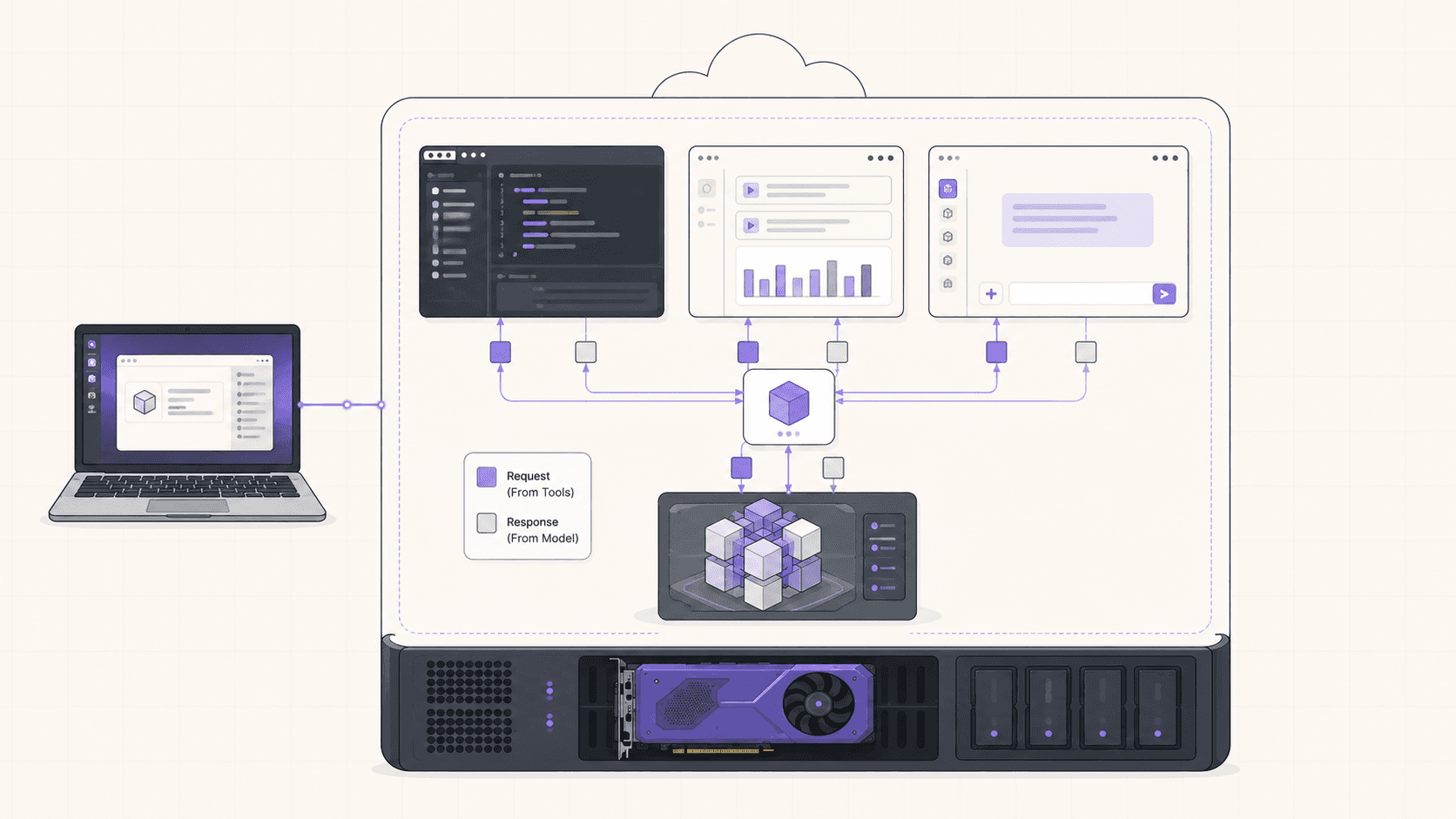
The runtime exposes a local API, so you can build real things against it. With Ollama that's port 11434:
curl http://localhost:11434/api/chat -d '{
  "model": "mistral",
  "messages": [{"role": "user", "content": "Write a haiku about cloud GPUs."}]
curl http://localhost:11434/api/chat -d '{
  "model": "mistral",
  "messages": [{"role": "user", "content": "Write a haiku about cloud GPUs."}]
From here, point a local script, a notebook, or a small app running on the same machine at that endpoint. Because everything runs on one isolated VM, your data never leaves it. This is an excellent setup for prototyping an LLM-powered feature: you build against a capable model you fully control, keep your test data private, and only later decide whether to keep self-hosting or move to a hosted API for production. The API shape of popular runtimes is also similar enough to common standards that swapping between your self-hosted model and a hosted one later is usually straightforward.
Keeping your models between sessions
Model weights are big, often several gigabytes each, and you'll likely collect a few. If you added persistent storage, they wait for you next session and your machine boots fast. If not, plan to re-pull them each time or script the download.
For anyone using self-hosted models regularly, persistent storage is the single biggest quality-of-life improvement. It turns "wait while gigabytes download" into "the model is already here," which makes a burst session genuinely quick to start.
Running a model safely
Running your own model is empowering, and it also means you're responsible for what you connect it to. A few habits keep it clean.
Use scoped, throwaway credentials
For anything the model or your scripts touch, an API, a database, a tool, use disposable keys with minimal permissions. VM isolation contains a mess to that one machine, but it can't undo a powerful key you handed over. If something goes wrong, you revoke a throwaway credential in seconds.
Treat model-driven actions with suspicion
If you're wiring a model up to run shell commands, call tools, or take actions, remember it can be wrong or be manipulated. Sandbox those capabilities, review what it does, and don't give an autonomous loop access to anything you couldn't afford to have it misuse. The isolated VM is a good place for this precisely because the blast radius is contained.
Keep the endpoint private
By default, runtimes like Ollama listen locally, which is what you want. Don't expose the inference port directly to the open internet. If you need remote access, use a secure tunnel rather than opening a port to everyone.
Reset when in doubt
If a session did anything questionable, reset the machine to a clean image. Being able to wipe back to a known-good state in one action is a real advantage of a disposable cloud VM over your own hardware.
If you’re working from a tablet, you can learn how to run Ubuntu on an iPad and access a complete Linux desktop remotely.
Why VRAM is the real bottleneck
If there's one concept that explains almost every performance question with self-hosted LLMs, it's GPU memory.
A large language model is, at its core, a big pile of numbers called weights. To generate text quickly, those weights need to live in the GPU's video memory, where the GPU can access them at high speed. When the entire model fits in VRAM, every token is generated on the fast path, and you get the responsive experience you want. When the model is too big for the card's memory, part of it has to live in ordinary system memory, and the GPU keeps reaching back to that much slower memory. The result is a model that technically runs but generates text painfully slowly.
This is why "will it fit" is the question that matters most, and why the cloud is such a clean answer. A laptop with 8GB of VRAM simply cannot hold a 34B model, and no amount of patience changes that. A cloud A10G with far more memory holds the same model entirely on the GPU and runs it at a comfortable pace. You're not just renting raw speed, you're renting enough memory to keep the whole model on the fast path.
The practical takeaway: choose a model and quantization that fit inside your GPU's memory with a little headroom for the context window, confirm with nvidia-smi that it's actually on the GPU, and you'll get the performance the hardware can deliver. When you want a bigger model, step up the plan rather than forcing an oversized model onto a small card.
Quantization, explained simply
Quantization comes up constantly in self-hosting, so it's worth understanding in plain terms.
A model's weights are normally stored at high numerical precision, which is accurate but memory-hungry. Quantization stores those weights at lower precision, which shrinks the model's memory footprint significantly, at a small and often barely noticeable cost to quality. You'll see models tagged with labels like q4 or q8, indicating how aggressively they've been quantized.
The reason this matters for cloud self-hosting is that quantization lets you run a bigger, more capable model on a smaller, cheaper GPU than you'd otherwise need. A 4-bit quant of a large model frequently gives better results than a full-precision smaller model while using similar memory. For most practical purposes, a good 4-bit quantization is an excellent default: it stretches your VRAM, lets you fit more capable models, and keeps quality high enough that the difference is hard to notice in everyday use.
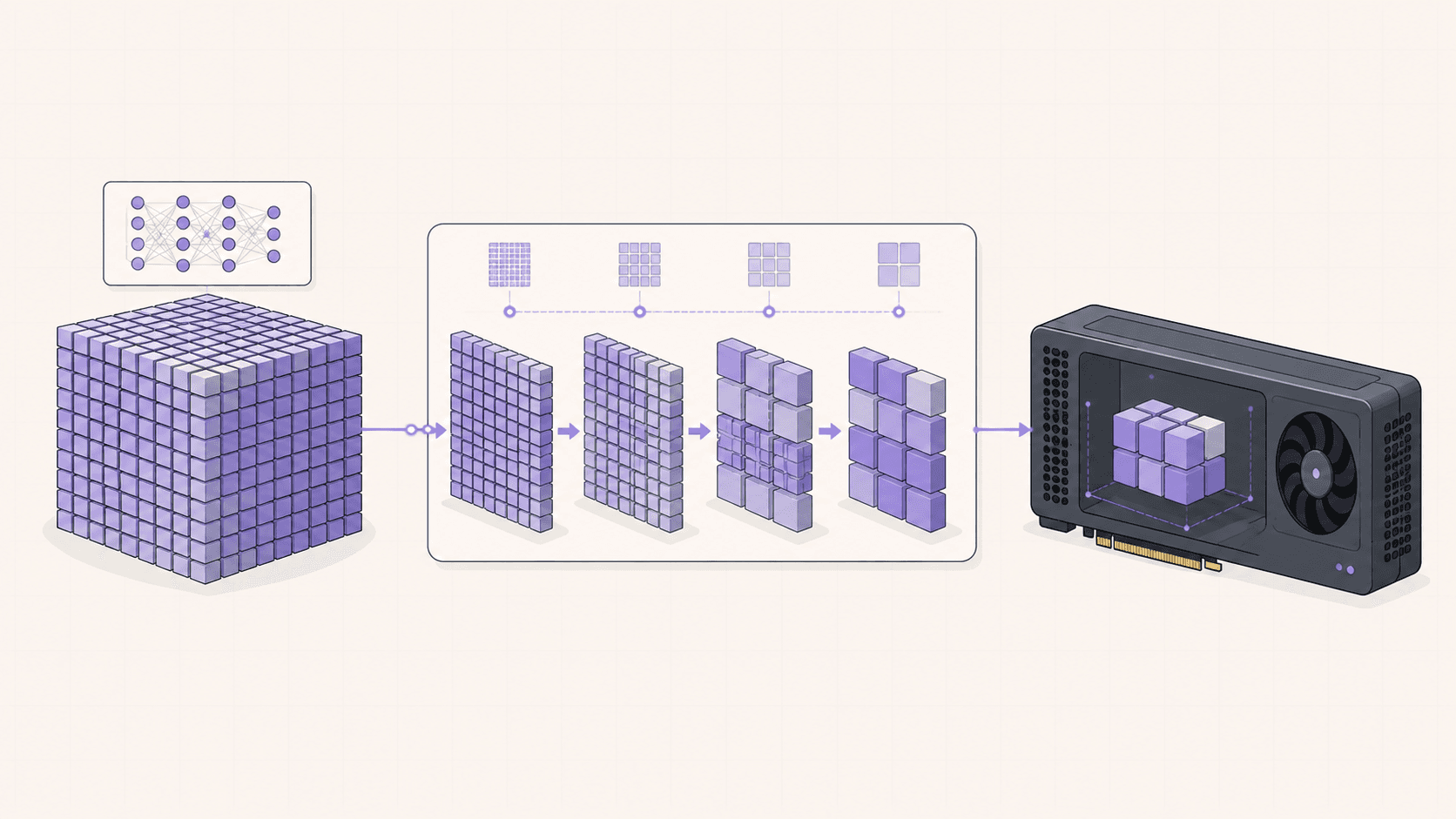
The trade-off is real but modest: heavier quantization saves more memory but gradually reduces quality. The sweet spot for most people is a moderate quant that comfortably fits their card. If you have VRAM to spare, use a lighter quantization for a bit more quality; if you're tight on memory, a heavier one gets the model to fit.
Connecting your model to your own data
One of the most compelling reasons to self-host is that you can connect a model to your private data without sending that data anywhere. A common pattern is retrieval-augmented generation, where you give the model relevant snippets from your own documents at query time so it can answer using your information.
The basic shape is straightforward. You take your documents, split them into chunks, and convert those chunks into numerical representations called embeddings, which you store in a local database. When you ask a question, you find the chunks most relevant to it and include them in the prompt you send to your self-hosted model. The model then answers grounded in your actual content.
Because your model, your documents, and your embedding database all live on the same isolated cloud machine, none of your private data leaves it. That's a genuinely different privacy posture from sending your documents to a third-party API, and it's why self-hosting is attractive for teams working with sensitive or proprietary information. A cloud GPU desktop is a natural place to build and test this kind of system: you have the GPU to run the model, a full desktop to run the database and your code, and an isolated environment that keeps the whole pipeline private. When you're done building and testing, you shut it down, and when you need to work on it again, you spin it back up.
If you’re working on demanding 3D scenes or rendering projects, this guide explains how to run Blender on a cloud GPU with Ubuntu.
Self-hosting vs a hosted API, in depth
Since this is the decision underneath everything, here's a fuller comparison.
A hosted API is the simplest path. Someone else runs the model, keeps it available, and scales it, and you pay per token. It's ideal when you want zero operational burden, occasional or unpredictable usage, or access to a provider's flagship models. The trade-offs are that your data goes to the provider, costs scale with volume and can climb, and you're subject to the provider's models, policies, rate limits, and availability.
Self-hosting flips those trade-offs. You handle running the model, and in return you keep your data private, avoid per-token costs, run any open model you like, and control the whole stack. The trade-offs are the operational responsibility and, for always-on use, the cost of keeping a machine running.
A cloud GPU desktop makes self-hosting far more approachable than owning hardware, because you rent the GPU only when you need it and the drivers are already configured. That makes it especially good for the bursty middle ground: serious experimentation, private work on sensitive data, and building prototypes, where you want self-hosting's benefits without buying a workstation or committing to an always-on server. For steady production traffic, you'd graduate the workload to dedicated infrastructure or a hosted API, but the cloud desktop is where the building and exploring happen.
Cost breakdown
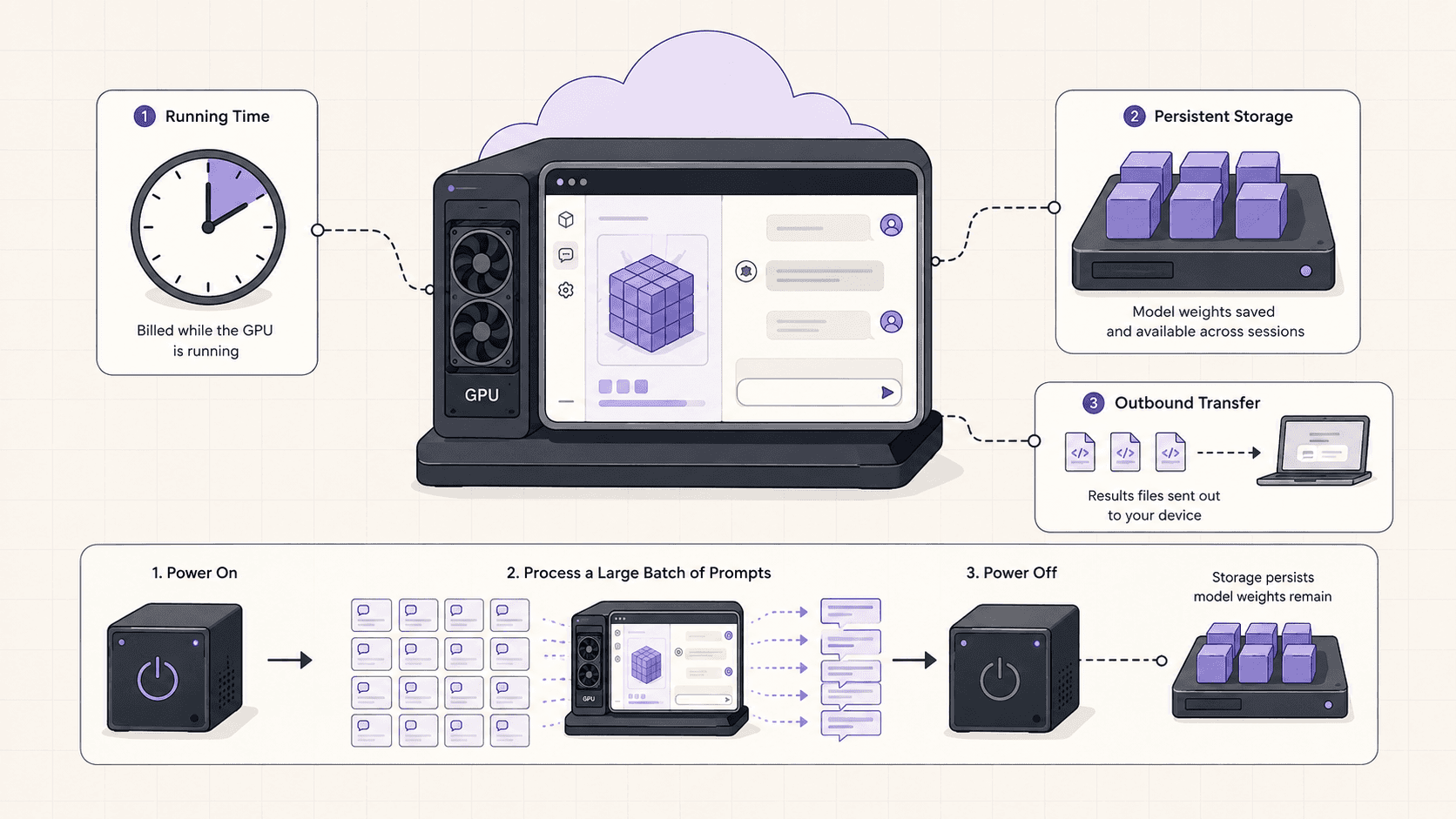
Your cost has three parts: the machine's running time billed by the minute (the main cost, which stops when you shut down), optional persistent storage (about five dollars per 50GB per month, usually worth it given model sizes), and outbound transfer beyond the included 10GB per month (which normal API use won't approach).
The honest comparison: bursty, high-volume experimentation where you'd otherwise pay a lot per token can favor running your own model in focused sessions, and your data stays private. Steady, always-on, low-volume traffic usually favors a hosted API or a dedicated monthly server. Match the tool to the pattern, and shut the machine down when you're done.
Real-world use cases
The developer prototyping an AI feature. Build against a strong open model without setting up billing or sending test data to a third party. Spin up, build, shut down.
The privacy-conscious team. You handle documents or code you can't send to an external service. A self-hosted model on an isolated machine keeps everything in your control.
The researcher comparing models. Run the same prompts through several models to judge outputs. On your own machine it's just session time, and you can pull as many models as your storage holds.
The batch processor. You have a large volume of text to summarize, classify, or transform. Rent a GPU, run the batch in a focused session, collect the results, and stop.
The hobbyist with a modest laptop. Your laptop runs a small model but chokes on the good big ones. A cloud GPU lets you experience meaningfully better quality without buying a workstation.
If you’re experimenting with private AI models, this guide walks through how to run Ollama in the cloud.
Open models worth knowing about
Part of the appeal of self-hosting is the freedom to run any open model, so it helps to understand the broad families you'll encounter rather than any single leaderboard entry, since the specific best model changes constantly.
The Llama family from Meta is a common default, with versions at various sizes from small enough for a modest GPU up to large models that need serious VRAM. They're widely supported, well-documented, and a safe starting point for general-purpose use.
Mistral models are known for being capable relative to their size, which makes them attractive when you want strong results without the largest hardware. Their smaller models punch above their weight, and there are mixture-of-experts variants that offer more capability with clever efficiency.
Qwen and other models from major labs round out the landscape with strong general and specialized options, including models tuned for coding or other specific tasks. The open ecosystem moves quickly, and new strong models appear regularly.
There are also specialized models worth knowing about: code-focused models tuned for programming assistance, smaller models optimized to run on limited hardware, and models fine-tuned for particular domains. Because you're self-hosting, you can run whichever suits your task, swap between them freely, and keep several on hand.
The practical advice isn't to chase whichever model tops a benchmark this week, but to try a few from these families at sizes that fit your GPU, run your own real prompts through them, and judge which gives the best results for your actual use case. Benchmarks are a rough guide; your own tasks are the real test. A cloud GPU desktop makes this comparison cheap, since pulling and trying several models is just a bit of session time, and with persistent storage they stay ready for next time.
If you’re building node-based image generation workflows, here’s how to run ComfyUI in the cloud with access to more powerful GPUs.
Troubleshooting
#1. The model is very slow
Almost always, it didn't fit in GPU memory and spilled to CPU. Check nvidia-smi, and switch to a smaller model or a more aggressive quantization.
#2. nvidia-smi shows no GPU
Make sure you launched a GPU plan, not a CPU-only one. On a GPU plan the drivers are preconfigured; if it still doesn't appear, restart the machine.
#3. Out of memory loading a model
The model is too big for your card at that precision. Use a quantized version, choose a smaller model, or step up to an A10G or a higher GPU plan.
#4. The download is slow
Model weights are large, so a slow first pull is usually download speed. With persistent storage, you won't pull it again next session.
What it comes down to
Running your own LLM is about control, and a cloud GPU Ubuntu desktop gives you that control plus the hardware to actually run the good models. A real NVIDIA card, drivers already working, your data staying on an isolated machine, a choice of runtime to fit the job, and a full desktop where you can build, test, and watch it all happen. Keep the honest rule in mind: this is a burst tool for focused sessions, not a place to park an always-on endpoint, and use scoped, disposable credentials so isolation can do its job.
Want the privacy of your own model with the muscle of a real GPU? Create a Vagon account, launch a GPU Ubuntu machine, and you'll be chatting with your own model in a few minutes.
If you want more visibility into what an autonomous workflow is doing, this guide shows how to watch your AI agent work on a cloud desktop.
Frequently Asked Questions
Is running my own model actually private?
Your prompts and outputs stay on the machine you're running, an isolated VM, rather than going to a third-party API. That's the privacy win. Just remember privacy is about the whole pipeline, so be careful what external services your own scripts call.
Do I have to set up GPU drivers and CUDA?
No. A cloud GPU desktop comes with them already configured. nvidia-smi works immediately and your runtime finds the GPU on its own.
Which is cheaper, self-hosting or an API?
It depends on your usage shape. Bursty, high-volume experimentation where you'd otherwise pay a lot per token can favor running your own model in focused sessions. Steady, always-on, low-volume traffic usually favors a hosted API or a dedicated monthly server.
Which model should I run?
For a strong general-purpose start, an 8B model like Llama 3.1 8B is fast and capable and fits a T4. Step up to larger models on an A10G or higher when you want more quality and have the VRAM for it. The best choice depends on your task, so try a few.
Can I run a chat UI instead of the terminal?
Yes. Because it's a full desktop, you can run a web UI in front of your model and open it in the machine's browser for a proper chat window. Everything stays on the machine.
Will my downloaded models persist?
Only if you add persistent storage, which is recommended given model sizes. With it, your weights wait for you next session; without it, you re-download each time.
Can I use my self-hosted model with existing code and tools?
Often yes. Many runtimes expose an API similar to common standards, so tools and code built for hosted APIs can frequently be pointed at your self-hosted endpoint with minimal changes.
How big a model can I run in the cloud?
It depends on your GPU plan and quantization. Roughly, 7B to 8B on a T4, 34B on an A10G, and 70B on a higher-VRAM plan. Quantized versions let you fit larger models on smaller cards.
Is self-hosting hard to set up?
With a tool like Ollama, no, it's essentially one install command and a pull. More advanced setups like a dedicated inference server take more effort. A cloud desktop with preconfigured drivers removes the hardest part, which is usually the GPU setup.
How do I avoid a surprise bill?
Shut the machine down when you're done, and add persistent storage so you're not paying while weights download. Per-minute billing only helps if you stop the clock.
Quick answer: To run your own LLM in the cloud, launch a GPU Ubuntu desktop (for example on Vagon with an NVIDIA T4 or A10G), pick a runtime like Ollama, vLLM, or a web UI, install it, and load an open model such as Llama, Mistral, or Qwen. You get the privacy and control of self-hosting plus a real GPU, and you pay only for the hours the machine runs.
Key takeaways
Self-hosting an LLM is about control and privacy, not the literal word "local," and the cloud gives you the GPU to do it well.
Your prompts and data stay on an isolated machine you control, instead of going to a third-party API.
Drivers and CUDA are preconfigured, so your model runtime finds the GPU immediately.
Choose the runtime to fit the job: Ollama for ease, a web UI for a rich interface, vLLM for throughput.
It's billed by the minute, ideal for bursty building and experimentation and a poor fit for an always-on endpoint.
Credential hygiene is on you. Isolation contains a mess to one machine, but use scoped, throwaway keys.
"Local LLM" turns into a slightly funny phrase the moment you move it to the cloud. The point was never really the word "local." The point was control. You want the model running on a machine you command, with your data staying put, no per-token meter, no rate limits, and the freedom to run whatever open model you like. You can have all of that on a cloud GPU Ubuntu desktop, and you get a real NVIDIA card into the bargain, which your laptop probably doesn't have.
This guide is the practical, complete version. How to stand up an open large language model on a cloud Ubuntu machine, which tools to use and why, how to actually build against it, how to size a model to your GPU, how to do it safely, and where a cloud desktop is the right choice versus where you'd want something else.
Why run your own LLM instead of an API?
Hosted APIs are great. Let's not pretend otherwise. But there are real, concrete reasons people run their own models, and understanding them helps you decide whether self-hosting is right for you.
Privacy and control
When you run the model yourself, your prompts and outputs stay on a machine you control. Nothing goes to a third-party inference provider. For proprietary code, sensitive documents, internal data, or anything you can't or won't send to an external API, that's the whole ballgame. You decide what the model sees and where it goes.
No per-token bill
Heavy experimentation on a hosted API can get expensive fast, especially if you're generating a lot of text, running evaluations across many prompts, or processing a large batch. Running your own model, you pay for the machine's time, not per token. For bursty, high-volume work, that can be a dramatically cheaper shape.
Freedom to run any open model
You're not limited to one provider's menu. Llama, Mistral, Qwen, Gemma, and the steady stream of new open-weights models, in whatever quantization fits your GPU. You can swap models freely, compare them head to head, and run older or specialized models that no API offers.
Independence from provider changes
Run your own model and it doesn't change under you. No surprise deprecations, no policy shifts, no rate limits imposed mid-project, no outages on someone else's schedule. For work that needs stability, controlling the model yourself is reassuring.
A clean, isolated environment
Every Vagon computer is an isolated VM. Pull models, experiment, break your Python environment, and reset to a clean image when you're done. None of it touches your real machine, which makes the cloud a low-risk place to try things.
If you’re looking for a full Linux environment without setting up local hardware, this guide explains how to get an Ubuntu desktop in the cloud.
What "local LLM in the cloud" really means
The phrase sounds contradictory, so let's define it clearly.
Running a "local" LLM in the cloud means self-hosting an open model on a remote machine you control, rather than calling a third-party inference API. The model runs on your cloud Ubuntu desktop, its weights sit on that machine's storage, and inference happens on that machine's GPU. You get the defining benefits of a local model, control, privacy, no per-token cost, any open model, combined with cloud hardware you don't have to buy. "Local" here describes the ownership and control model, not the physical location.
Choosing your runtime
There are several good ways to run an open LLM on Ubuntu. Picking the right one depends on what you're doing, so here's the landscape.
Ollama, the easiest start
Ollama is the fastest path from zero to running a model. One install command, then simple commands to pull and run a model. It handles the GPU automatically and exposes a clean local API. If you just want a model running quickly for chat, prototyping, or building, start here. It's the sensible default for most people and the one this guide's steps use.
A web UI, for a rich interface
If you want a full graphical chat experience with model management, conversation history, and lots of controls, an open web UI gives you a browser front end you can open right on the desktop. These pair naturally with a real cloud desktop, since you have a browser available, and they turn a bare model into a polished chat application.
vLLM or a dedicated inference server, for throughput
If you're serving many concurrent requests or want the maximum tokens per second from your hardware, an inference server like vLLM is built for that. It's more setup, and it suits a "deploy and serve" mindset. This is the tool when performance and concurrency matter, for example when you're load-testing an application or serving real traffic.
Desktop apps
Polished desktop applications for running local models with a friendly interface exist too, and they run happily on a cloud desktop for convenient personal use.
The honest guidance: start with Ollama because it has the least friction. Move to a web UI when you want a richer interface, or to a dedicated inference server when throughput and concurrency become the priority.
When a cloud desktop is not the answer
I'd rather be straight with you than oversell this.
A cloud GPU desktop is billed by the minute at workstation rates. If your goal is a model that runs 24 hours a day behind an app or an API endpoint, always on, always ready, a per-minute desktop is the wrong tool and it will get expensive. For a permanent inference endpoint, a dedicated GPU server rented monthly, or a hosted API, will be cheaper and simpler.
A cloud desktop is built for bursts. You spin it up, run your model for a focused session of building, testing, or generating, and shut it down. If your usage looks like "a few hours at a time," this fits perfectly. If it looks like "on forever," rent a dedicated server.
Your usage | Best fit |
|---|---|
Building and experimenting in sessions | Cloud GPU desktop |
Batch processing jobs | Cloud GPU desktop |
Private work on sensitive data, bursty | Cloud GPU desktop |
Always-on production endpoint | Dedicated monthly server or hosted API |
Tiny models that fit your laptop | Run locally |
What you'll need
A Vagon account with a payment method.
A GPU plan with an NVIDIA T4 or A10G. Bigger models want more VRAM, so the A10G or a higher plan gives you room.
Persistent storage, recommended, so downloaded model weights survive between sessions instead of re-downloading gigabytes each time.
Step 1: Launch a GPU Ubuntu machine
Create a computer, choose Linux, pick a GPU plan. It boots in about 90 seconds, with drivers and CUDA already set up.
Step 2: Verify the GPU
You'll see the card and its memory, which tells you how big a model you can comfortably run.
Step 3: Install your runtime
For the quick path, install Ollama:
Step 4: Pull and run a model
Or something larger now that you have the hardware:
The first pull downloads the weights, which are large, so give it a moment. After that they're cached on the machine.
Step 5: Confirm it's on the GPU
With a model loaded, check that it's using GPU memory:
You should see the runtime holding VRAM. If a model runs slowly, this is the first thing to verify, since a model that spilled to CPU runs far slower.
Matching models to your GPU
The practical "will it fit" guide:
Model size | Rough VRAM need (quantized) | Comfortable on |
|---|---|---|
7B to 8B | ~5 to 8 GB | T4 and up |
13B | ~10 to 12 GB | T4 (tight) to A10G |
34B | ~20 to 24 GB | A10G |
70B | ~40 GB or more | Higher GPU plans |
Two things to keep in mind. First, quantization, models tagged with things like q4, shrinks memory use so you can fit a bigger model on a smaller card, trading a little quality for the fit. A good 4-bit quant is usually a great balance. Second, long context windows use extra VRAM, so if you push large prompts, leave headroom or step up a plan. Start with a model comfortably inside your card's memory, confirm it's fast, and scale from there.
Building against your model
The runtime exposes a local API, so you can build real things against it. With Ollama that's port 11434:
curl http://localhost:11434/api/chat -d '{
  "model": "mistral",
  "messages": [{"role": "user", "content": "Write a haiku about cloud GPUs."}]
From here, point a local script, a notebook, or a small app running on the same machine at that endpoint. Because everything runs on one isolated VM, your data never leaves it. This is an excellent setup for prototyping an LLM-powered feature: you build against a capable model you fully control, keep your test data private, and only later decide whether to keep self-hosting or move to a hosted API for production. The API shape of popular runtimes is also similar enough to common standards that swapping between your self-hosted model and a hosted one later is usually straightforward.
Keeping your models between sessions
Model weights are big, often several gigabytes each, and you'll likely collect a few. If you added persistent storage, they wait for you next session and your machine boots fast. If not, plan to re-pull them each time or script the download.
For anyone using self-hosted models regularly, persistent storage is the single biggest quality-of-life improvement. It turns "wait while gigabytes download" into "the model is already here," which makes a burst session genuinely quick to start.
Running a model safely
Running your own model is empowering, and it also means you're responsible for what you connect it to. A few habits keep it clean.
Use scoped, throwaway credentials
For anything the model or your scripts touch, an API, a database, a tool, use disposable keys with minimal permissions. VM isolation contains a mess to that one machine, but it can't undo a powerful key you handed over. If something goes wrong, you revoke a throwaway credential in seconds.
Treat model-driven actions with suspicion
If you're wiring a model up to run shell commands, call tools, or take actions, remember it can be wrong or be manipulated. Sandbox those capabilities, review what it does, and don't give an autonomous loop access to anything you couldn't afford to have it misuse. The isolated VM is a good place for this precisely because the blast radius is contained.
Keep the endpoint private
By default, runtimes like Ollama listen locally, which is what you want. Don't expose the inference port directly to the open internet. If you need remote access, use a secure tunnel rather than opening a port to everyone.
Reset when in doubt
If a session did anything questionable, reset the machine to a clean image. Being able to wipe back to a known-good state in one action is a real advantage of a disposable cloud VM over your own hardware.
If you’re working from a tablet, you can learn how to run Ubuntu on an iPad and access a complete Linux desktop remotely.
Why VRAM is the real bottleneck
If there's one concept that explains almost every performance question with self-hosted LLMs, it's GPU memory.
A large language model is, at its core, a big pile of numbers called weights. To generate text quickly, those weights need to live in the GPU's video memory, where the GPU can access them at high speed. When the entire model fits in VRAM, every token is generated on the fast path, and you get the responsive experience you want. When the model is too big for the card's memory, part of it has to live in ordinary system memory, and the GPU keeps reaching back to that much slower memory. The result is a model that technically runs but generates text painfully slowly.
This is why "will it fit" is the question that matters most, and why the cloud is such a clean answer. A laptop with 8GB of VRAM simply cannot hold a 34B model, and no amount of patience changes that. A cloud A10G with far more memory holds the same model entirely on the GPU and runs it at a comfortable pace. You're not just renting raw speed, you're renting enough memory to keep the whole model on the fast path.
The practical takeaway: choose a model and quantization that fit inside your GPU's memory with a little headroom for the context window, confirm with nvidia-smi that it's actually on the GPU, and you'll get the performance the hardware can deliver. When you want a bigger model, step up the plan rather than forcing an oversized model onto a small card.
Quantization, explained simply
Quantization comes up constantly in self-hosting, so it's worth understanding in plain terms.
A model's weights are normally stored at high numerical precision, which is accurate but memory-hungry. Quantization stores those weights at lower precision, which shrinks the model's memory footprint significantly, at a small and often barely noticeable cost to quality. You'll see models tagged with labels like q4 or q8, indicating how aggressively they've been quantized.
The reason this matters for cloud self-hosting is that quantization lets you run a bigger, more capable model on a smaller, cheaper GPU than you'd otherwise need. A 4-bit quant of a large model frequently gives better results than a full-precision smaller model while using similar memory. For most practical purposes, a good 4-bit quantization is an excellent default: it stretches your VRAM, lets you fit more capable models, and keeps quality high enough that the difference is hard to notice in everyday use.
The trade-off is real but modest: heavier quantization saves more memory but gradually reduces quality. The sweet spot for most people is a moderate quant that comfortably fits their card. If you have VRAM to spare, use a lighter quantization for a bit more quality; if you're tight on memory, a heavier one gets the model to fit.
Connecting your model to your own data
One of the most compelling reasons to self-host is that you can connect a model to your private data without sending that data anywhere. A common pattern is retrieval-augmented generation, where you give the model relevant snippets from your own documents at query time so it can answer using your information.
The basic shape is straightforward. You take your documents, split them into chunks, and convert those chunks into numerical representations called embeddings, which you store in a local database. When you ask a question, you find the chunks most relevant to it and include them in the prompt you send to your self-hosted model. The model then answers grounded in your actual content.
Because your model, your documents, and your embedding database all live on the same isolated cloud machine, none of your private data leaves it. That's a genuinely different privacy posture from sending your documents to a third-party API, and it's why self-hosting is attractive for teams working with sensitive or proprietary information. A cloud GPU desktop is a natural place to build and test this kind of system: you have the GPU to run the model, a full desktop to run the database and your code, and an isolated environment that keeps the whole pipeline private. When you're done building and testing, you shut it down, and when you need to work on it again, you spin it back up.
If you’re working on demanding 3D scenes or rendering projects, this guide explains how to run Blender on a cloud GPU with Ubuntu.
Self-hosting vs a hosted API, in depth
Since this is the decision underneath everything, here's a fuller comparison.
A hosted API is the simplest path. Someone else runs the model, keeps it available, and scales it, and you pay per token. It's ideal when you want zero operational burden, occasional or unpredictable usage, or access to a provider's flagship models. The trade-offs are that your data goes to the provider, costs scale with volume and can climb, and you're subject to the provider's models, policies, rate limits, and availability.
Self-hosting flips those trade-offs. You handle running the model, and in return you keep your data private, avoid per-token costs, run any open model you like, and control the whole stack. The trade-offs are the operational responsibility and, for always-on use, the cost of keeping a machine running.
A cloud GPU desktop makes self-hosting far more approachable than owning hardware, because you rent the GPU only when you need it and the drivers are already configured. That makes it especially good for the bursty middle ground: serious experimentation, private work on sensitive data, and building prototypes, where you want self-hosting's benefits without buying a workstation or committing to an always-on server. For steady production traffic, you'd graduate the workload to dedicated infrastructure or a hosted API, but the cloud desktop is where the building and exploring happen.
Cost breakdown
Your cost has three parts: the machine's running time billed by the minute (the main cost, which stops when you shut down), optional persistent storage (about five dollars per 50GB per month, usually worth it given model sizes), and outbound transfer beyond the included 10GB per month (which normal API use won't approach).
The honest comparison: bursty, high-volume experimentation where you'd otherwise pay a lot per token can favor running your own model in focused sessions, and your data stays private. Steady, always-on, low-volume traffic usually favors a hosted API or a dedicated monthly server. Match the tool to the pattern, and shut the machine down when you're done.
Real-world use cases
The developer prototyping an AI feature. Build against a strong open model without setting up billing or sending test data to a third party. Spin up, build, shut down.
The privacy-conscious team. You handle documents or code you can't send to an external service. A self-hosted model on an isolated machine keeps everything in your control.
The researcher comparing models. Run the same prompts through several models to judge outputs. On your own machine it's just session time, and you can pull as many models as your storage holds.
The batch processor. You have a large volume of text to summarize, classify, or transform. Rent a GPU, run the batch in a focused session, collect the results, and stop.
The hobbyist with a modest laptop. Your laptop runs a small model but chokes on the good big ones. A cloud GPU lets you experience meaningfully better quality without buying a workstation.
If you’re experimenting with private AI models, this guide walks through how to run Ollama in the cloud.
Open models worth knowing about
Part of the appeal of self-hosting is the freedom to run any open model, so it helps to understand the broad families you'll encounter rather than any single leaderboard entry, since the specific best model changes constantly.
The Llama family from Meta is a common default, with versions at various sizes from small enough for a modest GPU up to large models that need serious VRAM. They're widely supported, well-documented, and a safe starting point for general-purpose use.
Mistral models are known for being capable relative to their size, which makes them attractive when you want strong results without the largest hardware. Their smaller models punch above their weight, and there are mixture-of-experts variants that offer more capability with clever efficiency.
Qwen and other models from major labs round out the landscape with strong general and specialized options, including models tuned for coding or other specific tasks. The open ecosystem moves quickly, and new strong models appear regularly.
There are also specialized models worth knowing about: code-focused models tuned for programming assistance, smaller models optimized to run on limited hardware, and models fine-tuned for particular domains. Because you're self-hosting, you can run whichever suits your task, swap between them freely, and keep several on hand.
The practical advice isn't to chase whichever model tops a benchmark this week, but to try a few from these families at sizes that fit your GPU, run your own real prompts through them, and judge which gives the best results for your actual use case. Benchmarks are a rough guide; your own tasks are the real test. A cloud GPU desktop makes this comparison cheap, since pulling and trying several models is just a bit of session time, and with persistent storage they stay ready for next time.
If you’re building node-based image generation workflows, here’s how to run ComfyUI in the cloud with access to more powerful GPUs.
Troubleshooting
#1. The model is very slow
Almost always, it didn't fit in GPU memory and spilled to CPU. Check nvidia-smi, and switch to a smaller model or a more aggressive quantization.
#2. nvidia-smi shows no GPU
Make sure you launched a GPU plan, not a CPU-only one. On a GPU plan the drivers are preconfigured; if it still doesn't appear, restart the machine.
#3. Out of memory loading a model
The model is too big for your card at that precision. Use a quantized version, choose a smaller model, or step up to an A10G or a higher GPU plan.
#4. The download is slow
Model weights are large, so a slow first pull is usually download speed. With persistent storage, you won't pull it again next session.
What it comes down to
Running your own LLM is about control, and a cloud GPU Ubuntu desktop gives you that control plus the hardware to actually run the good models. A real NVIDIA card, drivers already working, your data staying on an isolated machine, a choice of runtime to fit the job, and a full desktop where you can build, test, and watch it all happen. Keep the honest rule in mind: this is a burst tool for focused sessions, not a place to park an always-on endpoint, and use scoped, disposable credentials so isolation can do its job.
Want the privacy of your own model with the muscle of a real GPU? Create a Vagon account, launch a GPU Ubuntu machine, and you'll be chatting with your own model in a few minutes.
If you want more visibility into what an autonomous workflow is doing, this guide shows how to watch your AI agent work on a cloud desktop.
Frequently Asked Questions
Is running my own model actually private?
Your prompts and outputs stay on the machine you're running, an isolated VM, rather than going to a third-party API. That's the privacy win. Just remember privacy is about the whole pipeline, so be careful what external services your own scripts call.
Do I have to set up GPU drivers and CUDA?
No. A cloud GPU desktop comes with them already configured. nvidia-smi works immediately and your runtime finds the GPU on its own.
Which is cheaper, self-hosting or an API?
It depends on your usage shape. Bursty, high-volume experimentation where you'd otherwise pay a lot per token can favor running your own model in focused sessions. Steady, always-on, low-volume traffic usually favors a hosted API or a dedicated monthly server.
Which model should I run?
For a strong general-purpose start, an 8B model like Llama 3.1 8B is fast and capable and fits a T4. Step up to larger models on an A10G or higher when you want more quality and have the VRAM for it. The best choice depends on your task, so try a few.
Can I run a chat UI instead of the terminal?
Yes. Because it's a full desktop, you can run a web UI in front of your model and open it in the machine's browser for a proper chat window. Everything stays on the machine.
Will my downloaded models persist?
Only if you add persistent storage, which is recommended given model sizes. With it, your weights wait for you next session; without it, you re-download each time.
Can I use my self-hosted model with existing code and tools?
Often yes. Many runtimes expose an API similar to common standards, so tools and code built for hosted APIs can frequently be pointed at your self-hosted endpoint with minimal changes.
How big a model can I run in the cloud?
It depends on your GPU plan and quantization. Roughly, 7B to 8B on a T4, 34B on an A10G, and 70B on a higher-VRAM plan. Quantized versions let you fit larger models on smaller cards.
Is self-hosting hard to set up?
With a tool like Ollama, no, it's essentially one install command and a pull. More advanced setups like a dedicated inference server take more effort. A cloud desktop with preconfigured drivers removes the hardest part, which is usually the GPU setup.
How do I avoid a surprise bill?
Shut the machine down when you're done, and add persistent storage so you're not paying while weights download. Per-minute billing only helps if you stop the clock.
Get Beyond Your Computer Performance
Run applications on your cloud computer with the latest generation hardware. No more crashes or lags.

Trial includes 1 hour usage + 7 days of storage.
Summarize with AI

Ready to focus on your creativity?
Vagon gives you the ability to create & render projects, collaborate, and stream applications with the power of the best hardware.

Run heavy applications on any device with
your personal computer on the cloud.
San Francisco, California
Solutions
Vagon Teams
Vagon Streams
Use Cases
© 2026 Vagon. All rights reserved.
Run heavy applications on any device with
your personal computer on the cloud.
San Francisco, California
Solutions
Vagon Teams
Vagon Streams
Use Cases
© 2026 Vagon. All rights reserved.
Run heavy applications on any device with
your personal computer on the cloud.
San Francisco, California
Solutions
Vagon Teams
Vagon Streams
Use Cases
© 2026 Vagon. All rights reserved.