Instant Connection for Pixel Streaming
— New Feature Automated Setup

How to Watch Your AI Agent Work on a Cloud Ubuntu Desktop (2026 Guide)
How to Watch Your AI Agent Work on a Cloud Ubuntu Desktop (2026 Guide)
How to Watch Your AI Agent Work on a Cloud Ubuntu Desktop (2026 Guide)
Table of Contents
Quick answer: To watch an AI agent work, run it inside an isolated cloud Ubuntu desktop (for example on Vagon) where the agent drives a real browser and GUI while you watch the live desktop stream from any device. When it gets stuck, you grab the mouse and fix it. The isolated VM contains the blast radius of any risky plugin, and you shut the machine down when you're done. It's built for watching, building, and testing, not for parking an always-on agent, where a cheap VPS is better.
Key takeaways
A cloud desktop lets you see your agent work, driving a real browser in real time, which a headless VPS cannot show you.
You can take over instantly, because it's a live desktop, fixing the one thing the agent got stuck on and handing control back.
Every machine is an isolated VM, so a malicious plugin's damage is contained to that throwaway machine, not your laptop or secrets.
Isolation is not immunity. It contains damage but does not stop prompt injection or vet the plugins your agent installs.
Use scoped, throwaway credentials, so a compromised agent can only burn a disposable key.
It's billed by the minute, ideal for watch/build/test and scheduled sessions, not for 24/7 parking, where a cheap VPS wins.
The strangest part of running an autonomous AI agent isn't setting it up. It's the silence afterward. You give it a task, it says "working on it," and then you're staring at a terminal or a chat window with no real idea what it's actually doing. Is it reading files? Clicking through a website? Installing something you didn't expect? You find out when it's finished, for better or worse.
Coding agents and browser agents increasingly do real work on a real computer. They open browsers, fill forms, run commands, install packages. And there's a big difference between reading a summary of that after the fact and watching it happen live, with your hand near the mouse in case it gets stuck.

That's what a cloud Ubuntu desktop gives you that a headless server can't. A real graphical desktop where your agent works, streamed to whatever device you're holding, so you can watch it drive a browser in real time and take over the moment it needs a human. This guide covers why that matters, exactly how to set it up, how to give an agent safe access, and the security realities you should not ignore, stated plainly.
Why Watch an Agent At All?
You could just let it run headless and trust the output. Plenty of people do. Here's why watching is worth it anyway.
Agents get stuck in ways you can see instantly
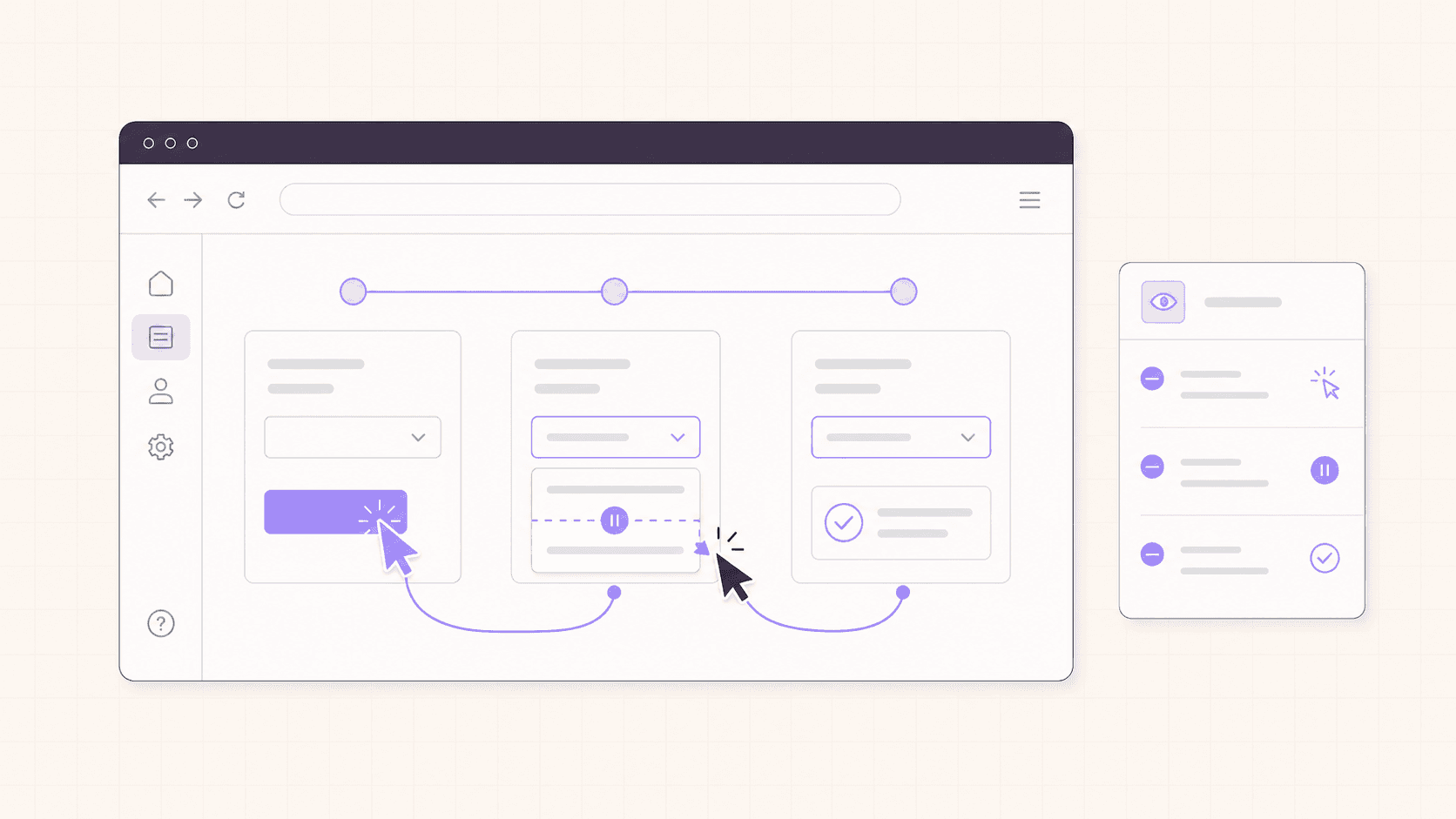
An agent hits a login wall, a confusing modal, a cookie banner, an unexpected error state. In a log, that shows up as a vague retry loop or a confusing message three minutes later. On a screen, you see it instantly. You watch it click the wrong button, and you can jump in, fix the one thing, and hand control back. A minute of watching saves ten minutes of log archaeology, and it often rescues a run that would otherwise have failed entirely.
You learn how your agent actually behaves
Watching an agent work teaches you more about its strengths and blind spots than any amount of reading output. You see where it hesitates, where it's confident and wrong, where it does something genuinely clever. That understanding is how you get better at prompting it, at scoping tasks it can handle, and at knowing what to trust it with unsupervised later.
Browser and GUI work is inherently visual
A headless VPS gives you a terminal and maybe a chat channel. It cannot show you the agent moving a cursor across a web page, hovering over a menu, or reacting to a page that loaded differently than expected. If your agent does any GUI or browser automation, a real desktop is the natural place for it to run, because you can actually see the thing it's interacting with. Debugging a browser agent blind is a special kind of frustrating; watching it is a relief.
Trust is built by seeing, not assuming
Before you let an agent run unsupervised on anything that matters, you want to have watched it do the task successfully a few times. Seeing it work builds a calibrated sense of what it's reliable at. That trust is hard to earn from summaries alone.
If you’re comparing platforms for remote GPU workloads, our Vagon vs. RunPod comparison can help you decide which option fits your workflow.
Why a Cloud Desktop And Not Your Laptop?
Fair question. Why not run the agent on your own machine and watch it there?
Isolation, and a lot of it
This is the real reason. An autonomous agent that installs packages, runs commands, and pulls in community plugins or "skills" is running code you didn't write and didn't review. On your laptop, that code sits right next to your SSH keys, your password manager, your personal files, your browser sessions, and your saved credentials. If any of it turns out to be malicious, or the agent is manipulated into doing something harmful, that's all within reach.
Every Vagon computer is a separate virtual machine. If an agent installs something that turns out to be malicious, the blast radius is that one machine, not your laptop and not your secrets. When you're done, or if something feels off, you reset the machine back to a clean image. That containment is genuinely hard to reproduce on hardware you own, and it's exactly what you want when you're handing autonomy to software you don't fully control.
A disposable, repeatable box
Because it's a throwaway VM, you can give an agent a fresh, clean environment every time, with only the scoped credentials it needs and nothing else. Wreck it, reset it, start again. Your real machine stays pristine, and you never have to clean up after an experiment that went sideways.
Watch and drive from anywhere
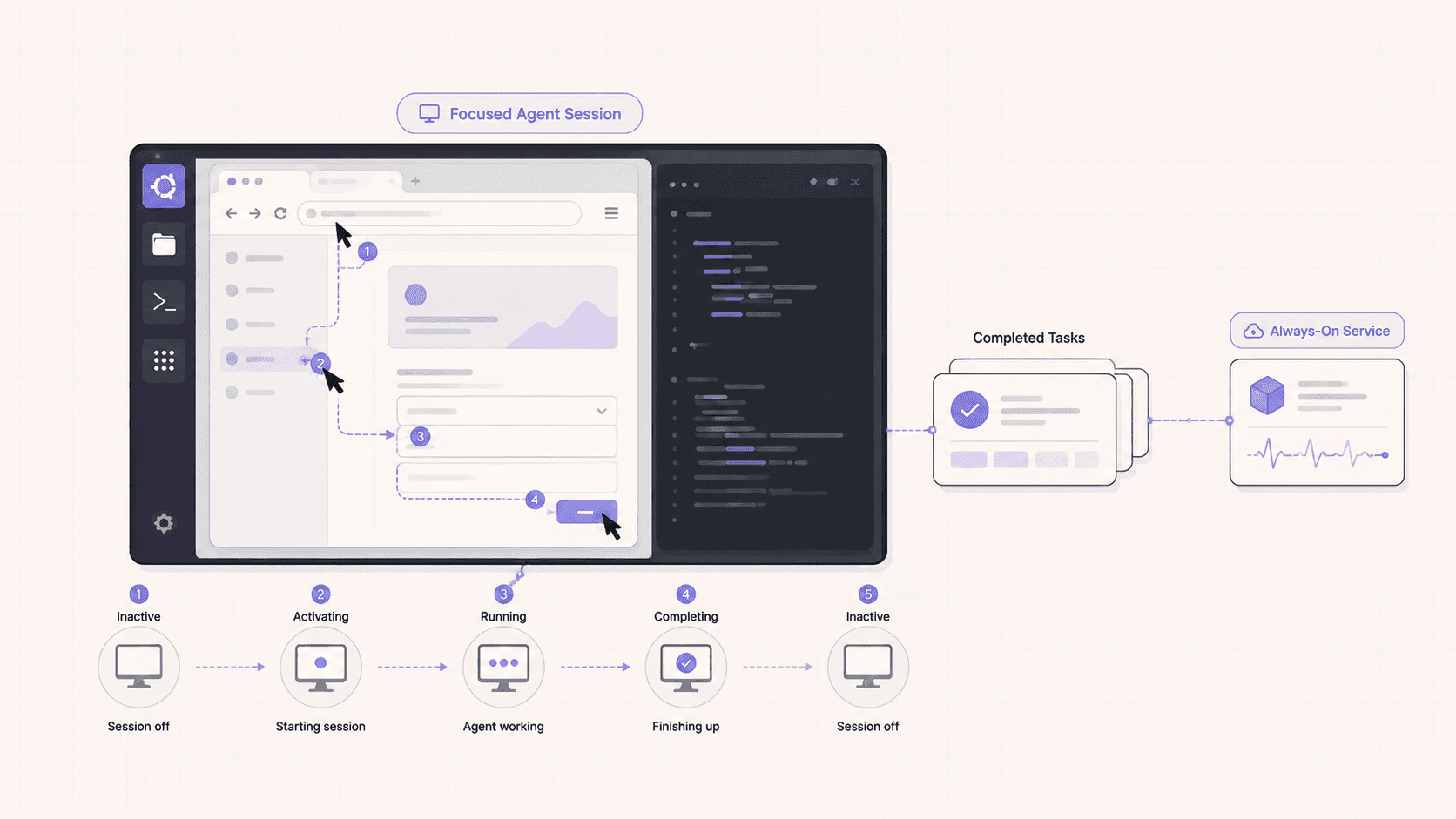
The desktop streams to your browser, iPad, or Mac at up to 4K and 60 frames per second. So you can kick off an agent on a machine at your desk and watch it work from your couch, stepping in with a real mouse and keyboard when it matters. The agent's work isn't tied to your local machine being awake and in front of you.
If you’re working with vector graphics from any device, this guide shows how to run Inkscape in the cloud.
The Two Honesty Checks You Need
Two honesty checks, because this is an area where hype does real harm.
Isolation is not immunity
Running an agent in an isolated VM contains the damage a bad plugin can do. It does not stop the agent from being tricked in the first place. It does not vet the plugins or skills your agent installs, and it does not stop prompt injection, where a malicious web page, document, or email convinces the agent to do something you didn't ask for. Security researchers have repeatedly found malicious packages hiding in agent plugin and skill ecosystems, so treat every skill and every plugin as untrusted code by default.
The right posture is simple: assume the agent could be compromised, give it only throwaway, scoped credentials, and let the VM contain the blast radius. Isolation is a seatbelt, not a force field. Worn properly, a seatbelt is genuinely valuable, and so is this, but neither one means you can stop paying attention.
A cloud desktop is not a 24/7 host
This is a per-minute workstation, not a cheap always-on server. If your plan is to park a lightweight chat agent online around the clock, a small always-on VPS or a free-tier server will cost far less, and I'd rather say so plainly. A cloud desktop is for watching, building, testing, and running focused or scheduled sessions where you want to see the work and use a real GPU. Match the tool to the job, and don't pay workstation rates to park a bot.
What You'll Need
A Vagon account with a payment method.
An Ubuntu plan. If your agent does GPU work, choose a GPU plan; if it's mostly browser and command-line automation, a lighter plan is fine.
The agent framework or tools you want to run, plus a browser for the agent to drive.
A set of scoped, throwaway credentials for whatever the agent needs to access.
Step 1: Launch an Ubuntu machine
Create a computer on Vagon, choose Linux, and pick a plan. It boots in about 90 seconds. Choose a GPU plan only if your agent's work needs one.
Step 2: Install your agent and its tools
Open a terminal and set up whatever agent framework you're using, whether that's a coding agent, a browser-automation agent, or your own script. Install a browser for the agent to drive, along with any automation library it needs. Because it's a full desktop, you can install and configure everything the way you would on a normal Linux machine.
Step 3: Give it scoped, throwaway credentials only
This is the step people skip and regret. Do not copy your main API keys, your personal cloud credentials, or your password manager onto the machine. Create scoped, disposable keys with the minimum permissions the task needs. If the agent is compromised, all it can burn is a throwaway credential you can revoke in seconds. We'll go deeper on this below because it's the most important safety habit.
Step 4: Start the agent and watch
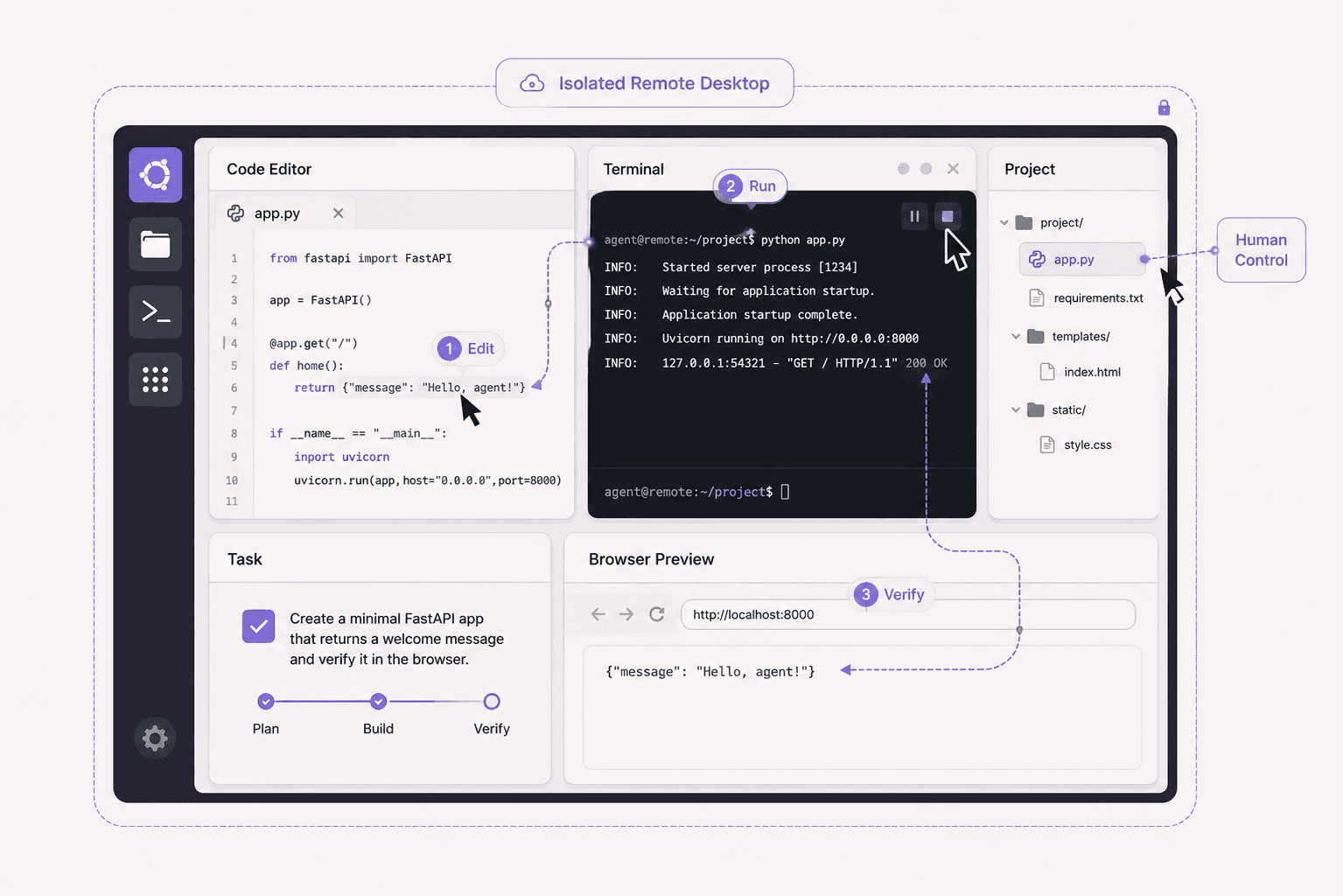
Kick off the task and keep the desktop in view. Watch it open the browser, navigate, and work. When it hesitates or hits a wall, take the mouse, fix the one thing, and hand control back. This hybrid of autonomy plus a human on standby is where agents are genuinely useful right now.
Step 5: Reset when you're done
Shut the machine down to stop the meter. If the session did anything you're unsure about, reset to a clean image so nothing carries over to the next run.
Giving Your Agent Safe, Scoped Access
Since credential hygiene is the single most important thing you'll do, here's what it looks like in practice.
The core principle is least privilege: the agent should have exactly the access its task needs and nothing more. If it needs to read from one service, give it a read-only key for that service, not an admin key that can do anything. If it needs to post to one channel, scope the credential to that channel. The narrower the permission, the smaller the damage if the agent is tricked or a plugin misbehaves.
The second principle is disposability: every credential you give the agent should be one you can revoke instantly without disrupting your real work. Generate fresh keys for the agent's session, and rotate or revoke them when you're done. This way a leaked or abused credential is a minor cleanup, not a crisis.
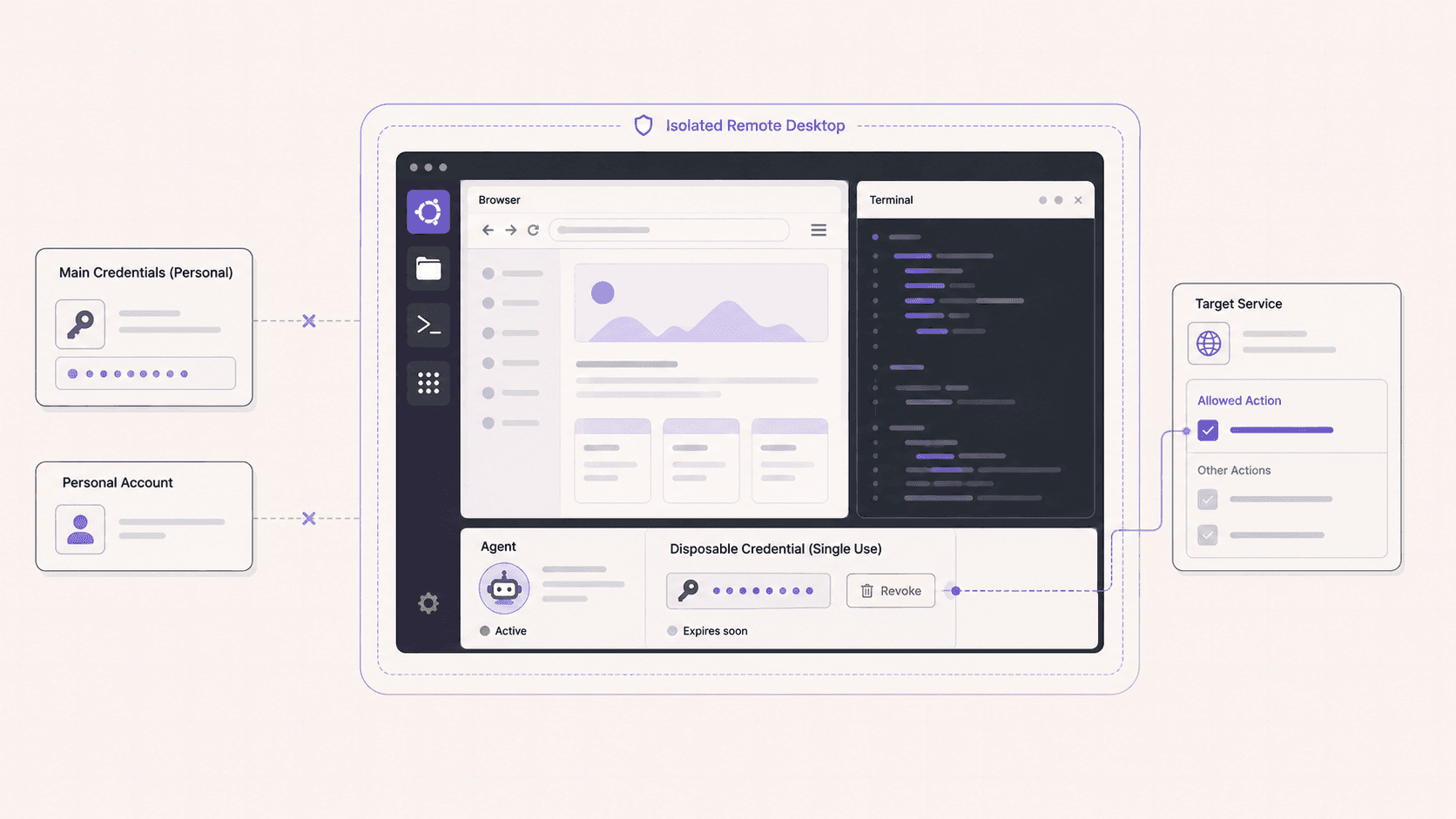
Concretely, avoid logging into your personal accounts in the machine's browser during an agent session. If the agent needs to be authenticated somewhere, use a dedicated account created for this purpose, not your main one. Keep long-lived secrets off the machine entirely. And lean on the reset button: because the VM is disposable, wiping it clean after a session removes any credentials or state that lingered.
Done this way, the isolation model actually delivers on its promise. The agent runs in a contained box, with limited scoped access, and if the worst happens, the damage is a revoked throwaway key and a reset machine rather than a compromised laptop.
If you’re choosing between a full remote desktop and a browser-based development environment, this Vagon vs. GitHub Codespaces comparison explains the key differences.
The Watch-And-Take-Over Workflow
The real magic of a watchable agent is the hybrid workflow, where autonomy and human judgment combine.
You start the agent on a task and watch it go. For the parts it handles well, you let it run, and it moves faster than you would by hand. When it reaches something it struggles with, an ambiguous page, a login, a decision that needs context it doesn't have, you see it happen live. Instead of the run failing or looping, you take the mouse, resolve that specific obstacle, and hand control back. The agent picks up from the new state and continues.
This is a fundamentally different experience from fire-and-forget automation. It combines the speed of an agent on the routine parts with human judgment exactly where it's needed, and nowhere else. Over time, as you watch which obstacles recur, you can improve the agent's prompt or setup to handle them, gradually widening the range of tasks it does unsupervised. But even at today's reliability, the watch-and-take-over loop makes agents useful for real work rather than just demos.
What Kinds Of Agents This Suits
Coding agents that edit files, run commands, and execute code. Watching lets you catch a wrong turn early, and the isolation means the agent's command execution can't touch your real environment.
Browser-automation agents that navigate sites, fill forms, and gather information. These benefit most from being watchable, since browser work is so visual and so prone to getting stuck on unexpected page states.
Custom scripts and workflows that need a GUI or a GPU. If your automation involves anything graphical, a real desktop is the right home.
Experimental or unfamiliar agents and plugins you want to try without risk. A disposable VM is the ideal place to run something you don't fully trust yet.
The through-line: the more visual, autonomous, or unfamiliar the work, the more a watchable, isolated desktop helps.
Security In Depth: Isolation, Prompt Injection, And Plugins
It's worth spelling out the threat model plainly, because agents introduce risks that are easy to underestimate.
The isolation a cloud VM provides addresses one specific and important risk: containment. If code running on the machine, whether a malicious plugin or an agent manipulated into harmful behavior, tries to do damage, it's confined to that machine. It can't reach your local files, your keys, or your other systems unless you connected them. Reset the machine and any compromise is gone.
What isolation does not address is the agent being manipulated in the first place. Prompt injection is the main concern: content the agent reads, a web page, a document, an email, an issue in a repo, can contain hidden instructions that try to redirect the agent's behavior. The agent may follow them, because to the agent, that content looks like part of its task. Isolation doesn't prevent this; it only limits what a manipulated agent can reach.
Plugins and skills are the other major risk. The ecosystems that let agents install community-made extensions are convenient and powerful, and they've also been found to contain malicious packages. Installing a skill is running someone else's code with your agent's permissions. Treat every skill as untrusted, prefer well-known and reviewed ones, and remember that on a disposable VM with scoped credentials, a bad skill's damage is contained and recoverable.
Put together, the safe way to run agents today is: isolate them (a disposable VM), scope their access (least-privilege throwaway credentials), watch the important runs (a desktop you can see and drive), and reset when done. No single measure is sufficient alone, but together they let you use agents productively without exposing what you can't afford to lose.
If you’re working with notebooks, machine learning, or data-heavy experiments, here’s how to run Jupyter on a cloud GPU Linux desktop.
Real-World Use Cases For a Watchable Agent
To ground all of this, here are situations where watching an agent on an isolated cloud desktop genuinely pays off.
Building and debugging a browser agent. You're developing an automation that navigates a site and fills forms. Watching it live is the difference between understanding why it fails on step four and staring at a cryptic log. You iterate far faster when you can see the page the agent sees.
Running a coding agent on an unfamiliar codebase. You want an agent to make changes across a project, but you're not ready to let it run fully unsupervised. Watching it work on an isolated machine lets you catch a wrong direction early and keep its command execution away from your real environment.
Trying a new agent framework or plugin. Something new is getting attention and you want to test it, but you don't fully trust it yet. A disposable VM with scoped credentials is the ideal place: run it, watch it, and reset when you're done, with nothing valuable at risk.
Handling a repetitive web task. You have a tedious, repetitive job across a web interface. An agent can do the bulk of it while you supervise, stepping in for the occasional case it can't handle, which is often faster than doing the whole thing by hand or writing brittle automation.
Demonstrating or teaching. Because the desktop streams anywhere, showing someone how an agent behaves, or reviewing a run together, is as simple as sharing what's on screen.
In each case, the common thread is that you're not ready to fully trust the agent unsupervised, and watching it on a contained machine gives you the visibility and safety to use it productively anyway.
A Simple First Task To Try
If you're new to running agents this way, a good first exercise is a small, self-contained browser task that's easy to verify. Something like having the agent research a specific question across a few websites and compile the findings, or navigate a site and extract a particular piece of information.
Set it up on a fresh Ubuntu machine with a browser installed, give the agent only the minimal access it needs, and start the task with the desktop in view. Watch how it approaches the problem: which sites it visits, how it handles a page that doesn't load as expected, where it pauses. When it gets stuck, practice the take-over, resolve the obstacle, and hand control back. When it finishes, verify the result against what you'd have found yourself.

This kind of low-stakes run teaches you the workflow and calibrates your sense of what the agent handles well, all without risking anything. Once you're comfortable, you scale up to tasks that matter, with the confidence that comes from having watched the agent work. And because the machine is disposable, you reset it and start clean whenever you like.
If you need access to image editing tools from a lower-powered device, this guide explains how to run GIMP in the cloud.
Cost And When a VPS Is The Better Choice
A cloud desktop is billed by the minute at workstation rates, so cost tracks how long the machine runs. For watch, build, and test sessions, and for scheduled runs where you want to see the work or use a GPU, that's a sensible cost for real value.
Where it's the wrong tool is 24/7 parking. If you just want a lightweight agent online around the clock behind a chat channel, leaving a workstation-rate machine running continuously is expensive, and a small always-on VPS or a free-tier server does that job for a fraction of the cost. This isn't a knock on either tool; they're built for different jobs. Use a cheap VPS to park an always-on bot, and use a cloud desktop for the watch/build/test work and GPU sessions where seeing the agent and containing it actually matter. Whatever you run, shut the machine down when the session's done.
The Bigger Picture: Why Agent Work Is Moving To Isolated Machines
It's worth zooming out, because the practice of running agents on isolated, watchable machines isn't a quirk, it's where things are heading, and understanding why helps you set up well now.
As agents become more capable, they do more on their own: they browse, they run code, they install tools, they take actions with real consequences. That capability is exactly what makes them useful, and also what makes running them casually on your main machine a growing risk. The same autonomy that lets an agent complete a task lets a compromised or manipulated agent do damage, and the more access it has to your personal environment, the more damage is possible.
The natural response, and the one security-minded practitioners are converging on, is to give agents their own contained space to work in. A disposable machine with only the access it needs, separate from everything you can't afford to lose, means the agent can be as autonomous as it needs to be for the task while the downside stays bounded. If something goes wrong, you've lost a throwaway machine and a scoped credential, not your laptop and your secrets.
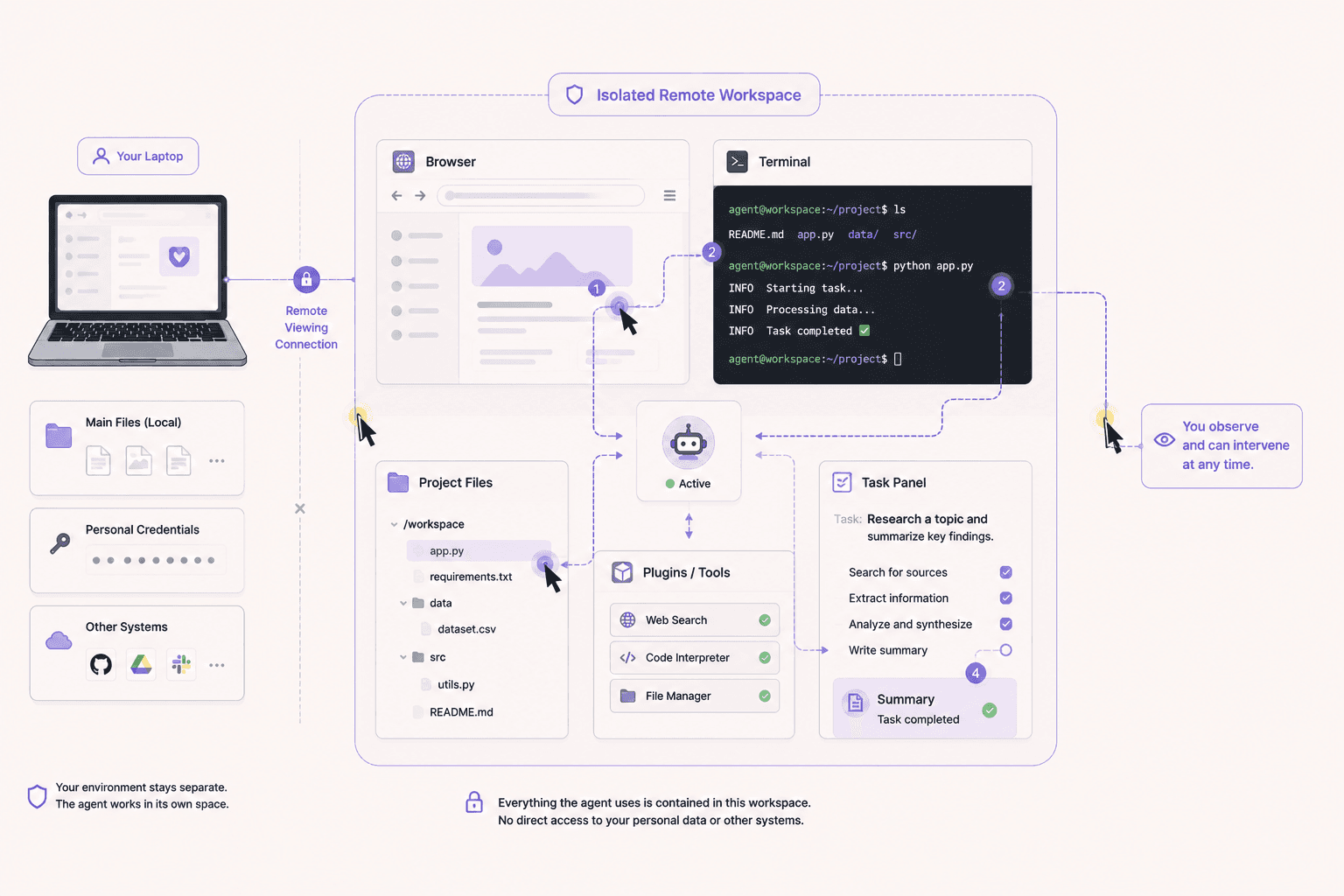
Watching fits into this same picture. As agents take on more, the ability to see what they're doing, and to intervene, becomes more valuable, not less. A real desktop you can observe and control is the practical way to keep a human in the loop without giving up the speed an agent provides. The combination, isolated, scoped, and watchable, is simply the sensible way to work with software that acts on your behalf.
So setting up a cloud desktop for your agent work isn't just convenient today, it's aligning with how this kind of work is likely to be done as agents grow more capable. Building the habits now, disposable machines, scoped credentials, watching the runs that matter, means you're ready as you hand agents more responsibility.
Common Mistakes To Avoid
Putting real secrets on the machine. Use scoped, throwaway credentials, never your main keys or password manager.
Assuming isolation stops everything. It contains damage; it doesn't prevent prompt injection or vet plugins. Stay attentive.
Installing plugins indiscriminately. Every skill is untrusted code. Add them deliberately and prefer reviewed ones.
Using it as a 24/7 host. For always-on parking, a cheap VPS wins. Don't pay workstation rates to idle.
Not resetting after a risky run. If a session did anything questionable, wipe back to a clean image.
Logging into personal accounts in the agent's browser. Use dedicated accounts for agent sessions.
If you’re creating digital paintings or illustrations remotely, you can learn how to run Krita in the cloud.
Wrapping Up
Autonomous agents are more useful when you can see what they're doing and step in when they stumble. A cloud Ubuntu desktop gives you a real graphical environment where the agent works, isolated to a throwaway VM so a bad plugin can't reach your laptop, streamed to any device so you can watch and take over from your couch. Combine isolation, scoped throwaway credentials, and watching the runs that matter, and you can use agents productively without risking what you can't afford to lose. Just keep the two honest rules in mind: isolation contains damage but doesn't prevent it, and this is a burst tool, not a cheap 24/7 host.
Want to actually see your agent work instead of guessing? Create a Vagon account, launch an Ubuntu machine, and you'll have a watchable, isolated agent workbench in about 90 seconds.
Frequently Asked Questions
Does Vagon make my agent secure?
It isolates your agent to a single throwaway VM, which contains the damage a bad plugin or a compromised agent can do. It does not vet plugins, does not stop prompt injection, and is not a substitute for careful credential hygiene. Use scoped, disposable keys and treat every skill as untrusted.
Can I really take over while the agent is running?
Yes. It's a live desktop. You're watching a real cursor on a real screen, so you can grab the mouse and keyboard at any time, do the thing the agent got stuck on, and let it continue from there.
Is this good for coding agents that run overnight?
It's a solid fit for scheduled or long-running sessions where you want an isolated, watchable box. Just remember it's billed by the minute, so a long overnight run costs more than parking a task on a cheap always-on server. For the right task, the isolation and the ability to check in on it are worth it.
What is prompt injection, and does isolation stop it?
Prompt injection is when content the agent reads contains hidden instructions that try to redirect its behavior. Isolation does not stop it; it only limits what a manipulated agent can reach. Scoped credentials and watching the run are your defenses against the consequences.
What kind of agents does this work for?
Anything that does real work on a real machine: coding agents that edit files and run commands, browser-automation agents that click through web pages, and custom scripts that need a GUI or a GPU. The more visual and autonomous the work, the more a watchable desktop helps.
How is this different from a headless VPS?
A headless VPS gives your agent a terminal and a chat channel. It cannot show you the agent clicking through a browser in real time, and it usually can't offer a GPU or a desktop you can drive. A cloud Ubuntu desktop gives you all three.
Do I need a GPU to run an agent?
Only if the agent's work needs one, for example running a local model. For browser automation and most coding-agent work, a plan without a GPU is fine and cheaper.
How do I keep an agent from doing something harmful?
Combine measures: run it in an isolated VM, give it least-privilege throwaway credentials, watch the runs that matter, and reset when done. No single measure is enough alone, but together they let you use agents safely.
Can I schedule agent runs?
Yes. Because it's a full Linux machine, you can script and schedule an agent's task, run it in a focused session, and shut down when it completes. Just weigh the per-minute cost against a cheaper always-on server for truly continuous workloads.
What happens if a plugin turns out to be malicious?
The blast radius is the VM. Rotate the scoped credentials you gave the agent and reset the machine to a clean image. Because you used throwaway keys and kept real secrets off the machine, the cleanup is minor.
Quick answer: To watch an AI agent work, run it inside an isolated cloud Ubuntu desktop (for example on Vagon) where the agent drives a real browser and GUI while you watch the live desktop stream from any device. When it gets stuck, you grab the mouse and fix it. The isolated VM contains the blast radius of any risky plugin, and you shut the machine down when you're done. It's built for watching, building, and testing, not for parking an always-on agent, where a cheap VPS is better.
Key takeaways
A cloud desktop lets you see your agent work, driving a real browser in real time, which a headless VPS cannot show you.
You can take over instantly, because it's a live desktop, fixing the one thing the agent got stuck on and handing control back.
Every machine is an isolated VM, so a malicious plugin's damage is contained to that throwaway machine, not your laptop or secrets.
Isolation is not immunity. It contains damage but does not stop prompt injection or vet the plugins your agent installs.
Use scoped, throwaway credentials, so a compromised agent can only burn a disposable key.
It's billed by the minute, ideal for watch/build/test and scheduled sessions, not for 24/7 parking, where a cheap VPS wins.
The strangest part of running an autonomous AI agent isn't setting it up. It's the silence afterward. You give it a task, it says "working on it," and then you're staring at a terminal or a chat window with no real idea what it's actually doing. Is it reading files? Clicking through a website? Installing something you didn't expect? You find out when it's finished, for better or worse.
Coding agents and browser agents increasingly do real work on a real computer. They open browsers, fill forms, run commands, install packages. And there's a big difference between reading a summary of that after the fact and watching it happen live, with your hand near the mouse in case it gets stuck.
That's what a cloud Ubuntu desktop gives you that a headless server can't. A real graphical desktop where your agent works, streamed to whatever device you're holding, so you can watch it drive a browser in real time and take over the moment it needs a human. This guide covers why that matters, exactly how to set it up, how to give an agent safe access, and the security realities you should not ignore, stated plainly.
Why Watch an Agent At All?
You could just let it run headless and trust the output. Plenty of people do. Here's why watching is worth it anyway.
Agents get stuck in ways you can see instantly
An agent hits a login wall, a confusing modal, a cookie banner, an unexpected error state. In a log, that shows up as a vague retry loop or a confusing message three minutes later. On a screen, you see it instantly. You watch it click the wrong button, and you can jump in, fix the one thing, and hand control back. A minute of watching saves ten minutes of log archaeology, and it often rescues a run that would otherwise have failed entirely.
You learn how your agent actually behaves
Watching an agent work teaches you more about its strengths and blind spots than any amount of reading output. You see where it hesitates, where it's confident and wrong, where it does something genuinely clever. That understanding is how you get better at prompting it, at scoping tasks it can handle, and at knowing what to trust it with unsupervised later.
Browser and GUI work is inherently visual
A headless VPS gives you a terminal and maybe a chat channel. It cannot show you the agent moving a cursor across a web page, hovering over a menu, or reacting to a page that loaded differently than expected. If your agent does any GUI or browser automation, a real desktop is the natural place for it to run, because you can actually see the thing it's interacting with. Debugging a browser agent blind is a special kind of frustrating; watching it is a relief.
Trust is built by seeing, not assuming
Before you let an agent run unsupervised on anything that matters, you want to have watched it do the task successfully a few times. Seeing it work builds a calibrated sense of what it's reliable at. That trust is hard to earn from summaries alone.
If you’re comparing platforms for remote GPU workloads, our Vagon vs. RunPod comparison can help you decide which option fits your workflow.
Why a Cloud Desktop And Not Your Laptop?
Fair question. Why not run the agent on your own machine and watch it there?
Isolation, and a lot of it
This is the real reason. An autonomous agent that installs packages, runs commands, and pulls in community plugins or "skills" is running code you didn't write and didn't review. On your laptop, that code sits right next to your SSH keys, your password manager, your personal files, your browser sessions, and your saved credentials. If any of it turns out to be malicious, or the agent is manipulated into doing something harmful, that's all within reach.
Every Vagon computer is a separate virtual machine. If an agent installs something that turns out to be malicious, the blast radius is that one machine, not your laptop and not your secrets. When you're done, or if something feels off, you reset the machine back to a clean image. That containment is genuinely hard to reproduce on hardware you own, and it's exactly what you want when you're handing autonomy to software you don't fully control.
A disposable, repeatable box
Because it's a throwaway VM, you can give an agent a fresh, clean environment every time, with only the scoped credentials it needs and nothing else. Wreck it, reset it, start again. Your real machine stays pristine, and you never have to clean up after an experiment that went sideways.
Watch and drive from anywhere
The desktop streams to your browser, iPad, or Mac at up to 4K and 60 frames per second. So you can kick off an agent on a machine at your desk and watch it work from your couch, stepping in with a real mouse and keyboard when it matters. The agent's work isn't tied to your local machine being awake and in front of you.
If you’re working with vector graphics from any device, this guide shows how to run Inkscape in the cloud.
The Two Honesty Checks You Need
Two honesty checks, because this is an area where hype does real harm.
Isolation is not immunity
Running an agent in an isolated VM contains the damage a bad plugin can do. It does not stop the agent from being tricked in the first place. It does not vet the plugins or skills your agent installs, and it does not stop prompt injection, where a malicious web page, document, or email convinces the agent to do something you didn't ask for. Security researchers have repeatedly found malicious packages hiding in agent plugin and skill ecosystems, so treat every skill and every plugin as untrusted code by default.
The right posture is simple: assume the agent could be compromised, give it only throwaway, scoped credentials, and let the VM contain the blast radius. Isolation is a seatbelt, not a force field. Worn properly, a seatbelt is genuinely valuable, and so is this, but neither one means you can stop paying attention.
A cloud desktop is not a 24/7 host
This is a per-minute workstation, not a cheap always-on server. If your plan is to park a lightweight chat agent online around the clock, a small always-on VPS or a free-tier server will cost far less, and I'd rather say so plainly. A cloud desktop is for watching, building, testing, and running focused or scheduled sessions where you want to see the work and use a real GPU. Match the tool to the job, and don't pay workstation rates to park a bot.
What You'll Need
A Vagon account with a payment method.
An Ubuntu plan. If your agent does GPU work, choose a GPU plan; if it's mostly browser and command-line automation, a lighter plan is fine.
The agent framework or tools you want to run, plus a browser for the agent to drive.
A set of scoped, throwaway credentials for whatever the agent needs to access.
Step 1: Launch an Ubuntu machine
Create a computer on Vagon, choose Linux, and pick a plan. It boots in about 90 seconds. Choose a GPU plan only if your agent's work needs one.
Step 2: Install your agent and its tools
Open a terminal and set up whatever agent framework you're using, whether that's a coding agent, a browser-automation agent, or your own script. Install a browser for the agent to drive, along with any automation library it needs. Because it's a full desktop, you can install and configure everything the way you would on a normal Linux machine.
Step 3: Give it scoped, throwaway credentials only
This is the step people skip and regret. Do not copy your main API keys, your personal cloud credentials, or your password manager onto the machine. Create scoped, disposable keys with the minimum permissions the task needs. If the agent is compromised, all it can burn is a throwaway credential you can revoke in seconds. We'll go deeper on this below because it's the most important safety habit.
Step 4: Start the agent and watch
Kick off the task and keep the desktop in view. Watch it open the browser, navigate, and work. When it hesitates or hits a wall, take the mouse, fix the one thing, and hand control back. This hybrid of autonomy plus a human on standby is where agents are genuinely useful right now.
Step 5: Reset when you're done
Shut the machine down to stop the meter. If the session did anything you're unsure about, reset to a clean image so nothing carries over to the next run.
Giving Your Agent Safe, Scoped Access
Since credential hygiene is the single most important thing you'll do, here's what it looks like in practice.
The core principle is least privilege: the agent should have exactly the access its task needs and nothing more. If it needs to read from one service, give it a read-only key for that service, not an admin key that can do anything. If it needs to post to one channel, scope the credential to that channel. The narrower the permission, the smaller the damage if the agent is tricked or a plugin misbehaves.
The second principle is disposability: every credential you give the agent should be one you can revoke instantly without disrupting your real work. Generate fresh keys for the agent's session, and rotate or revoke them when you're done. This way a leaked or abused credential is a minor cleanup, not a crisis.
Concretely, avoid logging into your personal accounts in the machine's browser during an agent session. If the agent needs to be authenticated somewhere, use a dedicated account created for this purpose, not your main one. Keep long-lived secrets off the machine entirely. And lean on the reset button: because the VM is disposable, wiping it clean after a session removes any credentials or state that lingered.
Done this way, the isolation model actually delivers on its promise. The agent runs in a contained box, with limited scoped access, and if the worst happens, the damage is a revoked throwaway key and a reset machine rather than a compromised laptop.
If you’re choosing between a full remote desktop and a browser-based development environment, this Vagon vs. GitHub Codespaces comparison explains the key differences.
The Watch-And-Take-Over Workflow
The real magic of a watchable agent is the hybrid workflow, where autonomy and human judgment combine.
You start the agent on a task and watch it go. For the parts it handles well, you let it run, and it moves faster than you would by hand. When it reaches something it struggles with, an ambiguous page, a login, a decision that needs context it doesn't have, you see it happen live. Instead of the run failing or looping, you take the mouse, resolve that specific obstacle, and hand control back. The agent picks up from the new state and continues.
This is a fundamentally different experience from fire-and-forget automation. It combines the speed of an agent on the routine parts with human judgment exactly where it's needed, and nowhere else. Over time, as you watch which obstacles recur, you can improve the agent's prompt or setup to handle them, gradually widening the range of tasks it does unsupervised. But even at today's reliability, the watch-and-take-over loop makes agents useful for real work rather than just demos.
What Kinds Of Agents This Suits
Coding agents that edit files, run commands, and execute code. Watching lets you catch a wrong turn early, and the isolation means the agent's command execution can't touch your real environment.
Browser-automation agents that navigate sites, fill forms, and gather information. These benefit most from being watchable, since browser work is so visual and so prone to getting stuck on unexpected page states.
Custom scripts and workflows that need a GUI or a GPU. If your automation involves anything graphical, a real desktop is the right home.
Experimental or unfamiliar agents and plugins you want to try without risk. A disposable VM is the ideal place to run something you don't fully trust yet.
The through-line: the more visual, autonomous, or unfamiliar the work, the more a watchable, isolated desktop helps.
Security In Depth: Isolation, Prompt Injection, And Plugins
It's worth spelling out the threat model plainly, because agents introduce risks that are easy to underestimate.
The isolation a cloud VM provides addresses one specific and important risk: containment. If code running on the machine, whether a malicious plugin or an agent manipulated into harmful behavior, tries to do damage, it's confined to that machine. It can't reach your local files, your keys, or your other systems unless you connected them. Reset the machine and any compromise is gone.
What isolation does not address is the agent being manipulated in the first place. Prompt injection is the main concern: content the agent reads, a web page, a document, an email, an issue in a repo, can contain hidden instructions that try to redirect the agent's behavior. The agent may follow them, because to the agent, that content looks like part of its task. Isolation doesn't prevent this; it only limits what a manipulated agent can reach.
Plugins and skills are the other major risk. The ecosystems that let agents install community-made extensions are convenient and powerful, and they've also been found to contain malicious packages. Installing a skill is running someone else's code with your agent's permissions. Treat every skill as untrusted, prefer well-known and reviewed ones, and remember that on a disposable VM with scoped credentials, a bad skill's damage is contained and recoverable.
Put together, the safe way to run agents today is: isolate them (a disposable VM), scope their access (least-privilege throwaway credentials), watch the important runs (a desktop you can see and drive), and reset when done. No single measure is sufficient alone, but together they let you use agents productively without exposing what you can't afford to lose.
If you’re working with notebooks, machine learning, or data-heavy experiments, here’s how to run Jupyter on a cloud GPU Linux desktop.
Real-World Use Cases For a Watchable Agent
To ground all of this, here are situations where watching an agent on an isolated cloud desktop genuinely pays off.
Building and debugging a browser agent. You're developing an automation that navigates a site and fills forms. Watching it live is the difference between understanding why it fails on step four and staring at a cryptic log. You iterate far faster when you can see the page the agent sees.
Running a coding agent on an unfamiliar codebase. You want an agent to make changes across a project, but you're not ready to let it run fully unsupervised. Watching it work on an isolated machine lets you catch a wrong direction early and keep its command execution away from your real environment.
Trying a new agent framework or plugin. Something new is getting attention and you want to test it, but you don't fully trust it yet. A disposable VM with scoped credentials is the ideal place: run it, watch it, and reset when you're done, with nothing valuable at risk.
Handling a repetitive web task. You have a tedious, repetitive job across a web interface. An agent can do the bulk of it while you supervise, stepping in for the occasional case it can't handle, which is often faster than doing the whole thing by hand or writing brittle automation.
Demonstrating or teaching. Because the desktop streams anywhere, showing someone how an agent behaves, or reviewing a run together, is as simple as sharing what's on screen.
In each case, the common thread is that you're not ready to fully trust the agent unsupervised, and watching it on a contained machine gives you the visibility and safety to use it productively anyway.
A Simple First Task To Try
If you're new to running agents this way, a good first exercise is a small, self-contained browser task that's easy to verify. Something like having the agent research a specific question across a few websites and compile the findings, or navigate a site and extract a particular piece of information.
Set it up on a fresh Ubuntu machine with a browser installed, give the agent only the minimal access it needs, and start the task with the desktop in view. Watch how it approaches the problem: which sites it visits, how it handles a page that doesn't load as expected, where it pauses. When it gets stuck, practice the take-over, resolve the obstacle, and hand control back. When it finishes, verify the result against what you'd have found yourself.
This kind of low-stakes run teaches you the workflow and calibrates your sense of what the agent handles well, all without risking anything. Once you're comfortable, you scale up to tasks that matter, with the confidence that comes from having watched the agent work. And because the machine is disposable, you reset it and start clean whenever you like.
If you need access to image editing tools from a lower-powered device, this guide explains how to run GIMP in the cloud.
Cost And When a VPS Is The Better Choice
A cloud desktop is billed by the minute at workstation rates, so cost tracks how long the machine runs. For watch, build, and test sessions, and for scheduled runs where you want to see the work or use a GPU, that's a sensible cost for real value.
Where it's the wrong tool is 24/7 parking. If you just want a lightweight agent online around the clock behind a chat channel, leaving a workstation-rate machine running continuously is expensive, and a small always-on VPS or a free-tier server does that job for a fraction of the cost. This isn't a knock on either tool; they're built for different jobs. Use a cheap VPS to park an always-on bot, and use a cloud desktop for the watch/build/test work and GPU sessions where seeing the agent and containing it actually matter. Whatever you run, shut the machine down when the session's done.
The Bigger Picture: Why Agent Work Is Moving To Isolated Machines
It's worth zooming out, because the practice of running agents on isolated, watchable machines isn't a quirk, it's where things are heading, and understanding why helps you set up well now.
As agents become more capable, they do more on their own: they browse, they run code, they install tools, they take actions with real consequences. That capability is exactly what makes them useful, and also what makes running them casually on your main machine a growing risk. The same autonomy that lets an agent complete a task lets a compromised or manipulated agent do damage, and the more access it has to your personal environment, the more damage is possible.
The natural response, and the one security-minded practitioners are converging on, is to give agents their own contained space to work in. A disposable machine with only the access it needs, separate from everything you can't afford to lose, means the agent can be as autonomous as it needs to be for the task while the downside stays bounded. If something goes wrong, you've lost a throwaway machine and a scoped credential, not your laptop and your secrets.
Watching fits into this same picture. As agents take on more, the ability to see what they're doing, and to intervene, becomes more valuable, not less. A real desktop you can observe and control is the practical way to keep a human in the loop without giving up the speed an agent provides. The combination, isolated, scoped, and watchable, is simply the sensible way to work with software that acts on your behalf.
So setting up a cloud desktop for your agent work isn't just convenient today, it's aligning with how this kind of work is likely to be done as agents grow more capable. Building the habits now, disposable machines, scoped credentials, watching the runs that matter, means you're ready as you hand agents more responsibility.
Common Mistakes To Avoid
Putting real secrets on the machine. Use scoped, throwaway credentials, never your main keys or password manager.
Assuming isolation stops everything. It contains damage; it doesn't prevent prompt injection or vet plugins. Stay attentive.
Installing plugins indiscriminately. Every skill is untrusted code. Add them deliberately and prefer reviewed ones.
Using it as a 24/7 host. For always-on parking, a cheap VPS wins. Don't pay workstation rates to idle.
Not resetting after a risky run. If a session did anything questionable, wipe back to a clean image.
Logging into personal accounts in the agent's browser. Use dedicated accounts for agent sessions.
If you’re creating digital paintings or illustrations remotely, you can learn how to run Krita in the cloud.
Wrapping Up
Autonomous agents are more useful when you can see what they're doing and step in when they stumble. A cloud Ubuntu desktop gives you a real graphical environment where the agent works, isolated to a throwaway VM so a bad plugin can't reach your laptop, streamed to any device so you can watch and take over from your couch. Combine isolation, scoped throwaway credentials, and watching the runs that matter, and you can use agents productively without risking what you can't afford to lose. Just keep the two honest rules in mind: isolation contains damage but doesn't prevent it, and this is a burst tool, not a cheap 24/7 host.
Want to actually see your agent work instead of guessing? Create a Vagon account, launch an Ubuntu machine, and you'll have a watchable, isolated agent workbench in about 90 seconds.
Frequently Asked Questions
Does Vagon make my agent secure?
It isolates your agent to a single throwaway VM, which contains the damage a bad plugin or a compromised agent can do. It does not vet plugins, does not stop prompt injection, and is not a substitute for careful credential hygiene. Use scoped, disposable keys and treat every skill as untrusted.
Can I really take over while the agent is running?
Yes. It's a live desktop. You're watching a real cursor on a real screen, so you can grab the mouse and keyboard at any time, do the thing the agent got stuck on, and let it continue from there.
Is this good for coding agents that run overnight?
It's a solid fit for scheduled or long-running sessions where you want an isolated, watchable box. Just remember it's billed by the minute, so a long overnight run costs more than parking a task on a cheap always-on server. For the right task, the isolation and the ability to check in on it are worth it.
What is prompt injection, and does isolation stop it?
Prompt injection is when content the agent reads contains hidden instructions that try to redirect its behavior. Isolation does not stop it; it only limits what a manipulated agent can reach. Scoped credentials and watching the run are your defenses against the consequences.
What kind of agents does this work for?
Anything that does real work on a real machine: coding agents that edit files and run commands, browser-automation agents that click through web pages, and custom scripts that need a GUI or a GPU. The more visual and autonomous the work, the more a watchable desktop helps.
How is this different from a headless VPS?
A headless VPS gives your agent a terminal and a chat channel. It cannot show you the agent clicking through a browser in real time, and it usually can't offer a GPU or a desktop you can drive. A cloud Ubuntu desktop gives you all three.
Do I need a GPU to run an agent?
Only if the agent's work needs one, for example running a local model. For browser automation and most coding-agent work, a plan without a GPU is fine and cheaper.
How do I keep an agent from doing something harmful?
Combine measures: run it in an isolated VM, give it least-privilege throwaway credentials, watch the runs that matter, and reset when done. No single measure is enough alone, but together they let you use agents safely.
Can I schedule agent runs?
Yes. Because it's a full Linux machine, you can script and schedule an agent's task, run it in a focused session, and shut down when it completes. Just weigh the per-minute cost against a cheaper always-on server for truly continuous workloads.
What happens if a plugin turns out to be malicious?
The blast radius is the VM. Rotate the scoped credentials you gave the agent and reset the machine to a clean image. Because you used throwaway keys and kept real secrets off the machine, the cleanup is minor.
Get Beyond Your Computer Performance
Run applications on your cloud computer with the latest generation hardware. No more crashes or lags.

Trial includes 1 hour usage + 7 days of storage.
Summarize with AI

Ready to focus on your creativity?
Vagon gives you the ability to create & render projects, collaborate, and stream applications with the power of the best hardware.

Run heavy applications on any device with
your personal computer on the cloud.
San Francisco, California
Solutions
Vagon Teams
Vagon Streams
Use Cases
© 2026 Vagon. All rights reserved.
Run heavy applications on any device with
your personal computer on the cloud.
San Francisco, California
Solutions
Vagon Teams
Vagon Streams
Use Cases
© 2026 Vagon. All rights reserved.
Run heavy applications on any device with
your personal computer on the cloud.
San Francisco, California
Solutions
Vagon Teams
Vagon Streams
Use Cases
© 2026 Vagon. All rights reserved.