Instant Connection for Pixel Streaming
— New Feature Automated Setup

How to Run Inkscape on a Cloud Ubuntu Desktop (2026 Guide)
How to Run Inkscape on a Cloud Ubuntu Desktop (2026 Guide)
How to Run Inkscape on a Cloud Ubuntu Desktop (2026 Guide)
Table of Contents
Quick answer: To run Inkscape in the cloud, launch a cloud Ubuntu desktop (for example on Vagon), install Inkscape from apt or Flathub, and work on a streamed desktop you can reach from any device. It's ideal for complex vector artwork, large or detailed SVG files, and batch export jobs that bog down a laptop, and you pay only for the hours you use.
Key Takeaways
Inkscape is a free, professional vector graphics editor, and a cloud desktop gives it more CPU and memory for complex files.
It's especially useful for large, detailed SVGs, many objects, filters, and batch exports, where laptops slow down.
A cloud desktop lets you run Inkscape from any device, including tablets and Chromebooks that couldn't run it well.
Every machine is an isolated VM you can reset, useful for testing extensions.
Persistent storage keeps your files, extensions, and preferences between sessions.
It's billed by the minute, ideal for focused design sessions and a poor fit for idling all day.
Inkscape is easy to underestimate right up until the moment you actually need a vector editor, and then it quietly does everything. Logos, illustrations, icons, diagrams, print layouts, cut files for a vinyl cutter, all in clean, scalable vectors, for free. Where it starts to strain isn't the toolset. It's the moment you open a genuinely complex SVG, thousands of nodes, layers of filters, a detailed illustration, and Inkscape slows to a crawl because your laptop is doing an enormous amount of math to render all those paths in real time.
That's where running Inkscape on a cloud Ubuntu desktop helps. You get a machine with more CPU and memory than your laptop, Inkscape runs on it, and complex files stop grinding. When you're done, you shut the machine off. This guide covers when that's worth it, how to set it up, how to work with heavy vector files, how to batch-export, and the honest trade-offs.
What Inkscape Is And Who Uses It
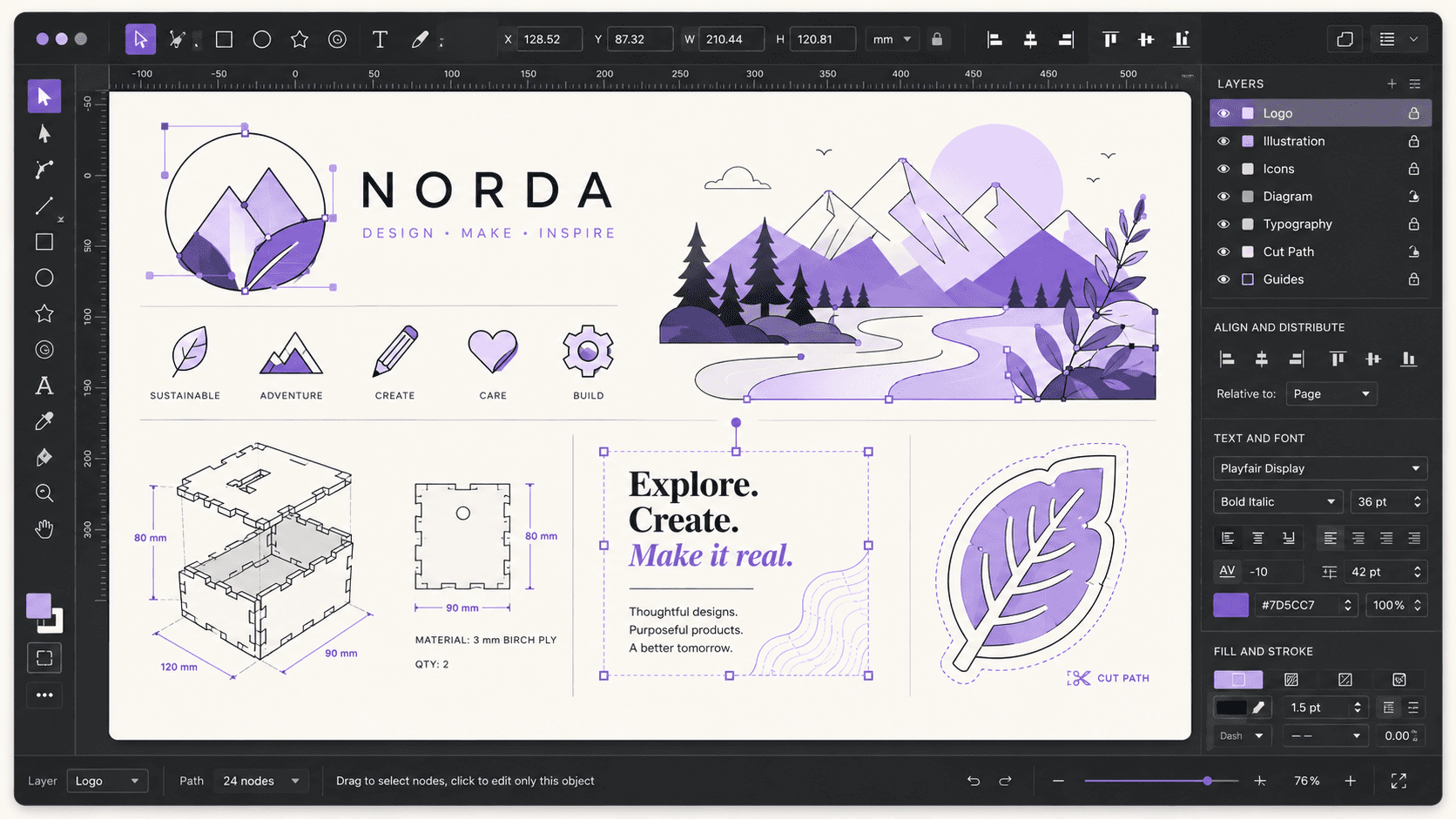
Inkscape is a free and open-source vector graphics editor. Unlike a raster editor that works with pixels, Inkscape works with vectors, mathematical descriptions of shapes that scale to any size without losing quality. Its native format is SVG, the open web standard for vector graphics, and it offers a full set of tools for drawing paths, shapes, and text, applying filters and effects, managing layers, and preparing artwork for screen or print.
The people who use it are graphic designers creating logos and illustrations, icon and UI designers, makers preparing cut files for vinyl cutters and laser cutters, people producing diagrams and technical drawings, and hobbyists and students who want a capable vector tool without a subscription. On Linux, Inkscape is the standard vector editor and one of the most-installed creative applications.
Definition: running Inkscape in the cloud
Running Inkscape in the cloud means installing Inkscape on a remote Ubuntu desktop and creating vector artwork there instead of on your local computer. You get more CPU and memory than a laptop for complex files, plus the ability to run Inkscape from any device, while your own machine stays free.
If you’re looking for a full Linux environment without setting up local hardware, this guide explains how to get an Ubuntu desktop in the cloud.
Why Run Inkscape On a Cloud Desktop
Inkscape runs on modest hardware for simple work, so let's be specific about what the cloud adds, because it matters most for complex artwork.
More power for complex files
This is the main reason. Vector editing gets heavy when a file has thousands of nodes, many objects, complex paths, and layered filters. Rendering all of that in real time as you pan, zoom, and edit is CPU-intensive, and on a laptop a genuinely complex illustration can make Inkscape sluggish, with laggy redraws and slow operations. A cloud machine with more CPU and memory keeps Inkscape responsive on files that bog down a laptop.
Faster filters and effects
Inkscape's filters, blurs, and complex effects are computationally expensive, especially applied across large or detailed artwork. A more powerful machine applies and renders them faster, so you spend less time waiting after each change.
Batch export without tying up your machine
Inkscape can export artwork from the command line, which is perfect for producing many files or many sizes at once. Running a large batch locally monopolizes your machine, while on a cloud desktop you kick it off and keep working elsewhere, or let it finish in the background.
Run Inkscape from any device
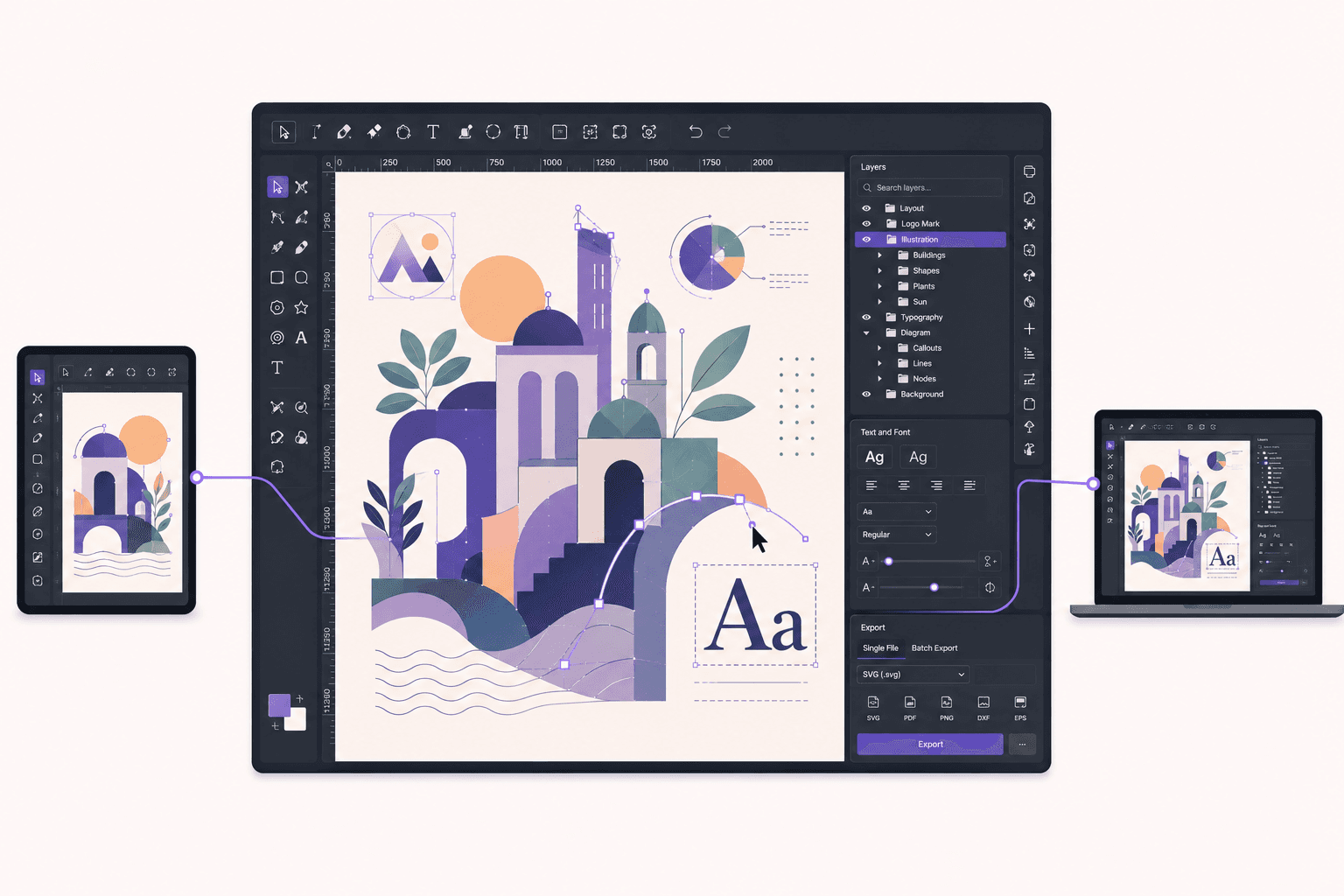
Because the desktop streams to you, you can run Inkscape from a device that couldn't handle a complex project locally. Design on a Chromebook or a tablet, with the heavy rendering done on a capable cloud machine.
A clean, disposable environment for extensions
Inkscape's extension ecosystem is powerful, and an isolated cloud VM lets you try unfamiliar extensions safely, resetting to a clean image if one causes trouble, without risking your main setup.
Why Complex Vector Files Slow Down, And How The Cloud Helps
It's worth understanding why a vector file, which sounds lightweight, can bring a machine to its knees, because it explains exactly when a cloud desktop is worth it.
A vector graphic is described mathematically, which is efficient in file size but means the computer has to calculate and render every path, every node, and every effect to display the image. For a simple logo, that's trivial. For a detailed illustration with thousands of nodes, dozens of layers, intricate paths, and stacked filters, the rendering work multiplies, and it happens continuously as you interact with the canvas. Every pan and zoom re-renders the visible artwork, so a complex file can make even scrolling feel heavy.
Filters compound this. A blur or a complex effect applied across a large area requires substantial computation each time it's rendered. Stack several filters on a detailed illustration and the machine has a lot to do.
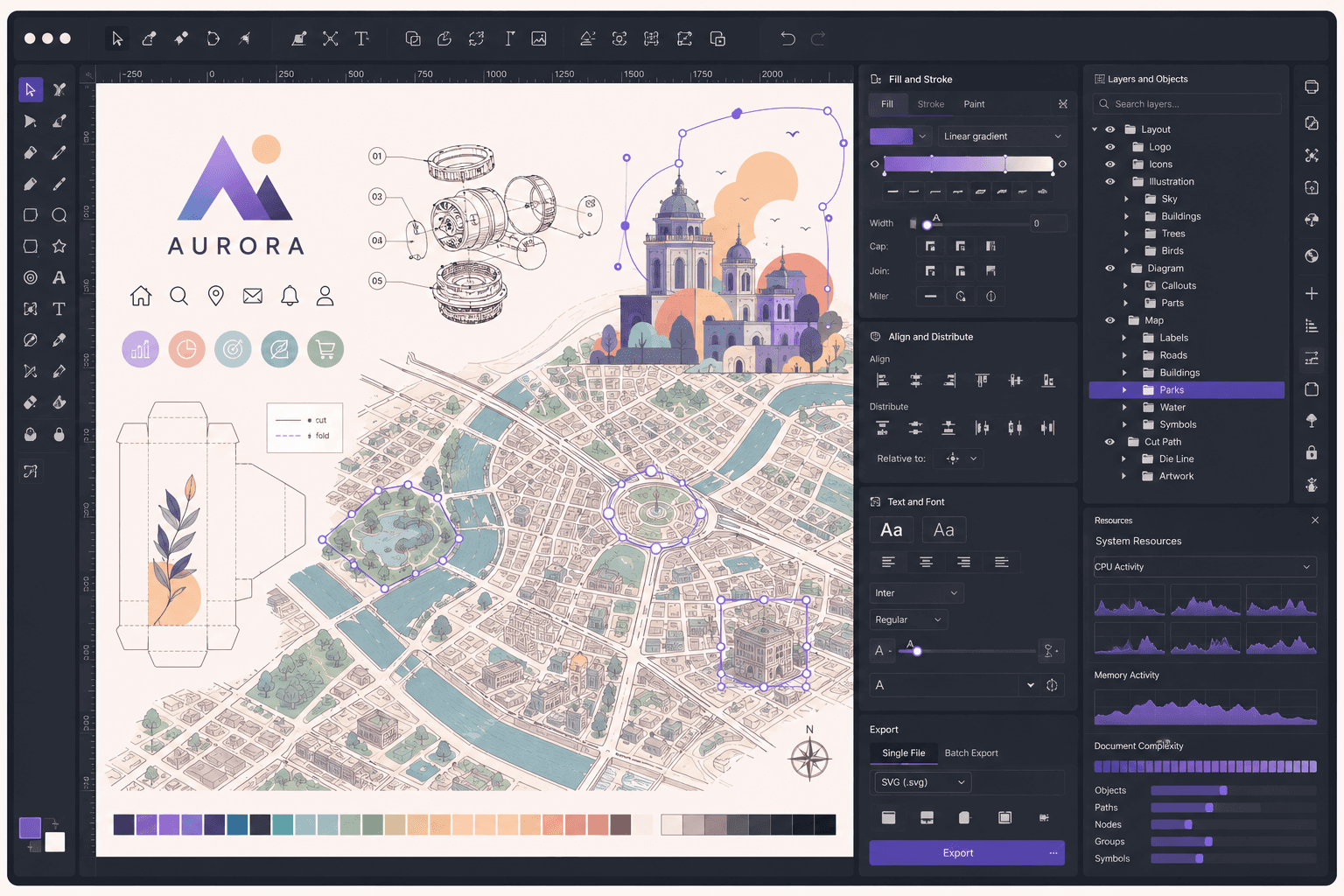
This is precisely where a more powerful machine pays off. The bottleneck for complex Inkscape work is CPU and memory, doing the rendering math and holding the document, so a cloud machine with more of both keeps the canvas responsive where a laptop struggles. It doesn't need a GPU for most Inkscape work, since the heavy lifting is CPU-bound, so you can run it on an affordable plan without one and still get a big responsiveness improvement on heavy files. The takeaway: the more complex your artwork, the more a cloud desktop helps, and it helps through CPU and memory rather than a graphics card.
When It's The Right Call, And When To Skip It
A cloud desktop is a burst tool, billed by the minute. It's the right call when you work with complex vector files that strain your machine, run batch export jobs, want to design from a limited device, or want an isolated environment for extensions. You spin it up, work, and shut it down.
It's the wrong call if your vector work is simple and your current machine handles it fine, since Inkscape is free and runs on almost anything, or if you want an editor instantly available all day without thinking about sessions. The cloud shines specifically for complex artwork, batch jobs, and limited devices, not for occasional simple graphics on a capable laptop.
What You'll Need
A Vagon account with a payment method.
An Ubuntu plan. Inkscape is CPU and memory bound rather than GPU bound, so a plan without a GPU is fine; choose more CPU and memory for very complex files.
Optionally, persistent storage to keep your files, extensions, and preferences between sessions.
Step-by-step setup
Step 1: Launch an Ubuntu machine
Create a computer on Vagon, choose Linux, and pick a plan. For Inkscape, prioritize CPU and memory over GPU, since vector rendering is CPU-bound. It boots in about 90 seconds.
Step 2: Install Inkscape
The simplest path through the terminal:
For the latest version, install from Flathub:
If Vagon's Ubuntu template already includes Inkscape, you can skip straight to opening it.
Step 3: Set up your workspace
Open Inkscape and arrange your toolbars, panels, and document properties to suit your work. On a streamed desktop with plenty of screen space, Inkscape's interface has room for all its dockable panels.
Step 4: Configure preferences
Adjust rendering and behavior preferences to your liking. For complex work, you can tune how Inkscape renders during interaction to keep the canvas responsive, which we'll touch on next.
Step 5: Add persistent storage for your setup
If you want your files, installed extensions, and preferences to persist, add persistent storage so your Inkscape environment is exactly as you left it next session.
If you’re working from a tablet, you can learn how to run Ubuntu on an iPad and access a complete Linux desktop remotely.
Working With Large And Complex SVGs
To keep Inkscape responsive on heavy files, both a powerful machine and good file habits matter.
On the machine side, a cloud plan with ample CPU and memory does most of the work, keeping rendering fast and holding the document comfortably. On the file side, a few habits help: keep your document organized with layers so you can hide sections you're not working on, which reduces what Inkscape has to render. Simplify paths where you can, since fewer nodes mean less rendering work. Be judicious with filters on complex artwork, applying them late or to specific objects rather than blanketing detailed illustrations. And use groups to manage complexity so the document stays navigable.
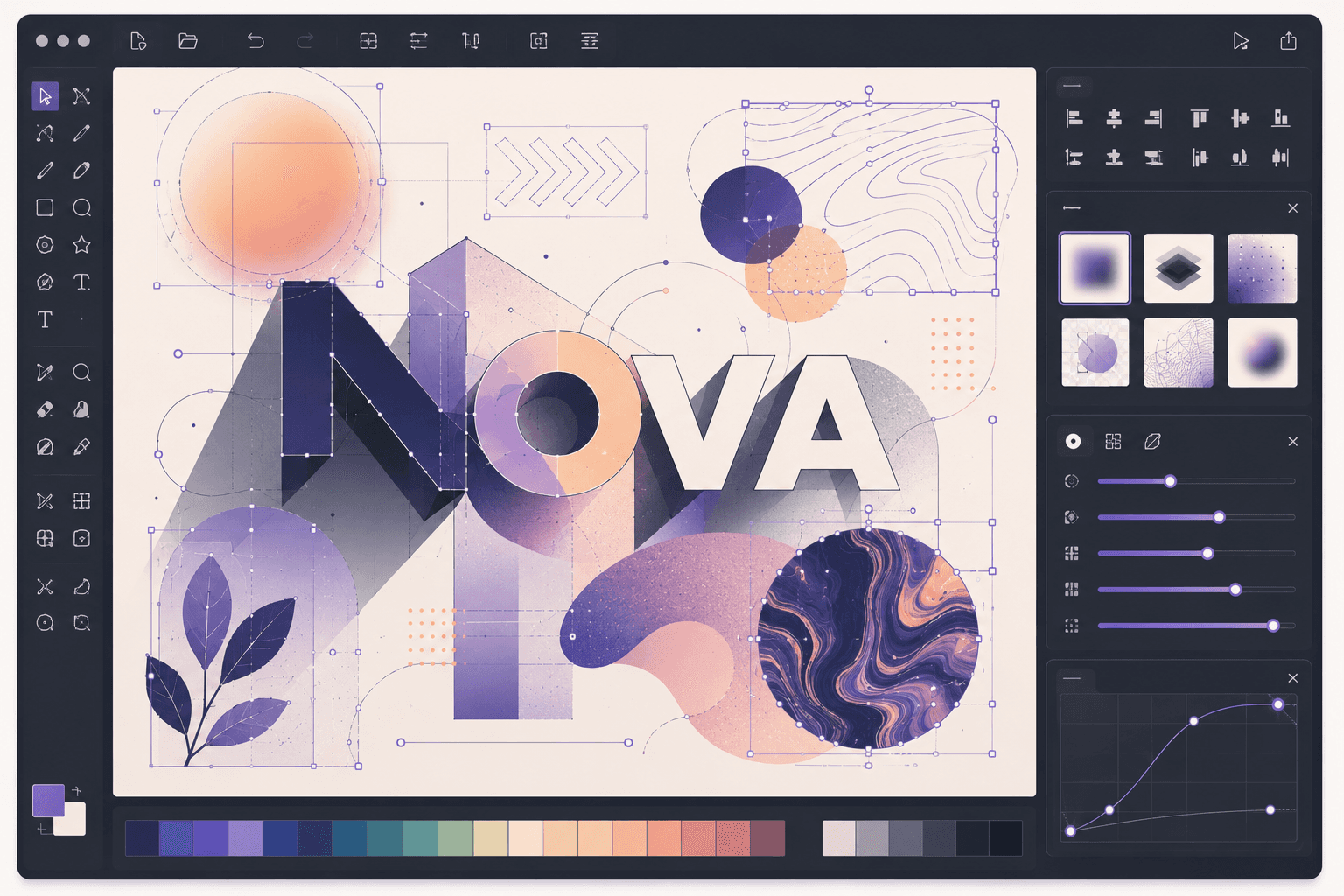
Inkscape also offers rendering options that trade visual fidelity during interaction for responsiveness, so on very heavy files you can work with a lighter preview and see the full quality when you pause. Combined with a capable machine, these let you work on genuinely complex vector artwork without the constant lag that makes detailed work painful on a laptop.
Extensions And Extending Inkscape
A lot of Inkscape's power for specific workflows comes from extensions, and a cloud desktop is a good place to build out a capable setup.
Inkscape supports extensions that add functionality, from generating shapes and patterns to preparing files for specific machines and automating repetitive tasks. Many makers and designers rely on particular extensions for their workflow, and installing them is a matter of placing them in Inkscape's extensions folder, reachable through the file manager. Some extensions have dependencies you install on the system, which is straightforward on a full Ubuntu desktop.
The advantage of an isolated cloud machine is that you can experiment with unfamiliar extensions without cluttering or risking your main setup, resetting to a clean image if one misbehaves. And with persistent storage, once you've assembled the extensions your workflow needs, they stay ready every session, so you're not reinstalling your toolkit each time.
If you’re experimenting with private AI models, this guide walks through how to run Ollama in the cloud.
Batch Exporting From The Command Line
One of Inkscape's practical strengths is command-line export, and it's a workflow a cloud machine handles well.
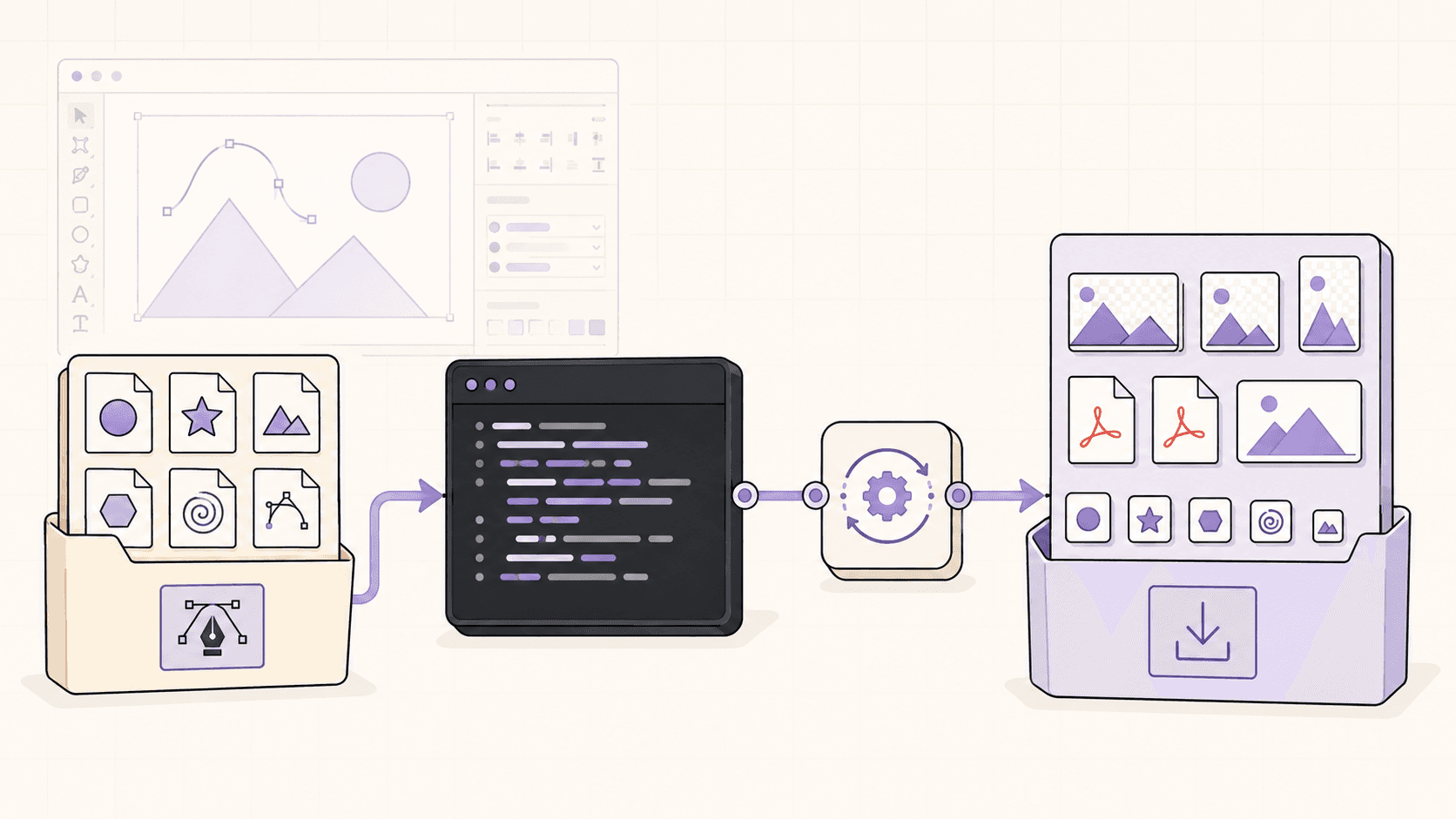
Inkscape can run from the command line to export SVG files to other formats, PNG, PDF, and more, at specified sizes, without opening the interface. This lets you automate producing many outputs: exporting an icon at multiple sizes, converting a folder of SVGs to PNGs, generating print-ready PDFs in bulk, or producing assets to a precise specification. You write a short script that calls Inkscape's export options across your files.
On a cloud desktop, a large batch export runs on a capable machine while your own computer stays free, and you keep the machine on only as long as the job takes. For anyone who regularly produces many exports from vector sources, this alone can justify a cloud setup, and it pairs naturally with per-minute billing: run the batch, collect the outputs, shut down.
Inkscape For Makers: Cutting, Plotting, And CNC
A large slice of Inkscape users aren't traditional designers at all, they're makers, and it's worth addressing this workflow directly.
Inkscape is widely used to prepare cut files for vinyl cutters, laser cutters, and plotters, and to generate paths for CNC and drawing machines, often through dedicated extensions. The vector precision that makes Inkscape great for logos also makes it ideal for producing clean paths a machine can follow. Makers design or import their artwork, prepare it with the appropriate extension for their machine, and export the file their hardware needs.
A cloud desktop fits this in a few ways. Complex cut files with many paths render and process faster on a capable machine. Maker-specific extensions and their dependencies install cleanly on a full Ubuntu desktop. And an isolated, resettable environment is a comfortable place to set up and test a machine-specific toolchain without affecting your main computer. The actual cutting or plotting happens on your physical machine, of course, so you'll export the finished file and transfer it to your hardware, but the design and preparation work benefits from the cloud's power and flexibility.
If you’re building node-based image generation workflows, here’s how to run ComfyUI in the cloud with access to more powerful GPUs.
Inkscape Compared To Other Vector Editors
Understanding where Inkscape stands helps you know what you're getting when you run it on a cloud machine.
Against commercial vector editors, Inkscape covers the core of vector design comprehensively. It has the full path toolset, boolean operations, node editing, powerful text handling, gradients, patterns, filters, and clean SVG output. For logos, illustrations, icons, diagrams, and print artwork, it does professional work. Because SVG is its native format and an open standard, files are portable and future-proof, which is a genuine advantage for anyone who values not being locked into a proprietary format.
Where commercial tools sometimes lead is in certain workflow refinements, specific print production features, or tight integration with a particular design ecosystem. Inkscape's approach can differ, and some advanced or niche capabilities come through extensions rather than being built in. The interface has its own logic that takes adjustment if you're coming from another editor.
The honest summary is that Inkscape is a capable, professional vector editor that handles the large majority of real vector work at zero license cost, with the bonus of native, standards-based SVG. Running it on a cloud desktop doesn't change its feature set, but it removes the hardware ceiling, so you can bring Inkscape's full capability to complex artwork that a laptop would struggle to handle smoothly. For most vector work, you'll find Inkscape does far more than its free price might suggest.
A First Project, Walked Through
If you're setting up Inkscape on a cloud desktop for real work, here's what a productive first session looks like once the machine is running.
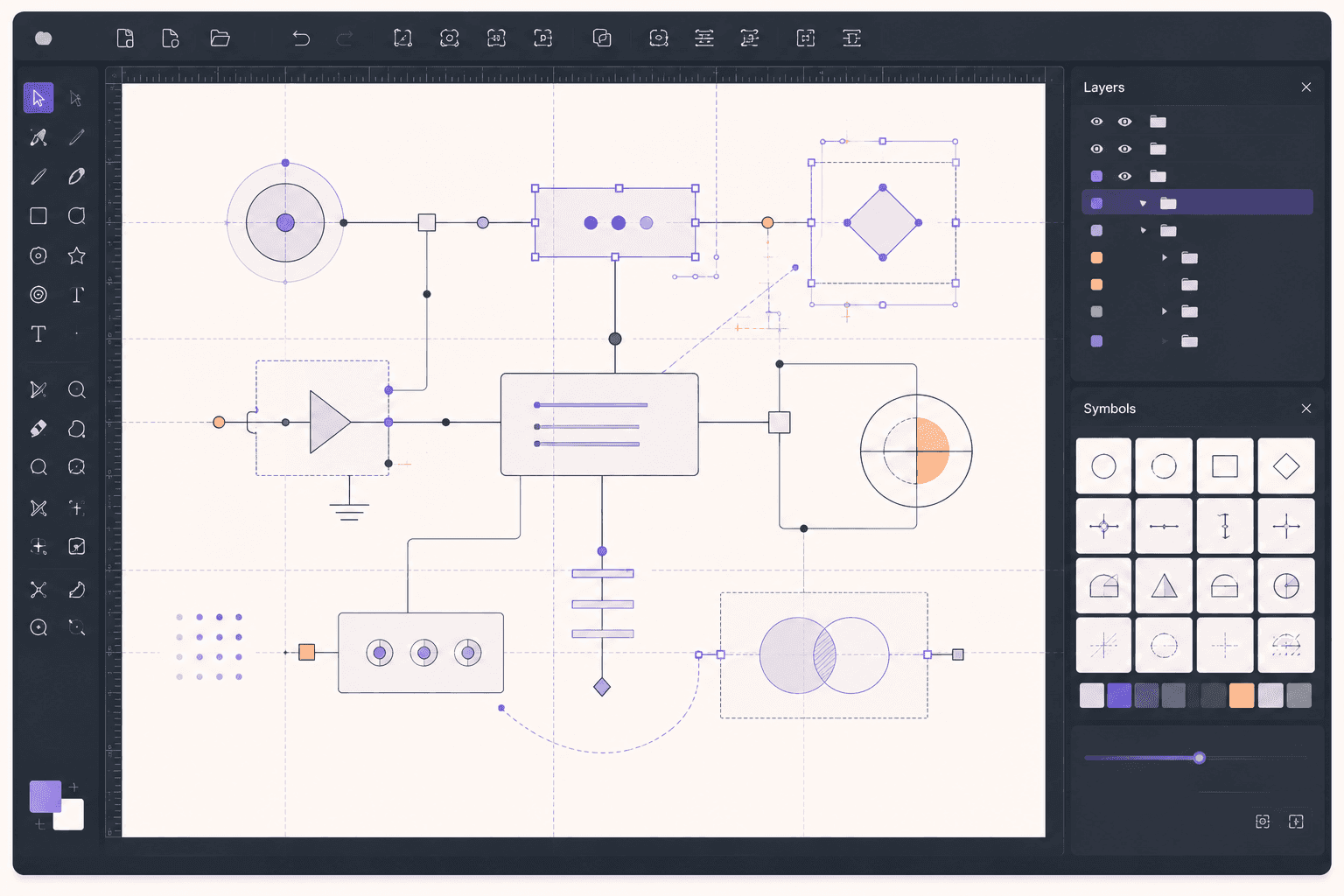
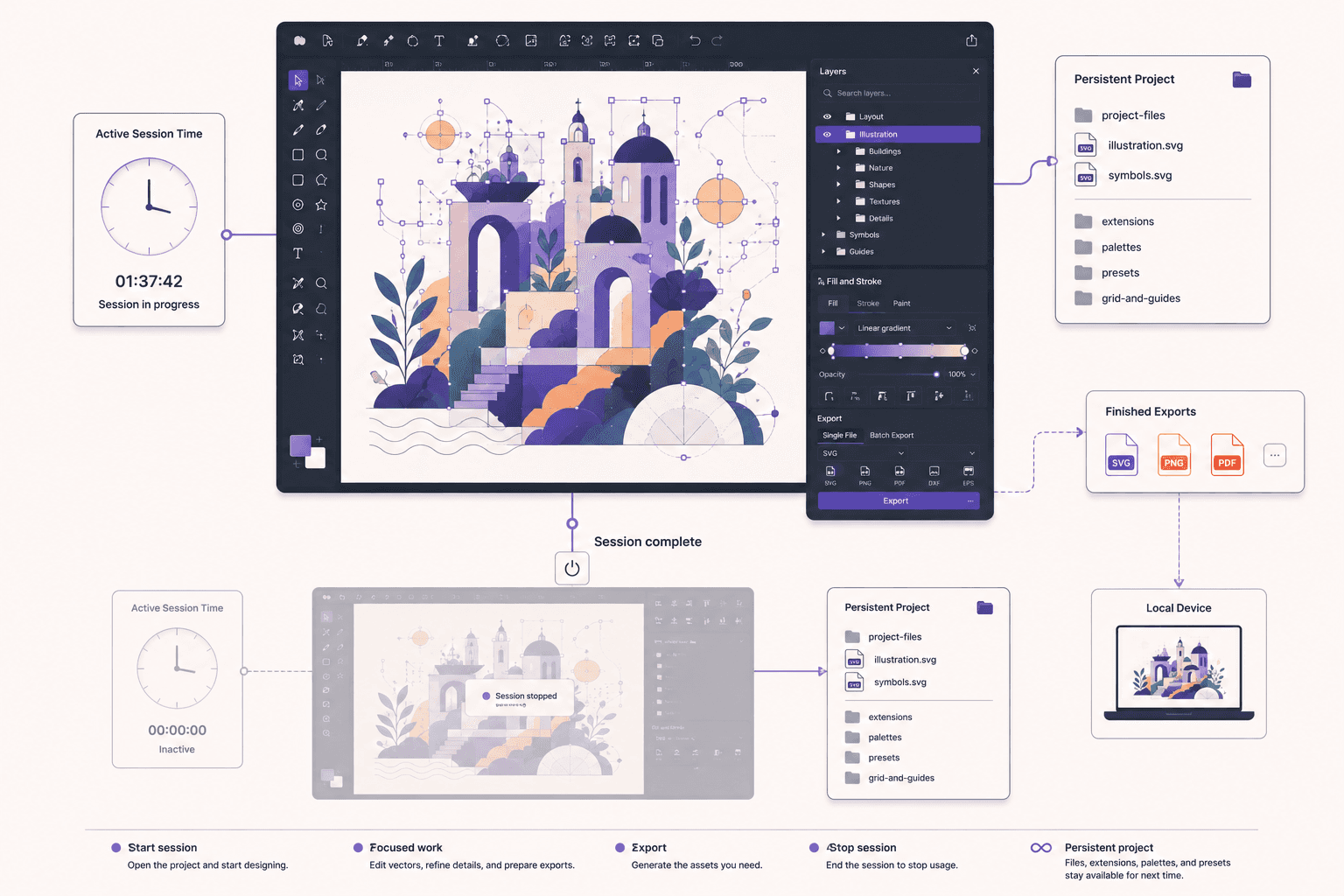
Bring your working files or reference material onto the machine, ideally onto persistent storage if you'll return to the project. Open Inkscape and set up your workspace, arranging the panels you use and setting your document properties, canvas size, units, and any grid or guides, to match your project. If you rely on particular extensions, install them now, and with persistent storage they'll be ready for future sessions too.
Then work as you normally would, but take advantage of the extra headroom. Open the complex files you'd hesitate to touch on a laptop, and edit them without the constant redraw lag. Apply the filters and effects that would make a laptop crawl. If you have a batch of exports to produce, set up your command-line export and let it run while you continue on something else. The point of the session is to do the heavy vector work that your local machine makes painful, smoothly, on hardware with room for it.
When you finish, export your final artwork in the formats you need, make sure your working files are saved to persistent storage, and shut the machine down. Next session, with persistent storage, your files, extensions, and preferences are exactly where you left them, and you pick up immediately.
If you’re working on demanding 3D scenes or rendering projects, this guide explains how to run Blender on a cloud GPU with Ubuntu.
Getting Files In And Out
Bring your SVGs, reference images, and assets onto the machine through the browser, the file manager, a cloud storage tool, or a repository. For projects you return to, persistent storage keeps everything on the machine between sessions.
Export your finished artwork and download it through the browser or file manager, or sync it to your own storage. For large batch exports, keep an eye on outbound transfer beyond the included amount, though typical vector work rarely approaches it.
Cost Breakdown
Your cost is the machine's running time billed by the minute, plus optional persistent storage (about five dollars per 50GB per month) for your files and setup, plus outbound transfer beyond the included 10GB per month, which mainly matters for large batches.
Because Inkscape doesn't need a GPU, you can run it on an affordable plan without one and still get a big responsiveness gain on complex files from the extra CPU and memory. The honest framing: for complex artwork and batch jobs that strain your laptop, a cloud desktop is worth it and you pay only for active hours. For simple graphics on a capable machine, Inkscape is free and local is simpler. Shut the machine down when you're done.
Real-World Use Cases
The illustrator with a detailed piece. A complex illustration with thousands of nodes lags on your laptop. A cloud machine with more CPU and memory keeps it responsive.
The designer batch-exporting assets. You need icons and graphics at many sizes and formats. A cloud desktop runs the batch export while your own machine stays free.
The maker preparing cut files. Complex vector paths for a cutter or plotter process faster, and maker extensions install cleanly on a full Ubuntu desktop.
The Chromebook user. You want Inkscape's full power on a device that can't run a heavy project locally. A streamed cloud desktop delivers it.
The extension experimenter. You want to try unfamiliar extensions safely on a resettable VM.
Troubleshooting
#1. Inkscape is slow on a complex file
The bottleneck is usually CPU and memory. Choose a plan with more of both, organize your document with layers so you can hide sections, simplify paths where possible, and be judicious with filters on detailed artwork.
#2. An extension isn't working
Confirm it's in Inkscape's extensions folder, compatible with your version, and that any system dependencies are installed. On a disposable VM, you can reset and reinstall carefully if an experiment went wrong.
#3. The interface is laggy
That's usually your connection to the streamed desktop rather than Inkscape. Lower the stream resolution or move to a better network.
#4. My files and extensions are gone next session
You didn't add persistent storage, so the machine reset. Add persistent storage to keep your files, extensions, and preferences.
If you’re testing private or open-source AI models, you can also learn how to run a local LLM on Ubuntu in the cloud.
The Takeaway
Inkscape is a professional-grade vector editor that happens to be free, and a cloud Ubuntu desktop gives it the CPU and memory to stay responsive on the complex artwork and batch jobs that make a laptop crawl, plus the ability to run it from any device. It doesn't need a GPU, so it runs affordably, and with persistent storage your files and extensions stay ready every session. Rent it for the heavy sessions, and shut it down when you're done.
Give your most detailed vector work real headroom. Create a Vagon account, launch an Ubuntu machine, install Inkscape, and you'll be designing in a few minutes.
Frequently Asked Questions
Is Inkscape free to use in the cloud?
Yes. Inkscape is free and open-source, so there's no license cost. On a cloud desktop you only pay for the machine's running time, not for Inkscape.
Does Inkscape need a GPU?
No. Inkscape's rendering is primarily CPU and memory bound, so a plan without a GPU is fine and cheaper. Prioritize CPU and memory for complex files.
Can I run Inkscape on a Chromebook or tablet through the cloud?
Yes. The streamed desktop runs on a Chromebook, tablet, or old laptop, with the actual work happening on the cloud machine. A mouse or trackpad makes precise vector work more comfortable.
Will my files and extensions persist between sessions?
Only if you add persistent storage. With it, your files, installed extensions, and preferences wait for you. Without it, treat each session as a fresh install.
Can I batch export SVGs in the cloud?
Yes, and it's a great fit. Inkscape can export from the command line to produce many files or sizes at once, and a cloud machine handles large batches while your own computer stays free.
Can I prepare cut files for a laser or vinyl cutter?
Yes. Inkscape is widely used to prepare cut files, often via extensions, which install cleanly on a full Ubuntu desktop. You design and prepare on the cloud machine, then export the file for your physical cutter.
How much CPU and memory should I choose?
For simple work, a modest plan is fine. For complex illustrations with many nodes and filters, choose a plan with more CPU and memory, since that's what keeps Inkscape responsive on heavy files.
Can I run the latest Inkscape version?
Yes. Install from Ubuntu's repositories or from Flathub for a more current release. On a cloud desktop you control which version you install.
Is Inkscape as capable as commercial vector editors?
For most vector work, Inkscape is genuinely capable, with a full path toolset, filters, and strong SVG support. The cloud gives it more hardware to run on rather than changing its features.
How do I keep costs down?
Run Inkscape on a plan without a GPU, work in focused sessions, add persistent storage so your setup is ready, and shut the machine down when you're finished.
Can I open Illustrator files in Inkscape on the cloud?
Inkscape works natively in SVG and can import several formats, and its handling of proprietary formats varies. For the best results, export your artwork to SVG or PDF from the other tool, then open it in Inkscape. The cloud doesn't change this; it's the same Inkscape import behavior.
Does Inkscape handle text and typography well?
Yes. Inkscape has capable text tools, including text on a path, flowed text, and fine control over spacing and styling. For text-heavy design work, it's fully usable, and a cloud machine keeps it responsive even in complex documents.
Can I use Inkscape for web and UI design assets?
Yes. Inkscape is popular for icons, illustrations, and UI assets, and its native SVG output is ideal for the web. You can design your assets on the cloud machine and export them in the formats your project needs.
Is a streamed desktop precise enough for vector work?
For most vector work, yes, especially with a mouse or trackpad on a good connection. Precise node editing benefits from a pointer rather than touch, and a low-latency connection keeps the cursor responsive. The heavy rendering happens on the cloud machine, so complex files are actually smoother than on a weak laptop.
Can I automate Inkscape beyond exporting?
Yes. Beyond command-line export, Inkscape's extensions and command-line actions let you automate a range of tasks, from transforming artwork to preparing files for specific purposes. On a cloud machine, these jobs run without tying up your own computer.
Quick answer: To run Inkscape in the cloud, launch a cloud Ubuntu desktop (for example on Vagon), install Inkscape from apt or Flathub, and work on a streamed desktop you can reach from any device. It's ideal for complex vector artwork, large or detailed SVG files, and batch export jobs that bog down a laptop, and you pay only for the hours you use.
Key Takeaways
Inkscape is a free, professional vector graphics editor, and a cloud desktop gives it more CPU and memory for complex files.
It's especially useful for large, detailed SVGs, many objects, filters, and batch exports, where laptops slow down.
A cloud desktop lets you run Inkscape from any device, including tablets and Chromebooks that couldn't run it well.
Every machine is an isolated VM you can reset, useful for testing extensions.
Persistent storage keeps your files, extensions, and preferences between sessions.
It's billed by the minute, ideal for focused design sessions and a poor fit for idling all day.
Inkscape is easy to underestimate right up until the moment you actually need a vector editor, and then it quietly does everything. Logos, illustrations, icons, diagrams, print layouts, cut files for a vinyl cutter, all in clean, scalable vectors, for free. Where it starts to strain isn't the toolset. It's the moment you open a genuinely complex SVG, thousands of nodes, layers of filters, a detailed illustration, and Inkscape slows to a crawl because your laptop is doing an enormous amount of math to render all those paths in real time.
That's where running Inkscape on a cloud Ubuntu desktop helps. You get a machine with more CPU and memory than your laptop, Inkscape runs on it, and complex files stop grinding. When you're done, you shut the machine off. This guide covers when that's worth it, how to set it up, how to work with heavy vector files, how to batch-export, and the honest trade-offs.
What Inkscape Is And Who Uses It
Inkscape is a free and open-source vector graphics editor. Unlike a raster editor that works with pixels, Inkscape works with vectors, mathematical descriptions of shapes that scale to any size without losing quality. Its native format is SVG, the open web standard for vector graphics, and it offers a full set of tools for drawing paths, shapes, and text, applying filters and effects, managing layers, and preparing artwork for screen or print.
The people who use it are graphic designers creating logos and illustrations, icon and UI designers, makers preparing cut files for vinyl cutters and laser cutters, people producing diagrams and technical drawings, and hobbyists and students who want a capable vector tool without a subscription. On Linux, Inkscape is the standard vector editor and one of the most-installed creative applications.
Definition: running Inkscape in the cloud
Running Inkscape in the cloud means installing Inkscape on a remote Ubuntu desktop and creating vector artwork there instead of on your local computer. You get more CPU and memory than a laptop for complex files, plus the ability to run Inkscape from any device, while your own machine stays free.
If you’re looking for a full Linux environment without setting up local hardware, this guide explains how to get an Ubuntu desktop in the cloud.
Why Run Inkscape On a Cloud Desktop
Inkscape runs on modest hardware for simple work, so let's be specific about what the cloud adds, because it matters most for complex artwork.
More power for complex files
This is the main reason. Vector editing gets heavy when a file has thousands of nodes, many objects, complex paths, and layered filters. Rendering all of that in real time as you pan, zoom, and edit is CPU-intensive, and on a laptop a genuinely complex illustration can make Inkscape sluggish, with laggy redraws and slow operations. A cloud machine with more CPU and memory keeps Inkscape responsive on files that bog down a laptop.
Faster filters and effects
Inkscape's filters, blurs, and complex effects are computationally expensive, especially applied across large or detailed artwork. A more powerful machine applies and renders them faster, so you spend less time waiting after each change.
Batch export without tying up your machine
Inkscape can export artwork from the command line, which is perfect for producing many files or many sizes at once. Running a large batch locally monopolizes your machine, while on a cloud desktop you kick it off and keep working elsewhere, or let it finish in the background.
Run Inkscape from any device
Because the desktop streams to you, you can run Inkscape from a device that couldn't handle a complex project locally. Design on a Chromebook or a tablet, with the heavy rendering done on a capable cloud machine.
A clean, disposable environment for extensions
Inkscape's extension ecosystem is powerful, and an isolated cloud VM lets you try unfamiliar extensions safely, resetting to a clean image if one causes trouble, without risking your main setup.
Why Complex Vector Files Slow Down, And How The Cloud Helps
It's worth understanding why a vector file, which sounds lightweight, can bring a machine to its knees, because it explains exactly when a cloud desktop is worth it.
A vector graphic is described mathematically, which is efficient in file size but means the computer has to calculate and render every path, every node, and every effect to display the image. For a simple logo, that's trivial. For a detailed illustration with thousands of nodes, dozens of layers, intricate paths, and stacked filters, the rendering work multiplies, and it happens continuously as you interact with the canvas. Every pan and zoom re-renders the visible artwork, so a complex file can make even scrolling feel heavy.
Filters compound this. A blur or a complex effect applied across a large area requires substantial computation each time it's rendered. Stack several filters on a detailed illustration and the machine has a lot to do.
This is precisely where a more powerful machine pays off. The bottleneck for complex Inkscape work is CPU and memory, doing the rendering math and holding the document, so a cloud machine with more of both keeps the canvas responsive where a laptop struggles. It doesn't need a GPU for most Inkscape work, since the heavy lifting is CPU-bound, so you can run it on an affordable plan without one and still get a big responsiveness improvement on heavy files. The takeaway: the more complex your artwork, the more a cloud desktop helps, and it helps through CPU and memory rather than a graphics card.
When It's The Right Call, And When To Skip It
A cloud desktop is a burst tool, billed by the minute. It's the right call when you work with complex vector files that strain your machine, run batch export jobs, want to design from a limited device, or want an isolated environment for extensions. You spin it up, work, and shut it down.
It's the wrong call if your vector work is simple and your current machine handles it fine, since Inkscape is free and runs on almost anything, or if you want an editor instantly available all day without thinking about sessions. The cloud shines specifically for complex artwork, batch jobs, and limited devices, not for occasional simple graphics on a capable laptop.
What You'll Need
A Vagon account with a payment method.
An Ubuntu plan. Inkscape is CPU and memory bound rather than GPU bound, so a plan without a GPU is fine; choose more CPU and memory for very complex files.
Optionally, persistent storage to keep your files, extensions, and preferences between sessions.
Step-by-step setup
Step 1: Launch an Ubuntu machine
Create a computer on Vagon, choose Linux, and pick a plan. For Inkscape, prioritize CPU and memory over GPU, since vector rendering is CPU-bound. It boots in about 90 seconds.
Step 2: Install Inkscape
The simplest path through the terminal:
For the latest version, install from Flathub:
If Vagon's Ubuntu template already includes Inkscape, you can skip straight to opening it.
Step 3: Set up your workspace
Open Inkscape and arrange your toolbars, panels, and document properties to suit your work. On a streamed desktop with plenty of screen space, Inkscape's interface has room for all its dockable panels.
Step 4: Configure preferences
Adjust rendering and behavior preferences to your liking. For complex work, you can tune how Inkscape renders during interaction to keep the canvas responsive, which we'll touch on next.
Step 5: Add persistent storage for your setup
If you want your files, installed extensions, and preferences to persist, add persistent storage so your Inkscape environment is exactly as you left it next session.
If you’re working from a tablet, you can learn how to run Ubuntu on an iPad and access a complete Linux desktop remotely.
Working With Large And Complex SVGs
To keep Inkscape responsive on heavy files, both a powerful machine and good file habits matter.
On the machine side, a cloud plan with ample CPU and memory does most of the work, keeping rendering fast and holding the document comfortably. On the file side, a few habits help: keep your document organized with layers so you can hide sections you're not working on, which reduces what Inkscape has to render. Simplify paths where you can, since fewer nodes mean less rendering work. Be judicious with filters on complex artwork, applying them late or to specific objects rather than blanketing detailed illustrations. And use groups to manage complexity so the document stays navigable.
Inkscape also offers rendering options that trade visual fidelity during interaction for responsiveness, so on very heavy files you can work with a lighter preview and see the full quality when you pause. Combined with a capable machine, these let you work on genuinely complex vector artwork without the constant lag that makes detailed work painful on a laptop.
Extensions And Extending Inkscape
A lot of Inkscape's power for specific workflows comes from extensions, and a cloud desktop is a good place to build out a capable setup.
Inkscape supports extensions that add functionality, from generating shapes and patterns to preparing files for specific machines and automating repetitive tasks. Many makers and designers rely on particular extensions for their workflow, and installing them is a matter of placing them in Inkscape's extensions folder, reachable through the file manager. Some extensions have dependencies you install on the system, which is straightforward on a full Ubuntu desktop.
The advantage of an isolated cloud machine is that you can experiment with unfamiliar extensions without cluttering or risking your main setup, resetting to a clean image if one misbehaves. And with persistent storage, once you've assembled the extensions your workflow needs, they stay ready every session, so you're not reinstalling your toolkit each time.
If you’re experimenting with private AI models, this guide walks through how to run Ollama in the cloud.
Batch Exporting From The Command Line
One of Inkscape's practical strengths is command-line export, and it's a workflow a cloud machine handles well.
Inkscape can run from the command line to export SVG files to other formats, PNG, PDF, and more, at specified sizes, without opening the interface. This lets you automate producing many outputs: exporting an icon at multiple sizes, converting a folder of SVGs to PNGs, generating print-ready PDFs in bulk, or producing assets to a precise specification. You write a short script that calls Inkscape's export options across your files.
On a cloud desktop, a large batch export runs on a capable machine while your own computer stays free, and you keep the machine on only as long as the job takes. For anyone who regularly produces many exports from vector sources, this alone can justify a cloud setup, and it pairs naturally with per-minute billing: run the batch, collect the outputs, shut down.
Inkscape For Makers: Cutting, Plotting, And CNC
A large slice of Inkscape users aren't traditional designers at all, they're makers, and it's worth addressing this workflow directly.
Inkscape is widely used to prepare cut files for vinyl cutters, laser cutters, and plotters, and to generate paths for CNC and drawing machines, often through dedicated extensions. The vector precision that makes Inkscape great for logos also makes it ideal for producing clean paths a machine can follow. Makers design or import their artwork, prepare it with the appropriate extension for their machine, and export the file their hardware needs.
A cloud desktop fits this in a few ways. Complex cut files with many paths render and process faster on a capable machine. Maker-specific extensions and their dependencies install cleanly on a full Ubuntu desktop. And an isolated, resettable environment is a comfortable place to set up and test a machine-specific toolchain without affecting your main computer. The actual cutting or plotting happens on your physical machine, of course, so you'll export the finished file and transfer it to your hardware, but the design and preparation work benefits from the cloud's power and flexibility.
If you’re building node-based image generation workflows, here’s how to run ComfyUI in the cloud with access to more powerful GPUs.
Inkscape Compared To Other Vector Editors
Understanding where Inkscape stands helps you know what you're getting when you run it on a cloud machine.
Against commercial vector editors, Inkscape covers the core of vector design comprehensively. It has the full path toolset, boolean operations, node editing, powerful text handling, gradients, patterns, filters, and clean SVG output. For logos, illustrations, icons, diagrams, and print artwork, it does professional work. Because SVG is its native format and an open standard, files are portable and future-proof, which is a genuine advantage for anyone who values not being locked into a proprietary format.
Where commercial tools sometimes lead is in certain workflow refinements, specific print production features, or tight integration with a particular design ecosystem. Inkscape's approach can differ, and some advanced or niche capabilities come through extensions rather than being built in. The interface has its own logic that takes adjustment if you're coming from another editor.
The honest summary is that Inkscape is a capable, professional vector editor that handles the large majority of real vector work at zero license cost, with the bonus of native, standards-based SVG. Running it on a cloud desktop doesn't change its feature set, but it removes the hardware ceiling, so you can bring Inkscape's full capability to complex artwork that a laptop would struggle to handle smoothly. For most vector work, you'll find Inkscape does far more than its free price might suggest.
A First Project, Walked Through
If you're setting up Inkscape on a cloud desktop for real work, here's what a productive first session looks like once the machine is running.
Bring your working files or reference material onto the machine, ideally onto persistent storage if you'll return to the project. Open Inkscape and set up your workspace, arranging the panels you use and setting your document properties, canvas size, units, and any grid or guides, to match your project. If you rely on particular extensions, install them now, and with persistent storage they'll be ready for future sessions too.
Then work as you normally would, but take advantage of the extra headroom. Open the complex files you'd hesitate to touch on a laptop, and edit them without the constant redraw lag. Apply the filters and effects that would make a laptop crawl. If you have a batch of exports to produce, set up your command-line export and let it run while you continue on something else. The point of the session is to do the heavy vector work that your local machine makes painful, smoothly, on hardware with room for it.
When you finish, export your final artwork in the formats you need, make sure your working files are saved to persistent storage, and shut the machine down. Next session, with persistent storage, your files, extensions, and preferences are exactly where you left them, and you pick up immediately.
If you’re working on demanding 3D scenes or rendering projects, this guide explains how to run Blender on a cloud GPU with Ubuntu.
Getting Files In And Out
Bring your SVGs, reference images, and assets onto the machine through the browser, the file manager, a cloud storage tool, or a repository. For projects you return to, persistent storage keeps everything on the machine between sessions.
Export your finished artwork and download it through the browser or file manager, or sync it to your own storage. For large batch exports, keep an eye on outbound transfer beyond the included amount, though typical vector work rarely approaches it.
Cost Breakdown
Your cost is the machine's running time billed by the minute, plus optional persistent storage (about five dollars per 50GB per month) for your files and setup, plus outbound transfer beyond the included 10GB per month, which mainly matters for large batches.
Because Inkscape doesn't need a GPU, you can run it on an affordable plan without one and still get a big responsiveness gain on complex files from the extra CPU and memory. The honest framing: for complex artwork and batch jobs that strain your laptop, a cloud desktop is worth it and you pay only for active hours. For simple graphics on a capable machine, Inkscape is free and local is simpler. Shut the machine down when you're done.
Real-World Use Cases
The illustrator with a detailed piece. A complex illustration with thousands of nodes lags on your laptop. A cloud machine with more CPU and memory keeps it responsive.
The designer batch-exporting assets. You need icons and graphics at many sizes and formats. A cloud desktop runs the batch export while your own machine stays free.
The maker preparing cut files. Complex vector paths for a cutter or plotter process faster, and maker extensions install cleanly on a full Ubuntu desktop.
The Chromebook user. You want Inkscape's full power on a device that can't run a heavy project locally. A streamed cloud desktop delivers it.
The extension experimenter. You want to try unfamiliar extensions safely on a resettable VM.
Troubleshooting
#1. Inkscape is slow on a complex file
The bottleneck is usually CPU and memory. Choose a plan with more of both, organize your document with layers so you can hide sections, simplify paths where possible, and be judicious with filters on detailed artwork.
#2. An extension isn't working
Confirm it's in Inkscape's extensions folder, compatible with your version, and that any system dependencies are installed. On a disposable VM, you can reset and reinstall carefully if an experiment went wrong.
#3. The interface is laggy
That's usually your connection to the streamed desktop rather than Inkscape. Lower the stream resolution or move to a better network.
#4. My files and extensions are gone next session
You didn't add persistent storage, so the machine reset. Add persistent storage to keep your files, extensions, and preferences.
If you’re testing private or open-source AI models, you can also learn how to run a local LLM on Ubuntu in the cloud.
The Takeaway
Inkscape is a professional-grade vector editor that happens to be free, and a cloud Ubuntu desktop gives it the CPU and memory to stay responsive on the complex artwork and batch jobs that make a laptop crawl, plus the ability to run it from any device. It doesn't need a GPU, so it runs affordably, and with persistent storage your files and extensions stay ready every session. Rent it for the heavy sessions, and shut it down when you're done.
Give your most detailed vector work real headroom. Create a Vagon account, launch an Ubuntu machine, install Inkscape, and you'll be designing in a few minutes.
Frequently Asked Questions
Is Inkscape free to use in the cloud?
Yes. Inkscape is free and open-source, so there's no license cost. On a cloud desktop you only pay for the machine's running time, not for Inkscape.
Does Inkscape need a GPU?
No. Inkscape's rendering is primarily CPU and memory bound, so a plan without a GPU is fine and cheaper. Prioritize CPU and memory for complex files.
Can I run Inkscape on a Chromebook or tablet through the cloud?
Yes. The streamed desktop runs on a Chromebook, tablet, or old laptop, with the actual work happening on the cloud machine. A mouse or trackpad makes precise vector work more comfortable.
Will my files and extensions persist between sessions?
Only if you add persistent storage. With it, your files, installed extensions, and preferences wait for you. Without it, treat each session as a fresh install.
Can I batch export SVGs in the cloud?
Yes, and it's a great fit. Inkscape can export from the command line to produce many files or sizes at once, and a cloud machine handles large batches while your own computer stays free.
Can I prepare cut files for a laser or vinyl cutter?
Yes. Inkscape is widely used to prepare cut files, often via extensions, which install cleanly on a full Ubuntu desktop. You design and prepare on the cloud machine, then export the file for your physical cutter.
How much CPU and memory should I choose?
For simple work, a modest plan is fine. For complex illustrations with many nodes and filters, choose a plan with more CPU and memory, since that's what keeps Inkscape responsive on heavy files.
Can I run the latest Inkscape version?
Yes. Install from Ubuntu's repositories or from Flathub for a more current release. On a cloud desktop you control which version you install.
Is Inkscape as capable as commercial vector editors?
For most vector work, Inkscape is genuinely capable, with a full path toolset, filters, and strong SVG support. The cloud gives it more hardware to run on rather than changing its features.
How do I keep costs down?
Run Inkscape on a plan without a GPU, work in focused sessions, add persistent storage so your setup is ready, and shut the machine down when you're finished.
Can I open Illustrator files in Inkscape on the cloud?
Inkscape works natively in SVG and can import several formats, and its handling of proprietary formats varies. For the best results, export your artwork to SVG or PDF from the other tool, then open it in Inkscape. The cloud doesn't change this; it's the same Inkscape import behavior.
Does Inkscape handle text and typography well?
Yes. Inkscape has capable text tools, including text on a path, flowed text, and fine control over spacing and styling. For text-heavy design work, it's fully usable, and a cloud machine keeps it responsive even in complex documents.
Can I use Inkscape for web and UI design assets?
Yes. Inkscape is popular for icons, illustrations, and UI assets, and its native SVG output is ideal for the web. You can design your assets on the cloud machine and export them in the formats your project needs.
Is a streamed desktop precise enough for vector work?
For most vector work, yes, especially with a mouse or trackpad on a good connection. Precise node editing benefits from a pointer rather than touch, and a low-latency connection keeps the cursor responsive. The heavy rendering happens on the cloud machine, so complex files are actually smoother than on a weak laptop.
Can I automate Inkscape beyond exporting?
Yes. Beyond command-line export, Inkscape's extensions and command-line actions let you automate a range of tasks, from transforming artwork to preparing files for specific purposes. On a cloud machine, these jobs run without tying up your own computer.
Get Beyond Your Computer Performance
Run applications on your cloud computer with the latest generation hardware. No more crashes or lags.

Trial includes 1 hour usage + 7 days of storage.
Summarize with AI

Ready to focus on your creativity?
Vagon gives you the ability to create & render projects, collaborate, and stream applications with the power of the best hardware.

Run heavy applications on any device with
your personal computer on the cloud.
San Francisco, California
Solutions
Vagon Teams
Vagon Streams
Use Cases
© 2026 Vagon. All rights reserved.
Run heavy applications on any device with
your personal computer on the cloud.
San Francisco, California
Solutions
Vagon Teams
Vagon Streams
Use Cases
© 2026 Vagon. All rights reserved.
Run heavy applications on any device with
your personal computer on the cloud.
San Francisco, California
Solutions
Vagon Teams
Vagon Streams
Use Cases
© 2026 Vagon. All rights reserved.