Instant Connection for Pixel Streaming
— New Feature Automated Setup

How to Run DaVinci Resolve on Linux in the Cloud (2026 Guide)
How to Run DaVinci Resolve on Linux in the Cloud (2026 Guide)
How to Run DaVinci Resolve on Linux in the Cloud (2026 Guide)
Table of Contents
Quick answer: To run DaVinci Resolve on Linux in the cloud, launch a GPU Ubuntu desktop (for example on Vagon with an NVIDIA A10G), install DaVinci Resolve for Linux, and edit and render on a streamed desktop. A cloud GPU speeds up playback, color, effects, and rendering, but be aware of the honest Linux caveat: the Linux build has limited support for common consumer codecs like H.264 and H.265, so plan your media formats accordingly.
Key takeaways
DaVinci Resolve is a professional editing, color, VFX, and audio suite, and it's very GPU-hungry, which makes a cloud GPU a natural fit.
A cloud GPU speeds up playback, color grading, effects, and rendering that overwhelm a laptop.
The honest Linux caveat: the Linux version has limited support for consumer codecs like H.264 and H.265, so you'll often work with production formats like DNxHR or ProRes-friendly workflows.
Drivers and CUDA are preconfigured, so the GPU is ready without setup.
It's billed by the minute, ideal for editing and render sessions and a poor fit for idling all day.
Persistent storage keeps your projects and media between sessions.
This is going to be a more honest guide than most, because DaVinci Resolve on Linux hides a real caveat that a lot of tutorials gloss over. Resolve is an extraordinary piece of software, a full editing, color grading, visual effects, and audio suite that professionals use on major productions, and there's a genuinely capable free version. It's also extremely demanding, especially in color and effects, where it leans hard on the GPU. That makes a cloud GPU a natural fit.
The caveat is codecs. The Linux version of Resolve doesn't support the common consumer video formats, H.264 and H.265, the way the Windows and Mac versions do, because of licensing. That shapes your entire workflow on Linux, and pretending otherwise would set you up for frustration. So this guide covers both sides: why a cloud GPU is great for Resolve, and exactly how to work with the Linux version's media limitations so it actually fits your project. Read the codec section carefully before you commit.
What DaVinci Resolve is and who uses it
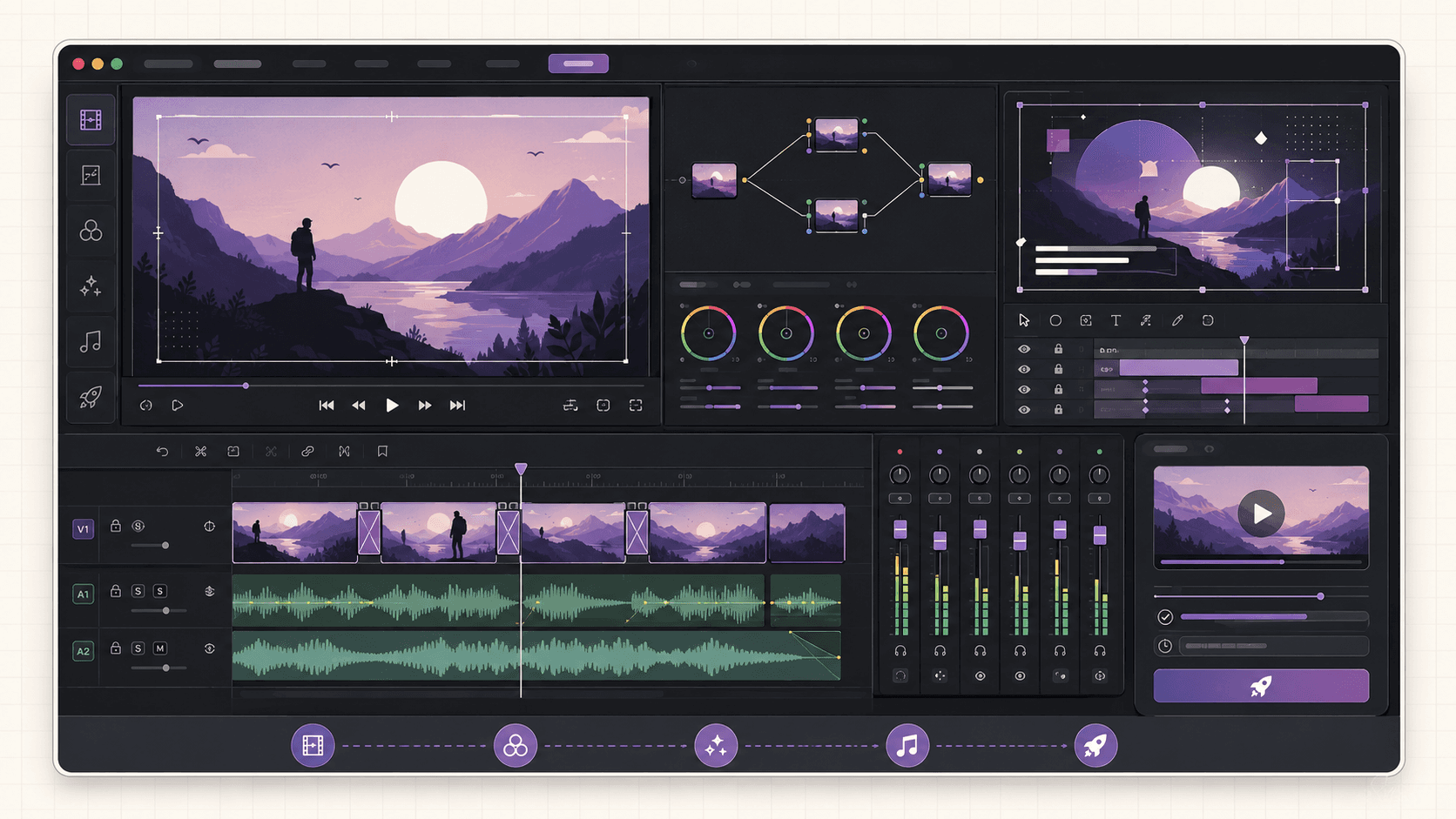
DaVinci Resolve is a professional post-production application that combines video editing, color grading, visual effects, motion graphics, and audio post into a single tool. It's known especially for its color grading, which is industry-leading, and it's used on films, television, commercials, music videos, and online content. Uniquely, it has a genuinely powerful free version alongside a paid Studio version, which has made it hugely popular with independent creators as well as professionals.
The people who use it are video editors, colorists, filmmakers, YouTubers and content creators, VFX artists, and students learning post-production. Resolve runs on Windows, Mac, and Linux, and the Linux version is what studios often use in their color suites, so it's a first-class citizen, with the codec caveat we'll cover in detail.
Definition: running DaVinci Resolve on Linux in the cloud
Running DaVinci Resolve on Linux in the cloud means installing the Linux version of Resolve on a remote GPU Ubuntu desktop and editing, grading, and rendering there instead of on your local computer. You get a powerful GPU for Resolve's demanding work, while accounting for the Linux version's media format support.
If you’re looking for a full Linux environment without setting up local hardware, this guide explains how to get an Ubuntu desktop in the cloud.
Why run DaVinci Resolve on a cloud GPU
Resolve is one of the most GPU-dependent creative applications, so a cloud GPU addresses its core demands directly.
Smooth playback and real-time performance
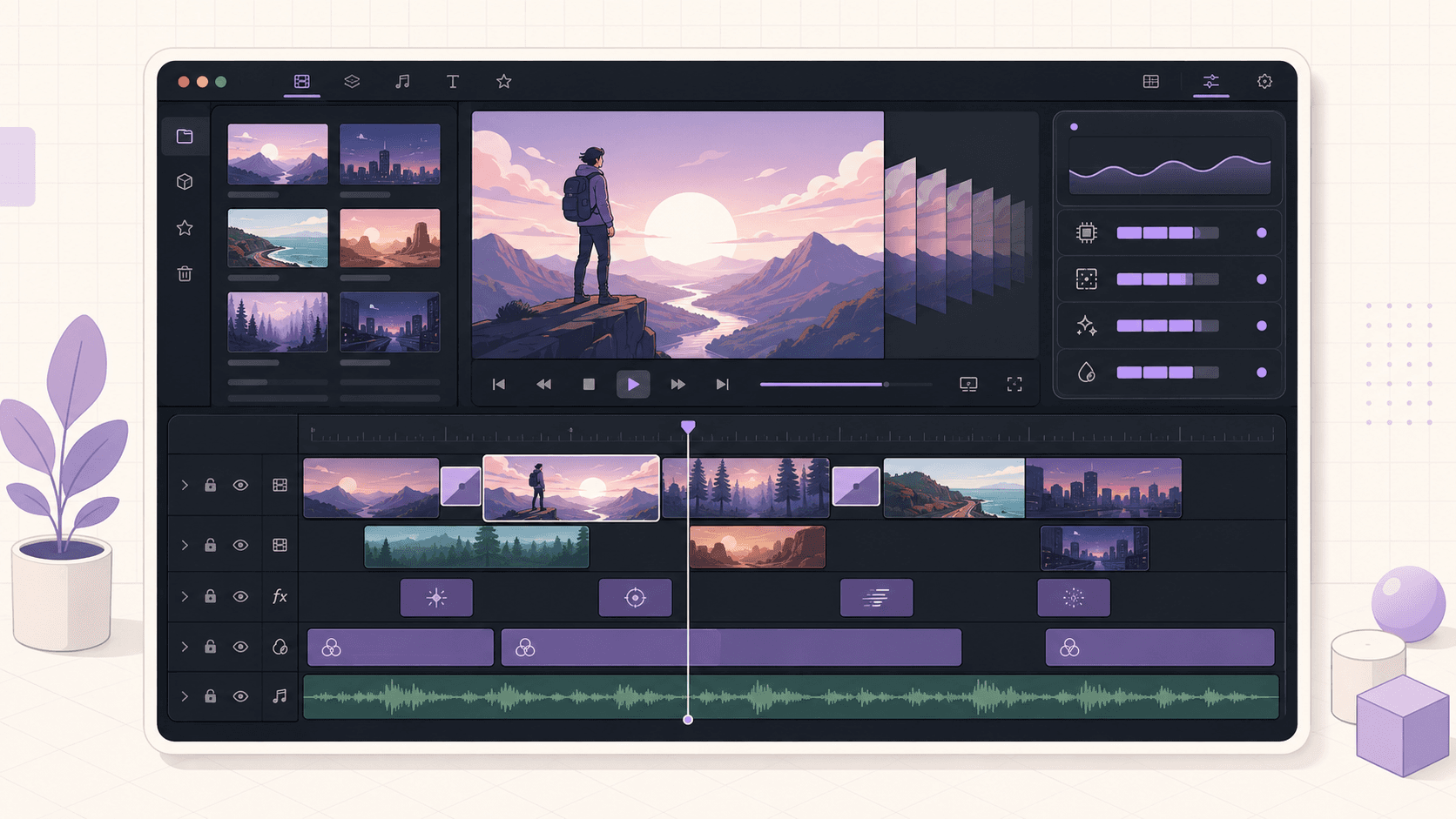
Resolve leans on the GPU for timeline playback, especially with effects and color applied. On an underpowered machine, playback stutters and you lose the real-time feedback that editing and grading depend on. A cloud GPU like an A10G provides the horsepower for smooth playback, so you can actually judge your edit and your grade as you work.
Fast color grading and effects
Color grading is where Resolve shines and where it's most demanding. Every node, every correction, every effect is computed on the GPU, and complex grades on high-resolution footage need real power. A cloud GPU handles these far better than a laptop, keeping the grading experience responsive.
Faster rendering and exports
Rendering out your finished project is GPU-accelerated in Resolve, and a cloud GPU renders substantially faster than a weak machine, turning long export waits into short ones. Your own computer stays free while the render runs in the cloud.
No driver setup
Getting the GPU working for Resolve on a fresh Linux machine can involve driver and CUDA configuration. On a cloud GPU desktop, that's already done, so Resolve sees the GPU and you skip the setup headache.
Power on demand without buying a workstation
A machine capable of smooth 4K grading is expensive to own and mostly idle between projects. A cloud GPU lets you rent that power for the edit and grade, then give it back, which suits the project-based rhythm of video work.
The honest Linux codec caveat, explained
This is the section that matters most, so read it before anything else.
The Linux version of DaVinci Resolve does not include support for the common consumer video codecs, H.264 and H.265 (HEVC), that most cameras, phones, and screen recorders produce, in the way the Windows and Mac versions do. This is due to codec licensing, and it means that if you drop typical H.264 footage from a consumer camera or phone directly onto a Linux Resolve timeline, it may not import or play back properly.
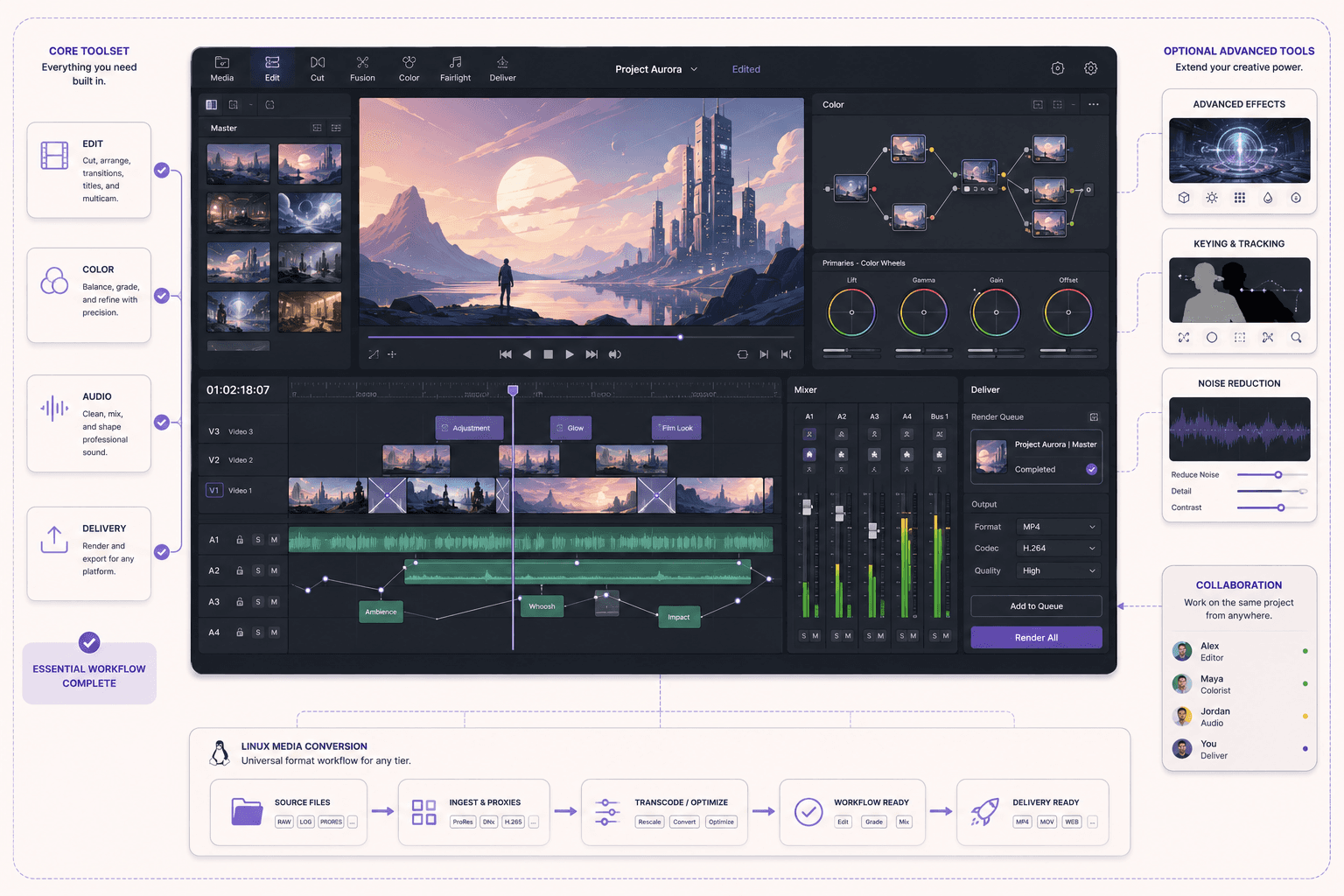
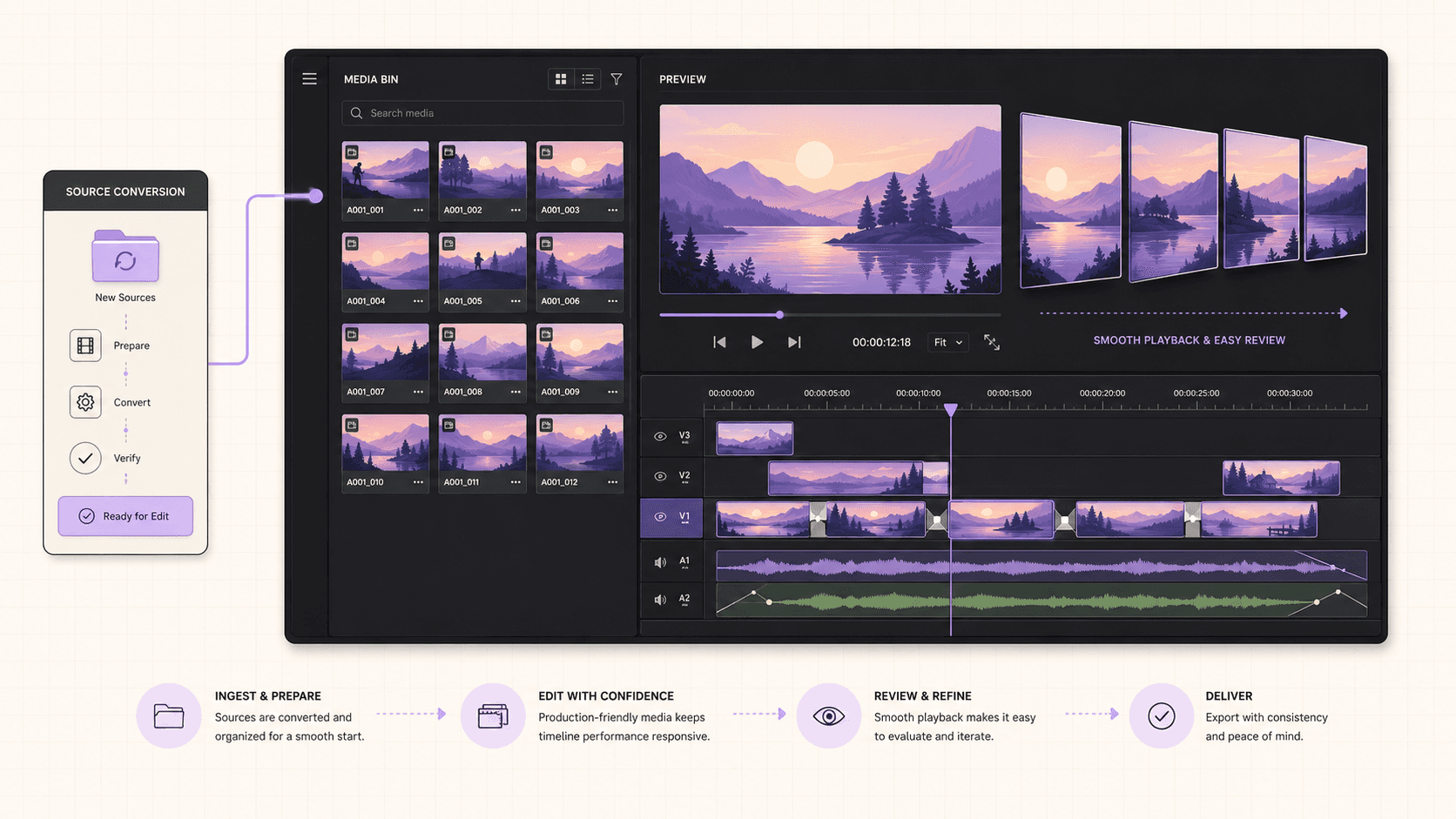
What this means in practice is that on Linux, Resolve expects production-oriented media formats. Professional workflows commonly use formats like DNxHR or other edit-friendly codecs, which the Linux version handles well. So the standard approach is to transcode your consumer footage into a supported production format before bringing it into Linux Resolve, using a conversion tool. Many professional pipelines already do this, since editing from lightweight production formats is smoother than editing from highly compressed consumer codecs anyway, but for a casual creator shooting H.264 on a phone, it's an extra step you need to plan for.
The honest bottom line: Linux Resolve is fantastic for editing, color, and rendering, but you must handle your media formats deliberately. If your footage is already in production formats, or you're willing to transcode consumer footage first, Linux Resolve fits beautifully. If your workflow depends on dropping H.264 and H.265 files straight in with no conversion, the Linux version will frustrate you, and you should weigh that carefully before committing. This isn't a Vagon limitation; it's how DaVinci Resolve on Linux works everywhere, and being clear about it up front saves you a lot of grief.
If you’re working from a tablet, you can learn how to run Ubuntu on an iPad and access a complete Linux desktop remotely.
Free vs Studio, and what changes on Linux
Resolve comes in a free version and a paid Studio version, and the distinction matters for planning.
The free version is remarkably capable and covers a huge amount of real editing, color, and audio work. The Studio version adds features like additional effects, advanced noise reduction, certain collaboration tools, and some format and performance capabilities. Whether you need Studio depends on your work; many creators are entirely happy on the free version.
On Linux specifically, the codec caveat applies to both versions, since it's about the Linux build rather than the tier. Studio adds some capabilities, but it doesn't turn Linux into Windows for consumer codec support in the way people sometimes hope, so plan your media workflow around production formats regardless of which version you run. Check Blackmagic's current documentation for exactly what each version and platform supports, since these details evolve.
When it's the right call, and when to skip it
A cloud GPU desktop is a burst tool, billed by the minute. It's the right call when you're editing and grading footage that strains your machine, rendering projects that take too long locally, working on a machine without a strong GPU, or wanting power on demand for a project, and your media is in or can be transcoded to Linux-friendly formats.
It's the wrong call in two cases. If your workflow depends on editing consumer H.264 and H.265 footage directly with no transcoding, the Linux version's codec support will get in your way, and a Windows or Mac environment may suit you better. And if your projects are light and your current machine handles Resolve fine, you may not need the cloud. Be honest about your media formats first, then about your hardware needs.
What You'll Need
A Vagon account with a payment method.
A GPU plan with a capable NVIDIA card; an A10G is a strong choice for smooth 4K work.
Your media in a Linux-Resolve-friendly production format, or a plan to transcode consumer footage first.
Persistent storage, recommended, since video media and projects are large and you don't want to re-upload them each session.
Step 1: Launch a GPU Ubuntu machine
Create a computer on Vagon, choose Linux, and pick a GPU plan. For video, an A10G gives smooth playback and fast rendering. It boots in about 90 seconds, with drivers and CUDA preconfigured.
Step 2: Confirm the GPU
Open a terminal and check the card:
You'll see the GPU and its memory, confirming Resolve will have proper hardware behind it.
Step 3: Install DaVinci Resolve for Linux
Download the Linux installer for DaVinci Resolve from Blackmagic Design's website, extract it, and run the installer. Resolve for Linux has some system dependencies, which you install through the package manager; Blackmagic's documentation and the installer guide you through these. On a full Ubuntu desktop, this is straightforward.
Step 4: Prepare your media
Before importing, make sure your footage is in a Linux-Resolve-friendly format, transcoding consumer H.264 or H.265 footage to a production format like DNxHR first if needed, using a conversion tool on the machine.
Step 5: Set up your project and add storage
Create your project, and add persistent storage so your media and project files live on the machine between sessions rather than re-uploading gigabytes of footage each time.
Working with media formats on Linux Resolve
Because media format is the crux of Linux Resolve, it's worth a practical workflow.
The clean approach is to transcode your source footage into an edit-friendly production format before it touches your Resolve timeline. Production formats are designed for editing: they decode efficiently, play back smoothly, and grade well, whereas highly compressed consumer codecs are designed for small file size and are heavier to work with. So transcoding isn't just a workaround for Linux, it often improves your editing experience regardless of platform.
You can transcode using conversion tools on the same cloud machine, converting a folder of consumer footage into your chosen production format, then editing from the converted media. For delivery, you'll export in the format your destination needs; consider where your final video is going and what it requires. Keep your project's media organized on persistent storage so everything's ready each session.
If transcoding every project sounds like too much overhead for your workflow, that's a legitimate reason to consider a Windows or Mac Resolve environment instead, and it's better to know that now. But for many creators, especially those working with higher-quality sources or already using production formats, the transcode step is minor and the payoff, a powerful GPU for editing and grading, is substantial.
If you’re experimenting with private AI models, this guide walks through how to run Ollama in the cloud.
Editing, color, and rendering with a cloud GPU
Once your media is sorted, the cloud GPU is where Resolve comes alive.
Editing feels responsive because the GPU keeps timeline playback smooth, even as you layer cuts, transitions, and effects. You get the real-time feedback that makes editing pleasant rather than a stutter-and-wait exercise.
Color grading, Resolve's signature strength, benefits most. Complex grades with many nodes, secondary corrections, and effects are computed on the GPU, and a capable cloud card keeps the image responsive as you work, so you can grade by feel rather than waiting for each adjustment to render. For anyone whose laptop turns grading into a slideshow, this is transformative.
Rendering your finished project is GPU-accelerated, so exports that would take a long time on a weak machine finish faster on a cloud GPU. You can render in a focused session and download the result, keeping the machine on only as long as the export takes. And because your own computer isn't doing the work, it stays free while the cloud machine renders.
Understanding Resolve's pages and workflow
If you're newer to Resolve, knowing how it's organized helps you plan your cloud sessions, since each part of the workflow makes different demands on the machine.
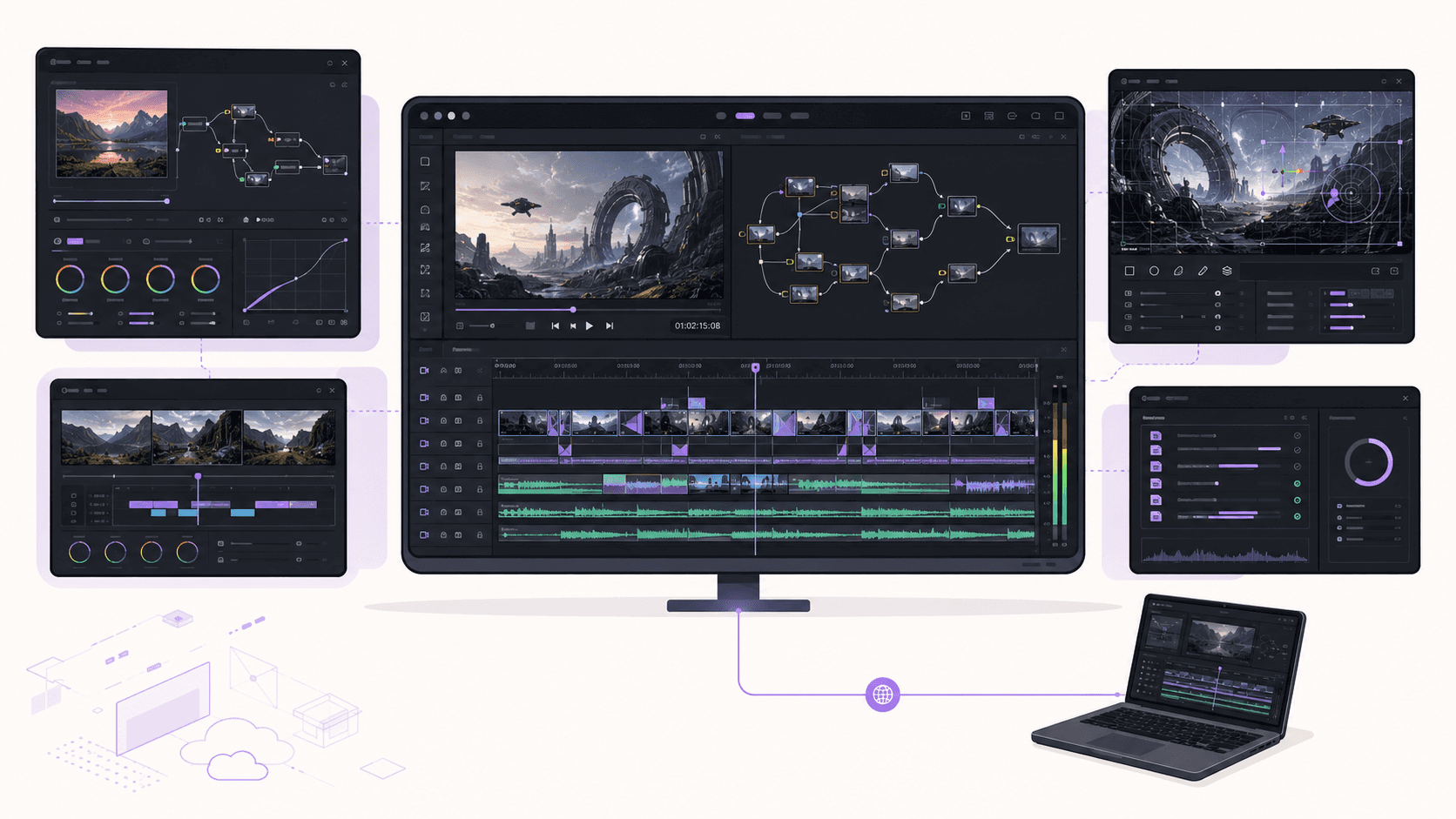
Resolve is built around a set of pages, each dedicated to a stage of post-production. The editing pages are where you assemble your cut, arranging clips on a timeline, trimming, and adding transitions. The color page is where grading happens, using a node-based system that's the tool's most celebrated feature. There's a page for visual effects and motion graphics, a dedicated audio page for sound mixing and editing, and a delivery page where you configure and render your final export.
The relevance to a cloud GPU is that the color, effects, and delivery stages are the most demanding, and they're exactly where a capable GPU pays off. Editing is comparatively lighter, though smooth playback still benefits from the GPU, especially at high resolution. So a common pattern is to do the bulk of your GPU-heavy work, grading, effects, and rendering, in focused cloud sessions on a strong GPU plan, making the most of the horsepower while you have it.
Because it's an all-in-one suite, you can take a project from raw footage to finished export entirely within Resolve on the cloud machine, which keeps your whole post-production workflow in one place rather than juggling separate tools.
If you’re building node-based image generation workflows, here’s how to run ComfyUI in the cloud with access to more powerful GPUs.
Optimized media, proxies, and smooth editing
Resolve has features that make editing smoother even with demanding footage, and they're worth using on a cloud machine.
Resolve can generate optimized media or proxies, lower-resolution or more edit-friendly versions of your clips that it uses during editing while keeping your originals for the final render. This lets you edit responsively even when your source footage is heavy, then render the finished project from the full-quality originals. Combined with a cloud GPU and edit-friendly media formats, this gives you a genuinely smooth editing experience.
On a cloud machine, generating optimized media or proxies is a task the GPU and CPU handle well, and it happens on the remote machine rather than tying up your own computer. The tradeoff is storage, since these versions take space, so factor that into your persistent storage. For projects with heavy footage, the smoother editing is usually well worth it, and it complements the transcoding approach the Linux version encourages anyway.
Getting Media In And out
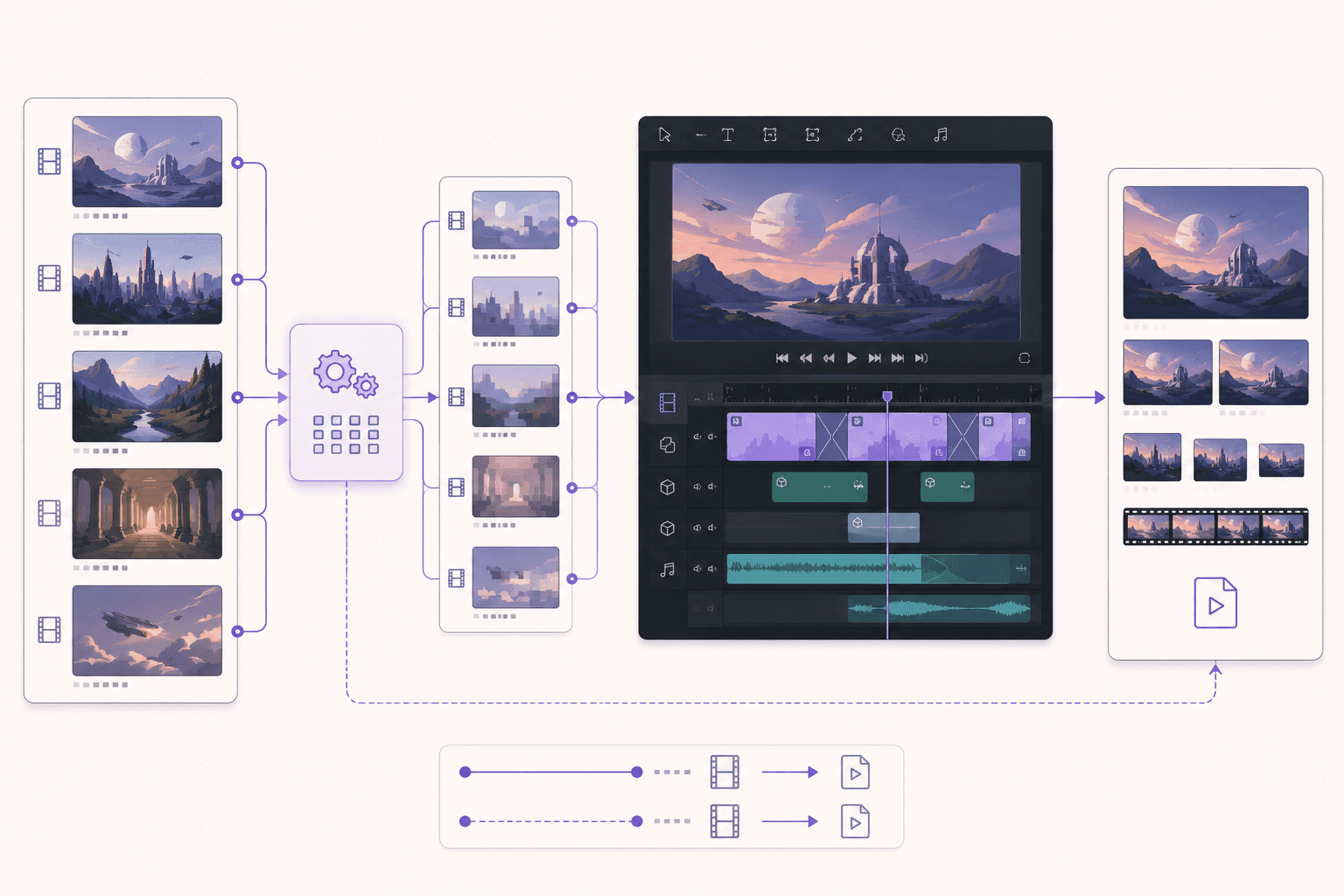
Video files are large, so media transfer deserves thought. Bring your footage onto the machine by downloading from cloud storage in the browser, using a sync tool, or transferring it in bulk, and keep it on persistent storage so a project spanning sessions is always ready. Transcoding on the machine, as covered, is part of this step.
Getting your finished exports out means downloading the rendered video or syncing it to your storage. Since video exports can be sizable, keep an eye on outbound transfer beyond the included amount for large deliveries. A common pattern is to render on the machine, then download only the final delivery file rather than moving all the raw media back and forth.
Cost Breakdown
Your cost is the machine's running time billed by the minute on a GPU plan, plus persistent storage (about five dollars per 50GB per month, recommended given media sizes), plus outbound transfer beyond the included 10GB per month for large exports.
The honest framing: for editing and grading sessions and render jobs where your laptop struggles, a cloud GPU is efficient and avoids buying an expensive workstation, and you pay only for active hours. For constant all-day professional editing, owning a capable machine may eventually cost less. Use persistent storage so media is ready, work in focused sessions, and shut the machine down when you're done.
Real-World Use Cases
The filmmaker grading a project. Complex color work stutters on your laptop. A cloud GPU keeps grading responsive so you can work by feel.
The content creator on a light machine. You want Resolve's power but your laptop can't provide it. A cloud GPU desktop delivers it, with a transcode step for your footage.
The editor rendering a long export. A lengthy render ties up your machine for hours. A cloud GPU renders faster and frees your own computer.
The student learning color grading. Professional grading on real hardware, rented by the session, without buying a workstation.
The professional in a production-format pipeline. Your media is already in edit-friendly formats, so Linux Resolve on a cloud GPU fits your workflow cleanly and powerfully.
Troubleshooting
#1. My H.264 or H.265 footage won't import or play
This is the Linux codec caveat. Transcode your consumer footage to a production format like DNxHR before bringing it into Resolve. This is expected behavior on Linux Resolve, not a bug.
#2. Playback stutters even with a GPU
Confirm you launched a GPU plan and that Resolve is using the GPU in its preferences. Also ensure your media is in an edit-friendly format, since heavy source codecs strain playback even with a good GPU. Optimized media or proxies in Resolve can help.
#3. Resolve won't install or launch
Resolve for Linux has system dependencies. Make sure they're installed per Blackmagic's documentation. On a full Ubuntu desktop you can install what's needed through the package manager.
#4. My media is gone next session
You didn't add persistent storage, so the machine reset. Add persistent storage to keep your media and projects between sessions.
If you’re working on demanding 3D scenes or rendering projects, this guide explains how to run Blender on a cloud GPU with Ubuntu.
The Verdict
DaVinci Resolve is a professional post-production powerhouse, and its heavy GPU demands make a cloud GPU Ubuntu desktop a natural fit for smooth editing, responsive color grading, and fast rendering, without buying an expensive workstation. The one thing to plan around is honest and important: the Linux version has limited consumer codec support, so work with production formats or transcode your footage first. Get your media workflow right, rent a GPU for the sessions you need, and Resolve on a cloud desktop is a genuinely powerful setup.
Put a proper GPU behind your color grade. Create a Vagon account, launch a GPU Ubuntu machine, and set up Resolve, keeping the Linux codec workflow in mind.
Frequently Asked Questions
Does DaVinci Resolve run on Linux?
Yes. Resolve has a Linux version that studios use, especially for color. The main thing to know is that the Linux version has limited support for consumer codecs like H.264 and H.265, so plan your media formats accordingly.
Why doesn't Linux Resolve support H.264 and H.265?
Because of codec licensing. The Linux build doesn't include the consumer codec support that the Windows and Mac versions have. The standard solution is to transcode consumer footage to a production format like DNxHR before editing.
Is the free version of Resolve enough?
For a great deal of editing, color, and audio work, yes. Studio adds extra features, but many creators work entirely on the free version. The codec caveat applies to both on Linux.
Do I need a GPU to run Resolve in the cloud?
Yes, strongly. Resolve is very GPU-dependent for playback, color, effects, and rendering, so a GPU plan is essential for a good experience. An A10G is a solid choice.
Will my projects and media persist between sessions?
Only if you add persistent storage, which is recommended given how large video media is. With it, your projects and footage wait for you. Without it, you'd re-upload each session.
Can I transcode footage on the same cloud machine?
Yes. Use a conversion tool on the machine to transcode consumer footage into a Linux-Resolve-friendly production format, then edit from the converted media. It's all done on the one desktop.
How much faster is rendering on a cloud GPU?
It depends on your project and card, but a capable cloud GPU renders substantially faster than a weak laptop, turning long exports into shorter ones, and it frees your own machine while it works.
Is editing video responsive over a streamed desktop?
On a good connection with a GPU plan, yes. Playback is smooth because the GPU does the work, and a low-latency connection keeps the interface responsive. Editing over the stream is genuinely workable for many creators.
Should I use Linux Resolve or Windows Resolve?
If your media is in or can be transcoded to production formats, Linux Resolve on a cloud GPU is powerful and cost-effective. If your workflow depends on editing consumer H.264 and H.265 directly with no transcoding, a Windows environment may suit you better. Decide based on your media.
How do I keep costs down?
Use persistent storage so media is ready, edit and render in focused sessions, choose a GPU plan matched to your resolution, and shut the machine down when you're done.
Can I edit 4K footage in the cloud?
Yes, with a capable GPU plan and edit-friendly media. 4K is demanding, so an A10G or higher gives smoother playback, and using optimized media or proxies helps keep editing responsive. A good connection keeps the streamed interface smooth.
Do I need DaVinci Resolve Studio, or is free enough?
The free version handles a large amount of professional work. Studio adds features like advanced noise reduction and extra effects. Many creators use the free version happily. On Linux, the codec caveat applies to both.
Will using proxies reduce my final quality?
No. Proxies and optimized media are only used during editing for responsiveness. Resolve renders your final export from the full-quality original media, so your delivery keeps its full quality.
Is the color grading as good on Linux as on other platforms?
Yes. Resolve's color grading is the same powerful, node-based system across platforms, and Linux is widely used in professional color suites. The difference is media codec support, not grading capability.
Can I collaborate with others on a Resolve project?
Resolve has collaboration features, some of which are in Studio. For team setups needing managed machines, Vagon Teams offers multi-seat management and centralized file sharing. The specifics of Resolve collaboration are worth checking in Blackmagic's documentation.
What GPU memory do I need for Resolve?
More GPU memory helps with higher resolutions, complex grades, and effects. For 4K grading with substantial effects, choose a plan with a capable card like an A10G. For lighter or lower-resolution work, a smaller GPU plan may suffice.
Quick answer: To run DaVinci Resolve on Linux in the cloud, launch a GPU Ubuntu desktop (for example on Vagon with an NVIDIA A10G), install DaVinci Resolve for Linux, and edit and render on a streamed desktop. A cloud GPU speeds up playback, color, effects, and rendering, but be aware of the honest Linux caveat: the Linux build has limited support for common consumer codecs like H.264 and H.265, so plan your media formats accordingly.
Key takeaways
DaVinci Resolve is a professional editing, color, VFX, and audio suite, and it's very GPU-hungry, which makes a cloud GPU a natural fit.
A cloud GPU speeds up playback, color grading, effects, and rendering that overwhelm a laptop.
The honest Linux caveat: the Linux version has limited support for consumer codecs like H.264 and H.265, so you'll often work with production formats like DNxHR or ProRes-friendly workflows.
Drivers and CUDA are preconfigured, so the GPU is ready without setup.
It's billed by the minute, ideal for editing and render sessions and a poor fit for idling all day.
Persistent storage keeps your projects and media between sessions.
This is going to be a more honest guide than most, because DaVinci Resolve on Linux hides a real caveat that a lot of tutorials gloss over. Resolve is an extraordinary piece of software, a full editing, color grading, visual effects, and audio suite that professionals use on major productions, and there's a genuinely capable free version. It's also extremely demanding, especially in color and effects, where it leans hard on the GPU. That makes a cloud GPU a natural fit.
The caveat is codecs. The Linux version of Resolve doesn't support the common consumer video formats, H.264 and H.265, the way the Windows and Mac versions do, because of licensing. That shapes your entire workflow on Linux, and pretending otherwise would set you up for frustration. So this guide covers both sides: why a cloud GPU is great for Resolve, and exactly how to work with the Linux version's media limitations so it actually fits your project. Read the codec section carefully before you commit.
What DaVinci Resolve is and who uses it
DaVinci Resolve is a professional post-production application that combines video editing, color grading, visual effects, motion graphics, and audio post into a single tool. It's known especially for its color grading, which is industry-leading, and it's used on films, television, commercials, music videos, and online content. Uniquely, it has a genuinely powerful free version alongside a paid Studio version, which has made it hugely popular with independent creators as well as professionals.
The people who use it are video editors, colorists, filmmakers, YouTubers and content creators, VFX artists, and students learning post-production. Resolve runs on Windows, Mac, and Linux, and the Linux version is what studios often use in their color suites, so it's a first-class citizen, with the codec caveat we'll cover in detail.
Definition: running DaVinci Resolve on Linux in the cloud
Running DaVinci Resolve on Linux in the cloud means installing the Linux version of Resolve on a remote GPU Ubuntu desktop and editing, grading, and rendering there instead of on your local computer. You get a powerful GPU for Resolve's demanding work, while accounting for the Linux version's media format support.
If you’re looking for a full Linux environment without setting up local hardware, this guide explains how to get an Ubuntu desktop in the cloud.
Why run DaVinci Resolve on a cloud GPU
Resolve is one of the most GPU-dependent creative applications, so a cloud GPU addresses its core demands directly.
Smooth playback and real-time performance
Resolve leans on the GPU for timeline playback, especially with effects and color applied. On an underpowered machine, playback stutters and you lose the real-time feedback that editing and grading depend on. A cloud GPU like an A10G provides the horsepower for smooth playback, so you can actually judge your edit and your grade as you work.
Fast color grading and effects
Color grading is where Resolve shines and where it's most demanding. Every node, every correction, every effect is computed on the GPU, and complex grades on high-resolution footage need real power. A cloud GPU handles these far better than a laptop, keeping the grading experience responsive.
Faster rendering and exports
Rendering out your finished project is GPU-accelerated in Resolve, and a cloud GPU renders substantially faster than a weak machine, turning long export waits into short ones. Your own computer stays free while the render runs in the cloud.
No driver setup
Getting the GPU working for Resolve on a fresh Linux machine can involve driver and CUDA configuration. On a cloud GPU desktop, that's already done, so Resolve sees the GPU and you skip the setup headache.
Power on demand without buying a workstation
A machine capable of smooth 4K grading is expensive to own and mostly idle between projects. A cloud GPU lets you rent that power for the edit and grade, then give it back, which suits the project-based rhythm of video work.
The honest Linux codec caveat, explained
This is the section that matters most, so read it before anything else.
The Linux version of DaVinci Resolve does not include support for the common consumer video codecs, H.264 and H.265 (HEVC), that most cameras, phones, and screen recorders produce, in the way the Windows and Mac versions do. This is due to codec licensing, and it means that if you drop typical H.264 footage from a consumer camera or phone directly onto a Linux Resolve timeline, it may not import or play back properly.
What this means in practice is that on Linux, Resolve expects production-oriented media formats. Professional workflows commonly use formats like DNxHR or other edit-friendly codecs, which the Linux version handles well. So the standard approach is to transcode your consumer footage into a supported production format before bringing it into Linux Resolve, using a conversion tool. Many professional pipelines already do this, since editing from lightweight production formats is smoother than editing from highly compressed consumer codecs anyway, but for a casual creator shooting H.264 on a phone, it's an extra step you need to plan for.
The honest bottom line: Linux Resolve is fantastic for editing, color, and rendering, but you must handle your media formats deliberately. If your footage is already in production formats, or you're willing to transcode consumer footage first, Linux Resolve fits beautifully. If your workflow depends on dropping H.264 and H.265 files straight in with no conversion, the Linux version will frustrate you, and you should weigh that carefully before committing. This isn't a Vagon limitation; it's how DaVinci Resolve on Linux works everywhere, and being clear about it up front saves you a lot of grief.
If you’re working from a tablet, you can learn how to run Ubuntu on an iPad and access a complete Linux desktop remotely.
Free vs Studio, and what changes on Linux
Resolve comes in a free version and a paid Studio version, and the distinction matters for planning.
The free version is remarkably capable and covers a huge amount of real editing, color, and audio work. The Studio version adds features like additional effects, advanced noise reduction, certain collaboration tools, and some format and performance capabilities. Whether you need Studio depends on your work; many creators are entirely happy on the free version.
On Linux specifically, the codec caveat applies to both versions, since it's about the Linux build rather than the tier. Studio adds some capabilities, but it doesn't turn Linux into Windows for consumer codec support in the way people sometimes hope, so plan your media workflow around production formats regardless of which version you run. Check Blackmagic's current documentation for exactly what each version and platform supports, since these details evolve.
When it's the right call, and when to skip it
A cloud GPU desktop is a burst tool, billed by the minute. It's the right call when you're editing and grading footage that strains your machine, rendering projects that take too long locally, working on a machine without a strong GPU, or wanting power on demand for a project, and your media is in or can be transcoded to Linux-friendly formats.
It's the wrong call in two cases. If your workflow depends on editing consumer H.264 and H.265 footage directly with no transcoding, the Linux version's codec support will get in your way, and a Windows or Mac environment may suit you better. And if your projects are light and your current machine handles Resolve fine, you may not need the cloud. Be honest about your media formats first, then about your hardware needs.
What You'll Need
A Vagon account with a payment method.
A GPU plan with a capable NVIDIA card; an A10G is a strong choice for smooth 4K work.
Your media in a Linux-Resolve-friendly production format, or a plan to transcode consumer footage first.
Persistent storage, recommended, since video media and projects are large and you don't want to re-upload them each session.
Step 1: Launch a GPU Ubuntu machine
Create a computer on Vagon, choose Linux, and pick a GPU plan. For video, an A10G gives smooth playback and fast rendering. It boots in about 90 seconds, with drivers and CUDA preconfigured.
Step 2: Confirm the GPU
Open a terminal and check the card:
You'll see the GPU and its memory, confirming Resolve will have proper hardware behind it.
Step 3: Install DaVinci Resolve for Linux
Download the Linux installer for DaVinci Resolve from Blackmagic Design's website, extract it, and run the installer. Resolve for Linux has some system dependencies, which you install through the package manager; Blackmagic's documentation and the installer guide you through these. On a full Ubuntu desktop, this is straightforward.
Step 4: Prepare your media
Before importing, make sure your footage is in a Linux-Resolve-friendly format, transcoding consumer H.264 or H.265 footage to a production format like DNxHR first if needed, using a conversion tool on the machine.
Step 5: Set up your project and add storage
Create your project, and add persistent storage so your media and project files live on the machine between sessions rather than re-uploading gigabytes of footage each time.
Working with media formats on Linux Resolve
Because media format is the crux of Linux Resolve, it's worth a practical workflow.
The clean approach is to transcode your source footage into an edit-friendly production format before it touches your Resolve timeline. Production formats are designed for editing: they decode efficiently, play back smoothly, and grade well, whereas highly compressed consumer codecs are designed for small file size and are heavier to work with. So transcoding isn't just a workaround for Linux, it often improves your editing experience regardless of platform.
You can transcode using conversion tools on the same cloud machine, converting a folder of consumer footage into your chosen production format, then editing from the converted media. For delivery, you'll export in the format your destination needs; consider where your final video is going and what it requires. Keep your project's media organized on persistent storage so everything's ready each session.
If transcoding every project sounds like too much overhead for your workflow, that's a legitimate reason to consider a Windows or Mac Resolve environment instead, and it's better to know that now. But for many creators, especially those working with higher-quality sources or already using production formats, the transcode step is minor and the payoff, a powerful GPU for editing and grading, is substantial.
If you’re experimenting with private AI models, this guide walks through how to run Ollama in the cloud.
Editing, color, and rendering with a cloud GPU
Once your media is sorted, the cloud GPU is where Resolve comes alive.
Editing feels responsive because the GPU keeps timeline playback smooth, even as you layer cuts, transitions, and effects. You get the real-time feedback that makes editing pleasant rather than a stutter-and-wait exercise.
Color grading, Resolve's signature strength, benefits most. Complex grades with many nodes, secondary corrections, and effects are computed on the GPU, and a capable cloud card keeps the image responsive as you work, so you can grade by feel rather than waiting for each adjustment to render. For anyone whose laptop turns grading into a slideshow, this is transformative.
Rendering your finished project is GPU-accelerated, so exports that would take a long time on a weak machine finish faster on a cloud GPU. You can render in a focused session and download the result, keeping the machine on only as long as the export takes. And because your own computer isn't doing the work, it stays free while the cloud machine renders.
Understanding Resolve's pages and workflow
If you're newer to Resolve, knowing how it's organized helps you plan your cloud sessions, since each part of the workflow makes different demands on the machine.
Resolve is built around a set of pages, each dedicated to a stage of post-production. The editing pages are where you assemble your cut, arranging clips on a timeline, trimming, and adding transitions. The color page is where grading happens, using a node-based system that's the tool's most celebrated feature. There's a page for visual effects and motion graphics, a dedicated audio page for sound mixing and editing, and a delivery page where you configure and render your final export.
The relevance to a cloud GPU is that the color, effects, and delivery stages are the most demanding, and they're exactly where a capable GPU pays off. Editing is comparatively lighter, though smooth playback still benefits from the GPU, especially at high resolution. So a common pattern is to do the bulk of your GPU-heavy work, grading, effects, and rendering, in focused cloud sessions on a strong GPU plan, making the most of the horsepower while you have it.
Because it's an all-in-one suite, you can take a project from raw footage to finished export entirely within Resolve on the cloud machine, which keeps your whole post-production workflow in one place rather than juggling separate tools.
If you’re building node-based image generation workflows, here’s how to run ComfyUI in the cloud with access to more powerful GPUs.
Optimized media, proxies, and smooth editing
Resolve has features that make editing smoother even with demanding footage, and they're worth using on a cloud machine.
Resolve can generate optimized media or proxies, lower-resolution or more edit-friendly versions of your clips that it uses during editing while keeping your originals for the final render. This lets you edit responsively even when your source footage is heavy, then render the finished project from the full-quality originals. Combined with a cloud GPU and edit-friendly media formats, this gives you a genuinely smooth editing experience.
On a cloud machine, generating optimized media or proxies is a task the GPU and CPU handle well, and it happens on the remote machine rather than tying up your own computer. The tradeoff is storage, since these versions take space, so factor that into your persistent storage. For projects with heavy footage, the smoother editing is usually well worth it, and it complements the transcoding approach the Linux version encourages anyway.
Getting Media In And out
Video files are large, so media transfer deserves thought. Bring your footage onto the machine by downloading from cloud storage in the browser, using a sync tool, or transferring it in bulk, and keep it on persistent storage so a project spanning sessions is always ready. Transcoding on the machine, as covered, is part of this step.
Getting your finished exports out means downloading the rendered video or syncing it to your storage. Since video exports can be sizable, keep an eye on outbound transfer beyond the included amount for large deliveries. A common pattern is to render on the machine, then download only the final delivery file rather than moving all the raw media back and forth.
Cost Breakdown
Your cost is the machine's running time billed by the minute on a GPU plan, plus persistent storage (about five dollars per 50GB per month, recommended given media sizes), plus outbound transfer beyond the included 10GB per month for large exports.
The honest framing: for editing and grading sessions and render jobs where your laptop struggles, a cloud GPU is efficient and avoids buying an expensive workstation, and you pay only for active hours. For constant all-day professional editing, owning a capable machine may eventually cost less. Use persistent storage so media is ready, work in focused sessions, and shut the machine down when you're done.
Real-World Use Cases
The filmmaker grading a project. Complex color work stutters on your laptop. A cloud GPU keeps grading responsive so you can work by feel.
The content creator on a light machine. You want Resolve's power but your laptop can't provide it. A cloud GPU desktop delivers it, with a transcode step for your footage.
The editor rendering a long export. A lengthy render ties up your machine for hours. A cloud GPU renders faster and frees your own computer.
The student learning color grading. Professional grading on real hardware, rented by the session, without buying a workstation.
The professional in a production-format pipeline. Your media is already in edit-friendly formats, so Linux Resolve on a cloud GPU fits your workflow cleanly and powerfully.
Troubleshooting
#1. My H.264 or H.265 footage won't import or play
This is the Linux codec caveat. Transcode your consumer footage to a production format like DNxHR before bringing it into Resolve. This is expected behavior on Linux Resolve, not a bug.
#2. Playback stutters even with a GPU
Confirm you launched a GPU plan and that Resolve is using the GPU in its preferences. Also ensure your media is in an edit-friendly format, since heavy source codecs strain playback even with a good GPU. Optimized media or proxies in Resolve can help.
#3. Resolve won't install or launch
Resolve for Linux has system dependencies. Make sure they're installed per Blackmagic's documentation. On a full Ubuntu desktop you can install what's needed through the package manager.
#4. My media is gone next session
You didn't add persistent storage, so the machine reset. Add persistent storage to keep your media and projects between sessions.
If you’re working on demanding 3D scenes or rendering projects, this guide explains how to run Blender on a cloud GPU with Ubuntu.
The Verdict
DaVinci Resolve is a professional post-production powerhouse, and its heavy GPU demands make a cloud GPU Ubuntu desktop a natural fit for smooth editing, responsive color grading, and fast rendering, without buying an expensive workstation. The one thing to plan around is honest and important: the Linux version has limited consumer codec support, so work with production formats or transcode your footage first. Get your media workflow right, rent a GPU for the sessions you need, and Resolve on a cloud desktop is a genuinely powerful setup.
Put a proper GPU behind your color grade. Create a Vagon account, launch a GPU Ubuntu machine, and set up Resolve, keeping the Linux codec workflow in mind.
Frequently Asked Questions
Does DaVinci Resolve run on Linux?
Yes. Resolve has a Linux version that studios use, especially for color. The main thing to know is that the Linux version has limited support for consumer codecs like H.264 and H.265, so plan your media formats accordingly.
Why doesn't Linux Resolve support H.264 and H.265?
Because of codec licensing. The Linux build doesn't include the consumer codec support that the Windows and Mac versions have. The standard solution is to transcode consumer footage to a production format like DNxHR before editing.
Is the free version of Resolve enough?
For a great deal of editing, color, and audio work, yes. Studio adds extra features, but many creators work entirely on the free version. The codec caveat applies to both on Linux.
Do I need a GPU to run Resolve in the cloud?
Yes, strongly. Resolve is very GPU-dependent for playback, color, effects, and rendering, so a GPU plan is essential for a good experience. An A10G is a solid choice.
Will my projects and media persist between sessions?
Only if you add persistent storage, which is recommended given how large video media is. With it, your projects and footage wait for you. Without it, you'd re-upload each session.
Can I transcode footage on the same cloud machine?
Yes. Use a conversion tool on the machine to transcode consumer footage into a Linux-Resolve-friendly production format, then edit from the converted media. It's all done on the one desktop.
How much faster is rendering on a cloud GPU?
It depends on your project and card, but a capable cloud GPU renders substantially faster than a weak laptop, turning long exports into shorter ones, and it frees your own machine while it works.
Is editing video responsive over a streamed desktop?
On a good connection with a GPU plan, yes. Playback is smooth because the GPU does the work, and a low-latency connection keeps the interface responsive. Editing over the stream is genuinely workable for many creators.
Should I use Linux Resolve or Windows Resolve?
If your media is in or can be transcoded to production formats, Linux Resolve on a cloud GPU is powerful and cost-effective. If your workflow depends on editing consumer H.264 and H.265 directly with no transcoding, a Windows environment may suit you better. Decide based on your media.
How do I keep costs down?
Use persistent storage so media is ready, edit and render in focused sessions, choose a GPU plan matched to your resolution, and shut the machine down when you're done.
Can I edit 4K footage in the cloud?
Yes, with a capable GPU plan and edit-friendly media. 4K is demanding, so an A10G or higher gives smoother playback, and using optimized media or proxies helps keep editing responsive. A good connection keeps the streamed interface smooth.
Do I need DaVinci Resolve Studio, or is free enough?
The free version handles a large amount of professional work. Studio adds features like advanced noise reduction and extra effects. Many creators use the free version happily. On Linux, the codec caveat applies to both.
Will using proxies reduce my final quality?
No. Proxies and optimized media are only used during editing for responsiveness. Resolve renders your final export from the full-quality original media, so your delivery keeps its full quality.
Is the color grading as good on Linux as on other platforms?
Yes. Resolve's color grading is the same powerful, node-based system across platforms, and Linux is widely used in professional color suites. The difference is media codec support, not grading capability.
Can I collaborate with others on a Resolve project?
Resolve has collaboration features, some of which are in Studio. For team setups needing managed machines, Vagon Teams offers multi-seat management and centralized file sharing. The specifics of Resolve collaboration are worth checking in Blackmagic's documentation.
What GPU memory do I need for Resolve?
More GPU memory helps with higher resolutions, complex grades, and effects. For 4K grading with substantial effects, choose a plan with a capable card like an A10G. For lighter or lower-resolution work, a smaller GPU plan may suffice.
Get Beyond Your Computer Performance
Run applications on your cloud computer with the latest generation hardware. No more crashes or lags.

Trial includes 1 hour usage + 7 days of storage.
Summarize with AI

Ready to focus on your creativity?
Vagon gives you the ability to create & render projects, collaborate, and stream applications with the power of the best hardware.

Run heavy applications on any device with
your personal computer on the cloud.
San Francisco, California
Solutions
Vagon Teams
Vagon Streams
Use Cases
© 2026 Vagon. All rights reserved.
Run heavy applications on any device with
your personal computer on the cloud.
San Francisco, California
Solutions
Vagon Teams
Vagon Streams
Use Cases
© 2026 Vagon. All rights reserved.
Run heavy applications on any device with
your personal computer on the cloud.
San Francisco, California
Solutions
Vagon Teams
Vagon Streams
Use Cases
© 2026 Vagon. All rights reserved.