Instant Connection for Pixel Streaming
— New Feature Automated Setup
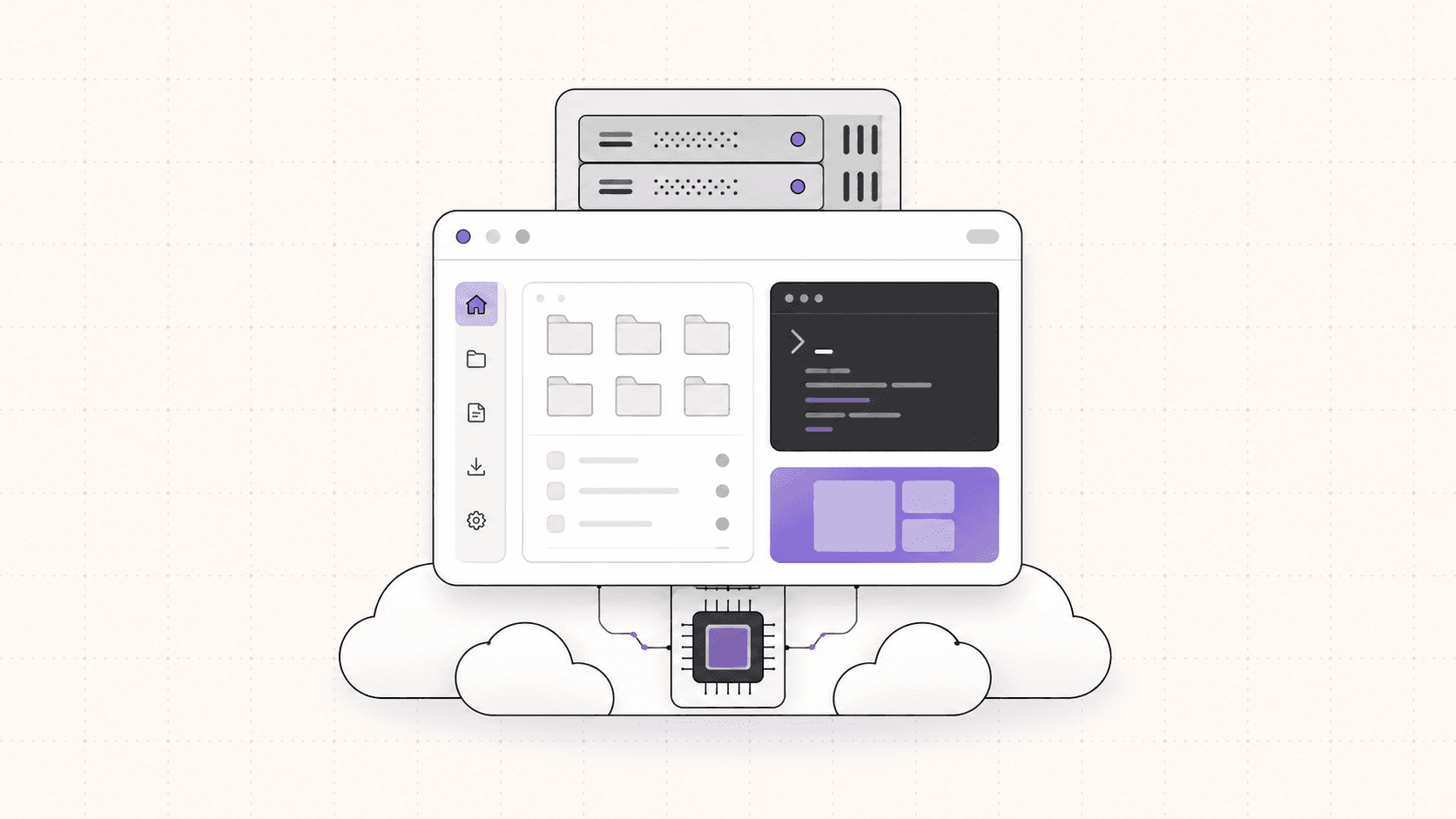
How to Get an Ubuntu Desktop in the Cloud (GPU Optional): The Complete 2026 Guide
How to Get an Ubuntu Desktop in the Cloud (GPU Optional): The Complete 2026 Guide
How to Get an Ubuntu Desktop in the Cloud (GPU Optional): The Complete 2026 Guide
Table of Contents
Quick answer: A cloud Ubuntu desktop is a full Ubuntu GNOME desktop that runs on hardware in a data center and streams to your browser, iPad, Mac, or Chromebook. On a service like Vagon it boots in about 90 seconds, gives you an optional NVIDIA GPU, and bills by the minute, so you launch it when you need real Linux, work, and shut it down when you're done. It is ideal for GPU bursts and graphical Linux work, and a poor fit for parking an always-on server, where a cheap VPS wins.
Key takeaways
A cloud Ubuntu desktop is a real graphical desktop, not a headless server or a browser code editor.
It boots in roughly 90 seconds and streams at up to 4K and 60 frames per second to almost any device.
You can add an NVIDIA GPU (T4 or A10G and up) for rendering, machine learning, and CUDA work, with drivers already configured.
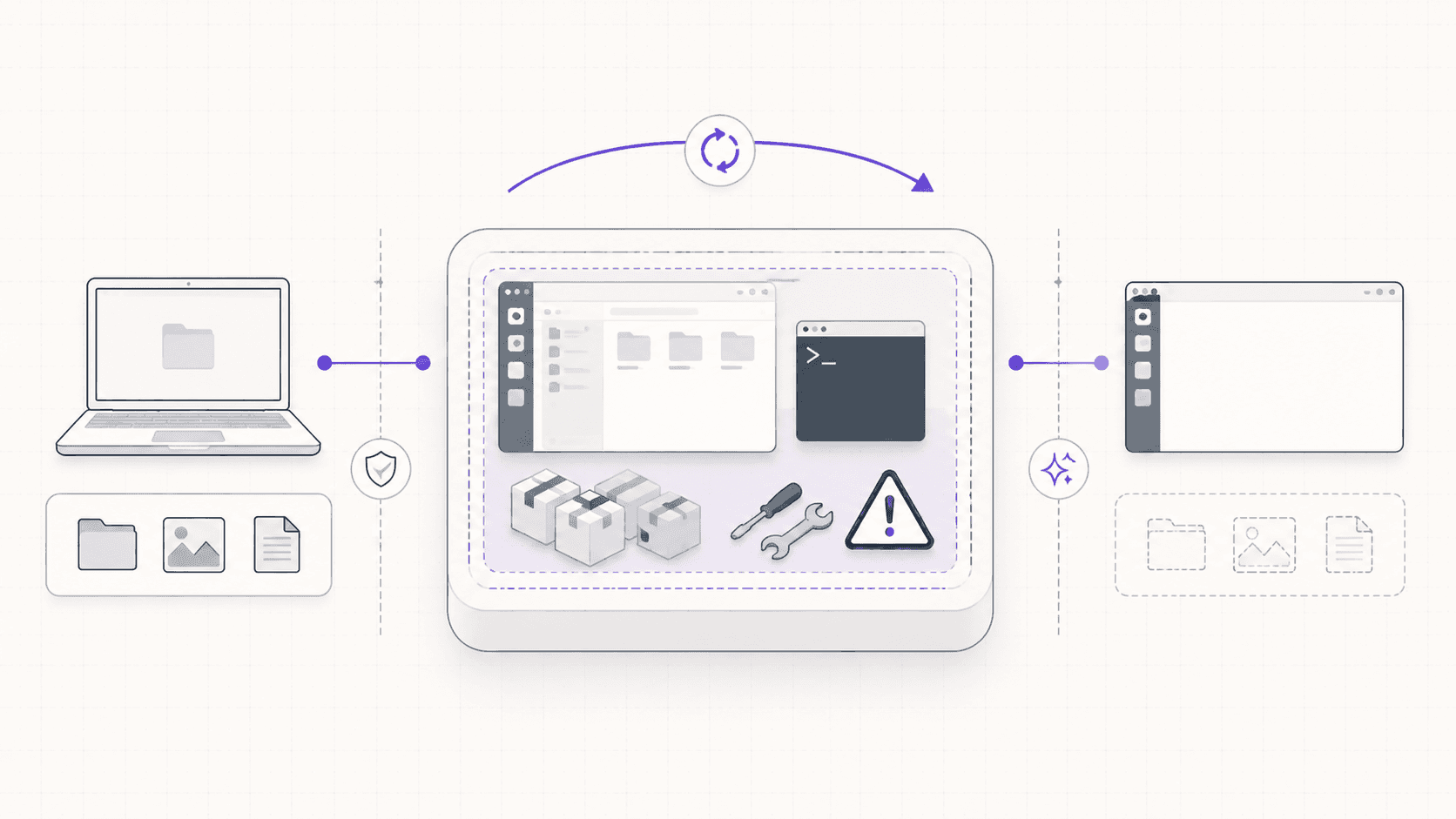
Every machine is an isolated virtual machine you can reset to a clean image, which contains the blast radius of anything risky.
It is billed by the minute at workstation rates, so it is built for bursts and sessions, not for running a server 24 hours a day.
If you only need an always-on lightweight server, a cheap VPS is a better deal, and this guide says so plainly.
For years, keeping a "real" Linux machine around meant one of two compromises. Either you kept an old laptop in a drawer that you dual-booted once a month, or you spun up a headless server, SSH'd in, and quietly pretended a terminal was a desktop. Both work. Neither is fun when what you actually want is to see something on a screen and click on it.
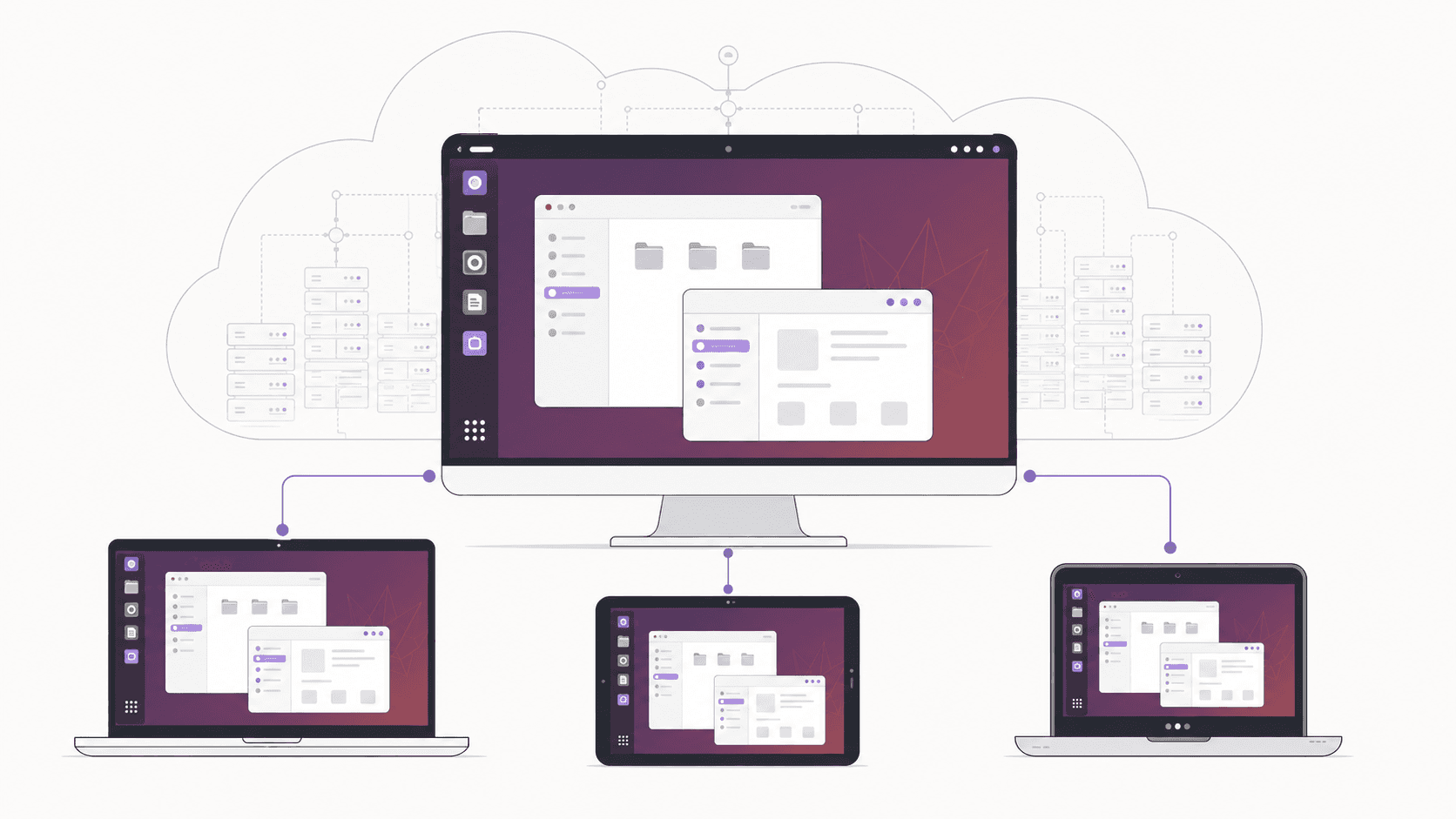
A cloud Ubuntu desktop changes that math. You get a full Ubuntu GNOME desktop running on real hardware in a data center, and it streams to whatever device you happen to be holding. Your browser, your iPad, your Mac, an old Chromebook that would choke on anything heavier than a browser tab. It boots in about 90 seconds, you do your work, and you shut it down when you're done.
This guide is the long version. What a cloud desktop actually is, how it compares to the alternatives, when it's worth it and when it genuinely isn't, exactly how to set one up, what it costs, and the mistakes that trip people up. Because a cloud desktop is a great tool for some jobs and a bad deal for others, and I'd rather you know the difference before you start paying by the minute.
What Is a Cloud Ubuntu Desktop?
Let's get the definition straight, because the phrase gets stretched a lot and the confusion costs people money.
A cloud Ubuntu desktop is a genuine graphical Linux desktop, running on a remote machine, that you view and control over the internet. On the far end sits a real computer in a data center, with a CPU, memory, storage, and often a GPU. It runs Ubuntu with the GNOME desktop environment, exactly like a laptop would. The difference is that the pixels are encoded and streamed to your device, and your keyboard, mouse, and touch inputs travel back the other way.
That is not the same as several things it often gets confused with.
It is not a container with a web-based code editor bolted on. You get a whole desktop, not just an editor.
It is not a headless GPU pod where you tunnel a port and squint at a notebook. You get a screen you can actually look at.
It is not a virtual private server that you have to configure a desktop on yourself. The desktop is already there and the streaming is already tuned.
Definition, in one line
A cloud Ubuntu desktop is a full Ubuntu GNOME desktop that runs on remote hardware, streams to your device in real time, and lets you install apps, open a browser, and use a GPU exactly as you would on a local Linux machine.
How the streaming works
The remote machine renders its screen and encodes it as a live video stream. On Vagon that stream can run up to 4K resolution at 60 frames per second, which is smooth enough that most of the time you forget the machine isn't physically in front of you. Your inputs, every click, keystroke, scroll, and tap, are sent back with low latency. The whole round trip depends far more on your internet connection than on the device you're holding, which is why a cheap Chromebook and a powerful workstation give you nearly the same experience.
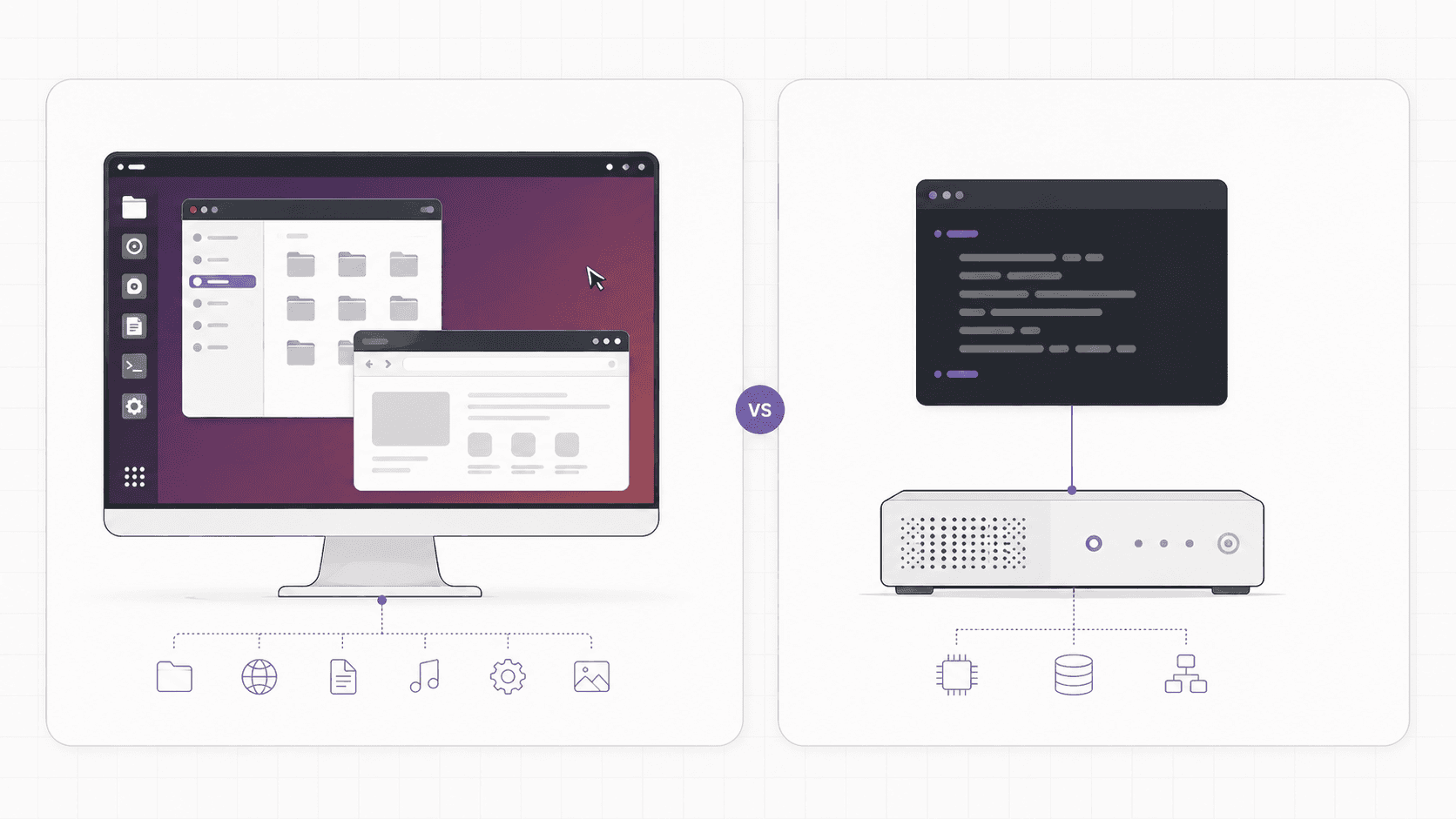
Why not just use a VPS with VNC or RDP?
You can. People have done it for two decades. You rent a cheap virtual private server, install a desktop environment, set up a VNC or RDP server, open the right ports, and connect.
Here's the catch the tutorial never mentions. You'll spend an afternoon on that setup, the streaming will feel like it's underwater on anything but a LAN, and the moment you want a GPU the whole plan collapses because most budget VPS plans don't offer one. A DIY VPS wins on raw monthly cost. It loses on setup time, streaming quality, GPU access, and the hour of your life you'll spend configuring an X server by hand. If your work touches a GPU at all, or you simply value your time, that trade stops being worth it.
If you’re testing private or open-source AI models, you can also learn how to run a local LLM on Ubuntu in the cloud.
Cloud Desktop vs. VPS, GPU Pods, and Codespaces
Because "computer in the cloud" describes a dozen different products, here's how the main options actually compare.
Option | What you get | GPU | Full desktop you can see | Setup effort | Best for |
|---|---|---|---|---|---|
Cloud Ubuntu desktop (Vagon) | Streamed Ubuntu GNOME desktop | Optional (T4 to A10G and up) | Yes | Minimal, ~90s boot | Graphical Linux work, GPU bursts, any-device access |
VPS + VNC/RDP | A server you add a desktop to | Rarely | Yes, after manual setup | High, DIY | Cheap always-on servers, tinkering |
Headless GPU pod | Raw compute, notebook or SSH | Yes | No | Medium | Cheapest raw training and inference |
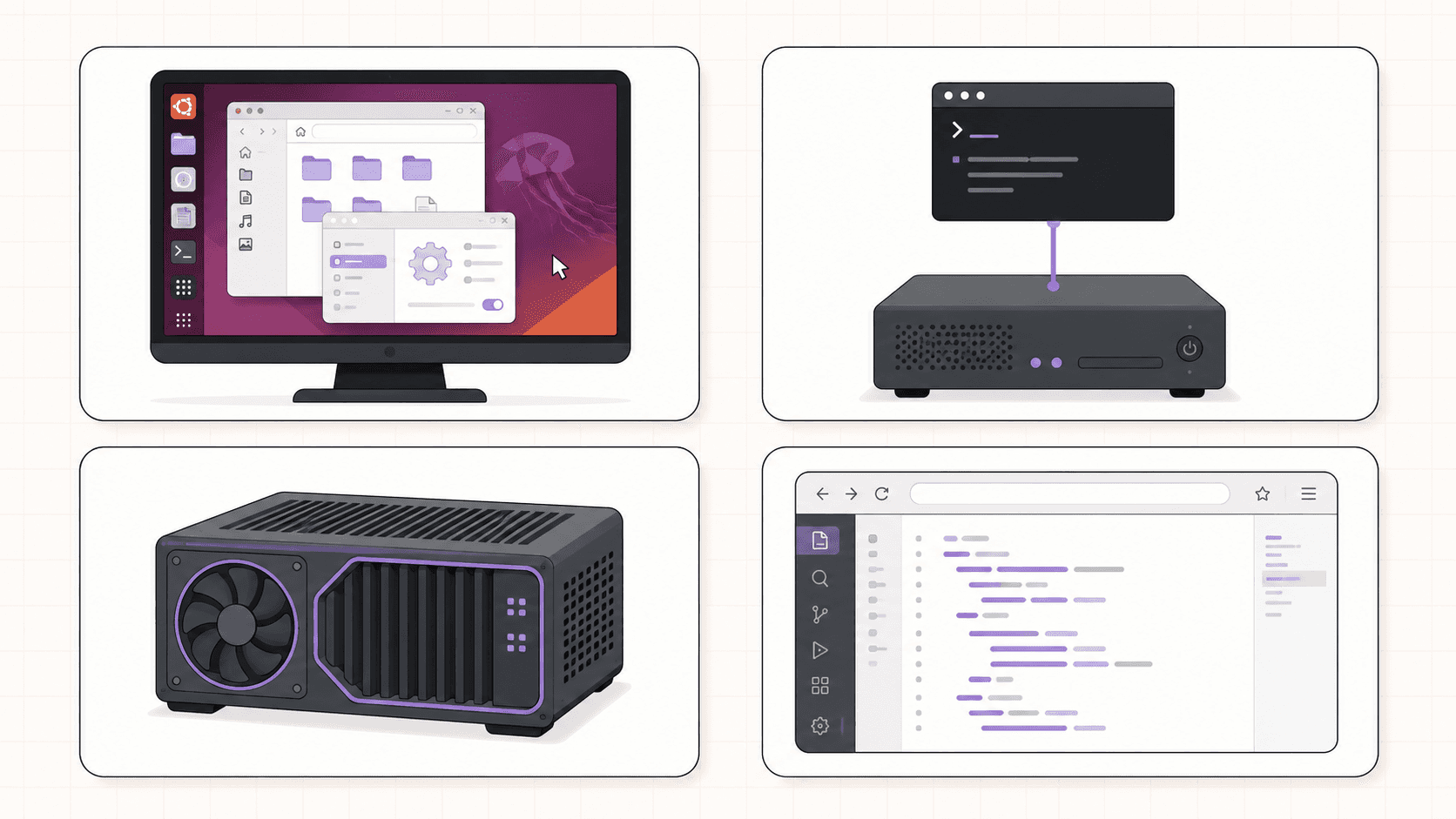
GitHub Codespaces | Browser VS Code on a repo | No | No, editor only | Low | Pure coding inside a repo |
Enterprise VDI | Managed virtual desktops | Limited | Yes | High, admin-heavy | Large managed corporate fleets |
The pattern is simple. If you want cheap raw compute and live in a terminal, a GPU pod wins. If you want the cheapest always-on box, a VPS wins. If you only write code in an editor, Codespaces wins. If you want a real Linux desktop you can see and drive, with an optional GPU, on any device, that's exactly the gap a cloud Ubuntu desktop fills.
When a Cloud Desktop Makes Sense
I want to be useful here, not just sell you on the idea. So here's where this genuinely shines, in order of how strong the case is.
You need a GPU sometimes, not always
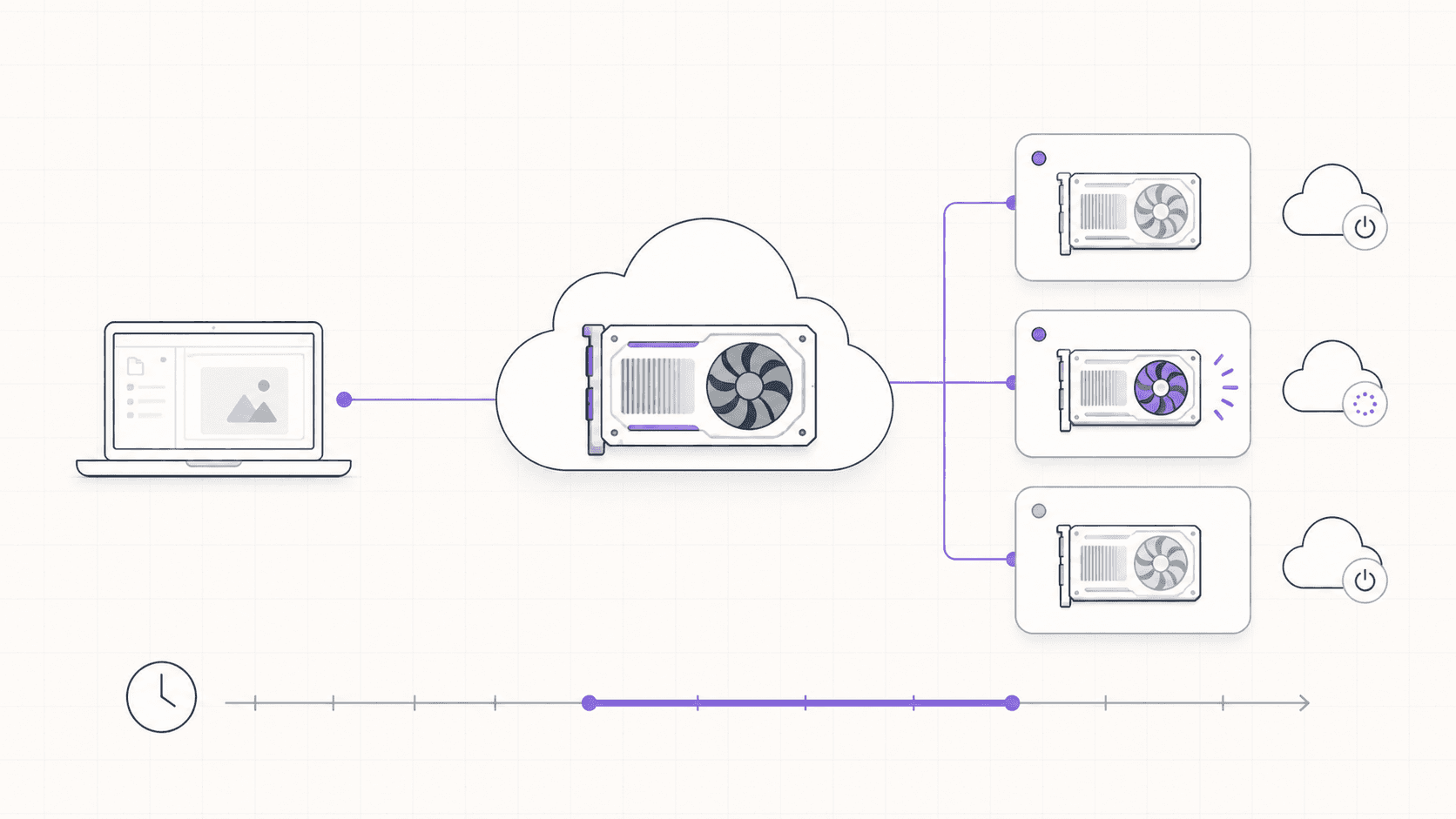
This is the biggest one. GPUs are expensive to own and mostly sit idle. If you fine-tune a model on Tuesday, render a scene on Thursday, and do nothing GPU-heavy the rest of the week, buying a workstation with a good NVIDIA card is a lot of money to have it nap six days out of seven.
A cloud desktop lets you rent an NVIDIA T4 or an A10G for the two hours you actually need it and pay for those two hours. You get CUDA already working, drivers already installed, and no dependency rabbit hole. When the job's done, you shut the machine off and the meter stops. For anyone whose GPU needs are spiky, this shape fits far better than owning hardware.
Your local machine can't run Linux comfortably
Maybe you're on a locked-down work laptop where you can't install another OS. Maybe you're on an Apple Silicon Mac and half the Linux tools you need don't play nicely with ARM emulation. Maybe you just don't want to repartition your drive and risk your main system. A cloud Ubuntu desktop gives you a clean, native x86 Linux environment without touching your actual computer. Nothing to dual-boot, nothing to break.
You want an isolated, disposable environment
Every Vagon computer runs as a separate virtual machine. That matters when you're about to run something you don't fully trust: a sketchy install script, an unfamiliar dependency, an AI agent that installs its own packages. If it makes a mess, the mess is contained to that machine, not your laptop, not your SSH keys, not your password manager. Reset the machine and it goes back to a clean image. That's a real safety net, and it's hard to reproduce on hardware you own without a lot of extra work.
You work from more than one device
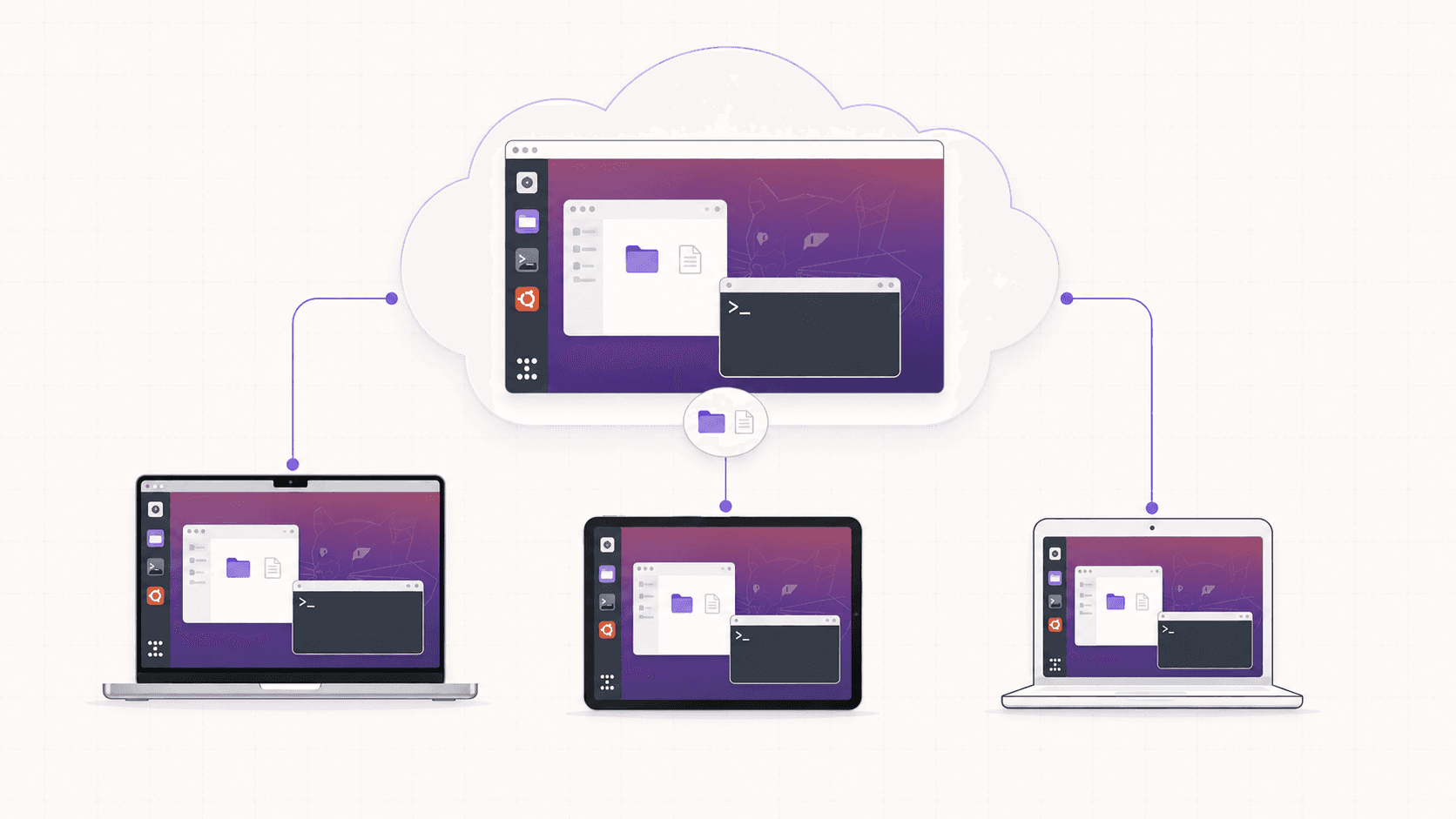
Because the desktop lives in the cloud, it follows you. Start a render on your Mac at the office, check on it from your iPad on the train, finish from a Chromebook at home. Same machine, same files, same open windows. Your work keeps running in the background even after you close the tab, which is something no local machine can do once you shut the lid.
You need more power than your hardware has, occasionally
Sometimes a single project needs far more machine than you own. A big render, a large dataset, a compile job that would take all night locally. Instead of upgrading your whole setup for one workload, you rent the power for the duration and give it back.
When a VPS Is the Better Choice
Now the part most guides skip, because it's the part that keeps this honest.
A cloud Ubuntu desktop is billed by the minute at workstation rates. That's fantastic for bursts and terrible for parking. If what you actually need is a small server that stays online 24 hours a day running a lightweight script, a Discord bot, a personal website, or a chat agent, a cloud desktop is the wrong tool. A five-dollar-a-month VPS from a budget host, a cheap Droplet, or an always-free tier from a big cloud provider will beat it badly on cost, and I'd rather tell you that now than watch you get a surprising bill at the end of the month.
The rule of thumb is easy to remember:
If you'd leave the machine on all month, rent a server.
If you'd turn it on for a few hours and off again, a cloud desktop is the better fit.
There's a second case to be honest about. If your work is genuinely just editing code in a repo and nothing else, a coding-focused environment like Codespaces is more purpose-built, and you'd be paying for a desktop you'd rarely look at. Match the tool to the shape of the work.
If you’re working from a tablet, you can learn how to run Ubuntu on an iPad and access a complete Linux desktop remotely.
How to Launch an Ubuntu Cloud Desktop
Here's the actual flow. It's shorter than you'd expect.
Step 1: Create an account
Sign up for Vagon and add a payment method. You're billed for usage, so nothing runs and nothing costs anything until you launch a machine.
Step 2: Choose Ubuntu and a plan
When you create a computer, choose Linux as the operating system. Then pick a plan based on what you're doing.
If you don't need a GPU, a smaller plan is cheaper and perfectly good for coding, writing, browsing, and general Linux work.
If you're rendering, training, or running CUDA, pick one of the GPU plans with a T4 or an A10G.
One nice detail on Linux specifically: the hourly rates are lower than the equivalent Windows machines, because there are no operating system licensing fees to pass on. When you're renting compute by the hour, that adds up.
Step 3: Wait about 90 seconds
The machine provisions and boots. This is the part that still feels a little magical. A full Linux workstation, optionally with a data-center GPU, ready in roughly a minute and a half.
Step 4: Connect from any device
Open it in your browser, or use the native Vagon app on iPad, Mac, or Android. You're now looking at a live Ubuntu desktop. Open a terminal, run sudo apt update, install what you need, and get to work.
Step 5: Confirm the GPU, if you picked one
If you launched a GPU plan, check that the card is live before you start:
You should see the GPU, its memory, and the driver version. Drivers and CUDA come preconfigured, so this just works instead of costing you an hour of driver wrangling.
Step 6: Add persistent storage so your work sticks around
By default you get a working machine. If you want your files, installed apps, and environment to survive between sessions, add persistent storage. On Vagon that's roughly five dollars per additional 50GB, up to 525GB, so you can keep a permanent home directory, your models, and your project files, and pick up exactly where you left off next time.
Step 7: Shut it down when you're done
The single most important habit. Stop the machine to stop the meter. Per-minute billing is only a gift if you actually stop the clock.

Pricing, Storage, and Cost Control
Cost is usually the real question, so let's put numbers to it.
Vagon bills by the minute based on the plan you choose. Plans without a GPU are the cheapest, and rates rise with more CPU, more memory, and GPU power. On top of the running cost there are two things to keep in mind:
Persistent storage, about five dollars per extra 50GB per month, up to 525GB, if you want your data to persist.
Outbound data transfer, where the first 10GB per month is included and additional transfer is roughly a dollar fifty per 10GB. For normal desktop work you'll never notice this. For pipelines that push large files off the machine, factor it in.
Here's the mental model that keeps costs sane:
Usage pattern | Good fit? | Why |
|---|---|---|
A few focused GPU sessions per week | Excellent | You pay only for active hours |
Occasional big render or training job | Excellent | Rent power for the job, then stop |
Daily few-hour work sessions | Good | Predictable, as long as you shut down |
Machine left running 24/7 | Poor | Workstation rates x 730 hours gets expensive; use a VPS |
Always check the current pricing page for exact per-hour rates by plan and region, since specifics change. But the principle doesn't: this is a burst tool, and the biggest lever on your bill is simply turning the machine off when you step away.
If you’re experimenting with private AI models, this guide walks through how to run Ollama in the cloud.
Practical Use Cases
To make it concrete, here are the kinds of people who get the most out of a cloud Ubuntu desktop.
Developers on a locked-down or non-Linux laptop who want a clean native Linux dev box without dual-booting.
Machine learning engineers who need a GPU for a training run or an experiment, then want it gone.
3D artists and video editors rendering in Blender or working in Linux-native creative tools, offloading heavy jobs so their own machine stays free.
Students who need Ubuntu for a course, a lab, or a project without reconfiguring their personal computer.
Self-hosting tinkerers and homelab folks who want a disposable, resettable environment to try things that might break.
Anyone traveling light who refuses to carry a workstation but occasionally needs the power of one, driven from an iPad or a thin laptop.
Common Mistakes to Avoid
A short list of the things that trip people up, so you can skip the lessons.
Leaving the machine running. The number one cost mistake. Build the habit of shutting down when you step away.
Skipping persistent storage, then losing your setup. If you'll use the machine repeatedly, add storage so you're not rebuilding your environment every session.
Using a cloud desktop as an always-on server. It's the wrong tool for 24/7 parking. Use a cheap VPS for that job.
Copying your real secrets onto a disposable machine. Use scoped, throwaway credentials for anything sensitive, especially if you plan to reset the machine.
Ignoring your connection quality. The experience lives and dies on your internet. Good Wi-Fi or a solid mobile connection makes it feel local; a congested network makes it feel laggy.
Tips for a Better Cloud Desktop
A few habits make the whole thing noticeably better.
#1. Script your setup
If you use a fresh machine each session, write a short setup.sh that installs your tools and pulls your repo. It turns a five-minute chore into a ten-second one. If you're on persistent storage, you only install once and skip this entirely.
#2. Watch egress on heavy jobs
Pixels streaming to your screen are cheap. But if your workflow pushes a lot of data off the machine, like uploading big model checkpoints or large renders to external storage, keep an eye on outbound transfer so it doesn't surprise you.
#3. Use the desktop, not just the terminal
The whole advantage over a headless server is that you can see things. Open a system monitor next to your work, run GUI apps, use a real browser, drag files around in the file manager. Lean into the part that a pod can't give you.
#4. Keep a clean base image in mind
Because you can reset to a clean image, you can treat risky experiments as disposable. Try the sketchy thing, and if it goes sideways, reset. That freedom is one of the real perks of not being on your own hardware.
If you’re building node-based image generation workflows, here’s how to run ComfyUI in the cloud with access to more powerful GPUs.
Internet Requirements
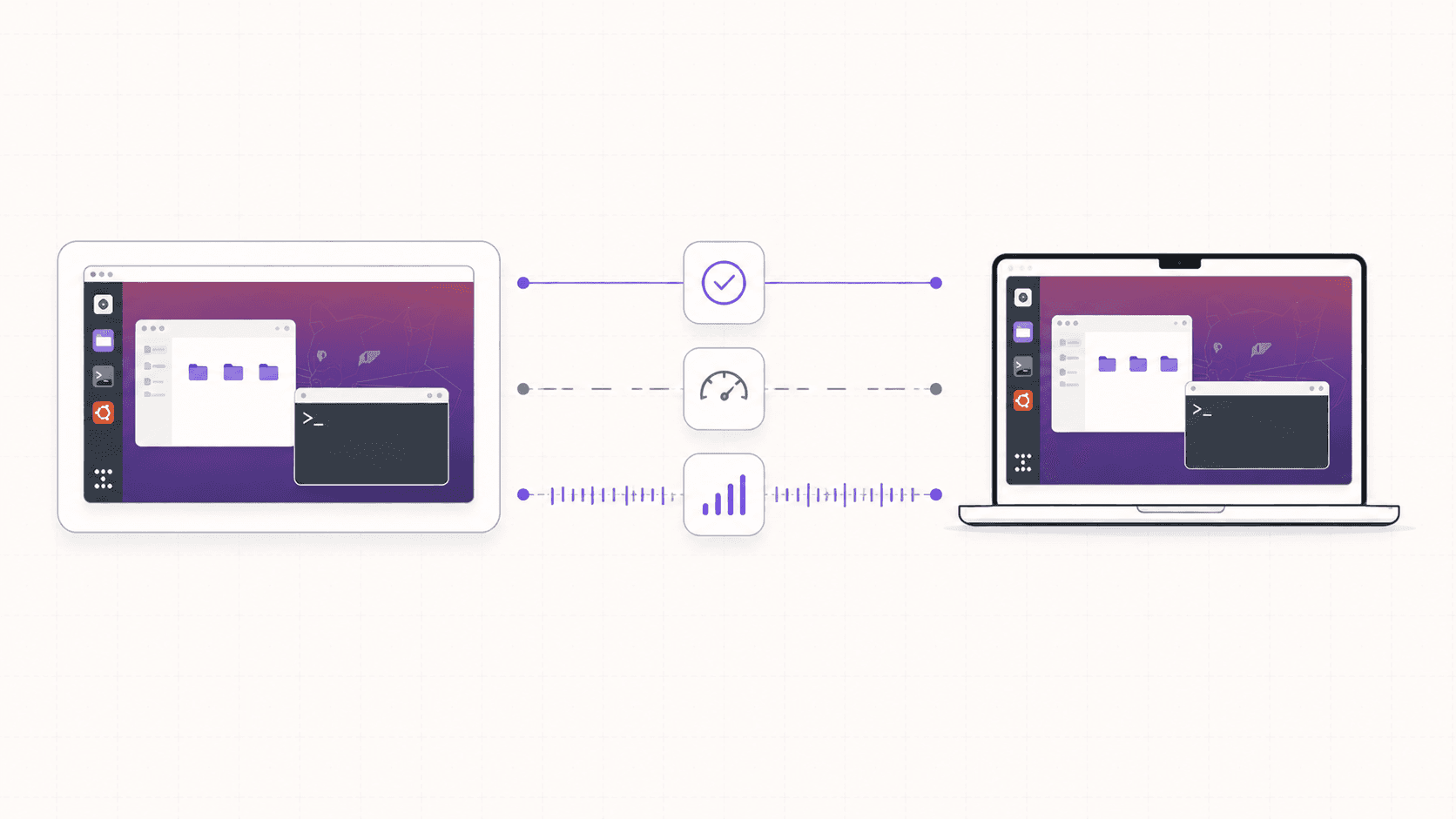
Since the experience is streamed, your connection matters more than your device. The good news is the bar is lower than people expect. If your connection comfortably handles video calls and streaming video, it comfortably handles a cloud desktop.
A few practical guidelines:
Bandwidth: A stable connection in the range of 15 to 25 Mbps is plenty for a smooth 1080p desktop. Higher resolutions and frame rates want more, but you rarely need a gigabit line.
Latency: This matters more than raw bandwidth. Low latency is what makes clicks feel instant. Wired Ethernet is ideal, strong Wi-Fi is great, and a solid 5G connection works well. A congested coffee-shop network is where you'll notice lag.
Stability: A consistent connection beats a fast-but-flaky one. Frequent packet loss shows up as stutter, even on a high-bandwidth line.
If your desktop ever feels laggy, the connection is almost always the culprit, not the remote machine. Lowering the stream resolution in the client is the quickest fix on a weak network, since it reduces how much data has to travel to you each second.
Moving Files In and Out
A real workflow means getting files onto the machine and results back off it. On a full desktop you have several natural options, so you can use whichever fits.
The browser and file manager. Because it's a real desktop with a real browser, you can download files from cloud storage, a repo release page, or a dataset host directly onto the machine, then drag them where you want them.
Git. For code and small assets, cloning a repository is often the cleanest path. Your work lives in version control, and pushing your results back off the machine is just a
git push.Command-line downloads.
wgetandcurlpull files straight into the right folder from the terminal, which is perfect for scripted setups.Cloud storage tools. Install a CLI for your object storage or sync service and move large datasets and outputs in bulk. Just keep an eye on outbound transfer for very large pushes off the machine.
The habit worth forming: if you're not on persistent storage, make sure anything you care about is saved off the machine before you shut it down, since a non-persistent machine resets to a clean image.
If you’re working on demanding 3D scenes or rendering projects, this guide explains how to run Blender on a cloud GPU with Ubuntu.
Included Software and Ubuntu Versions
A cloud Ubuntu desktop runs a current, stable Ubuntu release with the GNOME desktop, so everything you know from a normal Ubuntu install applies. You get apt for packages, support for Flatpak and Snap, and the ability to add third-party repositories or install .deb files directly.
Depending on the template you choose, a curated set of professional software can come preinstalled so you can skip the setup phase entirely. That library spans categories like:
Development and data: editors and IDEs such as VS Code, database tools, and data environments.
3D, CAD, and engineering: Blender, FreeCAD, KiCad, and similar.
Creative, video, and audio: Krita, GIMP, Inkscape, and video and audio tools.
Productivity and utilities: office suites, note-taking apps, and communication tools.
If your preferred tool isn't in the template, you install it the normal Linux way. The point is that a good chunk of the "set up my environment" work can be done for you before the machine even boots.
Security, Isolation, and Resetting
Isolation is one of the real advantages of a cloud desktop, so it's worth being precise about what it does and doesn't give you.
What isolation does. Every Vagon computer is a separate virtual machine, and the connection to it is encrypted. If you run something risky, an unfamiliar script, a dependency you're unsure about, an AI agent installing its own packages, the damage is contained to that one machine. It cannot reach your laptop, your local files, your SSH keys, or your password manager, because none of those are on it unless you put them there. If something goes wrong, you reset the machine to a clean image and start fresh.
What isolation does not do. It does not vet or scan the software you choose to install, and it does not protect you from your own decisions. If you copy a long-lived secret onto the machine and then run malicious code, that secret is exposed. The right posture is simple and worth repeating: treat unfamiliar software as untrusted, use scoped and disposable credentials for anything sensitive, and lean on the reset button when you're unsure. Isolation is a seatbelt, not a force field, and used well it's genuinely valuable.
The Bottom Line
If you want a full Ubuntu desktop with an optional GPU that boots in about 90 seconds, streams to any device, and shuts off when you're done, a cloud Ubuntu desktop is one of the most flexible tools you can add to your setup. It gives you real Linux without touching your own machine, a GPU when you need one and nothing when you don't, and an isolated environment you can reset at will.
Just remember the one rule that keeps it honest: it's built for bursts, not for parking a server online all month. Use it for the heavy sessions, the graphical work, and the GPU jobs, and turn it off when you're finished.
Want a full Linux desktop without touching your own machine? Create a Vagon account, pick Ubuntu, and you'll be looking at your own cloud Linux desktop in a minute and a half.
Frequently Asked Questions
Do I need to know Linux to use a cloud Ubuntu desktop?
It helps, but the desktop is friendly. GNOME behaves a lot like any modern desktop, and you can do plenty through the graphical interface without touching a terminal. That said, this tool is aimed at people who want a real Linux box, so a little comfort with the command line goes a long way.
Can I run graphical apps, or just the terminal?
Full graphical apps. Blender, GIMP, VS Code, a web browser, Jupyter's interface, database GUIs, media tools, whatever you'd run on a local Ubuntu machine. Running real GUI software is the entire point of a desktop over a headless server.
Is my data safe on a machine I don't own?
Each computer is an isolated virtual machine and the connection is encrypted, which contains the blast radius of anything risky you run to that single machine. What isolation does not do is vet the software you install or protect you from your own mistakes. Use throwaway, scoped credentials for anything sensitive, and don't copy your main secrets onto a machine you plan to reset.
How is this different from GitHub Codespaces or a GPU pod?
Codespaces gives you a browser-based code editor with no desktop and no GPU. A GPU pod gives you raw compute and usually a notebook tab, but no real desktop you can see and drive. A cloud Ubuntu desktop gives you both: a graphical environment and, when you want it, a GPU underneath.
How fast does a cloud Ubuntu desktop boot?
On Vagon, about 90 seconds from launching the machine to a usable desktop. There's no long provisioning wait, which is part of what makes the burst workflow practical.
Can I use a cloud Ubuntu desktop on an iPad or Chromebook?
Yes. Because the desktop is streamed, the device you connect from doesn't need to be powerful. An iPad, a Chromebook, or an old laptop all work well, as long as your internet connection is decent.
Will my files persist between sessions?
Only if you add persistent storage. With it, your home directory, installed apps, and projects wait for you next session. Without it, treat each session as a fresh machine and script your setup or bring your files along.
Is a cloud Ubuntu desktop cheaper than buying a PC?
For occasional or bursty use, usually yes, because you avoid a large upfront hardware cost and only pay for the hours you use. For constant, all-day-every-day use, owning hardware or renting a dedicated monthly server can be cheaper. It comes down to how often you actually need the machine.
Can I run a GPU workload like machine learning or rendering?
Yes, on the GPU plans. You get an NVIDIA T4, A10G, or higher with CUDA and drivers already configured, which is exactly the kind of workload a laptop or a thin client could never handle on its own.
Does it work offline?
No. It's a streamed desktop, so it needs an internet connection. If you need Linux fully offline, this isn't the tool. For anywhere with a reasonable connection, it works well.
Quick answer: A cloud Ubuntu desktop is a full Ubuntu GNOME desktop that runs on hardware in a data center and streams to your browser, iPad, Mac, or Chromebook. On a service like Vagon it boots in about 90 seconds, gives you an optional NVIDIA GPU, and bills by the minute, so you launch it when you need real Linux, work, and shut it down when you're done. It is ideal for GPU bursts and graphical Linux work, and a poor fit for parking an always-on server, where a cheap VPS wins.
Key takeaways
A cloud Ubuntu desktop is a real graphical desktop, not a headless server or a browser code editor.
It boots in roughly 90 seconds and streams at up to 4K and 60 frames per second to almost any device.
You can add an NVIDIA GPU (T4 or A10G and up) for rendering, machine learning, and CUDA work, with drivers already configured.
Every machine is an isolated virtual machine you can reset to a clean image, which contains the blast radius of anything risky.
It is billed by the minute at workstation rates, so it is built for bursts and sessions, not for running a server 24 hours a day.
If you only need an always-on lightweight server, a cheap VPS is a better deal, and this guide says so plainly.
For years, keeping a "real" Linux machine around meant one of two compromises. Either you kept an old laptop in a drawer that you dual-booted once a month, or you spun up a headless server, SSH'd in, and quietly pretended a terminal was a desktop. Both work. Neither is fun when what you actually want is to see something on a screen and click on it.
A cloud Ubuntu desktop changes that math. You get a full Ubuntu GNOME desktop running on real hardware in a data center, and it streams to whatever device you happen to be holding. Your browser, your iPad, your Mac, an old Chromebook that would choke on anything heavier than a browser tab. It boots in about 90 seconds, you do your work, and you shut it down when you're done.
This guide is the long version. What a cloud desktop actually is, how it compares to the alternatives, when it's worth it and when it genuinely isn't, exactly how to set one up, what it costs, and the mistakes that trip people up. Because a cloud desktop is a great tool for some jobs and a bad deal for others, and I'd rather you know the difference before you start paying by the minute.
What Is a Cloud Ubuntu Desktop?
Let's get the definition straight, because the phrase gets stretched a lot and the confusion costs people money.
A cloud Ubuntu desktop is a genuine graphical Linux desktop, running on a remote machine, that you view and control over the internet. On the far end sits a real computer in a data center, with a CPU, memory, storage, and often a GPU. It runs Ubuntu with the GNOME desktop environment, exactly like a laptop would. The difference is that the pixels are encoded and streamed to your device, and your keyboard, mouse, and touch inputs travel back the other way.
That is not the same as several things it often gets confused with.
It is not a container with a web-based code editor bolted on. You get a whole desktop, not just an editor.
It is not a headless GPU pod where you tunnel a port and squint at a notebook. You get a screen you can actually look at.
It is not a virtual private server that you have to configure a desktop on yourself. The desktop is already there and the streaming is already tuned.
Definition, in one line
A cloud Ubuntu desktop is a full Ubuntu GNOME desktop that runs on remote hardware, streams to your device in real time, and lets you install apps, open a browser, and use a GPU exactly as you would on a local Linux machine.
How the streaming works
The remote machine renders its screen and encodes it as a live video stream. On Vagon that stream can run up to 4K resolution at 60 frames per second, which is smooth enough that most of the time you forget the machine isn't physically in front of you. Your inputs, every click, keystroke, scroll, and tap, are sent back with low latency. The whole round trip depends far more on your internet connection than on the device you're holding, which is why a cheap Chromebook and a powerful workstation give you nearly the same experience.
Why not just use a VPS with VNC or RDP?
You can. People have done it for two decades. You rent a cheap virtual private server, install a desktop environment, set up a VNC or RDP server, open the right ports, and connect.
Here's the catch the tutorial never mentions. You'll spend an afternoon on that setup, the streaming will feel like it's underwater on anything but a LAN, and the moment you want a GPU the whole plan collapses because most budget VPS plans don't offer one. A DIY VPS wins on raw monthly cost. It loses on setup time, streaming quality, GPU access, and the hour of your life you'll spend configuring an X server by hand. If your work touches a GPU at all, or you simply value your time, that trade stops being worth it.
If you’re testing private or open-source AI models, you can also learn how to run a local LLM on Ubuntu in the cloud.
Cloud Desktop vs. VPS, GPU Pods, and Codespaces
Because "computer in the cloud" describes a dozen different products, here's how the main options actually compare.
Option | What you get | GPU | Full desktop you can see | Setup effort | Best for |
|---|---|---|---|---|---|
Cloud Ubuntu desktop (Vagon) | Streamed Ubuntu GNOME desktop | Optional (T4 to A10G and up) | Yes | Minimal, ~90s boot | Graphical Linux work, GPU bursts, any-device access |
VPS + VNC/RDP | A server you add a desktop to | Rarely | Yes, after manual setup | High, DIY | Cheap always-on servers, tinkering |
Headless GPU pod | Raw compute, notebook or SSH | Yes | No | Medium | Cheapest raw training and inference |
GitHub Codespaces | Browser VS Code on a repo | No | No, editor only | Low | Pure coding inside a repo |
Enterprise VDI | Managed virtual desktops | Limited | Yes | High, admin-heavy | Large managed corporate fleets |
The pattern is simple. If you want cheap raw compute and live in a terminal, a GPU pod wins. If you want the cheapest always-on box, a VPS wins. If you only write code in an editor, Codespaces wins. If you want a real Linux desktop you can see and drive, with an optional GPU, on any device, that's exactly the gap a cloud Ubuntu desktop fills.
When a Cloud Desktop Makes Sense
I want to be useful here, not just sell you on the idea. So here's where this genuinely shines, in order of how strong the case is.
You need a GPU sometimes, not always
This is the biggest one. GPUs are expensive to own and mostly sit idle. If you fine-tune a model on Tuesday, render a scene on Thursday, and do nothing GPU-heavy the rest of the week, buying a workstation with a good NVIDIA card is a lot of money to have it nap six days out of seven.
A cloud desktop lets you rent an NVIDIA T4 or an A10G for the two hours you actually need it and pay for those two hours. You get CUDA already working, drivers already installed, and no dependency rabbit hole. When the job's done, you shut the machine off and the meter stops. For anyone whose GPU needs are spiky, this shape fits far better than owning hardware.
Your local machine can't run Linux comfortably
Maybe you're on a locked-down work laptop where you can't install another OS. Maybe you're on an Apple Silicon Mac and half the Linux tools you need don't play nicely with ARM emulation. Maybe you just don't want to repartition your drive and risk your main system. A cloud Ubuntu desktop gives you a clean, native x86 Linux environment without touching your actual computer. Nothing to dual-boot, nothing to break.
You want an isolated, disposable environment
Every Vagon computer runs as a separate virtual machine. That matters when you're about to run something you don't fully trust: a sketchy install script, an unfamiliar dependency, an AI agent that installs its own packages. If it makes a mess, the mess is contained to that machine, not your laptop, not your SSH keys, not your password manager. Reset the machine and it goes back to a clean image. That's a real safety net, and it's hard to reproduce on hardware you own without a lot of extra work.
You work from more than one device
Because the desktop lives in the cloud, it follows you. Start a render on your Mac at the office, check on it from your iPad on the train, finish from a Chromebook at home. Same machine, same files, same open windows. Your work keeps running in the background even after you close the tab, which is something no local machine can do once you shut the lid.
You need more power than your hardware has, occasionally
Sometimes a single project needs far more machine than you own. A big render, a large dataset, a compile job that would take all night locally. Instead of upgrading your whole setup for one workload, you rent the power for the duration and give it back.
When a VPS Is the Better Choice
Now the part most guides skip, because it's the part that keeps this honest.
A cloud Ubuntu desktop is billed by the minute at workstation rates. That's fantastic for bursts and terrible for parking. If what you actually need is a small server that stays online 24 hours a day running a lightweight script, a Discord bot, a personal website, or a chat agent, a cloud desktop is the wrong tool. A five-dollar-a-month VPS from a budget host, a cheap Droplet, or an always-free tier from a big cloud provider will beat it badly on cost, and I'd rather tell you that now than watch you get a surprising bill at the end of the month.
The rule of thumb is easy to remember:
If you'd leave the machine on all month, rent a server.
If you'd turn it on for a few hours and off again, a cloud desktop is the better fit.
There's a second case to be honest about. If your work is genuinely just editing code in a repo and nothing else, a coding-focused environment like Codespaces is more purpose-built, and you'd be paying for a desktop you'd rarely look at. Match the tool to the shape of the work.
If you’re working from a tablet, you can learn how to run Ubuntu on an iPad and access a complete Linux desktop remotely.
How to Launch an Ubuntu Cloud Desktop
Here's the actual flow. It's shorter than you'd expect.
Step 1: Create an account
Sign up for Vagon and add a payment method. You're billed for usage, so nothing runs and nothing costs anything until you launch a machine.
Step 2: Choose Ubuntu and a plan
When you create a computer, choose Linux as the operating system. Then pick a plan based on what you're doing.
If you don't need a GPU, a smaller plan is cheaper and perfectly good for coding, writing, browsing, and general Linux work.
If you're rendering, training, or running CUDA, pick one of the GPU plans with a T4 or an A10G.
One nice detail on Linux specifically: the hourly rates are lower than the equivalent Windows machines, because there are no operating system licensing fees to pass on. When you're renting compute by the hour, that adds up.
Step 3: Wait about 90 seconds
The machine provisions and boots. This is the part that still feels a little magical. A full Linux workstation, optionally with a data-center GPU, ready in roughly a minute and a half.
Step 4: Connect from any device
Open it in your browser, or use the native Vagon app on iPad, Mac, or Android. You're now looking at a live Ubuntu desktop. Open a terminal, run sudo apt update, install what you need, and get to work.
Step 5: Confirm the GPU, if you picked one
If you launched a GPU plan, check that the card is live before you start:
You should see the GPU, its memory, and the driver version. Drivers and CUDA come preconfigured, so this just works instead of costing you an hour of driver wrangling.
Step 6: Add persistent storage so your work sticks around
By default you get a working machine. If you want your files, installed apps, and environment to survive between sessions, add persistent storage. On Vagon that's roughly five dollars per additional 50GB, up to 525GB, so you can keep a permanent home directory, your models, and your project files, and pick up exactly where you left off next time.
Step 7: Shut it down when you're done
The single most important habit. Stop the machine to stop the meter. Per-minute billing is only a gift if you actually stop the clock.
Pricing, Storage, and Cost Control
Cost is usually the real question, so let's put numbers to it.
Vagon bills by the minute based on the plan you choose. Plans without a GPU are the cheapest, and rates rise with more CPU, more memory, and GPU power. On top of the running cost there are two things to keep in mind:
Persistent storage, about five dollars per extra 50GB per month, up to 525GB, if you want your data to persist.
Outbound data transfer, where the first 10GB per month is included and additional transfer is roughly a dollar fifty per 10GB. For normal desktop work you'll never notice this. For pipelines that push large files off the machine, factor it in.
Here's the mental model that keeps costs sane:
Usage pattern | Good fit? | Why |
|---|---|---|
A few focused GPU sessions per week | Excellent | You pay only for active hours |
Occasional big render or training job | Excellent | Rent power for the job, then stop |
Daily few-hour work sessions | Good | Predictable, as long as you shut down |
Machine left running 24/7 | Poor | Workstation rates x 730 hours gets expensive; use a VPS |
Always check the current pricing page for exact per-hour rates by plan and region, since specifics change. But the principle doesn't: this is a burst tool, and the biggest lever on your bill is simply turning the machine off when you step away.
If you’re experimenting with private AI models, this guide walks through how to run Ollama in the cloud.
Practical Use Cases
To make it concrete, here are the kinds of people who get the most out of a cloud Ubuntu desktop.
Developers on a locked-down or non-Linux laptop who want a clean native Linux dev box without dual-booting.
Machine learning engineers who need a GPU for a training run or an experiment, then want it gone.
3D artists and video editors rendering in Blender or working in Linux-native creative tools, offloading heavy jobs so their own machine stays free.
Students who need Ubuntu for a course, a lab, or a project without reconfiguring their personal computer.
Self-hosting tinkerers and homelab folks who want a disposable, resettable environment to try things that might break.
Anyone traveling light who refuses to carry a workstation but occasionally needs the power of one, driven from an iPad or a thin laptop.
Common Mistakes to Avoid
A short list of the things that trip people up, so you can skip the lessons.
Leaving the machine running. The number one cost mistake. Build the habit of shutting down when you step away.
Skipping persistent storage, then losing your setup. If you'll use the machine repeatedly, add storage so you're not rebuilding your environment every session.
Using a cloud desktop as an always-on server. It's the wrong tool for 24/7 parking. Use a cheap VPS for that job.
Copying your real secrets onto a disposable machine. Use scoped, throwaway credentials for anything sensitive, especially if you plan to reset the machine.
Ignoring your connection quality. The experience lives and dies on your internet. Good Wi-Fi or a solid mobile connection makes it feel local; a congested network makes it feel laggy.
Tips for a Better Cloud Desktop
A few habits make the whole thing noticeably better.
#1. Script your setup
If you use a fresh machine each session, write a short setup.sh that installs your tools and pulls your repo. It turns a five-minute chore into a ten-second one. If you're on persistent storage, you only install once and skip this entirely.
#2. Watch egress on heavy jobs
Pixels streaming to your screen are cheap. But if your workflow pushes a lot of data off the machine, like uploading big model checkpoints or large renders to external storage, keep an eye on outbound transfer so it doesn't surprise you.
#3. Use the desktop, not just the terminal
The whole advantage over a headless server is that you can see things. Open a system monitor next to your work, run GUI apps, use a real browser, drag files around in the file manager. Lean into the part that a pod can't give you.
#4. Keep a clean base image in mind
Because you can reset to a clean image, you can treat risky experiments as disposable. Try the sketchy thing, and if it goes sideways, reset. That freedom is one of the real perks of not being on your own hardware.
If you’re building node-based image generation workflows, here’s how to run ComfyUI in the cloud with access to more powerful GPUs.
Internet Requirements
Since the experience is streamed, your connection matters more than your device. The good news is the bar is lower than people expect. If your connection comfortably handles video calls and streaming video, it comfortably handles a cloud desktop.
A few practical guidelines:
Bandwidth: A stable connection in the range of 15 to 25 Mbps is plenty for a smooth 1080p desktop. Higher resolutions and frame rates want more, but you rarely need a gigabit line.
Latency: This matters more than raw bandwidth. Low latency is what makes clicks feel instant. Wired Ethernet is ideal, strong Wi-Fi is great, and a solid 5G connection works well. A congested coffee-shop network is where you'll notice lag.
Stability: A consistent connection beats a fast-but-flaky one. Frequent packet loss shows up as stutter, even on a high-bandwidth line.
If your desktop ever feels laggy, the connection is almost always the culprit, not the remote machine. Lowering the stream resolution in the client is the quickest fix on a weak network, since it reduces how much data has to travel to you each second.
Moving Files In and Out
A real workflow means getting files onto the machine and results back off it. On a full desktop you have several natural options, so you can use whichever fits.
The browser and file manager. Because it's a real desktop with a real browser, you can download files from cloud storage, a repo release page, or a dataset host directly onto the machine, then drag them where you want them.
Git. For code and small assets, cloning a repository is often the cleanest path. Your work lives in version control, and pushing your results back off the machine is just a
git push.Command-line downloads.
wgetandcurlpull files straight into the right folder from the terminal, which is perfect for scripted setups.Cloud storage tools. Install a CLI for your object storage or sync service and move large datasets and outputs in bulk. Just keep an eye on outbound transfer for very large pushes off the machine.
The habit worth forming: if you're not on persistent storage, make sure anything you care about is saved off the machine before you shut it down, since a non-persistent machine resets to a clean image.
If you’re working on demanding 3D scenes or rendering projects, this guide explains how to run Blender on a cloud GPU with Ubuntu.
Included Software and Ubuntu Versions
A cloud Ubuntu desktop runs a current, stable Ubuntu release with the GNOME desktop, so everything you know from a normal Ubuntu install applies. You get apt for packages, support for Flatpak and Snap, and the ability to add third-party repositories or install .deb files directly.
Depending on the template you choose, a curated set of professional software can come preinstalled so you can skip the setup phase entirely. That library spans categories like:
Development and data: editors and IDEs such as VS Code, database tools, and data environments.
3D, CAD, and engineering: Blender, FreeCAD, KiCad, and similar.
Creative, video, and audio: Krita, GIMP, Inkscape, and video and audio tools.
Productivity and utilities: office suites, note-taking apps, and communication tools.
If your preferred tool isn't in the template, you install it the normal Linux way. The point is that a good chunk of the "set up my environment" work can be done for you before the machine even boots.
Security, Isolation, and Resetting
Isolation is one of the real advantages of a cloud desktop, so it's worth being precise about what it does and doesn't give you.
What isolation does. Every Vagon computer is a separate virtual machine, and the connection to it is encrypted. If you run something risky, an unfamiliar script, a dependency you're unsure about, an AI agent installing its own packages, the damage is contained to that one machine. It cannot reach your laptop, your local files, your SSH keys, or your password manager, because none of those are on it unless you put them there. If something goes wrong, you reset the machine to a clean image and start fresh.
What isolation does not do. It does not vet or scan the software you choose to install, and it does not protect you from your own decisions. If you copy a long-lived secret onto the machine and then run malicious code, that secret is exposed. The right posture is simple and worth repeating: treat unfamiliar software as untrusted, use scoped and disposable credentials for anything sensitive, and lean on the reset button when you're unsure. Isolation is a seatbelt, not a force field, and used well it's genuinely valuable.
The Bottom Line
If you want a full Ubuntu desktop with an optional GPU that boots in about 90 seconds, streams to any device, and shuts off when you're done, a cloud Ubuntu desktop is one of the most flexible tools you can add to your setup. It gives you real Linux without touching your own machine, a GPU when you need one and nothing when you don't, and an isolated environment you can reset at will.
Just remember the one rule that keeps it honest: it's built for bursts, not for parking a server online all month. Use it for the heavy sessions, the graphical work, and the GPU jobs, and turn it off when you're finished.
Want a full Linux desktop without touching your own machine? Create a Vagon account, pick Ubuntu, and you'll be looking at your own cloud Linux desktop in a minute and a half.
Frequently Asked Questions
Do I need to know Linux to use a cloud Ubuntu desktop?
It helps, but the desktop is friendly. GNOME behaves a lot like any modern desktop, and you can do plenty through the graphical interface without touching a terminal. That said, this tool is aimed at people who want a real Linux box, so a little comfort with the command line goes a long way.
Can I run graphical apps, or just the terminal?
Full graphical apps. Blender, GIMP, VS Code, a web browser, Jupyter's interface, database GUIs, media tools, whatever you'd run on a local Ubuntu machine. Running real GUI software is the entire point of a desktop over a headless server.
Is my data safe on a machine I don't own?
Each computer is an isolated virtual machine and the connection is encrypted, which contains the blast radius of anything risky you run to that single machine. What isolation does not do is vet the software you install or protect you from your own mistakes. Use throwaway, scoped credentials for anything sensitive, and don't copy your main secrets onto a machine you plan to reset.
How is this different from GitHub Codespaces or a GPU pod?
Codespaces gives you a browser-based code editor with no desktop and no GPU. A GPU pod gives you raw compute and usually a notebook tab, but no real desktop you can see and drive. A cloud Ubuntu desktop gives you both: a graphical environment and, when you want it, a GPU underneath.
How fast does a cloud Ubuntu desktop boot?
On Vagon, about 90 seconds from launching the machine to a usable desktop. There's no long provisioning wait, which is part of what makes the burst workflow practical.
Can I use a cloud Ubuntu desktop on an iPad or Chromebook?
Yes. Because the desktop is streamed, the device you connect from doesn't need to be powerful. An iPad, a Chromebook, or an old laptop all work well, as long as your internet connection is decent.
Will my files persist between sessions?
Only if you add persistent storage. With it, your home directory, installed apps, and projects wait for you next session. Without it, treat each session as a fresh machine and script your setup or bring your files along.
Is a cloud Ubuntu desktop cheaper than buying a PC?
For occasional or bursty use, usually yes, because you avoid a large upfront hardware cost and only pay for the hours you use. For constant, all-day-every-day use, owning hardware or renting a dedicated monthly server can be cheaper. It comes down to how often you actually need the machine.
Can I run a GPU workload like machine learning or rendering?
Yes, on the GPU plans. You get an NVIDIA T4, A10G, or higher with CUDA and drivers already configured, which is exactly the kind of workload a laptop or a thin client could never handle on its own.
Does it work offline?
No. It's a streamed desktop, so it needs an internet connection. If you need Linux fully offline, this isn't the tool. For anywhere with a reasonable connection, it works well.
Get Beyond Your Computer Performance
Run applications on your cloud computer with the latest generation hardware. No more crashes or lags.

Trial includes 1 hour usage + 7 days of storage.
Summarize with AI

Ready to focus on your creativity?
Vagon gives you the ability to create & render projects, collaborate, and stream applications with the power of the best hardware.

Run heavy applications on any device with
your personal computer on the cloud.
San Francisco, California
Solutions
Vagon Teams
Vagon Streams
Use Cases
© 2026 Vagon. All rights reserved.
Run heavy applications on any device with
your personal computer on the cloud.
San Francisco, California
Solutions
Vagon Teams
Vagon Streams
Use Cases
© 2026 Vagon. All rights reserved.
Run heavy applications on any device with
your personal computer on the cloud.
San Francisco, California
Solutions
Vagon Teams
Vagon Streams
Use Cases
© 2026 Vagon. All rights reserved.