Instant Connection for Pixel Streaming
— New Feature Automated Setup
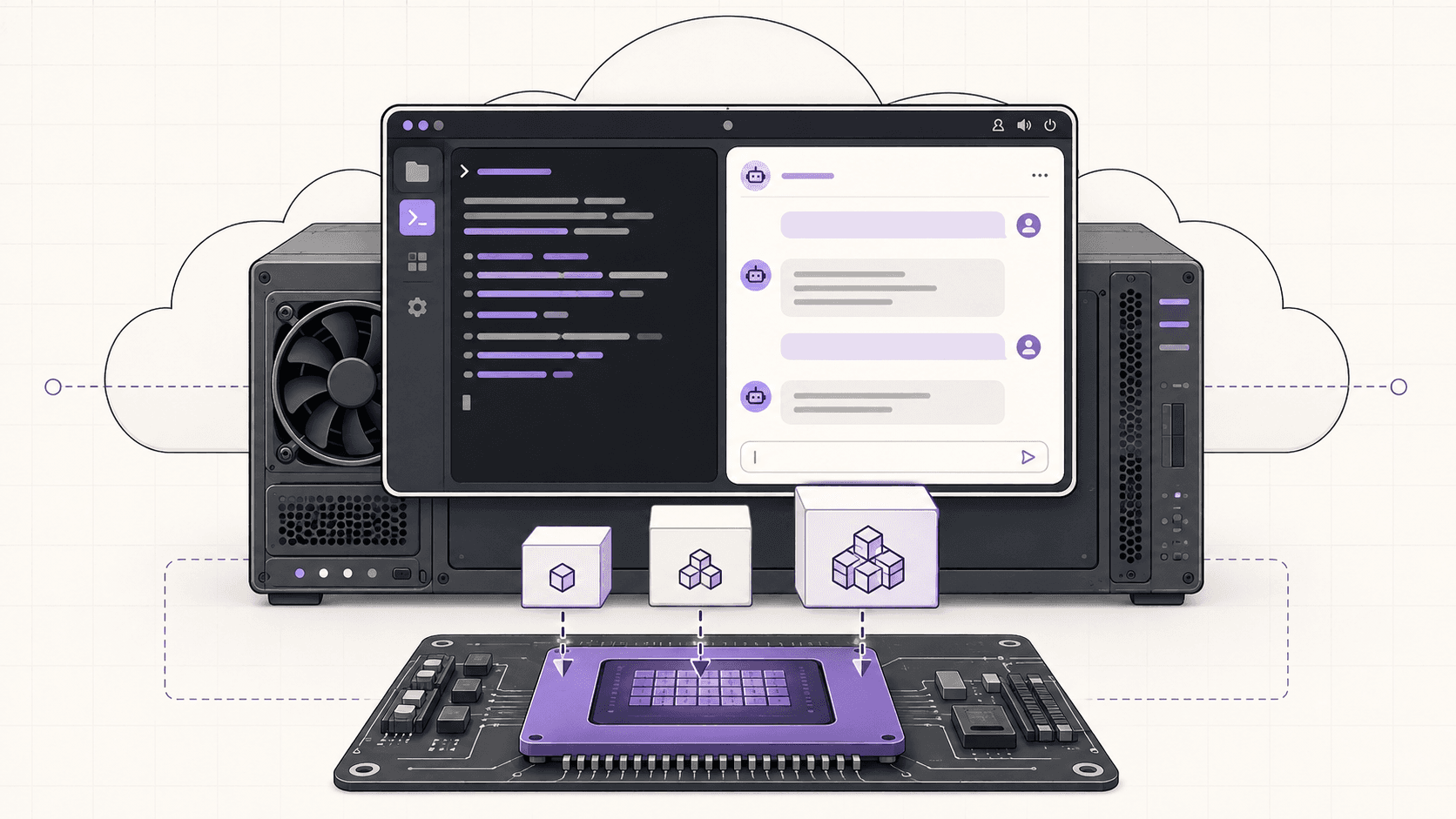
How to Run Ollama in the Cloud on a GPU Ubuntu Desktop (2026 Guide)
How to Run Ollama in the Cloud on a GPU Ubuntu Desktop (2026 Guide)
How to Run Ollama in the Cloud on a GPU Ubuntu Desktop (2026 Guide)
Table of Contents
Quick answer: To run Ollama in the cloud, launch a GPU Ubuntu desktop (for example on Vagon with an NVIDIA T4 or A10G), verify the GPU with nvidia-smi, install Ollama with its one-line script, then ollama run any model. Because the drivers and CUDA are preconfigured, large models that won't fit on a laptop run at full speed, and you pay only for the hours the machine is on.
Key takeaways
Ollama runs one command to install and lets you pull and run open LLMs locally, with your data staying on the machine.
A cloud GPU desktop lets you run models too big for a laptop, like 34B and 70B models, at usable speed.
Drivers and CUDA are preconfigured, so you skip the usual GPU setup pain entirely.
Persistent storage is strongly recommended, since model weights are large and you don't want to re-download them each session.
It's billed by the minute, so it's ideal for bursts of experimentation and a poor fit for an always-on inference endpoint, where a dedicated server or hosted API is cheaper.
You can run a web chat UI in front of Ollama because it's a real desktop, not a headless pod.
Ollama might be the most satisfying piece of software to install all year. You run one command, you pull a model, you type a prompt, and a large language model answers you from your own machine. No API keys, no per-token bill, no data leaving your computer. It feels like magic.
Right up until you try to run a model bigger than your laptop can handle. Then the magic stops, the fan spins up, and the tokens crawl out one every few seconds, because a 70-billion-parameter model does not fit on a laptop GPU with 8GB of memory.
That's the exact moment a cloud GPU Ubuntu desktop earns its keep. You get a real NVIDIA card, you run Ollama on it, and the big models actually move. This guide covers how to do that cleanly, how to pick the right model for your GPU, how to build against it, and, just as importantly, when you'd be better off with something else.
If you’re looking for a full Linux environment without setting up local hardware, this guide explains how to get an Ubuntu desktop in the cloud.
What Ollama is And Why People Self-Host It
Ollama is a tool for running open large language models locally. It packages models, handles the GPU acceleration, and gives you both a simple command-line interface and a local API. Instead of calling a hosted service, you pull a model like Llama, Mistral, Qwen, or Gemma and run it on your own hardware.
People self-host models with Ollama for a few concrete reasons:
Privacy. Prompts and outputs stay on a machine you control instead of going to a third-party API.
Cost shape. For heavy, bursty use, paying for a machine's time can beat paying per token.
Control. You choose the model, the version, and the quantization, and you can swap freely.
Offline-style independence. No rate limits, no provider outages, no policy surprises on your own box.
The catch is hardware. Small models run fine on a laptop. The good big models need a real GPU, and that's what the cloud provides.
Definition: what "running Ollama in the cloud" means
Running Ollama in the cloud means installing Ollama on a remote GPU machine, a cloud Ubuntu desktop, and running open LLMs there instead of on your local computer. You get the GPU horsepower to run large models, while keeping the self-hosted benefits of control and privacy.
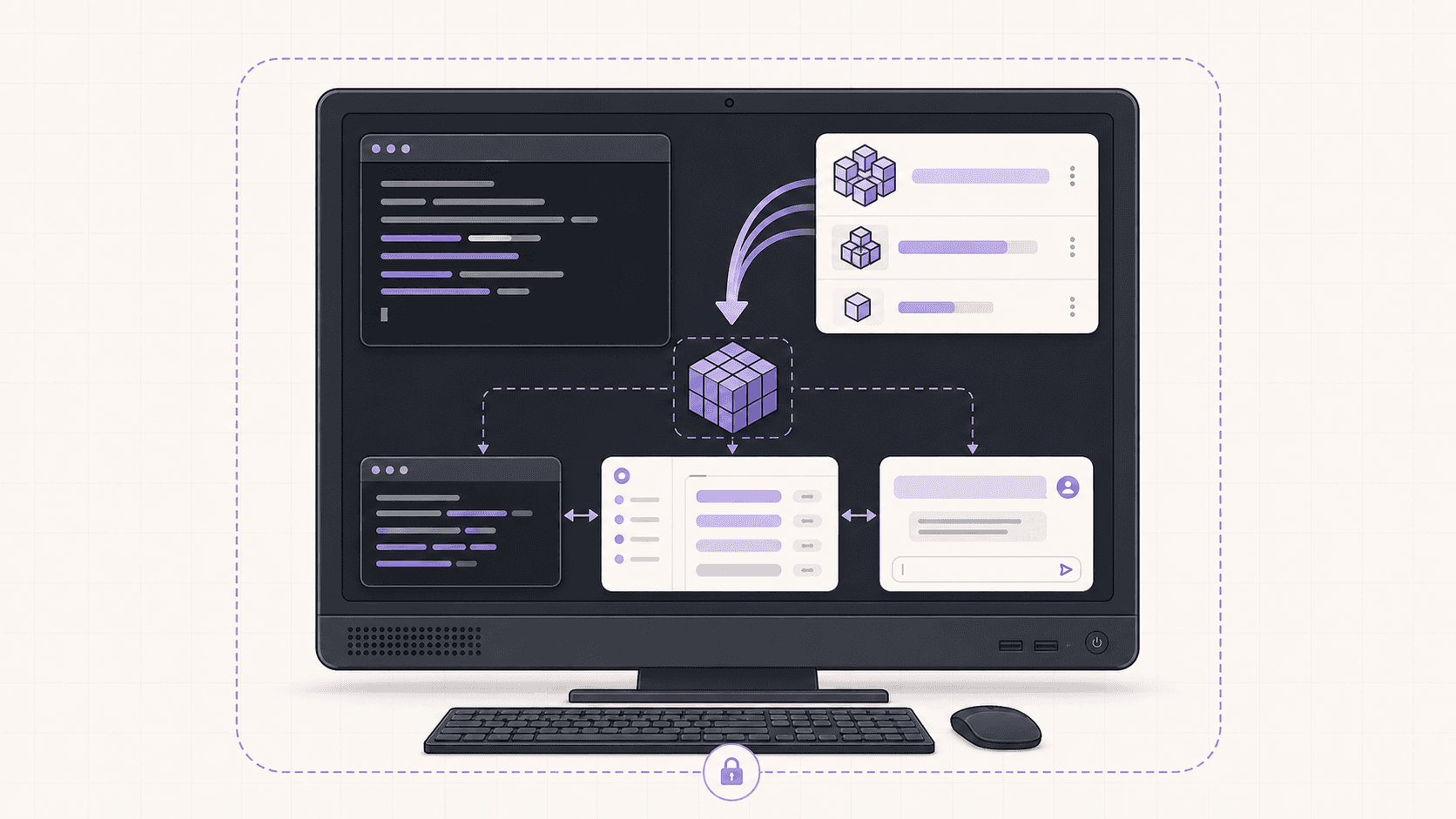
Why Run Ollama In The Cloud
Ollama runs great locally for small models, so let's be clear about exactly what the cloud buys you, because it isn't for everyone.
You want to run models that don't fit locally
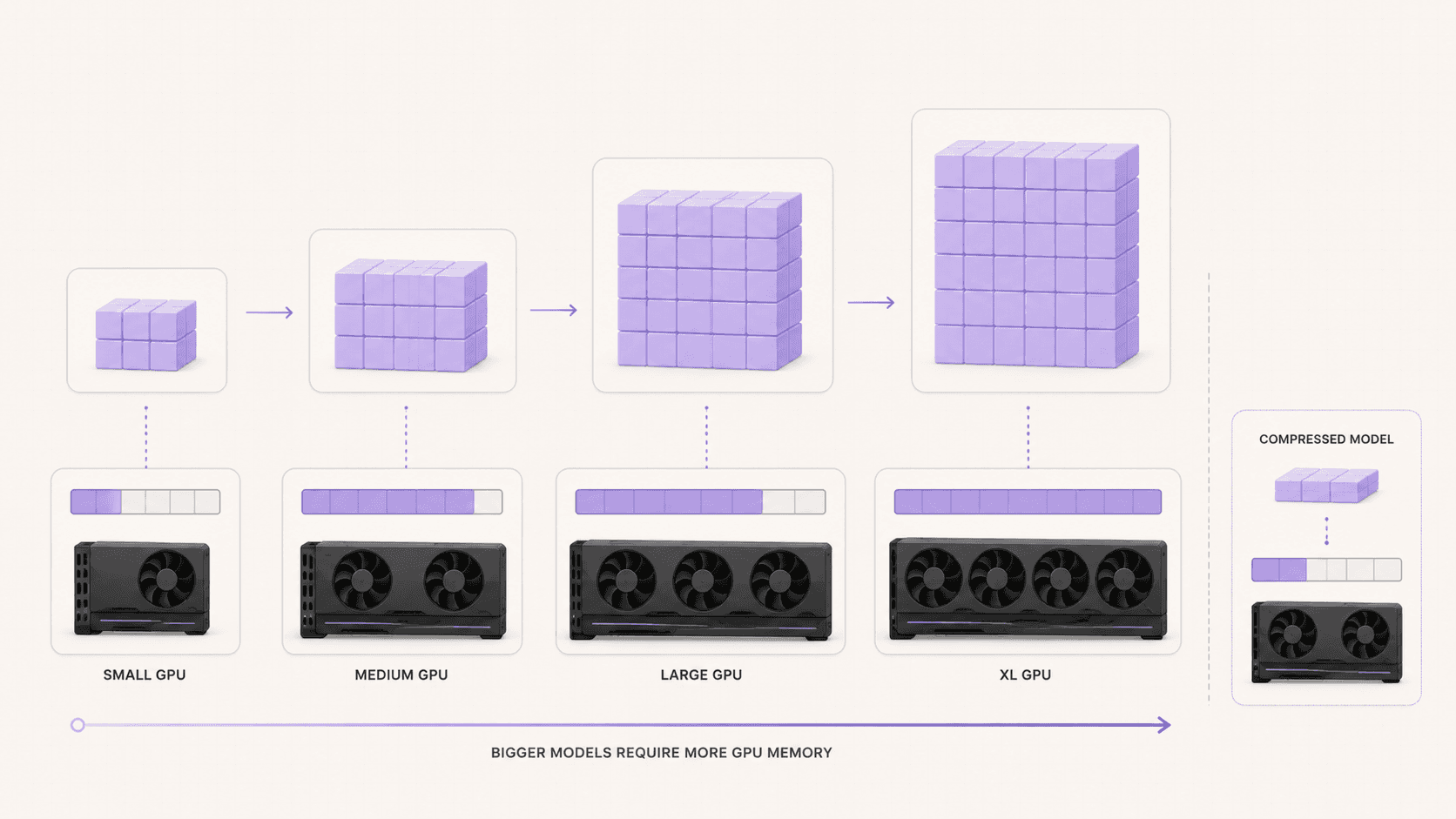
This is the main reason. A 7B or 8B model runs fine on a decent laptop. A 34B model needs more memory than most laptops have. A 70B model, or running several models at once, needs a serious GPU. A cloud desktop with an NVIDIA T4 or A10G gives you the VRAM and throughput to run those without buying a workstation.
You want speed without owning the hardware
Even for models that technically fit on your laptop, a proper data-center GPU generates tokens noticeably faster. If you're doing anything iterative, like testing prompts, running a batch of evaluations, or generating a lot of text, that speed difference compounds fast.
You want a clean, disposable environment
Every Vagon computer is an isolated VM. You can pull a model, experiment, make a mess of your Python environment, and reset the machine back to a clean image when you're done. Nothing touches your actual computer.
You want to keep the model and data private
Running Ollama yourself means the prompts and the model stay on a machine you control, not on a third-party inference API. For sensitive or proprietary work, that matters. Just use scoped, throwaway credentials for anything you connect it to, and remember the isolation protects the machine, not the choices you make on it.
You want to see it work
Because this is a real desktop, not a headless pod, you can open a system monitor, watch GPU memory fill as a model loads, and even run a friendly chat UI in a browser. That visibility is genuinely useful when you're figuring out what fits and how fast it runs.
When a cloud desktop is not the answer
I'd rather tell you this up front than have you feel misled later.
A cloud GPU desktop is billed by the minute at workstation rates. If your plan is to keep an Ollama server running 24 hours a day, seven days a week, so an app or a bot can hit it any time, a per-minute desktop is the wrong tool and the bill will sting. For a constantly-on inference endpoint, a dedicated GPU server rented monthly, or a hosted inference API, will be cheaper.
A cloud GPU desktop shines for bursts. You spin it up, run your big model for an afternoon of experimentation or a batch job, and shut it down. If your usage looks like "a few focused hours here and there," this is ideal. If it looks like "always on, forever," rent a server instead.
Here's the quick decision table:
Your usage | Best fit |
|---|---|
Bursty experimentation, a few hours at a time | Cloud GPU desktop |
Occasional big batch jobs | Cloud GPU desktop |
Always-on endpoint for an app | Dedicated monthly GPU server or hosted API |
High-volume production inference | Hosted API or dedicated infrastructure |
Small models that fit on your laptop | Just run it locally |
If you’re working from a tablet, you can learn how to run Ubuntu on an iPad and access a complete Linux desktop remotely.
What You'll Need
A Vagon account with a payment method.
A GPU plan, so a machine with an NVIDIA T4 or A10G. The A10G gives more headroom for larger models.
Persistent storage, strongly recommended, so downloaded model weights survive between sessions and you don't re-download several gigabytes each time.
Step 1: Launch a GPU Ubuntu machine
Create a computer on Vagon, choose Linux as the operating system, and pick a GPU plan. The T4 plan is a great starting point for mid-sized models. Step up to an A10G if you want more headroom for larger models or faster generation. Your machine boots in about 90 seconds.
Step 2: Confirm the GPU is visible
Open a terminal and check that the driver is live:
You should see your GPU, its memory, and driver version. This is one of the quiet luxuries of a cloud desktop. The drivers and CUDA are already set up, so you skip the part where you fight GPU drivers for an hour.
Step 3: Install Ollama
One command, straight from Ollama's official installer:
It sets up the Ollama service and detects your GPU automatically.
Step 4: Pull and run a model
Now the fun part. Pull a model and start chatting:
Want something bigger, now that you have the hardware for it?
The first pull downloads the model weights, which can be several gigabytes, so give it a minute. After that it's cached locally on the machine.
Step 5: Confirm it's using the GPU
While a model is loaded, check GPU memory usage:
You should see the Ollama process holding GPU memory. If a model is unexpectedly slow, this is the first thing to check, since a model that spilled to CPU will run far slower.
Matching Models To Your GPU
The question everyone asks is "will it fit." Here's a practical guide.
Model size | Rough VRAM need (quantized) | Comfortable on |
|---|---|---|
7B to 8B | ~5 to 8 GB | T4 and up |
13B | ~10 to 12 GB | T4 (tight) to A10G |
34B | ~20 to 24 GB | A10G |
70B | ~40 GB or more | Higher GPU plans |
Two things worth knowing:
Quantization matters. Models tagged with things like
q4use less memory by storing weights at lower precision. That lets you fit a bigger model on a smaller card, trading a little quality for the fit. For most uses, a good 4-bit quant is a great balance.Context length costs memory too. Very long context windows use additional VRAM. If you're pushing large prompts, leave headroom or step up a plan.
Start with a model comfortably inside your GPU's memory, confirm it's fast, then experiment with larger or higher-precision versions from there.
Running a Web UI In Front Of Ollama
The terminal is fine, but a real chat interface is nicer, and because this is a full desktop you can have one.
Several open web UIs put a clean chat window in front of Ollama's API. You install the UI, point it at the local Ollama endpoint, and open it in the machine's own browser. Now you have a proper chat experience, model switching, and conversation history, all running locally on your machine with nothing leaving it. This is something a headless pod can't give you as easily, and it makes Ollama far more pleasant for extended use.
Using The Ollama API To Build Things
Ollama exposes a local API, by default on port 11434, so you can build against it. A quick generation call:
Or a chat-style call:
curl http://localhost:11434/api/chat -d '{
  "model": "llama3.1:8b",
  "messages": [{"role": "user", "content": "Give me three project ideas."}]
curl http://localhost:11434/api/chat -d '{
  "model": "llama3.1:8b",
  "messages": [{"role": "user", "content": "Give me three project ideas."}]
From here you can point a local script, a notebook, or a small app running on the same machine at that endpoint. This is a great way to prototype an LLM-powered feature against a model you fully control, then decide later whether to keep self-hosting or move to a hosted API for production.
Keeping Your Models Between Sessions
By default, Ollama stores pulled models under your home directory. If you added persistent storage, those downloads survive between sessions and you won't re-download them next time. If you didn't, treat each session as fresh and re-pull what you need, or script it.
Given that model weights are often several gigabytes each, and you'll likely collect a few, persistent storage is the single biggest quality-of-life improvement for regular Ollama use. It also means your machine starts fast, since it isn't downloading gigabytes on boot.
Performance Tips
Keep the model on the GPU. Verify with
nvidia-smithat the model fits in VRAM. A model that overflows to system memory runs dramatically slower.Use an appropriate quantization. A 4-bit quant of a larger model often beats a full-precision smaller model in quality while fitting the same card.
Warm the model once. The first request after loading is slower while the model initializes. Subsequent requests are faster.
Batch your experiments. If you're evaluating prompts across a model, run them in one focused session rather than spinning the machine up and down repeatedly.
Watch it live. Keep
watch -n 1 nvidia-smiin a terminal to see memory and utilization as you work. It's the fastest way to understand your model's footprint.
If you’re building node-based image generation workflows, here’s how to run ComfyUI in the cloud with access to more powerful GPUs.
How Ollama Uses Your GPU, And Why It Matters
Understanding a little of what happens under the hood helps you make better choices about models and hardware.
When you run a model, Ollama loads its weights into memory and uses the GPU to do the heavy matrix math that turns your prompt into text. If the whole model fits in the GPU's video memory, every token is generated on the fast hardware, and you get the snappy, responsive experience people expect. If the model is too big for the VRAM, part of it spills into ordinary system memory, and the GPU has to keep reaching back to that slower memory. The result is a model that technically runs but crawls, sometimes by an order of magnitude.
This is why matching the model to the card matters so much, and why the cloud is such a clean solution. On a laptop with 8GB of VRAM, a 34B model simply can't fit, and no amount of patience fixes that. On an A10G with far more memory, the same model sits entirely on the GPU and generates text at a comfortable pace. You're not just renting "a faster computer," you're renting enough memory to keep the model on the fast path.
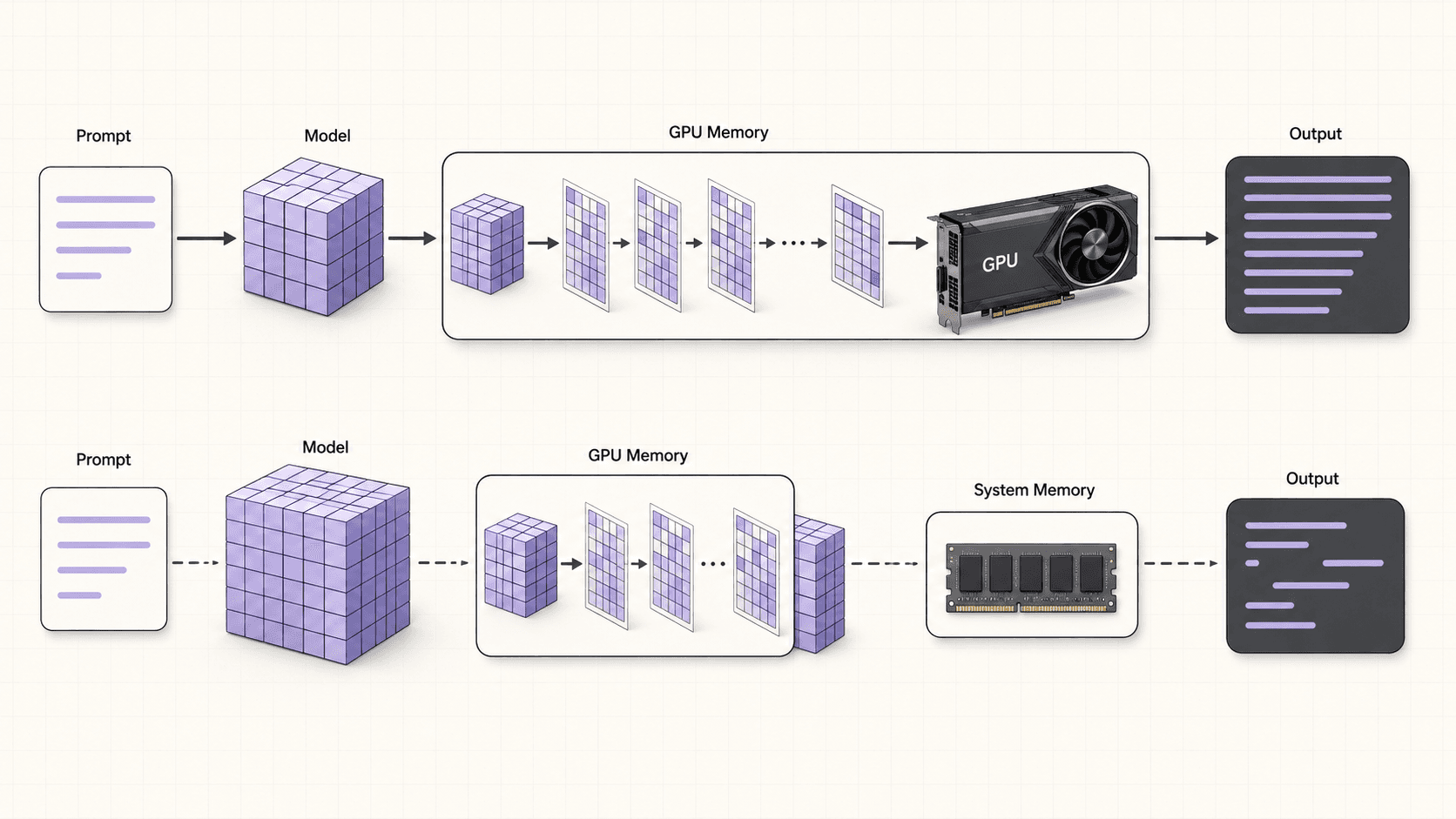
The practical upshot: pick a model and quantization that fits comfortably inside your GPU's memory with a little headroom for context, confirm with nvidia-smi that it's actually on the GPU, and you'll get the performance the hardware is capable of. When you want to jump to a bigger model, step up the plan rather than forcing a too-big model onto a small card.
Ollama vs Other Ways To Run Local Models
Ollama is the friendliest on-ramp, but it's not the only tool. Knowing the landscape helps you choose the right one for the job.
Ollama
The easiest path from zero to chatting. One install command, simple pull and run, automatic GPU handling, and a clean local API. It's the sensible default for most people, and it's what this guide uses. Great for experimentation, prototyping, and personal use.
text-generation-webui and similar
These give you a rich browser interface with lots of controls, model management, and features like chat characters and fine-tuning helpers. If you want a full graphical playground with many knobs, and you're on a real desktop where you can open the browser, these shine.
vLLM and dedicated inference servers
Built for throughput. If you're serving many concurrent requests or want the maximum tokens per second from your hardware, an inference server like vLLM is the right tool. It's more setup and more of a "deploy it and leave it" mindset, which fits a dedicated server better than a burst desktop.
LM Studio and desktop apps
Polished desktop applications for running local models with a friendly UI. Convenient for personal use, and they run happily on a cloud desktop too.
The honest guidance: start with Ollama because it's the least friction. Move to a web UI when you want a richer interface, or to a dedicated inference server when you're serving real traffic and performance is the priority.
Real-World Use Cases For a Cloud Ollama Setup
To make it concrete, here's who benefits from running Ollama on a cloud GPU rather than locally.
The developer prototyping an AI feature. You want to build against a capable model without wiring up billing and API keys, and you want your test data to stay private. Spin up a machine, run a strong open model, build your prototype, and shut it down.
The researcher comparing models. You want to run the same prompts through several models and judge the outputs. On a hosted API that adds up per token; on your own machine it's just session time, and you can pull as many models as your storage holds.
The privacy-conscious team. You're working with documents or code you can't send to a third-party service. A self-hosted model on an isolated machine keeps everything in your control.
The hobbyist with a modest laptop. Your laptop runs a 7B model but chokes on anything larger. A cloud GPU lets you experience the meaningfully better quality of a big model without buying a workstation you'd rarely use.
The batch-job runner. You have a pile of text to summarize, classify, or transform. Rent a GPU, run the batch overnight in a focused session, collect the results, and stop the machine.
Customizing Models With Modelfiles
One feature worth knowing about is Ollama's Modelfile, which lets you create your own customized version of a model. You start from a base model and layer on a system prompt, default parameters, and other tweaks, then save it as a named model you can run like any other.
This is handy when you want a model that always behaves a certain way, for example a coding assistant with a fixed system prompt and a lower temperature, or a summarizer tuned to your preferred style. On a cloud desktop, you build and test these customizations quickly, and with persistent storage your custom models stick around between sessions. It's a lightweight way to shape a model's behavior without full fine-tuning, and it pairs naturally with the experiment-and-iterate rhythm a burst GPU machine is built for.
If you’re working on demanding 3D scenes or rendering projects, this guide explains how to run Blender on a cloud GPU with Ubuntu.
Cost Breakdown
Your cost has three parts:
Machine time, billed by the minute based on the GPU plan you choose. This is the main cost and it stops the moment you shut down.
Persistent storage, a small monthly fee (about five dollars per 50GB) if you want models to persist. Given model sizes, this is usually worth it.
Outbound data transfer, where the first 10GB per month is included. Pulling models onto the machine and normal API use won't approach this; only heavy exports off the machine would.
The honest comparison: for bursty experimentation where you'd otherwise pay per token, running your own model in focused sessions can work out well, and your data stays private. For steady, always-on, high-volume traffic, a hosted API or a dedicated monthly server is usually cheaper. Match the tool to the shape of your usage, and shut the machine down when you're done.
Security And Safe Usage
Running your own model is empowering, and it also means you're responsible for what you connect it to. A few habits:
Use scoped, throwaway credentials for anything the model or your scripts touch. VM isolation contains a mess to that one machine, but it can't undo an API key you gave away.
Treat model-generated commands with suspicion. If you wire a model up to run shell commands or tools, sandbox it and review what it does before letting it act.
Don't expose the Ollama port to the open internet without protection. By default it listens locally, which is what you want. If you need remote access, use a secure tunnel rather than opening the port to everyone.
Reset the machine if anything feels off. Going back to a clean image is one action, and that's a genuine advantage of a disposable cloud VM over your own hardware.
Troubleshooting
#1. The model is very slow
Almost always, the model didn't fit in GPU memory and spilled to CPU. Check nvidia-smi, and switch to a smaller model or a more aggressive quantization.
#2. nvidia-smi shows no GPU
Make sure you launched a GPU plan, not a CPU-only one. On a GPU plan the drivers are preconfigured, so this should just work; if it doesn't, restart the machine.
#3. The pull is taking forever
Model weights are large. A slow pull is usually download speed. Once cached (and with persistent storage), you won't pull it again.
#4. Out of memory when loading a model
The model is too big for your card at that precision. Use a quantized version, choose a smaller model, or step up to an A10G or a higher GPU plan.
From Prototype To Production: What Comes Next
A cloud Ollama setup is a fantastic place to prototype, and it's worth thinking about where a project goes from there, because it affects how you use the machine.
In the early stage, you're exploring. Which model gives the best answers for your task? What system prompt works? How does a 13B model compare to a 34B one for your use case? This is exactly the kind of open-ended, bursty work a per-minute GPU desktop is built for. You experiment intensively for a few sessions, learn what you need, and you're not paying for idle time in between.
Once you know what you want, you face a fork. If your application needs a model available around the clock for real users, that's the point to move to always-on infrastructure, either a dedicated GPU server you rent monthly or a hosted API, both of which are cheaper than a per-minute desktop left running continuously. If instead your work stays bursty, running batch jobs, doing periodic analysis, or continuing to experiment, staying on the cloud desktop keeps making sense.
The key insight is that these aren't competing choices, they're stages. Use the cloud desktop for the phase it fits, the intensive hands-on experimentation where seeing the machine and iterating quickly matters most, and graduate specific workloads to always-on infrastructure when their usage pattern changes. Being honest with yourself about which stage you're in is the best way to keep costs sensible.
If you’re testing private or open-source AI models, you can also learn how to run a local LLM on Ubuntu in the cloud.
Scheduling And Automating Runs
Because it's a real Linux machine, you can automate Ollama the way you'd automate anything on Ubuntu. A shell script can start the machine's workload, pull a model if needed, run a batch of prompts through the API, write the results to a file, and finish. For repeatable jobs, wrapping your whole pipeline in a single script means a session is just "start the machine, run the script, collect the output, shut down."
This scripted approach pairs well with the burst model. Instead of babysitting an interactive session, you define the job once, run it in a focused window, and stop the machine when it completes. It also makes your work reproducible, since the script captures every step rather than relying on you remembering the commands.
So, Is It Worth It?
If your laptop can't keep up with the models you actually want to run, a cloud GPU Ubuntu desktop is one of the cleanest ways to run Ollama at full speed. You get a real NVIDIA card, drivers already working, a full desktop where you can watch the whole thing happen, and the freedom to run any open model you like. Add persistent storage so your models stick around, keep the honest rule in mind that this is a burst tool rather than an always-on host, and shut the machine down when you're finished.
Want to run a 70B model without buying a workstation? Create a Vagon account, launch a GPU Ubuntu machine, and you'll be pulling models in a couple of minutes.
Frequently Asked Questions
Can I run Ollama without a GPU?
Yes, Ollama runs on CPU, but generation is much slower, especially for larger models. The whole point of running it in the cloud is to get a real GPU for the models your laptop can't handle, so a GPU plan is the recommended path.
Do I need to install CUDA and GPU drivers myself?
No. That's one of the main reasons to use a cloud GPU desktop. The drivers and CUDA come already set up, so nvidia-smi just works and Ollama finds the GPU on its own.
Which model should I start with?
An 8B model like Llama 3.1 8B is a great starting point. It's fast, capable, and fits comfortably on a T4. Once you're comfortable, try a larger model to see the quality difference on hardware that can handle it.
Can I run a web UI instead of the terminal?
Yes. Because this is a full desktop, you can run a local chat interface and open it in the machine's own browser, giving you a proper chat window instead of the terminal. Everything stays on the machine.
Will my downloaded models still be there next time?
Only if you added persistent storage. Model weights are large, so if you plan to use Ollama regularly, persistent storage saves you from re-downloading gigabytes each session.
Is running Ollama in the cloud cheaper than a hosted API?
It depends entirely on usage. For heavy, bursty experimentation where you'd otherwise pay per token, running your own model for a focused session can work out well, and your data stays private. For steady, always-on, high-volume traffic, a hosted API or a dedicated monthly server is usually cheaper.
Can I use Ollama models with my own code?
Yes. Ollama exposes a local API on port 11434 that your scripts, notebooks, and apps can call. It's a clean way to prototype LLM features against a model you fully control.
How big a model can I run?
It depends on your GPU plan and the quantization. Roughly, 7B to 8B models run on a T4, 34B models want an A10G, and 70B models need a higher-VRAM plan. Quantized versions let you fit larger models on smaller cards.
How do I avoid a surprise bill?
Shut the machine down when you're done. Per-minute billing only helps if you stop the clock. Don't leave a GPU desktop idling overnight unless you meant to.
Is my data really private with self-hosted Ollama?
Your prompts and outputs stay on the isolated machine you're running rather than going to a third-party API, which is the privacy win. Just be mindful of what external services your own scripts call, since privacy is about the whole pipeline.
Quick answer: To run Ollama in the cloud, launch a GPU Ubuntu desktop (for example on Vagon with an NVIDIA T4 or A10G), verify the GPU with nvidia-smi, install Ollama with its one-line script, then ollama run any model. Because the drivers and CUDA are preconfigured, large models that won't fit on a laptop run at full speed, and you pay only for the hours the machine is on.
Key takeaways
Ollama runs one command to install and lets you pull and run open LLMs locally, with your data staying on the machine.
A cloud GPU desktop lets you run models too big for a laptop, like 34B and 70B models, at usable speed.
Drivers and CUDA are preconfigured, so you skip the usual GPU setup pain entirely.
Persistent storage is strongly recommended, since model weights are large and you don't want to re-download them each session.
It's billed by the minute, so it's ideal for bursts of experimentation and a poor fit for an always-on inference endpoint, where a dedicated server or hosted API is cheaper.
You can run a web chat UI in front of Ollama because it's a real desktop, not a headless pod.
Ollama might be the most satisfying piece of software to install all year. You run one command, you pull a model, you type a prompt, and a large language model answers you from your own machine. No API keys, no per-token bill, no data leaving your computer. It feels like magic.
Right up until you try to run a model bigger than your laptop can handle. Then the magic stops, the fan spins up, and the tokens crawl out one every few seconds, because a 70-billion-parameter model does not fit on a laptop GPU with 8GB of memory.
That's the exact moment a cloud GPU Ubuntu desktop earns its keep. You get a real NVIDIA card, you run Ollama on it, and the big models actually move. This guide covers how to do that cleanly, how to pick the right model for your GPU, how to build against it, and, just as importantly, when you'd be better off with something else.
If you’re looking for a full Linux environment without setting up local hardware, this guide explains how to get an Ubuntu desktop in the cloud.
What Ollama is And Why People Self-Host It
Ollama is a tool for running open large language models locally. It packages models, handles the GPU acceleration, and gives you both a simple command-line interface and a local API. Instead of calling a hosted service, you pull a model like Llama, Mistral, Qwen, or Gemma and run it on your own hardware.
People self-host models with Ollama for a few concrete reasons:
Privacy. Prompts and outputs stay on a machine you control instead of going to a third-party API.
Cost shape. For heavy, bursty use, paying for a machine's time can beat paying per token.
Control. You choose the model, the version, and the quantization, and you can swap freely.
Offline-style independence. No rate limits, no provider outages, no policy surprises on your own box.
The catch is hardware. Small models run fine on a laptop. The good big models need a real GPU, and that's what the cloud provides.
Definition: what "running Ollama in the cloud" means
Running Ollama in the cloud means installing Ollama on a remote GPU machine, a cloud Ubuntu desktop, and running open LLMs there instead of on your local computer. You get the GPU horsepower to run large models, while keeping the self-hosted benefits of control and privacy.
Why Run Ollama In The Cloud
Ollama runs great locally for small models, so let's be clear about exactly what the cloud buys you, because it isn't for everyone.
You want to run models that don't fit locally
This is the main reason. A 7B or 8B model runs fine on a decent laptop. A 34B model needs more memory than most laptops have. A 70B model, or running several models at once, needs a serious GPU. A cloud desktop with an NVIDIA T4 or A10G gives you the VRAM and throughput to run those without buying a workstation.
You want speed without owning the hardware
Even for models that technically fit on your laptop, a proper data-center GPU generates tokens noticeably faster. If you're doing anything iterative, like testing prompts, running a batch of evaluations, or generating a lot of text, that speed difference compounds fast.
You want a clean, disposable environment
Every Vagon computer is an isolated VM. You can pull a model, experiment, make a mess of your Python environment, and reset the machine back to a clean image when you're done. Nothing touches your actual computer.
You want to keep the model and data private
Running Ollama yourself means the prompts and the model stay on a machine you control, not on a third-party inference API. For sensitive or proprietary work, that matters. Just use scoped, throwaway credentials for anything you connect it to, and remember the isolation protects the machine, not the choices you make on it.
You want to see it work
Because this is a real desktop, not a headless pod, you can open a system monitor, watch GPU memory fill as a model loads, and even run a friendly chat UI in a browser. That visibility is genuinely useful when you're figuring out what fits and how fast it runs.
When a cloud desktop is not the answer
I'd rather tell you this up front than have you feel misled later.
A cloud GPU desktop is billed by the minute at workstation rates. If your plan is to keep an Ollama server running 24 hours a day, seven days a week, so an app or a bot can hit it any time, a per-minute desktop is the wrong tool and the bill will sting. For a constantly-on inference endpoint, a dedicated GPU server rented monthly, or a hosted inference API, will be cheaper.
A cloud GPU desktop shines for bursts. You spin it up, run your big model for an afternoon of experimentation or a batch job, and shut it down. If your usage looks like "a few focused hours here and there," this is ideal. If it looks like "always on, forever," rent a server instead.
Here's the quick decision table:
Your usage | Best fit |
|---|---|
Bursty experimentation, a few hours at a time | Cloud GPU desktop |
Occasional big batch jobs | Cloud GPU desktop |
Always-on endpoint for an app | Dedicated monthly GPU server or hosted API |
High-volume production inference | Hosted API or dedicated infrastructure |
Small models that fit on your laptop | Just run it locally |
If you’re working from a tablet, you can learn how to run Ubuntu on an iPad and access a complete Linux desktop remotely.
What You'll Need
A Vagon account with a payment method.
A GPU plan, so a machine with an NVIDIA T4 or A10G. The A10G gives more headroom for larger models.
Persistent storage, strongly recommended, so downloaded model weights survive between sessions and you don't re-download several gigabytes each time.
Step 1: Launch a GPU Ubuntu machine
Create a computer on Vagon, choose Linux as the operating system, and pick a GPU plan. The T4 plan is a great starting point for mid-sized models. Step up to an A10G if you want more headroom for larger models or faster generation. Your machine boots in about 90 seconds.
Step 2: Confirm the GPU is visible
Open a terminal and check that the driver is live:
You should see your GPU, its memory, and driver version. This is one of the quiet luxuries of a cloud desktop. The drivers and CUDA are already set up, so you skip the part where you fight GPU drivers for an hour.
Step 3: Install Ollama
One command, straight from Ollama's official installer:
It sets up the Ollama service and detects your GPU automatically.
Step 4: Pull and run a model
Now the fun part. Pull a model and start chatting:
Want something bigger, now that you have the hardware for it?
The first pull downloads the model weights, which can be several gigabytes, so give it a minute. After that it's cached locally on the machine.
Step 5: Confirm it's using the GPU
While a model is loaded, check GPU memory usage:
You should see the Ollama process holding GPU memory. If a model is unexpectedly slow, this is the first thing to check, since a model that spilled to CPU will run far slower.
Matching Models To Your GPU
The question everyone asks is "will it fit." Here's a practical guide.
Model size | Rough VRAM need (quantized) | Comfortable on |
|---|---|---|
7B to 8B | ~5 to 8 GB | T4 and up |
13B | ~10 to 12 GB | T4 (tight) to A10G |
34B | ~20 to 24 GB | A10G |
70B | ~40 GB or more | Higher GPU plans |
Two things worth knowing:
Quantization matters. Models tagged with things like
q4use less memory by storing weights at lower precision. That lets you fit a bigger model on a smaller card, trading a little quality for the fit. For most uses, a good 4-bit quant is a great balance.Context length costs memory too. Very long context windows use additional VRAM. If you're pushing large prompts, leave headroom or step up a plan.
Start with a model comfortably inside your GPU's memory, confirm it's fast, then experiment with larger or higher-precision versions from there.
Running a Web UI In Front Of Ollama
The terminal is fine, but a real chat interface is nicer, and because this is a full desktop you can have one.
Several open web UIs put a clean chat window in front of Ollama's API. You install the UI, point it at the local Ollama endpoint, and open it in the machine's own browser. Now you have a proper chat experience, model switching, and conversation history, all running locally on your machine with nothing leaving it. This is something a headless pod can't give you as easily, and it makes Ollama far more pleasant for extended use.
Using The Ollama API To Build Things
Ollama exposes a local API, by default on port 11434, so you can build against it. A quick generation call:
Or a chat-style call:
curl http://localhost:11434/api/chat -d '{
  "model": "llama3.1:8b",
  "messages": [{"role": "user", "content": "Give me three project ideas."}]
From here you can point a local script, a notebook, or a small app running on the same machine at that endpoint. This is a great way to prototype an LLM-powered feature against a model you fully control, then decide later whether to keep self-hosting or move to a hosted API for production.
Keeping Your Models Between Sessions
By default, Ollama stores pulled models under your home directory. If you added persistent storage, those downloads survive between sessions and you won't re-download them next time. If you didn't, treat each session as fresh and re-pull what you need, or script it.
Given that model weights are often several gigabytes each, and you'll likely collect a few, persistent storage is the single biggest quality-of-life improvement for regular Ollama use. It also means your machine starts fast, since it isn't downloading gigabytes on boot.
Performance Tips
Keep the model on the GPU. Verify with
nvidia-smithat the model fits in VRAM. A model that overflows to system memory runs dramatically slower.Use an appropriate quantization. A 4-bit quant of a larger model often beats a full-precision smaller model in quality while fitting the same card.
Warm the model once. The first request after loading is slower while the model initializes. Subsequent requests are faster.
Batch your experiments. If you're evaluating prompts across a model, run them in one focused session rather than spinning the machine up and down repeatedly.
Watch it live. Keep
watch -n 1 nvidia-smiin a terminal to see memory and utilization as you work. It's the fastest way to understand your model's footprint.
If you’re building node-based image generation workflows, here’s how to run ComfyUI in the cloud with access to more powerful GPUs.
How Ollama Uses Your GPU, And Why It Matters
Understanding a little of what happens under the hood helps you make better choices about models and hardware.
When you run a model, Ollama loads its weights into memory and uses the GPU to do the heavy matrix math that turns your prompt into text. If the whole model fits in the GPU's video memory, every token is generated on the fast hardware, and you get the snappy, responsive experience people expect. If the model is too big for the VRAM, part of it spills into ordinary system memory, and the GPU has to keep reaching back to that slower memory. The result is a model that technically runs but crawls, sometimes by an order of magnitude.
This is why matching the model to the card matters so much, and why the cloud is such a clean solution. On a laptop with 8GB of VRAM, a 34B model simply can't fit, and no amount of patience fixes that. On an A10G with far more memory, the same model sits entirely on the GPU and generates text at a comfortable pace. You're not just renting "a faster computer," you're renting enough memory to keep the model on the fast path.
The practical upshot: pick a model and quantization that fits comfortably inside your GPU's memory with a little headroom for context, confirm with nvidia-smi that it's actually on the GPU, and you'll get the performance the hardware is capable of. When you want to jump to a bigger model, step up the plan rather than forcing a too-big model onto a small card.
Ollama vs Other Ways To Run Local Models
Ollama is the friendliest on-ramp, but it's not the only tool. Knowing the landscape helps you choose the right one for the job.
Ollama
The easiest path from zero to chatting. One install command, simple pull and run, automatic GPU handling, and a clean local API. It's the sensible default for most people, and it's what this guide uses. Great for experimentation, prototyping, and personal use.
text-generation-webui and similar
These give you a rich browser interface with lots of controls, model management, and features like chat characters and fine-tuning helpers. If you want a full graphical playground with many knobs, and you're on a real desktop where you can open the browser, these shine.
vLLM and dedicated inference servers
Built for throughput. If you're serving many concurrent requests or want the maximum tokens per second from your hardware, an inference server like vLLM is the right tool. It's more setup and more of a "deploy it and leave it" mindset, which fits a dedicated server better than a burst desktop.
LM Studio and desktop apps
Polished desktop applications for running local models with a friendly UI. Convenient for personal use, and they run happily on a cloud desktop too.
The honest guidance: start with Ollama because it's the least friction. Move to a web UI when you want a richer interface, or to a dedicated inference server when you're serving real traffic and performance is the priority.
Real-World Use Cases For a Cloud Ollama Setup
To make it concrete, here's who benefits from running Ollama on a cloud GPU rather than locally.
The developer prototyping an AI feature. You want to build against a capable model without wiring up billing and API keys, and you want your test data to stay private. Spin up a machine, run a strong open model, build your prototype, and shut it down.
The researcher comparing models. You want to run the same prompts through several models and judge the outputs. On a hosted API that adds up per token; on your own machine it's just session time, and you can pull as many models as your storage holds.
The privacy-conscious team. You're working with documents or code you can't send to a third-party service. A self-hosted model on an isolated machine keeps everything in your control.
The hobbyist with a modest laptop. Your laptop runs a 7B model but chokes on anything larger. A cloud GPU lets you experience the meaningfully better quality of a big model without buying a workstation you'd rarely use.
The batch-job runner. You have a pile of text to summarize, classify, or transform. Rent a GPU, run the batch overnight in a focused session, collect the results, and stop the machine.
Customizing Models With Modelfiles
One feature worth knowing about is Ollama's Modelfile, which lets you create your own customized version of a model. You start from a base model and layer on a system prompt, default parameters, and other tweaks, then save it as a named model you can run like any other.
This is handy when you want a model that always behaves a certain way, for example a coding assistant with a fixed system prompt and a lower temperature, or a summarizer tuned to your preferred style. On a cloud desktop, you build and test these customizations quickly, and with persistent storage your custom models stick around between sessions. It's a lightweight way to shape a model's behavior without full fine-tuning, and it pairs naturally with the experiment-and-iterate rhythm a burst GPU machine is built for.
If you’re working on demanding 3D scenes or rendering projects, this guide explains how to run Blender on a cloud GPU with Ubuntu.
Cost Breakdown
Your cost has three parts:
Machine time, billed by the minute based on the GPU plan you choose. This is the main cost and it stops the moment you shut down.
Persistent storage, a small monthly fee (about five dollars per 50GB) if you want models to persist. Given model sizes, this is usually worth it.
Outbound data transfer, where the first 10GB per month is included. Pulling models onto the machine and normal API use won't approach this; only heavy exports off the machine would.
The honest comparison: for bursty experimentation where you'd otherwise pay per token, running your own model in focused sessions can work out well, and your data stays private. For steady, always-on, high-volume traffic, a hosted API or a dedicated monthly server is usually cheaper. Match the tool to the shape of your usage, and shut the machine down when you're done.
Security And Safe Usage
Running your own model is empowering, and it also means you're responsible for what you connect it to. A few habits:
Use scoped, throwaway credentials for anything the model or your scripts touch. VM isolation contains a mess to that one machine, but it can't undo an API key you gave away.
Treat model-generated commands with suspicion. If you wire a model up to run shell commands or tools, sandbox it and review what it does before letting it act.
Don't expose the Ollama port to the open internet without protection. By default it listens locally, which is what you want. If you need remote access, use a secure tunnel rather than opening the port to everyone.
Reset the machine if anything feels off. Going back to a clean image is one action, and that's a genuine advantage of a disposable cloud VM over your own hardware.
Troubleshooting
#1. The model is very slow
Almost always, the model didn't fit in GPU memory and spilled to CPU. Check nvidia-smi, and switch to a smaller model or a more aggressive quantization.
#2. nvidia-smi shows no GPU
Make sure you launched a GPU plan, not a CPU-only one. On a GPU plan the drivers are preconfigured, so this should just work; if it doesn't, restart the machine.
#3. The pull is taking forever
Model weights are large. A slow pull is usually download speed. Once cached (and with persistent storage), you won't pull it again.
#4. Out of memory when loading a model
The model is too big for your card at that precision. Use a quantized version, choose a smaller model, or step up to an A10G or a higher GPU plan.
From Prototype To Production: What Comes Next
A cloud Ollama setup is a fantastic place to prototype, and it's worth thinking about where a project goes from there, because it affects how you use the machine.
In the early stage, you're exploring. Which model gives the best answers for your task? What system prompt works? How does a 13B model compare to a 34B one for your use case? This is exactly the kind of open-ended, bursty work a per-minute GPU desktop is built for. You experiment intensively for a few sessions, learn what you need, and you're not paying for idle time in between.
Once you know what you want, you face a fork. If your application needs a model available around the clock for real users, that's the point to move to always-on infrastructure, either a dedicated GPU server you rent monthly or a hosted API, both of which are cheaper than a per-minute desktop left running continuously. If instead your work stays bursty, running batch jobs, doing periodic analysis, or continuing to experiment, staying on the cloud desktop keeps making sense.
The key insight is that these aren't competing choices, they're stages. Use the cloud desktop for the phase it fits, the intensive hands-on experimentation where seeing the machine and iterating quickly matters most, and graduate specific workloads to always-on infrastructure when their usage pattern changes. Being honest with yourself about which stage you're in is the best way to keep costs sensible.
If you’re testing private or open-source AI models, you can also learn how to run a local LLM on Ubuntu in the cloud.
Scheduling And Automating Runs
Because it's a real Linux machine, you can automate Ollama the way you'd automate anything on Ubuntu. A shell script can start the machine's workload, pull a model if needed, run a batch of prompts through the API, write the results to a file, and finish. For repeatable jobs, wrapping your whole pipeline in a single script means a session is just "start the machine, run the script, collect the output, shut down."
This scripted approach pairs well with the burst model. Instead of babysitting an interactive session, you define the job once, run it in a focused window, and stop the machine when it completes. It also makes your work reproducible, since the script captures every step rather than relying on you remembering the commands.
So, Is It Worth It?
If your laptop can't keep up with the models you actually want to run, a cloud GPU Ubuntu desktop is one of the cleanest ways to run Ollama at full speed. You get a real NVIDIA card, drivers already working, a full desktop where you can watch the whole thing happen, and the freedom to run any open model you like. Add persistent storage so your models stick around, keep the honest rule in mind that this is a burst tool rather than an always-on host, and shut the machine down when you're finished.
Want to run a 70B model without buying a workstation? Create a Vagon account, launch a GPU Ubuntu machine, and you'll be pulling models in a couple of minutes.
Frequently Asked Questions
Can I run Ollama without a GPU?
Yes, Ollama runs on CPU, but generation is much slower, especially for larger models. The whole point of running it in the cloud is to get a real GPU for the models your laptop can't handle, so a GPU plan is the recommended path.
Do I need to install CUDA and GPU drivers myself?
No. That's one of the main reasons to use a cloud GPU desktop. The drivers and CUDA come already set up, so nvidia-smi just works and Ollama finds the GPU on its own.
Which model should I start with?
An 8B model like Llama 3.1 8B is a great starting point. It's fast, capable, and fits comfortably on a T4. Once you're comfortable, try a larger model to see the quality difference on hardware that can handle it.
Can I run a web UI instead of the terminal?
Yes. Because this is a full desktop, you can run a local chat interface and open it in the machine's own browser, giving you a proper chat window instead of the terminal. Everything stays on the machine.
Will my downloaded models still be there next time?
Only if you added persistent storage. Model weights are large, so if you plan to use Ollama regularly, persistent storage saves you from re-downloading gigabytes each session.
Is running Ollama in the cloud cheaper than a hosted API?
It depends entirely on usage. For heavy, bursty experimentation where you'd otherwise pay per token, running your own model for a focused session can work out well, and your data stays private. For steady, always-on, high-volume traffic, a hosted API or a dedicated monthly server is usually cheaper.
Can I use Ollama models with my own code?
Yes. Ollama exposes a local API on port 11434 that your scripts, notebooks, and apps can call. It's a clean way to prototype LLM features against a model you fully control.
How big a model can I run?
It depends on your GPU plan and the quantization. Roughly, 7B to 8B models run on a T4, 34B models want an A10G, and 70B models need a higher-VRAM plan. Quantized versions let you fit larger models on smaller cards.
How do I avoid a surprise bill?
Shut the machine down when you're done. Per-minute billing only helps if you stop the clock. Don't leave a GPU desktop idling overnight unless you meant to.
Is my data really private with self-hosted Ollama?
Your prompts and outputs stay on the isolated machine you're running rather than going to a third-party API, which is the privacy win. Just be mindful of what external services your own scripts call, since privacy is about the whole pipeline.
Get Beyond Your Computer Performance
Run applications on your cloud computer with the latest generation hardware. No more crashes or lags.

Trial includes 1 hour usage + 7 days of storage.
Summarize with AI

Ready to focus on your creativity?
Vagon gives you the ability to create & render projects, collaborate, and stream applications with the power of the best hardware.

Run heavy applications on any device with
your personal computer on the cloud.
San Francisco, California
Solutions
Vagon Teams
Vagon Streams
Use Cases
© 2026 Vagon. All rights reserved.
Run heavy applications on any device with
your personal computer on the cloud.
San Francisco, California
Solutions
Vagon Teams
Vagon Streams
Use Cases
© 2026 Vagon. All rights reserved.
Run heavy applications on any device with
your personal computer on the cloud.
San Francisco, California
Solutions
Vagon Teams
Vagon Streams
Use Cases
© 2026 Vagon. All rights reserved.