Instant Connection for Pixel Streaming
— New Feature Automated Setup

How to Run Krita on a Cloud Ubuntu Desktop for Digital Painting (2026 Guide)
How to Run Krita on a Cloud Ubuntu Desktop for Digital Painting (2026 Guide)
How to Run Krita on a Cloud Ubuntu Desktop for Digital Painting (2026 Guide)
Table of Contents
Quick answer: To run Krita in the cloud, launch a cloud Ubuntu desktop (for example on Vagon), install Krita from apt, Flathub, or the AppImage, enable GPU canvas acceleration, and paint on a streamed desktop you can reach from any device. It's ideal for large canvases, brush-heavy work, and animation that strain a laptop, and you pay only for the hours you paint.
Key Takeaways
Krita is a free, professional digital painting app, and a cloud desktop gives it the memory and GPU headroom for large, heavy work.
It's especially useful for big canvases, large brushes, many layers, and animation, where laptops slow down.
GPU-accelerated canvas makes painting smooth, and a cloud GPU plan provides it.
Tablet and stylus input works over the stream, with some honest caveats about pressure and latency.
Persistent storage keeps your brushes, resources, and paintings between sessions.
It's billed by the minute, ideal for focused painting sessions and a poor fit for leaving idle all day.
People are still surprised to learn that Krita, one of the best digital painting applications around, costs nothing. It's a proper painting application, built by and for artists, with a brush engine that rivals anything you pay for, real support for large canvases, layers and masks, and even frame-by-frame animation. Where it starts to strain isn't the software. It's the moment you push a big canvas at high resolution, load a chunky textured brush, stack a pile of layers, and your laptop's brush lag turns painting into a guessing game.
That's where running Krita on a cloud Ubuntu desktop comes in. You get a machine with more memory, more CPU, and, on a GPU plan, a real graphics card, and Krita runs on it with room to breathe. Your strokes keep up, big canvases stay smooth, and when you're done you shut the machine off. This guide covers when that's worth it, how to set it up, how to tune Krita to use all that power, how tablet input works over a stream, and the honest trade-offs.
If you’re looking for a full Linux environment without setting up local hardware, this guide explains how to get an Ubuntu desktop in the cloud.
What Krita Is And Who Uses It
Krita is a free and open-source digital painting application aimed squarely at artists. Unlike a general image editor, it's built for drawing and painting from the ground up, with a sophisticated brush engine, stabilizers for smooth strokes, wrap-around mode for seamless textures, and a workflow designed around the canvas. It also handles layers, masks, filters, and even 2D frame-by-frame animation, making it a full creative tool rather than a simple sketch app.
The people who use it are illustrators, concept artists, comic and manga artists, texture painters, storyboard artists, and animators, along with students and hobbyists who want professional-grade painting without a subscription. On Linux, Krita is the leading digital painting application and one of the most popular creative tools, with a devoted community and a steady stream of updates.
Definition: running Krita in the cloud
Running Krita in the cloud means installing Krita on a remote Ubuntu desktop and painting there instead of on your local computer. You get more memory, CPU, and optional GPU power than a laptop for large, heavy canvases and animation, plus the ability to paint from any device, while your own machine stays free.
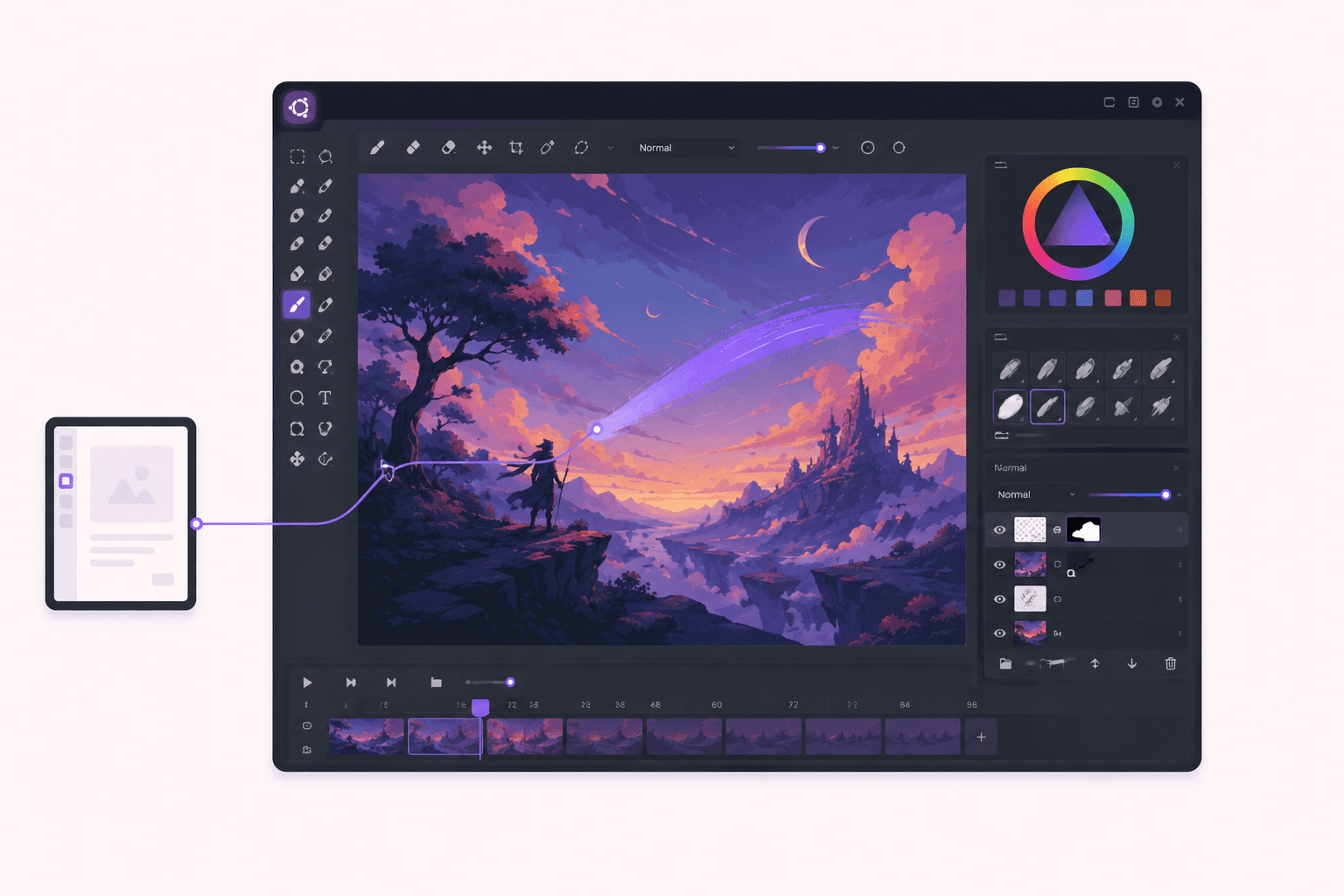
Why Run Krita On a Cloud Desktop
Krita runs on modest hardware for everyday sketching, so let's be specific about what the cloud adds, because it matters most for demanding work.
Headroom for large canvases and heavy brushes
This is the main draw. Painting gets resource-hungry when you work at print resolution, use large textured brushes, and stack many layers. On a laptop, that combination produces brush lag, the frustrating delay between moving your stylus and seeing the stroke, which makes precise work nearly impossible. A cloud machine with generous memory and a capable GPU keeps the canvas responsive, so your strokes land where and when you expect them.
Smooth animation playback and rendering
Krita's animation features let you paint frame by frame, but playback and rendering of a full animation are demanding. A more powerful machine plays your animation back smoothly and renders it faster, which matters when you're timing and refining motion.
Paint from any device
Because the desktop streams to you, you can run Krita from a device that couldn't handle it locally. With a drawing tablet connected, you can paint on a cloud machine from a laptop or even a tablet, with the heavy lifting done in the data center.
A clean, disposable environment
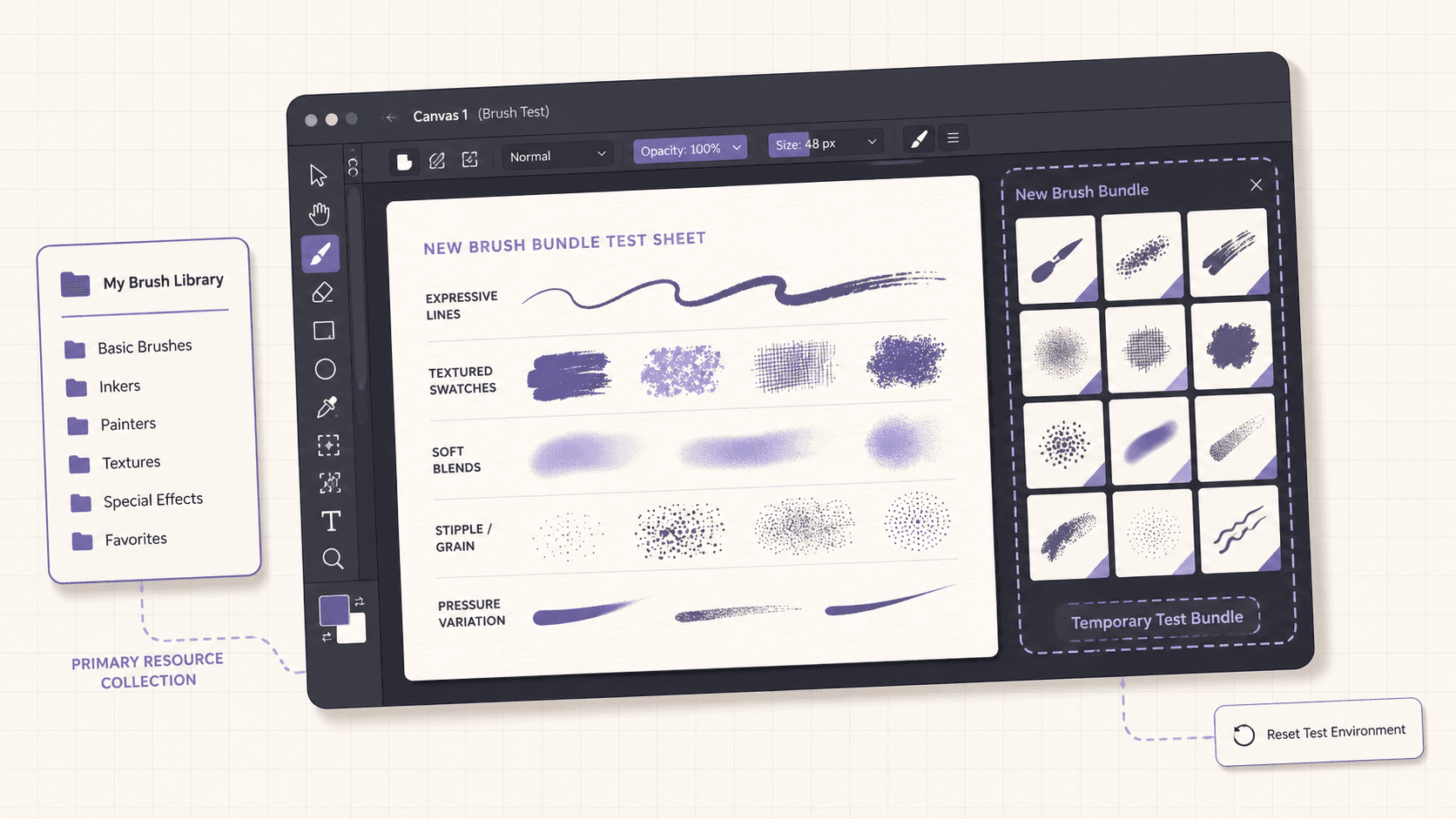
Every Vagon machine is an isolated VM you can reset. That's handy for trying unfamiliar brush packs, resources, or Python plugins without cluttering or risking your main setup.
A consistent, powerful Krita setup
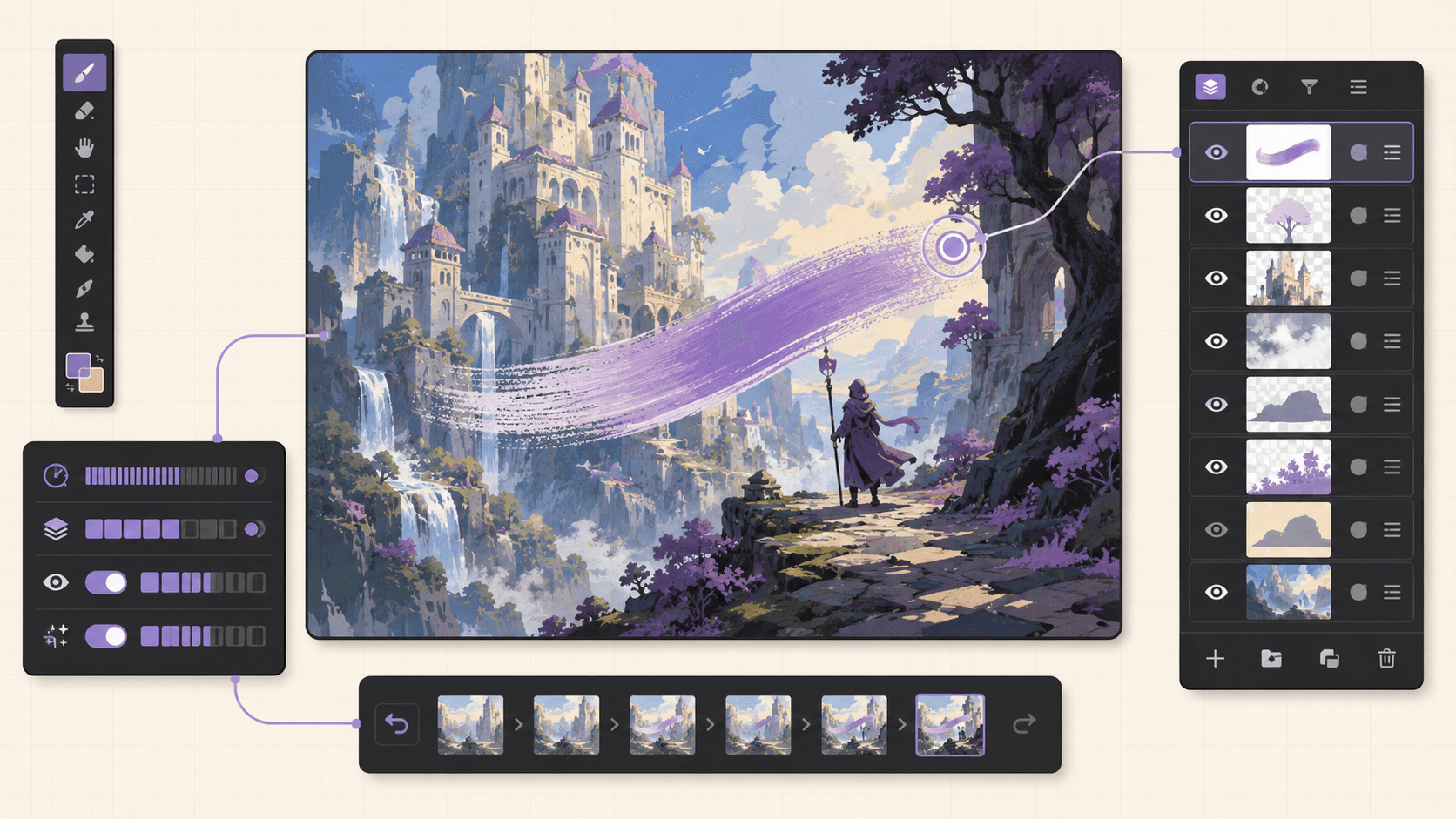
With persistent storage, your brushes, resources, and preferences live on the machine, giving you a reliable, powerful Krita environment that's the same every session, regardless of what your personal computer is doing.

GPU Acceleration And Why It Matters For Painting
This deserves its own section, because it's central to how well Krita performs.
Krita can use the GPU to accelerate the canvas display, which affects how smoothly the view pans, zooms, and rotates, and contributes to how responsive painting feels. When GPU acceleration is enabled and working well, the canvas is fluid even at high zoom on a large image. When it's off or the hardware is weak, everything feels heavier.
On a cloud desktop with a GPU plan, you get a real graphics card with drivers already configured, so Krita's canvas acceleration has proper hardware behind it. You enable it in Krita's display settings, and the canvas becomes noticeably smoother, especially on the large, high-resolution work that a cloud machine is meant for. For brush performance specifically, memory and CPU also matter, since the brush engine does significant work per stroke, so a well-specced machine helps across the board. The combination of a capable GPU for the canvas and generous memory and CPU for the brush engine is what makes painting feel professional rather than laggy.
If your work is large-canvas painting, textured brushes, or animation, a GPU plan is worth it. If you mostly sketch on small canvases, a plan without a GPU may be enough, though the GPU still helps the canvas feel smooth.
If you’re working from a tablet, you can learn how to run Ubuntu on an iPad and access a complete Linux desktop remotely.
Tablet And Stylus Input Over a Streamed Desktop
Let's be honest about this, because it's the question every digital artist asks first.
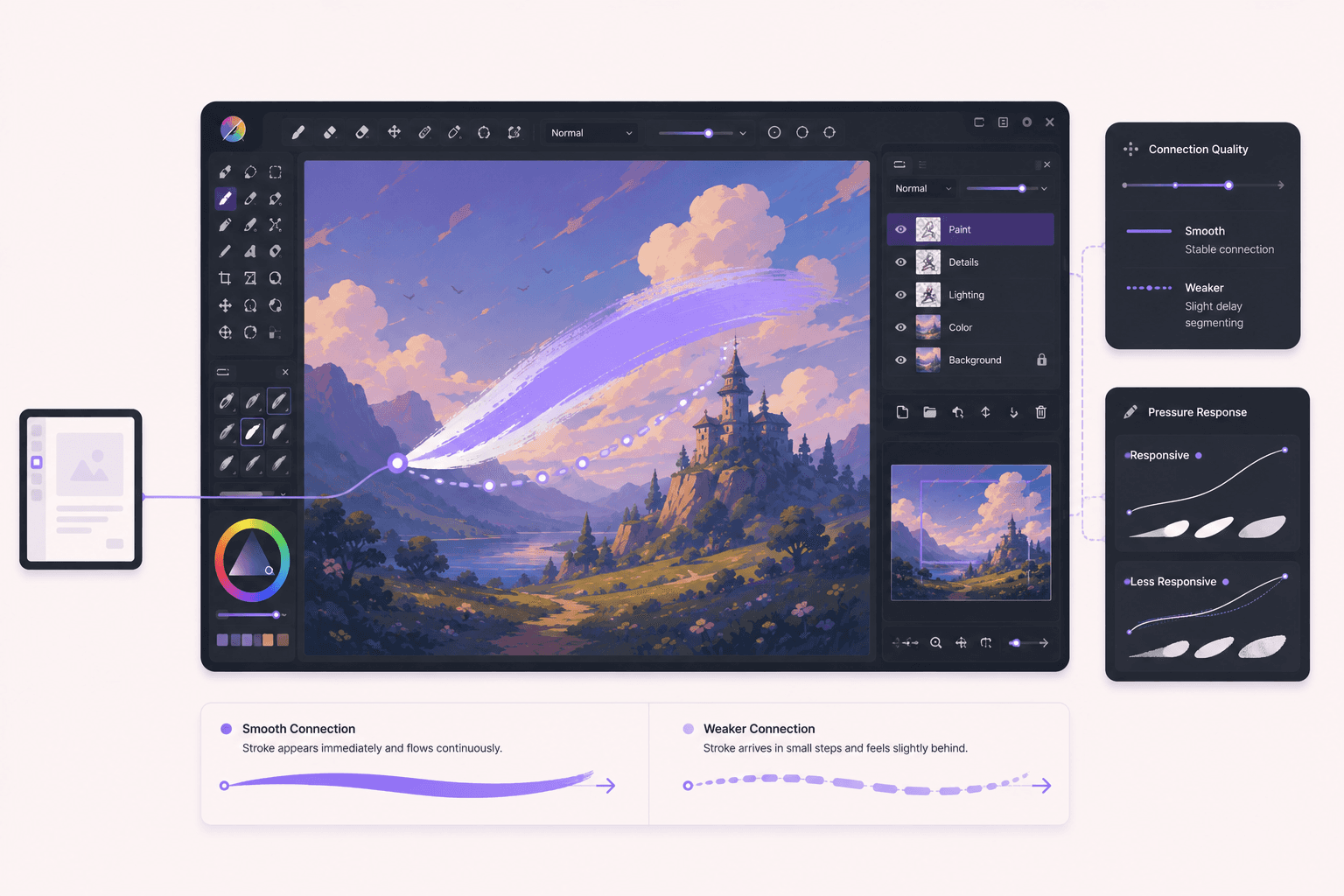
Painting is a stylus-driven activity, and Krita is built around pen input with pressure sensitivity. Over a streamed desktop, stylus input works, and the experience depends on a few things. Your drawing tablet connects to your local device, and its input travels to the cloud machine along with the video stream coming back. On a good, low-latency connection, this feels responsive enough for real painting. On a poor connection, you'll notice lag between your pen and the stroke, which is the enemy of precise drawing, so a strong connection genuinely matters here more than for almost any other application.
Pressure sensitivity, the feature that makes brush strokes vary with how hard you press, is the other consideration. How fully pressure and tilt pass through depends on your tablet, your local device, and the client, so it's worth testing your specific setup with the kind of brushes you use. Many artists paint comfortably this way, but if pressure-sensitive precision is the absolute core of your work, test it thoroughly on your hardware before committing to a large project.
The honest guidance: a cloud desktop is excellent for the heavy, resource-intensive side of Krita, and stylus painting over it works well on a strong connection with a compatible tablet. Test your input setup early, prioritize a low-latency connection, and you'll know quickly whether it fits your workflow.
When It's The Right Call, And When To Skip It
A cloud desktop is a burst tool, billed by the minute. It's the right call when your painting strains your local machine, large canvases, heavy brushes, many layers, or animation, or when you want to paint from a device that can't run Krita well, or when you want a consistent, powerful setup. You spin it up, paint, and shut it down.
It's the wrong call if your work is light sketching that your current machine handles fine, since Krita is free and runs on almost anything, or if you need an editor instantly available all day with no thought to sessions. The cloud shines specifically for demanding work and limited devices, and its input experience depends on a good connection, so casual sketching on a capable laptop doesn't need it.
What You'll Need
A Vagon account with a payment method.
An Ubuntu plan. For large-canvas painting and animation, a GPU plan gives the smoothest canvas; for lighter work, a plan with good memory may suffice.
A drawing tablet connected to your local device for stylus input.
A low-latency internet connection, which matters more for painting than for most apps.
Optionally, persistent storage to keep your brushes, resources, and paintings between sessions.
Step 1: Launch an Ubuntu machine
Create a computer on Vagon, choose Linux, and pick a plan. For serious painting and animation, choose a GPU plan; for lighter work, prioritize memory. It boots in about 90 seconds.
Step 2: Install Krita
The simplest path through the terminal:
For the latest version, install from Flathub or download the official AppImage from krita.org, which is often the most current option:
If Vagon's Ubuntu template already includes Krita, you can skip straight to opening it.
Step 3: Enable GPU canvas acceleration
Open Krita, go to its settings, and under the display or canvas configuration, enable the GPU-accelerated canvas. With a GPU plan, the driver is already configured, so this gives you a smooth, hardware-accelerated canvas.
Step 4: Set up your tablet and test input
Connect your drawing tablet to your local device and make sure the stream is passing pen input through. Test pressure sensitivity with a few brushes before starting real work, so you know how your setup behaves.
Step 5: Configure resources and add persistent storage
Import your brushes and resources, and if you want them to persist, add persistent storage so your entire Krita setup, brushes, presets, and paintings, stays put between sessions.
If you’re experimenting with private AI models, this guide walks through how to run Ollama in the cloud.
Tuning Krita For Large Canvases And Performance
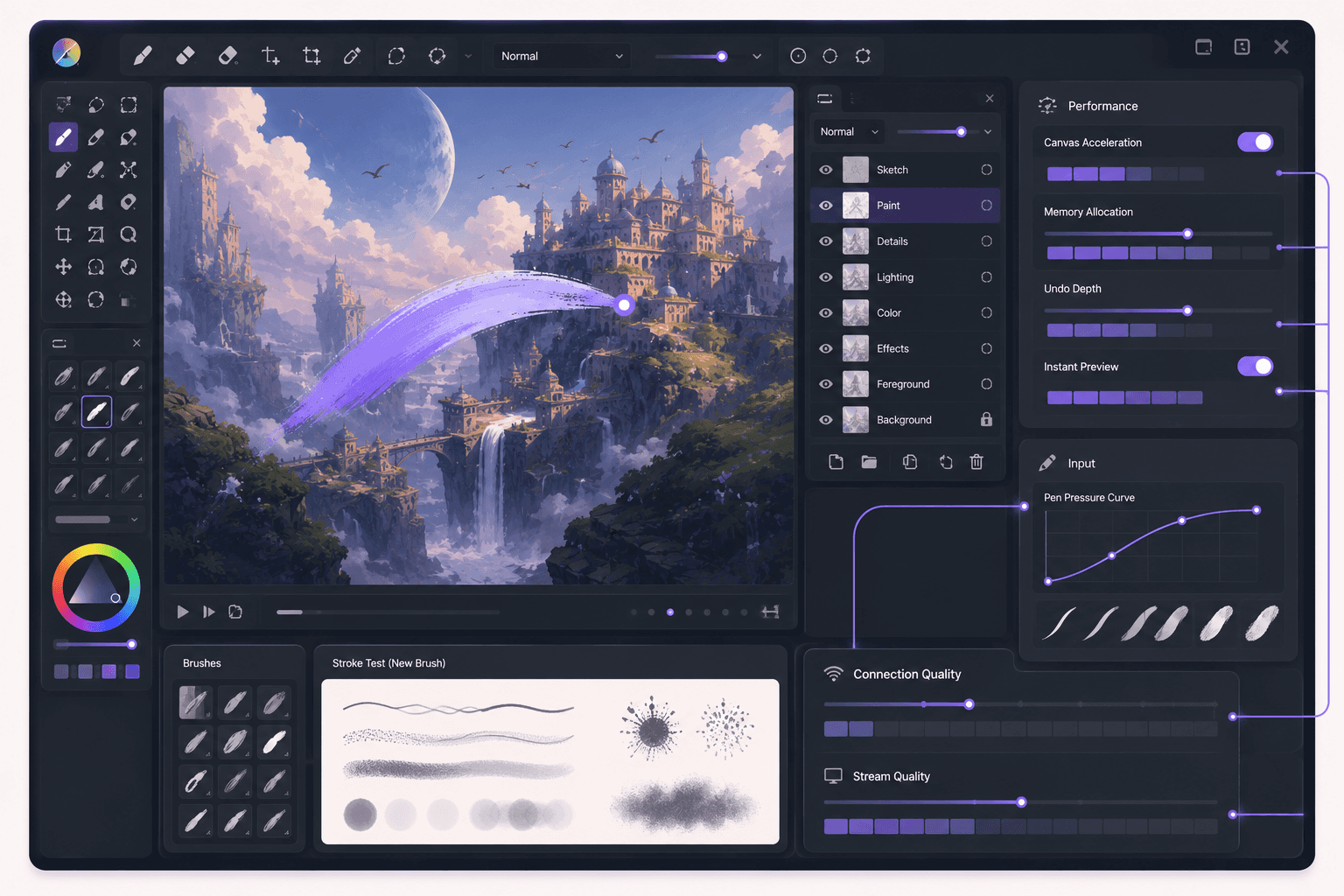
To get the responsiveness that justifies a cloud machine, tune Krita's performance settings, found in its configuration under the performance section.
Memory limit. This controls how much RAM Krita may use. On a cloud machine with generous memory, raise this so Krita keeps large images and their undo history in fast memory rather than swapping. This is the single most impactful setting for big-canvas work.
Undo history depth. More undo steps use more memory but give you a longer safety net. Balance this against your available memory.
Instant preview threshold. Krita can use lower-resolution previews for large brushes and canvases to keep painting responsive. Configure this so heavy brushes on big canvases stay smooth.
Canvas acceleration. Confirm GPU acceleration is on, as covered above, for a fluid canvas.
Beyond settings, a few habits keep things smooth: work at the resolution you actually need rather than an excessive one, merge or flatten layers you're finished with to free memory, and use file layers or references thoughtfully. With performance tuned to your machine's resources, Krita on a well-specced cloud desktop handles the large, brush-heavy work that turns a laptop into a lag machine.
Brushes, Resources, And Building Your Setup
Much of Krita's appeal is its brushes, and a cloud desktop is a fine place to build a complete, reliable painting setup.
Krita comes with an excellent default brush set, and the community has produced a wealth of additional brush packs, textures, patterns, and gradients. You import these through Krita's resource manager or by placing them in its resource folders, reachable via the file manager. Assembling a brush collection tuned to your style is part of what makes Krita feel like your own tool.
The advantage of doing this on a cloud machine with persistent storage is that your setup, once built, is ready every session. You don't rebuild your brush library each time; you launch the machine and everything's there. And because the VM is isolated and resettable, you can try unfamiliar brush packs or Python plugins freely, knowing you can reset to a clean state if something doesn't work out.
If you’re building node-based image generation workflows, here’s how to run ComfyUI in the cloud with access to more powerful GPUs.
Animating In Krita On a Cloud Machine
Krita's 2D animation features are a genuine strength, and they're demanding enough that a cloud machine helps meaningfully.
Animating frame by frame, you build up a timeline of drawings, use onion skinning to see adjacent frames, and play back your animation to judge the timing and motion. Playback of a full animation at resolution, and rendering it out to a video or image sequence, are the heavy parts, and they benefit from a more powerful machine. Smoother playback means you can actually feel your timing as you work, and faster rendering means less waiting when you export.
On a cloud desktop, you can also render your finished animation in a focused session, letting the machine do the export work while you keep the session only as long as it needs. Keep your animation files on persistent storage so a project spanning multiple sessions is always ready. For animators whose laptops struggle with playback and rendering, a cloud machine turns a frustrating stop-start process into a fluid one.
Krita Compared To Other Painting Tools
Knowing where Krita sits among painting applications helps you understand what you're getting when you run it on a cloud machine.
Against commercial digital painting software, Krita holds up remarkably well for painting specifically. Its brush engine is deep and highly customizable, its stabilizers produce smooth strokes, and features like wrap-around mode, symmetry tools, and a strong selection of blending modes cover professional needs. Many artists who could pay for alternatives choose Krita because the painting experience is genuinely excellent and the price is zero. Where commercial tools sometimes lead is in specific ecosystem integrations or niche features, but for the core act of painting, Krita is a peer, not a compromise.
Against general image editors, Krita is the more focused tool for drawing and painting. An image editor is built around manipulating existing images, while Krita is built around creating art from a blank canvas, which shows in its brush-first workflow, its canvas handling, and its animation features. Artists often use both, an image editor for photo work and Krita for painting, and a cloud desktop can run either.
The reason this matters for the cloud is that Krita's strengths, large canvases, heavy brushes, and animation, are exactly the things that demand hardware. So the better Krita is at professional painting, the more it benefits from a machine that can keep up. Running a top-tier free painting app on a machine with real power is a genuinely strong combination, and it's available for the cost of the session.
If you’re working on demanding 3D scenes or rendering projects, this guide explains how to run Blender on a cloud GPU with Ubuntu.
Extending Krita With Python Scripting
Krita includes a Python scripting interface, which opens up automation and customization that pairs well with a cloud machine's on-demand power.
With scripting, you can automate repetitive tasks, generate or process images programmatically, batch-export files, and build custom tools that fit your workflow. The community has produced plugins that add features and streamline common tasks, and you can write your own for anything specific to how you work. For an artist who produces a lot of assets following consistent patterns, or who wants to automate the tedious parts of a pipeline, this is a real productivity lever.
On a cloud desktop, scripted jobs run without tying up your own machine, and because the environment is reproducible and can use persistent storage, your scripts and their setup are ready whenever you spin up. Trying an unfamiliar Python plugin is also low-risk on an isolated, resettable VM, so you can experiment with community extensions freely. Most artists won't need scripting for everyday painting, but for those who do, having it available on a powerful, disposable machine is a nice bonus on top of the core painting benefits.
Getting Files In And Out
Bring your reference images, existing paintings, and resources onto the machine through the browser, the file manager, a cloud storage tool, or a repository. For work you return to, persistent storage keeps everything on the machine between sessions.
Export your finished paintings and animations and download them through the browser or file manager, or sync them to your own storage. For large animation exports or high-resolution image sets, keep an eye on outbound transfer beyond the included amount, though typical painting work rarely approaches it.
Cost Breakdown
Your cost is the machine's running time billed by the minute, plus optional persistent storage (about five dollars per 50GB per month) for your setup and paintings, plus outbound transfer beyond the included 10GB per month, which mainly matters for large exports.
For large-canvas painting and animation, a GPU plan gives the smoothest experience and costs more than a plan without a GPU; for lighter work, a cheaper plan may do. The honest framing: for demanding painting sessions where your laptop lags, a cloud desktop is worth it and you pay only for active hours. For light sketching on a capable machine, Krita is free and local is simpler. Shut the machine down when you're done, since the meter stops when the machine stops.
Real-World Use Cases
The concept artist working at print resolution. Large canvases and textured brushes lag on your laptop. A cloud GPU machine keeps the canvas smooth so you can focus on the art.
The animator refining timing. Playback stutters on your machine, making it hard to feel the motion. A more powerful cloud machine plays back smoothly and renders faster.
The illustrator on a light laptop. You want Krita's full power but your laptop can't provide it. A streamed cloud desktop, with your tablet connected, delivers it.
The student learning digital art. Professional painting without buying professional hardware, rented by the session.
The artist building a brush-heavy workflow. A consistent, powerful setup with your full brush library, ready every session on persistent storage.
Troubleshooting
#1. Brush strokes lag behind my stylus
This is usually connection latency over the stream, which matters a lot for painting. Get on the lowest-latency connection you can, and lower the stream resolution if needed. Also confirm GPU acceleration is on and Krita's memory limit is raised so the canvas stays responsive.
#2. Pressure sensitivity isn't working
Pressure passing through depends on your tablet, local device, and client. Test with different brushes, confirm your tablet works locally first, and check your client's input settings. If precise pressure is essential, verify your specific setup thoroughly.
#3. The canvas feels heavy on large images
Raise Krita's memory limit in the performance settings, enable instant preview for large brushes, and confirm GPU canvas acceleration is enabled. Make sure your plan has enough memory for your canvas sizes.
#4. My brushes are gone next session
You didn't add persistent storage, so the machine reset. Add persistent storage to keep your brushes and resources between sessions.
If you’re testing private or open-source AI models, you can also learn how to run a local LLM on Ubuntu in the cloud.
Where this leaves you
Krita is a professional-grade digital painting application that happens to be free, and a cloud Ubuntu desktop gives it the memory, CPU, and GPU headroom to handle large canvases, heavy brushes, and animation that make a laptop lag. Enable GPU canvas acceleration, tune Krita's performance settings to the machine, keep your brushes and paintings on persistent storage, and prioritize a low-latency connection for stylus work. Rent it for the demanding sessions, and shut it down when you're done.
Fed up with brush lag on a big canvas? Create a Vagon account, launch an Ubuntu machine, install Krita, and you'll be painting in a few minutes.
Frequently Asked Questions
Is Krita free to use in the cloud?
Yes. Krita is free and open-source, so there's no license cost. On a cloud desktop you only pay for the machine's running time, not for Krita.
Can I paint with a drawing tablet over the cloud?
Yes. Your tablet connects to your local device and its input passes to the cloud machine. On a low-latency connection this feels responsive. Test pressure sensitivity with your specific tablet early, since results depend on your hardware and client.
Does Krita need a GPU in the cloud?
A GPU accelerates Krita's canvas, making painting smoother, especially on large canvases, so a GPU plan is recommended for serious work. Lighter sketching can run on a plan without a GPU, though the canvas benefits from one.
Will my brushes and paintings persist between sessions?
Only if you add persistent storage. With it, your brushes, resources, presets, and paintings wait for you. Without it, treat each session as a fresh install.
Can I do animation in Krita on a cloud machine?
Yes, and it's a good fit. Krita's frame-by-frame animation benefits from a more powerful machine for smooth playback and faster rendering, and you can render exports in a focused session.
How important is my internet connection for painting?
Very. Painting is latency-sensitive, so a low-latency connection is the single biggest factor in how responsive the stylus feels. A strong connection makes it feel natural; a poor one introduces lag that hurts precise work.
Can I run Krita on an iPad through the cloud?
Yes, the streamed desktop runs on an iPad. For painting, connect a stylus or drawing tablet and use a low-latency connection. It's a way to get desktop Krita's full power on a tablet, with the caveats about input to test for your setup.
Which plan should I choose for Krita?
For large-canvas painting and animation, a GPU plan with good memory. For lighter work, a plan with ample memory may be enough. Match it to how demanding your canvases and brushes are.
Is Krita as good as paid painting software?
For painting specifically, Krita is genuinely professional-grade, with a brush engine and workflow many artists prefer. The cloud doesn't change Krita's capabilities; it gives them more hardware to run on.
How do I keep costs down?
Paint in focused sessions, add persistent storage so your setup is ready instantly, choose a plan matched to your work, and shut the machine down when you're finished.
Can I use my existing brush packs and resources?
Yes. Import them through Krita's resource manager or place them in its resource folders. On persistent storage, your full brush library stays available every session, so you build your setup once.
Does Krita support layers and masks like other editors?
Yes. Krita has a full layer system including paint layers, group layers, filter layers, and masks, along with blending modes and layer effects. It's a complete layered painting environment, not a simple sketch tool.
Will the latest Krita version run in the cloud?
Yes. You can install from Ubuntu's repositories, Flathub, or the official AppImage, which is often the most current. On a cloud desktop you control which version you install, just like any Linux machine.
Can I collaborate or share my Krita machine?
A Vagon computer is a single desktop. For teams that need managed machines for multiple artists, Vagon Teams offers multi-seat management and centralized file sharing. For solo work, one machine is the normal setup.
Is a cloud machine good for texture painting for 3D?
Yes. Krita is popular for painting textures, and large, high-resolution texture work benefits from the memory and GPU of a cloud machine. You can paint textures in Krita and use them in your 3D application, potentially on the same cloud desktop.
Quick answer: To run Krita in the cloud, launch a cloud Ubuntu desktop (for example on Vagon), install Krita from apt, Flathub, or the AppImage, enable GPU canvas acceleration, and paint on a streamed desktop you can reach from any device. It's ideal for large canvases, brush-heavy work, and animation that strain a laptop, and you pay only for the hours you paint.
Key Takeaways
Krita is a free, professional digital painting app, and a cloud desktop gives it the memory and GPU headroom for large, heavy work.
It's especially useful for big canvases, large brushes, many layers, and animation, where laptops slow down.
GPU-accelerated canvas makes painting smooth, and a cloud GPU plan provides it.
Tablet and stylus input works over the stream, with some honest caveats about pressure and latency.
Persistent storage keeps your brushes, resources, and paintings between sessions.
It's billed by the minute, ideal for focused painting sessions and a poor fit for leaving idle all day.
People are still surprised to learn that Krita, one of the best digital painting applications around, costs nothing. It's a proper painting application, built by and for artists, with a brush engine that rivals anything you pay for, real support for large canvases, layers and masks, and even frame-by-frame animation. Where it starts to strain isn't the software. It's the moment you push a big canvas at high resolution, load a chunky textured brush, stack a pile of layers, and your laptop's brush lag turns painting into a guessing game.
That's where running Krita on a cloud Ubuntu desktop comes in. You get a machine with more memory, more CPU, and, on a GPU plan, a real graphics card, and Krita runs on it with room to breathe. Your strokes keep up, big canvases stay smooth, and when you're done you shut the machine off. This guide covers when that's worth it, how to set it up, how to tune Krita to use all that power, how tablet input works over a stream, and the honest trade-offs.
If you’re looking for a full Linux environment without setting up local hardware, this guide explains how to get an Ubuntu desktop in the cloud.
What Krita Is And Who Uses It
Krita is a free and open-source digital painting application aimed squarely at artists. Unlike a general image editor, it's built for drawing and painting from the ground up, with a sophisticated brush engine, stabilizers for smooth strokes, wrap-around mode for seamless textures, and a workflow designed around the canvas. It also handles layers, masks, filters, and even 2D frame-by-frame animation, making it a full creative tool rather than a simple sketch app.
The people who use it are illustrators, concept artists, comic and manga artists, texture painters, storyboard artists, and animators, along with students and hobbyists who want professional-grade painting without a subscription. On Linux, Krita is the leading digital painting application and one of the most popular creative tools, with a devoted community and a steady stream of updates.
Definition: running Krita in the cloud
Running Krita in the cloud means installing Krita on a remote Ubuntu desktop and painting there instead of on your local computer. You get more memory, CPU, and optional GPU power than a laptop for large, heavy canvases and animation, plus the ability to paint from any device, while your own machine stays free.
Why Run Krita On a Cloud Desktop
Krita runs on modest hardware for everyday sketching, so let's be specific about what the cloud adds, because it matters most for demanding work.
Headroom for large canvases and heavy brushes
This is the main draw. Painting gets resource-hungry when you work at print resolution, use large textured brushes, and stack many layers. On a laptop, that combination produces brush lag, the frustrating delay between moving your stylus and seeing the stroke, which makes precise work nearly impossible. A cloud machine with generous memory and a capable GPU keeps the canvas responsive, so your strokes land where and when you expect them.
Smooth animation playback and rendering
Krita's animation features let you paint frame by frame, but playback and rendering of a full animation are demanding. A more powerful machine plays your animation back smoothly and renders it faster, which matters when you're timing and refining motion.
Paint from any device
Because the desktop streams to you, you can run Krita from a device that couldn't handle it locally. With a drawing tablet connected, you can paint on a cloud machine from a laptop or even a tablet, with the heavy lifting done in the data center.
A clean, disposable environment
Every Vagon machine is an isolated VM you can reset. That's handy for trying unfamiliar brush packs, resources, or Python plugins without cluttering or risking your main setup.
A consistent, powerful Krita setup
With persistent storage, your brushes, resources, and preferences live on the machine, giving you a reliable, powerful Krita environment that's the same every session, regardless of what your personal computer is doing.
GPU Acceleration And Why It Matters For Painting
This deserves its own section, because it's central to how well Krita performs.
Krita can use the GPU to accelerate the canvas display, which affects how smoothly the view pans, zooms, and rotates, and contributes to how responsive painting feels. When GPU acceleration is enabled and working well, the canvas is fluid even at high zoom on a large image. When it's off or the hardware is weak, everything feels heavier.
On a cloud desktop with a GPU plan, you get a real graphics card with drivers already configured, so Krita's canvas acceleration has proper hardware behind it. You enable it in Krita's display settings, and the canvas becomes noticeably smoother, especially on the large, high-resolution work that a cloud machine is meant for. For brush performance specifically, memory and CPU also matter, since the brush engine does significant work per stroke, so a well-specced machine helps across the board. The combination of a capable GPU for the canvas and generous memory and CPU for the brush engine is what makes painting feel professional rather than laggy.
If your work is large-canvas painting, textured brushes, or animation, a GPU plan is worth it. If you mostly sketch on small canvases, a plan without a GPU may be enough, though the GPU still helps the canvas feel smooth.
If you’re working from a tablet, you can learn how to run Ubuntu on an iPad and access a complete Linux desktop remotely.
Tablet And Stylus Input Over a Streamed Desktop
Let's be honest about this, because it's the question every digital artist asks first.
Painting is a stylus-driven activity, and Krita is built around pen input with pressure sensitivity. Over a streamed desktop, stylus input works, and the experience depends on a few things. Your drawing tablet connects to your local device, and its input travels to the cloud machine along with the video stream coming back. On a good, low-latency connection, this feels responsive enough for real painting. On a poor connection, you'll notice lag between your pen and the stroke, which is the enemy of precise drawing, so a strong connection genuinely matters here more than for almost any other application.
Pressure sensitivity, the feature that makes brush strokes vary with how hard you press, is the other consideration. How fully pressure and tilt pass through depends on your tablet, your local device, and the client, so it's worth testing your specific setup with the kind of brushes you use. Many artists paint comfortably this way, but if pressure-sensitive precision is the absolute core of your work, test it thoroughly on your hardware before committing to a large project.
The honest guidance: a cloud desktop is excellent for the heavy, resource-intensive side of Krita, and stylus painting over it works well on a strong connection with a compatible tablet. Test your input setup early, prioritize a low-latency connection, and you'll know quickly whether it fits your workflow.
When It's The Right Call, And When To Skip It
A cloud desktop is a burst tool, billed by the minute. It's the right call when your painting strains your local machine, large canvases, heavy brushes, many layers, or animation, or when you want to paint from a device that can't run Krita well, or when you want a consistent, powerful setup. You spin it up, paint, and shut it down.
It's the wrong call if your work is light sketching that your current machine handles fine, since Krita is free and runs on almost anything, or if you need an editor instantly available all day with no thought to sessions. The cloud shines specifically for demanding work and limited devices, and its input experience depends on a good connection, so casual sketching on a capable laptop doesn't need it.
What You'll Need
A Vagon account with a payment method.
An Ubuntu plan. For large-canvas painting and animation, a GPU plan gives the smoothest canvas; for lighter work, a plan with good memory may suffice.
A drawing tablet connected to your local device for stylus input.
A low-latency internet connection, which matters more for painting than for most apps.
Optionally, persistent storage to keep your brushes, resources, and paintings between sessions.
Step 1: Launch an Ubuntu machine
Create a computer on Vagon, choose Linux, and pick a plan. For serious painting and animation, choose a GPU plan; for lighter work, prioritize memory. It boots in about 90 seconds.
Step 2: Install Krita
The simplest path through the terminal:
For the latest version, install from Flathub or download the official AppImage from krita.org, which is often the most current option:
If Vagon's Ubuntu template already includes Krita, you can skip straight to opening it.
Step 3: Enable GPU canvas acceleration
Open Krita, go to its settings, and under the display or canvas configuration, enable the GPU-accelerated canvas. With a GPU plan, the driver is already configured, so this gives you a smooth, hardware-accelerated canvas.
Step 4: Set up your tablet and test input
Connect your drawing tablet to your local device and make sure the stream is passing pen input through. Test pressure sensitivity with a few brushes before starting real work, so you know how your setup behaves.
Step 5: Configure resources and add persistent storage
Import your brushes and resources, and if you want them to persist, add persistent storage so your entire Krita setup, brushes, presets, and paintings, stays put between sessions.
If you’re experimenting with private AI models, this guide walks through how to run Ollama in the cloud.
Tuning Krita For Large Canvases And Performance
To get the responsiveness that justifies a cloud machine, tune Krita's performance settings, found in its configuration under the performance section.
Memory limit. This controls how much RAM Krita may use. On a cloud machine with generous memory, raise this so Krita keeps large images and their undo history in fast memory rather than swapping. This is the single most impactful setting for big-canvas work.
Undo history depth. More undo steps use more memory but give you a longer safety net. Balance this against your available memory.
Instant preview threshold. Krita can use lower-resolution previews for large brushes and canvases to keep painting responsive. Configure this so heavy brushes on big canvases stay smooth.
Canvas acceleration. Confirm GPU acceleration is on, as covered above, for a fluid canvas.
Beyond settings, a few habits keep things smooth: work at the resolution you actually need rather than an excessive one, merge or flatten layers you're finished with to free memory, and use file layers or references thoughtfully. With performance tuned to your machine's resources, Krita on a well-specced cloud desktop handles the large, brush-heavy work that turns a laptop into a lag machine.
Brushes, Resources, And Building Your Setup
Much of Krita's appeal is its brushes, and a cloud desktop is a fine place to build a complete, reliable painting setup.
Krita comes with an excellent default brush set, and the community has produced a wealth of additional brush packs, textures, patterns, and gradients. You import these through Krita's resource manager or by placing them in its resource folders, reachable via the file manager. Assembling a brush collection tuned to your style is part of what makes Krita feel like your own tool.
The advantage of doing this on a cloud machine with persistent storage is that your setup, once built, is ready every session. You don't rebuild your brush library each time; you launch the machine and everything's there. And because the VM is isolated and resettable, you can try unfamiliar brush packs or Python plugins freely, knowing you can reset to a clean state if something doesn't work out.
If you’re building node-based image generation workflows, here’s how to run ComfyUI in the cloud with access to more powerful GPUs.
Animating In Krita On a Cloud Machine
Krita's 2D animation features are a genuine strength, and they're demanding enough that a cloud machine helps meaningfully.
Animating frame by frame, you build up a timeline of drawings, use onion skinning to see adjacent frames, and play back your animation to judge the timing and motion. Playback of a full animation at resolution, and rendering it out to a video or image sequence, are the heavy parts, and they benefit from a more powerful machine. Smoother playback means you can actually feel your timing as you work, and faster rendering means less waiting when you export.
On a cloud desktop, you can also render your finished animation in a focused session, letting the machine do the export work while you keep the session only as long as it needs. Keep your animation files on persistent storage so a project spanning multiple sessions is always ready. For animators whose laptops struggle with playback and rendering, a cloud machine turns a frustrating stop-start process into a fluid one.
Krita Compared To Other Painting Tools
Knowing where Krita sits among painting applications helps you understand what you're getting when you run it on a cloud machine.
Against commercial digital painting software, Krita holds up remarkably well for painting specifically. Its brush engine is deep and highly customizable, its stabilizers produce smooth strokes, and features like wrap-around mode, symmetry tools, and a strong selection of blending modes cover professional needs. Many artists who could pay for alternatives choose Krita because the painting experience is genuinely excellent and the price is zero. Where commercial tools sometimes lead is in specific ecosystem integrations or niche features, but for the core act of painting, Krita is a peer, not a compromise.
Against general image editors, Krita is the more focused tool for drawing and painting. An image editor is built around manipulating existing images, while Krita is built around creating art from a blank canvas, which shows in its brush-first workflow, its canvas handling, and its animation features. Artists often use both, an image editor for photo work and Krita for painting, and a cloud desktop can run either.
The reason this matters for the cloud is that Krita's strengths, large canvases, heavy brushes, and animation, are exactly the things that demand hardware. So the better Krita is at professional painting, the more it benefits from a machine that can keep up. Running a top-tier free painting app on a machine with real power is a genuinely strong combination, and it's available for the cost of the session.
If you’re working on demanding 3D scenes or rendering projects, this guide explains how to run Blender on a cloud GPU with Ubuntu.
Extending Krita With Python Scripting
Krita includes a Python scripting interface, which opens up automation and customization that pairs well with a cloud machine's on-demand power.
With scripting, you can automate repetitive tasks, generate or process images programmatically, batch-export files, and build custom tools that fit your workflow. The community has produced plugins that add features and streamline common tasks, and you can write your own for anything specific to how you work. For an artist who produces a lot of assets following consistent patterns, or who wants to automate the tedious parts of a pipeline, this is a real productivity lever.
On a cloud desktop, scripted jobs run without tying up your own machine, and because the environment is reproducible and can use persistent storage, your scripts and their setup are ready whenever you spin up. Trying an unfamiliar Python plugin is also low-risk on an isolated, resettable VM, so you can experiment with community extensions freely. Most artists won't need scripting for everyday painting, but for those who do, having it available on a powerful, disposable machine is a nice bonus on top of the core painting benefits.
Getting Files In And Out
Bring your reference images, existing paintings, and resources onto the machine through the browser, the file manager, a cloud storage tool, or a repository. For work you return to, persistent storage keeps everything on the machine between sessions.
Export your finished paintings and animations and download them through the browser or file manager, or sync them to your own storage. For large animation exports or high-resolution image sets, keep an eye on outbound transfer beyond the included amount, though typical painting work rarely approaches it.
Cost Breakdown
Your cost is the machine's running time billed by the minute, plus optional persistent storage (about five dollars per 50GB per month) for your setup and paintings, plus outbound transfer beyond the included 10GB per month, which mainly matters for large exports.
For large-canvas painting and animation, a GPU plan gives the smoothest experience and costs more than a plan without a GPU; for lighter work, a cheaper plan may do. The honest framing: for demanding painting sessions where your laptop lags, a cloud desktop is worth it and you pay only for active hours. For light sketching on a capable machine, Krita is free and local is simpler. Shut the machine down when you're done, since the meter stops when the machine stops.
Real-World Use Cases
The concept artist working at print resolution. Large canvases and textured brushes lag on your laptop. A cloud GPU machine keeps the canvas smooth so you can focus on the art.
The animator refining timing. Playback stutters on your machine, making it hard to feel the motion. A more powerful cloud machine plays back smoothly and renders faster.
The illustrator on a light laptop. You want Krita's full power but your laptop can't provide it. A streamed cloud desktop, with your tablet connected, delivers it.
The student learning digital art. Professional painting without buying professional hardware, rented by the session.
The artist building a brush-heavy workflow. A consistent, powerful setup with your full brush library, ready every session on persistent storage.
Troubleshooting
#1. Brush strokes lag behind my stylus
This is usually connection latency over the stream, which matters a lot for painting. Get on the lowest-latency connection you can, and lower the stream resolution if needed. Also confirm GPU acceleration is on and Krita's memory limit is raised so the canvas stays responsive.
#2. Pressure sensitivity isn't working
Pressure passing through depends on your tablet, local device, and client. Test with different brushes, confirm your tablet works locally first, and check your client's input settings. If precise pressure is essential, verify your specific setup thoroughly.
#3. The canvas feels heavy on large images
Raise Krita's memory limit in the performance settings, enable instant preview for large brushes, and confirm GPU canvas acceleration is enabled. Make sure your plan has enough memory for your canvas sizes.
#4. My brushes are gone next session
You didn't add persistent storage, so the machine reset. Add persistent storage to keep your brushes and resources between sessions.
If you’re testing private or open-source AI models, you can also learn how to run a local LLM on Ubuntu in the cloud.
Where this leaves you
Krita is a professional-grade digital painting application that happens to be free, and a cloud Ubuntu desktop gives it the memory, CPU, and GPU headroom to handle large canvases, heavy brushes, and animation that make a laptop lag. Enable GPU canvas acceleration, tune Krita's performance settings to the machine, keep your brushes and paintings on persistent storage, and prioritize a low-latency connection for stylus work. Rent it for the demanding sessions, and shut it down when you're done.
Fed up with brush lag on a big canvas? Create a Vagon account, launch an Ubuntu machine, install Krita, and you'll be painting in a few minutes.
Frequently Asked Questions
Is Krita free to use in the cloud?
Yes. Krita is free and open-source, so there's no license cost. On a cloud desktop you only pay for the machine's running time, not for Krita.
Can I paint with a drawing tablet over the cloud?
Yes. Your tablet connects to your local device and its input passes to the cloud machine. On a low-latency connection this feels responsive. Test pressure sensitivity with your specific tablet early, since results depend on your hardware and client.
Does Krita need a GPU in the cloud?
A GPU accelerates Krita's canvas, making painting smoother, especially on large canvases, so a GPU plan is recommended for serious work. Lighter sketching can run on a plan without a GPU, though the canvas benefits from one.
Will my brushes and paintings persist between sessions?
Only if you add persistent storage. With it, your brushes, resources, presets, and paintings wait for you. Without it, treat each session as a fresh install.
Can I do animation in Krita on a cloud machine?
Yes, and it's a good fit. Krita's frame-by-frame animation benefits from a more powerful machine for smooth playback and faster rendering, and you can render exports in a focused session.
How important is my internet connection for painting?
Very. Painting is latency-sensitive, so a low-latency connection is the single biggest factor in how responsive the stylus feels. A strong connection makes it feel natural; a poor one introduces lag that hurts precise work.
Can I run Krita on an iPad through the cloud?
Yes, the streamed desktop runs on an iPad. For painting, connect a stylus or drawing tablet and use a low-latency connection. It's a way to get desktop Krita's full power on a tablet, with the caveats about input to test for your setup.
Which plan should I choose for Krita?
For large-canvas painting and animation, a GPU plan with good memory. For lighter work, a plan with ample memory may be enough. Match it to how demanding your canvases and brushes are.
Is Krita as good as paid painting software?
For painting specifically, Krita is genuinely professional-grade, with a brush engine and workflow many artists prefer. The cloud doesn't change Krita's capabilities; it gives them more hardware to run on.
How do I keep costs down?
Paint in focused sessions, add persistent storage so your setup is ready instantly, choose a plan matched to your work, and shut the machine down when you're finished.
Can I use my existing brush packs and resources?
Yes. Import them through Krita's resource manager or place them in its resource folders. On persistent storage, your full brush library stays available every session, so you build your setup once.
Does Krita support layers and masks like other editors?
Yes. Krita has a full layer system including paint layers, group layers, filter layers, and masks, along with blending modes and layer effects. It's a complete layered painting environment, not a simple sketch tool.
Will the latest Krita version run in the cloud?
Yes. You can install from Ubuntu's repositories, Flathub, or the official AppImage, which is often the most current. On a cloud desktop you control which version you install, just like any Linux machine.
Can I collaborate or share my Krita machine?
A Vagon computer is a single desktop. For teams that need managed machines for multiple artists, Vagon Teams offers multi-seat management and centralized file sharing. For solo work, one machine is the normal setup.
Is a cloud machine good for texture painting for 3D?
Yes. Krita is popular for painting textures, and large, high-resolution texture work benefits from the memory and GPU of a cloud machine. You can paint textures in Krita and use them in your 3D application, potentially on the same cloud desktop.
Get Beyond Your Computer Performance
Run applications on your cloud computer with the latest generation hardware. No more crashes or lags.

Trial includes 1 hour usage + 7 days of storage.
Summarize with AI

Ready to focus on your creativity?
Vagon gives you the ability to create & render projects, collaborate, and stream applications with the power of the best hardware.

Run heavy applications on any device with
your personal computer on the cloud.
San Francisco, California
Solutions
Vagon Teams
Vagon Streams
Use Cases
© 2026 Vagon. All rights reserved.
Run heavy applications on any device with
your personal computer on the cloud.
San Francisco, California
Solutions
Vagon Teams
Vagon Streams
Use Cases
© 2026 Vagon. All rights reserved.
Run heavy applications on any device with
your personal computer on the cloud.
San Francisco, California
Solutions
Vagon Teams
Vagon Streams
Use Cases
© 2026 Vagon. All rights reserved.