Instant Connection for Pixel Streaming
— New Feature Automated Setup

How to Run Audacity on a Cloud Ubuntu Desktop (2026 Guide)
How to Run Audacity on a Cloud Ubuntu Desktop (2026 Guide)
How to Run Audacity on a Cloud Ubuntu Desktop (2026 Guide)
Table of Contents
Quick answer: To run Audacity in the cloud, launch a cloud Ubuntu desktop (for example on Vagon), install Audacity from apt or Flathub, and edit audio on a streamed desktop you can reach from any device. It's useful for heavy processing like noise reduction on long recordings, batch-processing many files with macros, and working on large multi-track projects, and you pay only for the hours you use.
Key takeaways
Audacity is a free, widely-used audio editor and recorder, and a cloud desktop gives it more CPU and memory for heavy work.
It's especially useful for noise reduction and effects on long recordings, batch processing, and large projects, where laptops slow down.
Batch processing with macros automates repetitive audio tasks across many files, and a cloud machine handles the load.
A cloud desktop lets you run Audacity from any device, including tablets and Chromebooks.
Persistent storage keeps your projects, recordings, and plugins between sessions.
It's billed by the minute, ideal for focused editing and processing sessions and a poor fit for idling all day.
Almost everyone who edits audio starts with Audacity, and a huge number of people never need anything else, because it does the core work well: recording, editing, cleaning up, and exporting audio, for free, on every platform. Where it starts to strain isn't the features. It's the moment you run noise reduction on a two-hour recording, apply a chain of effects across a long multi-track project, or try to batch-process a folder of files, and your laptop settles in for a long think.
That's where running Audacity on a cloud Ubuntu desktop can help. You get more CPU and memory than your laptop, Audacity runs on it, and the heavy processing speeds up. When you're done, you shut the machine off. This guide covers when a cloud machine is genuinely worth it for audio work, how to set it up, how to batch-process efficiently, and the honest trade-offs, including a candid note about recording in the cloud.
What Audacity is and who uses it
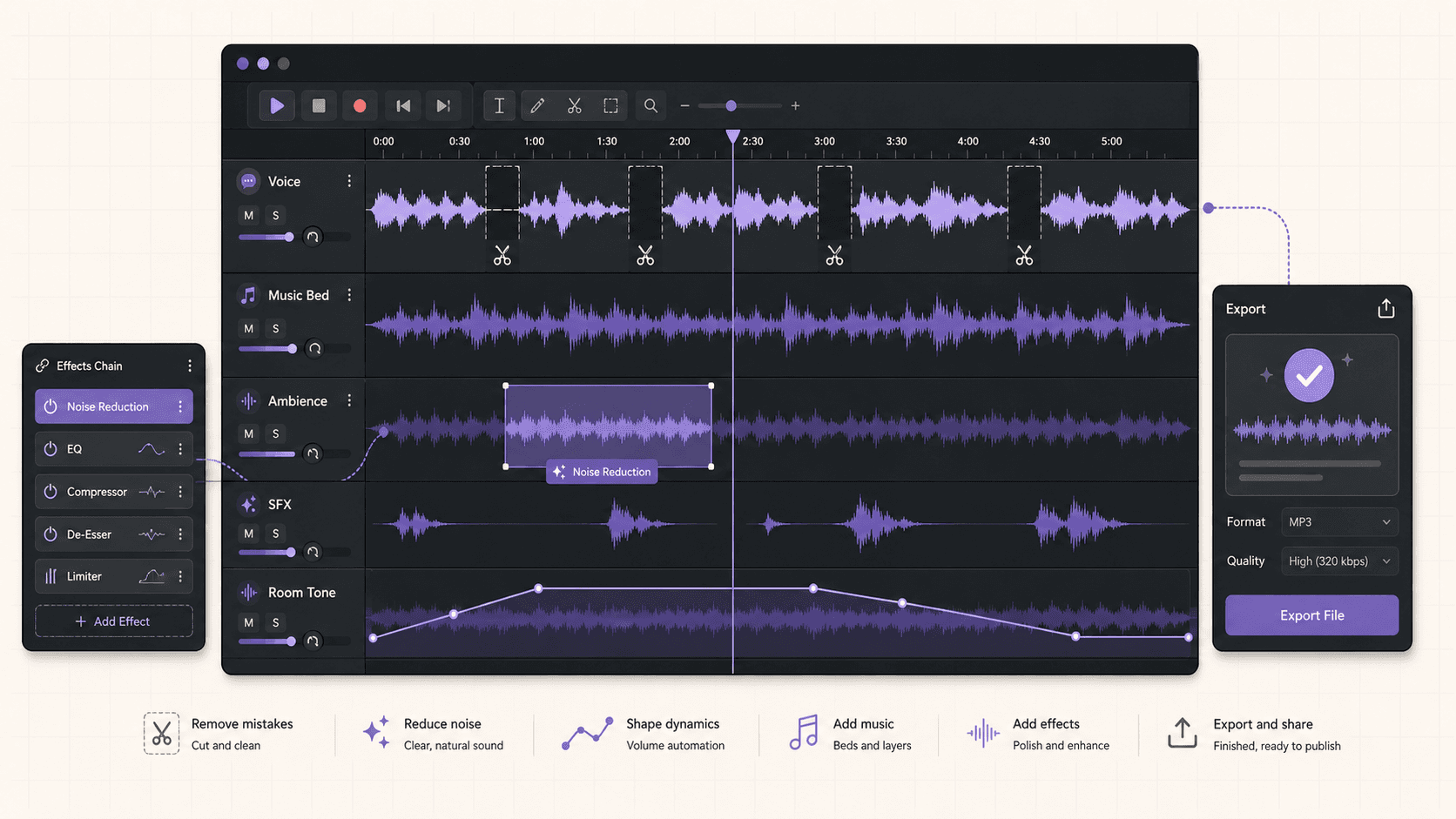
Audacity is a free and open-source audio editor and recorder. It handles multi-track editing, recording, a broad set of effects, noise reduction, and export to many formats, along with support for plugins that extend its capabilities. It's approachable enough for beginners and capable enough for real work like podcast production, cleaning up recordings, and basic music editing.
The people who use it are podcasters editing episodes, musicians and hobbyists, people cleaning up voice recordings and interviews, educators and students, and anyone who needs a straightforward, capable audio editor without a subscription. On Linux, Audacity is the standard audio editor and one of the most-installed applications of any kind.
Definition: running Audacity in the cloud
Running Audacity in the cloud means installing Audacity on a remote Ubuntu desktop and editing or processing audio there instead of on your local computer. You get more CPU and memory for heavy processing and batch jobs, plus the ability to work from any device, while your own machine stays free.
If you’re comparing platforms for remote GPU workloads, our Vagon vs. RunPod comparison can help you decide which option fits your workflow.
Why run Audacity on a cloud desktop
Audacity is light enough to run almost anywhere for simple edits, so let's be specific and honest about what the cloud actually adds, because it's a narrower set of cases than for GPU-heavy apps.
Faster heavy processing
The main reason. Certain audio operations are computationally heavy, noise reduction, some effects, and processing on long recordings or many tracks. On a laptop, running noise reduction across a long file or applying a chain of effects to a big project can be slow. A cloud machine with more CPU and memory processes these faster, so you wait less.
Batch processing many files
Audacity's macros let you apply a sequence of operations across many files automatically. Batch-processing a large folder of recordings, normalizing, cleaning, and exporting, is a heavy job that ties up your machine. On a cloud desktop, you run the batch on capable hardware while your own computer stays free.
Large multi-track projects
Working with many tracks and long recordings uses memory. A cloud machine with generous memory handles large projects comfortably where a laptop might struggle.
Work from any device
Because the desktop streams to you, you can edit audio from a device that couldn't handle a big project locally, with the processing done on a capable cloud machine.
A consistent, disposable environment
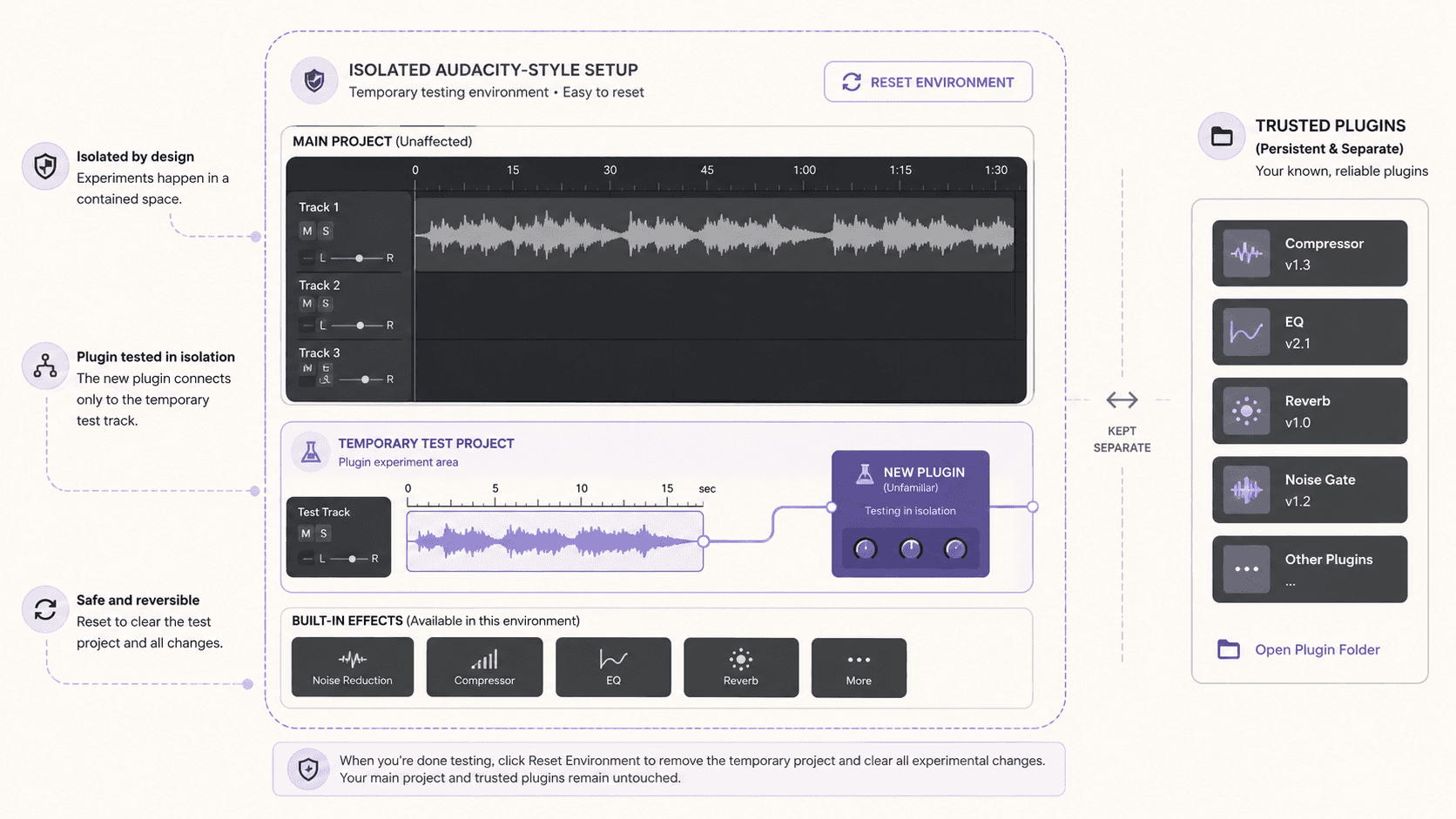
An isolated, resettable VM with persistent storage gives you a reliable Audacity setup, and a safe place to try unfamiliar plugins.
Heavy effects and why the cloud helps
It's worth being specific about which audio work actually benefits from a more powerful machine, because a lot of audio editing is light and doesn't need the cloud.
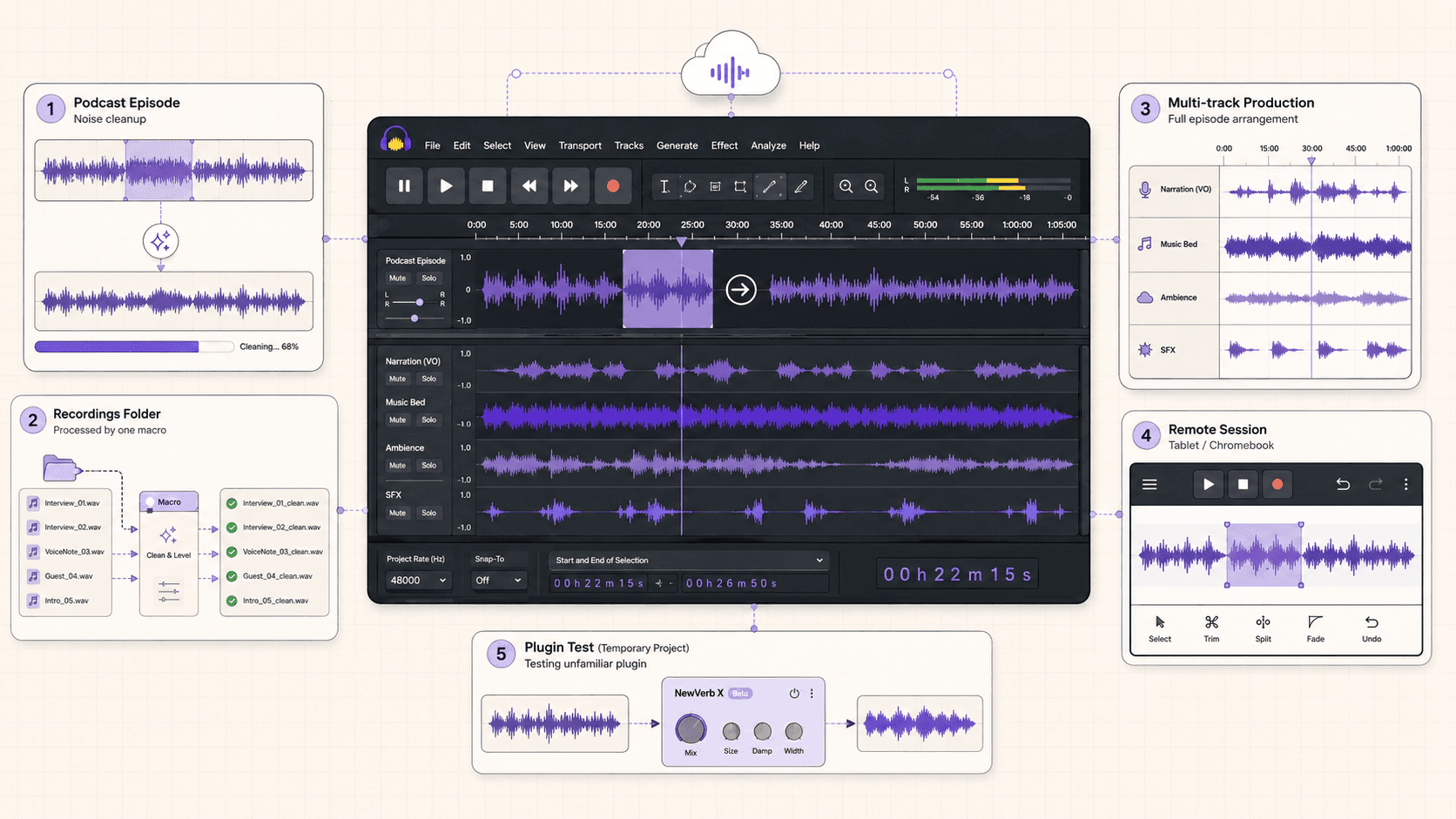
Basic editing, cutting, trimming, arranging, and simple adjustments, is not demanding, and any machine handles it. Where processing gets heavy is in a few specific areas. Noise reduction analyzes and processes the entire audio to remove background noise, which is computationally intensive, especially on long recordings. Some effects, particularly those involving complex filtering or analysis, are heavier than others. And applying a chain of effects across a long multi-track project multiplies the work.
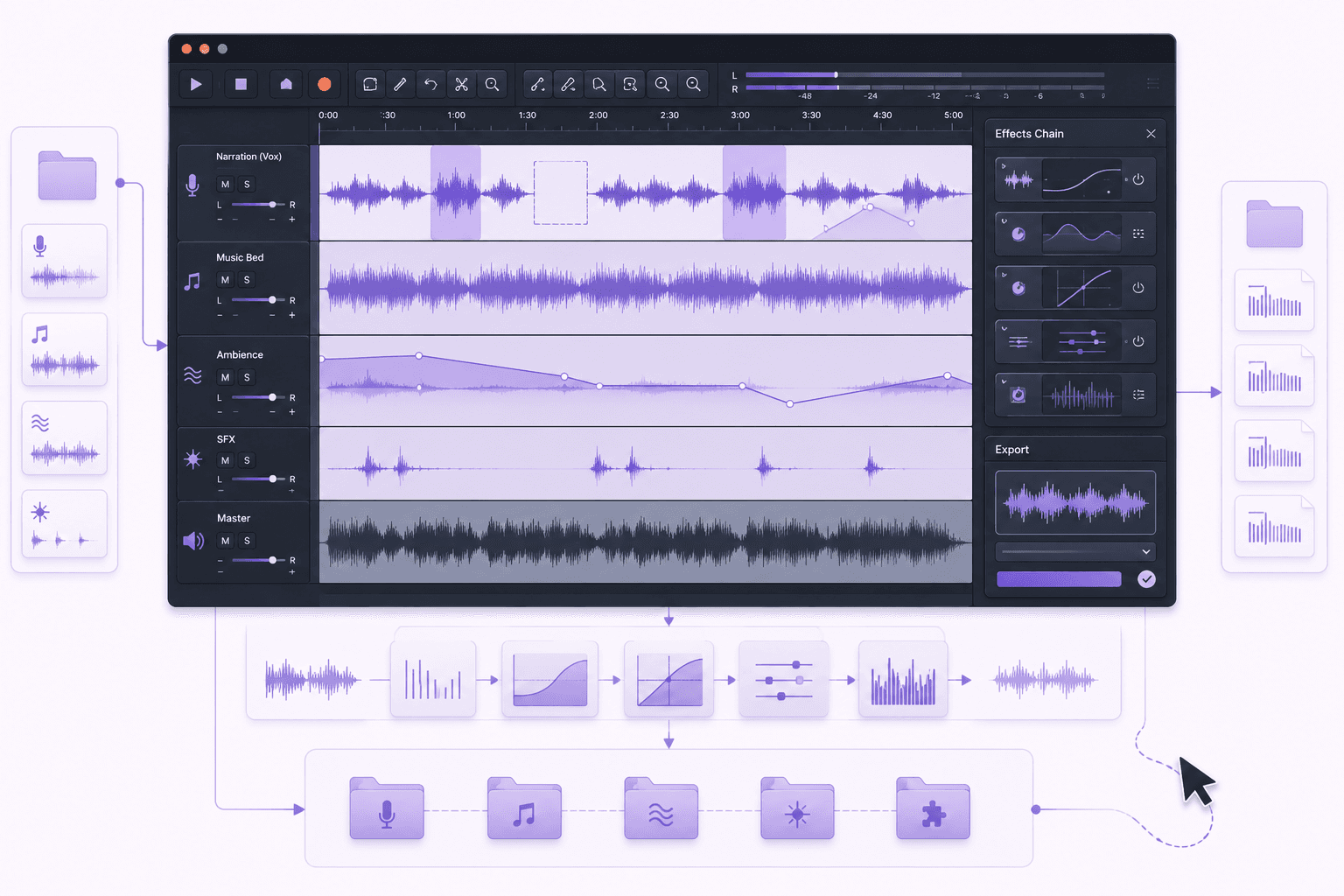
For these operations, a more powerful machine simply completes them faster, which is the benefit the cloud provides. It's a CPU-and-memory benefit rather than a GPU one, since Audacity's processing is CPU-bound, so you can run it on an affordable plan without a GPU and still get faster heavy processing from more CPU and memory. The honest framing is that Audacity benefits from the cloud in narrower circumstances than a GPU-heavy creative app, specifically heavy processing and batch jobs, so it's most worth it when your audio work involves those, and less necessary for light everyday editing.
Batch processing with macros
Batch processing is arguably the strongest reason to run Audacity on a cloud machine, so it deserves a closer look.
Audacity's macros let you define a sequence of commands, for example normalize, apply noise reduction, adjust levels, and export, and then apply that sequence automatically to a whole folder of files. This is enormously useful for anyone processing audio at volume: a podcaster with many episodes, someone cleaning up a batch of interviews, or a producer applying consistent treatment across many recordings. Instead of manually editing each file, you set up the macro once and run it across everything.
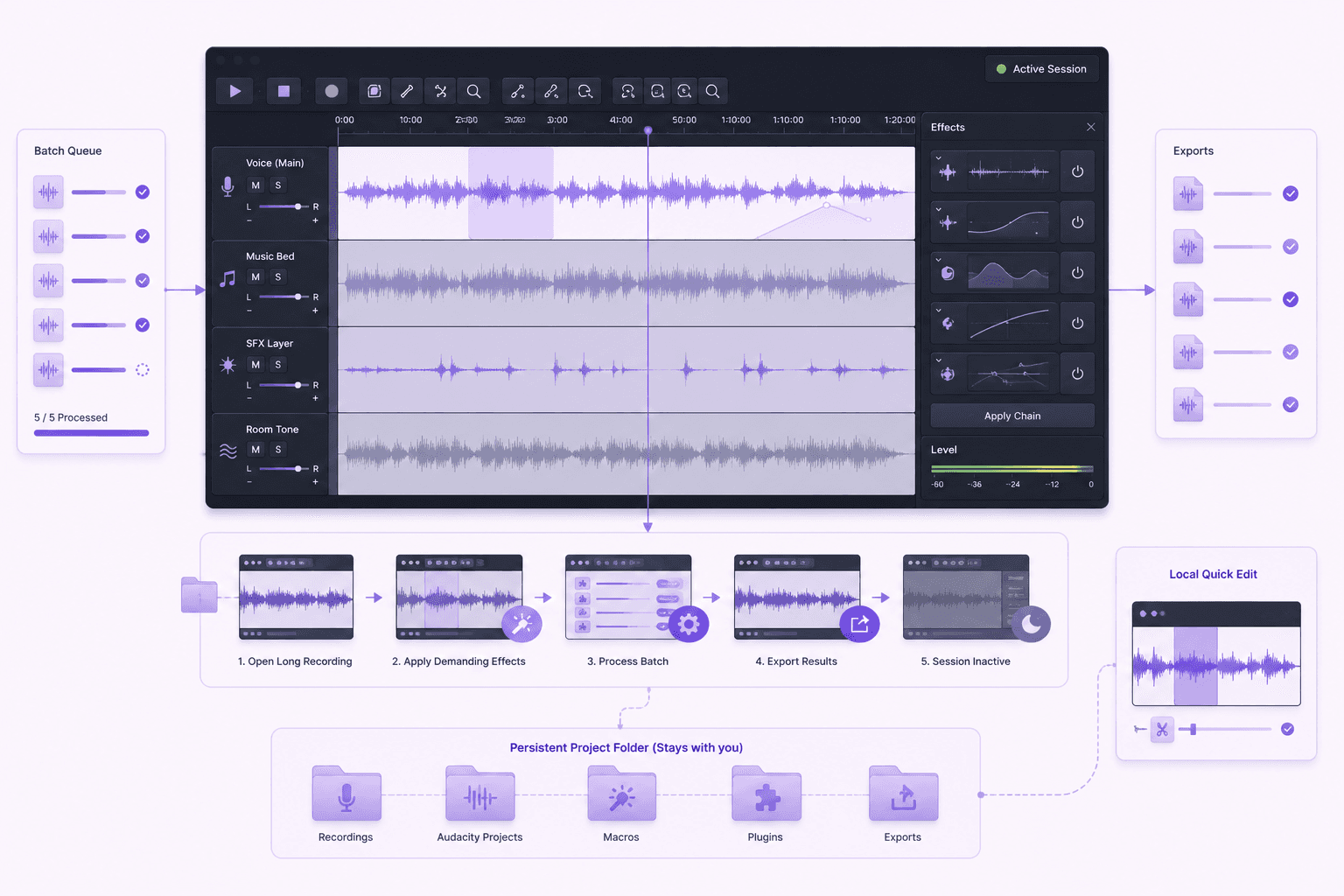
On a cloud desktop, batch processing shines because it's a heavy, unattended job that a capable machine completes faster while your own computer stays free. You set up your macro, point it at your files, start the batch, and let the machine work. For a large batch that would tie up a laptop for a long time, running it on a cloud machine in a focused session is efficient, and per-minute billing means you only pay for the processing time. This is the workflow where a cloud machine most clearly earns its place for audio.
If you’re choosing between a full remote desktop and a browser-based development environment, this Vagon vs. GitHub Codespaces comparison explains the key differences.
When it's the right call, and when to skip it
A cloud desktop is a burst tool, billed by the minute. It's the right call when you're doing heavy processing on long recordings, batch-processing many files, working on large multi-track projects that strain your machine, or wanting to work from a limited device. You spin it up, process, and shut it down.
It's the wrong call for a lot of everyday audio work. If you're doing light editing, short recordings, or simple cuts, your current machine handles Audacity fine, and it's free, so the cloud adds little. Audio editing is generally less demanding than video or 3D work, so be honest about whether your specific work is heavy enough to benefit. The cloud is most worth it for batch jobs and heavy processing, not casual editing.
What You'll Need
A Vagon account with a payment method.
An Ubuntu plan. Audacity is CPU and memory bound, so a plan without a GPU is fine; choose more CPU and memory for heavy processing and large projects.
Optionally, persistent storage to keep your projects, recordings, and plugins between sessions.
Step 1: Launch an Ubuntu machine
Create a computer on Vagon, choose Linux, and pick a plan. For Audacity, prioritize CPU and memory over GPU. It boots in about 90 seconds.
Step 2: Install Audacity
The simplest path through the terminal:
For the latest version, install from Flathub:
If Vagon's Ubuntu template already includes Audacity, you can skip straight to opening it.
Step 3: Set up your project
Open Audacity, import your audio, and arrange your tracks. On a streamed desktop with plenty of screen space, multi-track projects have room to work with.
Step 4: Set up macros for batch work
If you'll batch-process files, define your macro, the sequence of operations you want applied, so you can run it across many files.
Step 5: Add persistent storage
If you want your projects, recordings, and plugins to persist between sessions, add persistent storage so your setup is ready next time.
Editing and processing audio with cloud power
Once you're set up, the cloud machine's power shows in the heavy operations.
Editing itself, cutting, arranging, and adjusting, is responsive as you'd expect. Where you'll notice the difference is in the heavy processing: noise reduction on a long recording completes faster, effects apply more quickly, and a chain of processing across a large project doesn't drag. You spend less time watching progress bars and more time on your work.
For a podcaster or audio editor working through long recordings, this speed matters over a session, since heavy operations that each take a while add up. On a capable cloud machine, that friction reduces, and your own computer stays free while any long processing runs. Render or export your finished audio in the session, download it, and shut the machine down.
If you’re working with notebooks, machine learning, or data-heavy experiments, here’s how to run Jupyter on a cloud GPU Linux desktop.
Plugins and extending Audacity
Audacity supports plugins that add effects and capabilities, and a cloud desktop is a fine place to build a fuller setup.
You can install additional effect plugins and tools to extend Audacity beyond its built-in features, placing them where Audacity expects them. Popular additions include specialized effects, restoration tools, and analysis utilities. On an isolated cloud machine, you can try unfamiliar plugins safely, resetting to a clean image if one causes trouble, and with persistent storage your plugin setup stays ready every session.
A note on recording versus editing in the cloud
Let me be candid here, because it's an honest limitation worth stating plainly.
A cloud desktop is excellent for editing and processing audio, but recording live audio directly into a cloud machine is less straightforward, because your microphone is on your local device and the audio has to travel over the stream, which introduces considerations around latency and audio routing. For recording, especially anything where timing matters like music or live narration, you're often better off recording locally on your own device and then bringing the files into the cloud machine for editing and processing.
So the natural workflow is: record on your local device, transfer the files to the cloud desktop, and use the cloud machine's power for the editing, heavy processing, and batch work. This plays to the cloud's strength, processing power, without fighting the parts that are awkward over a stream. If your interest is primarily editing and processing rather than recording, none of this is an obstacle; if you specifically want to record into the cloud, weigh the routing and latency considerations and test your setup first.
If you need access to image editing tools from a lower-powered device, this guide explains how to run GIMP in the cloud.
Audacity in a podcast production workflow
Since podcasting is one of the most common reasons people use Audacity, it's worth walking through how a cloud machine fits that specific workflow.
A typical podcast episode goes from raw recordings to a finished, polished file through several steps: importing the recorded tracks, editing out mistakes and dead air, cleaning up the audio with noise reduction, balancing levels, adding intro and outro music, and exporting the final file. The editing and arranging are light and happen on any machine, but the cleanup and processing, especially noise reduction across a full episode, are the heavy parts, and they're where a cloud machine speeds things up.
For a podcaster producing episodes regularly, the batch-processing angle is the real prize. Once you've established your treatment, normalize, noise-reduce, adjust levels, export, you can capture it in a macro and apply it across episodes automatically. Producing a back catalog, or applying consistent processing to a series, becomes a batch job you run on a capable cloud machine rather than a file-by-file chore on your laptop. You record each episode locally, bring the files to the cloud desktop, run your editing and processing there, and export the finished episode.
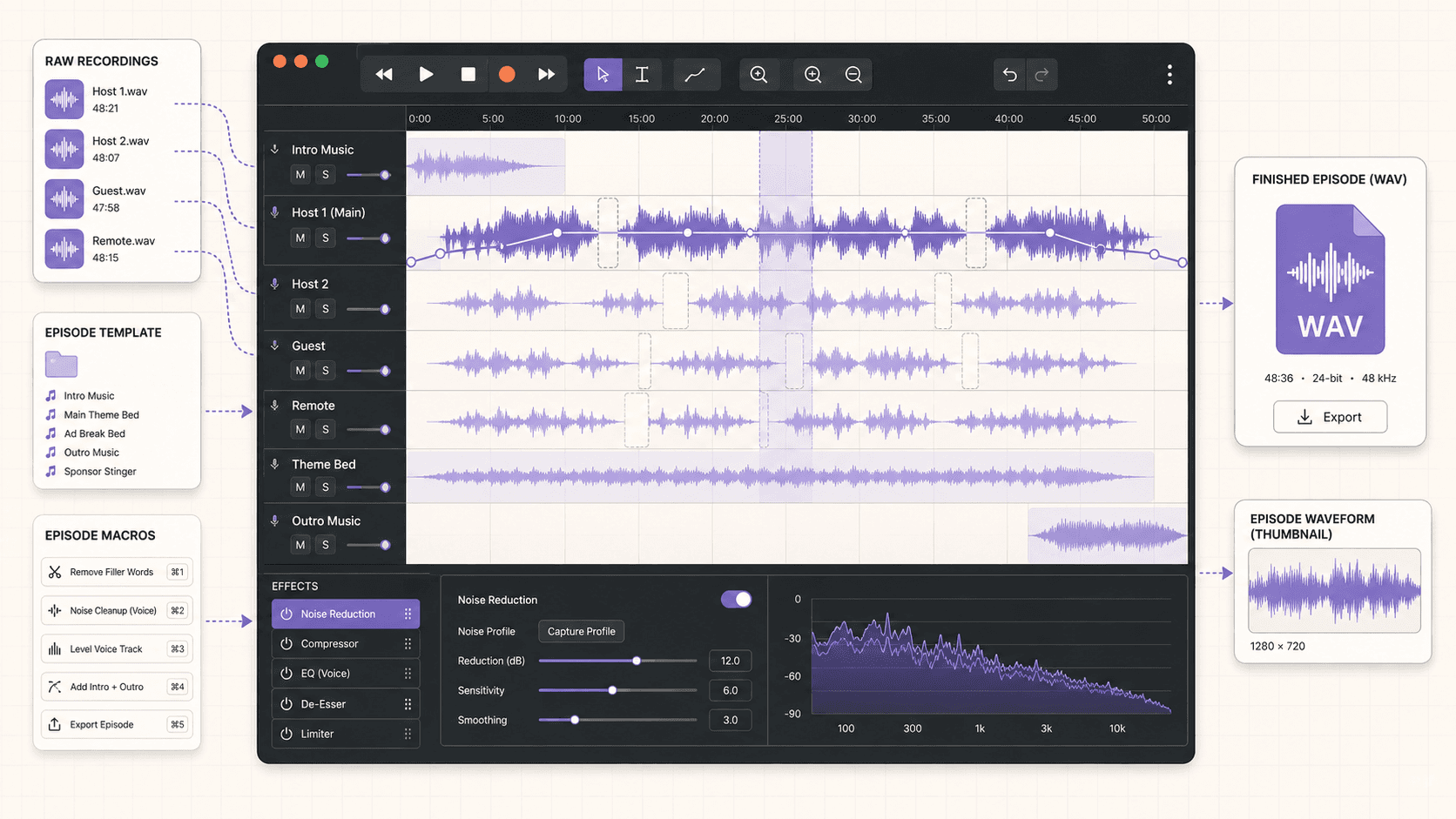
The result is a workflow that plays to the cloud's strength, fast, unattended processing, while keeping recording where it belongs, on your local device. With persistent storage, your project templates, macros, and music assets stay ready every session, so producing each episode is fast and consistent.
Getting audio in and out
Bring your recordings and projects onto the machine through the browser, the file manager, a cloud storage tool, or a sync service. For work you return to, persistent storage keeps everything on the machine between sessions.
Export your finished audio and download it through the browser or file manager, or sync it to your storage. Audio files are smaller than video, so outbound transfer is rarely a concern, though very large batch exports still count toward it. A common pattern is to bring recordings in, process them on the machine, and download the finished files.
If you’re creating digital paintings or illustrations remotely, you can learn how to run Krita in the cloud.
Cost breakdown
Your cost is the machine's running time billed by the minute, plus optional persistent storage (about five dollars per 50GB per month) for your projects and setup, plus outbound transfer beyond the included 10GB per month, which audio work rarely approaches.
Because Audacity doesn't need a GPU, you can run it on an affordable plan without one. The honest framing: for heavy processing and batch jobs, a cloud machine is efficient and you pay only for active hours. For light editing on a capable machine, Audacity is free and local is simpler. Shut the machine down when you're done.
Real-world use cases
The podcaster batch-processing episodes. You apply the same cleanup and export to many recordings. A cloud machine runs the batch macro while your own computer stays free.
The editor cleaning long recordings. Noise reduction on hours of audio drags on your laptop. A cloud machine processes it faster.
The producer with large multi-track projects. Many tracks and long recordings strain your memory. A cloud machine handles them comfortably.
The user on a light device. You want to edit audio from a Chromebook or tablet. A streamed cloud desktop delivers Audacity's full interface.
The plugin experimenter. You want to try unfamiliar plugins safely on a resettable VM.
Troubleshooting
#1. Noise reduction or effects are slow
These are heavy operations. Choose a plan with more CPU and memory, and process long files in focused sessions. The cloud machine speeds these up compared to a weak laptop.
#2. Recording has latency or routing issues
Recording live into a cloud machine is inherently trickier than editing. For recording, record locally on your device and transfer the files to the cloud for editing and processing.
#3. A plugin isn't working
Confirm it's installed where Audacity expects and compatible with your version. On a disposable VM, you can reset and reinstall carefully if an experiment went wrong.
#4. My projects and plugins are gone next session
You didn't add persistent storage, so the machine reset. Add persistent storage to keep your projects, recordings, and plugins.
If you’re working with vector graphics from any device, this guide shows how to run Inkscape in the cloud.
Wrapping up
Audacity is a free, capable audio editor, and a cloud Ubuntu desktop gives it more CPU and memory for the heavy processing and batch jobs that make a laptop drag, plus the ability to run it from any device. It doesn't need a GPU, so it runs affordably, and batch processing with macros is where a cloud machine most clearly pays off. Record locally and edit in the cloud, keep your setup on persistent storage, work in focused sessions, and shut the machine down when you're done.
Offload your batch jobs to a machine that isn't your laptop. Create a Vagon account, launch an Ubuntu machine, install Audacity, and you'll be editing in a few minutes.
Frequently Asked Questions
Is Audacity free to use in the cloud?
Yes. Audacity is free and open-source, so there's no license cost. On a cloud desktop you only pay for the machine's running time, not for Audacity.
Does Audacity need a GPU?
No. Audacity's processing is CPU and memory bound, so a plan without a GPU is fine and cheaper. Prioritize CPU and memory for heavy processing and large projects.
Can I batch-process audio files in the cloud?
Yes, and it's the strongest cloud use case for Audacity. Its macros apply a sequence of operations across many files, and a cloud machine handles large batches while your own computer stays free.
Can I record directly into a cloud machine?
Editing and processing are the cloud's strength. Recording live into a cloud machine is trickier due to latency and audio routing, so for recording it's usually better to record locally and transfer the files to the cloud for editing.
Will my projects and plugins persist between sessions?
Only if you add persistent storage. With it, your projects, recordings, and plugins wait for you. Without it, treat each session as a fresh install.
Is a cloud machine worth it for light audio editing?
Often not. Light editing runs fine on any machine, and Audacity is free. The cloud is most worth it for heavy processing, batch jobs, and large projects, so match it to whether your work is actually demanding.
Can I run Audacity from an iPad?
Yes. The streamed desktop runs on an iPad or Chromebook, with the processing on the cloud machine. A mouse or trackpad helps with precise editing.
What plans work best for Audacity?
A plan without a GPU but with ample CPU and memory suits Audacity well, since its heavy work is CPU-bound. Choose more CPU and memory for big batch jobs and large multi-track projects.
Can I run the latest Audacity version?
Yes. Install from Ubuntu's repositories or Flathub for a more current release. On a cloud desktop you control which version you install.
How do I keep costs down?
Run Audacity on a plan without a GPU, do heavy processing and batches in focused sessions, add persistent storage so your setup is ready, and shut the machine down when you're done.
Quick answer: To run Audacity in the cloud, launch a cloud Ubuntu desktop (for example on Vagon), install Audacity from apt or Flathub, and edit audio on a streamed desktop you can reach from any device. It's useful for heavy processing like noise reduction on long recordings, batch-processing many files with macros, and working on large multi-track projects, and you pay only for the hours you use.
Key takeaways
Audacity is a free, widely-used audio editor and recorder, and a cloud desktop gives it more CPU and memory for heavy work.
It's especially useful for noise reduction and effects on long recordings, batch processing, and large projects, where laptops slow down.
Batch processing with macros automates repetitive audio tasks across many files, and a cloud machine handles the load.
A cloud desktop lets you run Audacity from any device, including tablets and Chromebooks.
Persistent storage keeps your projects, recordings, and plugins between sessions.
It's billed by the minute, ideal for focused editing and processing sessions and a poor fit for idling all day.
Almost everyone who edits audio starts with Audacity, and a huge number of people never need anything else, because it does the core work well: recording, editing, cleaning up, and exporting audio, for free, on every platform. Where it starts to strain isn't the features. It's the moment you run noise reduction on a two-hour recording, apply a chain of effects across a long multi-track project, or try to batch-process a folder of files, and your laptop settles in for a long think.
That's where running Audacity on a cloud Ubuntu desktop can help. You get more CPU and memory than your laptop, Audacity runs on it, and the heavy processing speeds up. When you're done, you shut the machine off. This guide covers when a cloud machine is genuinely worth it for audio work, how to set it up, how to batch-process efficiently, and the honest trade-offs, including a candid note about recording in the cloud.
What Audacity is and who uses it
Audacity is a free and open-source audio editor and recorder. It handles multi-track editing, recording, a broad set of effects, noise reduction, and export to many formats, along with support for plugins that extend its capabilities. It's approachable enough for beginners and capable enough for real work like podcast production, cleaning up recordings, and basic music editing.
The people who use it are podcasters editing episodes, musicians and hobbyists, people cleaning up voice recordings and interviews, educators and students, and anyone who needs a straightforward, capable audio editor without a subscription. On Linux, Audacity is the standard audio editor and one of the most-installed applications of any kind.
Definition: running Audacity in the cloud
Running Audacity in the cloud means installing Audacity on a remote Ubuntu desktop and editing or processing audio there instead of on your local computer. You get more CPU and memory for heavy processing and batch jobs, plus the ability to work from any device, while your own machine stays free.
If you’re comparing platforms for remote GPU workloads, our Vagon vs. RunPod comparison can help you decide which option fits your workflow.
Why run Audacity on a cloud desktop
Audacity is light enough to run almost anywhere for simple edits, so let's be specific and honest about what the cloud actually adds, because it's a narrower set of cases than for GPU-heavy apps.
Faster heavy processing
The main reason. Certain audio operations are computationally heavy, noise reduction, some effects, and processing on long recordings or many tracks. On a laptop, running noise reduction across a long file or applying a chain of effects to a big project can be slow. A cloud machine with more CPU and memory processes these faster, so you wait less.
Batch processing many files
Audacity's macros let you apply a sequence of operations across many files automatically. Batch-processing a large folder of recordings, normalizing, cleaning, and exporting, is a heavy job that ties up your machine. On a cloud desktop, you run the batch on capable hardware while your own computer stays free.
Large multi-track projects
Working with many tracks and long recordings uses memory. A cloud machine with generous memory handles large projects comfortably where a laptop might struggle.
Work from any device
Because the desktop streams to you, you can edit audio from a device that couldn't handle a big project locally, with the processing done on a capable cloud machine.
A consistent, disposable environment
An isolated, resettable VM with persistent storage gives you a reliable Audacity setup, and a safe place to try unfamiliar plugins.
Heavy effects and why the cloud helps
It's worth being specific about which audio work actually benefits from a more powerful machine, because a lot of audio editing is light and doesn't need the cloud.
Basic editing, cutting, trimming, arranging, and simple adjustments, is not demanding, and any machine handles it. Where processing gets heavy is in a few specific areas. Noise reduction analyzes and processes the entire audio to remove background noise, which is computationally intensive, especially on long recordings. Some effects, particularly those involving complex filtering or analysis, are heavier than others. And applying a chain of effects across a long multi-track project multiplies the work.
For these operations, a more powerful machine simply completes them faster, which is the benefit the cloud provides. It's a CPU-and-memory benefit rather than a GPU one, since Audacity's processing is CPU-bound, so you can run it on an affordable plan without a GPU and still get faster heavy processing from more CPU and memory. The honest framing is that Audacity benefits from the cloud in narrower circumstances than a GPU-heavy creative app, specifically heavy processing and batch jobs, so it's most worth it when your audio work involves those, and less necessary for light everyday editing.
Batch processing with macros
Batch processing is arguably the strongest reason to run Audacity on a cloud machine, so it deserves a closer look.
Audacity's macros let you define a sequence of commands, for example normalize, apply noise reduction, adjust levels, and export, and then apply that sequence automatically to a whole folder of files. This is enormously useful for anyone processing audio at volume: a podcaster with many episodes, someone cleaning up a batch of interviews, or a producer applying consistent treatment across many recordings. Instead of manually editing each file, you set up the macro once and run it across everything.
On a cloud desktop, batch processing shines because it's a heavy, unattended job that a capable machine completes faster while your own computer stays free. You set up your macro, point it at your files, start the batch, and let the machine work. For a large batch that would tie up a laptop for a long time, running it on a cloud machine in a focused session is efficient, and per-minute billing means you only pay for the processing time. This is the workflow where a cloud machine most clearly earns its place for audio.
If you’re choosing between a full remote desktop and a browser-based development environment, this Vagon vs. GitHub Codespaces comparison explains the key differences.
When it's the right call, and when to skip it
A cloud desktop is a burst tool, billed by the minute. It's the right call when you're doing heavy processing on long recordings, batch-processing many files, working on large multi-track projects that strain your machine, or wanting to work from a limited device. You spin it up, process, and shut it down.
It's the wrong call for a lot of everyday audio work. If you're doing light editing, short recordings, or simple cuts, your current machine handles Audacity fine, and it's free, so the cloud adds little. Audio editing is generally less demanding than video or 3D work, so be honest about whether your specific work is heavy enough to benefit. The cloud is most worth it for batch jobs and heavy processing, not casual editing.
What You'll Need
A Vagon account with a payment method.
An Ubuntu plan. Audacity is CPU and memory bound, so a plan without a GPU is fine; choose more CPU and memory for heavy processing and large projects.
Optionally, persistent storage to keep your projects, recordings, and plugins between sessions.
Step 1: Launch an Ubuntu machine
Create a computer on Vagon, choose Linux, and pick a plan. For Audacity, prioritize CPU and memory over GPU. It boots in about 90 seconds.
Step 2: Install Audacity
The simplest path through the terminal:
For the latest version, install from Flathub:
If Vagon's Ubuntu template already includes Audacity, you can skip straight to opening it.
Step 3: Set up your project
Open Audacity, import your audio, and arrange your tracks. On a streamed desktop with plenty of screen space, multi-track projects have room to work with.
Step 4: Set up macros for batch work
If you'll batch-process files, define your macro, the sequence of operations you want applied, so you can run it across many files.
Step 5: Add persistent storage
If you want your projects, recordings, and plugins to persist between sessions, add persistent storage so your setup is ready next time.
Editing and processing audio with cloud power
Once you're set up, the cloud machine's power shows in the heavy operations.
Editing itself, cutting, arranging, and adjusting, is responsive as you'd expect. Where you'll notice the difference is in the heavy processing: noise reduction on a long recording completes faster, effects apply more quickly, and a chain of processing across a large project doesn't drag. You spend less time watching progress bars and more time on your work.
For a podcaster or audio editor working through long recordings, this speed matters over a session, since heavy operations that each take a while add up. On a capable cloud machine, that friction reduces, and your own computer stays free while any long processing runs. Render or export your finished audio in the session, download it, and shut the machine down.
If you’re working with notebooks, machine learning, or data-heavy experiments, here’s how to run Jupyter on a cloud GPU Linux desktop.
Plugins and extending Audacity
Audacity supports plugins that add effects and capabilities, and a cloud desktop is a fine place to build a fuller setup.
You can install additional effect plugins and tools to extend Audacity beyond its built-in features, placing them where Audacity expects them. Popular additions include specialized effects, restoration tools, and analysis utilities. On an isolated cloud machine, you can try unfamiliar plugins safely, resetting to a clean image if one causes trouble, and with persistent storage your plugin setup stays ready every session.
A note on recording versus editing in the cloud
Let me be candid here, because it's an honest limitation worth stating plainly.
A cloud desktop is excellent for editing and processing audio, but recording live audio directly into a cloud machine is less straightforward, because your microphone is on your local device and the audio has to travel over the stream, which introduces considerations around latency and audio routing. For recording, especially anything where timing matters like music or live narration, you're often better off recording locally on your own device and then bringing the files into the cloud machine for editing and processing.
So the natural workflow is: record on your local device, transfer the files to the cloud desktop, and use the cloud machine's power for the editing, heavy processing, and batch work. This plays to the cloud's strength, processing power, without fighting the parts that are awkward over a stream. If your interest is primarily editing and processing rather than recording, none of this is an obstacle; if you specifically want to record into the cloud, weigh the routing and latency considerations and test your setup first.
If you need access to image editing tools from a lower-powered device, this guide explains how to run GIMP in the cloud.
Audacity in a podcast production workflow
Since podcasting is one of the most common reasons people use Audacity, it's worth walking through how a cloud machine fits that specific workflow.
A typical podcast episode goes from raw recordings to a finished, polished file through several steps: importing the recorded tracks, editing out mistakes and dead air, cleaning up the audio with noise reduction, balancing levels, adding intro and outro music, and exporting the final file. The editing and arranging are light and happen on any machine, but the cleanup and processing, especially noise reduction across a full episode, are the heavy parts, and they're where a cloud machine speeds things up.
For a podcaster producing episodes regularly, the batch-processing angle is the real prize. Once you've established your treatment, normalize, noise-reduce, adjust levels, export, you can capture it in a macro and apply it across episodes automatically. Producing a back catalog, or applying consistent processing to a series, becomes a batch job you run on a capable cloud machine rather than a file-by-file chore on your laptop. You record each episode locally, bring the files to the cloud desktop, run your editing and processing there, and export the finished episode.
The result is a workflow that plays to the cloud's strength, fast, unattended processing, while keeping recording where it belongs, on your local device. With persistent storage, your project templates, macros, and music assets stay ready every session, so producing each episode is fast and consistent.
Getting audio in and out
Bring your recordings and projects onto the machine through the browser, the file manager, a cloud storage tool, or a sync service. For work you return to, persistent storage keeps everything on the machine between sessions.
Export your finished audio and download it through the browser or file manager, or sync it to your storage. Audio files are smaller than video, so outbound transfer is rarely a concern, though very large batch exports still count toward it. A common pattern is to bring recordings in, process them on the machine, and download the finished files.
If you’re creating digital paintings or illustrations remotely, you can learn how to run Krita in the cloud.
Cost breakdown
Your cost is the machine's running time billed by the minute, plus optional persistent storage (about five dollars per 50GB per month) for your projects and setup, plus outbound transfer beyond the included 10GB per month, which audio work rarely approaches.
Because Audacity doesn't need a GPU, you can run it on an affordable plan without one. The honest framing: for heavy processing and batch jobs, a cloud machine is efficient and you pay only for active hours. For light editing on a capable machine, Audacity is free and local is simpler. Shut the machine down when you're done.
Real-world use cases
The podcaster batch-processing episodes. You apply the same cleanup and export to many recordings. A cloud machine runs the batch macro while your own computer stays free.
The editor cleaning long recordings. Noise reduction on hours of audio drags on your laptop. A cloud machine processes it faster.
The producer with large multi-track projects. Many tracks and long recordings strain your memory. A cloud machine handles them comfortably.
The user on a light device. You want to edit audio from a Chromebook or tablet. A streamed cloud desktop delivers Audacity's full interface.
The plugin experimenter. You want to try unfamiliar plugins safely on a resettable VM.
Troubleshooting
#1. Noise reduction or effects are slow
These are heavy operations. Choose a plan with more CPU and memory, and process long files in focused sessions. The cloud machine speeds these up compared to a weak laptop.
#2. Recording has latency or routing issues
Recording live into a cloud machine is inherently trickier than editing. For recording, record locally on your device and transfer the files to the cloud for editing and processing.
#3. A plugin isn't working
Confirm it's installed where Audacity expects and compatible with your version. On a disposable VM, you can reset and reinstall carefully if an experiment went wrong.
#4. My projects and plugins are gone next session
You didn't add persistent storage, so the machine reset. Add persistent storage to keep your projects, recordings, and plugins.
If you’re working with vector graphics from any device, this guide shows how to run Inkscape in the cloud.
Wrapping up
Audacity is a free, capable audio editor, and a cloud Ubuntu desktop gives it more CPU and memory for the heavy processing and batch jobs that make a laptop drag, plus the ability to run it from any device. It doesn't need a GPU, so it runs affordably, and batch processing with macros is where a cloud machine most clearly pays off. Record locally and edit in the cloud, keep your setup on persistent storage, work in focused sessions, and shut the machine down when you're done.
Offload your batch jobs to a machine that isn't your laptop. Create a Vagon account, launch an Ubuntu machine, install Audacity, and you'll be editing in a few minutes.
Frequently Asked Questions
Is Audacity free to use in the cloud?
Yes. Audacity is free and open-source, so there's no license cost. On a cloud desktop you only pay for the machine's running time, not for Audacity.
Does Audacity need a GPU?
No. Audacity's processing is CPU and memory bound, so a plan without a GPU is fine and cheaper. Prioritize CPU and memory for heavy processing and large projects.
Can I batch-process audio files in the cloud?
Yes, and it's the strongest cloud use case for Audacity. Its macros apply a sequence of operations across many files, and a cloud machine handles large batches while your own computer stays free.
Can I record directly into a cloud machine?
Editing and processing are the cloud's strength. Recording live into a cloud machine is trickier due to latency and audio routing, so for recording it's usually better to record locally and transfer the files to the cloud for editing.
Will my projects and plugins persist between sessions?
Only if you add persistent storage. With it, your projects, recordings, and plugins wait for you. Without it, treat each session as a fresh install.
Is a cloud machine worth it for light audio editing?
Often not. Light editing runs fine on any machine, and Audacity is free. The cloud is most worth it for heavy processing, batch jobs, and large projects, so match it to whether your work is actually demanding.
Can I run Audacity from an iPad?
Yes. The streamed desktop runs on an iPad or Chromebook, with the processing on the cloud machine. A mouse or trackpad helps with precise editing.
What plans work best for Audacity?
A plan without a GPU but with ample CPU and memory suits Audacity well, since its heavy work is CPU-bound. Choose more CPU and memory for big batch jobs and large multi-track projects.
Can I run the latest Audacity version?
Yes. Install from Ubuntu's repositories or Flathub for a more current release. On a cloud desktop you control which version you install.
How do I keep costs down?
Run Audacity on a plan without a GPU, do heavy processing and batches in focused sessions, add persistent storage so your setup is ready, and shut the machine down when you're done.
Get Beyond Your Computer Performance
Run applications on your cloud computer with the latest generation hardware. No more crashes or lags.

Trial includes 1 hour usage + 7 days of storage.
Summarize with AI

Ready to focus on your creativity?
Vagon gives you the ability to create & render projects, collaborate, and stream applications with the power of the best hardware.

Run heavy applications on any device with
your personal computer on the cloud.
San Francisco, California
Solutions
Vagon Teams
Vagon Streams
Use Cases
© 2026 Vagon. All rights reserved.
Run heavy applications on any device with
your personal computer on the cloud.
San Francisco, California
Solutions
Vagon Teams
Vagon Streams
Use Cases
© 2026 Vagon. All rights reserved.
Run heavy applications on any device with
your personal computer on the cloud.
San Francisco, California
Solutions
Vagon Teams
Vagon Streams
Use Cases
© 2026 Vagon. All rights reserved.