Instant Connection for Pixel Streaming
— New Feature Automated Setup

How to Run Jupyter on a Cloud GPU Linux Desktop (2026 Guide)
How to Run Jupyter on a Cloud GPU Linux Desktop (2026 Guide)
How to Run Jupyter on a Cloud GPU Linux Desktop (2026 Guide)
Table of Contents
Quick answer: To run Jupyter on a cloud GPU, launch a GPU Ubuntu desktop (for example on Vagon with an NVIDIA T4 or A10G), verify the GPU with nvidia-smi, install JupyterLab and your framework, confirm the GPU is visible to PyTorch or TensorFlow, and launch the notebook in the machine's own browser. Because drivers and CUDA are preconfigured, the heavy cells that kill a laptop kernel run at full speed, and you pay only for the hours you use.
Key Takeaways
A cloud GPU runs the cells that kill your laptop kernel, training, large datasets, big-model inference, without out-of-memory crashes.
Drivers and CUDA are preconfigured, so
torch.cuda.is_available()returnsTruewithout version wrangling.A real desktop beats a headless pod for notebooks: you open Jupyter in a real browser, manage files easily, and watch the GPU work.
Persistent storage is recommended, so your notebooks, datasets, and environments survive between sessions.
It's billed by the minute, ideal for bursty notebook work and heavy training sessions, and a poor fit for an always-on notebook server.
Match the model and batch to your GPU's VRAM to keep everything on the fast path.
A surprising amount of real machine learning happens in a Jupyter notebook, one cell at a time. Not in a slick production pipeline, but in a notebook, one cell at a time, poking at data and watching what comes out. It's a wonderful way to work, right up until you run the cell that trains the model or loads the big dataset, and your laptop's fan spins up, the kernel dies, and you're staring at an out-of-memory error.
The fix is a real GPU, and the cleanest way to get one without buying a workstation is a cloud GPU Ubuntu desktop. You get an NVIDIA card, CUDA already set up, and Jupyter running on hardware that can actually handle the cell you just ran. This guide walks through setting that up, why doing it on a desktop is nicer than a headless pod, how to size your work to the GPU, and where a cloud machine is and isn't the right call.
Why run Jupyter on a cloud GPU?
Let's be specific about what the GPU and the cloud each buy you, because "it's faster" is too vague to plan around.
The cell that killed your kernel now runs
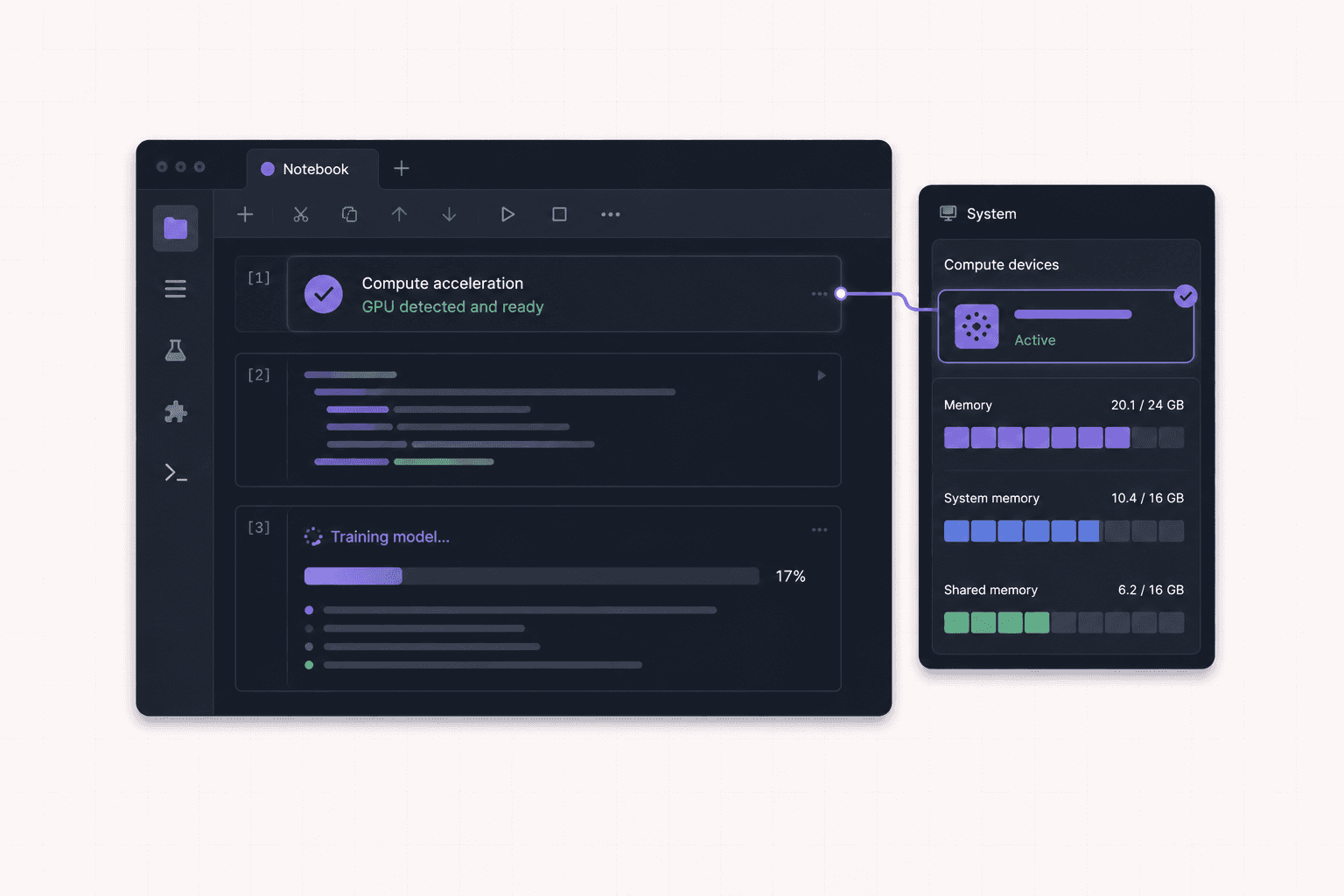
This is the whole reason. Training a model, loading a large dataset into memory, running inference on a big network. These are the cells that overwhelm a laptop. A cloud GPU with a T4 or an A10G, plus more system memory, gives you the room to run them without the kernel dying. The frustrating "restart kernel and try a smaller everything" cycle just stops.
CUDA already works
Anyone who's tried to get GPU acceleration working in a notebook on a fresh machine knows the pain. Matching CUDA versions, installing the right PyTorch or TensorFlow build, fighting driver mismatches, reading forum threads about mysterious errors. On a cloud GPU desktop, the drivers and CUDA come preconfigured, so torch.cuda.is_available() returns True and you get on with your actual work. That saved hour of setup is worth a lot on its own.
You only pay for the GPU when you use it
Notebook work is bursty by nature. You think, you write a cell, you run it, you think some more, you go make coffee. Renting a GPU by the minute fits that rhythm. You pay for the session, not for a workstation that sits idle between experiments and depreciates while you sleep.
A clean, disposable environment
Every Vagon machine is an isolated VM. Install whatever chaotic mix of libraries your experiment needs, and if the environment gets tangled, which anyone who's managed Python dependencies knows happens, reset to a clean image. Your real machine stays clean, and a broken environment is a reset away from fixed.
Power on demand for one big experiment
Sometimes a single experiment needs far more machine than you own, a bigger model, a larger batch size, a longer training run. Rather than being limited by your laptop, rent the power for that experiment and give it back when it's done.
If you’re working with vector graphics from any device, this guide shows how to run Inkscape in the cloud.
Why a desktop beats a headless pod for notebooks
You can run Jupyter on a headless server, and plenty of people do. But a real desktop has quiet advantages for this specific workflow that add up over a working session.
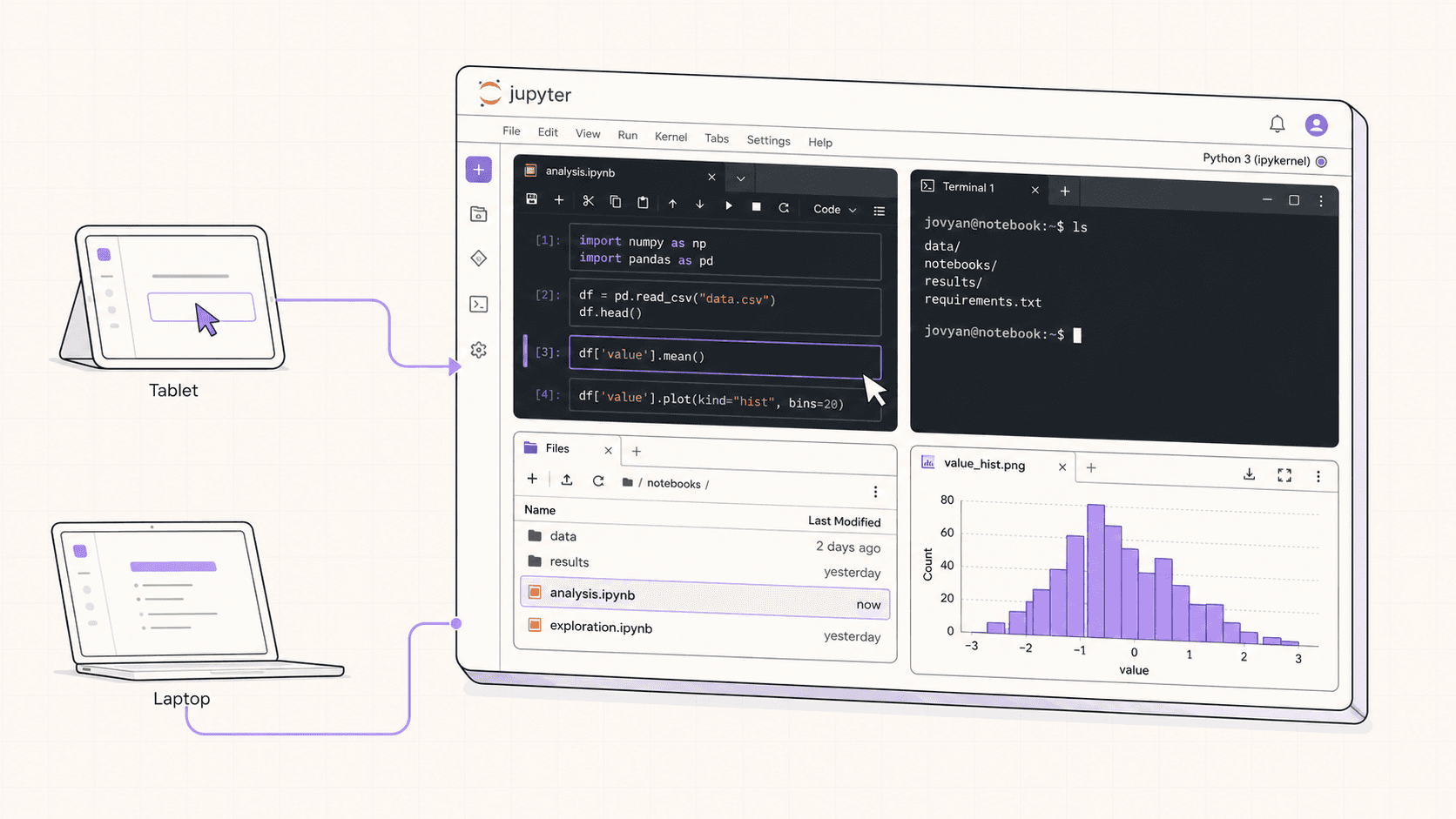
On a desktop you open Jupyter in the machine's own browser, with no port tunneling and no SSH gymnastics to expose the notebook. You have a file manager right there to move datasets and outputs around, drag files in, and organize your work visually. You can open a system monitor next to your notebook and watch GPU memory fill as a model loads, which is genuinely useful for understanding your model's footprint. You can pop open a second browser tab to read documentation, or run a quick visualization tool, all on the same machine. It's the difference between working on a computer and poking at a server through a straw.
On Vagon, that desktop streams at up to 4K and 60 frames per second, so scrolling through a long notebook and rendering plots stays smooth. And you can drive the whole thing from an iPad or a Chromebook, which is a genuinely nice way to do data science from a couch or a coffee shop without hauling a powerful laptop. The headless pod gives you compute; the desktop gives you compute plus a comfortable place to actually work.
When to skip it
A cloud GPU desktop is billed by the minute at workstation rates. If you need a notebook server running 24 hours a day for a team to hit any time, a per-minute desktop is the wrong tool, and a dedicated monthly server or a managed notebook service will be cheaper. And if your notebooks are light and your laptop already runs them fine, you don't need a cloud GPU at all.
The cloud wins for bursts and for the heavy cells your hardware can't handle. Spin it up for the session, and shut it down after. Be honest about your usage pattern: intermittent heavy work fits the cloud beautifully, while constant all-day-every-day use might eventually justify owning hardware or renting a dedicated machine.
If you need access to image editing tools from a lower-powered device, this guide explains how to run GIMP in the cloud.
What you'll need
A Vagon account with a payment method.
A GPU plan with an NVIDIA T4 or A10G, depending on how heavy your models are.
Persistent storage, recommended, so your notebooks, datasets, and environments survive between sessions.
Step-by-step setup
Step 1: Launch a GPU Ubuntu machine
Create a computer on Vagon, choose Linux, and pick a GPU plan. It boots in about 90 seconds, with drivers and CUDA already in place.
Step 2: Confirm the GPU
Open a terminal and check the card:
You'll see the GPU and its memory, which tells you how big a model or batch you can run.
Step 3: Set up your environment
Use whatever you like. A quick path with pip and a virtual environment:
Or use conda if that's your habit. If Vagon's Ubuntu template already includes a data-science setup, you can skip much of this.
Step 4: Launch JupyterLab
Start it and open it in the machine's own browser:
It prints a local URL, usually on port 8888. Open that in the desktop's browser and you're in JupyterLab, running on a GPU machine, no tunneling required.
Step 5: Work, and watch it run
Open a notebook and go. Load your data, build your model, run the heavy cells that used to kill your kernel. Keep a terminal open with watch -n 1 nvidia-smi if you like seeing the GPU memory and utilization move as your cells run. It's oddly satisfying and genuinely useful for spotting when you're about to run out of memory.
If you’re choosing between a full remote desktop and a browser-based development environment, this Vagon vs. GitHub Codespaces comparison explains the key differences.
Verifying the GPU works with your framework
Before you start heavy work, it's worth a ten-second check that your framework actually sees the GPU, since a notebook that silently falls back to CPU is a common source of "why is this so slow" confusion.
For PyTorch:
If it prints True, PyTorch can use the GPU. You can also check which device it sees and how much memory is available from within a notebook cell.
For TensorFlow, list the GPU devices it detects to confirm it found the card. If either framework reports no GPU on a GPU plan, the usual cause is installing a CPU-only build of the framework, so make sure you installed the CUDA-enabled version. This is the moment the preconfigured drivers pay off, because on a fresh do-it-yourself machine this is exactly where things usually go wrong, and here they generally just work.
If you’re creating digital paintings or illustrations remotely, you can learn how to run Krita in the cloud.
Matching your work to the GPU
The recurring question is whether your model and batch fit, so here's how to think about it.
Your GPU's video memory has to hold the model's parameters, the data for the batch you're processing, and the intermediate values computed during training. When all of that fits, the GPU works at full speed. When it doesn't, you get an out-of-memory error and the cell fails.
The main levers you control are model size and batch size. A bigger model or a larger batch uses more memory. If you hit an out-of-memory error, the quickest fixes are reducing the batch size, using a smaller model, or using techniques like mixed-precision training that reduce memory use. If you routinely need more room than your card offers, stepping up from a T4 to an A10G or a higher plan gives you more VRAM to work with, which on a cloud desktop is a one-click change rather than a hardware purchase.
A sensible approach is to start with a batch size that fits comfortably, confirm the GPU is being used and the cell runs, and then increase the batch size or model complexity until you find the limit of your card. Because you can change plans easily, you're never permanently stuck at one memory ceiling.

Managing environments and dependencies
Python environments are famously fiddly, and notebooks make it easy to accumulate a tangle of packages. A few habits keep things sane, especially on a machine you may reset.
Use a virtual environment or conda environment for each project so dependencies don't collide. Keep a record of your dependencies, a requirements file or an environment file, so you can recreate the setup quickly. This matters more on a cloud machine, because if you're not on persistent storage, or you reset a tangled environment, you'll want to rebuild it fast. A short setup script that creates the environment and installs your packages turns rebuilding from a chore into a single command.
The upside of the disposable model is real: if an environment becomes hopelessly broken, which happens to everyone eventually, you don't spend an afternoon untangling it. You reset to a clean image and run your setup script. That freedom to start fresh without consequence is one of the underrated benefits of doing this work on an isolated cloud machine rather than your one precious laptop environment.
If you’re comparing platforms for remote GPU workloads, our Vagon vs. RunPod comparison can help you decide which option fits your workflow.
Working with data efficiently
Data handling is where notebook workflows often bottleneck, so a few pointers help.
Keep your datasets on persistent storage if you use them repeatedly, so you're not re-downloading gigabytes every session and your machine starts fast. For very large datasets, pulling them onto the machine once and reusing them beats fetching them each time. When you push results, trained model checkpoints, exported outputs, off the machine, keep an eye on outbound transfer beyond the included 10GB per month, though typical notebook work rarely approaches it.
A common efficient pattern is to keep your working dataset and notebooks on persistent storage, so a session begins with everything already in place, you launch Jupyter, and you're immediately productive. That setup makes the burst model genuinely quick: boot, work, shut down, with no lengthy data shuffling at either end.
Why the GPU changes notebook work so much
It's worth pausing on why a GPU makes such a dramatic difference to notebook-based machine learning, because it explains when the cloud is worth it and when it isn't.
The operations at the heart of modern machine learning, the matrix multiplications that make up training and inference, are exactly the kind of massively parallel math a GPU is built for. A CPU does these operations reasonably well but sequentially in comparison; a GPU does thousands of them at once. For training a neural network, that difference isn't a small speedup, it's often the difference between a cell finishing in minutes and finishing in hours, or between it running at all and crashing.
This is why the same notebook feels completely different on a laptop and on a cloud GPU machine. On the laptop, you write your model, run the training cell, and wait, and wait, and eventually the kernel dies because there wasn't enough memory or the machine overheated. On the cloud GPU, the same cell runs, the GPU chews through the math, and you get your result while you're still thinking about the next experiment. The tight loop of try-something-see-the-result, which is the whole appeal of notebooks, only works when the results come back fast enough to keep you in flow, and a GPU is what makes that possible for real models.
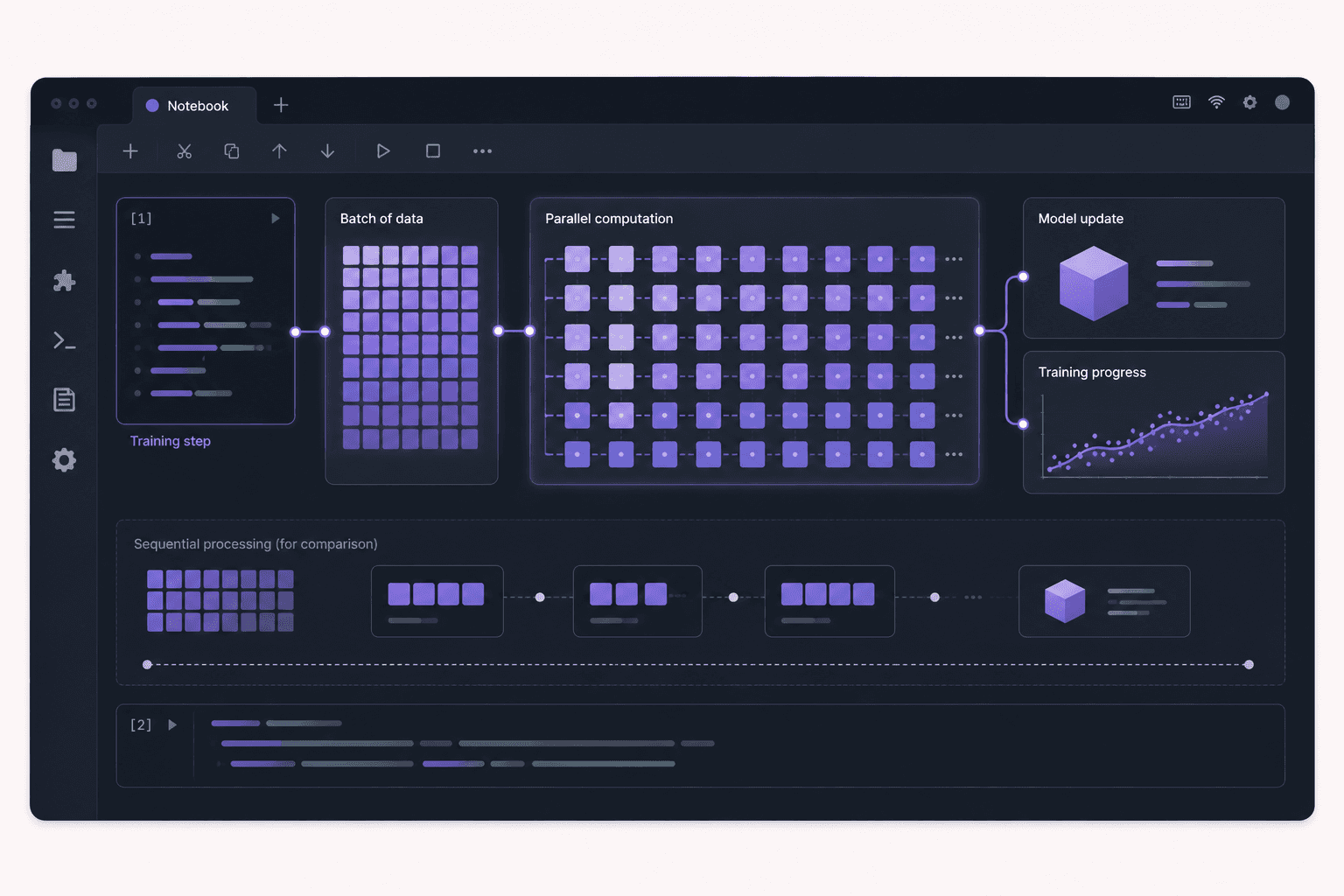
The practical implication is that a cloud GPU is transformative precisely for the kind of work where the GPU matters: training, deep learning, large-model inference, heavy numerical work. For lighter notebook work, data cleaning, simple analysis, small models, a GPU adds little, and you're better off on a plain machine or your own laptop. Knowing which kind of work you're doing tells you whether reaching for a cloud GPU is worth it for a given session.
If you want more visibility into what an autonomous workflow is doing, this guide shows how to watch your AI agent work on a cloud desktop.
Common ML libraries and what they need
A quick tour of the tools you'll likely run in your notebooks and how they use the GPU, so you can set up sensibly.
PyTorch and TensorFlow
The two major deep learning frameworks. Both use NVIDIA GPUs through CUDA, and both need the CUDA-enabled build to do so. On a cloud GPU desktop with drivers preconfigured, you install the GPU version, confirm it sees the card, and you're set. These are where the GPU earns its keep, since training and inference run on it.
Hugging Face libraries
The Transformers and related libraries build on PyTorch or TensorFlow and are a common way to work with modern models. They benefit directly from the GPU underneath, and running them on a cloud machine means you can work with larger models than a laptop allows, plus keep the downloaded model weights on persistent storage.
RAPIDS and GPU-accelerated data tools
Beyond deep learning, there are libraries that accelerate traditional data work, dataframes, classic machine learning, on the GPU. If your bottleneck is processing a large dataset rather than training a neural network, these can speed things up considerably, and they need the same CUDA-capable environment.
Visualization and analysis libraries
The everyday tools, plotting libraries, dataframe libraries, scientific computing packages, mostly run on the CPU and don't need the GPU. They run fine on a cloud machine, and the desktop makes viewing plots and results comfortable, but they're not the reason you'd rent a GPU.
The general point: install the GPU-enabled builds of your deep learning frameworks, keep your environments organized, and remember that the GPU accelerates the heavy numerical work specifically, which is exactly the work that overwhelms a laptop.
If you’re testing private or open-source AI models, you can also learn how to run a local LLM on Ubuntu in the cloud.
Tips for faster, cheaper training
Since you're paying for GPU time, a few well-known techniques help you get more done per minute, which saves both time and money.
Use mixed-precision training. Training with lower-precision numbers where possible speeds up computation and reduces memory use, often with negligible impact on results. It's one of the highest-value optimizations for modern GPUs.
Find the right batch size. A larger batch uses the GPU more fully up to a point, but too large and you run out of memory. Tune it to fit your card comfortably while keeping the GPU busy.
Load data efficiently. If your GPU is waiting on data loading, it's idle and you're paying for it. Use efficient data loading so the GPU stays fed, which keeps utilization high.
Checkpoint your training. Save model checkpoints periodically so a long training run can resume if interrupted, and so you don't lose progress. This pairs well with persistent storage.
Profile before optimizing. If training is slow, check whether the bottleneck is the GPU, the data pipeline, or the CPU, rather than guessing. Keeping an eye on
nvidia-smiutilization tells you if the GPU is actually the limiting factor.
Every minute of GPU time you save is money kept, so a little attention to these before a long training run pays off directly on a per-minute machine.
From notebook to something bigger
Notebooks are ideal for exploration, and it's worth thinking about what happens as a project matures, because it affects how you use the cloud machine.
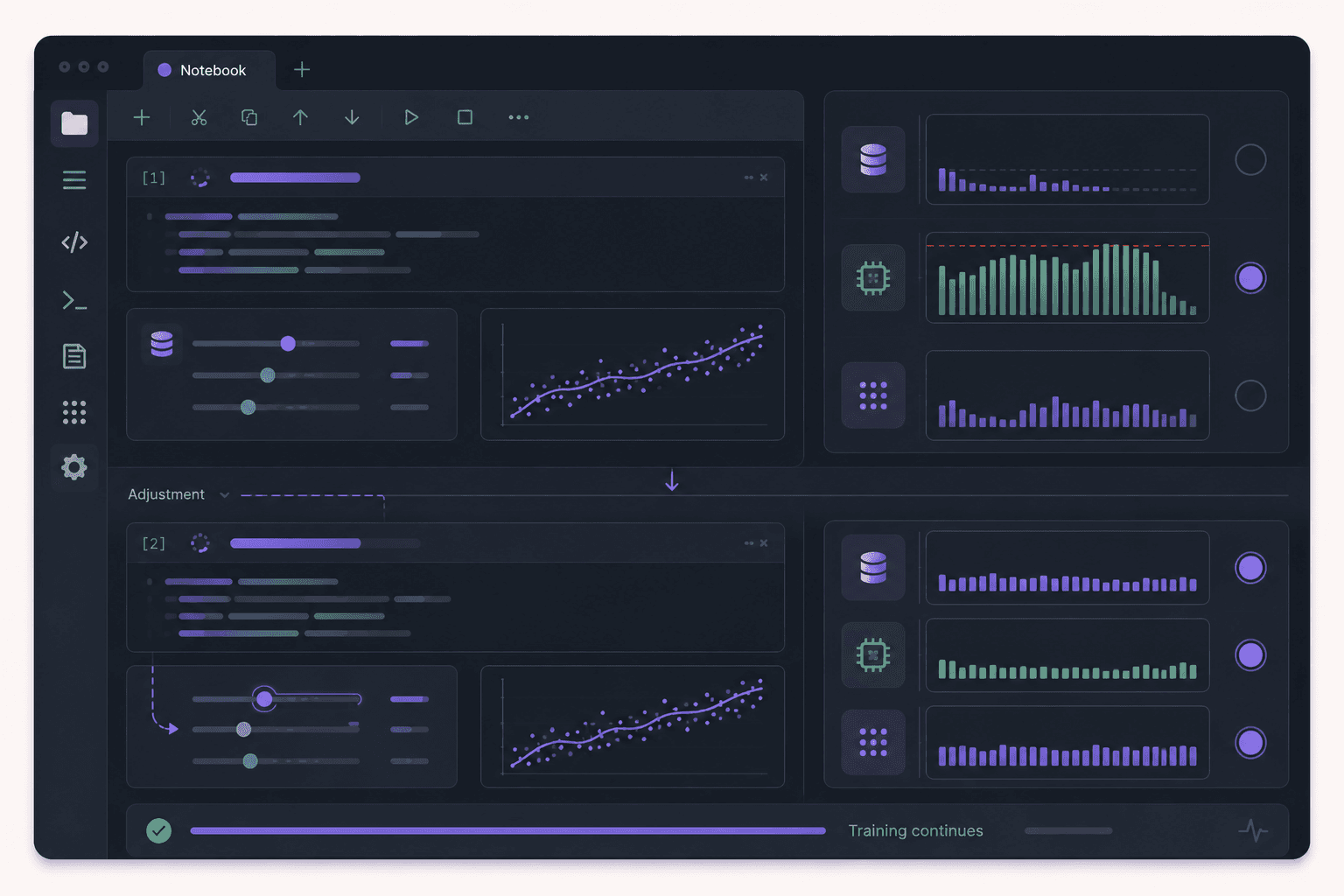
In the exploratory phase, the notebook is perfect. You're trying ideas, visualizing data, iterating on a model, and the cell-by-cell interactivity keeps you moving. A cloud GPU desktop fits this phase beautifully, because the work is bursty and hands-on, and you value seeing results quickly and being able to watch the GPU.
As a project firms up, some of that notebook work often graduates into scripts, a training script you run start to finish, a data pipeline, a reproducible experiment. The good news is that a cloud desktop handles this just as well, since it's a full Linux machine: you develop the notebook, then run the resulting script from the terminal, potentially as a longer focused session. You can even automate the whole thing, kicking off a training script, letting it run, and shutting down when it finishes.
If a workload eventually needs to run continuously or serve real traffic, that's the point to move it to dedicated infrastructure rather than a per-minute desktop. But the exploration, prototyping, and heavy experimental training, the phase where a notebook and a GPU you can see and drive are most valuable, is exactly what a cloud GPU desktop is built for. Use it for that phase, and graduate specific workloads when their usage pattern outgrows the burst model.
If you’re working on demanding 3D scenes or rendering projects, this guide explains how to run Blender on a cloud GPU with Ubuntu.
Cost breakdown
Your cost is the machine's running time billed by the minute, plus optional persistent storage (about five dollars per 50GB per month, recommended for notebook work given dataset sizes), plus outbound transfer beyond the included 10GB per month, which mainly matters for large exports.
The honest framing: for bursty notebook work and intermittent heavy training, a per-minute GPU is efficient and avoids a large hardware purchase, since you pay only for active hours. For a notebook server that must be available around the clock, a dedicated monthly server or a managed service is cheaper. Use persistent storage so setup and data loading are fast, run heavy training in focused sessions, and shut the machine down when you're done. The meter stops when the machine stops.
Real-world use cases
The data scientist prototyping a model. You're iterating on a model in a notebook, and the training cells overwhelm your laptop. A cloud GPU runs them, and you rent it for the sessions you're actively working.
The researcher running experiments. You need to run a batch of experiments that need a GPU. Spin up a machine, run them in a focused session, collect the results, and stop.
The student learning ML. Your coursework involves training models your laptop can't handle. A cloud GPU lets you do real ML work without buying expensive hardware.
The analyst with a big dataset. A dataset too large for your laptop's memory loads comfortably on a cloud machine with more RAM and a GPU for acceleration.
The Mac user. Your machine lacks an NVIDIA GPU for CUDA-based frameworks. A cloud GPU desktop gives you the CUDA environment your notebooks expect, already configured.
Troubleshooting
#1. The notebook runs on CPU instead of the GPU
Usually you installed a CPU-only build of your framework. Reinstall the CUDA-enabled version, and confirm with torch.cuda.is_available() or by listing TensorFlow's GPU devices.
#2. Out-of-memory errors during training
The model or batch exceeds your GPU's memory. Reduce the batch size, use a smaller model, try mixed-precision training, or step up to a higher GPU plan.
nvidia-smi shows no GPU
Make sure you launched a GPU plan. On a GPU plan the drivers are preconfigured; if the card still doesn't appear, restart the machine.
#3. The interface feels laggy
That's your connection to the streamed desktop, not the GPU. Lower the stream resolution or move to a better network. The notebook's compute runs at full GPU speed regardless.
#4. My environment broke after installing packages
Because you're on a disposable VM, the fastest fix is often to reset to a clean image and rebuild from your setup script or requirements file, rather than spending time untangling a dependency conflict.
Getting the most out of JupyterLab
Since JupyterLab is where you'll spend your time, a few features and habits make it a far better environment, especially on a full desktop where you have room to work.
JupyterLab supports multiple panels, so you can have several notebooks, a terminal, and a file browser open side by side. On a streamed desktop with plenty of screen space, this is genuinely useful: keep your main notebook open, a terminal running nvidia-smi in another panel to watch the GPU, and a file browser to manage your data, all at once. It turns the notebook from a single scrolling document into a proper workspace.
Extensions expand JupyterLab considerably, adding things like variable inspectors, better debugging, git integration, and visualization tools. Because you're on a full machine you control, you can install the extensions that suit your workflow without restriction.
A few habits that pay off: restart the kernel and run all cells periodically to make sure your notebook actually works top to bottom, rather than relying on state built up from running cells out of order, which is a classic source of results that can't be reproduced. Clear large outputs before saving to keep notebook files manageable. And use the terminal panel for the things that are awkward in cells, like installing packages or managing files, since you have a real terminal right there.
The broad point is that a full desktop lets JupyterLab be the complete workspace it's designed to be, with the terminal, file management, and system monitoring you'd want alongside your notebooks, rather than a notebook interface floating alone on a headless server.
If you’re building node-based image generation workflows, here’s how to run ComfyUI in the cloud with access to more powerful GPUs.
Putting it together
Jupyter is at its best when the hardware behind it can keep up, and a cloud GPU Ubuntu desktop gives you exactly that. A real NVIDIA card, CUDA already working, and a full desktop where you open the notebook in a real browser, watch the GPU work, and manage your files like a normal computer. Keep your data and environment on persistent storage, size your models and batches to the card, rent it for the sessions where you need the power, and shut it down when you're finished.
Tired of your kernel dying on the training cell? Create a Vagon account, launch a GPU Ubuntu machine, and you'll be running notebooks on a real GPU in a few minutes.
Frequently Asked Questions
Do I have to install CUDA and GPU drivers myself?
No. That's one of the best reasons to use a cloud GPU desktop for notebooks. Drivers and CUDA are already configured, so torch.cuda.is_available() returns True without you fighting version mismatches.
Can I use PyTorch and TensorFlow both?
Yes. Install whichever you need, or both in separate environments. The GPU works with both, and being able to spin up clean environments per project is part of the appeal.
Will my notebooks and data still be there next session?
Only if you add persistent storage, which is recommended for notebook work given how large datasets get. With it, your notebooks, data, and environment persist. Without it, save your work off the machine before shutting down.
How is this different from a hosted notebook service?
Hosted notebook services are convenient but often limit your environment, session length, or GPU access, and can get expensive for heavy use. A cloud GPU desktop gives you a full machine you fully control, any libraries, any session length you're willing to pay for, and a real desktop around the notebook. The trade is that you manage the setup, which a cloud desktop makes quick.
Which GPU should I choose for notebooks?
A T4 handles a lot of learning and prototyping comfortably. Step up to an A10G for larger models, bigger batches, or faster training. Match the card to how heavy your models are, and remember you can change plans as your needs grow.
Can I run JupyterLab and Jupyter Notebook both?
Yes. Install whichever interface you prefer. JupyterLab is the more full-featured environment, while the classic notebook interface is lighter. Both run fine on the desktop.
How do I keep costs down?
Use persistent storage so setup and data loading are fast, run heavy training in focused sessions, and shut the machine down when you're done. Per-minute billing rewards focused work and punishes forgotten idle machines.
Can I access my cloud notebook from an iPad?
Yes. Because Vagon streams a full desktop, you can open JupyterLab in the machine's browser and drive it from an iPad or Chromebook, doing real GPU-backed notebook work from a thin device.
Is running notebooks in the cloud secure?
Each machine is an isolated VM with an encrypted connection. Keep long-lived secrets off a disposable machine and use scoped credentials for anything sensitive, and the isolation contains risk to that single machine.
Can I schedule or automate notebook runs?
Yes. Because it's a full Linux machine, you can script the execution of notebooks, run them in a focused session, and shut down when done. Tools exist to run notebooks non-interactively, which pairs well with the burst model.
Quick answer: To run Jupyter on a cloud GPU, launch a GPU Ubuntu desktop (for example on Vagon with an NVIDIA T4 or A10G), verify the GPU with nvidia-smi, install JupyterLab and your framework, confirm the GPU is visible to PyTorch or TensorFlow, and launch the notebook in the machine's own browser. Because drivers and CUDA are preconfigured, the heavy cells that kill a laptop kernel run at full speed, and you pay only for the hours you use.
Key Takeaways
A cloud GPU runs the cells that kill your laptop kernel, training, large datasets, big-model inference, without out-of-memory crashes.
Drivers and CUDA are preconfigured, so
torch.cuda.is_available()returnsTruewithout version wrangling.A real desktop beats a headless pod for notebooks: you open Jupyter in a real browser, manage files easily, and watch the GPU work.
Persistent storage is recommended, so your notebooks, datasets, and environments survive between sessions.
It's billed by the minute, ideal for bursty notebook work and heavy training sessions, and a poor fit for an always-on notebook server.
Match the model and batch to your GPU's VRAM to keep everything on the fast path.
A surprising amount of real machine learning happens in a Jupyter notebook, one cell at a time. Not in a slick production pipeline, but in a notebook, one cell at a time, poking at data and watching what comes out. It's a wonderful way to work, right up until you run the cell that trains the model or loads the big dataset, and your laptop's fan spins up, the kernel dies, and you're staring at an out-of-memory error.
The fix is a real GPU, and the cleanest way to get one without buying a workstation is a cloud GPU Ubuntu desktop. You get an NVIDIA card, CUDA already set up, and Jupyter running on hardware that can actually handle the cell you just ran. This guide walks through setting that up, why doing it on a desktop is nicer than a headless pod, how to size your work to the GPU, and where a cloud machine is and isn't the right call.
Why run Jupyter on a cloud GPU?
Let's be specific about what the GPU and the cloud each buy you, because "it's faster" is too vague to plan around.
The cell that killed your kernel now runs
This is the whole reason. Training a model, loading a large dataset into memory, running inference on a big network. These are the cells that overwhelm a laptop. A cloud GPU with a T4 or an A10G, plus more system memory, gives you the room to run them without the kernel dying. The frustrating "restart kernel and try a smaller everything" cycle just stops.
CUDA already works
Anyone who's tried to get GPU acceleration working in a notebook on a fresh machine knows the pain. Matching CUDA versions, installing the right PyTorch or TensorFlow build, fighting driver mismatches, reading forum threads about mysterious errors. On a cloud GPU desktop, the drivers and CUDA come preconfigured, so torch.cuda.is_available() returns True and you get on with your actual work. That saved hour of setup is worth a lot on its own.
You only pay for the GPU when you use it
Notebook work is bursty by nature. You think, you write a cell, you run it, you think some more, you go make coffee. Renting a GPU by the minute fits that rhythm. You pay for the session, not for a workstation that sits idle between experiments and depreciates while you sleep.
A clean, disposable environment
Every Vagon machine is an isolated VM. Install whatever chaotic mix of libraries your experiment needs, and if the environment gets tangled, which anyone who's managed Python dependencies knows happens, reset to a clean image. Your real machine stays clean, and a broken environment is a reset away from fixed.
Power on demand for one big experiment
Sometimes a single experiment needs far more machine than you own, a bigger model, a larger batch size, a longer training run. Rather than being limited by your laptop, rent the power for that experiment and give it back when it's done.
If you’re working with vector graphics from any device, this guide shows how to run Inkscape in the cloud.
Why a desktop beats a headless pod for notebooks
You can run Jupyter on a headless server, and plenty of people do. But a real desktop has quiet advantages for this specific workflow that add up over a working session.
On a desktop you open Jupyter in the machine's own browser, with no port tunneling and no SSH gymnastics to expose the notebook. You have a file manager right there to move datasets and outputs around, drag files in, and organize your work visually. You can open a system monitor next to your notebook and watch GPU memory fill as a model loads, which is genuinely useful for understanding your model's footprint. You can pop open a second browser tab to read documentation, or run a quick visualization tool, all on the same machine. It's the difference between working on a computer and poking at a server through a straw.
On Vagon, that desktop streams at up to 4K and 60 frames per second, so scrolling through a long notebook and rendering plots stays smooth. And you can drive the whole thing from an iPad or a Chromebook, which is a genuinely nice way to do data science from a couch or a coffee shop without hauling a powerful laptop. The headless pod gives you compute; the desktop gives you compute plus a comfortable place to actually work.
When to skip it
A cloud GPU desktop is billed by the minute at workstation rates. If you need a notebook server running 24 hours a day for a team to hit any time, a per-minute desktop is the wrong tool, and a dedicated monthly server or a managed notebook service will be cheaper. And if your notebooks are light and your laptop already runs them fine, you don't need a cloud GPU at all.
The cloud wins for bursts and for the heavy cells your hardware can't handle. Spin it up for the session, and shut it down after. Be honest about your usage pattern: intermittent heavy work fits the cloud beautifully, while constant all-day-every-day use might eventually justify owning hardware or renting a dedicated machine.
If you need access to image editing tools from a lower-powered device, this guide explains how to run GIMP in the cloud.
What you'll need
A Vagon account with a payment method.
A GPU plan with an NVIDIA T4 or A10G, depending on how heavy your models are.
Persistent storage, recommended, so your notebooks, datasets, and environments survive between sessions.
Step-by-step setup
Step 1: Launch a GPU Ubuntu machine
Create a computer on Vagon, choose Linux, and pick a GPU plan. It boots in about 90 seconds, with drivers and CUDA already in place.
Step 2: Confirm the GPU
Open a terminal and check the card:
You'll see the GPU and its memory, which tells you how big a model or batch you can run.
Step 3: Set up your environment
Use whatever you like. A quick path with pip and a virtual environment:
Or use conda if that's your habit. If Vagon's Ubuntu template already includes a data-science setup, you can skip much of this.
Step 4: Launch JupyterLab
Start it and open it in the machine's own browser:
It prints a local URL, usually on port 8888. Open that in the desktop's browser and you're in JupyterLab, running on a GPU machine, no tunneling required.
Step 5: Work, and watch it run
Open a notebook and go. Load your data, build your model, run the heavy cells that used to kill your kernel. Keep a terminal open with watch -n 1 nvidia-smi if you like seeing the GPU memory and utilization move as your cells run. It's oddly satisfying and genuinely useful for spotting when you're about to run out of memory.
If you’re choosing between a full remote desktop and a browser-based development environment, this Vagon vs. GitHub Codespaces comparison explains the key differences.
Verifying the GPU works with your framework
Before you start heavy work, it's worth a ten-second check that your framework actually sees the GPU, since a notebook that silently falls back to CPU is a common source of "why is this so slow" confusion.
For PyTorch:
If it prints True, PyTorch can use the GPU. You can also check which device it sees and how much memory is available from within a notebook cell.
For TensorFlow, list the GPU devices it detects to confirm it found the card. If either framework reports no GPU on a GPU plan, the usual cause is installing a CPU-only build of the framework, so make sure you installed the CUDA-enabled version. This is the moment the preconfigured drivers pay off, because on a fresh do-it-yourself machine this is exactly where things usually go wrong, and here they generally just work.
If you’re creating digital paintings or illustrations remotely, you can learn how to run Krita in the cloud.
Matching your work to the GPU
The recurring question is whether your model and batch fit, so here's how to think about it.
Your GPU's video memory has to hold the model's parameters, the data for the batch you're processing, and the intermediate values computed during training. When all of that fits, the GPU works at full speed. When it doesn't, you get an out-of-memory error and the cell fails.
The main levers you control are model size and batch size. A bigger model or a larger batch uses more memory. If you hit an out-of-memory error, the quickest fixes are reducing the batch size, using a smaller model, or using techniques like mixed-precision training that reduce memory use. If you routinely need more room than your card offers, stepping up from a T4 to an A10G or a higher plan gives you more VRAM to work with, which on a cloud desktop is a one-click change rather than a hardware purchase.
A sensible approach is to start with a batch size that fits comfortably, confirm the GPU is being used and the cell runs, and then increase the batch size or model complexity until you find the limit of your card. Because you can change plans easily, you're never permanently stuck at one memory ceiling.
Managing environments and dependencies
Python environments are famously fiddly, and notebooks make it easy to accumulate a tangle of packages. A few habits keep things sane, especially on a machine you may reset.
Use a virtual environment or conda environment for each project so dependencies don't collide. Keep a record of your dependencies, a requirements file or an environment file, so you can recreate the setup quickly. This matters more on a cloud machine, because if you're not on persistent storage, or you reset a tangled environment, you'll want to rebuild it fast. A short setup script that creates the environment and installs your packages turns rebuilding from a chore into a single command.
The upside of the disposable model is real: if an environment becomes hopelessly broken, which happens to everyone eventually, you don't spend an afternoon untangling it. You reset to a clean image and run your setup script. That freedom to start fresh without consequence is one of the underrated benefits of doing this work on an isolated cloud machine rather than your one precious laptop environment.
If you’re comparing platforms for remote GPU workloads, our Vagon vs. RunPod comparison can help you decide which option fits your workflow.
Working with data efficiently
Data handling is where notebook workflows often bottleneck, so a few pointers help.
Keep your datasets on persistent storage if you use them repeatedly, so you're not re-downloading gigabytes every session and your machine starts fast. For very large datasets, pulling them onto the machine once and reusing them beats fetching them each time. When you push results, trained model checkpoints, exported outputs, off the machine, keep an eye on outbound transfer beyond the included 10GB per month, though typical notebook work rarely approaches it.
A common efficient pattern is to keep your working dataset and notebooks on persistent storage, so a session begins with everything already in place, you launch Jupyter, and you're immediately productive. That setup makes the burst model genuinely quick: boot, work, shut down, with no lengthy data shuffling at either end.
Why the GPU changes notebook work so much
It's worth pausing on why a GPU makes such a dramatic difference to notebook-based machine learning, because it explains when the cloud is worth it and when it isn't.
The operations at the heart of modern machine learning, the matrix multiplications that make up training and inference, are exactly the kind of massively parallel math a GPU is built for. A CPU does these operations reasonably well but sequentially in comparison; a GPU does thousands of them at once. For training a neural network, that difference isn't a small speedup, it's often the difference between a cell finishing in minutes and finishing in hours, or between it running at all and crashing.
This is why the same notebook feels completely different on a laptop and on a cloud GPU machine. On the laptop, you write your model, run the training cell, and wait, and wait, and eventually the kernel dies because there wasn't enough memory or the machine overheated. On the cloud GPU, the same cell runs, the GPU chews through the math, and you get your result while you're still thinking about the next experiment. The tight loop of try-something-see-the-result, which is the whole appeal of notebooks, only works when the results come back fast enough to keep you in flow, and a GPU is what makes that possible for real models.
The practical implication is that a cloud GPU is transformative precisely for the kind of work where the GPU matters: training, deep learning, large-model inference, heavy numerical work. For lighter notebook work, data cleaning, simple analysis, small models, a GPU adds little, and you're better off on a plain machine or your own laptop. Knowing which kind of work you're doing tells you whether reaching for a cloud GPU is worth it for a given session.
If you want more visibility into what an autonomous workflow is doing, this guide shows how to watch your AI agent work on a cloud desktop.
Common ML libraries and what they need
A quick tour of the tools you'll likely run in your notebooks and how they use the GPU, so you can set up sensibly.
PyTorch and TensorFlow
The two major deep learning frameworks. Both use NVIDIA GPUs through CUDA, and both need the CUDA-enabled build to do so. On a cloud GPU desktop with drivers preconfigured, you install the GPU version, confirm it sees the card, and you're set. These are where the GPU earns its keep, since training and inference run on it.
Hugging Face libraries
The Transformers and related libraries build on PyTorch or TensorFlow and are a common way to work with modern models. They benefit directly from the GPU underneath, and running them on a cloud machine means you can work with larger models than a laptop allows, plus keep the downloaded model weights on persistent storage.
RAPIDS and GPU-accelerated data tools
Beyond deep learning, there are libraries that accelerate traditional data work, dataframes, classic machine learning, on the GPU. If your bottleneck is processing a large dataset rather than training a neural network, these can speed things up considerably, and they need the same CUDA-capable environment.
Visualization and analysis libraries
The everyday tools, plotting libraries, dataframe libraries, scientific computing packages, mostly run on the CPU and don't need the GPU. They run fine on a cloud machine, and the desktop makes viewing plots and results comfortable, but they're not the reason you'd rent a GPU.
The general point: install the GPU-enabled builds of your deep learning frameworks, keep your environments organized, and remember that the GPU accelerates the heavy numerical work specifically, which is exactly the work that overwhelms a laptop.
If you’re testing private or open-source AI models, you can also learn how to run a local LLM on Ubuntu in the cloud.
Tips for faster, cheaper training
Since you're paying for GPU time, a few well-known techniques help you get more done per minute, which saves both time and money.
Use mixed-precision training. Training with lower-precision numbers where possible speeds up computation and reduces memory use, often with negligible impact on results. It's one of the highest-value optimizations for modern GPUs.
Find the right batch size. A larger batch uses the GPU more fully up to a point, but too large and you run out of memory. Tune it to fit your card comfortably while keeping the GPU busy.
Load data efficiently. If your GPU is waiting on data loading, it's idle and you're paying for it. Use efficient data loading so the GPU stays fed, which keeps utilization high.
Checkpoint your training. Save model checkpoints periodically so a long training run can resume if interrupted, and so you don't lose progress. This pairs well with persistent storage.
Profile before optimizing. If training is slow, check whether the bottleneck is the GPU, the data pipeline, or the CPU, rather than guessing. Keeping an eye on
nvidia-smiutilization tells you if the GPU is actually the limiting factor.
Every minute of GPU time you save is money kept, so a little attention to these before a long training run pays off directly on a per-minute machine.
From notebook to something bigger
Notebooks are ideal for exploration, and it's worth thinking about what happens as a project matures, because it affects how you use the cloud machine.
In the exploratory phase, the notebook is perfect. You're trying ideas, visualizing data, iterating on a model, and the cell-by-cell interactivity keeps you moving. A cloud GPU desktop fits this phase beautifully, because the work is bursty and hands-on, and you value seeing results quickly and being able to watch the GPU.
As a project firms up, some of that notebook work often graduates into scripts, a training script you run start to finish, a data pipeline, a reproducible experiment. The good news is that a cloud desktop handles this just as well, since it's a full Linux machine: you develop the notebook, then run the resulting script from the terminal, potentially as a longer focused session. You can even automate the whole thing, kicking off a training script, letting it run, and shutting down when it finishes.
If a workload eventually needs to run continuously or serve real traffic, that's the point to move it to dedicated infrastructure rather than a per-minute desktop. But the exploration, prototyping, and heavy experimental training, the phase where a notebook and a GPU you can see and drive are most valuable, is exactly what a cloud GPU desktop is built for. Use it for that phase, and graduate specific workloads when their usage pattern outgrows the burst model.
If you’re working on demanding 3D scenes or rendering projects, this guide explains how to run Blender on a cloud GPU with Ubuntu.
Cost breakdown
Your cost is the machine's running time billed by the minute, plus optional persistent storage (about five dollars per 50GB per month, recommended for notebook work given dataset sizes), plus outbound transfer beyond the included 10GB per month, which mainly matters for large exports.
The honest framing: for bursty notebook work and intermittent heavy training, a per-minute GPU is efficient and avoids a large hardware purchase, since you pay only for active hours. For a notebook server that must be available around the clock, a dedicated monthly server or a managed service is cheaper. Use persistent storage so setup and data loading are fast, run heavy training in focused sessions, and shut the machine down when you're done. The meter stops when the machine stops.
Real-world use cases
The data scientist prototyping a model. You're iterating on a model in a notebook, and the training cells overwhelm your laptop. A cloud GPU runs them, and you rent it for the sessions you're actively working.
The researcher running experiments. You need to run a batch of experiments that need a GPU. Spin up a machine, run them in a focused session, collect the results, and stop.
The student learning ML. Your coursework involves training models your laptop can't handle. A cloud GPU lets you do real ML work without buying expensive hardware.
The analyst with a big dataset. A dataset too large for your laptop's memory loads comfortably on a cloud machine with more RAM and a GPU for acceleration.
The Mac user. Your machine lacks an NVIDIA GPU for CUDA-based frameworks. A cloud GPU desktop gives you the CUDA environment your notebooks expect, already configured.
Troubleshooting
#1. The notebook runs on CPU instead of the GPU
Usually you installed a CPU-only build of your framework. Reinstall the CUDA-enabled version, and confirm with torch.cuda.is_available() or by listing TensorFlow's GPU devices.
#2. Out-of-memory errors during training
The model or batch exceeds your GPU's memory. Reduce the batch size, use a smaller model, try mixed-precision training, or step up to a higher GPU plan.
nvidia-smi shows no GPU
Make sure you launched a GPU plan. On a GPU plan the drivers are preconfigured; if the card still doesn't appear, restart the machine.
#3. The interface feels laggy
That's your connection to the streamed desktop, not the GPU. Lower the stream resolution or move to a better network. The notebook's compute runs at full GPU speed regardless.
#4. My environment broke after installing packages
Because you're on a disposable VM, the fastest fix is often to reset to a clean image and rebuild from your setup script or requirements file, rather than spending time untangling a dependency conflict.
Getting the most out of JupyterLab
Since JupyterLab is where you'll spend your time, a few features and habits make it a far better environment, especially on a full desktop where you have room to work.
JupyterLab supports multiple panels, so you can have several notebooks, a terminal, and a file browser open side by side. On a streamed desktop with plenty of screen space, this is genuinely useful: keep your main notebook open, a terminal running nvidia-smi in another panel to watch the GPU, and a file browser to manage your data, all at once. It turns the notebook from a single scrolling document into a proper workspace.
Extensions expand JupyterLab considerably, adding things like variable inspectors, better debugging, git integration, and visualization tools. Because you're on a full machine you control, you can install the extensions that suit your workflow without restriction.
A few habits that pay off: restart the kernel and run all cells periodically to make sure your notebook actually works top to bottom, rather than relying on state built up from running cells out of order, which is a classic source of results that can't be reproduced. Clear large outputs before saving to keep notebook files manageable. And use the terminal panel for the things that are awkward in cells, like installing packages or managing files, since you have a real terminal right there.
The broad point is that a full desktop lets JupyterLab be the complete workspace it's designed to be, with the terminal, file management, and system monitoring you'd want alongside your notebooks, rather than a notebook interface floating alone on a headless server.
If you’re building node-based image generation workflows, here’s how to run ComfyUI in the cloud with access to more powerful GPUs.
Putting it together
Jupyter is at its best when the hardware behind it can keep up, and a cloud GPU Ubuntu desktop gives you exactly that. A real NVIDIA card, CUDA already working, and a full desktop where you open the notebook in a real browser, watch the GPU work, and manage your files like a normal computer. Keep your data and environment on persistent storage, size your models and batches to the card, rent it for the sessions where you need the power, and shut it down when you're finished.
Tired of your kernel dying on the training cell? Create a Vagon account, launch a GPU Ubuntu machine, and you'll be running notebooks on a real GPU in a few minutes.
Frequently Asked Questions
Do I have to install CUDA and GPU drivers myself?
No. That's one of the best reasons to use a cloud GPU desktop for notebooks. Drivers and CUDA are already configured, so torch.cuda.is_available() returns True without you fighting version mismatches.
Can I use PyTorch and TensorFlow both?
Yes. Install whichever you need, or both in separate environments. The GPU works with both, and being able to spin up clean environments per project is part of the appeal.
Will my notebooks and data still be there next session?
Only if you add persistent storage, which is recommended for notebook work given how large datasets get. With it, your notebooks, data, and environment persist. Without it, save your work off the machine before shutting down.
How is this different from a hosted notebook service?
Hosted notebook services are convenient but often limit your environment, session length, or GPU access, and can get expensive for heavy use. A cloud GPU desktop gives you a full machine you fully control, any libraries, any session length you're willing to pay for, and a real desktop around the notebook. The trade is that you manage the setup, which a cloud desktop makes quick.
Which GPU should I choose for notebooks?
A T4 handles a lot of learning and prototyping comfortably. Step up to an A10G for larger models, bigger batches, or faster training. Match the card to how heavy your models are, and remember you can change plans as your needs grow.
Can I run JupyterLab and Jupyter Notebook both?
Yes. Install whichever interface you prefer. JupyterLab is the more full-featured environment, while the classic notebook interface is lighter. Both run fine on the desktop.
How do I keep costs down?
Use persistent storage so setup and data loading are fast, run heavy training in focused sessions, and shut the machine down when you're done. Per-minute billing rewards focused work and punishes forgotten idle machines.
Can I access my cloud notebook from an iPad?
Yes. Because Vagon streams a full desktop, you can open JupyterLab in the machine's browser and drive it from an iPad or Chromebook, doing real GPU-backed notebook work from a thin device.
Is running notebooks in the cloud secure?
Each machine is an isolated VM with an encrypted connection. Keep long-lived secrets off a disposable machine and use scoped credentials for anything sensitive, and the isolation contains risk to that single machine.
Can I schedule or automate notebook runs?
Yes. Because it's a full Linux machine, you can script the execution of notebooks, run them in a focused session, and shut down when done. Tools exist to run notebooks non-interactively, which pairs well with the burst model.
Get Beyond Your Computer Performance
Run applications on your cloud computer with the latest generation hardware. No more crashes or lags.

Trial includes 1 hour usage + 7 days of storage.
Summarize with AI

Ready to focus on your creativity?
Vagon gives you the ability to create & render projects, collaborate, and stream applications with the power of the best hardware.

Run heavy applications on any device with
your personal computer on the cloud.
San Francisco, California
Solutions
Vagon Teams
Vagon Streams
Use Cases
© 2026 Vagon. All rights reserved.
Run heavy applications on any device with
your personal computer on the cloud.
San Francisco, California
Solutions
Vagon Teams
Vagon Streams
Use Cases
© 2026 Vagon. All rights reserved.
Run heavy applications on any device with
your personal computer on the cloud.
San Francisco, California
Solutions
Vagon Teams
Vagon Streams
Use Cases
© 2026 Vagon. All rights reserved.