Instant Connection for Pixel Streaming
— New Feature Automated Setup
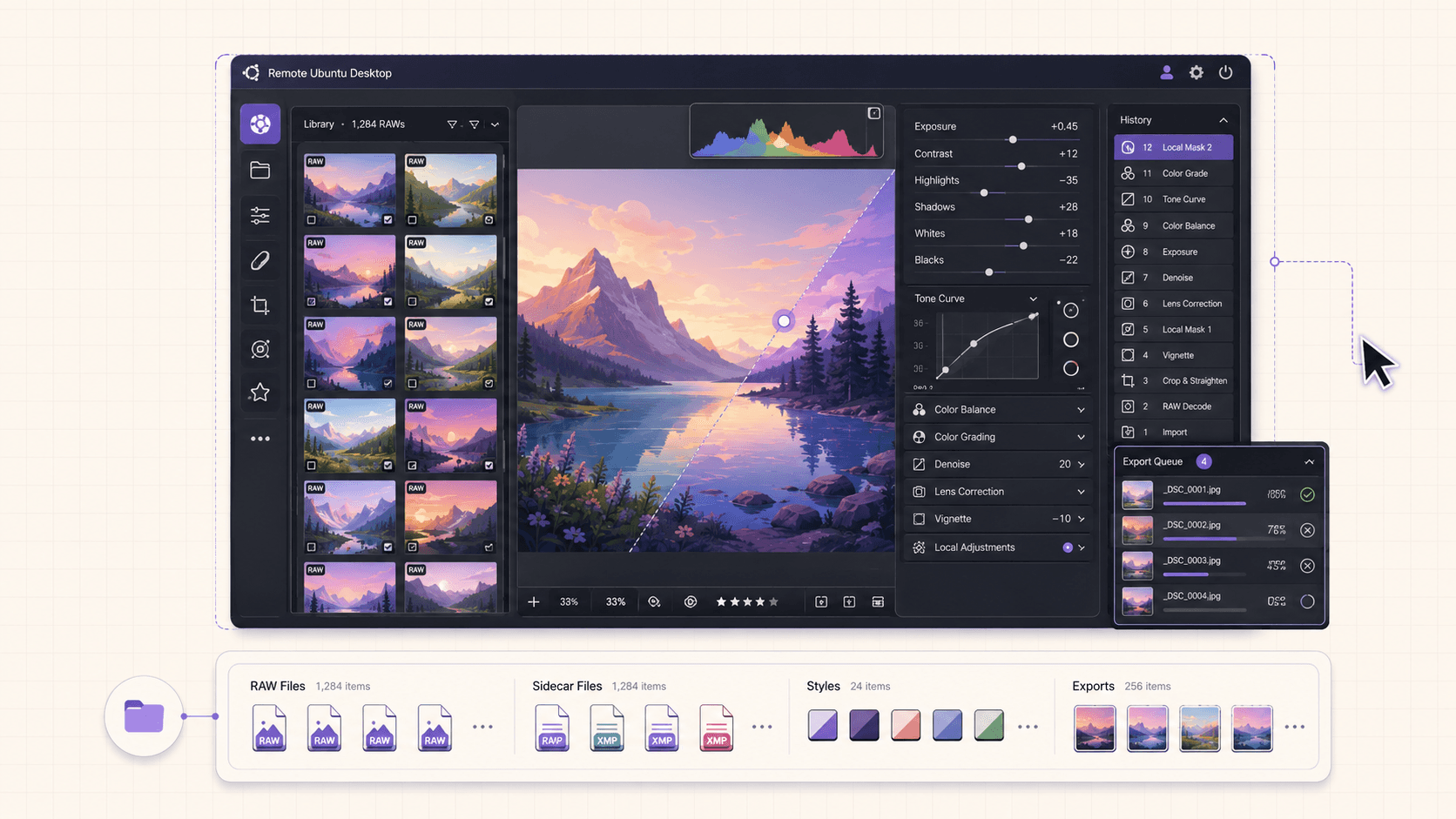
How to Run Darktable on a Cloud Ubuntu Desktop for RAW Photo Editing (2026 Guide)
How to Run Darktable on a Cloud Ubuntu Desktop for RAW Photo Editing (2026 Guide)
How to Run Darktable on a Cloud Ubuntu Desktop for RAW Photo Editing (2026 Guide)
Table of Contents
Quick answer: To run Darktable in the cloud, launch a cloud Ubuntu desktop (for example on Vagon, ideally a GPU plan), install Darktable from apt or Flathub, enable OpenCL GPU acceleration, and process your RAW photos on a streamed desktop. A cloud GPU speeds up Darktable's demanding image processing and batch exports, and you pay only for the hours you edit.
Key takeaways
Darktable is a free, professional RAW photo workflow and editor, and a cloud desktop gives it more power for heavy processing.
GPU acceleration through OpenCL speeds up Darktable's demanding modules and previews; a cloud GPU plan provides it.
It's especially useful for large photo libraries, heavy processing, and batch export, where laptops slow down.
Non-destructive editing means your edits are instructions applied to the original, kept in a database and sidecar files.
Persistent storage keeps your photo library, database, and settings between sessions.
It's billed by the minute, ideal for editing and export sessions and a poor fit for idling all day.
When a photographer wants a serious RAW workflow without paying a subscription, Darktable is usually the tool they reach for, and it earns the choice, a complete photo management and non-destructive editing application with a deep set of processing modules. Where it starts to strain isn't the features. It's the moment you're culling and processing a big shoot, dozens or hundreds of high-megapixel RAW files, applying heavy modules like denoising and lens correction, and your laptop turns each adjustment into a wait and each batch export into an evening.
That's where running Darktable on a cloud Ubuntu desktop helps. You get more CPU, more memory, and, on a GPU plan, a graphics card that Darktable can use to accelerate its processing, and the demanding work speeds up considerably. When you're done, you shut the machine off. This guide covers when that's worth it, how to set it up, how to enable GPU acceleration, and how to process and export efficiently.
What Darktable is and who uses it
Darktable is a free and open-source photography workflow application and RAW developer. It combines photo management, browsing and organizing your library, with non-destructive RAW editing through a comprehensive set of processing modules covering exposure, color, tone, detail, lens corrections, denoising, and much more. It reads the RAW files from a wide range of cameras and lets you develop them into finished images, all without altering your originals.
The people who use it are photographers of all kinds, from enthusiasts to professionals, who want a powerful RAW workflow without a subscription, along with students and hobbyists learning photo editing. On Linux, Darktable is the leading RAW photo application and a common choice for serious photo work.
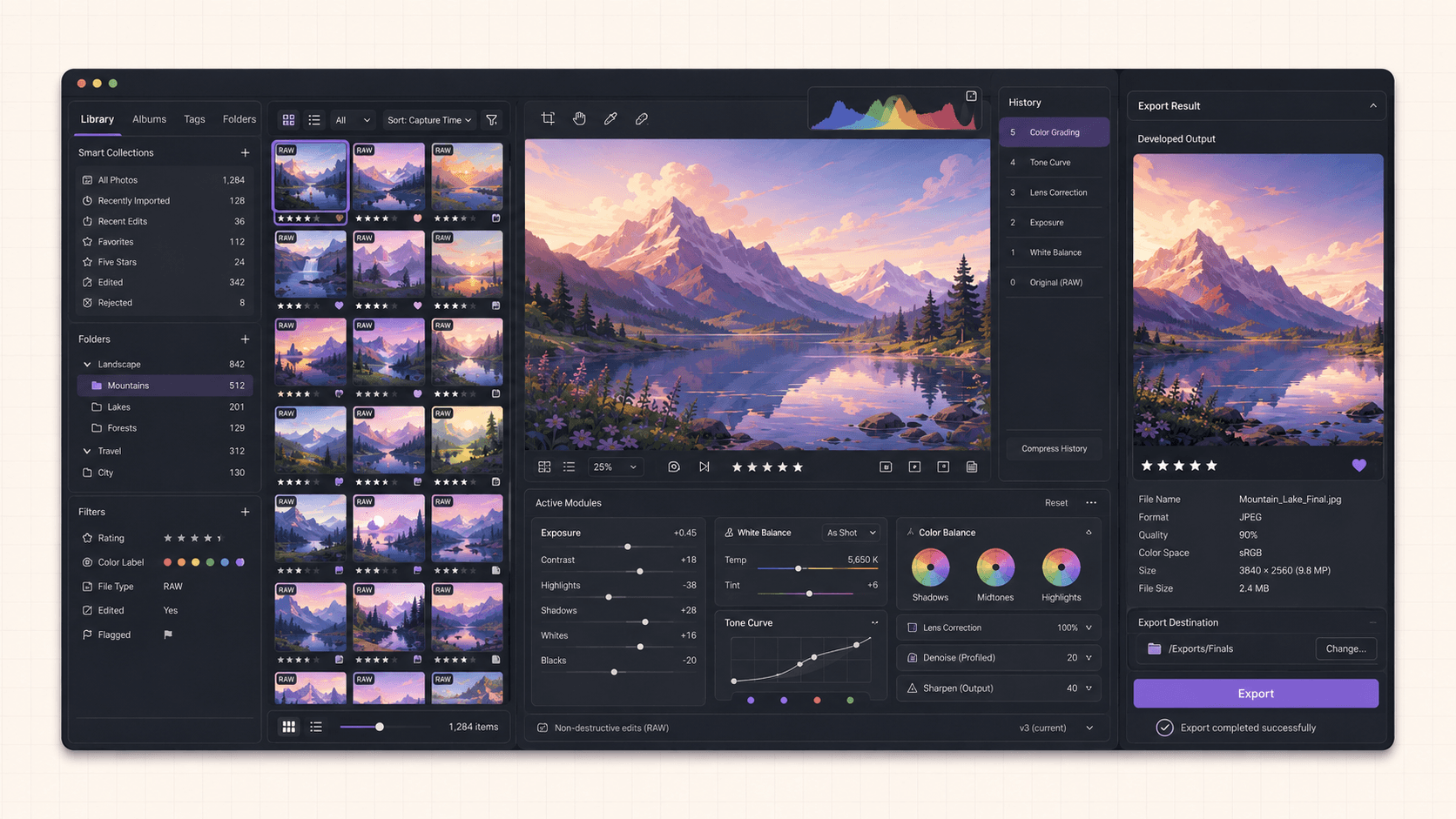
Definition: running Darktable in the cloud
Running Darktable in the cloud means installing Darktable on a remote Ubuntu desktop and processing your RAW photos there instead of on your local computer. You get more CPU, memory, and optional GPU acceleration for demanding processing and batch exports, plus the ability to work from any device, while your own machine stays free.
If you’re looking for a full Linux environment without setting up local hardware, this guide explains how to get an Ubuntu desktop in the cloud.
Why run Darktable on a cloud desktop
Darktable runs on modest hardware for light work, so let's be specific about what the cloud adds for a serious photo workflow.
Faster processing of demanding modules
This is the main reason. Some of Darktable's most useful modules, denoising, lens correction, sharpening, and various color and tone operations, are computationally heavy, especially on high-megapixel RAW files. On a laptop, applying these makes the preview lag and each adjustment feel sluggish. A cloud machine with more power, particularly a GPU, keeps processing responsive so you can edit by feel.
Fast batch export of a whole shoot
Exporting a large shoot to finished images, applying all your edits and rendering each file, is a heavy, time-consuming job. On a laptop it monopolizes the machine and takes ages. A cloud machine exports faster and frees your own computer during the job.
Handling large photo libraries
Working with a big library of high-resolution RAW files needs memory and storage. A cloud machine with generous resources and persistent storage handles a substantial library comfortably.
Work from any device
Because the desktop streams to you, you can process photos from a device that couldn't handle heavy RAW work locally, with the actual processing done on a capable cloud machine.
A consistent, powerful workflow
With persistent storage, your library, edits, and settings live on the machine, giving you a reliable, powerful Darktable environment that's the same every session.
GPU acceleration with OpenCL, and why it matters
This deserves its own section, because it's central to Darktable's performance on demanding work.
Darktable can use the GPU to accelerate its image processing through OpenCL. When OpenCL is enabled and working with a capable GPU, many of Darktable's heavy modules run significantly faster, and previews update more quickly as you adjust settings. When it's off or the hardware is weak, that same processing falls to the CPU and can be noticeably slower, particularly with demanding modules on high-resolution files.
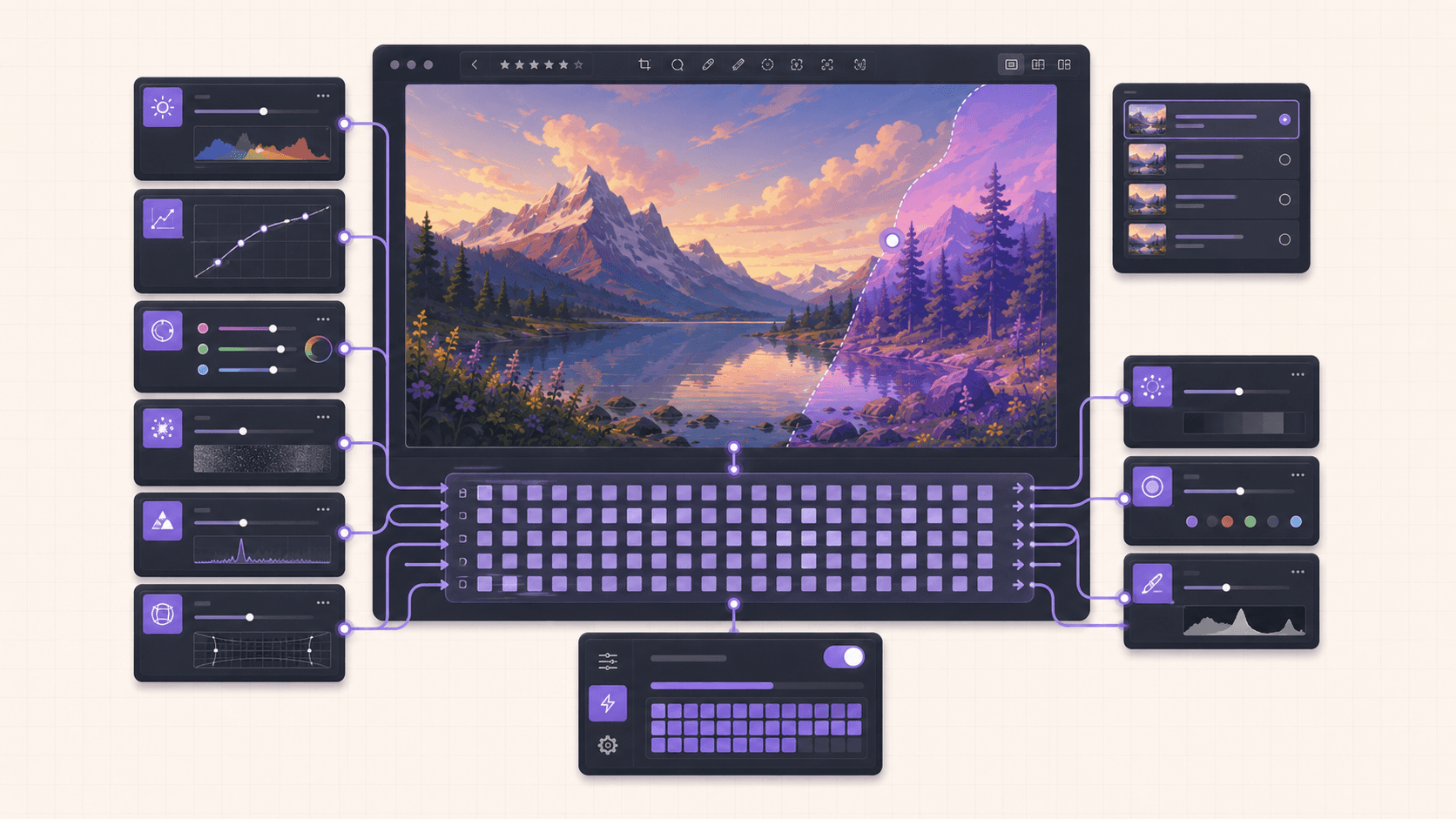
On a cloud desktop with a GPU plan, you get a real graphics card with drivers configured, so Darktable's OpenCL acceleration has proper hardware behind it. You enable and confirm OpenCL in Darktable's preferences, and the demanding parts of your workflow, denoising, sharpening, complex color work, and previews, become much more responsive. For anyone processing high-megapixel RAW files with heavy modules, this acceleration is the difference between a fluid editing experience and a laggy one.
If your work involves heavy processing and large files, a GPU plan is worth it for the OpenCL acceleration. If you do lighter edits on smaller files, a strong CPU plan may be enough, though the GPU still helps the heaviest modules.
If you’re experimenting with private AI models, this guide walks through how to run Ollama in the cloud.
Non-destructive editing and how your library is stored
Understanding how Darktable stores your work matters for setting up a cloud workflow, especially around persistent storage.
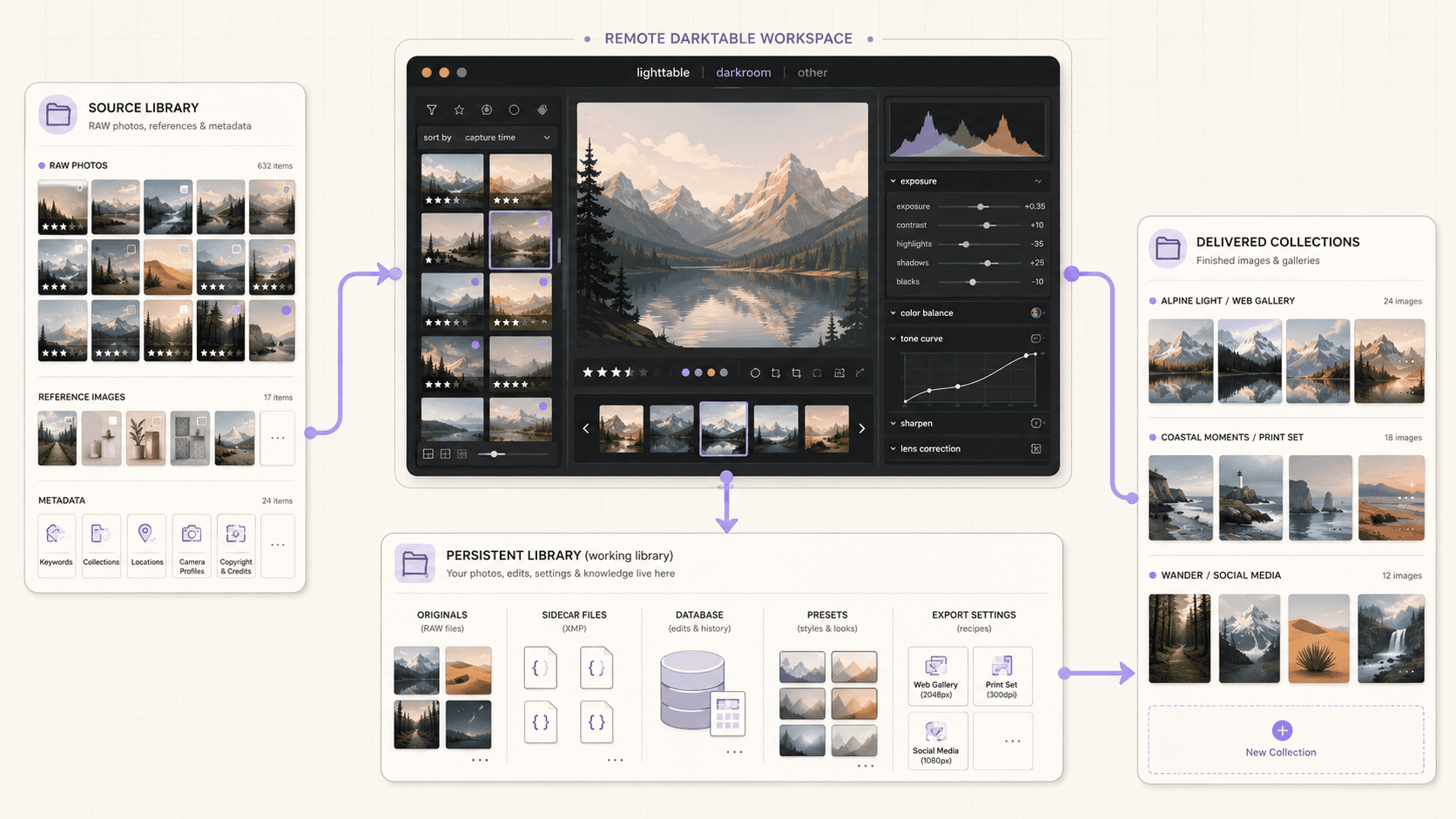
Darktable is non-destructive, meaning it never alters your original RAW files. Instead, your edits are stored as a set of instructions, the parameters of each module you apply, kept in Darktable's database and in sidecar files alongside your images. When you export, Darktable applies those instructions to the original and renders a finished image. This means your originals stay pristine, you can revise edits at any time, and you can produce different outputs from the same source.
For a cloud workflow, the practical implication is that your RAW files, Darktable's database, and the sidecar files together make up your work, and you'll want all of that on persistent storage so it survives between sessions. With persistent storage, you launch the machine and your entire library and all your edits are exactly as you left them. Keeping your originals and edits together on the persistent volume is the clean way to maintain a continuous photo workflow in the cloud.
When it's the right call, and when to skip it
A cloud desktop is a burst tool, billed by the minute. It's the right call when you process demanding RAW files or large shoots that strain your machine, run big batch exports, want to work from a limited device, or want a consistent, powerful workflow. You spin it up, edit, and shut it down.
It's the wrong call if your photo work is light and your current machine handles it fine, since Darktable is free and runs on modest hardware, or if you want the application instantly available all day without thinking about sessions. The cloud shines for heavy processing, large libraries, and batch exports.
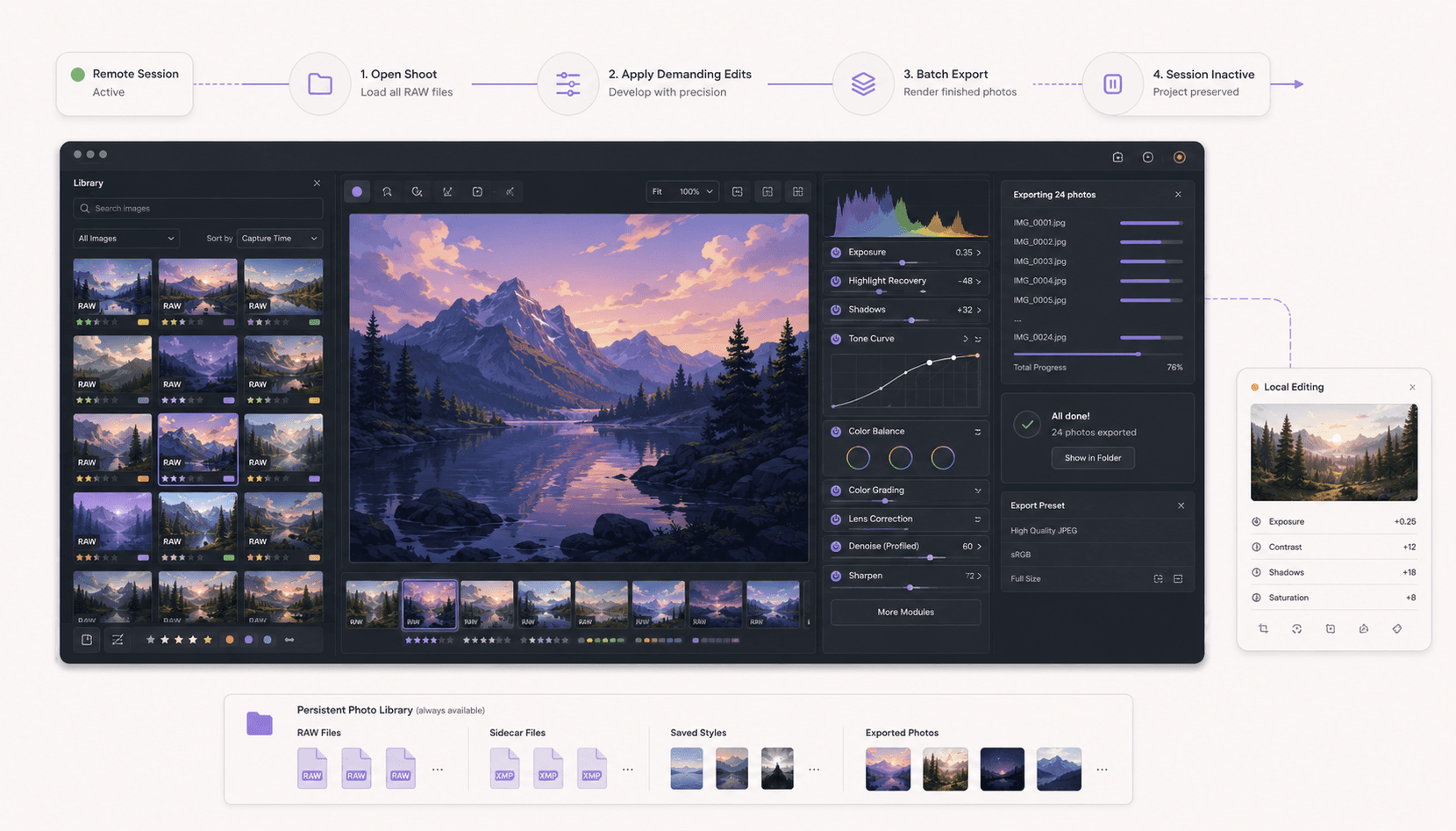
What You'll Need
A Vagon account with a payment method.
An Ubuntu plan. For OpenCL acceleration and heavy processing, a GPU plan is recommended; lighter work can run on a strong CPU plan.
Persistent storage, recommended, since RAW libraries are large and you want your photos, database, and edits to persist.
Step 1: Launch an Ubuntu machine
Create a computer on Vagon, choose Linux, and pick a plan. For Darktable's OpenCL acceleration and heavy modules, choose a GPU plan. It boots in about 90 seconds.
Step 2: Install Darktable
The simplest path through the terminal:
For the latest version, install from Flathub:
If Vagon's Ubuntu template already includes Darktable, you can skip straight to opening it.
Step 3: Enable and confirm OpenCL GPU acceleration
Open Darktable's preferences and ensure OpenCL is enabled and detecting your GPU. With a GPU plan, the driver is configured, so Darktable should use the GPU for its processing. This is what makes heavy modules responsive.
Step 4: Import your photo library
Import your RAW files into Darktable. Keep them on persistent storage so your originals, along with Darktable's database and sidecar files, persist between sessions.
Step 5: Add persistent storage for your library
Add persistent storage sized for your photo library, so your RAW files, edits, and database are ready every session rather than re-importing each time.
If you’re testing private or open-source AI models, you can also learn how to run a local LLM on Ubuntu in the cloud.
Processing RAW photos with cloud power
Once you're set up, the cloud machine's power shows across your editing.
Culling and browsing a large shoot is smoother with more memory and fast storage, so you can move through your images quickly. Developing a photo, applying exposure and tone adjustments, color grading, lens corrections, denoising, and sharpening, feels responsive because the GPU accelerates the heavy modules and previews update quickly. You can refine an image by feel rather than waiting for each adjustment to process, which is exactly the fluid experience that makes photo editing enjoyable.
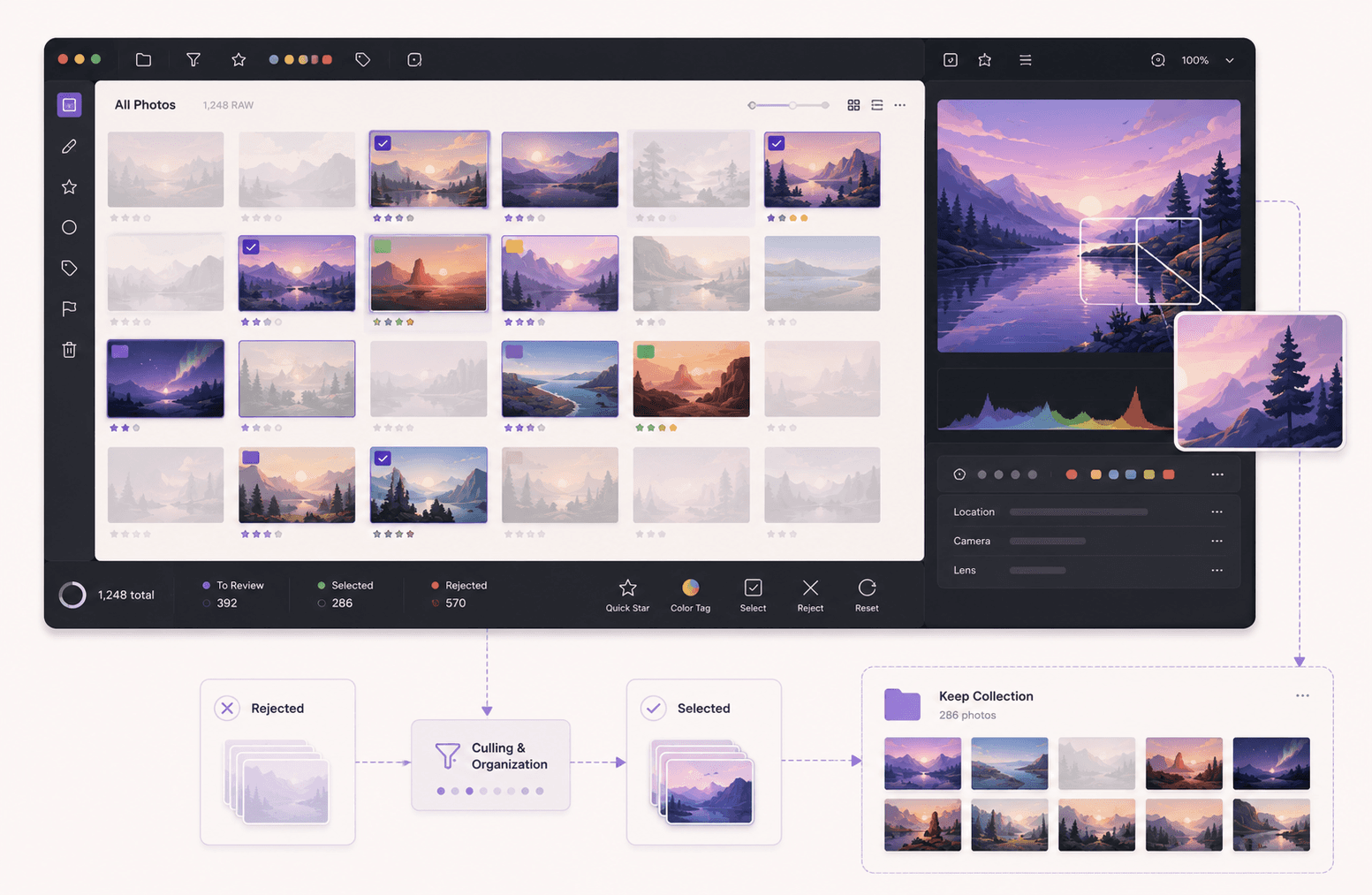
The modules that benefit most are the demanding ones, denoising in particular, along with detail and certain color operations, which are where a laptop tends to bog down. On a cloud GPU machine, these stay responsive even on high-megapixel files, so you can use Darktable's full processing power without the lag that discourages heavy editing on weaker hardware.
Batch exporting a large shoot
Batch export is where a cloud machine saves the most time, so it's worth a focused workflow.
After you've developed your images, or applied a consistent treatment across a shoot, you export them to finished files. Darktable applies each image's edits and renders it, which for a large shoot of high-resolution files is a substantial job. On a cloud machine, this runs faster and doesn't tie up your own computer. You configure your export settings, size, format, and any output processing, start the batch, and let the machine work while you do something else or let it finish in the background.
For a photographer regularly delivering large shoots, this alone can justify a cloud setup. You process your images in a focused session, export the whole shoot on capable hardware, download the finished files, and shut the machine down. Per-minute billing rewards this pattern, since you only pay for the export time, and your own machine stays free throughout.
If you want more visibility into what an autonomous workflow is doing, this guide shows how to watch your AI agent work on a cloud desktop.
Darktable compared to other RAW tools
Knowing where Darktable stands helps you understand what you're getting on a cloud machine.
Against subscription photo software, Darktable offers a genuinely complete non-destructive RAW workflow, library management and deep editing, at zero license cost. Its module-based approach gives fine control over every aspect of processing, and it reads RAW files from a wide range of cameras. Some photographers find its interface more technical than consumer-oriented alternatives, but the capability is there for serious work. The main thing you give up versus a paid ecosystem is certain integrations and a more guided experience, in exchange for freedom and no ongoing cost.
Against other free RAW developers on Linux, Darktable is distinguished by combining library management with editing in one application, along with its extensive module set and GPU acceleration. Some alternatives focus purely on RAW development without the library side, so Darktable is often the choice when you want an end-to-end workflow from import to export.
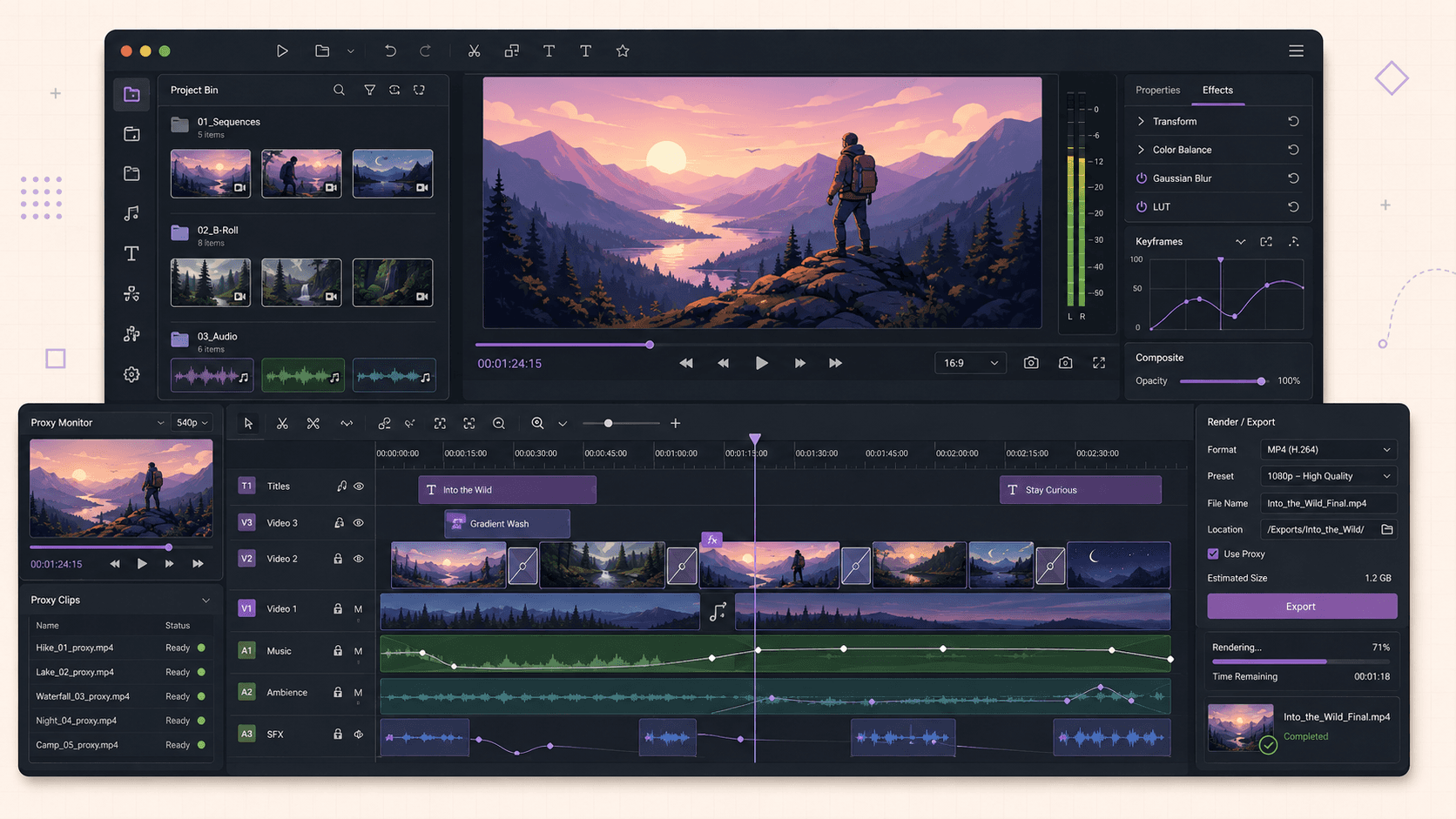
The relevance to the cloud is that Darktable's most demanding operations, heavy modules and batch export, are exactly what a powerful machine with GPU acceleration speeds up. So running a capable, free RAW workflow on hardware with real headroom is a strong pairing, available for the cost of the session, and particularly valuable for photographers handling large shoots of high-resolution files.
Styles, presets, and consistent looks
A practical strength worth using on a cloud machine is Darktable's ability to apply consistent processing across many images.
Darktable lets you save a set of edits as a style or preset and apply it to other photos, so you can develop a look on one image and apply it across a whole shoot. This is central to an efficient photo workflow: you establish your treatment, apply it broadly, then fine-tune individual images as needed. Combined with batch export, it means you can process a large shoot to a consistent look quickly.
On a cloud machine, this workflow shines because applying a style across many high-resolution images and exporting them is exactly the heavy, batch-oriented work that benefits from power and GPU acceleration. You develop your look, apply it across the shoot, refine the outliers, and batch export the finished set, all on capable hardware in a focused session. With persistent storage, your saved styles and presets stay available for future shoots, so your signature looks are always ready.
Getting photos in and out
RAW files are large, so plan your transfer. Bring your photos onto the machine by downloading from cloud storage in the browser, using a sync tool, or transferring in bulk, and keep them on persistent storage so your library is ready each session. Import them into Darktable once, and with persistent storage your library and edits persist.
Get your finished exports out by downloading the rendered images or syncing them to your storage. For large exports of a full shoot, keep an eye on outbound transfer beyond the included amount. A common pattern is to keep your RAW library on persistent storage long-term and download only the finished exports you need to deliver.
Cost breakdown
Your cost is the machine's running time billed by the minute, plus persistent storage (about five dollars per 50GB per month, sized for your photo library), plus outbound transfer beyond the included 10GB per month for large exports.
The honest framing: for heavy processing and batch exports that strain your laptop, a cloud machine is efficient and you pay only for active hours. For light photo edits on a capable machine, Darktable is free and local is simpler. Use persistent storage so your library is ready, work in focused sessions, and shut the machine down when you're done.
If you’re working with vector graphics from any device, this guide shows how to run Inkscape in the cloud.
Real-world use cases
The photographer processing a big shoot. Hundreds of high-megapixel RAW files with heavy modules bog down your laptop. A cloud GPU machine keeps processing responsive and exports fast.
The editor running batch exports. Delivering a full shoot ties up your machine for hours. A cloud machine exports faster and frees your own computer.
The hobbyist on a light laptop. You want Darktable's full processing power but your machine can't provide it. A cloud GPU desktop delivers it.
The student learning RAW editing. Professional RAW processing on real hardware, rented by the session.
The photographer wanting a consistent library. Your whole library and edits ready every session on persistent storage.
Troubleshooting
Processing feels slow
Confirm OpenCL is enabled and detecting your GPU in Darktable's preferences, and that you're on a GPU plan. The heaviest modules, especially denoising, benefit most from GPU acceleration. More memory also helps with large files.
OpenCL isn't detected
Make sure you launched a GPU plan, where the driver is configured. Check Darktable's preferences and logs for OpenCL status. Restarting the machine can help if the GPU isn't being picked up.
My library or edits are gone next session
You didn't add persistent storage, so the machine reset. Keep your RAW files, Darktable's database, and sidecar files on persistent storage to preserve your library and edits.
The interface is laggy
That's usually your connection to the streamed desktop rather than Darktable. Lower the stream resolution or move to a better network. The processing happens on the cloud machine.
What it comes down to
Darktable is a professional-grade RAW photo workflow that happens to be free, and a cloud Ubuntu desktop gives it the CPU, memory, and GPU acceleration to process demanding files and export large shoots quickly, without buying a workstation. Enable OpenCL for GPU acceleration, keep your library and edits on persistent storage, work in focused sessions, and shut the machine down when you're done.
Got a RAW library that crawls on your laptop? Create a Vagon account, launch a GPU Ubuntu machine, install Darktable, and you'll be editing in a few minutes.
Frequently Asked Questions
Is Darktable free to use in the cloud?
Yes. Darktable is free and open-source, so there's no license cost. On a cloud desktop you only pay for the machine's running time, not for Darktable.
Does Darktable use the GPU?
Yes, through OpenCL. With a capable GPU and OpenCL enabled, Darktable's demanding modules and previews run much faster. A cloud GPU plan provides the hardware, so a GPU plan is recommended for heavy processing.
Will my photo library and edits persist between sessions?
Only if you add persistent storage, which is recommended given RAW library sizes. Keep your RAW files, Darktable's database, and sidecar files on persistent storage so your library and non-destructive edits are ready every session.
Can Darktable batch export a whole shoot?
Yes, and it's a great cloud use case. Darktable applies each image's edits and renders finished files, and a cloud machine does this faster while freeing your own computer.
Is Darktable a good alternative to subscription photo software?
For a non-destructive RAW workflow, Darktable is genuinely capable and free, with deep processing modules and library management. The cloud gives it more hardware to run on rather than changing its features.
Do I need a GPU for Darktable in the cloud?
For heavy processing and OpenCL acceleration, a GPU plan is recommended and makes a real difference on demanding modules and large files. Lighter work can run on a strong CPU plan.
How much storage do I need?
It depends on your library size. RAW files are large, so choose persistent storage sized for your originals, sidecar files, and exports. You can scale storage to your library.
Can I process photos from an iPad through the cloud?
Yes. The streamed desktop runs on an iPad or Chromebook, with the processing happening on the cloud machine. A mouse or trackpad makes precise editing more comfortable.
Does editing feel responsive over a streamed desktop?
On a good connection with GPU acceleration, yes. The heavy processing happens on the cloud machine, so demanding modules on large files are actually more responsive than on a weak laptop.
How do I keep costs down?
Use persistent storage so your library is ready, edit and export in focused sessions, choose a plan matched to your work, and shut the machine down when you're done.
Can I apply the same edit to a whole shoot?
Yes. Darktable lets you save styles or presets and apply them across many images, which pairs well with batch export. Develop a look, apply it across the shoot, and export the set, all on a powerful cloud machine.
Does Darktable read my camera's RAW files?
Darktable supports RAW files from a wide range of cameras. Check its supported camera list for your specific model. Once your RAW files import, you process them non-destructively on the cloud machine.
Is my editing non-destructive?
Yes. Darktable never alters your original RAW files. Your edits are stored as instructions in its database and sidecar files, applied when you export, so your originals stay pristine and you can revise any time.
Can I move my Darktable library between machines?
Yes, if you bring your RAW files, database, and sidecar files together. Keeping everything on persistent storage, or syncing through cloud storage, makes moving between environments straightforward.
How much faster is batch export on a cloud machine?
It depends on your shoot size and plan, but a powerful cloud machine with GPU acceleration exports large shoots faster than a weak laptop and frees your own computer during the job.
Do I need to be an expert to use Darktable?
Darktable has a learning curve and a fairly technical interface, but it's approachable with some patience and rewards the effort with deep control. The cloud doesn't change how Darktable works; it gives it more power to run on.
Quick answer: To run Darktable in the cloud, launch a cloud Ubuntu desktop (for example on Vagon, ideally a GPU plan), install Darktable from apt or Flathub, enable OpenCL GPU acceleration, and process your RAW photos on a streamed desktop. A cloud GPU speeds up Darktable's demanding image processing and batch exports, and you pay only for the hours you edit.
Key takeaways
Darktable is a free, professional RAW photo workflow and editor, and a cloud desktop gives it more power for heavy processing.
GPU acceleration through OpenCL speeds up Darktable's demanding modules and previews; a cloud GPU plan provides it.
It's especially useful for large photo libraries, heavy processing, and batch export, where laptops slow down.
Non-destructive editing means your edits are instructions applied to the original, kept in a database and sidecar files.
Persistent storage keeps your photo library, database, and settings between sessions.
It's billed by the minute, ideal for editing and export sessions and a poor fit for idling all day.
When a photographer wants a serious RAW workflow without paying a subscription, Darktable is usually the tool they reach for, and it earns the choice, a complete photo management and non-destructive editing application with a deep set of processing modules. Where it starts to strain isn't the features. It's the moment you're culling and processing a big shoot, dozens or hundreds of high-megapixel RAW files, applying heavy modules like denoising and lens correction, and your laptop turns each adjustment into a wait and each batch export into an evening.
That's where running Darktable on a cloud Ubuntu desktop helps. You get more CPU, more memory, and, on a GPU plan, a graphics card that Darktable can use to accelerate its processing, and the demanding work speeds up considerably. When you're done, you shut the machine off. This guide covers when that's worth it, how to set it up, how to enable GPU acceleration, and how to process and export efficiently.
What Darktable is and who uses it
Darktable is a free and open-source photography workflow application and RAW developer. It combines photo management, browsing and organizing your library, with non-destructive RAW editing through a comprehensive set of processing modules covering exposure, color, tone, detail, lens corrections, denoising, and much more. It reads the RAW files from a wide range of cameras and lets you develop them into finished images, all without altering your originals.
The people who use it are photographers of all kinds, from enthusiasts to professionals, who want a powerful RAW workflow without a subscription, along with students and hobbyists learning photo editing. On Linux, Darktable is the leading RAW photo application and a common choice for serious photo work.
Definition: running Darktable in the cloud
Running Darktable in the cloud means installing Darktable on a remote Ubuntu desktop and processing your RAW photos there instead of on your local computer. You get more CPU, memory, and optional GPU acceleration for demanding processing and batch exports, plus the ability to work from any device, while your own machine stays free.
If you’re looking for a full Linux environment without setting up local hardware, this guide explains how to get an Ubuntu desktop in the cloud.
Why run Darktable on a cloud desktop
Darktable runs on modest hardware for light work, so let's be specific about what the cloud adds for a serious photo workflow.
Faster processing of demanding modules
This is the main reason. Some of Darktable's most useful modules, denoising, lens correction, sharpening, and various color and tone operations, are computationally heavy, especially on high-megapixel RAW files. On a laptop, applying these makes the preview lag and each adjustment feel sluggish. A cloud machine with more power, particularly a GPU, keeps processing responsive so you can edit by feel.
Fast batch export of a whole shoot
Exporting a large shoot to finished images, applying all your edits and rendering each file, is a heavy, time-consuming job. On a laptop it monopolizes the machine and takes ages. A cloud machine exports faster and frees your own computer during the job.
Handling large photo libraries
Working with a big library of high-resolution RAW files needs memory and storage. A cloud machine with generous resources and persistent storage handles a substantial library comfortably.
Work from any device
Because the desktop streams to you, you can process photos from a device that couldn't handle heavy RAW work locally, with the actual processing done on a capable cloud machine.
A consistent, powerful workflow
With persistent storage, your library, edits, and settings live on the machine, giving you a reliable, powerful Darktable environment that's the same every session.
GPU acceleration with OpenCL, and why it matters
This deserves its own section, because it's central to Darktable's performance on demanding work.
Darktable can use the GPU to accelerate its image processing through OpenCL. When OpenCL is enabled and working with a capable GPU, many of Darktable's heavy modules run significantly faster, and previews update more quickly as you adjust settings. When it's off or the hardware is weak, that same processing falls to the CPU and can be noticeably slower, particularly with demanding modules on high-resolution files.
On a cloud desktop with a GPU plan, you get a real graphics card with drivers configured, so Darktable's OpenCL acceleration has proper hardware behind it. You enable and confirm OpenCL in Darktable's preferences, and the demanding parts of your workflow, denoising, sharpening, complex color work, and previews, become much more responsive. For anyone processing high-megapixel RAW files with heavy modules, this acceleration is the difference between a fluid editing experience and a laggy one.
If your work involves heavy processing and large files, a GPU plan is worth it for the OpenCL acceleration. If you do lighter edits on smaller files, a strong CPU plan may be enough, though the GPU still helps the heaviest modules.
If you’re experimenting with private AI models, this guide walks through how to run Ollama in the cloud.
Non-destructive editing and how your library is stored
Understanding how Darktable stores your work matters for setting up a cloud workflow, especially around persistent storage.
Darktable is non-destructive, meaning it never alters your original RAW files. Instead, your edits are stored as a set of instructions, the parameters of each module you apply, kept in Darktable's database and in sidecar files alongside your images. When you export, Darktable applies those instructions to the original and renders a finished image. This means your originals stay pristine, you can revise edits at any time, and you can produce different outputs from the same source.
For a cloud workflow, the practical implication is that your RAW files, Darktable's database, and the sidecar files together make up your work, and you'll want all of that on persistent storage so it survives between sessions. With persistent storage, you launch the machine and your entire library and all your edits are exactly as you left them. Keeping your originals and edits together on the persistent volume is the clean way to maintain a continuous photo workflow in the cloud.
When it's the right call, and when to skip it
A cloud desktop is a burst tool, billed by the minute. It's the right call when you process demanding RAW files or large shoots that strain your machine, run big batch exports, want to work from a limited device, or want a consistent, powerful workflow. You spin it up, edit, and shut it down.
It's the wrong call if your photo work is light and your current machine handles it fine, since Darktable is free and runs on modest hardware, or if you want the application instantly available all day without thinking about sessions. The cloud shines for heavy processing, large libraries, and batch exports.
What You'll Need
A Vagon account with a payment method.
An Ubuntu plan. For OpenCL acceleration and heavy processing, a GPU plan is recommended; lighter work can run on a strong CPU plan.
Persistent storage, recommended, since RAW libraries are large and you want your photos, database, and edits to persist.
Step 1: Launch an Ubuntu machine
Create a computer on Vagon, choose Linux, and pick a plan. For Darktable's OpenCL acceleration and heavy modules, choose a GPU plan. It boots in about 90 seconds.
Step 2: Install Darktable
The simplest path through the terminal:
For the latest version, install from Flathub:
If Vagon's Ubuntu template already includes Darktable, you can skip straight to opening it.
Step 3: Enable and confirm OpenCL GPU acceleration
Open Darktable's preferences and ensure OpenCL is enabled and detecting your GPU. With a GPU plan, the driver is configured, so Darktable should use the GPU for its processing. This is what makes heavy modules responsive.
Step 4: Import your photo library
Import your RAW files into Darktable. Keep them on persistent storage so your originals, along with Darktable's database and sidecar files, persist between sessions.
Step 5: Add persistent storage for your library
Add persistent storage sized for your photo library, so your RAW files, edits, and database are ready every session rather than re-importing each time.
If you’re testing private or open-source AI models, you can also learn how to run a local LLM on Ubuntu in the cloud.
Processing RAW photos with cloud power
Once you're set up, the cloud machine's power shows across your editing.
Culling and browsing a large shoot is smoother with more memory and fast storage, so you can move through your images quickly. Developing a photo, applying exposure and tone adjustments, color grading, lens corrections, denoising, and sharpening, feels responsive because the GPU accelerates the heavy modules and previews update quickly. You can refine an image by feel rather than waiting for each adjustment to process, which is exactly the fluid experience that makes photo editing enjoyable.
The modules that benefit most are the demanding ones, denoising in particular, along with detail and certain color operations, which are where a laptop tends to bog down. On a cloud GPU machine, these stay responsive even on high-megapixel files, so you can use Darktable's full processing power without the lag that discourages heavy editing on weaker hardware.
Batch exporting a large shoot
Batch export is where a cloud machine saves the most time, so it's worth a focused workflow.
After you've developed your images, or applied a consistent treatment across a shoot, you export them to finished files. Darktable applies each image's edits and renders it, which for a large shoot of high-resolution files is a substantial job. On a cloud machine, this runs faster and doesn't tie up your own computer. You configure your export settings, size, format, and any output processing, start the batch, and let the machine work while you do something else or let it finish in the background.
For a photographer regularly delivering large shoots, this alone can justify a cloud setup. You process your images in a focused session, export the whole shoot on capable hardware, download the finished files, and shut the machine down. Per-minute billing rewards this pattern, since you only pay for the export time, and your own machine stays free throughout.
If you want more visibility into what an autonomous workflow is doing, this guide shows how to watch your AI agent work on a cloud desktop.
Darktable compared to other RAW tools
Knowing where Darktable stands helps you understand what you're getting on a cloud machine.
Against subscription photo software, Darktable offers a genuinely complete non-destructive RAW workflow, library management and deep editing, at zero license cost. Its module-based approach gives fine control over every aspect of processing, and it reads RAW files from a wide range of cameras. Some photographers find its interface more technical than consumer-oriented alternatives, but the capability is there for serious work. The main thing you give up versus a paid ecosystem is certain integrations and a more guided experience, in exchange for freedom and no ongoing cost.
Against other free RAW developers on Linux, Darktable is distinguished by combining library management with editing in one application, along with its extensive module set and GPU acceleration. Some alternatives focus purely on RAW development without the library side, so Darktable is often the choice when you want an end-to-end workflow from import to export.
The relevance to the cloud is that Darktable's most demanding operations, heavy modules and batch export, are exactly what a powerful machine with GPU acceleration speeds up. So running a capable, free RAW workflow on hardware with real headroom is a strong pairing, available for the cost of the session, and particularly valuable for photographers handling large shoots of high-resolution files.
Styles, presets, and consistent looks
A practical strength worth using on a cloud machine is Darktable's ability to apply consistent processing across many images.
Darktable lets you save a set of edits as a style or preset and apply it to other photos, so you can develop a look on one image and apply it across a whole shoot. This is central to an efficient photo workflow: you establish your treatment, apply it broadly, then fine-tune individual images as needed. Combined with batch export, it means you can process a large shoot to a consistent look quickly.
On a cloud machine, this workflow shines because applying a style across many high-resolution images and exporting them is exactly the heavy, batch-oriented work that benefits from power and GPU acceleration. You develop your look, apply it across the shoot, refine the outliers, and batch export the finished set, all on capable hardware in a focused session. With persistent storage, your saved styles and presets stay available for future shoots, so your signature looks are always ready.
Getting photos in and out
RAW files are large, so plan your transfer. Bring your photos onto the machine by downloading from cloud storage in the browser, using a sync tool, or transferring in bulk, and keep them on persistent storage so your library is ready each session. Import them into Darktable once, and with persistent storage your library and edits persist.
Get your finished exports out by downloading the rendered images or syncing them to your storage. For large exports of a full shoot, keep an eye on outbound transfer beyond the included amount. A common pattern is to keep your RAW library on persistent storage long-term and download only the finished exports you need to deliver.
Cost breakdown
Your cost is the machine's running time billed by the minute, plus persistent storage (about five dollars per 50GB per month, sized for your photo library), plus outbound transfer beyond the included 10GB per month for large exports.
The honest framing: for heavy processing and batch exports that strain your laptop, a cloud machine is efficient and you pay only for active hours. For light photo edits on a capable machine, Darktable is free and local is simpler. Use persistent storage so your library is ready, work in focused sessions, and shut the machine down when you're done.
If you’re working with vector graphics from any device, this guide shows how to run Inkscape in the cloud.
Real-world use cases
The photographer processing a big shoot. Hundreds of high-megapixel RAW files with heavy modules bog down your laptop. A cloud GPU machine keeps processing responsive and exports fast.
The editor running batch exports. Delivering a full shoot ties up your machine for hours. A cloud machine exports faster and frees your own computer.
The hobbyist on a light laptop. You want Darktable's full processing power but your machine can't provide it. A cloud GPU desktop delivers it.
The student learning RAW editing. Professional RAW processing on real hardware, rented by the session.
The photographer wanting a consistent library. Your whole library and edits ready every session on persistent storage.
Troubleshooting
Processing feels slow
Confirm OpenCL is enabled and detecting your GPU in Darktable's preferences, and that you're on a GPU plan. The heaviest modules, especially denoising, benefit most from GPU acceleration. More memory also helps with large files.
OpenCL isn't detected
Make sure you launched a GPU plan, where the driver is configured. Check Darktable's preferences and logs for OpenCL status. Restarting the machine can help if the GPU isn't being picked up.
My library or edits are gone next session
You didn't add persistent storage, so the machine reset. Keep your RAW files, Darktable's database, and sidecar files on persistent storage to preserve your library and edits.
The interface is laggy
That's usually your connection to the streamed desktop rather than Darktable. Lower the stream resolution or move to a better network. The processing happens on the cloud machine.
What it comes down to
Darktable is a professional-grade RAW photo workflow that happens to be free, and a cloud Ubuntu desktop gives it the CPU, memory, and GPU acceleration to process demanding files and export large shoots quickly, without buying a workstation. Enable OpenCL for GPU acceleration, keep your library and edits on persistent storage, work in focused sessions, and shut the machine down when you're done.
Got a RAW library that crawls on your laptop? Create a Vagon account, launch a GPU Ubuntu machine, install Darktable, and you'll be editing in a few minutes.
Frequently Asked Questions
Is Darktable free to use in the cloud?
Yes. Darktable is free and open-source, so there's no license cost. On a cloud desktop you only pay for the machine's running time, not for Darktable.
Does Darktable use the GPU?
Yes, through OpenCL. With a capable GPU and OpenCL enabled, Darktable's demanding modules and previews run much faster. A cloud GPU plan provides the hardware, so a GPU plan is recommended for heavy processing.
Will my photo library and edits persist between sessions?
Only if you add persistent storage, which is recommended given RAW library sizes. Keep your RAW files, Darktable's database, and sidecar files on persistent storage so your library and non-destructive edits are ready every session.
Can Darktable batch export a whole shoot?
Yes, and it's a great cloud use case. Darktable applies each image's edits and renders finished files, and a cloud machine does this faster while freeing your own computer.
Is Darktable a good alternative to subscription photo software?
For a non-destructive RAW workflow, Darktable is genuinely capable and free, with deep processing modules and library management. The cloud gives it more hardware to run on rather than changing its features.
Do I need a GPU for Darktable in the cloud?
For heavy processing and OpenCL acceleration, a GPU plan is recommended and makes a real difference on demanding modules and large files. Lighter work can run on a strong CPU plan.
How much storage do I need?
It depends on your library size. RAW files are large, so choose persistent storage sized for your originals, sidecar files, and exports. You can scale storage to your library.
Can I process photos from an iPad through the cloud?
Yes. The streamed desktop runs on an iPad or Chromebook, with the processing happening on the cloud machine. A mouse or trackpad makes precise editing more comfortable.
Does editing feel responsive over a streamed desktop?
On a good connection with GPU acceleration, yes. The heavy processing happens on the cloud machine, so demanding modules on large files are actually more responsive than on a weak laptop.
How do I keep costs down?
Use persistent storage so your library is ready, edit and export in focused sessions, choose a plan matched to your work, and shut the machine down when you're done.
Can I apply the same edit to a whole shoot?
Yes. Darktable lets you save styles or presets and apply them across many images, which pairs well with batch export. Develop a look, apply it across the shoot, and export the set, all on a powerful cloud machine.
Does Darktable read my camera's RAW files?
Darktable supports RAW files from a wide range of cameras. Check its supported camera list for your specific model. Once your RAW files import, you process them non-destructively on the cloud machine.
Is my editing non-destructive?
Yes. Darktable never alters your original RAW files. Your edits are stored as instructions in its database and sidecar files, applied when you export, so your originals stay pristine and you can revise any time.
Can I move my Darktable library between machines?
Yes, if you bring your RAW files, database, and sidecar files together. Keeping everything on persistent storage, or syncing through cloud storage, makes moving between environments straightforward.
How much faster is batch export on a cloud machine?
It depends on your shoot size and plan, but a powerful cloud machine with GPU acceleration exports large shoots faster than a weak laptop and frees your own computer during the job.
Do I need to be an expert to use Darktable?
Darktable has a learning curve and a fairly technical interface, but it's approachable with some patience and rewards the effort with deep control. The cloud doesn't change how Darktable works; it gives it more power to run on.
Get Beyond Your Computer Performance
Run applications on your cloud computer with the latest generation hardware. No more crashes or lags.

Trial includes 1 hour usage + 7 days of storage.
Summarize with AI

Ready to focus on your creativity?
Vagon gives you the ability to create & render projects, collaborate, and stream applications with the power of the best hardware.

Run heavy applications on any device with
your personal computer on the cloud.
San Francisco, California
Solutions
Vagon Teams
Vagon Streams
Use Cases
© 2026 Vagon. All rights reserved.
Run heavy applications on any device with
your personal computer on the cloud.
San Francisco, California
Solutions
Vagon Teams
Vagon Streams
Use Cases
© 2026 Vagon. All rights reserved.
Run heavy applications on any device with
your personal computer on the cloud.
San Francisco, California
Solutions
Vagon Teams
Vagon Streams
Use Cases
© 2026 Vagon. All rights reserved.