Instant Connection for Pixel Streaming
— New Feature Automated Setup

How to Use Codex With Photoshop: Step-by-Step Guide
DigitalArt
How to Use Codex With Photoshop: Step-by-Step Guide
DigitalArt
How to Use Codex With Photoshop: Step-by-Step Guide
DigitalArt
Table of Contents
The easiest way to use Codex with Photoshop is to install Adobe's official plugin in Codex, attach an image, and describe the result you want. If you need Codex to interact with the live Photoshop desktop app or automate a repeatable task, use Computer Use or ask Codex to build an Adobe UXP script instead.
Those workflows solve different problems. The Adobe plugin edits assets through Adobe tools available in Codex. Computer Use operates the visible Photoshop interface. UXP scripts and plugins run structured automation inside Photoshop. Photoshop API v2 processes cloud-accessible assets at enterprise scale.
This guide explains how to choose between them, set up each practical workflow, and protect your original Photoshop documents while you test.
What Can Codex Actually Do With Photoshop?
Codex can inspect project folders, write and test JavaScript, accept images as visual context, use plugins and MCP tools, and operate approved desktop applications with Computer Use.
For Photoshop work, that creates four useful paths:
Adobe plugin: Edit uploaded images conversationally with Adobe tools inside Codex.
Computer Use: Let Codex inspect and operate the visible Photoshop desktop interface.
UXP automation: Have Codex write a script or plugin that Photoshop executes.
Photoshop API v2: Build an enterprise content pipeline that processes cloud-accessible assets.
There is an important boundary behind all four options. Attaching a screenshot or exported JPEG gives Codex visual information, but it does not expose the live PSD structure. Codex cannot infer the exact layer tree, mask state, blend modes, active selection, history, or unsaved changes from pixels alone. OpenAI's image-input documentation treats an image as context to inspect, not as a connection to the application that created it.
Adobe's official plugin also should not be confused with control of whichever PSD is open on your computer. Adobe describes the plugin as a way to use Photoshop and other Adobe capabilities within ChatGPT and Codex, with a handoff to Adobe applications when deeper editing is needed. Its documentation does not say that it directly manipulates the active local Photoshop canvas. Adobe's plugin overview makes that handoff clear.
Direct local interaction is possible through Computer Use, while repeatable document operations are better expressed through UXP. Community Photoshop MCP bridges offer another possible route, but they are third-party integrations and need separate technical and security review.
Which Codex and Photoshop Workflow Should You Choose?
Choose the smallest workflow that solves the task. A color adjustment does not need a custom plugin, while a production export pipeline should not depend on Codex repeatedly finding the same menu by sight.
Workflow | Best for | Active local Photoshop document? | Repeatability | Setup | Status |
|---|---|---|---|---|---|
Official Adobe plugin | Conversational edits, bulk adjustments, Creative Cloud handoff | Not documented as direct active-canvas control | Medium | Low | Official Adobe plugin |
Codex Computer Use | Visible menus, settings, visual checks, one-off desktop actions | Yes, through the visible GUI | Low to medium | Low to medium | Official Codex capability |
UXP script | Focused and repeatable document operations | Yes, when run in Photoshop | High | Medium | Official Adobe extensibility |
UXP plugin | Persistent panels, settings, and team tools | Yes, within available UXP capabilities | High | Medium to high | Official Adobe extensibility |
Photoshop API v2 | Enterprise batch processing and content pipelines | No local canvas control | High | High | Official Adobe enterprise API |
Community Photoshop MCP | Experimental structured control of local Photoshop | Potentially | Varies | Medium to high | Third-party, review required |
Start with the official Adobe plugin if you want to upload images, describe changes, compare results, and continue refining them through conversation. It is the fastest route for a reader who does not want to build software.
Choose Computer Use when the task depends on the desktop interface, such as checking settings, navigating an export flow, or reproducing a UI problem.
Choose a UXP script when you already know the operation and want Photoshop to perform it consistently. Batch exports, layer naming checks, document preparation, repeated resizing, and controlled asset generation all fit this model. Move to a UXP plugin when the automation needs a panel, persistent settings, reusable controls, or distribution to other users.
Photoshop API v2 belongs at the other end of the scale. It is for server-side content systems and high-volume processing, not for clicking around the Photoshop application on your desk.
How Do You Start With the Official Adobe Plugin in Codex?
Adobe's unified plugin works across ChatGPT Work and Codex. It combines Photoshop, Firefly, Express, Premiere, Acrobat, Lightroom, Illustrator, InDesign, Stock, and other Adobe services. It can edit photos, process batches, search Creative Cloud assets, and hand work into Adobe applications for more control. Adobe's announcement and setup guide describe the current workflow.
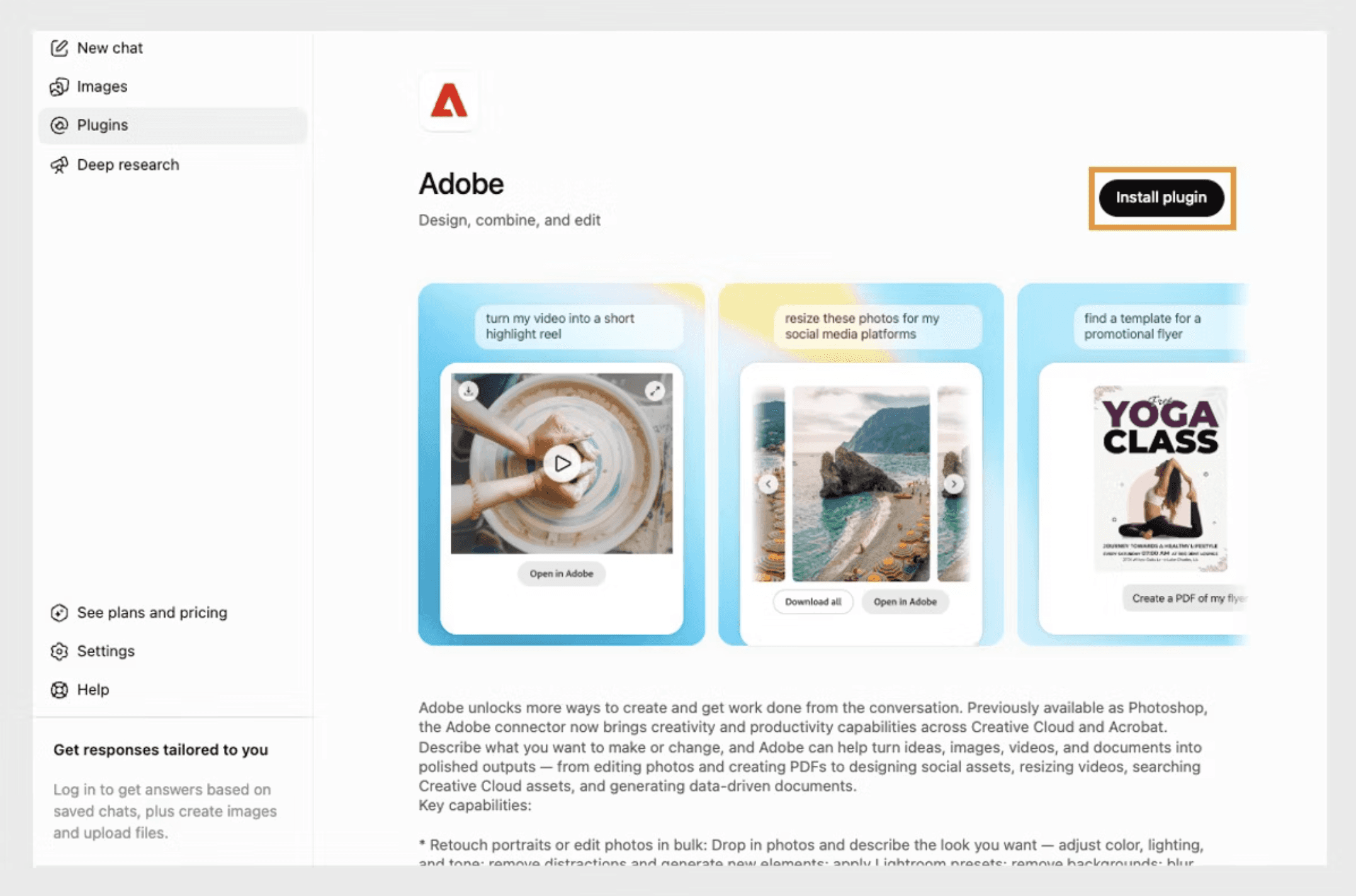
Image source: Adobe, “Adobe for ChatGPT”.
Step 1: Install Adobe in Codex
Open the ChatGPT desktop app and switch to Codex. Open Plugins, search for Adobe, and install it.
Adobe lets you begin as a guest. Signing in with an Adobe account unlocks additional skills, generative tool calls, Creative Cloud storage, and continuity between sessions. Adobe's current documentation also says the plugin supports English, so use English prompts until broader language support is documented.
Step 2: Start with a small, named input set
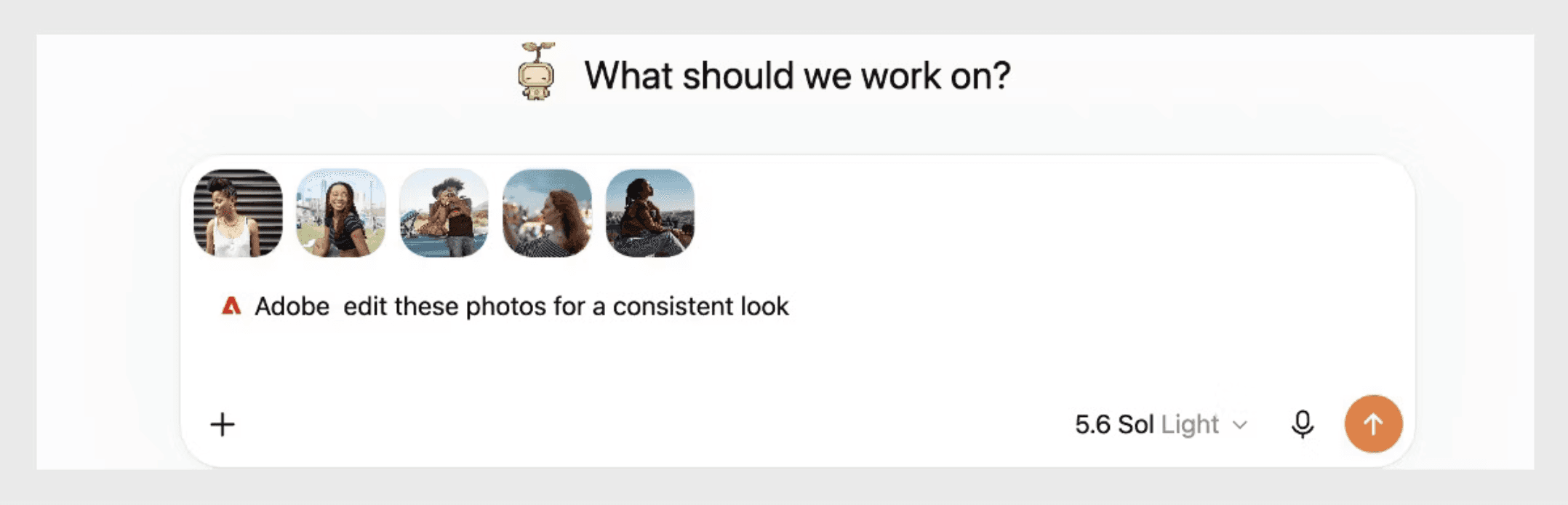
Image source: Adobe, “Adobe for ChatGPT”.
Open a new task, invoke @Adobe, and ask what photo-editing tools are available. Attach one image or a small batch with clear filenames.
Do not begin with a vague request such as “make these better.” State the purpose of the images, the protected elements, the output requirements, and what should remain unchanged.
For example:
Use Adobe to prepare these four product photos for the same ecommerce listing.

Requirements:
- use a consistent 4:5 crop;
- balance exposure and white balance across the set;
- preserve the product's purple brand color;
- remove small background distractions but do not change the product shape;
- keep realistic shadows;
- return separate high-quality images for review before final export.

Do not add text, logos, new props, or generated product details
Use Adobe to prepare these four product photos for the same ecommerce listing.

Requirements:
- use a consistent 4:5 crop;
- balance exposure and white balance across the set;
- preserve the product's purple brand color;
- remove small background distractions but do not change the product shape;
- keep realistic shadows;
- return separate high-quality images for review before final export.

Do not add text, logos, new props, or generated product details
Step 3: Review one change at a time
Inspect the first result before asking for more. If the color is right but the crop is too tight, correct only the crop. Small revisions make it easier to see which instruction caused a change.
If the job grows into detailed compositing, layer work, masks, retouching, or pixel-level corrections, continue in the full Photoshop application. The plugin is a practical starting surface, not a replacement for every desktop feature.
This path does not require UXP Developer Tool, a custom server, or a community MCP bridge. It is the sensible default for conversational editing.
How Do You Use Codex With the Live Photoshop Desktop App?
Computer Use is the direct visual route. It can click, type, navigate menus, inspect visible results, and move between approved applications on supported macOS and Windows systems. OpenAI's Computer Use guide covers setup and permissions.
Computer Use is flexible because it works with the interface a human sees. That also makes it less predictable than a script. A moved panel, unexpected dialog, modal window, or different Photoshop version can change the path.
Step 1: Enable Computer Use
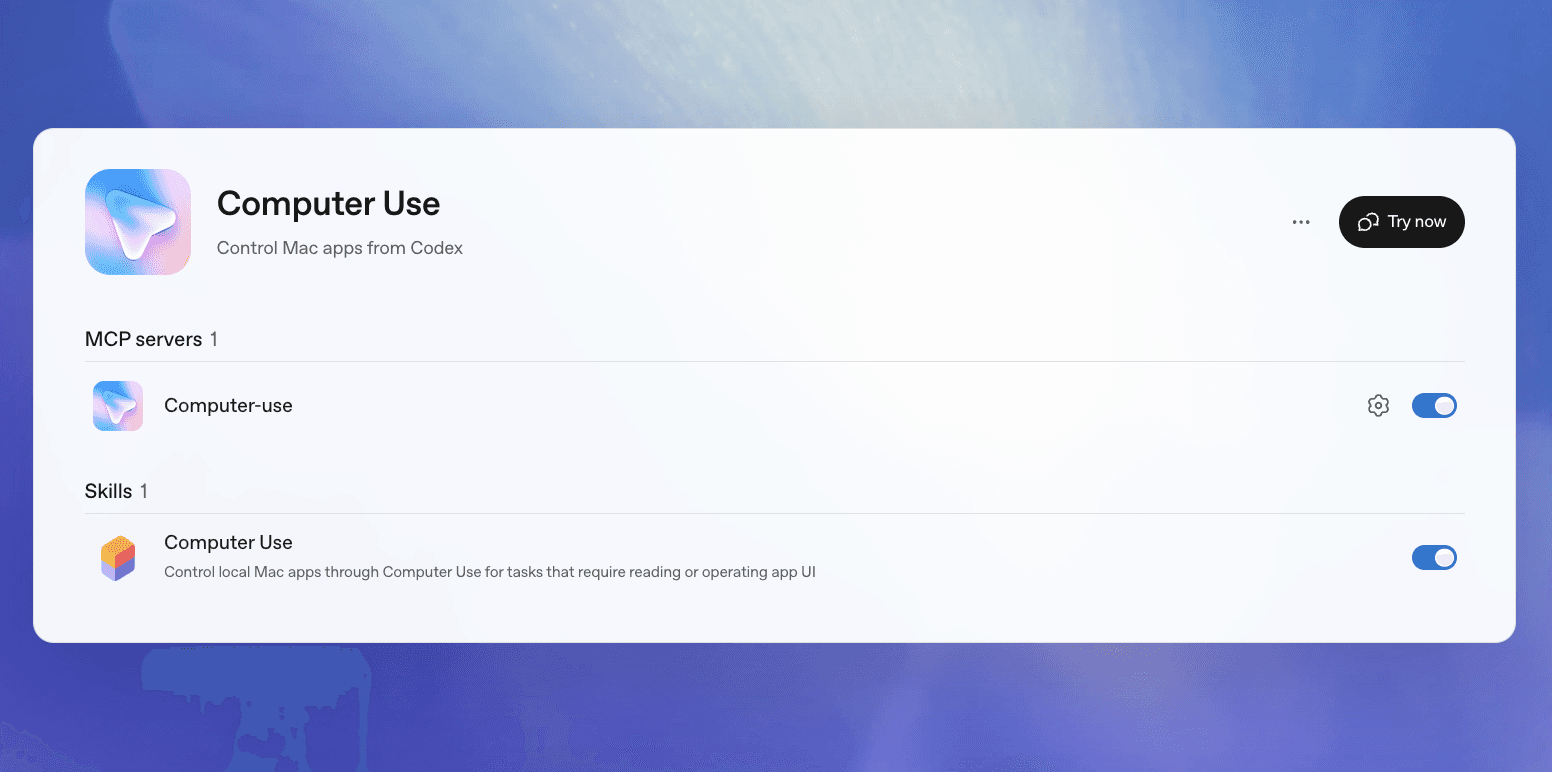
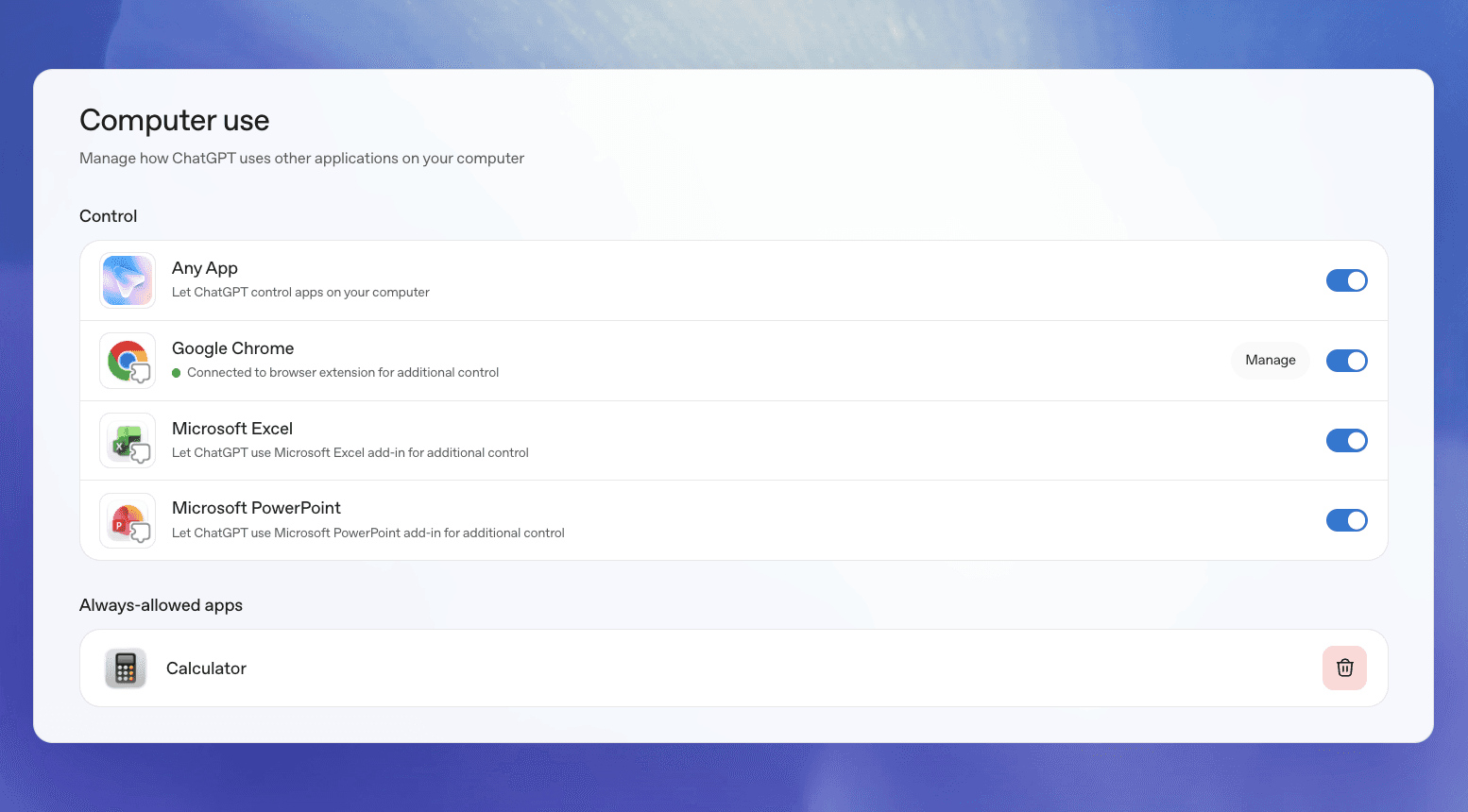
In the ChatGPT desktop app, open Plugins > Computer Use and install or enable the plugin. Then review app access under Settings > Computer use.
On macOS, grant Screen Recording and Accessibility permissions when prompted. On Windows, keep Photoshop visible on the active desktop. Codex uses the foreground and can move the pointer and type, so it is not a hidden background worker on Windows.
Screenshot source: OpenAI, “Computer Use” documentation.
Step 2: Protect the master document
Open a duplicate PSD or a disposable fixture file. Do not make the only copy of a client document the first test target.
Save the duplicate under a clearly different filename, such as campaign-hero_working-v01.psd. Keep the master outside the active test path if possible.
Step 3: Give Codex a narrow task
Ask Codex to inspect the visible Photoshop window and explain its intended actions before clicking. Limit the task to one observable result.
Use Computer Use with the currently visible Photoshop window.

Work only in campaign-hero_working-v01.psd. Inspect the document dimensions,
color mode, and visible layer count. Then prepare a JPEG export at 1600 pixels
wide in the existing outputs folder.

Do not modify or overwrite the source PSD. Do not flatten the document, change
the color mode, close Photoshop, or replace an existing export. Pause and ask
before any action that is not reversible
Use Computer Use with the currently visible Photoshop window.

Work only in campaign-hero_working-v01.psd. Inspect the document dimensions,
color mode, and visible layer count. Then prepare a JPEG export at 1600 pixels
wide in the existing outputs folder.

Do not modify or overwrite the source PSD. Do not flatten the document, change
the color mode, close Photoshop, or replace an existing export. Pause and ask
before any action that is not reversible
Screenshot source: OpenAI, “Computer Use” documentation.
Step 4: Verify the saved result
After the action, open the exported file and compare it with the source. Check its dimensions, crop, color, transparency expectations, and filename. A completed sequence of clicks does not prove that the visual result is correct.
Computer Use is a good fit when visual judgment or UI navigation matters. It is a weak choice for a task that must run identically across dozens of documents. That is where UXP becomes more useful.
How Do You Build a Repeatable Photoshop UXP Workflow With Codex?
UXP is Adobe's modern platform for Photoshop scripts and plugins. A .psjs script runs inside Photoshop, completes a focused task, and unloads. Scripts suit one-off or repetitive operations, while plugins add persistent interfaces and storage. Adobe's UXP scripting overview explains the distinction.
Codex works well here because the automation lives in ordinary project files. It can inspect documentation, create the script, review changes, run supporting tests, and fix errors while you keep the document execution inside Photoshop.
Step 1: Create a safe project
Use a dedicated folder instead of pointing Codex at an unorganized library of production assets:
photoshop-automation/
  AGENTS.md
  scripts/
  plugin/
  references/
  fixtures/
  outputs
photoshop-automation/
  AGENTS.md
  scripts/
  plugin/
  references/
  fixtures/
  outputs
Store disposable PSDs in fixtures/, exports in outputs/, and approved references in references/.
Add an AGENTS.md file that tells Codex how to behave in this repository:
# Photoshop automation rules

- Use current Adobe UXP APIs and verify uncertain methods against Adobe docs.
- Never overwrite files in fixtures or any source PSD.
- Write generated files only to outputs.
- Use executeAsModal for operations that modify Photoshop state.
- Do not flatten, close, delete layers, or change color mode without approval.
- Prefer the smallest testable implementation.
- Report unsupported assumptions instead of inventing an API
# Photoshop automation rules

- Use current Adobe UXP APIs and verify uncertain methods against Adobe docs.
- Never overwrite files in fixtures or any source PSD.
- Write generated files only to outputs.
- Use executeAsModal for operations that modify Photoshop state.
- Do not flatten, close, delete layers, or change color mode without approval.
- Prefer the smallest testable implementation.
- Report unsupported assumptions instead of inventing an API
Step 2: Install the development tools
Install the current Photoshop desktop application. Install UXP Developer Tool from Adobe Creative Cloud if you want breakpoints, console output, or plugin development.
Adobe's scripting quickstart says a .psjs file can be run through File > Scripts > Browse. Scripts can also be debugged with UXP Developer Tool.
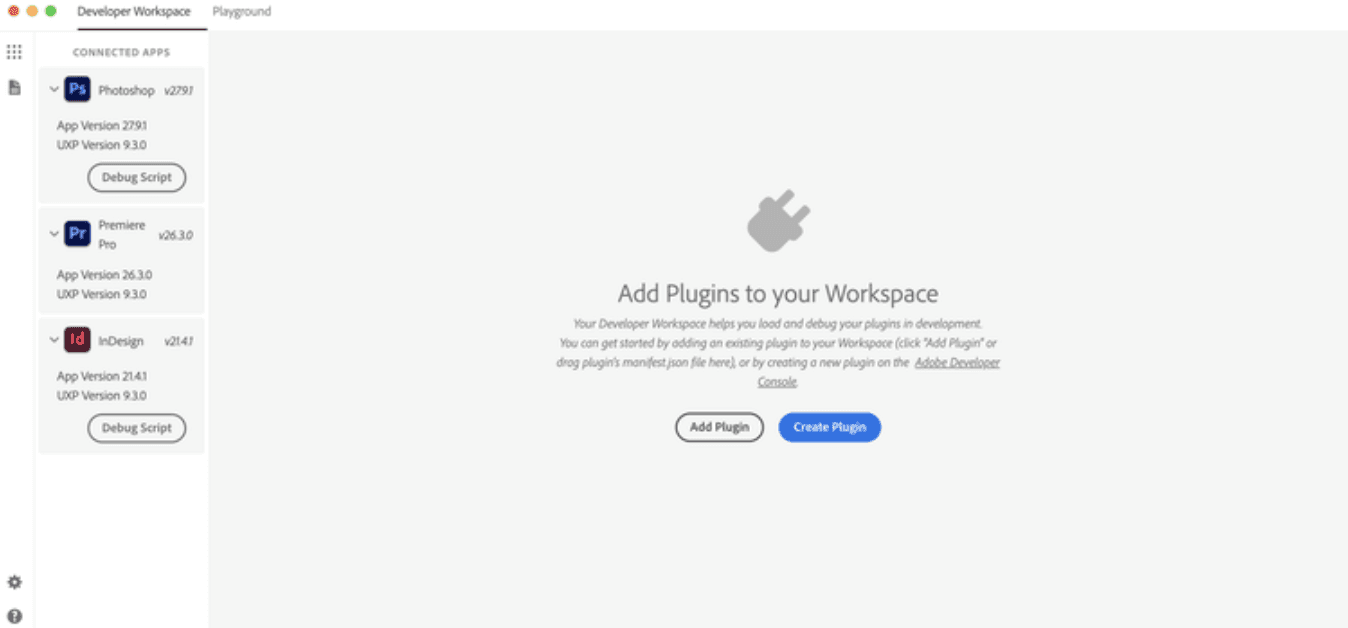
Image source: Adobe Developer, “Build Your First Plugin”.
Step 3: Ask Codex to plan before coding
Use a prompt that separates requirements from implementation assumptions:
Inspect this repository and plan a Photoshop UXP script for a non-destructive
resize-and-export workflow.

The script must:
- operate on the active document but never change the original;
- create a duplicate for each target size;
- resize each duplicate proportionally;
- export results to the outputs folder with versioned filenames;
- preserve transparency when the selected format supports it;
- close only the duplicates without saving them;
- use executeAsModal wherever the current Photoshop UXP API requires it;
- stop with a clear error if no document is open or the output folder is unavailable.

Before writing code, list destructive risks, required UXP APIs, version
assumptions, and the manual test procedure. Do not use legacy ExtendScript as
the default implementation
Inspect this repository and plan a Photoshop UXP script for a non-destructive
resize-and-export workflow.

The script must:
- operate on the active document but never change the original;
- create a duplicate for each target size;
- resize each duplicate proportionally;
- export results to the outputs folder with versioned filenames;
- preserve transparency when the selected format supports it;
- close only the duplicates without saving them;
- use executeAsModal wherever the current Photoshop UXP API requires it;
- stop with a clear error if no document is open or the output folder is unavailable.

Before writing code, list destructive risks, required UXP APIs, version
assumptions, and the manual test procedure. Do not use legacy ExtendScript as
the default implementation
Review the plan. Pay special attention to document duplication, closing behavior, output paths, existing-file collisions, color handling, and any use of batchPlay.
Step 4: Generate and run the smallest script
Ask Codex to create one .psjs file for one or two target sizes first. Adobe's Photoshop UXP API reference states that commands modifying the document or application state generally need executeAsModal.
Run the script against a fixture document, not the master. If Photoshop rejects it, capture the complete error and the relevant console output.
Step 5: Return evidence to Codex
Give Codex the error, exported preview, and expected result. Ask for the smallest correction rather than a full rewrite.
The script failed on the fixture document. Review the attached console error
and current script.

Expected: two versioned exports in outputs while the source PSD remains open
and unchanged.

Actual: the first duplicate was created, but export stopped before a file was
written.

Identify the exact failing API call. Verify the replacement against current
Adobe UXP documentation, change only the required code, and explain how to
rerun the same fixture test. Do not weaken the source-protection rules
The script failed on the fixture document. Review the attached console error
and current script.

Expected: two versioned exports in outputs while the source PSD remains open
and unchanged.

Actual: the first duplicate was created, but export stopped before a file was
written.

Identify the exact failing API call. Verify the replacement against current
Adobe UXP documentation, change only the required code, and explain how to
rerun the same fixture test. Do not weaken the source-protection rules
Verify dimensions, filenames, transparency, color profile, visual quality, source preservation, and repeated-run behavior. No exception does not mean the image is visually correct.
Promote the script to a UXP plugin when users need a panel, stored preferences, reusable inputs, plugin identity, or distribution. Adobe's plugin guide covers the development loop with Photoshop and UXP Developer Tool.
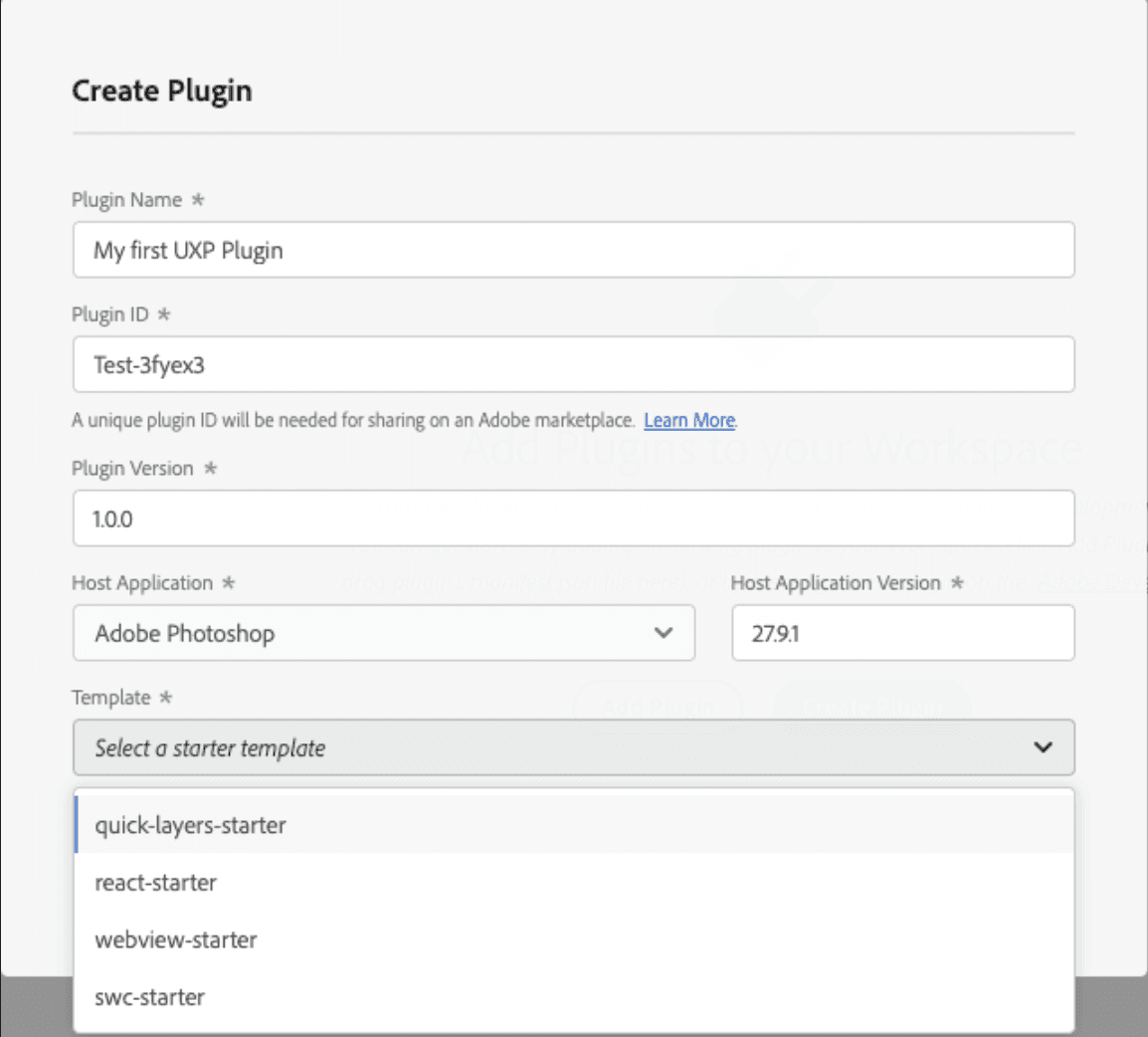
Image source: Adobe Developer, “Build Your First Plugin”.
When Should You Use Photoshop API v2 or a Community MCP Bridge?
Photoshop API v2 fits centralized production pipelines, including large asset sets, controlled variants, Smart Object replacement, published actions, and connected content systems.
It does not control the open Photoshop window. Adobe describes v2 as a Firefly Services API with REST-style requests and flexible output destinations. Current prerequisites include an active Enterprise contract with Firefly Services, an Adobe Developer Console project, OAuth server-to-server credentials, and supported storage or signed URLs. Adobe's API overview, authentication guide, and storage guide document those requirements.
Photoshop API v1 reached end of life on July 31, 2026. New integrations should use v2 examples and endpoints.
Codex can create the API client, authentication handling, job polling, storage adapters, tests, and retry behavior. Keep secrets out of prompts, screenshots, repositories, and plugin bundles.
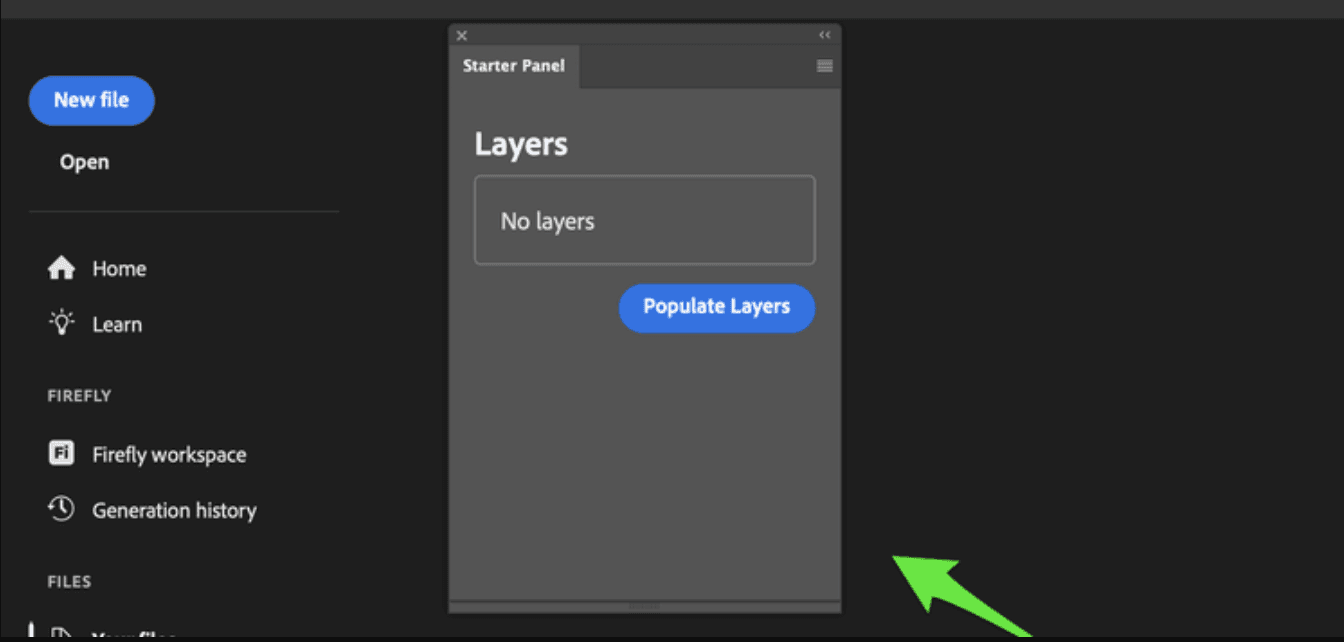
Image source: Adobe Developer, “Build Your First Plugin”.
Where does Photoshop MCP fit?
Codex officially supports MCP servers, including local STDIO processes and Streamable HTTP servers. It also supports tool allowlists, denylists, and per-tool approval behavior. OpenAI's MCP documentation explains those controls.
That does not make every Photoshop MCP server official or safe. Public Photoshop bridges commonly involve several pieces:
Codex as the MCP client.
A local MCP server.
A localhost port or another transport.
A UXP plugin or bridge running inside Photoshop.
Photoshop permissions and the state of the active document.
A failure at any layer can interrupt the workflow. A tool that accepts arbitrary UXP code or broad document commands may also receive extensive control over open files.
Before installing a community bridge, review its source, maintainers, releases, dependencies, network behavior, credential handling, writable folders, Photoshop-side plugin, and uninstall process. Pin a reviewed version, enable only the tools you need, require approval for writes, and test with disposable documents.
Problem | Likely boundary | First check |
|---|---|---|
Codex sees the server but not Photoshop | Local bridge or plugin | Confirm the Photoshop-side plugin is loaded and paired |
Connection fails immediately | Port, transport, or authentication | Check the configured command, URL, port, and logs |
Tool runs against the wrong file | Document state | Confirm the active document and use a duplicate |
Request is rejected | Permission or capability scope | Review the tool allowlist and approval settings |
Output is generic or incomplete | Excessive or unclear context | Send one focused request with explicit constraints |
Do not copy a one-line installer from a random repository into a production workstation without this review.
When Should You Run Codex and Photoshop on Vagon Cloud Computer?
We built Vagon Cloud Computer as your personal Windows computer in the cloud, streamed to the device you already have. Applications, project files, tools, and settings stay together between sessions.
That matters when the Codex and Photoshop workflow moves beyond a simple Adobe-plugin edit. A lightweight laptop or Chromebook may be perfectly adequate for writing prompts, but full Photoshop, large PSDs, Codex, UXP Developer Tool, Git, Node.js, and repeated exports can turn the workstation itself into the bottleneck.
With Vagon Cloud Computer, you can keep the complete workflow on one machine:
Adobe Creative Cloud and Photoshop
the ChatGPT desktop app with Codex
UXP Developer Tool
Git and Node.js
scripts and plugin source
fixture PSDs, references, and exported previews
This same-machine setup is useful for UXP development and Computer Use because Codex, Photoshop, automation files, and previews live in one Windows environment.
Photoshop is not currently listed in our automatic application catalog. Install Adobe Creative Cloud and Photoshop manually inside your Vagon Cloud Computer, then sign in with your own valid Adobe account. Adobe, ChatGPT, and other third-party subscriptions are not included with Vagon.
A practical Vagon setup
Create your Vagon Cloud Computer and choose a performance option that fits the initial setup and scripting work.
Install the ChatGPT desktop app, Adobe Creative Cloud, Photoshop, and UXP Developer Tool.
Install Git and Node.js if your automation project needs them.
Clone or copy the project into the Cloud Computer and keep master assets separate from writable fixtures.
Test the Adobe plugin, Computer Use, or UXP workflow with duplicate documents.
Move to more CPU, RAM, or GPU resources when large documents, filters, or export jobs need them.
Vagon lets you change performance while retaining the same desktop, files, and installed applications. Our scalable-performance documentation explains how the environment remains in place when the performance option changes.
This does not improve Codex's reasoning or accelerate Adobe's cloud API. It gives Photoshop and the surrounding local tools more suitable hardware and keeps the workspace consistent across devices.
Vagon is a strong fit when you:
use a device that cannot comfortably run the full Windows workflow;
need temporary access to more capable hardware;
move between computers or tablets;
work with large layered Photoshop documents;
want a separate Windows environment for plugin development and testing;
want Photoshop and Codex Computer Use on the same host.
You may not need it if your local workstation already handles the complete workflow or if you only use the Adobe plugin for lightweight edits. Detailed remote visual work also depends on a stable, low-latency connection.
Vagon compute is charged by usage, while a separate storage plan keeps the Cloud Computer's applications and files available between sessions. Check our current pricing page instead of relying on a fixed rate quoted in an evergreen guide.
Frequently Asked Questions
Can Codex control Photoshop directly?
Yes, Codex Computer Use can operate the visible Photoshop interface on supported macOS and Windows systems after you grant app access. For repeatable document operations, a UXP script or plugin is more predictable.
Is there an official Photoshop plugin for Codex?
Yes. Adobe's unified plugin is available in Codex and includes Photoshop-related tools alongside other Adobe capabilities. It edits assets through Adobe tools in Codex, but Adobe does not document it as direct control of the active local PSD.
Do I need an Adobe account?
Adobe says you can begin using its plugin as a guest. Signing in unlocks more skills, generative tool calls, Creative Cloud storage, and continuity across sessions. Desktop Photoshop still requires the appropriate Adobe access and license.
Should I use Computer Use or a UXP script?
Use Computer Use for narrow visual tasks, menu navigation, settings, or UI-dependent checks. Use UXP when an operation must be repeatable, testable, source-controlled, or shared with other users.
Can Codex edit a PSD from a screenshot alone?
No. A screenshot provides visual context but does not expose the live layers, masks, selections, history, Smart Objects, or unsaved document state.
Is Photoshop MCP official?
Codex officially supports MCP, but local Photoshop MCP bridges published in community repositories are third-party unless Adobe explicitly publishes and supports them. Review the complete server and Photoshop-side bridge before granting access.
Can I run Codex and Photoshop together on Vagon?
Yes. Install the ChatGPT desktop app, Adobe Creative Cloud, Photoshop, UXP Developer Tool, and your development tools inside a Vagon Cloud Computer. Photoshop currently requires manual installation rather than automatic selection from our application catalog.
The best workflow is the one with the fewest moving parts that still gives you the control you need. Start with the official Adobe plugin for conversational editing, use Computer Use for supervised desktop interaction, and move to UXP when the task needs reliable automation.
If your device cannot comfortably run the full Photoshop and Codex toolchain, create a Vagon Cloud Computer and keep Photoshop, Codex, UXP tools, and project files together in one persistent Windows workspace.
The easiest way to use Codex with Photoshop is to install Adobe's official plugin in Codex, attach an image, and describe the result you want. If you need Codex to interact with the live Photoshop desktop app or automate a repeatable task, use Computer Use or ask Codex to build an Adobe UXP script instead.
Those workflows solve different problems. The Adobe plugin edits assets through Adobe tools available in Codex. Computer Use operates the visible Photoshop interface. UXP scripts and plugins run structured automation inside Photoshop. Photoshop API v2 processes cloud-accessible assets at enterprise scale.
This guide explains how to choose between them, set up each practical workflow, and protect your original Photoshop documents while you test.
What Can Codex Actually Do With Photoshop?
Codex can inspect project folders, write and test JavaScript, accept images as visual context, use plugins and MCP tools, and operate approved desktop applications with Computer Use.
For Photoshop work, that creates four useful paths:
Adobe plugin: Edit uploaded images conversationally with Adobe tools inside Codex.
Computer Use: Let Codex inspect and operate the visible Photoshop desktop interface.
UXP automation: Have Codex write a script or plugin that Photoshop executes.
Photoshop API v2: Build an enterprise content pipeline that processes cloud-accessible assets.
There is an important boundary behind all four options. Attaching a screenshot or exported JPEG gives Codex visual information, but it does not expose the live PSD structure. Codex cannot infer the exact layer tree, mask state, blend modes, active selection, history, or unsaved changes from pixels alone. OpenAI's image-input documentation treats an image as context to inspect, not as a connection to the application that created it.
Adobe's official plugin also should not be confused with control of whichever PSD is open on your computer. Adobe describes the plugin as a way to use Photoshop and other Adobe capabilities within ChatGPT and Codex, with a handoff to Adobe applications when deeper editing is needed. Its documentation does not say that it directly manipulates the active local Photoshop canvas. Adobe's plugin overview makes that handoff clear.
Direct local interaction is possible through Computer Use, while repeatable document operations are better expressed through UXP. Community Photoshop MCP bridges offer another possible route, but they are third-party integrations and need separate technical and security review.
Which Codex and Photoshop Workflow Should You Choose?
Choose the smallest workflow that solves the task. A color adjustment does not need a custom plugin, while a production export pipeline should not depend on Codex repeatedly finding the same menu by sight.
Workflow | Best for | Active local Photoshop document? | Repeatability | Setup | Status |
|---|---|---|---|---|---|
Official Adobe plugin | Conversational edits, bulk adjustments, Creative Cloud handoff | Not documented as direct active-canvas control | Medium | Low | Official Adobe plugin |
Codex Computer Use | Visible menus, settings, visual checks, one-off desktop actions | Yes, through the visible GUI | Low to medium | Low to medium | Official Codex capability |
UXP script | Focused and repeatable document operations | Yes, when run in Photoshop | High | Medium | Official Adobe extensibility |
UXP plugin | Persistent panels, settings, and team tools | Yes, within available UXP capabilities | High | Medium to high | Official Adobe extensibility |
Photoshop API v2 | Enterprise batch processing and content pipelines | No local canvas control | High | High | Official Adobe enterprise API |
Community Photoshop MCP | Experimental structured control of local Photoshop | Potentially | Varies | Medium to high | Third-party, review required |
Start with the official Adobe plugin if you want to upload images, describe changes, compare results, and continue refining them through conversation. It is the fastest route for a reader who does not want to build software.
Choose Computer Use when the task depends on the desktop interface, such as checking settings, navigating an export flow, or reproducing a UI problem.
Choose a UXP script when you already know the operation and want Photoshop to perform it consistently. Batch exports, layer naming checks, document preparation, repeated resizing, and controlled asset generation all fit this model. Move to a UXP plugin when the automation needs a panel, persistent settings, reusable controls, or distribution to other users.
Photoshop API v2 belongs at the other end of the scale. It is for server-side content systems and high-volume processing, not for clicking around the Photoshop application on your desk.
How Do You Start With the Official Adobe Plugin in Codex?
Adobe's unified plugin works across ChatGPT Work and Codex. It combines Photoshop, Firefly, Express, Premiere, Acrobat, Lightroom, Illustrator, InDesign, Stock, and other Adobe services. It can edit photos, process batches, search Creative Cloud assets, and hand work into Adobe applications for more control. Adobe's announcement and setup guide describe the current workflow.
Image source: Adobe, “Adobe for ChatGPT”.
Step 1: Install Adobe in Codex
Open the ChatGPT desktop app and switch to Codex. Open Plugins, search for Adobe, and install it.
Adobe lets you begin as a guest. Signing in with an Adobe account unlocks additional skills, generative tool calls, Creative Cloud storage, and continuity between sessions. Adobe's current documentation also says the plugin supports English, so use English prompts until broader language support is documented.
Step 2: Start with a small, named input set
Image source: Adobe, “Adobe for ChatGPT”.
Open a new task, invoke @Adobe, and ask what photo-editing tools are available. Attach one image or a small batch with clear filenames.
Do not begin with a vague request such as “make these better.” State the purpose of the images, the protected elements, the output requirements, and what should remain unchanged.
For example:
Use Adobe to prepare these four product photos for the same ecommerce listing.

Requirements:
- use a consistent 4:5 crop;
- balance exposure and white balance across the set;
- preserve the product's purple brand color;
- remove small background distractions but do not change the product shape;
- keep realistic shadows;
- return separate high-quality images for review before final export.

Do not add text, logos, new props, or generated product details
Step 3: Review one change at a time
Inspect the first result before asking for more. If the color is right but the crop is too tight, correct only the crop. Small revisions make it easier to see which instruction caused a change.
If the job grows into detailed compositing, layer work, masks, retouching, or pixel-level corrections, continue in the full Photoshop application. The plugin is a practical starting surface, not a replacement for every desktop feature.
This path does not require UXP Developer Tool, a custom server, or a community MCP bridge. It is the sensible default for conversational editing.
How Do You Use Codex With the Live Photoshop Desktop App?
Computer Use is the direct visual route. It can click, type, navigate menus, inspect visible results, and move between approved applications on supported macOS and Windows systems. OpenAI's Computer Use guide covers setup and permissions.
Computer Use is flexible because it works with the interface a human sees. That also makes it less predictable than a script. A moved panel, unexpected dialog, modal window, or different Photoshop version can change the path.
Step 1: Enable Computer Use
In the ChatGPT desktop app, open Plugins > Computer Use and install or enable the plugin. Then review app access under Settings > Computer use.
On macOS, grant Screen Recording and Accessibility permissions when prompted. On Windows, keep Photoshop visible on the active desktop. Codex uses the foreground and can move the pointer and type, so it is not a hidden background worker on Windows.
Screenshot source: OpenAI, “Computer Use” documentation.
Step 2: Protect the master document
Open a duplicate PSD or a disposable fixture file. Do not make the only copy of a client document the first test target.
Save the duplicate under a clearly different filename, such as campaign-hero_working-v01.psd. Keep the master outside the active test path if possible.
Step 3: Give Codex a narrow task
Ask Codex to inspect the visible Photoshop window and explain its intended actions before clicking. Limit the task to one observable result.
Use Computer Use with the currently visible Photoshop window.

Work only in campaign-hero_working-v01.psd. Inspect the document dimensions,
color mode, and visible layer count. Then prepare a JPEG export at 1600 pixels
wide in the existing outputs folder.

Do not modify or overwrite the source PSD. Do not flatten the document, change
the color mode, close Photoshop, or replace an existing export. Pause and ask
before any action that is not reversible
Screenshot source: OpenAI, “Computer Use” documentation.
Step 4: Verify the saved result
After the action, open the exported file and compare it with the source. Check its dimensions, crop, color, transparency expectations, and filename. A completed sequence of clicks does not prove that the visual result is correct.
Computer Use is a good fit when visual judgment or UI navigation matters. It is a weak choice for a task that must run identically across dozens of documents. That is where UXP becomes more useful.
How Do You Build a Repeatable Photoshop UXP Workflow With Codex?
UXP is Adobe's modern platform for Photoshop scripts and plugins. A .psjs script runs inside Photoshop, completes a focused task, and unloads. Scripts suit one-off or repetitive operations, while plugins add persistent interfaces and storage. Adobe's UXP scripting overview explains the distinction.
Codex works well here because the automation lives in ordinary project files. It can inspect documentation, create the script, review changes, run supporting tests, and fix errors while you keep the document execution inside Photoshop.
Step 1: Create a safe project
Use a dedicated folder instead of pointing Codex at an unorganized library of production assets:
photoshop-automation/
  AGENTS.md
  scripts/
  plugin/
  references/
  fixtures/
  outputs
Store disposable PSDs in fixtures/, exports in outputs/, and approved references in references/.
Add an AGENTS.md file that tells Codex how to behave in this repository:
# Photoshop automation rules

- Use current Adobe UXP APIs and verify uncertain methods against Adobe docs.
- Never overwrite files in fixtures or any source PSD.
- Write generated files only to outputs.
- Use executeAsModal for operations that modify Photoshop state.
- Do not flatten, close, delete layers, or change color mode without approval.
- Prefer the smallest testable implementation.
- Report unsupported assumptions instead of inventing an API
Step 2: Install the development tools
Install the current Photoshop desktop application. Install UXP Developer Tool from Adobe Creative Cloud if you want breakpoints, console output, or plugin development.
Adobe's scripting quickstart says a .psjs file can be run through File > Scripts > Browse. Scripts can also be debugged with UXP Developer Tool.
Image source: Adobe Developer, “Build Your First Plugin”.
Step 3: Ask Codex to plan before coding
Use a prompt that separates requirements from implementation assumptions:
Inspect this repository and plan a Photoshop UXP script for a non-destructive
resize-and-export workflow.

The script must:
- operate on the active document but never change the original;
- create a duplicate for each target size;
- resize each duplicate proportionally;
- export results to the outputs folder with versioned filenames;
- preserve transparency when the selected format supports it;
- close only the duplicates without saving them;
- use executeAsModal wherever the current Photoshop UXP API requires it;
- stop with a clear error if no document is open or the output folder is unavailable.

Before writing code, list destructive risks, required UXP APIs, version
assumptions, and the manual test procedure. Do not use legacy ExtendScript as
the default implementation
Review the plan. Pay special attention to document duplication, closing behavior, output paths, existing-file collisions, color handling, and any use of batchPlay.
Step 4: Generate and run the smallest script
Ask Codex to create one .psjs file for one or two target sizes first. Adobe's Photoshop UXP API reference states that commands modifying the document or application state generally need executeAsModal.
Run the script against a fixture document, not the master. If Photoshop rejects it, capture the complete error and the relevant console output.
Step 5: Return evidence to Codex
Give Codex the error, exported preview, and expected result. Ask for the smallest correction rather than a full rewrite.
The script failed on the fixture document. Review the attached console error
and current script.

Expected: two versioned exports in outputs while the source PSD remains open
and unchanged.

Actual: the first duplicate was created, but export stopped before a file was
written.

Identify the exact failing API call. Verify the replacement against current
Adobe UXP documentation, change only the required code, and explain how to
rerun the same fixture test. Do not weaken the source-protection rules
Verify dimensions, filenames, transparency, color profile, visual quality, source preservation, and repeated-run behavior. No exception does not mean the image is visually correct.
Promote the script to a UXP plugin when users need a panel, stored preferences, reusable inputs, plugin identity, or distribution. Adobe's plugin guide covers the development loop with Photoshop and UXP Developer Tool.
Image source: Adobe Developer, “Build Your First Plugin”.
When Should You Use Photoshop API v2 or a Community MCP Bridge?
Photoshop API v2 fits centralized production pipelines, including large asset sets, controlled variants, Smart Object replacement, published actions, and connected content systems.
It does not control the open Photoshop window. Adobe describes v2 as a Firefly Services API with REST-style requests and flexible output destinations. Current prerequisites include an active Enterprise contract with Firefly Services, an Adobe Developer Console project, OAuth server-to-server credentials, and supported storage or signed URLs. Adobe's API overview, authentication guide, and storage guide document those requirements.
Photoshop API v1 reached end of life on July 31, 2026. New integrations should use v2 examples and endpoints.
Codex can create the API client, authentication handling, job polling, storage adapters, tests, and retry behavior. Keep secrets out of prompts, screenshots, repositories, and plugin bundles.
Image source: Adobe Developer, “Build Your First Plugin”.
Where does Photoshop MCP fit?
Codex officially supports MCP servers, including local STDIO processes and Streamable HTTP servers. It also supports tool allowlists, denylists, and per-tool approval behavior. OpenAI's MCP documentation explains those controls.
That does not make every Photoshop MCP server official or safe. Public Photoshop bridges commonly involve several pieces:
Codex as the MCP client.
A local MCP server.
A localhost port or another transport.
A UXP plugin or bridge running inside Photoshop.
Photoshop permissions and the state of the active document.
A failure at any layer can interrupt the workflow. A tool that accepts arbitrary UXP code or broad document commands may also receive extensive control over open files.
Before installing a community bridge, review its source, maintainers, releases, dependencies, network behavior, credential handling, writable folders, Photoshop-side plugin, and uninstall process. Pin a reviewed version, enable only the tools you need, require approval for writes, and test with disposable documents.
Problem | Likely boundary | First check |
|---|---|---|
Codex sees the server but not Photoshop | Local bridge or plugin | Confirm the Photoshop-side plugin is loaded and paired |
Connection fails immediately | Port, transport, or authentication | Check the configured command, URL, port, and logs |
Tool runs against the wrong file | Document state | Confirm the active document and use a duplicate |
Request is rejected | Permission or capability scope | Review the tool allowlist and approval settings |
Output is generic or incomplete | Excessive or unclear context | Send one focused request with explicit constraints |
Do not copy a one-line installer from a random repository into a production workstation without this review.
When Should You Run Codex and Photoshop on Vagon Cloud Computer?
We built Vagon Cloud Computer as your personal Windows computer in the cloud, streamed to the device you already have. Applications, project files, tools, and settings stay together between sessions.
That matters when the Codex and Photoshop workflow moves beyond a simple Adobe-plugin edit. A lightweight laptop or Chromebook may be perfectly adequate for writing prompts, but full Photoshop, large PSDs, Codex, UXP Developer Tool, Git, Node.js, and repeated exports can turn the workstation itself into the bottleneck.
With Vagon Cloud Computer, you can keep the complete workflow on one machine:
Adobe Creative Cloud and Photoshop
the ChatGPT desktop app with Codex
UXP Developer Tool
Git and Node.js
scripts and plugin source
fixture PSDs, references, and exported previews
This same-machine setup is useful for UXP development and Computer Use because Codex, Photoshop, automation files, and previews live in one Windows environment.
Photoshop is not currently listed in our automatic application catalog. Install Adobe Creative Cloud and Photoshop manually inside your Vagon Cloud Computer, then sign in with your own valid Adobe account. Adobe, ChatGPT, and other third-party subscriptions are not included with Vagon.
A practical Vagon setup
Create your Vagon Cloud Computer and choose a performance option that fits the initial setup and scripting work.
Install the ChatGPT desktop app, Adobe Creative Cloud, Photoshop, and UXP Developer Tool.
Install Git and Node.js if your automation project needs them.
Clone or copy the project into the Cloud Computer and keep master assets separate from writable fixtures.
Test the Adobe plugin, Computer Use, or UXP workflow with duplicate documents.
Move to more CPU, RAM, or GPU resources when large documents, filters, or export jobs need them.
Vagon lets you change performance while retaining the same desktop, files, and installed applications. Our scalable-performance documentation explains how the environment remains in place when the performance option changes.
This does not improve Codex's reasoning or accelerate Adobe's cloud API. It gives Photoshop and the surrounding local tools more suitable hardware and keeps the workspace consistent across devices.
Vagon is a strong fit when you:
use a device that cannot comfortably run the full Windows workflow;
need temporary access to more capable hardware;
move between computers or tablets;
work with large layered Photoshop documents;
want a separate Windows environment for plugin development and testing;
want Photoshop and Codex Computer Use on the same host.
You may not need it if your local workstation already handles the complete workflow or if you only use the Adobe plugin for lightweight edits. Detailed remote visual work also depends on a stable, low-latency connection.
Vagon compute is charged by usage, while a separate storage plan keeps the Cloud Computer's applications and files available between sessions. Check our current pricing page instead of relying on a fixed rate quoted in an evergreen guide.
Frequently Asked Questions
Can Codex control Photoshop directly?
Yes, Codex Computer Use can operate the visible Photoshop interface on supported macOS and Windows systems after you grant app access. For repeatable document operations, a UXP script or plugin is more predictable.
Is there an official Photoshop plugin for Codex?
Yes. Adobe's unified plugin is available in Codex and includes Photoshop-related tools alongside other Adobe capabilities. It edits assets through Adobe tools in Codex, but Adobe does not document it as direct control of the active local PSD.
Do I need an Adobe account?
Adobe says you can begin using its plugin as a guest. Signing in unlocks more skills, generative tool calls, Creative Cloud storage, and continuity across sessions. Desktop Photoshop still requires the appropriate Adobe access and license.
Should I use Computer Use or a UXP script?
Use Computer Use for narrow visual tasks, menu navigation, settings, or UI-dependent checks. Use UXP when an operation must be repeatable, testable, source-controlled, or shared with other users.
Can Codex edit a PSD from a screenshot alone?
No. A screenshot provides visual context but does not expose the live layers, masks, selections, history, Smart Objects, or unsaved document state.
Is Photoshop MCP official?
Codex officially supports MCP, but local Photoshop MCP bridges published in community repositories are third-party unless Adobe explicitly publishes and supports them. Review the complete server and Photoshop-side bridge before granting access.
Can I run Codex and Photoshop together on Vagon?
Yes. Install the ChatGPT desktop app, Adobe Creative Cloud, Photoshop, UXP Developer Tool, and your development tools inside a Vagon Cloud Computer. Photoshop currently requires manual installation rather than automatic selection from our application catalog.
The best workflow is the one with the fewest moving parts that still gives you the control you need. Start with the official Adobe plugin for conversational editing, use Computer Use for supervised desktop interaction, and move to UXP when the task needs reliable automation.
If your device cannot comfortably run the full Photoshop and Codex toolchain, create a Vagon Cloud Computer and keep Photoshop, Codex, UXP tools, and project files together in one persistent Windows workspace.
Get Beyond Your Computer Performance
Run applications on your cloud computer with the latest generation hardware. No more crashes or lags.

Trial includes 1 hour usage + 7 days of storage.
Summarize with AI

Ready to focus on your creativity?
Vagon gives you the ability to create & render projects, collaborate, and stream applications with the power of the best hardware.

Run heavy applications on any device with
your personal computer on the cloud.
San Francisco, California
Solutions
Vagon Teams
Vagon Streams
Use Cases
© 2026 Vagon. All rights reserved.
Run heavy applications on any device with
your personal computer on the cloud.
San Francisco, California
Solutions
Vagon Teams
Vagon Streams
Use Cases
© 2026 Vagon. All rights reserved.
Run heavy applications on any device with
your personal computer on the cloud.
San Francisco, California
Solutions
Vagon Teams
Vagon Streams
Use Cases
© 2026 Vagon. All rights reserved.