Instant Connection for Pixel Streaming
— New Feature Automated Setup

How to Use Codex With Premiere Pro: MCP & Computer Use
VideoProduction
How to Use Codex With Premiere Pro: MCP & Computer Use
VideoProduction
How to Use Codex With Premiere Pro: MCP & Computer Use
VideoProduction
Table of Contents
Premiere Pro is not just a timeline that Codex can control with a few generated scripts. It is a structured editing environment made up of projects, bins, sequences, tracks, clips, markers, captions, effects, and export settings. When connected through a compatible Model Context Protocol (MCP) server, Codex can work with this project structure and communicate with an active Premiere Pro session.
The integration layer may use Adobe’s modern Premiere Pro UXP APIs, a local extension, or another bridge that exposes Premiere’s document model to Codex. Depending on the connector, Codex can inspect sequences, analyze clip placement, create markers, organize tracks, update supported properties, apply effects, prepare captions, and configure exports. Community projects such as Premiere Pro MCP Server demonstrate how MCP-compatible clients can work with Premiere Pro through local tools.
Computer Use adds a visual review layer. Codex can open the correct project, inspect the timeline, check the Program Monitor, review captions and audio tracks, and verify export settings before a file is rendered.
This is not a native one-click Adobe feature. It requires an installed Premiere Pro version, a valid license, a compatible MCP bridge or UXP plugin, appropriate project permissions, and a duplicate project for testing. Codex can automate repetitive editing operations, but creative decisions, final review, and production approval should remain with the editor.
From a Premiere Project File to a Live Editing Session
To understand what Codex can do with Premiere Pro, it helps to separate the project file from the editing interface. A Premiere project is not a single video. It contains bins, source media, sequences, video and audio tracks, clips, markers, captions, effects, metadata, and export settings. Each part has its own place in Premiere’s project model.

Source: Adobe HelpX
MCP gives Codex structured access to this model. Instead of relying only on screenshots, Codex can ask the bridge which project is open, which sequence is active, how many tracks it contains, where clips begin and end, and which markers or effects are present. The exact information depends on the tools exposed by the connector.
Adobe’s Premiere Pro UXP APIs are designed to access and modify projects, sequences, tracks, clips, markers, media, effects, playback controls, and exports. A compatible MCP server can make selected parts of this API available to Codex through natural-language requests.
Computer Use works at a different level. It allows Codex to see the Premiere Pro workspace and interact with visible panels. It can open the Project panel, select a sequence, expand the timeline, inspect the Program Monitor, open Effect Controls, or check Export Settings.
The distinction matters because structured data does not always reveal whether an edit looks or sounds correct. A clip may be positioned at the intended timecode but still create an awkward visual cut. A caption may exist in the sequence but be outside the safe area. MCP can report the project state; Computer Use helps Codex confirm the visible result.
The Premiere Pro Control Stack: MCP, UXP, and Computer Use
A Codex–Premiere Pro workflow usually contains several layers rather than one direct connection. Each layer has a different responsibility, and understanding the separation helps explain why some tasks are reliable while others still require visual review.
At the top is Codex, which interprets the user’s request, decides which tools to use, and coordinates the workflow. For example, a request such as “prepare a captioned social version of this sequence” may require Codex to inspect the project, identify the master sequence, duplicate it, adjust the sequence format, and prepare an export.
MCP acts as the tool and communication layer. It defines the operations Codex can request from the Premiere integration. These might include reading sequences, listing clips, creating markers, changing track items, inspecting metadata, or configuring exports.
The local bridge is the integration layer between MCP and Premiere Pro. Newer workflows may use a UXP plugin, while other connectors may rely on a local Node.js process, an extension, or a legacy scripting interface. Adobe’s Premiere APIs provide access to the application’s project model, but the available methods can vary by Premiere version and UXP release.
Computer Use sits alongside this structured connection. It allows Codex to interact with the visible Premiere Pro interface and verify the result in context. It can inspect the timeline, Program Monitor, audio meters, caption display, Effect Controls, and export dialogs.
The practical flow is:
MCP is best for repeatable data operations. UXP or scripting provides the application-level access. Computer Use confirms that the technical change also looks correct to an editor.
Setting Up a Local Premiere Pro Bridge
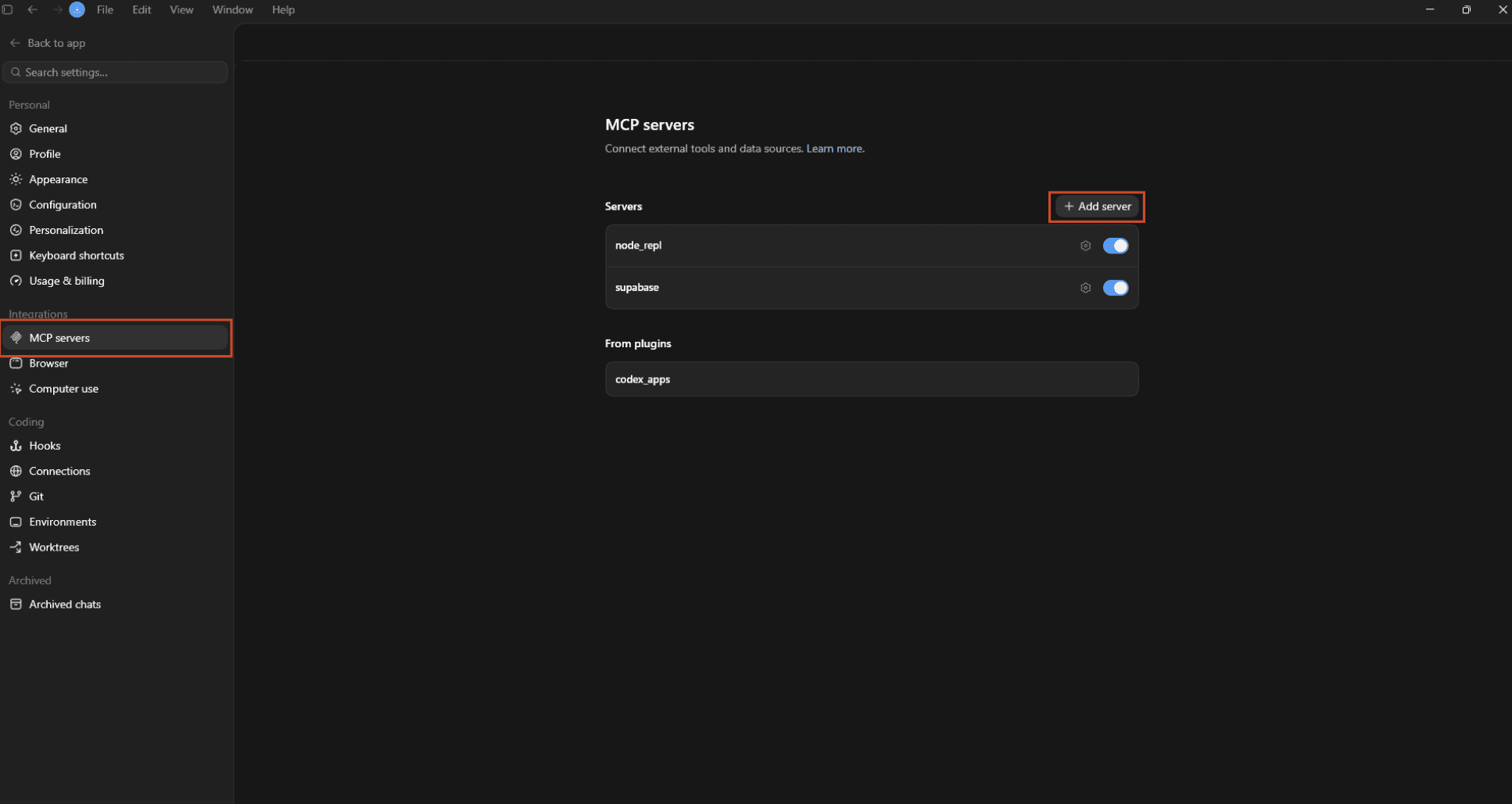
A Premiere Pro MCP connection normally depends on a local bridge that can communicate with the active application. Codex does not edit the project file as if it were a regular text document. Instead, it sends an MCP request to a server, and that server forwards the request to a UXP plugin, extension, or scripting layer connected to Premiere Pro.
Source: Matagi
The setup usually follows this structure:
Adobe’s Premiere Pro UXP documentation describes UXP as the current extensibility platform for creating tools and plugins. Its Premiere-specific APIs provide access to projects, sequences, tracks, clips, markers, media, effects, and exports. The precise methods available depend on the installed Premiere Pro and UXP versions.
A typical setup requires:
Windows or macOS
An installed and licensed version of Premiere Pro
Codex with MCP support
A compatible Premiere Pro MCP server
A supported UXP plugin, extension, or local bridge
Node.js, Python, or another dependency if required
A test project with non-critical media
A backup of the project and source files
Basic Connection Process
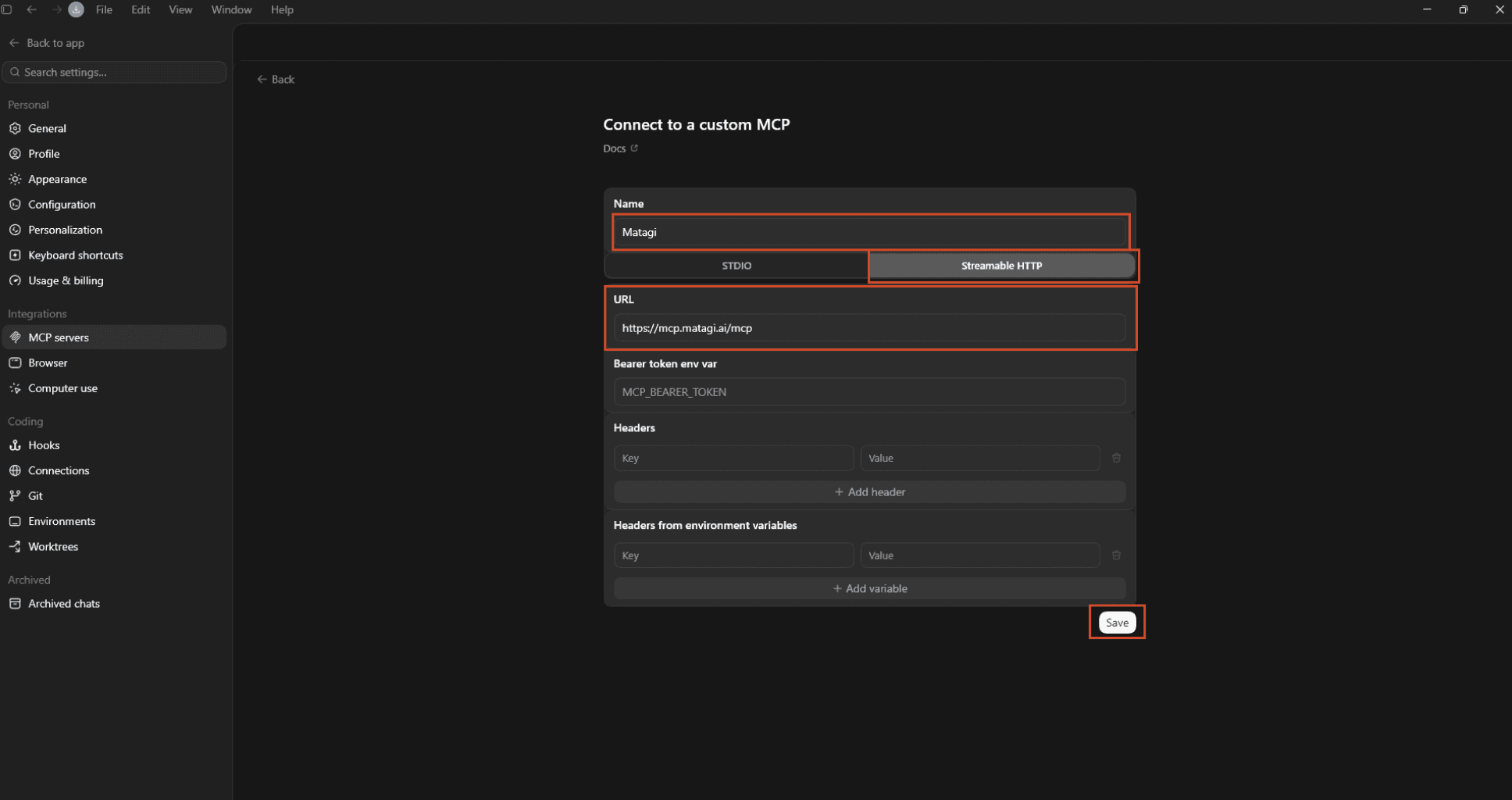
Start by opening Premiere Pro with a test project. Confirm that the project loads correctly, the source media is online, and the intended sequence can be opened manually. Then install or clone the selected MCP server and install its dependencies.
Source: Matagi
A local stdio registration may look similar to this:
Some integrations use a local HTTP endpoint instead:
The exact command depends on the selected repository. The Premiere Pro MCP Server project documents manual registration for Codex and other MCP-compatible clients. Its setup should be treated as an implementation example, not as a universal Premiere Pro installation method.
After registering the server, restart Codex or Premiere Pro if required and verify that the available tools are visible. Begin with read-only requests:
“Check whether Premiere Pro is running and report the active project name. Do not modify anything.”Then inspect the project:
“List all sequences in the active project and report their dimensions, frame rates, durations, and track counts.”Finally, inspect the active timeline:
“List the clips on each video and audio track, including their names, start times, end times, and source media.”If Codex returns information from the open project, the connection is working. Only after these checks should you create sequences, move clips, add markers, apply effects, or configure an export. Save a separate version of the project before approving any operation that can change the edit.
A Practical Edit Review Loop
The safest way to use Codex with Premiere Pro is to treat every automated edit as a review cycle. Codex should first understand the project, then identify the requested change, explain what it plans to do, and only modify the timeline after approval.
A practical workflow looks like this:
Open
Codex confirms that Premiere Pro is running and identifies the active project. It checks the project name, file path, available sequences, and whether the required media is online.
Inspect
Codex reads the active sequence and reports its dimensions, frame rate, duration, tracks, clips, markers, captions, and relevant metadata. Computer Use can open the Timeline and Program Monitor to verify that the correct sequence is visible.
Identify
Codex locates the clips, tracks, markers, or captions related to the request. For example, it might find all clips with a specific naming pattern or identify gaps between dialogue clips.
Propose
Before making a change, Codex describes the intended operation:
“I found three gaps on Video Track 1 between interview clips. I can close these gaps in a duplicate sequence without changing the master sequence. Would you like me to continue?”This step gives the editor a chance to catch incorrect assumptions about the sequence, track targeting, or creative intent.
Approve and Edit
After approval, MCP can perform the structured operation if the connector exposes it. This may involve moving clips, adding markers, changing supported properties, or preparing a new sequence. Computer Use should be used when the operation depends on a visible panel or interface-only control.
Preview
Codex opens or observes the affected section in Premiere Pro. It checks the Program Monitor, timeline spacing, captions, transitions, and audio meters where relevant. The goal is not only to confirm that the operation succeeded, but also that the edit still makes sense.
Export
Only after the editor approves the result should Codex prepare an export. It verifies the sequence, work area, format, preset, output path, and filename before starting the render.
This loop is useful for both small tasks and larger workflows. It prevents Codex from treating a technically valid timeline change as an automatically approved creative decision.

Source: Adobe
Premiere Pro Tasks Codex Handles Best
Codex is most useful in Premiere Pro when the task contains repeatable structure, clear rules, or project data that would otherwise require a large amount of manual inspection. MCP can handle the structured part of the operation, while Computer Use confirms how the edit appears in the actual Premiere workspace.
Pre-Edit Organization
Before an editor starts cutting, Codex can inspect the project and summarize its organization. Depending on the connector, it may identify bins, sequences, source media, offline files, duplicate assets, track counts, and inconsistent clip names.
For example, Codex could report:
Which sequences are available.
Which clips are offline.
Which bins contain unused footage.
Which clips do not follow the project naming convention.
Which sequences have different frame rates or dimensions.
Which tracks contain dialogue, music, effects, or graphics.
A useful prompt is:
“Inspect the active Premiere Pro project and identify offline media, duplicate clip names, and sequences with inconsistent settings. Do not modify anything.”Computer Use can then open the Project panel and confirm that Codex is inspecting the intended project rather than a similarly named file.
Rough Cut and Clip Organization
When the editing rules are explicit, Codex may help prepare a rough cut or organize clips on a timeline. Depending on the MCP server, it may create a sequence, add tracks, move clips, trim items, split clips, remove gaps, or rename timeline items.
Possible applications include:
Creating a social-media cut from selected footage.
Grouping interview clips by speaker.
Building a review sequence from marked selects.
Removing empty spaces between approved clips.
Copying a section into a new sequence.
Standardizing clip names across a timeline.
These operations should be applied to a duplicate sequence first. A technically correct clip move can still damage pacing, remove an intentional pause, or create an unwanted audio transition. Computer Use can compare the revised timeline with the original and preview the affected section.
Markers and Chapter Creation
Markers are a practical area for automation because they provide structured information without immediately changing the edit. Premiere’s marker API supports operations such as listing, creating, moving, and removing markers where the connector exposes them. Adobe’s Premiere marker documentation describes sequence and clip marker operations.

Source: Adobe HelpX
Codex can help organize:
Scene changes.
Dialogue notes.
Client feedback.
Music cues.
Chapter points.
Caption timing.
Review comments.
For example:
“Add markers at the start of every major scene and label each one with the scene description. Show me the proposed marker list before writing it.”Computer Use can inspect the timeline and confirm that the markers align with the intended edit points.
Captions and Text Workflows
Where the MCP server exposes caption or graphics support, Codex may help identify missing text, update repeated titles, organize caption data, or prepare subtitle-related exports. It could also compare caption timing against clip boundaries or sequence markers.

Source: Adobe Community
Caption automation should be presented as connector-dependent because Premiere versions and APIs may expose different levels of access. Computer Use remains important for checking line breaks, safe-area placement, overlapping text, readability, and timing in the Program Monitor.
A practical workflow is:
Codex identifies caption entries that need attention.
It lists the proposed changes.
The editor approves the update.
MCP applies the supported changes.
Computer Use verifies the result visually.
Effects, Transitions, and Audio Review
Some MCP connectors can inspect or apply supported effects and transitions. Codex may identify clips that are missing a required effect, compare effect settings, or apply the same treatment to a defined group of clips.

Source: AmazonAWS
For audio, Codex may inspect track structure, clip placement, markers, and available metadata. Computer Use can check waveforms, audio meters, track routing, and the visible Effect Controls panel.
A controlled effect workflow is:
Identify the target clip or track.
Confirm the intended effect or transition.
Apply it to a duplicate sequence or test clip.
Open Effect Controls with Computer Use.
Preview the result.
Ask for approval before applying it to the final edit.
Multi-Version Editing
Codex can help prepare multiple versions of an approved sequence:
Full-length master.
Short social cut.
Vertical version.
Captioned version.
Client-review version.
Watermarked preview.
Audio-only export.
MCP can repeat structured sequence operations, while Computer Use verifies aspect ratio, framing, title placement, caption visibility, track layout, and overall timeline structure in each version.

Source: Adobe
Export and Media Encoder Workflows
Premiere’s UXP and Media Encoder integrations provide programmatic access to export-related workflows. Depending on the connector, Codex may configure export presets, set output paths, prepare render jobs, or send a sequence to Media Encoder.
Before exporting, Codex should confirm:
The correct sequence.
The work area.
Resolution and frame rate.
Codec and preset.
Caption and audio settings.
Output folder.
Filename and version number.
Computer Use should open Export Settings and verify these values visually. The export should begin only after the editor approves the final configuration.

Source: Adobe
Where Codex Still Needs Human Editorial Judgment
Premiere Pro automation can make project inspection and repetitive editing much faster, but a technically valid operation is not automatically a good editorial decision. Codex may know where a clip starts, how long it lasts, or which track it belongs to without understanding why an editor placed it there.
Pacing and Story Structure
Codex can identify gaps, repeated clips, or long pauses, but it cannot reliably determine whether a pause creates tension, gives the viewer time to process information, or supports the speaker’s delivery. Removing every gap may make an interview feel rushed or remove an intentional storytelling moment.
A better workflow is to ask Codex to identify possible pacing issues and present them for review:
“Find pauses longer than three seconds in the interview sequence and list them with their timecodes. Do not remove them.”The editor can then decide which sections should remain.
Visual Continuity
Two clips may be adjacent in the timeline without a technical problem, yet create a jump in camera angle, screen direction, lighting, or subject position. Structured clip data will not always reveal whether the cut feels visually natural.
Computer Use can help Codex inspect the Program Monitor, but the final decision should remain with the editor, especially for interviews, narrative edits, commercials, and branded content.
Captions and On-Screen Text
Codex may identify caption timing and text content, but visual readability still requires review. Text can overlap faces, fall outside the safe area, break at an awkward word, or remain on screen for too little time.
Codex can propose caption changes and apply approved updates, while Computer Use checks the actual composition. The editor should review brand terminology, speaker names, punctuation, translations, and accessibility requirements.
Audio and Emotional Tone
Codex can inspect track structure, clip placement, markers, and some metadata, but it cannot reliably judge whether dialogue, music, ambience, and sound effects create the intended emotional balance. Audio meters may look acceptable while the mix still feels distracting or flat.
Use Codex to identify clips or sections that need attention, then let the editor make the final audio decision.
Creative Intent
Automation works best when the rules are explicit. It is less reliable when the request depends on taste, tone, humor, rhythm, performance, or brand identity. Codex can prepare alternatives, duplicate sequences, and organize review points, but it should not silently rewrite a master sequence based on vague instructions such as “make it more engaging.”
The safest approach is to keep the human editor responsible for meaning, pacing, tone, and final approval, while Codex handles inspection, preparation, repeatable operations, and verification support.

Source: Adobe
Production Guardrails for Premiere Projects
Connecting Codex to Premiere Pro can expose project names, clip names, source paths, sequence structures, markers, captions, audio information, and export destinations. Depending on the MCP server, it may also allow direct timeline edits and exports. Treat Codex as a controlled editing assistant rather than giving it unrestricted access to production projects.
Start with a duplicate project and duplicate sequence. Preserve the original source media, project file, and master sequence. Use versioned filenames for major edits and avoid overwriting the only copy.
Use this sequence:
Require approval before Codex:
Deletes or replaces clips
Modifies multiple tracks
Changes linked media
Rewrites a master sequence
Moves or trims dialogue clips in bulk
Changes captions or markers across a project
Applies effects or transitions across many clips
Changes sequence settings
Overwrites project files
Starts a production export
Uploads or sends media to an external service
Codex should stop if the wrong project or sequence is active, media is offline, track targeting is ambiguous, or a clip is linked to unexpected source media. It should also pause when Premiere displays a warning, modal dialog, disconnected bridge, unexpected timeline state, or export path that differs from the instruction.
Keep local MCP endpoints protected and limit filesystem access to the folders Premiere and Codex need. Media confidentiality is especially important because project metadata, filenames, media paths, captions, and edit decisions may be sent to the AI service.
After every approved edit, preview the affected section, compare the duplicate sequence with the original, save a new project revision, and verify the exported file before delivery. For longer projects, maintain a simple change log containing the sequence name, operation performed, approval status, export version, and output path. This makes the automation easier to review and reverse.
Run Premiere Pro and Codex Together on Vagon Cloud Computer
Premiere Pro workflows benefit from a persistent computer where Premiere, Codex, the MCP bridge, project files, media, plugins, and export tools remain configured. A Vagon Cloud Computer can provide a dedicated workspace for this setup.
You can install Premiere Pro on the cloud computer, configure Codex with the selected MCP server, and keep the UXP plugin or local bridge available in the same environment. Node.js, Python, scripts, project templates, media folders, export presets, and output directories can remain accessible between sessions.
Performance matters for MCP and Computer Use:
GPU performance affects Program Monitor playback, effects, transitions, color previews, and high-resolution footage.
CPU performance affects encoding, waveform processing, effects, proxies, and background exports.
RAM affects large projects, multicam sequences, high-resolution assets, and multiple open applications.
Stable remote access improves Computer Use reliability when Codex needs to inspect the timeline or Export Settings.
Persistent storage keeps project files, media, proxies, templates, and exports organized.
A typical environment might include:
This setup can support editing, captions, markers, effects, multi-version production, timeline review, and export workflows. It also makes it easier to keep the Premiere Pro version, UXP plugin, MCP server, and scripting dependencies consistent.
Vagon does not provide a native Codex–Premiere Pro integration. Users still need a valid Adobe license, a compatible MCP server, supported plugins, and access to the required media and project folders. Large media libraries, client footage, and unreleased projects should be protected with permissions, backups, and version control.
The main benefit is a persistent and performance-oriented workspace where Premiere Pro and Codex can be configured once and reused for editing, review, and delivery tasks.
FAQs
Can Codex directly control Premiere Pro?
Codex can interact with Premiere Pro when an MCP server, UXP plugin, or local bridge exposes supported tools. It is not a native one-click Adobe feature, and available operations depend on the connector and Premiere Pro version.
Is there an official Premiere Pro MCP server?
Most current Premiere Pro MCP solutions are community-built. They typically connect Codex to Premiere through UXP, local extensions, JavaScript, or other application bridges.
Can Codex read Premiere Pro projects?
Depending on the connector, Codex may inspect projects, bins, sequences, tracks, clips, markers, media items, effects, captions, and export settings.
Can Codex create or modify sequences?
Some MCP servers expose tools for creating sequences, adding tracks, moving clips, trimming edits, importing media, and updating sequence properties. Test changes on a duplicate sequence first.
Can Codex add markers?
If marker tools are exposed, Codex may create, move, remove, list, and label sequence or clip markers. Always verify marker positions on the timeline.
Can Codex automate captions?
Caption and text capabilities vary by Premiere version and MCP server. Codex may help organize caption data or update text, while Computer Use can verify timing, line breaks, and safe-area placement.
Can Codex apply effects and transitions?
Some connectors expose supported effects and transitions. Test changes on a duplicate sequence because effect names, parameters, and API support can vary.
What is Computer Use useful for in Premiere Pro?
Computer Use is useful for navigating the Project panel, inspecting timelines, checking clip order, reviewing captions, opening Effect Controls, monitoring audio meters, and verifying Export Settings.
Can Codex export Premiere Pro projects?
Depending on the connector, Codex may configure exports, prepare render jobs, or send sequences to Media Encoder. Confirm the codec, preset, output path, filename, captions, and audio settings before exporting.
Does Premiere Pro need to be installed?
Yes, for live project control and Computer Use. The MCP bridge must be compatible with the installed Premiere Pro version and its UXP or extension environment.
Is it safe to connect Codex to production footage?
Use duplicate projects, restricted folders, approval prompts, version control, and local MCP endpoints. Project metadata, filenames, media paths, captions, and edit decisions may be exposed to the AI service.
Can Premiere Pro and Codex run on Vagon?
Yes. A Vagon Cloud Computer can host Premiere Pro, Codex, the MCP server, plugins, media, project files, and exports in a persistent environment.
Does Codex replace Premiere Pro scripting?
No. UXP, Premiere DOM APIs, legacy ExtendScript, and other Adobe extension tools remain the underlying automation layers. MCP exposes selected capabilities to Codex, while Computer Use provides interface-level control and visual verification.
Can Codex create a complete video edit without an editor?
Codex can help organize footage, prepare rough cuts, add markers, update captions, and configure exports when the MCP server supports those operations. However, pacing, storytelling, performance, visual continuity, audio balance, and creative approval still require human editorial judgment.
Premiere Pro is not just a timeline that Codex can control with a few generated scripts. It is a structured editing environment made up of projects, bins, sequences, tracks, clips, markers, captions, effects, and export settings. When connected through a compatible Model Context Protocol (MCP) server, Codex can work with this project structure and communicate with an active Premiere Pro session.
The integration layer may use Adobe’s modern Premiere Pro UXP APIs, a local extension, or another bridge that exposes Premiere’s document model to Codex. Depending on the connector, Codex can inspect sequences, analyze clip placement, create markers, organize tracks, update supported properties, apply effects, prepare captions, and configure exports. Community projects such as Premiere Pro MCP Server demonstrate how MCP-compatible clients can work with Premiere Pro through local tools.
Computer Use adds a visual review layer. Codex can open the correct project, inspect the timeline, check the Program Monitor, review captions and audio tracks, and verify export settings before a file is rendered.
This is not a native one-click Adobe feature. It requires an installed Premiere Pro version, a valid license, a compatible MCP bridge or UXP plugin, appropriate project permissions, and a duplicate project for testing. Codex can automate repetitive editing operations, but creative decisions, final review, and production approval should remain with the editor.
From a Premiere Project File to a Live Editing Session
To understand what Codex can do with Premiere Pro, it helps to separate the project file from the editing interface. A Premiere project is not a single video. It contains bins, source media, sequences, video and audio tracks, clips, markers, captions, effects, metadata, and export settings. Each part has its own place in Premiere’s project model.
Source: Adobe HelpX
MCP gives Codex structured access to this model. Instead of relying only on screenshots, Codex can ask the bridge which project is open, which sequence is active, how many tracks it contains, where clips begin and end, and which markers or effects are present. The exact information depends on the tools exposed by the connector.
Adobe’s Premiere Pro UXP APIs are designed to access and modify projects, sequences, tracks, clips, markers, media, effects, playback controls, and exports. A compatible MCP server can make selected parts of this API available to Codex through natural-language requests.
Computer Use works at a different level. It allows Codex to see the Premiere Pro workspace and interact with visible panels. It can open the Project panel, select a sequence, expand the timeline, inspect the Program Monitor, open Effect Controls, or check Export Settings.
The distinction matters because structured data does not always reveal whether an edit looks or sounds correct. A clip may be positioned at the intended timecode but still create an awkward visual cut. A caption may exist in the sequence but be outside the safe area. MCP can report the project state; Computer Use helps Codex confirm the visible result.
The Premiere Pro Control Stack: MCP, UXP, and Computer Use
A Codex–Premiere Pro workflow usually contains several layers rather than one direct connection. Each layer has a different responsibility, and understanding the separation helps explain why some tasks are reliable while others still require visual review.
At the top is Codex, which interprets the user’s request, decides which tools to use, and coordinates the workflow. For example, a request such as “prepare a captioned social version of this sequence” may require Codex to inspect the project, identify the master sequence, duplicate it, adjust the sequence format, and prepare an export.
MCP acts as the tool and communication layer. It defines the operations Codex can request from the Premiere integration. These might include reading sequences, listing clips, creating markers, changing track items, inspecting metadata, or configuring exports.
The local bridge is the integration layer between MCP and Premiere Pro. Newer workflows may use a UXP plugin, while other connectors may rely on a local Node.js process, an extension, or a legacy scripting interface. Adobe’s Premiere APIs provide access to the application’s project model, but the available methods can vary by Premiere version and UXP release.
Computer Use sits alongside this structured connection. It allows Codex to interact with the visible Premiere Pro interface and verify the result in context. It can inspect the timeline, Program Monitor, audio meters, caption display, Effect Controls, and export dialogs.
The practical flow is:
MCP is best for repeatable data operations. UXP or scripting provides the application-level access. Computer Use confirms that the technical change also looks correct to an editor.
Setting Up a Local Premiere Pro Bridge
A Premiere Pro MCP connection normally depends on a local bridge that can communicate with the active application. Codex does not edit the project file as if it were a regular text document. Instead, it sends an MCP request to a server, and that server forwards the request to a UXP plugin, extension, or scripting layer connected to Premiere Pro.
Source: Matagi
The setup usually follows this structure:
Adobe’s Premiere Pro UXP documentation describes UXP as the current extensibility platform for creating tools and plugins. Its Premiere-specific APIs provide access to projects, sequences, tracks, clips, markers, media, effects, and exports. The precise methods available depend on the installed Premiere Pro and UXP versions.
A typical setup requires:
Windows or macOS
An installed and licensed version of Premiere Pro
Codex with MCP support
A compatible Premiere Pro MCP server
A supported UXP plugin, extension, or local bridge
Node.js, Python, or another dependency if required
A test project with non-critical media
A backup of the project and source files
Basic Connection Process
Start by opening Premiere Pro with a test project. Confirm that the project loads correctly, the source media is online, and the intended sequence can be opened manually. Then install or clone the selected MCP server and install its dependencies.
Source: Matagi
A local stdio registration may look similar to this:
Some integrations use a local HTTP endpoint instead:
The exact command depends on the selected repository. The Premiere Pro MCP Server project documents manual registration for Codex and other MCP-compatible clients. Its setup should be treated as an implementation example, not as a universal Premiere Pro installation method.
After registering the server, restart Codex or Premiere Pro if required and verify that the available tools are visible. Begin with read-only requests:
“Check whether Premiere Pro is running and report the active project name. Do not modify anything.”Then inspect the project:
“List all sequences in the active project and report their dimensions, frame rates, durations, and track counts.”Finally, inspect the active timeline:
“List the clips on each video and audio track, including their names, start times, end times, and source media.”If Codex returns information from the open project, the connection is working. Only after these checks should you create sequences, move clips, add markers, apply effects, or configure an export. Save a separate version of the project before approving any operation that can change the edit.
A Practical Edit Review Loop
The safest way to use Codex with Premiere Pro is to treat every automated edit as a review cycle. Codex should first understand the project, then identify the requested change, explain what it plans to do, and only modify the timeline after approval.
A practical workflow looks like this:
Open
Codex confirms that Premiere Pro is running and identifies the active project. It checks the project name, file path, available sequences, and whether the required media is online.
Inspect
Codex reads the active sequence and reports its dimensions, frame rate, duration, tracks, clips, markers, captions, and relevant metadata. Computer Use can open the Timeline and Program Monitor to verify that the correct sequence is visible.
Identify
Codex locates the clips, tracks, markers, or captions related to the request. For example, it might find all clips with a specific naming pattern or identify gaps between dialogue clips.
Propose
Before making a change, Codex describes the intended operation:
“I found three gaps on Video Track 1 between interview clips. I can close these gaps in a duplicate sequence without changing the master sequence. Would you like me to continue?”This step gives the editor a chance to catch incorrect assumptions about the sequence, track targeting, or creative intent.
Approve and Edit
After approval, MCP can perform the structured operation if the connector exposes it. This may involve moving clips, adding markers, changing supported properties, or preparing a new sequence. Computer Use should be used when the operation depends on a visible panel or interface-only control.
Preview
Codex opens or observes the affected section in Premiere Pro. It checks the Program Monitor, timeline spacing, captions, transitions, and audio meters where relevant. The goal is not only to confirm that the operation succeeded, but also that the edit still makes sense.
Export
Only after the editor approves the result should Codex prepare an export. It verifies the sequence, work area, format, preset, output path, and filename before starting the render.
This loop is useful for both small tasks and larger workflows. It prevents Codex from treating a technically valid timeline change as an automatically approved creative decision.
Source: Adobe
Premiere Pro Tasks Codex Handles Best
Codex is most useful in Premiere Pro when the task contains repeatable structure, clear rules, or project data that would otherwise require a large amount of manual inspection. MCP can handle the structured part of the operation, while Computer Use confirms how the edit appears in the actual Premiere workspace.
Pre-Edit Organization
Before an editor starts cutting, Codex can inspect the project and summarize its organization. Depending on the connector, it may identify bins, sequences, source media, offline files, duplicate assets, track counts, and inconsistent clip names.
For example, Codex could report:
Which sequences are available.
Which clips are offline.
Which bins contain unused footage.
Which clips do not follow the project naming convention.
Which sequences have different frame rates or dimensions.
Which tracks contain dialogue, music, effects, or graphics.
A useful prompt is:
“Inspect the active Premiere Pro project and identify offline media, duplicate clip names, and sequences with inconsistent settings. Do not modify anything.”Computer Use can then open the Project panel and confirm that Codex is inspecting the intended project rather than a similarly named file.
Rough Cut and Clip Organization
When the editing rules are explicit, Codex may help prepare a rough cut or organize clips on a timeline. Depending on the MCP server, it may create a sequence, add tracks, move clips, trim items, split clips, remove gaps, or rename timeline items.
Possible applications include:
Creating a social-media cut from selected footage.
Grouping interview clips by speaker.
Building a review sequence from marked selects.
Removing empty spaces between approved clips.
Copying a section into a new sequence.
Standardizing clip names across a timeline.
These operations should be applied to a duplicate sequence first. A technically correct clip move can still damage pacing, remove an intentional pause, or create an unwanted audio transition. Computer Use can compare the revised timeline with the original and preview the affected section.
Markers and Chapter Creation
Markers are a practical area for automation because they provide structured information without immediately changing the edit. Premiere’s marker API supports operations such as listing, creating, moving, and removing markers where the connector exposes them. Adobe’s Premiere marker documentation describes sequence and clip marker operations.
Source: Adobe HelpX
Codex can help organize:
Scene changes.
Dialogue notes.
Client feedback.
Music cues.
Chapter points.
Caption timing.
Review comments.
For example:
“Add markers at the start of every major scene and label each one with the scene description. Show me the proposed marker list before writing it.”Computer Use can inspect the timeline and confirm that the markers align with the intended edit points.
Captions and Text Workflows
Where the MCP server exposes caption or graphics support, Codex may help identify missing text, update repeated titles, organize caption data, or prepare subtitle-related exports. It could also compare caption timing against clip boundaries or sequence markers.
Source: Adobe Community
Caption automation should be presented as connector-dependent because Premiere versions and APIs may expose different levels of access. Computer Use remains important for checking line breaks, safe-area placement, overlapping text, readability, and timing in the Program Monitor.
A practical workflow is:
Codex identifies caption entries that need attention.
It lists the proposed changes.
The editor approves the update.
MCP applies the supported changes.
Computer Use verifies the result visually.
Effects, Transitions, and Audio Review
Some MCP connectors can inspect or apply supported effects and transitions. Codex may identify clips that are missing a required effect, compare effect settings, or apply the same treatment to a defined group of clips.
Source: AmazonAWS
For audio, Codex may inspect track structure, clip placement, markers, and available metadata. Computer Use can check waveforms, audio meters, track routing, and the visible Effect Controls panel.
A controlled effect workflow is:
Identify the target clip or track.
Confirm the intended effect or transition.
Apply it to a duplicate sequence or test clip.
Open Effect Controls with Computer Use.
Preview the result.
Ask for approval before applying it to the final edit.
Multi-Version Editing
Codex can help prepare multiple versions of an approved sequence:
Full-length master.
Short social cut.
Vertical version.
Captioned version.
Client-review version.
Watermarked preview.
Audio-only export.
MCP can repeat structured sequence operations, while Computer Use verifies aspect ratio, framing, title placement, caption visibility, track layout, and overall timeline structure in each version.
Source: Adobe
Export and Media Encoder Workflows
Premiere’s UXP and Media Encoder integrations provide programmatic access to export-related workflows. Depending on the connector, Codex may configure export presets, set output paths, prepare render jobs, or send a sequence to Media Encoder.
Before exporting, Codex should confirm:
The correct sequence.
The work area.
Resolution and frame rate.
Codec and preset.
Caption and audio settings.
Output folder.
Filename and version number.
Computer Use should open Export Settings and verify these values visually. The export should begin only after the editor approves the final configuration.
Source: Adobe
Where Codex Still Needs Human Editorial Judgment
Premiere Pro automation can make project inspection and repetitive editing much faster, but a technically valid operation is not automatically a good editorial decision. Codex may know where a clip starts, how long it lasts, or which track it belongs to without understanding why an editor placed it there.
Pacing and Story Structure
Codex can identify gaps, repeated clips, or long pauses, but it cannot reliably determine whether a pause creates tension, gives the viewer time to process information, or supports the speaker’s delivery. Removing every gap may make an interview feel rushed or remove an intentional storytelling moment.
A better workflow is to ask Codex to identify possible pacing issues and present them for review:
“Find pauses longer than three seconds in the interview sequence and list them with their timecodes. Do not remove them.”The editor can then decide which sections should remain.
Visual Continuity
Two clips may be adjacent in the timeline without a technical problem, yet create a jump in camera angle, screen direction, lighting, or subject position. Structured clip data will not always reveal whether the cut feels visually natural.
Computer Use can help Codex inspect the Program Monitor, but the final decision should remain with the editor, especially for interviews, narrative edits, commercials, and branded content.
Captions and On-Screen Text
Codex may identify caption timing and text content, but visual readability still requires review. Text can overlap faces, fall outside the safe area, break at an awkward word, or remain on screen for too little time.
Codex can propose caption changes and apply approved updates, while Computer Use checks the actual composition. The editor should review brand terminology, speaker names, punctuation, translations, and accessibility requirements.
Audio and Emotional Tone
Codex can inspect track structure, clip placement, markers, and some metadata, but it cannot reliably judge whether dialogue, music, ambience, and sound effects create the intended emotional balance. Audio meters may look acceptable while the mix still feels distracting or flat.
Use Codex to identify clips or sections that need attention, then let the editor make the final audio decision.
Creative Intent
Automation works best when the rules are explicit. It is less reliable when the request depends on taste, tone, humor, rhythm, performance, or brand identity. Codex can prepare alternatives, duplicate sequences, and organize review points, but it should not silently rewrite a master sequence based on vague instructions such as “make it more engaging.”
The safest approach is to keep the human editor responsible for meaning, pacing, tone, and final approval, while Codex handles inspection, preparation, repeatable operations, and verification support.
Source: Adobe
Production Guardrails for Premiere Projects
Connecting Codex to Premiere Pro can expose project names, clip names, source paths, sequence structures, markers, captions, audio information, and export destinations. Depending on the MCP server, it may also allow direct timeline edits and exports. Treat Codex as a controlled editing assistant rather than giving it unrestricted access to production projects.
Start with a duplicate project and duplicate sequence. Preserve the original source media, project file, and master sequence. Use versioned filenames for major edits and avoid overwriting the only copy.
Use this sequence:
Require approval before Codex:
Deletes or replaces clips
Modifies multiple tracks
Changes linked media
Rewrites a master sequence
Moves or trims dialogue clips in bulk
Changes captions or markers across a project
Applies effects or transitions across many clips
Changes sequence settings
Overwrites project files
Starts a production export
Uploads or sends media to an external service
Codex should stop if the wrong project or sequence is active, media is offline, track targeting is ambiguous, or a clip is linked to unexpected source media. It should also pause when Premiere displays a warning, modal dialog, disconnected bridge, unexpected timeline state, or export path that differs from the instruction.
Keep local MCP endpoints protected and limit filesystem access to the folders Premiere and Codex need. Media confidentiality is especially important because project metadata, filenames, media paths, captions, and edit decisions may be sent to the AI service.
After every approved edit, preview the affected section, compare the duplicate sequence with the original, save a new project revision, and verify the exported file before delivery. For longer projects, maintain a simple change log containing the sequence name, operation performed, approval status, export version, and output path. This makes the automation easier to review and reverse.
Run Premiere Pro and Codex Together on Vagon Cloud Computer
Premiere Pro workflows benefit from a persistent computer where Premiere, Codex, the MCP bridge, project files, media, plugins, and export tools remain configured. A Vagon Cloud Computer can provide a dedicated workspace for this setup.
You can install Premiere Pro on the cloud computer, configure Codex with the selected MCP server, and keep the UXP plugin or local bridge available in the same environment. Node.js, Python, scripts, project templates, media folders, export presets, and output directories can remain accessible between sessions.
Performance matters for MCP and Computer Use:
GPU performance affects Program Monitor playback, effects, transitions, color previews, and high-resolution footage.
CPU performance affects encoding, waveform processing, effects, proxies, and background exports.
RAM affects large projects, multicam sequences, high-resolution assets, and multiple open applications.
Stable remote access improves Computer Use reliability when Codex needs to inspect the timeline or Export Settings.
Persistent storage keeps project files, media, proxies, templates, and exports organized.
A typical environment might include:
This setup can support editing, captions, markers, effects, multi-version production, timeline review, and export workflows. It also makes it easier to keep the Premiere Pro version, UXP plugin, MCP server, and scripting dependencies consistent.
Vagon does not provide a native Codex–Premiere Pro integration. Users still need a valid Adobe license, a compatible MCP server, supported plugins, and access to the required media and project folders. Large media libraries, client footage, and unreleased projects should be protected with permissions, backups, and version control.
The main benefit is a persistent and performance-oriented workspace where Premiere Pro and Codex can be configured once and reused for editing, review, and delivery tasks.
FAQs
Can Codex directly control Premiere Pro?
Codex can interact with Premiere Pro when an MCP server, UXP plugin, or local bridge exposes supported tools. It is not a native one-click Adobe feature, and available operations depend on the connector and Premiere Pro version.
Is there an official Premiere Pro MCP server?
Most current Premiere Pro MCP solutions are community-built. They typically connect Codex to Premiere through UXP, local extensions, JavaScript, or other application bridges.
Can Codex read Premiere Pro projects?
Depending on the connector, Codex may inspect projects, bins, sequences, tracks, clips, markers, media items, effects, captions, and export settings.
Can Codex create or modify sequences?
Some MCP servers expose tools for creating sequences, adding tracks, moving clips, trimming edits, importing media, and updating sequence properties. Test changes on a duplicate sequence first.
Can Codex add markers?
If marker tools are exposed, Codex may create, move, remove, list, and label sequence or clip markers. Always verify marker positions on the timeline.
Can Codex automate captions?
Caption and text capabilities vary by Premiere version and MCP server. Codex may help organize caption data or update text, while Computer Use can verify timing, line breaks, and safe-area placement.
Can Codex apply effects and transitions?
Some connectors expose supported effects and transitions. Test changes on a duplicate sequence because effect names, parameters, and API support can vary.
What is Computer Use useful for in Premiere Pro?
Computer Use is useful for navigating the Project panel, inspecting timelines, checking clip order, reviewing captions, opening Effect Controls, monitoring audio meters, and verifying Export Settings.
Can Codex export Premiere Pro projects?
Depending on the connector, Codex may configure exports, prepare render jobs, or send sequences to Media Encoder. Confirm the codec, preset, output path, filename, captions, and audio settings before exporting.
Does Premiere Pro need to be installed?
Yes, for live project control and Computer Use. The MCP bridge must be compatible with the installed Premiere Pro version and its UXP or extension environment.
Is it safe to connect Codex to production footage?
Use duplicate projects, restricted folders, approval prompts, version control, and local MCP endpoints. Project metadata, filenames, media paths, captions, and edit decisions may be exposed to the AI service.
Can Premiere Pro and Codex run on Vagon?
Yes. A Vagon Cloud Computer can host Premiere Pro, Codex, the MCP server, plugins, media, project files, and exports in a persistent environment.
Does Codex replace Premiere Pro scripting?
No. UXP, Premiere DOM APIs, legacy ExtendScript, and other Adobe extension tools remain the underlying automation layers. MCP exposes selected capabilities to Codex, while Computer Use provides interface-level control and visual verification.
Can Codex create a complete video edit without an editor?
Codex can help organize footage, prepare rough cuts, add markers, update captions, and configure exports when the MCP server supports those operations. However, pacing, storytelling, performance, visual continuity, audio balance, and creative approval still require human editorial judgment.
Get Beyond Your Computer Performance
Run applications on your cloud computer with the latest generation hardware. No more crashes or lags.

Trial includes 1 hour usage + 7 days of storage.
Summarize with AI

Ready to focus on your creativity?
Vagon gives you the ability to create & render projects, collaborate, and stream applications with the power of the best hardware.

Run heavy applications on any device with
your personal computer on the cloud.
San Francisco, California
Solutions
Vagon Teams
Vagon Streams
Use Cases
© 2026 Vagon. All rights reserved.
Run heavy applications on any device with
your personal computer on the cloud.
San Francisco, California
Solutions
Vagon Teams
Vagon Streams
Use Cases
© 2026 Vagon. All rights reserved.
Run heavy applications on any device with
your personal computer on the cloud.
San Francisco, California
Solutions
Vagon Teams
Vagon Streams
Use Cases
© 2026 Vagon. All rights reserved.