Instant Connection for Pixel Streaming
— New Feature Automated Setup

How to Use Revit With Codex: MCP & Computer Use Guide
Engineering
How to Use Revit With Codex: MCP & Computer Use Guide
Engineering
How to Use Revit With Codex: MCP & Computer Use Guide
Engineering
Table of Contents
Using Codex with Revit involves more than asking an AI model to generate Revit API code, Dynamo scripts, or automation ideas. With a compatible Model Context Protocol (MCP) server, Codex can communicate with a live Revit session through a controlled connector and work with structured project data.
Through this connection, Codex can inspect levels, views, sheets, rooms, families, elements, and parameters. It can identify missing information, analyze model standards, create schedules, organize documentation workflows, and propose changes. With Computer Use, Codex can also interact with the Revit interface by opening views, selecting elements, navigating the Project Browser, inspecting the Properties panel, and checking whether an operation produced the expected visual result.
The two capabilities complement each other. MCP provides structured access to the Revit model, while Computer Use helps Codex understand and verify what is visible on screen. Before sensitive operations, such as changing parameters, moving elements, deleting objects, or exporting project data, Codex can pause and request user confirmation.
This is not a native Revit feature. It requires a compatible Revit MCP connector, a supported Windows environment, a running Revit installation, and carefully configured permissions.
What Can Codex Do With Revit Through MCP and Computer Use?
When connected to Revit through MCP, Codex can work with the project at the level of structured model data instead of treating the application as a simple desktop window. The exact capabilities depend on the connector, but a compatible Revit MCP server can expose information about views, sheets, rooms, families, elements, levels, categories, and parameters.
Codex can use this information to answer practical project questions. For example, it can identify rooms with missing finish data, doors without fire-rating values, views that are not placed on sheets, or families that do not follow the project’s naming standards. It can also group findings by level, category, family, or parameter, making large projects easier to review.
MCP can support more than read-only analysis. Depending on the available tools, Codex may be able to create sheets, generate schedules, create views, update parameters, apply view templates, or export structured project data. These operations should be treated as proposed changes rather than automatic actions. Codex should first explain what it intends to modify and wait for approval when the operation could affect the model.
Computer Use adds a visual layer to this workflow. It allows Codex to work with the visible Revit interface by opening a view, navigating the Project Browser, selecting an element, expanding a category, opening the Properties panel, or responding to a dialog. This is useful when a task depends on visual context or when a required control is not exposed through MCP.
The distinction can be summarized as follows:
Task | MCP | Computer Use |
|---|---|---|
Query model parameters | Strong | Limited |
Search elements in bulk | Strong | Slow and visual |
Create views or sheets | Connector-dependent | Possible through the interface |
Inspect visual layout | Limited | Strong |
Select and isolate objects | Connector-dependent | Strong |
Verify a visible result | Limited | Strong |
Apply sensitive changes | Requires permission | Requires permission |
Used together, MCP can identify what needs attention, while Computer Use can open the relevant Revit context and verify that the proposed action makes sense visually.
MCP vs. Computer Use: Which Revit Connection Should You Use?
MCP and Computer Use solve different problems when Codex works with Revit. MCP provides structured communication between Codex and external tools, while Computer Use allows Codex to interact with the visible Revit interface. Choosing the right method depends on whether the task is primarily data-driven, visual, or a combination of both.
MCP is the better option for working with large amounts of model information. A Revit connector can expose tools for querying elements, reading parameters, inspecting views, and creating structured reports. For example, Codex can use MCP to list every door on Level 2, return the fire-rating value for each door, and identify missing parameters. It can also find views that are not placed on sheets or group walls by type and level.
This approach is more reliable for project-wide analysis because it works with model data rather than screen interpretation. It is also useful for repeatable operations based on the Revit API, such as creating schedules, updating approved parameters, or generating documentation objects.
Computer Use is more appropriate when the task depends on Revit’s interface or visual output. It can open a specific floor plan, select an element, expand the Properties panel, change the active view, inspect a warning, or confirm that a title block and viewport are positioned correctly. It can also interact with controls that the MCP connector does not expose.
A practical rule is:
Use MCP to search, analyze, create structured results, and perform repeatable model operations.
Use Computer Use to navigate, inspect, select, verify, and interact with interface-only controls.
Use both when the task requires structured analysis followed by visual confirmation.
For instance, Codex could first use MCP to find rooms without a required finish parameter. It could then use Computer Use to open an affected room, inspect the Properties panel, and confirm that the result refers to the correct element. Only after the user approves the correction should Codex update the parameter.
This combined workflow is particularly useful for quality assurance. MCP provides speed and consistency across the model, while Computer Use provides context and visual confirmation. The result is a more controlled workflow than relying only on generated code or unverified interface actions.
How Do You Connect Codex to a Revit MCP Server?
Connecting Codex to Revit requires a bridge between the AI client and the running Revit application. This bridge is usually provided by a Revit MCP server, a Revit add-in, or a local connector that communicates with the Revit API. Codex sends a request to the MCP server, the server passes it to the Revit add-in, and Revit returns structured information or performs an approved operation.
The overall architecture usually looks like this:
Codex → MCP server → Revit add-in or bridge → Revit API → active Revit project
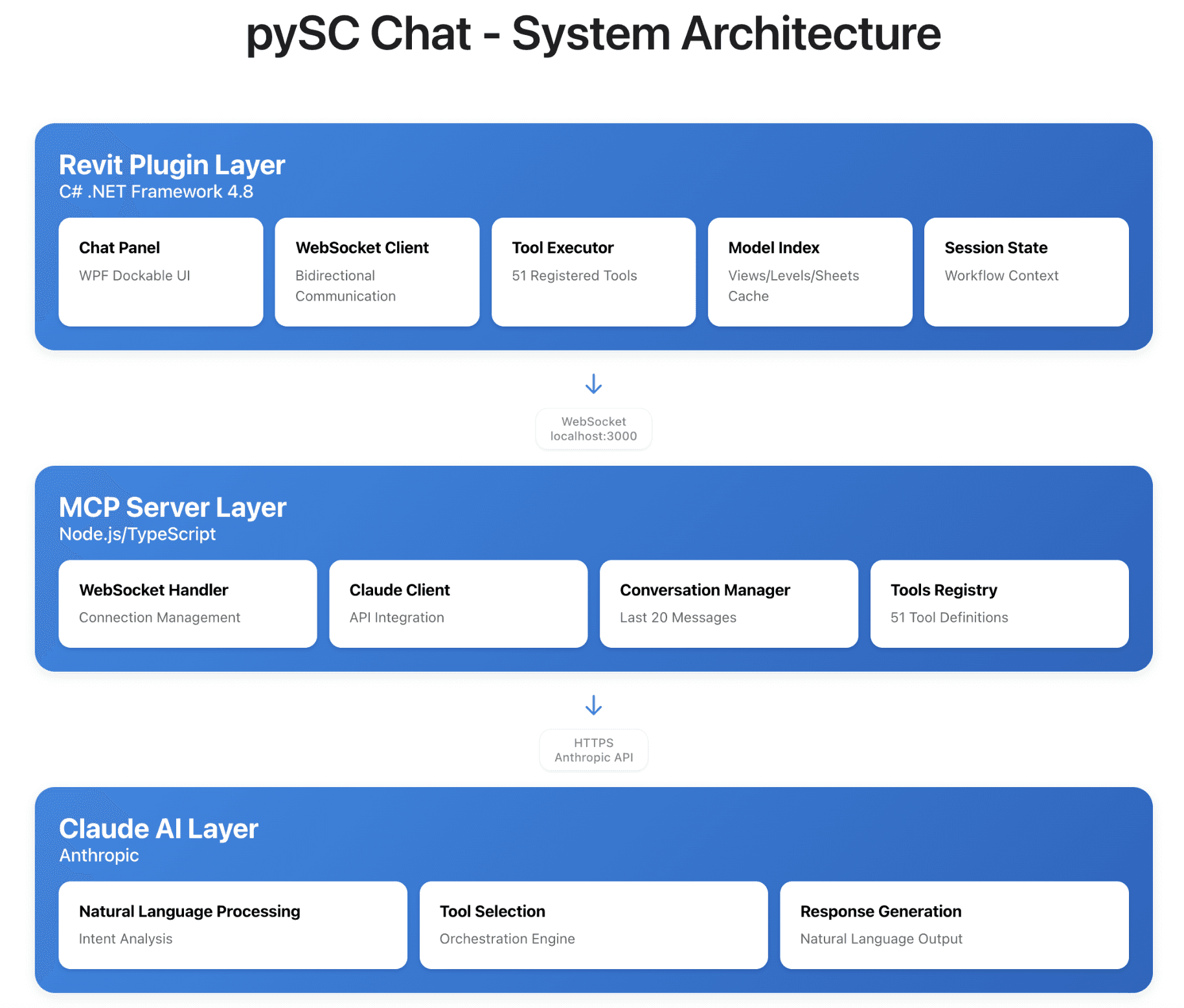
Source: Community Revit MCP example, revit-mcp-server architecture.
The MCP server does not replace Revit, and it does not make every Revit feature automatically available to Codex. It exposes a defined set of tools. One connector may support model queries and element parameters, while another may also support sheet creation, schedule generation, view management, or batch updates. Before installation, check which Revit versions, operating systems, and permissions the connector supports.
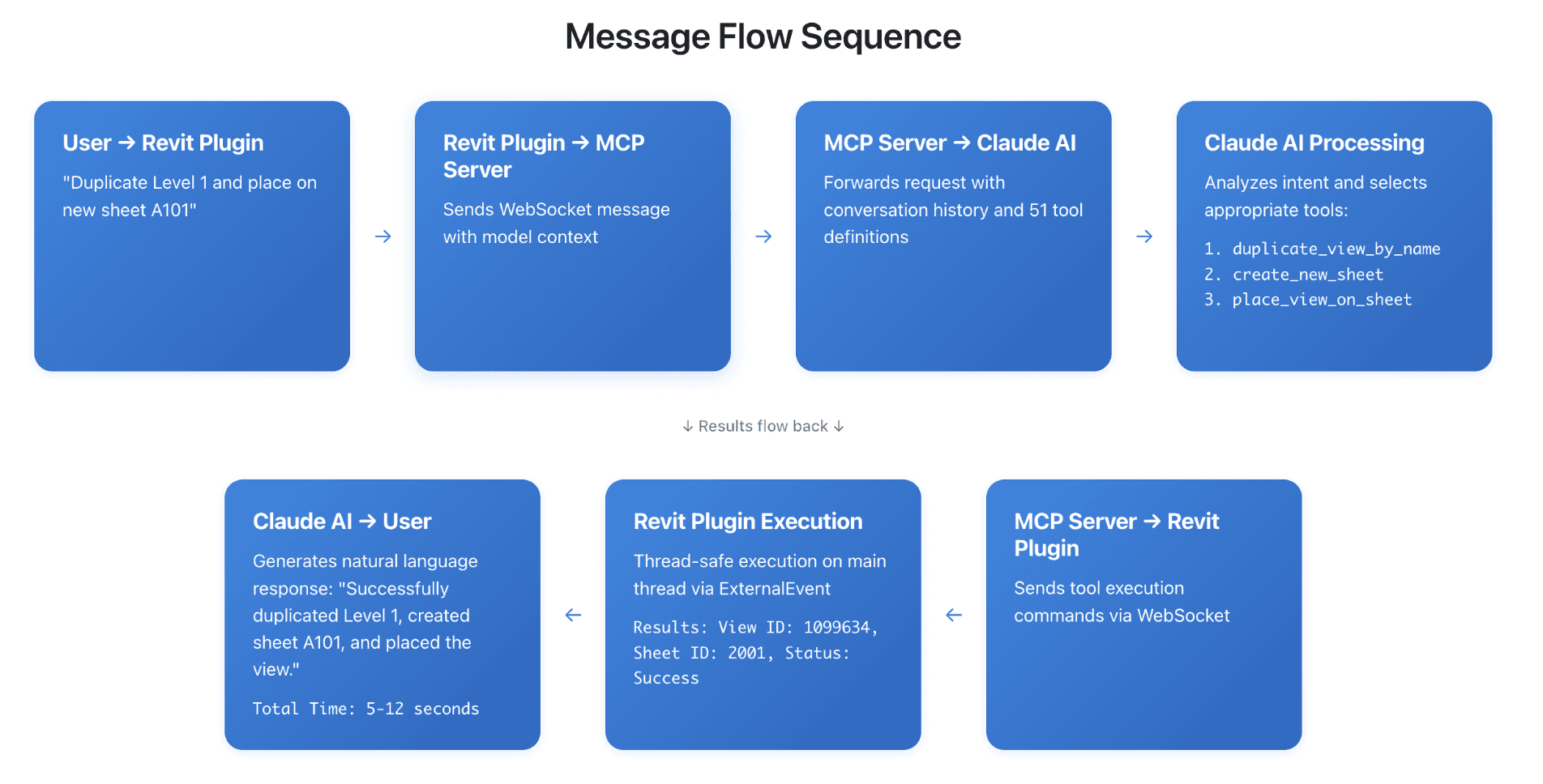
Source: Community Revit MCP example, revit-mcp-server message flow documentation.
Requirements
A typical setup includes:
A Windows environment capable of running Revit
A compatible Revit installation and project file
A Revit MCP server or connector
The corresponding Revit add-in or bridge
The runtime required by the connector, such as Node.js
Codex with MCP configuration support
Permission to install add-ins and run local services
A backup or test copy of the Revit project
The connector may communicate through localhost, a local port, or another protected channel. Keep this connection private and avoid exposing a running Revit session directly to the public internet.
Basic Connection Process
Install the Revit add-in or connector supplied by the MCP server.
Install the server runtime and its dependencies.
Configure the MCP server in Codex.
Start the MCP server if it does not launch automatically.
Open Revit and load a test project.
Enable the connector from the Revit add-in panel, if required.
Confirm that Codex can see the available Revit tools.
Run a read-only request before attempting any modification.
The first request should be simple and verifiable:
“List the views available in the current Revit project and group them by view type.”If the connection works, Codex should return information from the active project rather than a generic explanation of Revit. You can then test a more specific query:
“Find floor plan views that are not placed on any sheet. Do not change the project.”This confirms that Codex is communicating with the live model and that the connector can retrieve relevant project data.
Only after these tests should you try creation or editing tasks. Begin with a small operation, such as creating one test schedule or updating one non-critical parameter. Review the proposed action, approve it explicitly, and verify the result inside Revit before using the workflow on a larger project. For additional setup guidance, consult the relevant Revit developer documentation.

Source: Community Revit MCP demonstration, revit-mcp-server GitHub repository.
How Do You Use Codex Computer Use With Revit?
Computer Use allows Codex to interact with Revit through its visible interface. Instead of relying only on structured MCP tools, Codex can observe the current screen, identify interface elements, and request actions such as clicking, typing, scrolling, selecting, or opening a view. After each action, it receives an updated screen state and checks whether Revit responded as expected.
A typical interaction follows this sequence:
Codex receives a screenshot of the Revit window.
It identifies the active project, view, panels, and visible controls.
It proposes an action, such as opening a floor plan or selecting an element.
The computer-use runtime performs the action.
Revit displays a new state.
Codex reviews the updated screen before continuing.
This screenshot-action-verification loop is useful when the task depends on visual context. For example, MCP may identify a view with an incorrect template, but Computer Use can open that view and check whether the scale, crop region, annotations, and visibility settings look correct. Similarly, MCP may return an element identifier, while Computer Use can select that element in Revit and display its Properties panel for confirmation. The general interaction model is described in the Computer Use documentation.
You can give Codex a narrowly defined instruction such as:
“Open the Level 2 floor plan, locate the first door without a fire-rating value, select it, and show the Properties panel. Do not modify anything.”Other useful interface tasks include opening a sheet, navigating the Project Browser, expanding a category, isolating selected elements in a 3D view, checking a warning dialog, changing the active visual style, or opening an export menu.

Source: Autodesk, “Properties Palette”.
Computer Use should not be treated as unrestricted remote control. Confirm that the correct Revit project and view are active before each workflow. Require approval before Codex changes geometry, deletes elements, updates shared parameters, overwrites files, or exports project information. If Revit displays an unexpected warning, dialog, or selection, stop the workflow and inspect the state manually.
The most reliable pattern is to use MCP for analysis and Computer Use for visual verification. MCP can identify what requires attention, while Computer Use can open the relevant Revit context and confirm the result before any approved change is applied. This is especially valuable for documentation review, model quality checks, and tasks involving the visual layout of views and sheets.
What Revit Workflows Can You Automate With Codex?
The most useful Revit workflows combine structured model analysis with visual verification. MCP can search the project and process large amounts of data, while Computer Use can open the relevant Revit context and confirm that the result is correct on screen. This makes the workflow more practical than asking Codex to generate code without checking the live model.
Room and Parameter Audits
Codex can scan rooms for missing or inconsistent information, such as floor finishes, wall finishes, occupancy, department, area, or room numbers. An MCP connector such as the community UV-Tech Revit MCP project can return affected rooms and group them by level or department. Computer Use can then open a selected room, display its Properties panel, and confirm that the issue belongs to the correct element. After approval, Codex can update individual parameters or prepare a controlled batch change.
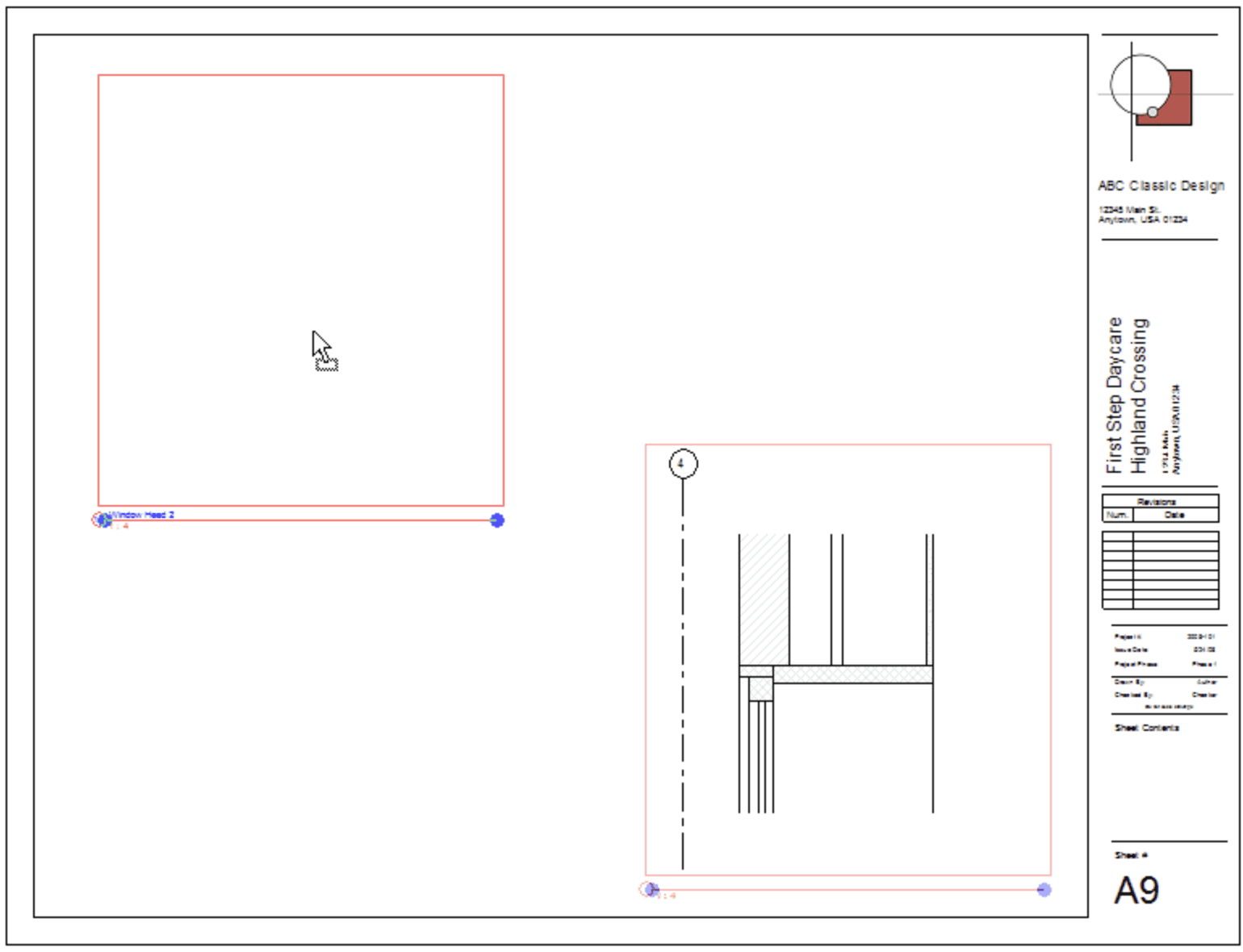
Source: Autodesk, “Add Views to a Sheet”.
Sheet Set Creation and Quality Assurance
Creating and organizing documentation sheets is repetitive and easy to get wrong. Codex can identify the views required for a sheet set, create sheets, assign numbers, and place views when the connector supports those operations. Computer Use can open each sheet and check title block selection, viewport placement, view scale, crop regions, and visible annotations. This creates a useful final review layer for workflows involving sheet organization and view placement, which are also central to Autodesk’s Project Browser guidance.
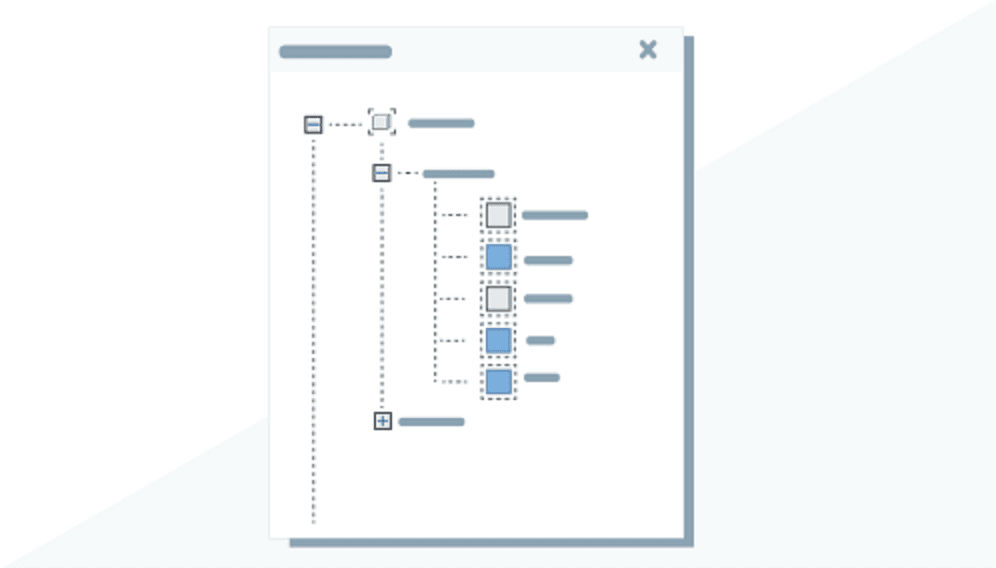
Source: Autodesk, “Project Browser Icons for Views on Sheets”.
Project Browser Cleanup
Large Revit projects often contain duplicate views, unclear names, unused working views, or views that were never placed on sheets. Codex can analyze the Project Browser structure and identify views that do not follow the project’s naming or organization rules. Computer Use can open questionable views and verify their purpose before any rename or deletion is proposed. This is safer than automatically removing every view that appears unused.

Source: Autodesk, “Organizing Views in the Project Browser”.
Clash Triage
MCP can help identify possible conflicts between architectural, structural, and MEP elements, such as ducts crossing beams or equipment occupying the same space. Instead of treating every intersection as a confirmed problem, Codex can use Computer Use to open a 3D view, isolate the relevant elements, and inspect the visible relationship. The user can then approve a correction, assign the issue to a team member, or mark it as an intentional condition.

Source: Autodesk, “About Color Schemes”.
Model Change Review
Codex can compare current model information with an earlier snapshot or exported report and identify changed elements, parameters, views, or locations. Computer Use adds context by opening the affected area in Revit and checking how the change appears visually. This workflow can produce a review summary showing what changed, where it changed, and whether the result requires attention before the model is shared.
View Template and Standards Checks
Codex can audit views for inconsistent templates, scales, detail levels, naming conventions, or visibility settings. MCP can identify the views that fail the project standard, while Computer Use can open representative examples and verify their appearance. Codex can then propose applying a template or correcting a setting, but the user should approve broad updates before they affect multiple views.

Source: Autodesk, “View Templates”.
Family and Element Completeness
The same process can be used for doors, windows, equipment, walls, and other families. Codex can find elements missing manufacturer information, type marks, fire ratings, materials, or required classification parameters. Computer Use can inspect sample elements directly in Revit, helping distinguish a genuine data problem from an intentional exception before schedules, exports, or submissions are prepared.
How Do You Use MCP and Computer Use Safely With Revit?
A Revit project contains structured design information, linked models, documentation, and potentially sensitive project data. Connecting Codex to Revit should therefore be treated as a controlled automation workflow rather than unrestricted access to the application. The Computer Use safety guidance also recommends isolated environments, confirmation for consequential actions, and verification after each important step.
Start with a duplicate or test version of the project. Read-only requests should be used first to confirm that Codex is connected to the correct Revit session and project. Before running any write operation, verify the active file, view, level, selection, and project units. A request that sounds correct can still affect the wrong element if the project context has changed.
Separate the workflow into five stages:
Read: collect model or interface information.
Analyze: identify problems or possible changes.
Propose: explain the intended operation and affected elements.
Approve: wait for user confirmation.
Modify and verify: perform the change and check the result.
Approval should be required before deleting elements, moving or resizing geometry, changing shared parameters, modifying multiple objects, overwriting project files, or exporting model information. For large operations, ask Codex to show a preview or a list of affected elements before execution.
MCP permissions should be limited to the tools required for the workflow. If the task only needs model inspection, do not enable update or delete operations. Keep the MCP server on a protected local environment and avoid exposing a running Revit session through an unsecured public endpoint.
Computer Use requires additional verification because it acts through the visible interface. Codex should confirm that it is interacting with the intended Revit window and should stop when an unexpected dialog, warning, selection, or navigation state appears. Short action sequences are easier to review than long chains of clicks.
Finally, compare the project before and after every important operation. Check element counts, parameters, views, sheets, and visible geometry where relevant. Save a separate version after approved changes so that the team can identify what happened and recover safely if the result is not acceptable. This approach keeps Codex useful for Revit automation without removing professional oversight from the modeling process.
Run Revit and Codex Together on Vagon Cloud Computer
Running Revit, Codex, an MCP server, and Computer Use on the same Vagon Cloud Computer can simplify workflows that depend on a continuously available Windows environment. Instead of moving project files between devices or reinstalling the connector whenever you change computers, you can keep Revit, the MCP configuration, add-ins, scripts, and test models in one persistent workspace.
This is particularly useful for long-running BIM tasks. A model audit, sheet review, parameter check, or export workflow may require Revit to remain open while Codex processes information and Computer Use verifies the visible result. A persistent cloud computer allows the session, application settings, and connector configuration to remain available between work sessions.
Performance is important when Revit is used with Computer Use. Revit may need additional resources when opening large models, displaying detailed 3D views, loading linked files, or switching between complex sheets. The selected Vagon configuration should match the project size and the Revit system requirements. Additional GPU resources can be helpful when the workflow includes intensive 3D navigation or repeated visual inspection. A stable connection also helps Computer Use receive screenshots and return interface actions without unnecessary delay.
A practical Vagon setup can include:
Revit and required add-ins installed on the cloud computer
Codex and the Revit MCP server configured locally
A dedicated folder for test projects, backups, and exported reports
Separate project versions before and after approved changes
Consistent Revit and connector settings across team workflows
Before connecting a production model, test the complete workflow on a copy. Ask Codex to perform a read-only audit, confirm that the MCP server reaches the correct Revit session, and verify that Computer Use can navigate the interface. After a successful test, the same environment can support sheet preparation, model audits, clash review, and other repeatable tasks.
Vagon does not turn Revit into a native AI application. Its value is providing a persistent, configurable Windows computer where Revit, Codex, MCP, and Computer Use can run together with the software, files, and performance resources required for the workflow. This can reduce setup friction and give teams a consistent environment for testing and operating Revit automation workflows.
FAQs
Can Codex directly open and edit a Revit project?
Codex can work with a live Revit project when a compatible MCP connector and Revit bridge expose the required tools. Computer Use can also interact with the visible Revit interface. However, this is not a native Revit capability, and available actions depend on the connector, permissions, and Revit version.
Is an MCP server required to use Codex with Revit?
MCP is required for structured communication with Revit model data and commands. Computer Use can interact with the interface separately, but it does not provide the same reliable access to parameters, categories, element IDs, or project-wide information. The available connection methods are described in the Codex MCP documentation.
Can Codex inspect Revit parameters?
Yes, if the connected MCP server provides parameter and element-query tools. Codex can identify missing, inconsistent, or incorrectly formatted values and organize the results by category, level, family, or view.
Can Computer Use modify Revit geometry?
Computer Use can interact with visible Revit controls, but geometry changes should always require explicit approval. After a modification, Codex should check the active view, selected element, dimensions, and surrounding context before continuing.
Can Codex create Revit sheets and views?
Some Revit MCP servers provide tools for creating sheets, views, schedules, and related documentation objects. If those tools are unavailable, Computer Use may still help navigate Revit and complete interface-based steps, although this can be slower and more sensitive to changes in the UI.
Can Codex replace Dynamo, pyRevit, or the Revit API?
No. Codex can help write, explain, test, and coordinate workflows that use Dynamo, pyRevit, or the Revit API, but those technologies remain useful for deterministic production automation. MCP provides a communication layer; it does not replace Revit’s underlying automation tools.
Is it safe to connect Codex to a production Revit model?
Start with a test project or a duplicate of the production model. Use read-only requests first, restrict available MCP tools, and require confirmation before deleting elements, changing shared parameters, modifying multiple objects, or exporting project data. Save versioned copies after approved changes.
Can Revit and Codex run together on Vagon?
Yes, provided the Vagon Cloud Computer has a compatible Windows environment, Revit, Codex, the required MCP connector, and the necessary permissions installed. Vagon provides the persistent cloud computer; the Revit integration still depends on the connector and add-in configuration.
Can Codex verify whether a Revit change was successful?
Yes. MCP can query the updated model state, while Computer Use can open the affected view and visually inspect the result. Using both methods provides stronger verification than relying only on a generated script or a successful command response.
Using Codex with Revit involves more than asking an AI model to generate Revit API code, Dynamo scripts, or automation ideas. With a compatible Model Context Protocol (MCP) server, Codex can communicate with a live Revit session through a controlled connector and work with structured project data.
Through this connection, Codex can inspect levels, views, sheets, rooms, families, elements, and parameters. It can identify missing information, analyze model standards, create schedules, organize documentation workflows, and propose changes. With Computer Use, Codex can also interact with the Revit interface by opening views, selecting elements, navigating the Project Browser, inspecting the Properties panel, and checking whether an operation produced the expected visual result.
The two capabilities complement each other. MCP provides structured access to the Revit model, while Computer Use helps Codex understand and verify what is visible on screen. Before sensitive operations, such as changing parameters, moving elements, deleting objects, or exporting project data, Codex can pause and request user confirmation.
This is not a native Revit feature. It requires a compatible Revit MCP connector, a supported Windows environment, a running Revit installation, and carefully configured permissions.
What Can Codex Do With Revit Through MCP and Computer Use?
When connected to Revit through MCP, Codex can work with the project at the level of structured model data instead of treating the application as a simple desktop window. The exact capabilities depend on the connector, but a compatible Revit MCP server can expose information about views, sheets, rooms, families, elements, levels, categories, and parameters.
Codex can use this information to answer practical project questions. For example, it can identify rooms with missing finish data, doors without fire-rating values, views that are not placed on sheets, or families that do not follow the project’s naming standards. It can also group findings by level, category, family, or parameter, making large projects easier to review.
MCP can support more than read-only analysis. Depending on the available tools, Codex may be able to create sheets, generate schedules, create views, update parameters, apply view templates, or export structured project data. These operations should be treated as proposed changes rather than automatic actions. Codex should first explain what it intends to modify and wait for approval when the operation could affect the model.
Computer Use adds a visual layer to this workflow. It allows Codex to work with the visible Revit interface by opening a view, navigating the Project Browser, selecting an element, expanding a category, opening the Properties panel, or responding to a dialog. This is useful when a task depends on visual context or when a required control is not exposed through MCP.
The distinction can be summarized as follows:
Task | MCP | Computer Use |
|---|---|---|
Query model parameters | Strong | Limited |
Search elements in bulk | Strong | Slow and visual |
Create views or sheets | Connector-dependent | Possible through the interface |
Inspect visual layout | Limited | Strong |
Select and isolate objects | Connector-dependent | Strong |
Verify a visible result | Limited | Strong |
Apply sensitive changes | Requires permission | Requires permission |
Used together, MCP can identify what needs attention, while Computer Use can open the relevant Revit context and verify that the proposed action makes sense visually.
MCP vs. Computer Use: Which Revit Connection Should You Use?
MCP and Computer Use solve different problems when Codex works with Revit. MCP provides structured communication between Codex and external tools, while Computer Use allows Codex to interact with the visible Revit interface. Choosing the right method depends on whether the task is primarily data-driven, visual, or a combination of both.
MCP is the better option for working with large amounts of model information. A Revit connector can expose tools for querying elements, reading parameters, inspecting views, and creating structured reports. For example, Codex can use MCP to list every door on Level 2, return the fire-rating value for each door, and identify missing parameters. It can also find views that are not placed on sheets or group walls by type and level.
This approach is more reliable for project-wide analysis because it works with model data rather than screen interpretation. It is also useful for repeatable operations based on the Revit API, such as creating schedules, updating approved parameters, or generating documentation objects.
Computer Use is more appropriate when the task depends on Revit’s interface or visual output. It can open a specific floor plan, select an element, expand the Properties panel, change the active view, inspect a warning, or confirm that a title block and viewport are positioned correctly. It can also interact with controls that the MCP connector does not expose.
A practical rule is:
Use MCP to search, analyze, create structured results, and perform repeatable model operations.
Use Computer Use to navigate, inspect, select, verify, and interact with interface-only controls.
Use both when the task requires structured analysis followed by visual confirmation.
For instance, Codex could first use MCP to find rooms without a required finish parameter. It could then use Computer Use to open an affected room, inspect the Properties panel, and confirm that the result refers to the correct element. Only after the user approves the correction should Codex update the parameter.
This combined workflow is particularly useful for quality assurance. MCP provides speed and consistency across the model, while Computer Use provides context and visual confirmation. The result is a more controlled workflow than relying only on generated code or unverified interface actions.
How Do You Connect Codex to a Revit MCP Server?
Connecting Codex to Revit requires a bridge between the AI client and the running Revit application. This bridge is usually provided by a Revit MCP server, a Revit add-in, or a local connector that communicates with the Revit API. Codex sends a request to the MCP server, the server passes it to the Revit add-in, and Revit returns structured information or performs an approved operation.
The overall architecture usually looks like this:
Codex → MCP server → Revit add-in or bridge → Revit API → active Revit project
Source: Community Revit MCP example, revit-mcp-server architecture.
The MCP server does not replace Revit, and it does not make every Revit feature automatically available to Codex. It exposes a defined set of tools. One connector may support model queries and element parameters, while another may also support sheet creation, schedule generation, view management, or batch updates. Before installation, check which Revit versions, operating systems, and permissions the connector supports.
Source: Community Revit MCP example, revit-mcp-server message flow documentation.
Requirements
A typical setup includes:
A Windows environment capable of running Revit
A compatible Revit installation and project file
A Revit MCP server or connector
The corresponding Revit add-in or bridge
The runtime required by the connector, such as Node.js
Codex with MCP configuration support
Permission to install add-ins and run local services
A backup or test copy of the Revit project
The connector may communicate through localhost, a local port, or another protected channel. Keep this connection private and avoid exposing a running Revit session directly to the public internet.
Basic Connection Process
Install the Revit add-in or connector supplied by the MCP server.
Install the server runtime and its dependencies.
Configure the MCP server in Codex.
Start the MCP server if it does not launch automatically.
Open Revit and load a test project.
Enable the connector from the Revit add-in panel, if required.
Confirm that Codex can see the available Revit tools.
Run a read-only request before attempting any modification.
The first request should be simple and verifiable:
“List the views available in the current Revit project and group them by view type.”If the connection works, Codex should return information from the active project rather than a generic explanation of Revit. You can then test a more specific query:
“Find floor plan views that are not placed on any sheet. Do not change the project.”This confirms that Codex is communicating with the live model and that the connector can retrieve relevant project data.
Only after these tests should you try creation or editing tasks. Begin with a small operation, such as creating one test schedule or updating one non-critical parameter. Review the proposed action, approve it explicitly, and verify the result inside Revit before using the workflow on a larger project. For additional setup guidance, consult the relevant Revit developer documentation.
Source: Community Revit MCP demonstration, revit-mcp-server GitHub repository.
How Do You Use Codex Computer Use With Revit?
Computer Use allows Codex to interact with Revit through its visible interface. Instead of relying only on structured MCP tools, Codex can observe the current screen, identify interface elements, and request actions such as clicking, typing, scrolling, selecting, or opening a view. After each action, it receives an updated screen state and checks whether Revit responded as expected.
A typical interaction follows this sequence:
Codex receives a screenshot of the Revit window.
It identifies the active project, view, panels, and visible controls.
It proposes an action, such as opening a floor plan or selecting an element.
The computer-use runtime performs the action.
Revit displays a new state.
Codex reviews the updated screen before continuing.
This screenshot-action-verification loop is useful when the task depends on visual context. For example, MCP may identify a view with an incorrect template, but Computer Use can open that view and check whether the scale, crop region, annotations, and visibility settings look correct. Similarly, MCP may return an element identifier, while Computer Use can select that element in Revit and display its Properties panel for confirmation. The general interaction model is described in the Computer Use documentation.
You can give Codex a narrowly defined instruction such as:
“Open the Level 2 floor plan, locate the first door without a fire-rating value, select it, and show the Properties panel. Do not modify anything.”Other useful interface tasks include opening a sheet, navigating the Project Browser, expanding a category, isolating selected elements in a 3D view, checking a warning dialog, changing the active visual style, or opening an export menu.
Source: Autodesk, “Properties Palette”.
Computer Use should not be treated as unrestricted remote control. Confirm that the correct Revit project and view are active before each workflow. Require approval before Codex changes geometry, deletes elements, updates shared parameters, overwrites files, or exports project information. If Revit displays an unexpected warning, dialog, or selection, stop the workflow and inspect the state manually.
The most reliable pattern is to use MCP for analysis and Computer Use for visual verification. MCP can identify what requires attention, while Computer Use can open the relevant Revit context and confirm the result before any approved change is applied. This is especially valuable for documentation review, model quality checks, and tasks involving the visual layout of views and sheets.
What Revit Workflows Can You Automate With Codex?
The most useful Revit workflows combine structured model analysis with visual verification. MCP can search the project and process large amounts of data, while Computer Use can open the relevant Revit context and confirm that the result is correct on screen. This makes the workflow more practical than asking Codex to generate code without checking the live model.
Room and Parameter Audits
Codex can scan rooms for missing or inconsistent information, such as floor finishes, wall finishes, occupancy, department, area, or room numbers. An MCP connector such as the community UV-Tech Revit MCP project can return affected rooms and group them by level or department. Computer Use can then open a selected room, display its Properties panel, and confirm that the issue belongs to the correct element. After approval, Codex can update individual parameters or prepare a controlled batch change.
Source: Autodesk, “Add Views to a Sheet”.
Sheet Set Creation and Quality Assurance
Creating and organizing documentation sheets is repetitive and easy to get wrong. Codex can identify the views required for a sheet set, create sheets, assign numbers, and place views when the connector supports those operations. Computer Use can open each sheet and check title block selection, viewport placement, view scale, crop regions, and visible annotations. This creates a useful final review layer for workflows involving sheet organization and view placement, which are also central to Autodesk’s Project Browser guidance.
Source: Autodesk, “Project Browser Icons for Views on Sheets”.
Project Browser Cleanup
Large Revit projects often contain duplicate views, unclear names, unused working views, or views that were never placed on sheets. Codex can analyze the Project Browser structure and identify views that do not follow the project’s naming or organization rules. Computer Use can open questionable views and verify their purpose before any rename or deletion is proposed. This is safer than automatically removing every view that appears unused.
Source: Autodesk, “Organizing Views in the Project Browser”.
Clash Triage
MCP can help identify possible conflicts between architectural, structural, and MEP elements, such as ducts crossing beams or equipment occupying the same space. Instead of treating every intersection as a confirmed problem, Codex can use Computer Use to open a 3D view, isolate the relevant elements, and inspect the visible relationship. The user can then approve a correction, assign the issue to a team member, or mark it as an intentional condition.
Source: Autodesk, “About Color Schemes”.
Model Change Review
Codex can compare current model information with an earlier snapshot or exported report and identify changed elements, parameters, views, or locations. Computer Use adds context by opening the affected area in Revit and checking how the change appears visually. This workflow can produce a review summary showing what changed, where it changed, and whether the result requires attention before the model is shared.
View Template and Standards Checks
Codex can audit views for inconsistent templates, scales, detail levels, naming conventions, or visibility settings. MCP can identify the views that fail the project standard, while Computer Use can open representative examples and verify their appearance. Codex can then propose applying a template or correcting a setting, but the user should approve broad updates before they affect multiple views.
Source: Autodesk, “View Templates”.
Family and Element Completeness
The same process can be used for doors, windows, equipment, walls, and other families. Codex can find elements missing manufacturer information, type marks, fire ratings, materials, or required classification parameters. Computer Use can inspect sample elements directly in Revit, helping distinguish a genuine data problem from an intentional exception before schedules, exports, or submissions are prepared.
How Do You Use MCP and Computer Use Safely With Revit?
A Revit project contains structured design information, linked models, documentation, and potentially sensitive project data. Connecting Codex to Revit should therefore be treated as a controlled automation workflow rather than unrestricted access to the application. The Computer Use safety guidance also recommends isolated environments, confirmation for consequential actions, and verification after each important step.
Start with a duplicate or test version of the project. Read-only requests should be used first to confirm that Codex is connected to the correct Revit session and project. Before running any write operation, verify the active file, view, level, selection, and project units. A request that sounds correct can still affect the wrong element if the project context has changed.
Separate the workflow into five stages:
Read: collect model or interface information.
Analyze: identify problems or possible changes.
Propose: explain the intended operation and affected elements.
Approve: wait for user confirmation.
Modify and verify: perform the change and check the result.
Approval should be required before deleting elements, moving or resizing geometry, changing shared parameters, modifying multiple objects, overwriting project files, or exporting model information. For large operations, ask Codex to show a preview or a list of affected elements before execution.
MCP permissions should be limited to the tools required for the workflow. If the task only needs model inspection, do not enable update or delete operations. Keep the MCP server on a protected local environment and avoid exposing a running Revit session through an unsecured public endpoint.
Computer Use requires additional verification because it acts through the visible interface. Codex should confirm that it is interacting with the intended Revit window and should stop when an unexpected dialog, warning, selection, or navigation state appears. Short action sequences are easier to review than long chains of clicks.
Finally, compare the project before and after every important operation. Check element counts, parameters, views, sheets, and visible geometry where relevant. Save a separate version after approved changes so that the team can identify what happened and recover safely if the result is not acceptable. This approach keeps Codex useful for Revit automation without removing professional oversight from the modeling process.
Run Revit and Codex Together on Vagon Cloud Computer
Running Revit, Codex, an MCP server, and Computer Use on the same Vagon Cloud Computer can simplify workflows that depend on a continuously available Windows environment. Instead of moving project files between devices or reinstalling the connector whenever you change computers, you can keep Revit, the MCP configuration, add-ins, scripts, and test models in one persistent workspace.
This is particularly useful for long-running BIM tasks. A model audit, sheet review, parameter check, or export workflow may require Revit to remain open while Codex processes information and Computer Use verifies the visible result. A persistent cloud computer allows the session, application settings, and connector configuration to remain available between work sessions.
Performance is important when Revit is used with Computer Use. Revit may need additional resources when opening large models, displaying detailed 3D views, loading linked files, or switching between complex sheets. The selected Vagon configuration should match the project size and the Revit system requirements. Additional GPU resources can be helpful when the workflow includes intensive 3D navigation or repeated visual inspection. A stable connection also helps Computer Use receive screenshots and return interface actions without unnecessary delay.
A practical Vagon setup can include:
Revit and required add-ins installed on the cloud computer
Codex and the Revit MCP server configured locally
A dedicated folder for test projects, backups, and exported reports
Separate project versions before and after approved changes
Consistent Revit and connector settings across team workflows
Before connecting a production model, test the complete workflow on a copy. Ask Codex to perform a read-only audit, confirm that the MCP server reaches the correct Revit session, and verify that Computer Use can navigate the interface. After a successful test, the same environment can support sheet preparation, model audits, clash review, and other repeatable tasks.
Vagon does not turn Revit into a native AI application. Its value is providing a persistent, configurable Windows computer where Revit, Codex, MCP, and Computer Use can run together with the software, files, and performance resources required for the workflow. This can reduce setup friction and give teams a consistent environment for testing and operating Revit automation workflows.
FAQs
Can Codex directly open and edit a Revit project?
Codex can work with a live Revit project when a compatible MCP connector and Revit bridge expose the required tools. Computer Use can also interact with the visible Revit interface. However, this is not a native Revit capability, and available actions depend on the connector, permissions, and Revit version.
Is an MCP server required to use Codex with Revit?
MCP is required for structured communication with Revit model data and commands. Computer Use can interact with the interface separately, but it does not provide the same reliable access to parameters, categories, element IDs, or project-wide information. The available connection methods are described in the Codex MCP documentation.
Can Codex inspect Revit parameters?
Yes, if the connected MCP server provides parameter and element-query tools. Codex can identify missing, inconsistent, or incorrectly formatted values and organize the results by category, level, family, or view.
Can Computer Use modify Revit geometry?
Computer Use can interact with visible Revit controls, but geometry changes should always require explicit approval. After a modification, Codex should check the active view, selected element, dimensions, and surrounding context before continuing.
Can Codex create Revit sheets and views?
Some Revit MCP servers provide tools for creating sheets, views, schedules, and related documentation objects. If those tools are unavailable, Computer Use may still help navigate Revit and complete interface-based steps, although this can be slower and more sensitive to changes in the UI.
Can Codex replace Dynamo, pyRevit, or the Revit API?
No. Codex can help write, explain, test, and coordinate workflows that use Dynamo, pyRevit, or the Revit API, but those technologies remain useful for deterministic production automation. MCP provides a communication layer; it does not replace Revit’s underlying automation tools.
Is it safe to connect Codex to a production Revit model?
Start with a test project or a duplicate of the production model. Use read-only requests first, restrict available MCP tools, and require confirmation before deleting elements, changing shared parameters, modifying multiple objects, or exporting project data. Save versioned copies after approved changes.
Can Revit and Codex run together on Vagon?
Yes, provided the Vagon Cloud Computer has a compatible Windows environment, Revit, Codex, the required MCP connector, and the necessary permissions installed. Vagon provides the persistent cloud computer; the Revit integration still depends on the connector and add-in configuration.
Can Codex verify whether a Revit change was successful?
Yes. MCP can query the updated model state, while Computer Use can open the affected view and visually inspect the result. Using both methods provides stronger verification than relying only on a generated script or a successful command response.
Get Beyond Your Computer Performance
Run applications on your cloud computer with the latest generation hardware. No more crashes or lags.

Trial includes 1 hour usage + 7 days of storage.
Summarize with AI

Ready to focus on your creativity?
Vagon gives you the ability to create & render projects, collaborate, and stream applications with the power of the best hardware.

Run heavy applications on any device with
your personal computer on the cloud.
San Francisco, California
Solutions
Vagon Teams
Vagon Streams
Use Cases
© 2026 Vagon. All rights reserved.
Run heavy applications on any device with
your personal computer on the cloud.
San Francisco, California
Solutions
Vagon Teams
Vagon Streams
Use Cases
© 2026 Vagon. All rights reserved.
Run heavy applications on any device with
your personal computer on the cloud.
San Francisco, California
Solutions
Vagon Teams
Vagon Streams
Use Cases
© 2026 Vagon. All rights reserved.