Instant Connection for Pixel Streaming
— New Feature Automated Setup

MCP vs. Computer Use for Creative Apps: Which Should You Use?
Freelance
MCP vs. Computer Use for Creative Apps: Which Should You Use?
Freelance
MCP vs. Computer Use for Creative Apps: Which Should You Use?
Freelance
Table of Contents
Changing the same material across twenty named objects and checking whether a title fits inside a vertical video are both reasonable AI tasks. But they need different kinds of access. One depends on identifying objects and applying exact values; the other depends on inspecting the composition.
That distinction matters more than choosing the tool with the longest feature list.
MCP connects an assistant to tools exposed by a server. Computer use lets it interact with an application’s interface. They can overlap, work together, or be unnecessary when an existing script or command-line tool already handles the job.
This guide explains how to choose between those approaches for 3D, video, CAD, and game-development tasks. It also shows where a Vagon Cloud Computer fits: bringing the creative application, AI client, project files, and execution tools into one workspace where you can perform the work and check the saved result.
The Short Answer: Choose by Task, Not by Tool Name
Start with what the assistant must read, change, and verify. Then choose the narrowest tool that can complete those steps.
For exact object data or repeatable changes, evaluate a structured integration first. If a Blender tool can identify the intended objects, update their material assignments, and report the resulting values, it avoids relying on viewport selection alone. That integration might use MCP, but its usefulness comes from the operations it exposes.
Choose computer use when the task depends on the application’s interface: navigating an export dialog, inspecting text placement, or responding to a visible warning. It requires supported application access and a way to check that the intended action actually happened.
A practical starting order is:
Use an existing script or CLI when it already performs the defined operation.
Use an appropriate MCP tool when the assistant needs application data or supported actions.
Use computer use when the necessary step requires interface interaction.
Combine methods only where one leaves a genuine gap.
This is a selection process, not a universal speed ranking. A simple interface task may not justify installing an application bridge. A recurring batch operation may justify that preparation.
OpenAI’s computer-use guidance similarly recommends structured integrations for data access and repeatable operations, with computer use for visual interaction.
Most importantly, choose the verification method alongside the execution method. A successful tool response or completed click does not establish that the saved model, timeline, drawing, or export meets your requirements.
MCP Is a Connection Protocol; Computer Use Is an Interaction Method
The comparison becomes clearer once you separate how tools reach the assistant from how those tools operate the application.
What an MCP Connection Actually Provides
Model Context Protocol standardizes communication between an AI client and external servers. A server can expose tools for inspecting a document, changing application data, executing code, or performing other defined operations.
The application connection sits behind that server. It might use an official API, an addon, a local bridge, or another implementation. MCP itself does not supply Blender’s object model or Premiere’s timeline controls.
That is why two servers for the same application can offer different capabilities. Check their actual tools and requirements, not just the application name.
What Computer Use Actually Provides
Computer use gives an assistant tools to inspect and interact with a graphical interface. Depending on the implementation, that can involve screenshots, application controls, mouse input, and keyboard actions.
It can reach workflows that lack a suitable API connection, but it does not automatically reveal the application’s internal state. A highlighted object might not be the intended object, and a closed export dialog does not prove a file was produced.
Why the Categories Can Overlap
MCP tool results can include images as well as structured data. A server may return a viewport capture or expose interface-control tools. Receiving an image through MCP does not, by itself, mean the assistant has desktop-control access.
For this guide, “structured tools” means operations that address application data or defined actions directly. “Computer use” means interface-based interaction. That practical distinction helps you choose the right access without pretending the technologies are mutually exclusive.

Source: MCP for Blender GitHub repository
Choose Structured Tools When the Task Depends on Exact Data
Structured tools are useful when the request identifies objects, properties, and changes that can be checked directly. Examples include listing scene objects, reading timeline durations, updating named parameters, or assigning a material to a defined set of parts.
The advantage is not that the assistant becomes infallible. It is that the workflow can use explicit targets and inspectable values instead of relying entirely on what appears selected onscreen.
Define the Target Before Applying the Change
Suppose a Blender product scene contains twenty housing components alongside cameras, lights, and packaging. You want a material variant without changing the rest of the scene.
Start with inspection:
That last check matters. Editing a shared material could affect objects outside the approved collection even if the assistant selected the correct housing parts.
Review the report, then approve a specific operation: duplicate the relevant material, change the requested properties, and assign the duplicate only to the agreed objects.
Read Back What Changed
After execution, ask for the affected object names and resulting material assignments. Compare them with the approved list, inspect a render, and save a separate project version.
Community tools such as MCP for Blender document object manipulation, material control, visual inspection, and Python execution. However, the installed integration’s tool definitions determine how your request will be carried out.

Source: MCP for Blender GitHub repository
A dedicated material-assignment tool and a general code-execution tool are not equivalent permissions. Both may reach the result, but the latter gives the assistant broader authority and requires appropriate review.
Structured access also has limits. A server might expose scene information without supporting the required edit, or return success without checking the final saved file. Confirm the operation exists, verify its scope, and inspect the deliverable rather than treating “MCP connected” as proof that the workflow is complete.
Choose Computer Use When the Next Step Lives in the Interface
Some creative tasks depend on what the application displays rather than a property an integration can retrieve. A plugin may expose its controls only through a panel. An export warning may interrupt the workflow. A title may technically fit its text box while looking crowded in the composition.
Computer use gives the assistant a way to reach those interface-dependent steps, provided the chosen client supports the application and you approve access.
Give It a Specific Window and Decision
Instead of “check the video,” name the sequence, panel, and settings to inspect:
Compare the report with the brief before approving changes. This keeps inspection separate from execution and avoids exporting whichever sequence happens to be active.
Other useful tasks include opening a font-replacement warning, inspecting a plugin’s settings, or checking whether a resized title overlaps the subject. These are bounded interactions, not instructions to judge an entire project from one screenshot.

Source: Adobe Help Center
Account for Interface State
Computer use still needs setup. Check feature availability, application permissions, and the desktop session in which the assistant operates. Claude and Codex document their own requirements; do not assume identical behavior across clients.
On Windows, expect foreground interaction. Avoid competing mouse or keyboard input, and stop the task before taking over.

Source: Anthropic
Dense timelines, custom viewports, hidden panels, and modal dialogs can make targeting ambiguous. If the assistant reaches an unexpected state, have it inspect that state before retrying. Repeating the same click may apply an action twice.
Finally, distinguish visible evidence from complete verification. A screenshot can reveal clipped text, but not confirm that captions remain synchronized throughout a video. A selected export preset does not prove the output uses it. Follow interface work with playback, application-data checks, or inspection of the generated file as appropriate.

Source: Adobe Help Center
Match the Setup to the Creative Job
The same application can require different access methods at different stages. Choose around the operation and its acceptance criteria, not around a blanket rule such as “use MCP for Blender” or “use computer use for video.”
The following are starting points, conditional on the relevant tools being available:
Creative job | Start with | Verify with |
|---|---|---|
Change material assignments on named Blender objects | Supported structured tool or reviewed script | Assignment readback and rendered views |
Place approved clips into a video sequence | An integration exposing the required timeline operations | Timeline inspection and playback with audio |
Check an export dialog’s selected options | Computer use, if no suitable structured tool exists | Inspection of the exported file |
Revise a CAD parameter | Supported API, MCP tool, or reviewed automation code | Parameter readback, model update, and geometry checks |
Check a game HUD at different window sizes | Computer use or an appropriate UI test | Screenshots plus runtime checks |
Repeat an established batch operation | Existing CLI or script | Exit status, logs, and expected outputs |
One Video Project, Two Different Access Needs
For a rough cut, explicit clip identifiers and source ranges are useful. A compatible integration can apply supported operations without selecting every timeline element through the interface. For example, PremiereProMCP documents clip placement and trimming, but its requirements and installed tool coverage still need checking.
Source: Adobe Help Center
Later, you might need to inspect an export option that the integration does not expose. Computer use can handle that particular interface step. It does not follow that the entire edit should then be repeated through screen control.
After export, use the resulting file to check technical properties and play it to review content. Neither timeline access nor export-dialog inspection completes those checks alone.
One CAD Application, Different Connection Scopes
Even choosing “MCP” does not settle the setup. Autodesk’s Fusion MCP overview distinguishes a local server for the running desktop session from a cloud server focused on manufacturing data management.
Listing cloud projects and changing geometry in an open document are different tasks. Connecting the wrong server can leave the assistant unable to perform the requested operation, despite a successful connection.

Source: Autodesk Fusion Help
The same principle applies elsewhere: confirm what the tool reads and changes, then identify any remaining gap. Add interface interaction, another supported tool, or human work only where that gap exists. A more complicated setup is worthwhile only when it contributes to the required result.
Combine Methods Around One Controlled Handoff
A hybrid workflow is useful when different stages genuinely need different access. It should not mean enabling every tool and letting the assistant switch methods without tracking what has already happened.
Consider the Blender material variant from earlier. Structured access can identify the housing objects and apply the approved assignments. Visual inspection then helps determine whether the result matches the intended appearance.
Separate the Edit from Its Review
Use a clear sequence:
Inspect: Read the target objects, material assignments, and relevant shared dependencies.
Approve: Confirm the exact objects and requested material changes.
Apply: Perform the supported operation without changing cameras, lighting, or unrelated assets.
Review: Inspect a render from the intended camera.
Save: Write a separate project version and reopen it to check persistence.
The review stage does not automatically require computer use. If the MCP integration can return the necessary render or viewport image, inspect that output first. Add desktop interaction only if a required step remains inaccessible, such as operating a particular plugin panel.
Recheck State When Changing Methods
Before handing control from structured tools to computer use, establish the active document, current selection, and completed changes.
A useful handoff request is:
This prevents the assistant from interpreting a visual-review request as permission to redo the operation.
The reverse handoff needs the same care. If interface interaction changes a setting, reread it through a structured tool where possible before continuing. Do not assume the earlier tool response still describes the application.
Stop When the Evidence Conflicts
Suppose the assignment report names the correct material, but the render appears unchanged. Investigate whether the render is outdated, the intended camera is active, or another material slot controls the visible surface. Do not immediately apply the edit again.
Each stage should leave a small record: what changed, what was observed, and what remains unverified. The value of combining methods comes from closing those gaps, not from using both methods on every task.
Run a Small Trial Before Building a Large Setup
Before preparing an extensive automation environment, test one representative task on a disposable project copy. The trial should establish whether the setup can complete your work, not merely whether the assistant connects successfully.

Source: Adobe Help Center
Define Success Before Starting
Choose a bounded operation, such as changing one material assignment or exporting one approved sequence. Write down:
The exact document and target objects.
The permitted change and anything that must remain untouched.
The expected output location.
The checks required before calling the task complete.
Start with read-only inspection. If the assistant cannot reliably identify the project or report the relevant state, resolve that problem before allowing edits.
Make One Change and Check Persistence
Approve one reversible operation, then inspect the result using evidence appropriate to the task. That might include property readback, a rendered view, playback, or file metadata.
Save separately and reopen the project or output. This catches workflows that appear successful but leave changes unsaved, export to the wrong destination, or operate on a temporary state.
For comparison, repeat from the same baseline with the alternative method where practical. Do not give the second attempt a corrected project without accounting for that advantage.
Measure the Complete Effort
Record more than execution time:
Stage | What to record |
|---|---|
Preparation | Installation, configuration, permissions, and compatibility work |
Execution | Time spent performing the approved operation |
Recovery | Retries, clarifications, and manual corrections |
Verification | Work needed to establish a usable saved result |
A recurring task may justify integration work that would be excessive for a one-off change. Conversely, a quick interface action loses its advantage if ambiguous selections require repeated repair.
Use actual measurements if you compare cost. Tool-call counts do not reliably represent billed usage, and neither method is universally cheaper.
Keep the simplest setup that repeatedly passes your acceptance checks. Expand it when a real production requirement exposes a specific limitation.
Check Permissions, Data Exposure, and Recovery
Neither method is safe simply because of its name. A narrowly scoped interface task may expose less authority than an MCP tool that runs arbitrary code. A read-only tool may avoid project changes while still returning confidential information.
Evaluate what the complete setup can access and do.
Inspect the Tool’s Actual Authority
Before enabling an integration, check its source, installation requirements, and permissions. Determine whether it can only query application data or also modify files, execute code, download assets, and contact external services.
MCP’s tool annotations are descriptive hints, not enforcement. A tool labelled read-only should not be treated as technically incapable of making changes unless the implementation and surrounding controls establish that boundary.
Approve only the capabilities needed for the task. A prompt saying “do not delete files” is useful guidance, but it does not remove deletion authority from a broadly privileged tool.

Source: Autodesk Fusion Help
Review What the Assistant Can See
Computer use can process visible application content through screenshots and other interface information. MCP tools can return document data, images, file paths, or error messages.
Close unrelated sensitive documents and inspect integration-specific telemetry settings. Check the AI provider’s applicable data controls separately from those of the plugin or server. A local application bridge does not automatically mean every piece of information stays on that machine.
Treat instructions encountered in files, tool results, and onscreen content as untrusted context, not authorization to expand the task.
Keep a Recovery Path
Preserve originals, save new versions, and maintain a recoverable copy outside the assistant’s working area. Do not assume every scripted operation participates in the application’s undo system.
For interface tasks, stop before changing methods or taking manual control. After an interruption, inspect the current state before retrying.
A dedicated cloud desktop can keep experimental work separate from your everyday environment, provided you limit the files and accounts brought into it. It does not eliminate prompt injection, incorrect edits, or the need to verify saved outputs.
Put the Application and AI Tools in One Vagon Workspace
A creative AI setup needs somewhere to perform the complete job. The assistant must reach the actual application, work with the correct assets, and produce files you can open, inspect, and deliver.
Vagon Cloud Computer brings those components into a cloud desktop accessible from your device. Keep your creative software, AI client, application bridge, and supporting tools together, then move between production work and review within the same environment.
Prepare the Applications Around Your Task
During Application Selection, choose the available applications your workflow requires. Install any additional runtime, addon, or integration needed for the selected operation.
Complete software activation and AI sign-in inside the cloud desktop. Preinstallation saves preparation work, but does not automatically include commercial licenses, AI subscriptions, or a configured connection between applications.
Use Vagon Files to bring over project files and required dependencies. Preserve an untouched source copy and separate working outputs.
For a local MCP bridge, run the server where the creative application is running. A localhost endpoint on Vagon refers to the cloud computer, not your laptop. Likewise, configure computer use in the intended desktop environment rather than assuming a local assistant automatically controls the remote application.

Source: Autodesk Fusion Help
Match Resources to the Production Work
Vagon’s scalable performance lets you adjust the workstation while retaining your applications and files. Choose resources for the scene, timeline, model, or build workload.
More suitable hardware can help rendering, compilation, and other supported processing. It does not make an AI decision inherently more accurate or directly accelerate a remotely hosted model.
You retain access to the production desktop for inspection and manual work. Pause the assistant before taking control, resolve anything requiring your judgment, then resume from a confirmed state.
That makes the workspace useful beyond the initial experiment: you can prepare assets, execute supported automation, review the result in the real application, and complete the final render or export in one environment.
Final Thoughts
Choose the setup around the task, not the label. Use structured tools for supported data access and defined operations, computer use for necessary interface interaction, and existing scripts or CLI commands when they already solve the problem.
Combine methods only when doing so closes a real gap. Check the saved deliverable independently of the assistant’s completion message.
A Vagon Cloud Computer brings the creative application, assistant, project files, and execution tools into one workspace. Start with one bounded task, establish a reliable result, and expand the setup as your production needs grow.
FAQs
Is MCP more accurate than computer use?
Not automatically. A suitable structured tool can address objects and values directly, reducing reliance on interface selection. Accuracy still depends on the integration, target identification, and verification. Computer use may be more appropriate when the required information exists only in the interface.
Can an MCP server return screenshots?
Yes. MCP supports image content in tool results. An application integration may provide viewport captures or rendered images, but that capability must be implemented by the server. It is not included automatically with every MCP connection.
Can computer-use tools work through MCP?
Yes. MCP can expose tools that operate an interface. The protocol describes how the client communicates with those tools, while computer use describes their interaction method. Receiving an image alone does not establish permission or capability to control the desktop.
Do I need both for creative applications?
No. Use the method that covers the task and its verification requirements. Add another only when something remains inaccessible. If an integration can perform the operation and provide adequate review output, separate computer-use access may be unnecessary.
Can I use scripts instead?
Yes. A reviewed script or established CLI command may be sufficient for a defined batch operation. You still need appropriate execution access, error handling, and output checks. MCP is not required simply to generate or run automation code.
Does MCP automatically make an integration safe?
No. Inspect the server’s authority, dependencies, data handling, and exposed operations. A read-only label is not an enforced security boundary. General code-execution tools can grant substantially broader access than narrowly defined application tools.
Can these workflows run unattended?
Some can, but suitability depends on the client, session requirements, permissions, and task. Test failure handling first. Do not assume an interrupted operation is safe to repeat, or leave sensitive actions without appropriate oversight.
Does Vagon include application licenses and ready-made AI connections?
Do not assume so. Available preinstalled applications reduce setup work, but licenses, AI subscriptions, application permissions, and MCP bridges may require separate activation or configuration. Confirm the components required for your chosen workflow.
Changing the same material across twenty named objects and checking whether a title fits inside a vertical video are both reasonable AI tasks. But they need different kinds of access. One depends on identifying objects and applying exact values; the other depends on inspecting the composition.
That distinction matters more than choosing the tool with the longest feature list.
MCP connects an assistant to tools exposed by a server. Computer use lets it interact with an application’s interface. They can overlap, work together, or be unnecessary when an existing script or command-line tool already handles the job.
This guide explains how to choose between those approaches for 3D, video, CAD, and game-development tasks. It also shows where a Vagon Cloud Computer fits: bringing the creative application, AI client, project files, and execution tools into one workspace where you can perform the work and check the saved result.
The Short Answer: Choose by Task, Not by Tool Name
Start with what the assistant must read, change, and verify. Then choose the narrowest tool that can complete those steps.
For exact object data or repeatable changes, evaluate a structured integration first. If a Blender tool can identify the intended objects, update their material assignments, and report the resulting values, it avoids relying on viewport selection alone. That integration might use MCP, but its usefulness comes from the operations it exposes.
Choose computer use when the task depends on the application’s interface: navigating an export dialog, inspecting text placement, or responding to a visible warning. It requires supported application access and a way to check that the intended action actually happened.
A practical starting order is:
Use an existing script or CLI when it already performs the defined operation.
Use an appropriate MCP tool when the assistant needs application data or supported actions.
Use computer use when the necessary step requires interface interaction.
Combine methods only where one leaves a genuine gap.
This is a selection process, not a universal speed ranking. A simple interface task may not justify installing an application bridge. A recurring batch operation may justify that preparation.
OpenAI’s computer-use guidance similarly recommends structured integrations for data access and repeatable operations, with computer use for visual interaction.
Most importantly, choose the verification method alongside the execution method. A successful tool response or completed click does not establish that the saved model, timeline, drawing, or export meets your requirements.
MCP Is a Connection Protocol; Computer Use Is an Interaction Method
The comparison becomes clearer once you separate how tools reach the assistant from how those tools operate the application.
What an MCP Connection Actually Provides
Model Context Protocol standardizes communication between an AI client and external servers. A server can expose tools for inspecting a document, changing application data, executing code, or performing other defined operations.
The application connection sits behind that server. It might use an official API, an addon, a local bridge, or another implementation. MCP itself does not supply Blender’s object model or Premiere’s timeline controls.
That is why two servers for the same application can offer different capabilities. Check their actual tools and requirements, not just the application name.
What Computer Use Actually Provides
Computer use gives an assistant tools to inspect and interact with a graphical interface. Depending on the implementation, that can involve screenshots, application controls, mouse input, and keyboard actions.
It can reach workflows that lack a suitable API connection, but it does not automatically reveal the application’s internal state. A highlighted object might not be the intended object, and a closed export dialog does not prove a file was produced.
Why the Categories Can Overlap
MCP tool results can include images as well as structured data. A server may return a viewport capture or expose interface-control tools. Receiving an image through MCP does not, by itself, mean the assistant has desktop-control access.
For this guide, “structured tools” means operations that address application data or defined actions directly. “Computer use” means interface-based interaction. That practical distinction helps you choose the right access without pretending the technologies are mutually exclusive.
Source: MCP for Blender GitHub repository
Choose Structured Tools When the Task Depends on Exact Data
Structured tools are useful when the request identifies objects, properties, and changes that can be checked directly. Examples include listing scene objects, reading timeline durations, updating named parameters, or assigning a material to a defined set of parts.
The advantage is not that the assistant becomes infallible. It is that the workflow can use explicit targets and inspectable values instead of relying entirely on what appears selected onscreen.
Define the Target Before Applying the Change
Suppose a Blender product scene contains twenty housing components alongside cameras, lights, and packaging. You want a material variant without changing the rest of the scene.
Start with inspection:
That last check matters. Editing a shared material could affect objects outside the approved collection even if the assistant selected the correct housing parts.
Review the report, then approve a specific operation: duplicate the relevant material, change the requested properties, and assign the duplicate only to the agreed objects.
Read Back What Changed
After execution, ask for the affected object names and resulting material assignments. Compare them with the approved list, inspect a render, and save a separate project version.
Community tools such as MCP for Blender document object manipulation, material control, visual inspection, and Python execution. However, the installed integration’s tool definitions determine how your request will be carried out.
Source: MCP for Blender GitHub repository
A dedicated material-assignment tool and a general code-execution tool are not equivalent permissions. Both may reach the result, but the latter gives the assistant broader authority and requires appropriate review.
Structured access also has limits. A server might expose scene information without supporting the required edit, or return success without checking the final saved file. Confirm the operation exists, verify its scope, and inspect the deliverable rather than treating “MCP connected” as proof that the workflow is complete.
Choose Computer Use When the Next Step Lives in the Interface
Some creative tasks depend on what the application displays rather than a property an integration can retrieve. A plugin may expose its controls only through a panel. An export warning may interrupt the workflow. A title may technically fit its text box while looking crowded in the composition.
Computer use gives the assistant a way to reach those interface-dependent steps, provided the chosen client supports the application and you approve access.
Give It a Specific Window and Decision
Instead of “check the video,” name the sequence, panel, and settings to inspect:
Compare the report with the brief before approving changes. This keeps inspection separate from execution and avoids exporting whichever sequence happens to be active.
Other useful tasks include opening a font-replacement warning, inspecting a plugin’s settings, or checking whether a resized title overlaps the subject. These are bounded interactions, not instructions to judge an entire project from one screenshot.
Source: Adobe Help Center
Account for Interface State
Computer use still needs setup. Check feature availability, application permissions, and the desktop session in which the assistant operates. Claude and Codex document their own requirements; do not assume identical behavior across clients.
On Windows, expect foreground interaction. Avoid competing mouse or keyboard input, and stop the task before taking over.
Source: Anthropic
Dense timelines, custom viewports, hidden panels, and modal dialogs can make targeting ambiguous. If the assistant reaches an unexpected state, have it inspect that state before retrying. Repeating the same click may apply an action twice.
Finally, distinguish visible evidence from complete verification. A screenshot can reveal clipped text, but not confirm that captions remain synchronized throughout a video. A selected export preset does not prove the output uses it. Follow interface work with playback, application-data checks, or inspection of the generated file as appropriate.
Source: Adobe Help Center
Match the Setup to the Creative Job
The same application can require different access methods at different stages. Choose around the operation and its acceptance criteria, not around a blanket rule such as “use MCP for Blender” or “use computer use for video.”
The following are starting points, conditional on the relevant tools being available:
Creative job | Start with | Verify with |
|---|---|---|
Change material assignments on named Blender objects | Supported structured tool or reviewed script | Assignment readback and rendered views |
Place approved clips into a video sequence | An integration exposing the required timeline operations | Timeline inspection and playback with audio |
Check an export dialog’s selected options | Computer use, if no suitable structured tool exists | Inspection of the exported file |
Revise a CAD parameter | Supported API, MCP tool, or reviewed automation code | Parameter readback, model update, and geometry checks |
Check a game HUD at different window sizes | Computer use or an appropriate UI test | Screenshots plus runtime checks |
Repeat an established batch operation | Existing CLI or script | Exit status, logs, and expected outputs |
One Video Project, Two Different Access Needs
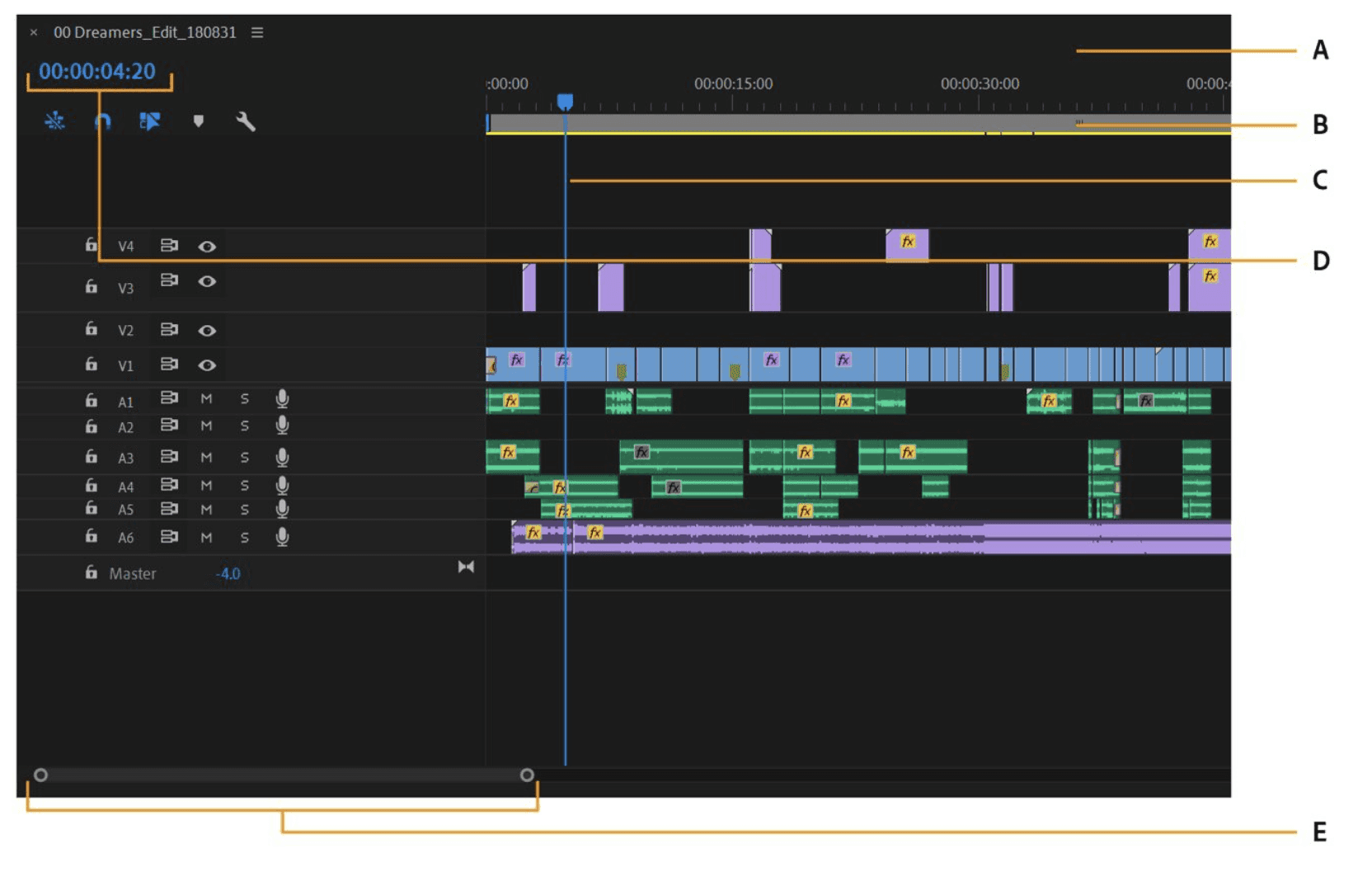
For a rough cut, explicit clip identifiers and source ranges are useful. A compatible integration can apply supported operations without selecting every timeline element through the interface. For example, PremiereProMCP documents clip placement and trimming, but its requirements and installed tool coverage still need checking.
Source: Adobe Help Center
Later, you might need to inspect an export option that the integration does not expose. Computer use can handle that particular interface step. It does not follow that the entire edit should then be repeated through screen control.
After export, use the resulting file to check technical properties and play it to review content. Neither timeline access nor export-dialog inspection completes those checks alone.
One CAD Application, Different Connection Scopes
Even choosing “MCP” does not settle the setup. Autodesk’s Fusion MCP overview distinguishes a local server for the running desktop session from a cloud server focused on manufacturing data management.
Listing cloud projects and changing geometry in an open document are different tasks. Connecting the wrong server can leave the assistant unable to perform the requested operation, despite a successful connection.
Source: Autodesk Fusion Help
The same principle applies elsewhere: confirm what the tool reads and changes, then identify any remaining gap. Add interface interaction, another supported tool, or human work only where that gap exists. A more complicated setup is worthwhile only when it contributes to the required result.
Combine Methods Around One Controlled Handoff
A hybrid workflow is useful when different stages genuinely need different access. It should not mean enabling every tool and letting the assistant switch methods without tracking what has already happened.
Consider the Blender material variant from earlier. Structured access can identify the housing objects and apply the approved assignments. Visual inspection then helps determine whether the result matches the intended appearance.
Separate the Edit from Its Review
Use a clear sequence:
Inspect: Read the target objects, material assignments, and relevant shared dependencies.
Approve: Confirm the exact objects and requested material changes.
Apply: Perform the supported operation without changing cameras, lighting, or unrelated assets.
Review: Inspect a render from the intended camera.
Save: Write a separate project version and reopen it to check persistence.
The review stage does not automatically require computer use. If the MCP integration can return the necessary render or viewport image, inspect that output first. Add desktop interaction only if a required step remains inaccessible, such as operating a particular plugin panel.
Recheck State When Changing Methods
Before handing control from structured tools to computer use, establish the active document, current selection, and completed changes.
A useful handoff request is:
This prevents the assistant from interpreting a visual-review request as permission to redo the operation.
The reverse handoff needs the same care. If interface interaction changes a setting, reread it through a structured tool where possible before continuing. Do not assume the earlier tool response still describes the application.
Stop When the Evidence Conflicts
Suppose the assignment report names the correct material, but the render appears unchanged. Investigate whether the render is outdated, the intended camera is active, or another material slot controls the visible surface. Do not immediately apply the edit again.
Each stage should leave a small record: what changed, what was observed, and what remains unverified. The value of combining methods comes from closing those gaps, not from using both methods on every task.
Run a Small Trial Before Building a Large Setup
Before preparing an extensive automation environment, test one representative task on a disposable project copy. The trial should establish whether the setup can complete your work, not merely whether the assistant connects successfully.
Source: Adobe Help Center
Define Success Before Starting
Choose a bounded operation, such as changing one material assignment or exporting one approved sequence. Write down:
The exact document and target objects.
The permitted change and anything that must remain untouched.
The expected output location.
The checks required before calling the task complete.
Start with read-only inspection. If the assistant cannot reliably identify the project or report the relevant state, resolve that problem before allowing edits.
Make One Change and Check Persistence
Approve one reversible operation, then inspect the result using evidence appropriate to the task. That might include property readback, a rendered view, playback, or file metadata.
Save separately and reopen the project or output. This catches workflows that appear successful but leave changes unsaved, export to the wrong destination, or operate on a temporary state.
For comparison, repeat from the same baseline with the alternative method where practical. Do not give the second attempt a corrected project without accounting for that advantage.
Measure the Complete Effort
Record more than execution time:
Stage | What to record |
|---|---|
Preparation | Installation, configuration, permissions, and compatibility work |
Execution | Time spent performing the approved operation |
Recovery | Retries, clarifications, and manual corrections |
Verification | Work needed to establish a usable saved result |
A recurring task may justify integration work that would be excessive for a one-off change. Conversely, a quick interface action loses its advantage if ambiguous selections require repeated repair.
Use actual measurements if you compare cost. Tool-call counts do not reliably represent billed usage, and neither method is universally cheaper.
Keep the simplest setup that repeatedly passes your acceptance checks. Expand it when a real production requirement exposes a specific limitation.
Check Permissions, Data Exposure, and Recovery
Neither method is safe simply because of its name. A narrowly scoped interface task may expose less authority than an MCP tool that runs arbitrary code. A read-only tool may avoid project changes while still returning confidential information.
Evaluate what the complete setup can access and do.
Inspect the Tool’s Actual Authority
Before enabling an integration, check its source, installation requirements, and permissions. Determine whether it can only query application data or also modify files, execute code, download assets, and contact external services.
MCP’s tool annotations are descriptive hints, not enforcement. A tool labelled read-only should not be treated as technically incapable of making changes unless the implementation and surrounding controls establish that boundary.
Approve only the capabilities needed for the task. A prompt saying “do not delete files” is useful guidance, but it does not remove deletion authority from a broadly privileged tool.
Source: Autodesk Fusion Help
Review What the Assistant Can See
Computer use can process visible application content through screenshots and other interface information. MCP tools can return document data, images, file paths, or error messages.
Close unrelated sensitive documents and inspect integration-specific telemetry settings. Check the AI provider’s applicable data controls separately from those of the plugin or server. A local application bridge does not automatically mean every piece of information stays on that machine.
Treat instructions encountered in files, tool results, and onscreen content as untrusted context, not authorization to expand the task.
Keep a Recovery Path
Preserve originals, save new versions, and maintain a recoverable copy outside the assistant’s working area. Do not assume every scripted operation participates in the application’s undo system.
For interface tasks, stop before changing methods or taking manual control. After an interruption, inspect the current state before retrying.
A dedicated cloud desktop can keep experimental work separate from your everyday environment, provided you limit the files and accounts brought into it. It does not eliminate prompt injection, incorrect edits, or the need to verify saved outputs.
Put the Application and AI Tools in One Vagon Workspace
A creative AI setup needs somewhere to perform the complete job. The assistant must reach the actual application, work with the correct assets, and produce files you can open, inspect, and deliver.
Vagon Cloud Computer brings those components into a cloud desktop accessible from your device. Keep your creative software, AI client, application bridge, and supporting tools together, then move between production work and review within the same environment.
Prepare the Applications Around Your Task
During Application Selection, choose the available applications your workflow requires. Install any additional runtime, addon, or integration needed for the selected operation.
Complete software activation and AI sign-in inside the cloud desktop. Preinstallation saves preparation work, but does not automatically include commercial licenses, AI subscriptions, or a configured connection between applications.
Use Vagon Files to bring over project files and required dependencies. Preserve an untouched source copy and separate working outputs.
For a local MCP bridge, run the server where the creative application is running. A localhost endpoint on Vagon refers to the cloud computer, not your laptop. Likewise, configure computer use in the intended desktop environment rather than assuming a local assistant automatically controls the remote application.
Source: Autodesk Fusion Help
Match Resources to the Production Work
Vagon’s scalable performance lets you adjust the workstation while retaining your applications and files. Choose resources for the scene, timeline, model, or build workload.
More suitable hardware can help rendering, compilation, and other supported processing. It does not make an AI decision inherently more accurate or directly accelerate a remotely hosted model.
You retain access to the production desktop for inspection and manual work. Pause the assistant before taking control, resolve anything requiring your judgment, then resume from a confirmed state.
That makes the workspace useful beyond the initial experiment: you can prepare assets, execute supported automation, review the result in the real application, and complete the final render or export in one environment.
Final Thoughts
Choose the setup around the task, not the label. Use structured tools for supported data access and defined operations, computer use for necessary interface interaction, and existing scripts or CLI commands when they already solve the problem.
Combine methods only when doing so closes a real gap. Check the saved deliverable independently of the assistant’s completion message.
A Vagon Cloud Computer brings the creative application, assistant, project files, and execution tools into one workspace. Start with one bounded task, establish a reliable result, and expand the setup as your production needs grow.
FAQs
Is MCP more accurate than computer use?
Not automatically. A suitable structured tool can address objects and values directly, reducing reliance on interface selection. Accuracy still depends on the integration, target identification, and verification. Computer use may be more appropriate when the required information exists only in the interface.
Can an MCP server return screenshots?
Yes. MCP supports image content in tool results. An application integration may provide viewport captures or rendered images, but that capability must be implemented by the server. It is not included automatically with every MCP connection.
Can computer-use tools work through MCP?
Yes. MCP can expose tools that operate an interface. The protocol describes how the client communicates with those tools, while computer use describes their interaction method. Receiving an image alone does not establish permission or capability to control the desktop.
Do I need both for creative applications?
No. Use the method that covers the task and its verification requirements. Add another only when something remains inaccessible. If an integration can perform the operation and provide adequate review output, separate computer-use access may be unnecessary.
Can I use scripts instead?
Yes. A reviewed script or established CLI command may be sufficient for a defined batch operation. You still need appropriate execution access, error handling, and output checks. MCP is not required simply to generate or run automation code.
Does MCP automatically make an integration safe?
No. Inspect the server’s authority, dependencies, data handling, and exposed operations. A read-only label is not an enforced security boundary. General code-execution tools can grant substantially broader access than narrowly defined application tools.
Can these workflows run unattended?
Some can, but suitability depends on the client, session requirements, permissions, and task. Test failure handling first. Do not assume an interrupted operation is safe to repeat, or leave sensitive actions without appropriate oversight.
Does Vagon include application licenses and ready-made AI connections?
Do not assume so. Available preinstalled applications reduce setup work, but licenses, AI subscriptions, application permissions, and MCP bridges may require separate activation or configuration. Confirm the components required for your chosen workflow.
Get Beyond Your Computer Performance
Run applications on your cloud computer with the latest generation hardware. No more crashes or lags.

Trial includes 1 hour usage + 7 days of storage.
Summarize with AI

Ready to focus on your creativity?
Vagon gives you the ability to create & render projects, collaborate, and stream applications with the power of the best hardware.

Run heavy applications on any device with
your personal computer on the cloud.
San Francisco, California
Solutions
Vagon Teams
Vagon Streams
Use Cases
© 2026 Vagon. All rights reserved.
Run heavy applications on any device with
your personal computer on the cloud.
San Francisco, California
Solutions
Vagon Teams
Vagon Streams
Use Cases
© 2026 Vagon. All rights reserved.
Run heavy applications on any device with
your personal computer on the cloud.
San Francisco, California
Solutions
Vagon Teams
Vagon Streams
Use Cases
© 2026 Vagon. All rights reserved.