Instant Connection for Pixel Streaming
— New Feature Automated Setup

Best Photoshop Tutorials in 2026: Beginner Learning Guide
DigitalArt
Best Photoshop Tutorials in 2026: Beginner Learning Guide
DigitalArt
Best Photoshop Tutorials in 2026: Beginner Learning Guide
DigitalArt
Table of Contents
If you want one free course that takes you from opening Photoshop to completing a real project, start with PHLEARN's 30 Days of Photoshop, 2025 Edition. If you prefer short official lessons you can search by topic, use Adobe Learn Photoshop and begin with one of its guided learning paths.
Those are the two strongest starting points for most beginners, but they aren't interchangeable. PHLEARN gives you a fixed sequence and regular practice. Adobe gives you current product terminology, in-app exercises, sample files, and focused lessons when you need to solve a specific problem. This guide also includes shorter free options, a paid course for people who want more depth, and project tutorials for learners who already understand the basics.
Quick Picks: Which Photoshop Tutorial Should You Choose?
Your goal | Recommended resource | Level | Access | Format | Why choose it | Main limitation |
|---|---|---|---|---|---|---|
Follow one free course from start to finish | Beginner to early intermediate | Free | 30 videos with written steps and practice assets | Current, sequential, and ends with a complete composite | Requires a bigger time commitment | |
Find current official instruction | All levels | Free tutorials | In-app lessons, articles, videos, transcripts, and sample files | Uses Adobe's current names and workflows | The large library can feel unstructured | |
Learn photo editing in a guided order | Beginner to advanced | Free tutorials | Curated path, estimated at 4 hours 10 minutes | Builds from orientation to practical photo work | Lesson depth varies | |
Get a compact introduction | Complete beginner | Free | About three hours of video plus a written guide | Covers the essential workflow without a long schedule | Published in 2024, so some interface details may differ | |
Complete two starter projects | Complete beginner | Free with email signup | Two project-based classes | Low commitment and focused on practical work | Runtime and update date aren't disclosed | |
Take a detailed paid course | Beginner and intermediate | Subscription-based | 12 hours 38 minutes of chaptered video | Detailed curriculum with a completion certificate | Long, paid, and based on Photoshop 2025 | |
Practice creative compositing | Beginner to advanced | Free tutorials | Curated path, estimated at 3 hours 45 minutes | Turns selections and masks into real projects | Some individual lessons are older |
What Should A Complete Beginner Learn First In Photoshop?
The clearest way to learn how to use Photoshop is to follow the order in which the skills depend on one another. A tutorial on hair selection makes more sense after you understand masks. A compositing project is easier after you know how layers, selections, and adjustment layers work together.
Use this sequence whether you choose PHLEARN, Adobe, Envato, or another structured course.
Interface and navigation. Learn where the toolbar, Options bar, Layers panel, Properties panel, and workspace controls are. Practice zooming, panning, undoing an action, and finding a hidden tool.
Files and image basics. Open an image, create a document, understand image dimensions and resolution, save an editable PSD, and export a JPEG or PNG for sharing.
Layers. Learn layer order, visibility, opacity, groups, naming, and blend modes. Layers are the organizing system behind almost every editable Photoshop project.
Non-destructive editing. Use adjustment layers instead of permanently changing image pixels. Learn layer masks and Smart Objects so you can revise an edit later.
Selections and masks. Start with basic geometric selections, then move to Quick Selection, Select Subject, and Select and Mask. Practice refining an edge instead of expecting an automatic result to be perfect.
Core photo corrections. Crop and straighten, adjust brightness and contrast, correct color, and remove a small distraction. These skills give you a complete editing loop without requiring advanced retouching.
Type and design. If you want to make posters, social graphics, or layouts, learn text layers, shapes, alignment, clipping masks, and basic layer styles.
Export. Choose a file format and dimensions for the actual destination. Keep the editable PSD, then export a separate copy for the web, social media, or print workflow.
Project-based practice. Finish a small photo edit, poster, product mockup, or two-image composite that combines several skills.
Don't try to memorize every tool before making anything. Complete one small project, notice where you get stuck, then use a focused tutorial to fill that gap.
Generative features can save time, but they shouldn't replace the foundation. A beginner still needs to understand which layer was created, how a selection controls the result, how to mask unwanted output, and how to save the document so the edit remains changeable.
Watching the lessons is only the first half of learning. You also need a Photoshop environment where you can open the sample files, build layered projects, and repeat each technique without shaping your practice around the limits of your current device. Vagon Cloud Computer gives you an on-demand remote computer for that work, using the Adobe account and course files you already have.
Which Photoshop Tutorials Are Worth Following For Different Learning Styles?
The right tutorial depends on how much structure you want, how much time you can commit, and whether you learn better from video, written instructions, or hands-on exercises. These six options passed the same checks for availability, visible course content, cost clarity, teaching structure, and practical value.
PHLEARN 30 Days of Photoshop: for a structured free course
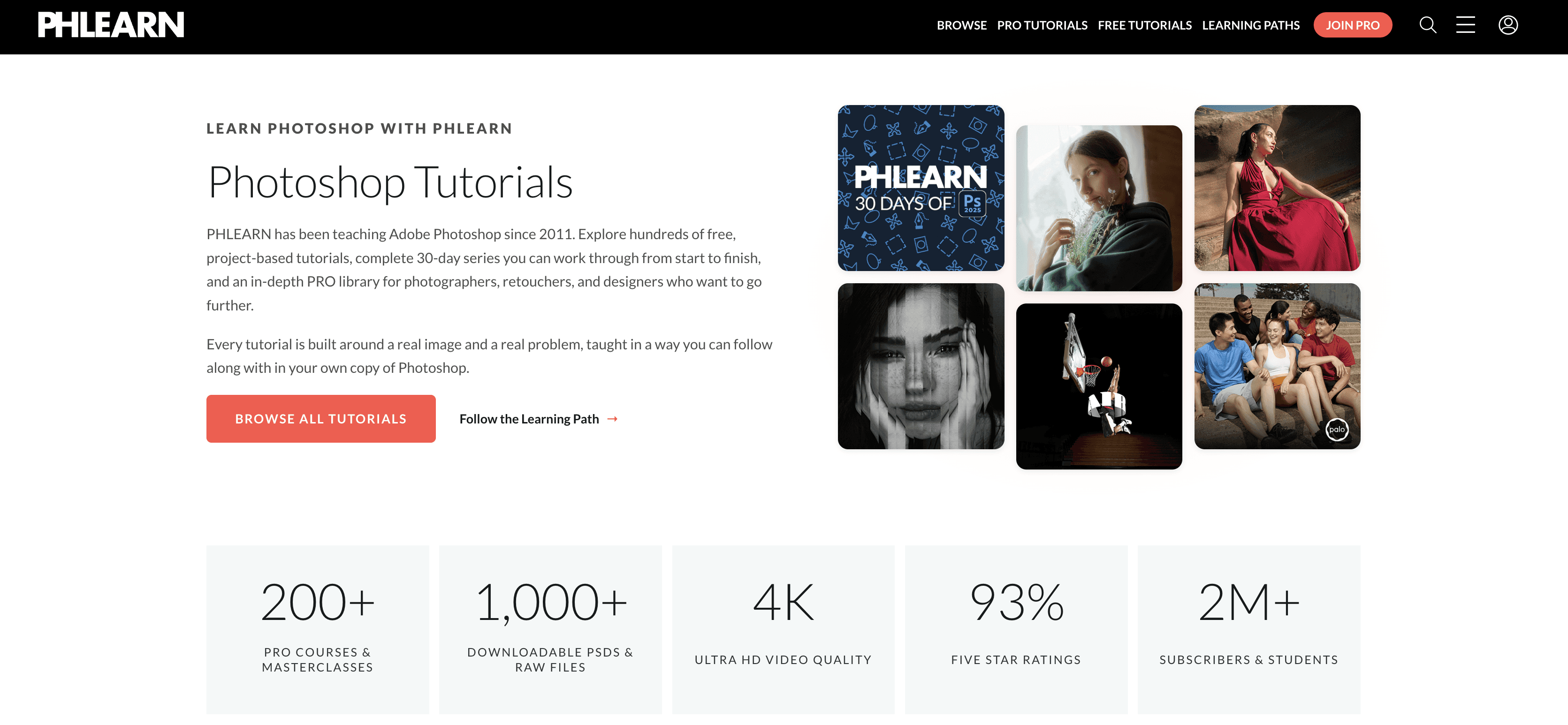
PHLEARN's 30 Days of Photoshop, 2025 Edition is taught by Aaron Nace and starts at the point where a learner first opens the program. Its 30 lessons move through the interface, files, layers, masks, selections, adjustments, retouching, compositing, and newer AI-assisted tools. The final lesson combines several of those ideas in a complete composite.
Every lesson in this edition is free to watch. PHLEARN also provides written instructions and downloadable sample images or PSDs, which makes the series useful when you need to revisit a step without scrubbing through a long video.
The sequence is its main advantage. You don't have to decide which topic comes next, and the course moves from isolated techniques to a project where tool order matters. The 2025 edition also keeps new learners out of the older interface used by the classic series.
The limitation is commitment. Thirty lessons are more than some beginners need before their first useful result. If that schedule feels heavy, complete the early lessons on interface, files, layers, masks, and selections, then make one small project before deciding whether to continue in order.
Adobe Learn Photo Editing: for an official photography path
The Adobe Learn Photo Editing path is the most useful official route for a beginner whose main goal is improving photographs. Adobe estimates the path at 4 hours 10 minutes and describes it as covering beginner through advanced material.
It begins with orientation to the workspace, layers, selections, layer masks, and adjustment layers. It then branches into lighting, color, cropping, basic selection work, masking, resizing, effects, and productivity. This order makes it one of the better sets of Adobe Photoshop tutorials for beginners because it doesn't open with a narrow effect or a new AI feature.
The path combines short videos, articles, and hands-on tutorials. Many exercises include sample files. It is free to access, though you still need Photoshop when a lesson asks you to practice in the app.
Its weakness is uneven depth. A one-minute hands-on interaction and a longer explanatory lesson don't teach at the same level, even when both appear in the same path. Use the path as a guided map, and return to Adobe's documentation or a longer independent lesson when a concept such as masking needs more practice.
Envato Tuts+: for a compact free overview
Adobe Photoshop for Beginners from Envato Tuts+ is taught by Daniel Walter Scott, an Adobe Certified Instructor. The course was published on May 9, 2024 and runs for about three hours. It is paired with a long written guide, chapter links, individual video lessons, and downloadable source files.
The course covers setup, layers, adjustments, text, layer styles, resizing, selections, masks, Smart Objects, transformation, retouching, and export. It suits someone who wants to see the full workflow over a weekend rather than follow a multi-week schedule.
Tuts+ courses and tutorials are free to access. Envato confirmed this access model in a March 2026 support update, so this isn't a short preview leading immediately to a paid lesson library.
The trade-off is the recording date. The durable concepts still apply, but Photoshop's contextual controls and newer AI features have changed since 2024. If a button appears in a different place, verify the current path in Adobe Learn or the Photoshop Help documentation rather than assuming the tool was removed.
PiXimperfect's 2-Day Challenge: for a quick guided start
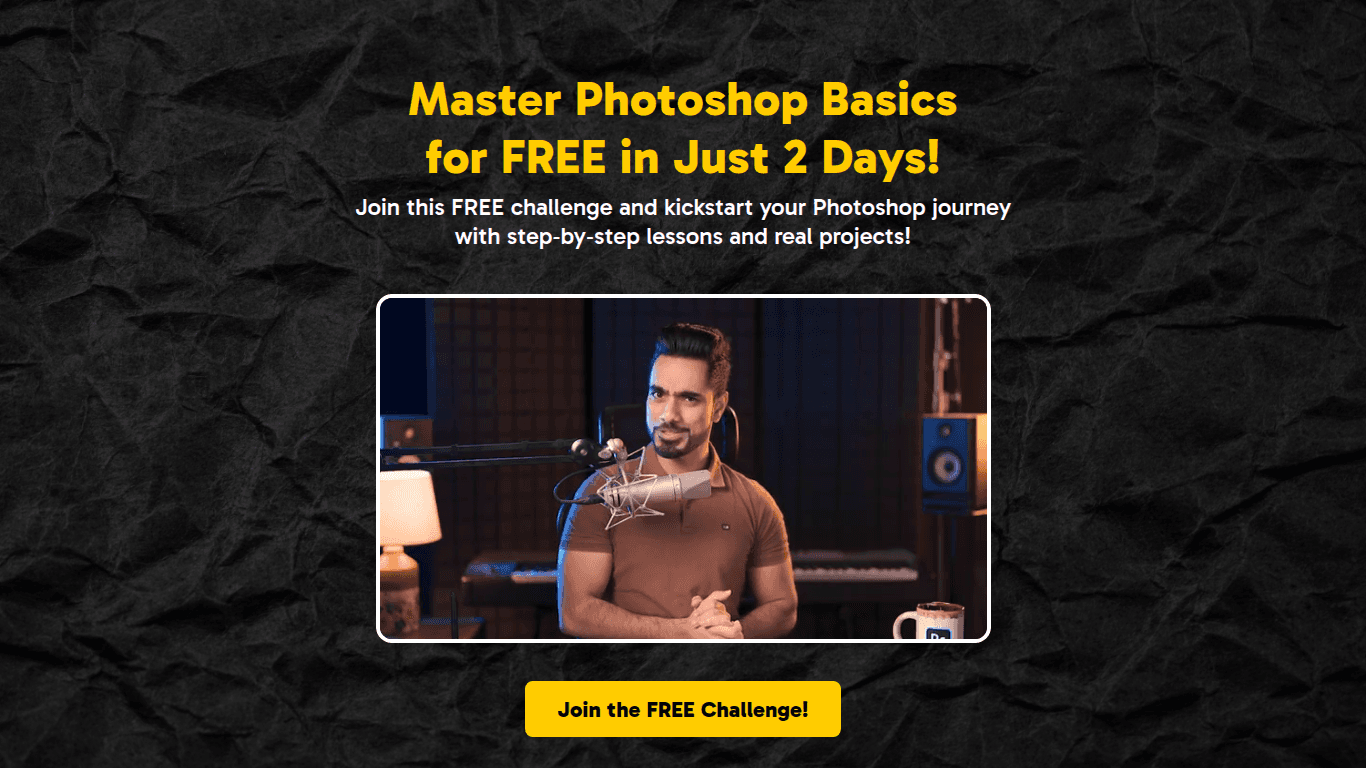
The PiXimperfect 2-Day Photoshop Challenge is taught by Unmesh Dinda and is designed for people who have never used Photoshop. It delivers two classes by email and requires a name and email address to join.
Day one covers opening and saving files, setting up the workspace, and using the Move, Selection, and Brush tools while making a simple poster. Day two focuses on layers, text, shapes, adjustments, Smart Objects, blending, organization, and a layered composite.
This is a useful choice if a 30-day course feels intimidating. The learner makes something in each class while still encountering the ideas that support later work. The challenge is genuinely free, but it is email-gated rather than openly browsable like Adobe Learn or PHLEARN.
PiXimperfect doesn't disclose the class runtime or a publication date on the inspected page. For that reason, treat it as a focused confidence builder, not as a replacement for a complete fundamentals path. After the second project, continue with layers, masks, selections, adjustment layers, and export in Adobe Learn or PHLEARN.
LinkedIn Learning Photoshop 2025 Essential Training: for paid depth
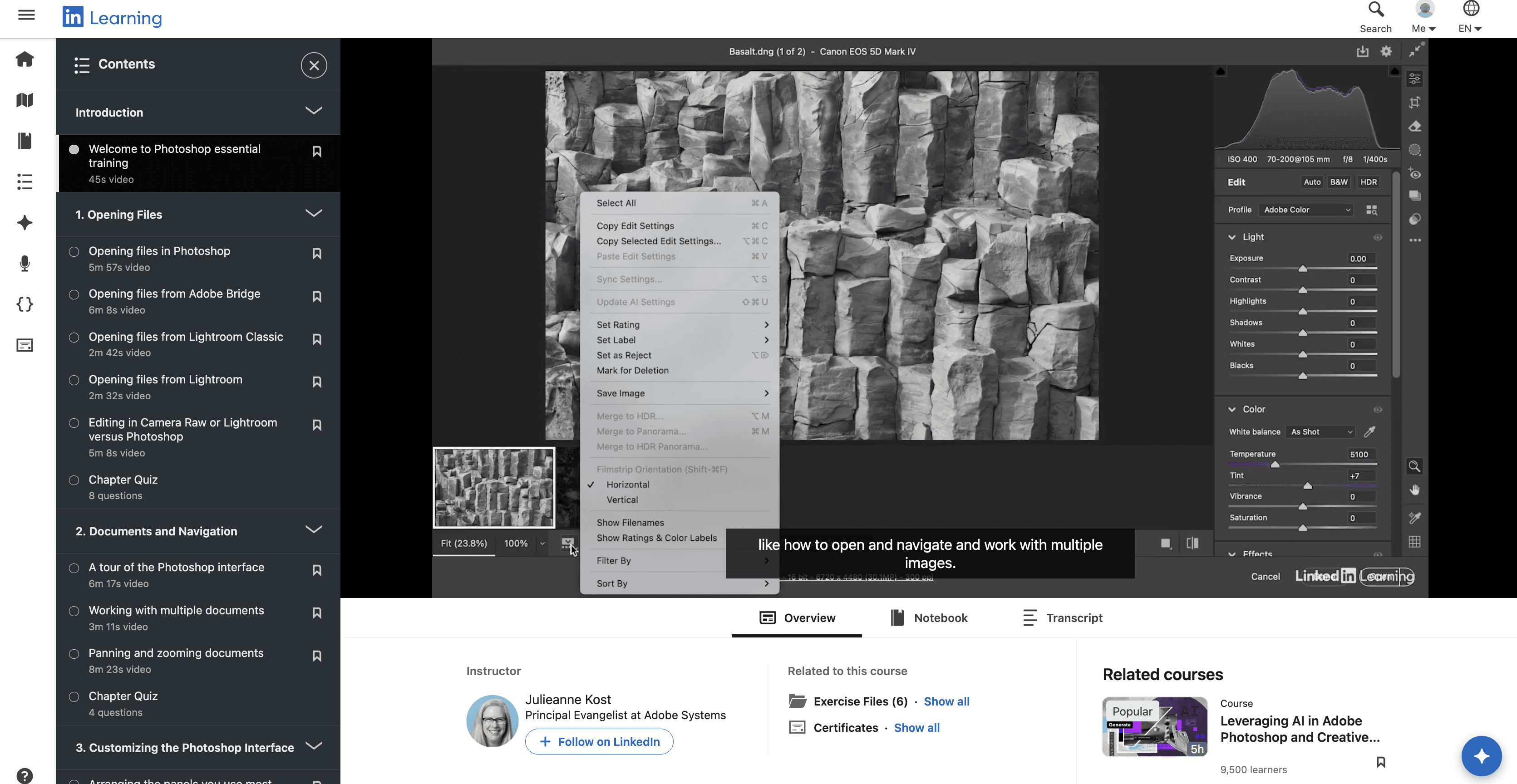
Photoshop 2025 Essential Training is a 12-hour, 38-minute course taught by Julieanne Kost. LinkedIn lists it for beginner and intermediate learners, with a release date of November 13, 2024. It is also part of an Adobe-endorsed professional certificate path.
The syllabus moves from files, navigation, and interface setup into image essentials, layers, adjustments, masking, Smart Objects, retouching, Camera Raw, output, and newer AI-assisted tools. Its chapters also work as a later reference. Learners can earn a completion certificate.
This is a subscription-based resource. LinkedIn may offer an eligible visitor a trial, and some employers, schools, or libraries provide access, but the course shouldn't be described as free. Check your account and local terms before starting if cost is a deciding factor.
The main limitation is that it is long and tied to Photoshop 2025. The fundamental lessons remain relevant, but some interface details and current features will differ from Photoshop 27.x in 2026. Choose it when you want one detailed curriculum and are willing to verify newer feature changes separately.
Adobe Learn Photoshop: for short answers and current features
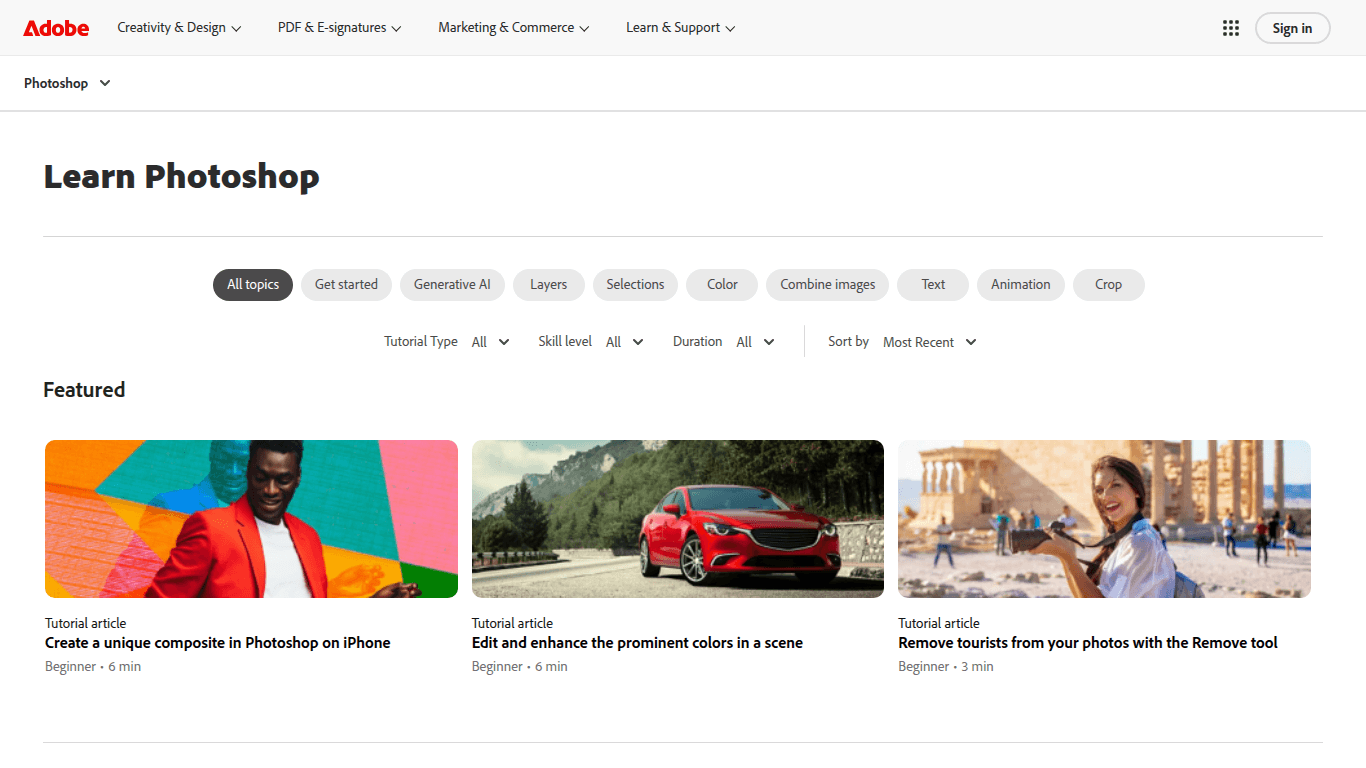
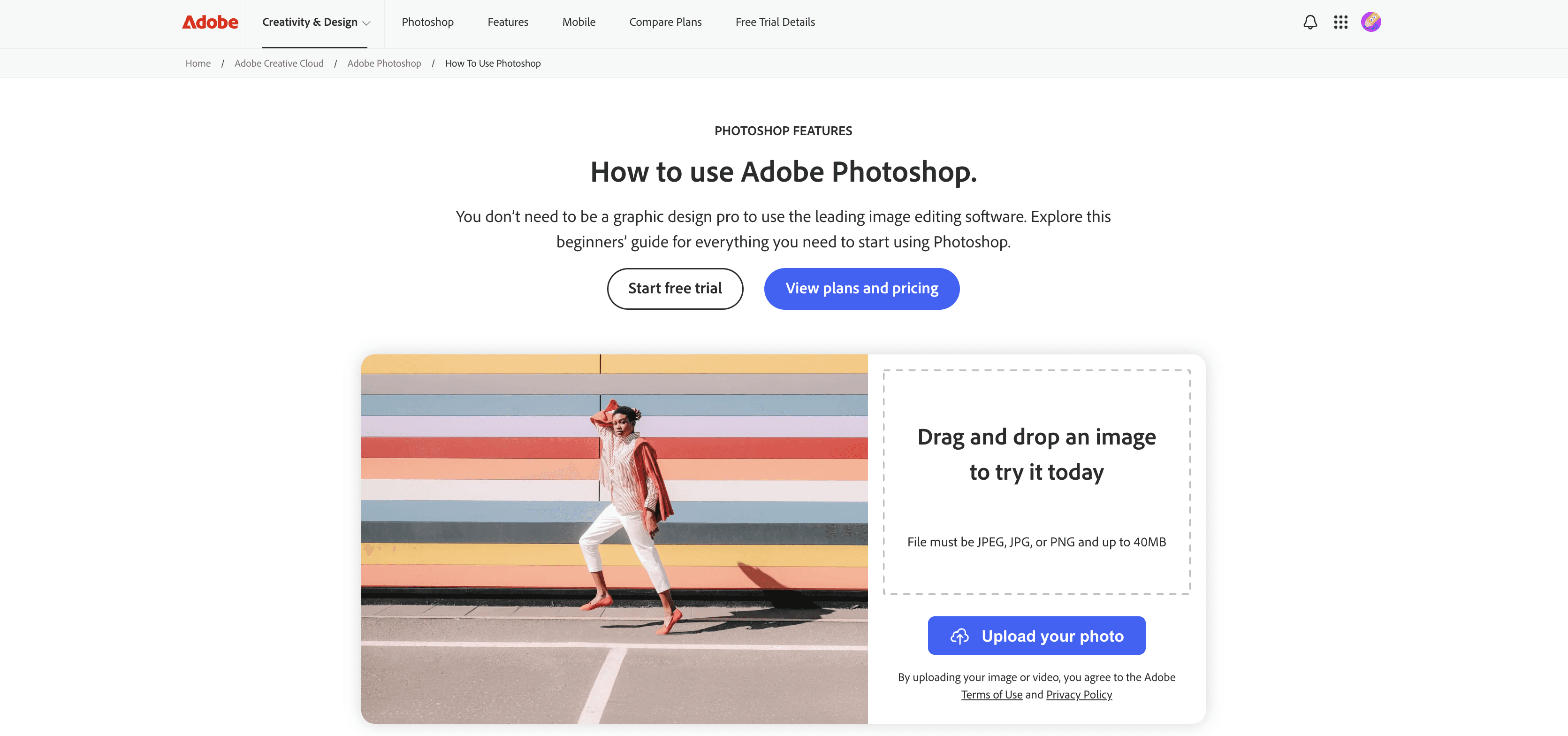
Adobe Learn Photoshop is better understood as a searchable learning library than a single course. It lets you filter by topic, skill level, tutorial type, duration, and recency. Current categories include getting started, layers, selections, color, combining images, text, animation, crop, and generative AI.
Use it when you know the next skill you need. For example, search for a short layer-mask lesson after a course introduces masking, or find a current Remove tool tutorial when an older instructor's screen no longer matches yours. Adobe offers hands-on tutorials inside the workspace as well as articles and videos that can include transcripts and downloadable files.
Its strength is current first-party instruction. Its weakness is choice. If you sort only by most recent, narrow feature tips can appear before the concepts a new learner needs. Complete an Orientation series inside a learning path first, then use the larger library as a reference.
Which Official Adobe Photoshop Tutorials Work Best As A Reference?
Adobe's library is easier to use when you enter through a goal rather than the main feed. Three paths cover the most common directions.
Choose the Photo Editing path if you want to correct exposure and color, crop, clean up photographs, and improve everyday images.
Choose the Design path if you want to work with shapes, filters, color, text, visual effects, and simple animation.
Choose the Photo Compositing path if you want to combine images using selections, masks, blend modes, manual techniques, and generative tools.
Each path begins with or includes orientation material. That's important because it keeps the official learning experience from becoming a pile of unrelated tips. Once you've completed the foundation, the topic filters on the main hub become genuinely useful.
When two Adobe lessons appear to cover the same skill, prefer the one that gives you the clearest practice setup. A useful lesson should identify the level and format, provide files where needed, and explain what the technique is for. A visible publication date is also helpful when the instructions rely on contextual controls or newer features.
Adobe also provides help inside Photoshop. The Discover panel, available through Help > Photoshop Help, includes contextual help, tutorials, and quick actions. It requires an active internet connection. Use it when you know what you want to do but can't remember where a command moved.
Official documentation is especially valuable for exact feature names and current menu paths. Independent teachers are often better at explaining why a technique works, showing a longer real-world edit, and helping you notice common mistakes. The two types of resource work well together: learn the concept from a structured educator, then verify a changed control or new feature with Adobe.
What Cool Photoshop Tutorials Should You Try After The Basics?
The most useful creative projects reuse a foundation skill in a new context. These cool Photoshop tutorials produce an interesting result while teaching a transferable method.
Blend two images with a gradient mask
Adobe's Combine images with a smooth transition was published on December 17, 2025. Instructor Seán Duggan shows how to blend two photographs by applying a black-to-white gradient to a layer mask, then refine the mask with a brush.
This is a strong first compositing project because the visual result makes the mask logic easy to see. You practice layer order, mask selection, gradient direction, and brush refinement without needing a complicated cutout.
Replace a product background while keeping its shadows
Adobe's Replace a product shot background with layer masks is a short hands-on tutorial instructed by Jesús Ramirez. It shows how to add a new background with a layer mask and use a blend mode to retain the original shadows.
The transferable lesson is realism. Selecting an object is only part of a composite; keeping believable contact shadows helps the object sit in the new scene instead of looking pasted on.
Make a double exposure
Adobe's Make a double exposure combines two photographs into a familiar creative effect. The project reinforces selections, layer masks, and the relationship between the shapes and tones in two source images.
Try it after you can create and edit a basic mask without pausing at every step. The point isn't to copy one exact look. It is to practice deciding which parts of each image should remain visible.
Create a first design with text and graphics
Create your first design, published January 28, 2025, is a series built around layers, combined images, masks, text, graphics, and effects. It includes downloadable files and introduces both pixel and vector content in a small print or online composition.
This is a better next step for aspiring designers than another photo-retouching lesson. It adds type, shapes, alignment, and visual hierarchy while reinforcing the layer habits learned earlier.
Build a complete multi-image composite
PHLEARN's Day 30 composite, published September 30, 2025, is a useful capstone. It combines blend modes, Select Subject, layer masks, Smart Objects, light effects, and a Camera Raw finishing pass.
The lesson emphasizes sequence rather than a single tool. That makes it appropriate after several foundation projects. If the final build feels too difficult, return to the earlier lesson that covers the specific missing skill instead of trying to imitate every step without understanding it.
Are Photoshop Tutorials From 2018 Still Useful In 2026?
Some are. The search phrase photoshop tutorials 2018 often leads to content made for an older Creative Cloud interface or labeled around that year's Photoshop release. Age alone doesn't tell you whether the lesson is useful.
Core concepts tend to last. Tutorials on layers, layer masks, adjustment layers, curves, levels, blend modes, basic brushes, Pen tool paths, transformation, and Smart Objects can still teach sound methods. The panel styling or button position may look different, but the reason for using the technique often remains the same.
Other topics need closer checking. Be cautious when an old lesson depends on an exact menu path, automatic selection behavior, the Camera Raw layout, a save or export dialog, an unsupported plugin, an operating-system shortcut, or a feature that didn't exist when the tutorial was recorded. Generative Fill and other current AI workflows obviously require newer instruction.
Some workflows have disappeared entirely. Adobe states that Photoshop's legacy 3D features were removed in July 2024. A 2018 tutorial built around the old 3D menu may still be historically interesting, but it isn't a workable guide for the current desktop application.
Use this five-question check before committing to an older course:
Is the named tool or feature still present in Adobe's current documentation?
Can you find the control even if the menu path or panel has changed?
Are the practice files and any required plugins still available?
Does the method preserve editable layers and masks, or does it permanently change pixels without a reason?
Has the same instructor published a newer edition?
When a current edition exists, start there. PHLEARN, for example, still makes its Classic Edition available because some of its manual techniques remain useful, but it directs new learners to the rebuilt 2025 course.
Older instruction can be valuable when it explains a manual method that a new one-click feature hides. Just separate the durable idea from the obsolete interface steps, and keep current Adobe Help open when the screen no longer matches.
How Can Vagon Cloud Computer Turn Photoshop Tutorials Into Hands-On Practice?
Tutorial access and Photoshop access are separate. The resources labeled free in this guide don't charge for their instruction, but desktop exercises still require a suitable version of Photoshop. Check Adobe's current plans for your region and billing terms rather than relying on an old course's pricing or trial claim.
Adobe's technical requirements for Photoshop 27.x list 8 GB of RAM as the minimum and 16 GB or more as the recommendation. The current requirements page also lists supported operating systems, GPU requirements, display guidance, available storage, and internet needs for activation and online services.
Those requirements matter because good tutorials quickly move beyond watching. You will open sample PSDs, add layers and Smart Objects, work with high-resolution images, test filters, and build composites. A capable environment lets you follow the instructor's full workflow instead of reducing file sizes, skipping exercises, or postponing more ambitious projects.
Vagon Cloud Computer gives you access to a cloud-based computer designed to run demanding creative applications. You can connect to the remote environment, install Photoshop, sign in with your own Adobe account, upload the tutorial assets, and keep your practice workspace available for the next lesson.
This creates a clear advantage for learners who don't want their current hardware to define what they can study. Instead of buying a new workstation before you know how far you want to take Photoshop, you can start practicing on a capable remote setup and choose the computer configuration that fits the work you are doing.
Vagon is especially useful as your projects grow from basic corrections into large layered compositions, detailed retouching, multiple Smart Objects, and AI-assisted workflows. The same environment can carry you from the first course exercise to more demanding portfolio projects without making a hardware purchase the first step in your learning plan.
The setup remains yours to organize around the course. Photoshop is installed through your own Adobe account, and your project files can be brought into the cloud computer for hands-on practice. A suitable internet connection is part of any remote workflow, while the Photoshop processing takes place in the cloud environment.

The simplest plan is to choose one course, create a matching practice environment, and complete the foundation in order. Use PHLEARN for a free sequence, Adobe Learn for official guidance, Envato for a shorter overview, or LinkedIn Learning for paid depth. Then use the same Vagon workspace for the projects that turn those lessons into practical skill.
Start with Vagon Cloud Computer and build a Photoshop learning setup that can grow with your files, techniques, and creative goals. For the complete setup process, follow Vagon's guide to running Photoshop on a cloud computer.
Frequently Asked Questions
What is the best Photoshop tutorial for a complete beginner in 2026?
PHLEARN's 30 Days of Photoshop, 2025 Edition is the clearest free choice for a beginner who wants one ordered course. It starts with the interface and files, then moves through layers, masks, selections, editing, and compositing. If you prefer shorter official lessons, start with the Orientation material in the Adobe Photo Editing learning path.
Are there any genuinely free Photoshop tutorials?
Yes. Adobe Learn, PHLEARN's 30 Days series, and Envato Tuts+ provide lessons that can be accessed without paying for the tutorial itself. PiXimperfect's two-day challenge is also free but requires an email signup. Free tutorial access does not include the desktop Photoshop application or an Adobe subscription.
How long does it take to learn the Photoshop basics?
The verified beginner resources in this guide range from a two-class challenge to a 12-hour, 38-minute paid course. The useful milestone is not a fixed number of hours. You have the basics when you can open and save files, organize layers, make and refine a selection, use a layer mask and adjustment layer, complete a simple edit, and export the result without following every click on screen.
Can I still learn from an older Photoshop tutorial?
Yes, when it teaches durable concepts such as layers, masks, adjustment layers, curves, blend modes, Pen tool paths, or Smart Objects. Check current Adobe documentation when an old tutorial depends on exact menu locations, AI features, plugins, save dialogs, or removed workflows. Legacy 3D tutorials are not suitable for the current application because Adobe removed Photoshop's legacy 3D features in July 2024.
Can I run Photoshop on Vagon Cloud Computer while following a tutorial?
Yes. You can install Photoshop on Vagon Cloud Computer, sign in with your own eligible Adobe account, and bring the course's sample files into the remote environment. This gives you one workspace for following lessons, saving layered projects, and continuing with more demanding exercises as your skills improve. Vagon and the Photoshop license are purchased separately.
Why use Vagon Cloud Computer for learning Photoshop?
Vagon lets you begin with a capable cloud computer instead of making a new workstation the price of entry. It is a practical choice for learners working from lightweight devices, moving between locations, or progressing toward larger PSDs and more demanding creative workflows. You can keep the tutorial, Photoshop installation, and project files within one remote practice environment.
Does Vagon Cloud Computer include Photoshop?
No. Vagon provides the cloud computer, while Photoshop is installed and licensed through your own eligible Adobe account. This separation lets you use your existing Adobe access while choosing a Vagon environment for the computing side of the workflow.
If you want one free course that takes you from opening Photoshop to completing a real project, start with PHLEARN's 30 Days of Photoshop, 2025 Edition. If you prefer short official lessons you can search by topic, use Adobe Learn Photoshop and begin with one of its guided learning paths.
Those are the two strongest starting points for most beginners, but they aren't interchangeable. PHLEARN gives you a fixed sequence and regular practice. Adobe gives you current product terminology, in-app exercises, sample files, and focused lessons when you need to solve a specific problem. This guide also includes shorter free options, a paid course for people who want more depth, and project tutorials for learners who already understand the basics.
Quick Picks: Which Photoshop Tutorial Should You Choose?
Your goal | Recommended resource | Level | Access | Format | Why choose it | Main limitation |
|---|---|---|---|---|---|---|
Follow one free course from start to finish | Beginner to early intermediate | Free | 30 videos with written steps and practice assets | Current, sequential, and ends with a complete composite | Requires a bigger time commitment | |
Find current official instruction | All levels | Free tutorials | In-app lessons, articles, videos, transcripts, and sample files | Uses Adobe's current names and workflows | The large library can feel unstructured | |
Learn photo editing in a guided order | Beginner to advanced | Free tutorials | Curated path, estimated at 4 hours 10 minutes | Builds from orientation to practical photo work | Lesson depth varies | |
Get a compact introduction | Complete beginner | Free | About three hours of video plus a written guide | Covers the essential workflow without a long schedule | Published in 2024, so some interface details may differ | |
Complete two starter projects | Complete beginner | Free with email signup | Two project-based classes | Low commitment and focused on practical work | Runtime and update date aren't disclosed | |
Take a detailed paid course | Beginner and intermediate | Subscription-based | 12 hours 38 minutes of chaptered video | Detailed curriculum with a completion certificate | Long, paid, and based on Photoshop 2025 | |
Practice creative compositing | Beginner to advanced | Free tutorials | Curated path, estimated at 3 hours 45 minutes | Turns selections and masks into real projects | Some individual lessons are older |
What Should A Complete Beginner Learn First In Photoshop?
The clearest way to learn how to use Photoshop is to follow the order in which the skills depend on one another. A tutorial on hair selection makes more sense after you understand masks. A compositing project is easier after you know how layers, selections, and adjustment layers work together.
Use this sequence whether you choose PHLEARN, Adobe, Envato, or another structured course.
Interface and navigation. Learn where the toolbar, Options bar, Layers panel, Properties panel, and workspace controls are. Practice zooming, panning, undoing an action, and finding a hidden tool.
Files and image basics. Open an image, create a document, understand image dimensions and resolution, save an editable PSD, and export a JPEG or PNG for sharing.
Layers. Learn layer order, visibility, opacity, groups, naming, and blend modes. Layers are the organizing system behind almost every editable Photoshop project.
Non-destructive editing. Use adjustment layers instead of permanently changing image pixels. Learn layer masks and Smart Objects so you can revise an edit later.
Selections and masks. Start with basic geometric selections, then move to Quick Selection, Select Subject, and Select and Mask. Practice refining an edge instead of expecting an automatic result to be perfect.
Core photo corrections. Crop and straighten, adjust brightness and contrast, correct color, and remove a small distraction. These skills give you a complete editing loop without requiring advanced retouching.
Type and design. If you want to make posters, social graphics, or layouts, learn text layers, shapes, alignment, clipping masks, and basic layer styles.
Export. Choose a file format and dimensions for the actual destination. Keep the editable PSD, then export a separate copy for the web, social media, or print workflow.
Project-based practice. Finish a small photo edit, poster, product mockup, or two-image composite that combines several skills.
Don't try to memorize every tool before making anything. Complete one small project, notice where you get stuck, then use a focused tutorial to fill that gap.
Generative features can save time, but they shouldn't replace the foundation. A beginner still needs to understand which layer was created, how a selection controls the result, how to mask unwanted output, and how to save the document so the edit remains changeable.
Watching the lessons is only the first half of learning. You also need a Photoshop environment where you can open the sample files, build layered projects, and repeat each technique without shaping your practice around the limits of your current device. Vagon Cloud Computer gives you an on-demand remote computer for that work, using the Adobe account and course files you already have.
Which Photoshop Tutorials Are Worth Following For Different Learning Styles?
The right tutorial depends on how much structure you want, how much time you can commit, and whether you learn better from video, written instructions, or hands-on exercises. These six options passed the same checks for availability, visible course content, cost clarity, teaching structure, and practical value.
PHLEARN 30 Days of Photoshop: for a structured free course
PHLEARN's 30 Days of Photoshop, 2025 Edition is taught by Aaron Nace and starts at the point where a learner first opens the program. Its 30 lessons move through the interface, files, layers, masks, selections, adjustments, retouching, compositing, and newer AI-assisted tools. The final lesson combines several of those ideas in a complete composite.
Every lesson in this edition is free to watch. PHLEARN also provides written instructions and downloadable sample images or PSDs, which makes the series useful when you need to revisit a step without scrubbing through a long video.
The sequence is its main advantage. You don't have to decide which topic comes next, and the course moves from isolated techniques to a project where tool order matters. The 2025 edition also keeps new learners out of the older interface used by the classic series.
The limitation is commitment. Thirty lessons are more than some beginners need before their first useful result. If that schedule feels heavy, complete the early lessons on interface, files, layers, masks, and selections, then make one small project before deciding whether to continue in order.
Adobe Learn Photo Editing: for an official photography path
The Adobe Learn Photo Editing path is the most useful official route for a beginner whose main goal is improving photographs. Adobe estimates the path at 4 hours 10 minutes and describes it as covering beginner through advanced material.
It begins with orientation to the workspace, layers, selections, layer masks, and adjustment layers. It then branches into lighting, color, cropping, basic selection work, masking, resizing, effects, and productivity. This order makes it one of the better sets of Adobe Photoshop tutorials for beginners because it doesn't open with a narrow effect or a new AI feature.
The path combines short videos, articles, and hands-on tutorials. Many exercises include sample files. It is free to access, though you still need Photoshop when a lesson asks you to practice in the app.
Its weakness is uneven depth. A one-minute hands-on interaction and a longer explanatory lesson don't teach at the same level, even when both appear in the same path. Use the path as a guided map, and return to Adobe's documentation or a longer independent lesson when a concept such as masking needs more practice.
Envato Tuts+: for a compact free overview
Adobe Photoshop for Beginners from Envato Tuts+ is taught by Daniel Walter Scott, an Adobe Certified Instructor. The course was published on May 9, 2024 and runs for about three hours. It is paired with a long written guide, chapter links, individual video lessons, and downloadable source files.
The course covers setup, layers, adjustments, text, layer styles, resizing, selections, masks, Smart Objects, transformation, retouching, and export. It suits someone who wants to see the full workflow over a weekend rather than follow a multi-week schedule.
Tuts+ courses and tutorials are free to access. Envato confirmed this access model in a March 2026 support update, so this isn't a short preview leading immediately to a paid lesson library.
The trade-off is the recording date. The durable concepts still apply, but Photoshop's contextual controls and newer AI features have changed since 2024. If a button appears in a different place, verify the current path in Adobe Learn or the Photoshop Help documentation rather than assuming the tool was removed.
PiXimperfect's 2-Day Challenge: for a quick guided start
The PiXimperfect 2-Day Photoshop Challenge is taught by Unmesh Dinda and is designed for people who have never used Photoshop. It delivers two classes by email and requires a name and email address to join.
Day one covers opening and saving files, setting up the workspace, and using the Move, Selection, and Brush tools while making a simple poster. Day two focuses on layers, text, shapes, adjustments, Smart Objects, blending, organization, and a layered composite.
This is a useful choice if a 30-day course feels intimidating. The learner makes something in each class while still encountering the ideas that support later work. The challenge is genuinely free, but it is email-gated rather than openly browsable like Adobe Learn or PHLEARN.
PiXimperfect doesn't disclose the class runtime or a publication date on the inspected page. For that reason, treat it as a focused confidence builder, not as a replacement for a complete fundamentals path. After the second project, continue with layers, masks, selections, adjustment layers, and export in Adobe Learn or PHLEARN.
LinkedIn Learning Photoshop 2025 Essential Training: for paid depth
Photoshop 2025 Essential Training is a 12-hour, 38-minute course taught by Julieanne Kost. LinkedIn lists it for beginner and intermediate learners, with a release date of November 13, 2024. It is also part of an Adobe-endorsed professional certificate path.
The syllabus moves from files, navigation, and interface setup into image essentials, layers, adjustments, masking, Smart Objects, retouching, Camera Raw, output, and newer AI-assisted tools. Its chapters also work as a later reference. Learners can earn a completion certificate.
This is a subscription-based resource. LinkedIn may offer an eligible visitor a trial, and some employers, schools, or libraries provide access, but the course shouldn't be described as free. Check your account and local terms before starting if cost is a deciding factor.
The main limitation is that it is long and tied to Photoshop 2025. The fundamental lessons remain relevant, but some interface details and current features will differ from Photoshop 27.x in 2026. Choose it when you want one detailed curriculum and are willing to verify newer feature changes separately.
Adobe Learn Photoshop: for short answers and current features
Adobe Learn Photoshop is better understood as a searchable learning library than a single course. It lets you filter by topic, skill level, tutorial type, duration, and recency. Current categories include getting started, layers, selections, color, combining images, text, animation, crop, and generative AI.
Use it when you know the next skill you need. For example, search for a short layer-mask lesson after a course introduces masking, or find a current Remove tool tutorial when an older instructor's screen no longer matches yours. Adobe offers hands-on tutorials inside the workspace as well as articles and videos that can include transcripts and downloadable files.
Its strength is current first-party instruction. Its weakness is choice. If you sort only by most recent, narrow feature tips can appear before the concepts a new learner needs. Complete an Orientation series inside a learning path first, then use the larger library as a reference.
Which Official Adobe Photoshop Tutorials Work Best As A Reference?
Adobe's library is easier to use when you enter through a goal rather than the main feed. Three paths cover the most common directions.
Choose the Photo Editing path if you want to correct exposure and color, crop, clean up photographs, and improve everyday images.
Choose the Design path if you want to work with shapes, filters, color, text, visual effects, and simple animation.
Choose the Photo Compositing path if you want to combine images using selections, masks, blend modes, manual techniques, and generative tools.
Each path begins with or includes orientation material. That's important because it keeps the official learning experience from becoming a pile of unrelated tips. Once you've completed the foundation, the topic filters on the main hub become genuinely useful.
When two Adobe lessons appear to cover the same skill, prefer the one that gives you the clearest practice setup. A useful lesson should identify the level and format, provide files where needed, and explain what the technique is for. A visible publication date is also helpful when the instructions rely on contextual controls or newer features.
Adobe also provides help inside Photoshop. The Discover panel, available through Help > Photoshop Help, includes contextual help, tutorials, and quick actions. It requires an active internet connection. Use it when you know what you want to do but can't remember where a command moved.
Official documentation is especially valuable for exact feature names and current menu paths. Independent teachers are often better at explaining why a technique works, showing a longer real-world edit, and helping you notice common mistakes. The two types of resource work well together: learn the concept from a structured educator, then verify a changed control or new feature with Adobe.
What Cool Photoshop Tutorials Should You Try After The Basics?
The most useful creative projects reuse a foundation skill in a new context. These cool Photoshop tutorials produce an interesting result while teaching a transferable method.
Blend two images with a gradient mask
Adobe's Combine images with a smooth transition was published on December 17, 2025. Instructor Seán Duggan shows how to blend two photographs by applying a black-to-white gradient to a layer mask, then refine the mask with a brush.
This is a strong first compositing project because the visual result makes the mask logic easy to see. You practice layer order, mask selection, gradient direction, and brush refinement without needing a complicated cutout.
Replace a product background while keeping its shadows
Adobe's Replace a product shot background with layer masks is a short hands-on tutorial instructed by Jesús Ramirez. It shows how to add a new background with a layer mask and use a blend mode to retain the original shadows.
The transferable lesson is realism. Selecting an object is only part of a composite; keeping believable contact shadows helps the object sit in the new scene instead of looking pasted on.
Make a double exposure
Adobe's Make a double exposure combines two photographs into a familiar creative effect. The project reinforces selections, layer masks, and the relationship between the shapes and tones in two source images.
Try it after you can create and edit a basic mask without pausing at every step. The point isn't to copy one exact look. It is to practice deciding which parts of each image should remain visible.
Create a first design with text and graphics
Create your first design, published January 28, 2025, is a series built around layers, combined images, masks, text, graphics, and effects. It includes downloadable files and introduces both pixel and vector content in a small print or online composition.
This is a better next step for aspiring designers than another photo-retouching lesson. It adds type, shapes, alignment, and visual hierarchy while reinforcing the layer habits learned earlier.
Build a complete multi-image composite
PHLEARN's Day 30 composite, published September 30, 2025, is a useful capstone. It combines blend modes, Select Subject, layer masks, Smart Objects, light effects, and a Camera Raw finishing pass.
The lesson emphasizes sequence rather than a single tool. That makes it appropriate after several foundation projects. If the final build feels too difficult, return to the earlier lesson that covers the specific missing skill instead of trying to imitate every step without understanding it.
Are Photoshop Tutorials From 2018 Still Useful In 2026?
Some are. The search phrase photoshop tutorials 2018 often leads to content made for an older Creative Cloud interface or labeled around that year's Photoshop release. Age alone doesn't tell you whether the lesson is useful.
Core concepts tend to last. Tutorials on layers, layer masks, adjustment layers, curves, levels, blend modes, basic brushes, Pen tool paths, transformation, and Smart Objects can still teach sound methods. The panel styling or button position may look different, but the reason for using the technique often remains the same.
Other topics need closer checking. Be cautious when an old lesson depends on an exact menu path, automatic selection behavior, the Camera Raw layout, a save or export dialog, an unsupported plugin, an operating-system shortcut, or a feature that didn't exist when the tutorial was recorded. Generative Fill and other current AI workflows obviously require newer instruction.
Some workflows have disappeared entirely. Adobe states that Photoshop's legacy 3D features were removed in July 2024. A 2018 tutorial built around the old 3D menu may still be historically interesting, but it isn't a workable guide for the current desktop application.
Use this five-question check before committing to an older course:
Is the named tool or feature still present in Adobe's current documentation?
Can you find the control even if the menu path or panel has changed?
Are the practice files and any required plugins still available?
Does the method preserve editable layers and masks, or does it permanently change pixels without a reason?
Has the same instructor published a newer edition?
When a current edition exists, start there. PHLEARN, for example, still makes its Classic Edition available because some of its manual techniques remain useful, but it directs new learners to the rebuilt 2025 course.
Older instruction can be valuable when it explains a manual method that a new one-click feature hides. Just separate the durable idea from the obsolete interface steps, and keep current Adobe Help open when the screen no longer matches.
How Can Vagon Cloud Computer Turn Photoshop Tutorials Into Hands-On Practice?
Tutorial access and Photoshop access are separate. The resources labeled free in this guide don't charge for their instruction, but desktop exercises still require a suitable version of Photoshop. Check Adobe's current plans for your region and billing terms rather than relying on an old course's pricing or trial claim.
Adobe's technical requirements for Photoshop 27.x list 8 GB of RAM as the minimum and 16 GB or more as the recommendation. The current requirements page also lists supported operating systems, GPU requirements, display guidance, available storage, and internet needs for activation and online services.
Those requirements matter because good tutorials quickly move beyond watching. You will open sample PSDs, add layers and Smart Objects, work with high-resolution images, test filters, and build composites. A capable environment lets you follow the instructor's full workflow instead of reducing file sizes, skipping exercises, or postponing more ambitious projects.
Vagon Cloud Computer gives you access to a cloud-based computer designed to run demanding creative applications. You can connect to the remote environment, install Photoshop, sign in with your own Adobe account, upload the tutorial assets, and keep your practice workspace available for the next lesson.
This creates a clear advantage for learners who don't want their current hardware to define what they can study. Instead of buying a new workstation before you know how far you want to take Photoshop, you can start practicing on a capable remote setup and choose the computer configuration that fits the work you are doing.
Vagon is especially useful as your projects grow from basic corrections into large layered compositions, detailed retouching, multiple Smart Objects, and AI-assisted workflows. The same environment can carry you from the first course exercise to more demanding portfolio projects without making a hardware purchase the first step in your learning plan.
The setup remains yours to organize around the course. Photoshop is installed through your own Adobe account, and your project files can be brought into the cloud computer for hands-on practice. A suitable internet connection is part of any remote workflow, while the Photoshop processing takes place in the cloud environment.
The simplest plan is to choose one course, create a matching practice environment, and complete the foundation in order. Use PHLEARN for a free sequence, Adobe Learn for official guidance, Envato for a shorter overview, or LinkedIn Learning for paid depth. Then use the same Vagon workspace for the projects that turn those lessons into practical skill.
Start with Vagon Cloud Computer and build a Photoshop learning setup that can grow with your files, techniques, and creative goals. For the complete setup process, follow Vagon's guide to running Photoshop on a cloud computer.
Frequently Asked Questions
What is the best Photoshop tutorial for a complete beginner in 2026?
PHLEARN's 30 Days of Photoshop, 2025 Edition is the clearest free choice for a beginner who wants one ordered course. It starts with the interface and files, then moves through layers, masks, selections, editing, and compositing. If you prefer shorter official lessons, start with the Orientation material in the Adobe Photo Editing learning path.
Are there any genuinely free Photoshop tutorials?
Yes. Adobe Learn, PHLEARN's 30 Days series, and Envato Tuts+ provide lessons that can be accessed without paying for the tutorial itself. PiXimperfect's two-day challenge is also free but requires an email signup. Free tutorial access does not include the desktop Photoshop application or an Adobe subscription.
How long does it take to learn the Photoshop basics?
The verified beginner resources in this guide range from a two-class challenge to a 12-hour, 38-minute paid course. The useful milestone is not a fixed number of hours. You have the basics when you can open and save files, organize layers, make and refine a selection, use a layer mask and adjustment layer, complete a simple edit, and export the result without following every click on screen.
Can I still learn from an older Photoshop tutorial?
Yes, when it teaches durable concepts such as layers, masks, adjustment layers, curves, blend modes, Pen tool paths, or Smart Objects. Check current Adobe documentation when an old tutorial depends on exact menu locations, AI features, plugins, save dialogs, or removed workflows. Legacy 3D tutorials are not suitable for the current application because Adobe removed Photoshop's legacy 3D features in July 2024.
Can I run Photoshop on Vagon Cloud Computer while following a tutorial?
Yes. You can install Photoshop on Vagon Cloud Computer, sign in with your own eligible Adobe account, and bring the course's sample files into the remote environment. This gives you one workspace for following lessons, saving layered projects, and continuing with more demanding exercises as your skills improve. Vagon and the Photoshop license are purchased separately.
Why use Vagon Cloud Computer for learning Photoshop?
Vagon lets you begin with a capable cloud computer instead of making a new workstation the price of entry. It is a practical choice for learners working from lightweight devices, moving between locations, or progressing toward larger PSDs and more demanding creative workflows. You can keep the tutorial, Photoshop installation, and project files within one remote practice environment.
Does Vagon Cloud Computer include Photoshop?
No. Vagon provides the cloud computer, while Photoshop is installed and licensed through your own eligible Adobe account. This separation lets you use your existing Adobe access while choosing a Vagon environment for the computing side of the workflow.
Get Beyond Your Computer Performance
Run applications on your cloud computer with the latest generation hardware. No more crashes or lags.

Trial includes 1 hour usage + 7 days of storage.
Summarize with AI

Ready to focus on your creativity?
Vagon gives you the ability to create & render projects, collaborate, and stream applications with the power of the best hardware.

Run heavy applications on any device with
your personal computer on the cloud.
San Francisco, California
Solutions
Vagon Teams
Vagon Streams
Use Cases
© 2026 Vagon. All rights reserved.
Run heavy applications on any device with
your personal computer on the cloud.
San Francisco, California
Solutions
Vagon Teams
Vagon Streams
Use Cases
© 2026 Vagon. All rights reserved.
Run heavy applications on any device with
your personal computer on the cloud.
San Francisco, California
Solutions
Vagon Teams
Vagon Streams
Use Cases
© 2026 Vagon. All rights reserved.