Instant Connection for Pixel Streaming
— New Feature Automated Setup

eGPU Alternatives for Apple Silicon Macs: What Works
ComputerPerformance
eGPU Alternatives for Apple Silicon Macs: What Works
ComputerPerformance
eGPU Alternatives for Apple Silicon Macs: What Works
ComputerPerformance
Table of Contents
Apple Silicon Macs do not officially support external GPUs in macOS. If you need more graphics performance, the practical alternatives are optimizing your current workflow, using faster storage, buying a better-configured Mac, adding a separate workstation, renting a cloud GPU computer, or offloading final renders.
If your search started with “mac egpu,” the crucial distinction is the processor. Apple supports eGPUs on certain Intel Macs, not on M1, M2, M3, M4, or M5 systems.
Here’s the short decision guide:
Option | Works With macOS-Only Apps? | Latency | Cost Pattern | Best Fit | Main Limitation |
|---|---|---|---|---|---|
eGPU on Apple Silicon | No acceleration | Not applicable | Enclosure plus GPU | None | Unsupported by macOS |
Optimize your current Mac | Yes | None | Free or time-based | Proxies, caches, settings | Cannot overcome hard hardware limits |
External SSD | Yes | None | One-time purchase | Media and cache bottlenecks | Adds storage speed, not GPU compute |
Better-configured Mac | Yes | None | Upfront purchase | Final Cut Pro and other Mac workflows | GPU and memory are fixed at purchase |
Separate Windows or Linux PC | No | Minimal locally | Hardware plus maintenance | Frequent CUDA, 3D, CAD, AI, or gaming | A second system to manage |
Owned remote workstation | No | Network-dependent | Hardware plus operating costs | Accessing an existing office PC | Maintenance and connectivity |
Cloud GPU workstation | No | Network-dependent | Usage, storage, and transfer | Bursty cross-platform GPU work | Licensing, files, latency, and compression |
Render farm | Only through submitted jobs | Not interactive | Per job or compute unit | Final rendering and simulation | Does not accelerate the local viewport |
Can You Use an eGPU With an Apple Silicon Mac?
No. Apple’s current eGPU requirements specify a Mac with an Intel processor, Thunderbolt 3, and macOS High Sierra 10.13.4 or later. A Thunderbolt-equipped Apple Silicon Mac does not meet that processor requirement.
Apple’s Metal documentation reinforces the distinction. An external GPU location is not applicable to Apple Silicon, while Apple’s multi-GPU guidance applies to Intel-based Macs.
This answer covers M1 through M5 Macs, including MacBook Air, MacBook Pro, Mac mini, iMac, and Mac Studio configurations. Thunderbolt 4, Thunderbolt 5, and USB4 do not change it.
The main eGPU limitations are at the operating-system and driver level. macOS does not expose the graphics card in an external enclosure as a supported Metal device on Apple Silicon. Buying a different enclosure, cable, AMD card, or NVIDIA card won’t provide the missing support.
Unofficial proof-of-concept work may exist in community projects or alternative operating systems. It should not be treated as a stable macOS workflow or as a reason to buy production hardware.
Why Intel Mac Advice Does Not Apply to Apple Silicon
Old eGPU guides often begin with the port: find a Thunderbolt 3 Mac, connect an enclosure, install a supported AMD card, and choose which applications should use it. That sequence belongs to a specific generation of Intel Macs.
Apple Silicon uses a system-on-a-chip design in which the CPU, GPU, media engines, and unified-memory controller are part of the purchased configuration. CPU and GPU resources share a unified memory architecture instead of treating the graphics card as a normal replaceable desktop component.
That architecture is useful context, but the official support answer comes from Apple’s software documentation. It is better to say Apple doesn’t support external GPUs on Apple Silicon than to speculate that the hardware design makes support theoretically impossible.
A USB-C eGPU listing can be especially misleading. USB-C describes the connector’s shape, while Thunderbolt, USB4, ordinary USB data, DisplayPort output, and charging are separate capabilities. Apple’s Thunderbolt cable guidance illustrates how two cables with the same connector can support very different data rates and features.
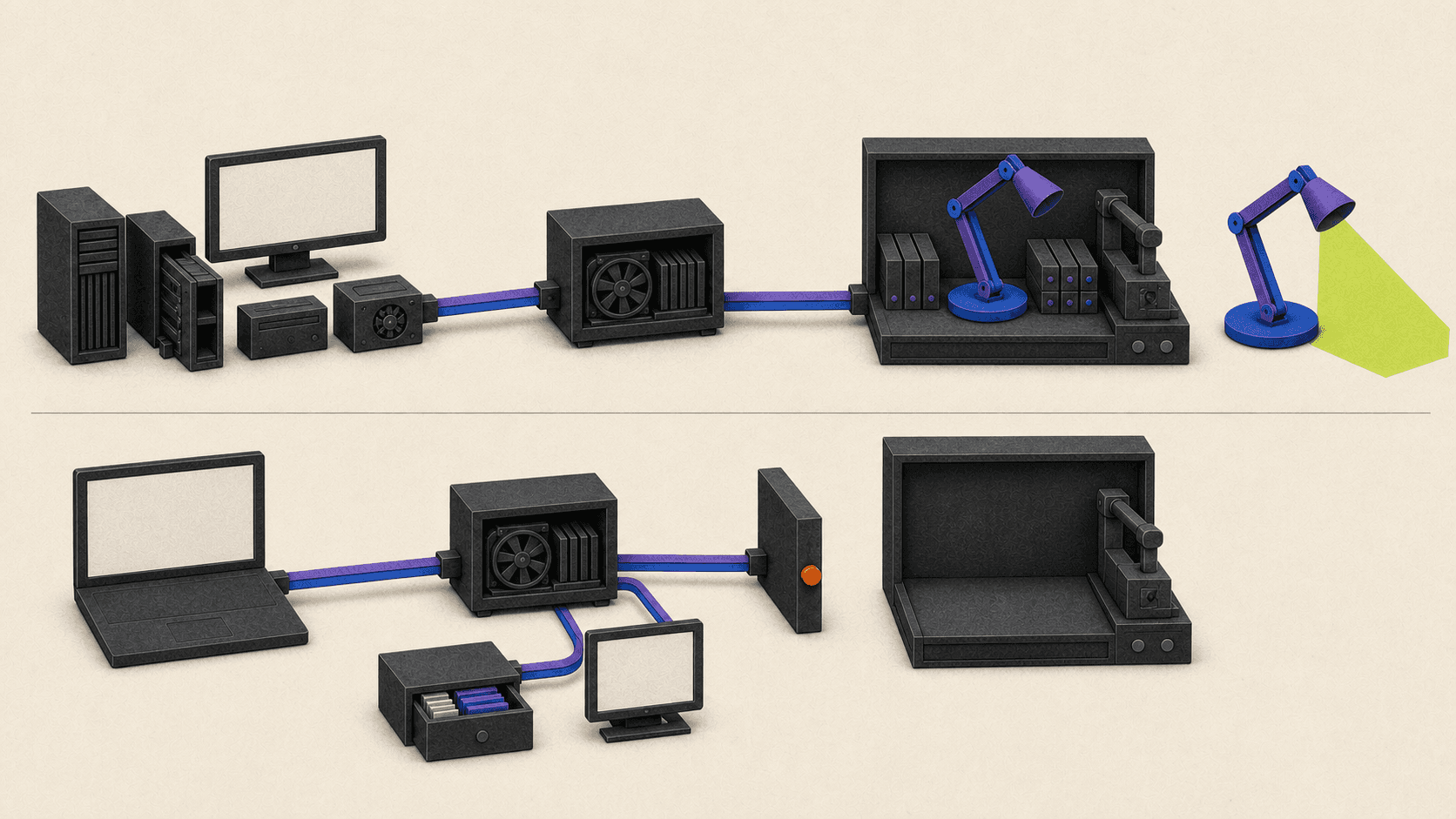
Protocol support is still not the same as GPU driver support. A Mac can have a fully functional Thunderbolt connection and remain unable to use the graphics card inside an enclosure.
The same distinction applies to an eGPU with SSD storage or extra ports. The SSD, Ethernet adapter, charging circuit, or USB hub may appear as an independent device even when the GPU is unavailable. Partial enclosure functionality is not eGPU acceleration.
DisplayLink is different again. Its macOS software obtains screen content and transmits it to a USB-connected display, which is why it requires screen-recording permissions during DisplayLink Manager setup. It can expand display connectivity, but it does not give Final Cut Pro, Blender, or another Metal application an external rendering GPU.
Which Local Upgrade Solves Your Actual Bottleneck?
Before replacing the Mac, identify what becomes slow.
Choppy video playback can come from a difficult codec, high-resolution media, an overloaded effects chain, slow storage, or insufficient memory. A long 3D render may be GPU-bound, while scene preparation, simulation, or geometry processing may depend more heavily on the CPU and memory. An application that frequently swaps data to disk may benefit more from additional unified memory than from extra GPU cores.
For video editing, start with workflow changes. Final Cut Pro can create optimized and proxy media, reducing the decoding work required during editing. Premiere Pro users can also create proxies and place the media cache on fast storage.
An external SSD can help when media, caches, scratch files, or project databases are waiting on storage. It cannot render effects, increase VRAM, or add GPU cores. If the internal drive is already keeping up, moving files to another SSD may change very little.
Queries such as “best graphics card for MacBook Pro” need a different answer on Apple Silicon: there is no supported graphics card upgrade to install later. The GPU and unified memory are selected with the Mac. Apple’s current MacBook Pro specifications also show why media engines, memory capacity, and memory bandwidth belong in the comparison alongside GPU configuration.
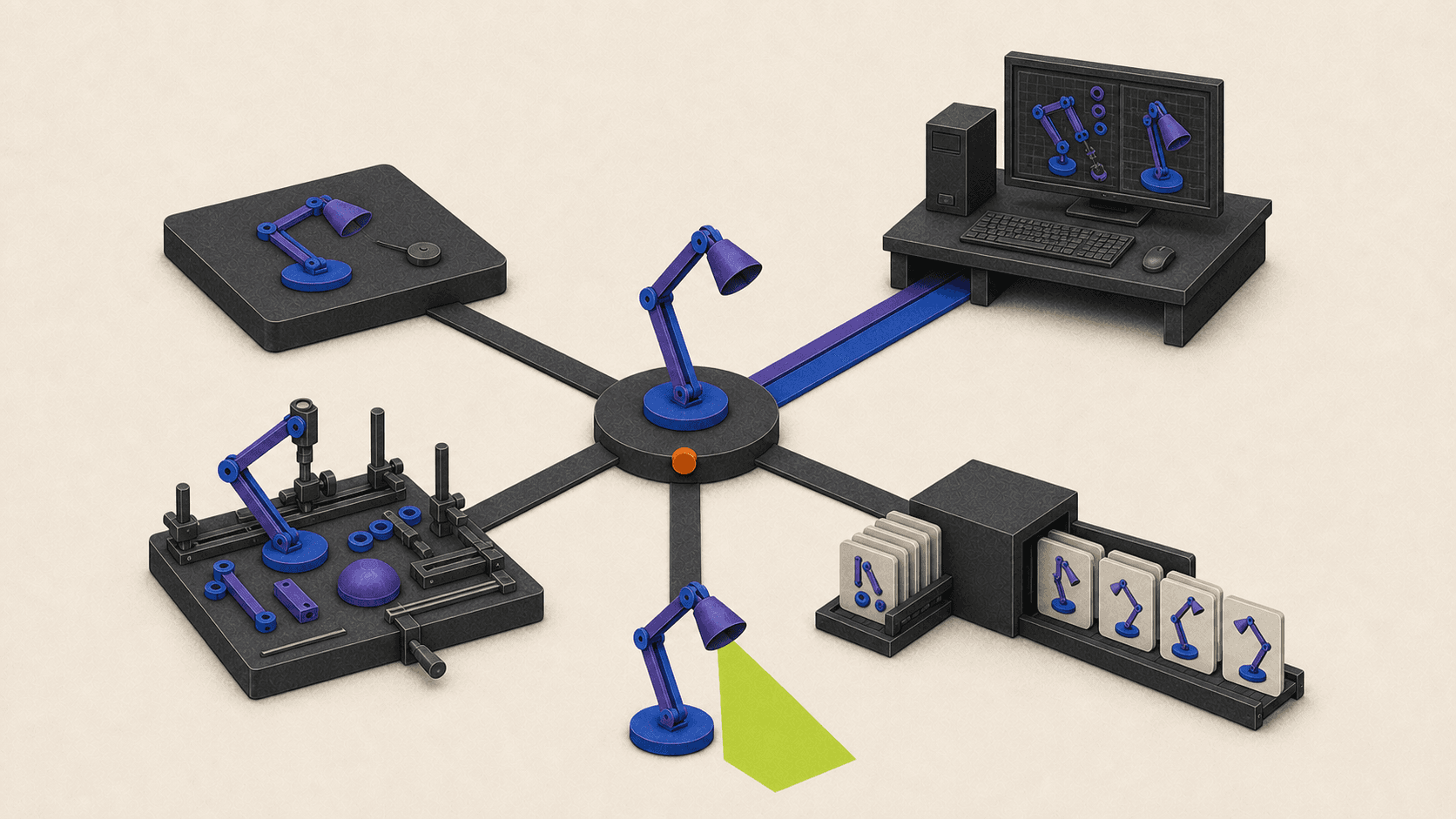
The same principle applies when choosing a GPU for Mac mini. If the workload must remain local and run in macOS, compare complete Mac configurations rather than desktop graphics cards.
A better-configured Mac is usually the cleanest answer when the workflow depends on:
Final Cut Pro or another macOS-only application
Consistently low input latency
Local capture, audio, or specialist peripherals
Offline access
Color-critical monitoring
Large datasets that would be awkward to upload repeatedly
It has the highest upfront cost, but it avoids remote-computing compromises and keeps the project in one environment.
Which Alternative Fits Your Workload?
Different applications create different upgrade paths. “Needs more GPU” is not specific enough on its own.
Final Cut Pro: Keep the work on a Mac. Start with proxies, optimized media, render settings, storage, and memory pressure. If those changes aren’t enough, a stronger Apple Silicon Mac is the direct upgrade.
Premiere Pro and After Effects: Adobe supports both Windows and macOS, so a separate or remote Windows workstation can be viable. Before moving a project, verify the application version, plug-ins, fonts, codecs, linked media, color settings, and activation rules against the current Premiere Pro requirements and After Effects requirements.
DaVinci Resolve: Local Metal performance may be sufficient, especially after using proxies or render cache. A Windows or Linux GPU workstation can suit heavier compatible projects, but Resolve edition, activation, codecs, effects, storage, control surfaces, and plug-ins still need checking through Blackmagic Design’s current support resources.
Blender and other 3D applications: Blender supports macOS, Windows, and Linux, but GPU backends differ by platform. Local Apple Silicon uses Metal, while many NVIDIA rendering workflows use CUDA or OptiX on Windows or Linux. A local PC or cloud workstation can help with interactive modeling and rendering. A render farm is more appropriate when the job can be packaged and submitted for final output.
Cinema 4D and Redshift require the same project-level checks. Confirm the current Redshift platform and GPU requirements, render engine, plug-ins, textures, fonts, and license activation before moving production.
AI and machine learning: Compatible PyTorch workloads can run locally through Apple’s Metal Performance Shaders backend. If a project specifically requires CUDA, use a supported NVIDIA environment on Windows or Linux rather than trying to add an NVIDIA card to macOS.
CAD and engineering: Start with the exact application. Revit is Windows-based, while AutoCAD has separate Mac and Windows versions with feature differences. Specialized toolsets, certified drivers, license terms, and peripheral requirements can make a local Windows workstation more suitable than either a Mac or a remote service.
Game development: Unity and Unreal Engine run on multiple desktop platforms, but editor support does not guarantee that every plug-in, SDK, compiler, or target platform transfers cleanly. Check the project’s binary extensions and build requirements before choosing hardware.
Gaming: Native Mac games, translation layers, subscription streaming services, and a full remote Windows PC are different options. Verify each game’s operating-system support, anti-cheat system, controller behavior, publisher rules, and expected network conditions.
When Should You Use a PC, Cloud GPU, or Render Farm?
A separate local Windows or Linux workstation gives you the most hardware control. It makes sense for sustained CUDA work, Windows-only engineering applications, local VR or capture devices, gaming, large datasets, and workloads that use the GPU for many hours each day.
The cost is more than the graphics card. Include the complete computer, power, cooling, maintenance, software, storage, backups, and the time required to manage two environments.
Remote access to a workstation you already own is another category. The machine remains your responsibility, but you can operate it from the Mac when you’re away. This can be economical when suitable hardware already exists in an office or studio.
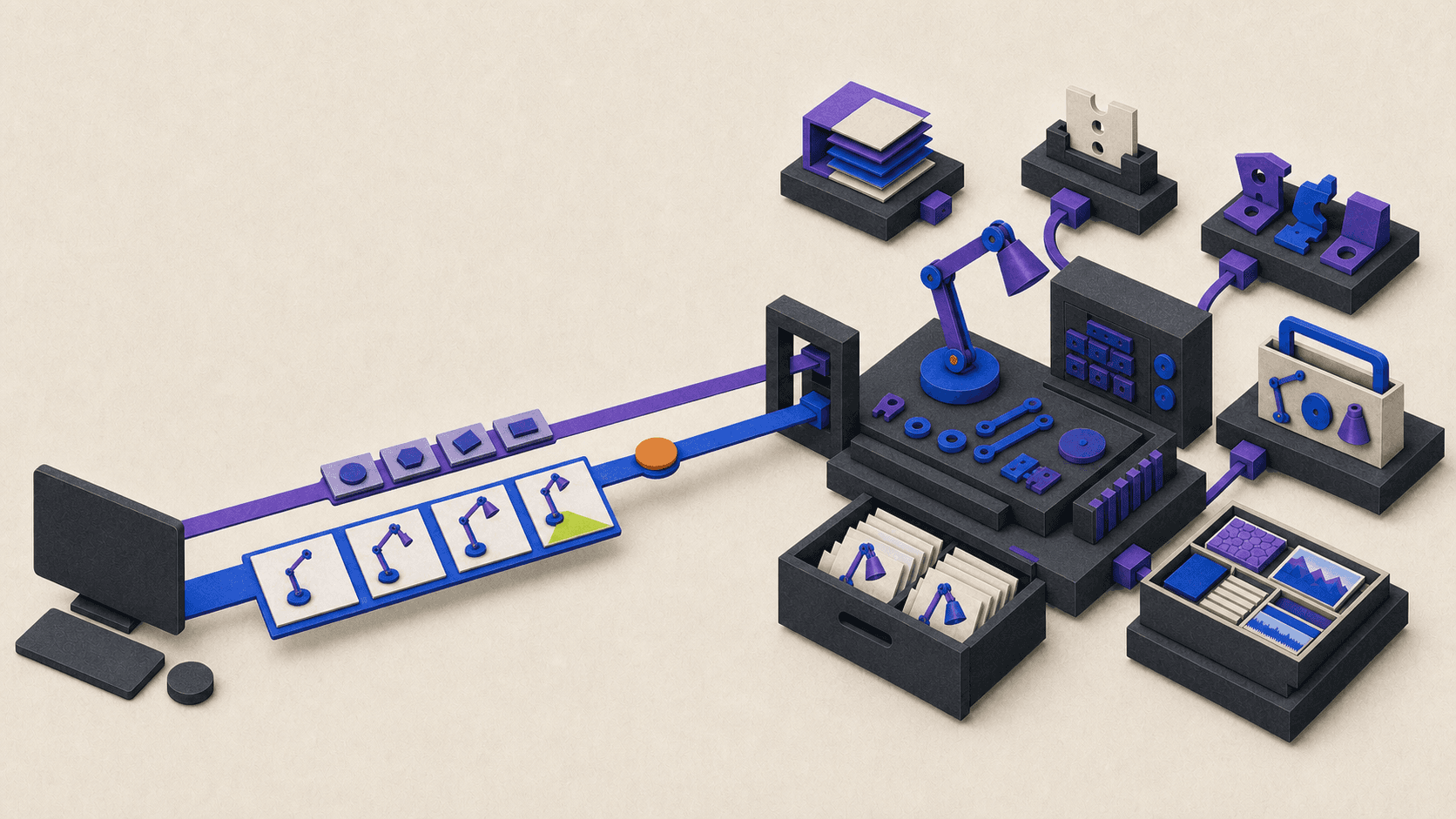
A cloud GPU workstation is a separate rented computer. The application executes on the remote Windows or Linux system, and a compressed visual stream is sent to the Mac. Your Mac acts as the display and input device, not as the machine performing the GPU work.
Vagon Cloud Computer fits this category. It can suit compatible cross-platform rendering, 3D, engineering, development, or AI work when demand is occasional or bursty and buying another workstation would be difficult to justify. Its usage and storage pricing should be checked when estimating a real project.
Before choosing any cloud workstation, account for:
Application and plug-in licensing
Project files, fonts, codecs, assets, and version compatibility
Initial uploads and ongoing synchronization
Persistent storage and data-transfer charges
Distance to the selected data center
Connection stability and interactive latency
Image compression during visual review
USB, capture, VR, audio, or other peripheral needs
Dependence on internet access
Vagon does not include every commercial application or its license, and it does not turn the Mac into a more powerful local machine. A stronger Mac is better for macOS-only, peripheral-heavy, offline, or color-critical work. A local PC is often better for sustained use and hardware control.
A render farm solves a different problem. It accepts packaged frames, scenes, or simulation jobs and returns completed output. That can provide substantial final-render capacity, but it does not make the local timeline, editor, or 3D viewport more responsive. Asset packaging, plug-ins, renderer versions, and licensing must also match the farm.
What Still Applies to Intel Mac eGPUs?
This section is only for Intel Macs. It does not apply to M-series models.
Apple’s Intel requirements include Thunderbolt 3 and macOS High Sierra 10.13.4 or later. An eGPU for Mac mini 2018 can therefore be valid because that model uses an Intel processor and has Thunderbolt 3 ports, as shown in Apple’s 2018 Mac mini specifications.
A High Sierra eGPU setup is now historical. High Sierra no longer belongs to Apple’s current security-update track, and many modern applications have also dropped it. Don’t install an obsolete operating system on a production machine solely to revive an old enclosure.
For an AMD eGPU Mac configuration, follow Apple’s exact enclosure, graphics-card, power-delivery, cable, display, and macOS requirements. Apple lists supported Radeon families and minimum operating-system versions in its maintained eGPU document. The fact that another AMD card physically fits the enclosure does not make it supported.
A Mac eGPU NVIDIA setup is not a current supported macOS path. Apple says third-party aftermarket GPU drivers are incompatible, its supported configurations use specific AMD cards, and current NVIDIA CUDA development tools target supported Windows and Linux environments rather than modern macOS workloads.
Application behavior also varies. Final Cut Pro eGPU support on compatible Intel Macs does not simply follow Finder’s “Prefer External GPU” checkbox. Apple explains that Final Cut Pro chooses GPUs directly, while other applications may respond differently.
A dual eGPU configuration should not be described as doubling performance or pooling VRAM. Multiple enclosures may be connectable to a compatible Intel Mac, but an application must explicitly use the available devices, and scaling depends on the workload.
Apple also documents display routing, direct Thunderbolt connections, Boot Camp restrictions, and startup-display caveats for particular systems. Anyone maintaining an Intel setup should read the full current support page instead of relying on an old enclosure review.
Frequently Asked Questions
Could Apple Add eGPU Support to Apple Silicon Later?
Apple has not announced it. Current macOS and Metal documentation still limit official eGPU use to compatible Intel Macs. Make purchase decisions from current support rather than predictions.
Can an eGPU Enclosure Still Work as a Dock?
Possibly. Charging, Ethernet, USB ports, display connections, or storage may function as separate devices. That does not mean macOS can use the installed graphics card.
Is DisplayLink a Form of GPU Acceleration?
No. DisplayLink helps transport display output through a software and USB path. It does not expose a general-purpose external GPU to Metal applications.
Will an External SSD Improve Graphics Performance?
It can improve playback, cache access, loading, and file transfers when storage is the bottleneck. It won’t increase rendering compute or unified-memory capacity.
Can a Cloud GPU Run Final Cut Pro?
A Windows or Linux cloud GPU cannot run Final Cut Pro. For Final Cut Pro, optimize the local workflow or choose a better-configured Mac.
The practical choice comes down to where the application can run and how often you need the extra performance. Keep macOS-only and latency-sensitive work on an appropriately configured Mac, use a local PC for sustained Windows, Linux, or CUDA workloads, choose a cloud GPU for compatible burst work, and use a render farm when only final output needs more compute.
Apple Silicon Macs do not officially support external GPUs in macOS. If you need more graphics performance, the practical alternatives are optimizing your current workflow, using faster storage, buying a better-configured Mac, adding a separate workstation, renting a cloud GPU computer, or offloading final renders.
If your search started with “mac egpu,” the crucial distinction is the processor. Apple supports eGPUs on certain Intel Macs, not on M1, M2, M3, M4, or M5 systems.
Here’s the short decision guide:
Option | Works With macOS-Only Apps? | Latency | Cost Pattern | Best Fit | Main Limitation |
|---|---|---|---|---|---|
eGPU on Apple Silicon | No acceleration | Not applicable | Enclosure plus GPU | None | Unsupported by macOS |
Optimize your current Mac | Yes | None | Free or time-based | Proxies, caches, settings | Cannot overcome hard hardware limits |
External SSD | Yes | None | One-time purchase | Media and cache bottlenecks | Adds storage speed, not GPU compute |
Better-configured Mac | Yes | None | Upfront purchase | Final Cut Pro and other Mac workflows | GPU and memory are fixed at purchase |
Separate Windows or Linux PC | No | Minimal locally | Hardware plus maintenance | Frequent CUDA, 3D, CAD, AI, or gaming | A second system to manage |
Owned remote workstation | No | Network-dependent | Hardware plus operating costs | Accessing an existing office PC | Maintenance and connectivity |
Cloud GPU workstation | No | Network-dependent | Usage, storage, and transfer | Bursty cross-platform GPU work | Licensing, files, latency, and compression |
Render farm | Only through submitted jobs | Not interactive | Per job or compute unit | Final rendering and simulation | Does not accelerate the local viewport |
Can You Use an eGPU With an Apple Silicon Mac?
No. Apple’s current eGPU requirements specify a Mac with an Intel processor, Thunderbolt 3, and macOS High Sierra 10.13.4 or later. A Thunderbolt-equipped Apple Silicon Mac does not meet that processor requirement.
Apple’s Metal documentation reinforces the distinction. An external GPU location is not applicable to Apple Silicon, while Apple’s multi-GPU guidance applies to Intel-based Macs.
This answer covers M1 through M5 Macs, including MacBook Air, MacBook Pro, Mac mini, iMac, and Mac Studio configurations. Thunderbolt 4, Thunderbolt 5, and USB4 do not change it.
The main eGPU limitations are at the operating-system and driver level. macOS does not expose the graphics card in an external enclosure as a supported Metal device on Apple Silicon. Buying a different enclosure, cable, AMD card, or NVIDIA card won’t provide the missing support.
Unofficial proof-of-concept work may exist in community projects or alternative operating systems. It should not be treated as a stable macOS workflow or as a reason to buy production hardware.
Why Intel Mac Advice Does Not Apply to Apple Silicon
Old eGPU guides often begin with the port: find a Thunderbolt 3 Mac, connect an enclosure, install a supported AMD card, and choose which applications should use it. That sequence belongs to a specific generation of Intel Macs.
Apple Silicon uses a system-on-a-chip design in which the CPU, GPU, media engines, and unified-memory controller are part of the purchased configuration. CPU and GPU resources share a unified memory architecture instead of treating the graphics card as a normal replaceable desktop component.
That architecture is useful context, but the official support answer comes from Apple’s software documentation. It is better to say Apple doesn’t support external GPUs on Apple Silicon than to speculate that the hardware design makes support theoretically impossible.
A USB-C eGPU listing can be especially misleading. USB-C describes the connector’s shape, while Thunderbolt, USB4, ordinary USB data, DisplayPort output, and charging are separate capabilities. Apple’s Thunderbolt cable guidance illustrates how two cables with the same connector can support very different data rates and features.
Protocol support is still not the same as GPU driver support. A Mac can have a fully functional Thunderbolt connection and remain unable to use the graphics card inside an enclosure.
The same distinction applies to an eGPU with SSD storage or extra ports. The SSD, Ethernet adapter, charging circuit, or USB hub may appear as an independent device even when the GPU is unavailable. Partial enclosure functionality is not eGPU acceleration.
DisplayLink is different again. Its macOS software obtains screen content and transmits it to a USB-connected display, which is why it requires screen-recording permissions during DisplayLink Manager setup. It can expand display connectivity, but it does not give Final Cut Pro, Blender, or another Metal application an external rendering GPU.
Which Local Upgrade Solves Your Actual Bottleneck?
Before replacing the Mac, identify what becomes slow.
Choppy video playback can come from a difficult codec, high-resolution media, an overloaded effects chain, slow storage, or insufficient memory. A long 3D render may be GPU-bound, while scene preparation, simulation, or geometry processing may depend more heavily on the CPU and memory. An application that frequently swaps data to disk may benefit more from additional unified memory than from extra GPU cores.
For video editing, start with workflow changes. Final Cut Pro can create optimized and proxy media, reducing the decoding work required during editing. Premiere Pro users can also create proxies and place the media cache on fast storage.
An external SSD can help when media, caches, scratch files, or project databases are waiting on storage. It cannot render effects, increase VRAM, or add GPU cores. If the internal drive is already keeping up, moving files to another SSD may change very little.
Queries such as “best graphics card for MacBook Pro” need a different answer on Apple Silicon: there is no supported graphics card upgrade to install later. The GPU and unified memory are selected with the Mac. Apple’s current MacBook Pro specifications also show why media engines, memory capacity, and memory bandwidth belong in the comparison alongside GPU configuration.
The same principle applies when choosing a GPU for Mac mini. If the workload must remain local and run in macOS, compare complete Mac configurations rather than desktop graphics cards.
A better-configured Mac is usually the cleanest answer when the workflow depends on:
Final Cut Pro or another macOS-only application
Consistently low input latency
Local capture, audio, or specialist peripherals
Offline access
Color-critical monitoring
Large datasets that would be awkward to upload repeatedly
It has the highest upfront cost, but it avoids remote-computing compromises and keeps the project in one environment.
Which Alternative Fits Your Workload?
Different applications create different upgrade paths. “Needs more GPU” is not specific enough on its own.
Final Cut Pro: Keep the work on a Mac. Start with proxies, optimized media, render settings, storage, and memory pressure. If those changes aren’t enough, a stronger Apple Silicon Mac is the direct upgrade.
Premiere Pro and After Effects: Adobe supports both Windows and macOS, so a separate or remote Windows workstation can be viable. Before moving a project, verify the application version, plug-ins, fonts, codecs, linked media, color settings, and activation rules against the current Premiere Pro requirements and After Effects requirements.
DaVinci Resolve: Local Metal performance may be sufficient, especially after using proxies or render cache. A Windows or Linux GPU workstation can suit heavier compatible projects, but Resolve edition, activation, codecs, effects, storage, control surfaces, and plug-ins still need checking through Blackmagic Design’s current support resources.
Blender and other 3D applications: Blender supports macOS, Windows, and Linux, but GPU backends differ by platform. Local Apple Silicon uses Metal, while many NVIDIA rendering workflows use CUDA or OptiX on Windows or Linux. A local PC or cloud workstation can help with interactive modeling and rendering. A render farm is more appropriate when the job can be packaged and submitted for final output.
Cinema 4D and Redshift require the same project-level checks. Confirm the current Redshift platform and GPU requirements, render engine, plug-ins, textures, fonts, and license activation before moving production.
AI and machine learning: Compatible PyTorch workloads can run locally through Apple’s Metal Performance Shaders backend. If a project specifically requires CUDA, use a supported NVIDIA environment on Windows or Linux rather than trying to add an NVIDIA card to macOS.
CAD and engineering: Start with the exact application. Revit is Windows-based, while AutoCAD has separate Mac and Windows versions with feature differences. Specialized toolsets, certified drivers, license terms, and peripheral requirements can make a local Windows workstation more suitable than either a Mac or a remote service.
Game development: Unity and Unreal Engine run on multiple desktop platforms, but editor support does not guarantee that every plug-in, SDK, compiler, or target platform transfers cleanly. Check the project’s binary extensions and build requirements before choosing hardware.
Gaming: Native Mac games, translation layers, subscription streaming services, and a full remote Windows PC are different options. Verify each game’s operating-system support, anti-cheat system, controller behavior, publisher rules, and expected network conditions.
When Should You Use a PC, Cloud GPU, or Render Farm?
A separate local Windows or Linux workstation gives you the most hardware control. It makes sense for sustained CUDA work, Windows-only engineering applications, local VR or capture devices, gaming, large datasets, and workloads that use the GPU for many hours each day.
The cost is more than the graphics card. Include the complete computer, power, cooling, maintenance, software, storage, backups, and the time required to manage two environments.
Remote access to a workstation you already own is another category. The machine remains your responsibility, but you can operate it from the Mac when you’re away. This can be economical when suitable hardware already exists in an office or studio.
A cloud GPU workstation is a separate rented computer. The application executes on the remote Windows or Linux system, and a compressed visual stream is sent to the Mac. Your Mac acts as the display and input device, not as the machine performing the GPU work.
Vagon Cloud Computer fits this category. It can suit compatible cross-platform rendering, 3D, engineering, development, or AI work when demand is occasional or bursty and buying another workstation would be difficult to justify. Its usage and storage pricing should be checked when estimating a real project.
Before choosing any cloud workstation, account for:
Application and plug-in licensing
Project files, fonts, codecs, assets, and version compatibility
Initial uploads and ongoing synchronization
Persistent storage and data-transfer charges
Distance to the selected data center
Connection stability and interactive latency
Image compression during visual review
USB, capture, VR, audio, or other peripheral needs
Dependence on internet access
Vagon does not include every commercial application or its license, and it does not turn the Mac into a more powerful local machine. A stronger Mac is better for macOS-only, peripheral-heavy, offline, or color-critical work. A local PC is often better for sustained use and hardware control.
A render farm solves a different problem. It accepts packaged frames, scenes, or simulation jobs and returns completed output. That can provide substantial final-render capacity, but it does not make the local timeline, editor, or 3D viewport more responsive. Asset packaging, plug-ins, renderer versions, and licensing must also match the farm.
What Still Applies to Intel Mac eGPUs?
This section is only for Intel Macs. It does not apply to M-series models.
Apple’s Intel requirements include Thunderbolt 3 and macOS High Sierra 10.13.4 or later. An eGPU for Mac mini 2018 can therefore be valid because that model uses an Intel processor and has Thunderbolt 3 ports, as shown in Apple’s 2018 Mac mini specifications.
A High Sierra eGPU setup is now historical. High Sierra no longer belongs to Apple’s current security-update track, and many modern applications have also dropped it. Don’t install an obsolete operating system on a production machine solely to revive an old enclosure.
For an AMD eGPU Mac configuration, follow Apple’s exact enclosure, graphics-card, power-delivery, cable, display, and macOS requirements. Apple lists supported Radeon families and minimum operating-system versions in its maintained eGPU document. The fact that another AMD card physically fits the enclosure does not make it supported.
A Mac eGPU NVIDIA setup is not a current supported macOS path. Apple says third-party aftermarket GPU drivers are incompatible, its supported configurations use specific AMD cards, and current NVIDIA CUDA development tools target supported Windows and Linux environments rather than modern macOS workloads.
Application behavior also varies. Final Cut Pro eGPU support on compatible Intel Macs does not simply follow Finder’s “Prefer External GPU” checkbox. Apple explains that Final Cut Pro chooses GPUs directly, while other applications may respond differently.
A dual eGPU configuration should not be described as doubling performance or pooling VRAM. Multiple enclosures may be connectable to a compatible Intel Mac, but an application must explicitly use the available devices, and scaling depends on the workload.
Apple also documents display routing, direct Thunderbolt connections, Boot Camp restrictions, and startup-display caveats for particular systems. Anyone maintaining an Intel setup should read the full current support page instead of relying on an old enclosure review.
Frequently Asked Questions
Could Apple Add eGPU Support to Apple Silicon Later?
Apple has not announced it. Current macOS and Metal documentation still limit official eGPU use to compatible Intel Macs. Make purchase decisions from current support rather than predictions.
Can an eGPU Enclosure Still Work as a Dock?
Possibly. Charging, Ethernet, USB ports, display connections, or storage may function as separate devices. That does not mean macOS can use the installed graphics card.
Is DisplayLink a Form of GPU Acceleration?
No. DisplayLink helps transport display output through a software and USB path. It does not expose a general-purpose external GPU to Metal applications.
Will an External SSD Improve Graphics Performance?
It can improve playback, cache access, loading, and file transfers when storage is the bottleneck. It won’t increase rendering compute or unified-memory capacity.
Can a Cloud GPU Run Final Cut Pro?
A Windows or Linux cloud GPU cannot run Final Cut Pro. For Final Cut Pro, optimize the local workflow or choose a better-configured Mac.
The practical choice comes down to where the application can run and how often you need the extra performance. Keep macOS-only and latency-sensitive work on an appropriately configured Mac, use a local PC for sustained Windows, Linux, or CUDA workloads, choose a cloud GPU for compatible burst work, and use a render farm when only final output needs more compute.
Get Beyond Your Computer Performance
Run applications on your cloud computer with the latest generation hardware. No more crashes or lags.

Trial includes 1 hour usage + 7 days of storage.
Summarize with AI

Ready to focus on your creativity?
Vagon gives you the ability to create & render projects, collaborate, and stream applications with the power of the best hardware.

Run heavy applications on any device with
your personal computer on the cloud.
San Francisco, California
Solutions
Vagon Teams
Vagon Streams
Use Cases
© 2026 Vagon. All rights reserved.
Run heavy applications on any device with
your personal computer on the cloud.
San Francisco, California
Solutions
Vagon Teams
Vagon Streams
Use Cases
© 2026 Vagon. All rights reserved.
Run heavy applications on any device with
your personal computer on the cloud.
San Francisco, California
Solutions
Vagon Teams
Vagon Streams
Use Cases
© 2026 Vagon. All rights reserved.