Instant Connection for Pixel Streaming
— New Feature Automated Setup

FL Studio Keyboard Shortcuts: Complete Cheat Sheet
Freelance
FL Studio Keyboard Shortcuts: Complete Cheat Sheet
Freelance
FL Studio Keyboard Shortcuts: Complete Cheat Sheet
Freelance
Table of Contents
The first FL Studio keyboard shortcuts worth learning are Spacebar for play and stop, R for record mode, L for Pattern or Song mode, Ctrl/Command+S to save, and F5 through F9 for the main workspaces. Those commands cover the moves you make constantly, and this guide gives both Windows and macOS mappings for everything that follows.
One rule matters more than any individual key: shortcuts in FL Studio are contextual. Ctrl+B can duplicate clips in the Playlist, while the same combination controls Blend recording from the transport. The active window, current selection, typing-keyboard mode, and plug-in focus all affect the result.
This is a complete practical reference for transport, navigation, Playlist, Channel Rack, Mixer, Piano Roll, recording, keyboard input, and troubleshooting. It is not an alphabetical list of every command inside every plug-in.
Which FL Studio keyboard shortcuts should you learn first?
Start with this compact FL Studio cheat sheet. It gives you a reliable route between playback, saving, the main windows, and note input before you add more specialized commands.
Action | Windows | macOS | Context or notes |
|---|---|---|---|
Save project |
|
| File command that works across the main application |
Undo or redo the last edit |
|
| Toggles the most recent edit |
Undo step by step |
|
| Walks backward through edit history |
Play or stop |
|
| Main transport |
Start or pause |
|
| macOS Spotlight may capture |
Arm or disarm recording |
|
| Typing keyboard to Piano keyboard must be off |
Switch Pattern or Song mode |
|
| Typing keyboard to Piano keyboard must be off |
Toggle metronome |
|
| Main transport |
Show or hide Playlist |
|
| MacBook function-key behavior depends on system settings |
Show or hide Channel Rack |
|
| Opens the Channel Rack and Step Sequencer |
Show or hide Piano Roll |
|
| Uses the selected channel |
Open Plugin Picker |
|
| Not the Browser shortcut |
Show or hide Mixer |
|
| Opens the Mixer workspace |
Show or hide Browser |
|
| Opens projects, samples, plug-ins, and presets |
Toggle Typing keyboard to Piano keyboard |
|
| When on, letter keys become musical input |
These assignments come from Image-Line’s current FL Studio shortcuts and the current transport and toolbar documentation.
There are a few useful companions. Esc closes a window, Tab cycles nested windows, and F12 closes all FL Studio windows. If your workspace has turned into a pile of overlapping panels, Ctrl+Shift+H on Windows or Command+Shift+H on macOS rearranges them.
Opening a window is only the first step. F9 gets you to the Mixer, for example, but it does not select an input, route a channel, or adjust an effect. Think of the function keys as room-to-room navigation, then use the focused-window commands for the work inside each room.
Mac users should also notice that Ctrl and Alt do not translate blindly in every command. The common equivalents are Command and Option, but there are exceptions. On compact Apple keyboards, Windows Delete usually maps to Fn+Delete, while Windows Insert maps to Fn+Return. The tables below show the actual documented Mac command rather than assuming a substitution.
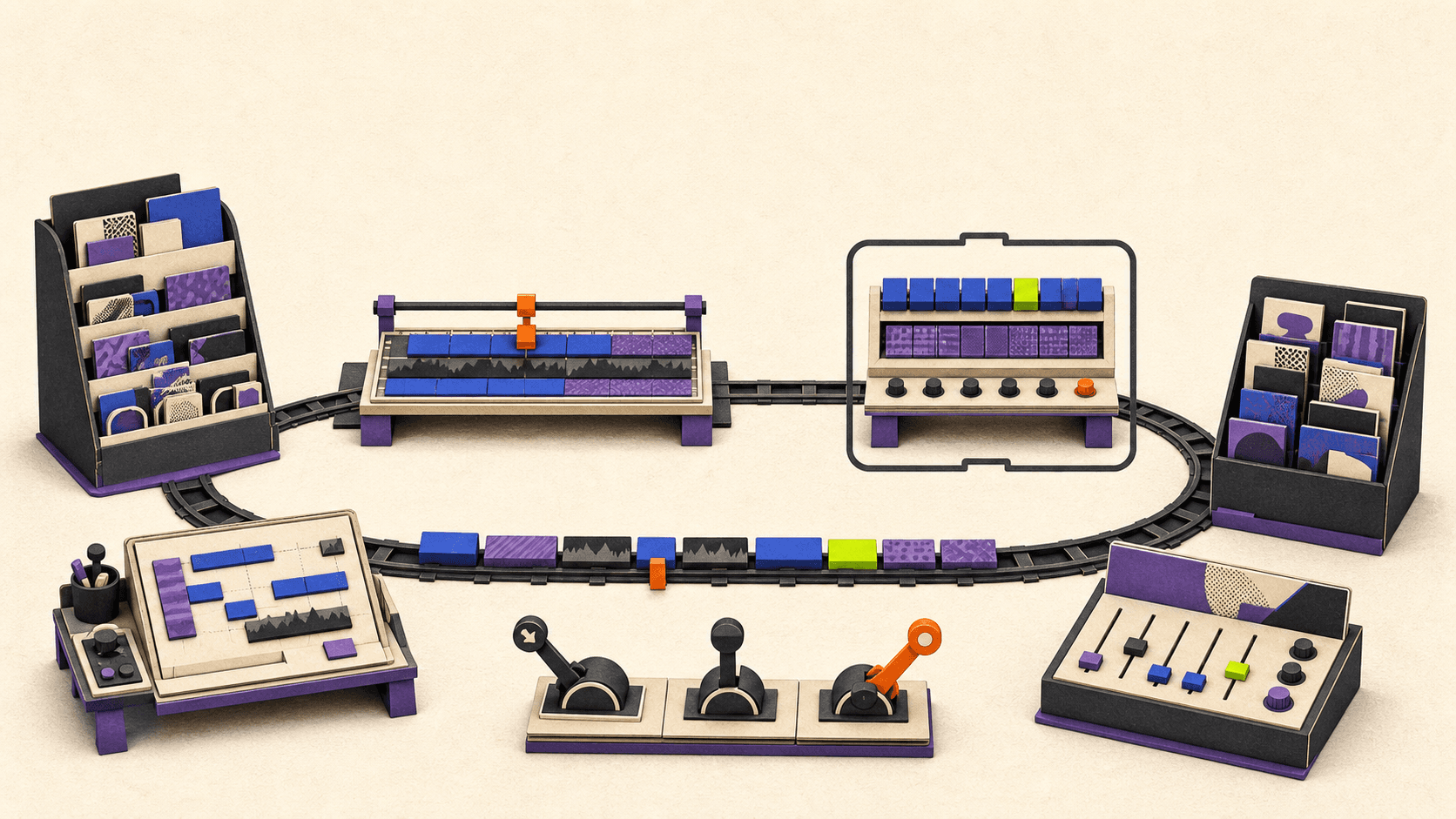
How do you control transport and move between FL Studio’s main windows?
The transport is global enough to feel simple, but it still has modes that change what you hear. L switches between Pattern and Song mode. Pattern mode plays the current pattern; Song mode plays the arrangement in the Playlist. If FL Studio seems to ignore the arrangement and loop one pattern, check this before troubleshooting anything else.
Transport or navigation action | Windows | macOS | Context or notes |
|---|---|---|---|
Play or stop |
|
| Press again to stop and return according to the selected stop behavior |
Start or pause |
|
| Spotlight conflict is common on macOS |
Pattern or Song mode |
|
| Single-key command; typing-piano mode must be off |
Record mode |
|
| Arms the main Record state only |
Wait for input |
|
| Playback or recording waits for accepted input |
Metronome |
|
| Adds a click on each beat |
Recording count-in |
|
| Runs the metronome before recording |
Stop sound or panic |
|
| Useful for stuck notes; not the ordinary stop command |
Close focused window |
|
| Window navigation |
Cycle nested windows |
|
| Moves through windows in the current workspace |
Close all FL Studio windows |
|
| Does not quit FL Studio |
Rearrange windows |
|
| Restores a manageable layout |
Spacebar is the practical FL Studio stop shortcut because it starts and stops the main transport. Ctrl/Command+Spacebar pauses instead, but Image-Line specifically warns that Command+Spacebar can conflict with macOS Spotlight. If you want pause behavior on a Mac, change or disable that Spotlight shortcut in System Settings. Otherwise, use Spacebar and the normal stop behavior.
On a MacBook, pressing F5 may change brightness or trigger another system feature instead of opening the Playlist. Hold Fn or the Globe key while pressing the function key, or enable “Use F1, F2, etc. keys as standard function keys.” Both Image-Line’s macOS shortcut guidance and Apple’s function-key instructions document this behavior.
The Browser and Plugin Picker also deserve separate mental slots. Alt/Option+F8 shows the Browser, where you work with samples, projects, presets, and the plug-in database. F8 opens the visual Plugin Picker. They are related, but they do not open the same interface.
How do you arrange faster in Playlist, Channel Rack, and Mixer?
Arrangement shortcuts become much easier to remember when you group them by window. The duplicate shortcut in FL Studio is a good example: Ctrl/Command+B duplicates the current selection to the right in Playlist or Piano Roll, but it is not a universal duplicate command in every part of the application.
Playlist editing
Playlist action | Windows | macOS | Context or notes |
|---|---|---|---|
Select all clips |
|
| Playlist must be focused |
Deselect |
|
| Clears the Playlist selection |
Duplicate selection to the right |
|
| Selection recommended; context determines the command |
Copy, cut, paste |
|
| Applies to Playlist selection |
Delete selected clips |
|
| Removes project items, not an arbitrary source file from storage |
Mute selection |
|
| Playlist clips |
Unmute selection |
|
| Playlist clips |
Move selection |
|
| Horizontal movement follows Snap; vertical movement changes track |
Quick-quantize clip starts |
|
| Playlist clips, not Piano Roll note quantize |
Zoom in or out |
|
| Compact Mac keyboards often use |
The Playlist editing documentation is clear about the role of selection. Some commands can act on much more data when nothing is selected. Make a deliberate selection before duplicate or delete operations, especially in a crowded arrangement.
Snap is also part of the result. Shift+Left/Right Arrow moves a selected clip by a snap unit, so changing the Snap setting changes how far it travels. Hold Alt during supported mouse edits when you need to bypass snapping temporarily.
Channel Rack and Mixer
Action | Windows | macOS | Context or notes |
|---|---|---|---|
Select channel above or below |
|
| Channel Rack focused |
Clone selected channel(s) |
|
| Channel Rack; not the Playlist clone gesture |
Delete selected channel(s) |
|
| Can affect every arrangement that uses the channel |
Copy, cut, paste steps or score |
|
| Channel Rack context |
Route selected channel(s) to free Mixer track(s) |
|
| Same keys mean Quick Legato in Piano Roll |
Focus Playlist |
|
| Channel Rack context |
Solo current Mixer track |
|
| Mixer focused; typing-piano mode off |
Rename selected Mixer track |
|
| MacBook function-key caveat applies |
Select all Mixer tracks |
|
| Mixer focused |
Link selected channels to selected Mixer track |
|
| Mixer focused |
Move selected Mixer track(s) |
|
| Mixer focused |
Ctrl/Command+L is the context collision to remember. In Channel Rack and Mixer workflows it routes or links channels. In Piano Roll it performs Quick Legato. If it does the wrong thing, the key is usually fine; your focus is somewhere else.
The same separation applies to sound controls. A note’s velocity and pan belong to Piano Roll note data. Mixer track volume and pan belong to the Mixer signal path. There is no current documented native “EQ tied to keyboard” command that turns typing keys into a general Mixer EQ controller. For Mixer parameters, use the interface, automation, or MIDI controller linking.
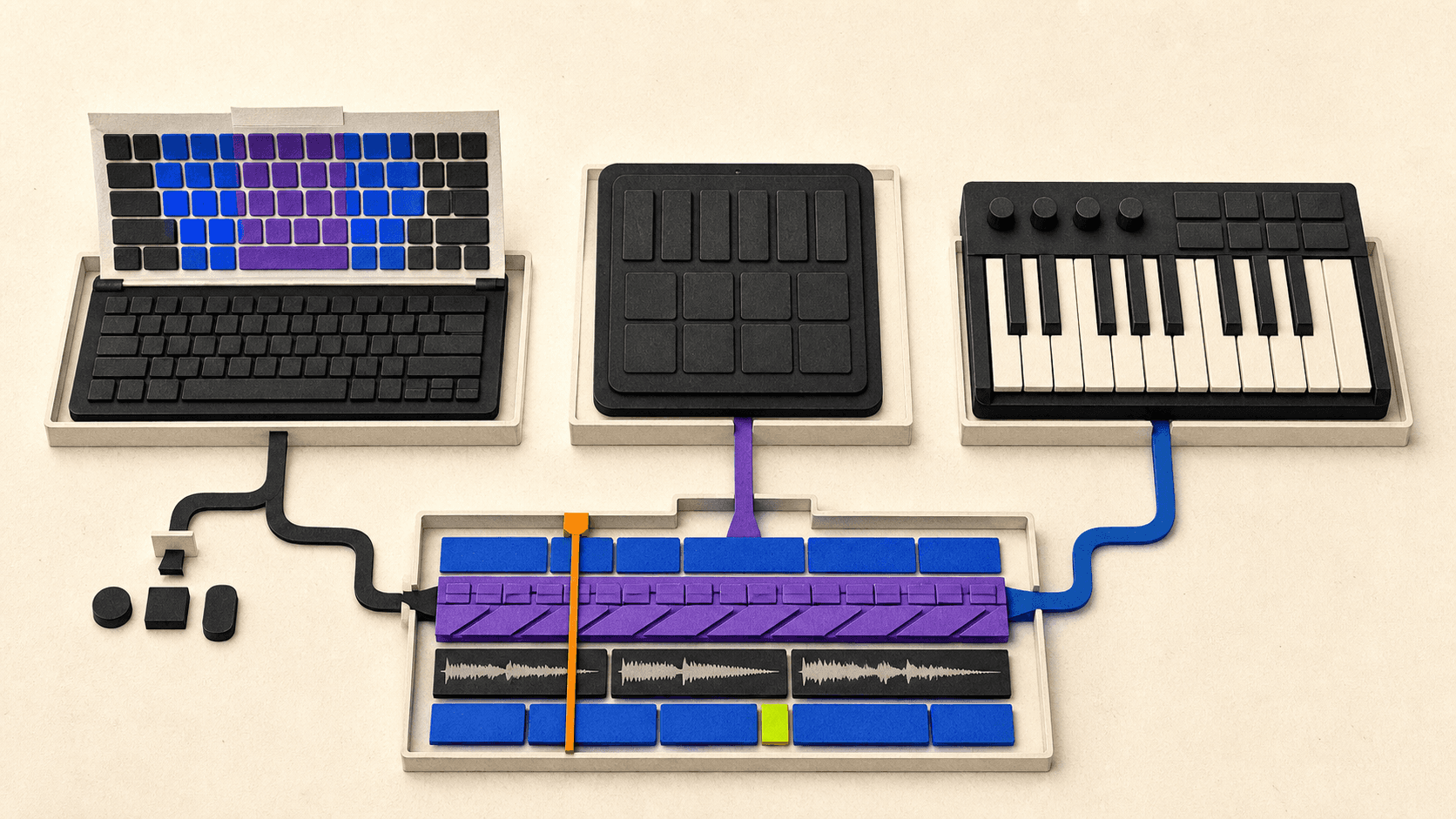
Which FL Studio Piano Roll shortcuts handle notes, legato, velocity, and length?
These FL Studio Piano Roll shortcuts cover the work producers ask about most: duplicate, transpose, legato, quantize, note length, velocity, pan, and controlled randomization.
Piano Roll action | Windows | macOS | Context or notes |
|---|---|---|---|
Duplicate selection to the right |
|
| Piano Roll focused |
Quick Legato |
|
| Applies to the selection, or the score if nothing is selected |
Open Articulate |
|
| Provides staccato, portato, legato, and related controls |
Quick Quantize |
|
| A real Mac exception; follows Global Snap |
Open Quantizer |
|
| Advanced quantize settings |
Transpose one semitone |
|
| Piano Roll note selection |
Transpose one octave |
|
| Direct up-an-octave shortcut in FL Studio |
Move by snap unit |
|
| Current Snap setting determines movement |
Nudge freely |
|
| Pixel and zoom based |
Reduce notes to minimum Snap length |
|
| “Discard lengths,” not a small relative shortening |
Extend note while drawing | Draw tool + | Draw tool + | Gesture depends on active tool |
Add and size a note |
|
| Mouse-and-key gesture |
Change active note property |
|
| Hover a note; the selected property determines the result |
Fine-tune active note property |
|
| The manual retains |
Cycle note-property target |
|
| Cycles velocity, pan, release, and other targets |
Open note properties | Double-click note | Double-click note | Opens the full note-property editor |
Open Randomizer |
|
| Configure Levels before accepting changes |
Quick Chop |
|
| Slices notes according to Snap |
Delete selected notes |
|
| Piano Roll focused |
The current Piano Roll editing commands define Quick Legato as a preset of the Articulate tool. That is the legato shortcut in FL Studio: Ctrl+L on Windows or Command+L on macOS. Articulate, opened with Alt/Option+L, is the broader tool when you want detailed staccato, portato, or legato behavior.
Legato is not quantize. Quick Quantize aligns notes according to the Global Snap setting, while the full Quantizer opens a settings dialog. It is also not stretch or chop. Quick Chop divides long notes into shorter pieces, while Shift+D discards their existing lengths and reduces them to the minimum allowed by Snap.
Velocity needs its own careful answer. There is no verified universal keyboard-only FL Studio velocity shortcut that simply raises or lowers every target in every context. In Piano Roll, choose Velocity as the active note property, then use the event lane or hover a note and roll Alt+Mouse wheel on Windows or Option+Mouse wheel on macOS. Shift+F cycles the active property. The Piano Roll note-property documentation includes velocity, pan, release where supported, Mod X/Y, and pitch.
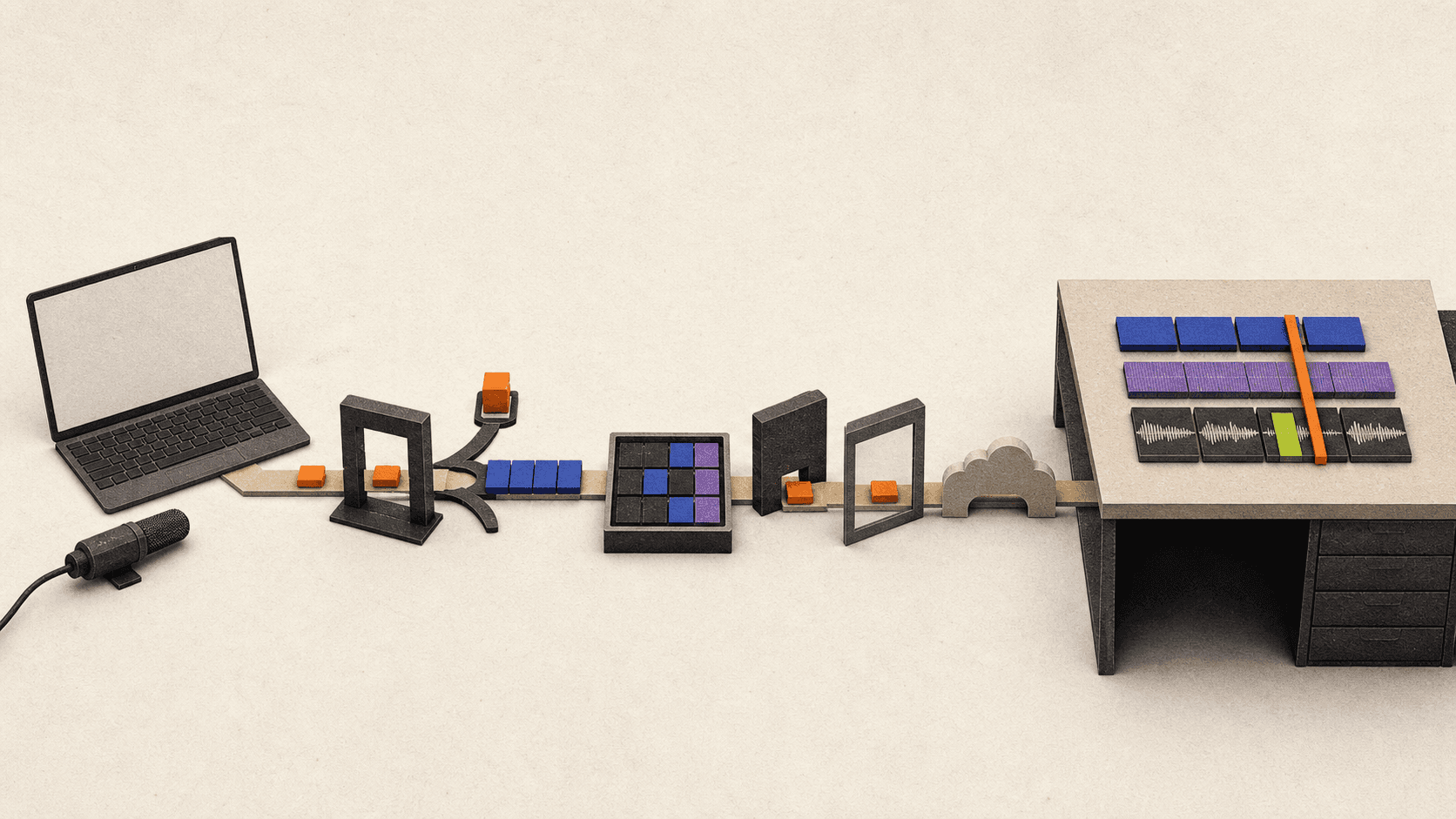
That also explains the pan shortcut question. Alt/Option+Mouse wheel changes whichever note property is active. If Pan is active, it changes note pan. If Velocity is active, it changes velocity. It does not change the Mixer track’s pan control.
For random velocity, Alt/Option+R opens the Piano Roll Randomizer. Its Levels section can randomize velocity, pan, and other note levels. Review those controls before accepting. The shortcut opens a configurable tool; it does not mean “randomize velocity only.”
Selection matters throughout Piano Roll. Many commands affect the selected notes, but can apply to the entire score when nothing is selected. Select first when you intend to edit only a phrase.
What is the shortcut to record, stop, and safely delete takes?
The shortcut to record on FL Studio is R, but R only turns the main Record state on or off. It does not choose an audio input, arm the correct track, enable the Audio recording filter, or solve monitoring latency.
Recording action | Windows | macOS | Context or notes |
|---|---|---|---|
Arm or disarm master Record |
|
| Transport; typing-piano mode must be off |
Start or stop after arming |
|
| Starts playback and recording, then stops |
Wait for input |
|
| Starts when the accepted input arrives |
Toggle metronome |
|
| Recording aid |
Toggle count-in |
|
| Metronome plays before recording |
Toggle Blend recording |
|
| Transport state; same keys duplicate in an editor |
Stop sound or panic |
|
| Stops stuck sound |
Remove selected Playlist clip |
|
| Project edit; disk-file lifecycle is separate |
For external audio, use this order:
Select the correct audio device. Image-Line recommends the interface manufacturer’s ASIO driver on Windows when one is available; macOS uses its Core Audio path.
Right-click Record and confirm that Audio is enabled in the recording filter.
Choose the correct input on the Mixer track or linked Playlist Audio Track.
Arm the track that should receive the recording.
Choose the recording pickup and monitoring behavior. Record dry unless you have a specific reason to print effects.
Arm the main Record button with
R, then pressSpacebaror Play to begin.
Image-Line’s audio-recording setup also explains direct monitoring, buffer latency, input alignment, and macOS microphone permission. Those settings are not optional details if you are tracking a vocalist or instrument. A shortcut cannot repair an incorrect input or an echo caused by monitoring through a delayed signal path.
Delete safely: a clip is not always the source file
Deleting a selected Playlist clip removes that item from the project arrangement. It should not be described as a universal command that immediately erases any imported source file from storage.
FL Studio recordings have a specific lifecycle. The program saves recorded audio in the location you chose, the project’s data folder, or FL Studio’s Recorded data folder. Image-Line says that when an FL Studio recording is deleted, the disk file remains available while undo and redo can restore it. Once it is no longer redoable because history changed, or when FL Studio quits, that deleted recording is moved to the operating system’s Recycle Bin or Trash.
Before permanently emptying Trash, confirm that the project no longer needs the recording and that you have the backup you expect. Treat permanent storage cleanup as file management, not as a normal edit shortcut.
How do the typing keyboard, on-screen keyboard, and MIDI controllers differ?
FL Studio has several features that people casually call “the keyboard,” but they do different jobs.
Input type or action | Windows | macOS | What it does |
|---|---|---|---|
Toggle Typing keyboard to Piano keyboard |
|
| Turns computer letter keys into note input |
Change typing-keyboard octave range | Right-click its toolbar icon | Right-click its toolbar icon | Changes the musical range, not the physical keyboard |
Open Touch Controller |
|
| Opens a virtual keyboard or pads for touch or mouse |
Open MIDI Settings |
|
| Configures an external MIDI keyboard or controller |
Your computer keyboard normally sends shortcuts and text. Turn on Typing keyboard to Piano keyboard with Ctrl+T or Command+T, and FL Studio maps letter keys to notes for the selected channel. The toolbar’s right-click options let you change the octave range, while the current controls include root-note, octave, layout, and scale choices. These settings give you access to another musical range, but they do not create more physical keys.
The important trade-off is that single-key shortcuts stop behaving normally while typing-piano mode is active. R, L, S, B, and other letter commands may play notes instead of controlling the transport or focused editor. This is not a bug. Toggle the mode off when you want single-key FL Studio hotkeys back.
The FL Studio on-screen keyboard is more accurately the Touch Controller. Open it with Alt+F7 on Windows or Option+F7 on macOS. The Touch Controller documentation shows keyboard and pad layouts, note labels, velocity behavior based on vertical touch position, root-note control, and Single or Double keyboard layouts. You can play it with touch or a mouse and record the result to Piano Roll.
An external MIDI keyboard is separate hardware. Enable it in MIDI Settings, then use it to send notes, velocity, pitch, modulation, or other control data. Knobs and faders can be linked to FL Studio controls where supported. It does not use the computer shortcut table, and changing a shortcut does not change the MIDI notes it sends.
If a small keyboard feels too limited, you have three honest options: change the typing-keyboard octave or root, use the Touch Controller’s Double keyboard, or connect a larger MIDI controller. A controller purchase depends on key count and feel, pads, knobs, transport integration, desk space, connectivity, and budget. That belongs in a dedicated hardware guide rather than this shortcut reference.
Can you customize shortcuts, and why do FL Studio shortcuts stop working?
FL Studio does not currently document an unrestricted native editor that can freely reassign every command. General Settings includes Manage shortcuts, but the documented customization options cover a limited group of Browser and picker actions, MIDI import-window behavior, and audio-clip double-click behavior.
MIDI linking, controller scripts, Piano Roll scripts, automation, OS-level remapping, and third-party macro tools are different systems. They may support a custom workflow, but they should not be presented as native arbitrary keyboard remapping.
When FL Studio shortcuts are not working, use this order:
Check the active window and selection. Click the Playlist, Channel Rack, Mixer, or Piano Roll you intend to control. Confirm that the required note, clip, channel, or track is selected. Press
F1with the window focused to open contextual help.Turn off Typing keyboard to Piano keyboard. Use
Ctrl+Ton Windows orCommand+Ton macOS. This is the first check when a single letter plays a note instead of running a command.Move focus away from the plug-in. A plug-in can receive the key before FL Studio. Click back into the intended FL Studio window, or inspect Typing Keyboard Priority and Keep Focus in the Wrapper.
Check special plug-in cases. Image-Line’s plug-in keyboard-focus guidance calls out bridged plug-ins, plug-ins inside Patcher, plug-ins that do not forward key events, and some detached windows.
Check Mac function keys and system conflicts. Hold
Fnor Globe forF5throughF12, enable standard function keys if preferred, and resolve the Spotlight conflict withCommand+Spacebar. UseFn+Deletewhere a Windows guide saysDelete.Check the keyboard layout. Punctuation, numpad keys, and non-Latin layouts may not match a screenshot or old cheat sheet. Look at the command in the current FL Studio menu for your installed version.
Check browser or remote-session interception. A browser, local operating system, or remote client can receive the key before the remote copy of FL Studio. Test full-screen mode or the remote service’s native app when the browser owns a combination.
Check version and custom layers. An FL Studio 20 or FL Studio 12 shortcut list may not match the current program. OS remaps, macro tools, accessibility options, controller scripts, and keyboard firmware can also change what reaches FL Studio.
This article covers FL Studio 2026.1.3 and the current desktop manual. If you are staying on FL Studio 20 or 12, use the documentation that matches your installed build and inspect the relevant menu. Current guidance should not be backfilled into an old installation without checking.
When does Vagon Cloud Computer fit an FL Studio workflow?
A remote workstation can make sense when your local device is light but your project is not. Vagon Cloud Computer provides a remote desktop that you can reach from computers and mobile devices, so a producer can reopen a configured Windows environment to arrange, edit, mix, or render without relying on the local device to run the session itself.
The fit is narrow enough to state clearly. Vagon can help with access to a configured workstation and its compute resources. It does not make keyboard shortcuts faster, and it does not remove network delay. Your keystrokes still travel from the local device to the remote session, so the local OS, browser, keyboard layout, function-key settings, and remote client can affect which command reaches FL Studio.
You also bring the production setup. Vagon does not include FL Studio, an Image-Line license, third-party plug-ins, sample packs, SoundFonts, MIDI controllers, audio interfaces, or project assets. Install and authorize the software you own, then move the FLP, samples, recordings, and libraries the project needs.
Live MIDI performance, real-time monitoring, and audio recording are latency-sensitive. Vagon’s own FL Studio cloud-workstation guidance positions composing, arranging, mixing, and exporting as better remote fits than live performance or real-time tracking. A sensible hybrid workflow is to record locally, transfer the takes, then edit, mix, and render on the remote workstation.
If FL Studio already runs well on your local computer, your interface and controller are connected, and you need immediate monitoring, local work is simpler. It avoids remote routing, connection dependence, and additional usage cost. Use a cloud workstation when remote access or stronger project compute solves a real constraint, not because a shortcut guide needs a product mention.
The practical way to learn this list is one workflow at a time. Memorize transport and window navigation first, add the Playlist commands you use every session, then choose a small set of Piano Roll edits. When a key fails, check context, typing-piano mode, and plug-in focus before assuming the shortcut changed.
If a configured remote environment suits the editing and mixing side of your work, you can review Vagon Cloud Computer after confirming that your licenses, project files, peripherals, and connection fit the workflow.v
The first FL Studio keyboard shortcuts worth learning are Spacebar for play and stop, R for record mode, L for Pattern or Song mode, Ctrl/Command+S to save, and F5 through F9 for the main workspaces. Those commands cover the moves you make constantly, and this guide gives both Windows and macOS mappings for everything that follows.
One rule matters more than any individual key: shortcuts in FL Studio are contextual. Ctrl+B can duplicate clips in the Playlist, while the same combination controls Blend recording from the transport. The active window, current selection, typing-keyboard mode, and plug-in focus all affect the result.
This is a complete practical reference for transport, navigation, Playlist, Channel Rack, Mixer, Piano Roll, recording, keyboard input, and troubleshooting. It is not an alphabetical list of every command inside every plug-in.
Which FL Studio keyboard shortcuts should you learn first?
Start with this compact FL Studio cheat sheet. It gives you a reliable route between playback, saving, the main windows, and note input before you add more specialized commands.
Action | Windows | macOS | Context or notes |
|---|---|---|---|
Save project |
|
| File command that works across the main application |
Undo or redo the last edit |
|
| Toggles the most recent edit |
Undo step by step |
|
| Walks backward through edit history |
Play or stop |
|
| Main transport |
Start or pause |
|
| macOS Spotlight may capture |
Arm or disarm recording |
|
| Typing keyboard to Piano keyboard must be off |
Switch Pattern or Song mode |
|
| Typing keyboard to Piano keyboard must be off |
Toggle metronome |
|
| Main transport |
Show or hide Playlist |
|
| MacBook function-key behavior depends on system settings |
Show or hide Channel Rack |
|
| Opens the Channel Rack and Step Sequencer |
Show or hide Piano Roll |
|
| Uses the selected channel |
Open Plugin Picker |
|
| Not the Browser shortcut |
Show or hide Mixer |
|
| Opens the Mixer workspace |
Show or hide Browser |
|
| Opens projects, samples, plug-ins, and presets |
Toggle Typing keyboard to Piano keyboard |
|
| When on, letter keys become musical input |
These assignments come from Image-Line’s current FL Studio shortcuts and the current transport and toolbar documentation.
There are a few useful companions. Esc closes a window, Tab cycles nested windows, and F12 closes all FL Studio windows. If your workspace has turned into a pile of overlapping panels, Ctrl+Shift+H on Windows or Command+Shift+H on macOS rearranges them.
Opening a window is only the first step. F9 gets you to the Mixer, for example, but it does not select an input, route a channel, or adjust an effect. Think of the function keys as room-to-room navigation, then use the focused-window commands for the work inside each room.
Mac users should also notice that Ctrl and Alt do not translate blindly in every command. The common equivalents are Command and Option, but there are exceptions. On compact Apple keyboards, Windows Delete usually maps to Fn+Delete, while Windows Insert maps to Fn+Return. The tables below show the actual documented Mac command rather than assuming a substitution.
How do you control transport and move between FL Studio’s main windows?
The transport is global enough to feel simple, but it still has modes that change what you hear. L switches between Pattern and Song mode. Pattern mode plays the current pattern; Song mode plays the arrangement in the Playlist. If FL Studio seems to ignore the arrangement and loop one pattern, check this before troubleshooting anything else.
Transport or navigation action | Windows | macOS | Context or notes |
|---|---|---|---|
Play or stop |
|
| Press again to stop and return according to the selected stop behavior |
Start or pause |
|
| Spotlight conflict is common on macOS |
Pattern or Song mode |
|
| Single-key command; typing-piano mode must be off |
Record mode |
|
| Arms the main Record state only |
Wait for input |
|
| Playback or recording waits for accepted input |
Metronome |
|
| Adds a click on each beat |
Recording count-in |
|
| Runs the metronome before recording |
Stop sound or panic |
|
| Useful for stuck notes; not the ordinary stop command |
Close focused window |
|
| Window navigation |
Cycle nested windows |
|
| Moves through windows in the current workspace |
Close all FL Studio windows |
|
| Does not quit FL Studio |
Rearrange windows |
|
| Restores a manageable layout |
Spacebar is the practical FL Studio stop shortcut because it starts and stops the main transport. Ctrl/Command+Spacebar pauses instead, but Image-Line specifically warns that Command+Spacebar can conflict with macOS Spotlight. If you want pause behavior on a Mac, change or disable that Spotlight shortcut in System Settings. Otherwise, use Spacebar and the normal stop behavior.
On a MacBook, pressing F5 may change brightness or trigger another system feature instead of opening the Playlist. Hold Fn or the Globe key while pressing the function key, or enable “Use F1, F2, etc. keys as standard function keys.” Both Image-Line’s macOS shortcut guidance and Apple’s function-key instructions document this behavior.
The Browser and Plugin Picker also deserve separate mental slots. Alt/Option+F8 shows the Browser, where you work with samples, projects, presets, and the plug-in database. F8 opens the visual Plugin Picker. They are related, but they do not open the same interface.
How do you arrange faster in Playlist, Channel Rack, and Mixer?
Arrangement shortcuts become much easier to remember when you group them by window. The duplicate shortcut in FL Studio is a good example: Ctrl/Command+B duplicates the current selection to the right in Playlist or Piano Roll, but it is not a universal duplicate command in every part of the application.
Playlist editing
Playlist action | Windows | macOS | Context or notes |
|---|---|---|---|
Select all clips |
|
| Playlist must be focused |
Deselect |
|
| Clears the Playlist selection |
Duplicate selection to the right |
|
| Selection recommended; context determines the command |
Copy, cut, paste |
|
| Applies to Playlist selection |
Delete selected clips |
|
| Removes project items, not an arbitrary source file from storage |
Mute selection |
|
| Playlist clips |
Unmute selection |
|
| Playlist clips |
Move selection |
|
| Horizontal movement follows Snap; vertical movement changes track |
Quick-quantize clip starts |
|
| Playlist clips, not Piano Roll note quantize |
Zoom in or out |
|
| Compact Mac keyboards often use |
The Playlist editing documentation is clear about the role of selection. Some commands can act on much more data when nothing is selected. Make a deliberate selection before duplicate or delete operations, especially in a crowded arrangement.
Snap is also part of the result. Shift+Left/Right Arrow moves a selected clip by a snap unit, so changing the Snap setting changes how far it travels. Hold Alt during supported mouse edits when you need to bypass snapping temporarily.
Channel Rack and Mixer
Action | Windows | macOS | Context or notes |
|---|---|---|---|
Select channel above or below |
|
| Channel Rack focused |
Clone selected channel(s) |
|
| Channel Rack; not the Playlist clone gesture |
Delete selected channel(s) |
|
| Can affect every arrangement that uses the channel |
Copy, cut, paste steps or score |
|
| Channel Rack context |
Route selected channel(s) to free Mixer track(s) |
|
| Same keys mean Quick Legato in Piano Roll |
Focus Playlist |
|
| Channel Rack context |
Solo current Mixer track |
|
| Mixer focused; typing-piano mode off |
Rename selected Mixer track |
|
| MacBook function-key caveat applies |
Select all Mixer tracks |
|
| Mixer focused |
Link selected channels to selected Mixer track |
|
| Mixer focused |
Move selected Mixer track(s) |
|
| Mixer focused |
Ctrl/Command+L is the context collision to remember. In Channel Rack and Mixer workflows it routes or links channels. In Piano Roll it performs Quick Legato. If it does the wrong thing, the key is usually fine; your focus is somewhere else.
The same separation applies to sound controls. A note’s velocity and pan belong to Piano Roll note data. Mixer track volume and pan belong to the Mixer signal path. There is no current documented native “EQ tied to keyboard” command that turns typing keys into a general Mixer EQ controller. For Mixer parameters, use the interface, automation, or MIDI controller linking.
Which FL Studio Piano Roll shortcuts handle notes, legato, velocity, and length?
These FL Studio Piano Roll shortcuts cover the work producers ask about most: duplicate, transpose, legato, quantize, note length, velocity, pan, and controlled randomization.
Piano Roll action | Windows | macOS | Context or notes |
|---|---|---|---|
Duplicate selection to the right |
|
| Piano Roll focused |
Quick Legato |
|
| Applies to the selection, or the score if nothing is selected |
Open Articulate |
|
| Provides staccato, portato, legato, and related controls |
Quick Quantize |
|
| A real Mac exception; follows Global Snap |
Open Quantizer |
|
| Advanced quantize settings |
Transpose one semitone |
|
| Piano Roll note selection |
Transpose one octave |
|
| Direct up-an-octave shortcut in FL Studio |
Move by snap unit |
|
| Current Snap setting determines movement |
Nudge freely |
|
| Pixel and zoom based |
Reduce notes to minimum Snap length |
|
| “Discard lengths,” not a small relative shortening |
Extend note while drawing | Draw tool + | Draw tool + | Gesture depends on active tool |
Add and size a note |
|
| Mouse-and-key gesture |
Change active note property |
|
| Hover a note; the selected property determines the result |
Fine-tune active note property |
|
| The manual retains |
Cycle note-property target |
|
| Cycles velocity, pan, release, and other targets |
Open note properties | Double-click note | Double-click note | Opens the full note-property editor |
Open Randomizer |
|
| Configure Levels before accepting changes |
Quick Chop |
|
| Slices notes according to Snap |
Delete selected notes |
|
| Piano Roll focused |
The current Piano Roll editing commands define Quick Legato as a preset of the Articulate tool. That is the legato shortcut in FL Studio: Ctrl+L on Windows or Command+L on macOS. Articulate, opened with Alt/Option+L, is the broader tool when you want detailed staccato, portato, or legato behavior.
Legato is not quantize. Quick Quantize aligns notes according to the Global Snap setting, while the full Quantizer opens a settings dialog. It is also not stretch or chop. Quick Chop divides long notes into shorter pieces, while Shift+D discards their existing lengths and reduces them to the minimum allowed by Snap.
Velocity needs its own careful answer. There is no verified universal keyboard-only FL Studio velocity shortcut that simply raises or lowers every target in every context. In Piano Roll, choose Velocity as the active note property, then use the event lane or hover a note and roll Alt+Mouse wheel on Windows or Option+Mouse wheel on macOS. Shift+F cycles the active property. The Piano Roll note-property documentation includes velocity, pan, release where supported, Mod X/Y, and pitch.
That also explains the pan shortcut question. Alt/Option+Mouse wheel changes whichever note property is active. If Pan is active, it changes note pan. If Velocity is active, it changes velocity. It does not change the Mixer track’s pan control.
For random velocity, Alt/Option+R opens the Piano Roll Randomizer. Its Levels section can randomize velocity, pan, and other note levels. Review those controls before accepting. The shortcut opens a configurable tool; it does not mean “randomize velocity only.”
Selection matters throughout Piano Roll. Many commands affect the selected notes, but can apply to the entire score when nothing is selected. Select first when you intend to edit only a phrase.
What is the shortcut to record, stop, and safely delete takes?
The shortcut to record on FL Studio is R, but R only turns the main Record state on or off. It does not choose an audio input, arm the correct track, enable the Audio recording filter, or solve monitoring latency.
Recording action | Windows | macOS | Context or notes |
|---|---|---|---|
Arm or disarm master Record |
|
| Transport; typing-piano mode must be off |
Start or stop after arming |
|
| Starts playback and recording, then stops |
Wait for input |
|
| Starts when the accepted input arrives |
Toggle metronome |
|
| Recording aid |
Toggle count-in |
|
| Metronome plays before recording |
Toggle Blend recording |
|
| Transport state; same keys duplicate in an editor |
Stop sound or panic |
|
| Stops stuck sound |
Remove selected Playlist clip |
|
| Project edit; disk-file lifecycle is separate |
For external audio, use this order:
Select the correct audio device. Image-Line recommends the interface manufacturer’s ASIO driver on Windows when one is available; macOS uses its Core Audio path.
Right-click Record and confirm that Audio is enabled in the recording filter.
Choose the correct input on the Mixer track or linked Playlist Audio Track.
Arm the track that should receive the recording.
Choose the recording pickup and monitoring behavior. Record dry unless you have a specific reason to print effects.
Arm the main Record button with
R, then pressSpacebaror Play to begin.
Image-Line’s audio-recording setup also explains direct monitoring, buffer latency, input alignment, and macOS microphone permission. Those settings are not optional details if you are tracking a vocalist or instrument. A shortcut cannot repair an incorrect input or an echo caused by monitoring through a delayed signal path.
Delete safely: a clip is not always the source file
Deleting a selected Playlist clip removes that item from the project arrangement. It should not be described as a universal command that immediately erases any imported source file from storage.
FL Studio recordings have a specific lifecycle. The program saves recorded audio in the location you chose, the project’s data folder, or FL Studio’s Recorded data folder. Image-Line says that when an FL Studio recording is deleted, the disk file remains available while undo and redo can restore it. Once it is no longer redoable because history changed, or when FL Studio quits, that deleted recording is moved to the operating system’s Recycle Bin or Trash.
Before permanently emptying Trash, confirm that the project no longer needs the recording and that you have the backup you expect. Treat permanent storage cleanup as file management, not as a normal edit shortcut.
How do the typing keyboard, on-screen keyboard, and MIDI controllers differ?
FL Studio has several features that people casually call “the keyboard,” but they do different jobs.
Input type or action | Windows | macOS | What it does |
|---|---|---|---|
Toggle Typing keyboard to Piano keyboard |
|
| Turns computer letter keys into note input |
Change typing-keyboard octave range | Right-click its toolbar icon | Right-click its toolbar icon | Changes the musical range, not the physical keyboard |
Open Touch Controller |
|
| Opens a virtual keyboard or pads for touch or mouse |
Open MIDI Settings |
|
| Configures an external MIDI keyboard or controller |
Your computer keyboard normally sends shortcuts and text. Turn on Typing keyboard to Piano keyboard with Ctrl+T or Command+T, and FL Studio maps letter keys to notes for the selected channel. The toolbar’s right-click options let you change the octave range, while the current controls include root-note, octave, layout, and scale choices. These settings give you access to another musical range, but they do not create more physical keys.
The important trade-off is that single-key shortcuts stop behaving normally while typing-piano mode is active. R, L, S, B, and other letter commands may play notes instead of controlling the transport or focused editor. This is not a bug. Toggle the mode off when you want single-key FL Studio hotkeys back.
The FL Studio on-screen keyboard is more accurately the Touch Controller. Open it with Alt+F7 on Windows or Option+F7 on macOS. The Touch Controller documentation shows keyboard and pad layouts, note labels, velocity behavior based on vertical touch position, root-note control, and Single or Double keyboard layouts. You can play it with touch or a mouse and record the result to Piano Roll.
An external MIDI keyboard is separate hardware. Enable it in MIDI Settings, then use it to send notes, velocity, pitch, modulation, or other control data. Knobs and faders can be linked to FL Studio controls where supported. It does not use the computer shortcut table, and changing a shortcut does not change the MIDI notes it sends.
If a small keyboard feels too limited, you have three honest options: change the typing-keyboard octave or root, use the Touch Controller’s Double keyboard, or connect a larger MIDI controller. A controller purchase depends on key count and feel, pads, knobs, transport integration, desk space, connectivity, and budget. That belongs in a dedicated hardware guide rather than this shortcut reference.
Can you customize shortcuts, and why do FL Studio shortcuts stop working?
FL Studio does not currently document an unrestricted native editor that can freely reassign every command. General Settings includes Manage shortcuts, but the documented customization options cover a limited group of Browser and picker actions, MIDI import-window behavior, and audio-clip double-click behavior.
MIDI linking, controller scripts, Piano Roll scripts, automation, OS-level remapping, and third-party macro tools are different systems. They may support a custom workflow, but they should not be presented as native arbitrary keyboard remapping.
When FL Studio shortcuts are not working, use this order:
Check the active window and selection. Click the Playlist, Channel Rack, Mixer, or Piano Roll you intend to control. Confirm that the required note, clip, channel, or track is selected. Press
F1with the window focused to open contextual help.Turn off Typing keyboard to Piano keyboard. Use
Ctrl+Ton Windows orCommand+Ton macOS. This is the first check when a single letter plays a note instead of running a command.Move focus away from the plug-in. A plug-in can receive the key before FL Studio. Click back into the intended FL Studio window, or inspect Typing Keyboard Priority and Keep Focus in the Wrapper.
Check special plug-in cases. Image-Line’s plug-in keyboard-focus guidance calls out bridged plug-ins, plug-ins inside Patcher, plug-ins that do not forward key events, and some detached windows.
Check Mac function keys and system conflicts. Hold
Fnor Globe forF5throughF12, enable standard function keys if preferred, and resolve the Spotlight conflict withCommand+Spacebar. UseFn+Deletewhere a Windows guide saysDelete.Check the keyboard layout. Punctuation, numpad keys, and non-Latin layouts may not match a screenshot or old cheat sheet. Look at the command in the current FL Studio menu for your installed version.
Check browser or remote-session interception. A browser, local operating system, or remote client can receive the key before the remote copy of FL Studio. Test full-screen mode or the remote service’s native app when the browser owns a combination.
Check version and custom layers. An FL Studio 20 or FL Studio 12 shortcut list may not match the current program. OS remaps, macro tools, accessibility options, controller scripts, and keyboard firmware can also change what reaches FL Studio.
This article covers FL Studio 2026.1.3 and the current desktop manual. If you are staying on FL Studio 20 or 12, use the documentation that matches your installed build and inspect the relevant menu. Current guidance should not be backfilled into an old installation without checking.
When does Vagon Cloud Computer fit an FL Studio workflow?
A remote workstation can make sense when your local device is light but your project is not. Vagon Cloud Computer provides a remote desktop that you can reach from computers and mobile devices, so a producer can reopen a configured Windows environment to arrange, edit, mix, or render without relying on the local device to run the session itself.
The fit is narrow enough to state clearly. Vagon can help with access to a configured workstation and its compute resources. It does not make keyboard shortcuts faster, and it does not remove network delay. Your keystrokes still travel from the local device to the remote session, so the local OS, browser, keyboard layout, function-key settings, and remote client can affect which command reaches FL Studio.
You also bring the production setup. Vagon does not include FL Studio, an Image-Line license, third-party plug-ins, sample packs, SoundFonts, MIDI controllers, audio interfaces, or project assets. Install and authorize the software you own, then move the FLP, samples, recordings, and libraries the project needs.
Live MIDI performance, real-time monitoring, and audio recording are latency-sensitive. Vagon’s own FL Studio cloud-workstation guidance positions composing, arranging, mixing, and exporting as better remote fits than live performance or real-time tracking. A sensible hybrid workflow is to record locally, transfer the takes, then edit, mix, and render on the remote workstation.
If FL Studio already runs well on your local computer, your interface and controller are connected, and you need immediate monitoring, local work is simpler. It avoids remote routing, connection dependence, and additional usage cost. Use a cloud workstation when remote access or stronger project compute solves a real constraint, not because a shortcut guide needs a product mention.
The practical way to learn this list is one workflow at a time. Memorize transport and window navigation first, add the Playlist commands you use every session, then choose a small set of Piano Roll edits. When a key fails, check context, typing-piano mode, and plug-in focus before assuming the shortcut changed.
If a configured remote environment suits the editing and mixing side of your work, you can review Vagon Cloud Computer after confirming that your licenses, project files, peripherals, and connection fit the workflow.v
Get Beyond Your Computer Performance
Run applications on your cloud computer with the latest generation hardware. No more crashes or lags.

Trial includes 1 hour usage + 7 days of storage.
Summarize with AI

Ready to focus on your creativity?
Vagon gives you the ability to create & render projects, collaborate, and stream applications with the power of the best hardware.

Run heavy applications on any device with
your personal computer on the cloud.
San Francisco, California
Solutions
Vagon Teams
Vagon Streams
Use Cases
© 2026 Vagon. All rights reserved.
Run heavy applications on any device with
your personal computer on the cloud.
San Francisco, California
Solutions
Vagon Teams
Vagon Streams
Use Cases
© 2026 Vagon. All rights reserved.
Run heavy applications on any device with
your personal computer on the cloud.
San Francisco, California
Solutions
Vagon Teams
Vagon Streams
Use Cases
© 2026 Vagon. All rights reserved.