Instant Connection for Pixel Streaming
— New Feature Automated Setup

How to Automate Blender Tasks With GPT-6 Astra
DigitalArt
-
How to Automate Blender Tasks With GPT-6 Astra
DigitalArt
How to Automate Blender Tasks With GPT-6 Astra
DigitalArt
-
Table of Contents
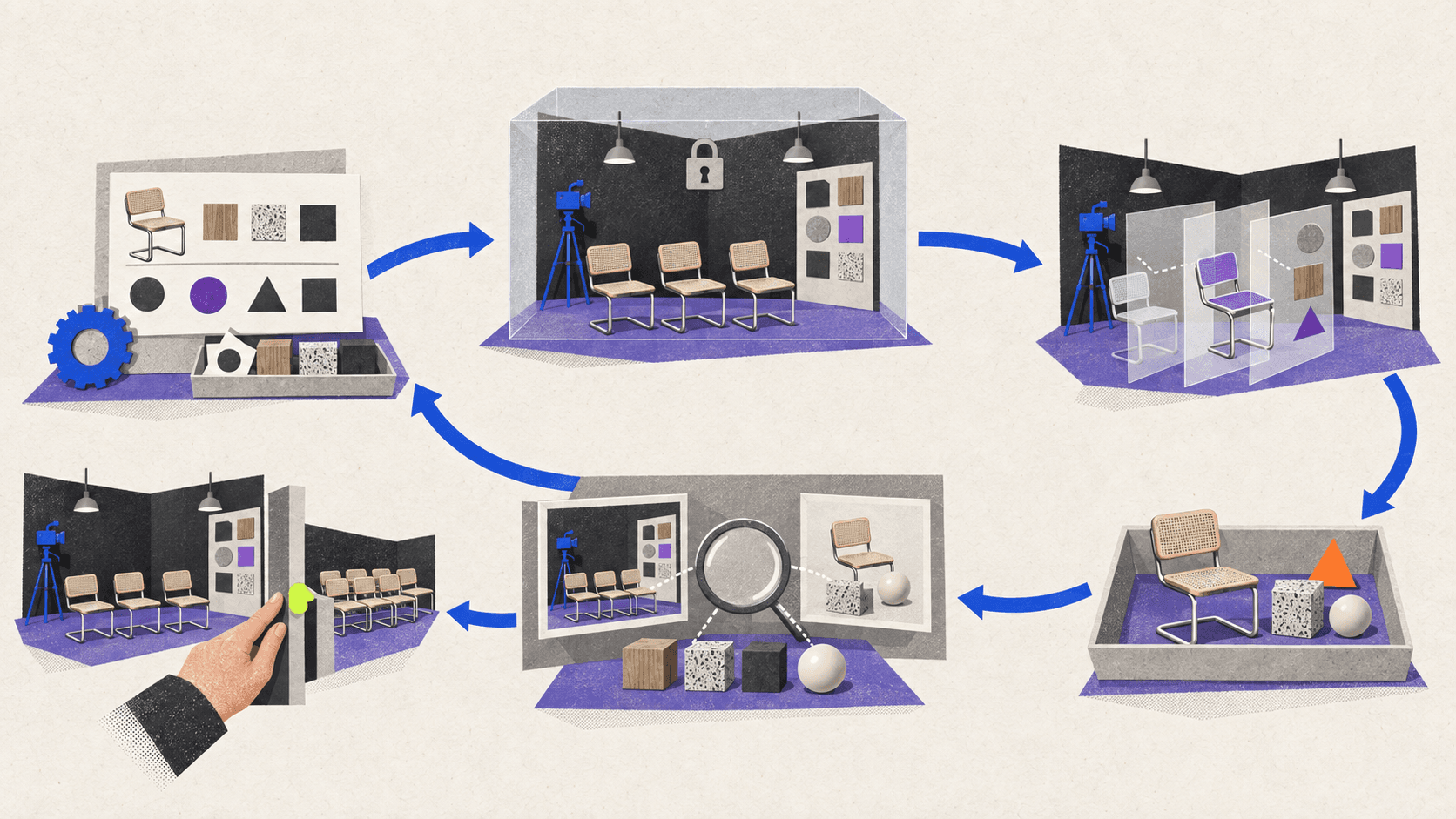
Safe Blender task automation with GPT-6 Astra follows a controlled loop: define the rule, limit the scope, preview proposed changes, test on a duplicate or small sample, validate the result, save a checkpoint, and only then scale the script. Astra can help plan, write, run, inspect, and revise the workflow, but you still decide what may change and whether the result is correct.
Those are separate milestones. Astra generating Python doesn’t mean the code is ready to run. A script finishing without an exception doesn’t mean it processed the right objects. One successful test doesn’t make the automation safely repeatable.
This workflow suits rule-based work such as scene audits, predictable renaming, collection organization, fixed property assignments, camera setup, batch rendering, and controlled exports. Keep composition, sculpting, topology decisions, and final material or lighting taste under direct artist supervision.
Which Blender Tasks Should You Automate With Astra?
Start with a task whose input and correct result can be described without visual guesswork. “Rename every mesh in this collection using the approved pattern” is testable. “Improve my whole scene” is not.
Use this quick filter:
Task | Automation fit | What still needs approval | How to validate it |
|---|---|---|---|
Audit names, transforms, materials, paths, or collection membership | Strong | Which conditions count as errors | Report counts and manual object checks |
Rename objects in one approved collection | Strong | Naming pattern and exceptions | Proposed-change list, Outliner review, second run |
Move named objects into defined collections | Strong | Collection structure | Before-and-after inventory and Outliner |
Assign approved materials or modifier values | Conditional | Values, exceptions, and visual effect | Property comparison and representative renders |
Create cameras or lights from fixed settings | Conditional | Framing, exposure, and mood | Camera inventory and contact sheet |
Batch render or export an approved set | Strong after setup | Quality, format, destination, and overwrite policy | Output inventory, logs, and spot checks |
Sculpting, retopology, composition, or final look development | Weak unattended fit | Most of the creative result | Multi-view artist review |
The continuous example in this guide is simple: inspect one AUTOMATION_TEST collection, propose consistent object names and collection moves, apply only approved changes, then run the audit again. A successful second run should propose no additional changes.
OpenAI’s architectural visualization example with Astra confirms that Astra can create editable Blender content through bpy, execute scripts with Blender’s --python option, render diagnostic views, and inspect Blender through Computer Use. It doesn’t establish a native Astra plugin or a universal automation system.
If you want more context on the API behind these scripts, start with the basics of using Python in Blender.
How Do You Define the Scope Before Astra Writes Code?
Write a task contract before asking for Python. Pin the Blender version, project root, input .blend, execution method, target collection, allowed changes, protected data, expected files, and failure policy.
Avoid “selected objects” unless the selection itself is an intentional, verified input. Blender’s bpy.context values depend on the active area, while operators can depend on mode, selection, active object, editor, or another context requirement. An automation should resolve its target through an explicit collection, allowlist, object type, custom property, or approved manifest.
Create a versioned checkpoint and a small representative collection. Protect linked data, library overrides, external files, the original .blend, and objects outside the test scope by default.
Your minimum safety checklist is:
Exact Blender version and source file
Absolute project root
Explicit object or collection scope
Allowed properties and operations
Locked data and files
Report-only first stage
No broad deletion or purge
Versioned outputs without default overwrite
Name-collision and missing-path policies
Operator context requirements
Failure and stop conditions
Sample acceptance test
Expected second-run behavior
Artist approval before mutation
Use Astra to challenge the brief before it generates code:
Current application: Blender 5.2 LTS.
Project folder: [ABSOLUTE PATH]
Current application: Blender 5.2 LTS.
Project folder: [ABSOLUTE PATH]
Approve the scope as if it were a production change request. If you can’t explain why every permitted mutation is necessary, narrow it.

Why Should the First Script Be Report-Only?
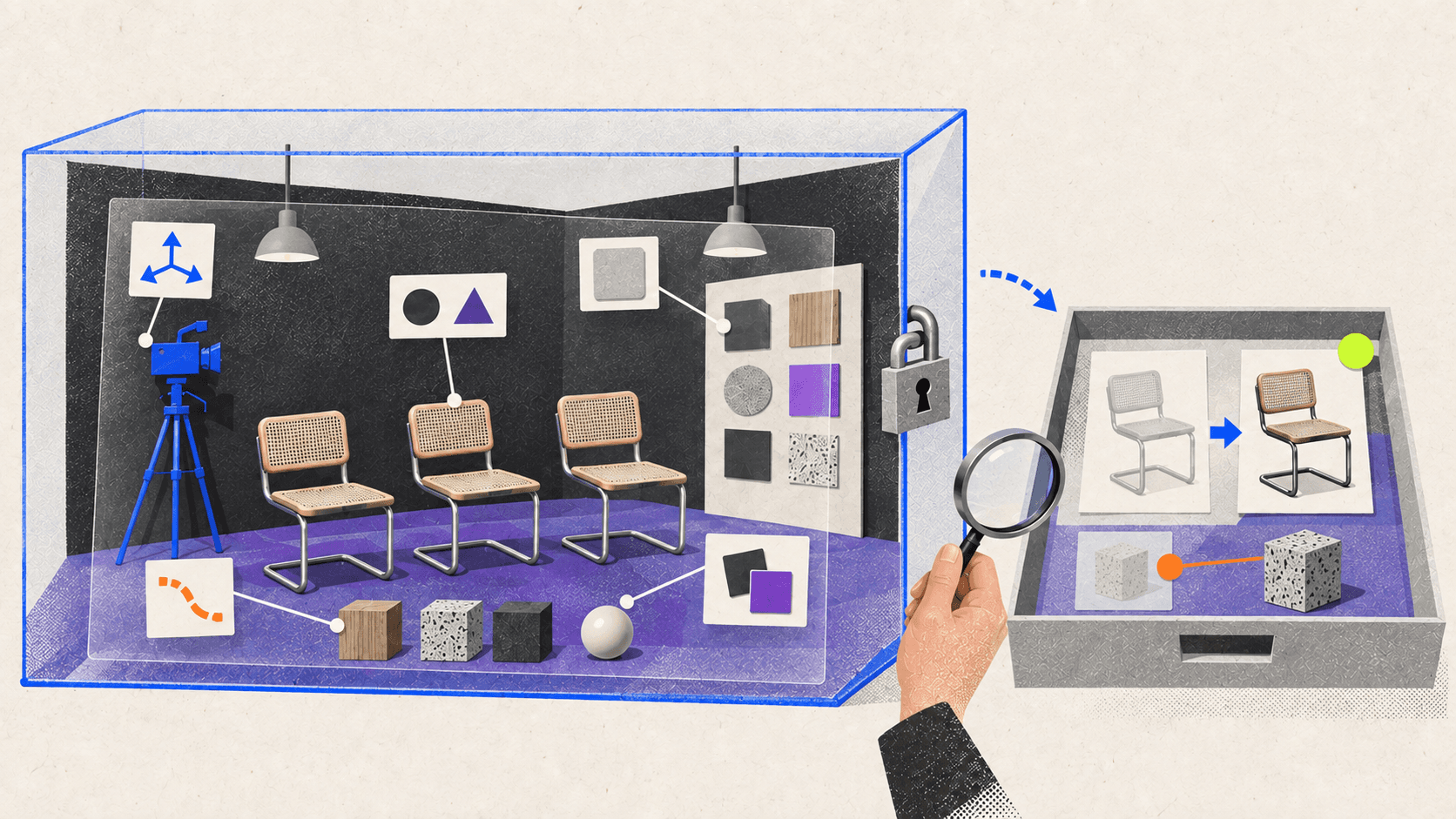
A report-only script reads the scene and writes a proposed-change record without editing Blender data. This is a pattern you ask Astra to implement, not a universal dry-run switch in Blender.
For the organization example, request one row per object containing the current name, proposed name, current collections, proposed collection, rule matched, exception, and status. A secondary scene audit can report non-default transforms, naming collisions, empty material slots, missing image paths, or linked status without changing them.
Reports must include zero matches, unexpected object types, missing collections, and ambiguous cases. Otherwise, a clean-looking report can hide the fact that nothing useful was inspected.
Current application: Blender 5.2 LTS.
Project folder: [ABSOLUTE PATH]
Current application: Blender 5.2 LTS.
Project folder: [ABSOLUTE PATH]
Compare several report entries with the actual Outliner and object properties. The report becomes the approved specification for the mutation script, so correct its rules before moving forward.
How Should Astra Write a Repeatable Blender Script?
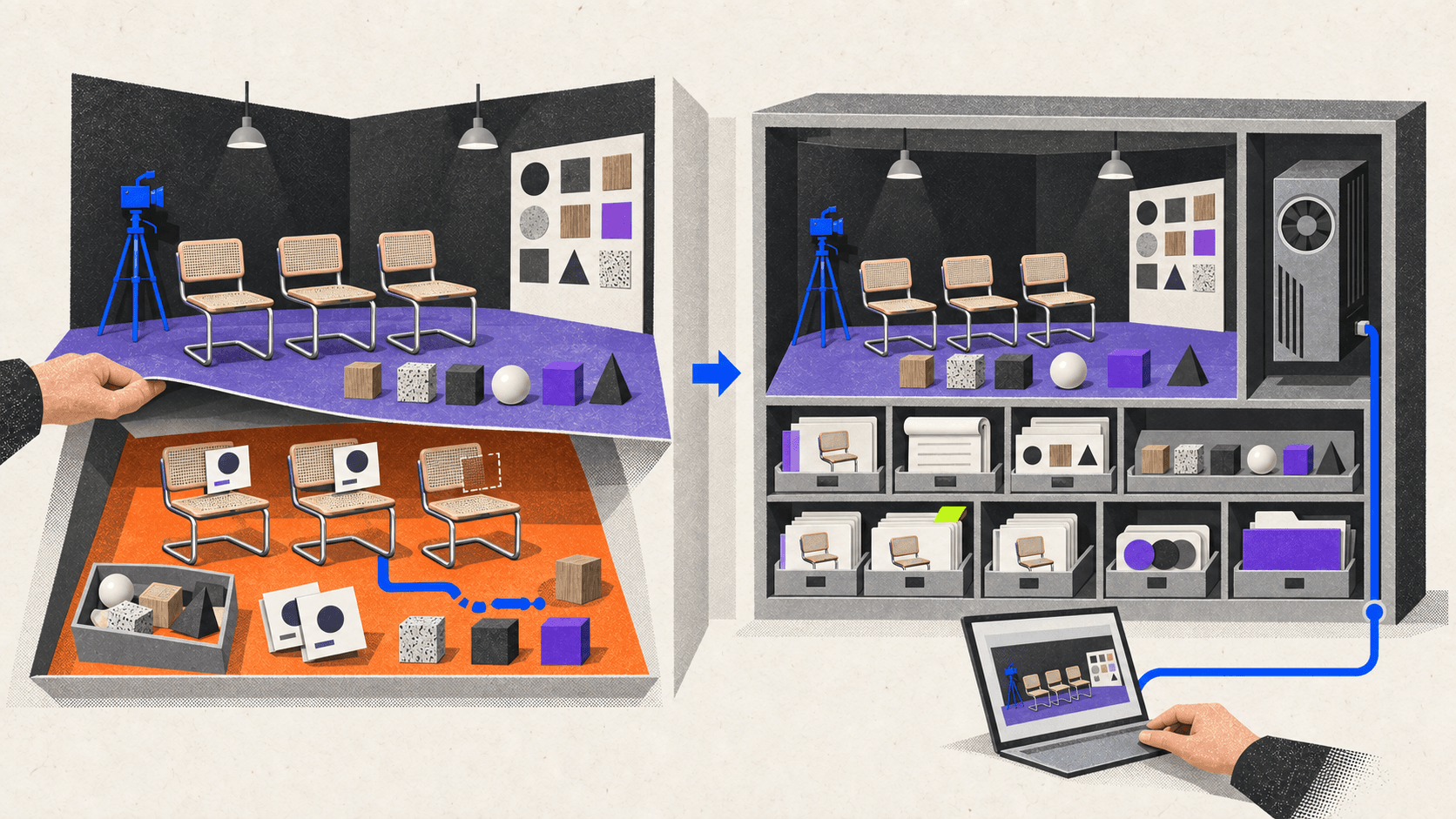
Ask for a readable script with configuration separated from execution logic. It should resolve objects explicitly, validate preconditions before mutation, record one result per object, fail clearly on protected or ambiguous cases, and save to a new versioned file.
Prefer direct access to named Blender data when it fits the task. When bpy.ops is necessary, the script should verify its context instead of assuming the user’s selection or mode. Blender’s operator documentation notes that calls can be cancelled or fail in the wrong context and provides poll() and context overrides for handling those requirements.
Define rerun behavior in the brief. For this example, objects already following the naming and collection rules should be skipped as compliant. A second run must not add another prefix, create another collection, or write over the first result.
Also review filesystem access. Blender’s scripting security guidance explains that Python isn’t restricted in what it can do, so run only code you trust. Generated code should remain untrusted until reviewed and tested.
Current application: Blender 5.2 LTS.
Project folder: [ABSOLUTE PATH]
Current application: Blender 5.2 LTS.
Project folder: [ABSOLUTE PATH]
Read every mutation, path, operator, and save call before authorizing execution. Undo isn’t the recovery plan. A clean test checkpoint is.
How Do You Test and Validate a Small Run?
Your sample should include ordinary objects plus at least one exception, such as an object that already has the correct name or uses linked data. Capture the source state, then run the approved script only on the duplicate test file.
Validation has two parts. Data checks confirm names, memberships, object counts, protected properties, output paths, and errors. Visual checks confirm that the Outliner and scene still make sense. A script can pass one and fail the other.
Current application: Blender 5.2 LTS.
Project folder: [ABSOLUTE PATH]
Current application: Blender 5.2 LTS.
Project folder: [ABSOLUTE PATH]
Open the result yourself. Compare the Outliner and a few representative objects with the reports. Then execute the approved script or audit a second time to prove its defined rerun behavior.
If something fails, correct one category at a time and restart from the clean test checkpoint. Don’t repair a flawed test result manually and then treat the script as approved.
How Do You Scale the Approved Automation?
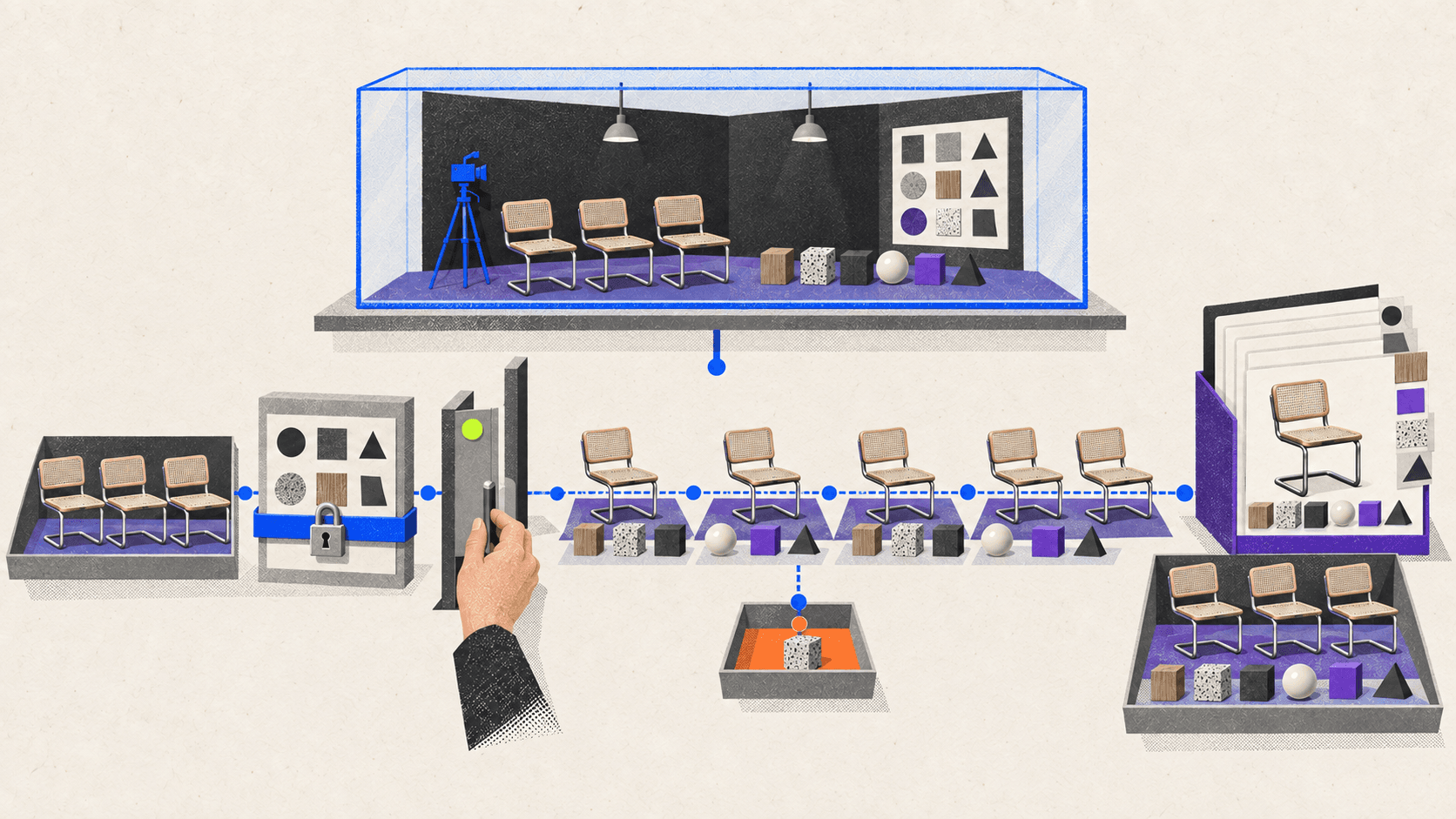
Freeze the approved script and configuration before expanding the target. First run the report-only audit against the full scene or batch and compare object counts, file counts, exceptions, paths, and proposed changes with expectations.
For many .blend files, record status per file and isolate failures. For batch renders or exports, use versioned output folders and fail when a destination already exists unless overwrite was explicitly approved. Check the output inventory and inspect representative results.
Blender supports --background for UI-less work and --python for running a Python file. Its command-line documentation also supports a chosen Python exception exit code and warns that argument order matters. Background execution fits approved audits, renders, and other deterministic jobs, but it can’t judge composition or material quality for you.
Current application: Blender 5.2 LTS.
Project folder: [ABSOLUTE PATH].
Input file or batch manifest: [PATH]
Current application: Blender 5.2 LTS.
Project folder: [ABSOLUTE PATH].
Input file or batch manifest: [PATH]
Keep the source checkpoint, script, configuration, proposal, logs, result files, and output inventory together. That’s what turns a one-off run into a reproducible workflow.
If the automation ends in many renders, this guide to rendering faster in Blender can help with the surrounding output workflow.
When Does Vagon Fit a Blender Automation Workflow?
A small report or naming script is usually easiest to run locally. Vagon becomes relevant when the production scene is too heavy for the local machine, validation requires repeated GPU renders, batches run for a long time, or you want Blender and its outputs on a separate accessible workstation.
Vagon Cloud Computer provides a remote Windows desktop with selectable CPU and NVIDIA GPU options. Scalable Performance lets you change the workstation configuration while retaining the desktop and project data, and Vagon Files supports moving and accessing project files around that workspace.
If Astra needs to inspect or operate Blender’s visible interface, you can also review how to watch an AI agent work on a cloud desktop. Test the same small sample inside the remote environment before scaling because Blender version, add-ons, paths, fonts, and external assets must still match the approved setup.
Vagon supplies the computer running Blender, scripts, assets, and renders. It doesn’t host Astra inference, improve generated code, grant Computer Use permissions, or replace your checkpoints. A capable local workstation remains simpler for small jobs, offline work, local peripherals, or latency-sensitive review.
The finish line is an automation whose scope, sample output, rerun behavior, full result, and retained files have all been approved. If heavy scenes or long batches prevent that loop from staying practical locally, run the verified workflow on a Vagon Cloud Computer.
Frequently Asked Questions
Does GPT-6 Astra have a native Blender plugin?
Current first-party evidence shows Astra working through Blender Python, the Blender executable, files, terminal commands, and Computer Use. It doesn’t establish a native Astra plugin.
Is report-only mode built into Blender?
Not as a universal mode for arbitrary Python. Astra must write the script so inspection and reporting occur without scene mutation.
Is a script safe when it runs without errors?
No. It may process the wrong scope or produce the wrong result. Validate data, protected properties, logs, output files, and the visible scene.
Should an Astra-generated script use bpy.data or bpy.ops?
Use the supported API that fits the task. Direct data access is often easier to scope predictably. Operators may be necessary, but their selection, mode, active-object, and editor context must be established and checked.
Can Blender automation run without the interface?
Yes. Blender supports background execution and Python files from the command line. Use this for approved operations that don’t require visible UI state, then inspect the resulting scene or outputs.
Can I use Blender Undo as my rollback plan?
Don’t use Undo as the only recovery method. Run the script on a duplicate or versioned checkpoint and save the result under a new filename.
Safe Blender task automation with GPT-6 Astra follows a controlled loop: define the rule, limit the scope, preview proposed changes, test on a duplicate or small sample, validate the result, save a checkpoint, and only then scale the script. Astra can help plan, write, run, inspect, and revise the workflow, but you still decide what may change and whether the result is correct.
Those are separate milestones. Astra generating Python doesn’t mean the code is ready to run. A script finishing without an exception doesn’t mean it processed the right objects. One successful test doesn’t make the automation safely repeatable.
This workflow suits rule-based work such as scene audits, predictable renaming, collection organization, fixed property assignments, camera setup, batch rendering, and controlled exports. Keep composition, sculpting, topology decisions, and final material or lighting taste under direct artist supervision.
Which Blender Tasks Should You Automate With Astra?
Start with a task whose input and correct result can be described without visual guesswork. “Rename every mesh in this collection using the approved pattern” is testable. “Improve my whole scene” is not.
Use this quick filter:
Task | Automation fit | What still needs approval | How to validate it |
|---|---|---|---|
Audit names, transforms, materials, paths, or collection membership | Strong | Which conditions count as errors | Report counts and manual object checks |
Rename objects in one approved collection | Strong | Naming pattern and exceptions | Proposed-change list, Outliner review, second run |
Move named objects into defined collections | Strong | Collection structure | Before-and-after inventory and Outliner |
Assign approved materials or modifier values | Conditional | Values, exceptions, and visual effect | Property comparison and representative renders |
Create cameras or lights from fixed settings | Conditional | Framing, exposure, and mood | Camera inventory and contact sheet |
Batch render or export an approved set | Strong after setup | Quality, format, destination, and overwrite policy | Output inventory, logs, and spot checks |
Sculpting, retopology, composition, or final look development | Weak unattended fit | Most of the creative result | Multi-view artist review |
The continuous example in this guide is simple: inspect one AUTOMATION_TEST collection, propose consistent object names and collection moves, apply only approved changes, then run the audit again. A successful second run should propose no additional changes.
OpenAI’s architectural visualization example with Astra confirms that Astra can create editable Blender content through bpy, execute scripts with Blender’s --python option, render diagnostic views, and inspect Blender through Computer Use. It doesn’t establish a native Astra plugin or a universal automation system.
If you want more context on the API behind these scripts, start with the basics of using Python in Blender.
How Do You Define the Scope Before Astra Writes Code?
Write a task contract before asking for Python. Pin the Blender version, project root, input .blend, execution method, target collection, allowed changes, protected data, expected files, and failure policy.
Avoid “selected objects” unless the selection itself is an intentional, verified input. Blender’s bpy.context values depend on the active area, while operators can depend on mode, selection, active object, editor, or another context requirement. An automation should resolve its target through an explicit collection, allowlist, object type, custom property, or approved manifest.
Create a versioned checkpoint and a small representative collection. Protect linked data, library overrides, external files, the original .blend, and objects outside the test scope by default.
Your minimum safety checklist is:
Exact Blender version and source file
Absolute project root
Explicit object or collection scope
Allowed properties and operations
Locked data and files
Report-only first stage
No broad deletion or purge
Versioned outputs without default overwrite
Name-collision and missing-path policies
Operator context requirements
Failure and stop conditions
Sample acceptance test
Expected second-run behavior
Artist approval before mutation
Use Astra to challenge the brief before it generates code:
Current application: Blender 5.2 LTS.
Project folder: [ABSOLUTE PATH]
Approve the scope as if it were a production change request. If you can’t explain why every permitted mutation is necessary, narrow it.
Why Should the First Script Be Report-Only?
A report-only script reads the scene and writes a proposed-change record without editing Blender data. This is a pattern you ask Astra to implement, not a universal dry-run switch in Blender.
For the organization example, request one row per object containing the current name, proposed name, current collections, proposed collection, rule matched, exception, and status. A secondary scene audit can report non-default transforms, naming collisions, empty material slots, missing image paths, or linked status without changing them.
Reports must include zero matches, unexpected object types, missing collections, and ambiguous cases. Otherwise, a clean-looking report can hide the fact that nothing useful was inspected.
Current application: Blender 5.2 LTS.
Project folder: [ABSOLUTE PATH]
Compare several report entries with the actual Outliner and object properties. The report becomes the approved specification for the mutation script, so correct its rules before moving forward.
How Should Astra Write a Repeatable Blender Script?
Ask for a readable script with configuration separated from execution logic. It should resolve objects explicitly, validate preconditions before mutation, record one result per object, fail clearly on protected or ambiguous cases, and save to a new versioned file.
Prefer direct access to named Blender data when it fits the task. When bpy.ops is necessary, the script should verify its context instead of assuming the user’s selection or mode. Blender’s operator documentation notes that calls can be cancelled or fail in the wrong context and provides poll() and context overrides for handling those requirements.
Define rerun behavior in the brief. For this example, objects already following the naming and collection rules should be skipped as compliant. A second run must not add another prefix, create another collection, or write over the first result.
Also review filesystem access. Blender’s scripting security guidance explains that Python isn’t restricted in what it can do, so run only code you trust. Generated code should remain untrusted until reviewed and tested.
Current application: Blender 5.2 LTS.
Project folder: [ABSOLUTE PATH]
Read every mutation, path, operator, and save call before authorizing execution. Undo isn’t the recovery plan. A clean test checkpoint is.
How Do You Test and Validate a Small Run?
Your sample should include ordinary objects plus at least one exception, such as an object that already has the correct name or uses linked data. Capture the source state, then run the approved script only on the duplicate test file.
Validation has two parts. Data checks confirm names, memberships, object counts, protected properties, output paths, and errors. Visual checks confirm that the Outliner and scene still make sense. A script can pass one and fail the other.
Current application: Blender 5.2 LTS.
Project folder: [ABSOLUTE PATH]
Open the result yourself. Compare the Outliner and a few representative objects with the reports. Then execute the approved script or audit a second time to prove its defined rerun behavior.
If something fails, correct one category at a time and restart from the clean test checkpoint. Don’t repair a flawed test result manually and then treat the script as approved.
How Do You Scale the Approved Automation?
Freeze the approved script and configuration before expanding the target. First run the report-only audit against the full scene or batch and compare object counts, file counts, exceptions, paths, and proposed changes with expectations.
For many .blend files, record status per file and isolate failures. For batch renders or exports, use versioned output folders and fail when a destination already exists unless overwrite was explicitly approved. Check the output inventory and inspect representative results.
Blender supports --background for UI-less work and --python for running a Python file. Its command-line documentation also supports a chosen Python exception exit code and warns that argument order matters. Background execution fits approved audits, renders, and other deterministic jobs, but it can’t judge composition or material quality for you.
Current application: Blender 5.2 LTS.
Project folder: [ABSOLUTE PATH].
Input file or batch manifest: [PATH]
Keep the source checkpoint, script, configuration, proposal, logs, result files, and output inventory together. That’s what turns a one-off run into a reproducible workflow.
If the automation ends in many renders, this guide to rendering faster in Blender can help with the surrounding output workflow.
When Does Vagon Fit a Blender Automation Workflow?
A small report or naming script is usually easiest to run locally. Vagon becomes relevant when the production scene is too heavy for the local machine, validation requires repeated GPU renders, batches run for a long time, or you want Blender and its outputs on a separate accessible workstation.
Vagon Cloud Computer provides a remote Windows desktop with selectable CPU and NVIDIA GPU options. Scalable Performance lets you change the workstation configuration while retaining the desktop and project data, and Vagon Files supports moving and accessing project files around that workspace.
If Astra needs to inspect or operate Blender’s visible interface, you can also review how to watch an AI agent work on a cloud desktop. Test the same small sample inside the remote environment before scaling because Blender version, add-ons, paths, fonts, and external assets must still match the approved setup.
Vagon supplies the computer running Blender, scripts, assets, and renders. It doesn’t host Astra inference, improve generated code, grant Computer Use permissions, or replace your checkpoints. A capable local workstation remains simpler for small jobs, offline work, local peripherals, or latency-sensitive review.
The finish line is an automation whose scope, sample output, rerun behavior, full result, and retained files have all been approved. If heavy scenes or long batches prevent that loop from staying practical locally, run the verified workflow on a Vagon Cloud Computer.
Frequently Asked Questions
Does GPT-6 Astra have a native Blender plugin?
Current first-party evidence shows Astra working through Blender Python, the Blender executable, files, terminal commands, and Computer Use. It doesn’t establish a native Astra plugin.
Is report-only mode built into Blender?
Not as a universal mode for arbitrary Python. Astra must write the script so inspection and reporting occur without scene mutation.
Is a script safe when it runs without errors?
No. It may process the wrong scope or produce the wrong result. Validate data, protected properties, logs, output files, and the visible scene.
Should an Astra-generated script use bpy.data or bpy.ops?
Use the supported API that fits the task. Direct data access is often easier to scope predictably. Operators may be necessary, but their selection, mode, active-object, and editor context must be established and checked.
Can Blender automation run without the interface?
Yes. Blender supports background execution and Python files from the command line. Use this for approved operations that don’t require visible UI state, then inspect the resulting scene or outputs.
Can I use Blender Undo as my rollback plan?
Don’t use Undo as the only recovery method. Run the script on a duplicate or versioned checkpoint and save the result under a new filename.
Get Beyond Your Computer Performance
Run applications on your cloud computer with the latest generation hardware. No more crashes or lags.

Trial includes 1 hour usage + 7 days of storage.
Summarize with AI

Ready to focus on your creativity?
Vagon gives you the ability to create & render projects, collaborate, and stream applications with the power of the best hardware.

Vagon Blog
Run heavy applications on any device with
your personal computer on the cloud.
San Francisco, California
Solutions
Vagon Teams
Vagon Streams
Use Cases
Resources
Vagon Blog
How to Run Cinema 4D on Googlebook
How to Run DaVinci Resolve on Googlebook
How to Run Godot on Googlebook: Game Development Guide
How to Run Premiere Pro on Googlebook: Editing Guide
How to Run Revit on Googlebook: Complete BIM Guide
How to Run SOLIDWORKS on Googlebook: Complete CAD Guide
How to Run AutoCAD on Googlebook
How to Run Photoshop on Googlebook
How to Run Unity on Googlebook: Complete Development Guide
Vagon Blog
Run heavy applications on any device with
your personal computer on the cloud.
San Francisco, California
Solutions
Vagon Teams
Vagon Streams
Use Cases
Resources
Vagon Blog
How to Run Cinema 4D on Googlebook
How to Run DaVinci Resolve on Googlebook
How to Run Godot on Googlebook: Game Development Guide
How to Run Premiere Pro on Googlebook: Editing Guide
How to Run Revit on Googlebook: Complete BIM Guide
How to Run SOLIDWORKS on Googlebook: Complete CAD Guide
How to Run AutoCAD on Googlebook
How to Run Photoshop on Googlebook
How to Run Unity on Googlebook: Complete Development Guide
Vagon Blog
Run heavy applications on any device with
your personal computer on the cloud.
San Francisco, California
Solutions
Vagon Teams
Vagon Streams
Use Cases
Resources
Vagon Blog