Instant Connection for Pixel Streaming
— New Feature Automated Setup

How to Use CATIA With Codex: MCP & Computer Use Guide
Engineering
How to Use CATIA With Codex: MCP & Computer Use Guide
Engineering
How to Use CATIA With Codex: MCP & Computer Use Guide
Engineering
Table of Contents
Using Codex with CATIA involves more than asking an AI model to generate VBA, VBScript, or CAA API code. The more advanced workflow connects Codex to a live CATIA V5 session through a local Model Context Protocol (MCP) server.
In this setup, the MCP server acts as a bridge between Codex and CATIA’s automation layer. A compatible implementation can use Windows COM automation to connect to the running CATIA process, read the active document, inspect parts or products, access the specification tree, and expose selected modeling operations as MCP tools.
Computer Use provides a second control layer. Instead of calling a structured CATIA tool, Codex can work with screenshots and interact with the visible application through mouse clicks, keyboard input, menus, workbenches, dialogs, and viewport controls.
This creates a combined workflow:
Codex → MCP Server → Windows COM/API → CATIA V5
with Computer Use available for interface actions and visual verification.
The workflow is not a native CATIA feature, and it does not guarantee access to every CATIA module. The current open-source CATIA V5 MCP server is a community implementation documented for Claude Desktop and Claude Code, so Codex compatibility must be tested separately. You need Windows, a licensed CATIA V5 installation, Python dependencies, a running local server, and a controlled desktop environment.
What Can Codex Do With CATIA Through MCP and Computer Use?
Codex can work with CATIA at three technical layers: document inspection, automation commands, and interface control. The available operations depend on how the MCP server maps CATIA’s automation objects and methods to MCP tools.
Through MCP, a compatible CATIA V5 server can expose operations such as:
Connecting to the active CATIA application
Reading the active document and document type
Inspecting Part, Product, Body, Sketch, and feature objects
Reading parameters, properties, and measurements
Creating supported sketches or Part Design features
Opening documents and exporting model files
Returning operation results or screenshots
The server typically communicates with CATIA through Windows COM automation. CATIA’s broader automation and CAA ecosystem is documented by Dassault Systèmes, but an MCP server exposes only a selected subset of that functionality.
Computer Use works outside this structured object layer. It gives Codex access to the visible CATIA desktop, allowing it to:
Open workbenches and documents
Select objects in the specification tree
Enter values into CATIA dialogs
Use menus, toolbars, and keyboard shortcuts
Zoom, rotate, and inspect the viewport
Confirm whether a feature or geometry is visible
MCP is therefore suited to deterministic data access and repeatable commands. Computer Use is suited to visual operations and interface actions that the MCP server does not expose.
Neither layer automatically provides unrestricted CATIA control. Codex can only perform operations supported by the connector, available through CATIA’s automation interface, or safely executed in the visible desktop environment.
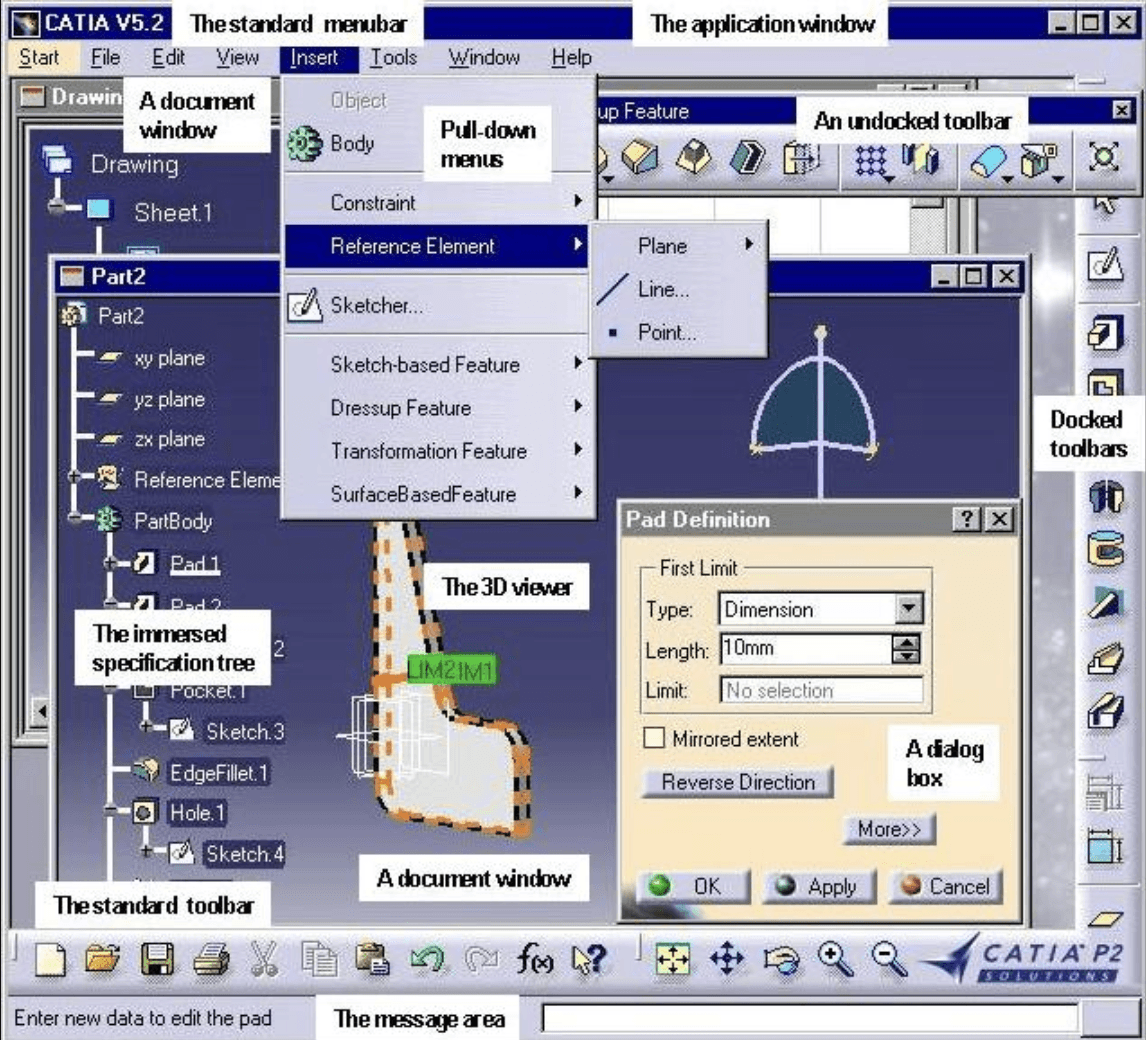
Source: Dassault Systèmes CAA V5 technical documentation
MCP vs. Computer Use: Which CATIA Connection Should You Use?
The difference is mainly architectural. MCP communicates with CATIA through exposed tools and automation methods. Computer Use communicates with the application through the desktop interface.
Requirement | MCP | Computer Use |
|---|---|---|
Read the active document | Structured response | Visual interpretation |
Inspect Part or Product objects | More suitable | Possible through the tree |
Read parameters and properties | More reliable | Requires opening dialogs |
Create supported features | Direct tool call | Interface-driven action |
Use CATIA menus and workbenches | Limited | Suitable |
Handle unexpected dialogs | Limited | Suitable |
Repeat the same operation | More deterministic | Sensitive to screen state |
Verify visible geometry | Requires a screenshot tool | Native use case |
MCP is preferable when the operation can be represented as structured input and output. For example, a tool might receive a document identifier, feature name, or parameter value and return a defined result.
Computer Use is preferable when the task depends on what is visible in CATIA. This includes selecting an object from the specification tree, responding to a dialog, changing a workbench, or checking whether a feature appears correctly in the viewport.
The two methods can also be chained. Codex can first use MCP to query the active document, identify the target feature, and prepare a change. After approval, it can call the relevant tool. Computer Use can then inspect the CATIA window and confirm the result visually.
This combination is more practical than relying on either method alone. MCP provides structured access to the model, while Computer Use provides a fallback for interface operations and a second layer of verification.

Source: Rand 3D CATIA V5 training resource
How Do You Connect Codex to a CATIA MCP Server?
The connection requires a local MCP server that can communicate with the running CATIA V5 process. In the referenced community implementation, this communication is handled through Windows COM automation and Python dependencies such as pywin32.
The basic architecture is:
Before configuring Codex, prepare a Windows environment with CATIA V5 installed and licensed, Python 3.10 or later, the MCP server dependencies, and a test .CATPart or .CATProduct file.
The community server’s documented installation flow generally involves downloading the repository, installing its Python dependencies, and registering the server with an MCP-compatible client. Its examples target Claude Desktop and Claude Code, so the configuration must be adapted to the current Codex MCP configuration format.
Do not begin by creating or modifying geometry. First launch CATIA, open a test document, start the MCP server, and confirm that Codex can reach it. A safe first request would be:
If the server responds successfully, test read-only operations such as listing bodies, products, sketches, or features. Only after these calls work should you test an operation that changes the model.
A failed connection can result from CATIA not running, a missing Python package, incorrect COM registration, an unsupported CATIA version, a blocked local process, or an MCP configuration mismatch. Test every change on a copy of the original model.

Source: OpenAI Computer Use documentation.
How Do You Use Computer Use With CATIA?
Computer Use adds a desktop-control layer around the live CATIA application. Instead of calling a CATIA object through MCP, Codex receives a screenshot, selects an interface action, and sends that action to a runtime that controls the Windows desktop.
The interaction loop is:
For example, Codex can identify the Part Design workbench in the CATIA ribbon, click it, wait for the interface to update, and then inspect the next screenshot. It can also select a feature in the specification tree, open a parameter dialog, enter a value, and check the resulting geometry.
Computer Use is useful for actions such as:
Opening a
.CATPartor.CATProductfileSwitching workbenches
Selecting a Body, Sketch, or feature
Opening command dialogs
Entering dimensions or parameters
Adjusting the viewport
Responding to visible confirmation prompts
However, Computer Use does not understand CATIA’s internal object model automatically. It interprets what is visible on screen. A similar-looking feature, a shifted window, or an unexpected dialog can therefore lead to an incorrect action.
For reliable execution, keep action sequences short. After opening a workbench, selecting an object, or submitting a dialog, request a new screenshot and verify the state before continuing. Saving, overwriting, deleting, exporting, or updating a model should always require explicit user approval.
Computer Use is best used alongside MCP: MCP performs structured model operations, while Computer Use handles interface actions and confirms the visible result.

Source: CATIA V5 Interface Overview
What CATIA Workflows Can You Automate With Codex?
The practical workflow depends on the tools exposed by the CATIA MCP server. A connector may provide document, part, sketch, assembly, measurement, export, or viewport tools, but the exact tool names and parameters vary between implementations.
Inspecting an existing model
A read-only inspection can begin with the active CATIA document. Codex may retrieve the document type, identify the active Part or Product, inspect Bodies and features, and return relevant parameters or properties.
For example:
This is useful before any automation because Codex can confirm that it is working with the correct file and target object.
Applying a controlled model change
If the MCP server exposes the required operation, Codex can prepare a structured request to create or modify a model feature. The request may include an object identifier, feature type, parameter values, and placement information.
A safer workflow is:
Read the current model state.
Explain the proposed change.
Request user approval.
Execute the supported MCP operation.
Read the resulting model state.
Use Computer Use to inspect the CATIA viewport.
This can support operations such as sketch creation, Part Design features, assembly inspection, measurements, and file export, provided the connector implements them.
Verifying the result
Computer Use can open the relevant workbench, select the changed feature, and inspect the visible geometry. If the result is incorrect, Codex should stop and report the discrepancy instead of repeatedly applying new commands.
This makes the workflow closer to a controlled engineering automation loop than a single prompt that blindly edits a CATIA file.
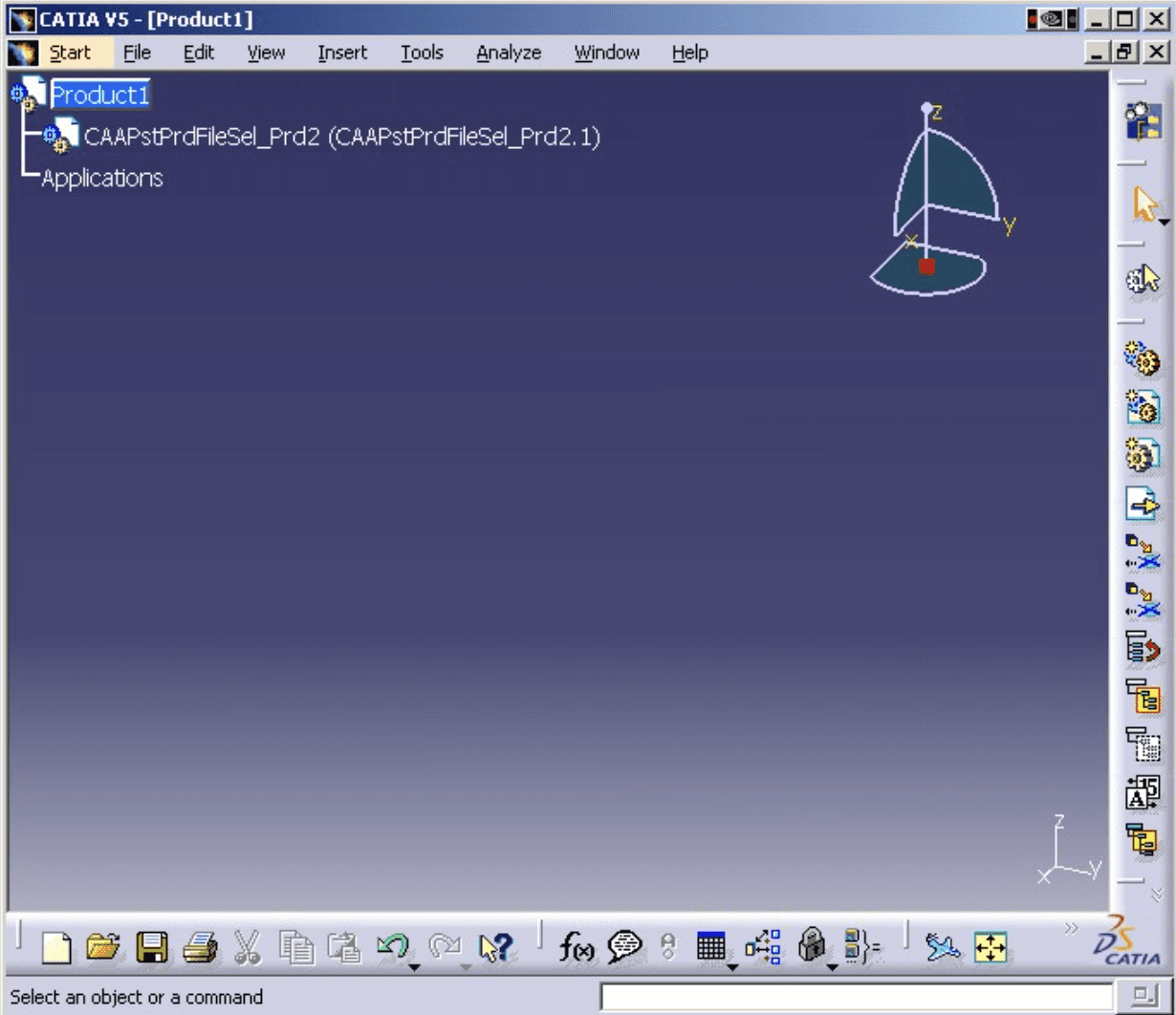
Source: Dassault Systèmes CAA V5 Product Structure documentation
How Do You Use MCP and Computer Use Safely With CATIA?
A CATIA automation workflow can change geometry, parameters, assemblies, and exported files. Treat every MCP call and desktop action as an operation that needs validation.
Start with a copy of the .CATPart or .CATProduct file. Use read-only requests first so Codex can confirm the active document, workbench, target Body, and feature tree before any modification takes place.
For model-changing operations, require approval immediately before execution. This is especially important for:
Updating parameters or constraints
Creating or deleting features
Changing assembly placements
Saving or overwriting a file
Exporting STEP, IGES, or STL files
Closing CATIA or changing the active document
MCP calls should be checked at the tool level. Confirm that the tool is operating on the intended document and that the returned object or feature matches the requested target. A successful tool response does not necessarily prove that the final geometry is correct.
Computer Use requires an additional visual check. After a click, dialog submission, or workbench change, take another screenshot and verify the resulting CATIA state. Unexpected dialogs, license prompts, wrong selections, and screen-layout changes can cause an action to affect the wrong object.
The runtime should also be isolated and limited to the files and applications required for the task. Do not expose production credentials or unrelated project folders. Restrict file access where possible, keep exported files in a controlled directory, and maintain a recoverable version of the original model.
The most common technical mistake is assuming that a community CATIA MCP server provides unrestricted CATIA automation. It only exposes the functions implemented by that server and supported by the local CATIA environment._test the workflow on a disposable model before using it in production.
Run CATIA and Codex Together on Vagon Cloud Computer
Running CATIA with Codex requires a reliable Windows environment with enough CPU, GPU, memory, and storage for both the CAD application and the automation workflow. When CATIA, the MCP server, Python dependencies, and Computer Use runtime are installed on separate devices, local connections and performance can become difficult to manage.
Vagon Cloud Computer provides a full Windows cloud workstation that you can access from a browser. You can install CATIA V5, Codex, Python, and the CATIA MCP server on the same machine, allowing the MCP server to communicate directly with the local CATIA process through Windows COM automation.
This setup is especially useful for engineers working with:
Large CATIA assemblies
Complex surface or solid models
Repeated feature operations
High-resolution viewport inspection
Long export or rebuild processes
Computer Use workflows that require a responsive desktop
Because the processing happens on Vagon’s cloud hardware, your local Mac, Chromebook, or lower-powered laptop does not need to handle the CATIA workload. Vagon provides scalable performance options with NVIDIA GPU-equipped cloud computers, support for high-resolution streaming, and access to engineering applications from different devices. Vagon’s CAD/CAM engineering workstations are designed for workflows that require additional GPU, CPU, and memory capacity.
The result is a more consistent environment for Codex-driven CATIA automation: CATIA runs on the cloud workstation, MCP communicates with the local application, and Computer Use can interact with the same visible desktop.
Vagon does not include a CATIA license or guarantee compatibility with every MCP server. You still need to install CATIA V5, provide the required license, and test the connector. For production work, use versioned files and request approval before saving or exporting model changes.
FAQs
Is there an official CATIA MCP server from Dassault Systèmes?
No clearly documented official Dassault CATIA MCP connector is currently available. The workflow described here relies on a community-developed CATIA V5 MCP server, so support and compatibility should be verified independently.
Can Codex connect to CATIA V5?
Yes, potentially. Codex must be able to access a compatible local MCP server, while the server must be able to communicate with the running CATIA V5 process through Windows automation.
Does this work with CATIA 3DEXPERIENCE?
Not automatically. The referenced open-source implementation targets CATIA V5. CATIA 3DEXPERIENCE support requires a separate connector or automation approach.
Can Codex create or modify CATIA models?
It can do so only when the MCP server exposes the required CATIA operation. Changes should be performed on a copy of the model and approved before execution.
Can Computer Use replace MCP?
No. Computer Use controls the visible CATIA interface, while MCP provides structured communication with supported CATIA tools. They are complementary rather than interchangeable.
Does CATIA need to run on Windows?
For the referenced CATIA V5 MCP workflow, yes. The server relies on Windows-based COM automation, so CATIA and the MCP server need to run in a compatible Windows environment.
Can I run CATIA and Codex on Vagon Cloud Computer?
Yes. You can install CATIA V5, Codex, Python, the MCP server, and the computer-use runtime on the same Vagon Windows Cloud Computer. You still need to provide the CATIA installation, license, and connector.
Is it safe to use this workflow with production files?
It is safer to begin with a duplicate or versioned file. Require approval before modifying, saving, overwriting, deleting, or exporting anything, and verify the final model in CATIA before using it in production.
Using Codex with CATIA involves more than asking an AI model to generate VBA, VBScript, or CAA API code. The more advanced workflow connects Codex to a live CATIA V5 session through a local Model Context Protocol (MCP) server.
In this setup, the MCP server acts as a bridge between Codex and CATIA’s automation layer. A compatible implementation can use Windows COM automation to connect to the running CATIA process, read the active document, inspect parts or products, access the specification tree, and expose selected modeling operations as MCP tools.
Computer Use provides a second control layer. Instead of calling a structured CATIA tool, Codex can work with screenshots and interact with the visible application through mouse clicks, keyboard input, menus, workbenches, dialogs, and viewport controls.
This creates a combined workflow:
Codex → MCP Server → Windows COM/API → CATIA V5
with Computer Use available for interface actions and visual verification.
The workflow is not a native CATIA feature, and it does not guarantee access to every CATIA module. The current open-source CATIA V5 MCP server is a community implementation documented for Claude Desktop and Claude Code, so Codex compatibility must be tested separately. You need Windows, a licensed CATIA V5 installation, Python dependencies, a running local server, and a controlled desktop environment.
What Can Codex Do With CATIA Through MCP and Computer Use?
Codex can work with CATIA at three technical layers: document inspection, automation commands, and interface control. The available operations depend on how the MCP server maps CATIA’s automation objects and methods to MCP tools.
Through MCP, a compatible CATIA V5 server can expose operations such as:
Connecting to the active CATIA application
Reading the active document and document type
Inspecting Part, Product, Body, Sketch, and feature objects
Reading parameters, properties, and measurements
Creating supported sketches or Part Design features
Opening documents and exporting model files
Returning operation results or screenshots
The server typically communicates with CATIA through Windows COM automation. CATIA’s broader automation and CAA ecosystem is documented by Dassault Systèmes, but an MCP server exposes only a selected subset of that functionality.
Computer Use works outside this structured object layer. It gives Codex access to the visible CATIA desktop, allowing it to:
Open workbenches and documents
Select objects in the specification tree
Enter values into CATIA dialogs
Use menus, toolbars, and keyboard shortcuts
Zoom, rotate, and inspect the viewport
Confirm whether a feature or geometry is visible
MCP is therefore suited to deterministic data access and repeatable commands. Computer Use is suited to visual operations and interface actions that the MCP server does not expose.
Neither layer automatically provides unrestricted CATIA control. Codex can only perform operations supported by the connector, available through CATIA’s automation interface, or safely executed in the visible desktop environment.
Source: Dassault Systèmes CAA V5 technical documentation
MCP vs. Computer Use: Which CATIA Connection Should You Use?
The difference is mainly architectural. MCP communicates with CATIA through exposed tools and automation methods. Computer Use communicates with the application through the desktop interface.
Requirement | MCP | Computer Use |
|---|---|---|
Read the active document | Structured response | Visual interpretation |
Inspect Part or Product objects | More suitable | Possible through the tree |
Read parameters and properties | More reliable | Requires opening dialogs |
Create supported features | Direct tool call | Interface-driven action |
Use CATIA menus and workbenches | Limited | Suitable |
Handle unexpected dialogs | Limited | Suitable |
Repeat the same operation | More deterministic | Sensitive to screen state |
Verify visible geometry | Requires a screenshot tool | Native use case |
MCP is preferable when the operation can be represented as structured input and output. For example, a tool might receive a document identifier, feature name, or parameter value and return a defined result.
Computer Use is preferable when the task depends on what is visible in CATIA. This includes selecting an object from the specification tree, responding to a dialog, changing a workbench, or checking whether a feature appears correctly in the viewport.
The two methods can also be chained. Codex can first use MCP to query the active document, identify the target feature, and prepare a change. After approval, it can call the relevant tool. Computer Use can then inspect the CATIA window and confirm the result visually.
This combination is more practical than relying on either method alone. MCP provides structured access to the model, while Computer Use provides a fallback for interface operations and a second layer of verification.
Source: Rand 3D CATIA V5 training resource
How Do You Connect Codex to a CATIA MCP Server?
The connection requires a local MCP server that can communicate with the running CATIA V5 process. In the referenced community implementation, this communication is handled through Windows COM automation and Python dependencies such as pywin32.
The basic architecture is:
Before configuring Codex, prepare a Windows environment with CATIA V5 installed and licensed, Python 3.10 or later, the MCP server dependencies, and a test .CATPart or .CATProduct file.
The community server’s documented installation flow generally involves downloading the repository, installing its Python dependencies, and registering the server with an MCP-compatible client. Its examples target Claude Desktop and Claude Code, so the configuration must be adapted to the current Codex MCP configuration format.
Do not begin by creating or modifying geometry. First launch CATIA, open a test document, start the MCP server, and confirm that Codex can reach it. A safe first request would be:
If the server responds successfully, test read-only operations such as listing bodies, products, sketches, or features. Only after these calls work should you test an operation that changes the model.
A failed connection can result from CATIA not running, a missing Python package, incorrect COM registration, an unsupported CATIA version, a blocked local process, or an MCP configuration mismatch. Test every change on a copy of the original model.
Source: OpenAI Computer Use documentation.
How Do You Use Computer Use With CATIA?
Computer Use adds a desktop-control layer around the live CATIA application. Instead of calling a CATIA object through MCP, Codex receives a screenshot, selects an interface action, and sends that action to a runtime that controls the Windows desktop.
The interaction loop is:
For example, Codex can identify the Part Design workbench in the CATIA ribbon, click it, wait for the interface to update, and then inspect the next screenshot. It can also select a feature in the specification tree, open a parameter dialog, enter a value, and check the resulting geometry.
Computer Use is useful for actions such as:
Opening a
.CATPartor.CATProductfileSwitching workbenches
Selecting a Body, Sketch, or feature
Opening command dialogs
Entering dimensions or parameters
Adjusting the viewport
Responding to visible confirmation prompts
However, Computer Use does not understand CATIA’s internal object model automatically. It interprets what is visible on screen. A similar-looking feature, a shifted window, or an unexpected dialog can therefore lead to an incorrect action.
For reliable execution, keep action sequences short. After opening a workbench, selecting an object, or submitting a dialog, request a new screenshot and verify the state before continuing. Saving, overwriting, deleting, exporting, or updating a model should always require explicit user approval.
Computer Use is best used alongside MCP: MCP performs structured model operations, while Computer Use handles interface actions and confirms the visible result.
Source: CATIA V5 Interface Overview
What CATIA Workflows Can You Automate With Codex?
The practical workflow depends on the tools exposed by the CATIA MCP server. A connector may provide document, part, sketch, assembly, measurement, export, or viewport tools, but the exact tool names and parameters vary between implementations.
Inspecting an existing model
A read-only inspection can begin with the active CATIA document. Codex may retrieve the document type, identify the active Part or Product, inspect Bodies and features, and return relevant parameters or properties.
For example:
This is useful before any automation because Codex can confirm that it is working with the correct file and target object.
Applying a controlled model change
If the MCP server exposes the required operation, Codex can prepare a structured request to create or modify a model feature. The request may include an object identifier, feature type, parameter values, and placement information.
A safer workflow is:
Read the current model state.
Explain the proposed change.
Request user approval.
Execute the supported MCP operation.
Read the resulting model state.
Use Computer Use to inspect the CATIA viewport.
This can support operations such as sketch creation, Part Design features, assembly inspection, measurements, and file export, provided the connector implements them.
Verifying the result
Computer Use can open the relevant workbench, select the changed feature, and inspect the visible geometry. If the result is incorrect, Codex should stop and report the discrepancy instead of repeatedly applying new commands.
This makes the workflow closer to a controlled engineering automation loop than a single prompt that blindly edits a CATIA file.
Source: Dassault Systèmes CAA V5 Product Structure documentation
How Do You Use MCP and Computer Use Safely With CATIA?
A CATIA automation workflow can change geometry, parameters, assemblies, and exported files. Treat every MCP call and desktop action as an operation that needs validation.
Start with a copy of the .CATPart or .CATProduct file. Use read-only requests first so Codex can confirm the active document, workbench, target Body, and feature tree before any modification takes place.
For model-changing operations, require approval immediately before execution. This is especially important for:
Updating parameters or constraints
Creating or deleting features
Changing assembly placements
Saving or overwriting a file
Exporting STEP, IGES, or STL files
Closing CATIA or changing the active document
MCP calls should be checked at the tool level. Confirm that the tool is operating on the intended document and that the returned object or feature matches the requested target. A successful tool response does not necessarily prove that the final geometry is correct.
Computer Use requires an additional visual check. After a click, dialog submission, or workbench change, take another screenshot and verify the resulting CATIA state. Unexpected dialogs, license prompts, wrong selections, and screen-layout changes can cause an action to affect the wrong object.
The runtime should also be isolated and limited to the files and applications required for the task. Do not expose production credentials or unrelated project folders. Restrict file access where possible, keep exported files in a controlled directory, and maintain a recoverable version of the original model.
The most common technical mistake is assuming that a community CATIA MCP server provides unrestricted CATIA automation. It only exposes the functions implemented by that server and supported by the local CATIA environment._test the workflow on a disposable model before using it in production.
Run CATIA and Codex Together on Vagon Cloud Computer
Running CATIA with Codex requires a reliable Windows environment with enough CPU, GPU, memory, and storage for both the CAD application and the automation workflow. When CATIA, the MCP server, Python dependencies, and Computer Use runtime are installed on separate devices, local connections and performance can become difficult to manage.
Vagon Cloud Computer provides a full Windows cloud workstation that you can access from a browser. You can install CATIA V5, Codex, Python, and the CATIA MCP server on the same machine, allowing the MCP server to communicate directly with the local CATIA process through Windows COM automation.
This setup is especially useful for engineers working with:
Large CATIA assemblies
Complex surface or solid models
Repeated feature operations
High-resolution viewport inspection
Long export or rebuild processes
Computer Use workflows that require a responsive desktop
Because the processing happens on Vagon’s cloud hardware, your local Mac, Chromebook, or lower-powered laptop does not need to handle the CATIA workload. Vagon provides scalable performance options with NVIDIA GPU-equipped cloud computers, support for high-resolution streaming, and access to engineering applications from different devices. Vagon’s CAD/CAM engineering workstations are designed for workflows that require additional GPU, CPU, and memory capacity.
The result is a more consistent environment for Codex-driven CATIA automation: CATIA runs on the cloud workstation, MCP communicates with the local application, and Computer Use can interact with the same visible desktop.
Vagon does not include a CATIA license or guarantee compatibility with every MCP server. You still need to install CATIA V5, provide the required license, and test the connector. For production work, use versioned files and request approval before saving or exporting model changes.
FAQs
Is there an official CATIA MCP server from Dassault Systèmes?
No clearly documented official Dassault CATIA MCP connector is currently available. The workflow described here relies on a community-developed CATIA V5 MCP server, so support and compatibility should be verified independently.
Can Codex connect to CATIA V5?
Yes, potentially. Codex must be able to access a compatible local MCP server, while the server must be able to communicate with the running CATIA V5 process through Windows automation.
Does this work with CATIA 3DEXPERIENCE?
Not automatically. The referenced open-source implementation targets CATIA V5. CATIA 3DEXPERIENCE support requires a separate connector or automation approach.
Can Codex create or modify CATIA models?
It can do so only when the MCP server exposes the required CATIA operation. Changes should be performed on a copy of the model and approved before execution.
Can Computer Use replace MCP?
No. Computer Use controls the visible CATIA interface, while MCP provides structured communication with supported CATIA tools. They are complementary rather than interchangeable.
Does CATIA need to run on Windows?
For the referenced CATIA V5 MCP workflow, yes. The server relies on Windows-based COM automation, so CATIA and the MCP server need to run in a compatible Windows environment.
Can I run CATIA and Codex on Vagon Cloud Computer?
Yes. You can install CATIA V5, Codex, Python, the MCP server, and the computer-use runtime on the same Vagon Windows Cloud Computer. You still need to provide the CATIA installation, license, and connector.
Is it safe to use this workflow with production files?
It is safer to begin with a duplicate or versioned file. Require approval before modifying, saving, overwriting, deleting, or exporting anything, and verify the final model in CATIA before using it in production.
Get Beyond Your Computer Performance
Run applications on your cloud computer with the latest generation hardware. No more crashes or lags.

Trial includes 1 hour usage + 7 days of storage.
Summarize with AI

Ready to focus on your creativity?
Vagon gives you the ability to create & render projects, collaborate, and stream applications with the power of the best hardware.

Run heavy applications on any device with
your personal computer on the cloud.
San Francisco, California
Solutions
Vagon Teams
Vagon Streams
Use Cases
© 2026 Vagon. All rights reserved.
Run heavy applications on any device with
your personal computer on the cloud.
San Francisco, California
Solutions
Vagon Teams
Vagon Streams
Use Cases
© 2026 Vagon. All rights reserved.
Run heavy applications on any device with
your personal computer on the cloud.
San Francisco, California
Solutions
Vagon Teams
Vagon Streams
Use Cases
© 2026 Vagon. All rights reserved.