Instant Connection for Pixel Streaming
— New Feature Automated Setup

How to Use Higgsfield With Codex: MCP & Computer Use
Freelance
How to Use Higgsfield With Codex: MCP & Computer Use
Freelance
How to Use Higgsfield With Codex: MCP & Computer Use
Freelance
Table of Contents
One product photo can become three advertising concepts, but generating three clips is not the same as creating a usable campaign. The bottle changes shape between shots, the logo becomes unreadable, and a promising camera move crops out the detail you wanted to sell. Meanwhile, every retry adds another result to review and potentially another charge.
Using Codex with Higgsfield can make that process more organized. Rather than stopping at prompt suggestions, Codex can connect through MCP to call the Higgsfield tools available to your client. With the right authorization, that can include checking account information and submitting approved image or video generations. Computer use adds a complementary route for inspecting visible settings, navigating the interface, and reviewing results where structured tools are insufficient.
The important distinction is responsibility. Higgsfield generates the media; Codex helps coordinate the workflow. Neither a connection nor a detailed prompt guarantees accurate branding, consistent products, or production-ready footage.
This guide follows a controlled path from creative brief to approved assets: connect the tools, generate a small test, inspect the result, and expand only after you approve the direction and spending.

Source: Pikalabsai.org
Decide What Codex Should Handle Before Connecting Anything
Before giving Codex access to Higgsfield, separate the creative decisions from the actions needed to carry them out. “Make three product ads” leaves too much unspecified. “Prepare three concepts using this approved product reference, then wait before generating” establishes a useful starting point.
There are three ways Codex can help, and they do not provide the same access.
Approach | What Codex works with | Best use |
|---|---|---|
Prompt preparation | Your brief, references, and instructions | Planning concepts without submitting generations |
MCP connection | Tools exposed by Higgsfield’s server | Supported account checks and approved generation operations |
Computer use | The permitted browser interface | Inspecting visible settings and reviewing results |
Prompt preparation requires no Higgsfield connection. Codex can turn a brief into shot descriptions, organize alternatives, and identify missing information. However, a well-written prompt does not prove that the selected model supports the requested duration, reference inputs, or camera controls.
A Higgsfield MCP connection provides structured access to the service. The practical boundary is the tool catalog returned to your client. If a particular operation or parameter is absent, Codex should report that limitation rather than claim it changed the setting.
Use computer use when the task depends on something visible: checking which reference is selected, inspecting a preview, or locating a completed asset. It requires a supported desktop environment and permission to access the target app. It is not automatic browser control bundled into every Codex session.
The Higgsfield API is a separate option for custom applications and scripted pipelines, with its own credentials and billing. You do not need to build an API integration simply to start using the official MCP connection.
For the product campaign in this guide, the division is straightforward: Codex prepares the plan, MCP handles available service operations, and computer use supports interface checks. You approve spending and decide whether the generated material represents the product accurately.
Connect Codex to Higgsfield and Verify the Tools
Start with a Higgsfield account that meets the service’s current subscription requirements and a Codex client that supports remote MCP connections. Higgsfield publishes an official server address, so this route does not require building a local connector or configuring a separate API key.
The setup below combines Higgsfield’s documented endpoint with Codex’s supported configuration format. It is not a guarantee that every Higgsfield feature will be available in your particular client.
Add the Official MCP Endpoint
For a local Codex setup, add this entry to your existing ~/.codex/config.toml, preserving any other configuration:
[mcp_servers.higgsfield]
[mcp_servers.higgsfield]
The address is the actual MCP endpoint. The public higgsfield.ai/mcp page explains the integration but is not the server URL.
If you use Codex CLI, start the documented OAuth flow:
Complete the Higgsfield sign-in and authorization yourself in the browser. Check that you are connecting the intended account before granting access. Your Higgsfield browser session alone does not establish that Codex has authenticated successfully.
You can inspect configured servers with codex mcp list and check active connections using /mcp inside the Codex terminal interface. The Codex MCP configuration is shared across supported local clients on the same host, but authentication and tool availability should still be verified in the client you intend to use.
Test the Connection Without Generating Anything
Begin with an account lookup rather than an image or video request:
Use the connected Higgsfield tools to check my credit balance and list my recent generations, if those operations are available. Do not upload files or start a generation.
These are verification requests suggested in Higgsfield’s connection guide. Look for an actual tool call and returned account information. A conversational answer that merely says “Higgsfield is connected” is not sufficient evidence.
If authentication fails, inspect the connection error and retry the login process. Do not substitute an API credential or disable security checks to force the connection.
Check What This Client Actually Exposes
Next, ask Codex to summarize the available Higgsfield tools and the inputs required for your planned generation. Confirm whether it can accept your reference asset, select the intended model, and return a generation identifier or result.
Avoid copying another assistant’s workflow without checking compatibility. An upload window shown in a ChatGPT plugin tutorial, for example, does not prove that the same interface exists in Codex CLI.
Once these checks pass, you have a verified connection for the available operations, not blanket control over the entire Higgsfield website.
Turn Your Creative Brief Into a Generation Plan
For our example campaign, assume you have an approved photograph of a skincare bottle and need three short advertising concepts: a clean studio reveal, a close-up highlighting the packaging, and a lifestyle shot with the product on a bathroom shelf.
Before asking Codex to generate anything, define what must remain unchanged. The bottle’s proportions, cap color, label placement, and brand identity are constraints, not creative suggestions. Also identify what can vary, such as the background, lighting, and camera movement.

Source: Kapwing
Give Codex a brief that separates those requirements:
Prepare three video concepts using the approved bottle photograph. Keep the product’s proportions, cap color, and label placement consistent with the reference. Propose a studio reveal, packaging close-up, and bathroom lifestyle scene. For each concept, suggest a model and supported format, describe the motion, and identify likely failure points. Do not upload or generate anything yet.
Codex should turn that request into a compact generation plan rather than immediately submitting three jobs. A local manifest can connect each proposed shot to its reference and approval status:
This is a planning record, not a Higgsfield request schema. The reference filename identifies your local asset; it does not mean the file has been uploaded or made accessible to the generation tool.
Have Codex flag missing information before proceeding. Does the selected model support that reference type and aspect ratio? Is native audio needed? Should the shot leave space for copy added during editing?
Approve the concept and inputs first. Exact label reproduction may still require compositing the original artwork in post-production, so treat branding accuracy as a review criterion rather than a guaranteed outcome.

Source: Pikalabsai.org
Generate a Small Test Before Building the Campaign
The first generation should answer a specific question: can the chosen model produce a usable shot from your approved reference? For the skincare campaign, start with the studio reveal. It has fewer moving parts than the lifestyle scene, making product distortion and unwanted camera behavior easier to identify.
Confirm the Reference and Model
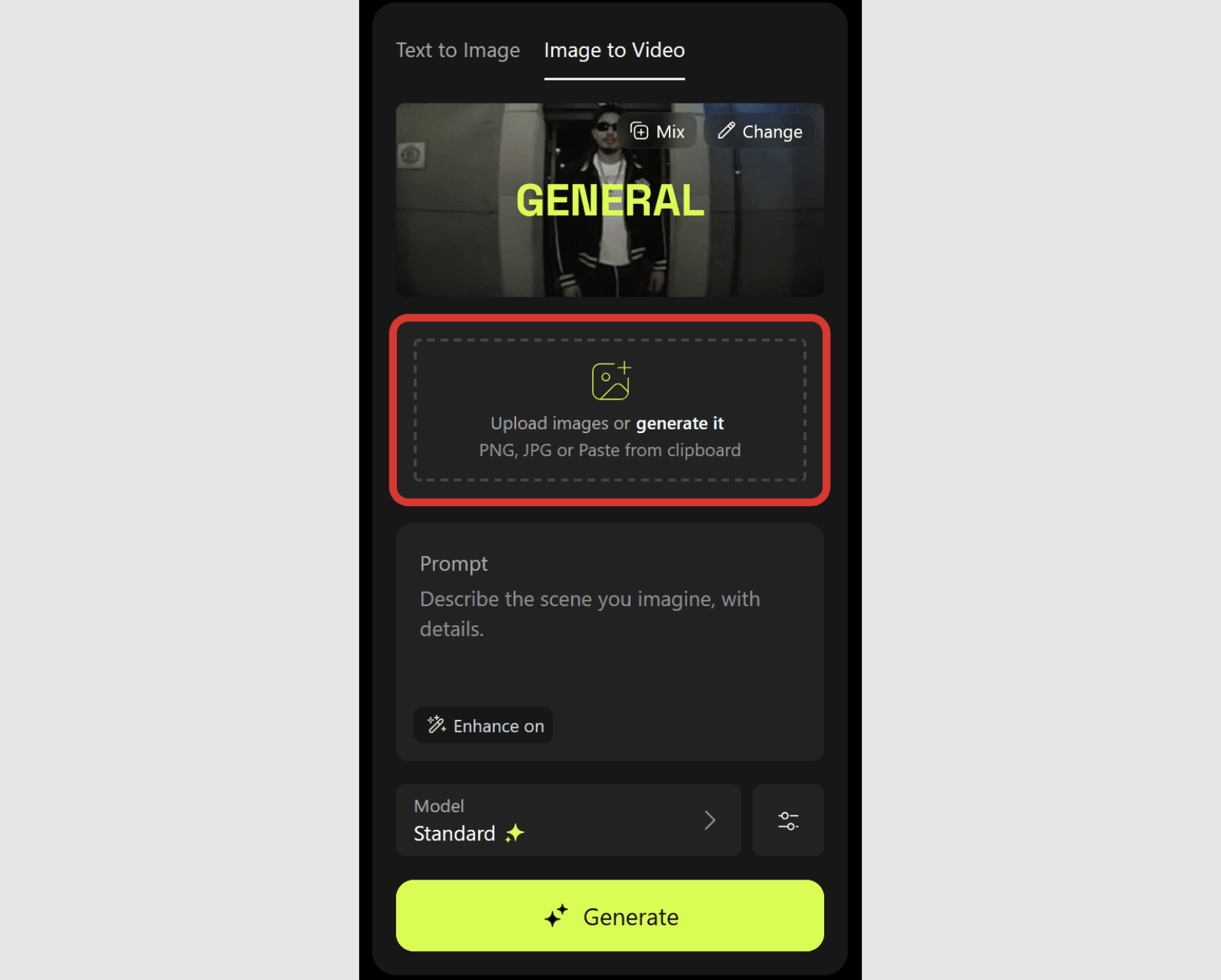
Ask Codex to check the connected tool’s input requirements before uploading anything. A tool might accept an uploaded asset identifier, a media URL, or another reference format. Use the method actually exposed by the connection rather than inventing a parameter.
Source: Kapwing
Authorize the specific reference upload, then confirm that it succeeded. Keep its returned identifier alongside the shot record. A local filename or an image attached to your conversation does not, by itself, establish that Higgsfield can use it.
Next, verify the model and supported settings. Duration, aspect ratio, resolution, and reference handling vary by model. Camera directions written into a prompt are also different from dedicated camera controls. If the tool only accepts a text description, Codex should not report that it configured a Cinema Studio camera setting.

Source: Kapwing
Approve One Test Generation
Before submission, have Codex summarize the reference, model, prompt, output settings, and expected credit cost where the tools provide it. If the cost cannot be retrieved, check it through an authoritative account interface or resolve the uncertainty before proceeding.
Keep the first authorization narrow:
Generate one studio-reveal test using the confirmed product reference and the settings I approved. Do not submit additional variations, upscale the result, or retry a failed request without asking me. Record the generation identifier and report the result.
This prevents an instruction such as “improve it until it looks right” from becoming an open-ended spending loop. Generations through Higgsfield MCP use plan credits; web Unlimited access should not be treated as permission for unlimited automated attempts.

Source: Pikalabsai.org
Track the Result Before Retrying
Save whatever generation identifier, status information, or result link the tool returns. Use available status or listing operations to follow that existing job. Do not assume that a slow response means submission failed.
If the connection times out, distinguish three possibilities: the request never reached Higgsfield, it was accepted and is still processing, or it completed but the response did not reach Codex. Check existing generations before creating another potentially chargeable job.
The separately documented Higgsfield API request lifecycle includes request identifiers and asynchronous processing, but its endpoint names and response fields should not be presented as the MCP tool contract.
Once the test is available, inspect it against the original reference. If the bottle changes shape or the label becomes unusable, diagnose that specific failure before spending credits on the remaining campaign concepts.
Use Computer Use for the Checks That Need an Interface
A successful tool response confirms an operation, not the quality of its outcome. Your studio reveal might finish correctly while showing a distorted cap or an awkward crop. This is where interface-based inspection can complement the MCP workflow.
Enable computer use in a supported desktop environment and approve access to the browser containing Higgsfield. On macOS, the required screen-recording and accessibility permissions must be granted. On Windows, keep the target browser visible on the active desktop.
The following are practical workflows to try, not claims that every Higgsfield interface has been tested with Codex.
Verify the Selected Reference and Visible Settings
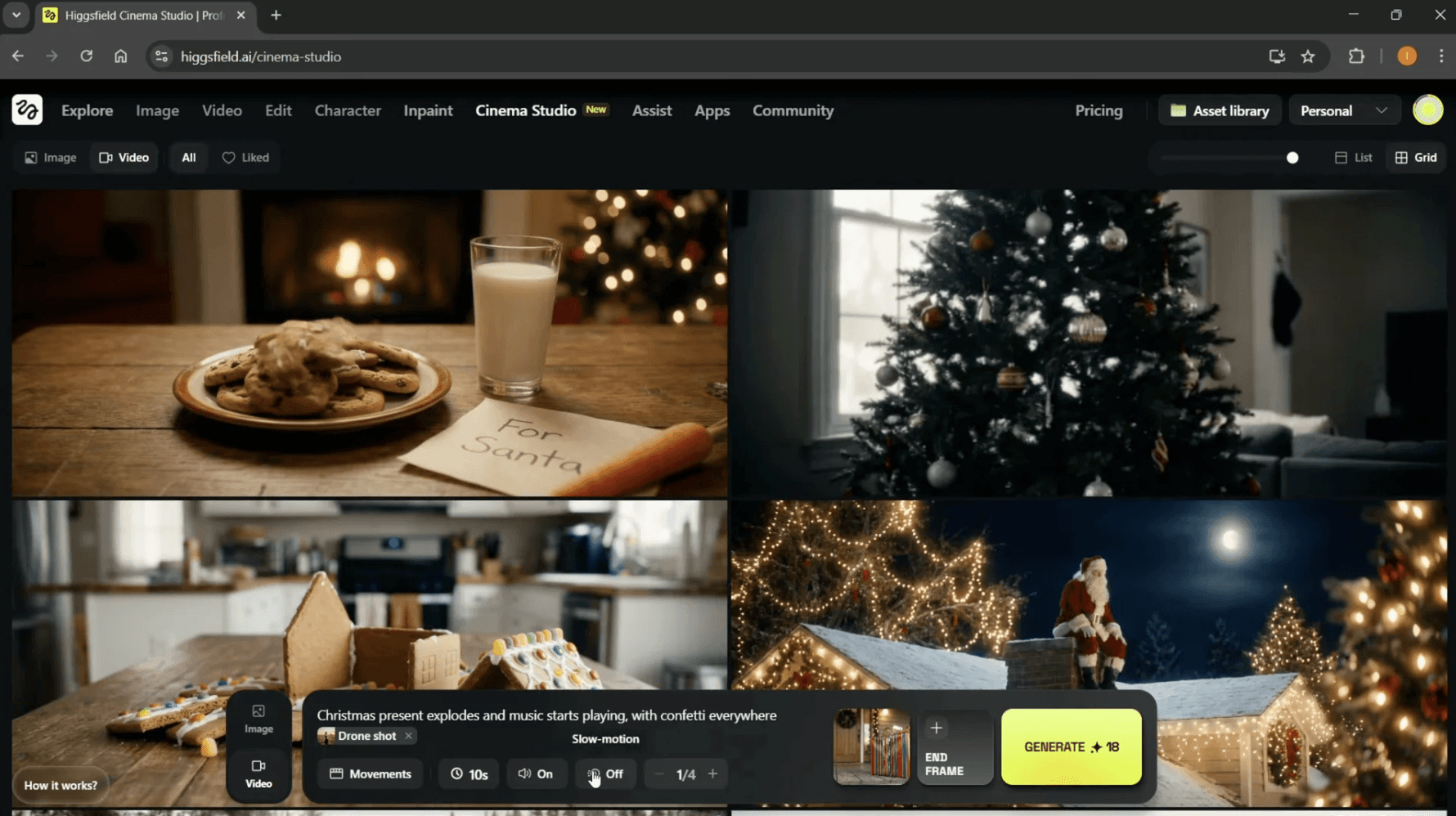
Before a web-based generation, ask Codex to inspect the current page without submitting anything:
Use computer use to inspect the open Higgsfield tab. Check the selected reference, visible model, aspect ratio, and duration against our approved shot plan. Report discrepancies. Do not click Generate or change account settings.
This can catch a previous reference left selected, an unexpected format, or a model different from the one in your plan. Codex should report only what it can actually observe. If a setting is hidden or a thumbnail is too small to identify confidently, open the relevant control or request your confirmation.
These checks supplement structured tools. They do not prove that every option available in the browser can also be supplied through MCP.
Source: Pikalabsai.org
Review the Generated Shot
Open the completed test and compare it with the approved product image. Ask Codex to flag observable differences in the bottle silhouette, cap, label placement, background, and framing.
A useful review separates defects from preferences:
Observation | Suggested response |
|---|---|
Bottle proportions visibly change | Reject the shot or revise the generation approach |
Label text becomes distorted | Consider compositing approved artwork |
Camera movement leaves insufficient copy space | Adjust framing or the motion description |
For video, inspect multiple points, including the opening, middle, and ending. A single screenshot cannot establish that the product remains consistent throughout the clip. Codex’s visual assessment should help prioritize review, not replace your playback and final approval.

Source: Kapwing
Investigate a Missing Result
If a completed generation is not immediately visible, ask Codex to inspect the Assets area and any available status information. Match the result to its generation identifier where shown, or use the prompt, reference, and creation time as supporting clues.
Keep this investigation read-only. Do not regenerate, delete assets, or change filters indefinitely without a clear reason. If the available evidence cannot identify the job, report the uncertainty and investigate through the connected tools or support before spending credits again.
Build Useful Variations Without Losing Product Consistency
Once the studio reveal passes review, expand the campaign through deliberate variations rather than unrelated generations. Keep the approved reference and product constraints attached to every shot record, then change one creative variable at a time.
Test Different Advertising Hooks
The same product can support different opening ideas: a premium reveal, a packaging-detail shot, or a familiar bathroom setting. Ask Codex to explain what each concept communicates before preparing its generation request.
Keep benefit claims separate from visual invention. A skincare bottle appearing beside water does not substantiate a hydration claim, and Codex should not introduce unsupported product promises into the script.
Compare Camera Movement, Not Entire Scenes
For a useful comparison, hold the background, lighting description, reference, and output settings constant while testing a slow push-in against a gentle lateral move. This makes it easier to identify which direction serves the product.
Higgsfield documents camera and reference workflows in Cinema Studio, but use dedicated controls only when your connected tools expose them. Otherwise, describe the intended movement in the prompt and evaluate the result without claiming precise camera execution.

Source: Kapwing
Adapt the Approved Idea to Different Placements
A vertical social ad and a landscape website video need different compositions, not merely different dimensions. Preserve space for headlines, keep the product readable, and check that the crop does not remove its cap or label.
Give Codex a bounded request:
Prepare vertical and landscape adaptations of the approved studio concept. Explain the framing changes, preserve the product reference, and wait for approval before generating.
Record each variation against its parent concept. References support continuity, but identical prompts or reused assets do not guarantee identical product geometry across outputs. Approve the actual results, not just the consistency of their instructions.
Keep Credits, Uploads, and Approvals Under Control
Treat each generation as a specific authorization, not an invitation to keep experimenting. Define how many tests Codex may submit, whether retries require approval, and whether upscaling or other follow-up operations are included. “Generate one approved clip” should not silently become “generate, upscale, and produce five alternatives.”
A spending instruction helps coordinate the session, but it is not a technical account limit. Higgsfield’s connection guide describes conversational credit limits as prompt-level instructions rather than enforced caps. Track actual usage and stop when costs cannot be established confidently.
Use a short operating rule:
Ask before every chargeable operation. Report the expected cost when available, keep a record of submitted jobs, and stop after two approved tests. Do not purchase credits or change billing settings.
Uploads deserve a separate decision. Identify exactly which product photograph or reference video may leave your computer. Avoid granting blanket permission to upload a client folder containing unreleased designs, personal information, or unrelated assets. Confirm that you have permission to use the selected material and disclose it to the service.
Keep credentials out of briefs, screenshots, and generation manifests. OAuth authorization belongs in the sign-in flow; API secrets belong in secure credential storage if you choose that separate integration.
Finally, browser control should not be used to bypass credit rules, access restrictions, or content safeguards. Review Higgsfield’s automated-access terms, and retain human approval for sensitive account changes and final campaign publication.
Package Approved Assets for Editing and Delivery
A campaign becomes difficult to manage when the approved studio reveal sits beside six rejected versions with similar filenames. Before editing, ask Codex to prepare a delivery folder containing only the assets you selected, while preserving the original downloads elsewhere.
Use filenames that describe the shot and version, such as bottle_studio_reveal_vertical_v02.mp4. Keep generation identifiers in the manifest rather than relying on filenames to preserve the entire production history.
Source: Kapwing
For each approved asset, record its source generation, reference, prompt, output settings, and review status. Separate “approved for editing” from “approved for publication.” A clip might have acceptable motion while still needing label replacement, audio cleanup, or a legal review of its advertising copy.
A bounded handoff request could be:
Download the three approved results using available tools, save them in the campaign’s editing folder, and create a delivery manifest. Do not overwrite existing files or include rejected generations. Report any download you cannot complete.
Where local media utilities are available, Codex can help check file properties such as duration, dimensions, and codec. Those checks establish technical characteristics, not visual quality. Confirm playback and inspect the final files yourself.
If you use the separate Higgsfield API, its documentation says outputs remain available for at least seven days, so download them for long-term retention. Do not assume temporary result links are permanent storage.
The next stage belongs in your editing workflow: assemble the shots, add approved typography and branding, mix audio, and export the required deliverables.
Finish Your Higgsfield Projects on Vagon Cloud Computer
Generating the clips is only part of the campaign. Once you start combining high-resolution footage, replacing distorted labels, adding animated typography, and exporting multiple versions, your editing workstation becomes the next potential bottleneck.
Vagon Cloud Computer gives you access to a powerful Windows desktop without tying that work to your laptop’s hardware. Choose CPU and NVIDIA GPU configurations for your production needs, then scale performance as the project grows while keeping your files on the same cloud computer.
For our skincare campaign, that means moving approved Higgsfield assets into your editing environment, compositing the original label artwork, matching the shots, and producing vertical and landscape deliverables. GPU-accelerated effects can benefit from suitable graphics hardware, while complex compositions and exports may also depend on CPU performance, RAM, codecs, and application support.
The distinction matters: Vagon provides performance for the work you run on its desktop. It does not accelerate Higgsfield’s server-side generation queue or change the service’s credit rules.
If you want Codex to assist inside that workspace, install and configure the supported client, authorize the required connections, and verify access there. A connection established on your laptop should not be assumed to exist automatically on the cloud computer. Keep the Windows desktop active when using computer use.
Build the campaign where your tools and assets can work together. Use Higgsfield for generation, Codex for scoped coordination, and Vagon for the demanding editing and finishing work that turns promising clips into polished deliverables.
FAQs
Can Codex Connect Directly to Higgsfield?
Codex supports remote HTTP MCP servers with OAuth, and Higgsfield publishes an official MCP endpoint. This provides a documented connection path, although authentication and available tools must be verified in your client. A configured server does not establish that every Higgsfield feature is accessible.
Do I Need an API Key for Higgsfield MCP?
No. The official MCP connection uses OAuth authorization with your Higgsfield account. API keys belong to the separate Higgsfield API product. You do not need an API account simply to authorize MCP, but your account must meet Higgsfield’s current access requirements.
Does Higgsfield Unlimited Apply to Automated Generation?
Higgsfield states that MCP generations deduct credits, even when your website plan includes Unlimited access. Do not treat browser automation as a workaround: the service also distinguishes manual web usage from automated access. Confirm current credit rules before authorizing a batch.
Can Codex Operate the Higgsfield Website With Computer Use?
In a supported desktop environment, Codex can use approved browser access to inspect and interact with graphical interfaces. Higgsfield tasks remain dependent on accessible controls, your account permissions, and service restrictions. Use scoped instructions, and do not assume that every workflow will work unattended.
Can Codex Guarantee Consistent Products and Characters?
No. Codex can preserve references, organize prompts, and help identify visible inconsistencies, but generated footage may still change product geometry, text, or appearance between frames. Review the full clip. Accurate branding may require original artwork and conventional compositing rather than another generation attempt.
Does a More Powerful Computer Make Higgsfield Generation Faster?
Not directly. Higgsfield processes generation on its own infrastructure, so a faster workstation does not control its queue. More CPU, GPU, or RAM can help with compatible editing, compositing, and export workloads after downloading the assets. Choose workstation performance around those finishing tasks, not an assumed reduction in generation time.
One product photo can become three advertising concepts, but generating three clips is not the same as creating a usable campaign. The bottle changes shape between shots, the logo becomes unreadable, and a promising camera move crops out the detail you wanted to sell. Meanwhile, every retry adds another result to review and potentially another charge.
Using Codex with Higgsfield can make that process more organized. Rather than stopping at prompt suggestions, Codex can connect through MCP to call the Higgsfield tools available to your client. With the right authorization, that can include checking account information and submitting approved image or video generations. Computer use adds a complementary route for inspecting visible settings, navigating the interface, and reviewing results where structured tools are insufficient.
The important distinction is responsibility. Higgsfield generates the media; Codex helps coordinate the workflow. Neither a connection nor a detailed prompt guarantees accurate branding, consistent products, or production-ready footage.
This guide follows a controlled path from creative brief to approved assets: connect the tools, generate a small test, inspect the result, and expand only after you approve the direction and spending.
Source: Pikalabsai.org
Decide What Codex Should Handle Before Connecting Anything
Before giving Codex access to Higgsfield, separate the creative decisions from the actions needed to carry them out. “Make three product ads” leaves too much unspecified. “Prepare three concepts using this approved product reference, then wait before generating” establishes a useful starting point.
There are three ways Codex can help, and they do not provide the same access.
Approach | What Codex works with | Best use |
|---|---|---|
Prompt preparation | Your brief, references, and instructions | Planning concepts without submitting generations |
MCP connection | Tools exposed by Higgsfield’s server | Supported account checks and approved generation operations |
Computer use | The permitted browser interface | Inspecting visible settings and reviewing results |
Prompt preparation requires no Higgsfield connection. Codex can turn a brief into shot descriptions, organize alternatives, and identify missing information. However, a well-written prompt does not prove that the selected model supports the requested duration, reference inputs, or camera controls.
A Higgsfield MCP connection provides structured access to the service. The practical boundary is the tool catalog returned to your client. If a particular operation or parameter is absent, Codex should report that limitation rather than claim it changed the setting.
Use computer use when the task depends on something visible: checking which reference is selected, inspecting a preview, or locating a completed asset. It requires a supported desktop environment and permission to access the target app. It is not automatic browser control bundled into every Codex session.
The Higgsfield API is a separate option for custom applications and scripted pipelines, with its own credentials and billing. You do not need to build an API integration simply to start using the official MCP connection.
For the product campaign in this guide, the division is straightforward: Codex prepares the plan, MCP handles available service operations, and computer use supports interface checks. You approve spending and decide whether the generated material represents the product accurately.
Connect Codex to Higgsfield and Verify the Tools
Start with a Higgsfield account that meets the service’s current subscription requirements and a Codex client that supports remote MCP connections. Higgsfield publishes an official server address, so this route does not require building a local connector or configuring a separate API key.
The setup below combines Higgsfield’s documented endpoint with Codex’s supported configuration format. It is not a guarantee that every Higgsfield feature will be available in your particular client.
Add the Official MCP Endpoint
For a local Codex setup, add this entry to your existing ~/.codex/config.toml, preserving any other configuration:
[mcp_servers.higgsfield]
The address is the actual MCP endpoint. The public higgsfield.ai/mcp page explains the integration but is not the server URL.
If you use Codex CLI, start the documented OAuth flow:
Complete the Higgsfield sign-in and authorization yourself in the browser. Check that you are connecting the intended account before granting access. Your Higgsfield browser session alone does not establish that Codex has authenticated successfully.
You can inspect configured servers with codex mcp list and check active connections using /mcp inside the Codex terminal interface. The Codex MCP configuration is shared across supported local clients on the same host, but authentication and tool availability should still be verified in the client you intend to use.
Test the Connection Without Generating Anything
Begin with an account lookup rather than an image or video request:
Use the connected Higgsfield tools to check my credit balance and list my recent generations, if those operations are available. Do not upload files or start a generation.
These are verification requests suggested in Higgsfield’s connection guide. Look for an actual tool call and returned account information. A conversational answer that merely says “Higgsfield is connected” is not sufficient evidence.
If authentication fails, inspect the connection error and retry the login process. Do not substitute an API credential or disable security checks to force the connection.
Check What This Client Actually Exposes
Next, ask Codex to summarize the available Higgsfield tools and the inputs required for your planned generation. Confirm whether it can accept your reference asset, select the intended model, and return a generation identifier or result.
Avoid copying another assistant’s workflow without checking compatibility. An upload window shown in a ChatGPT plugin tutorial, for example, does not prove that the same interface exists in Codex CLI.
Once these checks pass, you have a verified connection for the available operations, not blanket control over the entire Higgsfield website.
Turn Your Creative Brief Into a Generation Plan
For our example campaign, assume you have an approved photograph of a skincare bottle and need three short advertising concepts: a clean studio reveal, a close-up highlighting the packaging, and a lifestyle shot with the product on a bathroom shelf.
Before asking Codex to generate anything, define what must remain unchanged. The bottle’s proportions, cap color, label placement, and brand identity are constraints, not creative suggestions. Also identify what can vary, such as the background, lighting, and camera movement.
Source: Kapwing
Give Codex a brief that separates those requirements:
Prepare three video concepts using the approved bottle photograph. Keep the product’s proportions, cap color, and label placement consistent with the reference. Propose a studio reveal, packaging close-up, and bathroom lifestyle scene. For each concept, suggest a model and supported format, describe the motion, and identify likely failure points. Do not upload or generate anything yet.
Codex should turn that request into a compact generation plan rather than immediately submitting three jobs. A local manifest can connect each proposed shot to its reference and approval status:
This is a planning record, not a Higgsfield request schema. The reference filename identifies your local asset; it does not mean the file has been uploaded or made accessible to the generation tool.
Have Codex flag missing information before proceeding. Does the selected model support that reference type and aspect ratio? Is native audio needed? Should the shot leave space for copy added during editing?
Approve the concept and inputs first. Exact label reproduction may still require compositing the original artwork in post-production, so treat branding accuracy as a review criterion rather than a guaranteed outcome.
Source: Pikalabsai.org
Generate a Small Test Before Building the Campaign
The first generation should answer a specific question: can the chosen model produce a usable shot from your approved reference? For the skincare campaign, start with the studio reveal. It has fewer moving parts than the lifestyle scene, making product distortion and unwanted camera behavior easier to identify.
Confirm the Reference and Model
Ask Codex to check the connected tool’s input requirements before uploading anything. A tool might accept an uploaded asset identifier, a media URL, or another reference format. Use the method actually exposed by the connection rather than inventing a parameter.
Source: Kapwing
Authorize the specific reference upload, then confirm that it succeeded. Keep its returned identifier alongside the shot record. A local filename or an image attached to your conversation does not, by itself, establish that Higgsfield can use it.
Next, verify the model and supported settings. Duration, aspect ratio, resolution, and reference handling vary by model. Camera directions written into a prompt are also different from dedicated camera controls. If the tool only accepts a text description, Codex should not report that it configured a Cinema Studio camera setting.
Source: Kapwing
Approve One Test Generation
Before submission, have Codex summarize the reference, model, prompt, output settings, and expected credit cost where the tools provide it. If the cost cannot be retrieved, check it through an authoritative account interface or resolve the uncertainty before proceeding.
Keep the first authorization narrow:
Generate one studio-reveal test using the confirmed product reference and the settings I approved. Do not submit additional variations, upscale the result, or retry a failed request without asking me. Record the generation identifier and report the result.
This prevents an instruction such as “improve it until it looks right” from becoming an open-ended spending loop. Generations through Higgsfield MCP use plan credits; web Unlimited access should not be treated as permission for unlimited automated attempts.
Source: Pikalabsai.org
Track the Result Before Retrying
Save whatever generation identifier, status information, or result link the tool returns. Use available status or listing operations to follow that existing job. Do not assume that a slow response means submission failed.
If the connection times out, distinguish three possibilities: the request never reached Higgsfield, it was accepted and is still processing, or it completed but the response did not reach Codex. Check existing generations before creating another potentially chargeable job.
The separately documented Higgsfield API request lifecycle includes request identifiers and asynchronous processing, but its endpoint names and response fields should not be presented as the MCP tool contract.
Once the test is available, inspect it against the original reference. If the bottle changes shape or the label becomes unusable, diagnose that specific failure before spending credits on the remaining campaign concepts.
Use Computer Use for the Checks That Need an Interface
A successful tool response confirms an operation, not the quality of its outcome. Your studio reveal might finish correctly while showing a distorted cap or an awkward crop. This is where interface-based inspection can complement the MCP workflow.
Enable computer use in a supported desktop environment and approve access to the browser containing Higgsfield. On macOS, the required screen-recording and accessibility permissions must be granted. On Windows, keep the target browser visible on the active desktop.
The following are practical workflows to try, not claims that every Higgsfield interface has been tested with Codex.
Verify the Selected Reference and Visible Settings
Before a web-based generation, ask Codex to inspect the current page without submitting anything:
Use computer use to inspect the open Higgsfield tab. Check the selected reference, visible model, aspect ratio, and duration against our approved shot plan. Report discrepancies. Do not click Generate or change account settings.
This can catch a previous reference left selected, an unexpected format, or a model different from the one in your plan. Codex should report only what it can actually observe. If a setting is hidden or a thumbnail is too small to identify confidently, open the relevant control or request your confirmation.
These checks supplement structured tools. They do not prove that every option available in the browser can also be supplied through MCP.
Source: Pikalabsai.org
Review the Generated Shot
Open the completed test and compare it with the approved product image. Ask Codex to flag observable differences in the bottle silhouette, cap, label placement, background, and framing.
A useful review separates defects from preferences:
Observation | Suggested response |
|---|---|
Bottle proportions visibly change | Reject the shot or revise the generation approach |
Label text becomes distorted | Consider compositing approved artwork |
Camera movement leaves insufficient copy space | Adjust framing or the motion description |
For video, inspect multiple points, including the opening, middle, and ending. A single screenshot cannot establish that the product remains consistent throughout the clip. Codex’s visual assessment should help prioritize review, not replace your playback and final approval.
Source: Kapwing
Investigate a Missing Result
If a completed generation is not immediately visible, ask Codex to inspect the Assets area and any available status information. Match the result to its generation identifier where shown, or use the prompt, reference, and creation time as supporting clues.
Keep this investigation read-only. Do not regenerate, delete assets, or change filters indefinitely without a clear reason. If the available evidence cannot identify the job, report the uncertainty and investigate through the connected tools or support before spending credits again.
Build Useful Variations Without Losing Product Consistency
Once the studio reveal passes review, expand the campaign through deliberate variations rather than unrelated generations. Keep the approved reference and product constraints attached to every shot record, then change one creative variable at a time.
Test Different Advertising Hooks
The same product can support different opening ideas: a premium reveal, a packaging-detail shot, or a familiar bathroom setting. Ask Codex to explain what each concept communicates before preparing its generation request.
Keep benefit claims separate from visual invention. A skincare bottle appearing beside water does not substantiate a hydration claim, and Codex should not introduce unsupported product promises into the script.
Compare Camera Movement, Not Entire Scenes
For a useful comparison, hold the background, lighting description, reference, and output settings constant while testing a slow push-in against a gentle lateral move. This makes it easier to identify which direction serves the product.
Higgsfield documents camera and reference workflows in Cinema Studio, but use dedicated controls only when your connected tools expose them. Otherwise, describe the intended movement in the prompt and evaluate the result without claiming precise camera execution.
Source: Kapwing
Adapt the Approved Idea to Different Placements
A vertical social ad and a landscape website video need different compositions, not merely different dimensions. Preserve space for headlines, keep the product readable, and check that the crop does not remove its cap or label.
Give Codex a bounded request:
Prepare vertical and landscape adaptations of the approved studio concept. Explain the framing changes, preserve the product reference, and wait for approval before generating.
Record each variation against its parent concept. References support continuity, but identical prompts or reused assets do not guarantee identical product geometry across outputs. Approve the actual results, not just the consistency of their instructions.
Keep Credits, Uploads, and Approvals Under Control
Treat each generation as a specific authorization, not an invitation to keep experimenting. Define how many tests Codex may submit, whether retries require approval, and whether upscaling or other follow-up operations are included. “Generate one approved clip” should not silently become “generate, upscale, and produce five alternatives.”
A spending instruction helps coordinate the session, but it is not a technical account limit. Higgsfield’s connection guide describes conversational credit limits as prompt-level instructions rather than enforced caps. Track actual usage and stop when costs cannot be established confidently.
Use a short operating rule:
Ask before every chargeable operation. Report the expected cost when available, keep a record of submitted jobs, and stop after two approved tests. Do not purchase credits or change billing settings.
Uploads deserve a separate decision. Identify exactly which product photograph or reference video may leave your computer. Avoid granting blanket permission to upload a client folder containing unreleased designs, personal information, or unrelated assets. Confirm that you have permission to use the selected material and disclose it to the service.
Keep credentials out of briefs, screenshots, and generation manifests. OAuth authorization belongs in the sign-in flow; API secrets belong in secure credential storage if you choose that separate integration.
Finally, browser control should not be used to bypass credit rules, access restrictions, or content safeguards. Review Higgsfield’s automated-access terms, and retain human approval for sensitive account changes and final campaign publication.
Package Approved Assets for Editing and Delivery
A campaign becomes difficult to manage when the approved studio reveal sits beside six rejected versions with similar filenames. Before editing, ask Codex to prepare a delivery folder containing only the assets you selected, while preserving the original downloads elsewhere.
Use filenames that describe the shot and version, such as bottle_studio_reveal_vertical_v02.mp4. Keep generation identifiers in the manifest rather than relying on filenames to preserve the entire production history.
Source: Kapwing
For each approved asset, record its source generation, reference, prompt, output settings, and review status. Separate “approved for editing” from “approved for publication.” A clip might have acceptable motion while still needing label replacement, audio cleanup, or a legal review of its advertising copy.
A bounded handoff request could be:
Download the three approved results using available tools, save them in the campaign’s editing folder, and create a delivery manifest. Do not overwrite existing files or include rejected generations. Report any download you cannot complete.
Where local media utilities are available, Codex can help check file properties such as duration, dimensions, and codec. Those checks establish technical characteristics, not visual quality. Confirm playback and inspect the final files yourself.
If you use the separate Higgsfield API, its documentation says outputs remain available for at least seven days, so download them for long-term retention. Do not assume temporary result links are permanent storage.
The next stage belongs in your editing workflow: assemble the shots, add approved typography and branding, mix audio, and export the required deliverables.
Finish Your Higgsfield Projects on Vagon Cloud Computer
Generating the clips is only part of the campaign. Once you start combining high-resolution footage, replacing distorted labels, adding animated typography, and exporting multiple versions, your editing workstation becomes the next potential bottleneck.
Vagon Cloud Computer gives you access to a powerful Windows desktop without tying that work to your laptop’s hardware. Choose CPU and NVIDIA GPU configurations for your production needs, then scale performance as the project grows while keeping your files on the same cloud computer.
For our skincare campaign, that means moving approved Higgsfield assets into your editing environment, compositing the original label artwork, matching the shots, and producing vertical and landscape deliverables. GPU-accelerated effects can benefit from suitable graphics hardware, while complex compositions and exports may also depend on CPU performance, RAM, codecs, and application support.
The distinction matters: Vagon provides performance for the work you run on its desktop. It does not accelerate Higgsfield’s server-side generation queue or change the service’s credit rules.
If you want Codex to assist inside that workspace, install and configure the supported client, authorize the required connections, and verify access there. A connection established on your laptop should not be assumed to exist automatically on the cloud computer. Keep the Windows desktop active when using computer use.
Build the campaign where your tools and assets can work together. Use Higgsfield for generation, Codex for scoped coordination, and Vagon for the demanding editing and finishing work that turns promising clips into polished deliverables.
FAQs
Can Codex Connect Directly to Higgsfield?
Codex supports remote HTTP MCP servers with OAuth, and Higgsfield publishes an official MCP endpoint. This provides a documented connection path, although authentication and available tools must be verified in your client. A configured server does not establish that every Higgsfield feature is accessible.
Do I Need an API Key for Higgsfield MCP?
No. The official MCP connection uses OAuth authorization with your Higgsfield account. API keys belong to the separate Higgsfield API product. You do not need an API account simply to authorize MCP, but your account must meet Higgsfield’s current access requirements.
Does Higgsfield Unlimited Apply to Automated Generation?
Higgsfield states that MCP generations deduct credits, even when your website plan includes Unlimited access. Do not treat browser automation as a workaround: the service also distinguishes manual web usage from automated access. Confirm current credit rules before authorizing a batch.
Can Codex Operate the Higgsfield Website With Computer Use?
In a supported desktop environment, Codex can use approved browser access to inspect and interact with graphical interfaces. Higgsfield tasks remain dependent on accessible controls, your account permissions, and service restrictions. Use scoped instructions, and do not assume that every workflow will work unattended.
Can Codex Guarantee Consistent Products and Characters?
No. Codex can preserve references, organize prompts, and help identify visible inconsistencies, but generated footage may still change product geometry, text, or appearance between frames. Review the full clip. Accurate branding may require original artwork and conventional compositing rather than another generation attempt.
Does a More Powerful Computer Make Higgsfield Generation Faster?
Not directly. Higgsfield processes generation on its own infrastructure, so a faster workstation does not control its queue. More CPU, GPU, or RAM can help with compatible editing, compositing, and export workloads after downloading the assets. Choose workstation performance around those finishing tasks, not an assumed reduction in generation time.
Get Beyond Your Computer Performance
Run applications on your cloud computer with the latest generation hardware. No more crashes or lags.

Trial includes 1 hour usage + 7 days of storage.
Summarize with AI

Ready to focus on your creativity?
Vagon gives you the ability to create & render projects, collaborate, and stream applications with the power of the best hardware.

Run heavy applications on any device with
your personal computer on the cloud.
San Francisco, California
Solutions
Vagon Teams
Vagon Streams
Use Cases
© 2026 Vagon. All rights reserved.
Run heavy applications on any device with
your personal computer on the cloud.
San Francisco, California
Solutions
Vagon Teams
Vagon Streams
Use Cases
© 2026 Vagon. All rights reserved.
Run heavy applications on any device with
your personal computer on the cloud.
San Francisco, California
Solutions
Vagon Teams
Vagon Streams
Use Cases
© 2026 Vagon. All rights reserved.