Instant Connection for Pixel Streaming
— New Feature Automated Setup

How to Use Revit With Claude: MCP & Computer Use
Engineering
How to Use Revit With Claude: MCP & Computer Use
Engineering
How to Use Revit With Claude: MCP & Computer Use
Engineering
Table of Contents
Using Claude with Revit involves more than asking an AI model to generate Dynamo graphs, Python scripts, or Revit API code. With a compatible Model Context Protocol (MCP) server, Claude can communicate with a live Revit project through structured tools.
In a typical local setup, Claude sends an MCP tool call to a server running on Windows. The server forwards the request to a Revit add-in, which dispatches the operation through the Revit API and returns the result. This allows Claude to inspect project data such as levels, rooms, views, sheets, families, elements, and parameters. Depending on the implementation, it can also create or modify elements, generate schedules, export files, and run coordination workflows.
Computer Use adds a visual control layer. Claude can receive screenshots and interact with the Revit interface through mouse clicks, keyboard input, menus, dialogs, the Project Browser, and the Properties panel.
Together, MCP and Computer Use can support a workflow in which Claude reads a BIM model, proposes a change, requests approval, applies a supported Revit API operation, and verifies the visible result.
This is not a native Claude-Revit feature. It requires Windows, a licensed Revit installation, a compatible add-in and MCP server, and a controlled desktop environment. Capabilities depend on the specific implementation.
What Can Claude Do With Revit Through MCP and Computer Use?
Claude can work with Revit at three technical layers: BIM data inspection, Revit API operations, and desktop interface control. The exact capabilities depend on the MCP server, Revit add-in, and version of Revit being used.
Through MCP, Claude may be able to:
Read project information, levels, rooms, views, and sheets
Query walls, doors, windows, families, and other elements
Read and update Revit parameters
Create walls, family instances, rooms, sheets, and views
Move or delete supported elements
Apply view templates and duplicate views
Generate schedules, material takeoffs, and quantity reports
Export PDF, DWG, DXF, IFC, or CSV files
Run supported Revit commands or launch Dynamo workflows
MCP is useful because the returned information is structured. Claude can receive an element category, element ID, parameter value, or schedule result instead of trying to interpret the model visually.
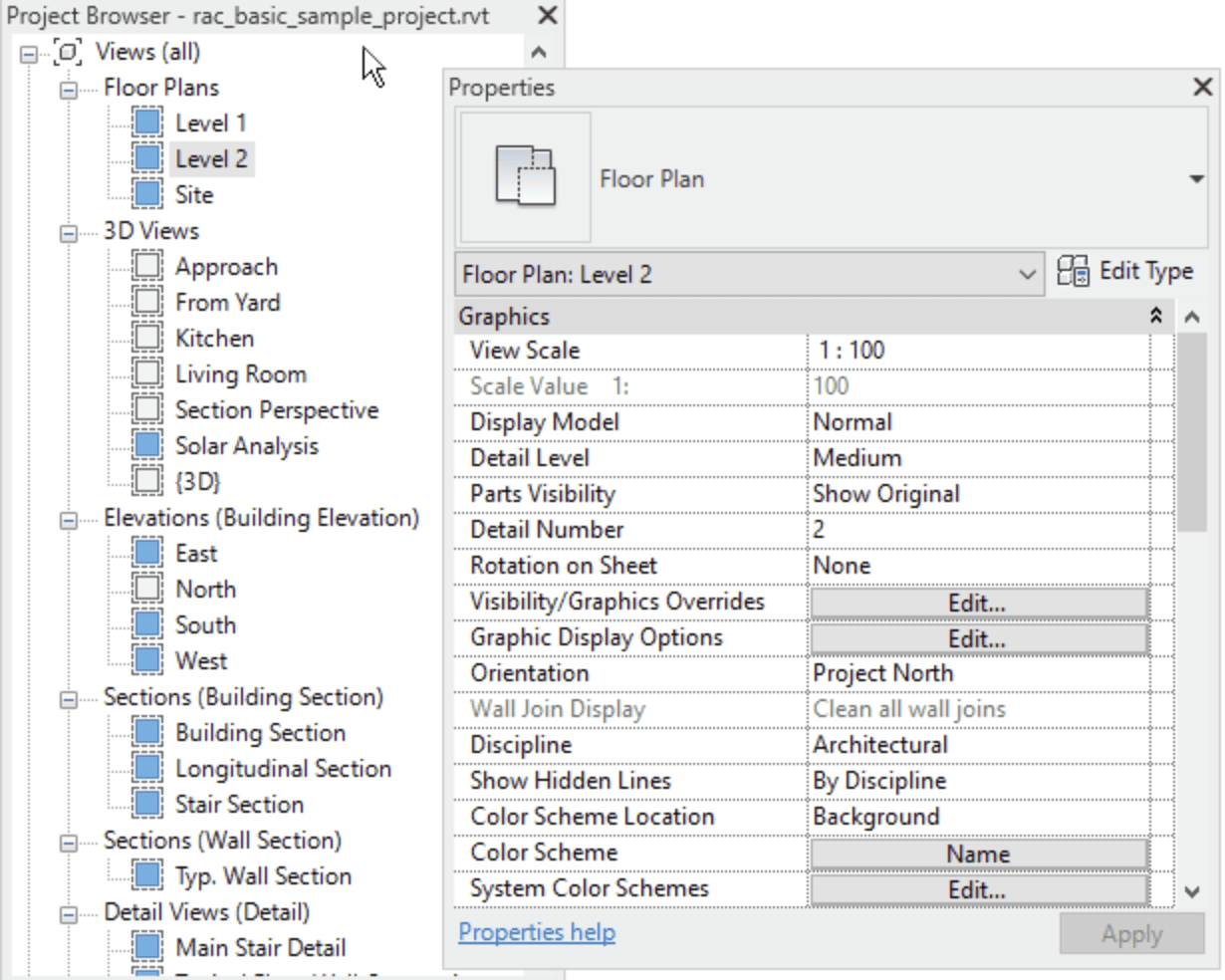
Source: Autodesk Revit documentation
Computer Use operates at the interface level. Claude can interact with the visible Revit application by opening projects, switching views, selecting elements, navigating the Project Browser, opening the Properties panel, and entering values into dialogs.
This makes Computer Use useful when a workflow depends on Revit’s interface or when the MCP server does not expose a particular operation. It can also verify whether a model change is visible in the correct view.
Neither method provides unrestricted Revit control. Claude can only use the tools implemented by the MCP server and the Revit API operations supported by the add-in. A server may support walls, rooms, schedules, and parameters while offering limited support for specialized families, worksharing, linked models, or certain discipline-specific features.
A practical workflow combines both layers: MCP performs structured BIM operations, while Computer Use navigates the interface and confirms the visible result.
MCP vs. Computer Use: Which Revit Connection Should You Use?
MCP and Computer Use provide different types of access to Revit. MCP communicates with a Revit add-in and the Revit API through structured tools. Computer Use interacts with the visible Revit desktop.
Revit requirement | MCP | Computer Use |
|---|---|---|
Read project information | Structured response | Visual interpretation |
Query rooms and elements | More suitable | Possible through views |
Read parameters | More reliable | Requires the Properties panel |
Create supported elements | Direct API operation | Interface-driven action |
Navigate views and sheets | Limited | Suitable |
Use dialogs and menus | Limited | Suitable |
Apply bulk changes | More deterministic | Sensitive to screen state |
Verify model appearance | Requires screenshot support | Native use case |
Export schedules or reports | More suitable | Possible through menus |
MCP is the better option when Claude needs structured BIM data. It can query elements by category, inspect parameters, apply supported Revit API operations, and return defined results. This makes it suitable for schedules, takeoffs, parameter audits, and repeatable bulk workflows.
Computer Use is more flexible at the interface level. Claude can open a project, change views, select an element in the Project Browser, edit a value in the Properties panel, or respond to a Revit dialog. However, its actions depend on the current screen state and can be affected by resolution, open windows, view scale, or incorrect selections.

Source: Autodesk Revit tutorial
The most reliable workflow combines both methods. Claude can use MCP to identify the target elements and prepare a structured change. After user approval, the MCP server can send the operation through the Revit add-in and API. Computer Use can then inspect the active Revit view and confirm that the result appears as expected.
MCP provides structured model access. Computer Use provides interface control and visual verification. Neither needs to replace the other.
How Do You Connect Claude to a Revit MCP Server?
A local Revit MCP setup usually consists of four components: Claude, an MCP server, a Revit add-in, and the Revit API. Claude does not connect directly to the project database. The MCP server sends requests to an add-in running inside Revit, and the add-in dispatches them through the Revit API.
The basic architecture is:
The exact setup depends on the server implementation. The Revit Claude MCP project, for example, uses a Node MCP server, a local Revit add-in, and a localhost bridge. Other projects use a WebSocket bridge or different port and authentication settings.
A typical Windows environment requires:
Autodesk Revit and a compatible project file
A Revit add-in compiled for the installed Revit version
Node.js or Python, depending on the server
The MCP server package
Claude Desktop or Claude Code
A local HTTP or WebSocket bridge
A Computer Use runtime, if visual control is also required
After installing the add-in, start Revit and open a test project. Confirm that the add-in has loaded before launching the MCP server. Many implementations provide a health endpoint or a dedicated health-check tool to verify that the bridge is available.
The first Claude request should be read-only:
Then test a simple model query:
For Claude Desktop, the MCP server is typically added through the Developer settings or the claude_desktop_config.json file. Claude Code can be configured through its MCP settings or the claude mcp add command, depending on the server’s instructions.
Connection problems commonly come from an unloaded add-in, an incorrect Revit version, a missing Node.js dependency, a wrong configuration path, a blocked localhost port, or a project that is not open. Test every write operation on a duplicate project before using the workflow with production BIM files.

Source: Claude Desktop MCP configuration documentation.
How Do You Use Claude Computer Use With Revit?
Computer Use gives Claude visual and interactive access to the Revit desktop. Instead of sending a structured request to the Revit API, Claude receives a screenshot, identifies a target in the interface, and asks the runtime to perform an action.
The interaction loop is:
Claude can use Computer Use to open a Revit project, switch between floor plans and 3D views, navigate the Project Browser, select walls or families, open the Properties panel, enter parameter values, and interact with dialogs.
It is also useful when an MCP server does not expose a specific Revit function. For example, Claude may use MCP to identify a target wall and then use Computer Use to open the relevant view, select the wall, and visually confirm the result.
Computer Use does not automatically understand Revit’s internal data model. It interprets the visible interface. View scale, screen resolution, active windows, hidden panels, selection filters, and warning dialogs can therefore affect the outcome.
For reliable execution, keep action sequences short. After changing a view, selecting an element, submitting a dialog, or applying a template, return a new screenshot and verify the Revit state.
A safe prompt might be:
Computer Use should not save, overwrite, delete, export, or apply bulk changes without explicit approval. Anthropic recommends using a sandboxed environment with limited permissions for Claude Computer Use.

Source: Anthropic Claude Computer Use documentation.
What Revit Workflows Can You Automate With Claude?
The available workflows depend on the Revit API operations exposed by the MCP server. Current community implementations document support for model inspection, element operations, views, sheets, schedules, exports, takeoffs, and coordination tasks.
Inspecting a BIM model
Claude can use MCP to query project data before making any changes. For example, it can list levels, rooms, walls, doors, families, views, sheets, or parameters.
Because the result is structured, Claude can organize the response by category, level, family, or parameter value.
Creating and modifying elements
If the server exposes the required Revit API operations, Claude may be able to create walls, place family instances, update parameters, move elements, create rooms, generate sheets, or apply view templates.
A controlled workflow should begin with inspection. Claude identifies the target elements, explains the proposed change, and waits for approval. The MCP server then sends the operation to the Revit add-in, which executes it through the Revit API.
Documentation and quantity workflows
Claude can also support documentation tasks such as creating sheets, placing views, renaming views in bulk, adding revisions, generating material takeoffs, and exporting schedules.
Coordination and reporting
Some implementations expose tools for clash detection, model audits, and report generation. Claude may be able to compare structural and MEP elements, identify possible conflicts, and export an HTML or CSV report.
Combining MCP with Computer Use
A complete workflow could look like this:
MCP reads the active project.
Claude identifies the relevant elements or views.
Claude explains the proposed change.
The user approves the operation.
MCP sends the request through the Revit add-in.
Computer Use opens the relevant view.
Claude verifies the visible result.
The user approves saving or exporting the project.
The exact tool names, categories, and write capabilities vary by server. Specialized families, linked models, worksharing, and discipline-specific workflows should not be assumed to work without testing.
Source: Autodesk Revit Properties Palette documentation.
How Do You Use MCP and Computer Use Safely With Revit?
Claude can access live BIM data and, through supported tools, change elements, parameters, views, sheets, and project documentation. Every MCP call and Computer Use action should therefore be treated as a potentially consequential operation.
Start with a duplicate Revit project rather than the original .rvt file. Use read-only requests first to confirm the active project, Revit version, current view, element category, and target element IDs.
Require approval before operations that can affect the model or project files, including:
Creating or deleting elements
Updating parameters in bulk
Moving or renaming elements
Applying view templates
Creating or modifying sheets
Exporting PDF, DWG, IFC, or schedules
Saving, overwriting, or closing the project
MCP responses should be verified against the Revit model. A successful tool response does not necessarily prove that the correct element was modified. Re-query the affected elements and confirm their category, ID, level, type, and parameter values.
Computer Use requires an additional visual check. After a click, view change, dialog submission, or selection, return a new screenshot and confirm that Revit is in the expected state. Project Browser filters, view scale, hidden elements, selection filters, and warning dialogs can all affect the result.

Source: BIM Pure Revit 2024 interface guide.
Keep the Revit bridge local whenever possible. Do not expose localhost ports to the public internet, and restrict the MCP server to the project and directories it actually needs. Avoid sharing production credentials or unrelated company files with the Computer Use environment.
Common mistakes include using an add-in built for the wrong Revit version, modifying the wrong project, trusting an element name without checking its ID, and assuming that the MCP server supports the full Revit API. Keep backups before bulk writes and use a controlled environment with limited permissions, as recommended in Claude’s Computer Use security guidance.
Run Revit and Claude Together on Vagon Cloud Computer
Running Revit with Claude requires a Windows environment that can handle both the BIM workload and the automation layer. Revit, Claude Desktop or Claude Code, the MCP server, the Revit add-in, and the Computer Use runtime need to communicate reliably during the same session.
Vagon Cloud Computer provides a full Windows cloud workstation that you can access from a browser. You can install Revit, Claude, Node.js, the Revit MCP add-in, and the required dependencies on one machine. This allows Claude to communicate with the local Revit bridge while Computer Use interacts with the same visible desktop.
This setup is particularly useful for workflows involving:
Large Revit projects
Detailed 3D views
Multiple linked models
Large families and complex geometry
Bulk parameter updates
Material takeoffs and schedule generation
Clash reports and documentation exports
Because Revit runs on Vagon’s cloud hardware, your local Mac, Chromebook, or lower-powered laptop does not need to handle the main CPU, memory, and GPU workload. You can select a cloud workstation based on the size of the project and access the same Windows environment from different devices.
Vagon’s CAD/CAM engineering workstations provide scalable CPU, GPU, and memory options for demanding engineering workflows. Additional performance can help with 3D navigation, linked-model inspection, view regeneration, exports, and screenshot-based Computer Use interactions.
The complete environment can look like this:
Vagon does not provide a Revit license or an official Autodesk MCP connector. You still need to install Revit, provide the required license, configure the add-in, and test the MCP server. For production work, use versioned projects, restricted credentials, and approval before saving or exporting changes.
FAQs
Is there an official Autodesk Revit MCP server?
Autodesk provides MCP server submission requirements and a Revit tool manifest example, but community projects should not be described as official Autodesk connectors. Verify the provider, supported Revit versions, and available tools before using one.
Can Claude connect to Revit?
Yes. Claude Desktop or Claude Code can connect to Revit through a local MCP server, Revit add-in, and Revit API bridge.
Does Revit require an add-in for MCP?
Most local Revit MCP architectures use an add-in. The add-in runs inside Revit and dispatches MCP requests through the Revit API.
Can Claude create walls and family instances?
It can create supported elements when the MCP server exposes the required Revit API operations. The exact capabilities depend on the implementation and Revit version.
Can Claude read rooms, views, sheets, and parameters?
Yes, if the MCP server provides tools for those categories. Claude can then return the information as structured results rather than interpreting the model only through screenshots.
Can Claude modify an existing Revit project?
Yes, supported MCP tools may modify elements, parameters, views, sheets, or documentation. Always use a duplicate project and request approval before write operations.
Can Computer Use replace Revit MCP?
No. Computer Use controls the visible Revit interface, while MCP provides structured access through the Revit API. The two approaches work best together.
Does this work with Revit 2025 and 2026?
It depends on the add-in and server implementation. The Revit add-in must be compiled and installed for the correct Revit version.
Can Claude generate material takeoffs or clash reports?
Some MCP implementations expose tools for schedules, material takeoffs, clash detection, and report exports. Confirm that the required tools are available before relying on the workflow.
Can I run Revit and Claude on Vagon Cloud Computer?
Yes. Revit, Claude, the MCP server, the Revit add-in, and Computer Use runtime can run on the same Vagon Windows Cloud Computer. You still need to provide the Revit installation, license, and connector.
Is it safe to use Claude with production BIM files?
Begin with a copy or versioned project. Keep the bridge local, restrict file access, require approval before bulk changes or exports, and verify the final model in Revit before production use.
Using Claude with Revit involves more than asking an AI model to generate Dynamo graphs, Python scripts, or Revit API code. With a compatible Model Context Protocol (MCP) server, Claude can communicate with a live Revit project through structured tools.
In a typical local setup, Claude sends an MCP tool call to a server running on Windows. The server forwards the request to a Revit add-in, which dispatches the operation through the Revit API and returns the result. This allows Claude to inspect project data such as levels, rooms, views, sheets, families, elements, and parameters. Depending on the implementation, it can also create or modify elements, generate schedules, export files, and run coordination workflows.
Computer Use adds a visual control layer. Claude can receive screenshots and interact with the Revit interface through mouse clicks, keyboard input, menus, dialogs, the Project Browser, and the Properties panel.
Together, MCP and Computer Use can support a workflow in which Claude reads a BIM model, proposes a change, requests approval, applies a supported Revit API operation, and verifies the visible result.
This is not a native Claude-Revit feature. It requires Windows, a licensed Revit installation, a compatible add-in and MCP server, and a controlled desktop environment. Capabilities depend on the specific implementation.
What Can Claude Do With Revit Through MCP and Computer Use?
Claude can work with Revit at three technical layers: BIM data inspection, Revit API operations, and desktop interface control. The exact capabilities depend on the MCP server, Revit add-in, and version of Revit being used.
Through MCP, Claude may be able to:
Read project information, levels, rooms, views, and sheets
Query walls, doors, windows, families, and other elements
Read and update Revit parameters
Create walls, family instances, rooms, sheets, and views
Move or delete supported elements
Apply view templates and duplicate views
Generate schedules, material takeoffs, and quantity reports
Export PDF, DWG, DXF, IFC, or CSV files
Run supported Revit commands or launch Dynamo workflows
MCP is useful because the returned information is structured. Claude can receive an element category, element ID, parameter value, or schedule result instead of trying to interpret the model visually.
Source: Autodesk Revit documentation
Computer Use operates at the interface level. Claude can interact with the visible Revit application by opening projects, switching views, selecting elements, navigating the Project Browser, opening the Properties panel, and entering values into dialogs.
This makes Computer Use useful when a workflow depends on Revit’s interface or when the MCP server does not expose a particular operation. It can also verify whether a model change is visible in the correct view.
Neither method provides unrestricted Revit control. Claude can only use the tools implemented by the MCP server and the Revit API operations supported by the add-in. A server may support walls, rooms, schedules, and parameters while offering limited support for specialized families, worksharing, linked models, or certain discipline-specific features.
A practical workflow combines both layers: MCP performs structured BIM operations, while Computer Use navigates the interface and confirms the visible result.
MCP vs. Computer Use: Which Revit Connection Should You Use?
MCP and Computer Use provide different types of access to Revit. MCP communicates with a Revit add-in and the Revit API through structured tools. Computer Use interacts with the visible Revit desktop.
Revit requirement | MCP | Computer Use |
|---|---|---|
Read project information | Structured response | Visual interpretation |
Query rooms and elements | More suitable | Possible through views |
Read parameters | More reliable | Requires the Properties panel |
Create supported elements | Direct API operation | Interface-driven action |
Navigate views and sheets | Limited | Suitable |
Use dialogs and menus | Limited | Suitable |
Apply bulk changes | More deterministic | Sensitive to screen state |
Verify model appearance | Requires screenshot support | Native use case |
Export schedules or reports | More suitable | Possible through menus |
MCP is the better option when Claude needs structured BIM data. It can query elements by category, inspect parameters, apply supported Revit API operations, and return defined results. This makes it suitable for schedules, takeoffs, parameter audits, and repeatable bulk workflows.
Computer Use is more flexible at the interface level. Claude can open a project, change views, select an element in the Project Browser, edit a value in the Properties panel, or respond to a Revit dialog. However, its actions depend on the current screen state and can be affected by resolution, open windows, view scale, or incorrect selections.
Source: Autodesk Revit tutorial
The most reliable workflow combines both methods. Claude can use MCP to identify the target elements and prepare a structured change. After user approval, the MCP server can send the operation through the Revit add-in and API. Computer Use can then inspect the active Revit view and confirm that the result appears as expected.
MCP provides structured model access. Computer Use provides interface control and visual verification. Neither needs to replace the other.
How Do You Connect Claude to a Revit MCP Server?
A local Revit MCP setup usually consists of four components: Claude, an MCP server, a Revit add-in, and the Revit API. Claude does not connect directly to the project database. The MCP server sends requests to an add-in running inside Revit, and the add-in dispatches them through the Revit API.
The basic architecture is:
The exact setup depends on the server implementation. The Revit Claude MCP project, for example, uses a Node MCP server, a local Revit add-in, and a localhost bridge. Other projects use a WebSocket bridge or different port and authentication settings.
A typical Windows environment requires:
Autodesk Revit and a compatible project file
A Revit add-in compiled for the installed Revit version
Node.js or Python, depending on the server
The MCP server package
Claude Desktop or Claude Code
A local HTTP or WebSocket bridge
A Computer Use runtime, if visual control is also required
After installing the add-in, start Revit and open a test project. Confirm that the add-in has loaded before launching the MCP server. Many implementations provide a health endpoint or a dedicated health-check tool to verify that the bridge is available.
The first Claude request should be read-only:
Then test a simple model query:
For Claude Desktop, the MCP server is typically added through the Developer settings or the claude_desktop_config.json file. Claude Code can be configured through its MCP settings or the claude mcp add command, depending on the server’s instructions.
Connection problems commonly come from an unloaded add-in, an incorrect Revit version, a missing Node.js dependency, a wrong configuration path, a blocked localhost port, or a project that is not open. Test every write operation on a duplicate project before using the workflow with production BIM files.
Source: Claude Desktop MCP configuration documentation.
How Do You Use Claude Computer Use With Revit?
Computer Use gives Claude visual and interactive access to the Revit desktop. Instead of sending a structured request to the Revit API, Claude receives a screenshot, identifies a target in the interface, and asks the runtime to perform an action.
The interaction loop is:
Claude can use Computer Use to open a Revit project, switch between floor plans and 3D views, navigate the Project Browser, select walls or families, open the Properties panel, enter parameter values, and interact with dialogs.
It is also useful when an MCP server does not expose a specific Revit function. For example, Claude may use MCP to identify a target wall and then use Computer Use to open the relevant view, select the wall, and visually confirm the result.
Computer Use does not automatically understand Revit’s internal data model. It interprets the visible interface. View scale, screen resolution, active windows, hidden panels, selection filters, and warning dialogs can therefore affect the outcome.
For reliable execution, keep action sequences short. After changing a view, selecting an element, submitting a dialog, or applying a template, return a new screenshot and verify the Revit state.
A safe prompt might be:
Computer Use should not save, overwrite, delete, export, or apply bulk changes without explicit approval. Anthropic recommends using a sandboxed environment with limited permissions for Claude Computer Use.
Source: Anthropic Claude Computer Use documentation.
What Revit Workflows Can You Automate With Claude?
The available workflows depend on the Revit API operations exposed by the MCP server. Current community implementations document support for model inspection, element operations, views, sheets, schedules, exports, takeoffs, and coordination tasks.
Inspecting a BIM model
Claude can use MCP to query project data before making any changes. For example, it can list levels, rooms, walls, doors, families, views, sheets, or parameters.
Because the result is structured, Claude can organize the response by category, level, family, or parameter value.
Creating and modifying elements
If the server exposes the required Revit API operations, Claude may be able to create walls, place family instances, update parameters, move elements, create rooms, generate sheets, or apply view templates.
A controlled workflow should begin with inspection. Claude identifies the target elements, explains the proposed change, and waits for approval. The MCP server then sends the operation to the Revit add-in, which executes it through the Revit API.
Documentation and quantity workflows
Claude can also support documentation tasks such as creating sheets, placing views, renaming views in bulk, adding revisions, generating material takeoffs, and exporting schedules.
Coordination and reporting
Some implementations expose tools for clash detection, model audits, and report generation. Claude may be able to compare structural and MEP elements, identify possible conflicts, and export an HTML or CSV report.
Combining MCP with Computer Use
A complete workflow could look like this:
MCP reads the active project.
Claude identifies the relevant elements or views.
Claude explains the proposed change.
The user approves the operation.
MCP sends the request through the Revit add-in.
Computer Use opens the relevant view.
Claude verifies the visible result.
The user approves saving or exporting the project.
The exact tool names, categories, and write capabilities vary by server. Specialized families, linked models, worksharing, and discipline-specific workflows should not be assumed to work without testing.
Source: Autodesk Revit Properties Palette documentation.
How Do You Use MCP and Computer Use Safely With Revit?
Claude can access live BIM data and, through supported tools, change elements, parameters, views, sheets, and project documentation. Every MCP call and Computer Use action should therefore be treated as a potentially consequential operation.
Start with a duplicate Revit project rather than the original .rvt file. Use read-only requests first to confirm the active project, Revit version, current view, element category, and target element IDs.
Require approval before operations that can affect the model or project files, including:
Creating or deleting elements
Updating parameters in bulk
Moving or renaming elements
Applying view templates
Creating or modifying sheets
Exporting PDF, DWG, IFC, or schedules
Saving, overwriting, or closing the project
MCP responses should be verified against the Revit model. A successful tool response does not necessarily prove that the correct element was modified. Re-query the affected elements and confirm their category, ID, level, type, and parameter values.
Computer Use requires an additional visual check. After a click, view change, dialog submission, or selection, return a new screenshot and confirm that Revit is in the expected state. Project Browser filters, view scale, hidden elements, selection filters, and warning dialogs can all affect the result.
Source: BIM Pure Revit 2024 interface guide.
Keep the Revit bridge local whenever possible. Do not expose localhost ports to the public internet, and restrict the MCP server to the project and directories it actually needs. Avoid sharing production credentials or unrelated company files with the Computer Use environment.
Common mistakes include using an add-in built for the wrong Revit version, modifying the wrong project, trusting an element name without checking its ID, and assuming that the MCP server supports the full Revit API. Keep backups before bulk writes and use a controlled environment with limited permissions, as recommended in Claude’s Computer Use security guidance.
Run Revit and Claude Together on Vagon Cloud Computer
Running Revit with Claude requires a Windows environment that can handle both the BIM workload and the automation layer. Revit, Claude Desktop or Claude Code, the MCP server, the Revit add-in, and the Computer Use runtime need to communicate reliably during the same session.
Vagon Cloud Computer provides a full Windows cloud workstation that you can access from a browser. You can install Revit, Claude, Node.js, the Revit MCP add-in, and the required dependencies on one machine. This allows Claude to communicate with the local Revit bridge while Computer Use interacts with the same visible desktop.
This setup is particularly useful for workflows involving:
Large Revit projects
Detailed 3D views
Multiple linked models
Large families and complex geometry
Bulk parameter updates
Material takeoffs and schedule generation
Clash reports and documentation exports
Because Revit runs on Vagon’s cloud hardware, your local Mac, Chromebook, or lower-powered laptop does not need to handle the main CPU, memory, and GPU workload. You can select a cloud workstation based on the size of the project and access the same Windows environment from different devices.
Vagon’s CAD/CAM engineering workstations provide scalable CPU, GPU, and memory options for demanding engineering workflows. Additional performance can help with 3D navigation, linked-model inspection, view regeneration, exports, and screenshot-based Computer Use interactions.
The complete environment can look like this:
Vagon does not provide a Revit license or an official Autodesk MCP connector. You still need to install Revit, provide the required license, configure the add-in, and test the MCP server. For production work, use versioned projects, restricted credentials, and approval before saving or exporting changes.
FAQs
Is there an official Autodesk Revit MCP server?
Autodesk provides MCP server submission requirements and a Revit tool manifest example, but community projects should not be described as official Autodesk connectors. Verify the provider, supported Revit versions, and available tools before using one.
Can Claude connect to Revit?
Yes. Claude Desktop or Claude Code can connect to Revit through a local MCP server, Revit add-in, and Revit API bridge.
Does Revit require an add-in for MCP?
Most local Revit MCP architectures use an add-in. The add-in runs inside Revit and dispatches MCP requests through the Revit API.
Can Claude create walls and family instances?
It can create supported elements when the MCP server exposes the required Revit API operations. The exact capabilities depend on the implementation and Revit version.
Can Claude read rooms, views, sheets, and parameters?
Yes, if the MCP server provides tools for those categories. Claude can then return the information as structured results rather than interpreting the model only through screenshots.
Can Claude modify an existing Revit project?
Yes, supported MCP tools may modify elements, parameters, views, sheets, or documentation. Always use a duplicate project and request approval before write operations.
Can Computer Use replace Revit MCP?
No. Computer Use controls the visible Revit interface, while MCP provides structured access through the Revit API. The two approaches work best together.
Does this work with Revit 2025 and 2026?
It depends on the add-in and server implementation. The Revit add-in must be compiled and installed for the correct Revit version.
Can Claude generate material takeoffs or clash reports?
Some MCP implementations expose tools for schedules, material takeoffs, clash detection, and report exports. Confirm that the required tools are available before relying on the workflow.
Can I run Revit and Claude on Vagon Cloud Computer?
Yes. Revit, Claude, the MCP server, the Revit add-in, and Computer Use runtime can run on the same Vagon Windows Cloud Computer. You still need to provide the Revit installation, license, and connector.
Is it safe to use Claude with production BIM files?
Begin with a copy or versioned project. Keep the bridge local, restrict file access, require approval before bulk changes or exports, and verify the final model in Revit before production use.
Get Beyond Your Computer Performance
Run applications on your cloud computer with the latest generation hardware. No more crashes or lags.

Trial includes 1 hour usage + 7 days of storage.
Summarize with AI

Ready to focus on your creativity?
Vagon gives you the ability to create & render projects, collaborate, and stream applications with the power of the best hardware.

Run heavy applications on any device with
your personal computer on the cloud.
San Francisco, California
Solutions
Vagon Teams
Vagon Streams
Use Cases
© 2026 Vagon. All rights reserved.
Run heavy applications on any device with
your personal computer on the cloud.
San Francisco, California
Solutions
Vagon Teams
Vagon Streams
Use Cases
© 2026 Vagon. All rights reserved.
Run heavy applications on any device with
your personal computer on the cloud.
San Francisco, California
Solutions
Vagon Teams
Vagon Streams
Use Cases
© 2026 Vagon. All rights reserved.