Instant Connection for Pixel Streaming
— New Feature Automated Setup
Render Farm vs Cloud Workstation: Which Do You Need?
ComputerPerformance
Render Farm vs Cloud Workstation: Which Do You Need?
ComputerPerformance
Render Farm vs Cloud Workstation: Which Do You Need?
ComputerPerformance
Table of Contents
If you still need to open the project, adjust the scene, preview changes, troubleshoot problems, or handle revisions, you probably don’t need a render farm yet. You need a powerful interactive workstation, which is where Vagon Cloud Computer fits.
A dedicated render farm becomes useful later, when the project is prepared and a large batch of frames is ready to process without creative input. For many freelancers and small studios, the practical choice isn’t one or the other. It’s whether Vagon can handle the complete project by itself or whether a render farm should be added for final batch output.
Why Do Most Creators Need a Cloud Workstation First?
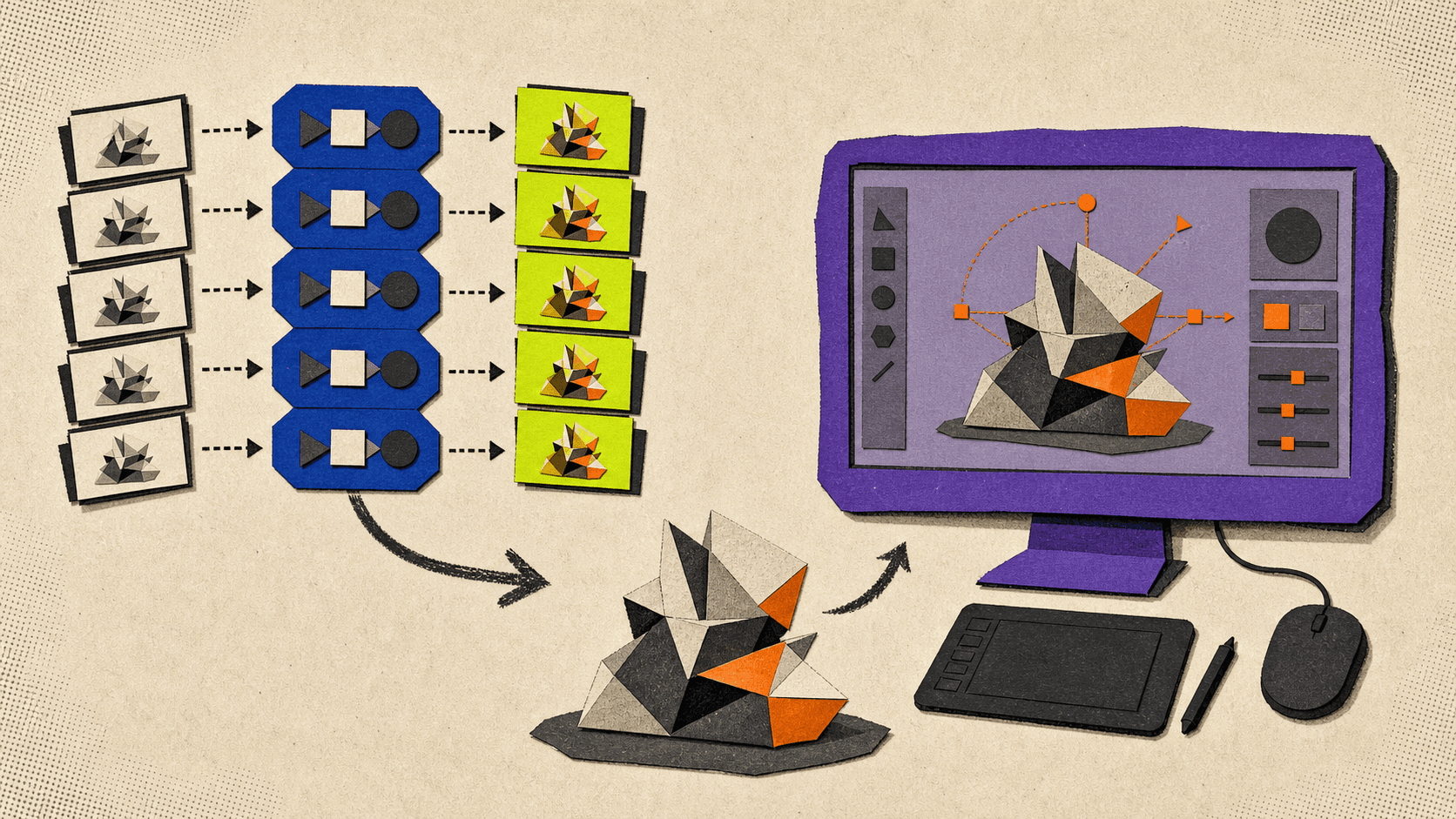
A render farm solves one part of production: processing queued render jobs. It doesn’t give you a normal creative workspace for modeling, animation, lighting, simulation setup, compositing, editing, or troubleshooting.
Vagon Cloud Computer addresses the larger problem. It gives you a remote Windows computer that can run creative applications while you control them through a browser or desktop app. You can connect from a Windows PC, Mac, Linux device, tablet, or mobile device.
This matters because a project rarely goes directly from idea to final render. Before rendering, you may need to:
Build or modify assets
Animate cameras and characters
Adjust lighting and materials
Scrub through a timeline
Create and inspect simulation caches
Preview a scene in the viewport
Fix missing textures or broken links
Install and configure plug-ins
Render test frames
Review client feedback
Revise and export the final project
These are interactive tasks. They require the complete application, direct input, visual feedback, file access, and control over the software environment.
Vagon also allows you to change the selected performance while keeping the same computer and project files. You can work on a smaller configuration during lighter preparation, then switch to more CPU, RAM, or GPU capacity for demanding stages.
A render farm cannot provide the same continuous workflow. Once you submit a job, you can usually control its priority, inspect logs, review frames, pause it, or retry failed tasks. You cannot treat the farm queue like a full Blender, Cinema 4D, Maya, or After Effects workstation.
That makes Vagon the more useful starting point when your current computer is the main limitation.
What Can You Do on Vagon Cloud Computer?
Vagon Cloud Computer is designed as an interactive remote workstation rather than a dedicated render farm. That distinction is important, but it doesn’t mean Vagon is limited to preparation.
You can create the project, work on it, and render it from the same environment. Whether that is enough depends on the size and shape of the final render job.
Vagon currently lists GPU configurations using NVIDIA T4 GPUs with 16 GB of GPU memory and RTX-enabled A10G GPUs with 24 GB. Some higher tiers list multiple GPUs, alongside additional CPU cores and system memory.
These configurations can fit workflows such as:
Blender modeling, shading, animation, and Cycles rendering
Motion graphics and compositing in After Effects
3D scene preparation and interactive look development
Architectural visualization and high-resolution previews
Game-engine scene work and testing
VFX project preparation
GPU-assisted rendering when the application supports the available hardware
CPU-heavy tasks on configurations with more cores and RAM
Application support still needs to be checked at the project level. A machine having several GPUs does not guarantee that every renderer or plug-in can use all of them. GPU memory, software version, operating system, licensing, and renderer support can change the result.
Vagon can automatically install applications from its current library, and users can manually install other software as they would on a remote PC. Preinstallation does not mean a commercial software license is included. You still need a valid application and plug-in license.
The workstation also includes persistent storage options, so applications, assets, and project files can remain available between sessions. Vagon Files can be accessed even while the computer is not running, which helps with uploading and organizing project data before starting a paid compute session.
For a freelancer working from an underpowered laptop, this may cover the entire workflow. You can prepare the scene, render the output, review it, make changes, and export the result without moving the project into a second service.

When Is a Dedicated Render Farm Still the Better Tool?
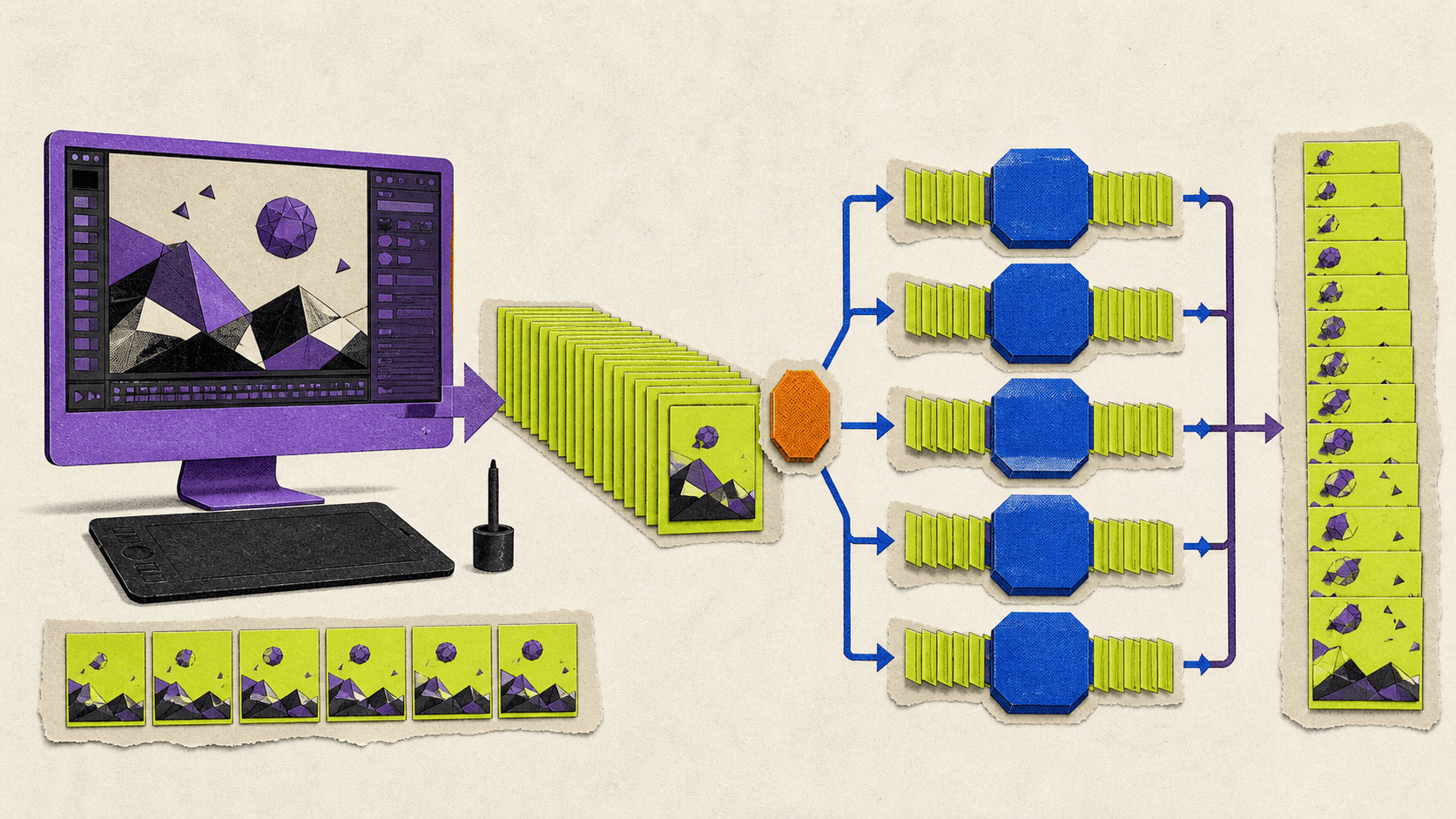
A render farm becomes valuable when the project no longer needs much interaction and contains enough independent work to distribute across many workers.
AWS Deadline Cloud describes a render farm through queues and fleets. Jobs enter queues, and fleets of workers execute their tasks. In rendering workflows, one task often represents one frame.
Imagine a Blender animation containing 1,000 frames. On one workstation, those frames will generally be processed using the CPU and GPU resources available to that machine. A compatible render farm can assign different frames to many workers at the same time.
This is a strong render-farm use case because the project has:
A large number of frames
A locked or approved scene
Predictable output settings
Portable project assets
Baked simulations and caches
Verified software and renderer compatibility
A deadline that justifies the farm setup and transfer
A dedicated farm may also be a better fit for a studio pipeline that already uses a render scheduler, shared storage, automated job submission, usage-based renderer licensing, and repeatable quality-control procedures.
The render farm should remain the exception for final batch capacity, not the default place where the creative project lives.
If a material looks wrong, a cache is missing, or the client asks for a lighting change, you still need to return to a workstation. This is why many creators benefit from keeping the full working project on Vagon and using a farm only when the batch is large enough to justify the handoff.
How Do Viewport Work, Single Frames, and Animations Differ?
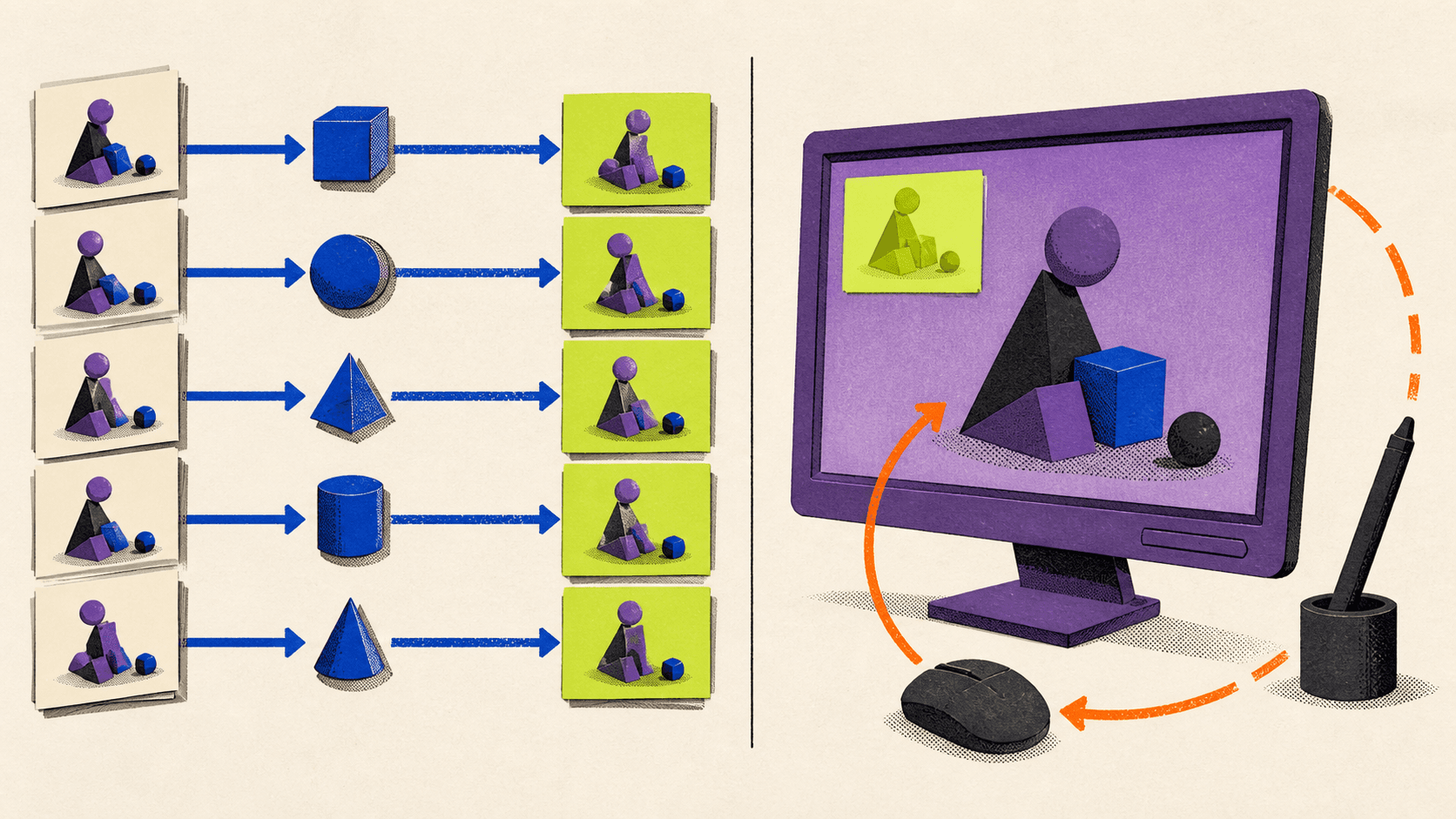
The type of render workload determines how useful parallel capacity will be.
Interactive viewport work
A viewport creates a continuous feedback loop. You move a camera, adjust a light, change a material, or scrub through an animation and expect the application to respond.
This work belongs on Vagon Cloud Computer or another full workstation. A render queue cannot replace direct application control.
Network quality matters here. A remote workstation depends on a stable connection, acceptable latency, and sufficient bandwidth. If your connection is inconsistent, input response and image quality may suffer even when the remote hardware is powerful.
A single frame
A normal single-frame render often runs as one task on one machine. Sending the frame to a farm with 100 available nodes does not automatically divide the image among all 100.
Some renderers and services support tile, region, bucket, strip, or distributed single-frame rendering. In that workflow, different workers render separate parts of the image before the service assembles them.
AWS documents tile rendering as multiple regional tasks followed by an assembly step. GarageFarm offers a Strips option for supported Blender still-frame projects.
This can help with very large architectural or product-visualization frames. It must be tested carefully. Render passes, denoising, compositing effects, edge behavior, and output assembly may depend on the renderer and provider.
For an ordinary still, rendering directly on a suitable Vagon configuration may be simpler than packaging and transferring the scene to another service.
An animation sequence
Animation sequences expose more parallel work because individual frames can often be processed independently. Blender’s command-line tools support rendering one frame or an animation range, which allows schedulers and scripts to assign different ranges to different workers.
This does not guarantee perfect scaling. Queue wait, worker startup, scene loading, slow frames, license limits, retries, storage throughput, and output writing all affect total delivery time.
A render farm is most useful when the reduction in wall-clock delivery time is more valuable than the setup, testing, transfer, and compatibility work it introduces.
How Should You Compare the Costs?
Vagon and render farms use different billing models. Their headline hourly rates should not be compared as though they describe the same service.
Vagon’s basic cost model is:
running workstation time + persistent storage + outbound transfer + software licenses
Vagon applies usage charges by the minute while displaying rates as hourly equivalents. Prices can vary by region.
For example, the current main pricing page lists the Flame configuration at $2.27 per hour. Ten running hours at that base rate would equal $22.70 in compute. This does not include the storage plan, regional differences, taxes, application licenses, or transfer charges.
Those ten hours could include modeling, animation, test rendering, troubleshooting, final rendering, and review. You are paying for control of the full workstation throughout the project.
Vagon currently lists a Personal storage plan at $7.99 per month with a 75 GB disk and 5 GB of Vagon Files. The Premium plan is listed at $19.99 per month with a 75 GB disk, 25 GB of Vagon Files, a permanent disk ID, and additional license-related features. Storage details and limits should always be checked on the current pricing page.
Inbound transfer is listed as free. The first 10 GB of monthly outbound transfer is included, followed by a listed charge of $1.50 for every additional 10 GB. Large source projects and frame sequences need to account for this.
A managed render farm has a different model:
active worker processing × provider unit + license fees + storage or transfer + taxes
The provider may charge in node-hours, core-hours, GHz-hours, or a benchmark-normalized GPU unit. Priority can also change both price and access to nodes.
GarageFarm, for example, publishes CPU pricing in GHz-hours and GPU pricing in OctaneBench-hours. It states that active node processing is billed by the second while queue wait is not billed.
That cannot be reduced to a fair “$2.27 workstation versus $0.006 farm” comparison. The units describe different amounts of hardware and different services.
For Vagon, estimate how many minutes the selected machine will remain active. For a render farm, submit representative test frames to the actual service and use its returned cost estimate.
Test the beginning, middle, end, and known heavy sections of an animation. A few easy consecutive frames can produce an unrealistically low estimate.
What Must Be Checked Before Rendering?
Software compatibility can decide whether either workflow succeeds.
For a Vagon workstation, verify that the application and license permit installation and use in a remote virtual machine. Check hardware-bound activation, floating-license servers, third-party plug-in rules, codecs, and any USB devices or license dongles.
For a render farm, you must verify even more:
Exact application build
Renderer and plug-in versions
CPU or GPU backend
Operating system
Fonts and codecs
Python scripts and add-ons
Asset paths and linked files
Geometry and simulation caches
Color-management settings
Render passes and denoiser
Output format
Application and renderer licenses
Required system RAM and GPU memory
Blender Cycles supports CPU rendering and GPU backends including CUDA, OptiX, HIP, oneAPI, and Metal. Blender also supports hybrid CPU plus GPU rendering through its command-line device options.
GPU rendering is not automatically faster or more suitable for every scene. Large scenes may exceed GPU memory, and specific features can behave differently across devices.
Before transferring a Blender project to a farm, collect every linked asset, use portable paths, bake required simulations, verify the output folder, and test both a typical and a difficult frame. A provider listing “Blender support” does not prove that every Blender version, renderer, script, and add-on will work.
After Effects requires similar preparation for multi-computer rendering. Adobe supports command-line rendering through aerender and network rendering through render engines and watch folders. Multiple computers render a still-image sequence rather than one shared movie file.
Each render computer needs the required fonts, effects, encoders, third-party plug-ins, and valid plug-in licenses. Working directly on Vagon gives you more control over that environment, but it does not remove the license requirements.
When Should You Combine Vagon With a Render Farm?
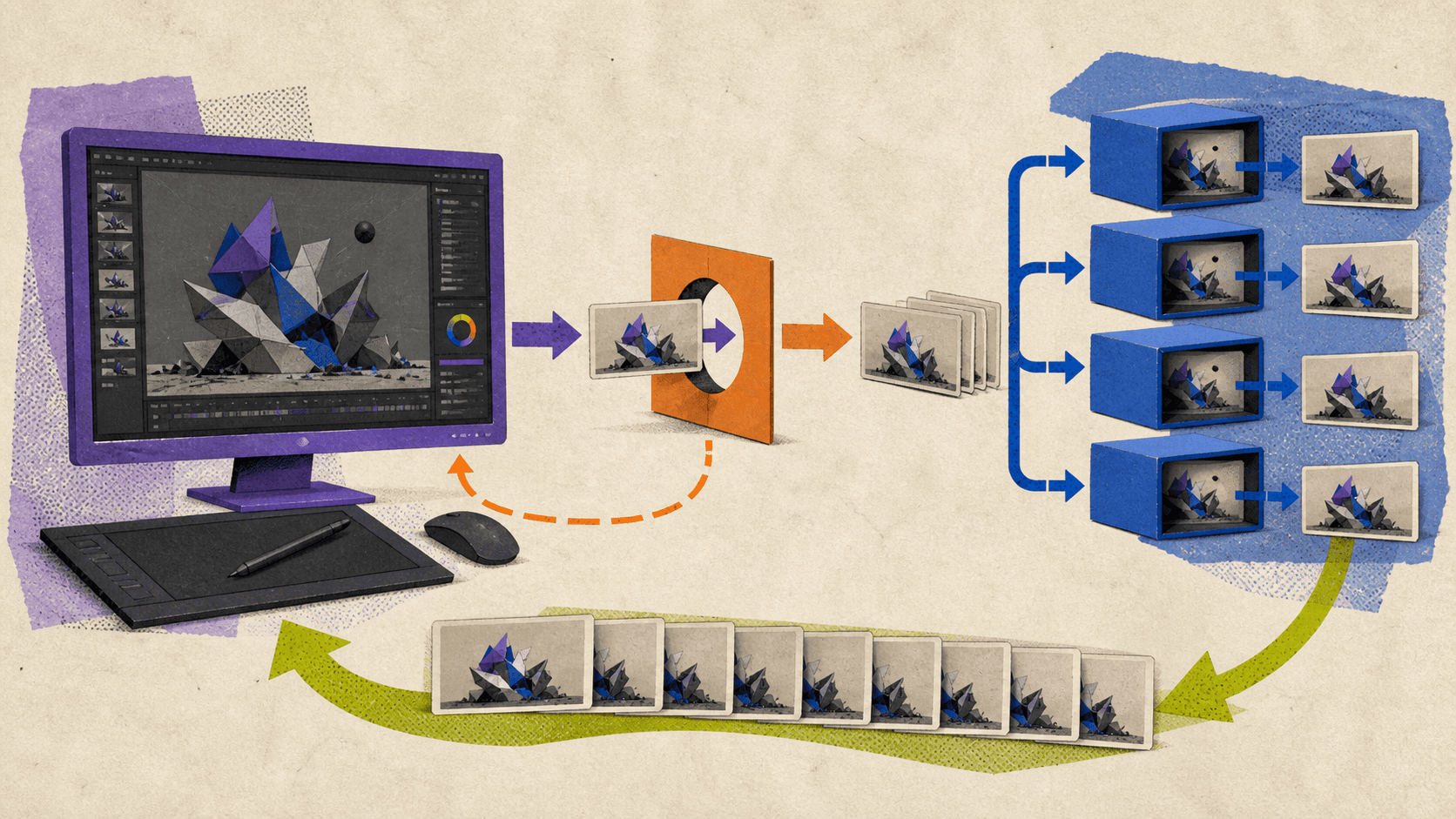
A hybrid workflow makes sense when Vagon can handle the complete interactive project but the final batch needs more parallel capacity than one workstation provides.
The process can be straightforward:
Create and configure the project on Vagon Cloud Computer.
Install the exact application, renderer, fonts, plug-ins, and scripts.
Build and validate simulations and caches.
Review the scene interactively.
Render representative test frames.
Collect the project and record all software versions.
Submit the approved frame batch to a compatible farm.
Return the rendered frames to Vagon for review, compositing, revision, and delivery.
This keeps Vagon at the center of the creative workflow. The farm becomes an optional output layer used when the size of the batch or the deadline makes distribution worthwhile.
The hybrid approach is unnecessary for a small animation or still that a Vagon configuration can finish within an acceptable time and budget. In that case, moving the project to a second service creates more setup, transfer, and compatibility work without enough benefit.
The decision is therefore simpler than it first appears:
Choose Vagon Cloud Computer when you need to create, adjust, troubleshoot, render, and review the project in one interactive environment.
Add a render farm when the project is locked and the remaining work is a large, compatible frame batch.
Use only a render farm when you already have a capable workstation and need nothing except distributed final output.
For most creators whose real problem is an underpowered local computer, Vagon solves more of the workflow than a render farm can. It gives you the workspace first and leaves the option to add specialized batch capacity later.
Start your project on Vagon Cloud Computer.
Frequently Asked Questions
Is Vagon Cloud Computer a render farm?
No. Vagon Cloud Computer is an interactive remote workstation where you can install and use creative applications, prepare scenes, work in the viewport, animate, composite, troubleshoot, and render. It does not automatically distribute queued frames across independent render nodes like a dedicated render farm.
Can a cloud workstation replace a render farm?
It can replace a render farm for still images, shorter animations, test renders, and projects that fit within one workstation’s available CPU, GPU, RAM, and time. A dedicated render farm may remain more suitable for large, approved animation sequences that can be processed across many nodes.
Can I use Vagon Cloud Computer for Blender rendering?
Yes. Vagon offers NVIDIA GPU-backed Cloud Computer configurations that can run Blender and supported Cycles GPU rendering modes. The right configuration depends on your scene size, Blender version, render engine, GPU memory requirements, and add-ons.
Is a render farm cheaper than Vagon Cloud Computer?
Not universally. Vagon charges for the time the selected workstation runs, along with applicable storage and transfer costs. Render farms may charge by node-hour, core-hour, GHz-hour, benchmark-hour, priority, or software license usage. Compare the total project cost using representative test frames rather than headline hourly rates.
Should I use a render farm for a single frame?
A cloud workstation is often simpler for an ordinary single frame. A render farm becomes more useful when the image is extremely demanding and the renderer and service support tile, strip, bucket, or distributed single-frame rendering.
Can Vagon Cloud Computer render an animation?
Yes. You can render an animation using the resources of the selected Vagon configuration. Unlike a dedicated farm, one Cloud Computer does not automatically split the animation across independent render nodes. For a very large frame range, a hybrid workflow may be more practical.
Can I install my own render engines and plug-ins on Vagon?
Vagon allows applications to be installed manually, but compatibility and licensing depend on the software vendor. Check whether the application, renderer, plug-in, or license manager supports remote virtual machines and the selected Windows environment.
When does a hybrid workflow make sense?
A hybrid workflow makes sense when you need Vagon for interactive creation, scene preparation, simulation setup, testing, and review, but want a dedicated render farm to process a large final frame batch. The rendered frames can then return to Vagon for compositing, revision, and delivery.
What happens to my project files?
Vagon offers persistent computer storage and Vagon Files for moving and retaining project data between sessions. Storage capacity, subscription costs, and outbound transfer charges depend on the current plan. Keep an independent backup of important project files and final renders.
If you still need to open the project, adjust the scene, preview changes, troubleshoot problems, or handle revisions, you probably don’t need a render farm yet. You need a powerful interactive workstation, which is where Vagon Cloud Computer fits.
A dedicated render farm becomes useful later, when the project is prepared and a large batch of frames is ready to process without creative input. For many freelancers and small studios, the practical choice isn’t one or the other. It’s whether Vagon can handle the complete project by itself or whether a render farm should be added for final batch output.
Why Do Most Creators Need a Cloud Workstation First?
A render farm solves one part of production: processing queued render jobs. It doesn’t give you a normal creative workspace for modeling, animation, lighting, simulation setup, compositing, editing, or troubleshooting.
Vagon Cloud Computer addresses the larger problem. It gives you a remote Windows computer that can run creative applications while you control them through a browser or desktop app. You can connect from a Windows PC, Mac, Linux device, tablet, or mobile device.
This matters because a project rarely goes directly from idea to final render. Before rendering, you may need to:
Build or modify assets
Animate cameras and characters
Adjust lighting and materials
Scrub through a timeline
Create and inspect simulation caches
Preview a scene in the viewport
Fix missing textures or broken links
Install and configure plug-ins
Render test frames
Review client feedback
Revise and export the final project
These are interactive tasks. They require the complete application, direct input, visual feedback, file access, and control over the software environment.
Vagon also allows you to change the selected performance while keeping the same computer and project files. You can work on a smaller configuration during lighter preparation, then switch to more CPU, RAM, or GPU capacity for demanding stages.
A render farm cannot provide the same continuous workflow. Once you submit a job, you can usually control its priority, inspect logs, review frames, pause it, or retry failed tasks. You cannot treat the farm queue like a full Blender, Cinema 4D, Maya, or After Effects workstation.
That makes Vagon the more useful starting point when your current computer is the main limitation.
What Can You Do on Vagon Cloud Computer?
Vagon Cloud Computer is designed as an interactive remote workstation rather than a dedicated render farm. That distinction is important, but it doesn’t mean Vagon is limited to preparation.
You can create the project, work on it, and render it from the same environment. Whether that is enough depends on the size and shape of the final render job.
Vagon currently lists GPU configurations using NVIDIA T4 GPUs with 16 GB of GPU memory and RTX-enabled A10G GPUs with 24 GB. Some higher tiers list multiple GPUs, alongside additional CPU cores and system memory.
These configurations can fit workflows such as:
Blender modeling, shading, animation, and Cycles rendering
Motion graphics and compositing in After Effects
3D scene preparation and interactive look development
Architectural visualization and high-resolution previews
Game-engine scene work and testing
VFX project preparation
GPU-assisted rendering when the application supports the available hardware
CPU-heavy tasks on configurations with more cores and RAM
Application support still needs to be checked at the project level. A machine having several GPUs does not guarantee that every renderer or plug-in can use all of them. GPU memory, software version, operating system, licensing, and renderer support can change the result.
Vagon can automatically install applications from its current library, and users can manually install other software as they would on a remote PC. Preinstallation does not mean a commercial software license is included. You still need a valid application and plug-in license.
The workstation also includes persistent storage options, so applications, assets, and project files can remain available between sessions. Vagon Files can be accessed even while the computer is not running, which helps with uploading and organizing project data before starting a paid compute session.
For a freelancer working from an underpowered laptop, this may cover the entire workflow. You can prepare the scene, render the output, review it, make changes, and export the result without moving the project into a second service.
When Is a Dedicated Render Farm Still the Better Tool?
A render farm becomes valuable when the project no longer needs much interaction and contains enough independent work to distribute across many workers.
AWS Deadline Cloud describes a render farm through queues and fleets. Jobs enter queues, and fleets of workers execute their tasks. In rendering workflows, one task often represents one frame.
Imagine a Blender animation containing 1,000 frames. On one workstation, those frames will generally be processed using the CPU and GPU resources available to that machine. A compatible render farm can assign different frames to many workers at the same time.
This is a strong render-farm use case because the project has:
A large number of frames
A locked or approved scene
Predictable output settings
Portable project assets
Baked simulations and caches
Verified software and renderer compatibility
A deadline that justifies the farm setup and transfer
A dedicated farm may also be a better fit for a studio pipeline that already uses a render scheduler, shared storage, automated job submission, usage-based renderer licensing, and repeatable quality-control procedures.
The render farm should remain the exception for final batch capacity, not the default place where the creative project lives.
If a material looks wrong, a cache is missing, or the client asks for a lighting change, you still need to return to a workstation. This is why many creators benefit from keeping the full working project on Vagon and using a farm only when the batch is large enough to justify the handoff.
How Do Viewport Work, Single Frames, and Animations Differ?
The type of render workload determines how useful parallel capacity will be.
Interactive viewport work
A viewport creates a continuous feedback loop. You move a camera, adjust a light, change a material, or scrub through an animation and expect the application to respond.
This work belongs on Vagon Cloud Computer or another full workstation. A render queue cannot replace direct application control.
Network quality matters here. A remote workstation depends on a stable connection, acceptable latency, and sufficient bandwidth. If your connection is inconsistent, input response and image quality may suffer even when the remote hardware is powerful.
A single frame
A normal single-frame render often runs as one task on one machine. Sending the frame to a farm with 100 available nodes does not automatically divide the image among all 100.
Some renderers and services support tile, region, bucket, strip, or distributed single-frame rendering. In that workflow, different workers render separate parts of the image before the service assembles them.
AWS documents tile rendering as multiple regional tasks followed by an assembly step. GarageFarm offers a Strips option for supported Blender still-frame projects.
This can help with very large architectural or product-visualization frames. It must be tested carefully. Render passes, denoising, compositing effects, edge behavior, and output assembly may depend on the renderer and provider.
For an ordinary still, rendering directly on a suitable Vagon configuration may be simpler than packaging and transferring the scene to another service.
An animation sequence
Animation sequences expose more parallel work because individual frames can often be processed independently. Blender’s command-line tools support rendering one frame or an animation range, which allows schedulers and scripts to assign different ranges to different workers.
This does not guarantee perfect scaling. Queue wait, worker startup, scene loading, slow frames, license limits, retries, storage throughput, and output writing all affect total delivery time.
A render farm is most useful when the reduction in wall-clock delivery time is more valuable than the setup, testing, transfer, and compatibility work it introduces.
How Should You Compare the Costs?
Vagon and render farms use different billing models. Their headline hourly rates should not be compared as though they describe the same service.
Vagon’s basic cost model is:
running workstation time + persistent storage + outbound transfer + software licenses
Vagon applies usage charges by the minute while displaying rates as hourly equivalents. Prices can vary by region.
For example, the current main pricing page lists the Flame configuration at $2.27 per hour. Ten running hours at that base rate would equal $22.70 in compute. This does not include the storage plan, regional differences, taxes, application licenses, or transfer charges.
Those ten hours could include modeling, animation, test rendering, troubleshooting, final rendering, and review. You are paying for control of the full workstation throughout the project.
Vagon currently lists a Personal storage plan at $7.99 per month with a 75 GB disk and 5 GB of Vagon Files. The Premium plan is listed at $19.99 per month with a 75 GB disk, 25 GB of Vagon Files, a permanent disk ID, and additional license-related features. Storage details and limits should always be checked on the current pricing page.
Inbound transfer is listed as free. The first 10 GB of monthly outbound transfer is included, followed by a listed charge of $1.50 for every additional 10 GB. Large source projects and frame sequences need to account for this.
A managed render farm has a different model:
active worker processing × provider unit + license fees + storage or transfer + taxes
The provider may charge in node-hours, core-hours, GHz-hours, or a benchmark-normalized GPU unit. Priority can also change both price and access to nodes.
GarageFarm, for example, publishes CPU pricing in GHz-hours and GPU pricing in OctaneBench-hours. It states that active node processing is billed by the second while queue wait is not billed.
That cannot be reduced to a fair “$2.27 workstation versus $0.006 farm” comparison. The units describe different amounts of hardware and different services.
For Vagon, estimate how many minutes the selected machine will remain active. For a render farm, submit representative test frames to the actual service and use its returned cost estimate.
Test the beginning, middle, end, and known heavy sections of an animation. A few easy consecutive frames can produce an unrealistically low estimate.
What Must Be Checked Before Rendering?
Software compatibility can decide whether either workflow succeeds.
For a Vagon workstation, verify that the application and license permit installation and use in a remote virtual machine. Check hardware-bound activation, floating-license servers, third-party plug-in rules, codecs, and any USB devices or license dongles.
For a render farm, you must verify even more:
Exact application build
Renderer and plug-in versions
CPU or GPU backend
Operating system
Fonts and codecs
Python scripts and add-ons
Asset paths and linked files
Geometry and simulation caches
Color-management settings
Render passes and denoiser
Output format
Application and renderer licenses
Required system RAM and GPU memory
Blender Cycles supports CPU rendering and GPU backends including CUDA, OptiX, HIP, oneAPI, and Metal. Blender also supports hybrid CPU plus GPU rendering through its command-line device options.
GPU rendering is not automatically faster or more suitable for every scene. Large scenes may exceed GPU memory, and specific features can behave differently across devices.
Before transferring a Blender project to a farm, collect every linked asset, use portable paths, bake required simulations, verify the output folder, and test both a typical and a difficult frame. A provider listing “Blender support” does not prove that every Blender version, renderer, script, and add-on will work.
After Effects requires similar preparation for multi-computer rendering. Adobe supports command-line rendering through aerender and network rendering through render engines and watch folders. Multiple computers render a still-image sequence rather than one shared movie file.
Each render computer needs the required fonts, effects, encoders, third-party plug-ins, and valid plug-in licenses. Working directly on Vagon gives you more control over that environment, but it does not remove the license requirements.
When Should You Combine Vagon With a Render Farm?
A hybrid workflow makes sense when Vagon can handle the complete interactive project but the final batch needs more parallel capacity than one workstation provides.
The process can be straightforward:
Create and configure the project on Vagon Cloud Computer.
Install the exact application, renderer, fonts, plug-ins, and scripts.
Build and validate simulations and caches.
Review the scene interactively.
Render representative test frames.
Collect the project and record all software versions.
Submit the approved frame batch to a compatible farm.
Return the rendered frames to Vagon for review, compositing, revision, and delivery.
This keeps Vagon at the center of the creative workflow. The farm becomes an optional output layer used when the size of the batch or the deadline makes distribution worthwhile.
The hybrid approach is unnecessary for a small animation or still that a Vagon configuration can finish within an acceptable time and budget. In that case, moving the project to a second service creates more setup, transfer, and compatibility work without enough benefit.
The decision is therefore simpler than it first appears:
Choose Vagon Cloud Computer when you need to create, adjust, troubleshoot, render, and review the project in one interactive environment.
Add a render farm when the project is locked and the remaining work is a large, compatible frame batch.
Use only a render farm when you already have a capable workstation and need nothing except distributed final output.
For most creators whose real problem is an underpowered local computer, Vagon solves more of the workflow than a render farm can. It gives you the workspace first and leaves the option to add specialized batch capacity later.
Start your project on Vagon Cloud Computer.
Frequently Asked Questions
Is Vagon Cloud Computer a render farm?
No. Vagon Cloud Computer is an interactive remote workstation where you can install and use creative applications, prepare scenes, work in the viewport, animate, composite, troubleshoot, and render. It does not automatically distribute queued frames across independent render nodes like a dedicated render farm.
Can a cloud workstation replace a render farm?
It can replace a render farm for still images, shorter animations, test renders, and projects that fit within one workstation’s available CPU, GPU, RAM, and time. A dedicated render farm may remain more suitable for large, approved animation sequences that can be processed across many nodes.
Can I use Vagon Cloud Computer for Blender rendering?
Yes. Vagon offers NVIDIA GPU-backed Cloud Computer configurations that can run Blender and supported Cycles GPU rendering modes. The right configuration depends on your scene size, Blender version, render engine, GPU memory requirements, and add-ons.
Is a render farm cheaper than Vagon Cloud Computer?
Not universally. Vagon charges for the time the selected workstation runs, along with applicable storage and transfer costs. Render farms may charge by node-hour, core-hour, GHz-hour, benchmark-hour, priority, or software license usage. Compare the total project cost using representative test frames rather than headline hourly rates.
Should I use a render farm for a single frame?
A cloud workstation is often simpler for an ordinary single frame. A render farm becomes more useful when the image is extremely demanding and the renderer and service support tile, strip, bucket, or distributed single-frame rendering.
Can Vagon Cloud Computer render an animation?
Yes. You can render an animation using the resources of the selected Vagon configuration. Unlike a dedicated farm, one Cloud Computer does not automatically split the animation across independent render nodes. For a very large frame range, a hybrid workflow may be more practical.
Can I install my own render engines and plug-ins on Vagon?
Vagon allows applications to be installed manually, but compatibility and licensing depend on the software vendor. Check whether the application, renderer, plug-in, or license manager supports remote virtual machines and the selected Windows environment.
When does a hybrid workflow make sense?
A hybrid workflow makes sense when you need Vagon for interactive creation, scene preparation, simulation setup, testing, and review, but want a dedicated render farm to process a large final frame batch. The rendered frames can then return to Vagon for compositing, revision, and delivery.
What happens to my project files?
Vagon offers persistent computer storage and Vagon Files for moving and retaining project data between sessions. Storage capacity, subscription costs, and outbound transfer charges depend on the current plan. Keep an independent backup of important project files and final renders.
Get Beyond Your Computer Performance
Run applications on your cloud computer with the latest generation hardware. No more crashes or lags.

Trial includes 1 hour usage + 7 days of storage.
Summarize with AI

Ready to focus on your creativity?
Vagon gives you the ability to create & render projects, collaborate, and stream applications with the power of the best hardware.

Run heavy applications on any device with
your personal computer on the cloud.
San Francisco, California
Solutions
Vagon Teams
Vagon Streams
Use Cases
© 2026 Vagon. All rights reserved.
Run heavy applications on any device with
your personal computer on the cloud.
San Francisco, California
Solutions
Vagon Teams
Vagon Streams
Use Cases
© 2026 Vagon. All rights reserved.
Run heavy applications on any device with
your personal computer on the cloud.
San Francisco, California
Solutions
Vagon Teams
Vagon Streams
Use Cases
© 2026 Vagon. All rights reserved.