Instant Connection for Pixel Streaming
— New Feature Automated Setup

Automate Autodesk Inventor with Claude Code on Vagon
Engineering
Automate Autodesk Inventor with Claude Code on Vagon
Engineering
Automate Autodesk Inventor with Claude Code on Vagon
Engineering
Table of Contents
A mounting plate needs three approved length variations. Its thickness and edge offsets must stay unchanged, and each version needs a native Inventor file and a STEP export. The work is repetitive, but a missed reference or an export from the wrong document can invalidate the batch.
Claude Code can help automate that sequence by reading parameters, applying defined changes, and coordinating saves and exports through connected tools. Inventor performs the CAD operations; you review whether the results meet the assignment.
This guide follows one workflow: connect Claude Code to Inventor through a third-party MCP integration, verify a live part, and produce controlled variations from an existing model. iLogic provides a complementary scripting option, while supported computer use helps with interface checks and interruptions.
On Vagon Cloud Computer, the application, connector, agent tools, and project files can share a full Windows workspace, ready for both automation and continued manual design work.
Choose an Execution Path Before Automating the Model
For this walkthrough, we will use the third-party ipt-mcp integration as the main connection between Claude Code and Inventor. Its documented tools include reading and changing parameters, saving documents, and exporting STEP files, which match our plate-variation task.

Source: BIMwright
The integration has two components: an MCP server launched by the AI client and a version-specific add-in loaded inside Inventor. The add-in executes requests through the Inventor API. Both need to be configured in the Windows environment where Inventor runs.
This is a community integration, not an Autodesk product. Check its current installation instructions and support for your Inventor release before preparing the workspace.
Give Each Automation Method a Clear Role
Method | Role in this guide |
|---|---|
MCP | Read the live document, change approved parameters, save variants, and request STEP exports |
iLogic or Inventor API scripts | Implement reviewed operations when a reusable rule or additional application capability is needed |
Computer use | Inspect interface state, handle approved dialogs, and support manual intervention |
These methods work at different layers. MCP exposes selected operations as tools; it does not replace the Inventor API underneath them. iLogic rules provide another way to express application logic, including rules stored outside the document that Claude Code can help prepare.
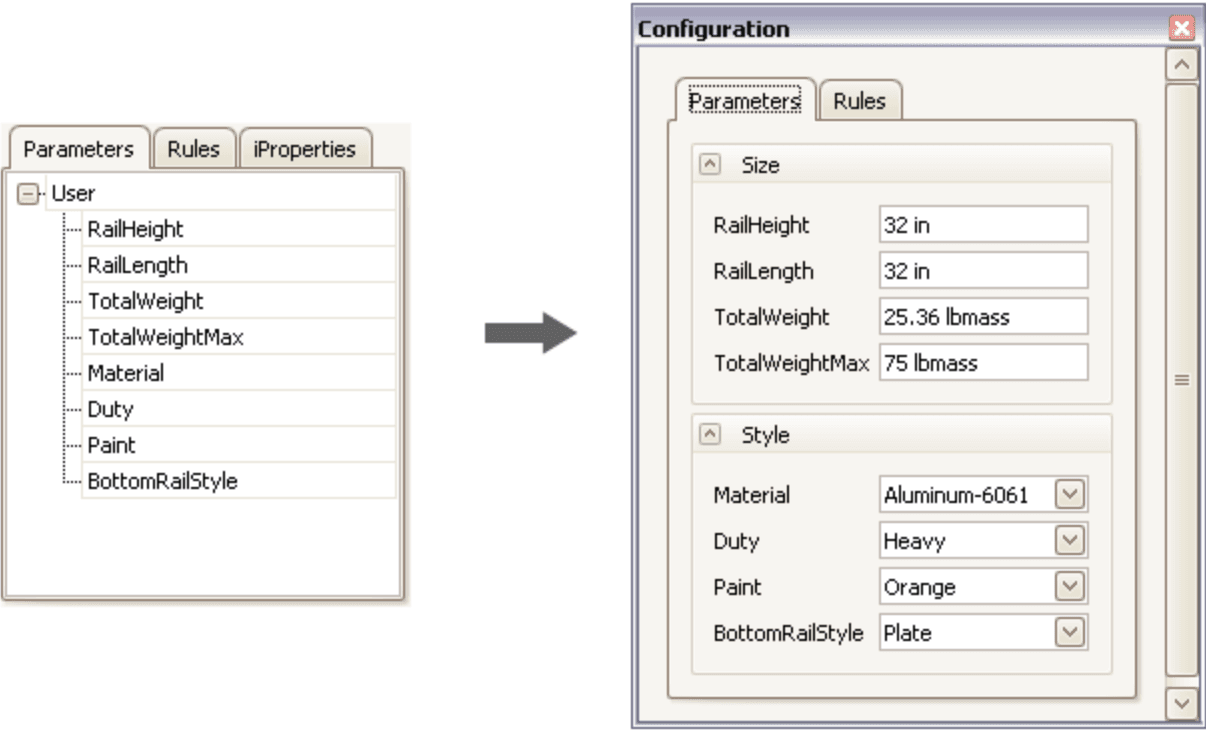
Source: Autodesk Inventor Help
Computer use is complementary. On Windows, the supported Claude Code desktop experience can provide screen interaction where available and enabled. Do not assume the Windows terminal client offers the same built-in capability.
Keep the first task narrow: one existing part, one editable length parameter, and separately saved outputs. We will establish that connection before adding drawings, assembly changes, or broader batch operations.
Prepare the Inventor Workspace on Vagon Cloud Computer
Run Inventor, Claude Code, and the MCP integration inside the same Vagon Windows desktop. This keeps the application connection local to the workstation, even when you access it from a Mac, tablet, or another computer.
Choose resources using the requirements for your Inventor release and the project’s size. Our single-part example does not require the same capacity as a complex assembly. Include enough storage for the application, connector dependencies, working copies, and exports.
Prepare the Applications
Use application selection for available preinstalled tools. If the required Inventor release is not listed, install it through your authorized Autodesk installer and complete activation.
Open Inventor and a sample part before configuring the connector. Then confirm Claude Code access. Use native Windows execution for this local integration, rather than assuming a separate Linux or hosted coding session can reach Inventor’s Windows application interface.
The ipt-mcp documentation specifies the MCP server and Inventor add-in requirements. Match the add-in to your installed Inventor year and verify any required runtime. We will register the connection in the next step.
Establish a Clean Project Baseline
Transfer the project through Vagon Files, then organize it into distinct locations:
Keep the approved original in source and conduct the first test on a copy in working.
For this walkthrough, use an existing .ipt mounting plate whose sketches and features are driven by these user parameters:
Confirm those relationships manually. The initial deliverables are native part variants and STEP files; drawing PDFs are a separate extension for projects with an appropriate existing drawing.
For assemblies or drawings, use Pack and Go where appropriate and check referenced files and the active .ipj project.

Source: Autodesk Platform Services
Once the application, connector dependencies, and project baseline are prepared, the workspace supports subsequent automation jobs as well as manual modeling. You are building a reusable Inventor environment, not just a place to run one script.
Connect Claude Code to the Inventor Add-In
Install both components of ipt-mcp: the MCP server and the add-in matching your Inventor release. Check the release package’s included years rather than assuming every supported year has a prebuilt installer.
Review the downloaded setup script and use its documented -WhatIf preview before installation. After installing, restart Inventor and check its Add-In Manager to confirm that the Bimwright add-in is loaded.
Register the Server in Claude Code
The installer places the server under your Windows user profile. Find the installed ipt-mcp.exe, then register its actual path from a terminal in your automation workspace:
Replace YOUR_USER and VERSION with the installed values. This follows Claude Code’s stdio MCP registration; it is not an Inventor installation command.
Review the resulting project configuration before accepting it. Leave the connector’s optional arbitrary-code execution feature disabled for this parameter-and-export workflow.
Start Claude Code, open /mcp, and confirm that the server connects.
Verify the Application Before Changing Anything
Open the plate’s working copy in Inventor. Give Claude Code this first assignment:
Compare the response with the Inventor window. The path must identify your working copy, not the source or another open part.
Once the target matches, ask it to call inventor_list_parameters and report the expressions and units for PlateLength, PlateWidth, Thickness, and EdgeOffset.
These are inspection instructions, not enforced read-only permissions. The connector’s strict read-only mode removes the parameter toolset, so do not enable that mode and expect this parameter query to remain available.
The connection is ready when its document identity and parameter report match the model you opened. Keep that report as the baseline for the first controlled change.
Create the First Parameter-Driven Variation
Start with one approved change before running all three lengths. Our baseline is an existing .ipt plate with user parameters named PlateLength, PlateWidth, Thickness, and EdgeOffset. Its sketches and features must already use those parameters.
For this example, the approved lengths are 120 mm, 140 mm, and 160 mm. Width, thickness, and edge offsets stay unchanged. Confirm that these values are appropriate for your actual design rather than treating them as engineering recommendations.
Read the Expressions, Then Change One Parameter
Use the baseline report to distinguish editable inputs from dependent expressions. If a parameter contains a formula, replacing it with a number may remove a relationship the design needs.
Give Claude Code a precise first assignment:
The connector documents inventor_set_parameter as changing the parameter and updating the document. Readback confirms the stored expression; inspection of the resulting part checks whether the design behaved as intended.

Source: Autodesk Inventor 2027 Help
Make Error Handling Explicit in Rules
If you implement the operation through an external iLogic rule instead, include document checks and handle the update result:
Autodesk’s Update2 method supports stopping an update when an error occurs. This example does not automatically roll back a failed change, save the document, or validate its engineering suitability. Run it only on the working copy.
Explicit units also avoid confusing document display units with Inventor’s internal database units.

Source: Autodesk Inventor API
Save a Verified Native Result
Inspect the plate length, hole placement, and dependent features. Once approved, save a separate native file such as Plate_L140.ipt, then reopen that path and confirm its parameters.
For the remaining lengths, return to the approved baseline and repeat the same sequence. Keep each variation traceable to its input expression and saved document before producing exports.
Use Computer Use to Inspect the Application and Resolve Interruptions
Keep parameter changes on the MCP path. Use computer use when the task needs interface access, such as inspecting a warning, checking a dialog, or navigating a view that the connector does not expose.
On Windows, enable the supported Claude Code desktop experience inside the Vagon session. Confirm that Inventor is running on that same desktop and approve the required application access. The Windows terminal client’s MCP connection does not automatically provide screen control.

Source: Anthropic
Compare the Interface with the Parameter Report
After creating the 140 mm variation, ask Claude Code to inspect the application without making further changes:
This gives screen interaction a defined purpose. The MCP report identifies the stored parameter expressions; the interface check helps reveal visible warnings or an unexpected application state.
A viewport image can support review, but it is not a substitute for measuring geometry or checking feature and constraint status. Use the appropriate Inventor data and inspection tools for those questions.
Handle Unexpected Dialogs Deliberately
A missing-reference prompt, save conflict, or update warning can interrupt an otherwise valid sequence. Ask the agent to identify the dialog and report its message and available choices before proceeding.
Do not make “dismiss all warnings” part of the automation. A prompt may reveal that a required component is missing or that the operation would overwrite an existing deliverable.
If the choice requires design judgment, take over on the same desktop. Resolve the issue, confirm the active document, and return control with the next action clearly stated.
Computer use should make an application-specific step accessible, not duplicate every structured tool call through mouse clicks. Keep precise operations explicit and reserve interface interaction for the places where it adds useful visibility or control.
Export Each Variant from Its Saved Native File
Once Plate_L140.ipt passes review, use that saved document as the export source. Opening it explicitly avoids relying on an unsaved state or whichever Inventor tab happens to be active.
Ask Claude Code to open the file through inventor_open_document, confirm its path with inventor_get_document_info, and read back the approved parameters. Then request the STEP export using the connector’s documented inventor_export_step tool.

Source: coolOrange powerJobs Processor Documentation
Give the Export an Explicit Destination
Use matching names so each deliverable can be traced to its native source:
Pass absolute Windows paths to the tools where required. The ipt-mcp export controls restrict destinations to allowed locations, so keep the workspace within an approved directory or configure the documented export root.
A bounded export request could be:
Reopen the STEP file separately and inspect its geometry and dimensions. Check the translated result, not just the tool’s success message.
Add Drawing PDFs Only When the Drawing Is Ready
The core workflow ends with verified native parts and STEP files. If you also need PDFs, treat drawing preparation as an additional operation.
An existing drawing must reference the intended variant before its views are updated. Creating a new part filename does not automatically redirect that reference.
Autodesk’s PDF export example uses a translator add-in and SaveCopyAs, including drawing-sheet options. Use a reviewed implementation or an explicitly supported connector tool, then check sheet range, views, dimensions, and annotations.

Source: coolOrange powerJobs Processor Documentation
Keep a short completion record for each variation: native path, approved length, STEP path, optional PDF path, and review status.
Only move reviewed outputs into the delivery set. A failed export should remain a clearly identified unfinished item, not disappear inside an otherwise successful batch.
Expand the Batch Without Losing Control of the Model
With the 140 mm variation verified, apply the same sequence to the remaining approved lengths. Use an explicit input list rather than asking Claude Code to generate additional sizes:
For every item, reopen the approved baseline, apply the specified expression, update the model, and save a separate native file. Export from that saved variant. Record completed, failed, and unattempted items so a retry does not need to repeat the whole batch.
Set the failure policy in advance. If a parameter is missing or the model update fails, stop that item before saving or exporting. Allow independent items to continue only if that behavior is part of the assignment.
Add New Operations as Separate Tasks
Once the variation workflow is reliable, consider other documented ipt-mcp tools, such as approved iProperties updates or assembly BOM queries. Keep each extension bounded: specify the documents, fields, expected outputs, and checks.
Assembly work needs additional care. Determine whether an operation modifies a shared component, a copied component, or a particular model state. Saving an assembly under a new name does not make its referenced parts independent.

Source: Autodesk Inventor Help
Keep Vault changes, publishing, and edits to shared production files outside the initial batch. Those actions need their own access decisions and approval process.
Expand the proven sequence, not the agent’s discretion. Each new operation should have a clear input, a supported execution path, and an observable result before it joins the recurring workflow.
Troubleshoot the Layer That Failed
When a step stops working, locate the failure before changing the prompt. The connection, Inventor session, project references, and model update each need different checks.
Server Connected, but Inventor Is Unavailable
A successful MCP connection means Claude Code can communicate with the server. It does not establish that the Inventor add-in is loaded.
Check Inventor’s Add-In Manager, confirm the installed add-in matches the application year, and restart Inventor after deployment. Then use inventor_list_available_targets and inventor_health to inspect the live connection.
If several targets appear, select the intended one and confirm its document path before retrying.
The Document Opens with Missing References
Verify the active .ipj project and the locations of referenced parts, drawings, and linked files. Autodesk explains that reference resolution depends on the active project configuration.
Resolve the issue manually in the working copy first. Repeated agent requests will not recover assets that were never transferred.
A Parameter Change Does Not Produce the Expected Geometry
Compare the parameter’s name, expression, and units with the baseline report. Confirm that the relevant sketches and features actually depend on it.
If the update fails, inspect the affected feature rather than creating a replacement parameter or suppressing errors automatically. Keep the incomplete variation out of the export stage.
Export Fails or Produces the Wrong Variant
Check the active document’s full path, the saved parameter values, and the destination permissions. Ensure the output path satisfies the connector’s allowed-root policy.
Also inspect the desktop for a modal dialog that may be blocking execution.
Resume from the smallest confirmed checkpoint. Preserve valid outputs and the failure report, then retry only the affected operation once its cause is resolved.
Final Thoughts
A useful Inventor automation workflow starts with a live connection and a defined change. Read the model, modify one approved parameter, inspect the update, and export from a verified native file. Expand the batch only after that sequence works.
Claude Code coordinates the available tools; Inventor performs the CAD operations. Keep engineering review separate from execution success.
On Vagon Cloud Computer, that workflow can share a prepared Windows environment with your manual design work. Start with one plate variation, review its native and STEP files, and reuse the setup for subsequent approved tasks.
FAQs
Can Claude Code control Autodesk Inventor directly?
It needs a configured connection. This guide uses the third-party ipt-mcp server and its Inventor add-in to expose application operations as tools. Confirm the live target and document before requesting changes. Installing Claude Code alone does not provide Inventor access.
Do I need MCP to automate Inventor?
No. Claude Code can also help prepare iLogic rules or Inventor API scripts for execution through a supported method. MCP is useful when you want the agent to call defined application operations rather than only produce code.
Can Claude Code write and run iLogic rules?
It can prepare and revise rule files. Execution requires a supported route into Inventor or manual execution. An MCP connection does not automatically expose every iLogic operation. Review the rule and test it on a working copy.
Does Windows computer use work from the Claude Code CLI?
The documented built-in CLI computer-use capability is currently macOS-only. On Windows, use supported computer use through Claude Code in the desktop app, subject to eligibility and permissions. Native Windows terminal and MCP workflows are separate capabilities.
Can this workflow export drawing PDFs?
Yes, with an appropriate existing drawing and a supported export implementation. First verify the drawing’s model reference and update its views. STEP export support does not automatically establish PDF support; this guide treats drawing publishing as an additional operation.
Are Inventor and Claude subscriptions included with Vagon?
Application installation does not automatically include Autodesk licensing or AI subscriptions. Complete the required activation and account access separately. Also check whether your selected integration requires additional dependencies or setup.
Can I automate assemblies as well as individual parts?
The integration documents assembly operations, but each task needs its own checks. Confirm component references, constraints, model states, and shared-file behavior. Begin with a complete project copy rather than assuming a renamed assembly isolates all its parts.
Can AI-generated changes replace engineering review?
No. Successful tool execution does not establish dimensional correctness, manufacturability, structural suitability, or compliance. Use the workflow to perform approved operations and produce traceable outputs, while qualified reviewers remain responsible for engineering decisions and released deliverables.
A mounting plate needs three approved length variations. Its thickness and edge offsets must stay unchanged, and each version needs a native Inventor file and a STEP export. The work is repetitive, but a missed reference or an export from the wrong document can invalidate the batch.
Claude Code can help automate that sequence by reading parameters, applying defined changes, and coordinating saves and exports through connected tools. Inventor performs the CAD operations; you review whether the results meet the assignment.
This guide follows one workflow: connect Claude Code to Inventor through a third-party MCP integration, verify a live part, and produce controlled variations from an existing model. iLogic provides a complementary scripting option, while supported computer use helps with interface checks and interruptions.
On Vagon Cloud Computer, the application, connector, agent tools, and project files can share a full Windows workspace, ready for both automation and continued manual design work.
Choose an Execution Path Before Automating the Model
For this walkthrough, we will use the third-party ipt-mcp integration as the main connection between Claude Code and Inventor. Its documented tools include reading and changing parameters, saving documents, and exporting STEP files, which match our plate-variation task.
Source: BIMwright
The integration has two components: an MCP server launched by the AI client and a version-specific add-in loaded inside Inventor. The add-in executes requests through the Inventor API. Both need to be configured in the Windows environment where Inventor runs.
This is a community integration, not an Autodesk product. Check its current installation instructions and support for your Inventor release before preparing the workspace.
Give Each Automation Method a Clear Role
Method | Role in this guide |
|---|---|
MCP | Read the live document, change approved parameters, save variants, and request STEP exports |
iLogic or Inventor API scripts | Implement reviewed operations when a reusable rule or additional application capability is needed |
Computer use | Inspect interface state, handle approved dialogs, and support manual intervention |
These methods work at different layers. MCP exposes selected operations as tools; it does not replace the Inventor API underneath them. iLogic rules provide another way to express application logic, including rules stored outside the document that Claude Code can help prepare.
Source: Autodesk Inventor Help
Computer use is complementary. On Windows, the supported Claude Code desktop experience can provide screen interaction where available and enabled. Do not assume the Windows terminal client offers the same built-in capability.
Keep the first task narrow: one existing part, one editable length parameter, and separately saved outputs. We will establish that connection before adding drawings, assembly changes, or broader batch operations.
Prepare the Inventor Workspace on Vagon Cloud Computer
Run Inventor, Claude Code, and the MCP integration inside the same Vagon Windows desktop. This keeps the application connection local to the workstation, even when you access it from a Mac, tablet, or another computer.
Choose resources using the requirements for your Inventor release and the project’s size. Our single-part example does not require the same capacity as a complex assembly. Include enough storage for the application, connector dependencies, working copies, and exports.
Prepare the Applications
Use application selection for available preinstalled tools. If the required Inventor release is not listed, install it through your authorized Autodesk installer and complete activation.
Open Inventor and a sample part before configuring the connector. Then confirm Claude Code access. Use native Windows execution for this local integration, rather than assuming a separate Linux or hosted coding session can reach Inventor’s Windows application interface.
The ipt-mcp documentation specifies the MCP server and Inventor add-in requirements. Match the add-in to your installed Inventor year and verify any required runtime. We will register the connection in the next step.
Establish a Clean Project Baseline
Transfer the project through Vagon Files, then organize it into distinct locations:
Keep the approved original in source and conduct the first test on a copy in working.
For this walkthrough, use an existing .ipt mounting plate whose sketches and features are driven by these user parameters:
Confirm those relationships manually. The initial deliverables are native part variants and STEP files; drawing PDFs are a separate extension for projects with an appropriate existing drawing.
For assemblies or drawings, use Pack and Go where appropriate and check referenced files and the active .ipj project.
Source: Autodesk Platform Services
Once the application, connector dependencies, and project baseline are prepared, the workspace supports subsequent automation jobs as well as manual modeling. You are building a reusable Inventor environment, not just a place to run one script.
Connect Claude Code to the Inventor Add-In
Install both components of ipt-mcp: the MCP server and the add-in matching your Inventor release. Check the release package’s included years rather than assuming every supported year has a prebuilt installer.
Review the downloaded setup script and use its documented -WhatIf preview before installation. After installing, restart Inventor and check its Add-In Manager to confirm that the Bimwright add-in is loaded.
Register the Server in Claude Code
The installer places the server under your Windows user profile. Find the installed ipt-mcp.exe, then register its actual path from a terminal in your automation workspace:
Replace YOUR_USER and VERSION with the installed values. This follows Claude Code’s stdio MCP registration; it is not an Inventor installation command.
Review the resulting project configuration before accepting it. Leave the connector’s optional arbitrary-code execution feature disabled for this parameter-and-export workflow.
Start Claude Code, open /mcp, and confirm that the server connects.
Verify the Application Before Changing Anything
Open the plate’s working copy in Inventor. Give Claude Code this first assignment:
Compare the response with the Inventor window. The path must identify your working copy, not the source or another open part.
Once the target matches, ask it to call inventor_list_parameters and report the expressions and units for PlateLength, PlateWidth, Thickness, and EdgeOffset.
These are inspection instructions, not enforced read-only permissions. The connector’s strict read-only mode removes the parameter toolset, so do not enable that mode and expect this parameter query to remain available.
The connection is ready when its document identity and parameter report match the model you opened. Keep that report as the baseline for the first controlled change.
Create the First Parameter-Driven Variation
Start with one approved change before running all three lengths. Our baseline is an existing .ipt plate with user parameters named PlateLength, PlateWidth, Thickness, and EdgeOffset. Its sketches and features must already use those parameters.
For this example, the approved lengths are 120 mm, 140 mm, and 160 mm. Width, thickness, and edge offsets stay unchanged. Confirm that these values are appropriate for your actual design rather than treating them as engineering recommendations.
Read the Expressions, Then Change One Parameter
Use the baseline report to distinguish editable inputs from dependent expressions. If a parameter contains a formula, replacing it with a number may remove a relationship the design needs.
Give Claude Code a precise first assignment:
The connector documents inventor_set_parameter as changing the parameter and updating the document. Readback confirms the stored expression; inspection of the resulting part checks whether the design behaved as intended.
Source: Autodesk Inventor 2027 Help
Make Error Handling Explicit in Rules
If you implement the operation through an external iLogic rule instead, include document checks and handle the update result:
Autodesk’s Update2 method supports stopping an update when an error occurs. This example does not automatically roll back a failed change, save the document, or validate its engineering suitability. Run it only on the working copy.
Explicit units also avoid confusing document display units with Inventor’s internal database units.
Source: Autodesk Inventor API
Save a Verified Native Result
Inspect the plate length, hole placement, and dependent features. Once approved, save a separate native file such as Plate_L140.ipt, then reopen that path and confirm its parameters.
For the remaining lengths, return to the approved baseline and repeat the same sequence. Keep each variation traceable to its input expression and saved document before producing exports.
Use Computer Use to Inspect the Application and Resolve Interruptions
Keep parameter changes on the MCP path. Use computer use when the task needs interface access, such as inspecting a warning, checking a dialog, or navigating a view that the connector does not expose.
On Windows, enable the supported Claude Code desktop experience inside the Vagon session. Confirm that Inventor is running on that same desktop and approve the required application access. The Windows terminal client’s MCP connection does not automatically provide screen control.
Source: Anthropic
Compare the Interface with the Parameter Report
After creating the 140 mm variation, ask Claude Code to inspect the application without making further changes:
This gives screen interaction a defined purpose. The MCP report identifies the stored parameter expressions; the interface check helps reveal visible warnings or an unexpected application state.
A viewport image can support review, but it is not a substitute for measuring geometry or checking feature and constraint status. Use the appropriate Inventor data and inspection tools for those questions.
Handle Unexpected Dialogs Deliberately
A missing-reference prompt, save conflict, or update warning can interrupt an otherwise valid sequence. Ask the agent to identify the dialog and report its message and available choices before proceeding.
Do not make “dismiss all warnings” part of the automation. A prompt may reveal that a required component is missing or that the operation would overwrite an existing deliverable.
If the choice requires design judgment, take over on the same desktop. Resolve the issue, confirm the active document, and return control with the next action clearly stated.
Computer use should make an application-specific step accessible, not duplicate every structured tool call through mouse clicks. Keep precise operations explicit and reserve interface interaction for the places where it adds useful visibility or control.
Export Each Variant from Its Saved Native File
Once Plate_L140.ipt passes review, use that saved document as the export source. Opening it explicitly avoids relying on an unsaved state or whichever Inventor tab happens to be active.
Ask Claude Code to open the file through inventor_open_document, confirm its path with inventor_get_document_info, and read back the approved parameters. Then request the STEP export using the connector’s documented inventor_export_step tool.
Source: coolOrange powerJobs Processor Documentation
Give the Export an Explicit Destination
Use matching names so each deliverable can be traced to its native source:
Pass absolute Windows paths to the tools where required. The ipt-mcp export controls restrict destinations to allowed locations, so keep the workspace within an approved directory or configure the documented export root.
A bounded export request could be:
Reopen the STEP file separately and inspect its geometry and dimensions. Check the translated result, not just the tool’s success message.
Add Drawing PDFs Only When the Drawing Is Ready
The core workflow ends with verified native parts and STEP files. If you also need PDFs, treat drawing preparation as an additional operation.
An existing drawing must reference the intended variant before its views are updated. Creating a new part filename does not automatically redirect that reference.
Autodesk’s PDF export example uses a translator add-in and SaveCopyAs, including drawing-sheet options. Use a reviewed implementation or an explicitly supported connector tool, then check sheet range, views, dimensions, and annotations.
Source: coolOrange powerJobs Processor Documentation
Keep a short completion record for each variation: native path, approved length, STEP path, optional PDF path, and review status.
Only move reviewed outputs into the delivery set. A failed export should remain a clearly identified unfinished item, not disappear inside an otherwise successful batch.
Expand the Batch Without Losing Control of the Model
With the 140 mm variation verified, apply the same sequence to the remaining approved lengths. Use an explicit input list rather than asking Claude Code to generate additional sizes:
For every item, reopen the approved baseline, apply the specified expression, update the model, and save a separate native file. Export from that saved variant. Record completed, failed, and unattempted items so a retry does not need to repeat the whole batch.
Set the failure policy in advance. If a parameter is missing or the model update fails, stop that item before saving or exporting. Allow independent items to continue only if that behavior is part of the assignment.
Add New Operations as Separate Tasks
Once the variation workflow is reliable, consider other documented ipt-mcp tools, such as approved iProperties updates or assembly BOM queries. Keep each extension bounded: specify the documents, fields, expected outputs, and checks.
Assembly work needs additional care. Determine whether an operation modifies a shared component, a copied component, or a particular model state. Saving an assembly under a new name does not make its referenced parts independent.
Source: Autodesk Inventor Help
Keep Vault changes, publishing, and edits to shared production files outside the initial batch. Those actions need their own access decisions and approval process.
Expand the proven sequence, not the agent’s discretion. Each new operation should have a clear input, a supported execution path, and an observable result before it joins the recurring workflow.
Troubleshoot the Layer That Failed
When a step stops working, locate the failure before changing the prompt. The connection, Inventor session, project references, and model update each need different checks.
Server Connected, but Inventor Is Unavailable
A successful MCP connection means Claude Code can communicate with the server. It does not establish that the Inventor add-in is loaded.
Check Inventor’s Add-In Manager, confirm the installed add-in matches the application year, and restart Inventor after deployment. Then use inventor_list_available_targets and inventor_health to inspect the live connection.
If several targets appear, select the intended one and confirm its document path before retrying.
The Document Opens with Missing References
Verify the active .ipj project and the locations of referenced parts, drawings, and linked files. Autodesk explains that reference resolution depends on the active project configuration.
Resolve the issue manually in the working copy first. Repeated agent requests will not recover assets that were never transferred.
A Parameter Change Does Not Produce the Expected Geometry
Compare the parameter’s name, expression, and units with the baseline report. Confirm that the relevant sketches and features actually depend on it.
If the update fails, inspect the affected feature rather than creating a replacement parameter or suppressing errors automatically. Keep the incomplete variation out of the export stage.
Export Fails or Produces the Wrong Variant
Check the active document’s full path, the saved parameter values, and the destination permissions. Ensure the output path satisfies the connector’s allowed-root policy.
Also inspect the desktop for a modal dialog that may be blocking execution.
Resume from the smallest confirmed checkpoint. Preserve valid outputs and the failure report, then retry only the affected operation once its cause is resolved.
Final Thoughts
A useful Inventor automation workflow starts with a live connection and a defined change. Read the model, modify one approved parameter, inspect the update, and export from a verified native file. Expand the batch only after that sequence works.
Claude Code coordinates the available tools; Inventor performs the CAD operations. Keep engineering review separate from execution success.
On Vagon Cloud Computer, that workflow can share a prepared Windows environment with your manual design work. Start with one plate variation, review its native and STEP files, and reuse the setup for subsequent approved tasks.
FAQs
Can Claude Code control Autodesk Inventor directly?
It needs a configured connection. This guide uses the third-party ipt-mcp server and its Inventor add-in to expose application operations as tools. Confirm the live target and document before requesting changes. Installing Claude Code alone does not provide Inventor access.
Do I need MCP to automate Inventor?
No. Claude Code can also help prepare iLogic rules or Inventor API scripts for execution through a supported method. MCP is useful when you want the agent to call defined application operations rather than only produce code.
Can Claude Code write and run iLogic rules?
It can prepare and revise rule files. Execution requires a supported route into Inventor or manual execution. An MCP connection does not automatically expose every iLogic operation. Review the rule and test it on a working copy.
Does Windows computer use work from the Claude Code CLI?
The documented built-in CLI computer-use capability is currently macOS-only. On Windows, use supported computer use through Claude Code in the desktop app, subject to eligibility and permissions. Native Windows terminal and MCP workflows are separate capabilities.
Can this workflow export drawing PDFs?
Yes, with an appropriate existing drawing and a supported export implementation. First verify the drawing’s model reference and update its views. STEP export support does not automatically establish PDF support; this guide treats drawing publishing as an additional operation.
Are Inventor and Claude subscriptions included with Vagon?
Application installation does not automatically include Autodesk licensing or AI subscriptions. Complete the required activation and account access separately. Also check whether your selected integration requires additional dependencies or setup.
Can I automate assemblies as well as individual parts?
The integration documents assembly operations, but each task needs its own checks. Confirm component references, constraints, model states, and shared-file behavior. Begin with a complete project copy rather than assuming a renamed assembly isolates all its parts.
Can AI-generated changes replace engineering review?
No. Successful tool execution does not establish dimensional correctness, manufacturability, structural suitability, or compliance. Use the workflow to perform approved operations and produce traceable outputs, while qualified reviewers remain responsible for engineering decisions and released deliverables.
Get Beyond Your Computer Performance
Run applications on your cloud computer with the latest generation hardware. No more crashes or lags.

Trial includes 1 hour usage + 7 days of storage.
Summarize with AI

Ready to focus on your creativity?
Vagon gives you the ability to create & render projects, collaborate, and stream applications with the power of the best hardware.

Run heavy applications on any device with
your personal computer on the cloud.
San Francisco, California
Solutions
Vagon Teams
Vagon Streams
Use Cases
© 2026 Vagon. All rights reserved.
Run heavy applications on any device with
your personal computer on the cloud.
San Francisco, California
Solutions
Vagon Teams
Vagon Streams
Use Cases
© 2026 Vagon. All rights reserved.
Run heavy applications on any device with
your personal computer on the cloud.
San Francisco, California
Solutions
Vagon Teams
Vagon Streams
Use Cases
© 2026 Vagon. All rights reserved.