Instant Connection for Pixel Streaming
— New Feature Automated Setup

Best Cloud PC for Video Editing (Premiere & DaVinci)
VideoProduction
Best Cloud PC for Video Editing (Premiere & DaVinci)
VideoProduction
Best Cloud PC for Video Editing (Premiere & DaVinci)
VideoProduction
Table of Contents
If you need to edit 4K video but your laptop struggles with playback, effects, or exports, a cloud PC can give you access to a stronger workstation without buying one. For project-based editors, freelancers, and creators who only need high performance in bursts, Vagon Cloud Computer is the strongest overall fit because it combines persistent storage, scalable GPU performance, and pay-per-minute usage.
The best choice still depends on how often you edit, how much GPU power your projects need, and how good your internet connection is.
Cloud PCs for Video Editing at a Glance
Cloud PC | Best for | Billing model | Main trade-off |
|---|---|---|---|
Vagon Cloud Computer | Project-based editors | Per-minute usage plus storage | Storage and outbound data-transfer fees |
AirGPU | Simple hourly access | Hourly, no subscription | More hands-on setup |
Shadow Pro | Consistent monthly editing | Monthly subscription | Less flexible for occasional use |
Paperspace | Technical users and custom workflows | VM-based pricing | More configuration and administration |
The comparison is based on current listed specifications and pricing, not independent render benchmarks. Cloud performance can vary by region, media format, effects, and network quality.
What Premiere Pro and DaVinci Resolve Need
A cloud PC does not need to replicate every part of a high-end editing workstation. It needs enough CPU, RAM, GPU memory, fast storage, and network performance for your particular workflow.
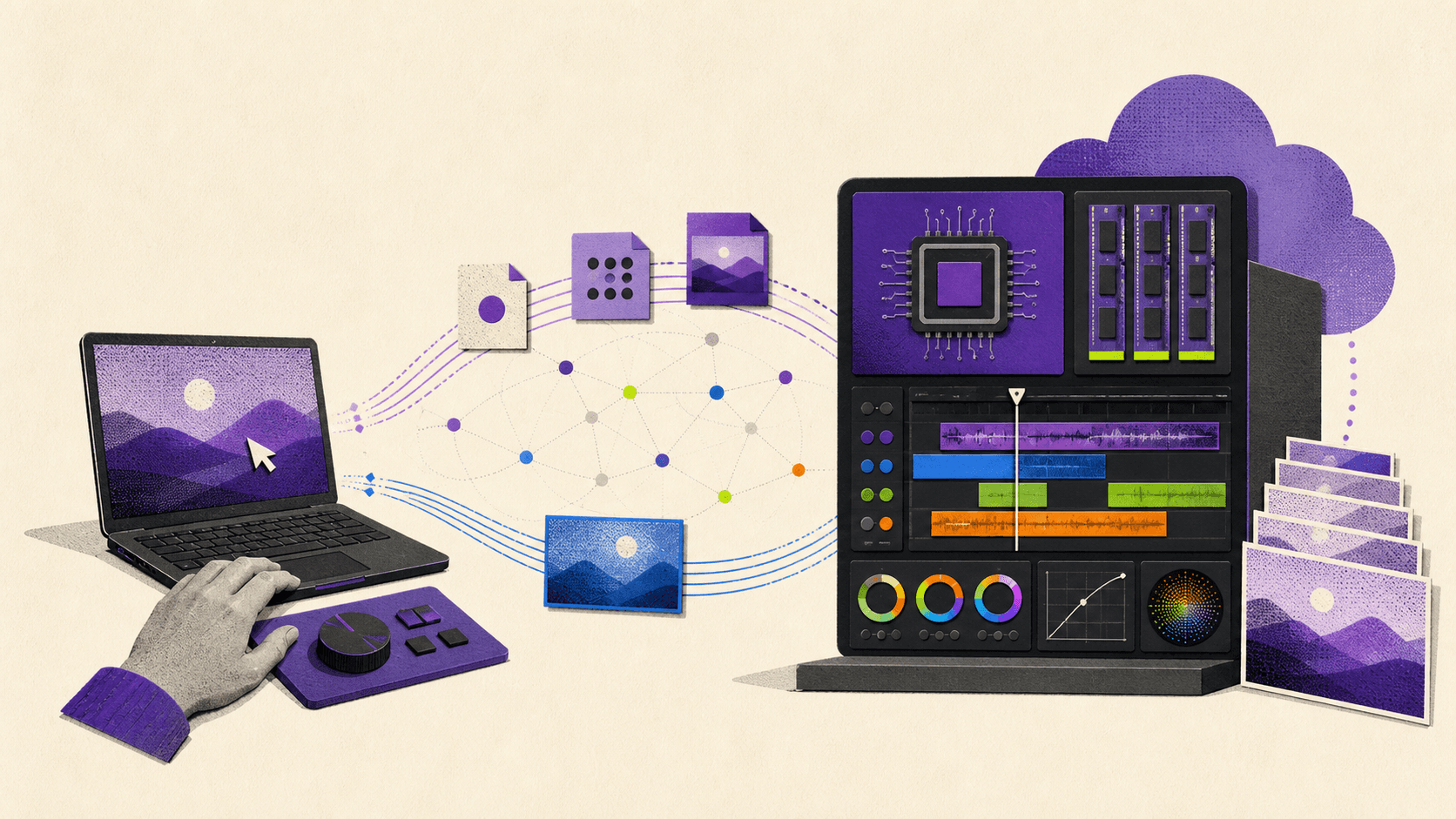
Adobe’s current Premiere Pro system requirements call for 32 GB of RAM or more for 4K and higher-resolution work, along with 8 GB of GPU memory on Windows. Adobe also recommends fast internal storage for the application and cache, plus additional high-speed storage for media.
This matters for M1 and M2 MacBook Air users. A base MacBook Air may run Premiere, especially for lighter projects, but that does not mean it offers the same headroom as a workstation with more memory and a dedicated GPU. Adobe’s current recommended Premiere hardware specifications favor Apple silicon Pro, Max, or Ultra chips and 16 GB of unified memory.
DaVinci Resolve places even more emphasis on GPU performance for demanding work. DaVinci Resolve Studio uses GPU-accelerated effects, AI features, color tools, and hardware encoding and decoding. That makes GPU memory especially important for color grading, noise reduction, Fusion effects, high-resolution footage, and complex timelines.
A practical cloud editing setup should therefore include:
At least 16 GB of system RAM for moderate work
32 GB or more for demanding 4K projects
At least 8 GB of GPU memory for heavier Premiere and Resolve workflows
Fast cloud storage for footage, cache, and project files
A stable connection with low enough latency for interactive editing
Vagon Cloud Computer: Best for Bursty Editing Work
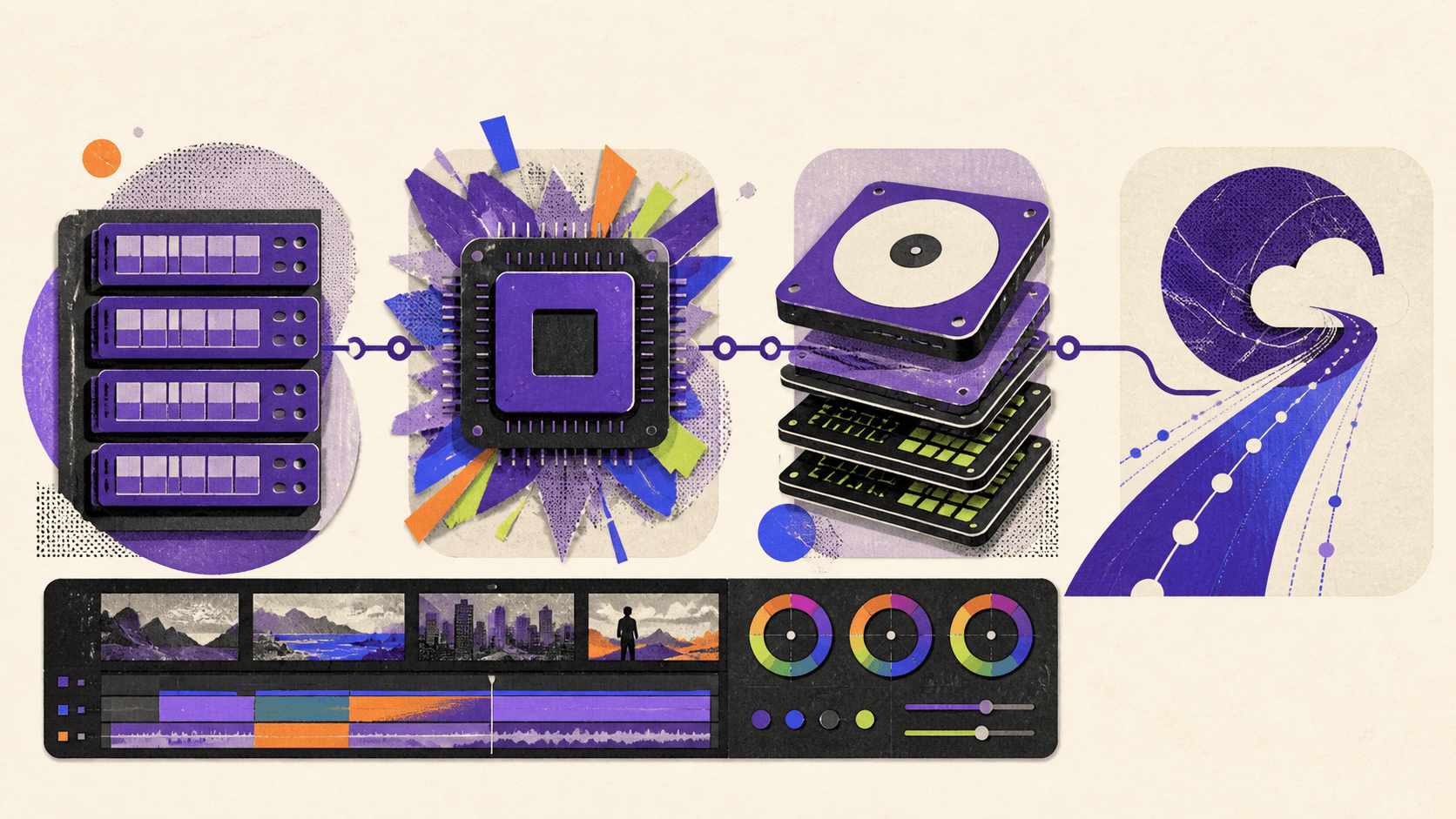
Vagon Cloud Computer is the best match for editors who need serious performance during a project but do not want to pay for a powerful machine all year.
Vagon’s current Cloud Computer pricing lists several performance tiers. Planet costs $0.99 per hour and includes 4 CPU cores, 16 GB of RAM, and a 16 GB NVIDIA T4 GPU. Flame costs $2.27 per hour and includes 8 cores, 32 GB of RAM, and a 24 GB RTX-enabled A10G GPU. Blaze costs $3.57 per hour and includes 16 cores, 64 GB of RAM, and a 24 GB A10G GPU.
These tiers create a useful workflow for video editors. You might use a lower tier for organizing footage, cutting a simple timeline, or reviewing a project. You can then move to a stronger tier for color work, effects, previews, and final exports.
The important feature is that your applications and files remain in the cloud while you adjust performance. You do not need to rebuild the computer every time your project becomes more demanding.
Vagon’s post-production offering specifically supports Premiere Pro, After Effects, Media Encoder, and DaVinci Resolve. It also supports access from different devices and advertises 4K/60 FPS streaming for remote work.
The pricing model suits editors whose workload changes from month to month. You pay for the processing time you use, rather than buying a workstation that may sit idle between projects. Vagon also includes a persistent 75 GB computer disk with its personal storage plan, which starts at $7.99 per month.
There are limitations. Storage is not the same as unlimited media storage, so large projects may require additional capacity or a separate cloud-storage workflow. Vagon also lists an outbound transfer charge after the first 10 GB of data transferred out per month. Rates can vary by region and usage, so check the current Vagon pricing details before moving a large media library.
Vagon is a strong choice if you want:
A ready-to-use Windows cloud workstation
Pay-per-use GPU performance
A persistent environment for apps and project files
The ability to work from a MacBook Air, thin laptop, tablet, or another device
More performance during active projects without buying a permanent rig

AirGPU: Best for Simple Hourly Billing
AirGPU is a good alternative if you want a cloud PC without a recurring subscription. The service sells credits and charges for the time your cloud computer is running.
Its current listed options include a Tesla T4 from $0.65 per hour, an L4 from $0.90 per hour, an A10G from $1.05 per hour, and an L40S from $1.20 per hour. AirGPU also lists RTX A4000 and A5000 options in some regions. Storage starts at 100 GB and is billed separately.
The service supports video editing and other GPU-heavy applications, but the experience is more hands-on than a managed creative workstation. You may need to choose the right connection method, configure your desktop, install your software, and manage your storage yourself.
AirGPU can make sense for an editor who already understands cloud PCs and wants simple hourly pricing. It may also suit someone who wants to start and stop machines frequently without paying for a monthly plan.
Before choosing it, check:
Which GPU models are available in your region
How close the data center is to your location
Whether your preferred streaming client feels responsive
How project files will be uploaded and stored
Whether the total storage cost changes the apparent hourly savings
AirGPU is attractive for occasional use, but it may require more troubleshooting than a service designed around a persistent creative workspace.
Shadow Pro: Best for Consistent Monthly Editing
Shadow Pro is better suited to editors who work regularly and want a predictable monthly bill.
The current Shadow Pro page lists Neo Pro at $44.99 per month and Power Pro at $59.99 per month. Neo Pro includes 16 GB of RAM and an NVIDIA RTX 2000 Ada GPU. Power Pro includes 28 GB of RAM and 20 GB of VRAM, with streaming up to 4K+. Shadow positions its higher tiers for demanding applications including video and animation creation.
A monthly workstation can become more economical than hourly billing when you use it most days. It also avoids the mental overhead of calculating the cost of every editing session.
Shadow Pro may be a better choice if you:
Edit several hours every week
Want a fixed monthly cost
Need a general Windows workstation for more than editing
Prefer monthly access over adding usage credits
Are comfortable installing and maintaining your own software
It is less compelling for a creator who edits one project every few months. In that case, you may continue paying for the machine even when you are not using it.
Paperspace: Best for Technical Users
Paperspace provides GPU virtual machines with Windows and Linux options, persistent storage, and a wide range of GPU configurations. It is more like building your own cloud workstation than signing up for a ready-made editing environment.
That flexibility can be useful for technical users, studios, and teams with custom pipelines. You can choose machine types, storage, and GPU configurations based on your workflow.
The trade-off is complexity. You may need to manage:
Operating system setup
GPU drivers
Storage volumes
Software installation
Licensing
Backups
Network configuration
Machine shutdown and cost control
Paperspace is therefore not the first recommendation for a freelancer who simply wants to open Premiere or Resolve and start editing. It becomes more attractive when you need control over the environment or want to integrate editing with other cloud infrastructure.
How to Choose the Right Cloud PC
Start with your usage pattern rather than the most powerful GPU available.
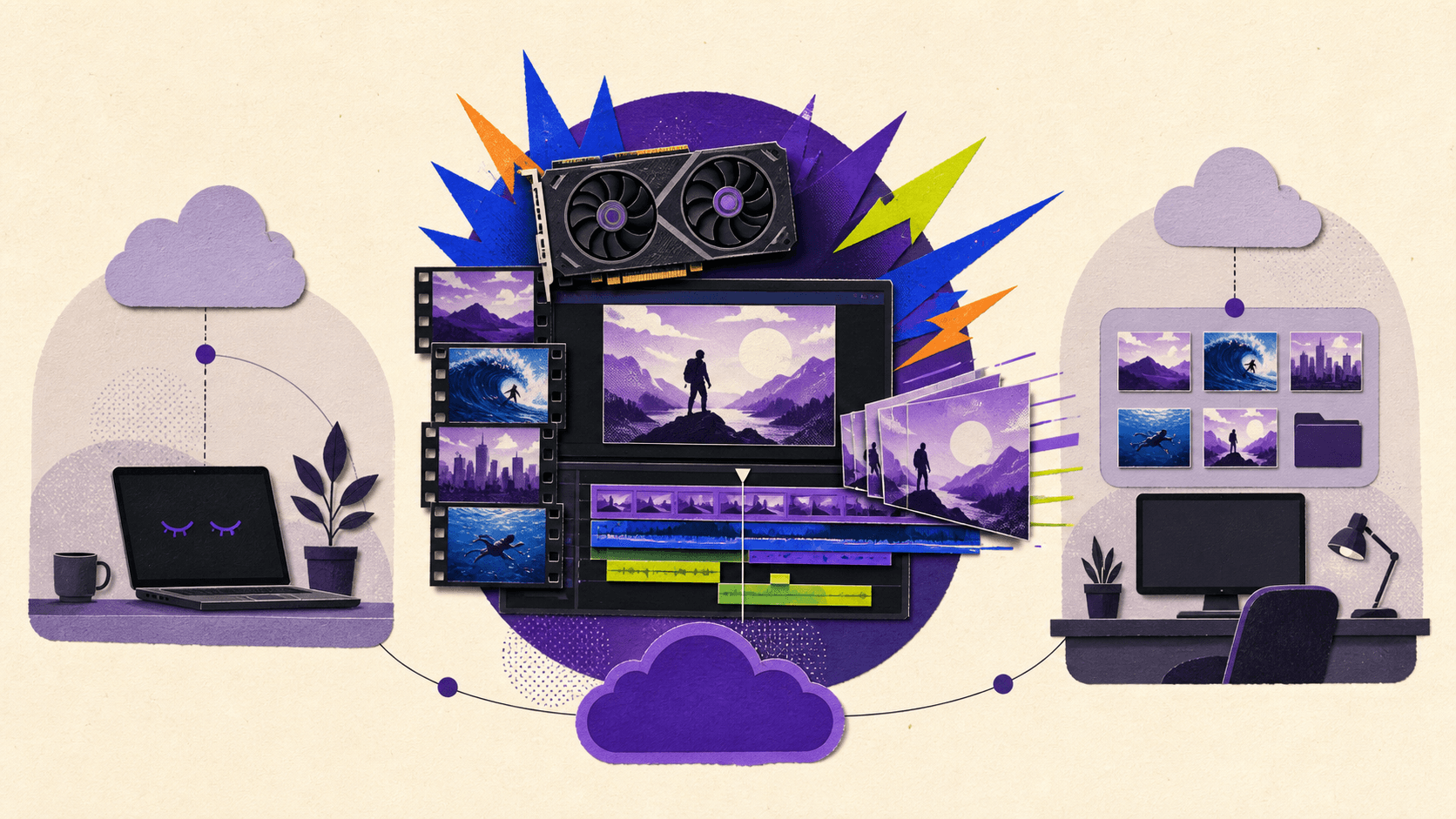
For occasional 4K editing, begin with a mid-range option and test your actual footage. A simple talking-head project with light color correction needs less power than a multicamera timeline with noise reduction, Fusion effects, and multiple high-resolution streams.
For demanding Premiere projects, prioritize:
32 GB or more of RAM
At least 8 GB of GPU memory
Fast storage for media and cache
Hardware acceleration for your codecs
A stable connection to the cloud workstation
For DaVinci Resolve, prioritize GPU memory even more strongly. Color grading, noise reduction, AI tools, Fusion, and Resolve FX can create a much heavier GPU load than basic timeline cutting.
Also consider where your footage lives. If your files are on a local external drive, you will need to upload them or use a workflow that keeps media accessible from the cloud. Proxies can reduce transfer sizes and improve responsiveness, but they do not remove the need for a suitable machine when you switch back to full-resolution media or export the final result.
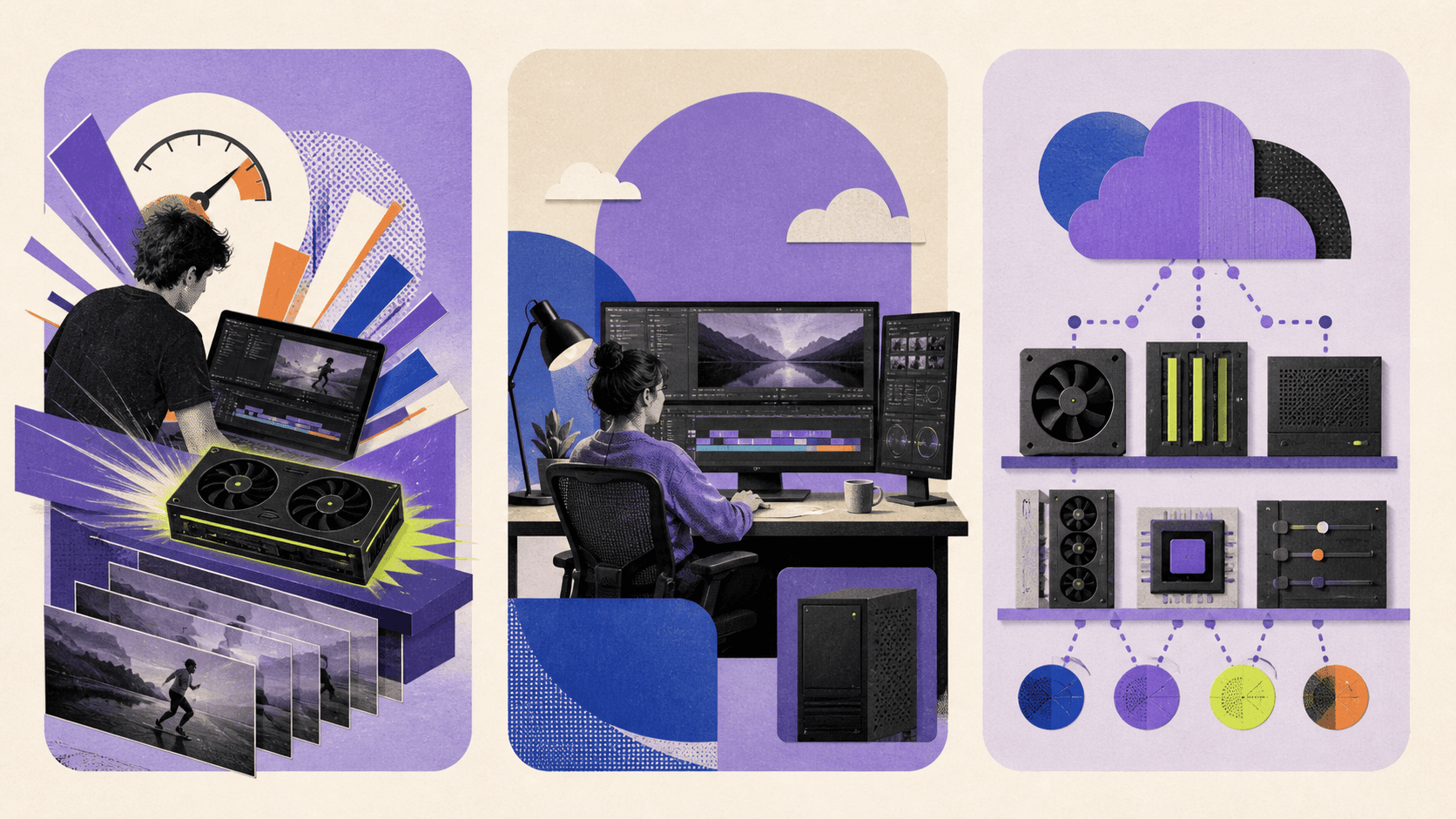
A cloud PC may not be the best answer when:
You mostly edit short 1080p videos
Your internet connection is unstable
Your media library is too large to transfer efficiently
Your current computer only needs better organization and proxy workflows
You edit so many hours each month that renting or owning a dedicated workstation is cheaper
Frequently Asked Questions
Can I run Premiere Pro on a cloud PC?
Yes. A cloud PC gives you a Windows environment where you can install Premiere Pro and sign in with your Adobe account. Check your Adobe plan and licensing terms before setting up a remote machine.
Is a cloud PC good for DaVinci Resolve?
It can be, especially when the cloud machine has sufficient GPU memory and compatible drivers. Resolve users should test their own media, effects, codecs, and Fusion projects before committing to a long-term setup.
Can I edit 4K video on a weak laptop?
Yes, if the laptop can maintain a stable connection to the cloud computer. The laptop displays the remote workstation and sends your inputs, while the cloud machine handles the editing application and GPU workload.
Do I need to upload all my footage?
Usually, the footage needs to be available to the cloud editing environment. You can upload source files, use cloud storage, or create proxies and transfer only the media needed for the current project.
Is a cloud PC cheaper than buying a video-editing computer?
It can be cheaper for project-based editors because you pay for access when you need it. Editors who work every day may find that a monthly cloud workstation or owned computer offers better long-term value.
For most freelancers and creators with bursty workloads, Vagon Cloud Computer is a practical place to start. Choose a tier that matches your current timeline, test it with real footage, and scale up only when your effects, color work, or exports require more power.
If you need to edit 4K video but your laptop struggles with playback, effects, or exports, a cloud PC can give you access to a stronger workstation without buying one. For project-based editors, freelancers, and creators who only need high performance in bursts, Vagon Cloud Computer is the strongest overall fit because it combines persistent storage, scalable GPU performance, and pay-per-minute usage.
The best choice still depends on how often you edit, how much GPU power your projects need, and how good your internet connection is.
Cloud PCs for Video Editing at a Glance
Cloud PC | Best for | Billing model | Main trade-off |
|---|---|---|---|
Vagon Cloud Computer | Project-based editors | Per-minute usage plus storage | Storage and outbound data-transfer fees |
AirGPU | Simple hourly access | Hourly, no subscription | More hands-on setup |
Shadow Pro | Consistent monthly editing | Monthly subscription | Less flexible for occasional use |
Paperspace | Technical users and custom workflows | VM-based pricing | More configuration and administration |
The comparison is based on current listed specifications and pricing, not independent render benchmarks. Cloud performance can vary by region, media format, effects, and network quality.
What Premiere Pro and DaVinci Resolve Need
A cloud PC does not need to replicate every part of a high-end editing workstation. It needs enough CPU, RAM, GPU memory, fast storage, and network performance for your particular workflow.
Adobe’s current Premiere Pro system requirements call for 32 GB of RAM or more for 4K and higher-resolution work, along with 8 GB of GPU memory on Windows. Adobe also recommends fast internal storage for the application and cache, plus additional high-speed storage for media.
This matters for M1 and M2 MacBook Air users. A base MacBook Air may run Premiere, especially for lighter projects, but that does not mean it offers the same headroom as a workstation with more memory and a dedicated GPU. Adobe’s current recommended Premiere hardware specifications favor Apple silicon Pro, Max, or Ultra chips and 16 GB of unified memory.
DaVinci Resolve places even more emphasis on GPU performance for demanding work. DaVinci Resolve Studio uses GPU-accelerated effects, AI features, color tools, and hardware encoding and decoding. That makes GPU memory especially important for color grading, noise reduction, Fusion effects, high-resolution footage, and complex timelines.
A practical cloud editing setup should therefore include:
At least 16 GB of system RAM for moderate work
32 GB or more for demanding 4K projects
At least 8 GB of GPU memory for heavier Premiere and Resolve workflows
Fast cloud storage for footage, cache, and project files
A stable connection with low enough latency for interactive editing
Vagon Cloud Computer: Best for Bursty Editing Work
Vagon Cloud Computer is the best match for editors who need serious performance during a project but do not want to pay for a powerful machine all year.
Vagon’s current Cloud Computer pricing lists several performance tiers. Planet costs $0.99 per hour and includes 4 CPU cores, 16 GB of RAM, and a 16 GB NVIDIA T4 GPU. Flame costs $2.27 per hour and includes 8 cores, 32 GB of RAM, and a 24 GB RTX-enabled A10G GPU. Blaze costs $3.57 per hour and includes 16 cores, 64 GB of RAM, and a 24 GB A10G GPU.
These tiers create a useful workflow for video editors. You might use a lower tier for organizing footage, cutting a simple timeline, or reviewing a project. You can then move to a stronger tier for color work, effects, previews, and final exports.
The important feature is that your applications and files remain in the cloud while you adjust performance. You do not need to rebuild the computer every time your project becomes more demanding.
Vagon’s post-production offering specifically supports Premiere Pro, After Effects, Media Encoder, and DaVinci Resolve. It also supports access from different devices and advertises 4K/60 FPS streaming for remote work.
The pricing model suits editors whose workload changes from month to month. You pay for the processing time you use, rather than buying a workstation that may sit idle between projects. Vagon also includes a persistent 75 GB computer disk with its personal storage plan, which starts at $7.99 per month.
There are limitations. Storage is not the same as unlimited media storage, so large projects may require additional capacity or a separate cloud-storage workflow. Vagon also lists an outbound transfer charge after the first 10 GB of data transferred out per month. Rates can vary by region and usage, so check the current Vagon pricing details before moving a large media library.
Vagon is a strong choice if you want:
A ready-to-use Windows cloud workstation
Pay-per-use GPU performance
A persistent environment for apps and project files
The ability to work from a MacBook Air, thin laptop, tablet, or another device
More performance during active projects without buying a permanent rig
AirGPU: Best for Simple Hourly Billing
AirGPU is a good alternative if you want a cloud PC without a recurring subscription. The service sells credits and charges for the time your cloud computer is running.
Its current listed options include a Tesla T4 from $0.65 per hour, an L4 from $0.90 per hour, an A10G from $1.05 per hour, and an L40S from $1.20 per hour. AirGPU also lists RTX A4000 and A5000 options in some regions. Storage starts at 100 GB and is billed separately.
The service supports video editing and other GPU-heavy applications, but the experience is more hands-on than a managed creative workstation. You may need to choose the right connection method, configure your desktop, install your software, and manage your storage yourself.
AirGPU can make sense for an editor who already understands cloud PCs and wants simple hourly pricing. It may also suit someone who wants to start and stop machines frequently without paying for a monthly plan.
Before choosing it, check:
Which GPU models are available in your region
How close the data center is to your location
Whether your preferred streaming client feels responsive
How project files will be uploaded and stored
Whether the total storage cost changes the apparent hourly savings
AirGPU is attractive for occasional use, but it may require more troubleshooting than a service designed around a persistent creative workspace.
Shadow Pro: Best for Consistent Monthly Editing
Shadow Pro is better suited to editors who work regularly and want a predictable monthly bill.
The current Shadow Pro page lists Neo Pro at $44.99 per month and Power Pro at $59.99 per month. Neo Pro includes 16 GB of RAM and an NVIDIA RTX 2000 Ada GPU. Power Pro includes 28 GB of RAM and 20 GB of VRAM, with streaming up to 4K+. Shadow positions its higher tiers for demanding applications including video and animation creation.
A monthly workstation can become more economical than hourly billing when you use it most days. It also avoids the mental overhead of calculating the cost of every editing session.
Shadow Pro may be a better choice if you:
Edit several hours every week
Want a fixed monthly cost
Need a general Windows workstation for more than editing
Prefer monthly access over adding usage credits
Are comfortable installing and maintaining your own software
It is less compelling for a creator who edits one project every few months. In that case, you may continue paying for the machine even when you are not using it.
Paperspace: Best for Technical Users
Paperspace provides GPU virtual machines with Windows and Linux options, persistent storage, and a wide range of GPU configurations. It is more like building your own cloud workstation than signing up for a ready-made editing environment.
That flexibility can be useful for technical users, studios, and teams with custom pipelines. You can choose machine types, storage, and GPU configurations based on your workflow.
The trade-off is complexity. You may need to manage:
Operating system setup
GPU drivers
Storage volumes
Software installation
Licensing
Backups
Network configuration
Machine shutdown and cost control
Paperspace is therefore not the first recommendation for a freelancer who simply wants to open Premiere or Resolve and start editing. It becomes more attractive when you need control over the environment or want to integrate editing with other cloud infrastructure.
How to Choose the Right Cloud PC
Start with your usage pattern rather than the most powerful GPU available.
For occasional 4K editing, begin with a mid-range option and test your actual footage. A simple talking-head project with light color correction needs less power than a multicamera timeline with noise reduction, Fusion effects, and multiple high-resolution streams.
For demanding Premiere projects, prioritize:
32 GB or more of RAM
At least 8 GB of GPU memory
Fast storage for media and cache
Hardware acceleration for your codecs
A stable connection to the cloud workstation
For DaVinci Resolve, prioritize GPU memory even more strongly. Color grading, noise reduction, AI tools, Fusion, and Resolve FX can create a much heavier GPU load than basic timeline cutting.
Also consider where your footage lives. If your files are on a local external drive, you will need to upload them or use a workflow that keeps media accessible from the cloud. Proxies can reduce transfer sizes and improve responsiveness, but they do not remove the need for a suitable machine when you switch back to full-resolution media or export the final result.
A cloud PC may not be the best answer when:
You mostly edit short 1080p videos
Your internet connection is unstable
Your media library is too large to transfer efficiently
Your current computer only needs better organization and proxy workflows
You edit so many hours each month that renting or owning a dedicated workstation is cheaper
Frequently Asked Questions
Can I run Premiere Pro on a cloud PC?
Yes. A cloud PC gives you a Windows environment where you can install Premiere Pro and sign in with your Adobe account. Check your Adobe plan and licensing terms before setting up a remote machine.
Is a cloud PC good for DaVinci Resolve?
It can be, especially when the cloud machine has sufficient GPU memory and compatible drivers. Resolve users should test their own media, effects, codecs, and Fusion projects before committing to a long-term setup.
Can I edit 4K video on a weak laptop?
Yes, if the laptop can maintain a stable connection to the cloud computer. The laptop displays the remote workstation and sends your inputs, while the cloud machine handles the editing application and GPU workload.
Do I need to upload all my footage?
Usually, the footage needs to be available to the cloud editing environment. You can upload source files, use cloud storage, or create proxies and transfer only the media needed for the current project.
Is a cloud PC cheaper than buying a video-editing computer?
It can be cheaper for project-based editors because you pay for access when you need it. Editors who work every day may find that a monthly cloud workstation or owned computer offers better long-term value.
For most freelancers and creators with bursty workloads, Vagon Cloud Computer is a practical place to start. Choose a tier that matches your current timeline, test it with real footage, and scale up only when your effects, color work, or exports require more power.
Get Beyond Your Computer Performance
Run applications on your cloud computer with the latest generation hardware. No more crashes or lags.

Trial includes 1 hour usage + 7 days of storage.
Summarize with AI

Ready to focus on your creativity?
Vagon gives you the ability to create & render projects, collaborate, and stream applications with the power of the best hardware.

Run heavy applications on any device with
your personal computer on the cloud.
San Francisco, California
Solutions
Vagon Teams
Vagon Streams
Use Cases
© 2026 Vagon. All rights reserved.
Run heavy applications on any device with
your personal computer on the cloud.
San Francisco, California
Solutions
Vagon Teams
Vagon Streams
Use Cases
© 2026 Vagon. All rights reserved.
Run heavy applications on any device with
your personal computer on the cloud.
San Francisco, California
Solutions
Vagon Teams
Vagon Streams
Use Cases
© 2026 Vagon. All rights reserved.