Instant Connection for Pixel Streaming
— New Feature Automated Setup

How to Prepare InVEST Inputs with Claude Code and QGIS
How to Prepare InVEST Inputs with Claude Code and QGIS
How to Prepare InVEST Inputs with Claude Code and QGIS
Table of Contents
Preparing InVEST inputs takes more than making two maps line up. Your baseline and alternative land-cover rasters may look correct in QGIS while using different pixel grids or assigning different meanings to the same class code. Those inconsistencies can undermine a comparison before the model runs.
Claude Code can help turn preparation into a repeatable workflow: inspect the source files, write processing commands, check class mappings, and report problems. QGIS provides the geospatial tools and visual inspection needed to review those changes.
This guide uses the InVEST Carbon Storage and Sequestration model as a concrete example. You will prepare baseline and alternative land-use/land-cover rasters, check their carbon pools table, and assemble a documented input package.
With Vagon Cloud Computer, Claude Code, QGIS, InVEST, and your working data can share one Windows environment. The goal is a complete preparation workflow you can inspect, rerun, and use when the next dataset arrives.

Source: Natural Capital Project
Define the Model Inputs Before Writing Scripts
InVEST models have different data requirements, so begin with a specific analysis rather than a general instruction to “prepare InVEST inputs.” Here, the task is to compare carbon storage between a baseline landscape and an alternative land-use scenario.
The Carbon model maps land-cover classes to four carbon pools. It does not dynamically simulate tree growth, soil processes, or changing climate conditions. Preparing its inputs therefore means making the spatial datasets consistent and ensuring their classifications connect to appropriate carbon values.
For this example, gather:
Two LULC rasters: the baseline and alternative landscapes, using integer class identifiers.
A carbon pools CSV: values for aboveground biomass, belowground biomass, soil, and dead organic matter.
A study-area boundary: used during preparation to define the analysis area, although it is not itself a required Carbon model input.
Economic valuation is outside this workflow.
Check Class Meanings, Not Just Class Numbers
Both rasters need a common classification scheme. If code 3 means forest in the baseline but cropland in the alternative, matching grids and a complete carbon table will not make the comparison valid.
Keep the source legends and document any reclassification needed to produce shared codes. Carbon pool values must then correspond to those shared classes, expressed in metric tons of elemental carbon per hectare.
Give Claude Code a bounded starting task:
Inspect the rasters, source legends, study-area boundary, and carbon table without modifying them. Identify differences in spatial properties and classification meanings. Report missing information before proposing processing steps.
This separates decisions requiring your approval from operations that can be automated. The assistant can implement an agreed mapping, but it should not infer undocumented class meanings or supply missing scientific coefficients.
Set Up the Preparation Workspace on Vagon
Keep Claude Code, QGIS, InVEST, and the project files on the same Vagon Cloud Computer. This gives you one environment for developing scripts, inspecting raster outputs, and checking the finished package in InVEST.
Start with the available preinstalled apps, then install any additional software the project requires. Confirm access to Claude Code, open QGIS, and launch InVEST Workbench. Record their versions before preparing data.
Transfer the source datasets through Vagon Files, making sure they are fully available on the cloud computer’s disk before processing.

Source: QGIS Documentation
Organize Files Around the Workflow
Use a project folder that separates source data from generated files:
Keep original rasters, legends, boundaries, and tables in raw. Use working for intermediate datasets and prepared for reviewed model inputs. Processing scripts belong in scripts, while audit reports go in qa. Keep InVEST results in model_outputs.
Open Claude Code from this project folder and establish the working boundary:
Treat
rawas read-only. Read processing settings fromconfig.json. Write intermediate files toworking, final inputs toprepared, and inspection reports toqa. Do not replace existing outputs without confirmation.
Next, check the QGIS Processing command-line tool:
On Windows, run these through the launcher or shell supplied with your QGIS installation if the command is not available in the normal terminal. Use that environment for the geospatial scripts in this guide. Installing packages into an unrelated Python environment does not make them available to QGIS.
Once these checks work, the workspace is ready for the source-data audit.
Audit the Source Data and Classification Legends
Before reprojecting anything, establish what each source actually contains. An incorrect CRS declaration, undocumented background value, or conflicting class legend cannot be fixed safely by running a batch command.
Load both rasters and the study-area boundary in QGIS. Inspect the raster layer properties, then ask Claude Code to create a read-only inventory covering:
CRS, band count, data type, pixel size, extent, and grid origin.
Declared NoData values and valid class codes with pixel counts.
Study-area layer name, CRS, extent, and geometry problems.
Carbon-table columns, duplicate identifiers, and missing values.
For large rasters, scan the classification band in blocks rather than loading the entire dataset into memory. Save the findings in qa/source_inventory.json and a readable summary.

Source: QGIS Documentation
Establish a Shared Classification
Compare the source legends alongside the code inventory. Identical numbers do not establish identical meanings, and different numbers may represent equivalent classes.
For example, suppose the source documentation confirms these mappings:
Shared class | Baseline code | Alternative code | Prepared code |
|---|---|---|---|
Forest | 3 | 7 | 1 |
Cropland | 4 | 3 | 2 |
The prepared carbon table would use 1 and 2, not either source’s original identifiers. Keep this mapping explicit and apply it only after checking that the category definitions are sufficiently comparable. A broad “woodland” class should not automatically be treated as equivalent to a narrowly defined forest class.

Source: QGIS Documentation
Also investigate NoData conflicts. If zero is a legitimate source class, treating it as background would remove valid pixels. Do not change that interpretation without supporting documentation.
Have the audit separate confirmed settings, required transformations, and unresolved questions. Stop preparation when class meanings or source coordinates remain uncertain. Once those decisions are resolved, the next step is to encode them in one configuration used throughout processing and validation.
Put the Processing Decisions in One Configuration
Store the approved settings in config.json at the project root. Both preparation and validation scripts should read this file, so they check the same paths and assumptions.
The following structure includes the settings needed for this workflow. The classification mappings illustrate the forest and cropland example above; replace them with your approved mappings.
Fill the null values before processing. Use an appropriate projected CRS with meter units, a positive pixel size in those units, and shared bounds in [xmin, ymin, xmax, ymax] order. Verify the study-area layer name rather than assuming it matches the filename.

Source: QGIS Documentation
Make the Grid and Mapping Explicit
Use the approved baseline grid as the reference where suitable. Otherwise, define a target grid whose width and height are whole numbers of pixels, then apply it to both scenarios. Choosing finer cells does not create finer source information.
Here, Int32 can represent the example NoData value, but confirm that -9999 is not a valid prepared class. Mapping keys are strings because JSON object keys are strings; the processing script must interpret them as integer source codes.
Require the script to stop on unmapped valid codes rather than silently converting them to NoData. The prepared carbon table must use the prepared class identifiers.
This configuration becomes the common contract: processing creates the requested package, and QA checks whether the saved files actually satisfy it.
Apply the Approved Land-Cover Classification
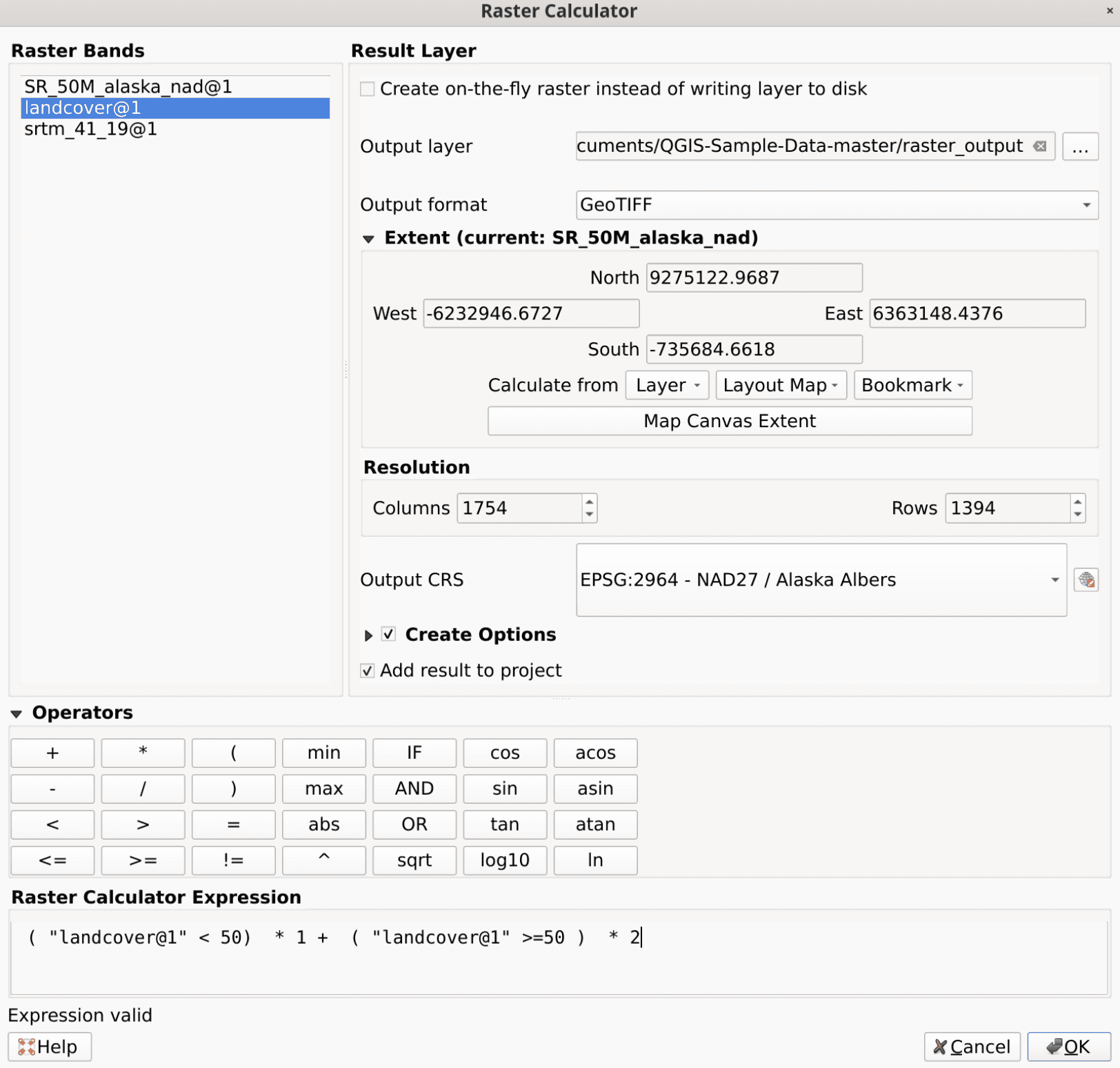
If the source legends use different identifiers, reclassify both rasters before aligning them. This keeps classification changes separate from spatial transformations and makes errors easier to trace.
Source: QGIS Documentation
The script below reads the mappings from config.json and creates intermediate rasters in working. It uses the GDAL raster API and NumPy, so run it with the Python environment supplied with your QGIS installation.
Save it as scripts/reclassify.py:
import json
from pathlib import Path

import numpy as np
from osgeo import gdal

gdal.UseExceptions()
root = Path(__file__).resolve().parents[1]
config = json.loads((root / "config.json").read_text())
nodata = config["target_grid"]["nodata"]

for scenario in ("baseline", "alternative"):
    mapping = {
        int(source): int(target)
        for source, target
        in config["class_mappings"][scenario]
import json
from pathlib import Path

import numpy as np
from osgeo import gdal

gdal.UseExceptions()
root = Path(__file__).resolve().parents[1]
config = json.loads((root / "config.json").read_text())
nodata = config["target_grid"]["nodata"]

for scenario in ("baseline", "alternative"):
    mapping = {
        int(source): int(target)
        for source, target
        in config["class_mappings"][scenario]
From the project root, run:
This example implements the Int32 output type shown in the configuration. If you choose another type, update the script and check its supported value range before running it.
Inspect the Intermediate Results
The script preserves each source’s grid and uses its validity mask to exclude missing pixels. It does not resolve undocumented background values, so the source audit must establish those first.
If an unmapped class stops processing, treat any partially written output as incomplete. Resolve the mapping, remove the failed intermediate file, and rerun before continuing.
Open the completed rasters in QGIS and check their unique values against the approved legend. At this stage, the class meanings should match, but the grids may still differ. Spatial alignment comes next.
Reproject and Mask Both Rasters onto One Grid
The intermediate rasters now use shared class identifiers. Next, give them the same spatial framework: coordinate system, pixel size, bounds, and study-area mask.
You can perform these operations through QGIS Processing. For a repeatable script, the GDAL Warp API also lets you apply explicit settings to both files.
Save the following as scripts/prepare_grid.py and run it in the same QGIS-supplied Python environment used for reclassification:
import json
import math
from pathlib import Path
from osgeo import gdal

gdal.UseExceptions()
root = Path(__file__).resolve().parents[1]
config = json.loads((root / "config.json").read_text())
grid = config["target_grid"]

for key in ("crs", "pixel_size", "bounds", "nodata"):
    if grid[key] is None:
        raise ValueError(f"Missing target-grid setting: {key}")

resolution = float(grid["pixel_size"])
xmin, ymin, xmax, ymax = grid["bounds"]
if resolution <= 0 or xmax <= xmin or ymax <= ymin:
    raise ValueError("Invalid resolution or bounds.")

for span in (xmax - xmin, ymax - ymin):
    cells = span / resolution
    if not math.isclose(cells, round(cells), rel_tol=0, abs_tol=1e-6):
        raise ValueError("Bounds must span whole numbers of pixels.")

if grid["resampling"] != "nearest" or grid["data_type"] != "Int32":
    raise ValueError("This example requires nearest and Int32.")

for scenario in ("baseline", "alternative"):
    source = root / "working" / f"{scenario}_classes.tif"
    output = root / config["outputs"][scenario]
import json
import math
from pathlib import Path
from osgeo import gdal

gdal.UseExceptions()
root = Path(__file__).resolve().parents[1]
config = json.loads((root / "config.json").read_text())
grid = config["target_grid"]

for key in ("crs", "pixel_size", "bounds", "nodata"):
    if grid[key] is None:
        raise ValueError(f"Missing target-grid setting: {key}")

resolution = float(grid["pixel_size"])
xmin, ymin, xmax, ymax = grid["bounds"]
if resolution <= 0 or xmax <= xmin or ymax <= ymin:
    raise ValueError("Invalid resolution or bounds.")

for span in (xmax - xmin, ymax - ymin):
    cells = span / resolution
    if not math.isclose(cells, round(cells), rel_tol=0, abs_tol=1e-6):
        raise ValueError("Bounds must span whole numbers of pixels.")

if grid["resampling"] != "nearest" or grid["data_type"] != "Int32":
    raise ValueError("This example requires nearest and Int32.")

for scenario in ("baseline", "alternative"):
    source = root / "working" / f"{scenario}_classes.tif"
    output = root / config["outputs"][scenario]
Run it from the project root:
Before execution, confirm that the configured bounds are expressed in the target CRS and cover the intended study area. The boundary layer must also have a correctly declared CRS so GDAL can transform it.
Preserve the Grid When Applying the Boundary
The script uses identical bounds and resolution for both scenarios. The polygon masks pixels outside the study area without independently cropping each raster to a different extent.

Source: QGIS Documentation
Nearest-neighbor resampling avoids averaging categorical identifiers. It does not guarantee unchanged class areas: reprojection and boundary masking can alter pixel counts.
Open both outputs in QGIS, apply the same categorical colors, and inspect their boundaries and coverage. Matching appearance is useful, but the next checks must read the saved files to verify grid equality and carbon-table coverage.
Check Every Prepared Class Against the Carbon Table
Validate the carbon table against the prepared rasters, not just the source legends. Reclassification changed the identifiers, and clipping may have removed some classes from the analysis area.
The InVEST Carbon model uses these columns:
Use the shared, prepared identifiers in lucode. The four carbon pools represent metric tons of elemental carbon per hectare. Any revised table should retain documented coefficient sources and be reviewed before use.
Connect the Raster Check to the Table Check
Save this as scripts/check_carbon_table.py. It scans both prepared rasters in blocks, checks the CSV, and stops if any valid raster class lacks a table entry.
import csv
import json
import math
from pathlib import Path

import numpy as np
from osgeo import gdal

gdal.UseExceptions()
root = Path(__file__).resolve().parents[1]
config = json.loads((root / "config.json").read_text())
classes = {}

for scenario in ("baseline", "alternative"):
    dataset = gdal.Open(str(root / config["outputs"][scenario]))
    band = dataset.GetRasterBand(1)
    mask = band.GetMaskBand()
    codes = set()

    for y in range(0, dataset.RasterYSize, 256):
        for x in range(0, dataset.RasterXSize, 256):
            width = min(256, dataset.RasterXSize - x)
            height = min(256, dataset.RasterYSize - y)
            values = band.ReadAsArray(x, y, width, height)
            valid = mask.ReadAsArray(x, y, width, height) != 0
            codes.update(int(v) for v in np.unique(values[valid]))

    if not codes:
        raise ValueError(f"{scenario}: no valid pixels.")
    classes[scenario] = sorted(codes)
    band = mask = dataset = None

pools = ("c_above", "c_below", "c_soil", "c_dead")
table_codes = set()
table = root / config["sources"]["carbon_table"]

with table.open(newline="", encoding="utf-8-sig") as file:
    reader = csv.DictReader(file)
    missing = {"lucode", *pools} - set(reader.fieldnames or [])
    if missing:
        raise ValueError(f"Missing columns: {sorted(missing)}")

    for line, row in enumerate(reader, start=2):
        code = int(row["lucode"])
        if code in table_codes:
            raise ValueError(f"Duplicate lucode at line {line}.")
        table_codes.add(code)
        for pool in pools:
            value = float(row[pool])
            if not math.isfinite(value) or value < 0:
                raise ValueError(f"Invalid {pool} at line {line}.")

raster_codes = set(classes["baseline"]) | set(classes["alternative"])
missing = raster_codes - table_codes
if missing:
    raise ValueError(f"Classes missing from carbon table: {sorted(missing)}")

report = root / config["outputs"]["class_inventory"]
import csv
import json
import math
from pathlib import Path

import numpy as np
from osgeo import gdal

gdal.UseExceptions()
root = Path(__file__).resolve().parents[1]
config = json.loads((root / "config.json").read_text())
classes = {}

for scenario in ("baseline", "alternative"):
    dataset = gdal.Open(str(root / config["outputs"][scenario]))
    band = dataset.GetRasterBand(1)
    mask = band.GetMaskBand()
    codes = set()

    for y in range(0, dataset.RasterYSize, 256):
        for x in range(0, dataset.RasterXSize, 256):
            width = min(256, dataset.RasterXSize - x)
            height = min(256, dataset.RasterYSize - y)
            values = band.ReadAsArray(x, y, width, height)
            valid = mask.ReadAsArray(x, y, width, height) != 0
            codes.update(int(v) for v in np.unique(values[valid]))

    if not codes:
        raise ValueError(f"{scenario}: no valid pixels.")
    classes[scenario] = sorted(codes)
    band = mask = dataset = None

pools = ("c_above", "c_below", "c_soil", "c_dead")
table_codes = set()
table = root / config["sources"]["carbon_table"]

with table.open(newline="", encoding="utf-8-sig") as file:
    reader = csv.DictReader(file)
    missing = {"lucode", *pools} - set(reader.fieldnames or [])
    if missing:
        raise ValueError(f"Missing columns: {sorted(missing)}")

    for line, row in enumerate(reader, start=2):
        code = int(row["lucode"])
        if code in table_codes:
            raise ValueError(f"Duplicate lucode at line {line}.")
        table_codes.add(code)
        for pool in pools:
            value = float(row[pool])
            if not math.isfinite(value) or value < 0:
                raise ValueError(f"Invalid {pool} at line {line}.")

raster_codes = set(classes["baseline"]) | set(classes["alternative"])
missing = raster_codes - table_codes
if missing:
    raise ValueError(f"Classes missing from carbon table: {sorted(missing)}")

report = root / config["outputs"]["class_inventory"]
Run it using the same geospatial Python environment:
This checks the table at the configured source path without changing it. After reviewing the coefficients, copy the approved CSV to the configured outputs.carbon_table path. If you edit that copy, rerun the check against it before using it in InVEST.
A passing result confirms structural consistency and class coverage. It does not establish that the coefficients are scientifically appropriate, and missing values should never be filled automatically simply to make the check pass.
Verify the Package in QGIS and InVEST
Before running the model, inspect the prepared files as a package. The class check confirms table coverage, but it does not establish that both rasters occupy the same grid or contain valid data in the same places.
Ask Claude Code to read the saved outputs and produce qa/preparation_report.md with these checks:
Check | Passing condition |
|---|---|
CRS | Both outputs match the approved projected CRS. |
Grid | Dimensions, pixel size, origin, and extent match. |
Classification | All valid codes belong to the approved shared legend. |
Coverage | Missing-data differences inside the study area are identified and resolved. |
Carbon table | The final CSV covers every valid prepared class. |
Compare CRS definitions using the geospatial library’s equivalence check rather than raw text equality. For grid coordinates, use an explicit numerical tolerance small enough to detect meaningful pixel offsets.
Inspect Where Coverage Differs
Have Claude Code create a diagnostic raster showing pixels that are valid in only one scenario. Load it in QGIS alongside the study-area boundary.
A missing strip in the alternative raster is not a land-use change. Repair the coverage or document an approved adjustment to the comparison area before proceeding. Also compare class distributions before and after processing, investigating unexpected losses rather than demanding identical pixel counts.
Confirm the Inputs in InVEST Workbench
Select the Carbon Storage and Sequestration model and load the two prepared rasters and approved carbon table. Use a separate folder under model_outputs for results.

Source: Natural Capital Project
Resolve errors reported by InVEST Workbench validation. For large datasets, a representative subset run can help check execution and output coverage, provided both scenarios use the same subset grid.
Keep the configuration, scripts, versions, QA report, and final inputs together. That makes the workspace reusable when updated data arrives, while preserving a record of what was checked before the analysis.

Source: Natural Capital Project
FAQs
Can Claude Code prepare the entire input package?
It can help inspect files, write scripts, run processing tools, and check outputs. You still need to approve the classification mappings, target grid, missing-data policy, and carbon coefficients. Automation implements those decisions; it does not establish their scientific validity.
Does this workflow apply to every InVEST model?
No. The example prepares inputs for Carbon Storage and Sequestration. Other models require different datasets, units, and processing steps. Reuse the workspace structure and audit approach, but check the selected model’s requirements before adapting the scripts.
What if both rasters already use the same classification?
Confirm that their class definitions match, not just their numbers. You can then use identity mappings, such as "3": 3, for every valid source code. This preserves identifiers while retaining the script’s check for unexpected classes.
Why do aligned-looking layers still need grid checks?
QGIS can display datasets together using on-the-fly coordinate transformation. Their underlying rasters may still have different resolutions or grid origins. Model preparation should compare the saved files’ spatial properties, not rely on their appearance.
Can zero represent a valid land-cover class?
Yes. Check the source legend and NoData metadata before treating zero as background. If valid zero-valued pixels are incorrectly masked, resolve that interpretation before reclassification. Otherwise, the script will exclude them.
Do I need MCP or computer use?
No. This workflow uses file access, Python, and geospatial processing tools. MCP or computer-use integrations are optional ways to extend interaction, not prerequisites for preparing these inputs.
Does this workflow require a GPU?
The example scripts do not use GPU acceleration. For larger rasters, focus on sufficient memory, disk capacity, and processing performance. Block-based scanning limits how much raster data these scripts load at once.
Does passing validation mean the carbon comparison is reliable?
No. Passing checks establishes specific aspects of input consistency and model execution. Source-data quality, classification comparability, coefficient selection, and scenario assumptions still require review before interpreting the results.
Preparing InVEST inputs takes more than making two maps line up. Your baseline and alternative land-cover rasters may look correct in QGIS while using different pixel grids or assigning different meanings to the same class code. Those inconsistencies can undermine a comparison before the model runs.
Claude Code can help turn preparation into a repeatable workflow: inspect the source files, write processing commands, check class mappings, and report problems. QGIS provides the geospatial tools and visual inspection needed to review those changes.
This guide uses the InVEST Carbon Storage and Sequestration model as a concrete example. You will prepare baseline and alternative land-use/land-cover rasters, check their carbon pools table, and assemble a documented input package.
With Vagon Cloud Computer, Claude Code, QGIS, InVEST, and your working data can share one Windows environment. The goal is a complete preparation workflow you can inspect, rerun, and use when the next dataset arrives.
Source: Natural Capital Project
Define the Model Inputs Before Writing Scripts
InVEST models have different data requirements, so begin with a specific analysis rather than a general instruction to “prepare InVEST inputs.” Here, the task is to compare carbon storage between a baseline landscape and an alternative land-use scenario.
The Carbon model maps land-cover classes to four carbon pools. It does not dynamically simulate tree growth, soil processes, or changing climate conditions. Preparing its inputs therefore means making the spatial datasets consistent and ensuring their classifications connect to appropriate carbon values.
For this example, gather:
Two LULC rasters: the baseline and alternative landscapes, using integer class identifiers.
A carbon pools CSV: values for aboveground biomass, belowground biomass, soil, and dead organic matter.
A study-area boundary: used during preparation to define the analysis area, although it is not itself a required Carbon model input.
Economic valuation is outside this workflow.
Check Class Meanings, Not Just Class Numbers
Both rasters need a common classification scheme. If code 3 means forest in the baseline but cropland in the alternative, matching grids and a complete carbon table will not make the comparison valid.
Keep the source legends and document any reclassification needed to produce shared codes. Carbon pool values must then correspond to those shared classes, expressed in metric tons of elemental carbon per hectare.
Give Claude Code a bounded starting task:
Inspect the rasters, source legends, study-area boundary, and carbon table without modifying them. Identify differences in spatial properties and classification meanings. Report missing information before proposing processing steps.
This separates decisions requiring your approval from operations that can be automated. The assistant can implement an agreed mapping, but it should not infer undocumented class meanings or supply missing scientific coefficients.
Set Up the Preparation Workspace on Vagon
Keep Claude Code, QGIS, InVEST, and the project files on the same Vagon Cloud Computer. This gives you one environment for developing scripts, inspecting raster outputs, and checking the finished package in InVEST.
Start with the available preinstalled apps, then install any additional software the project requires. Confirm access to Claude Code, open QGIS, and launch InVEST Workbench. Record their versions before preparing data.
Transfer the source datasets through Vagon Files, making sure they are fully available on the cloud computer’s disk before processing.
Source: QGIS Documentation
Organize Files Around the Workflow
Use a project folder that separates source data from generated files:
Keep original rasters, legends, boundaries, and tables in raw. Use working for intermediate datasets and prepared for reviewed model inputs. Processing scripts belong in scripts, while audit reports go in qa. Keep InVEST results in model_outputs.
Open Claude Code from this project folder and establish the working boundary:
Treat
rawas read-only. Read processing settings fromconfig.json. Write intermediate files toworking, final inputs toprepared, and inspection reports toqa. Do not replace existing outputs without confirmation.
Next, check the QGIS Processing command-line tool:
On Windows, run these through the launcher or shell supplied with your QGIS installation if the command is not available in the normal terminal. Use that environment for the geospatial scripts in this guide. Installing packages into an unrelated Python environment does not make them available to QGIS.
Once these checks work, the workspace is ready for the source-data audit.
Audit the Source Data and Classification Legends
Before reprojecting anything, establish what each source actually contains. An incorrect CRS declaration, undocumented background value, or conflicting class legend cannot be fixed safely by running a batch command.
Load both rasters and the study-area boundary in QGIS. Inspect the raster layer properties, then ask Claude Code to create a read-only inventory covering:
CRS, band count, data type, pixel size, extent, and grid origin.
Declared NoData values and valid class codes with pixel counts.
Study-area layer name, CRS, extent, and geometry problems.
Carbon-table columns, duplicate identifiers, and missing values.
For large rasters, scan the classification band in blocks rather than loading the entire dataset into memory. Save the findings in qa/source_inventory.json and a readable summary.
Source: QGIS Documentation
Establish a Shared Classification
Compare the source legends alongside the code inventory. Identical numbers do not establish identical meanings, and different numbers may represent equivalent classes.
For example, suppose the source documentation confirms these mappings:
Shared class | Baseline code | Alternative code | Prepared code |
|---|---|---|---|
Forest | 3 | 7 | 1 |
Cropland | 4 | 3 | 2 |
The prepared carbon table would use 1 and 2, not either source’s original identifiers. Keep this mapping explicit and apply it only after checking that the category definitions are sufficiently comparable. A broad “woodland” class should not automatically be treated as equivalent to a narrowly defined forest class.
Source: QGIS Documentation
Also investigate NoData conflicts. If zero is a legitimate source class, treating it as background would remove valid pixels. Do not change that interpretation without supporting documentation.
Have the audit separate confirmed settings, required transformations, and unresolved questions. Stop preparation when class meanings or source coordinates remain uncertain. Once those decisions are resolved, the next step is to encode them in one configuration used throughout processing and validation.
Put the Processing Decisions in One Configuration
Store the approved settings in config.json at the project root. Both preparation and validation scripts should read this file, so they check the same paths and assumptions.
The following structure includes the settings needed for this workflow. The classification mappings illustrate the forest and cropland example above; replace them with your approved mappings.
Fill the null values before processing. Use an appropriate projected CRS with meter units, a positive pixel size in those units, and shared bounds in [xmin, ymin, xmax, ymax] order. Verify the study-area layer name rather than assuming it matches the filename.
Source: QGIS Documentation
Make the Grid and Mapping Explicit
Use the approved baseline grid as the reference where suitable. Otherwise, define a target grid whose width and height are whole numbers of pixels, then apply it to both scenarios. Choosing finer cells does not create finer source information.
Here, Int32 can represent the example NoData value, but confirm that -9999 is not a valid prepared class. Mapping keys are strings because JSON object keys are strings; the processing script must interpret them as integer source codes.
Require the script to stop on unmapped valid codes rather than silently converting them to NoData. The prepared carbon table must use the prepared class identifiers.
This configuration becomes the common contract: processing creates the requested package, and QA checks whether the saved files actually satisfy it.
Apply the Approved Land-Cover Classification
If the source legends use different identifiers, reclassify both rasters before aligning them. This keeps classification changes separate from spatial transformations and makes errors easier to trace.
Source: QGIS Documentation
The script below reads the mappings from config.json and creates intermediate rasters in working. It uses the GDAL raster API and NumPy, so run it with the Python environment supplied with your QGIS installation.
Save it as scripts/reclassify.py:
import json
from pathlib import Path

import numpy as np
from osgeo import gdal

gdal.UseExceptions()
root = Path(__file__).resolve().parents[1]
config = json.loads((root / "config.json").read_text())
nodata = config["target_grid"]["nodata"]

for scenario in ("baseline", "alternative"):
    mapping = {
        int(source): int(target)
        for source, target
        in config["class_mappings"][scenario]
From the project root, run:
This example implements the Int32 output type shown in the configuration. If you choose another type, update the script and check its supported value range before running it.
Inspect the Intermediate Results
The script preserves each source’s grid and uses its validity mask to exclude missing pixels. It does not resolve undocumented background values, so the source audit must establish those first.
If an unmapped class stops processing, treat any partially written output as incomplete. Resolve the mapping, remove the failed intermediate file, and rerun before continuing.
Open the completed rasters in QGIS and check their unique values against the approved legend. At this stage, the class meanings should match, but the grids may still differ. Spatial alignment comes next.
Reproject and Mask Both Rasters onto One Grid
The intermediate rasters now use shared class identifiers. Next, give them the same spatial framework: coordinate system, pixel size, bounds, and study-area mask.
You can perform these operations through QGIS Processing. For a repeatable script, the GDAL Warp API also lets you apply explicit settings to both files.
Save the following as scripts/prepare_grid.py and run it in the same QGIS-supplied Python environment used for reclassification:
import json
import math
from pathlib import Path
from osgeo import gdal

gdal.UseExceptions()
root = Path(__file__).resolve().parents[1]
config = json.loads((root / "config.json").read_text())
grid = config["target_grid"]

for key in ("crs", "pixel_size", "bounds", "nodata"):
    if grid[key] is None:
        raise ValueError(f"Missing target-grid setting: {key}")

resolution = float(grid["pixel_size"])
xmin, ymin, xmax, ymax = grid["bounds"]
if resolution <= 0 or xmax <= xmin or ymax <= ymin:
    raise ValueError("Invalid resolution or bounds.")

for span in (xmax - xmin, ymax - ymin):
    cells = span / resolution
    if not math.isclose(cells, round(cells), rel_tol=0, abs_tol=1e-6):
        raise ValueError("Bounds must span whole numbers of pixels.")

if grid["resampling"] != "nearest" or grid["data_type"] != "Int32":
    raise ValueError("This example requires nearest and Int32.")

for scenario in ("baseline", "alternative"):
    source = root / "working" / f"{scenario}_classes.tif"
    output = root / config["outputs"][scenario]
Run it from the project root:
Before execution, confirm that the configured bounds are expressed in the target CRS and cover the intended study area. The boundary layer must also have a correctly declared CRS so GDAL can transform it.
Preserve the Grid When Applying the Boundary
The script uses identical bounds and resolution for both scenarios. The polygon masks pixels outside the study area without independently cropping each raster to a different extent.
Source: QGIS Documentation
Nearest-neighbor resampling avoids averaging categorical identifiers. It does not guarantee unchanged class areas: reprojection and boundary masking can alter pixel counts.
Open both outputs in QGIS, apply the same categorical colors, and inspect their boundaries and coverage. Matching appearance is useful, but the next checks must read the saved files to verify grid equality and carbon-table coverage.
Check Every Prepared Class Against the Carbon Table
Validate the carbon table against the prepared rasters, not just the source legends. Reclassification changed the identifiers, and clipping may have removed some classes from the analysis area.
The InVEST Carbon model uses these columns:
Use the shared, prepared identifiers in lucode. The four carbon pools represent metric tons of elemental carbon per hectare. Any revised table should retain documented coefficient sources and be reviewed before use.
Connect the Raster Check to the Table Check
Save this as scripts/check_carbon_table.py. It scans both prepared rasters in blocks, checks the CSV, and stops if any valid raster class lacks a table entry.
import csv
import json
import math
from pathlib import Path

import numpy as np
from osgeo import gdal

gdal.UseExceptions()
root = Path(__file__).resolve().parents[1]
config = json.loads((root / "config.json").read_text())
classes = {}

for scenario in ("baseline", "alternative"):
    dataset = gdal.Open(str(root / config["outputs"][scenario]))
    band = dataset.GetRasterBand(1)
    mask = band.GetMaskBand()
    codes = set()

    for y in range(0, dataset.RasterYSize, 256):
        for x in range(0, dataset.RasterXSize, 256):
            width = min(256, dataset.RasterXSize - x)
            height = min(256, dataset.RasterYSize - y)
            values = band.ReadAsArray(x, y, width, height)
            valid = mask.ReadAsArray(x, y, width, height) != 0
            codes.update(int(v) for v in np.unique(values[valid]))

    if not codes:
        raise ValueError(f"{scenario}: no valid pixels.")
    classes[scenario] = sorted(codes)
    band = mask = dataset = None

pools = ("c_above", "c_below", "c_soil", "c_dead")
table_codes = set()
table = root / config["sources"]["carbon_table"]

with table.open(newline="", encoding="utf-8-sig") as file:
    reader = csv.DictReader(file)
    missing = {"lucode", *pools} - set(reader.fieldnames or [])
    if missing:
        raise ValueError(f"Missing columns: {sorted(missing)}")

    for line, row in enumerate(reader, start=2):
        code = int(row["lucode"])
        if code in table_codes:
            raise ValueError(f"Duplicate lucode at line {line}.")
        table_codes.add(code)
        for pool in pools:
            value = float(row[pool])
            if not math.isfinite(value) or value < 0:
                raise ValueError(f"Invalid {pool} at line {line}.")

raster_codes = set(classes["baseline"]) | set(classes["alternative"])
missing = raster_codes - table_codes
if missing:
    raise ValueError(f"Classes missing from carbon table: {sorted(missing)}")

report = root / config["outputs"]["class_inventory"]
Run it using the same geospatial Python environment:
This checks the table at the configured source path without changing it. After reviewing the coefficients, copy the approved CSV to the configured outputs.carbon_table path. If you edit that copy, rerun the check against it before using it in InVEST.
A passing result confirms structural consistency and class coverage. It does not establish that the coefficients are scientifically appropriate, and missing values should never be filled automatically simply to make the check pass.
Verify the Package in QGIS and InVEST
Before running the model, inspect the prepared files as a package. The class check confirms table coverage, but it does not establish that both rasters occupy the same grid or contain valid data in the same places.
Ask Claude Code to read the saved outputs and produce qa/preparation_report.md with these checks:
Check | Passing condition |
|---|---|
CRS | Both outputs match the approved projected CRS. |
Grid | Dimensions, pixel size, origin, and extent match. |
Classification | All valid codes belong to the approved shared legend. |
Coverage | Missing-data differences inside the study area are identified and resolved. |
Carbon table | The final CSV covers every valid prepared class. |
Compare CRS definitions using the geospatial library’s equivalence check rather than raw text equality. For grid coordinates, use an explicit numerical tolerance small enough to detect meaningful pixel offsets.
Inspect Where Coverage Differs
Have Claude Code create a diagnostic raster showing pixels that are valid in only one scenario. Load it in QGIS alongside the study-area boundary.
A missing strip in the alternative raster is not a land-use change. Repair the coverage or document an approved adjustment to the comparison area before proceeding. Also compare class distributions before and after processing, investigating unexpected losses rather than demanding identical pixel counts.
Confirm the Inputs in InVEST Workbench
Select the Carbon Storage and Sequestration model and load the two prepared rasters and approved carbon table. Use a separate folder under model_outputs for results.
Source: Natural Capital Project
Resolve errors reported by InVEST Workbench validation. For large datasets, a representative subset run can help check execution and output coverage, provided both scenarios use the same subset grid.
Keep the configuration, scripts, versions, QA report, and final inputs together. That makes the workspace reusable when updated data arrives, while preserving a record of what was checked before the analysis.
Source: Natural Capital Project
FAQs
Can Claude Code prepare the entire input package?
It can help inspect files, write scripts, run processing tools, and check outputs. You still need to approve the classification mappings, target grid, missing-data policy, and carbon coefficients. Automation implements those decisions; it does not establish their scientific validity.
Does this workflow apply to every InVEST model?
No. The example prepares inputs for Carbon Storage and Sequestration. Other models require different datasets, units, and processing steps. Reuse the workspace structure and audit approach, but check the selected model’s requirements before adapting the scripts.
What if both rasters already use the same classification?
Confirm that their class definitions match, not just their numbers. You can then use identity mappings, such as "3": 3, for every valid source code. This preserves identifiers while retaining the script’s check for unexpected classes.
Why do aligned-looking layers still need grid checks?
QGIS can display datasets together using on-the-fly coordinate transformation. Their underlying rasters may still have different resolutions or grid origins. Model preparation should compare the saved files’ spatial properties, not rely on their appearance.
Can zero represent a valid land-cover class?
Yes. Check the source legend and NoData metadata before treating zero as background. If valid zero-valued pixels are incorrectly masked, resolve that interpretation before reclassification. Otherwise, the script will exclude them.
Do I need MCP or computer use?
No. This workflow uses file access, Python, and geospatial processing tools. MCP or computer-use integrations are optional ways to extend interaction, not prerequisites for preparing these inputs.
Does this workflow require a GPU?
The example scripts do not use GPU acceleration. For larger rasters, focus on sufficient memory, disk capacity, and processing performance. Block-based scanning limits how much raster data these scripts load at once.
Does passing validation mean the carbon comparison is reliable?
No. Passing checks establishes specific aspects of input consistency and model execution. Source-data quality, classification comparability, coefficient selection, and scenario assumptions still require review before interpreting the results.
Get Beyond Your Computer Performance
Run applications on your cloud computer with the latest generation hardware. No more crashes or lags.

Trial includes 1 hour usage + 7 days of storage.
Summarize with AI

Ready to focus on your creativity?
Vagon gives you the ability to create & render projects, collaborate, and stream applications with the power of the best hardware.

Run heavy applications on any device with
your personal computer on the cloud.
San Francisco, California
Solutions
Vagon Teams
Vagon Streams
Use Cases
© 2026 Vagon. All rights reserved.
Run heavy applications on any device with
your personal computer on the cloud.
San Francisco, California
Solutions
Vagon Teams
Vagon Streams
Use Cases
© 2026 Vagon. All rights reserved.
Run heavy applications on any device with
your personal computer on the cloud.
San Francisco, California
Solutions
Vagon Teams
Vagon Streams
Use Cases
© 2026 Vagon. All rights reserved.