Instant Connection for Pixel Streaming
— New Feature Automated Setup

How to Use Godot With Codex: MCP & Computer Use Guide
GameDev
How to Use Godot With Codex: MCP & Computer Use Guide
GameDev
How to Use Godot With Codex: MCP & Computer Use Guide
GameDev
Table of Contents
The dash works the first time you test your Godot level. After the player dies and respawns, the cooldown icon lights up again, but pressing Dash does nothing. The script loads and the scene runs, yet the player and HUD disagree about whether the ability is ready.
Codex can investigate that disagreement in several ways. It can read the player script, scene files, and Input Map to trace how a key press becomes movement. With a community MCP connector such as Agent Tools, it can inspect the open Godot editor, check scene connections, and run tests. The available tools depend on the connector. This is not a built-in Codex-to-Godot connection.
Computer Use adds the player’s perspective. With access to the Godot window, Codex can repeat the respawn sequence, watch the cooldown icon, and check whether the second dash visibly moves the character. A successful script check alone cannot answer that question.
This guide follows one bug from reproduction and scene inspection to a focused repair, then verifies both the game state and what the player sees.
Source: Godot Engine documentation
The Bug Is a Sequence, Not a Single Script
Before asking Codex to change anything, write down the shortest sequence that produces the failure. Start the level, dash once, wait for the cooldown, die, respawn, and press Dash again. Record what the character does and what the HUD displays at each step. If the bug only appears after a particular checkpoint or scene transition, include that step too.
The expected result is specific: the first dash moves the character, the ability becomes unavailable during cooldown, and the HUD reflects that state. After respawn, the icon and the player’s actual ability state should agree. When the icon says ready, another Dash press should produce movement. These checks are more useful than the vague instruction “fix the dash.”
Several systems could break that sequence. The dash action might not be received after a menu or death screen closes. The respawned player might start with a Timer in an unexpected state. The HUD might still be listening to a signal from the player instance that was removed. Or the dash may run while another movement branch immediately replaces its velocity. None of these explanations should be treated as the cause until the project and running scene provide evidence.
Give Codex the reproduction steps and ask it to report which files, nodes, and signals participate. Its first deliverable should be a map of the behavior, not a patch.
Start With What Codex Can Read From the Project
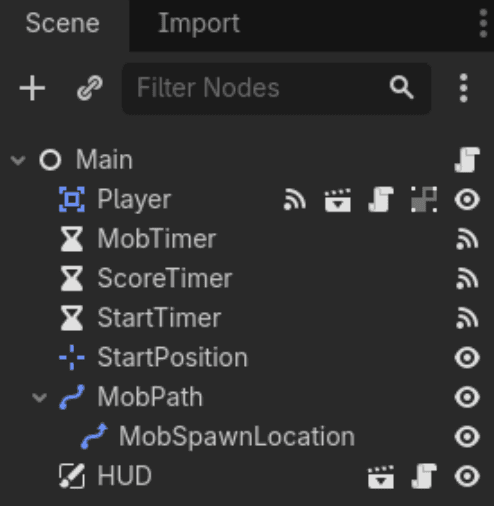
Codex does not need a live editor connection to begin. Point it at the Godot project and ask it to identify the player scene, the script that handles dash input, the respawn code, and the HUD scene. It should read project.godot to confirm the dash action exists, then follow references between the relevant .tscn and .gd files.

Source: Godot Engine documentation
Ask for a compact inventory: file path, responsible node or function, and its role in the reproduction sequence. In particular, check where the player instance is replaced after death, who starts the cooldown timer, and how the HUD learns that dash is ready. Godot signals may be connected in a scene file or in code, so searching only for a handler function can miss part of the path.

Source: Godot Engine documentation
This inspection can reveal a likely cause. For example, the files might show the HUD connecting to the original player in _ready() without reconnecting after respawn. It cannot yet prove that the connection fails in the running game. The level could instantiate a different player scene, or another script could establish the connection later.
Have Codex label each finding as either confirmed from files or still needing a runtime check. That distinction prevents a plausible code reading from turning into an unnecessary rewrite. The next step is to connect to the editor and see which scene is actually open.
Source: Godot Engine documentation
Connect Codex to the Live Godot Editor
For a live connection, this guide uses the community Agent Tools addon as one concrete example. It gives an MCP client access to Godot editor operations such as inspecting scenes, checking signal connections, and validating project references. Other Godot MCP addons have different setup steps and tool names.

Source: Godot Engine documentation
Open a working copy of the project in a compatible Godot 4 editor. In the AssetLib tab, find Agent Tools, install it, then enable it under Project Settings → Plugins. Its setup guide says to check the Output panel for a message showing that the addon is listening on 127.0.0.1:9920. Keep the editor open: the MCP server needs that local addon to answer editor-specific requests.

Source: Godot Engine documentation
Register the server with Codex from the same computer:
This uses a local STDIO server, which Codex supports. The first npx launch may need to fetch the community package, so review the addon and package before using them with a production project. If your team pins dependency versions, pin the MCP package as well.
Configuration is only the first check. Ask Codex to call scene_current and report the scene it finds. Then run the connector’s project-reference validation. If the wrong scene is open, the addon is disabled, or Codex is connected to another Godot session, resolve that before requesting edits. A server appearing in codex mcp list does not prove it is inspecting the intended game.
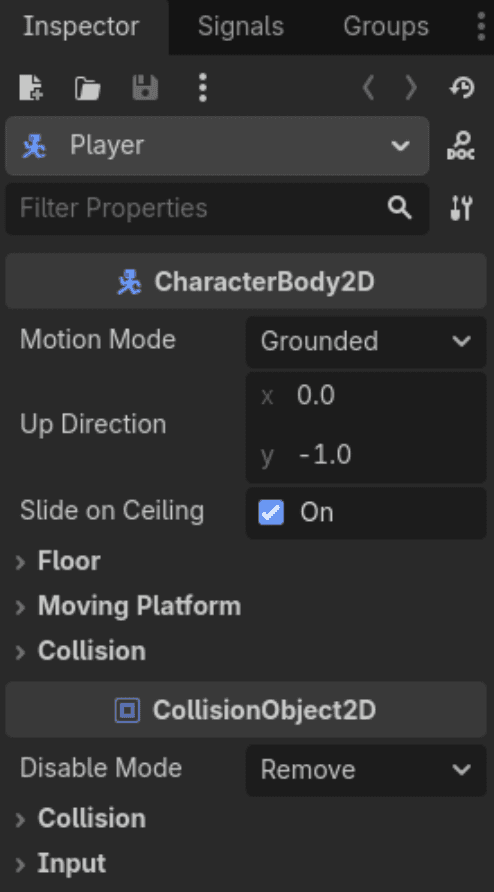
Begin with a read-only request: identify the open scene, the Player node, its attached script, and the relevant HUD nodes. Compare those results with the files Codex inspected earlier. Computer Use is configured separately; an MCP connection does not grant permission to view or operate the Godot window.
Trace the Dash From Input to HUD
Now ask Codex to follow the ability in the order the game executes it. Start with the dash action in the Input Map. Find where the player script reads that action, which conditions allow the dash to begin, and what changes when it does. For a CharacterBody2D, inspect how the dash affects velocity and where move_and_slide() runs. A dash value set early in _physics_process() may be replaced by ordinary movement code later in the same frame.

Source: Godot Engine documentation
Next, follow the cooldown. Identify whether it uses a Timer node, a timestamp, or another state variable. If it uses a Timer, note where start() is called, whether it is one-shot, and what handles its timeout signal. Then trace the signal or method that updates the HUD icon. The icon becoming bright is evidence about the HUD, not proof that the player’s dash condition is true.

Source: Godot Engine documentation
Finally, trace death and respawn. Which code removes the old Player node? What creates the replacement, and when are its signals connected? Compare the original and respawned player scenes, including any inherited scenes or overrides. A connection made to the first player instance will not automatically become a connection to its replacement.

Source: Godot Engine documentation
Codex’s report should name the relevant scene path, node path, script function, and signal for each step. Have it mark any missing connection or conflicting state as a hypothesis until the running game confirms it. If the project has several player scenes, this is also the point to verify which one the level actually instantiates. The repair should target the broken link in this chain, not rebuild the entire movement system.
Repair One Cause Without Rebuilding the Player
Suppose the file inspection points to the HUD keeping a connection to the original Player, and a runtime check confirms it: after respawn, the new Player can emit a dash-state signal, but the icon never receives it. That is a reason to repair the connection, not to replace the dash controller.
Ask Codex to find the code that creates the replacement Player. In a project with a custom dash_state_changed signal, the scene controller could connect each newly created Player to the HUD immediately after adding it to the scene tree. It should also initialize the icon from that Player’s current dash state. Otherwise, the HUD may continue showing the state left behind by the previous instance until the next signal arrives.

Source: Godot Engine documentation
Keep ownership clear. The code responsible for replacing the Player should also be responsible for binding the replacement to systems that observe it. If the project already has a rebinding method, update that method instead of creating a second connection path. Check for an existing connection before adding another, since duplicate listeners can produce confusing UI updates. Codex should show the proposed change and explain which connection it removes or replaces before applying it.
The same discipline applies if the evidence identifies a different cause. If input stops reaching the player after the death menu closes, fix that input or focus transition. If normal movement overwrites dash velocity in _physics_process(), change the order or conditions of those branches. Do not add a HUD reconnection simply because it was a plausible hypothesis.
After the edit, have Codex check that the script parses, the affected scene still opens, and project references remain valid. Review the diff for unrelated movement or UI changes. A narrow patch makes the next question much easier to answer: does the exact sequence that failed before now work after respawn?
Turn the Reproduction Steps Into a Test
A manual playthrough found the bug. A repeatable test can tell you whether the repair survives the next edit. Ask Codex to encode the same sequence: load the level, trigger Dash, wait for cooldown, cause death, allow respawn, then trigger Dash again. The second attempt is the important assertion. A test that stops after the first successful dash will miss this failure entirely.
Use the project’s existing test setup if it has one. The Agent Tools connector also supports headless tests with scripted input and state output. Codex can use that path to check which Player instance is active after respawn, whether the dash action reaches it, and whether its movement or dash state changes. Give the test a bounded wait for cooldown and respawn rather than relying on an arbitrary delay that may pass on one machine and fail on another.
For the HUD, assert the underlying value that drives the icon if the test can access it. For example, after cooldown and respawn, the newly bound Player and the HUD should both report “ready.” Then assert that the second dash changes the new Player’s state. This checks the connection more precisely than looking only for a bright icon.
Run the test once against the repaired version and inspect its output, including any Godot errors. Keep the test with the project if it reliably catches the original failure. A passing headless test establishes that the expected state transition occurred in that test environment. It does not prove the animation looks right, the icon is readable, or the keyboard interaction feels correct. Those still need a playthrough in the Godot window.

Source: Godot Engine documentation
Play the Fix With Computer Use
The headless test checks state. Now check what a player actually experiences. Computer Use can let Codex view and operate the Godot window in the desktop app, with permission to access that app. It is separate from the Godot MCP connection: the connector supplies structured editor and test tools, while Computer Use supplies visual interaction.
Open the repaired project and give Codex the exact playthrough: start the level, press Dash, wait until the cooldown icon shows ready, trigger death, respawn, and press Dash again. Ask it to pause at three points and report what it can see: immediately after the first dash, immediately after respawn, and after the second dash. The useful observation is not simply “the game runs.” It is whether the icon’s appearance and the character’s movement agree at each point.

Source: Godot Engine documentation
Watch for a subtler failure too. If the second dash moves the character but the icon stays dim, the gameplay state may be fixed while the HUD binding is still wrong. If the icon lights up and the character does not move, inspect the new Player’s input and movement conditions. If both appear correct, repeat the death-and-respawn cycle once more. A connection that works for the first replacement may still fail when the replacement itself is removed.
Visual evidence has limits. A screenshot can show the icon’s state, but a single frame may not establish that a short dash occurred. Have Codex compare positions before and after the key press, or observe the movement across successive frames. If the level has hazards or camera motion that make the result ambiguous, choose a clear test area and keep the same starting position for each attempt.
On Windows, Computer Use needs the Godot window visible on the active desktop while it works. On macOS, it needs the relevant screen and accessibility permissions. Approve access to the intended app, and stop the run if Codex starts interacting with a different window. Once the playthrough is complete, save the outcome alongside the headless test result: which respawn cycle was tested, what the HUD displayed, and whether each Dash press produced movement. That record makes a later regression easier to recognize.
If It Passes Once, Test the Transition Again
A successful second dash is encouraging, but this bug lives in the transition between Player instances. Test that transition more than once. Dash, die, respawn, dash again, then repeat the death-and-respawn cycle. After each replacement, check that one active Player receives input and that the HUD reflects that same Player’s state.
Also try the edges of the sequence. Die while dash is on cooldown. Die just as the cooldown ends. Respawn without pressing Dash immediately, then wait and try it. These variations can expose a timer that belongs to the removed Player, an icon that initializes from stale state, or a signal connected twice. They are more informative than replaying the same successful path ten times.
If the behavior changes between attempts, collect evidence before editing again. Use Godot’s Remote scene tree and debugger to inspect the running scene, and compare the active Player with the node paths Codex reported earlier. Check the output for signal-connection errors and confirm that the HUD refers to the current instance. Tell Codex which variation failed, including whether the icon, movement, or both were wrong.

Source: Godot Engine documentation
Keep the result binary and specific: “Dash works after two consecutive respawns, including a death during cooldown” is a useful acceptance check. “Seems fixed” is not. If a variation still fails, add it to the automated test where possible, then make another focused repair. The goal is to leave the project with a reproducible check for the next time its respawn logic changes.
Keep the Project Ready for the Next Build
Before closing the task, ask Codex to review the project as a whole, not just the edited script. Godot scenes refer to scripts, resources, and other scenes by path or UID. A dash fix is not ready to keep if the test passes but the level opens with a missing-resource warning. Run the project-reference check, open the affected scenes in Godot, and look for new parser or runtime errors.

Source: Godot Engine documentation
Review the changed files together. The intended diff might include a respawn controller, a HUD binding, and a regression test. An unrelated input setting, imported asset, or scene override needs an explanation before it stays. If Codex changed a .tscn file, confirm the editor still shows the expected nodes and signal connections. Do not assume a clean script check proves the scene is intact.
Record how to reproduce and verify the fix in a short project note or test description. Include the level, the Dash input, the death trigger, the cooldown condition, and the expected behavior after two respawns. This gives the next person a practical check without making them reconstruct the whole investigation from chat history.
Finally, run the test from a clean project start. An already-open editor can retain state that a fresh launch will not. If your workflow uses version control, review and commit the focused change only after that final run. You should be able to point to three things: the cause found, the smallest change that addressed it, and a repeatable test that fails if the old behavior returns.
Build and Test Godot on Vagon Cloud Computer
A small 2D Godot project may run perfectly well on a laptop. As a project grows, larger 3D scenes, shaders, asset imports, and an open editor can make every test cycle slower. Vagon Cloud Computer gives you a GPU-equipped cloud workstation with performance options you can scale to the work, without replacing your local machine.
For this Codex workflow, keep the Godot project, editor addon, and local MCP server on the same Vagon computer. A connector listening on that computer’s localhost is not automatically reachable from Codex running on your laptop. If you want Codex to inspect the Godot window through Computer Use, run a supported desktop setup in the cloud Windows session and keep Godot visible there.
The payoff is more room to iterate: inspect the scene, run the regression test, and replay the dash-and-respawn sequence in one working environment. Cloud hardware does not make the bug fix correct by itself, and a smooth run on a powerful GPU does not replace testing on your players’ devices. It makes the development loop less constrained while you do that verification.
FAQs
Does Codex connect to Godot automatically?
No. Codex can read project files you give it access to, but live editor operations require a compatible community MCP addon and server. The available tools depend on the connector you install.
Do I need both MCP and Computer Use?
No. MCP is useful for structured tasks such as inspecting scenes, checking connections, and running supported tests. Computer Use is useful when Codex needs to operate the Godot window and judge the visible result. For the dash bug, using both gives a stronger check than either alone.
Can Codex change GDScript without an MCP server?
Yes. It can edit .gd and other project files directly when they are in its workspace. An MCP connector adds Godot-specific editor access; it is not required for ordinary file edits.
Why test the dash after more than one respawn?
Each respawn creates another Player instance. A fix that binds the HUD to the first replacement might still fail on the next one. Repeating the transition checks that the connection belongs to the current Player every time.
Is a passing headless test enough?
Not for a visual gameplay bug. It can confirm input and state changes, but you should still play the sequence to check that the character moves as expected and the HUD accurately shows the cooldown.
The dash works the first time you test your Godot level. After the player dies and respawns, the cooldown icon lights up again, but pressing Dash does nothing. The script loads and the scene runs, yet the player and HUD disagree about whether the ability is ready.
Codex can investigate that disagreement in several ways. It can read the player script, scene files, and Input Map to trace how a key press becomes movement. With a community MCP connector such as Agent Tools, it can inspect the open Godot editor, check scene connections, and run tests. The available tools depend on the connector. This is not a built-in Codex-to-Godot connection.
Computer Use adds the player’s perspective. With access to the Godot window, Codex can repeat the respawn sequence, watch the cooldown icon, and check whether the second dash visibly moves the character. A successful script check alone cannot answer that question.
This guide follows one bug from reproduction and scene inspection to a focused repair, then verifies both the game state and what the player sees.
Source: Godot Engine documentation
The Bug Is a Sequence, Not a Single Script
Before asking Codex to change anything, write down the shortest sequence that produces the failure. Start the level, dash once, wait for the cooldown, die, respawn, and press Dash again. Record what the character does and what the HUD displays at each step. If the bug only appears after a particular checkpoint or scene transition, include that step too.
The expected result is specific: the first dash moves the character, the ability becomes unavailable during cooldown, and the HUD reflects that state. After respawn, the icon and the player’s actual ability state should agree. When the icon says ready, another Dash press should produce movement. These checks are more useful than the vague instruction “fix the dash.”
Several systems could break that sequence. The dash action might not be received after a menu or death screen closes. The respawned player might start with a Timer in an unexpected state. The HUD might still be listening to a signal from the player instance that was removed. Or the dash may run while another movement branch immediately replaces its velocity. None of these explanations should be treated as the cause until the project and running scene provide evidence.
Give Codex the reproduction steps and ask it to report which files, nodes, and signals participate. Its first deliverable should be a map of the behavior, not a patch.
Start With What Codex Can Read From the Project
Codex does not need a live editor connection to begin. Point it at the Godot project and ask it to identify the player scene, the script that handles dash input, the respawn code, and the HUD scene. It should read project.godot to confirm the dash action exists, then follow references between the relevant .tscn and .gd files.
Source: Godot Engine documentation
Ask for a compact inventory: file path, responsible node or function, and its role in the reproduction sequence. In particular, check where the player instance is replaced after death, who starts the cooldown timer, and how the HUD learns that dash is ready. Godot signals may be connected in a scene file or in code, so searching only for a handler function can miss part of the path.
Source: Godot Engine documentation
This inspection can reveal a likely cause. For example, the files might show the HUD connecting to the original player in _ready() without reconnecting after respawn. It cannot yet prove that the connection fails in the running game. The level could instantiate a different player scene, or another script could establish the connection later.
Have Codex label each finding as either confirmed from files or still needing a runtime check. That distinction prevents a plausible code reading from turning into an unnecessary rewrite. The next step is to connect to the editor and see which scene is actually open.
Source: Godot Engine documentation
Connect Codex to the Live Godot Editor
For a live connection, this guide uses the community Agent Tools addon as one concrete example. It gives an MCP client access to Godot editor operations such as inspecting scenes, checking signal connections, and validating project references. Other Godot MCP addons have different setup steps and tool names.
Source: Godot Engine documentation
Open a working copy of the project in a compatible Godot 4 editor. In the AssetLib tab, find Agent Tools, install it, then enable it under Project Settings → Plugins. Its setup guide says to check the Output panel for a message showing that the addon is listening on 127.0.0.1:9920. Keep the editor open: the MCP server needs that local addon to answer editor-specific requests.
Source: Godot Engine documentation
Register the server with Codex from the same computer:
This uses a local STDIO server, which Codex supports. The first npx launch may need to fetch the community package, so review the addon and package before using them with a production project. If your team pins dependency versions, pin the MCP package as well.
Configuration is only the first check. Ask Codex to call scene_current and report the scene it finds. Then run the connector’s project-reference validation. If the wrong scene is open, the addon is disabled, or Codex is connected to another Godot session, resolve that before requesting edits. A server appearing in codex mcp list does not prove it is inspecting the intended game.
Begin with a read-only request: identify the open scene, the Player node, its attached script, and the relevant HUD nodes. Compare those results with the files Codex inspected earlier. Computer Use is configured separately; an MCP connection does not grant permission to view or operate the Godot window.
Trace the Dash From Input to HUD
Now ask Codex to follow the ability in the order the game executes it. Start with the dash action in the Input Map. Find where the player script reads that action, which conditions allow the dash to begin, and what changes when it does. For a CharacterBody2D, inspect how the dash affects velocity and where move_and_slide() runs. A dash value set early in _physics_process() may be replaced by ordinary movement code later in the same frame.
Source: Godot Engine documentation
Next, follow the cooldown. Identify whether it uses a Timer node, a timestamp, or another state variable. If it uses a Timer, note where start() is called, whether it is one-shot, and what handles its timeout signal. Then trace the signal or method that updates the HUD icon. The icon becoming bright is evidence about the HUD, not proof that the player’s dash condition is true.
Source: Godot Engine documentation
Finally, trace death and respawn. Which code removes the old Player node? What creates the replacement, and when are its signals connected? Compare the original and respawned player scenes, including any inherited scenes or overrides. A connection made to the first player instance will not automatically become a connection to its replacement.
Source: Godot Engine documentation
Codex’s report should name the relevant scene path, node path, script function, and signal for each step. Have it mark any missing connection or conflicting state as a hypothesis until the running game confirms it. If the project has several player scenes, this is also the point to verify which one the level actually instantiates. The repair should target the broken link in this chain, not rebuild the entire movement system.
Repair One Cause Without Rebuilding the Player
Suppose the file inspection points to the HUD keeping a connection to the original Player, and a runtime check confirms it: after respawn, the new Player can emit a dash-state signal, but the icon never receives it. That is a reason to repair the connection, not to replace the dash controller.
Ask Codex to find the code that creates the replacement Player. In a project with a custom dash_state_changed signal, the scene controller could connect each newly created Player to the HUD immediately after adding it to the scene tree. It should also initialize the icon from that Player’s current dash state. Otherwise, the HUD may continue showing the state left behind by the previous instance until the next signal arrives.
Source: Godot Engine documentation
Keep ownership clear. The code responsible for replacing the Player should also be responsible for binding the replacement to systems that observe it. If the project already has a rebinding method, update that method instead of creating a second connection path. Check for an existing connection before adding another, since duplicate listeners can produce confusing UI updates. Codex should show the proposed change and explain which connection it removes or replaces before applying it.
The same discipline applies if the evidence identifies a different cause. If input stops reaching the player after the death menu closes, fix that input or focus transition. If normal movement overwrites dash velocity in _physics_process(), change the order or conditions of those branches. Do not add a HUD reconnection simply because it was a plausible hypothesis.
After the edit, have Codex check that the script parses, the affected scene still opens, and project references remain valid. Review the diff for unrelated movement or UI changes. A narrow patch makes the next question much easier to answer: does the exact sequence that failed before now work after respawn?
Turn the Reproduction Steps Into a Test
A manual playthrough found the bug. A repeatable test can tell you whether the repair survives the next edit. Ask Codex to encode the same sequence: load the level, trigger Dash, wait for cooldown, cause death, allow respawn, then trigger Dash again. The second attempt is the important assertion. A test that stops after the first successful dash will miss this failure entirely.
Use the project’s existing test setup if it has one. The Agent Tools connector also supports headless tests with scripted input and state output. Codex can use that path to check which Player instance is active after respawn, whether the dash action reaches it, and whether its movement or dash state changes. Give the test a bounded wait for cooldown and respawn rather than relying on an arbitrary delay that may pass on one machine and fail on another.
For the HUD, assert the underlying value that drives the icon if the test can access it. For example, after cooldown and respawn, the newly bound Player and the HUD should both report “ready.” Then assert that the second dash changes the new Player’s state. This checks the connection more precisely than looking only for a bright icon.
Run the test once against the repaired version and inspect its output, including any Godot errors. Keep the test with the project if it reliably catches the original failure. A passing headless test establishes that the expected state transition occurred in that test environment. It does not prove the animation looks right, the icon is readable, or the keyboard interaction feels correct. Those still need a playthrough in the Godot window.
Source: Godot Engine documentation
Play the Fix With Computer Use
The headless test checks state. Now check what a player actually experiences. Computer Use can let Codex view and operate the Godot window in the desktop app, with permission to access that app. It is separate from the Godot MCP connection: the connector supplies structured editor and test tools, while Computer Use supplies visual interaction.
Open the repaired project and give Codex the exact playthrough: start the level, press Dash, wait until the cooldown icon shows ready, trigger death, respawn, and press Dash again. Ask it to pause at three points and report what it can see: immediately after the first dash, immediately after respawn, and after the second dash. The useful observation is not simply “the game runs.” It is whether the icon’s appearance and the character’s movement agree at each point.
Source: Godot Engine documentation
Watch for a subtler failure too. If the second dash moves the character but the icon stays dim, the gameplay state may be fixed while the HUD binding is still wrong. If the icon lights up and the character does not move, inspect the new Player’s input and movement conditions. If both appear correct, repeat the death-and-respawn cycle once more. A connection that works for the first replacement may still fail when the replacement itself is removed.
Visual evidence has limits. A screenshot can show the icon’s state, but a single frame may not establish that a short dash occurred. Have Codex compare positions before and after the key press, or observe the movement across successive frames. If the level has hazards or camera motion that make the result ambiguous, choose a clear test area and keep the same starting position for each attempt.
On Windows, Computer Use needs the Godot window visible on the active desktop while it works. On macOS, it needs the relevant screen and accessibility permissions. Approve access to the intended app, and stop the run if Codex starts interacting with a different window. Once the playthrough is complete, save the outcome alongside the headless test result: which respawn cycle was tested, what the HUD displayed, and whether each Dash press produced movement. That record makes a later regression easier to recognize.
If It Passes Once, Test the Transition Again
A successful second dash is encouraging, but this bug lives in the transition between Player instances. Test that transition more than once. Dash, die, respawn, dash again, then repeat the death-and-respawn cycle. After each replacement, check that one active Player receives input and that the HUD reflects that same Player’s state.
Also try the edges of the sequence. Die while dash is on cooldown. Die just as the cooldown ends. Respawn without pressing Dash immediately, then wait and try it. These variations can expose a timer that belongs to the removed Player, an icon that initializes from stale state, or a signal connected twice. They are more informative than replaying the same successful path ten times.
If the behavior changes between attempts, collect evidence before editing again. Use Godot’s Remote scene tree and debugger to inspect the running scene, and compare the active Player with the node paths Codex reported earlier. Check the output for signal-connection errors and confirm that the HUD refers to the current instance. Tell Codex which variation failed, including whether the icon, movement, or both were wrong.
Source: Godot Engine documentation
Keep the result binary and specific: “Dash works after two consecutive respawns, including a death during cooldown” is a useful acceptance check. “Seems fixed” is not. If a variation still fails, add it to the automated test where possible, then make another focused repair. The goal is to leave the project with a reproducible check for the next time its respawn logic changes.
Keep the Project Ready for the Next Build
Before closing the task, ask Codex to review the project as a whole, not just the edited script. Godot scenes refer to scripts, resources, and other scenes by path or UID. A dash fix is not ready to keep if the test passes but the level opens with a missing-resource warning. Run the project-reference check, open the affected scenes in Godot, and look for new parser or runtime errors.
Source: Godot Engine documentation
Review the changed files together. The intended diff might include a respawn controller, a HUD binding, and a regression test. An unrelated input setting, imported asset, or scene override needs an explanation before it stays. If Codex changed a .tscn file, confirm the editor still shows the expected nodes and signal connections. Do not assume a clean script check proves the scene is intact.
Record how to reproduce and verify the fix in a short project note or test description. Include the level, the Dash input, the death trigger, the cooldown condition, and the expected behavior after two respawns. This gives the next person a practical check without making them reconstruct the whole investigation from chat history.
Finally, run the test from a clean project start. An already-open editor can retain state that a fresh launch will not. If your workflow uses version control, review and commit the focused change only after that final run. You should be able to point to three things: the cause found, the smallest change that addressed it, and a repeatable test that fails if the old behavior returns.
Build and Test Godot on Vagon Cloud Computer
A small 2D Godot project may run perfectly well on a laptop. As a project grows, larger 3D scenes, shaders, asset imports, and an open editor can make every test cycle slower. Vagon Cloud Computer gives you a GPU-equipped cloud workstation with performance options you can scale to the work, without replacing your local machine.
For this Codex workflow, keep the Godot project, editor addon, and local MCP server on the same Vagon computer. A connector listening on that computer’s localhost is not automatically reachable from Codex running on your laptop. If you want Codex to inspect the Godot window through Computer Use, run a supported desktop setup in the cloud Windows session and keep Godot visible there.
The payoff is more room to iterate: inspect the scene, run the regression test, and replay the dash-and-respawn sequence in one working environment. Cloud hardware does not make the bug fix correct by itself, and a smooth run on a powerful GPU does not replace testing on your players’ devices. It makes the development loop less constrained while you do that verification.
FAQs
Does Codex connect to Godot automatically?
No. Codex can read project files you give it access to, but live editor operations require a compatible community MCP addon and server. The available tools depend on the connector you install.
Do I need both MCP and Computer Use?
No. MCP is useful for structured tasks such as inspecting scenes, checking connections, and running supported tests. Computer Use is useful when Codex needs to operate the Godot window and judge the visible result. For the dash bug, using both gives a stronger check than either alone.
Can Codex change GDScript without an MCP server?
Yes. It can edit .gd and other project files directly when they are in its workspace. An MCP connector adds Godot-specific editor access; it is not required for ordinary file edits.
Why test the dash after more than one respawn?
Each respawn creates another Player instance. A fix that binds the HUD to the first replacement might still fail on the next one. Repeating the transition checks that the connection belongs to the current Player every time.
Is a passing headless test enough?
Not for a visual gameplay bug. It can confirm input and state changes, but you should still play the sequence to check that the character moves as expected and the HUD accurately shows the cooldown.
Get Beyond Your Computer Performance
Run applications on your cloud computer with the latest generation hardware. No more crashes or lags.

Trial includes 1 hour usage + 7 days of storage.
Summarize with AI

Ready to focus on your creativity?
Vagon gives you the ability to create & render projects, collaborate, and stream applications with the power of the best hardware.

Run heavy applications on any device with
your personal computer on the cloud.
San Francisco, California
Solutions
Vagon Teams
Vagon Streams
Use Cases
© 2026 Vagon. All rights reserved.
Run heavy applications on any device with
your personal computer on the cloud.
San Francisco, California
Solutions
Vagon Teams
Vagon Streams
Use Cases
© 2026 Vagon. All rights reserved.
Run heavy applications on any device with
your personal computer on the cloud.
San Francisco, California
Solutions
Vagon Teams
Vagon Streams
Use Cases
© 2026 Vagon. All rights reserved.