Instant Connection for Pixel Streaming
— New Feature Automated Setup

How to Use Houdini With Claude: MCP & Computer Use
DigitalArt
How to Use Houdini With Claude: MCP & Computer Use
DigitalArt
How to Use Houdini With Claude: MCP & Computer Use
DigitalArt
Table of Contents
A Houdini effect can look correct in the viewport while showing yesterday’s simulation. The node graph has changed, but a File Cache still reads an older sequence. Elsewhere, scattered geometry appears at the wrong scale because an attribute was created on primitives instead of points. Neither problem is solved simply by asking Claude to write more VEX.
Using Claude with Houdini becomes more useful when the assistant can inspect the project you are actually working on. A compatible Houdini MCP connector can expose node networks, parameters, geometry information, and supported editing operations. Depending on the integration, Claude can trace connections, propose targeted changes, and apply approved edits while preserving an editable procedural setup.
Computer Use provides a separate route through Houdini’s interface. It can help navigate panels and review visible results, but connecting an MCP server does not automatically authorize mouse and keyboard control.
This guide follows a practical workflow: establish live access, diagnose a node network, make controlled variations, check caches, and verify outputs. Claude handles bounded tasks; Houdini performs the cooking, simulation, and rendering. You remain responsible for approving changes and deciding whether the result meets the brief.

Source: SideFX
Give Claude Access to the Graph, Not Just a Screenshot
A screenshot can show Claude that a scatter looks wrong. It cannot reliably reveal which node produced the points, where pscale was assigned, or whether the displayed geometry came from disk. Those questions need access to the network and its data.
A community integration such as HoudiniMCP connects Claude to a Python component running inside Houdini through an MCP bridge. The integration translates exposed tool requests into application operations. Houdini’s Object Model, accessed through the hou Python module, provides the underlying methods for inspecting nodes, reading parameters, and modifying networks.
The available capabilities depend on the connector and installed version. Do not assume that every server exposes the same tools or handles scene changes with the same safeguards.
Task | Useful starting point |
Identify node paths, inputs, and parameter values | MCP |
Inspect geometry counts and attributes | MCP, where exposed |
Navigate an unsupported panel or dialog | Computer Use |
Review composition or visible artifacts | Viewport capture or Computer Use |
An image returned by an MCP tool is still just an image. It does not grant screen control. Likewise, Computer Use can navigate the interface without providing the structured access needed to trace an entire network accurately.
Start by asking Claude to identify what it can actually retrieve. For an existing setup, that might mean reporting a SOP’s inputs, parameter schema, and geometry summary before suggesting an edit. Missing information should remain an explicit limitation, not become a guessed node name or invented parameter.
Connect a Test Scene Before Opening Production Work
Begin with a small scene containing a named Geometry object and a Box SOP. Save it separately and keep it open in Houdini. This gives you identifiable data to check before granting access to a production network.
Review the connector’s source and installation requirements first. A local bridge can execute application operations, so installing it is more consequential than adding a documentation search tool.
Configure the Houdini component and Claude bridge
For HoudiniMCP, the setup has two parts:
Install the Houdini Python component in the scripts location appropriate to your installed version.
Start its listener inside the open Houdini session using the documented shelf tool.
Register the external bridge in Claude Desktop’s MCP configuration, with its required dependencies installed in the bridge’s Python environment.
The repository uses a local TCP listener, normally on localhost:9876. Its example paths reference Houdini 19.5; adapt them to your installation rather than copying that version number unchanged.
A simplified client configuration looks like this:
{
  "mcpServers": {
    "houdini": {
      "command": "/absolute/path/to/bridge-python",
      "args": [
        "/absolute/path/to/houdini_mcp_server.py"
      ]
{
  "mcpServers": {
    "houdini": {
      "command": "/absolute/path/to/bridge-python",
      "args": [
        "/absolute/path/to/houdini_mcp_server.py"
      ]
Replace both placeholders with real paths. The Python executable must belong to an environment containing the bridge’s dependencies. Restart Claude after updating its configuration.
Do not combine these instructions with an hrpyc connector’s setup. SideFX’s RPC server is a different connection mechanism and provides no authentication itself. If your chosen integration uses it, restrict access through appropriate network controls before starting the service.
Prove that Claude sees the open session
Make the first request deliberately limited:
Inspect the connected Houdini session. Report the scene filename, selected node paths, and parameters of the test Box SOP. Do not change nodes, save files, cook geometry deliberately, run simulations, or render. Identify any information your tools cannot retrieve.
Compare the response with Houdini. Manually change the Box’s size, then ask Claude to read that parameter again. A matching update helps establish that the bridge reaches the visible session rather than a separate process.
Avoid geometry queries initially: retrieving geometry can trigger cooking even when no scene parameters are changed.
Test screen access separately
For Computer Use, enable the feature in Claude Desktop’s settings and approve Houdini access when prompted. Anthropic currently documents it as beta for Pro and Max on Windows and macOS.
Ask Claude to describe the visible Parameter Editor without editing anything. If either test fails, check the listener, executable paths, client logs, and blocking dialogs before expanding permissions or retrying operations.
Trace a Broken Result Through the Node Network
Suppose a rock scatter contains the expected number of points, but the copied rocks appear at inconsistent sizes. Asking Claude to “fix the scatter” leaves too much room for unrelated changes. Start by locating where the result diverges from the intended data.
Give Claude the full path of the affected output node and a bounded diagnostic request:
Inspect the network feeding /obj/terrain_scatter/OUT_ROCKS. Trace the inputs back through Copy to Points and the attribute-processing nodes. Report relevant errors, point counts, and the class, type, and values of pscale where accessible. Do not modify the network or force a cook without approvalThe connector may expose network inspection and error-scanning tools. Existing errors describe the last evaluated state, however, not necessarily what the network would produce now. If a fresh cook is necessary, agree on the target and expected cost before triggering it.
Find the first incorrect output
Compare the geometry immediately before and after the suspected node. Houdini’s Geometry Spreadsheet separates point, vertex, primitive, and detail attributes, which matters when diagnosing data intended to drive copies.
For this example, check:
Whether
pscaleexists on the target points and contains the intended float values.Whether another supported scale attribute also affects the copies.
Whether the node being inspected actually feeds the active Copy to Points input.
A correct attribute on an unused branch does not establish that the displayed result receives it. Also inspect display and render flags: the viewport may show a different output from the one intended for delivery.

Source: SideFX
Apply one correction, then read it back
Once the cause is supported by evidence, ask Claude to propose the smallest correction. If a wrangle created pscale on the wrong attribute class, inspect its code before changing its execution context. Other statements in that wrangle may depend on the original context.
Approve a specific edit, then verify the affected attributes, downstream geometry, and visible result. Record what changed and what remained untouched. If the explanation does not match the readback, stop there rather than layering additional guesses onto the network.
Change the Procedural Controls Without Flattening the Setup
Once the scatter works, the next request might be creative rather than corrective: fewer rocks on steep slopes, smaller secondary stones, and a different distribution. Claude should translate that brief into existing controls, not replace the network with a new approximation.
Begin with a parameter map. Ask Claude to identify the nodes and exposed controls responsible for density, distribution seed, scale, and the slope mask. Include full paths and current values so similarly named nodes cannot be confused.

Source: SideFX
Preserve the controls that already drive the result
A visible parameter value may come from an expression, animation, or a reference to a parent digital asset. Houdini’s parameter API provides methods for inspecting those relationships. Where the connector exposes them, have Claude check the driver before proposing a replacement value.
For a Houdini Digital Asset, prefer its published controls. Do not unlock the asset or edit its internal network simply because an exposed parameter is unavailable.
Use a bounded request:
Inspect the controls driving rock density, scale, and slope exclusion. Propose one lower-density variation with smaller secondary rocks. Preserve the terrain, source geometry, existing references, and asset definitions. Report exact parameter changes before applying themKeep the seed unchanged for the first comparison. Changing distribution and scale together with a new seed makes it harder to identify which adjustment produced the visible difference.

Source: SideFX
Use VEX only where the existing controls fall short
If the requested mask requires code, inspect the relevant Attribute Wrangle before editing it. Confirm its inputs, Run Over setting, attribute bindings, and any parameters referenced by ch() calls.
Ask Claude to explain the proposed logic and preserve unrelated statements. A snippet that compiles can still read the wrong input, create an unintended attribute, or apply the mask in the wrong coordinate space.
After approval, check the parameter readback and resulting geometry. Compare point counts, scale ranges, and slope coverage from the same camera. For animated inputs, include multiple frames.
Finish by recording the changed controls and saving an approved working version. The result should remain adjustable through the procedural network, with its original dependencies intact.
Make Simulation Variations Reproducible With Caches and Wedges
A smoke variation is only meaningful if you know which settings produced it. Changing turbulence while viewing an older cache can make an ineffective edit look successful, or hide a real improvement. Before generating alternatives, establish what the network currently evaluates and what it reads from disk.
Separate the simulation from its cached output
Ask Claude to inspect the relevant File Cache: its input, Load from Disk state, resolved filename, version, and frame range. Check several resolved frame paths rather than trusting a filename expression alone.
A geometry cache stores output for playback or downstream processing. It is not automatically a simulation checkpoint containing everything required to resume the solver. Identify the cache type before suggesting recovery or continuation.
Keep existing approved caches untouched. Assign a new version or destination to the test, then verify that the intended simulation branch feeds it.
Inspect the smoke simulation and its output cache. Report whether the displayed result comes from disk or the live network. Propose a separate low-resolution test destination. Do not overwrite files, clear caches, or start the simulationFor a stateful simulation, arbitrary frame samples may require evaluation from the starting state. Agree on a short sequential test range instead of assuming each frame can be computed independently.
Use wedges to make the comparison traceable
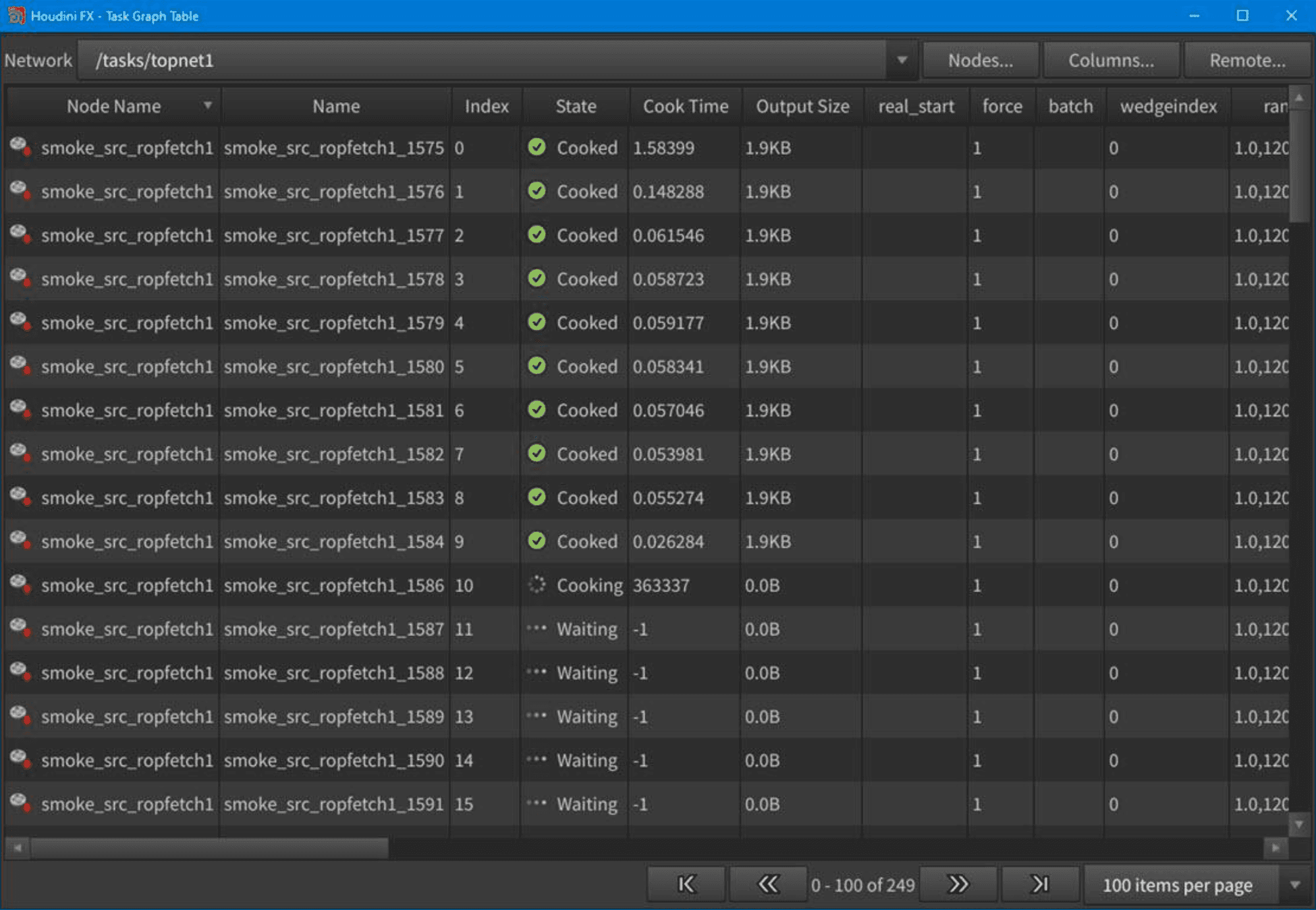
Houdini’s Wedge TOP creates work items carrying variation attributes. Those attributes must be connected to the intended downstream parameters; naming one “turbulence” does not establish that it drives the solver.
SideFX’s PDG FX workflow demonstrates this approach with smoke variations. For an initial comparison, vary one approved control while holding the source, camera, resolution, and other simulation settings consistent.

Source: SideFX
Each variation needs a clear record:
Record | Purpose |
Wedge ID and parameter values | Identify the tested configuration |
Unique cache and preview paths | Prevent collisions |
Frame range and resolution | Keep comparisons consistent |
Cook status and output checks | Separate completed tests from failures |
Test one work item before approving the batch. Claude can help configure and inspect the workflow through available tools, but Houdini and PDG perform the computation.
Afterward, verify that each sequence exists, loads correctly, and corresponds to its recorded settings. Existing files alone do not prove that a cache is current, complete, or suitable for delivery. Compare previews before increasing simulation quality or processing additional variations.
Source: SideFX
Use Computer Use for the Checks That Need the Interface
MCP can report parameter values and geometry statistics without establishing whether a result meets the brief. Computer Use becomes useful when Claude needs to navigate an inspection panel or review visible output. Prefer structured tools where available, then use the interface to answer specific remaining questions.
Review a wedge contact sheet
SideFX’s PDG contact sheet workflow provides a practical foundation for comparing variations. Label each preview with its wedge ID and use consistent cameras, frames, and display settings.
Ask Claude to inspect the sheet against explicit criteria:
Review these smoke wedges for silhouette separation, clipping at the camera edges, and visibility of the product. Report differences by wedge ID. Do not change simulation settings or select a final versionFollow promising stills with short playback sequences. A clean silhouette at one frame can conceal flickering, abrupt motion, or problems elsewhere in the simulation.
Investigate a slow cook
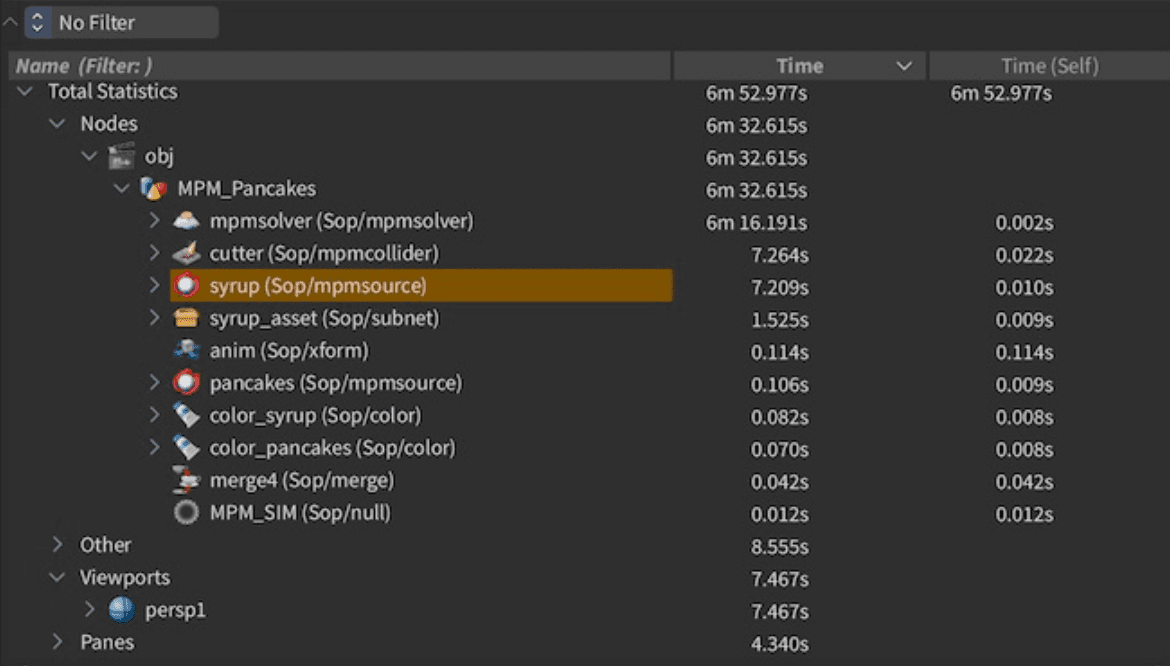
Houdini’s Performance Monitor records events and exposes timing statistics. Through Computer Use, Claude can help navigate the panel, record an approved operation, and inspect the resulting profile.
Define the operation before recording: cook one output, play a short range, or reproduce a specific interaction. Compare equivalent conditions, including cache state.
Cumulative time includes descendants, while self time excludes them. A parent with a large cumulative total is not automatically the expensive operation itself. Have Claude identify the relevant nodes and cook counts, then propose an investigation. Exported CSV data can support more precise analysis than reading dense rows from a screenshot.
Source: SideFX
Cross-check the spreadsheet and viewport
Ask Claude to open the Geometry Spreadsheet for a specified node and compare its attributes with the displayed result. Confirm the node path, attribute class, and active display flag before interpreting discrepancies.
Keep observation separate from correction. Opening a panel does not authorize changing attributes, clearing caches, or switching the production output. If the interface becomes unclear, have Claude report what it can verify and stop before editing.

Source: SideFX
Verify the Solaris Stage and Render Outputs
A correct SOP result does not guarantee a correct render. Geometry may enter Solaris with unexpected visibility, a missing material binding, or a reference to an outdated cache. Before preparing delivery, trace the approved output into the USD stage that will actually be rendered.
Have Claude identify the geometry import or reference, intended camera, material assignments, and render settings through available tools. Use interface inspection where structured access is missing. Do not assume a similarly named object in /stage corresponds to the current SOP output.

Source: SideFX
Check the configuration before starting the sequence
For Karma, distinguish the selected render engine from the viewport’s preview mode. Karma CPU and Karma XPU are separate choices with different capabilities and hardware considerations. A successful interactive preview does not establish that the final render job uses the same configuration.
Ask for a preflight:
Inspect the approved Solaris output and render configuration. Verify the camera, geometry references, material bindings, frame range, resolution, output paths, and required AOVs. Flag missing dependencies and existing destination files. Do not launch the full renderUse a representative frame to check composition, materials, and requested channels. Then render a short sequence to verify animated geometry, cache access, and frame numbering. Keep these tests on separate output paths so they cannot replace approved deliverables.

Source: SideFX
Inspect the files, not just the completion message
A completed render job can still produce the wrong delivery. Verify the expected number of frames, image dimensions, filenames, and readable output channels. Check that the sequence corresponds to the approved variation rather than whichever branch happened to be visible.
For motion blur, confirm that the geometry and render setup provide the required motion information. For compositing, inspect the requested AOVs rather than judging only the beauty image.
Record unresolved issues before proceeding. Render success means files were produced; delivery approval requires confirming that those files meet the specification.
Put Boundaries Around Code, Cooking, and File Writes
A narrowly worded prompt helps limit Claude’s task, but it is not a technical permission boundary. A connector exposing arbitrary Python may allow substantially more than the operation you requested. Review its capabilities and restrict access where the integration supports it.
Keep consequential actions behind explicit approval:
Deleting nodes, unlocking assets, or replacing expressions.
Starting long simulations, batch cooks, or renders.
Overwriting caches, scene files, or existing outputs.
Python can also remain inside the project through nodes, callbacks, or asset scripts. Before accepting generated code, inspect both what it does immediately and what may execute when someone later opens or evaluates the scene.
For integrations using Houdini RPC, remember that the service does not authenticate connections itself. Restrict the listener to a trusted environment using appropriate network controls. A local workflow does not require exposing the service to the public internet.
Save a separate working scene before major edits and use independent cache versions. Undo may reverse supported scene changes, but it should not be treated as recovery for overwritten files or completed external operations. After a failed batch, inspect what actually changed before retrying.
Finally, scene queries and screenshots can enter Claude’s context. Limit access to relevant project information, close unrelated confidential content, and review the applicable data-handling settings before using either MCP or Computer Use on client work.
Give Houdini More Headroom With Vagon
Claude can help diagnose a network and prepare variations, but Houdini still needs the resources to compute them. Dense geometry, expanding volumes, and multiple simulation wedges can turn a lightweight laptop into a bottleneck just when you need to compare ideas.
Vagon Cloud Computer gives you access to a remote Windows workstation from your existing device, with performance options you can change as the project grows. Instead of replacing your computer to accommodate one demanding production, you can move the heavy Houdini work into a cloud desktop.
Match the workstation to the workload. Node cooking and simulations may depend heavily on CPU performance and system RAM. GPU-enabled operations and Karma XPU have different hardware requirements. Cache sequences also need sufficient storage capacity and suitable disk performance. A larger GPU is not a universal solution for every slow network.
You can configure Houdini, Claude Desktop, and the MCP bridge in the same cloud environment, keeping the application connection local to that workstation. Before production use, verify licensing, plugins, asset paths, and Computer Use availability in the remote session.
Start with a representative cook, short simulation, and render preview. Measure the actual bottleneck, then choose the resources that address it. Create your Vagon workstation to give procedural experiments and approved production work more room to grow.
FAQs
Does Houdini have a built-in Claude integration?
The setup covered here uses a community-developed MCP connector, not a native SideFX Claude feature. Follow the chosen connector’s requirements and check compatibility with your installed Houdini version. Do not mix installation instructions from different projects.
Can Claude modify an existing Houdini node network?
Yes, where the MCP connector exposes suitable operations. Claude can inspect node paths, read parameters, and apply supported changes. Ask it to identify exact targets before editing, particularly when expressions, shared references, or digital assets control the result.
Can Claude write and validate VEX inside Houdini?
A connector with wrangle-editing or code-execution tools can support that workflow. Validation should include compilation, attribute class and type, input connections, and resulting geometry. Code that compiles successfully may still produce the wrong behavior or alter attributes you intended to preserve.
Do you need MCP to use Computer Use with Houdini?
No. Computer Use provides separate interface access in a supported Claude Desktop session. However, screen interaction does not automatically provide structured node or geometry information. MCP is generally the more precise starting point for inspecting exposed scene data.
Can Claude help debug a simulation that reads an old cache?
Yes. It can help inspect cache settings, resolved paths, versions, and frame ranges through available tools or the interface. Confirm whether the network reads from disk before approving a new simulation. Keep test outputs separate from approved caches.
Can Houdini and Claude run together on a cloud workstation?
They can be configured together, subject to application requirements, licensing, and connector compatibility. Test MCP access and Computer Use independently inside the remote desktop. Choose CPU, RAM, GPU, and storage resources according to the actual workload, not the presence of an AI assistant.
A Houdini effect can look correct in the viewport while showing yesterday’s simulation. The node graph has changed, but a File Cache still reads an older sequence. Elsewhere, scattered geometry appears at the wrong scale because an attribute was created on primitives instead of points. Neither problem is solved simply by asking Claude to write more VEX.
Using Claude with Houdini becomes more useful when the assistant can inspect the project you are actually working on. A compatible Houdini MCP connector can expose node networks, parameters, geometry information, and supported editing operations. Depending on the integration, Claude can trace connections, propose targeted changes, and apply approved edits while preserving an editable procedural setup.
Computer Use provides a separate route through Houdini’s interface. It can help navigate panels and review visible results, but connecting an MCP server does not automatically authorize mouse and keyboard control.
This guide follows a practical workflow: establish live access, diagnose a node network, make controlled variations, check caches, and verify outputs. Claude handles bounded tasks; Houdini performs the cooking, simulation, and rendering. You remain responsible for approving changes and deciding whether the result meets the brief.
Source: SideFX
Give Claude Access to the Graph, Not Just a Screenshot
A screenshot can show Claude that a scatter looks wrong. It cannot reliably reveal which node produced the points, where pscale was assigned, or whether the displayed geometry came from disk. Those questions need access to the network and its data.
A community integration such as HoudiniMCP connects Claude to a Python component running inside Houdini through an MCP bridge. The integration translates exposed tool requests into application operations. Houdini’s Object Model, accessed through the hou Python module, provides the underlying methods for inspecting nodes, reading parameters, and modifying networks.
The available capabilities depend on the connector and installed version. Do not assume that every server exposes the same tools or handles scene changes with the same safeguards.
Task | Useful starting point |
Identify node paths, inputs, and parameter values | MCP |
Inspect geometry counts and attributes | MCP, where exposed |
Navigate an unsupported panel or dialog | Computer Use |
Review composition or visible artifacts | Viewport capture or Computer Use |
An image returned by an MCP tool is still just an image. It does not grant screen control. Likewise, Computer Use can navigate the interface without providing the structured access needed to trace an entire network accurately.
Start by asking Claude to identify what it can actually retrieve. For an existing setup, that might mean reporting a SOP’s inputs, parameter schema, and geometry summary before suggesting an edit. Missing information should remain an explicit limitation, not become a guessed node name or invented parameter.
Connect a Test Scene Before Opening Production Work
Begin with a small scene containing a named Geometry object and a Box SOP. Save it separately and keep it open in Houdini. This gives you identifiable data to check before granting access to a production network.
Review the connector’s source and installation requirements first. A local bridge can execute application operations, so installing it is more consequential than adding a documentation search tool.
Configure the Houdini component and Claude bridge
For HoudiniMCP, the setup has two parts:
Install the Houdini Python component in the scripts location appropriate to your installed version.
Start its listener inside the open Houdini session using the documented shelf tool.
Register the external bridge in Claude Desktop’s MCP configuration, with its required dependencies installed in the bridge’s Python environment.
The repository uses a local TCP listener, normally on localhost:9876. Its example paths reference Houdini 19.5; adapt them to your installation rather than copying that version number unchanged.
A simplified client configuration looks like this:
{
  "mcpServers": {
    "houdini": {
      "command": "/absolute/path/to/bridge-python",
      "args": [
        "/absolute/path/to/houdini_mcp_server.py"
      ]
Replace both placeholders with real paths. The Python executable must belong to an environment containing the bridge’s dependencies. Restart Claude after updating its configuration.
Do not combine these instructions with an hrpyc connector’s setup. SideFX’s RPC server is a different connection mechanism and provides no authentication itself. If your chosen integration uses it, restrict access through appropriate network controls before starting the service.
Prove that Claude sees the open session
Make the first request deliberately limited:
Inspect the connected Houdini session. Report the scene filename, selected node paths, and parameters of the test Box SOP. Do not change nodes, save files, cook geometry deliberately, run simulations, or render. Identify any information your tools cannot retrieve.
Compare the response with Houdini. Manually change the Box’s size, then ask Claude to read that parameter again. A matching update helps establish that the bridge reaches the visible session rather than a separate process.
Avoid geometry queries initially: retrieving geometry can trigger cooking even when no scene parameters are changed.
Test screen access separately
For Computer Use, enable the feature in Claude Desktop’s settings and approve Houdini access when prompted. Anthropic currently documents it as beta for Pro and Max on Windows and macOS.
Ask Claude to describe the visible Parameter Editor without editing anything. If either test fails, check the listener, executable paths, client logs, and blocking dialogs before expanding permissions or retrying operations.
Trace a Broken Result Through the Node Network
Suppose a rock scatter contains the expected number of points, but the copied rocks appear at inconsistent sizes. Asking Claude to “fix the scatter” leaves too much room for unrelated changes. Start by locating where the result diverges from the intended data.
Give Claude the full path of the affected output node and a bounded diagnostic request:
Inspect the network feeding /obj/terrain_scatter/OUT_ROCKS. Trace the inputs back through Copy to Points and the attribute-processing nodes. Report relevant errors, point counts, and the class, type, and values of pscale where accessible. Do not modify the network or force a cook without approvalThe connector may expose network inspection and error-scanning tools. Existing errors describe the last evaluated state, however, not necessarily what the network would produce now. If a fresh cook is necessary, agree on the target and expected cost before triggering it.
Find the first incorrect output
Compare the geometry immediately before and after the suspected node. Houdini’s Geometry Spreadsheet separates point, vertex, primitive, and detail attributes, which matters when diagnosing data intended to drive copies.
For this example, check:
Whether
pscaleexists on the target points and contains the intended float values.Whether another supported scale attribute also affects the copies.
Whether the node being inspected actually feeds the active Copy to Points input.
A correct attribute on an unused branch does not establish that the displayed result receives it. Also inspect display and render flags: the viewport may show a different output from the one intended for delivery.
Source: SideFX
Apply one correction, then read it back
Once the cause is supported by evidence, ask Claude to propose the smallest correction. If a wrangle created pscale on the wrong attribute class, inspect its code before changing its execution context. Other statements in that wrangle may depend on the original context.
Approve a specific edit, then verify the affected attributes, downstream geometry, and visible result. Record what changed and what remained untouched. If the explanation does not match the readback, stop there rather than layering additional guesses onto the network.
Change the Procedural Controls Without Flattening the Setup
Once the scatter works, the next request might be creative rather than corrective: fewer rocks on steep slopes, smaller secondary stones, and a different distribution. Claude should translate that brief into existing controls, not replace the network with a new approximation.
Begin with a parameter map. Ask Claude to identify the nodes and exposed controls responsible for density, distribution seed, scale, and the slope mask. Include full paths and current values so similarly named nodes cannot be confused.
Source: SideFX
Preserve the controls that already drive the result
A visible parameter value may come from an expression, animation, or a reference to a parent digital asset. Houdini’s parameter API provides methods for inspecting those relationships. Where the connector exposes them, have Claude check the driver before proposing a replacement value.
For a Houdini Digital Asset, prefer its published controls. Do not unlock the asset or edit its internal network simply because an exposed parameter is unavailable.
Use a bounded request:
Inspect the controls driving rock density, scale, and slope exclusion. Propose one lower-density variation with smaller secondary rocks. Preserve the terrain, source geometry, existing references, and asset definitions. Report exact parameter changes before applying themKeep the seed unchanged for the first comparison. Changing distribution and scale together with a new seed makes it harder to identify which adjustment produced the visible difference.
Source: SideFX
Use VEX only where the existing controls fall short
If the requested mask requires code, inspect the relevant Attribute Wrangle before editing it. Confirm its inputs, Run Over setting, attribute bindings, and any parameters referenced by ch() calls.
Ask Claude to explain the proposed logic and preserve unrelated statements. A snippet that compiles can still read the wrong input, create an unintended attribute, or apply the mask in the wrong coordinate space.
After approval, check the parameter readback and resulting geometry. Compare point counts, scale ranges, and slope coverage from the same camera. For animated inputs, include multiple frames.
Finish by recording the changed controls and saving an approved working version. The result should remain adjustable through the procedural network, with its original dependencies intact.
Make Simulation Variations Reproducible With Caches and Wedges
A smoke variation is only meaningful if you know which settings produced it. Changing turbulence while viewing an older cache can make an ineffective edit look successful, or hide a real improvement. Before generating alternatives, establish what the network currently evaluates and what it reads from disk.
Separate the simulation from its cached output
Ask Claude to inspect the relevant File Cache: its input, Load from Disk state, resolved filename, version, and frame range. Check several resolved frame paths rather than trusting a filename expression alone.
A geometry cache stores output for playback or downstream processing. It is not automatically a simulation checkpoint containing everything required to resume the solver. Identify the cache type before suggesting recovery or continuation.
Keep existing approved caches untouched. Assign a new version or destination to the test, then verify that the intended simulation branch feeds it.
Inspect the smoke simulation and its output cache. Report whether the displayed result comes from disk or the live network. Propose a separate low-resolution test destination. Do not overwrite files, clear caches, or start the simulationFor a stateful simulation, arbitrary frame samples may require evaluation from the starting state. Agree on a short sequential test range instead of assuming each frame can be computed independently.
Use wedges to make the comparison traceable
Houdini’s Wedge TOP creates work items carrying variation attributes. Those attributes must be connected to the intended downstream parameters; naming one “turbulence” does not establish that it drives the solver.
SideFX’s PDG FX workflow demonstrates this approach with smoke variations. For an initial comparison, vary one approved control while holding the source, camera, resolution, and other simulation settings consistent.
Source: SideFX
Each variation needs a clear record:
Record | Purpose |
Wedge ID and parameter values | Identify the tested configuration |
Unique cache and preview paths | Prevent collisions |
Frame range and resolution | Keep comparisons consistent |
Cook status and output checks | Separate completed tests from failures |
Test one work item before approving the batch. Claude can help configure and inspect the workflow through available tools, but Houdini and PDG perform the computation.
Afterward, verify that each sequence exists, loads correctly, and corresponds to its recorded settings. Existing files alone do not prove that a cache is current, complete, or suitable for delivery. Compare previews before increasing simulation quality or processing additional variations.
Source: SideFX
Use Computer Use for the Checks That Need the Interface
MCP can report parameter values and geometry statistics without establishing whether a result meets the brief. Computer Use becomes useful when Claude needs to navigate an inspection panel or review visible output. Prefer structured tools where available, then use the interface to answer specific remaining questions.
Review a wedge contact sheet
SideFX’s PDG contact sheet workflow provides a practical foundation for comparing variations. Label each preview with its wedge ID and use consistent cameras, frames, and display settings.
Ask Claude to inspect the sheet against explicit criteria:
Review these smoke wedges for silhouette separation, clipping at the camera edges, and visibility of the product. Report differences by wedge ID. Do not change simulation settings or select a final versionFollow promising stills with short playback sequences. A clean silhouette at one frame can conceal flickering, abrupt motion, or problems elsewhere in the simulation.
Investigate a slow cook
Houdini’s Performance Monitor records events and exposes timing statistics. Through Computer Use, Claude can help navigate the panel, record an approved operation, and inspect the resulting profile.
Define the operation before recording: cook one output, play a short range, or reproduce a specific interaction. Compare equivalent conditions, including cache state.
Cumulative time includes descendants, while self time excludes them. A parent with a large cumulative total is not automatically the expensive operation itself. Have Claude identify the relevant nodes and cook counts, then propose an investigation. Exported CSV data can support more precise analysis than reading dense rows from a screenshot.
Source: SideFX
Cross-check the spreadsheet and viewport
Ask Claude to open the Geometry Spreadsheet for a specified node and compare its attributes with the displayed result. Confirm the node path, attribute class, and active display flag before interpreting discrepancies.
Keep observation separate from correction. Opening a panel does not authorize changing attributes, clearing caches, or switching the production output. If the interface becomes unclear, have Claude report what it can verify and stop before editing.
Source: SideFX
Verify the Solaris Stage and Render Outputs
A correct SOP result does not guarantee a correct render. Geometry may enter Solaris with unexpected visibility, a missing material binding, or a reference to an outdated cache. Before preparing delivery, trace the approved output into the USD stage that will actually be rendered.
Have Claude identify the geometry import or reference, intended camera, material assignments, and render settings through available tools. Use interface inspection where structured access is missing. Do not assume a similarly named object in /stage corresponds to the current SOP output.
Source: SideFX
Check the configuration before starting the sequence
For Karma, distinguish the selected render engine from the viewport’s preview mode. Karma CPU and Karma XPU are separate choices with different capabilities and hardware considerations. A successful interactive preview does not establish that the final render job uses the same configuration.
Ask for a preflight:
Inspect the approved Solaris output and render configuration. Verify the camera, geometry references, material bindings, frame range, resolution, output paths, and required AOVs. Flag missing dependencies and existing destination files. Do not launch the full renderUse a representative frame to check composition, materials, and requested channels. Then render a short sequence to verify animated geometry, cache access, and frame numbering. Keep these tests on separate output paths so they cannot replace approved deliverables.
Source: SideFX
Inspect the files, not just the completion message
A completed render job can still produce the wrong delivery. Verify the expected number of frames, image dimensions, filenames, and readable output channels. Check that the sequence corresponds to the approved variation rather than whichever branch happened to be visible.
For motion blur, confirm that the geometry and render setup provide the required motion information. For compositing, inspect the requested AOVs rather than judging only the beauty image.
Record unresolved issues before proceeding. Render success means files were produced; delivery approval requires confirming that those files meet the specification.
Put Boundaries Around Code, Cooking, and File Writes
A narrowly worded prompt helps limit Claude’s task, but it is not a technical permission boundary. A connector exposing arbitrary Python may allow substantially more than the operation you requested. Review its capabilities and restrict access where the integration supports it.
Keep consequential actions behind explicit approval:
Deleting nodes, unlocking assets, or replacing expressions.
Starting long simulations, batch cooks, or renders.
Overwriting caches, scene files, or existing outputs.
Python can also remain inside the project through nodes, callbacks, or asset scripts. Before accepting generated code, inspect both what it does immediately and what may execute when someone later opens or evaluates the scene.
For integrations using Houdini RPC, remember that the service does not authenticate connections itself. Restrict the listener to a trusted environment using appropriate network controls. A local workflow does not require exposing the service to the public internet.
Save a separate working scene before major edits and use independent cache versions. Undo may reverse supported scene changes, but it should not be treated as recovery for overwritten files or completed external operations. After a failed batch, inspect what actually changed before retrying.
Finally, scene queries and screenshots can enter Claude’s context. Limit access to relevant project information, close unrelated confidential content, and review the applicable data-handling settings before using either MCP or Computer Use on client work.
Give Houdini More Headroom With Vagon
Claude can help diagnose a network and prepare variations, but Houdini still needs the resources to compute them. Dense geometry, expanding volumes, and multiple simulation wedges can turn a lightweight laptop into a bottleneck just when you need to compare ideas.
Vagon Cloud Computer gives you access to a remote Windows workstation from your existing device, with performance options you can change as the project grows. Instead of replacing your computer to accommodate one demanding production, you can move the heavy Houdini work into a cloud desktop.
Match the workstation to the workload. Node cooking and simulations may depend heavily on CPU performance and system RAM. GPU-enabled operations and Karma XPU have different hardware requirements. Cache sequences also need sufficient storage capacity and suitable disk performance. A larger GPU is not a universal solution for every slow network.
You can configure Houdini, Claude Desktop, and the MCP bridge in the same cloud environment, keeping the application connection local to that workstation. Before production use, verify licensing, plugins, asset paths, and Computer Use availability in the remote session.
Start with a representative cook, short simulation, and render preview. Measure the actual bottleneck, then choose the resources that address it. Create your Vagon workstation to give procedural experiments and approved production work more room to grow.
FAQs
Does Houdini have a built-in Claude integration?
The setup covered here uses a community-developed MCP connector, not a native SideFX Claude feature. Follow the chosen connector’s requirements and check compatibility with your installed Houdini version. Do not mix installation instructions from different projects.
Can Claude modify an existing Houdini node network?
Yes, where the MCP connector exposes suitable operations. Claude can inspect node paths, read parameters, and apply supported changes. Ask it to identify exact targets before editing, particularly when expressions, shared references, or digital assets control the result.
Can Claude write and validate VEX inside Houdini?
A connector with wrangle-editing or code-execution tools can support that workflow. Validation should include compilation, attribute class and type, input connections, and resulting geometry. Code that compiles successfully may still produce the wrong behavior or alter attributes you intended to preserve.
Do you need MCP to use Computer Use with Houdini?
No. Computer Use provides separate interface access in a supported Claude Desktop session. However, screen interaction does not automatically provide structured node or geometry information. MCP is generally the more precise starting point for inspecting exposed scene data.
Can Claude help debug a simulation that reads an old cache?
Yes. It can help inspect cache settings, resolved paths, versions, and frame ranges through available tools or the interface. Confirm whether the network reads from disk before approving a new simulation. Keep test outputs separate from approved caches.
Can Houdini and Claude run together on a cloud workstation?
They can be configured together, subject to application requirements, licensing, and connector compatibility. Test MCP access and Computer Use independently inside the remote desktop. Choose CPU, RAM, GPU, and storage resources according to the actual workload, not the presence of an AI assistant.
Get Beyond Your Computer Performance
Run applications on your cloud computer with the latest generation hardware. No more crashes or lags.

Trial includes 1 hour usage + 7 days of storage.
Summarize with AI

Ready to focus on your creativity?
Vagon gives you the ability to create & render projects, collaborate, and stream applications with the power of the best hardware.

Run heavy applications on any device with
your personal computer on the cloud.
San Francisco, California
Solutions
Vagon Teams
Vagon Streams
Use Cases
© 2026 Vagon. All rights reserved.
Run heavy applications on any device with
your personal computer on the cloud.
San Francisco, California
Solutions
Vagon Teams
Vagon Streams
Use Cases
© 2026 Vagon. All rights reserved.
Run heavy applications on any device with
your personal computer on the cloud.
San Francisco, California
Solutions
Vagon Teams
Vagon Streams
Use Cases
© 2026 Vagon. All rights reserved.