Instant Connection for Pixel Streaming
— New Feature Automated Setup

GPU Acceleration: Which Creative Apps Use Your GPU?
ComputerPerformance
GPU Acceleration: Which Creative Apps Use Your GPU?
ComputerPerformance
GPU Acceleration: Which Creative Apps Use Your GPU?
ComputerPerformance
Table of Contents
Yes, most current creative applications use GPU acceleration, but they do not use it for every task. A video editor may use the GPU for effects and decoding while relying on the CPU for other work; a CAD application may use it for the viewport but not for rebuilding the model; and a streaming app may use dedicated video hardware rather than general GPU compute.
The useful question is not simply, “Does this app use the GPU?” It is, “Does my specific task in this app use the GPU, and what will become the next bottleneck?”
Which Creative Apps Actually Use Your GPU?
The table below gives the short answer. “Optional” means the app can perform substantial work without that accelerated path. “Mixed” means the GPU is important for some features, while other work remains on the CPU or has a software fallback.
Application | What the GPU accelerates | How important is it? | What else commonly matters? |
|---|---|---|---|
Adobe Premiere | Effects, compositing, color conversion, scaling, timeline rendering, AI, and supported video decoding and encoding | Mixed, with some GPU-only effects | CPU, RAM, storage, codec, driver, and export settings |
Adobe Media Encoder | Supported effects, image processing, resizing, color conversion, and supported hardware encoding | Optional for many exports, important for compatible jobs | CPU, format, profile, bit depth, and storage |
DaVinci Resolve | Color processing, Resolve FX, Fusion, AI features, playback, and supported codecs | Central to many workflows | CPU, RAM, storage, source codec, and Free versus Studio |
After Effects | Supported effects, some 3D work, display processing, and color management | Mixed | CPU cores, RAM, disk cache, plug-ins, and composition design |
VEGAS Pro | Supported effects, transitions, compositing, RAW processing, decoding, and encoding | Mixed | CPU rendering, Dynamic RAM Preview, codec profile, and driver |
Photoshop | Canvas interaction, Camera Raw, selected filters, selection tools, and AI features | Mixed, with a smaller set of GPU-required features | RAM, CPU, layer count, document size, and scratch disk |
Lightroom Classic | Display, Develop adjustments, AI selections, image processing, and export | Optional at several levels | Catalog access, previews, RAM, CPU, and SSD speed |
GIMP | Experimental OpenCL implementations for selected GEGL operations | Limited and not a dependable default assumption | CPU, RAM, storage, and GEGL operation coverage |
Krita | Canvas display, brush feedback, zooming, rotating, and panning | Useful for interaction, not every calculation | RAM, CPU, swap space, and animation cache |
CorelDRAW | Display, effects, AI resampling, Art Styles, and artifact removal | Mixed | CPU, RAM, document complexity, and driver |
Blender | Viewport drawing, Cycles rendering, ray tracing, and denoising | Optional for Cycles rendering, highly useful when supported | VRAM, system RAM, scene size, backend, and feature support |
Maya | Viewport 2.0, supported deformation chains, and Arnold GPU rendering | Mixed | CPU evaluation, rig structure, cache, RAM, and renderer limits |
3ds Max | Nitrous viewport and Arnold GPU rendering | Mixed | CPU modeling, modifiers, simulation, memory, and renderer limits |
Revit | Model views, realistic mode, transparency, ambient occlusion, and anti-aliasing | Primarily a viewport benefit | CPU, RAM, model size, regeneration, and storage |
AutoCAD | 2D and 3D drawing display and supported visual effects | Primarily a display benefit | CPU speed, drawing complexity, RAM, and driver |
SOLIDWORKS | Viewport movement, shaded display, RealView, and Visualize rendering | Mixed | Single-core CPU performance, rebuilds, simulation, RAM, and I/O |
Rhino | OpenGL viewports, advanced lighting, and supported Cycles rendering | Mixed | CPU modeling, meshing, RAM, renderer, and scene size |
Abaqus | CAE display and selected GPGPU solver paths | Workload-specific | CPU parallelism, solver choice, RAM, storage, and licensing |
ArcGIS Pro | Maps, 3D scenes, deep learning, and selected Spatial Analyst tools | Mixed, required for most deep-learning functions | CPU, RAM, data I/O, cache, and dataset size |
ParaView | 3D rendering, volume visualization, and optional ray tracing | Important for rendering, separate from data processing | CPU, RAM, server resources, and network |
PIX4D | Selected calibration, image processing, dense point cloud, and orthomosaic work | Workload-specific | CPU, RAM, SSD performance, image count, and processing stage |
OBS Studio | Scene compositing, rendering, and hardware video encoding | A compatible GPU is required; hardware encoding is optional | Upload bandwidth, scene complexity, CPU, and available GPU headroom |
Streamlabs Desktop | Hardware encoding and browser-source acceleration | Optional because CPU encoding remains available | Game load, widgets, CPU/GPU headroom, and upload speed |
VLC | Supported video decoding and accelerated output | Optional | Codec, profile, resolution, CPU, platform, and driver |
Plex Media Server | Hardware decoding and encoding during transcoding | Optional and normally subscription-gated | Client compatibility, subtitles, CPU, disk, and network |
This comparison explains why a GPU usage graph can be confusing. Low utilization does not necessarily mean acceleration is broken. The current task may not support the GPU, the app may be waiting for storage, or a dedicated codec engine may be working without placing a heavy load on the GPU’s general compute cores.
What GPU Acceleration Actually Means
GPU acceleration is an umbrella term for several different jobs. They can happen independently, even within the same application.
Display And Viewport Acceleration
Display acceleration draws the canvas, model, map, or application interface. It can make zooming, panning, orbiting, scrubbing, and interacting with complex scenes feel smoother.
AutoCAD, Revit, SOLIDWORKS, Rhino, Krita, Photoshop, ArcGIS Pro, and most 3D applications use the GPU this way. A smoother viewport does not prove that the GPU is also calculating a CAD rebuild, running a simulation, or processing an image filter.
For example, Revit hardware acceleration uses the graphics card to render model views and visual effects. This is separate from the CPU work involved in model regeneration and other application operations.
GPU Effects And Compute
Some effects, filters, color operations, AI tools, and analysis functions can divide work across the GPU’s parallel processing units.
Premiere uses this path for accelerated effects and image processing. Photoshop uses it for a defined list of features, including Camera Raw, Blur Gallery, Lens Blur, Neural Filters, Select and Mask, and Smart Sharpen. ArcGIS Pro uses NVIDIA CUDA for most deep-learning functionality and selected Spatial Analyst tools.
Coverage is rarely universal. One effect may run on the GPU while the next uses the CPU. A third-party plug-in can also use a different API from the host application.
GPU Rendering
GPU rendering creates a final or progressively refined image. Blender Cycles, Arnold GPU, and SOLIDWORKS Visualize are examples.
This work can place a much heavier compute load on the GPU than ordinary viewport drawing. It also makes VRAM capacity important because scene geometry, textures, acceleration structures, and render buffers must remain accessible to the rendering device.
GPU rendering is often optional. Blender Cycles can use the CPU or supported GPUs, including NVIDIA CUDA or OptiX, AMD HIP, Intel oneAPI, and Apple Metal devices. Whether the GPU is the better choice depends on the scene, supported features, memory, driver, and backend.

Hardware Decoding And Encoding
Video decoding turns compressed footage into frames that an application can display or process. Encoding compresses finished frames for export, recording, or streaming.
These jobs often use dedicated media hardware inside a GPU or processor. NVIDIA calls its paths NVDEC and NVENC. Intel provides Quick Sync. AMD uses AMF, while Apple exposes VideoToolbox.
This is not the same as CUDA, OpenCL, Metal compute, or shader-based effects. A GPU may support fast H.264 decoding but not a particular HEVC profile, bit depth, or chroma format. The application then falls back to software decoding on the CPU.
The same distinction applies during export. Hardware encoding may shorten a compatible export, but effects, compositing, audio, unsupported formats, and other work can still use the CPU.
Which Video And Motion Apps Benefit Most?
Video applications have several opportunities to use the GPU, but source media and project settings determine which ones are active.
Adobe Premiere And Media Encoder
Adobe’s current Premiere documentation identifies four broad GPU roles:
Hardware-accelerated decoding for supported media
Timeline rendering, effects, and compositing
Hardware-accelerated encoding for supported exports
AI and machine-learning processing
The Mercury Playback Engine also uses the GPU for supported effects, image processing, resizing, scaling, and color conversions. Those effects are marked with an accelerated-effects icon inside Premiere.
The CPU still handles much of the application’s work. A timeline with few accelerated effects may show modest GPU use, while a high-resolution timeline with color work and several compatible effects can use much more.
Hardware decoding and encoding also depend on the media. Premiere’s H.264 and HEVC support varies by GPU vendor, processor generation, operating system, bit depth, and chroma sampling. Finding a Hardware Encoding option in one export preset does not mean every preset will have it.
Adobe Media Encoder shares parts of this processing pipeline. Its GPU renderer can process supported effects, resizing, and color conversion, while compatible H.264 and HEVC settings may use hardware encoding. Unsupported settings return to software processing.
DaVinci Resolve
DaVinci Resolve uses the GPU broadly for color processing, effects, image operations, Fusion work, and AI features. This makes it one of the clearer examples of an application where GPU capability and VRAM can materially affect the workflow.
However, Resolve is not only a GPU workload. The CPU still participates in application logic, decoding, effects, audio, and tasks that do not have a suitable GPU path. Storage must also deliver high-resolution media quickly enough to keep the pipeline busy.
Edition differences are important. DaVinci Resolve Studio adds broader hardware-accelerated H.264 and H.265 decoding and encoding, multi-GPU support, additional Resolve FX, and more AI features. Supported behavior also varies across macOS, Windows, and Linux.
Resolve supports Metal on compatible Macs and CUDA or OpenCL paths on Windows and Linux. “Does DaVinci Resolve use CUDA?” therefore has a qualified answer: it can on supported NVIDIA configurations, but CUDA is not its only GPU path.
You can also explore practical ways to render faster in DaVinci Resolve without assuming every slowdown comes from the GPU.
Adobe After Effects
After Effects uses GPU acceleration for supported Mercury effects, panel display, color management, some 3D work, and compatible third-party effects. Adobe also notes that its VR effects require a GPU because they do not have CPU fallbacks.
That does not make the entire application GPU-bound. Multi-Frame Rendering distributes frame rendering across CPU cores. Its performance also depends on available RAM, GPU compute, the effects in the composition, and third-party plug-ins.
RAM and disk cache are especially important for previewing. After Effects must store rendered frames somewhere, and complex compositions can exhaust memory quickly. Adobe recommends fast local media storage and a fast SSD for disk cache.
If you are deciding between a CPU and GPU for After Effects, look at the slow part of your project. Supported GPU effects and 3D work benefit from graphics hardware. Multi-Frame Rendering, non-accelerated effects, expressions, and general frame processing can benefit more from CPU and RAM. Cache behavior can make storage the limiting component.

VEGAS Pro
Current VEGAS Pro releases support GPU acceleration for many built-in video-processing functions, plug-ins, transitions, compositors, RAW processing, and supported codecs. The application can identify compatible accelerated plug-ins and lets the user select a GPU for video processing.
VEGAS documents separate hardware codec paths for NVIDIA, AMD, and Intel hardware. Support changes with the codec, resolution, bit depth, and chroma format. Unsupported variants use software fallbacks where available.
Queries about Sony VEGAS 16 or 17 describe older versions and should not be applied directly to current VEGAS Pro. If the GPU is missing from a current installation, check the app version, selected processing device, decoder settings, driver, and whether the media is actually compatible with the hardware path.
“This Effect Requires GPU Acceleration”
This warning is a troubleshooting clue, not a description of the entire application.
In Premiere or After Effects, it can mean:
The project renderer is using a software path
The selected effect has no CPU fallback
The GPU or driver does not meet current requirements
The GPU has insufficient VRAM for the effect or project
The application cannot access the expected GPU
A remote, virtualized, or multi-GPU configuration is exposing the wrong device
First confirm that the application recognizes the GPU and that its accelerated renderer is selected. Then check the current driver, VRAM, operating system, effect requirements, and project resolution. Avoid copying instructions written for old Premiere, After Effects, or VEGAS releases without checking the current interface and requirements.
How Photo And 2D Design Apps Use The GPU
Photo and illustration tools increasingly use the GPU for AI and image processing, but memory and storage remain just as important.
Photoshop publishes a specific GPU feature list. Windows systems preferably use D3D12, while current macOS systems use Metal. Several filters still use OpenCL.
Many ordinary edits continue to work in CPU mode, although they may be slower. A smaller group of features will not work without a supported GPU. This is why “CPU or GPU for Photoshop?” is not an either-or choice.
Large documents, many layers, history states, and high-resolution assets consume RAM. When Photoshop cannot keep working data in memory, it uses scratch storage. A fast SSD with enough free space can therefore improve a struggling Photoshop workflow more than replacing an already adequate GPU.
If performance remains inconsistent, this breakdown of what slows down Photoshop projects can help identify whether RAM, scratch storage, CPU, or GPU is responsible.
Lightroom Classic has separate GPU options for display, image processing, and export. It can accelerate Develop adjustments, Library views, AI selection tools, Enhance Details, and supported exports. Adobe’s current Lightroom Classic requirements also call for more GPU or unified memory for full acceleration and AI features such as Denoise, Lens Blur, and Reflection Removal.
Krita uses OpenGL, OpenGL ES, or ANGLE on Windows to accelerate canvas drawing. This improves brush feedback, zooming, rotation, and panning. Its performance documentation separately emphasizes RAM, CPU multithreading, swap storage, and animation cache. A faster GPU will not prevent a large canvas from exhausting memory.
GIMP requires more caution. GEGL contains OpenCL implementations for selected operations, but the GIMP 3.0 release notes said OpenCL remained disabled by default while the project continued improving reliability. It is safer to plan a GIMP workstation around CPU, RAM, and storage instead of assuming broad GPU acceleration.
CorelDRAW Graphics Suite uses hardware acceleration for display, effects, Art Styles, AI resampling, and JPEG artifact removal. Its current Windows requirements call for an OpenCL-compatible GPU, but CPU, RAM, document complexity, and driver stability still affect the rest of the workflow.
When 3D, CAD, GIS, And Scientific Tools Use The GPU
Technical applications make the distinction between viewport work, model computation, simulation, and final rendering especially important.
Blender, Maya, And 3ds Max
Blender uses the GPU for interactive viewports and can use it for Cycles rendering. OptiX can use NVIDIA RTX ray-tracing hardware, while HIP, oneAPI, and Metal serve supported AMD, Intel, and Apple configurations.
VRAM is often the practical limit. If a scene and its textures do not fit comfortably, performance can drop or the renderer may fall back to system memory where supported. CPU rendering can remain useful for very large scenes, unsupported features, or machines with abundant system RAM but limited GPU memory.
Maya uses Viewport 2.0 for interactive graphics. Its GPU Override feature can accelerate supported deformation chains in dense animated meshes, but unsupported nodes can remain on the CPU. Rig structure therefore matters as much as the GPU model.
Arnold adds a separate rendering decision. Current Arnold for Maya requirements support GPU rendering on Windows and Linux with compatible NVIDIA hardware. CPU rendering remains available, and GPU rendering has platform and feature limitations.
The same separation applies in 3ds Max. The Nitrous viewport uses graphics hardware, while Arnold can switch between CPU and NVIDIA GPU rendering. A fast GPU does not automatically accelerate modifiers, simulation, scene preparation, or every renderer.
Artists who need occasional access to more rendering power can also learn how to use Blender on a cloud computer.
AutoCAD, Revit, SOLIDWORKS, And Rhino
AutoCAD uses hardware acceleration for 2D and 3D drawing display. Current advanced graphics modes use DirectX 12-capable hardware, with software mode available as a slower fallback.
The GPU helps with visual responsiveness, but drawing complexity, text, hatches, CPU performance, RAM, and drivers can still make AutoCAD slow. A large GPU upgrade may deliver little improvement if the delay occurs while a CPU-bound command is calculating.
Revit hardware acceleration also focuses on model views and visual effects. It supports realistic mode, ambient occlusion, transparency, and anti-aliasing. Revit 2026 introduced an Accelerated Graphics tech preview for improved 2D and 3D navigation, but Autodesk notes that additional views can increase memory use.
This is different from saying that every Revit calculation or final render uses the GPU. Regeneration, model operations, RAM pressure, and storage can remain the limiting factors.
SOLIDWORKS offers one of the clearest CPU-versus-GPU distinctions. The GPU improves rotate, pan, zoom, shaded views, RealView, and other display features. SOLIDWORKS Visualize can also render on supported GPU devices.
However, SOLIDWORKS says most Design operations use one CPU. Feature rebuilds and drawing creation are CPU-based activities. Simulation uses CPU parallelism and frequent disk writes. This makes a high-clock-speed processor, sufficient RAM, fast storage, and a certified GPU/driver combination more useful than choosing hardware from GPU specifications alone.
Rhino uses OpenGL for standard viewport drawing and Cycles for its ray-traced display mode. Supported configurations can select CPU, CUDA, OptiX, or OpenCL rendering devices. Modeling operations, geometry conversion, meshing, and some render paths remain CPU-dependent.
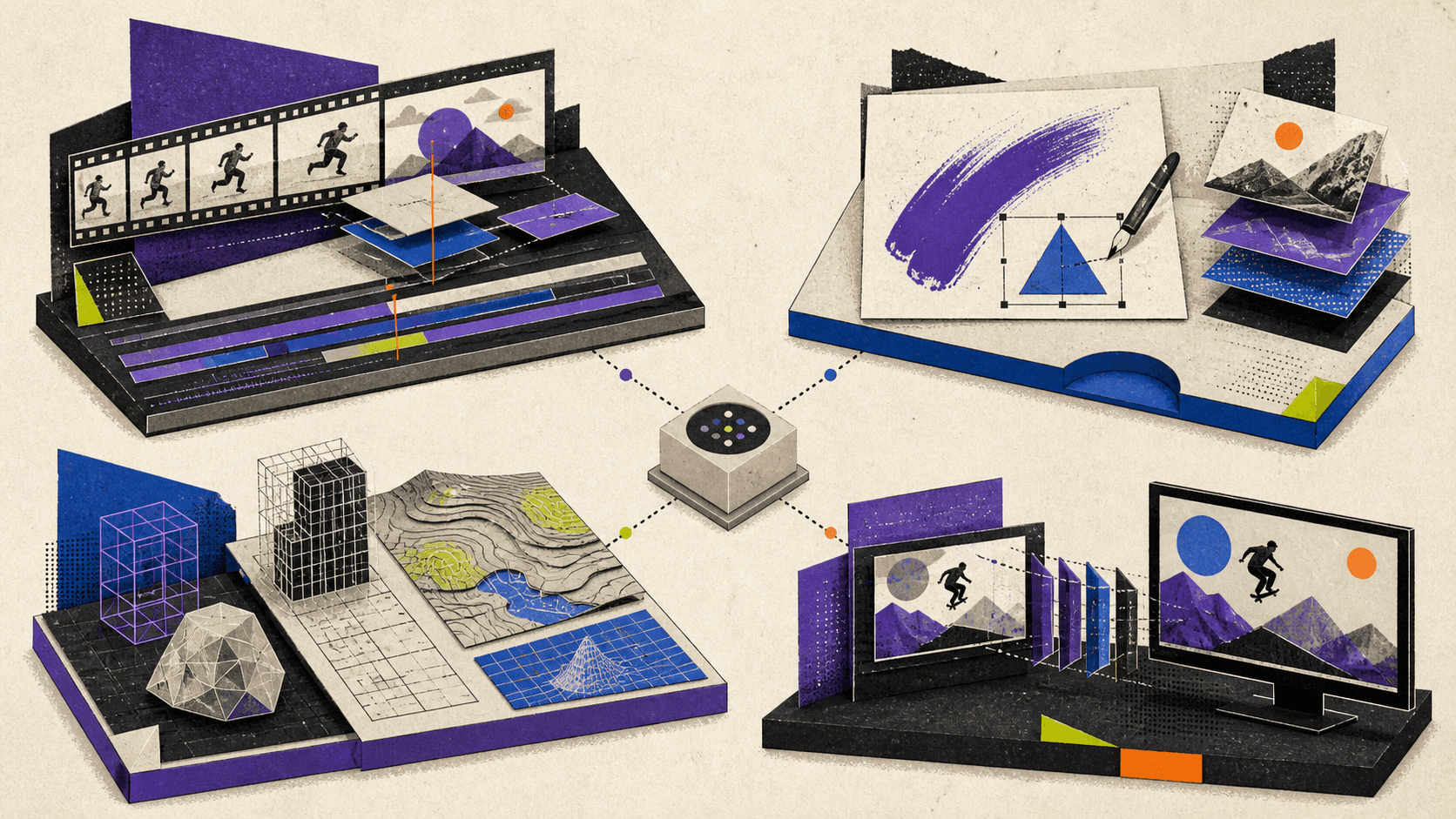
ArcGIS Pro, Abaqus, ParaView, And PIX4D
ArcGIS Pro uses DirectX or OpenGL to render maps and 3D scenes. Without suitable hardware acceleration, it can fall back to software rendering, but visualization performance suffers.
General-purpose GPU compute is a separate path. ArcGIS Pro 3.6 requires supported NVIDIA CUDA hardware for most deep-learning functionality and can use it for selected Spatial Analyst tools.
Geoprocessing, data input and output, map rendering, and many analysis operations still depend on CPU performance. Large datasets and 3D scenes also need RAM and visualization-cache storage.
Abaqus uses OpenGL for CAE and Viewer graphics, but its analysis-side GPU acceleration is much narrower. Abaqus/Standard supports GPGPU acceleration for named solver paths such as the direct sparse solver, AMS eigensolver, and modal frequency response solver. GPGPU acceleration is not enabled by default and does not apply to every analysis.
ParaView separates data processing from rendering. Its default 3D renderer uses OpenGL, with OptiX and OSPRay available for alternative ray-traced views. In client-server mode, data processing happens on the server, while rendering can occur on the server or the client.
That distinction affects hardware planning. Large filters may require server CPU and RAM, while interactive visualization needs suitable rendering hardware. If rendered images are sent over a network, latency, bandwidth, compression, and image resolution also affect responsiveness.
PIX4D workloads vary by processing stage. PIX4Dmatic reports high CPU use across its main stages, while GPU use is higher for tasks such as dense point cloud generation, image preprocessing, and orthomosaic work. Storage activity can also be high.
PIX4Dmapper uses NVIDIA CUDA for selected processing work, but its hardware guidance says CPU has the greatest overall impact on processing time. Image count, image resolution, project settings, RAM, and SSD capacity all influence performance.
When CPU, RAM, Storage, Drivers, Or Network Matter More
A GPU upgrade is valuable only when the slow task can use it. Before choosing hardware, identify what happens when the slowdown occurs.
Choose CPU Performance For
CAD rebuilds and lightly threaded modeling operations
After Effects Multi-Frame Rendering and non-accelerated effects
Software video decoding or encoding
General application logic and scene preparation
Analysis or simulation paths without GPU support
GIMP operations without a reliable OpenCL path
Clock speed matters for lightly threaded work. Additional cores help only when the application can divide the task across them.
Add RAM For
Long After Effects previews
Large Photoshop or Krita documents
High-resolution video and image sequences
Complex 3D scenes and geometry
Large GIS or scientific datasets
Photogrammetry projects
Running several creative applications together
Integrated GPUs share system memory. On a low-end computer, enabling acceleration can increase competition for an already limited RAM pool.
Improve Storage For
After Effects disk cache
Photoshop scratch disks
Video source files, proxies, and preview files
Large texture libraries and image sequences
CAD project loading and saving
Simulation output
PIX4D intermediate files
Shared project storage
A GPU cannot process data it has not received. Slow drives, network storage, or insufficient free cache space can leave powerful compute hardware waiting.
Check Drivers And Compatibility For
Missing GPU acceleration settings
Black or corrupted previews
Crashes when enabling acceleration
Unsupported codec profiles
GPU-only effects that fail
Certified CAD graphics requirements
New app versions that raise API requirements
Multi-GPU systems selecting the wrong device
Check the current application documentation, not only the GPU manufacturer’s specification page. The application decides which APIs, features, and drivers it supports.
Check The Network For
Cloud workstations
Remote rendering
Shared storage
ParaView client-server visualization
Plex remote streaming
OBS and Streamlabs broadcasts
Bandwidth determines how much data can move. Latency determines how quickly interactions return. A connection can have high download speed but still feel poor for remote drawing, viewport navigation, or timeline scrubbing if latency is unstable.
When A Cloud GPU Makes Sense
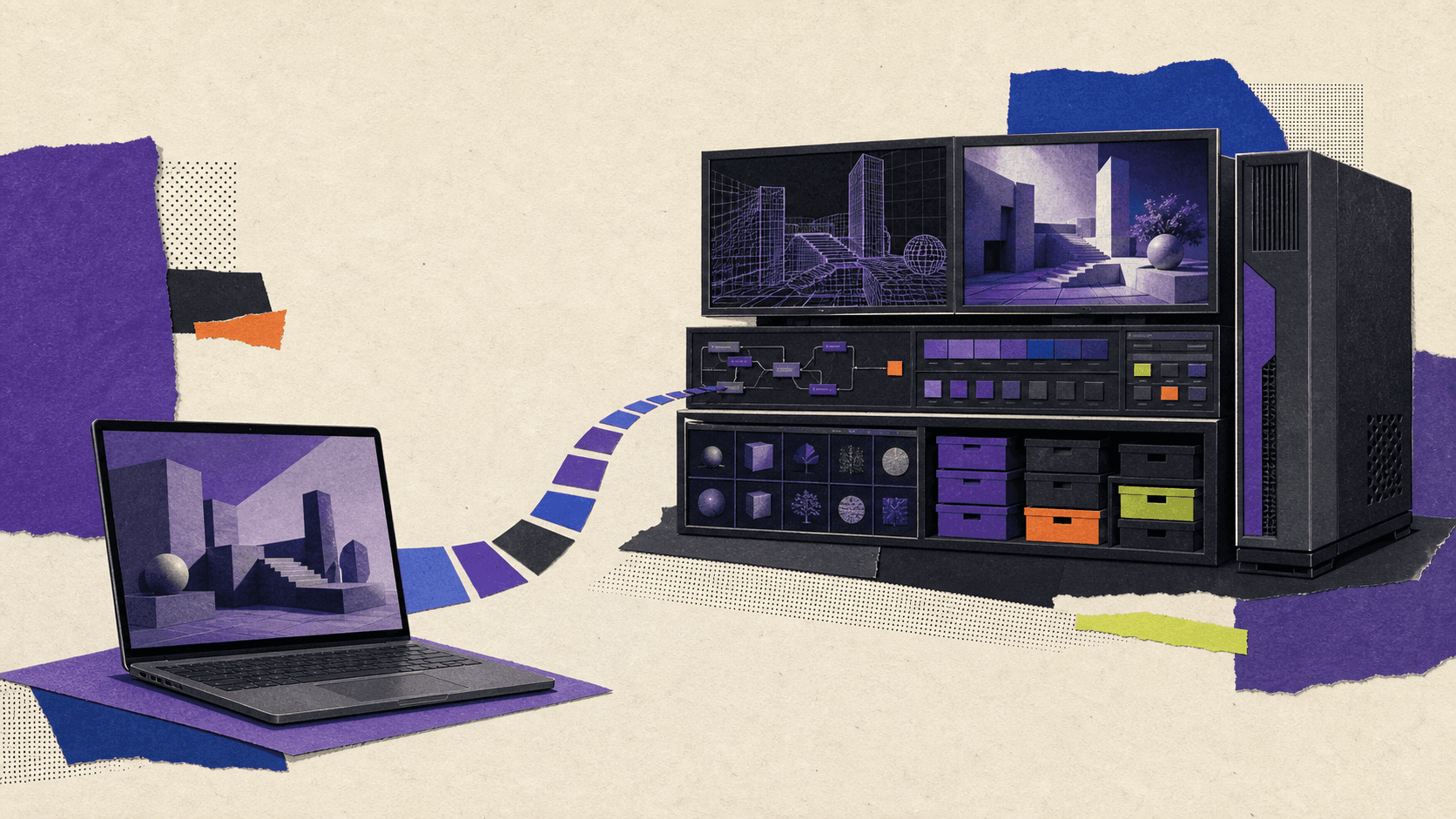
A cloud workstation is useful when you have identified a real hardware bottleneck but do not want to purchase or maintain a high-end local computer.
Vagon Cloud Computer provides a remote desktop with selectable GPU, CPU, and RAM configurations. Current graphics-accelerated options include NVIDIA T4 and RTX-enabled A10G hardware, so users can choose a configuration based on the project instead of remaining tied to one workstation.
The strongest fits include:
Blender, Arnold, or compatible GPU rendering
GPU-heavy DaVinci Resolve color and effects work
Large 3D viewports
Supported CUDA or OptiX workflows
AI features that need more GPU memory
Short-term projects that need more CPU and RAM as well as a GPU
Creators working from a thin laptop, tablet, or other low-powered device
Vagon uses pay-per-use compute alongside persistent storage plans, which can suit people who need stronger hardware for occasional projects rather than every working day.
A cloud GPU is not an automatic fix. It may not help if the project is limited by a lightly threaded CPU task, an unsupported codec, a plug-in, insufficient storage, or a slow data workflow. Large source files must also be uploaded or kept near the cloud computer.
Application support needs to be checked carefully. Adobe says Photoshop GPU acceleration through virtual machines or remote desktop is not officially supported, and Lightroom says virtual-machine GPUs are not tested or supported. Plex says ordinary virtual machines may expose generic 3D acceleration without exposing the video engines needed for hardware transcoding.
Input devices, color-sensitive review, licensing, driver visibility, operating system support, and network quality can also affect the decision. A local workstation may remain better for constant use, while a hybrid workflow can make sense for occasional rendering or heavy project stages.
Frequently Asked Questions
Is GPU Acceleration Good For A Low-End PC?
It can be, provided the GPU supports the application’s accelerated path and has enough memory. Hardware decoding can improve playback, and canvas or viewport acceleration can make interaction smoother.
It cannot compensate for too little RAM, a weak CPU, a full scratch disk, slow media storage, or an unsupported codec. Integrated graphics also share system memory, which can limit the benefit.
Should Video Editing Use A Better CPU Or GPU?
Choose based on the editor, media, and effects.
A stronger GPU helps with accelerated effects, color grading, AI, compositing, and supported decoding or encoding. The CPU handles general application work and software fallbacks. RAM holds frames and application state, while storage must deliver the media.
A balanced computer is usually more useful than pairing a top-tier GPU with insufficient RAM or a slow drive.
Is After Effects CPU Or GPU Intensive?
Both, but for different tasks. After Effects uses the GPU for supported effects, display, color processing, and some 3D work. Multi-Frame Rendering uses CPU cores, while previews depend heavily on RAM and disk cache.
The slowest effect or layer in a composition may determine which component matters most.
Why Does Premiere Say An Effect Requires GPU Acceleration?
The effect may have no CPU fallback, or Premiere may not be able to access the required GPU path. Check the project renderer, GPU recognition, driver, VRAM, effect requirements, and project resolution.
If the setting disappeared after an update, verify that the new application version still supports the installed GPU and driver.
Does GPU Acceleration Improve Export Quality?
Not by itself. GPU acceleration changes how work is processed, usually to improve speed or responsiveness.
Hardware and software encoders can produce different results at the same bitrate and settings. Export quality still depends on the codec, bitrate, profile, bit depth, source quality, and encoder configuration.
Should Streaming Use The CPU Or GPU?
OBS and Streamlabs can encode with CPU-based x264 or a hardware encoder such as NVENC. Hardware encoding usually reduces CPU load by using dedicated media hardware.
The GPU still needs enough headroom to render and composite the scene. If a game is using nearly all available graphics resources, the stream can struggle even when the encoder itself is hardware-based. Upload bandwidth remains essential either way.
Does Plex Always Need A GPU?
No. If a client supports the source file, Plex can Direct Play it with very little server work. A GPU or compatible processor becomes useful when Plex must transcode an incompatible video, change its resolution, or burn in unsupported subtitles.
Hardware-accelerated transcoding normally requires Plex Pass and compatible hardware. Codec support and operating-system exposure determine whether Plex can use it.
Should Hardware Acceleration Ever Be Turned Off?
Yes, temporarily. Disabling it is a useful diagnostic step when an app shows artifacts, crashes, corrupted previews, or playback errors.
If the problem disappears, investigate the driver, GPU selection, app version, hardware requirements, and project settings. Leaving acceleration disabled may restore stability, but it can also reduce performance or remove GPU-only features.
GPU acceleration matters most when the application, workload, media, driver, and hardware all support the same path. Identify whether your bottleneck is effects, rendering, viewport performance, encoding, decoding, CPU processing, memory, storage, or network delivery before choosing an upgrade.
If a supported GPU workload is holding back a project, try Vagon Cloud Computer to access a stronger remote workstation without buying new hardware.
Yes, most current creative applications use GPU acceleration, but they do not use it for every task. A video editor may use the GPU for effects and decoding while relying on the CPU for other work; a CAD application may use it for the viewport but not for rebuilding the model; and a streaming app may use dedicated video hardware rather than general GPU compute.
The useful question is not simply, “Does this app use the GPU?” It is, “Does my specific task in this app use the GPU, and what will become the next bottleneck?”
Which Creative Apps Actually Use Your GPU?
The table below gives the short answer. “Optional” means the app can perform substantial work without that accelerated path. “Mixed” means the GPU is important for some features, while other work remains on the CPU or has a software fallback.
Application | What the GPU accelerates | How important is it? | What else commonly matters? |
|---|---|---|---|
Adobe Premiere | Effects, compositing, color conversion, scaling, timeline rendering, AI, and supported video decoding and encoding | Mixed, with some GPU-only effects | CPU, RAM, storage, codec, driver, and export settings |
Adobe Media Encoder | Supported effects, image processing, resizing, color conversion, and supported hardware encoding | Optional for many exports, important for compatible jobs | CPU, format, profile, bit depth, and storage |
DaVinci Resolve | Color processing, Resolve FX, Fusion, AI features, playback, and supported codecs | Central to many workflows | CPU, RAM, storage, source codec, and Free versus Studio |
After Effects | Supported effects, some 3D work, display processing, and color management | Mixed | CPU cores, RAM, disk cache, plug-ins, and composition design |
VEGAS Pro | Supported effects, transitions, compositing, RAW processing, decoding, and encoding | Mixed | CPU rendering, Dynamic RAM Preview, codec profile, and driver |
Photoshop | Canvas interaction, Camera Raw, selected filters, selection tools, and AI features | Mixed, with a smaller set of GPU-required features | RAM, CPU, layer count, document size, and scratch disk |
Lightroom Classic | Display, Develop adjustments, AI selections, image processing, and export | Optional at several levels | Catalog access, previews, RAM, CPU, and SSD speed |
GIMP | Experimental OpenCL implementations for selected GEGL operations | Limited and not a dependable default assumption | CPU, RAM, storage, and GEGL operation coverage |
Krita | Canvas display, brush feedback, zooming, rotating, and panning | Useful for interaction, not every calculation | RAM, CPU, swap space, and animation cache |
CorelDRAW | Display, effects, AI resampling, Art Styles, and artifact removal | Mixed | CPU, RAM, document complexity, and driver |
Blender | Viewport drawing, Cycles rendering, ray tracing, and denoising | Optional for Cycles rendering, highly useful when supported | VRAM, system RAM, scene size, backend, and feature support |
Maya | Viewport 2.0, supported deformation chains, and Arnold GPU rendering | Mixed | CPU evaluation, rig structure, cache, RAM, and renderer limits |
3ds Max | Nitrous viewport and Arnold GPU rendering | Mixed | CPU modeling, modifiers, simulation, memory, and renderer limits |
Revit | Model views, realistic mode, transparency, ambient occlusion, and anti-aliasing | Primarily a viewport benefit | CPU, RAM, model size, regeneration, and storage |
AutoCAD | 2D and 3D drawing display and supported visual effects | Primarily a display benefit | CPU speed, drawing complexity, RAM, and driver |
SOLIDWORKS | Viewport movement, shaded display, RealView, and Visualize rendering | Mixed | Single-core CPU performance, rebuilds, simulation, RAM, and I/O |
Rhino | OpenGL viewports, advanced lighting, and supported Cycles rendering | Mixed | CPU modeling, meshing, RAM, renderer, and scene size |
Abaqus | CAE display and selected GPGPU solver paths | Workload-specific | CPU parallelism, solver choice, RAM, storage, and licensing |
ArcGIS Pro | Maps, 3D scenes, deep learning, and selected Spatial Analyst tools | Mixed, required for most deep-learning functions | CPU, RAM, data I/O, cache, and dataset size |
ParaView | 3D rendering, volume visualization, and optional ray tracing | Important for rendering, separate from data processing | CPU, RAM, server resources, and network |
PIX4D | Selected calibration, image processing, dense point cloud, and orthomosaic work | Workload-specific | CPU, RAM, SSD performance, image count, and processing stage |
OBS Studio | Scene compositing, rendering, and hardware video encoding | A compatible GPU is required; hardware encoding is optional | Upload bandwidth, scene complexity, CPU, and available GPU headroom |
Streamlabs Desktop | Hardware encoding and browser-source acceleration | Optional because CPU encoding remains available | Game load, widgets, CPU/GPU headroom, and upload speed |
VLC | Supported video decoding and accelerated output | Optional | Codec, profile, resolution, CPU, platform, and driver |
Plex Media Server | Hardware decoding and encoding during transcoding | Optional and normally subscription-gated | Client compatibility, subtitles, CPU, disk, and network |
This comparison explains why a GPU usage graph can be confusing. Low utilization does not necessarily mean acceleration is broken. The current task may not support the GPU, the app may be waiting for storage, or a dedicated codec engine may be working without placing a heavy load on the GPU’s general compute cores.
What GPU Acceleration Actually Means
GPU acceleration is an umbrella term for several different jobs. They can happen independently, even within the same application.
Display And Viewport Acceleration
Display acceleration draws the canvas, model, map, or application interface. It can make zooming, panning, orbiting, scrubbing, and interacting with complex scenes feel smoother.
AutoCAD, Revit, SOLIDWORKS, Rhino, Krita, Photoshop, ArcGIS Pro, and most 3D applications use the GPU this way. A smoother viewport does not prove that the GPU is also calculating a CAD rebuild, running a simulation, or processing an image filter.
For example, Revit hardware acceleration uses the graphics card to render model views and visual effects. This is separate from the CPU work involved in model regeneration and other application operations.
GPU Effects And Compute
Some effects, filters, color operations, AI tools, and analysis functions can divide work across the GPU’s parallel processing units.
Premiere uses this path for accelerated effects and image processing. Photoshop uses it for a defined list of features, including Camera Raw, Blur Gallery, Lens Blur, Neural Filters, Select and Mask, and Smart Sharpen. ArcGIS Pro uses NVIDIA CUDA for most deep-learning functionality and selected Spatial Analyst tools.
Coverage is rarely universal. One effect may run on the GPU while the next uses the CPU. A third-party plug-in can also use a different API from the host application.
GPU Rendering
GPU rendering creates a final or progressively refined image. Blender Cycles, Arnold GPU, and SOLIDWORKS Visualize are examples.
This work can place a much heavier compute load on the GPU than ordinary viewport drawing. It also makes VRAM capacity important because scene geometry, textures, acceleration structures, and render buffers must remain accessible to the rendering device.
GPU rendering is often optional. Blender Cycles can use the CPU or supported GPUs, including NVIDIA CUDA or OptiX, AMD HIP, Intel oneAPI, and Apple Metal devices. Whether the GPU is the better choice depends on the scene, supported features, memory, driver, and backend.
Hardware Decoding And Encoding
Video decoding turns compressed footage into frames that an application can display or process. Encoding compresses finished frames for export, recording, or streaming.
These jobs often use dedicated media hardware inside a GPU or processor. NVIDIA calls its paths NVDEC and NVENC. Intel provides Quick Sync. AMD uses AMF, while Apple exposes VideoToolbox.
This is not the same as CUDA, OpenCL, Metal compute, or shader-based effects. A GPU may support fast H.264 decoding but not a particular HEVC profile, bit depth, or chroma format. The application then falls back to software decoding on the CPU.
The same distinction applies during export. Hardware encoding may shorten a compatible export, but effects, compositing, audio, unsupported formats, and other work can still use the CPU.
Which Video And Motion Apps Benefit Most?
Video applications have several opportunities to use the GPU, but source media and project settings determine which ones are active.
Adobe Premiere And Media Encoder
Adobe’s current Premiere documentation identifies four broad GPU roles:
Hardware-accelerated decoding for supported media
Timeline rendering, effects, and compositing
Hardware-accelerated encoding for supported exports
AI and machine-learning processing
The Mercury Playback Engine also uses the GPU for supported effects, image processing, resizing, scaling, and color conversions. Those effects are marked with an accelerated-effects icon inside Premiere.
The CPU still handles much of the application’s work. A timeline with few accelerated effects may show modest GPU use, while a high-resolution timeline with color work and several compatible effects can use much more.
Hardware decoding and encoding also depend on the media. Premiere’s H.264 and HEVC support varies by GPU vendor, processor generation, operating system, bit depth, and chroma sampling. Finding a Hardware Encoding option in one export preset does not mean every preset will have it.
Adobe Media Encoder shares parts of this processing pipeline. Its GPU renderer can process supported effects, resizing, and color conversion, while compatible H.264 and HEVC settings may use hardware encoding. Unsupported settings return to software processing.
DaVinci Resolve
DaVinci Resolve uses the GPU broadly for color processing, effects, image operations, Fusion work, and AI features. This makes it one of the clearer examples of an application where GPU capability and VRAM can materially affect the workflow.
However, Resolve is not only a GPU workload. The CPU still participates in application logic, decoding, effects, audio, and tasks that do not have a suitable GPU path. Storage must also deliver high-resolution media quickly enough to keep the pipeline busy.
Edition differences are important. DaVinci Resolve Studio adds broader hardware-accelerated H.264 and H.265 decoding and encoding, multi-GPU support, additional Resolve FX, and more AI features. Supported behavior also varies across macOS, Windows, and Linux.
Resolve supports Metal on compatible Macs and CUDA or OpenCL paths on Windows and Linux. “Does DaVinci Resolve use CUDA?” therefore has a qualified answer: it can on supported NVIDIA configurations, but CUDA is not its only GPU path.
You can also explore practical ways to render faster in DaVinci Resolve without assuming every slowdown comes from the GPU.
Adobe After Effects
After Effects uses GPU acceleration for supported Mercury effects, panel display, color management, some 3D work, and compatible third-party effects. Adobe also notes that its VR effects require a GPU because they do not have CPU fallbacks.
That does not make the entire application GPU-bound. Multi-Frame Rendering distributes frame rendering across CPU cores. Its performance also depends on available RAM, GPU compute, the effects in the composition, and third-party plug-ins.
RAM and disk cache are especially important for previewing. After Effects must store rendered frames somewhere, and complex compositions can exhaust memory quickly. Adobe recommends fast local media storage and a fast SSD for disk cache.
If you are deciding between a CPU and GPU for After Effects, look at the slow part of your project. Supported GPU effects and 3D work benefit from graphics hardware. Multi-Frame Rendering, non-accelerated effects, expressions, and general frame processing can benefit more from CPU and RAM. Cache behavior can make storage the limiting component.
VEGAS Pro
Current VEGAS Pro releases support GPU acceleration for many built-in video-processing functions, plug-ins, transitions, compositors, RAW processing, and supported codecs. The application can identify compatible accelerated plug-ins and lets the user select a GPU for video processing.
VEGAS documents separate hardware codec paths for NVIDIA, AMD, and Intel hardware. Support changes with the codec, resolution, bit depth, and chroma format. Unsupported variants use software fallbacks where available.
Queries about Sony VEGAS 16 or 17 describe older versions and should not be applied directly to current VEGAS Pro. If the GPU is missing from a current installation, check the app version, selected processing device, decoder settings, driver, and whether the media is actually compatible with the hardware path.
“This Effect Requires GPU Acceleration”
This warning is a troubleshooting clue, not a description of the entire application.
In Premiere or After Effects, it can mean:
The project renderer is using a software path
The selected effect has no CPU fallback
The GPU or driver does not meet current requirements
The GPU has insufficient VRAM for the effect or project
The application cannot access the expected GPU
A remote, virtualized, or multi-GPU configuration is exposing the wrong device
First confirm that the application recognizes the GPU and that its accelerated renderer is selected. Then check the current driver, VRAM, operating system, effect requirements, and project resolution. Avoid copying instructions written for old Premiere, After Effects, or VEGAS releases without checking the current interface and requirements.
How Photo And 2D Design Apps Use The GPU
Photo and illustration tools increasingly use the GPU for AI and image processing, but memory and storage remain just as important.
Photoshop publishes a specific GPU feature list. Windows systems preferably use D3D12, while current macOS systems use Metal. Several filters still use OpenCL.
Many ordinary edits continue to work in CPU mode, although they may be slower. A smaller group of features will not work without a supported GPU. This is why “CPU or GPU for Photoshop?” is not an either-or choice.
Large documents, many layers, history states, and high-resolution assets consume RAM. When Photoshop cannot keep working data in memory, it uses scratch storage. A fast SSD with enough free space can therefore improve a struggling Photoshop workflow more than replacing an already adequate GPU.
If performance remains inconsistent, this breakdown of what slows down Photoshop projects can help identify whether RAM, scratch storage, CPU, or GPU is responsible.
Lightroom Classic has separate GPU options for display, image processing, and export. It can accelerate Develop adjustments, Library views, AI selection tools, Enhance Details, and supported exports. Adobe’s current Lightroom Classic requirements also call for more GPU or unified memory for full acceleration and AI features such as Denoise, Lens Blur, and Reflection Removal.
Krita uses OpenGL, OpenGL ES, or ANGLE on Windows to accelerate canvas drawing. This improves brush feedback, zooming, rotation, and panning. Its performance documentation separately emphasizes RAM, CPU multithreading, swap storage, and animation cache. A faster GPU will not prevent a large canvas from exhausting memory.
GIMP requires more caution. GEGL contains OpenCL implementations for selected operations, but the GIMP 3.0 release notes said OpenCL remained disabled by default while the project continued improving reliability. It is safer to plan a GIMP workstation around CPU, RAM, and storage instead of assuming broad GPU acceleration.
CorelDRAW Graphics Suite uses hardware acceleration for display, effects, Art Styles, AI resampling, and JPEG artifact removal. Its current Windows requirements call for an OpenCL-compatible GPU, but CPU, RAM, document complexity, and driver stability still affect the rest of the workflow.
When 3D, CAD, GIS, And Scientific Tools Use The GPU
Technical applications make the distinction between viewport work, model computation, simulation, and final rendering especially important.
Blender, Maya, And 3ds Max
Blender uses the GPU for interactive viewports and can use it for Cycles rendering. OptiX can use NVIDIA RTX ray-tracing hardware, while HIP, oneAPI, and Metal serve supported AMD, Intel, and Apple configurations.
VRAM is often the practical limit. If a scene and its textures do not fit comfortably, performance can drop or the renderer may fall back to system memory where supported. CPU rendering can remain useful for very large scenes, unsupported features, or machines with abundant system RAM but limited GPU memory.
Maya uses Viewport 2.0 for interactive graphics. Its GPU Override feature can accelerate supported deformation chains in dense animated meshes, but unsupported nodes can remain on the CPU. Rig structure therefore matters as much as the GPU model.
Arnold adds a separate rendering decision. Current Arnold for Maya requirements support GPU rendering on Windows and Linux with compatible NVIDIA hardware. CPU rendering remains available, and GPU rendering has platform and feature limitations.
The same separation applies in 3ds Max. The Nitrous viewport uses graphics hardware, while Arnold can switch between CPU and NVIDIA GPU rendering. A fast GPU does not automatically accelerate modifiers, simulation, scene preparation, or every renderer.
Artists who need occasional access to more rendering power can also learn how to use Blender on a cloud computer.
AutoCAD, Revit, SOLIDWORKS, And Rhino
AutoCAD uses hardware acceleration for 2D and 3D drawing display. Current advanced graphics modes use DirectX 12-capable hardware, with software mode available as a slower fallback.
The GPU helps with visual responsiveness, but drawing complexity, text, hatches, CPU performance, RAM, and drivers can still make AutoCAD slow. A large GPU upgrade may deliver little improvement if the delay occurs while a CPU-bound command is calculating.
Revit hardware acceleration also focuses on model views and visual effects. It supports realistic mode, ambient occlusion, transparency, and anti-aliasing. Revit 2026 introduced an Accelerated Graphics tech preview for improved 2D and 3D navigation, but Autodesk notes that additional views can increase memory use.
This is different from saying that every Revit calculation or final render uses the GPU. Regeneration, model operations, RAM pressure, and storage can remain the limiting factors.
SOLIDWORKS offers one of the clearest CPU-versus-GPU distinctions. The GPU improves rotate, pan, zoom, shaded views, RealView, and other display features. SOLIDWORKS Visualize can also render on supported GPU devices.
However, SOLIDWORKS says most Design operations use one CPU. Feature rebuilds and drawing creation are CPU-based activities. Simulation uses CPU parallelism and frequent disk writes. This makes a high-clock-speed processor, sufficient RAM, fast storage, and a certified GPU/driver combination more useful than choosing hardware from GPU specifications alone.
Rhino uses OpenGL for standard viewport drawing and Cycles for its ray-traced display mode. Supported configurations can select CPU, CUDA, OptiX, or OpenCL rendering devices. Modeling operations, geometry conversion, meshing, and some render paths remain CPU-dependent.
ArcGIS Pro, Abaqus, ParaView, And PIX4D
ArcGIS Pro uses DirectX or OpenGL to render maps and 3D scenes. Without suitable hardware acceleration, it can fall back to software rendering, but visualization performance suffers.
General-purpose GPU compute is a separate path. ArcGIS Pro 3.6 requires supported NVIDIA CUDA hardware for most deep-learning functionality and can use it for selected Spatial Analyst tools.
Geoprocessing, data input and output, map rendering, and many analysis operations still depend on CPU performance. Large datasets and 3D scenes also need RAM and visualization-cache storage.
Abaqus uses OpenGL for CAE and Viewer graphics, but its analysis-side GPU acceleration is much narrower. Abaqus/Standard supports GPGPU acceleration for named solver paths such as the direct sparse solver, AMS eigensolver, and modal frequency response solver. GPGPU acceleration is not enabled by default and does not apply to every analysis.
ParaView separates data processing from rendering. Its default 3D renderer uses OpenGL, with OptiX and OSPRay available for alternative ray-traced views. In client-server mode, data processing happens on the server, while rendering can occur on the server or the client.
That distinction affects hardware planning. Large filters may require server CPU and RAM, while interactive visualization needs suitable rendering hardware. If rendered images are sent over a network, latency, bandwidth, compression, and image resolution also affect responsiveness.
PIX4D workloads vary by processing stage. PIX4Dmatic reports high CPU use across its main stages, while GPU use is higher for tasks such as dense point cloud generation, image preprocessing, and orthomosaic work. Storage activity can also be high.
PIX4Dmapper uses NVIDIA CUDA for selected processing work, but its hardware guidance says CPU has the greatest overall impact on processing time. Image count, image resolution, project settings, RAM, and SSD capacity all influence performance.
When CPU, RAM, Storage, Drivers, Or Network Matter More
A GPU upgrade is valuable only when the slow task can use it. Before choosing hardware, identify what happens when the slowdown occurs.
Choose CPU Performance For
CAD rebuilds and lightly threaded modeling operations
After Effects Multi-Frame Rendering and non-accelerated effects
Software video decoding or encoding
General application logic and scene preparation
Analysis or simulation paths without GPU support
GIMP operations without a reliable OpenCL path
Clock speed matters for lightly threaded work. Additional cores help only when the application can divide the task across them.
Add RAM For
Long After Effects previews
Large Photoshop or Krita documents
High-resolution video and image sequences
Complex 3D scenes and geometry
Large GIS or scientific datasets
Photogrammetry projects
Running several creative applications together
Integrated GPUs share system memory. On a low-end computer, enabling acceleration can increase competition for an already limited RAM pool.
Improve Storage For
After Effects disk cache
Photoshop scratch disks
Video source files, proxies, and preview files
Large texture libraries and image sequences
CAD project loading and saving
Simulation output
PIX4D intermediate files
Shared project storage
A GPU cannot process data it has not received. Slow drives, network storage, or insufficient free cache space can leave powerful compute hardware waiting.
Check Drivers And Compatibility For
Missing GPU acceleration settings
Black or corrupted previews
Crashes when enabling acceleration
Unsupported codec profiles
GPU-only effects that fail
Certified CAD graphics requirements
New app versions that raise API requirements
Multi-GPU systems selecting the wrong device
Check the current application documentation, not only the GPU manufacturer’s specification page. The application decides which APIs, features, and drivers it supports.
Check The Network For
Cloud workstations
Remote rendering
Shared storage
ParaView client-server visualization
Plex remote streaming
OBS and Streamlabs broadcasts
Bandwidth determines how much data can move. Latency determines how quickly interactions return. A connection can have high download speed but still feel poor for remote drawing, viewport navigation, or timeline scrubbing if latency is unstable.
When A Cloud GPU Makes Sense
A cloud workstation is useful when you have identified a real hardware bottleneck but do not want to purchase or maintain a high-end local computer.
Vagon Cloud Computer provides a remote desktop with selectable GPU, CPU, and RAM configurations. Current graphics-accelerated options include NVIDIA T4 and RTX-enabled A10G hardware, so users can choose a configuration based on the project instead of remaining tied to one workstation.
The strongest fits include:
Blender, Arnold, or compatible GPU rendering
GPU-heavy DaVinci Resolve color and effects work
Large 3D viewports
Supported CUDA or OptiX workflows
AI features that need more GPU memory
Short-term projects that need more CPU and RAM as well as a GPU
Creators working from a thin laptop, tablet, or other low-powered device
Vagon uses pay-per-use compute alongside persistent storage plans, which can suit people who need stronger hardware for occasional projects rather than every working day.
A cloud GPU is not an automatic fix. It may not help if the project is limited by a lightly threaded CPU task, an unsupported codec, a plug-in, insufficient storage, or a slow data workflow. Large source files must also be uploaded or kept near the cloud computer.
Application support needs to be checked carefully. Adobe says Photoshop GPU acceleration through virtual machines or remote desktop is not officially supported, and Lightroom says virtual-machine GPUs are not tested or supported. Plex says ordinary virtual machines may expose generic 3D acceleration without exposing the video engines needed for hardware transcoding.
Input devices, color-sensitive review, licensing, driver visibility, operating system support, and network quality can also affect the decision. A local workstation may remain better for constant use, while a hybrid workflow can make sense for occasional rendering or heavy project stages.
Frequently Asked Questions
Is GPU Acceleration Good For A Low-End PC?
It can be, provided the GPU supports the application’s accelerated path and has enough memory. Hardware decoding can improve playback, and canvas or viewport acceleration can make interaction smoother.
It cannot compensate for too little RAM, a weak CPU, a full scratch disk, slow media storage, or an unsupported codec. Integrated graphics also share system memory, which can limit the benefit.
Should Video Editing Use A Better CPU Or GPU?
Choose based on the editor, media, and effects.
A stronger GPU helps with accelerated effects, color grading, AI, compositing, and supported decoding or encoding. The CPU handles general application work and software fallbacks. RAM holds frames and application state, while storage must deliver the media.
A balanced computer is usually more useful than pairing a top-tier GPU with insufficient RAM or a slow drive.
Is After Effects CPU Or GPU Intensive?
Both, but for different tasks. After Effects uses the GPU for supported effects, display, color processing, and some 3D work. Multi-Frame Rendering uses CPU cores, while previews depend heavily on RAM and disk cache.
The slowest effect or layer in a composition may determine which component matters most.
Why Does Premiere Say An Effect Requires GPU Acceleration?
The effect may have no CPU fallback, or Premiere may not be able to access the required GPU path. Check the project renderer, GPU recognition, driver, VRAM, effect requirements, and project resolution.
If the setting disappeared after an update, verify that the new application version still supports the installed GPU and driver.
Does GPU Acceleration Improve Export Quality?
Not by itself. GPU acceleration changes how work is processed, usually to improve speed or responsiveness.
Hardware and software encoders can produce different results at the same bitrate and settings. Export quality still depends on the codec, bitrate, profile, bit depth, source quality, and encoder configuration.
Should Streaming Use The CPU Or GPU?
OBS and Streamlabs can encode with CPU-based x264 or a hardware encoder such as NVENC. Hardware encoding usually reduces CPU load by using dedicated media hardware.
The GPU still needs enough headroom to render and composite the scene. If a game is using nearly all available graphics resources, the stream can struggle even when the encoder itself is hardware-based. Upload bandwidth remains essential either way.
Does Plex Always Need A GPU?
No. If a client supports the source file, Plex can Direct Play it with very little server work. A GPU or compatible processor becomes useful when Plex must transcode an incompatible video, change its resolution, or burn in unsupported subtitles.
Hardware-accelerated transcoding normally requires Plex Pass and compatible hardware. Codec support and operating-system exposure determine whether Plex can use it.
Should Hardware Acceleration Ever Be Turned Off?
Yes, temporarily. Disabling it is a useful diagnostic step when an app shows artifacts, crashes, corrupted previews, or playback errors.
If the problem disappears, investigate the driver, GPU selection, app version, hardware requirements, and project settings. Leaving acceleration disabled may restore stability, but it can also reduce performance or remove GPU-only features.
GPU acceleration matters most when the application, workload, media, driver, and hardware all support the same path. Identify whether your bottleneck is effects, rendering, viewport performance, encoding, decoding, CPU processing, memory, storage, or network delivery before choosing an upgrade.
If a supported GPU workload is holding back a project, try Vagon Cloud Computer to access a stronger remote workstation without buying new hardware.
Get Beyond Your Computer Performance
Run applications on your cloud computer with the latest generation hardware. No more crashes or lags.

Trial includes 1 hour usage + 7 days of storage.
Summarize with AI

Ready to focus on your creativity?
Vagon gives you the ability to create & render projects, collaborate, and stream applications with the power of the best hardware.

Run heavy applications on any device with
your personal computer on the cloud.
San Francisco, California
Solutions
Vagon Teams
Vagon Streams
Use Cases
© 2026 Vagon. All rights reserved.
Run heavy applications on any device with
your personal computer on the cloud.
San Francisco, California
Solutions
Vagon Teams
Vagon Streams
Use Cases
© 2026 Vagon. All rights reserved.
Run heavy applications on any device with
your personal computer on the cloud.
San Francisco, California
Solutions
Vagon Teams
Vagon Streams
Use Cases
© 2026 Vagon. All rights reserved.