Instant Connection for Pixel Streaming
— New Feature Automated Setup

How to Generate B-Roll and Sound Effects in Premiere Pro
VideoProduction
How to Generate B-Roll and Sound Effects in Premiere Pro
VideoProduction
How to Generate B-Roll and Sound Effects in Premiere Pro
VideoProduction
Table of Contents
Premiere’s Generative Media Tool can create video clips and sound effects for a selected range in your timeline. You still need to define what the edit needs, guide the generation, compare alternatives, check continuity and timing, then approve or reject the result.
Adobe lists the tool as a feature in Premiere 26.5 as of September 2026. It requires an internet connection and uses generative credits because the generation happens in the cloud. Available models and options can vary by region, subscription, and account type. Adobe’s Premiere 26.5 release notes provide the current release details.
To make the workflow concrete, we’ll use a hypothetical example throughout this guide. A short product video has a four-second gap. The editor needs a close-up of a cobalt desk lamp switching on, followed by a mechanical click and a subtle electrical hum.
What Do You Need Before Using the Generative Media Tool?
Start by checking that your version of Premiere and Adobe account provide access to the feature. Installing Premiere 26.5 does not guarantee that every model or option will appear, since Adobe says availability may vary by region and subscription plan.
The Generative Media Tool and the generative task bar are two parts of the same workflow. You use the tool to select a range in the timeline. The floating task bar then handles the prompt, model, references, settings, credit estimate, and generation.
Use this checklist before beginning:
Check | What to verify |
|---|---|
Premiere version | Premiere 26.5 or a newer supported release |
Tool access | Generative Media Tool appears in the Tools panel |
Model access | The model you intend to use appears in your account |
Internet | Premiere can reach Adobe’s cloud services |
Credits | The estimated generative credit cost is acceptable |
Storage | You know where Premiere will store generated assets |
Timeline | The surrounding footage is organized and ready for comparison |
Adobe’s Generative Media Tool FAQ explains that generated media is stored in a generation folder associated with the project and organized in a Generation history bin.
This tool is also different from the features covered in our broader Premiere Pro AI features guide. Generative Extend, for example, lengthens an existing clip. Generative Media can create a new video or sound effect for a selected timeline range.
How Do You Generate B-Roll Inside the Premiere Timeline?
Define the purpose of the missing shot before opening the tool. “Generate a product shot” is too vague. The prompt should explain what the audience needs to see and how the insert must connect to the surrounding edit.
In our example, the B-roll has a specific job: show the same cobalt desk lamp being switched on during a four-second gap.
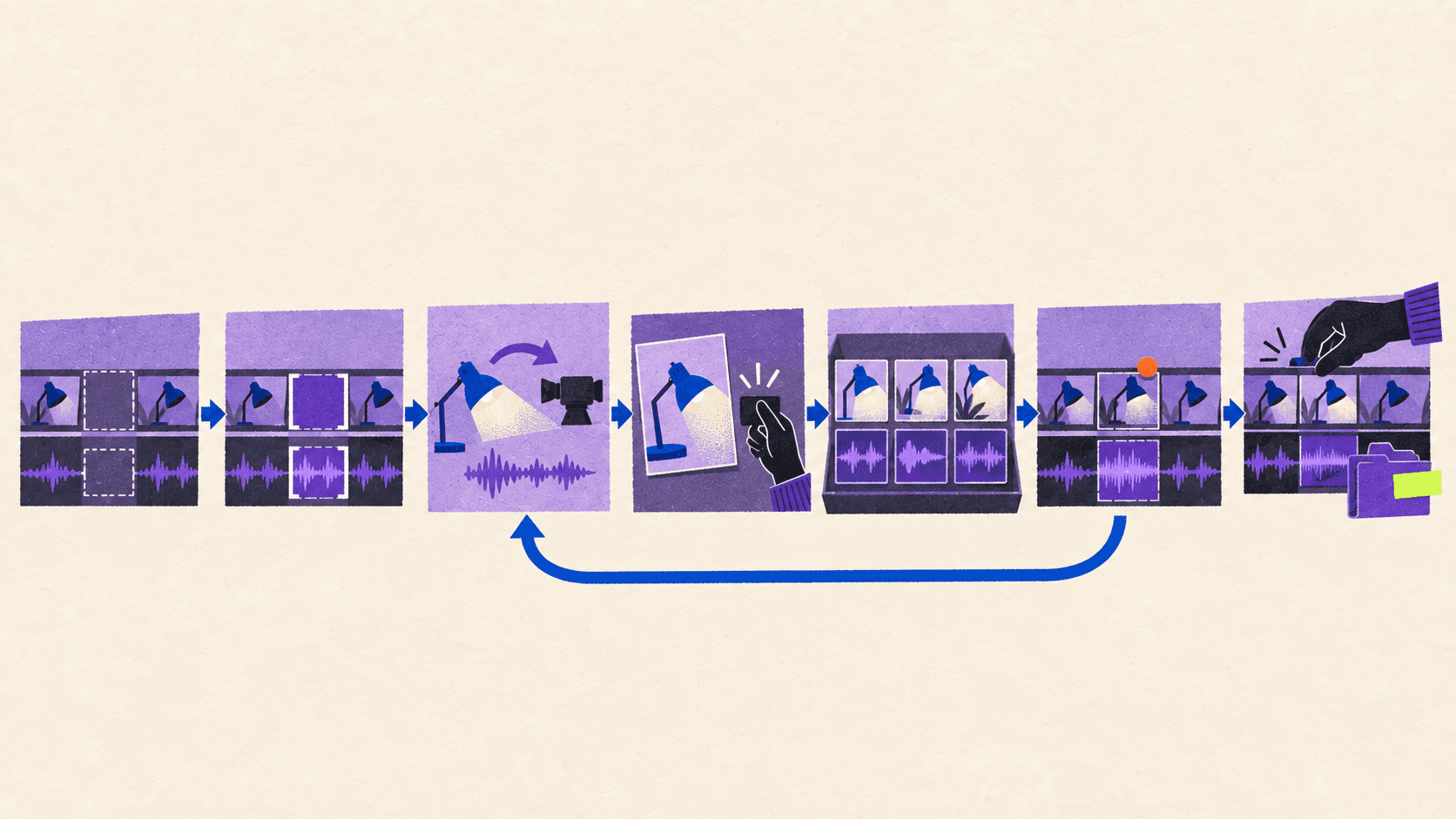
The basic workflow is:
Create or identify the gap in your sequence.
Select the Generative Media Tool from the Tools panel.
Drag across the timeline range where the new media should appear.
Enter a prompt describing the shot.
Choose an available AI model.
Adjust the settings supported by that model.
Add reference frames when the new shot must resemble existing footage.
Review the estimated generative credit usage.
Generate the clip and watch it in the full sequence.
Refine the prompt, settings, or references if the result does not fit.
Adobe’s step-by-step Generative Media instructions say that available settings can include resolution, aspect ratio, frame rate, seed, and duration. The exact controls depend on the model you select.
A useful prompt for the hypothetical lamp insert might look like this:
Treat this as a prompt structure, not a guaranteed recipe. It defines the subject, action, framing, movement, environment, and continuity requirements, but the generated result still needs inspection.
Once the clip appears in the sequence, edit it like other footage. You can trim it, reposition it, adjust its color, apply effects, or remove it. The fact that the clip fills the correct duration does not mean it belongs in the final cut.
How Should You Use Reference Frames and Model Settings?
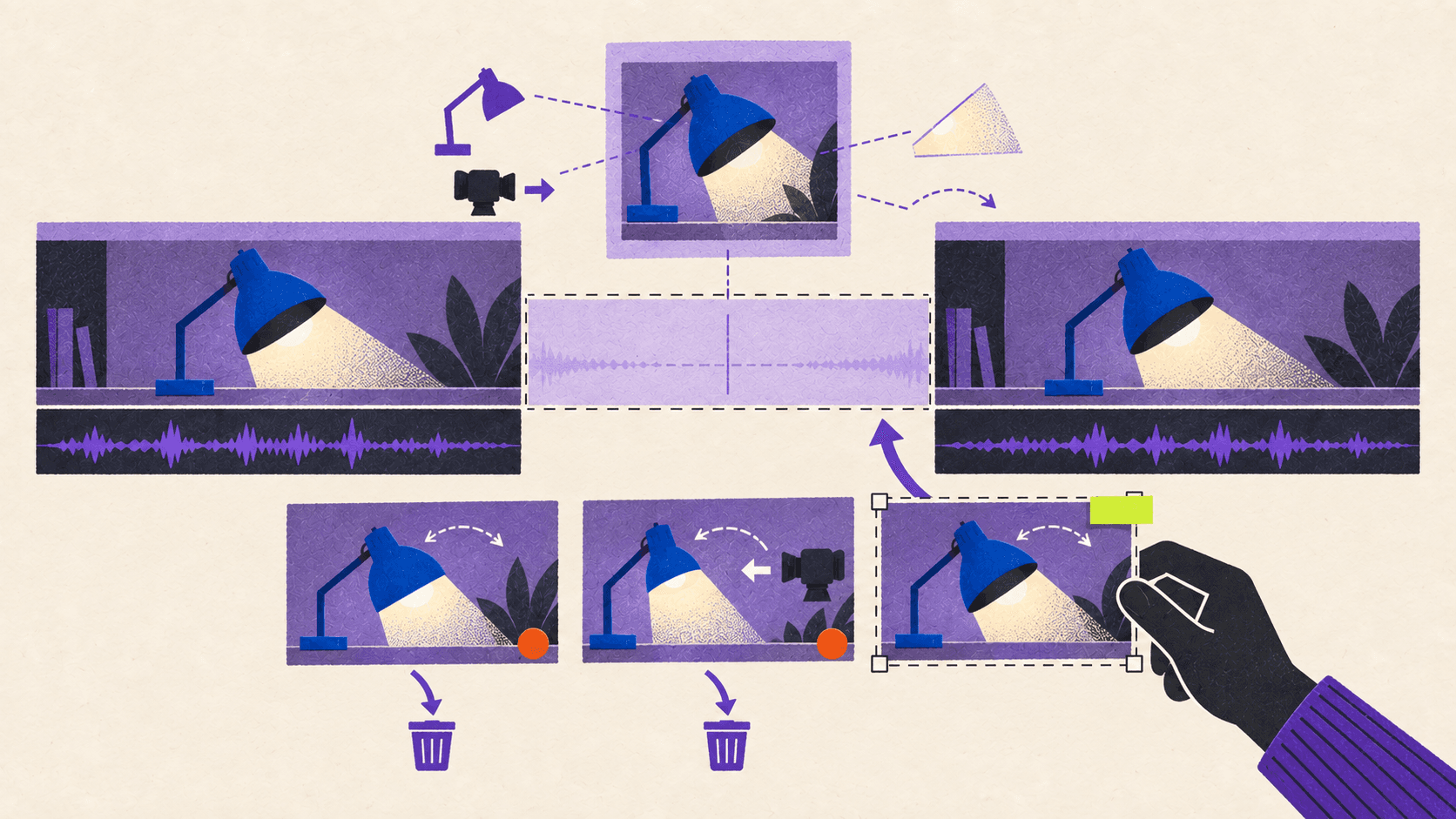
Reference frames give the selected model visual context from your sequence. They are especially useful when the generated insert must resemble a particular product, environment, lighting setup, or composition.
Adobe currently documents three reference approaches:
Use a first frame when the generated clip should begin from a particular visual state.
Use first and last frames when the clip must connect two visual states.
Use one or more reference frames when you want to provide visual or stylistic context without fixing a specific starting frame.
For the lamp example, choose a frame that clearly shows its silhouette, cobalt finish, switch position, lighting direction, and surrounding surface. A blurry frame or a reference where the product is mostly hidden gives the model less reliable information.
Avoid combining references that disagree about the product’s shape, color, orientation, or lighting. More references are not automatically better. A small, consistent set is usually easier to evaluate than several contradictory frames.
Premiere supports Adobe Firefly and selected partner models for video generation. Adobe’s current FAQ names Google Veo, Kling, and Luma as examples, but the available list can change. Some models may also be unavailable to business accounts or users in particular regions.
Do not choose a model based only on its name. Look at the controls it provides and the requirements of the shot. One model may offer an appropriate aspect ratio or reference workflow while another may not.
For supported models, Premiere can also generate audio alongside video. This option is separate from the dedicated Generate Sound Effect workflow described below. If precise timing and sound design matter, creating the sound as a separate controlled pass may be easier to review.
How Do You Generate and Synchronize a Sound Effect?
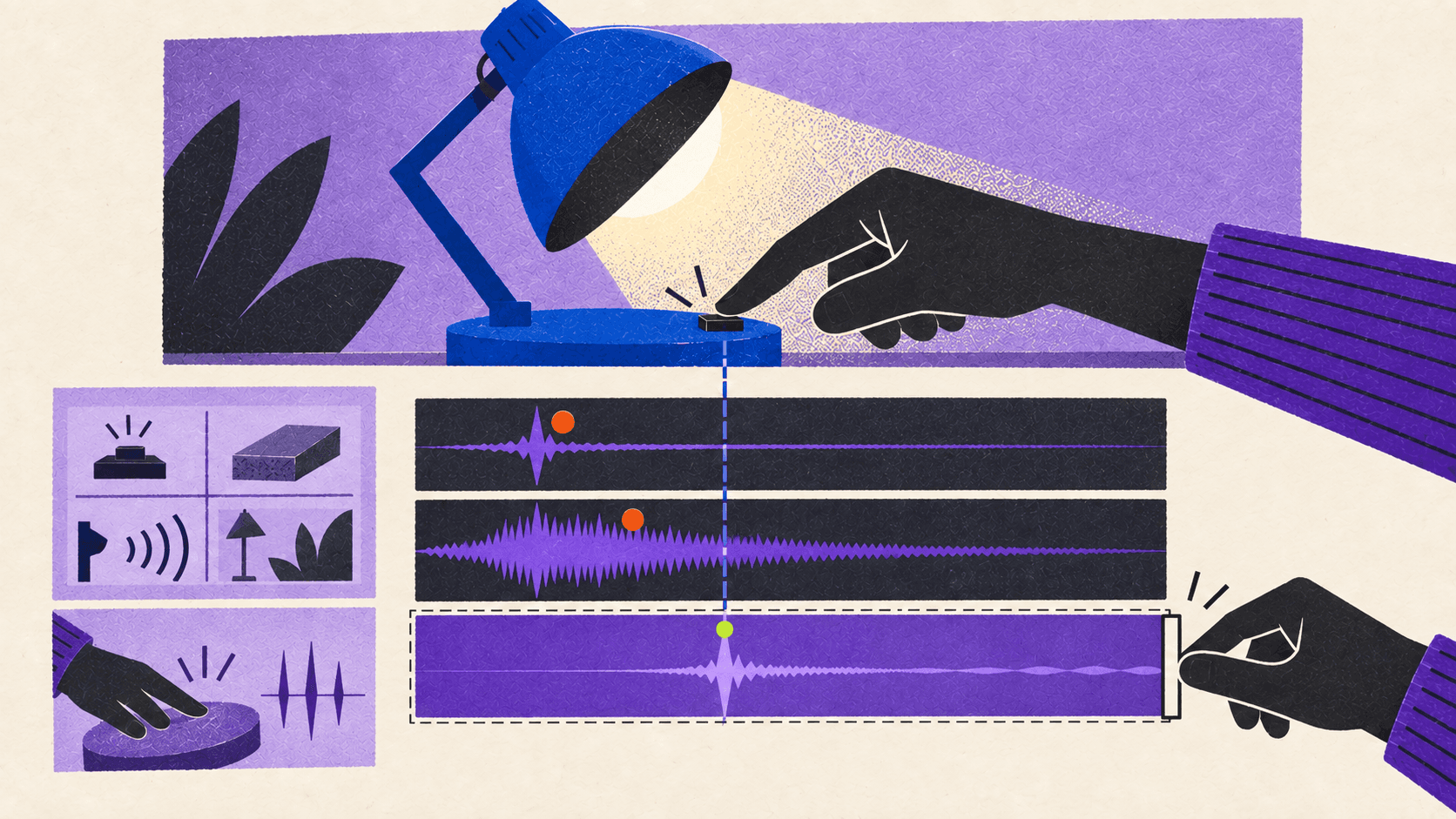
A useful sound prompt describes more than the object making the sound. It should establish the material, action, environment, perspective, intensity, and timing.
For our example, the sound needs to match a close-up view of a small physical switch. A large cinematic impact would feel disconnected from the image, even if it landed on the correct frame.
To generate the effect:
Select the audio range aligned with the lamp-switch action.
Choose Generate Sound Effect in the generative controls.
Describe the sound you need.
Use Sync to Video if the effect should follow visible action.
Use Record Guide if you want to perform the timing and intensity.
Review the duration and estimated credit use.
Generate the effect and audition it against the picture.
Adjust the prompt or timing guide when needed.
Edit and mix the selected result as a standard audio clip.
Adobe’s generated sound-effect workflow confirms that Sync to Video can align a sound with visible action. Record Guide lets you provide a vocal or performed timing reference.
A prompt for the example might be:
The selected timeline range controls the duration of the generated effect. After generation, check whether the click transient lands on the actual switch movement. Then listen to the hum in the complete mix, not only in solo playback.
Watch for background noise, unstable pitch, an effect that feels too large for the object, or a spatial perspective that does not match the camera. You can trim, move, fade, process, and balance the generated audio like any other clip.
Generate Sound Effect should not be confused with Generate Music or Generate Soundscape. Music creates an instrumental background track. Soundscape uses visible content to develop layered ambience and effects. This workflow focuses on a specific sound tied to a specific action.
For additional mixing and cleanup advice, see these techniques for improving audio in Premiere Pro.
How Do You Decide Whether the Generated Media Is Usable?
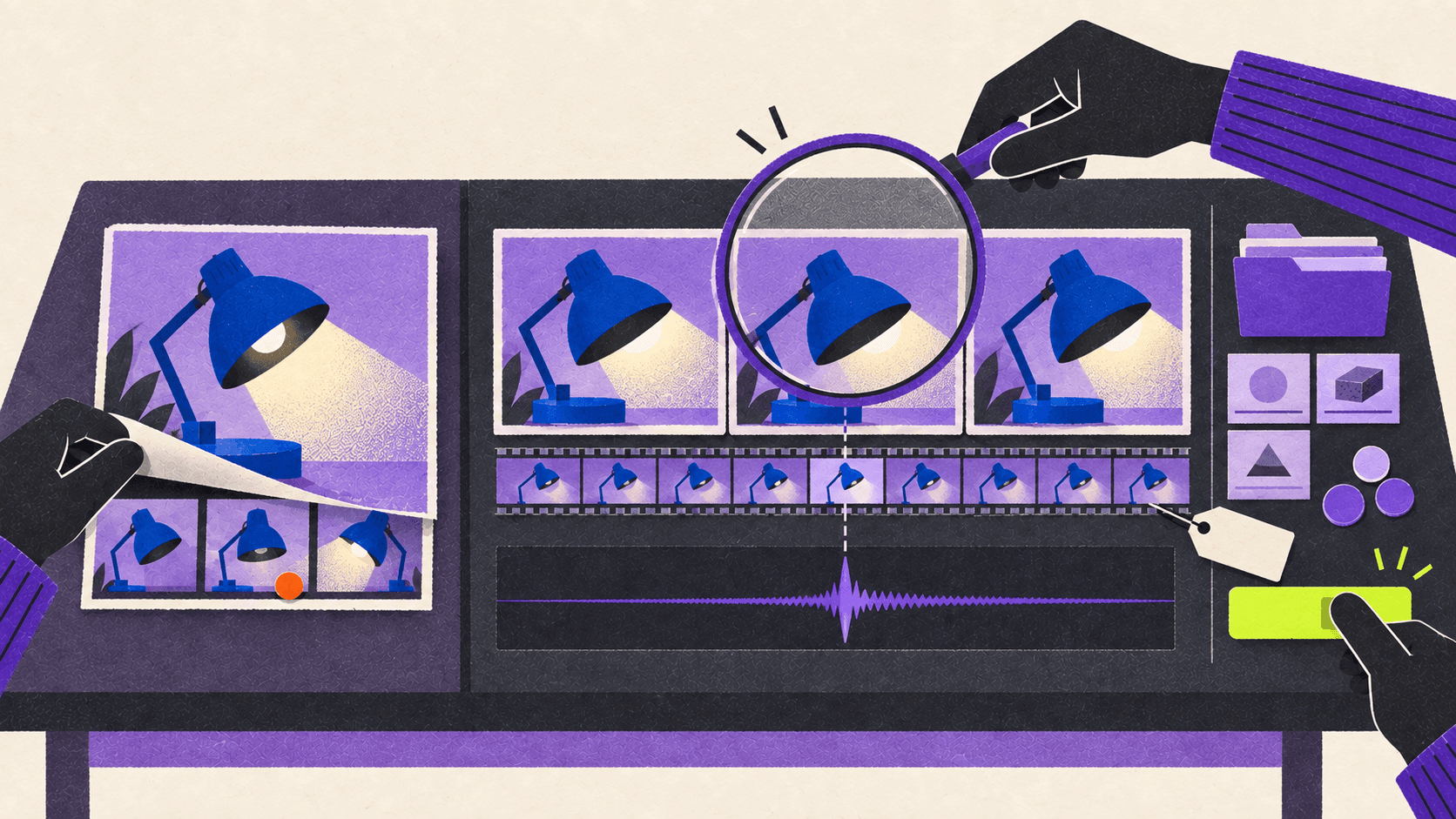
Review generated media in context. A B-roll clip can look convincing by itself and still fail when placed between the shots it needs to connect.
Use the following checklist before approval:
Area | What to inspect |
|---|---|
Editorial purpose | Does the result communicate the missing information? |
Subject consistency | Does the lamp retain the same shape, color, and details? |
Camera direction | Does movement follow the established screen direction? |
Lighting and color | Do direction, contrast, temperature, and exposure match? |
Temporal stability | Do switches, cables, edges, and shadows remain stable? |
Transition | Does the insert enter and leave the surrounding footage cleanly? |
Sound timing | Does the main transient match the visible action? |
Sound perspective | Does the effect feel recorded from the camera’s apparent distance? |
Mix compatibility | Does it work with dialogue, music, ambience, and existing effects? |
Rights and model | Is the selected model appropriate for the project? |
Organization | Can you recover the prompt, references, and generated file later? |
Human approval | Has an editor reviewed the result at normal speed and frame by frame? |
Premiere preserves generated assets in a project-associated folder and organizes them in the Generation history bin. The AI badge on a generated clip can reopen the task bar with its prompt and reference information, making another generation easier.
Use that history instead of overwriting or losing earlier alternatives. Rename approved assets according to your production’s existing conventions and keep rejected generations out of the final delivery path.
When exporting supported media containing Adobe AI-generated assets, Premiere can include Content Credentials that record information about how the media was made. Adobe cautions that publishing platforms may not always preserve this metadata, so check your delivery destination and disclosure requirements. Adobe’s Content Credentials documentation explains the current Premiere behavior.
What Are the Credit, Privacy, and Rights Limitations?
Generative Media uses Adobe generative credits. The number consumed depends on the model and generation settings, and Premiere displays an estimate before you generate. Adobe does not publish one universal cost for every video or sound request.
The Adobe generative credits FAQ explains that video generation is a premium generative workload and may consume more credits than simpler features. Check the displayed estimate before producing several alternatives.
Generation also requires an internet connection. Adobe processes prompts and supplied reference media in the cloud. Adobe says this material is used to produce the requested output and is not used to train Adobe or partner models.
That privacy statement does not replace your production rules. Before uploading unreleased footage, client assets, recognizable people, protected products, or confidential material, check the relevant contract, NDA, consent, and company policy.
Adobe describes its Firefly models and sound-effect model as commercially safe. Partner models are not developed by Adobe, and Adobe places responsibility on the user to decide whether a particular partner model is appropriate.
Do not translate “commercially safe” into automatic clearance for every output. You still need to consider likenesses, trademarks, recognizable products, copyrighted material, client restrictions, disclosure requirements, and the model selected.
There are also creative limits. Generated B-roll is a poor substitute when you need documentary truth, an exact product configuration, repeatable performance, precise brand representation, or continuity across several shots. Recorded coverage, licensed stock, Foley, or dedicated sound design may be the better choice.
When Does Running Premiere on Vagon Make Sense?
Adobe processes the Generative Media request in its own cloud infrastructure. Your workstation still handles the surrounding Premiere project, including source-media access, decoding, timeline playback, GPU-assisted effects, caching, review, and export.
That distinction matters. A more powerful workstation can improve the surrounding edit, but it does not change the selected generation model, increase your Adobe credits, or guarantee a better generated result.
Vagon Cloud Computer can provide a separate Windows workstation for Premiere when high-resolution media, layered effects, or final exports exceed your local computer. It can also keep the Premiere project, source footage, generated assets, caches, and outputs inside one accessible workspace.
If playback is the main problem, try a Premiere Pro proxy workflow before changing your hardware. A capable local workstation remains simpler for offline work, color-critical local monitoring, specialized peripherals, and latency-sensitive review.
Frequently Asked Questions
Which version of Premiere includes the Generative Media Tool?
Adobe lists the Generative Media Tool in Premiere 26.5 as of September 2026. Update Premiere and confirm that the tool appears in your account, since models and availability can vary.
Is Generative Media the same as Generative Extend?
No. Generative Media creates a new video clip or sound effect for a selected timeline range. Generative Extend adds frames to the beginning or end of an existing clip.
Can I use frames from my sequence as references?
Yes. Adobe supports first-frame, first-and-last-frame, and multiple-reference workflows. Reference frames guide the result but do not guarantee continuity.
Can my voice guide the timing of a sound effect?
Yes. Record Guide lets you perform a reference sound to guide timing and intensity. Sync to Video can also align generation with visible action.
Do I need credits and an internet connection?
Yes. Generative Media consumes Adobe generative credits and processes generation in the cloud. The estimated credit use appears before generation.
Are generated assets automatically safe for commercial work?
Not automatically. Adobe describes Firefly and its sound-effect model as commercially safe, but partner models have separate considerations. You remain responsible for model choice, rights, contracts, likenesses, trademarks, and project-specific clearance.
Does Vagon make Adobe’s generation faster?
Not directly. Vagon can provide the remote computer running Premiere and handling playback, effects, storage, and export. Adobe or its supported partners still process the generative request.
The practical workflow is simple: define the missing moment, generate focused options, compare them inside the edit, refine the selected media, verify continuity and rights, then approve the final result. If your local computer struggles with the surrounding Premiere project, you can run that editing workflow on a Vagon Cloud Computer.
Premiere’s Generative Media Tool can create video clips and sound effects for a selected range in your timeline. You still need to define what the edit needs, guide the generation, compare alternatives, check continuity and timing, then approve or reject the result.
Adobe lists the tool as a feature in Premiere 26.5 as of September 2026. It requires an internet connection and uses generative credits because the generation happens in the cloud. Available models and options can vary by region, subscription, and account type. Adobe’s Premiere 26.5 release notes provide the current release details.
To make the workflow concrete, we’ll use a hypothetical example throughout this guide. A short product video has a four-second gap. The editor needs a close-up of a cobalt desk lamp switching on, followed by a mechanical click and a subtle electrical hum.
What Do You Need Before Using the Generative Media Tool?
Start by checking that your version of Premiere and Adobe account provide access to the feature. Installing Premiere 26.5 does not guarantee that every model or option will appear, since Adobe says availability may vary by region and subscription plan.
The Generative Media Tool and the generative task bar are two parts of the same workflow. You use the tool to select a range in the timeline. The floating task bar then handles the prompt, model, references, settings, credit estimate, and generation.
Use this checklist before beginning:
Check | What to verify |
|---|---|
Premiere version | Premiere 26.5 or a newer supported release |
Tool access | Generative Media Tool appears in the Tools panel |
Model access | The model you intend to use appears in your account |
Internet | Premiere can reach Adobe’s cloud services |
Credits | The estimated generative credit cost is acceptable |
Storage | You know where Premiere will store generated assets |
Timeline | The surrounding footage is organized and ready for comparison |
Adobe’s Generative Media Tool FAQ explains that generated media is stored in a generation folder associated with the project and organized in a Generation history bin.
This tool is also different from the features covered in our broader Premiere Pro AI features guide. Generative Extend, for example, lengthens an existing clip. Generative Media can create a new video or sound effect for a selected timeline range.
How Do You Generate B-Roll Inside the Premiere Timeline?
Define the purpose of the missing shot before opening the tool. “Generate a product shot” is too vague. The prompt should explain what the audience needs to see and how the insert must connect to the surrounding edit.
In our example, the B-roll has a specific job: show the same cobalt desk lamp being switched on during a four-second gap.
The basic workflow is:
Create or identify the gap in your sequence.
Select the Generative Media Tool from the Tools panel.
Drag across the timeline range where the new media should appear.
Enter a prompt describing the shot.
Choose an available AI model.
Adjust the settings supported by that model.
Add reference frames when the new shot must resemble existing footage.
Review the estimated generative credit usage.
Generate the clip and watch it in the full sequence.
Refine the prompt, settings, or references if the result does not fit.
Adobe’s step-by-step Generative Media instructions say that available settings can include resolution, aspect ratio, frame rate, seed, and duration. The exact controls depend on the model you select.
A useful prompt for the hypothetical lamp insert might look like this:
Treat this as a prompt structure, not a guaranteed recipe. It defines the subject, action, framing, movement, environment, and continuity requirements, but the generated result still needs inspection.
Once the clip appears in the sequence, edit it like other footage. You can trim it, reposition it, adjust its color, apply effects, or remove it. The fact that the clip fills the correct duration does not mean it belongs in the final cut.
How Should You Use Reference Frames and Model Settings?
Reference frames give the selected model visual context from your sequence. They are especially useful when the generated insert must resemble a particular product, environment, lighting setup, or composition.
Adobe currently documents three reference approaches:
Use a first frame when the generated clip should begin from a particular visual state.
Use first and last frames when the clip must connect two visual states.
Use one or more reference frames when you want to provide visual or stylistic context without fixing a specific starting frame.
For the lamp example, choose a frame that clearly shows its silhouette, cobalt finish, switch position, lighting direction, and surrounding surface. A blurry frame or a reference where the product is mostly hidden gives the model less reliable information.
Avoid combining references that disagree about the product’s shape, color, orientation, or lighting. More references are not automatically better. A small, consistent set is usually easier to evaluate than several contradictory frames.
Premiere supports Adobe Firefly and selected partner models for video generation. Adobe’s current FAQ names Google Veo, Kling, and Luma as examples, but the available list can change. Some models may also be unavailable to business accounts or users in particular regions.
Do not choose a model based only on its name. Look at the controls it provides and the requirements of the shot. One model may offer an appropriate aspect ratio or reference workflow while another may not.
For supported models, Premiere can also generate audio alongside video. This option is separate from the dedicated Generate Sound Effect workflow described below. If precise timing and sound design matter, creating the sound as a separate controlled pass may be easier to review.
How Do You Generate and Synchronize a Sound Effect?
A useful sound prompt describes more than the object making the sound. It should establish the material, action, environment, perspective, intensity, and timing.
For our example, the sound needs to match a close-up view of a small physical switch. A large cinematic impact would feel disconnected from the image, even if it landed on the correct frame.
To generate the effect:
Select the audio range aligned with the lamp-switch action.
Choose Generate Sound Effect in the generative controls.
Describe the sound you need.
Use Sync to Video if the effect should follow visible action.
Use Record Guide if you want to perform the timing and intensity.
Review the duration and estimated credit use.
Generate the effect and audition it against the picture.
Adjust the prompt or timing guide when needed.
Edit and mix the selected result as a standard audio clip.
Adobe’s generated sound-effect workflow confirms that Sync to Video can align a sound with visible action. Record Guide lets you provide a vocal or performed timing reference.
A prompt for the example might be:
The selected timeline range controls the duration of the generated effect. After generation, check whether the click transient lands on the actual switch movement. Then listen to the hum in the complete mix, not only in solo playback.
Watch for background noise, unstable pitch, an effect that feels too large for the object, or a spatial perspective that does not match the camera. You can trim, move, fade, process, and balance the generated audio like any other clip.
Generate Sound Effect should not be confused with Generate Music or Generate Soundscape. Music creates an instrumental background track. Soundscape uses visible content to develop layered ambience and effects. This workflow focuses on a specific sound tied to a specific action.
For additional mixing and cleanup advice, see these techniques for improving audio in Premiere Pro.
How Do You Decide Whether the Generated Media Is Usable?
Review generated media in context. A B-roll clip can look convincing by itself and still fail when placed between the shots it needs to connect.
Use the following checklist before approval:
Area | What to inspect |
|---|---|
Editorial purpose | Does the result communicate the missing information? |
Subject consistency | Does the lamp retain the same shape, color, and details? |
Camera direction | Does movement follow the established screen direction? |
Lighting and color | Do direction, contrast, temperature, and exposure match? |
Temporal stability | Do switches, cables, edges, and shadows remain stable? |
Transition | Does the insert enter and leave the surrounding footage cleanly? |
Sound timing | Does the main transient match the visible action? |
Sound perspective | Does the effect feel recorded from the camera’s apparent distance? |
Mix compatibility | Does it work with dialogue, music, ambience, and existing effects? |
Rights and model | Is the selected model appropriate for the project? |
Organization | Can you recover the prompt, references, and generated file later? |
Human approval | Has an editor reviewed the result at normal speed and frame by frame? |
Premiere preserves generated assets in a project-associated folder and organizes them in the Generation history bin. The AI badge on a generated clip can reopen the task bar with its prompt and reference information, making another generation easier.
Use that history instead of overwriting or losing earlier alternatives. Rename approved assets according to your production’s existing conventions and keep rejected generations out of the final delivery path.
When exporting supported media containing Adobe AI-generated assets, Premiere can include Content Credentials that record information about how the media was made. Adobe cautions that publishing platforms may not always preserve this metadata, so check your delivery destination and disclosure requirements. Adobe’s Content Credentials documentation explains the current Premiere behavior.
What Are the Credit, Privacy, and Rights Limitations?
Generative Media uses Adobe generative credits. The number consumed depends on the model and generation settings, and Premiere displays an estimate before you generate. Adobe does not publish one universal cost for every video or sound request.
The Adobe generative credits FAQ explains that video generation is a premium generative workload and may consume more credits than simpler features. Check the displayed estimate before producing several alternatives.
Generation also requires an internet connection. Adobe processes prompts and supplied reference media in the cloud. Adobe says this material is used to produce the requested output and is not used to train Adobe or partner models.
That privacy statement does not replace your production rules. Before uploading unreleased footage, client assets, recognizable people, protected products, or confidential material, check the relevant contract, NDA, consent, and company policy.
Adobe describes its Firefly models and sound-effect model as commercially safe. Partner models are not developed by Adobe, and Adobe places responsibility on the user to decide whether a particular partner model is appropriate.
Do not translate “commercially safe” into automatic clearance for every output. You still need to consider likenesses, trademarks, recognizable products, copyrighted material, client restrictions, disclosure requirements, and the model selected.
There are also creative limits. Generated B-roll is a poor substitute when you need documentary truth, an exact product configuration, repeatable performance, precise brand representation, or continuity across several shots. Recorded coverage, licensed stock, Foley, or dedicated sound design may be the better choice.
When Does Running Premiere on Vagon Make Sense?
Adobe processes the Generative Media request in its own cloud infrastructure. Your workstation still handles the surrounding Premiere project, including source-media access, decoding, timeline playback, GPU-assisted effects, caching, review, and export.
That distinction matters. A more powerful workstation can improve the surrounding edit, but it does not change the selected generation model, increase your Adobe credits, or guarantee a better generated result.
Vagon Cloud Computer can provide a separate Windows workstation for Premiere when high-resolution media, layered effects, or final exports exceed your local computer. It can also keep the Premiere project, source footage, generated assets, caches, and outputs inside one accessible workspace.
If playback is the main problem, try a Premiere Pro proxy workflow before changing your hardware. A capable local workstation remains simpler for offline work, color-critical local monitoring, specialized peripherals, and latency-sensitive review.
Frequently Asked Questions
Which version of Premiere includes the Generative Media Tool?
Adobe lists the Generative Media Tool in Premiere 26.5 as of September 2026. Update Premiere and confirm that the tool appears in your account, since models and availability can vary.
Is Generative Media the same as Generative Extend?
No. Generative Media creates a new video clip or sound effect for a selected timeline range. Generative Extend adds frames to the beginning or end of an existing clip.
Can I use frames from my sequence as references?
Yes. Adobe supports first-frame, first-and-last-frame, and multiple-reference workflows. Reference frames guide the result but do not guarantee continuity.
Can my voice guide the timing of a sound effect?
Yes. Record Guide lets you perform a reference sound to guide timing and intensity. Sync to Video can also align generation with visible action.
Do I need credits and an internet connection?
Yes. Generative Media consumes Adobe generative credits and processes generation in the cloud. The estimated credit use appears before generation.
Are generated assets automatically safe for commercial work?
Not automatically. Adobe describes Firefly and its sound-effect model as commercially safe, but partner models have separate considerations. You remain responsible for model choice, rights, contracts, likenesses, trademarks, and project-specific clearance.
Does Vagon make Adobe’s generation faster?
Not directly. Vagon can provide the remote computer running Premiere and handling playback, effects, storage, and export. Adobe or its supported partners still process the generative request.
The practical workflow is simple: define the missing moment, generate focused options, compare them inside the edit, refine the selected media, verify continuity and rights, then approve the final result. If your local computer struggles with the surrounding Premiere project, you can run that editing workflow on a Vagon Cloud Computer.
Get Beyond Your Computer Performance
Run applications on your cloud computer with the latest generation hardware. No more crashes or lags.

Trial includes 1 hour usage + 7 days of storage.
Summarize with AI

Ready to focus on your creativity?
Vagon gives you the ability to create & render projects, collaborate, and stream applications with the power of the best hardware.

Run heavy applications on any device with
your personal computer on the cloud.
San Francisco, California
Solutions
Vagon Teams
Vagon Streams
Use Cases
© 2026 Vagon. All rights reserved.
Run heavy applications on any device with
your personal computer on the cloud.
San Francisco, California
Solutions
Vagon Teams
Vagon Streams
Use Cases
© 2026 Vagon. All rights reserved.
Run heavy applications on any device with
your personal computer on the cloud.
San Francisco, California
Solutions
Vagon Teams
Vagon Streams
Use Cases
© 2026 Vagon. All rights reserved.