Instant Connection for Pixel Streaming
— New Feature Automated Setup
Premiere Pro AI Features Guide: Generative Extend, Enhance Speech & Auto Reframe Explained
VideoProduction
-
Premiere Pro AI Features Guide: Generative Extend, Enhance Speech & Auto Reframe Explained
VideoProduction
Premiere Pro AI Features Guide: Generative Extend, Enhance Speech & Auto Reframe Explained
VideoProduction
-
Table of Contents
Most Premiere Pro AI features won’t impress you at first. They’re not going to edit your video for you. No magic button, no instant masterpiece.
But they will quietly save you time. Ten minutes here, twenty there. Over a full project, that starts to matter more than any flashy demo.
I think that’s where a lot of the early AI hype missed the point. These tools aren’t here to replace editors. They’re here to remove the small, annoying friction that slows you down. Clips that are just a bit too short. Dialogue that’s usable but messy. Multiple aspect ratios you have to deliver after you thought you were done.
That’s exactly where Premiere Pro’s AI features step in.
Not as creative decision-makers. More like fast assistants that handle the tedious parts so you can stay focused on the edit itself.
In this guide, we’re going to look at Generative Extend, Enhance Speech, and Auto Reframe through a practical lens. What they actually do, where they help, where they don’t. No hype. Just real workflow value.
If you’re still figuring out whether Premiere Pro is the right fit for your workflow, it’s worth taking a look at some of the best Premiere Pro alternatives.
Generative Extend: small feature, surprisingly big impact
If you’ve ever stared at your timeline thinking, “I just need one more second,” this is the feature you’ve been waiting for.
That situation comes up more than people admit. A reaction shot ends too early. Your b-roll cuts off right before the beat. The pacing feels rushed, but you don’t have another usable clip. Normally, you either live with it or start digging through footage hoping for something that kinda works.
Generative Extend changes that dynamic in a very specific way. It lets you extend the beginning or end of a clip using AI. Not by slowing it down or looping it. It actually generates new frames to continue the shot.
And when it works, it feels a bit like cheating.
I’ve used it to hold on someone’s expression for just a fraction longer. To stretch a cutaway so it cleanly covers a jump cut. To fix those annoying edits where everything is right except the timing. It’s not flashy. No one watching your video will ever notice it. But your edit will feel better. Smoother. Less rushed.
That’s the real value here.
Now, let’s be clear. This is not a “fix anything” button.
There are some pretty important limitations. First, it needs an internet connection because the generation happens in the cloud. If you’re offline, it simply doesn’t work. Second, it won’t generate or extend spoken dialogue. So if you’re thinking about stretching a talking head mid-sentence, forget it. It also doesn’t support clips with music, and you’re limited to mono or stereo audio.
And visually, it’s not magic either.
Simple shots tend to work best. Locked-off camera, minimal motion, clean backgrounds. The moment you introduce complex movement, fast action, or lots of overlapping elements, the results can get… weird. Hands can drift. Backgrounds can smear. Sometimes it’s subtle. Sometimes it’s obvious enough that you’ll instantly undo it.
So the trick is knowing when to use it.
In my experience, Generative Extend is strongest when you treat it like a patch tool, not a creative tool. Use it to fix small timing issues. Add half a second here. Maybe a second there. The shorter the extension, the more convincing it usually looks.
Try to use it to rescue a badly shot clip, and you’ll probably be disappointed.
There are also a couple of common mistakes I keep seeing. One is trusting the result without actually checking it frame by frame. Always check. Especially edges, faces, and any moving objects. Another is using it on shots that already feel busy. The AI struggles more when there’s a lot happening in the frame.
And maybe the biggest one. People try to use it on music-driven edits.
It won’t work. And even if it did, it would probably feel off.
I think what makes Generative Extend interesting is how small it seems in theory versus how useful it becomes in practice. It doesn’t change how you edit. It just removes one of those tiny, persistent problems that used to interrupt your flow.
And once you get used to having that option… it’s hard to go back.
If you start noticing instability when using heavier AI features like this, you’re not alone. Here are some practical ways to stop Premiere Pro from crashing when projects get more demanding.
Enhance Speech: great tool, easy to misuse
Bad audio will ruin a video faster than almost anything else. People will tolerate average visuals. They won’t tolerate dialogue they can’t understand.
That’s where Enhance Speech comes in. And to be fair, it does a pretty solid job at what it’s supposed to do.
At its core, it analyzes your dialogue and tries to clean it up. Reduces background noise, evens things out, pushes the voice forward so it’s easier to follow. If you’ve ever worked with footage recorded on a laptop mic, a phone, or a less-than-ideal room… you already know how useful that can be.
I’ve used it on quick interviews, tutorial videos, even last-minute client recordings where there was no time for proper audio cleanup. In those cases, it can take something that feels borderline unusable and make it… acceptable. Sometimes even good.
But this is where I think people get the wrong idea.
Enhance Speech is not a replacement for proper audio work.
It won’t fix bad mic placement. It won’t remove heavy reverb from a terrible room. And it definitely won’t give you that polished, cinematic dialogue you get from a proper mix. What it does is improve clarity. That’s it. And honestly, that’s often enough.

There are also a few technical quirks that can catch you off guard.
It only works with dialogue clips, and only in mono or stereo. No multichannel audio. No nested sequences. And if you apply it to a stereo clip, the output is actually a mono downmix. That last part surprises people. You think you’re preserving the original space, but you’re not.
Then there’s the over-processing problem.
Push it too far, and voices start to sound artificial. Slightly metallic. Almost like a podcast recorded through a filter. It’s one of those things where it sounds impressive in isolation, but once you place it back into the full mix with music and ambient sound, it can feel off.
So the real skill here is restraint.
Use it early in your workflow to clean up rough dialogue. Keep the settings moderate. Then listen to it in context, not solo. Always in context. That’s where you’ll actually hear if it’s helping or hurting.
And sometimes, the best move is to not use it at all.
If your audio is already clean, Enhance Speech can actually make it worse. If you’re working on a project that’s going to a professional sound mix, it’s better to leave things untouched. Let the audio team handle it properly.
I’ve noticed that Enhance Speech shines the most in fast-turnaround projects. YouTube videos, social content, internal comms, anything where speed matters more than perfection. In those situations, it’s a lifesaver.
Just don’t expect it to fix everything.
Because if the recording is truly bad, no AI tool is going to save it completely.
If you’re editing on a lighter device or something like a basic laptop, you might be surprised that running Premiere Pro on a Chromebook is actually possible now.
Auto Reframe: still the most consistently useful AI feature
If you deliver videos to more than one platform, you’ve probably had this moment. You finish your edit in 16:9, export it, feel good about it… and then someone asks for a vertical version. And a square one. Maybe even a 4:5 for Instagram.
That’s when things get annoying.
Manually reframing a full edit takes time. You’re keyframing position, adjusting scale, trying to keep faces centered, making sure nothing important gets cropped out. It’s not hard work. Just tedious.
Auto Reframe fixes most of that.
You point it at your sequence, choose a new aspect ratio, and Premiere creates a duplicate version where each clip is automatically reframed. It tracks subjects, adjusts framing, and tries to keep the important action inside the new format.
And honestly, it works better than you’d expect.

For interviews, talking heads, product shots, and most general content, it gets you 80 to 90 percent of the way there in seconds. That alone can save a surprising amount of time, especially if you’re producing social content regularly.
There are also motion presets you can choose from. Slower motion works well for static shots. Faster motion is better for sports or handheld footage. Most of the time, the default setting is fine, but it’s worth knowing these exist because they can make a noticeable difference depending on your footage.
Now, it’s not perfect.
It struggles when there are multiple subjects competing for attention. Or when someone quickly moves across the frame. Sometimes it picks the “wrong” focal point, and you end up with awkward framing that feels slightly off.
Graphics and text can also get messy. If your original composition was carefully designed, Auto Reframe might crop things in ways that break the layout.
So you still need a quick cleanup pass.
The good news is, you’re not fixing everything. You’re just correcting the shots where it guessed wrong. A few position tweaks here and there, maybe adjusting scale on a couple of clips, and you’re done.
That’s the real win.
I think Auto Reframe is one of those features that doesn’t feel exciting, but becomes part of your routine almost immediately. If you’re editing for multiple formats even once or twice a week, it pays for itself in time saved very quickly.
It’s not trying to be clever. It’s just doing a boring job faster than you would.
And that’s exactly why it works.
If you’re trying to build a more flexible editing setup, especially for social content, it’s also worth exploring how Premiere Pro can be used on iPad.
Which one actually matters in real editing work?
If you look at these three features side by side, they don’t really compete with each other. They solve different problems.
The better question is… which one are you actually going to use the most?
In my experience, Auto Reframe is the one that quietly becomes part of your weekly workflow. If you’re delivering for YouTube, Instagram, TikTok, LinkedIn… you’re almost guaranteed to use it. Not because it’s impressive, but because it saves you from repetitive work every single time.
It’s the most “set it and move on” feature of the three.
Enhance Speech comes next, but it’s more situational. When you need it, you really need it. It can rescue rough dialogue and make a video usable in minutes. But if your audio is already clean, you might not touch it at all. It’s not something you apply automatically to every project.
Then there’s Generative Extend.
This one is interesting. You won’t use it constantly, but when you do, it can genuinely save an edit. It’s the difference between “this cut feels off” and “okay, that works now.” It solves a very specific problem, but it solves it in a way that used to require compromises or workarounds.
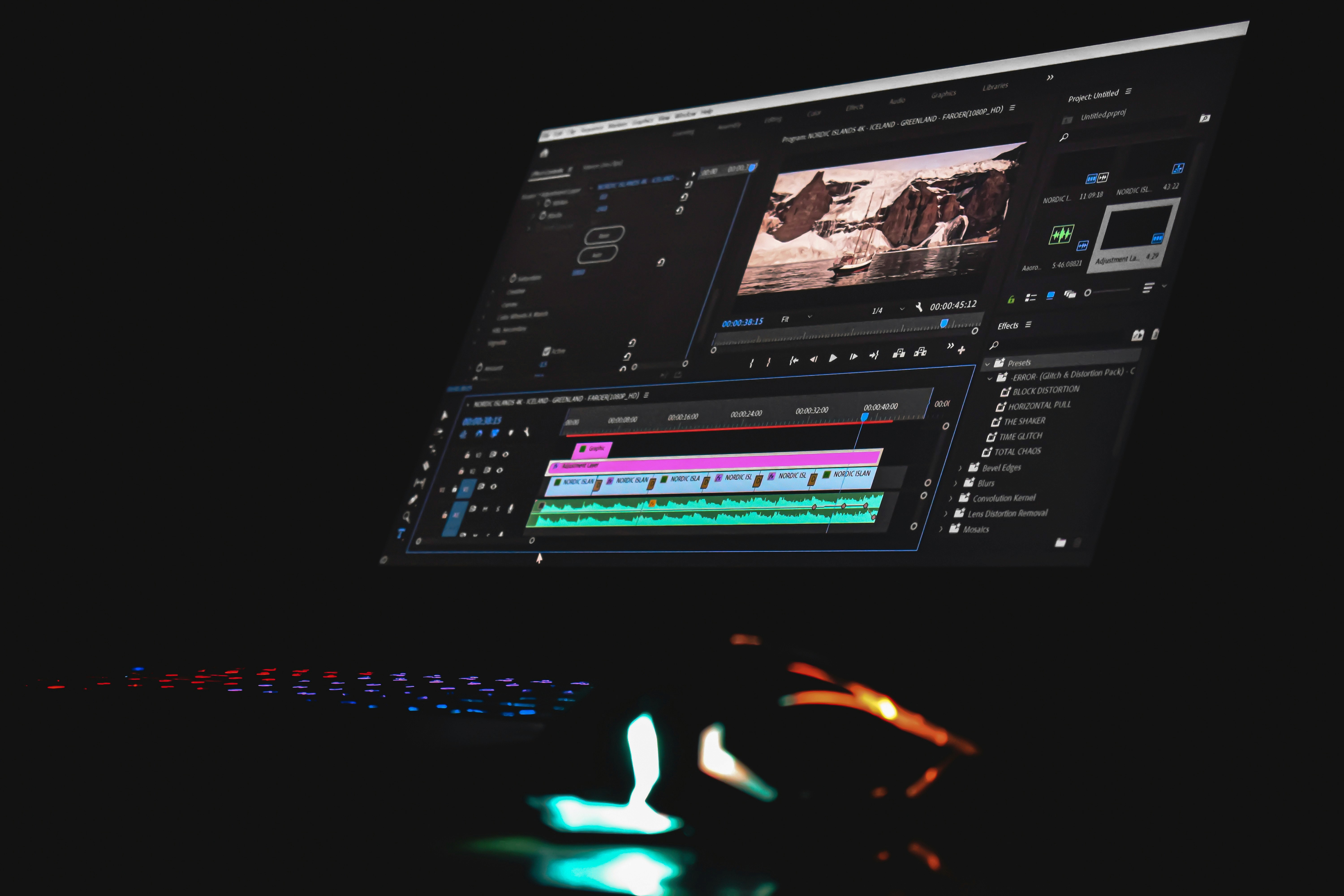
If I had to put it simply:
Auto Reframe saves you time on every multi-format project
Enhance Speech saves you when your audio is holding you back
Generative Extend saves specific moments inside a cut
And here’s the honest part. None of these features replace actual editing decisions.
You still choose the shots. You still shape the pacing. You still decide what matters in the frame and what doesn’t. These tools just remove friction around those decisions.
That’s why some editors try them once and forget about them, while others start relying on them without even thinking.
It’s not about how powerful the feature is.
It’s about how often it solves a problem you actually have.
Where Vagon Cloud Computer fits into this workflow
At some point, these AI features stop feeling smooth. Not because they’re bad, but because your machine starts struggling.
Playback stutters. The timeline lags. You stack a few things like Enhance Speech and reframing, and suddenly everything feels heavier than it should.
That’s usually a hardware issue, not a Premiere issue.
You can use proxies and lower settings, but those are workarounds. You’re still adjusting your workflow to fit your machine.
This is where Vagon Cloud Computer comes in.
Instead of relying on your local setup, you run Premiere Pro on a high-performance cloud machine through your browser. That means better playback, faster processing, and a smoother experience when you’re using AI features more heavily.
The flexibility is what makes it interesting.
You don’t need a powerful system all the time. But when you do, you can scale up. Vagon offers setups like:
Spark: 4 cores, 24GB GPU, 16GB RAM
Flame: 8 cores, 24GB GPU, 32GB RAM
Blaze: 16 cores, 24GB GPU, 64GB RAM
Then scale back down when you’re done.
It’s not for everyone. If you’re editing high-end projects every day, a strong local machine still makes sense. And your internet connection matters.
But if you’re on a laptop or just starting to push Premiere’s AI features harder, this kind of setup can make the whole experience feel a lot less frustrating.
If you’re thinking about upgrading your setup instead of going cloud, understanding hardware matters a lot. This guide breaks down how to choose the best GPU for Premiere Pro.
A simple workflow that actually works
It’s easy to overuse these features once you discover them. I’ve done it. You start thinking, “maybe this can fix everything.”
It can’t.
The best results come from using them in a very specific order, at very specific moments. Not all at once.
Here’s a workflow that’s worked consistently for me.
Start by cutting your story first. No AI, no cleanup, nothing fancy. Just get the structure right. Timing, pacing, shot selection. If the edit doesn’t work here, none of these tools will save it later.
Once the structure feels solid, move to dialogue.
This is where Enhance Speech comes in. Use it to clean up anything that’s distracting or hard to understand. Keep it subtle. You’re aiming for clarity, not perfection. And always listen in context with music and other audio, not in isolation.
After that, handle your formats.
If you need vertical, square, or anything outside your main timeline, this is where Auto Reframe saves a ton of time. Generate the alternate versions, then do a quick cleanup pass. Fix the obvious misses, adjust framing where needed, and move on.
Only then should you touch Generative Extend.
Use it to fix small timing issues that are still bothering you. A clip that ends just a bit too early. A transition that feels rushed. Keep the extensions short. The goal is to smooth things out, not rewrite the shot.

And finally, do a full pass.
Watch the entire video like a viewer, not an editor. This is where you catch anything that feels off. Not just technically, but emotionally. If something feels weird, it probably is.
One more thing.
If at any point your system starts slowing you down, that’s your signal. Either simplify the timeline… or switch to a setup that can handle it better. Because none of this works well if you’re constantly waiting on playback.
That’s really it.
No complicated system. Just using each tool where it actually helps, instead of forcing it into places it doesn’t belong.
If you want to speed up your editing process even further, having the right resources makes a big difference. Here are some of the best Premiere Pro assets to improve your workflow.
What’s actually changing for editors
If you step back for a second, none of these features are redefining editing.
They’re just removing friction.
That might sound small, but it’s not. Editing has always been full of tiny interruptions. Fixing timing. Cleaning audio. Reframing for different platforms. None of it is hard, but all of it adds up and breaks your flow.
That’s what’s changing.
You spend less time solving those small problems, and more time staying in the actual edit. Making decisions. Shaping the story. That part hasn’t changed at all, and I don’t think it will anytime soon.
And honestly, that’s a good thing.
Because the risk with all of this AI stuff isn’t that it replaces editors. It’s that people start relying on it too much. Using it as a shortcut instead of a tool. That’s usually when things start to look generic or slightly off.
The editors who get the most out of these features are the ones who stay selective.
They don’t use Generative Extend everywhere. They don’t max out Enhance Speech on every clip. They don’t blindly trust Auto Reframe. They use each tool when it solves a real problem, then move on.
That’s the difference.
I think over time, these kinds of features will just become normal. Not something you think about. Just part of the process, like color correction or basic audio cleanup.
And if you’re using them right, you won’t even notice them.
You’ll just notice that editing feels a little smoother.
FAQs
1. Do I need a powerful computer to use Premiere Pro AI features?
Not strictly. They’ll run on mid-range systems, especially with proxies and lower playback settings. But once you start stacking features like Enhance Speech and Auto Reframe on a heavier timeline, things can slow down fast. That’s usually when people start looking at stronger hardware or cloud options like Vagon to keep things smooth.
2. Can Generative Extend replace reshooting a clip?
Sometimes. But only in very specific cases. It’s great for adding a short extra moment to a shot, not for fixing major problems. If your coverage is completely missing or the shot is fundamentally broken, you’ll still need a reshoot. Think of it as a subtle fix, not a safety net.
3. Why can’t I use Generative Extend on dialogue or music clips?
Because it’s not designed to generate complex audio like speech or structured music. It works best with ambient sound and simple visuals. Trying to force it into dialogue or music-heavy edits usually leads to unusable results.
4. Does Enhance Speech replace proper audio editing?
No. It’s more like a fast cleanup tool. It improves clarity and reduces noise, but it won’t fix bad recording conditions or replace a proper mix. If audio quality really matters for your project, you’ll still want dedicated audio work.
5. Why does my audio sound weird after using Enhance Speech?
Most likely over-processing. It’s easy to push it too far, which can make voices sound artificial or slightly metallic. Also, if you started with stereo audio, Premiere may output a mono version after enhancement, which changes how it feels in the mix.
6. Is Auto Reframe accurate enough to use without adjustments?
Sometimes, but not always. For simple shots, it can be surprisingly accurate. For complex scenes with multiple subjects or fast movement, you’ll need a quick cleanup pass. The good news is you’re fixing a few shots, not rebuilding the whole sequence.
7. Which AI feature should I learn first?
Start with Auto Reframe. It’s the easiest to use and delivers immediate value if you create content for multiple platforms. Then explore Enhance Speech for dialogue cleanup. Generative Extend is powerful, but more situational.
8. Will using these AI tools make my edits look generic?
Only if you rely on them too much. These features don’t make creative decisions, they just assist. The final look and feel still depend on your choices. Used selectively, they actually help your work feel cleaner and more intentional.
9. Is Vagon Cloud Computer worth it for Premiere Pro users?
It depends on your setup. If your current machine struggles with playback or heavier projects, it can make a noticeable difference. If you already have a strong workstation, you might not need it. It’s most useful when you want flexibility without committing to a full hardware upgrade.
10. Are these AI features available in all versions of Premiere Pro?
They’re tied to newer versions of Premiere Pro and often rely on Adobe’s cloud services. Some features may not be available in certain regions, enterprise setups, or offline workflows. It’s always worth checking Adobe’s latest documentation if something isn’t showing up.
Most Premiere Pro AI features won’t impress you at first. They’re not going to edit your video for you. No magic button, no instant masterpiece.
But they will quietly save you time. Ten minutes here, twenty there. Over a full project, that starts to matter more than any flashy demo.
I think that’s where a lot of the early AI hype missed the point. These tools aren’t here to replace editors. They’re here to remove the small, annoying friction that slows you down. Clips that are just a bit too short. Dialogue that’s usable but messy. Multiple aspect ratios you have to deliver after you thought you were done.
That’s exactly where Premiere Pro’s AI features step in.
Not as creative decision-makers. More like fast assistants that handle the tedious parts so you can stay focused on the edit itself.
In this guide, we’re going to look at Generative Extend, Enhance Speech, and Auto Reframe through a practical lens. What they actually do, where they help, where they don’t. No hype. Just real workflow value.
If you’re still figuring out whether Premiere Pro is the right fit for your workflow, it’s worth taking a look at some of the best Premiere Pro alternatives.
Generative Extend: small feature, surprisingly big impact
If you’ve ever stared at your timeline thinking, “I just need one more second,” this is the feature you’ve been waiting for.
That situation comes up more than people admit. A reaction shot ends too early. Your b-roll cuts off right before the beat. The pacing feels rushed, but you don’t have another usable clip. Normally, you either live with it or start digging through footage hoping for something that kinda works.
Generative Extend changes that dynamic in a very specific way. It lets you extend the beginning or end of a clip using AI. Not by slowing it down or looping it. It actually generates new frames to continue the shot.
And when it works, it feels a bit like cheating.
I’ve used it to hold on someone’s expression for just a fraction longer. To stretch a cutaway so it cleanly covers a jump cut. To fix those annoying edits where everything is right except the timing. It’s not flashy. No one watching your video will ever notice it. But your edit will feel better. Smoother. Less rushed.
That’s the real value here.
Now, let’s be clear. This is not a “fix anything” button.
There are some pretty important limitations. First, it needs an internet connection because the generation happens in the cloud. If you’re offline, it simply doesn’t work. Second, it won’t generate or extend spoken dialogue. So if you’re thinking about stretching a talking head mid-sentence, forget it. It also doesn’t support clips with music, and you’re limited to mono or stereo audio.
And visually, it’s not magic either.
Simple shots tend to work best. Locked-off camera, minimal motion, clean backgrounds. The moment you introduce complex movement, fast action, or lots of overlapping elements, the results can get… weird. Hands can drift. Backgrounds can smear. Sometimes it’s subtle. Sometimes it’s obvious enough that you’ll instantly undo it.
So the trick is knowing when to use it.
In my experience, Generative Extend is strongest when you treat it like a patch tool, not a creative tool. Use it to fix small timing issues. Add half a second here. Maybe a second there. The shorter the extension, the more convincing it usually looks.
Try to use it to rescue a badly shot clip, and you’ll probably be disappointed.
There are also a couple of common mistakes I keep seeing. One is trusting the result without actually checking it frame by frame. Always check. Especially edges, faces, and any moving objects. Another is using it on shots that already feel busy. The AI struggles more when there’s a lot happening in the frame.
And maybe the biggest one. People try to use it on music-driven edits.
It won’t work. And even if it did, it would probably feel off.
I think what makes Generative Extend interesting is how small it seems in theory versus how useful it becomes in practice. It doesn’t change how you edit. It just removes one of those tiny, persistent problems that used to interrupt your flow.
And once you get used to having that option… it’s hard to go back.
If you start noticing instability when using heavier AI features like this, you’re not alone. Here are some practical ways to stop Premiere Pro from crashing when projects get more demanding.
Enhance Speech: great tool, easy to misuse
Bad audio will ruin a video faster than almost anything else. People will tolerate average visuals. They won’t tolerate dialogue they can’t understand.
That’s where Enhance Speech comes in. And to be fair, it does a pretty solid job at what it’s supposed to do.
At its core, it analyzes your dialogue and tries to clean it up. Reduces background noise, evens things out, pushes the voice forward so it’s easier to follow. If you’ve ever worked with footage recorded on a laptop mic, a phone, or a less-than-ideal room… you already know how useful that can be.
I’ve used it on quick interviews, tutorial videos, even last-minute client recordings where there was no time for proper audio cleanup. In those cases, it can take something that feels borderline unusable and make it… acceptable. Sometimes even good.
But this is where I think people get the wrong idea.
Enhance Speech is not a replacement for proper audio work.
It won’t fix bad mic placement. It won’t remove heavy reverb from a terrible room. And it definitely won’t give you that polished, cinematic dialogue you get from a proper mix. What it does is improve clarity. That’s it. And honestly, that’s often enough.
There are also a few technical quirks that can catch you off guard.
It only works with dialogue clips, and only in mono or stereo. No multichannel audio. No nested sequences. And if you apply it to a stereo clip, the output is actually a mono downmix. That last part surprises people. You think you’re preserving the original space, but you’re not.
Then there’s the over-processing problem.
Push it too far, and voices start to sound artificial. Slightly metallic. Almost like a podcast recorded through a filter. It’s one of those things where it sounds impressive in isolation, but once you place it back into the full mix with music and ambient sound, it can feel off.
So the real skill here is restraint.
Use it early in your workflow to clean up rough dialogue. Keep the settings moderate. Then listen to it in context, not solo. Always in context. That’s where you’ll actually hear if it’s helping or hurting.
And sometimes, the best move is to not use it at all.
If your audio is already clean, Enhance Speech can actually make it worse. If you’re working on a project that’s going to a professional sound mix, it’s better to leave things untouched. Let the audio team handle it properly.
I’ve noticed that Enhance Speech shines the most in fast-turnaround projects. YouTube videos, social content, internal comms, anything where speed matters more than perfection. In those situations, it’s a lifesaver.
Just don’t expect it to fix everything.
Because if the recording is truly bad, no AI tool is going to save it completely.
If you’re editing on a lighter device or something like a basic laptop, you might be surprised that running Premiere Pro on a Chromebook is actually possible now.
Auto Reframe: still the most consistently useful AI feature
If you deliver videos to more than one platform, you’ve probably had this moment. You finish your edit in 16:9, export it, feel good about it… and then someone asks for a vertical version. And a square one. Maybe even a 4:5 for Instagram.
That’s when things get annoying.
Manually reframing a full edit takes time. You’re keyframing position, adjusting scale, trying to keep faces centered, making sure nothing important gets cropped out. It’s not hard work. Just tedious.
Auto Reframe fixes most of that.
You point it at your sequence, choose a new aspect ratio, and Premiere creates a duplicate version where each clip is automatically reframed. It tracks subjects, adjusts framing, and tries to keep the important action inside the new format.
And honestly, it works better than you’d expect.
For interviews, talking heads, product shots, and most general content, it gets you 80 to 90 percent of the way there in seconds. That alone can save a surprising amount of time, especially if you’re producing social content regularly.
There are also motion presets you can choose from. Slower motion works well for static shots. Faster motion is better for sports or handheld footage. Most of the time, the default setting is fine, but it’s worth knowing these exist because they can make a noticeable difference depending on your footage.
Now, it’s not perfect.
It struggles when there are multiple subjects competing for attention. Or when someone quickly moves across the frame. Sometimes it picks the “wrong” focal point, and you end up with awkward framing that feels slightly off.
Graphics and text can also get messy. If your original composition was carefully designed, Auto Reframe might crop things in ways that break the layout.
So you still need a quick cleanup pass.
The good news is, you’re not fixing everything. You’re just correcting the shots where it guessed wrong. A few position tweaks here and there, maybe adjusting scale on a couple of clips, and you’re done.
That’s the real win.
I think Auto Reframe is one of those features that doesn’t feel exciting, but becomes part of your routine almost immediately. If you’re editing for multiple formats even once or twice a week, it pays for itself in time saved very quickly.
It’s not trying to be clever. It’s just doing a boring job faster than you would.
And that’s exactly why it works.
If you’re trying to build a more flexible editing setup, especially for social content, it’s also worth exploring how Premiere Pro can be used on iPad.
Which one actually matters in real editing work?
If you look at these three features side by side, they don’t really compete with each other. They solve different problems.
The better question is… which one are you actually going to use the most?
In my experience, Auto Reframe is the one that quietly becomes part of your weekly workflow. If you’re delivering for YouTube, Instagram, TikTok, LinkedIn… you’re almost guaranteed to use it. Not because it’s impressive, but because it saves you from repetitive work every single time.
It’s the most “set it and move on” feature of the three.
Enhance Speech comes next, but it’s more situational. When you need it, you really need it. It can rescue rough dialogue and make a video usable in minutes. But if your audio is already clean, you might not touch it at all. It’s not something you apply automatically to every project.
Then there’s Generative Extend.
This one is interesting. You won’t use it constantly, but when you do, it can genuinely save an edit. It’s the difference between “this cut feels off” and “okay, that works now.” It solves a very specific problem, but it solves it in a way that used to require compromises or workarounds.
If I had to put it simply:
Auto Reframe saves you time on every multi-format project
Enhance Speech saves you when your audio is holding you back
Generative Extend saves specific moments inside a cut
And here’s the honest part. None of these features replace actual editing decisions.
You still choose the shots. You still shape the pacing. You still decide what matters in the frame and what doesn’t. These tools just remove friction around those decisions.
That’s why some editors try them once and forget about them, while others start relying on them without even thinking.
It’s not about how powerful the feature is.
It’s about how often it solves a problem you actually have.
Where Vagon Cloud Computer fits into this workflow
At some point, these AI features stop feeling smooth. Not because they’re bad, but because your machine starts struggling.
Playback stutters. The timeline lags. You stack a few things like Enhance Speech and reframing, and suddenly everything feels heavier than it should.
That’s usually a hardware issue, not a Premiere issue.
You can use proxies and lower settings, but those are workarounds. You’re still adjusting your workflow to fit your machine.
This is where Vagon Cloud Computer comes in.
Instead of relying on your local setup, you run Premiere Pro on a high-performance cloud machine through your browser. That means better playback, faster processing, and a smoother experience when you’re using AI features more heavily.
The flexibility is what makes it interesting.
You don’t need a powerful system all the time. But when you do, you can scale up. Vagon offers setups like:
Spark: 4 cores, 24GB GPU, 16GB RAM
Flame: 8 cores, 24GB GPU, 32GB RAM
Blaze: 16 cores, 24GB GPU, 64GB RAM
Then scale back down when you’re done.
It’s not for everyone. If you’re editing high-end projects every day, a strong local machine still makes sense. And your internet connection matters.
But if you’re on a laptop or just starting to push Premiere’s AI features harder, this kind of setup can make the whole experience feel a lot less frustrating.
If you’re thinking about upgrading your setup instead of going cloud, understanding hardware matters a lot. This guide breaks down how to choose the best GPU for Premiere Pro.
A simple workflow that actually works
It’s easy to overuse these features once you discover them. I’ve done it. You start thinking, “maybe this can fix everything.”
It can’t.
The best results come from using them in a very specific order, at very specific moments. Not all at once.
Here’s a workflow that’s worked consistently for me.
Start by cutting your story first. No AI, no cleanup, nothing fancy. Just get the structure right. Timing, pacing, shot selection. If the edit doesn’t work here, none of these tools will save it later.
Once the structure feels solid, move to dialogue.
This is where Enhance Speech comes in. Use it to clean up anything that’s distracting or hard to understand. Keep it subtle. You’re aiming for clarity, not perfection. And always listen in context with music and other audio, not in isolation.
After that, handle your formats.
If you need vertical, square, or anything outside your main timeline, this is where Auto Reframe saves a ton of time. Generate the alternate versions, then do a quick cleanup pass. Fix the obvious misses, adjust framing where needed, and move on.
Only then should you touch Generative Extend.
Use it to fix small timing issues that are still bothering you. A clip that ends just a bit too early. A transition that feels rushed. Keep the extensions short. The goal is to smooth things out, not rewrite the shot.
And finally, do a full pass.
Watch the entire video like a viewer, not an editor. This is where you catch anything that feels off. Not just technically, but emotionally. If something feels weird, it probably is.
One more thing.
If at any point your system starts slowing you down, that’s your signal. Either simplify the timeline… or switch to a setup that can handle it better. Because none of this works well if you’re constantly waiting on playback.
That’s really it.
No complicated system. Just using each tool where it actually helps, instead of forcing it into places it doesn’t belong.
If you want to speed up your editing process even further, having the right resources makes a big difference. Here are some of the best Premiere Pro assets to improve your workflow.
What’s actually changing for editors
If you step back for a second, none of these features are redefining editing.
They’re just removing friction.
That might sound small, but it’s not. Editing has always been full of tiny interruptions. Fixing timing. Cleaning audio. Reframing for different platforms. None of it is hard, but all of it adds up and breaks your flow.
That’s what’s changing.
You spend less time solving those small problems, and more time staying in the actual edit. Making decisions. Shaping the story. That part hasn’t changed at all, and I don’t think it will anytime soon.
And honestly, that’s a good thing.
Because the risk with all of this AI stuff isn’t that it replaces editors. It’s that people start relying on it too much. Using it as a shortcut instead of a tool. That’s usually when things start to look generic or slightly off.
The editors who get the most out of these features are the ones who stay selective.
They don’t use Generative Extend everywhere. They don’t max out Enhance Speech on every clip. They don’t blindly trust Auto Reframe. They use each tool when it solves a real problem, then move on.
That’s the difference.
I think over time, these kinds of features will just become normal. Not something you think about. Just part of the process, like color correction or basic audio cleanup.
And if you’re using them right, you won’t even notice them.
You’ll just notice that editing feels a little smoother.
FAQs
1. Do I need a powerful computer to use Premiere Pro AI features?
Not strictly. They’ll run on mid-range systems, especially with proxies and lower playback settings. But once you start stacking features like Enhance Speech and Auto Reframe on a heavier timeline, things can slow down fast. That’s usually when people start looking at stronger hardware or cloud options like Vagon to keep things smooth.
2. Can Generative Extend replace reshooting a clip?
Sometimes. But only in very specific cases. It’s great for adding a short extra moment to a shot, not for fixing major problems. If your coverage is completely missing or the shot is fundamentally broken, you’ll still need a reshoot. Think of it as a subtle fix, not a safety net.
3. Why can’t I use Generative Extend on dialogue or music clips?
Because it’s not designed to generate complex audio like speech or structured music. It works best with ambient sound and simple visuals. Trying to force it into dialogue or music-heavy edits usually leads to unusable results.
4. Does Enhance Speech replace proper audio editing?
No. It’s more like a fast cleanup tool. It improves clarity and reduces noise, but it won’t fix bad recording conditions or replace a proper mix. If audio quality really matters for your project, you’ll still want dedicated audio work.
5. Why does my audio sound weird after using Enhance Speech?
Most likely over-processing. It’s easy to push it too far, which can make voices sound artificial or slightly metallic. Also, if you started with stereo audio, Premiere may output a mono version after enhancement, which changes how it feels in the mix.
6. Is Auto Reframe accurate enough to use without adjustments?
Sometimes, but not always. For simple shots, it can be surprisingly accurate. For complex scenes with multiple subjects or fast movement, you’ll need a quick cleanup pass. The good news is you’re fixing a few shots, not rebuilding the whole sequence.
7. Which AI feature should I learn first?
Start with Auto Reframe. It’s the easiest to use and delivers immediate value if you create content for multiple platforms. Then explore Enhance Speech for dialogue cleanup. Generative Extend is powerful, but more situational.
8. Will using these AI tools make my edits look generic?
Only if you rely on them too much. These features don’t make creative decisions, they just assist. The final look and feel still depend on your choices. Used selectively, they actually help your work feel cleaner and more intentional.
9. Is Vagon Cloud Computer worth it for Premiere Pro users?
It depends on your setup. If your current machine struggles with playback or heavier projects, it can make a noticeable difference. If you already have a strong workstation, you might not need it. It’s most useful when you want flexibility without committing to a full hardware upgrade.
10. Are these AI features available in all versions of Premiere Pro?
They’re tied to newer versions of Premiere Pro and often rely on Adobe’s cloud services. Some features may not be available in certain regions, enterprise setups, or offline workflows. It’s always worth checking Adobe’s latest documentation if something isn’t showing up.
Get Beyond Your Computer Performance
Run applications on your cloud computer with the latest generation hardware. No more crashes or lags.

Trial includes 1 hour usage + 7 days of storage.
Summarize with AI

Ready to focus on your creativity?
Vagon gives you the ability to create & render projects, collaborate, and stream applications with the power of the best hardware.

Vagon Blog
Run heavy applications on any device with
your personal computer on the cloud.
San Francisco, California
Solutions
Vagon Teams
Vagon Streams
Use Cases
Resources
Vagon Blog
How to Use ComfyUI With Claude: MCP & Computer Use Guide
How to Use Rhino With Codex: MCP & Computer Use Guide
How to Use KiCad With Codex: MCP & Computer Use Guide
How to Use KiCad With Claude: MCP & Computer Use Guide Meta
How to Use FreeCAD With Codex: MCP & Computer Use
How to Use FreeCAD With Claude: MCP & Computer Use
How to Use 3ds Max With Codex: MCP & Computer Use
How to Use Houdini With Claude: MCP & Computer Use
How to Use Cinema 4D With Claude: MCP & Computer Use
Vagon Blog
Run heavy applications on any device with
your personal computer on the cloud.
San Francisco, California
Solutions
Vagon Teams
Vagon Streams
Use Cases
Resources
Vagon Blog
How to Use ComfyUI With Claude: MCP & Computer Use Guide
How to Use Rhino With Codex: MCP & Computer Use Guide
How to Use KiCad With Codex: MCP & Computer Use Guide
How to Use KiCad With Claude: MCP & Computer Use Guide Meta
How to Use FreeCAD With Codex: MCP & Computer Use
How to Use FreeCAD With Claude: MCP & Computer Use
How to Use 3ds Max With Codex: MCP & Computer Use
How to Use Houdini With Claude: MCP & Computer Use
How to Use Cinema 4D With Claude: MCP & Computer Use
Vagon Blog
Run heavy applications on any device with
your personal computer on the cloud.
San Francisco, California
Solutions
Vagon Teams
Vagon Streams
Use Cases
Resources
Vagon Blog