Instant Connection for Pixel Streaming
— New Feature Automated Setup

Lumion Crashes & Fixes: Why It Keeps Crashing and How to Fix It
Architecture
Lumion Crashes & Fixes: Why It Keeps Crashing and How to Fix It
Architecture
Lumion Crashes & Fixes: Why It Keeps Crashing and How to Fix It
Architecture
Table of Contents
Lumion has a special talent for crashing at the exact moment the project starts to matter.
The scene feels fine while you’re testing materials, moving a few objects, and checking camera angles. Then you import the final model update and everything freezes. Or the render preview opens for two seconds and disappears. Or the file that worked yesterday suddenly refuses to load. Worst case, Lumion crashes while saving, which is the kind of moment that makes you stare at the screen in complete silence.
I don’t think most Lumion crashes are mysterious, though. They feel random because the warning signs are easy to miss. A scene can look normal in the editor while the GPU is already running out of breathing room. A model can look clean in SketchUp, Revit, Rhino, or Archicad while still carrying way too much geometry. A driver update can quietly break something that worked last week. A project file can become risky because it’s being saved inside a synced cloud folder. Disk space, virtual memory, antivirus tools, and basic hardware limits can all join the party too.
That’s what makes Lumion crashes frustrating. The visible problem is simple: the software closes. The real cause might be somewhere else entirely.
So this guide is not going to be a random pile of “try this” fixes. We’ll look at what the crash is actually telling you, based on when it happens, what changed recently, and which part of your workflow is under the most pressure.
Start with the moment it crashes
Before changing settings, reinstalling drivers, or blaming the project file, look at the timing.
When does Lumion crash?
That question sounds basic, but it saves a lot of wasted effort. A startup crash is not the same as an import crash. A render crash is not the same as a save crash. They can all look like “Lumion is unstable,” but they usually point to different causes.
If Lumion crashes when opening
If Lumion crashes before you even get into the project, start with the system side. Check whether Lumion is using the dedicated GPU, especially if you’re on a laptop with both integrated graphics and an NVIDIA or AMD card. This is one of those boring checks that can actually matter.
Then look at drivers, Windows updates, display setup, and permissions. Try launching Lumion as administrator. If you’re using multiple monitors, test it on your main display only. I know that sounds oddly specific, but display and GPU routing issues can create weird startup behavior in 3D apps.
Also ask yourself what changed recently. New driver? Windows update? New monitor? New Lumion version? Startup crashes often follow a system change.

If Lumion crashes during import
Import crashes usually point back to the model.
This is where a lot of people get annoyed because the model “opens fine” in SketchUp, Revit, Rhino, Archicad, or 3ds Max. But that doesn’t mean it’s clean for Lumion. Real-time visualization puts different pressure on the machine.
A file can be full of hidden geometry, duplicated objects, heavy furniture, overly detailed cars, massive textures, old design options, or random downloaded assets that are far heavier than they need to be. Lumion then has to process all of that at once.
If it crashes during import, don’t keep trying the same import ten times. Go back to the source model and clean it first.
If you want a deeper breakdown of GPU specs, VRAM, and what actually matters for smooth performance, this guide on choosing the best GPU for Lumion is a good next read.
If Lumion crashes during rendering
Render crashes usually mean the scene becomes too heavy when Lumion starts doing the real work.
The editor may feel okay, but final rendering adds pressure fast. Higher resolution, ray tracing, reflections, shadows, lighting, vegetation, effects, and large texture maps all hit the GPU and VRAM harder than casual viewport navigation.
A good test is simple: lower the render resolution, turn off ray tracing, reduce heavy effects, and render a small preview. If that works, your project probably isn’t “broken.” The render settings are pushing the machine too far.
If Lumion crashes while saving or opening a project file
This is the one to take seriously.
If a project crashes while saving, or one specific .LS file refuses to open, you may be dealing with file corruption, disk problems, sync conflicts, low free space, or memory limits.
Working directly from OneDrive, Dropbox, Google Drive, or a network drive can make this worse. Those tools are useful for backups and sharing, but they’re not ideal as active working locations for heavy Lumion project files.
A simple way to read the crash pattern:
Startup crash usually points to system, GPU, driver, or display setup.
Import crash usually points to the source model.
Render crash usually points to GPU, VRAM, effects, resolution, or drivers.
Save/open crash usually points to file health, disk space, sync tools, permissions, or memory.
Once you know the moment of failure, troubleshooting gets much less random.
You can also check this best GPU for Lumion guide if you’re trying to decide whether your current graphics card is the reason Lumion keeps slowing down or crashing.
The GPU problem: Lumion may open, but that doesn’t mean your PC can handle the scene
This is where a lot of Lumion crash conversations get uncomfortable.
Your PC can open Lumion. The project can load. You can move around the scene. Maybe you can even place objects, change materials, and set up cameras without too much pain.
Then you add high-quality vegetation, larger textures, detailed interiors, reflections, ray tracing, or a 4K render, and suddenly Lumion starts falling apart.
That doesn’t always mean the software is broken. Sometimes it means the machine has reached the real limit of the project.
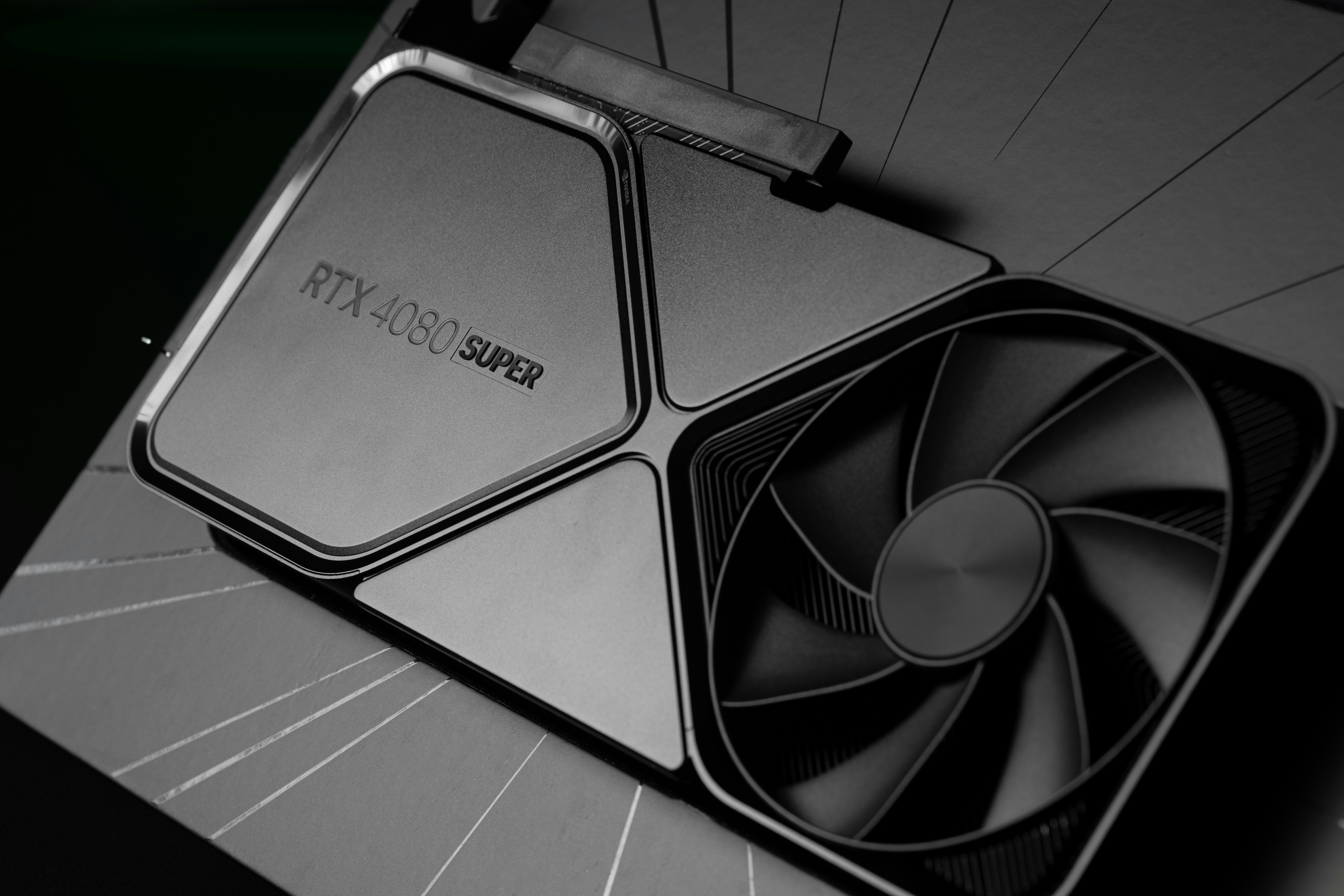
Lumion is heavily GPU-driven. The graphics card is not just there to make the viewport look nice. It handles a huge part of the visual workload: textures, shadows, reflections, real-time previews, effects, and rendering. So when the GPU runs out of space or power, the symptoms can look dramatic. Freezing. Black screens. Failed render previews. Crashes when switching to higher quality. Random exits during final render.
The important word here is VRAM.
System RAM and VRAM are not the same thing. You might have 32 GB of system RAM and still crash because your graphics card only has 6 GB or 8 GB of VRAM. Lumion uses VRAM for the visual weight of the scene: texture data, geometry, effects, ray tracing data, and everything the GPU needs to keep the scene responsive.
And VRAM disappears faster than people expect. A few high-resolution textures here, some detailed trees there, a heavy imported sofa, a car model with unnecessary detail, an interior full of small objects, and suddenly the scene is not “medium” anymore. It’s heavy. Even if it doesn’t look that heavy at first glance.
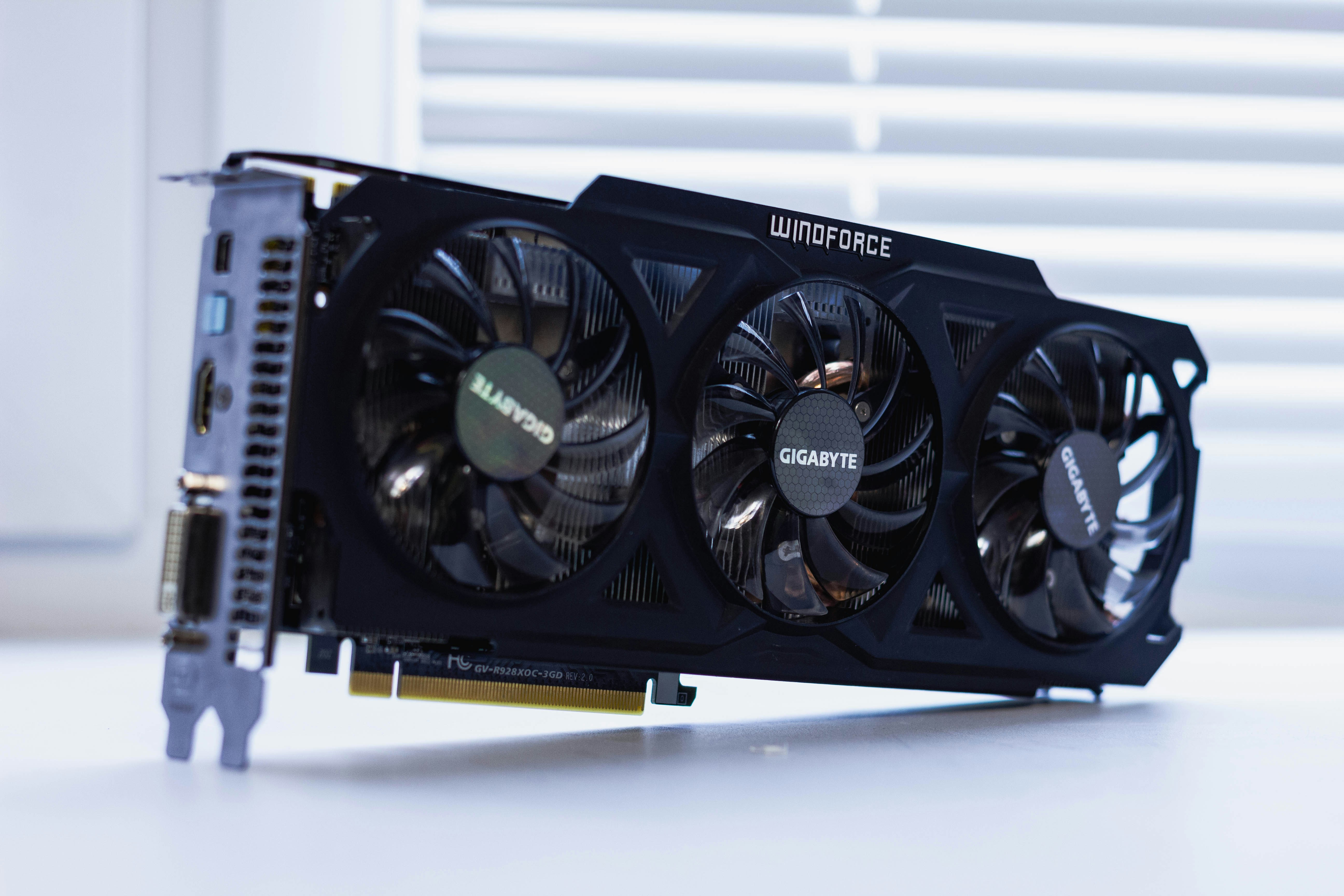
This is why minimum requirements can be misleading. They tell you whether the software can run, not whether your actual project will be comfortable. Lumion Pro’s minimum requirements call for 6 GB or more of VRAM. Recommended work moves closer to 10 GB or more. For high-end scenes, Lumion points toward 16 GB or more of VRAM and 64 GB of system RAM.
That gap is huge.
A simple exterior concept scene and a detailed commercial project with interiors, landscaping, animated camera paths, 4K textures, and ray tracing are not in the same category. They may both be “Lumion projects,” but they ask very different things from the computer.
So if Lumion only crashes when the scene becomes visually heavy, start with the GPU. Don’t treat it as one possible suspect at the bottom of the list. Check VRAM pressure, driver stability, render resolution, ray tracing, texture size, and background apps using GPU resources.
A weak or overloaded GPU doesn’t always announce itself politely. Sometimes it just makes Lumion disappear.
If you’re not sure whether Lumion is actually using your graphics card properly, this guide explains how to use GPU on Lumion and what to check first.
Your model might be the crash, not Lumion
Import crashes are some of the most misunderstood Lumion problems because they often look like a Lumion issue from the outside.
You click import. Lumion freezes. Maybe it hangs for a while, maybe it closes completely, maybe it gets stuck processing the file. The natural reaction is, “Lumion can’t handle this.”
Sometimes true. But very often, the problem is the model you’re feeding it.
A SketchUp, Revit, Rhino, Archicad, or 3ds Max file can look totally fine in its original software and still be painful for Lumion. Design tools are built for editing and documentation. Lumion is built for real-time visualization. That means it has to take your model, materials, textures, objects, lighting, and scene data and make them behave visually, fast.
That’s where messy models start causing trouble.
Clean the source file before blaming the import
Before importing again, check the model itself. The usual problems are easy to miss because they’re not always visible in the main camera view.
Common crash triggers include:
Hidden geometry that still gets exported
Duplicated objects sitting on top of each other
Manufacturer furniture with unnecessary detail
High-poly cars, trees, people, and decorative objects
Huge texture maps on tiny background objects
Old design options still sitting inside the file
Curved surfaces exported with too many segments
Random downloaded assets from online libraries
That last one is a classic. A single “free” chair, sofa, plant, or car can be absurdly heavy. It looks harmless in the scene, but it may contain more geometry than the actual building. I’ve seen this happen with furniture models more times than I can count.
The fix is not to destroy the quality of your scene. It’s to remove detail nobody will ever notice.

Purge unused elements. Delete hidden layers. Remove old design options. Replace heavy entourage with lighter objects. Resize oversized textures. Reduce geometry on curved objects where the camera will never get close enough to care. If the scene is large, split it into sections: building first, interiors second, landscape third, then cars, people, and extras.
Importing piece by piece also gives you a better diagnosis. If the building imports fine but Lumion crashes when you add the landscape, you know where to look. If everything works until you import one furniture group, you’ve found the problem.
Don’t optimize what the camera will never see. Lumion doesn’t reward invisible detail. It just makes your machine carry it.
If your Lumion crashes start with heavy Revit models, it may also be worth checking whether your workstation is strong enough for the BIM side of the workflow too. This guide on the best PC for Autodesk Revit can help you understand where Revit performance and Lumion performance overlap.
Driver updates can fix crashes, but they can also create them
GPU drivers are one of the most boring parts of Lumion troubleshooting. They’re also one of the most important.
Lumion depends heavily on the graphics card, so if the driver is old, unstable, corrupted, or badly matched with your Lumion version, you can get all kinds of strange behavior. Render preview crashes. Black screens. Visual glitches. Ray tracing failures. Sudden exits when switching quality settings. The kind of stuff that makes you think the whole project is cursed.
But here’s the part people don’t say enough: updating your driver is not always a risk-free move.
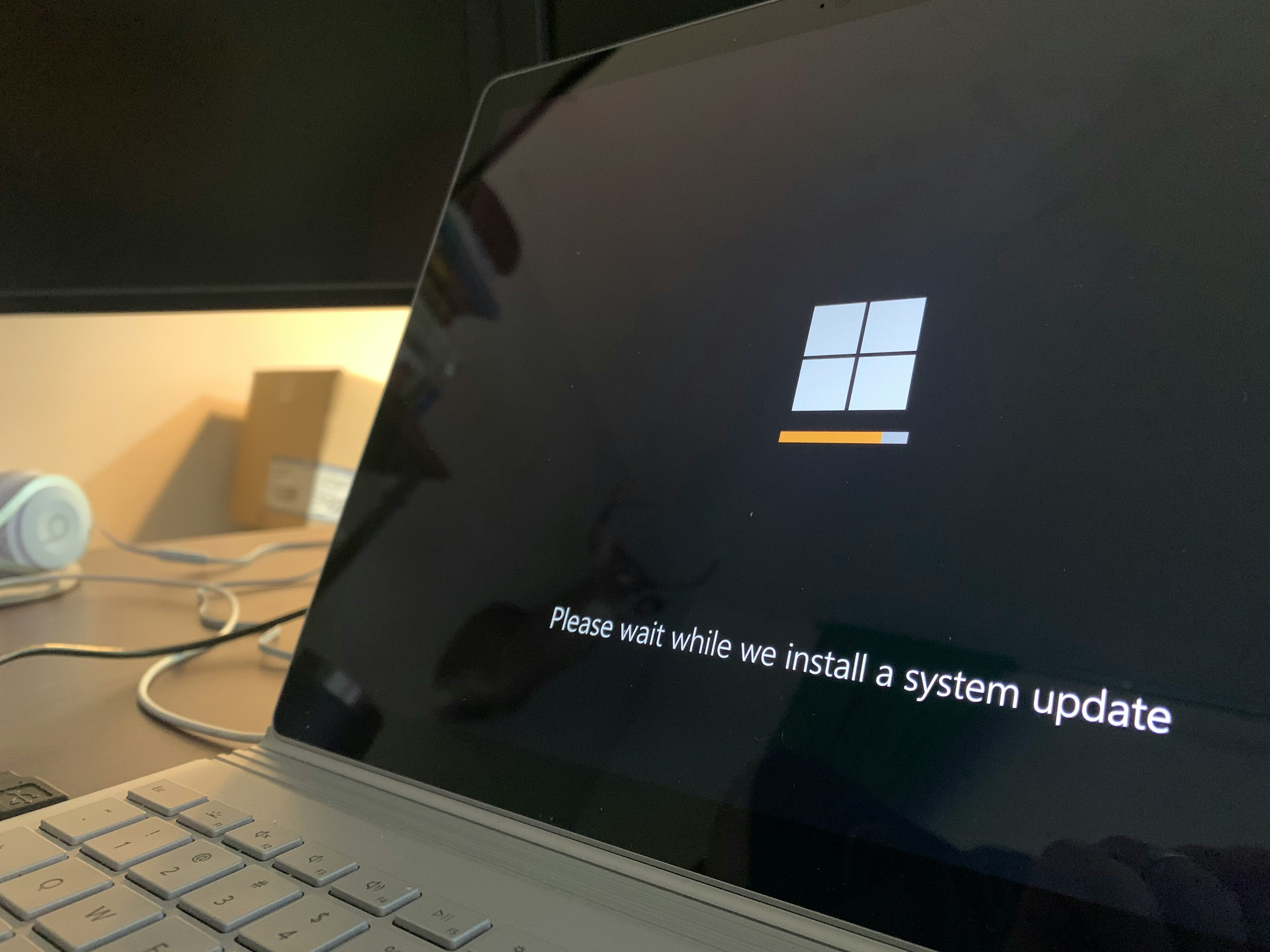
Most of the time, yes, newer drivers fix problems. If your GPU driver is months old and Lumion keeps crashing, updating from NVIDIA, AMD, or Intel directly is a sensible step. I’d much rather use the official GPU driver tools than rely only on whatever Windows Update decides to install in the background.
Still, I wouldn’t casually update drivers in the middle of a deadline unless there’s a clear reason. New drivers can introduce new issues, especially with features like ray tracing. There have been cases where specific NVIDIA driver versions caused Lumion crashes around ray-traced previews, then later driver releases fixed the problem. That doesn’t mean you should fear every update. It just means driver timing matters.
The question is simple: when did the crashes start?
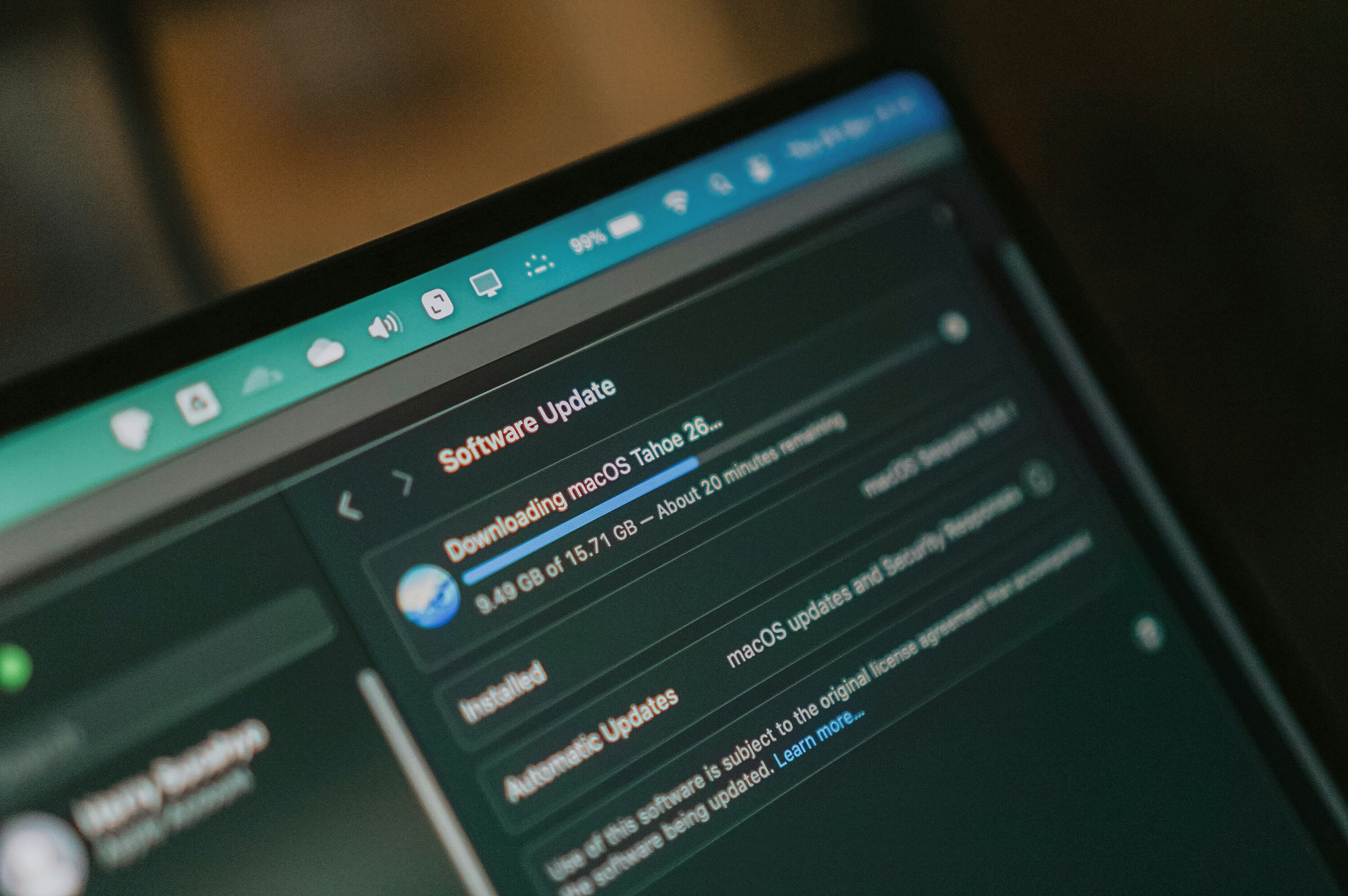
If Lumion was stable last week and started crashing right after a driver update, don’t ignore that. Try rolling back to the previous working driver. If Lumion has been unstable for months and your driver is old, update it. If only ray tracing crashes, check whether your current driver version has known issues before rebuilding the whole scene.
After any driver change, test properly. Open a small project. Open the heavy project. Try the render preview. Test ray tracing if you use it. Don’t wait until the final export to find out the driver is still a problem.
Drivers are not exciting, but they sit right between Lumion and the GPU. When that connection gets messy, Lumion usually pays the price.
If you’re comparing whether another real-time renderer would handle your workflow better, this Enscape vs Lumion comparison is a useful place to start.
Save-file crashes are the ones you should be most paranoid about
Some Lumion crashes waste time. Save-file crashes can threaten the whole project.
That’s why I treat them differently. If Lumion crashes during a render, you can usually lower settings, restart, and try again. If it crashes during import, you can clean the model and test smaller pieces. Annoying, yes, but manageable.
But if Lumion crashes while saving, or a project file suddenly refuses to open, now you’re in dangerous territory. The file itself may be damaged. And once a project file is corrupted, there’s no guarantee you’ll get it back cleanly.

A lot of save-related problems come from boring setup issues: low disk space, memory pressure, permissions, antivirus scanning, or saving directly into a synced folder. OneDrive, Dropbox, Google Drive, and network drives are useful for storage and sharing, but I wouldn’t use them as the active working location for a heavy Lumion project.
The reason is simple. Lumion is trying to write a large project file. At the same time, the sync tool may be scanning, uploading, locking, or updating that same file. Most days, it works fine. Then one day it doesn’t.
A safer workflow looks like this:
Save locally while you’re actively working.
Use versioned files instead of overwriting the same file all day.
Make a manual backup before major imports or big render setup changes.
Keep plenty of free disk space on the drive.
Avoid saving while cloud sync tools are actively uploading.
Check antivirus exclusions if saving repeatedly fails.
Versioned files are especially important. Don’t just keep one heroic file called Final_Final_REAL.ls. Use boring names like Project_v01, Project_v02, Project_v03. It feels unnecessary until one file breaks and the previous version saves your entire week.
Also, watch your disk space. Large Lumion projects need room to save, cache, and move data around. If your drive is nearly full, you’re asking for instability.
Save habits are not the exciting part of visualization work. Nobody gets into Lumion because they love file management. But if there’s one area where boring discipline pays off, it’s here.
The fixes I’d try first, in the right order
When Lumion crashes, the order matters.
If you start with the heaviest fix first, you can waste a full afternoon rebuilding models, reinstalling software, or changing render settings that were never the real problem. I’d rather start with the quick checks, then move toward the project-specific fixes.
If Twinmotion is also on your shortlist, you can read this Lumion vs Twinmotion guide for a practical comparison of where each tool fits.
Quick fixes before touching the project
Start simple. Not because simple fixes are magical, but because they remove obvious pressure from the machine.
Restart the PC.
Open Lumion without other heavy apps running.
Close Revit, SketchUp, Rhino, Archicad, Photoshop, Chrome, video editors, screen recorders, and game launchers.
Make sure Lumion is using the dedicated GPU.
Check available disk space.
Lower editor quality.
Disable ray tracing temporarily.
Test a smaller render resolution.
Try opening a lighter Lumion project.
That last one is useful. If a small project works fine but your main project keeps crashing, the issue is probably tied to that scene, not the entire Lumion installation.
Also, don’t underestimate background apps. A browser with 40 tabs, a BIM model open in Revit, a screen recording tool, and Photoshop running on the side can quietly eat memory and GPU resources. Lumion already wants a lot of headroom. Don’t make it fight for leftovers.

Fixes for import crashes
If Lumion crashes during import, go back to the source model before changing render settings. Render settings won’t fix a messy import.
Try this:
Clean the source model.
Remove hidden or unused objects.
Delete old design options.
Purge unused components, families, blocks, and materials.
Replace heavy assets with lighter versions.
Resize oversized textures.
Reduce unnecessary curved surface detail.
Split the model into sections.
Import one section at a time.
The goal is to isolate the object or category that causes the crash. Maybe the building shell imports fine. Maybe interiors work fine too. Then you add one furniture package and Lumion collapses. Great. Now you know where the problem lives.
That’s much better than treating the entire project like it’s broken.
Fixes for render crashes
If Lumion crashes during rendering, reduce the render load first. Don’t immediately delete half the scene.
Start with the settings that hit the GPU hardest:
Turn off ray tracing and test again.
Lower the output resolution.
Reduce reflection-heavy effects.
Simplify shadow-heavy lighting setups.
Remove or reduce dense vegetation.
Lower texture-heavy materials where possible.
Close GPU-heavy apps before rendering.
Update or roll back the graphics driver.
Increase virtual memory if the scene is large.
This is where testing in small steps helps. If the scene renders at 1080p but crashes at 4K, that tells you something. If it renders without ray tracing but crashes with ray tracing on, that tells you something else. If one camera crashes and another camera works, check what that camera is seeing. It may be looking straight at the heaviest part of the scene.
I’d also render still images before committing to long animations. Animation crashes are painful because they waste more time. Test the scene with a few stills first, especially from the most demanding camera angles.

Fixes for project-file crashes
If the project file itself is unstable, be careful. This is not the time to keep forcing the same broken file open and saving over it.
Try this:
Open a previous version of the project.
Move the file to a local drive.
Make sure the file is not inside an active cloud-sync folder.
Check free disk space.
Restart the machine and open Lumion alone.
Save a new copy under a new name.
Create a fresh Lumion file and re-import assets if the original stays unstable.
Keep backups before major changes.
If only one .LS file crashes and other projects work normally, don’t assume Lumion itself is broken. The file may be damaged, too large for the machine, or tied to a recent import that made the scene unstable.
This is also where versioning saves you. A file from two hours ago is not ideal, but it’s much better than starting from zero.
When optimization is not enough anymore
There’s a point where “just optimize the scene” stops being helpful advice.
Yes, you should clean the model. Yes, you should resize ridiculous texture maps. Yes, you should check drivers, save locally, close background apps, and avoid throwing 900 ultra-detailed trees into a scene for no reason.
But sometimes the project is not messy. It’s just heavy.
A detailed villa exterior with landscaping is one thing. A large mixed-use project with interiors, site context, cars, people, planting, reflections, animated camera paths, 4K output, and ray tracing is a completely different workload. Lumion may still open it. You may still be able to move around. But every serious action starts to feel risky.
Preview render? Crash.
Switch to higher quality? Freeze.
Add the final planting pass? Goodbye.
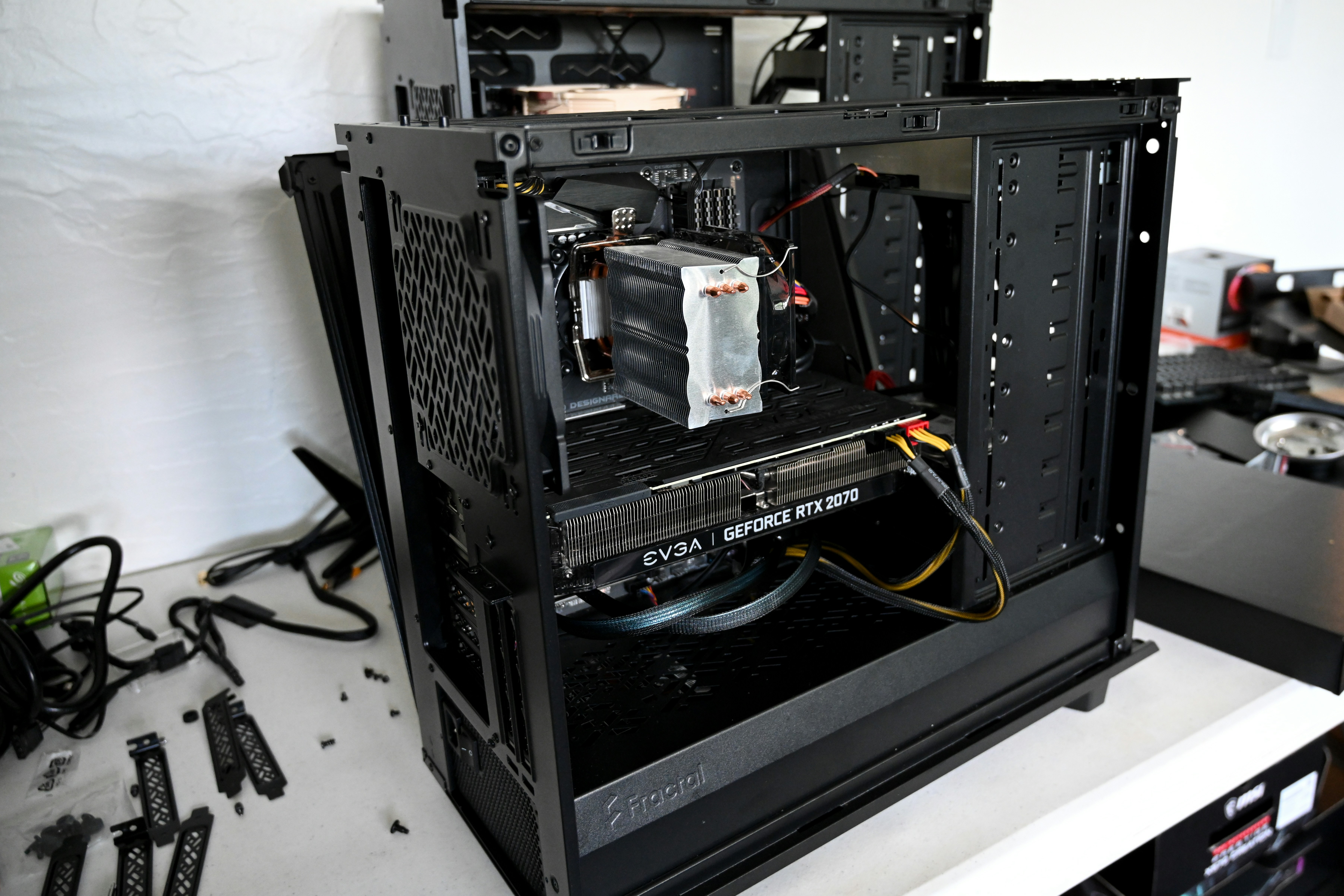
That’s usually the moment when the machine has become the bottleneck. Not your workflow. Not your patience. The actual workstation.
This is where minimum requirements can give people the wrong confidence. A PC can meet the minimum specs and still be the wrong PC for the job. Minimum means Lumion can run. It does not mean every client-ready scene will render smoothly, especially when you’re working with large models, heavy materials, ray tracing, and high-resolution output.
And honestly, there’s only so much you can cut before the project starts losing the look you were hired to create. You can simplify the model, reduce effects, lower resolution, and delete background detail. But if every fix makes the final render worse, you’re not really solving the problem anymore. You’re negotiating with hardware.
That’s the real line.
Optimization should remove waste. It should not force you to downgrade the entire visual direction because the PC can’t keep up. If Lumion crashes every time the scene becomes production-ready, the project may have outgrown the machine.
You can also check this newer Twinmotion vs Lumion comparison if you want another angle on performance, workflow, and real-time rendering style.
Where Vagon Cloud Computer fits into Lumion crashes
This is where Vagon Cloud Computer actually makes sense in the conversation. Not as a magic “fix all crashes” button. That would be dishonest.
If your Lumion project file is corrupted, Vagon won’t magically repair it. If your imported model is a disaster full of hidden geometry, oversized assets, and broken materials, you still need to clean the model. If a driver version is causing a known issue, that still needs proper troubleshooting.
But if the crash pattern keeps pointing back to hardware, that’s a different story.
Maybe Lumion opens, but crashes when the scene gets heavier. Maybe render previews fail once ray tracing is enabled. Maybe your laptop handles modeling in SketchUp or Revit just fine, then struggles the moment Lumion needs serious GPU power. Maybe you’re constantly lowering quality, deleting detail, and rendering smaller than you actually want because the local machine can’t keep up.
That’s when using a more powerful computer is not a luxury. It’s the practical fix.
Vagon Cloud Computer lets you run demanding creative software on a high-performance cloud computer from your browser. So instead of forcing a heavy Lumion scene through a laptop or underpowered workstation, you can work on a machine with stronger GPU, CPU, and memory resources when the project needs it.
I like this approach because it doesn’t require the usual all-or-nothing hardware decision. You don’t have to buy a new workstation just because one project suddenly got heavier than expected. You can use your local machine for modeling, revisions, emails, and lighter work, then move the demanding Lumion stage to a cloud computer when rendering, previewing, or scene navigation starts becoming unstable.

It’s also useful as a test. If the same Lumion project crashes constantly on your local machine but behaves better on stronger hardware, that tells you a lot. The issue was probably not “Lumion is broken.” It was the machine hitting its ceiling.
That’s the cleanest way to think about Vagon here: not a replacement for good modeling habits, but a way to give Lumion the hardware headroom it needs when the project has simply become too much for your current setup.
If you’re trying to run Lumion from a Mac or a device that doesn’t meet the usual Windows workstation expectations, this guide on how to run Lumion on macOS explains the practical options.
Final thoughts: don’t guess, diagnose
Lumion crashes are annoying because they interrupt creative work with technical nonsense. You’re trying to finish an image, adjust a camera path, test lighting, or send a client preview. Then suddenly you’re thinking about VRAM, drivers, disk space, and file corruption.
Not exactly the dream.
But the fix usually starts with one simple question: when does it crash?
If Lumion crashes on startup, look at the system, GPU selection, drivers, and display setup. If it crashes during import, inspect the source model. If it crashes during rendering, check VRAM, ray tracing, resolution, effects, and GPU load. If it crashes while saving or opening a project file, take the file location, disk space, cloud sync, and backups seriously.
The worst approach is to change twenty things at once and hope one of them works. You might fix the issue, but you won’t know what actually solved it. And if the crash comes back, you’re starting from zero again.

So diagnose first. Then fix the most likely cause.
Clean the model. Stabilize the driver. save locally. Keep versioned backups. Lower the render load when testing. Give Lumion enough memory and disk space to work properly.
And if the same project keeps crashing only when the scene becomes heavy, be honest about what that means. The problem may not be Lumion at all. The project may have outgrown the machine. That’s when moving the workload to stronger hardware, whether it’s a new workstation or Vagon Cloud Computer, starts making a lot more sense.
FAQs
1. Why does Lumion keep crashing when rendering?
Lumion usually crashes during rendering because the scene becomes much heavier at render time than it feels in the editor. Higher resolution, ray tracing, reflections, shadows, detailed vegetation, large texture maps, and complex lighting all add pressure to the GPU and VRAM. If the project renders at a lower resolution but crashes at 4K, or works without ray tracing but crashes with ray tracing enabled, that’s a strong sign the render settings are pushing the machine too far.
2. Why does Lumion crash when importing from SketchUp, Revit, Rhino, or Archicad?
Import crashes often come from model complexity. The source file might look fine in the original software, but Lumion has to process it for real-time visualization. Hidden geometry, duplicated objects, unused design options, high-poly furniture, detailed cars, heavy trees, and oversized textures can all make the import unstable. The best fix is usually to clean the model first, then import it in sections so you can find the exact part causing the crash.
3. Can low VRAM crash Lumion?
Yes. Low VRAM can absolutely cause Lumion to freeze, fail during rendering, show visual issues, or crash. This is especially common with heavy scenes that use high-resolution textures, dense vegetation, ray tracing, or large render sizes. System RAM helps, but it does not replace VRAM. A PC with 32 GB of RAM can still struggle if the graphics card only has limited video memory.
4. Should I update my graphics driver if Lumion crashes?
If your graphics driver is old, updating it is a smart move. Download it directly from NVIDIA, AMD, or Intel instead of relying only on Windows Update. But don’t treat driver updates as risk-free, especially during a deadline. If Lumion started crashing right after a driver update, rolling back to the previous stable version may be the better fix. After changing drivers, test a small project, a heavy project, and ray tracing before trusting it for final output.
5. Why does Lumion crash when opening a project file?
If Lumion crashes when opening one specific project, the file may be too heavy, damaged, or linked to a recent import that made the scene unstable. If other projects open normally, don’t assume Lumion itself is broken. Try opening a previous version, moving the file to a local drive, checking disk space, and starting Lumion without other heavy apps running. If the file is corrupted, recovery may not always be possible, which is why versioned backups matter so much.
6. Is it safe to save Lumion projects in OneDrive, Dropbox, or Google Drive?
For backups, yes. For active work, I wouldn’t recommend it. Large Lumion project files are better saved locally while you’re working. Cloud sync tools can scan, upload, lock, or modify files while Lumion is trying to save them, and that can create problems. The safer workflow is simple: work locally, save versions, close Lumion, then copy the file to cloud storage or a shared folder.
7. Can Vagon Cloud Computer help if Lumion keeps crashing?
It can help when the crash is caused by local hardware limits. If your laptop or workstation doesn’t have enough GPU power, VRAM, RAM, or general headroom for a heavy Lumion scene, running the project on Vagon Cloud Computer can make a real difference. It won’t fix a corrupted .LS file or a badly built model, but it can help when the project has simply become too demanding for your current machine.
Lumion has a special talent for crashing at the exact moment the project starts to matter.
The scene feels fine while you’re testing materials, moving a few objects, and checking camera angles. Then you import the final model update and everything freezes. Or the render preview opens for two seconds and disappears. Or the file that worked yesterday suddenly refuses to load. Worst case, Lumion crashes while saving, which is the kind of moment that makes you stare at the screen in complete silence.
I don’t think most Lumion crashes are mysterious, though. They feel random because the warning signs are easy to miss. A scene can look normal in the editor while the GPU is already running out of breathing room. A model can look clean in SketchUp, Revit, Rhino, or Archicad while still carrying way too much geometry. A driver update can quietly break something that worked last week. A project file can become risky because it’s being saved inside a synced cloud folder. Disk space, virtual memory, antivirus tools, and basic hardware limits can all join the party too.
That’s what makes Lumion crashes frustrating. The visible problem is simple: the software closes. The real cause might be somewhere else entirely.
So this guide is not going to be a random pile of “try this” fixes. We’ll look at what the crash is actually telling you, based on when it happens, what changed recently, and which part of your workflow is under the most pressure.
Start with the moment it crashes
Before changing settings, reinstalling drivers, or blaming the project file, look at the timing.
When does Lumion crash?
That question sounds basic, but it saves a lot of wasted effort. A startup crash is not the same as an import crash. A render crash is not the same as a save crash. They can all look like “Lumion is unstable,” but they usually point to different causes.
If Lumion crashes when opening
If Lumion crashes before you even get into the project, start with the system side. Check whether Lumion is using the dedicated GPU, especially if you’re on a laptop with both integrated graphics and an NVIDIA or AMD card. This is one of those boring checks that can actually matter.
Then look at drivers, Windows updates, display setup, and permissions. Try launching Lumion as administrator. If you’re using multiple monitors, test it on your main display only. I know that sounds oddly specific, but display and GPU routing issues can create weird startup behavior in 3D apps.
Also ask yourself what changed recently. New driver? Windows update? New monitor? New Lumion version? Startup crashes often follow a system change.
If Lumion crashes during import
Import crashes usually point back to the model.
This is where a lot of people get annoyed because the model “opens fine” in SketchUp, Revit, Rhino, Archicad, or 3ds Max. But that doesn’t mean it’s clean for Lumion. Real-time visualization puts different pressure on the machine.
A file can be full of hidden geometry, duplicated objects, heavy furniture, overly detailed cars, massive textures, old design options, or random downloaded assets that are far heavier than they need to be. Lumion then has to process all of that at once.
If it crashes during import, don’t keep trying the same import ten times. Go back to the source model and clean it first.
If you want a deeper breakdown of GPU specs, VRAM, and what actually matters for smooth performance, this guide on choosing the best GPU for Lumion is a good next read.
If Lumion crashes during rendering
Render crashes usually mean the scene becomes too heavy when Lumion starts doing the real work.
The editor may feel okay, but final rendering adds pressure fast. Higher resolution, ray tracing, reflections, shadows, lighting, vegetation, effects, and large texture maps all hit the GPU and VRAM harder than casual viewport navigation.
A good test is simple: lower the render resolution, turn off ray tracing, reduce heavy effects, and render a small preview. If that works, your project probably isn’t “broken.” The render settings are pushing the machine too far.
If Lumion crashes while saving or opening a project file
This is the one to take seriously.
If a project crashes while saving, or one specific .LS file refuses to open, you may be dealing with file corruption, disk problems, sync conflicts, low free space, or memory limits.
Working directly from OneDrive, Dropbox, Google Drive, or a network drive can make this worse. Those tools are useful for backups and sharing, but they’re not ideal as active working locations for heavy Lumion project files.
A simple way to read the crash pattern:
Startup crash usually points to system, GPU, driver, or display setup.
Import crash usually points to the source model.
Render crash usually points to GPU, VRAM, effects, resolution, or drivers.
Save/open crash usually points to file health, disk space, sync tools, permissions, or memory.
Once you know the moment of failure, troubleshooting gets much less random.
You can also check this best GPU for Lumion guide if you’re trying to decide whether your current graphics card is the reason Lumion keeps slowing down or crashing.
The GPU problem: Lumion may open, but that doesn’t mean your PC can handle the scene
This is where a lot of Lumion crash conversations get uncomfortable.
Your PC can open Lumion. The project can load. You can move around the scene. Maybe you can even place objects, change materials, and set up cameras without too much pain.
Then you add high-quality vegetation, larger textures, detailed interiors, reflections, ray tracing, or a 4K render, and suddenly Lumion starts falling apart.
That doesn’t always mean the software is broken. Sometimes it means the machine has reached the real limit of the project.
Lumion is heavily GPU-driven. The graphics card is not just there to make the viewport look nice. It handles a huge part of the visual workload: textures, shadows, reflections, real-time previews, effects, and rendering. So when the GPU runs out of space or power, the symptoms can look dramatic. Freezing. Black screens. Failed render previews. Crashes when switching to higher quality. Random exits during final render.
The important word here is VRAM.
System RAM and VRAM are not the same thing. You might have 32 GB of system RAM and still crash because your graphics card only has 6 GB or 8 GB of VRAM. Lumion uses VRAM for the visual weight of the scene: texture data, geometry, effects, ray tracing data, and everything the GPU needs to keep the scene responsive.
And VRAM disappears faster than people expect. A few high-resolution textures here, some detailed trees there, a heavy imported sofa, a car model with unnecessary detail, an interior full of small objects, and suddenly the scene is not “medium” anymore. It’s heavy. Even if it doesn’t look that heavy at first glance.
This is why minimum requirements can be misleading. They tell you whether the software can run, not whether your actual project will be comfortable. Lumion Pro’s minimum requirements call for 6 GB or more of VRAM. Recommended work moves closer to 10 GB or more. For high-end scenes, Lumion points toward 16 GB or more of VRAM and 64 GB of system RAM.
That gap is huge.
A simple exterior concept scene and a detailed commercial project with interiors, landscaping, animated camera paths, 4K textures, and ray tracing are not in the same category. They may both be “Lumion projects,” but they ask very different things from the computer.
So if Lumion only crashes when the scene becomes visually heavy, start with the GPU. Don’t treat it as one possible suspect at the bottom of the list. Check VRAM pressure, driver stability, render resolution, ray tracing, texture size, and background apps using GPU resources.
A weak or overloaded GPU doesn’t always announce itself politely. Sometimes it just makes Lumion disappear.
If you’re not sure whether Lumion is actually using your graphics card properly, this guide explains how to use GPU on Lumion and what to check first.
Your model might be the crash, not Lumion
Import crashes are some of the most misunderstood Lumion problems because they often look like a Lumion issue from the outside.
You click import. Lumion freezes. Maybe it hangs for a while, maybe it closes completely, maybe it gets stuck processing the file. The natural reaction is, “Lumion can’t handle this.”
Sometimes true. But very often, the problem is the model you’re feeding it.
A SketchUp, Revit, Rhino, Archicad, or 3ds Max file can look totally fine in its original software and still be painful for Lumion. Design tools are built for editing and documentation. Lumion is built for real-time visualization. That means it has to take your model, materials, textures, objects, lighting, and scene data and make them behave visually, fast.
That’s where messy models start causing trouble.
Clean the source file before blaming the import
Before importing again, check the model itself. The usual problems are easy to miss because they’re not always visible in the main camera view.
Common crash triggers include:
Hidden geometry that still gets exported
Duplicated objects sitting on top of each other
Manufacturer furniture with unnecessary detail
High-poly cars, trees, people, and decorative objects
Huge texture maps on tiny background objects
Old design options still sitting inside the file
Curved surfaces exported with too many segments
Random downloaded assets from online libraries
That last one is a classic. A single “free” chair, sofa, plant, or car can be absurdly heavy. It looks harmless in the scene, but it may contain more geometry than the actual building. I’ve seen this happen with furniture models more times than I can count.
The fix is not to destroy the quality of your scene. It’s to remove detail nobody will ever notice.
Purge unused elements. Delete hidden layers. Remove old design options. Replace heavy entourage with lighter objects. Resize oversized textures. Reduce geometry on curved objects where the camera will never get close enough to care. If the scene is large, split it into sections: building first, interiors second, landscape third, then cars, people, and extras.
Importing piece by piece also gives you a better diagnosis. If the building imports fine but Lumion crashes when you add the landscape, you know where to look. If everything works until you import one furniture group, you’ve found the problem.
Don’t optimize what the camera will never see. Lumion doesn’t reward invisible detail. It just makes your machine carry it.
If your Lumion crashes start with heavy Revit models, it may also be worth checking whether your workstation is strong enough for the BIM side of the workflow too. This guide on the best PC for Autodesk Revit can help you understand where Revit performance and Lumion performance overlap.
Driver updates can fix crashes, but they can also create them
GPU drivers are one of the most boring parts of Lumion troubleshooting. They’re also one of the most important.
Lumion depends heavily on the graphics card, so if the driver is old, unstable, corrupted, or badly matched with your Lumion version, you can get all kinds of strange behavior. Render preview crashes. Black screens. Visual glitches. Ray tracing failures. Sudden exits when switching quality settings. The kind of stuff that makes you think the whole project is cursed.
But here’s the part people don’t say enough: updating your driver is not always a risk-free move.
Most of the time, yes, newer drivers fix problems. If your GPU driver is months old and Lumion keeps crashing, updating from NVIDIA, AMD, or Intel directly is a sensible step. I’d much rather use the official GPU driver tools than rely only on whatever Windows Update decides to install in the background.
Still, I wouldn’t casually update drivers in the middle of a deadline unless there’s a clear reason. New drivers can introduce new issues, especially with features like ray tracing. There have been cases where specific NVIDIA driver versions caused Lumion crashes around ray-traced previews, then later driver releases fixed the problem. That doesn’t mean you should fear every update. It just means driver timing matters.
The question is simple: when did the crashes start?
If Lumion was stable last week and started crashing right after a driver update, don’t ignore that. Try rolling back to the previous working driver. If Lumion has been unstable for months and your driver is old, update it. If only ray tracing crashes, check whether your current driver version has known issues before rebuilding the whole scene.
After any driver change, test properly. Open a small project. Open the heavy project. Try the render preview. Test ray tracing if you use it. Don’t wait until the final export to find out the driver is still a problem.
Drivers are not exciting, but they sit right between Lumion and the GPU. When that connection gets messy, Lumion usually pays the price.
If you’re comparing whether another real-time renderer would handle your workflow better, this Enscape vs Lumion comparison is a useful place to start.
Save-file crashes are the ones you should be most paranoid about
Some Lumion crashes waste time. Save-file crashes can threaten the whole project.
That’s why I treat them differently. If Lumion crashes during a render, you can usually lower settings, restart, and try again. If it crashes during import, you can clean the model and test smaller pieces. Annoying, yes, but manageable.
But if Lumion crashes while saving, or a project file suddenly refuses to open, now you’re in dangerous territory. The file itself may be damaged. And once a project file is corrupted, there’s no guarantee you’ll get it back cleanly.
A lot of save-related problems come from boring setup issues: low disk space, memory pressure, permissions, antivirus scanning, or saving directly into a synced folder. OneDrive, Dropbox, Google Drive, and network drives are useful for storage and sharing, but I wouldn’t use them as the active working location for a heavy Lumion project.
The reason is simple. Lumion is trying to write a large project file. At the same time, the sync tool may be scanning, uploading, locking, or updating that same file. Most days, it works fine. Then one day it doesn’t.
A safer workflow looks like this:
Save locally while you’re actively working.
Use versioned files instead of overwriting the same file all day.
Make a manual backup before major imports or big render setup changes.
Keep plenty of free disk space on the drive.
Avoid saving while cloud sync tools are actively uploading.
Check antivirus exclusions if saving repeatedly fails.
Versioned files are especially important. Don’t just keep one heroic file called Final_Final_REAL.ls. Use boring names like Project_v01, Project_v02, Project_v03. It feels unnecessary until one file breaks and the previous version saves your entire week.
Also, watch your disk space. Large Lumion projects need room to save, cache, and move data around. If your drive is nearly full, you’re asking for instability.
Save habits are not the exciting part of visualization work. Nobody gets into Lumion because they love file management. But if there’s one area where boring discipline pays off, it’s here.
The fixes I’d try first, in the right order
When Lumion crashes, the order matters.
If you start with the heaviest fix first, you can waste a full afternoon rebuilding models, reinstalling software, or changing render settings that were never the real problem. I’d rather start with the quick checks, then move toward the project-specific fixes.
If Twinmotion is also on your shortlist, you can read this Lumion vs Twinmotion guide for a practical comparison of where each tool fits.
Quick fixes before touching the project
Start simple. Not because simple fixes are magical, but because they remove obvious pressure from the machine.
Restart the PC.
Open Lumion without other heavy apps running.
Close Revit, SketchUp, Rhino, Archicad, Photoshop, Chrome, video editors, screen recorders, and game launchers.
Make sure Lumion is using the dedicated GPU.
Check available disk space.
Lower editor quality.
Disable ray tracing temporarily.
Test a smaller render resolution.
Try opening a lighter Lumion project.
That last one is useful. If a small project works fine but your main project keeps crashing, the issue is probably tied to that scene, not the entire Lumion installation.
Also, don’t underestimate background apps. A browser with 40 tabs, a BIM model open in Revit, a screen recording tool, and Photoshop running on the side can quietly eat memory and GPU resources. Lumion already wants a lot of headroom. Don’t make it fight for leftovers.
Fixes for import crashes
If Lumion crashes during import, go back to the source model before changing render settings. Render settings won’t fix a messy import.
Try this:
Clean the source model.
Remove hidden or unused objects.
Delete old design options.
Purge unused components, families, blocks, and materials.
Replace heavy assets with lighter versions.
Resize oversized textures.
Reduce unnecessary curved surface detail.
Split the model into sections.
Import one section at a time.
The goal is to isolate the object or category that causes the crash. Maybe the building shell imports fine. Maybe interiors work fine too. Then you add one furniture package and Lumion collapses. Great. Now you know where the problem lives.
That’s much better than treating the entire project like it’s broken.
Fixes for render crashes
If Lumion crashes during rendering, reduce the render load first. Don’t immediately delete half the scene.
Start with the settings that hit the GPU hardest:
Turn off ray tracing and test again.
Lower the output resolution.
Reduce reflection-heavy effects.
Simplify shadow-heavy lighting setups.
Remove or reduce dense vegetation.
Lower texture-heavy materials where possible.
Close GPU-heavy apps before rendering.
Update or roll back the graphics driver.
Increase virtual memory if the scene is large.
This is where testing in small steps helps. If the scene renders at 1080p but crashes at 4K, that tells you something. If it renders without ray tracing but crashes with ray tracing on, that tells you something else. If one camera crashes and another camera works, check what that camera is seeing. It may be looking straight at the heaviest part of the scene.
I’d also render still images before committing to long animations. Animation crashes are painful because they waste more time. Test the scene with a few stills first, especially from the most demanding camera angles.
Fixes for project-file crashes
If the project file itself is unstable, be careful. This is not the time to keep forcing the same broken file open and saving over it.
Try this:
Open a previous version of the project.
Move the file to a local drive.
Make sure the file is not inside an active cloud-sync folder.
Check free disk space.
Restart the machine and open Lumion alone.
Save a new copy under a new name.
Create a fresh Lumion file and re-import assets if the original stays unstable.
Keep backups before major changes.
If only one .LS file crashes and other projects work normally, don’t assume Lumion itself is broken. The file may be damaged, too large for the machine, or tied to a recent import that made the scene unstable.
This is also where versioning saves you. A file from two hours ago is not ideal, but it’s much better than starting from zero.
When optimization is not enough anymore
There’s a point where “just optimize the scene” stops being helpful advice.
Yes, you should clean the model. Yes, you should resize ridiculous texture maps. Yes, you should check drivers, save locally, close background apps, and avoid throwing 900 ultra-detailed trees into a scene for no reason.
But sometimes the project is not messy. It’s just heavy.
A detailed villa exterior with landscaping is one thing. A large mixed-use project with interiors, site context, cars, people, planting, reflections, animated camera paths, 4K output, and ray tracing is a completely different workload. Lumion may still open it. You may still be able to move around. But every serious action starts to feel risky.
Preview render? Crash.
Switch to higher quality? Freeze.
Add the final planting pass? Goodbye.
That’s usually the moment when the machine has become the bottleneck. Not your workflow. Not your patience. The actual workstation.
This is where minimum requirements can give people the wrong confidence. A PC can meet the minimum specs and still be the wrong PC for the job. Minimum means Lumion can run. It does not mean every client-ready scene will render smoothly, especially when you’re working with large models, heavy materials, ray tracing, and high-resolution output.
And honestly, there’s only so much you can cut before the project starts losing the look you were hired to create. You can simplify the model, reduce effects, lower resolution, and delete background detail. But if every fix makes the final render worse, you’re not really solving the problem anymore. You’re negotiating with hardware.
That’s the real line.
Optimization should remove waste. It should not force you to downgrade the entire visual direction because the PC can’t keep up. If Lumion crashes every time the scene becomes production-ready, the project may have outgrown the machine.
You can also check this newer Twinmotion vs Lumion comparison if you want another angle on performance, workflow, and real-time rendering style.
Where Vagon Cloud Computer fits into Lumion crashes
This is where Vagon Cloud Computer actually makes sense in the conversation. Not as a magic “fix all crashes” button. That would be dishonest.
If your Lumion project file is corrupted, Vagon won’t magically repair it. If your imported model is a disaster full of hidden geometry, oversized assets, and broken materials, you still need to clean the model. If a driver version is causing a known issue, that still needs proper troubleshooting.
But if the crash pattern keeps pointing back to hardware, that’s a different story.
Maybe Lumion opens, but crashes when the scene gets heavier. Maybe render previews fail once ray tracing is enabled. Maybe your laptop handles modeling in SketchUp or Revit just fine, then struggles the moment Lumion needs serious GPU power. Maybe you’re constantly lowering quality, deleting detail, and rendering smaller than you actually want because the local machine can’t keep up.
That’s when using a more powerful computer is not a luxury. It’s the practical fix.
Vagon Cloud Computer lets you run demanding creative software on a high-performance cloud computer from your browser. So instead of forcing a heavy Lumion scene through a laptop or underpowered workstation, you can work on a machine with stronger GPU, CPU, and memory resources when the project needs it.
I like this approach because it doesn’t require the usual all-or-nothing hardware decision. You don’t have to buy a new workstation just because one project suddenly got heavier than expected. You can use your local machine for modeling, revisions, emails, and lighter work, then move the demanding Lumion stage to a cloud computer when rendering, previewing, or scene navigation starts becoming unstable.
It’s also useful as a test. If the same Lumion project crashes constantly on your local machine but behaves better on stronger hardware, that tells you a lot. The issue was probably not “Lumion is broken.” It was the machine hitting its ceiling.
That’s the cleanest way to think about Vagon here: not a replacement for good modeling habits, but a way to give Lumion the hardware headroom it needs when the project has simply become too much for your current setup.
If you’re trying to run Lumion from a Mac or a device that doesn’t meet the usual Windows workstation expectations, this guide on how to run Lumion on macOS explains the practical options.
Final thoughts: don’t guess, diagnose
Lumion crashes are annoying because they interrupt creative work with technical nonsense. You’re trying to finish an image, adjust a camera path, test lighting, or send a client preview. Then suddenly you’re thinking about VRAM, drivers, disk space, and file corruption.
Not exactly the dream.
But the fix usually starts with one simple question: when does it crash?
If Lumion crashes on startup, look at the system, GPU selection, drivers, and display setup. If it crashes during import, inspect the source model. If it crashes during rendering, check VRAM, ray tracing, resolution, effects, and GPU load. If it crashes while saving or opening a project file, take the file location, disk space, cloud sync, and backups seriously.
The worst approach is to change twenty things at once and hope one of them works. You might fix the issue, but you won’t know what actually solved it. And if the crash comes back, you’re starting from zero again.
So diagnose first. Then fix the most likely cause.
Clean the model. Stabilize the driver. save locally. Keep versioned backups. Lower the render load when testing. Give Lumion enough memory and disk space to work properly.
And if the same project keeps crashing only when the scene becomes heavy, be honest about what that means. The problem may not be Lumion at all. The project may have outgrown the machine. That’s when moving the workload to stronger hardware, whether it’s a new workstation or Vagon Cloud Computer, starts making a lot more sense.
FAQs
1. Why does Lumion keep crashing when rendering?
Lumion usually crashes during rendering because the scene becomes much heavier at render time than it feels in the editor. Higher resolution, ray tracing, reflections, shadows, detailed vegetation, large texture maps, and complex lighting all add pressure to the GPU and VRAM. If the project renders at a lower resolution but crashes at 4K, or works without ray tracing but crashes with ray tracing enabled, that’s a strong sign the render settings are pushing the machine too far.
2. Why does Lumion crash when importing from SketchUp, Revit, Rhino, or Archicad?
Import crashes often come from model complexity. The source file might look fine in the original software, but Lumion has to process it for real-time visualization. Hidden geometry, duplicated objects, unused design options, high-poly furniture, detailed cars, heavy trees, and oversized textures can all make the import unstable. The best fix is usually to clean the model first, then import it in sections so you can find the exact part causing the crash.
3. Can low VRAM crash Lumion?
Yes. Low VRAM can absolutely cause Lumion to freeze, fail during rendering, show visual issues, or crash. This is especially common with heavy scenes that use high-resolution textures, dense vegetation, ray tracing, or large render sizes. System RAM helps, but it does not replace VRAM. A PC with 32 GB of RAM can still struggle if the graphics card only has limited video memory.
4. Should I update my graphics driver if Lumion crashes?
If your graphics driver is old, updating it is a smart move. Download it directly from NVIDIA, AMD, or Intel instead of relying only on Windows Update. But don’t treat driver updates as risk-free, especially during a deadline. If Lumion started crashing right after a driver update, rolling back to the previous stable version may be the better fix. After changing drivers, test a small project, a heavy project, and ray tracing before trusting it for final output.
5. Why does Lumion crash when opening a project file?
If Lumion crashes when opening one specific project, the file may be too heavy, damaged, or linked to a recent import that made the scene unstable. If other projects open normally, don’t assume Lumion itself is broken. Try opening a previous version, moving the file to a local drive, checking disk space, and starting Lumion without other heavy apps running. If the file is corrupted, recovery may not always be possible, which is why versioned backups matter so much.
6. Is it safe to save Lumion projects in OneDrive, Dropbox, or Google Drive?
For backups, yes. For active work, I wouldn’t recommend it. Large Lumion project files are better saved locally while you’re working. Cloud sync tools can scan, upload, lock, or modify files while Lumion is trying to save them, and that can create problems. The safer workflow is simple: work locally, save versions, close Lumion, then copy the file to cloud storage or a shared folder.
7. Can Vagon Cloud Computer help if Lumion keeps crashing?
It can help when the crash is caused by local hardware limits. If your laptop or workstation doesn’t have enough GPU power, VRAM, RAM, or general headroom for a heavy Lumion scene, running the project on Vagon Cloud Computer can make a real difference. It won’t fix a corrupted .LS file or a badly built model, but it can help when the project has simply become too demanding for your current machine.
Get Beyond Your Computer Performance
Run applications on your cloud computer with the latest generation hardware. No more crashes or lags.

Trial includes 1 hour usage + 7 days of storage.
Summarize with AI

Ready to focus on your creativity?
Vagon gives you the ability to create & render projects, collaborate, and stream applications with the power of the best hardware.

Run heavy applications on any device with
your personal computer on the cloud.
San Francisco, California
Solutions
Vagon Teams
Vagon Streams
Use Cases
© 2026 Vagon. All rights reserved.
Run heavy applications on any device with
your personal computer on the cloud.
San Francisco, California
Solutions
Vagon Teams
Vagon Streams
Use Cases
© 2026 Vagon. All rights reserved.
Run heavy applications on any device with
your personal computer on the cloud.
San Francisco, California
Solutions
Vagon Teams
Vagon Streams
Use Cases
© 2026 Vagon. All rights reserved.