Instant Connection for Pixel Streaming
— New Feature Automated Setup
Best PC for Autodesk Revit in 2026: Real Hardware Specs, Revit BIM Requirements, and the Machines That Actually Run Revit Smoothly
Architecture
Best PC for Autodesk Revit in 2026: Real Hardware Specs, Revit BIM Requirements, and the Machines That Actually Run Revit Smoothly
Architecture
Best PC for Autodesk Revit in 2026: Real Hardware Specs, Revit BIM Requirements, and the Machines That Actually Run Revit Smoothly
Architecture
Table of Contents
I still remember the morning a seemingly normal Revit model decided to bully my laptop. Nothing huge. A couple of linked architectural files, a few MEP elements, some families pulled from RevitCity. The kind of setup that shouldn’t scare a decent machine.
And then I switched a view.
Revit thought about it for a second. Then another. Then the entire screen froze like it was trying to warn me not to breathe near the keyboard. BIM360 sync stopped mid-upload. The fans hit maximum volume. The CPU graph in Task Manager spiked so hard it looked like the machine was screaming for help.
That was the moment I realized something most Revit users eventually learn the hard way: this software has its own rules, and your hardware either respects them or gets steamrolled.
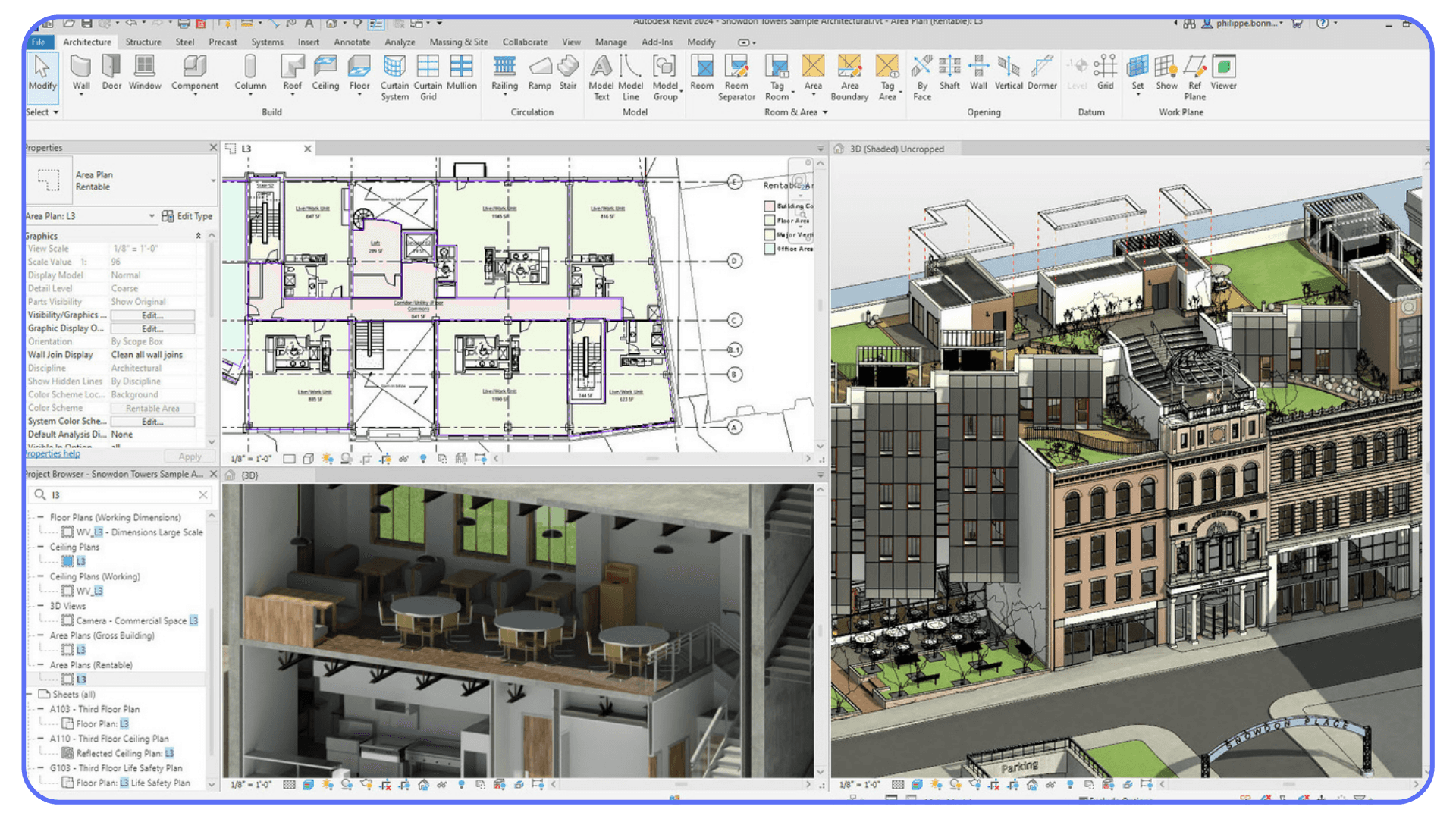
Have you ever watched Revit chew through your CPU like it owes money? Because that’s exactly what it felt like. One view change, one exploded family, one linked model too many, and suddenly your entire workstation becomes a hostage.
Revit isn’t like most design tools. It doesn’t care how many cores you have. It doesn’t care that your GPU cost as much as a vacation. It wants very specific things from your PC, and when it doesn’t get them, you feel it instantly.
That’s why we’re here. If you’re tired of guessing which specs matter or you’re planning your next workstation, this guide will walk you through the hardware Revit actually thrives on, not the generic “minimum requirements” you see on Autodesk’s site, but the real stuff people use every day to survive BIM workloads.
What’s Changed in 2026?
If you’ve been using Revit long enough, you know the pattern: Autodesk rarely “reinvents Revit.” They tweak the parts that make your day either smooth… or miserable.
2026 is one of those releases where the workflow changes more than the marketing suggests.
1) The viewport can finally feel faster (and it’s not just “buy a faster CPU”)
Revit 2026 introduced a Tech Preview called Accelerated Graphics that targets navigation performance in 2D and 3D views. The promise is simple: less stutter while panning, orbiting, and reviewing. The important part is what that implies: Revit is experimenting with a more modern graphics pipeline, which means your GPU and drivers can matter a bit more than they used to for day-to-day navigation.
So yes, Revit is still brutally single-core for a lot of operations. But if your pain point is “switch view, rotate, zoom, freeze,” 2026 is at least trying to address that in a real way.
2) Autodesk is being clearer about memory expectations
The official system requirements for Revit 2026 call out 32 GB RAM or higher as “usually sufficient” for a typical editing session, even referencing model sizes in the hundreds of MB. That lines up with what most BIM teams already learned the hard way: 16 GB is for survival, not comfort.
3) Incremental updates are leaning into performance and usability
Autodesk’s own 2026.1 notes frame the release as targeted improvements, including performance and usability updates (plus Dynamo updates for computational workflows). It’s not a single magic switch, but it’s part of the broader trend: fewer “big shiny features,” more “please stop wasting my time.”
4) The boring stuff still wins: fast storage and stable setups
Cloud sync and caching workflows still punish slow drives, and Revit still punishes laptops that throttle. The system requirements also call out things like disk space for temp files, which is Autodesk basically saying: Revit writes a lot, all the time.
So the 2026 reality is this: Revit still wants high single-core speed and plenty of RAM, but now there’s an extra layer where viewport performance is getting attention too. If your machine was “fine” in 2024 but feels grumpy today, it’s usually because your projects got heavier, and Revit’s expectations quietly moved up with them.
Why Revit Needs Specific Hardware
The funny thing about Revit is that most people assume it behaves like the other tools they use. If a program is heavy, throw more cores at it. If it lags, upgrade the GPU. If a model gets big, add RAM and call it a day. That logic works for plenty of software. It just doesn’t work for Revit.
Revit has its own personality. And sometimes it feels like it was designed in a world where CPUs never moved past four fast cores.
At the heart of almost every slowdown you’ve ever felt is one simple fact:
Revit leans hard on single-core performance.
Not “kind of,” not “sometimes,” but almost aggressively. View regeneration, room calculations, family updates, drawing sheets, section cuts, almost everything you do is handled by one core doing all the work while the others sit there like bored interns.
Then there’s RAM. Revit chews through memory when you least expect it. A linked model loads, and suddenly your machine jumps from 12 GB used to 24 GB in seconds. Open a sheet with a few heavy families you grabbed from RevitCity, and boom, you’re testing the limits of your swap file. Memory spikes aren’t a bug. They’re part of the job.
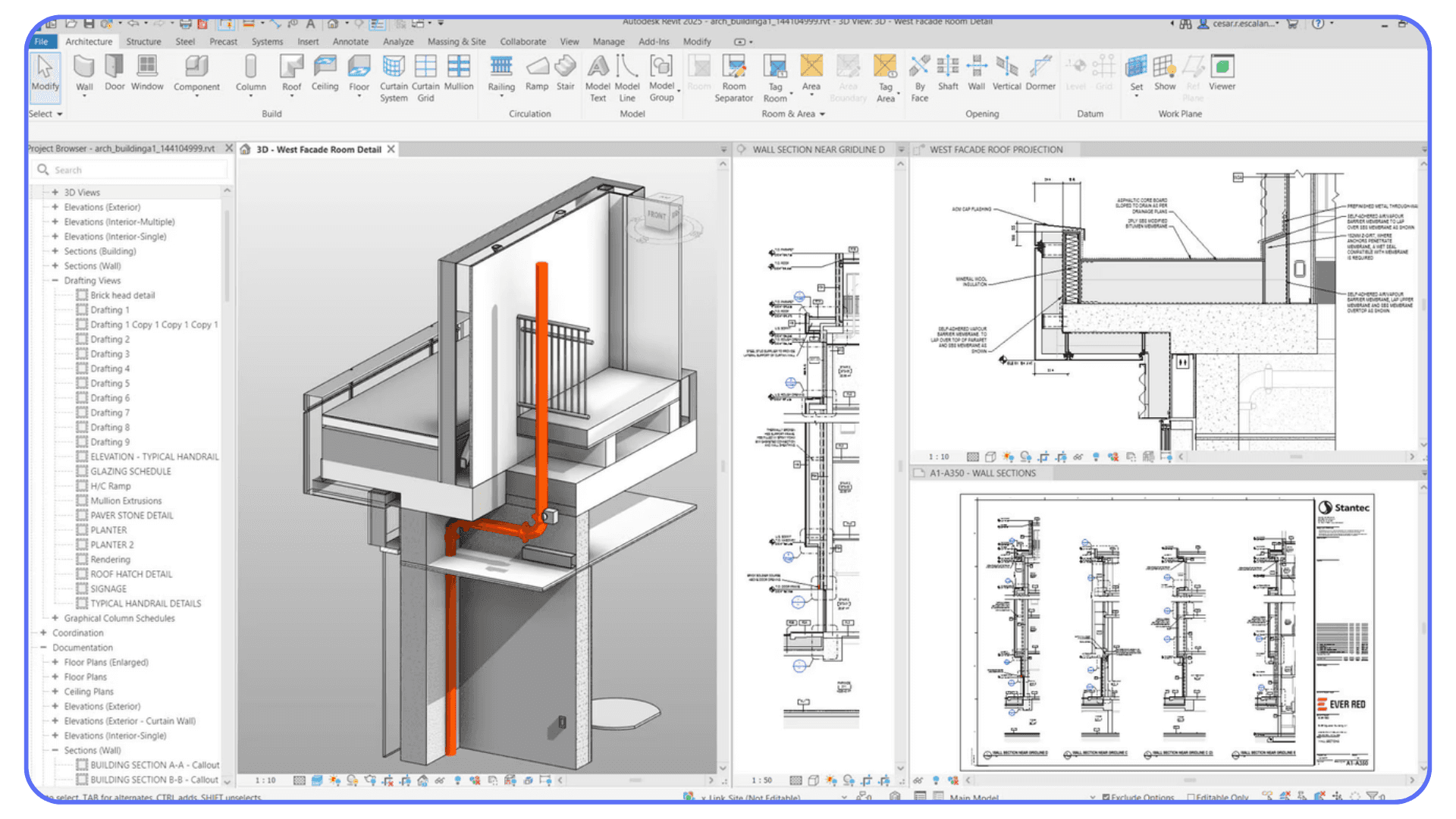
Storage plays a bigger role than people realize too. BIM360 doesn’t care how fancy your CPU is if your drive is slow. Syncing, caching, opening a model, those are storage-heavy moments. A weak SSD turns everyday tasks into small frustrations that stack up quickly.
And the GPU?
Revit barely cares.
It uses the GPU for some viewport stuff, but nowhere near what 3ds Max, Rhino, Blender, or Enscape demand. A big GPU helps if you’re rendering or doing visualization on the side, but if your main workload is BIM and documentation, a mid-level GPU won’t hold you back at all.
All of this creates a strange situation: people spend money in the wrong places and still end up with a slow machine. Because Revit doesn’t follow the usual rules. It stresses hardware differently, and unless you build or buy a PC with Revit in mind, the experience feels way worse than it needs to be.
This is the part where things finally start making sense. Let’s talk about the components that actually matter, and the ones that just look good on a spec sheet.
If you want to work faster inside Revit, this keyboard shortcut list is genuinely useful.
The Parts That Matter Most for Revit
Most “hardware guides” dump a wall of specs on you and call it a day. But if you’ve actually used Revit, really used it, with messy linked files and families someone built in 2014, you know the bottlenecks show up in very specific places. So instead of listing random parts, let’s walk through how each component behaves when Revit is under pressure.
#1. CPU: The Part That Decides Whether Your Day Goes Smoothly or Falls Apart
Revit lives and dies on CPU clock speed.
Not core count. Not threads. Not fancy architecture charts.
Clock speed.
If your CPU can push high single-core performance, 5.0 GHz and beyond in today’s chip, you’ll feel the difference instantly. View regeneration snaps faster. Copying groups doesn’t take ages. Even opening a chunky BIM360 model feels lighter.
I’ve seen 14-core and 16-core CPUs get smoked by cheaper chips simply because the cheaper chip hits higher boost frequencies during heavy Revit tasks. And once your model grows past 150 MB, every bit of single-core power matters.
A simple rule:
If you want Revit to feel fast, prioritize GHz over cores.
#2. RAM: The Quiet Lifesaver When Models Get Big
RAM feels invisible until you don’t have enough of it. Then it becomes the villain.
Revit loads linked files into memory, duplicates certain things on view creation, and eats up extra RAM when you open multiple sheets at once. Even medium projects can spike to 25–30 GB in active use, and that doesn’t include what Windows and BIM360 need.
Here’s the reality most people learn too late:
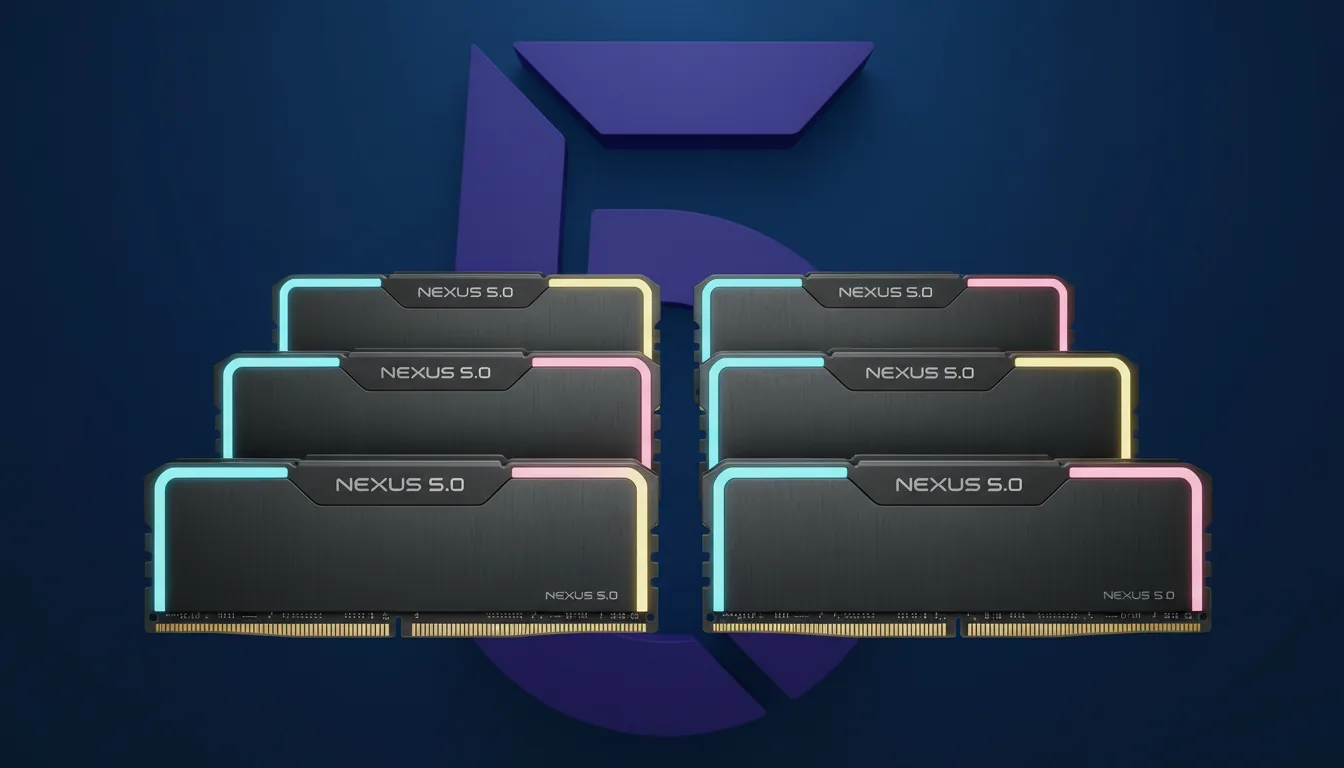
16 GB works only for small student projects
32 GB is the real starting point for everyday Revit Architecture work
64 GB is where big BIM teams finally breathe
128 GB is for people dealing with massive linked models or MEP chaos
If you’ve ever watched Revit freeze while your fans spin up, there’s a solid chance you ran out of RAM before you ran out of CPU.
#3. GPU: The Most Overrated Piece in a Revit Build
This is the part people argue about the most.
Revit uses the GPU, but only lightly.
Viewport orbiting, shadow previews, some visual styles, it handles those reasonably well. But it’s not Blender. It’s not Unreal. It’s not even close to how Rhino or 3ds Max push a GPU.
If your day is mostly BIM, sheets, families, sections, elevations, and documentation, a mid-range GPU is fine. Totally fine.
Where you do need a stronger GPU:
Enscape
Twinmotion
Lumion
V-Ray GPU
Any real-time viz tool
But Revit itself?
It won’t reward you for buying a top-tier card. Not in the slightest.

If you’re trying to understand how much your GPU actually matters in Revit, this guide breaks it down clearly.
#4. Storage: The Hidden Source of “Why Is This Model Taking Forever?”
Storage doesn’t get enough credit in Revit discussions.
Opening a model, saving it, syncing to Autodesk BIM360, these all hammer your drive way harder than people think. If your machine still runs on SATA SSDs, or worse, HDDs, you’re signing up for unnecessary pain.
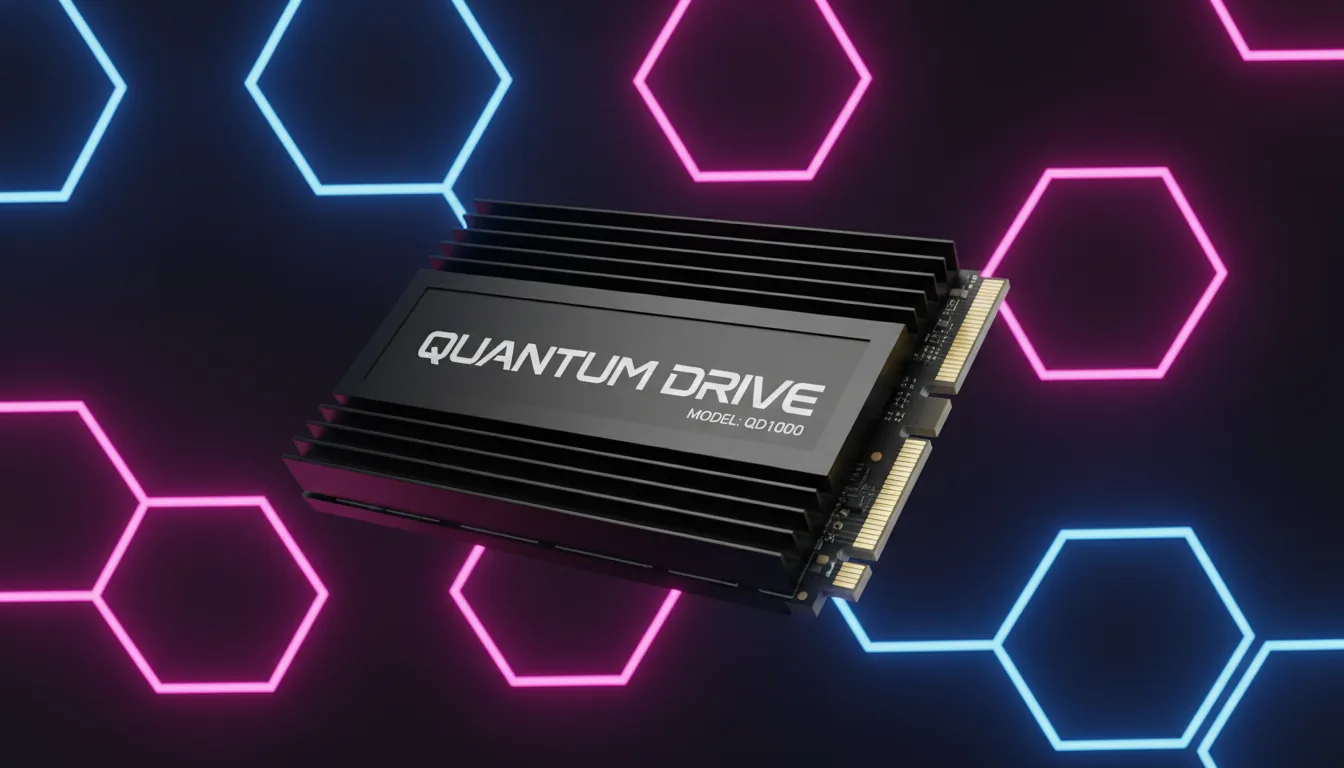
NVMe drives are not about “nice to have” anymore.
They’re the difference between a model opening in 10 seconds versus 40.
BIM360 caching especially loves fast storage. When it’s slow, everything feels slow.
Once you switch to NVMe, you’ll wonder why you waited this long.
That’s the core of it: Revit doesn’t want “a powerful PC.” It wants very specific strengths. And when you build around those, the whole experience changes.
Recommended Specs for Real Revit Projects
Autodesk’s official requirements are fine if all you ever open is a sample project with four walls and a door. Real Revit workloads look nothing like that. They bounce between 30 MB interior layouts, 150 MB architectural models, 400 MB multi-discipline monsters, and BIM360 files that feel heavier than they actually are.
So instead of repeating the “minimum specs” everyone already ignores, here’s what you actually need depending on the kind of work you do.
If you’re deciding between Revit and Rhino for your workflow, this comparison helps you choose the right one.
Small Projects (20–50 MB) — Students, Early Career, Light Revit Modeling
If you’re learning Revit or working on entry-level projects, your hardware doesn’t need to be outrageous, but it does need to be correct.
CPU: Something that hits at least 4.8–5.0 GHz single-core
RAM: 16 GB works, but 32 GB keeps you safe
GPU: Any mid-tier card (RTX 3050, 3060) is enough
Storage: NVMe SSD, always
This is perfect for revit student workflows, small residential models, interior design layouts, and light BIM work. Even basic autocad revit lt workflows feel fine here.
Medium Projects (70–150 MB) — Most Revit Architecture Offices
This is the range where a lot of users start feeling their PC struggle. Models are still manageable, but linked files and heavy sheets begin to affect RAM and CPU spikes.
You need specs that can keep performance stable throughout the day:
CPU: 5.0–5.4 GHz boost clock; Intel i7/i9 or AMD Ryzen 7/9
RAM: 32 GB minimum, 64 GB if your models use lots of links
GPU: Mid-range RTX card is still fine; only upgrade if you use Enscape/Twinmotion
Storage: NVMe Gen 4 drive recommended
This setup supports typical autodesk revit bim workflows, daily modeling, Revit Architecture sheets, and steady BIM360 syncing without choking.
Large BIM Projects (200–500 MB+) — MEP, BIM Managers, Multi-Discipline Teams
This is where computers start begging for mercy. Hospitals, airports, towers, big government projects, everything here multiplies Revit’s worst habits: huge linked models, heavy families, massive sheet sets, and BIM360 coordination.
For this kind of work, hardware becomes a survival tool.
CPU: Highest single-core frequency you can get; top-tier i9 or Ryzen X3D chips
RAM: 64 GB minimum, 128 GB if you open multiple linked models
GPU: RTX 4070/4080 for visualization teams; still not required for pure BIM
Storage: NVMe Gen 4 or Gen 5, ideally two drives (OS + BIM cache)
This is also where slow storage reveals itself. BIM360 caching, cloud sync, and large file operations hit your drive constantly.
Revit LT and AutoCAD Revit LT Users
Revit LT doesn’t support full collaboration or complex BIM360 features, so the overall load is lighter. But users still underestimate how heavy large architectural models can get.
For LT users, target:
4.8+ GHz CPU
32 GB RAM
NVMe SSD
Mid-range GPU
Nothing exotic. Just well-balanced hardware.
Revit for Mac and Revit for MacBook Users
Here’s the blunt truth:
Revit doesn’t run natively on macOS. Not on Intel, not on Apple Silicon.
The whole “Revit for mac” conversation always ends the same way:
Bootcamp is gone on Apple Silicon
Parallels barely handles serious models
Virtual machines cap performance
macOS simply isn’t a supported Revit platform
If you’re running Revit on a MacBook today, you’re either:
Using a cloud workstation
Running Windows virtualization with strict limitations
Opening only tiny files
For medium or large Autodesk Revit BIM workloads, a local Mac won’t cut it.
What This All Means: You can buy a powerful PC and still have a miserable Revit experience if the parts aren’t aligned with what Revit actually uses. But once you match your hardware to your project size and workflow, the software suddenly feels way lighter than before.
If you’re stuck on a low-end machine and Revit feels slow, this article shows how to optimize performance without relying on a strong GPU.
Laptops and Desktops That Run Revit Well
There’s a moment in every architecture studio, construction office, or BIM team where someone says, “Just tell me what to buy.”
Fair.
Revit is picky enough that picking hardware shouldn’t feel like a research project.
So here’s the part everyone waits for: real machines that actually run Autodesk Revit smoothly. No hype. No random GPUs that don’t help. No “futureproof” nonsense. Just hardware that handles real BIM work.
I’ll group them the way actual Revit users think, by project size and workflow, not by price tags.
If you’re considering running Revit on a cloud workstation instead of upgrading your hardware, this walkthrough shows exactly how it works.
#1. For Students, Beginners, and Light Revit Modeling
If your work comes from classes, tutorials, small residential builds, interiors, or Revit LT, these machines will feel more than enough. They hit the right CPU speeds and have enough RAM to avoid crashes when a family or two gets heavier than expected.
Recommended laptops:
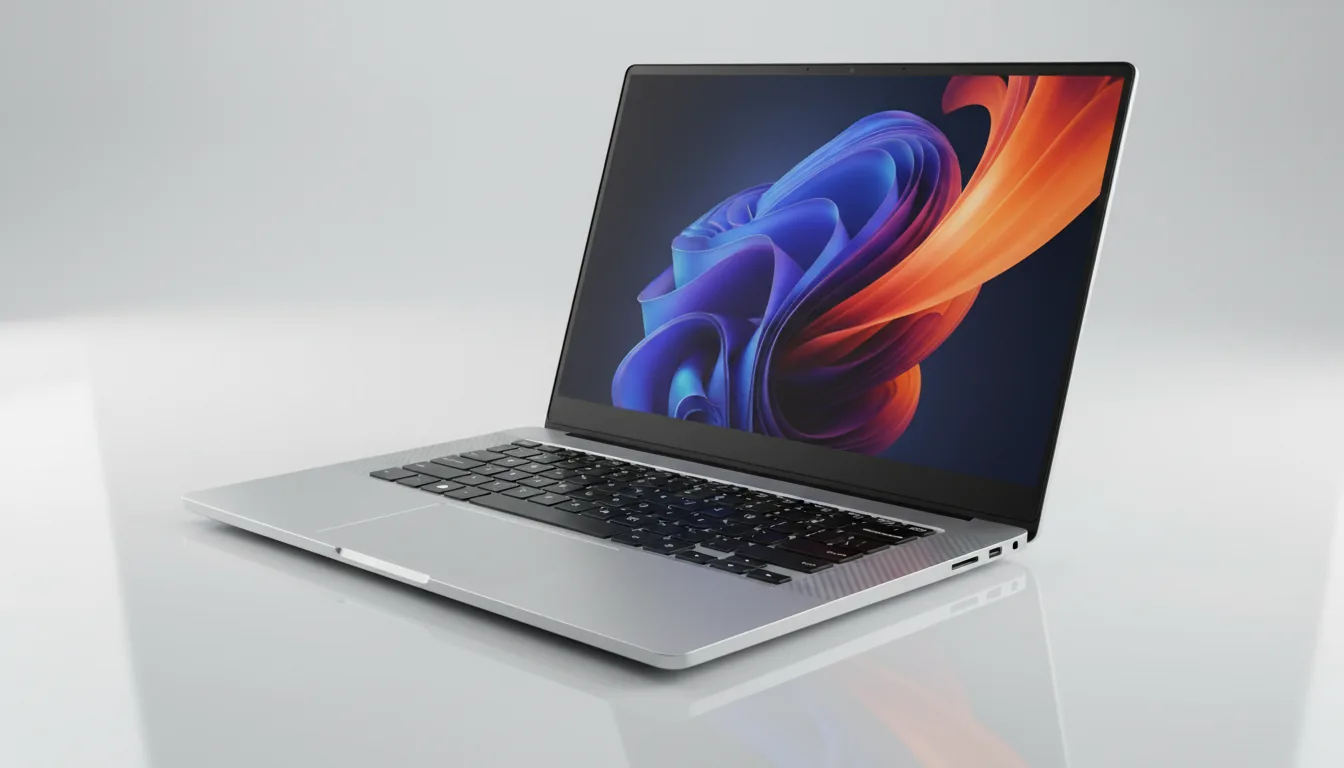
• Dell XPS 15 (i7 + 32 GB RAM)
Fast single-core performance, great thermals, and a good all-rounder for school and early architectural work.
• ASUS ROG Zephyrus G14 (Ryzen 9 + 32 GB RAM)
Light, powerful, great battery life, and excellent single-core speeds for Revit modeling.
• HP Envy 15 (i7 + RTX 3050)
Affordable and stable. Handles Revit, Enscape previews, and light visualization without complaining.
Recommended prebuilt desktops:
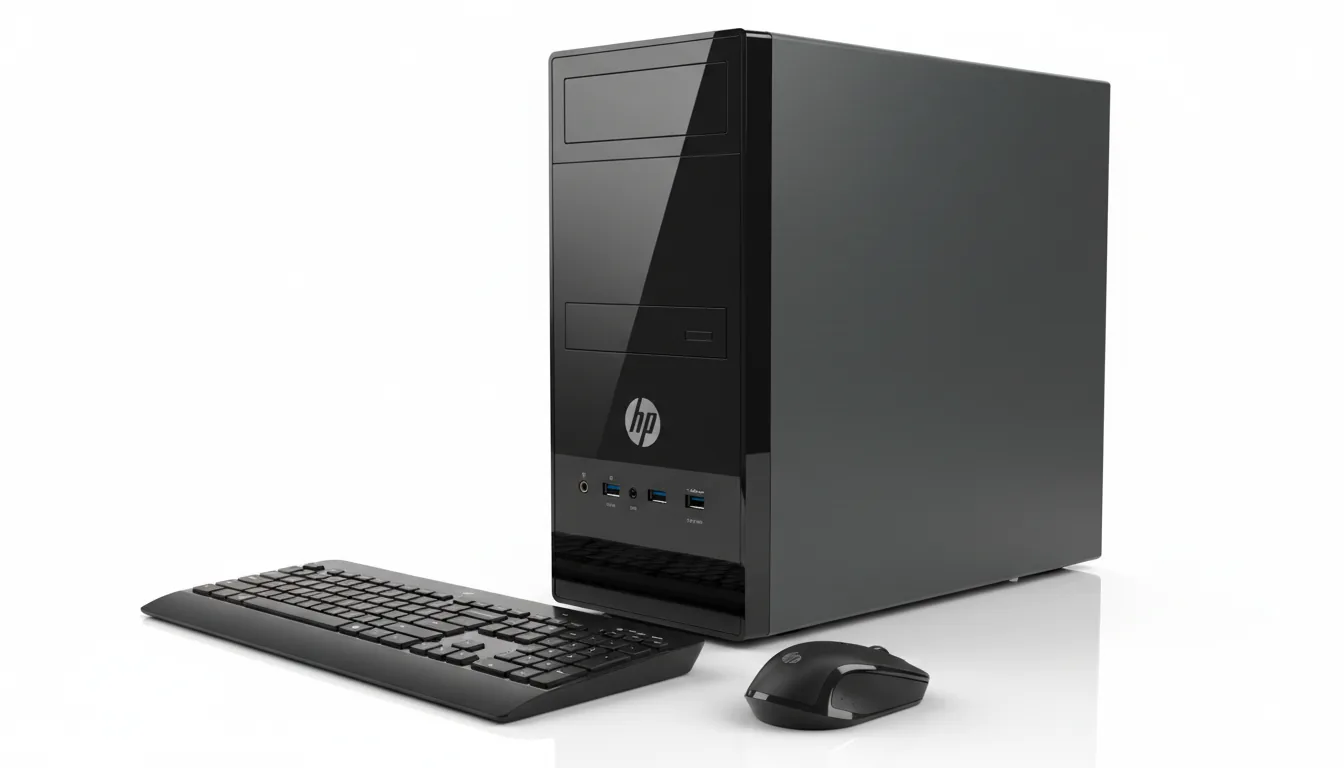
• HP Pavilion Desktop (i7 + 32 GB RAM + NVMe SSD)
Simple, reliable, and surprisingly fast for small projects.
• Dell Inspiron Desktop (Ryzen 7 + 32 GB RAM)
Good clocks, good storage, ideal for Revit LT, autocad revit lt, and small architecture studios.
These aren’t “cheap” as in low quality. They’re “correct.” And for students or early-career workflows, correct is all you need.
#2. For Architects Working With Medium Sized Projects
This is the range where most offices live, models between 70 and 150 MB, occasional linked files, steady BIM360 use, and weekly coordination meetings that push machines a bit harder.
These machines offer the balance you need: strong clocks, solid RAM, stable cooling.
Recommended laptops:
• Lenovo ThinkPad P16 (i7/i9 + 32 or 64 GB RAM)
A mobile workstation that doesn’t melt down when you open five sheets at once.
• Dell Precision 5680 (i7/i9 + RTX A1000/A2000)
Great thermals, reliable, and designed for day-long Revit modeling sessions.
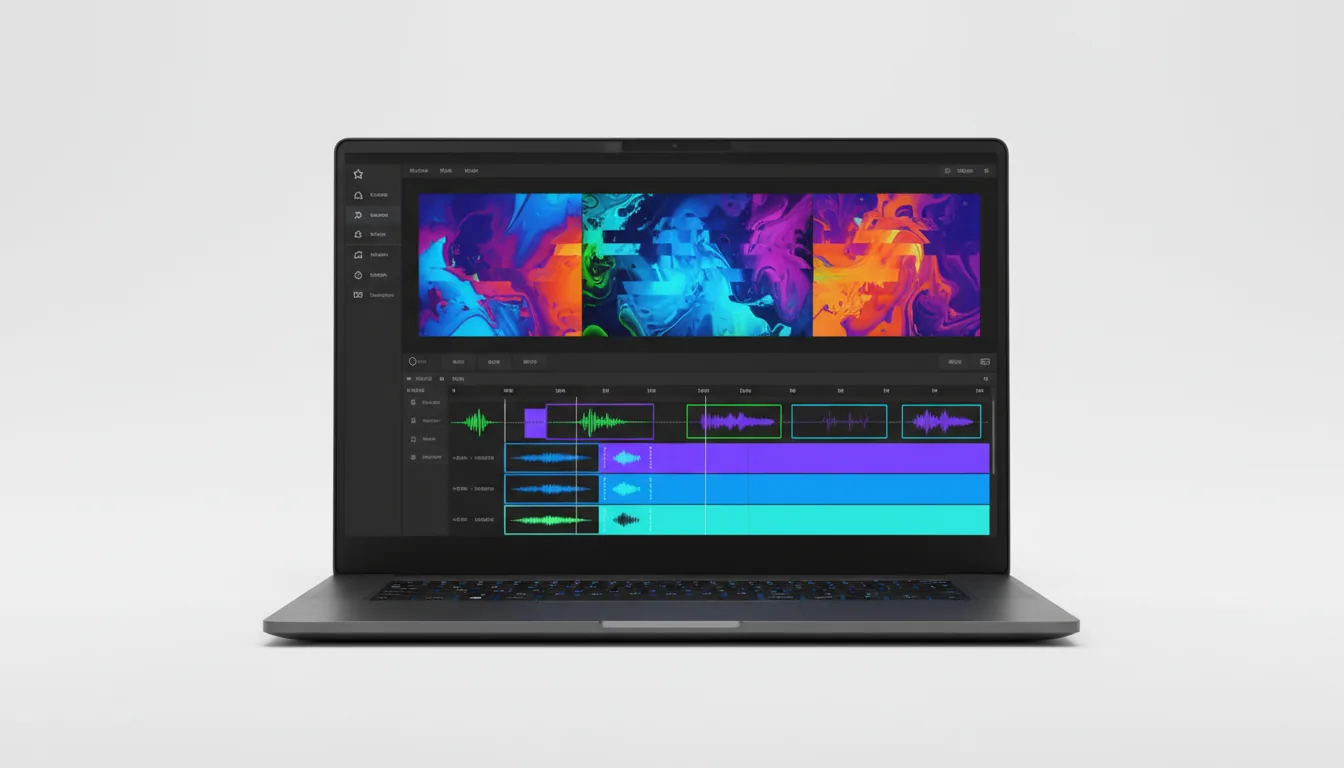
• MSI Prestige 16 (i7 + 32 GB RAM)
Light, quiet, and hits very good single-core speeds.
Recommended prebuilt desktops:
• HP Z2 G9 Tower (i7/i9 + 64 GB RAM)
A studio classic. Excellent for Autodesk Revit BIM work.
• Lenovo ThinkStation P360 (i7/i9 + NVMe Gen4)
Perfect for mid-size architecture firms that use Revit and BIM360 daily.
• Dell XPS Desktop (i7 + 64 GB RAM)
Fast and clean, good airflow, and handles Revit Architecture without hitches.
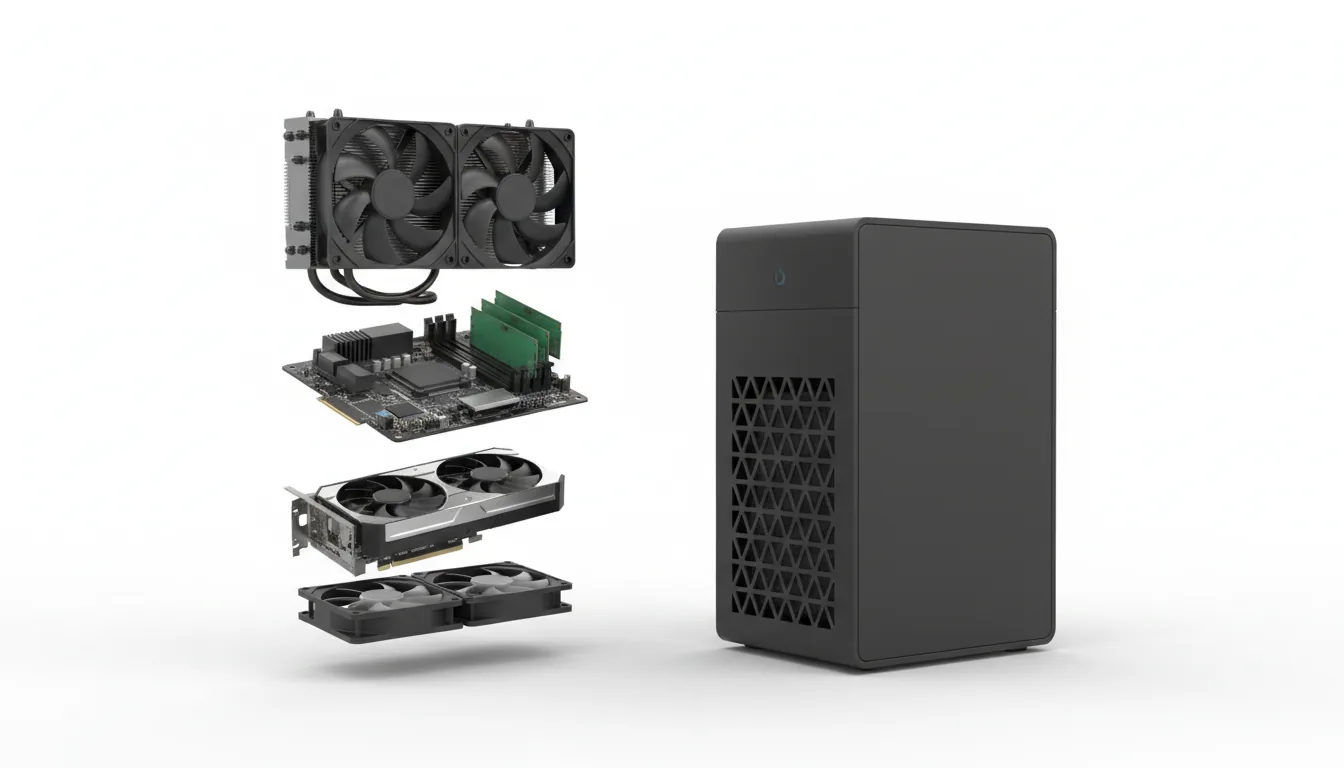
All of these keep Revit smooth while giving you enough overhead for MEP links, interior layouts, and visualization tools like Enscape or Twinmotion.
#3. For BIM Managers, MEP Teams, and Large Linked Projects
This is the “please give me a machine that doesn’t collapse during coordination” group.
Hospitals, towers, airports, universities, government work, the big stuff.
These models chew through hardware, and these machines can take the hit.
Recommended laptops:
• Lenovo ThinkPad P16 Gen 2 (i9 + 64/128 GB RAM)
One of the few laptops that can sustain serious CPU clocks without throttling.
• Dell Precision 7780 (i9 + RTX A3000/A4500)
A true mobile workstation built for multi-discipline BIM.
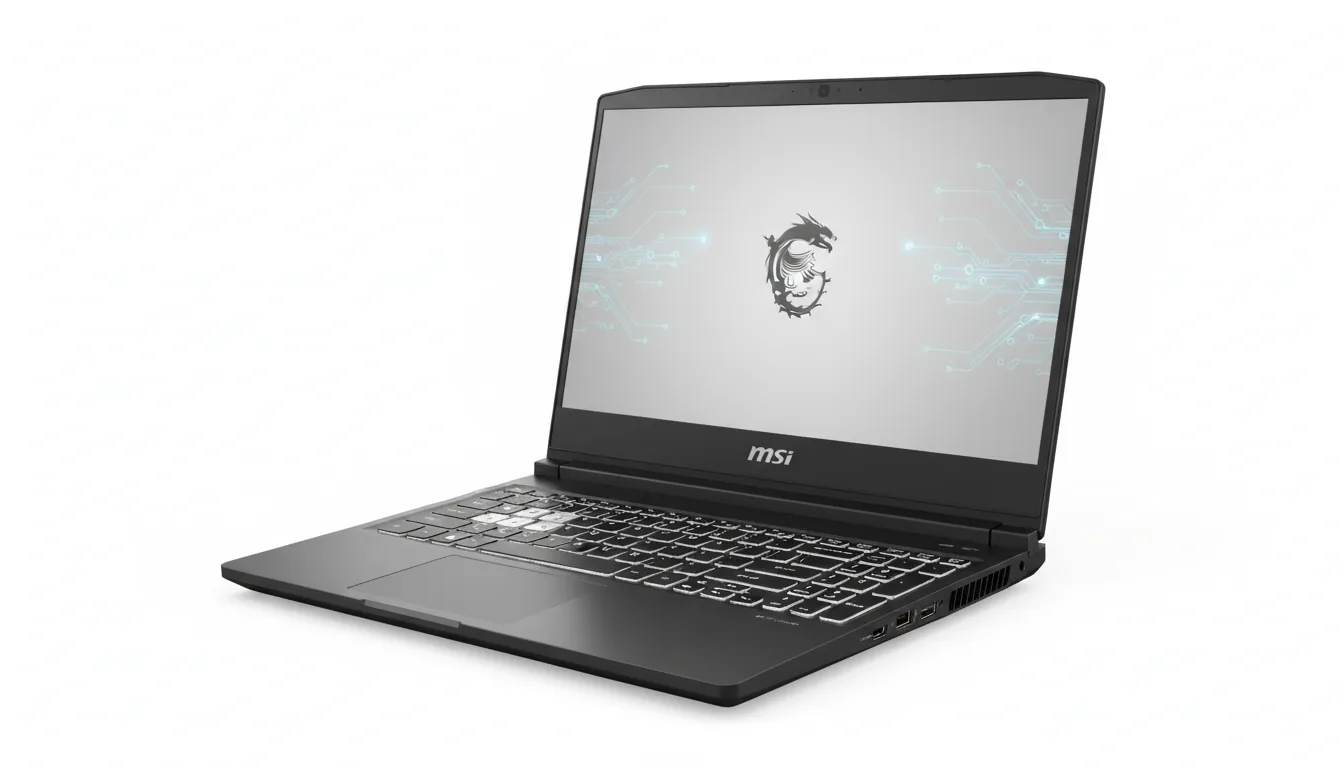
• MSI WS76 (i9 + 64 GB RAM)
Heavy, but extremely fast in single-core and great for huge models.
Recommended prebuilt desktops:
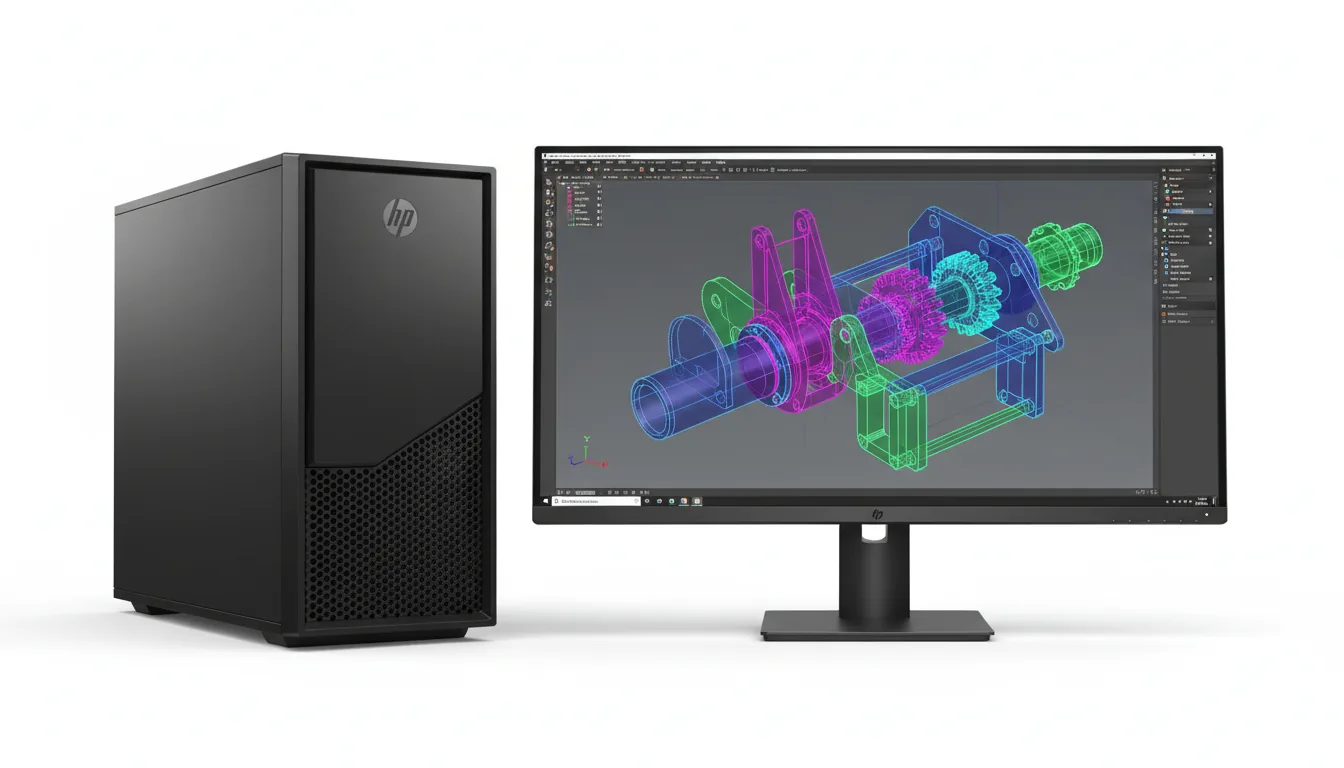
• HP Z4 G6 Workstation (i9/Xeon + 64–128 GB RAM)
The kind of machine BIM managers keep for years.
• Lenovo ThinkStation P5 (i9 + ECC options)
Stable under extreme loads and perfect for massive linked Revit files.
• Dell Precision 5820 Tower (Xeon + 128 GB RAM)
Built exactly for multi-discipline Autodesk Revit BIM teams.
These are not casual purchases. They’re for firms that deal with models that crash average laptops without even trying.
#4. If You’re Stuck With a MacBook
This is a common situation, so let’s just state it plainly:
Revit doesn’t run on macOS.
Parallels can open tiny files, but that’s it.
Large Revit modeling is off the table.
If you’re on a MacBook and still need Autodesk Revit BIM or revit architecture workflows, your realistic options are:
Use a cloud workstation
Use an old Intel Mac with Bootcamp (rare now)
Only open tiny reference models
But for anything serious?
A Mac isn’t the right local machine for Revit. And that’s exactly why so many Mac users end up using cloud setups for BIM work.
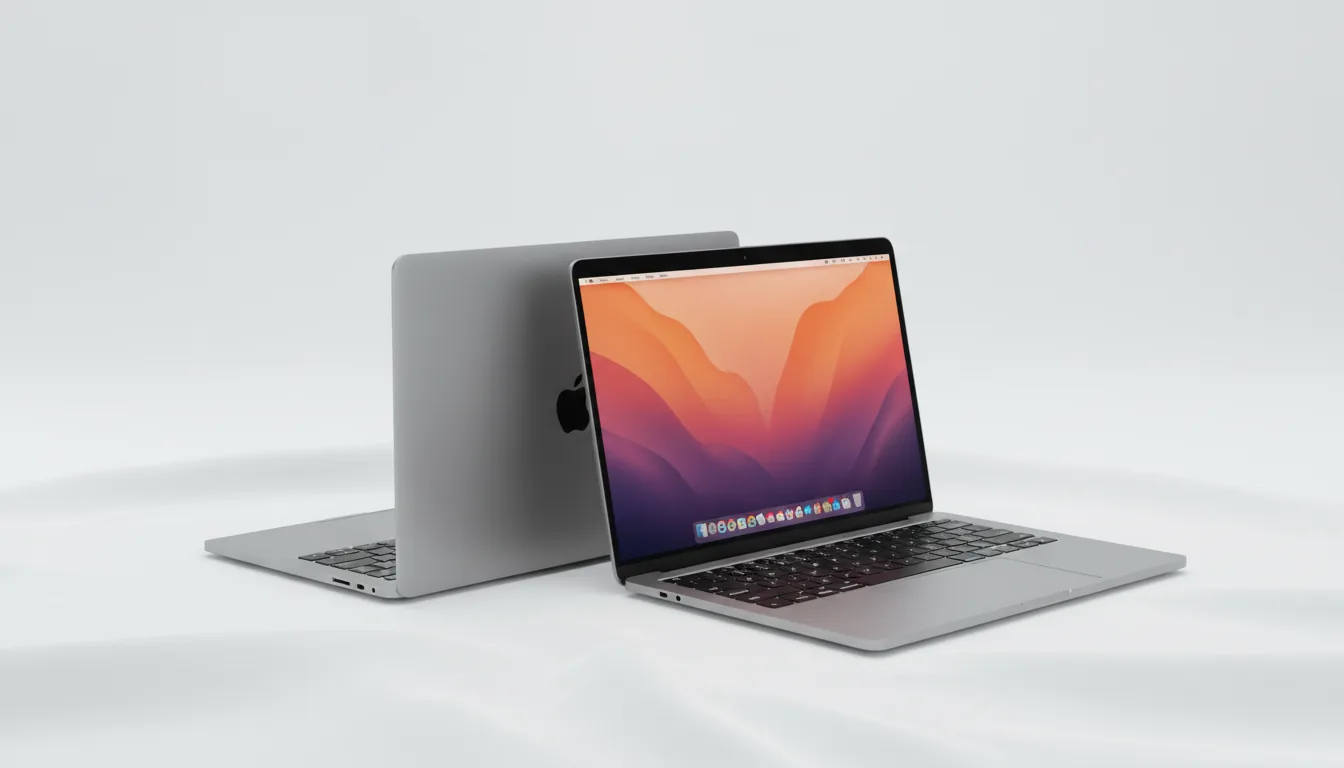
If you’re on a Mac or MacBook and still need Revit, this guide explains the only reliable ways to run it.
When Buying a New PC Isn’t the Smartest Move
There’s a point in every Revit workflow where throwing money at new hardware stops making sense. It usually happens when your machine is technically “good,” yet Revit still feels slow in weird, random ways. Maybe your laptop hits 100 degrees after three sheets. Maybe BIM360 sync drags no matter how much RAM you add. Maybe your office just upgraded, and the models immediately grew twice as large anyway.
Or maybe you’re on a MacBook and trying to pretend Revit will magically run on it one day.
The truth is, not every Revit user needs a big workstation sitting on their desk. Some only need high horsepower for a couple of hours during coordination. Some already own a decent laptop but it overheats under larger BIM files. Some don’t want to spend thousands before knowing what kind of CPU or RAM their projects actually require. And some simply can’t run Revit locally because they’re using a Mac or a lightweight ultrabook.
In those cases, buying new hardware isn’t just expensive. It’s unnecessary. Sometimes you just need temporary power, not permanent debt. And that’s exactly where cloud workstations start to make more sense than another round of laptop shopping.
If your workflow includes visualization, this step-by-step Twinmotion export guide makes the process much easier.
How Vagon Cloud Computer Helps Revit Users
Revit has a way of exposing the limits of your hardware at the worst possible moments. Maybe it happens when you open a coordination model with half a dozen links. Maybe it’s a BIM360 sync that never finishes because your laptop is throttling. Or maybe you’re working on a MacBook and realizing, for the hundredth time, that Revit simply wasn’t built for macOS.
This is where a Vagon Cloud Computer steps in. Not as a replacement for a good workstation, but as the thing you use when your current hardware hits a wall.
If you’re on a Mac, Vagon gives you a proper Windows environment where Revit behaves normally. No weird virtualization limits. No tiny models only. Just the full Autodesk Revit BIM experience the way it’s meant to run.
If your laptop struggles with RAM-heavy projects or starts overheating during large view regenerations, Vagon lets you jump into a machine with far more memory and CPU power than your device could ever fit. It feels like borrowing a workstation for a few hours whenever the project demands it.
And if you’re in that awkward spot where you’re not sure which workstation to buy next, whether you need more RAM, a faster CPU, or if your GPU even matters, using Vagon is a simple way to test real hardware levels on real projects. It shows you exactly what your model needs instead of guessing based on spec sheets.
For a lot of people, Vagon becomes the flexible “extra workstation” they reach for during tight deadlines, large coordination pushes, or anytime Revit decides to act heavier than usual. It’s not about replacing your setup. It’s about having something stronger ready whenever your workflow requires it.
Final Thoughts
Choosing a machine for Revit isn’t just about buying something powerful. It’s about buying something that matches the way you actually work. Revit punishes the wrong hardware harder than almost any other design tool, but it also runs beautifully when the parts line up with its needs. Fast single-core CPUs, enough RAM to avoid constant crashes, and storage that can keep up with BIM360, those things matter far more than a flashy GPU or a long spec sheet.
And once you understand what Revit really asks from your system, the whole experience changes. Views regenerate faster. Linked models stop feeling like a threat. You spend more time designing and less time staring at a frozen screen. Whether you stick with a local workstation, try a cloud setup when the project gets too heavy, or mix the two depending on the day, the goal is the same: keep Revit out of your way so you can actually get the work done.
When your hardware stops fighting you, Revit becomes the tool it’s supposed to be.
FAQs
1. Is Revit CPU or GPU heavy?
Revit leans almost entirely on the CPU. Daily modeling tasks depend on single-core speed, not core count, and definitely not on high-end GPUs. A fast 5.0 GHz+ processor improves the experience far more than a powerful graphics card.
2. How much RAM do I really need for Revit?
For student projects or small models, 16 to 32 GB can get you through most tasks. Typical Revit Architecture workflows feel much smoother at 32 GB. Large BIM projects with multiple linked files often push you into the 64 to 128 GB range, especially during view changes or coordination.
3. What GPU should I buy for Autodesk Revit?
Revit doesn’t use the GPU heavily during modeling. A mid-range card like an RTX 3050 or 3060 handles the viewport without issues. You only need stronger GPUs if you rely on Enscape, Twinmotion, Lumion, or V-Ray GPU. For pure BIM work, anything above mid-tier brings little benefit.
4. Does Revit run on Mac or MacBook?
Revit doesn’t run natively on macOS. Parallels can open tiny files, but anything serious becomes slow or unstable. Because Bootcamp is gone on Apple Silicon, most MacBook users who need Autodesk Revit BIM tools either switch to a Windows workstation or use a cloud setup.
5. Is Revit LT easier on hardware?
It removes some heavier features like worksharing, but the modeling itself isn’t lighter. File sizes can still grow quickly, and view regeneration still hits the CPU just as hard. A fast processor, NVMe storage, and at least 32 GB RAM still make a noticeable difference.
6. What’s the best PC spec for Autodesk Revit requirements in 2026?
A high-frequency CPU, 32 to 64 GB RAM, a fast NVMe SSD, and a mid-range RTX GPU give you the best balance for Revit modeling, Revit Architecture, and Autodesk BIM360 workflows. This combination avoids throttling and keeps linked models responsive.
7. Do I need a workstation GPU like a Quadro or RTX A-series?
Not for Revit. Those cards help in specialized visualization or simulation tasks, but Revit itself doesn’t gain meaningful performance from them. Most architects and BIM teams run perfectly fine on consumer RTX cards.
8. Why does Revit lag even on good PCs?
Lag usually comes from single-core bottlenecks, slow storage, thermal throttling on thin laptops, or RAM spikes caused by linked models and heavy families from places like RevitCity. Even strong hardware can suffer if one of these weak spots shows up.
9. Can running Revit through a cloud workstation help?
It can, especially if you’re on a MacBook, your laptop overheats, or your projects suddenly grow larger than your hardware can handle. Cloud setups also make it easy to test different CPU and RAM levels before spending money on a new machine.
I still remember the morning a seemingly normal Revit model decided to bully my laptop. Nothing huge. A couple of linked architectural files, a few MEP elements, some families pulled from RevitCity. The kind of setup that shouldn’t scare a decent machine.
And then I switched a view.
Revit thought about it for a second. Then another. Then the entire screen froze like it was trying to warn me not to breathe near the keyboard. BIM360 sync stopped mid-upload. The fans hit maximum volume. The CPU graph in Task Manager spiked so hard it looked like the machine was screaming for help.
That was the moment I realized something most Revit users eventually learn the hard way: this software has its own rules, and your hardware either respects them or gets steamrolled.
Have you ever watched Revit chew through your CPU like it owes money? Because that’s exactly what it felt like. One view change, one exploded family, one linked model too many, and suddenly your entire workstation becomes a hostage.
Revit isn’t like most design tools. It doesn’t care how many cores you have. It doesn’t care that your GPU cost as much as a vacation. It wants very specific things from your PC, and when it doesn’t get them, you feel it instantly.
That’s why we’re here. If you’re tired of guessing which specs matter or you’re planning your next workstation, this guide will walk you through the hardware Revit actually thrives on, not the generic “minimum requirements” you see on Autodesk’s site, but the real stuff people use every day to survive BIM workloads.
What’s Changed in 2026?
If you’ve been using Revit long enough, you know the pattern: Autodesk rarely “reinvents Revit.” They tweak the parts that make your day either smooth… or miserable.
2026 is one of those releases where the workflow changes more than the marketing suggests.
1) The viewport can finally feel faster (and it’s not just “buy a faster CPU”)
Revit 2026 introduced a Tech Preview called Accelerated Graphics that targets navigation performance in 2D and 3D views. The promise is simple: less stutter while panning, orbiting, and reviewing. The important part is what that implies: Revit is experimenting with a more modern graphics pipeline, which means your GPU and drivers can matter a bit more than they used to for day-to-day navigation.
So yes, Revit is still brutally single-core for a lot of operations. But if your pain point is “switch view, rotate, zoom, freeze,” 2026 is at least trying to address that in a real way.
2) Autodesk is being clearer about memory expectations
The official system requirements for Revit 2026 call out 32 GB RAM or higher as “usually sufficient” for a typical editing session, even referencing model sizes in the hundreds of MB. That lines up with what most BIM teams already learned the hard way: 16 GB is for survival, not comfort.
3) Incremental updates are leaning into performance and usability
Autodesk’s own 2026.1 notes frame the release as targeted improvements, including performance and usability updates (plus Dynamo updates for computational workflows). It’s not a single magic switch, but it’s part of the broader trend: fewer “big shiny features,” more “please stop wasting my time.”
4) The boring stuff still wins: fast storage and stable setups
Cloud sync and caching workflows still punish slow drives, and Revit still punishes laptops that throttle. The system requirements also call out things like disk space for temp files, which is Autodesk basically saying: Revit writes a lot, all the time.
So the 2026 reality is this: Revit still wants high single-core speed and plenty of RAM, but now there’s an extra layer where viewport performance is getting attention too. If your machine was “fine” in 2024 but feels grumpy today, it’s usually because your projects got heavier, and Revit’s expectations quietly moved up with them.
Why Revit Needs Specific Hardware
The funny thing about Revit is that most people assume it behaves like the other tools they use. If a program is heavy, throw more cores at it. If it lags, upgrade the GPU. If a model gets big, add RAM and call it a day. That logic works for plenty of software. It just doesn’t work for Revit.
Revit has its own personality. And sometimes it feels like it was designed in a world where CPUs never moved past four fast cores.
At the heart of almost every slowdown you’ve ever felt is one simple fact:
Revit leans hard on single-core performance.
Not “kind of,” not “sometimes,” but almost aggressively. View regeneration, room calculations, family updates, drawing sheets, section cuts, almost everything you do is handled by one core doing all the work while the others sit there like bored interns.
Then there’s RAM. Revit chews through memory when you least expect it. A linked model loads, and suddenly your machine jumps from 12 GB used to 24 GB in seconds. Open a sheet with a few heavy families you grabbed from RevitCity, and boom, you’re testing the limits of your swap file. Memory spikes aren’t a bug. They’re part of the job.
Storage plays a bigger role than people realize too. BIM360 doesn’t care how fancy your CPU is if your drive is slow. Syncing, caching, opening a model, those are storage-heavy moments. A weak SSD turns everyday tasks into small frustrations that stack up quickly.
And the GPU?
Revit barely cares.
It uses the GPU for some viewport stuff, but nowhere near what 3ds Max, Rhino, Blender, or Enscape demand. A big GPU helps if you’re rendering or doing visualization on the side, but if your main workload is BIM and documentation, a mid-level GPU won’t hold you back at all.
All of this creates a strange situation: people spend money in the wrong places and still end up with a slow machine. Because Revit doesn’t follow the usual rules. It stresses hardware differently, and unless you build or buy a PC with Revit in mind, the experience feels way worse than it needs to be.
This is the part where things finally start making sense. Let’s talk about the components that actually matter, and the ones that just look good on a spec sheet.
If you want to work faster inside Revit, this keyboard shortcut list is genuinely useful.
The Parts That Matter Most for Revit
Most “hardware guides” dump a wall of specs on you and call it a day. But if you’ve actually used Revit, really used it, with messy linked files and families someone built in 2014, you know the bottlenecks show up in very specific places. So instead of listing random parts, let’s walk through how each component behaves when Revit is under pressure.
#1. CPU: The Part That Decides Whether Your Day Goes Smoothly or Falls Apart
Revit lives and dies on CPU clock speed.
Not core count. Not threads. Not fancy architecture charts.
Clock speed.
If your CPU can push high single-core performance, 5.0 GHz and beyond in today’s chip, you’ll feel the difference instantly. View regeneration snaps faster. Copying groups doesn’t take ages. Even opening a chunky BIM360 model feels lighter.
I’ve seen 14-core and 16-core CPUs get smoked by cheaper chips simply because the cheaper chip hits higher boost frequencies during heavy Revit tasks. And once your model grows past 150 MB, every bit of single-core power matters.
A simple rule:
If you want Revit to feel fast, prioritize GHz over cores.
#2. RAM: The Quiet Lifesaver When Models Get Big
RAM feels invisible until you don’t have enough of it. Then it becomes the villain.
Revit loads linked files into memory, duplicates certain things on view creation, and eats up extra RAM when you open multiple sheets at once. Even medium projects can spike to 25–30 GB in active use, and that doesn’t include what Windows and BIM360 need.
Here’s the reality most people learn too late:
16 GB works only for small student projects
32 GB is the real starting point for everyday Revit Architecture work
64 GB is where big BIM teams finally breathe
128 GB is for people dealing with massive linked models or MEP chaos
If you’ve ever watched Revit freeze while your fans spin up, there’s a solid chance you ran out of RAM before you ran out of CPU.
#3. GPU: The Most Overrated Piece in a Revit Build
This is the part people argue about the most.
Revit uses the GPU, but only lightly.
Viewport orbiting, shadow previews, some visual styles, it handles those reasonably well. But it’s not Blender. It’s not Unreal. It’s not even close to how Rhino or 3ds Max push a GPU.
If your day is mostly BIM, sheets, families, sections, elevations, and documentation, a mid-range GPU is fine. Totally fine.
Where you do need a stronger GPU:
Enscape
Twinmotion
Lumion
V-Ray GPU
Any real-time viz tool
But Revit itself?
It won’t reward you for buying a top-tier card. Not in the slightest.
If you’re trying to understand how much your GPU actually matters in Revit, this guide breaks it down clearly.
#4. Storage: The Hidden Source of “Why Is This Model Taking Forever?”
Storage doesn’t get enough credit in Revit discussions.
Opening a model, saving it, syncing to Autodesk BIM360, these all hammer your drive way harder than people think. If your machine still runs on SATA SSDs, or worse, HDDs, you’re signing up for unnecessary pain.
NVMe drives are not about “nice to have” anymore.
They’re the difference between a model opening in 10 seconds versus 40.
BIM360 caching especially loves fast storage. When it’s slow, everything feels slow.
Once you switch to NVMe, you’ll wonder why you waited this long.
That’s the core of it: Revit doesn’t want “a powerful PC.” It wants very specific strengths. And when you build around those, the whole experience changes.
Recommended Specs for Real Revit Projects
Autodesk’s official requirements are fine if all you ever open is a sample project with four walls and a door. Real Revit workloads look nothing like that. They bounce between 30 MB interior layouts, 150 MB architectural models, 400 MB multi-discipline monsters, and BIM360 files that feel heavier than they actually are.
So instead of repeating the “minimum specs” everyone already ignores, here’s what you actually need depending on the kind of work you do.
If you’re deciding between Revit and Rhino for your workflow, this comparison helps you choose the right one.
Small Projects (20–50 MB) — Students, Early Career, Light Revit Modeling
If you’re learning Revit or working on entry-level projects, your hardware doesn’t need to be outrageous, but it does need to be correct.
CPU: Something that hits at least 4.8–5.0 GHz single-core
RAM: 16 GB works, but 32 GB keeps you safe
GPU: Any mid-tier card (RTX 3050, 3060) is enough
Storage: NVMe SSD, always
This is perfect for revit student workflows, small residential models, interior design layouts, and light BIM work. Even basic autocad revit lt workflows feel fine here.
Medium Projects (70–150 MB) — Most Revit Architecture Offices
This is the range where a lot of users start feeling their PC struggle. Models are still manageable, but linked files and heavy sheets begin to affect RAM and CPU spikes.
You need specs that can keep performance stable throughout the day:
CPU: 5.0–5.4 GHz boost clock; Intel i7/i9 or AMD Ryzen 7/9
RAM: 32 GB minimum, 64 GB if your models use lots of links
GPU: Mid-range RTX card is still fine; only upgrade if you use Enscape/Twinmotion
Storage: NVMe Gen 4 drive recommended
This setup supports typical autodesk revit bim workflows, daily modeling, Revit Architecture sheets, and steady BIM360 syncing without choking.
Large BIM Projects (200–500 MB+) — MEP, BIM Managers, Multi-Discipline Teams
This is where computers start begging for mercy. Hospitals, airports, towers, big government projects, everything here multiplies Revit’s worst habits: huge linked models, heavy families, massive sheet sets, and BIM360 coordination.
For this kind of work, hardware becomes a survival tool.
CPU: Highest single-core frequency you can get; top-tier i9 or Ryzen X3D chips
RAM: 64 GB minimum, 128 GB if you open multiple linked models
GPU: RTX 4070/4080 for visualization teams; still not required for pure BIM
Storage: NVMe Gen 4 or Gen 5, ideally two drives (OS + BIM cache)
This is also where slow storage reveals itself. BIM360 caching, cloud sync, and large file operations hit your drive constantly.
Revit LT and AutoCAD Revit LT Users
Revit LT doesn’t support full collaboration or complex BIM360 features, so the overall load is lighter. But users still underestimate how heavy large architectural models can get.
For LT users, target:
4.8+ GHz CPU
32 GB RAM
NVMe SSD
Mid-range GPU
Nothing exotic. Just well-balanced hardware.
Revit for Mac and Revit for MacBook Users
Here’s the blunt truth:
Revit doesn’t run natively on macOS. Not on Intel, not on Apple Silicon.
The whole “Revit for mac” conversation always ends the same way:
Bootcamp is gone on Apple Silicon
Parallels barely handles serious models
Virtual machines cap performance
macOS simply isn’t a supported Revit platform
If you’re running Revit on a MacBook today, you’re either:
Using a cloud workstation
Running Windows virtualization with strict limitations
Opening only tiny files
For medium or large Autodesk Revit BIM workloads, a local Mac won’t cut it.
What This All Means: You can buy a powerful PC and still have a miserable Revit experience if the parts aren’t aligned with what Revit actually uses. But once you match your hardware to your project size and workflow, the software suddenly feels way lighter than before.
If you’re stuck on a low-end machine and Revit feels slow, this article shows how to optimize performance without relying on a strong GPU.
Laptops and Desktops That Run Revit Well
There’s a moment in every architecture studio, construction office, or BIM team where someone says, “Just tell me what to buy.”
Fair.
Revit is picky enough that picking hardware shouldn’t feel like a research project.
So here’s the part everyone waits for: real machines that actually run Autodesk Revit smoothly. No hype. No random GPUs that don’t help. No “futureproof” nonsense. Just hardware that handles real BIM work.
I’ll group them the way actual Revit users think, by project size and workflow, not by price tags.
If you’re considering running Revit on a cloud workstation instead of upgrading your hardware, this walkthrough shows exactly how it works.
#1. For Students, Beginners, and Light Revit Modeling
If your work comes from classes, tutorials, small residential builds, interiors, or Revit LT, these machines will feel more than enough. They hit the right CPU speeds and have enough RAM to avoid crashes when a family or two gets heavier than expected.
Recommended laptops:
• Dell XPS 15 (i7 + 32 GB RAM)
Fast single-core performance, great thermals, and a good all-rounder for school and early architectural work.
• ASUS ROG Zephyrus G14 (Ryzen 9 + 32 GB RAM)
Light, powerful, great battery life, and excellent single-core speeds for Revit modeling.
• HP Envy 15 (i7 + RTX 3050)
Affordable and stable. Handles Revit, Enscape previews, and light visualization without complaining.
Recommended prebuilt desktops:
• HP Pavilion Desktop (i7 + 32 GB RAM + NVMe SSD)
Simple, reliable, and surprisingly fast for small projects.
• Dell Inspiron Desktop (Ryzen 7 + 32 GB RAM)
Good clocks, good storage, ideal for Revit LT, autocad revit lt, and small architecture studios.
These aren’t “cheap” as in low quality. They’re “correct.” And for students or early-career workflows, correct is all you need.
#2. For Architects Working With Medium Sized Projects
This is the range where most offices live, models between 70 and 150 MB, occasional linked files, steady BIM360 use, and weekly coordination meetings that push machines a bit harder.
These machines offer the balance you need: strong clocks, solid RAM, stable cooling.
Recommended laptops:
• Lenovo ThinkPad P16 (i7/i9 + 32 or 64 GB RAM)
A mobile workstation that doesn’t melt down when you open five sheets at once.
• Dell Precision 5680 (i7/i9 + RTX A1000/A2000)
Great thermals, reliable, and designed for day-long Revit modeling sessions.
• MSI Prestige 16 (i7 + 32 GB RAM)
Light, quiet, and hits very good single-core speeds.
Recommended prebuilt desktops:
• HP Z2 G9 Tower (i7/i9 + 64 GB RAM)
A studio classic. Excellent for Autodesk Revit BIM work.
• Lenovo ThinkStation P360 (i7/i9 + NVMe Gen4)
Perfect for mid-size architecture firms that use Revit and BIM360 daily.
• Dell XPS Desktop (i7 + 64 GB RAM)
Fast and clean, good airflow, and handles Revit Architecture without hitches.
All of these keep Revit smooth while giving you enough overhead for MEP links, interior layouts, and visualization tools like Enscape or Twinmotion.
#3. For BIM Managers, MEP Teams, and Large Linked Projects
This is the “please give me a machine that doesn’t collapse during coordination” group.
Hospitals, towers, airports, universities, government work, the big stuff.
These models chew through hardware, and these machines can take the hit.
Recommended laptops:
• Lenovo ThinkPad P16 Gen 2 (i9 + 64/128 GB RAM)
One of the few laptops that can sustain serious CPU clocks without throttling.
• Dell Precision 7780 (i9 + RTX A3000/A4500)
A true mobile workstation built for multi-discipline BIM.
• MSI WS76 (i9 + 64 GB RAM)
Heavy, but extremely fast in single-core and great for huge models.
Recommended prebuilt desktops:
• HP Z4 G6 Workstation (i9/Xeon + 64–128 GB RAM)
The kind of machine BIM managers keep for years.
• Lenovo ThinkStation P5 (i9 + ECC options)
Stable under extreme loads and perfect for massive linked Revit files.
• Dell Precision 5820 Tower (Xeon + 128 GB RAM)
Built exactly for multi-discipline Autodesk Revit BIM teams.
These are not casual purchases. They’re for firms that deal with models that crash average laptops without even trying.
#4. If You’re Stuck With a MacBook
This is a common situation, so let’s just state it plainly:
Revit doesn’t run on macOS.
Parallels can open tiny files, but that’s it.
Large Revit modeling is off the table.
If you’re on a MacBook and still need Autodesk Revit BIM or revit architecture workflows, your realistic options are:
Use a cloud workstation
Use an old Intel Mac with Bootcamp (rare now)
Only open tiny reference models
But for anything serious?
A Mac isn’t the right local machine for Revit. And that’s exactly why so many Mac users end up using cloud setups for BIM work.
If you’re on a Mac or MacBook and still need Revit, this guide explains the only reliable ways to run it.
When Buying a New PC Isn’t the Smartest Move
There’s a point in every Revit workflow where throwing money at new hardware stops making sense. It usually happens when your machine is technically “good,” yet Revit still feels slow in weird, random ways. Maybe your laptop hits 100 degrees after three sheets. Maybe BIM360 sync drags no matter how much RAM you add. Maybe your office just upgraded, and the models immediately grew twice as large anyway.
Or maybe you’re on a MacBook and trying to pretend Revit will magically run on it one day.
The truth is, not every Revit user needs a big workstation sitting on their desk. Some only need high horsepower for a couple of hours during coordination. Some already own a decent laptop but it overheats under larger BIM files. Some don’t want to spend thousands before knowing what kind of CPU or RAM their projects actually require. And some simply can’t run Revit locally because they’re using a Mac or a lightweight ultrabook.
In those cases, buying new hardware isn’t just expensive. It’s unnecessary. Sometimes you just need temporary power, not permanent debt. And that’s exactly where cloud workstations start to make more sense than another round of laptop shopping.
If your workflow includes visualization, this step-by-step Twinmotion export guide makes the process much easier.
How Vagon Cloud Computer Helps Revit Users
Revit has a way of exposing the limits of your hardware at the worst possible moments. Maybe it happens when you open a coordination model with half a dozen links. Maybe it’s a BIM360 sync that never finishes because your laptop is throttling. Or maybe you’re working on a MacBook and realizing, for the hundredth time, that Revit simply wasn’t built for macOS.
This is where a Vagon Cloud Computer steps in. Not as a replacement for a good workstation, but as the thing you use when your current hardware hits a wall.
If you’re on a Mac, Vagon gives you a proper Windows environment where Revit behaves normally. No weird virtualization limits. No tiny models only. Just the full Autodesk Revit BIM experience the way it’s meant to run.
If your laptop struggles with RAM-heavy projects or starts overheating during large view regenerations, Vagon lets you jump into a machine with far more memory and CPU power than your device could ever fit. It feels like borrowing a workstation for a few hours whenever the project demands it.
And if you’re in that awkward spot where you’re not sure which workstation to buy next, whether you need more RAM, a faster CPU, or if your GPU even matters, using Vagon is a simple way to test real hardware levels on real projects. It shows you exactly what your model needs instead of guessing based on spec sheets.
For a lot of people, Vagon becomes the flexible “extra workstation” they reach for during tight deadlines, large coordination pushes, or anytime Revit decides to act heavier than usual. It’s not about replacing your setup. It’s about having something stronger ready whenever your workflow requires it.
Final Thoughts
Choosing a machine for Revit isn’t just about buying something powerful. It’s about buying something that matches the way you actually work. Revit punishes the wrong hardware harder than almost any other design tool, but it also runs beautifully when the parts line up with its needs. Fast single-core CPUs, enough RAM to avoid constant crashes, and storage that can keep up with BIM360, those things matter far more than a flashy GPU or a long spec sheet.
And once you understand what Revit really asks from your system, the whole experience changes. Views regenerate faster. Linked models stop feeling like a threat. You spend more time designing and less time staring at a frozen screen. Whether you stick with a local workstation, try a cloud setup when the project gets too heavy, or mix the two depending on the day, the goal is the same: keep Revit out of your way so you can actually get the work done.
When your hardware stops fighting you, Revit becomes the tool it’s supposed to be.
FAQs
1. Is Revit CPU or GPU heavy?
Revit leans almost entirely on the CPU. Daily modeling tasks depend on single-core speed, not core count, and definitely not on high-end GPUs. A fast 5.0 GHz+ processor improves the experience far more than a powerful graphics card.
2. How much RAM do I really need for Revit?
For student projects or small models, 16 to 32 GB can get you through most tasks. Typical Revit Architecture workflows feel much smoother at 32 GB. Large BIM projects with multiple linked files often push you into the 64 to 128 GB range, especially during view changes or coordination.
3. What GPU should I buy for Autodesk Revit?
Revit doesn’t use the GPU heavily during modeling. A mid-range card like an RTX 3050 or 3060 handles the viewport without issues. You only need stronger GPUs if you rely on Enscape, Twinmotion, Lumion, or V-Ray GPU. For pure BIM work, anything above mid-tier brings little benefit.
4. Does Revit run on Mac or MacBook?
Revit doesn’t run natively on macOS. Parallels can open tiny files, but anything serious becomes slow or unstable. Because Bootcamp is gone on Apple Silicon, most MacBook users who need Autodesk Revit BIM tools either switch to a Windows workstation or use a cloud setup.
5. Is Revit LT easier on hardware?
It removes some heavier features like worksharing, but the modeling itself isn’t lighter. File sizes can still grow quickly, and view regeneration still hits the CPU just as hard. A fast processor, NVMe storage, and at least 32 GB RAM still make a noticeable difference.
6. What’s the best PC spec for Autodesk Revit requirements in 2026?
A high-frequency CPU, 32 to 64 GB RAM, a fast NVMe SSD, and a mid-range RTX GPU give you the best balance for Revit modeling, Revit Architecture, and Autodesk BIM360 workflows. This combination avoids throttling and keeps linked models responsive.
7. Do I need a workstation GPU like a Quadro or RTX A-series?
Not for Revit. Those cards help in specialized visualization or simulation tasks, but Revit itself doesn’t gain meaningful performance from them. Most architects and BIM teams run perfectly fine on consumer RTX cards.
8. Why does Revit lag even on good PCs?
Lag usually comes from single-core bottlenecks, slow storage, thermal throttling on thin laptops, or RAM spikes caused by linked models and heavy families from places like RevitCity. Even strong hardware can suffer if one of these weak spots shows up.
9. Can running Revit through a cloud workstation help?
It can, especially if you’re on a MacBook, your laptop overheats, or your projects suddenly grow larger than your hardware can handle. Cloud setups also make it easy to test different CPU and RAM levels before spending money on a new machine.
Get Beyond Your Computer Performance
Run applications on your cloud computer with the latest generation hardware. No more crashes or lags.

Trial includes 1 hour usage + 7 days of storage.
Summarize with AI

Ready to focus on your creativity?
Vagon gives you the ability to create & render projects, collaborate, and stream applications with the power of the best hardware.

Run heavy applications on any device with
your personal computer on the cloud.
San Francisco, California
Solutions
Vagon Teams
Vagon Streams
Use Cases
© 2026 Vagon. All rights reserved.
Run heavy applications on any device with
your personal computer on the cloud.
San Francisco, California
Solutions
Vagon Teams
Vagon Streams
Use Cases
© 2026 Vagon. All rights reserved.
Run heavy applications on any device with
your personal computer on the cloud.
San Francisco, California
Solutions
Vagon Teams
Vagon Streams
Use Cases
© 2026 Vagon. All rights reserved.