Instant Connection for Pixel Streaming
— New Feature Automated Setup
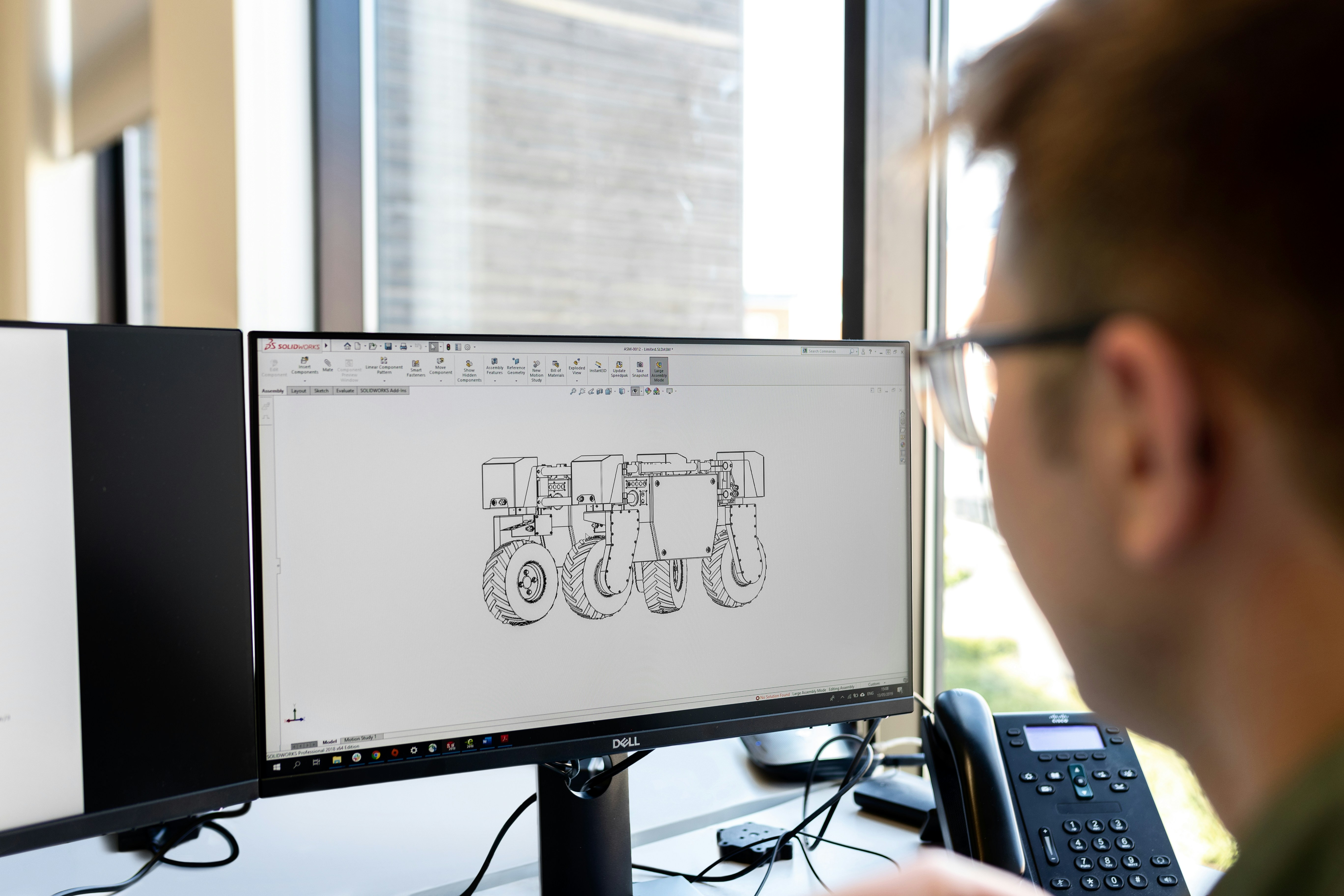
Best AI Tools for SolidWorks in 2026: What Actually Helps Engineers
Engineering
-
Best AI Tools for SolidWorks in 2026: What Actually Helps Engineers
Engineering
Best AI Tools for SolidWorks in 2026: What Actually Helps Engineers
Engineering
-
Table of Contents
Most “AI for CAD” articles sell the same fantasy: type a prompt, hit enter, and get a production-ready part by lunch. Looks great in a demo. Falls apart fast in real SolidWorks work.
Anyone who actually uses SolidWorks knows the challenge is not just making geometry. It is building parts and assemblies that survive revisions, keep design intent intact, and do not wreck the feature tree five edits later.
That is where AI starts to be useful.
The best AI tools for SolidWorks are not miracle design engines. They help with repetitive tasks, faster iteration, quicker decisions, and the boring parts that eat up hours. That is the real value. Not magic. Just less friction.
Most SolidWorks users are right to be skeptical. CAD workflows are messy, constrained, and full of tradeoffs. So this guide focuses on the AI tools that genuinely help, not the ones that only look impressive in marketing videos.
What SolidWorks users should actually expect from AI
AI in SolidWorks is not here to replace engineering judgment. It is much better at assisting than deciding.
In practice, the useful stuff is pretty simple: speeding up repetitive modeling steps, helping with drawings and assemblies, exploring more design options, and cutting down the time spent on support work around the model. Documentation, summaries, macro drafts, that kind of thing.
Where people get disappointed is expecting AI to handle manufacturability, tolerance decisions, material tradeoffs, or design intent on its own. It usually cannot. Not reliably.
So the right expectation is not “AI will design this for me.” It is “AI will help me get through the slower parts of the workflow faster.” For most SolidWorks users, that is already a big win.

SOLIDWORKS AI tools are getting real, finally
For a while, “AI in CAD” felt more like a promise than a workflow. That is starting to change inside the SOLIDWORKS ecosystem.
The biggest shift is Dassault’s push around AI Companions, especially tools like AURA, LEO, and MARIE. The idea is not that they replace modeling. It is that they help users find information faster, support engineering decisions, and reduce some of the back-and-forth that slows projects down.
That matters because most SolidWorks users do not need an AI that draws wild shapes from scratch. They need help with the practical stuff: finding the right knowledge, speeding up routine work, and getting unstuck faster.
At the same time, newer SOLIDWORKS releases are putting AI into more specific workflow areas like drawings, assemblies, and feature recognition. Honestly, that is probably the smarter direction. Flashy generative design gets attention, but small time savings inside everyday CAD work are usually worth more.
If you are starting to feel limited by your current setup, it helps to look at the best PC for SolidWorks before assuming the workflow itself is the problem.
AI Companions: useful if they stay out of your way
The most important native AI push from SOLIDWORKS right now is the AI Companion lineup. Tools like AURA, LEO, and MARIE are meant to help with knowledge lookup, engineering support, and research-oriented tasks around the design process.
That sounds a little abstract at first. Because it is. But the practical value is easier to understand when you think about the daily friction in CAD work: hunting for the right information, checking design context, or losing time switching between tools just to answer one technical question.
That is where this kind of AI can help. Not by replacing the modeler, but by reducing the small interruptions that pile up during a project.
My take? That is a much better use of AI in SolidWorks than pretending it can do all the engineering for you.

The boring AI features might be the best ones
Some of the most useful AI in SolidWorks is not flashy at all. It shows up in places like drawings, assembly workflows, feature recognition, and setup tasks that normally waste time.
That might not sound exciting. But for most users, this is where the real payoff is. Saving 20 minutes on documentation or assembly cleanup every day matters a lot more than a futuristic demo that never makes it into production.
I have noticed that SolidWorks users usually care less about AI making dramatic design decisions and more about whether it removes friction. Can it reduce repetitive clicks? Can it help organize messy assembly work? Can it make drawings less painful? That is the kind of AI people actually keep using.
If your assemblies, renders, or AI-assisted tasks are pushing performance too hard, choosing the best GPU for SolidWorks can make a bigger difference than most users expect.
Beyond SolidWorks itself, a few AI tools are actually worth your time
This is where the list gets more interesting. The best AI tools for SolidWorks users are not always built inside SolidWorks.
Some are better at design exploration. Some help with simulation-heavy workflows. Others are useful for the support work around CAD, which is often where more time gets lost than people want to admit.
The important thing is not whether a tool calls itself “AI-powered.” A lot of them do. The real question is simpler: does it help you design faster, test ideas sooner, or cut down manual work without adding new headaches?
That is the standard worth using.
nTop is powerful, but not for everyone
If your work involves lightweighting, lattices, complex surfaces, or additive manufacturing, nTop is one of the more serious tools in this space. It is built for advanced geometry workflows that would be painful or flat-out unrealistic to handle in traditional parametric CAD alone.
That said, it is not a casual add-on for the average SolidWorks user. For straightforward mechanical design, it can feel like too much tool for the job. But for engineers working on performance-driven parts, it can open up design options that SolidWorks by itself does not handle nearly as well.
So yes, it is impressive. Just not universally necessary. And that is fine.

Fusion’s generative design is still worth watching
Even if you are fully committed to SolidWorks, Autodesk Fusion is still part of the AI and generative design conversation. Especially when the goal is fast design exploration based on loads, constraints, and manufacturing limits.
I would not present it as a replacement for SolidWorks. That misses the point. It is more useful as a reference for what AI-guided design exploration can look like when the workflow is built around generating and comparing options quickly.
For some teams, that is valuable. For others, it is just one more environment to manage. So the appeal really depends on how often you need that kind of early-stage exploration.
If you are working from Apple hardware or trying to avoid buying a second machine, this guide on how to run SolidWorks on macOS is a useful place to start.
ChatGPT can help more than most engineers expect
This one is easy to underestimate because it does not sit inside SolidWorks. But it can still save a surprising amount of time around the actual CAD work.
Used well, ChatGPT is helpful for things like writing SolidWorks macro starters, cleaning up design notes, summarizing meeting decisions, drafting internal documentation, or building first-pass checklists for reviews and testing. Not glamorous. Still useful.
The catch is obvious. You cannot trust it blindly with dimensions, tolerances, calculations, or material choices. It is a support tool, not a design authority. Treat it like a fast assistant, not a senior engineer, and it becomes a lot more valuable.

Simulation-focused AI tools can be a huge win in the right workflow
If your projects involve repeated simulation loops, AI starts getting a lot more interesting. Especially in areas like airflow, thermal behavior, or performance prediction, where waiting on every test run can slow everything down.
That is why simulation-focused platforms and physics-based AI tools are worth watching. They can help teams test more options in less time and spot bad directions earlier.
Of course, this only matters if simulation is already a big part of your process. If most of your work is straightforward part modeling or assembly design, these tools may be overkill. But for engineering teams that live in analysis-heavy workflows, the time savings can be very real.
What makes an AI tool actually useful for SolidWorks users
A tool does not become valuable just because it has AI in the label. For SolidWorks users, the test is pretty practical.
Does it save time on repetitive work? Does it help you explore options faster? Does it fit into the way you already model, review, and hand off files? And maybe most importantly, does it create less friction than it adds?
That last part matters. A tool can be smart and still be annoying. If it takes too long to learn, breaks the flow, or gives output that needs too much cleanup, most engineers will stop using it fast. The best AI tools are usually the ones that quietly make the day easier.
If you are dealing with instability in heavier projects, learning how to stop SolidWorks from crashing is just as important as adding new tools to your workflow.
The biggest mistake is expecting AI to do the engineering for you
This is where a lot of teams go wrong. They see AI generate options quickly and assume the hard part is done. Usually it is not even close.
AI can help with speed, exploration, and repetitive work. What it cannot reliably replace is engineering judgment. You still need someone to think through manufacturability, tolerances, materials, assembly fit, failure points, and whether the final design makes sense in the real world.
That is why the best results usually come from teams that use AI as an assistant, not as autopilot. The minute it starts replacing review instead of supporting it, problems show up fast.
The hardware problem shows up faster than most people expect
Here is the part people do not talk about enough: AI-heavy CAD workflows are only fun when your machine can keep up.
Once you start working with larger assemblies, simulation tools, visualization, or anything more experimental, hardware becomes a bottleneck fast. Not because the ideas are bad, but because the workflow gets sluggish, unstable, or just annoying to use.
And that changes the experience. A tool that feels smart on a high-performance setup can feel useless on an underpowered laptop. So when SolidWorks users evaluate AI tools, they should not just ask what the software can do. They should also ask whether their system can actually run that workflow without getting in the way.
If you are still building your foundation, it is worth taking time to learn SolidWorks online with the best courses and resources before expecting AI to close every gap.
Where Vagon Cloud Computer fits into this workflow
This is where Vagon makes sense. Not as the AI tool itself, but as the layer that makes these heavier workflows easier to run and easier to share.
Once SolidWorks projects start leaning on bigger assemblies, visualization, simulation, or AI-assisted tools, local hardware can become the weak link. Vagon gives users access to more powerful cloud machines without forcing every team member to buy a new workstation right away.
That is especially useful when you want to test demanding workflows, work from a lighter device, or let end users and teammates access the experience more easily. And honestly, that is a practical benefit. Sometimes the biggest upgrade is not another tool. It is having a setup that lets the tools you already use run properly.
The best AI tool for SolidWorks is usually the one that saves real time
That may sound less exciting than the big marketing promises. Still true.
For most SolidWorks users, the best AI tools are the ones that remove friction from everyday work. Faster drawings. Better design exploration. Less repetitive cleanup. Quicker documentation. Smarter simulation workflows when they actually matter.
That is the real shift. AI is not replacing SolidWorks users. It is making good users faster.
And once those workflows start getting heavier, the next question is not just which tool to use. It is whether your setup can keep up. That is exactly why platforms like Vagon become part of the conversation. Not because they replace CAD or AI, but because they make both easier to run in the real world.
If you are trying to save time in ways that do not depend on new software at all, these SolidWorks hotkeys that actually change how you work are a surprisingly easy win.
FAQs
1. What is the best AI tool for SolidWorks users?
It depends on the workflow. If you want native AI support, SOLIDWORKS’ own AI features are the most relevant place to start. If you need design exploration, simulation support, or documentation help, other tools may be more useful. The best choice is usually the one that saves time in your actual process, not the one with the flashiest demo.
2. Does SolidWorks have built-in AI tools?
Yes, SolidWorks is moving further into AI with features and AI Companion tools designed to support design, engineering, and related workflows. The focus is more on assistance and workflow improvement than full design replacement.
3. Can AI create SolidWorks models automatically?
Not in the way many people imagine. AI can help generate concepts, suggestions, and supporting outputs, but production-ready SolidWorks models still need engineering judgment, clean parametric structure, and review for manufacturability.
4. Is AI useful for everyday CAD work?
Yes, when it is applied to the right tasks. AI is often most useful for repetitive work, documentation, drawing support, early design exploration, and speeding up decision-making. It is usually less helpful when people expect it to handle the full engineering process on its own.
5. Is ChatGPT useful for SolidWorks users?
It can be. ChatGPT is helpful for support tasks around CAD work, like drafting macros, summarizing notes, writing documentation, or creating review checklists. It should not be treated as a final authority for dimensions, tolerances, or engineering decisions.
6. Are AI tools for SolidWorks worth it for small teams?
Often, yes, but only if they solve a real bottleneck. Small teams usually benefit most from tools that reduce repetitive work or help them move faster without adding a lot of setup or training overhead.
7. Do AI-powered CAD workflows require a powerful computer?
In many cases, yes. Larger assemblies, simulation-heavy workflows, visualization, and AI-assisted design tools can put a lot of pressure on local hardware. That is one reason cloud-based performance options can be useful.
8. Where does Vagon Cloud Computer fit in?
Vagon fits in as the infrastructure layer, not as the AI tool itself. It helps SolidWorks users run demanding workflows on stronger cloud machines and makes it easier to access or share those experiences without depending fully on local hardware.
Most “AI for CAD” articles sell the same fantasy: type a prompt, hit enter, and get a production-ready part by lunch. Looks great in a demo. Falls apart fast in real SolidWorks work.
Anyone who actually uses SolidWorks knows the challenge is not just making geometry. It is building parts and assemblies that survive revisions, keep design intent intact, and do not wreck the feature tree five edits later.
That is where AI starts to be useful.
The best AI tools for SolidWorks are not miracle design engines. They help with repetitive tasks, faster iteration, quicker decisions, and the boring parts that eat up hours. That is the real value. Not magic. Just less friction.
Most SolidWorks users are right to be skeptical. CAD workflows are messy, constrained, and full of tradeoffs. So this guide focuses on the AI tools that genuinely help, not the ones that only look impressive in marketing videos.
What SolidWorks users should actually expect from AI
AI in SolidWorks is not here to replace engineering judgment. It is much better at assisting than deciding.
In practice, the useful stuff is pretty simple: speeding up repetitive modeling steps, helping with drawings and assemblies, exploring more design options, and cutting down the time spent on support work around the model. Documentation, summaries, macro drafts, that kind of thing.
Where people get disappointed is expecting AI to handle manufacturability, tolerance decisions, material tradeoffs, or design intent on its own. It usually cannot. Not reliably.
So the right expectation is not “AI will design this for me.” It is “AI will help me get through the slower parts of the workflow faster.” For most SolidWorks users, that is already a big win.
SOLIDWORKS AI tools are getting real, finally
For a while, “AI in CAD” felt more like a promise than a workflow. That is starting to change inside the SOLIDWORKS ecosystem.
The biggest shift is Dassault’s push around AI Companions, especially tools like AURA, LEO, and MARIE. The idea is not that they replace modeling. It is that they help users find information faster, support engineering decisions, and reduce some of the back-and-forth that slows projects down.
That matters because most SolidWorks users do not need an AI that draws wild shapes from scratch. They need help with the practical stuff: finding the right knowledge, speeding up routine work, and getting unstuck faster.
At the same time, newer SOLIDWORKS releases are putting AI into more specific workflow areas like drawings, assemblies, and feature recognition. Honestly, that is probably the smarter direction. Flashy generative design gets attention, but small time savings inside everyday CAD work are usually worth more.
If you are starting to feel limited by your current setup, it helps to look at the best PC for SolidWorks before assuming the workflow itself is the problem.
AI Companions: useful if they stay out of your way
The most important native AI push from SOLIDWORKS right now is the AI Companion lineup. Tools like AURA, LEO, and MARIE are meant to help with knowledge lookup, engineering support, and research-oriented tasks around the design process.
That sounds a little abstract at first. Because it is. But the practical value is easier to understand when you think about the daily friction in CAD work: hunting for the right information, checking design context, or losing time switching between tools just to answer one technical question.
That is where this kind of AI can help. Not by replacing the modeler, but by reducing the small interruptions that pile up during a project.
My take? That is a much better use of AI in SolidWorks than pretending it can do all the engineering for you.
The boring AI features might be the best ones
Some of the most useful AI in SolidWorks is not flashy at all. It shows up in places like drawings, assembly workflows, feature recognition, and setup tasks that normally waste time.
That might not sound exciting. But for most users, this is where the real payoff is. Saving 20 minutes on documentation or assembly cleanup every day matters a lot more than a futuristic demo that never makes it into production.
I have noticed that SolidWorks users usually care less about AI making dramatic design decisions and more about whether it removes friction. Can it reduce repetitive clicks? Can it help organize messy assembly work? Can it make drawings less painful? That is the kind of AI people actually keep using.
If your assemblies, renders, or AI-assisted tasks are pushing performance too hard, choosing the best GPU for SolidWorks can make a bigger difference than most users expect.
Beyond SolidWorks itself, a few AI tools are actually worth your time
This is where the list gets more interesting. The best AI tools for SolidWorks users are not always built inside SolidWorks.
Some are better at design exploration. Some help with simulation-heavy workflows. Others are useful for the support work around CAD, which is often where more time gets lost than people want to admit.
The important thing is not whether a tool calls itself “AI-powered.” A lot of them do. The real question is simpler: does it help you design faster, test ideas sooner, or cut down manual work without adding new headaches?
That is the standard worth using.
nTop is powerful, but not for everyone
If your work involves lightweighting, lattices, complex surfaces, or additive manufacturing, nTop is one of the more serious tools in this space. It is built for advanced geometry workflows that would be painful or flat-out unrealistic to handle in traditional parametric CAD alone.
That said, it is not a casual add-on for the average SolidWorks user. For straightforward mechanical design, it can feel like too much tool for the job. But for engineers working on performance-driven parts, it can open up design options that SolidWorks by itself does not handle nearly as well.
So yes, it is impressive. Just not universally necessary. And that is fine.
Fusion’s generative design is still worth watching
Even if you are fully committed to SolidWorks, Autodesk Fusion is still part of the AI and generative design conversation. Especially when the goal is fast design exploration based on loads, constraints, and manufacturing limits.
I would not present it as a replacement for SolidWorks. That misses the point. It is more useful as a reference for what AI-guided design exploration can look like when the workflow is built around generating and comparing options quickly.
For some teams, that is valuable. For others, it is just one more environment to manage. So the appeal really depends on how often you need that kind of early-stage exploration.
If you are working from Apple hardware or trying to avoid buying a second machine, this guide on how to run SolidWorks on macOS is a useful place to start.
ChatGPT can help more than most engineers expect
This one is easy to underestimate because it does not sit inside SolidWorks. But it can still save a surprising amount of time around the actual CAD work.
Used well, ChatGPT is helpful for things like writing SolidWorks macro starters, cleaning up design notes, summarizing meeting decisions, drafting internal documentation, or building first-pass checklists for reviews and testing. Not glamorous. Still useful.
The catch is obvious. You cannot trust it blindly with dimensions, tolerances, calculations, or material choices. It is a support tool, not a design authority. Treat it like a fast assistant, not a senior engineer, and it becomes a lot more valuable.
Simulation-focused AI tools can be a huge win in the right workflow
If your projects involve repeated simulation loops, AI starts getting a lot more interesting. Especially in areas like airflow, thermal behavior, or performance prediction, where waiting on every test run can slow everything down.
That is why simulation-focused platforms and physics-based AI tools are worth watching. They can help teams test more options in less time and spot bad directions earlier.
Of course, this only matters if simulation is already a big part of your process. If most of your work is straightforward part modeling or assembly design, these tools may be overkill. But for engineering teams that live in analysis-heavy workflows, the time savings can be very real.
What makes an AI tool actually useful for SolidWorks users
A tool does not become valuable just because it has AI in the label. For SolidWorks users, the test is pretty practical.
Does it save time on repetitive work? Does it help you explore options faster? Does it fit into the way you already model, review, and hand off files? And maybe most importantly, does it create less friction than it adds?
That last part matters. A tool can be smart and still be annoying. If it takes too long to learn, breaks the flow, or gives output that needs too much cleanup, most engineers will stop using it fast. The best AI tools are usually the ones that quietly make the day easier.
If you are dealing with instability in heavier projects, learning how to stop SolidWorks from crashing is just as important as adding new tools to your workflow.
The biggest mistake is expecting AI to do the engineering for you
This is where a lot of teams go wrong. They see AI generate options quickly and assume the hard part is done. Usually it is not even close.
AI can help with speed, exploration, and repetitive work. What it cannot reliably replace is engineering judgment. You still need someone to think through manufacturability, tolerances, materials, assembly fit, failure points, and whether the final design makes sense in the real world.
That is why the best results usually come from teams that use AI as an assistant, not as autopilot. The minute it starts replacing review instead of supporting it, problems show up fast.
The hardware problem shows up faster than most people expect
Here is the part people do not talk about enough: AI-heavy CAD workflows are only fun when your machine can keep up.
Once you start working with larger assemblies, simulation tools, visualization, or anything more experimental, hardware becomes a bottleneck fast. Not because the ideas are bad, but because the workflow gets sluggish, unstable, or just annoying to use.
And that changes the experience. A tool that feels smart on a high-performance setup can feel useless on an underpowered laptop. So when SolidWorks users evaluate AI tools, they should not just ask what the software can do. They should also ask whether their system can actually run that workflow without getting in the way.
If you are still building your foundation, it is worth taking time to learn SolidWorks online with the best courses and resources before expecting AI to close every gap.
Where Vagon Cloud Computer fits into this workflow
This is where Vagon makes sense. Not as the AI tool itself, but as the layer that makes these heavier workflows easier to run and easier to share.
Once SolidWorks projects start leaning on bigger assemblies, visualization, simulation, or AI-assisted tools, local hardware can become the weak link. Vagon gives users access to more powerful cloud machines without forcing every team member to buy a new workstation right away.
That is especially useful when you want to test demanding workflows, work from a lighter device, or let end users and teammates access the experience more easily. And honestly, that is a practical benefit. Sometimes the biggest upgrade is not another tool. It is having a setup that lets the tools you already use run properly.
The best AI tool for SolidWorks is usually the one that saves real time
That may sound less exciting than the big marketing promises. Still true.
For most SolidWorks users, the best AI tools are the ones that remove friction from everyday work. Faster drawings. Better design exploration. Less repetitive cleanup. Quicker documentation. Smarter simulation workflows when they actually matter.
That is the real shift. AI is not replacing SolidWorks users. It is making good users faster.
And once those workflows start getting heavier, the next question is not just which tool to use. It is whether your setup can keep up. That is exactly why platforms like Vagon become part of the conversation. Not because they replace CAD or AI, but because they make both easier to run in the real world.
If you are trying to save time in ways that do not depend on new software at all, these SolidWorks hotkeys that actually change how you work are a surprisingly easy win.
FAQs
1. What is the best AI tool for SolidWorks users?
It depends on the workflow. If you want native AI support, SOLIDWORKS’ own AI features are the most relevant place to start. If you need design exploration, simulation support, or documentation help, other tools may be more useful. The best choice is usually the one that saves time in your actual process, not the one with the flashiest demo.
2. Does SolidWorks have built-in AI tools?
Yes, SolidWorks is moving further into AI with features and AI Companion tools designed to support design, engineering, and related workflows. The focus is more on assistance and workflow improvement than full design replacement.
3. Can AI create SolidWorks models automatically?
Not in the way many people imagine. AI can help generate concepts, suggestions, and supporting outputs, but production-ready SolidWorks models still need engineering judgment, clean parametric structure, and review for manufacturability.
4. Is AI useful for everyday CAD work?
Yes, when it is applied to the right tasks. AI is often most useful for repetitive work, documentation, drawing support, early design exploration, and speeding up decision-making. It is usually less helpful when people expect it to handle the full engineering process on its own.
5. Is ChatGPT useful for SolidWorks users?
It can be. ChatGPT is helpful for support tasks around CAD work, like drafting macros, summarizing notes, writing documentation, or creating review checklists. It should not be treated as a final authority for dimensions, tolerances, or engineering decisions.
6. Are AI tools for SolidWorks worth it for small teams?
Often, yes, but only if they solve a real bottleneck. Small teams usually benefit most from tools that reduce repetitive work or help them move faster without adding a lot of setup or training overhead.
7. Do AI-powered CAD workflows require a powerful computer?
In many cases, yes. Larger assemblies, simulation-heavy workflows, visualization, and AI-assisted design tools can put a lot of pressure on local hardware. That is one reason cloud-based performance options can be useful.
8. Where does Vagon Cloud Computer fit in?
Vagon fits in as the infrastructure layer, not as the AI tool itself. It helps SolidWorks users run demanding workflows on stronger cloud machines and makes it easier to access or share those experiences without depending fully on local hardware.
Get Beyond Your Computer Performance
Run applications on your cloud computer with the latest generation hardware. No more crashes or lags.

Trial includes 1 hour usage + 7 days of storage.
Summarize with AI

Ready to focus on your creativity?
Vagon gives you the ability to create & render projects, collaborate, and stream applications with the power of the best hardware.

Vagon Blog
Run heavy applications on any device with
your personal computer on the cloud.
San Francisco, California
Solutions
Vagon Teams
Vagon Streams
Use Cases
Resources
Vagon Blog
How to Use DaVinci Resolve With Codex: MCP & Computer Use
How to Use ComfyUI With Claude: MCP & Computer Use Guide
How to Use Rhino With Codex: MCP & Computer Use Guide
How to Use KiCad With Codex: MCP & Computer Use Guide
How to Use KiCad With Claude: MCP & Computer Use Guide Meta
How to Use FreeCAD With Codex: MCP & Computer Use
How to Use FreeCAD With Claude: MCP & Computer Use
How to Use 3ds Max With Codex: MCP & Computer Use
How to Use Houdini With Claude: MCP & Computer Use
Vagon Blog
Run heavy applications on any device with
your personal computer on the cloud.
San Francisco, California
Solutions
Vagon Teams
Vagon Streams
Use Cases
Resources
Vagon Blog
How to Use DaVinci Resolve With Codex: MCP & Computer Use
How to Use ComfyUI With Claude: MCP & Computer Use Guide
How to Use Rhino With Codex: MCP & Computer Use Guide
How to Use KiCad With Codex: MCP & Computer Use Guide
How to Use KiCad With Claude: MCP & Computer Use Guide Meta
How to Use FreeCAD With Codex: MCP & Computer Use
How to Use FreeCAD With Claude: MCP & Computer Use
How to Use 3ds Max With Codex: MCP & Computer Use
How to Use Houdini With Claude: MCP & Computer Use
Vagon Blog
Run heavy applications on any device with
your personal computer on the cloud.
San Francisco, California
Solutions
Vagon Teams
Vagon Streams
Use Cases
Resources
Vagon Blog