Instant Connection for Pixel Streaming
— New Feature Automated Setup

Best PC for SolidWorks in 2026: Real Hardware Recommendations for CAD, PDM, and CAM
Engineering
Best PC for SolidWorks in 2026: Real Hardware Recommendations for CAD, PDM, and CAM
Engineering
Best PC for SolidWorks in 2026: Real Hardware Recommendations for CAD, PDM, and CAM
Engineering
Table of Contents
I still remember the afternoon a client sent me a fairly innocent-looking assembly. Nothing outrageous. A couple of sub-assemblies, some sheet metal parts, a few fasteners that I’d seen a thousand times before. I dragged it into the workspace, waited for SolidWorks to settle, and tried to rotate the model.
The viewport didn’t rotate.
It twitched.
Then it froze.
For a moment I thought the program had crashed completely, but no, the CPU fan suddenly sounded like it was trying to take off, and the rebuild bar crept forward about one pixel every few seconds. That’s when you know SolidWorks is doing its usual thing: reminding you that it doesn’t care how new your GPU is, or how confidently you believed your PC was “pretty strong.”
SolidWorks CAD has its own personality. And honestly, it behaves nothing like a typical rendering engine or a gaming workflow. I’ve seen people buy a fancy RTX card because they assume “more GPU equals more speed,” only to discover that SolidWorks mostly laughs at that logic. It’s a parametric modeler first, a graphics-heavy tool second. Most of the grunt work happens in the CPU, inside a single thread. So if that single thread can’t keep up, everything slows down. Sketch rebuilds, mates, drawings, the whole thing.
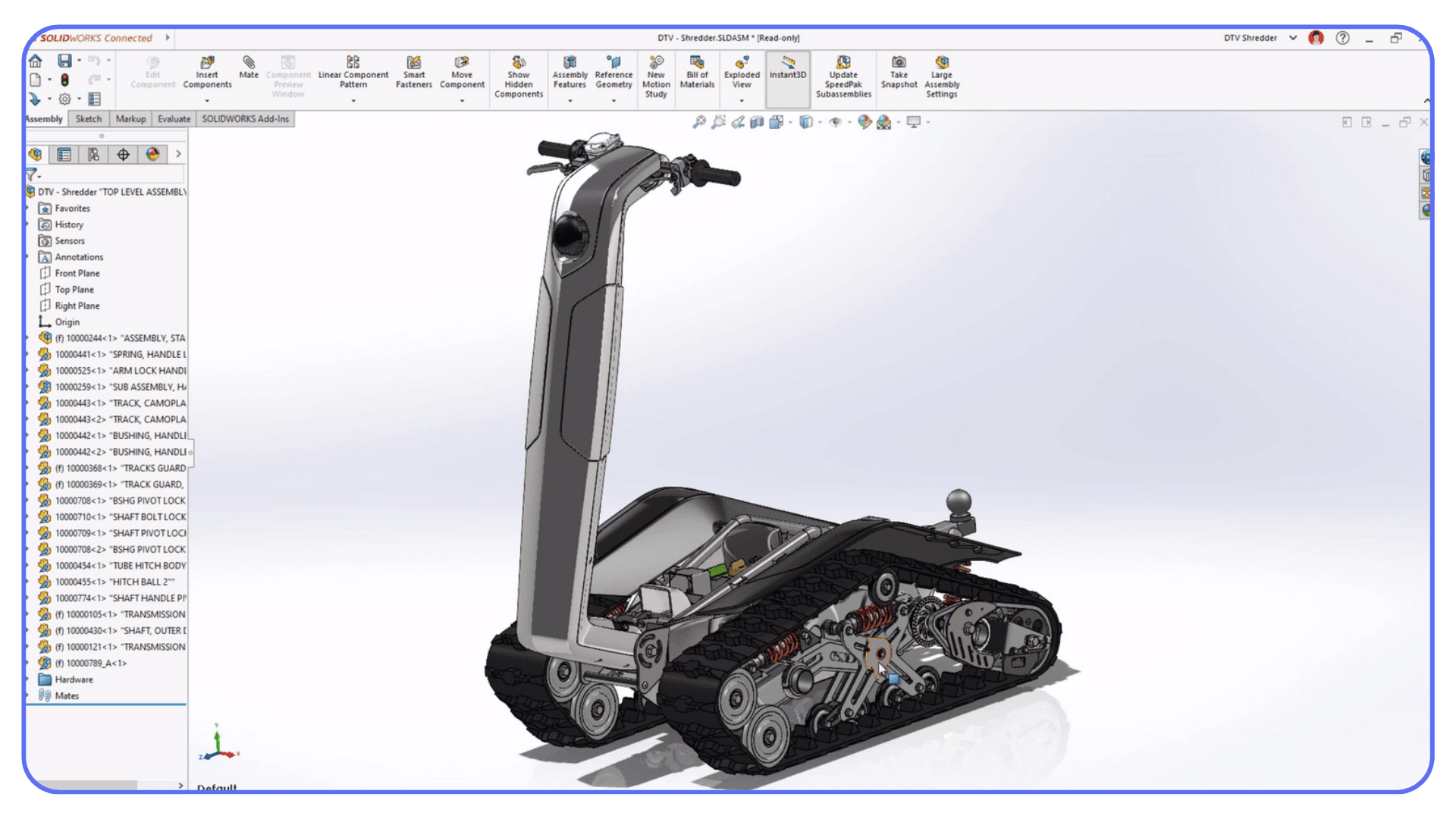
This hits new users the hardest. I’ve talked to plenty of students who grab solidworks for students, run a quick solidworks download, set it up on their laptop, and expect it to behave like a game engine. They figure if their machine can run a modern game at 100+ FPS, it should breeze through a CAD model.
That illusion usually disappears about ten minutes into their first big assembly.
It’s the same story for anyone installing the full solidworks software download on a general-purpose laptop: the program opens fine, small parts run smoothly, and then the moment you hit a multibody part or a 500-component assembly, everything goes slow-motion.
If you’ve ever stared at a frozen viewport and wondered, “Is this normal?”, yes. It’s normal. And it’s the point where most people realize that choosing the right PC for SolidWorks isn’t as simple as buying whatever looks powerful on paper.
If you’re trying to figure out whether a workstation GPU or a gaming card makes more sense for your setup, this guide on the best GPU for SolidWorks breaks it down without the usual marketing noise.
What’s Changed in 2026?
A lot of people expect some dramatic software shift year to year. In SolidWorks, it’s rarely that.
What actually changes is the way people use it.
In 2026, I’ve noticed three things pushing hardware pain points to the surface faster than before: bigger assemblies earlier in the process, more visual fidelity in day-to-day modeling, and more teams working in mixed setups (laptops, remote, PDM, cloud-connected projects).
Larger assemblies show up sooner
It used to be: you modeled parts, then later you dealt with the monster assembly.
Now it’s common to pull in vendor CAD, fasteners, scanned-ish geometry, and “temporary” context parts from day one. That’s why a file that looks innocent can still behave like a brick. It’s not always the part count. It’s the complexity inside the parts.
Viewport expectations are higher
People leave RealView-ish settings on more often now. More transparency, more section views, more shaded edges, more visual checks while designing, not just at the end.
None of that makes rebuilds faster, but it makes a weak GPU or unstable drivers way more obvious. You don’t just see “slower.” You see stutters, glitches, weird artifacts, and that awful feeling that the model is fighting you.
PDM and collaboration workflows punish slow storage and low RAM
If you’re touching vaults, large drawings, previews, or opening a lot of referenced files all day, the “CPU vs GPU” debate stops being the main story. The quiet killers are still RAM pressure and storage responsiveness.
This is also why people feel like SolidWorks is inconsistent: one day it’s fine, the next day it’s crawling. Often it’s not the GPU at all. It’s the machine paging memory or choking on file operations.
More people are using cloud-connected setups, but local hardware still matters
3DEXPERIENCE-style workflows and cloud collaboration help with access and sharing, but your machine still has to model, rebuild, and push frames to the screen. So the “my work is in the cloud” mindset doesn’t magically remove the need for a strong CPU and enough RAM.
What it does change is how people solve the problem when their laptop hits the wall: they’re more willing to jump to a cloud workstation for the heavy sessions instead of buying a whole new machine.
The 2026 takeaway
SolidWorks didn’t suddenly become a GPU-first app.
It just became less tolerant of hardware that’s strong in the wrong places.
If your CPU can’t sustain high single-core speed, modeling feels slow.
If your RAM is tight, big assemblies feel like quicksand.
If your storage is mediocre, PDM and drawings feel frustrating.
And if your GPU drivers aren’t stable, the viewport feels “haunted.”
That’s the lens for the rest of this guide.
What SolidWorks Actually Needs From Your Hardware
One of the first things I had to unlearn about SolidWorks is that not all parts of the program stress your system in the same way. Modeling is one thing. Simulation is another. CAM is its own world entirely. And the hardware that feels amazing in one workflow can feel painfully average in another.
Let’s start with the basics. SolidWorks CAD is a parametric system. Every time you change a sketch dimension or tweak a fillet, the software recalculates feature dependencies like a chain reaction. That math happens mostly on a single CPU core. So when people talk about SolidWorks, they often forget that it's essentially a giant equation solver with a 3D interface on top. The moment you understand that, a lot of the hardware confusion suddenly makes sense.
This is why solid works cad behaves nothing like Blender, Unreal, or any rendering-focused program. Those tools lean heavily on the GPU. SolidWorks leans heavily on the CPU, especially for rebuilds, large drawings, mates, configurations, basically everything you touch daily. You can have a monster graphics card and still feel slow if the CPU can’t push enough single-core speed.
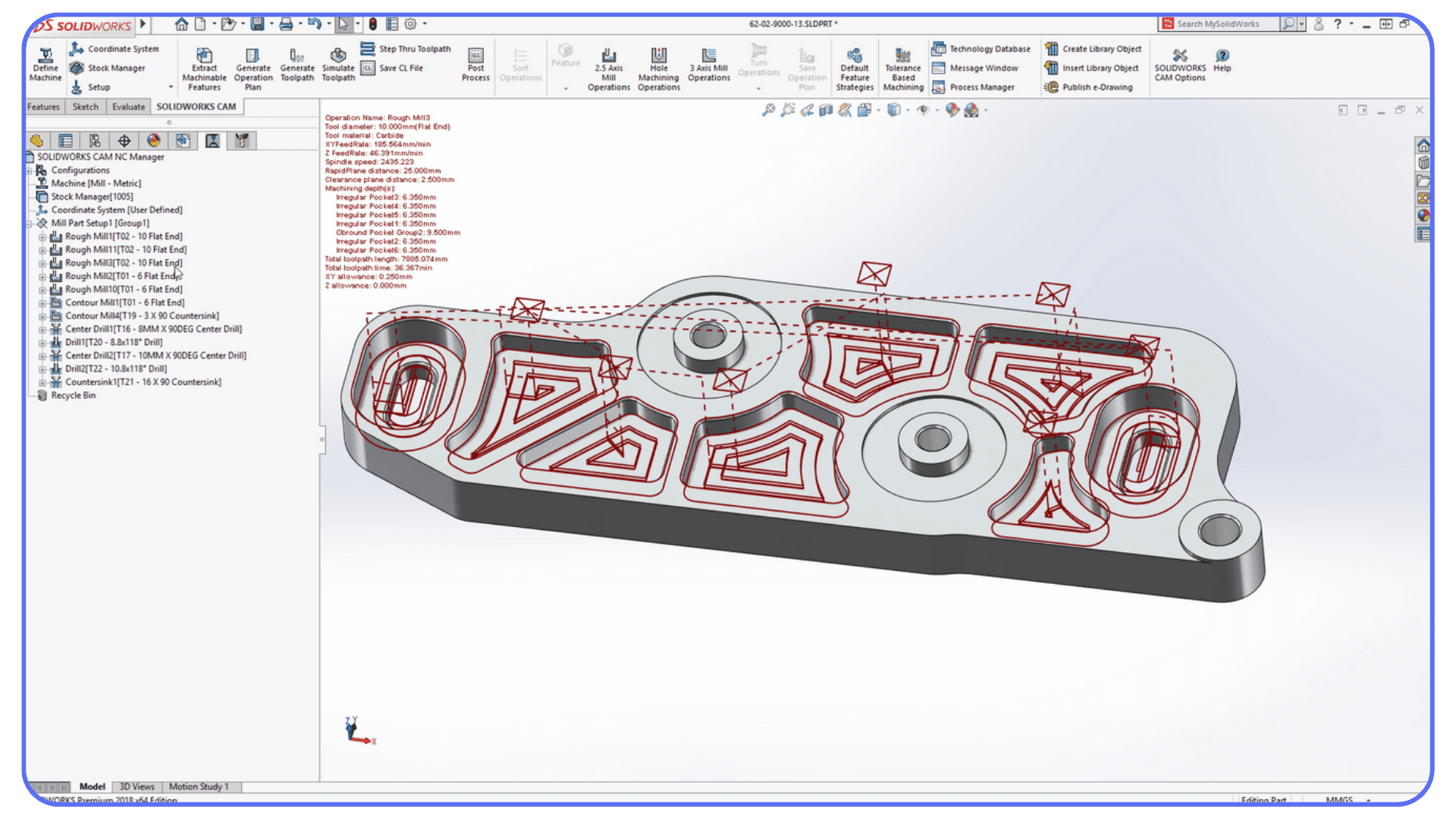
Then there’s Simulation. Between stress analysis, Flow, and Plastics, you finally see more CPU cores getting used. Not maxed out, but noticeably busier. CAM adds another layer. If you’ve ever run toolpath generation in solidworks cam, you know it can feel faster or slower depending on RAM and CPU combo, not just raw clock speed.
And we can’t ignore visualization tools. A lot of users assume the GPU only matters for rendering, but RealView, transparency, shadows, and fast viewport movement depend on it too. Even something as simple as opening a large assembly in edrawings or checking a supplier model in edrawingsviewer can expose GPU weaknesses, especially if the graphics card wasn’t built for CAD at all.
PDM environments add their own twist. Anyone who has worked inside solidworks pdm or any pdm software solidworks setup knows how much the system relies on responsive storage and decent memory. Checking files in and out, navigating large vaults, previewing models, all of that benefits from proper hardware. RAM and SSD speed matter more than people think.
And then there’s 3DEXPERIENCE. I’ve noticed more companies shifting toward 3dexperience solidworks over the past two years. It offloads some things to the cloud, but your local machine still handles modeling, assemblies, and graphics. So the hardware requirements don’t magically vanish just because part of the workflow lives online.
So when you hear people ask, “What are the Best PC requirements for SolidWorks hardware specifications?”, the honest answer is this: it depends entirely on which part of SolidWorks you actually use. Modeling punishes the CPU. Visualization leans on the GPU. PDM and large assemblies demand RAM and fast storage. And Simulation finally appreciates extra cores.
Most struggles happen when your PC is strong in the wrong category.
If you’re still deciding between different CAD tools and trying to understand where SolidWorks fits, you might want to check this comparison: AutoCAD vs SolidWorks.
CPU: The Real Boss in SolidWorks
If there’s one part people consistently misunderstand, it’s the CPU. I’ve lost count of how many users bought a 16-core processor thinking it would “handle anything SolidWorks throws at it,” only to watch their sketches rebuild at the same speed as a mid-range laptop. SolidWorks modeling is brutally single-threaded. One core does almost all the work. So a 5.6 or 5.8 GHz chip will beat a massive workstation CPU every single time in day-to-day CAD tasks.
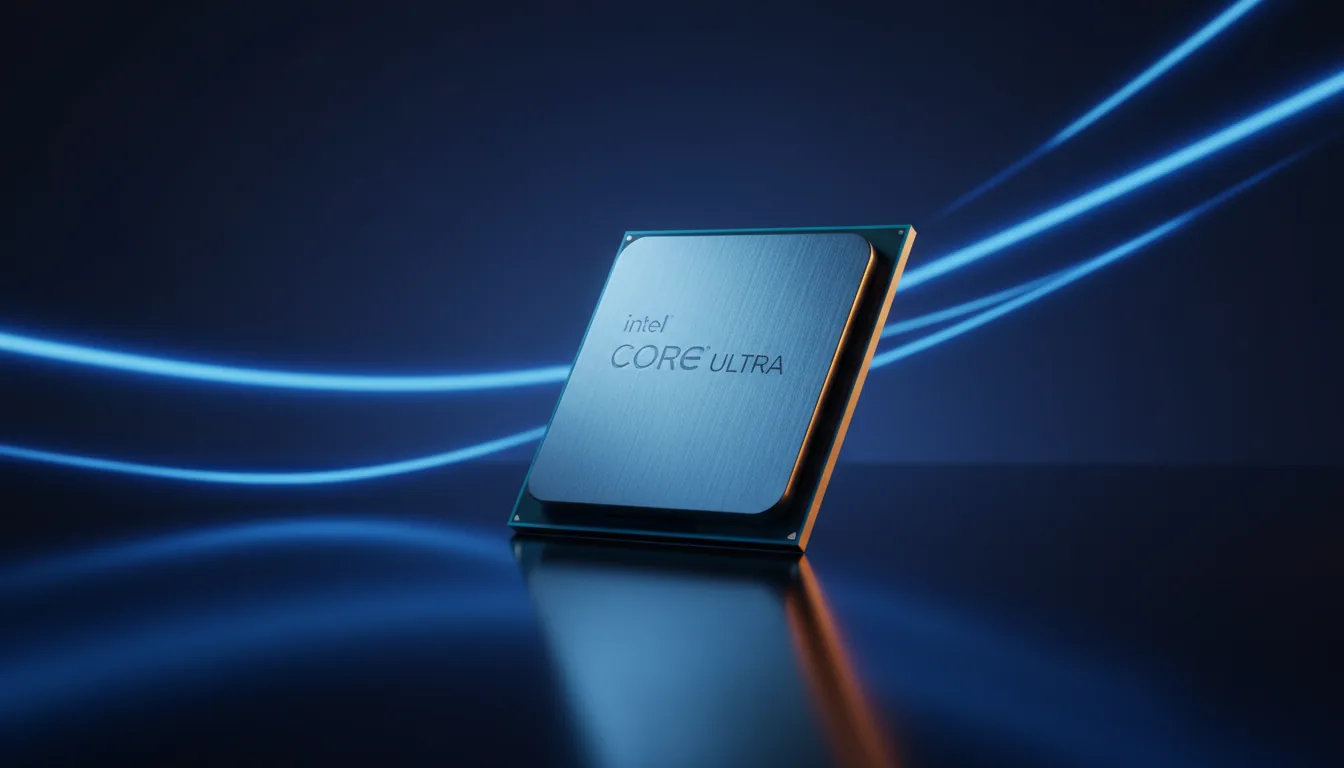
Whenever someone asks Which CPU GPU RAM SSD and other components are recommended for a workstation PC for SolidWorks, I usually start with the same line:
“If you care about modeling speed, buy frequency, not cores.”
Extra cores help in Simulation, CAM toolpaths, and certain rendering tasks, but they don’t change how fast a sketch rebuilds or how quickly a 2,000-component assembly regenerates. Even solidworks for students users notice this instantly when they try to modify multibody parts on weaker laptops. The software slows down not because it’s heavy, but because it’s hitting the frequency ceiling of their CPU.
GPU: More Important Than People Claim, But Not for the Reasons They Think
I’ve seen both extremes: users with a massive RTX 4090 disappointed that SolidWorks still feels sluggish, and users with decade-old GPUs who wonder why the viewport stutters when they turn on transparency. The truth sits somewhere in the middle.
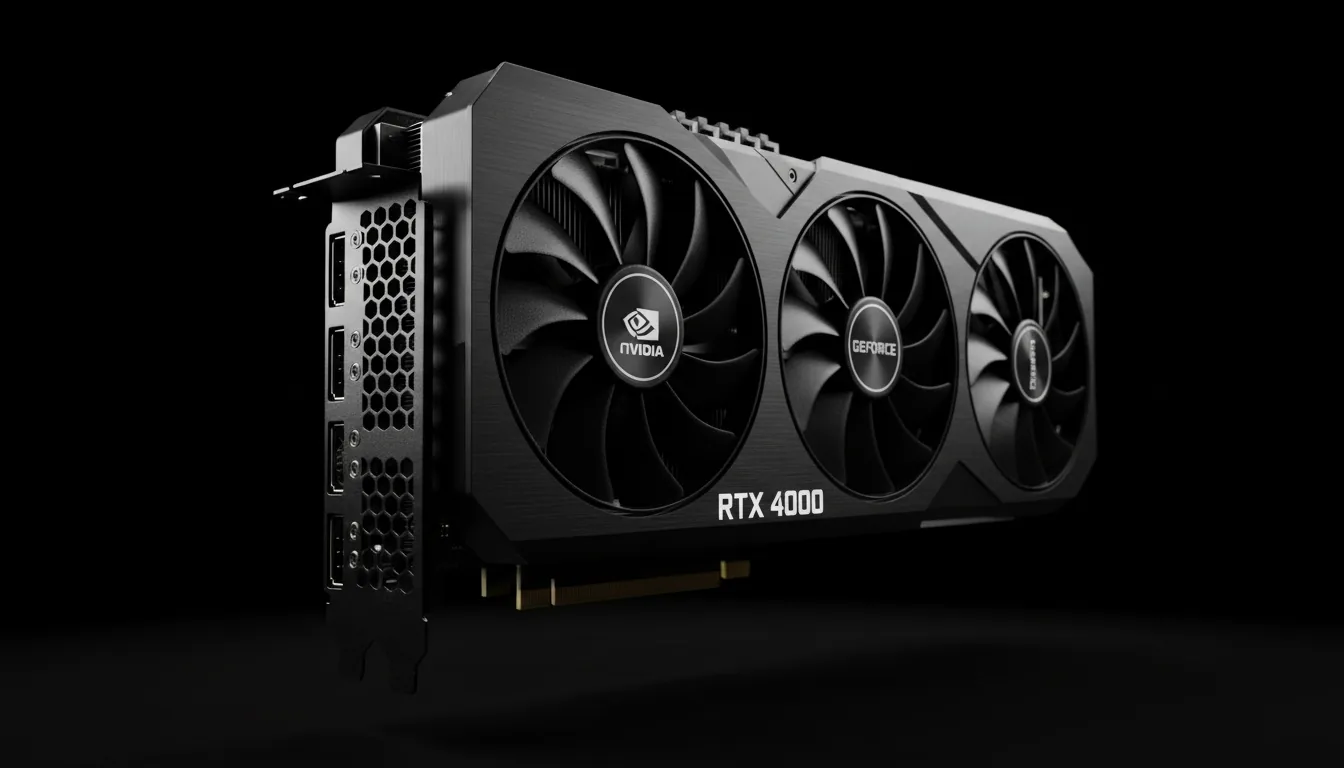
For raw modeling speed, the GPU won’t help. But for a smoother viewport, RealView, shadows, and large assemblies, it absolutely matters. A good GPU also helps with edrawingsviewer and edrawings previews, especially in assemblies filled with imported supplier parts.
And yes, workstation cards still have value in 2026. Better drivers. More stability. Fewer graphics glitches. The SolidWorks recommended system charts often push Quadro/RTX Pro cards for a reason. But honestly, many users get excellent results from modern gaming GPUs as long as they choose the right one.
RAM: The Silent Hero of Large Assemblies
I’ve watched SolidWorks chew through 16 GB of RAM like it’s nothing. Assemblies with patterns, configurations, imported STEP files, and multibody parts can balloon memory usage fast. And when SolidWorks starts paging memory to disk, your whole workstation feels like it’s underwater.
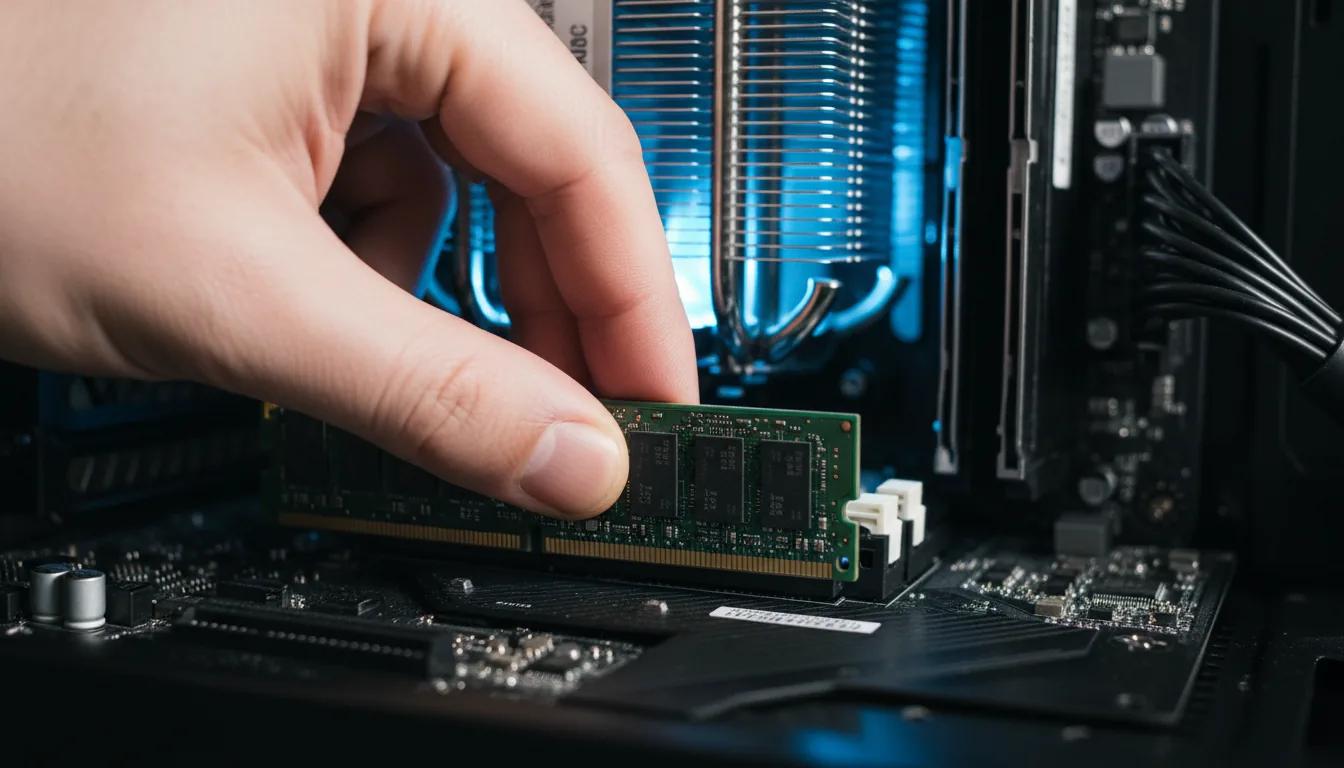
For most professionals, 32 GB should be considered baseline in 2026. If you work with big assemblies, 64 GB isn’t overkill. In PDM environments, especially solidworks pdm or any pdm software solidworks vault, RAM matters even more because previews, check-ins, and file indexing pile up in memory.
SSD: The Upgrade Most People Underestimate
Open and save times shrink dramatically once you move from a SATA SSD to a high-end NVMe drive. This isn’t just about convenience. Fast storage makes PDM workflows smoother, reduces the time waiting for large drawings to open, and keeps SolidWorks from choking on imported files.
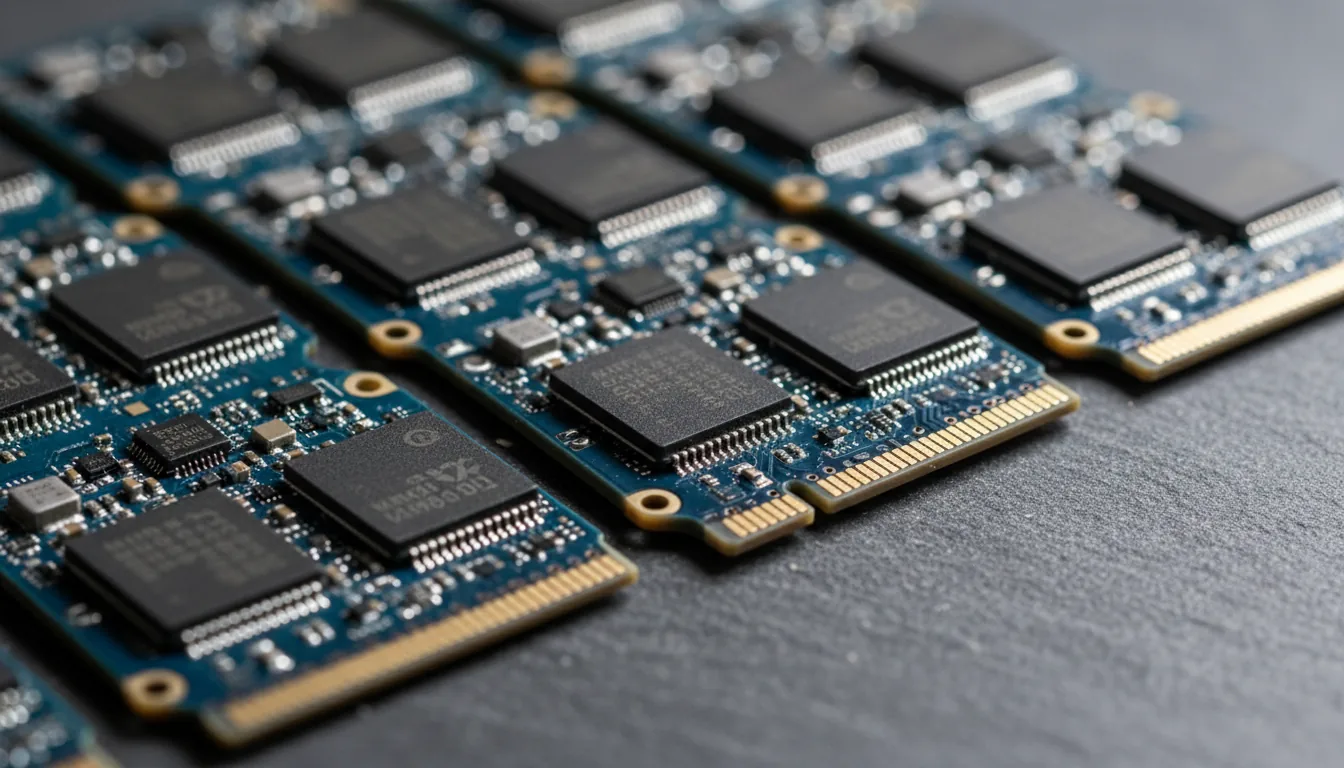
I’ve noticed something else: slow drives tend to frustrate users dealing with solidworks licenses, because the software’s startup checks and background services run slower on weak storage. It doesn’t break anything, but it wastes time, especially in busy offices.
And since people often Google solidworks cost, solidworks software cost, solidworks price, or solid works pricing while budgeting their setups, they forget that hardware speed is part of the true cost too. A slow SSD can make an expensive license feel sluggish.
Actual Hardware Recommendations: Laptops and Prebuilt PCs
People ask me for “the best SolidWorks laptop” all the time, and I always give the same honest answer: it depends on how much pain you’re willing to tolerate. Laptops can absolutely run SolidWorks well, but they need strong cooling and high CPU frequency to avoid the throttling that usually kills performance. Prebuilt desktops, on the other hand, are simply more stable and usually cheaper for the power you get.
Here’s what I actually recommend to real SolidWorks users in 2026, not theoretical specs, but machines I’ve seen perform well in daily CAD, PDM, drawings, CAM, or Simulation work.
The Laptops I Trust for SolidWorks
If you need to stay mobile, these are the types of laptops that consistently hold up under SolidWorks workloads:
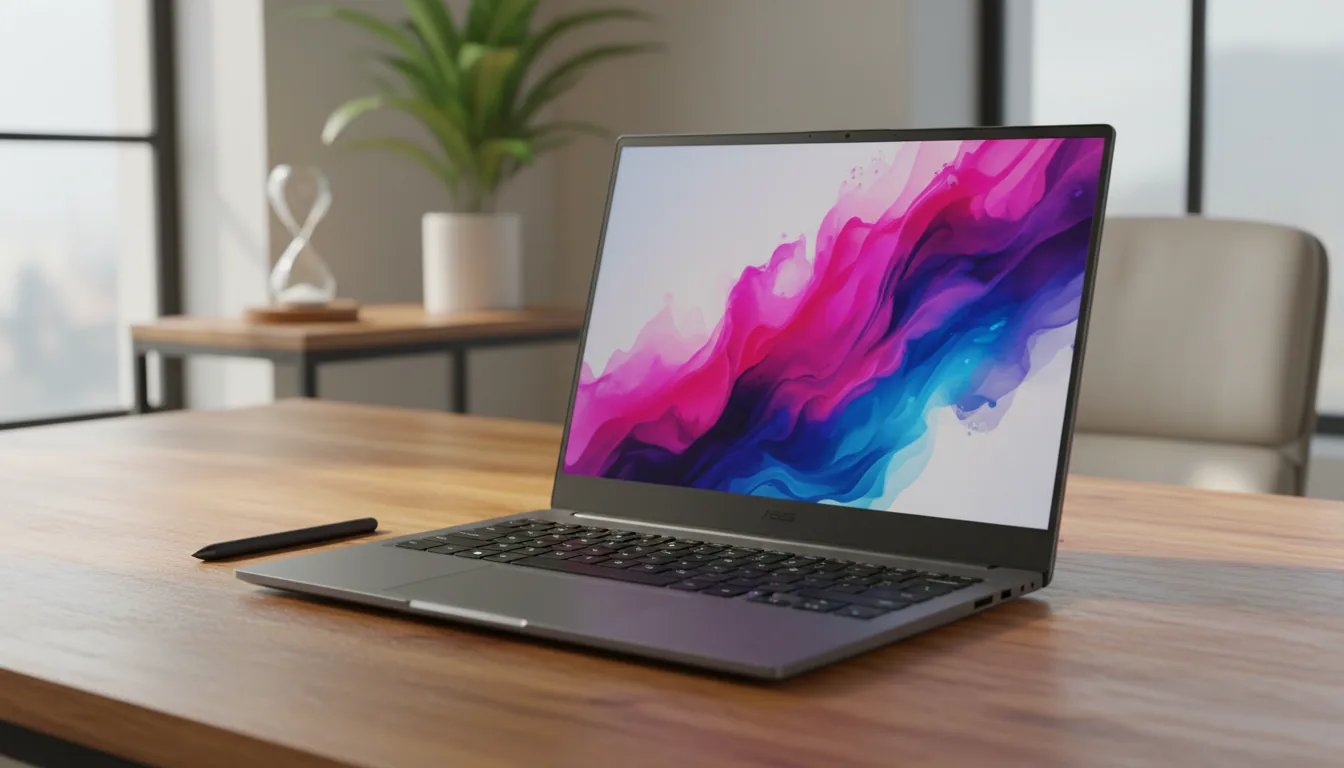
ASUS ProArt StudioBook / ROG Zephyrus (high-frequency Intel or AMD models)
These are the laptops I see the most among freelancers and industrial designers. They combine strong single-core CPU performance with decent RTX graphics, which makes them perfect for SolidWorks CAD, large drawings, and eDrawings reviews. For most users, the RTX 4060 or 4070 tier is the sweet spot.
Dell Precision Mobile Workstations
They’re not flashy, but that’s the point. Precisions are built for CAD. You get workstation-class cooling, dependable RTX Pro GPUs, and long-term stability that matters for full-day modeling sessions. Engineers who work with PDM love these because they handle vault previews and open/save tasks without the random slowdowns gaming laptops sometimes show.

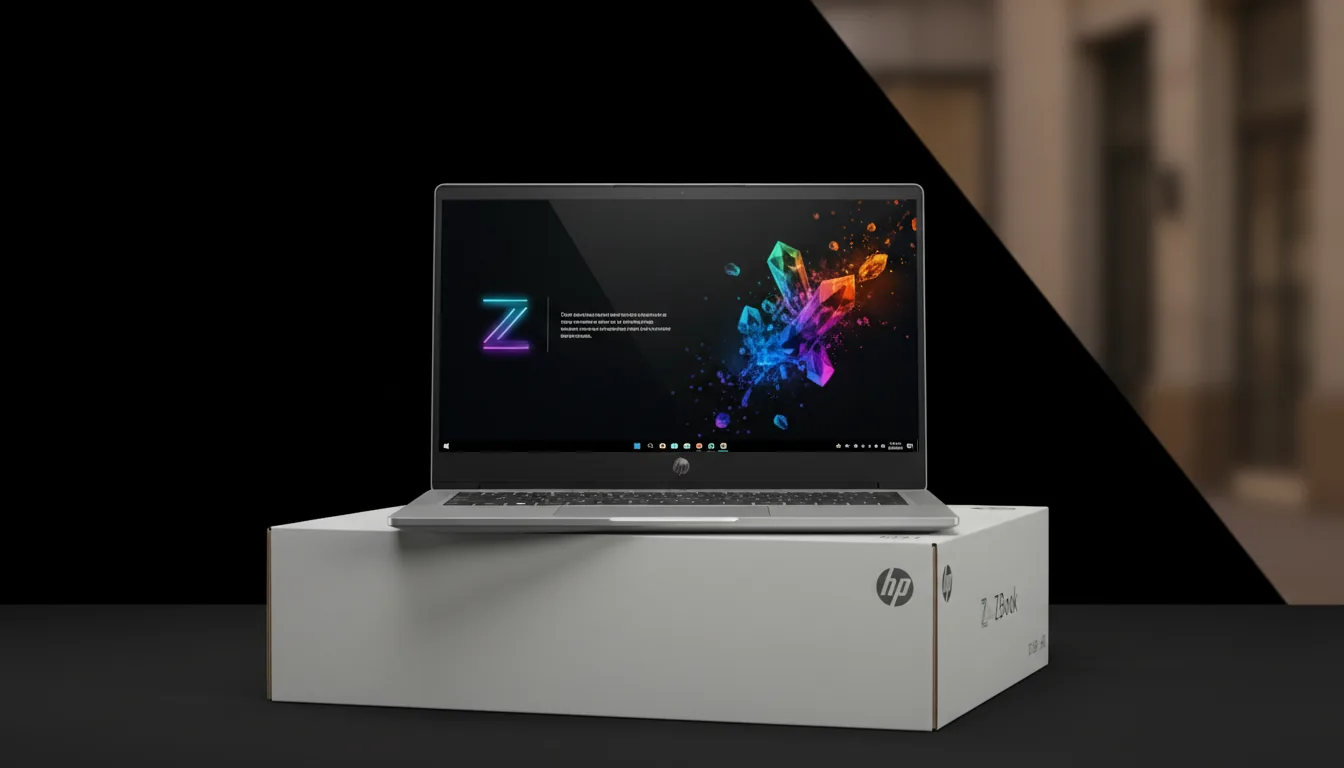
HP ZBook Power / ZBook Fury
If you want a “no surprises” CAD laptop, a ZBook is about as safe as it gets. High-frequency CPUs, solid thermals, and certified GPUs make them reliable for SolidWorks CAM, large assemblies, or long sessions of drawing detailing.
A quick note on MacBooks:
I meet a lot of people trying to run SolidWorks on a solidworks macbook setup. It’s doable only with cloud workstations or virtualization. Native performance isn’t an option. If you must stay on macOS, you’ll want a cloud workstation for serious work.
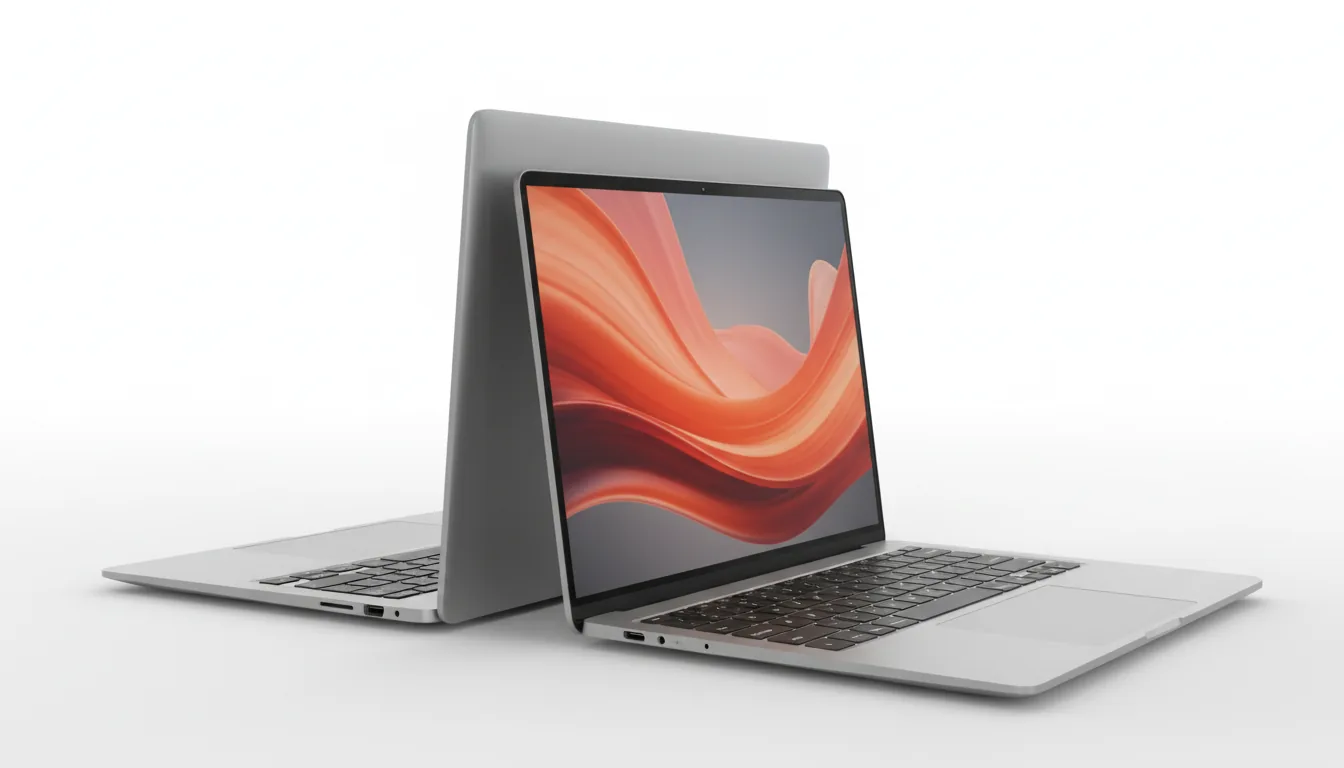
Prebuilt PCs That Make SolidWorks Feel Smooth
Desktops simply give you more room to breathe. Better cooling, more RAM capacity, faster sustained CPU clocks, it all adds up.
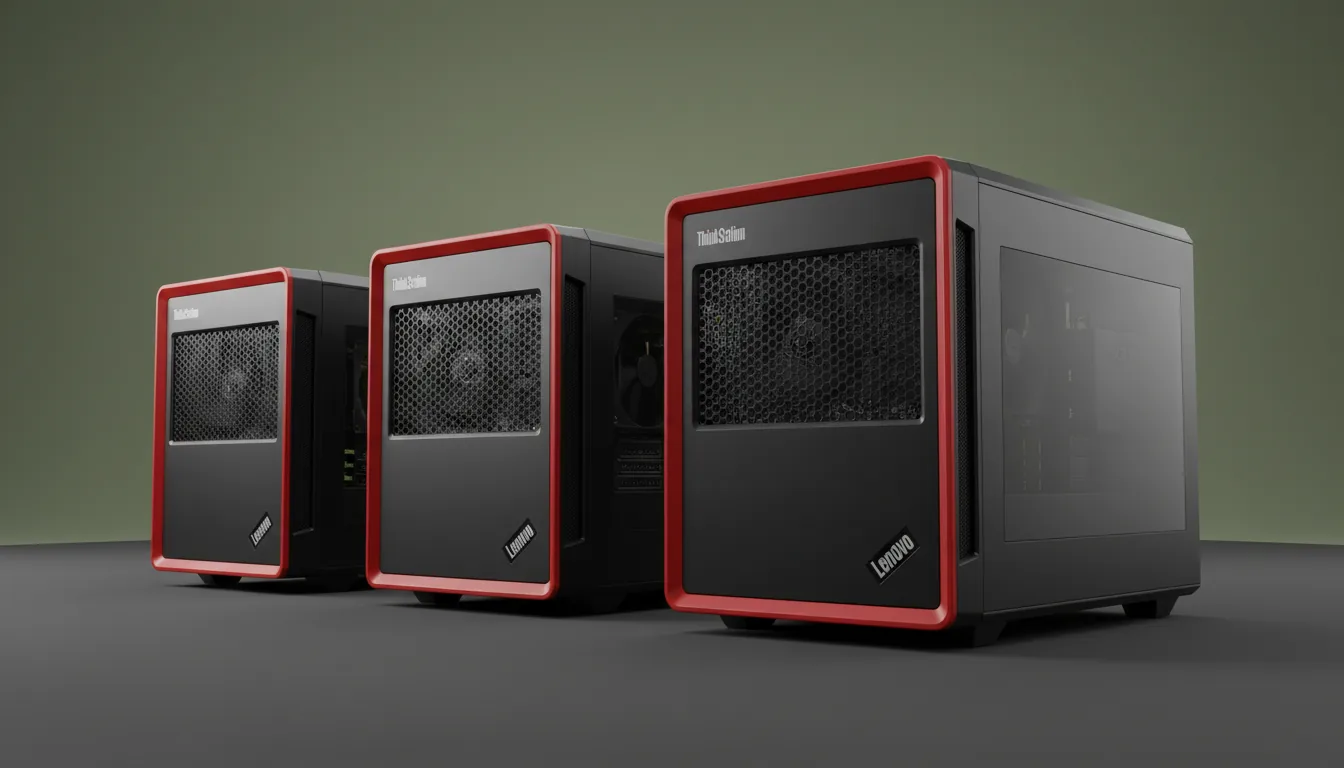
Lenovo ThinkStation P Series
This is the workstation I recommend most often. Great airflow, quiet enough for offices, and powerful CPUs that don’t throttle under load. For assemblies, drawings, and PDM-heavy workflows, it hits the ideal balance: fast CPU, dependable GPU, and room for RAM upgrades.
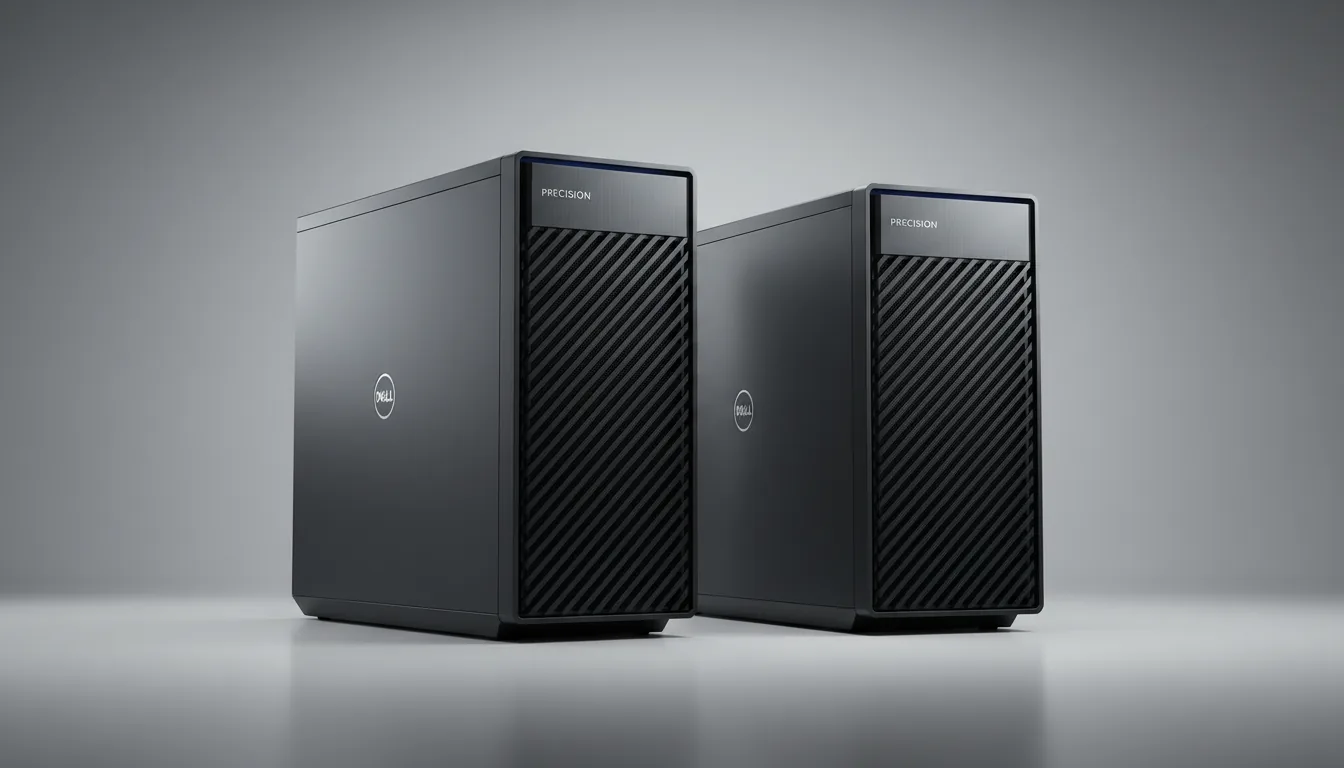
Dell Precision Tower Workstations
These are built for engineers. If you run SolidWorks Simulation, Flow, or heavy toolpath generation in solidworks cam, the higher-core options in the Precision series make life easier. They’re also incredibly stable under long, multi-hour workloads, something consumer desktops often struggle with.
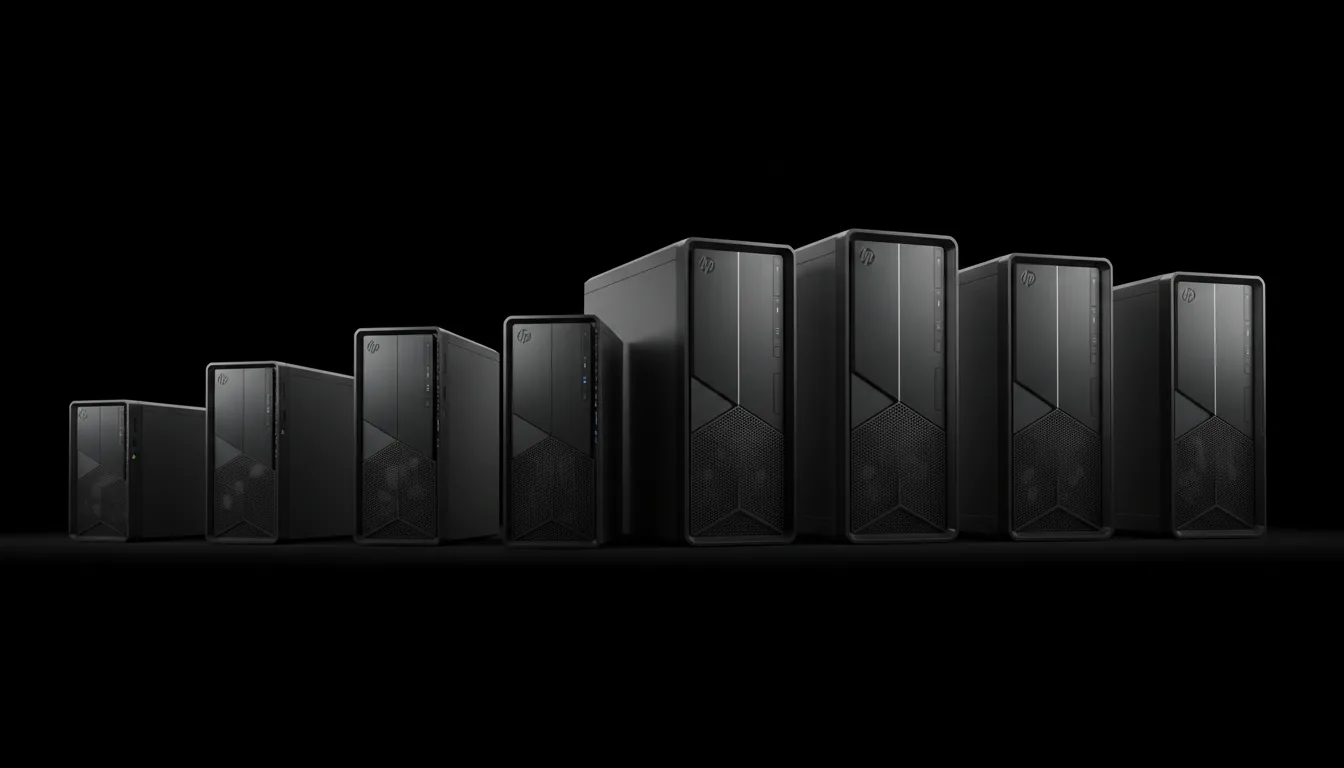
HP Z-Series Towers
A strong option if you want a workstation that just works. They come with clean thermals, high-frequency Intel CPUs, and reliable Nvidia Pro GPUs. I’ve seen these handle large assemblies in solidworks cad software for years without any signs of fatigue.
Three Builds I Recommend to Most Users
To make things even simpler, here are the setups I usually suggest, based on what actually performs well in real SolidWorks projects, PDM environments, and CAM workflows.
#1. For students or smaller projects
Intel i5/i7 or Ryzen 5/7 (high frequency)
RTX 4060
32 GB RAM
1 TB NVMe SSD
Runs solidworks cad, drawings, and eDrawings without drama.
#2. For professional designers
Intel i7/i9 or Ryzen 9
RTX 4070 or RTX 4000 Ada
64 GB RAM
2 TB NVMe SSD
Ideal for serious CAD, detailed drawings, supplier assemblies, and daily solidworks pdm use.
#3. For Simulation, CAM, or data-heavy work
Intel i9 or AMD Ryzen 9 / Threadripper
RTX 4080 / RTX 4500 / RTX 5000
64–128 GB RAM
High-speed NVMe SSD
Perfect for heavy simulation and complex solidworks cam toolpaths.
These recommendations line up with what most engineers expect when they ask about Best PC requirements for SolidWorks hardware specifications, but more importantly, they reflect what actually feels fast inside SolidWorks, not just what looks good on paper.
If you’re just getting started and want structured beginner-friendly lessons instead of random YouTube videos, here’s a solid list of tutorials for learning SolidWorks.
Mistakes I See SolidWorks Users Make All the Time
I wish I could say these mistakes are rare, but they’re not. I see them constantly, students, freelancers, senior engineers, even entire teams repeating the same patterns and wondering why their workstation “feels slow.” SolidWorks isn’t unpredictable. It just punishes the wrong hardware choices harder than most software.
Here are the big ones.
Buying a huge multi-core CPU instead of a fast one
This is the classic trap. Someone sees a 24-core or 32-core CPU on sale and thinks, “That’ll crush SolidWorks.”
But it won’t.
Not for modeling.
SolidWorks CAD runs most of its workload on a single core. Feature rebuilds, mates, drawings, sketches, almost all of it depends on single-core frequency. I’ve seen a high-frequency 6-core laptop outpace a 32-core workstation in everyday part modeling. The workstation only pulls ahead in Simulation or CAM work.
If you spend your day in solidworks cad software, buy raw frequency, not core count.
Overspending on the GPU because “it’s for 3D”
I’ve seen people drop money on an RTX 4090 and still watch their assemblies lag. Why?
Because SolidWorks doesn’t behave like a game engine.
Yes, a better GPU helps with RealView, shadows, transparency, and handling heavier assemblies. It also helps with eDrawings previews and edrawingsviewer. But if the CPU isn’t keeping up, the GPU can’t save you. Many users are surprised when a balanced workstation GPU (like an RTX 4000 Ada) feels better for SolidWorks than a massive gaming card.
Running large assemblies on only 16 GB of RAM
I’ve watched SolidWorks choke on imported STEP files simply because the system ran out of RAM. Once Windows starts paging memory to disk, your workstation might as well be a toaster. PDM makes it even worse.
If you’re using solidworks pdm or any pdm software solidworks setup, RAM isn’t optional. 32 GB is the new minimum for professional use. 64 GB is ideal for large assemblies or Simulation.
Using slow SSDs and wondering why open/save takes forever
People underestimate storage performance more than any other component. A slow SATA SSD can absolutely bottleneck large drawing files, supplier models, or PDM vault browsing. Fast NVMe storage shrinks waiting time dramatically.
I’ve even seen slow drives create startup delays that users blamed on licensing. When solidworks licenses are loading services on launch, a weak SSD makes everything feel worse.
If you’re looking for proper online courses that teach SolidWorks in a way that actually makes sense, this collection of online learning resources is worth checking.
Expecting a MacBook to run SolidWorks like a workstation
I meet a lot of users who love macOS and try to make solidworks macbook setups behave like native Windows workstations. It’s not realistic. You can get away with cloud workstations or virtualization, but local modeling performance simply isn’t comparable. Apple Silicon doesn’t run SolidWorks natively, and every workaround introduces overhead.
Thinking hardware is expensive but forgetting the software cost
People budget for GPUs, CPUs, RAM… then start Googling solidworks cost, solidworks software cost, solidworks price, or solid works pricing and realize the license costs more than the PC. And that’s fine, SolidWorks is a professional tool. But pairing expensive software with inadequate hardware is the worst possible combination.
I’ve met teams paying thousands for licenses while running SolidWorks on outdated office PCs. The result is slow work, missed deadlines, and frustrated engineers.
Ignoring thermal performance
You can buy the right CPU and still get terrible performance if the cooling is bad. Laptops especially suffer from this. Thermal throttling is the hidden enemy of SolidWorks. A laptop that hits 100°C briefly will drop its clock speed, and suddenly your rebuild times double. This is why strong cooling often matters more than GPU tier.
Nothing here is theoretical. I’ve seen all of these mistakes firsthand, sometimes painfully. The good news? Once you understand what SolidWorks actually needs, the hardware choices become straightforward, and you stop throwing money at the wrong parts.
If you’re on a Mac and trying to make SolidWorks work without tearing your hair out, this macOS guide explains exactly how to run it: how to run SolidWorks on macOS.
When Your Local Hardware Still Struggles
There’s a moment every SolidWorks user hits eventually. You open a huge assembly, or a vendor sends you a 400-MB STEP file, or you need to check something quickly while traveling, and your machine just… gives up. Even good PCs hit their limits when the models get big enough.
That’s usually when people start looking at cloud workstations. Not because they want to, but because their hardware is holding them back.
I’ve seen this play out with students, freelancers, full engineering teams, and especially people trying to run a solidworks macbook setup. Once you hit a certain model size, portability doesn’t matter, capability does. And that’s where Vagon Cloud Computer actually fits into the real workflow.
Instead of fighting your laptop, you just open a powerful remote workstation and keep working.
Why cloud workstations make sense for SolidWorks users
You can open the same machine from anywhere
If you travel a lot, or you switch between a desktop and a laptop, this is huge. You don’t need to reinstall anything or move license files. You log in, launch SolidWorks, and everything is exactly where you left it.
Large assemblies run like they’re supposed to
The heavy lifting happens in the cloud, so the hardware in front of you doesn’t matter. A thin laptop, a tablet, even a Mac, none of that slows the model down. The remote machine handles the CPU load, the GPU load, and the RAM load.
PDM work becomes way more practical
If you use solidworks pdm or any pdm software solidworks environment, cloud workstations help a lot. Check-ins, large vault previews, drawing opens, everything benefits from fast remote hardware instead of whatever drive your laptop came with.
eDrawings reviews feel smooth
You can open supplier assemblies in edrawingsviewer or run a design review with your team without stuttering. Even heavy eDrawings files behave normally when the backend machine has a strong GPU.
Great for CAM users
Toolpath generation in solidworks cam can spike CPU usage. On a laptop, it feels slow. On a cloud workstation, it just runs.
If you’re comparing SolidWorks with other engineering tools, this breakdown of AutoCAD vs CATIA can help you understand where each one fits.
The real advantage: you stop worrying about specs
Once your workflow moves to a cloud machine, your local hardware almost doesn’t matter. You don’t stress about buying a new laptop every two years, you don’t think about CPU thermals, and you don’t need to guess whether your GPU is “enough.”
You open the remote workstation and work like you’re sitting in front of a high-end desktop, because you technically are.
For Mac users, this is the only reliable way to run full Windows-native solidworks cad without weird virtualization issues. For students, it’s a way to avoid buying expensive hardware just to run assemblies for a class. For professionals, it’s a backup plan when a project suddenly grows bigger than expected.
Vagon Cloud Computer doesn’t replace the entire SolidWorks hardware conversation. It just gives you a clean escape hatch for the moments when your local machine hits the wall.

Final Thoughts
The funny thing about SolidWorks is that everyone discovers the truth the same way: not through a spec sheet, not through a forum post, but the moment their assembly freezes and their CPU starts screaming. That’s when you understand what the software actually needs and why the “best PC for SolidWorks” isn’t the same as the best PC for gaming, rendering, or anything else.
Once you match your hardware to your workflow, everything feels lighter. Parts rebuild faster. Drawings open without hesitation. PDM stops feeling like a punishment. Even CAM behaves like it should. And if you ever hit a point where your local machine just can’t keep up, or you want to work from a Mac, a tablet, or whatever you’re traveling with, you can always spin up a cloud workstation and keep moving.
That’s the whole point. SolidWorks shouldn’t fight you. Your hardware shouldn’t, either.
If you’re curious how Inventor stacks up against other CAD platforms you might have used before, here’s a quick look at AutoCAD vs Inventor.
FAQs
1. Do I need a workstation GPU for SolidWorks, or is a gaming GPU enough?
Most people don’t need a workstation GPU. A good RTX 4060, 4070, or 4080 handles SolidWorks CAD really well. Workstation cards (RTX 4000/5000 Ada) make sense if you work with massive assemblies, need certified drivers, or your company requires hardware from the official SolidWorks recommended system list. But for freelancers and students, a strong gaming GPU is usually fine.
2. How much RAM should I get for SolidWorks?
32 GB is the new baseline. If you’re working with large assemblies, imported STEP files, or solidworks pdm, go straight to 64 GB. Simulation or Plastics users sometimes need 64–128 GB. RAM is cheaper than time, don’t skimp on it.
3. Is SolidWorks CPU or GPU heavy?
Mostly CPU heavy. SolidWorks CAD uses a single CPU core for rebuilds, mates, drawings, and general modeling. The GPU helps with viewport smoothness and RealView, but it won’t fix a slow CPU. That’s why high-frequency chips still win.
4. Can I use SolidWorks on a MacBook?
Yes, but not natively. A solidworks macbook setup needs either virtualization, dual-booting Windows, or a cloud workstation. If you want full performance without headaches, running SolidWorks through a cloud machine (like Vagon Cloud Computer) is the simplest way.
5. How much storage do I need?
At least a 1 TB NVMe SSD. SolidWorks files, vendor parts, eDrawings packages, CAM toolpaths, and PDM vaults grow fast. NVMe drives dramatically reduce open/save times and speed up check-ins with pdm software solidworks and solidworks pdm.
6. What’s the best CPU for SolidWorks?
A high-frequency Intel i7 or i9 (5.5–5.8 GHz range) is usually the sweet spot. AMD Ryzen 7/9 works well too, as long as the single-core numbers are strong. Simulation users benefit from more cores, but modeling still wants frequency.
7. How does SolidWorks perform on cloud workstations?
Surprisingly well. Large assemblies, CAM toolpaths, eDrawings reviews in edrawingsviewer, and PDM workflows feel smoother when the heavy lifting happens on powerful remote hardware. It’s also the cleanest way to run SolidWorks on macOS or lightweight laptops.
8. Is SolidWorks expensive?
SolidWorks isn’t cheap. Pricing varies by license type, support plan, and whether you’re using 3DEXPERIENCE. People often search solidworks cost, solidworks software cost, solidworks price, or solid works pricing while budgeting, but the honest answer is that the software usually costs more than the hardware. The investment makes sense if you depend on CAD professionally.
9. Do students need an expensive PC to run SolidWorks?
Not really. If you’re using solidworks for students, a mid-range laptop with a strong CPU (and preferably 32 GB RAM) is enough for part modeling, drawings, and small assemblies. If you eventually work with bigger models, you can always offload heavy tasks to the cloud.
10. Is 3DEXPERIENCE SolidWorks lighter on hardware?
Not really. 3dexperience solidworks still runs most modeling operations locally, so CPU frequency still matters. Cloud storage and collaboration help, but you still need decent hardware for the modeling part.
I still remember the afternoon a client sent me a fairly innocent-looking assembly. Nothing outrageous. A couple of sub-assemblies, some sheet metal parts, a few fasteners that I’d seen a thousand times before. I dragged it into the workspace, waited for SolidWorks to settle, and tried to rotate the model.
The viewport didn’t rotate.
It twitched.
Then it froze.
For a moment I thought the program had crashed completely, but no, the CPU fan suddenly sounded like it was trying to take off, and the rebuild bar crept forward about one pixel every few seconds. That’s when you know SolidWorks is doing its usual thing: reminding you that it doesn’t care how new your GPU is, or how confidently you believed your PC was “pretty strong.”
SolidWorks CAD has its own personality. And honestly, it behaves nothing like a typical rendering engine or a gaming workflow. I’ve seen people buy a fancy RTX card because they assume “more GPU equals more speed,” only to discover that SolidWorks mostly laughs at that logic. It’s a parametric modeler first, a graphics-heavy tool second. Most of the grunt work happens in the CPU, inside a single thread. So if that single thread can’t keep up, everything slows down. Sketch rebuilds, mates, drawings, the whole thing.
This hits new users the hardest. I’ve talked to plenty of students who grab solidworks for students, run a quick solidworks download, set it up on their laptop, and expect it to behave like a game engine. They figure if their machine can run a modern game at 100+ FPS, it should breeze through a CAD model.
That illusion usually disappears about ten minutes into their first big assembly.
It’s the same story for anyone installing the full solidworks software download on a general-purpose laptop: the program opens fine, small parts run smoothly, and then the moment you hit a multibody part or a 500-component assembly, everything goes slow-motion.
If you’ve ever stared at a frozen viewport and wondered, “Is this normal?”, yes. It’s normal. And it’s the point where most people realize that choosing the right PC for SolidWorks isn’t as simple as buying whatever looks powerful on paper.
If you’re trying to figure out whether a workstation GPU or a gaming card makes more sense for your setup, this guide on the best GPU for SolidWorks breaks it down without the usual marketing noise.
What’s Changed in 2026?
A lot of people expect some dramatic software shift year to year. In SolidWorks, it’s rarely that.
What actually changes is the way people use it.
In 2026, I’ve noticed three things pushing hardware pain points to the surface faster than before: bigger assemblies earlier in the process, more visual fidelity in day-to-day modeling, and more teams working in mixed setups (laptops, remote, PDM, cloud-connected projects).
Larger assemblies show up sooner
It used to be: you modeled parts, then later you dealt with the monster assembly.
Now it’s common to pull in vendor CAD, fasteners, scanned-ish geometry, and “temporary” context parts from day one. That’s why a file that looks innocent can still behave like a brick. It’s not always the part count. It’s the complexity inside the parts.
Viewport expectations are higher
People leave RealView-ish settings on more often now. More transparency, more section views, more shaded edges, more visual checks while designing, not just at the end.
None of that makes rebuilds faster, but it makes a weak GPU or unstable drivers way more obvious. You don’t just see “slower.” You see stutters, glitches, weird artifacts, and that awful feeling that the model is fighting you.
PDM and collaboration workflows punish slow storage and low RAM
If you’re touching vaults, large drawings, previews, or opening a lot of referenced files all day, the “CPU vs GPU” debate stops being the main story. The quiet killers are still RAM pressure and storage responsiveness.
This is also why people feel like SolidWorks is inconsistent: one day it’s fine, the next day it’s crawling. Often it’s not the GPU at all. It’s the machine paging memory or choking on file operations.
More people are using cloud-connected setups, but local hardware still matters
3DEXPERIENCE-style workflows and cloud collaboration help with access and sharing, but your machine still has to model, rebuild, and push frames to the screen. So the “my work is in the cloud” mindset doesn’t magically remove the need for a strong CPU and enough RAM.
What it does change is how people solve the problem when their laptop hits the wall: they’re more willing to jump to a cloud workstation for the heavy sessions instead of buying a whole new machine.
The 2026 takeaway
SolidWorks didn’t suddenly become a GPU-first app.
It just became less tolerant of hardware that’s strong in the wrong places.
If your CPU can’t sustain high single-core speed, modeling feels slow.
If your RAM is tight, big assemblies feel like quicksand.
If your storage is mediocre, PDM and drawings feel frustrating.
And if your GPU drivers aren’t stable, the viewport feels “haunted.”
That’s the lens for the rest of this guide.
What SolidWorks Actually Needs From Your Hardware
One of the first things I had to unlearn about SolidWorks is that not all parts of the program stress your system in the same way. Modeling is one thing. Simulation is another. CAM is its own world entirely. And the hardware that feels amazing in one workflow can feel painfully average in another.
Let’s start with the basics. SolidWorks CAD is a parametric system. Every time you change a sketch dimension or tweak a fillet, the software recalculates feature dependencies like a chain reaction. That math happens mostly on a single CPU core. So when people talk about SolidWorks, they often forget that it's essentially a giant equation solver with a 3D interface on top. The moment you understand that, a lot of the hardware confusion suddenly makes sense.
This is why solid works cad behaves nothing like Blender, Unreal, or any rendering-focused program. Those tools lean heavily on the GPU. SolidWorks leans heavily on the CPU, especially for rebuilds, large drawings, mates, configurations, basically everything you touch daily. You can have a monster graphics card and still feel slow if the CPU can’t push enough single-core speed.
Then there’s Simulation. Between stress analysis, Flow, and Plastics, you finally see more CPU cores getting used. Not maxed out, but noticeably busier. CAM adds another layer. If you’ve ever run toolpath generation in solidworks cam, you know it can feel faster or slower depending on RAM and CPU combo, not just raw clock speed.
And we can’t ignore visualization tools. A lot of users assume the GPU only matters for rendering, but RealView, transparency, shadows, and fast viewport movement depend on it too. Even something as simple as opening a large assembly in edrawings or checking a supplier model in edrawingsviewer can expose GPU weaknesses, especially if the graphics card wasn’t built for CAD at all.
PDM environments add their own twist. Anyone who has worked inside solidworks pdm or any pdm software solidworks setup knows how much the system relies on responsive storage and decent memory. Checking files in and out, navigating large vaults, previewing models, all of that benefits from proper hardware. RAM and SSD speed matter more than people think.
And then there’s 3DEXPERIENCE. I’ve noticed more companies shifting toward 3dexperience solidworks over the past two years. It offloads some things to the cloud, but your local machine still handles modeling, assemblies, and graphics. So the hardware requirements don’t magically vanish just because part of the workflow lives online.
So when you hear people ask, “What are the Best PC requirements for SolidWorks hardware specifications?”, the honest answer is this: it depends entirely on which part of SolidWorks you actually use. Modeling punishes the CPU. Visualization leans on the GPU. PDM and large assemblies demand RAM and fast storage. And Simulation finally appreciates extra cores.
Most struggles happen when your PC is strong in the wrong category.
If you’re still deciding between different CAD tools and trying to understand where SolidWorks fits, you might want to check this comparison: AutoCAD vs SolidWorks.
CPU: The Real Boss in SolidWorks
If there’s one part people consistently misunderstand, it’s the CPU. I’ve lost count of how many users bought a 16-core processor thinking it would “handle anything SolidWorks throws at it,” only to watch their sketches rebuild at the same speed as a mid-range laptop. SolidWorks modeling is brutally single-threaded. One core does almost all the work. So a 5.6 or 5.8 GHz chip will beat a massive workstation CPU every single time in day-to-day CAD tasks.
Whenever someone asks Which CPU GPU RAM SSD and other components are recommended for a workstation PC for SolidWorks, I usually start with the same line:
“If you care about modeling speed, buy frequency, not cores.”
Extra cores help in Simulation, CAM toolpaths, and certain rendering tasks, but they don’t change how fast a sketch rebuilds or how quickly a 2,000-component assembly regenerates. Even solidworks for students users notice this instantly when they try to modify multibody parts on weaker laptops. The software slows down not because it’s heavy, but because it’s hitting the frequency ceiling of their CPU.
GPU: More Important Than People Claim, But Not for the Reasons They Think
I’ve seen both extremes: users with a massive RTX 4090 disappointed that SolidWorks still feels sluggish, and users with decade-old GPUs who wonder why the viewport stutters when they turn on transparency. The truth sits somewhere in the middle.
For raw modeling speed, the GPU won’t help. But for a smoother viewport, RealView, shadows, and large assemblies, it absolutely matters. A good GPU also helps with edrawingsviewer and edrawings previews, especially in assemblies filled with imported supplier parts.
And yes, workstation cards still have value in 2026. Better drivers. More stability. Fewer graphics glitches. The SolidWorks recommended system charts often push Quadro/RTX Pro cards for a reason. But honestly, many users get excellent results from modern gaming GPUs as long as they choose the right one.
RAM: The Silent Hero of Large Assemblies
I’ve watched SolidWorks chew through 16 GB of RAM like it’s nothing. Assemblies with patterns, configurations, imported STEP files, and multibody parts can balloon memory usage fast. And when SolidWorks starts paging memory to disk, your whole workstation feels like it’s underwater.
For most professionals, 32 GB should be considered baseline in 2026. If you work with big assemblies, 64 GB isn’t overkill. In PDM environments, especially solidworks pdm or any pdm software solidworks vault, RAM matters even more because previews, check-ins, and file indexing pile up in memory.
SSD: The Upgrade Most People Underestimate
Open and save times shrink dramatically once you move from a SATA SSD to a high-end NVMe drive. This isn’t just about convenience. Fast storage makes PDM workflows smoother, reduces the time waiting for large drawings to open, and keeps SolidWorks from choking on imported files.
I’ve noticed something else: slow drives tend to frustrate users dealing with solidworks licenses, because the software’s startup checks and background services run slower on weak storage. It doesn’t break anything, but it wastes time, especially in busy offices.
And since people often Google solidworks cost, solidworks software cost, solidworks price, or solid works pricing while budgeting their setups, they forget that hardware speed is part of the true cost too. A slow SSD can make an expensive license feel sluggish.
Actual Hardware Recommendations: Laptops and Prebuilt PCs
People ask me for “the best SolidWorks laptop” all the time, and I always give the same honest answer: it depends on how much pain you’re willing to tolerate. Laptops can absolutely run SolidWorks well, but they need strong cooling and high CPU frequency to avoid the throttling that usually kills performance. Prebuilt desktops, on the other hand, are simply more stable and usually cheaper for the power you get.
Here’s what I actually recommend to real SolidWorks users in 2026, not theoretical specs, but machines I’ve seen perform well in daily CAD, PDM, drawings, CAM, or Simulation work.
The Laptops I Trust for SolidWorks
If you need to stay mobile, these are the types of laptops that consistently hold up under SolidWorks workloads:
ASUS ProArt StudioBook / ROG Zephyrus (high-frequency Intel or AMD models)
These are the laptops I see the most among freelancers and industrial designers. They combine strong single-core CPU performance with decent RTX graphics, which makes them perfect for SolidWorks CAD, large drawings, and eDrawings reviews. For most users, the RTX 4060 or 4070 tier is the sweet spot.
Dell Precision Mobile Workstations
They’re not flashy, but that’s the point. Precisions are built for CAD. You get workstation-class cooling, dependable RTX Pro GPUs, and long-term stability that matters for full-day modeling sessions. Engineers who work with PDM love these because they handle vault previews and open/save tasks without the random slowdowns gaming laptops sometimes show.
HP ZBook Power / ZBook Fury
If you want a “no surprises” CAD laptop, a ZBook is about as safe as it gets. High-frequency CPUs, solid thermals, and certified GPUs make them reliable for SolidWorks CAM, large assemblies, or long sessions of drawing detailing.
A quick note on MacBooks:
I meet a lot of people trying to run SolidWorks on a solidworks macbook setup. It’s doable only with cloud workstations or virtualization. Native performance isn’t an option. If you must stay on macOS, you’ll want a cloud workstation for serious work.
Prebuilt PCs That Make SolidWorks Feel Smooth
Desktops simply give you more room to breathe. Better cooling, more RAM capacity, faster sustained CPU clocks, it all adds up.
Lenovo ThinkStation P Series
This is the workstation I recommend most often. Great airflow, quiet enough for offices, and powerful CPUs that don’t throttle under load. For assemblies, drawings, and PDM-heavy workflows, it hits the ideal balance: fast CPU, dependable GPU, and room for RAM upgrades.
Dell Precision Tower Workstations
These are built for engineers. If you run SolidWorks Simulation, Flow, or heavy toolpath generation in solidworks cam, the higher-core options in the Precision series make life easier. They’re also incredibly stable under long, multi-hour workloads, something consumer desktops often struggle with.
HP Z-Series Towers
A strong option if you want a workstation that just works. They come with clean thermals, high-frequency Intel CPUs, and reliable Nvidia Pro GPUs. I’ve seen these handle large assemblies in solidworks cad software for years without any signs of fatigue.
Three Builds I Recommend to Most Users
To make things even simpler, here are the setups I usually suggest, based on what actually performs well in real SolidWorks projects, PDM environments, and CAM workflows.
#1. For students or smaller projects
Intel i5/i7 or Ryzen 5/7 (high frequency)
RTX 4060
32 GB RAM
1 TB NVMe SSD
Runs solidworks cad, drawings, and eDrawings without drama.
#2. For professional designers
Intel i7/i9 or Ryzen 9
RTX 4070 or RTX 4000 Ada
64 GB RAM
2 TB NVMe SSD
Ideal for serious CAD, detailed drawings, supplier assemblies, and daily solidworks pdm use.
#3. For Simulation, CAM, or data-heavy work
Intel i9 or AMD Ryzen 9 / Threadripper
RTX 4080 / RTX 4500 / RTX 5000
64–128 GB RAM
High-speed NVMe SSD
Perfect for heavy simulation and complex solidworks cam toolpaths.
These recommendations line up with what most engineers expect when they ask about Best PC requirements for SolidWorks hardware specifications, but more importantly, they reflect what actually feels fast inside SolidWorks, not just what looks good on paper.
If you’re just getting started and want structured beginner-friendly lessons instead of random YouTube videos, here’s a solid list of tutorials for learning SolidWorks.
Mistakes I See SolidWorks Users Make All the Time
I wish I could say these mistakes are rare, but they’re not. I see them constantly, students, freelancers, senior engineers, even entire teams repeating the same patterns and wondering why their workstation “feels slow.” SolidWorks isn’t unpredictable. It just punishes the wrong hardware choices harder than most software.
Here are the big ones.
Buying a huge multi-core CPU instead of a fast one
This is the classic trap. Someone sees a 24-core or 32-core CPU on sale and thinks, “That’ll crush SolidWorks.”
But it won’t.
Not for modeling.
SolidWorks CAD runs most of its workload on a single core. Feature rebuilds, mates, drawings, sketches, almost all of it depends on single-core frequency. I’ve seen a high-frequency 6-core laptop outpace a 32-core workstation in everyday part modeling. The workstation only pulls ahead in Simulation or CAM work.
If you spend your day in solidworks cad software, buy raw frequency, not core count.
Overspending on the GPU because “it’s for 3D”
I’ve seen people drop money on an RTX 4090 and still watch their assemblies lag. Why?
Because SolidWorks doesn’t behave like a game engine.
Yes, a better GPU helps with RealView, shadows, transparency, and handling heavier assemblies. It also helps with eDrawings previews and edrawingsviewer. But if the CPU isn’t keeping up, the GPU can’t save you. Many users are surprised when a balanced workstation GPU (like an RTX 4000 Ada) feels better for SolidWorks than a massive gaming card.
Running large assemblies on only 16 GB of RAM
I’ve watched SolidWorks choke on imported STEP files simply because the system ran out of RAM. Once Windows starts paging memory to disk, your workstation might as well be a toaster. PDM makes it even worse.
If you’re using solidworks pdm or any pdm software solidworks setup, RAM isn’t optional. 32 GB is the new minimum for professional use. 64 GB is ideal for large assemblies or Simulation.
Using slow SSDs and wondering why open/save takes forever
People underestimate storage performance more than any other component. A slow SATA SSD can absolutely bottleneck large drawing files, supplier models, or PDM vault browsing. Fast NVMe storage shrinks waiting time dramatically.
I’ve even seen slow drives create startup delays that users blamed on licensing. When solidworks licenses are loading services on launch, a weak SSD makes everything feel worse.
If you’re looking for proper online courses that teach SolidWorks in a way that actually makes sense, this collection of online learning resources is worth checking.
Expecting a MacBook to run SolidWorks like a workstation
I meet a lot of users who love macOS and try to make solidworks macbook setups behave like native Windows workstations. It’s not realistic. You can get away with cloud workstations or virtualization, but local modeling performance simply isn’t comparable. Apple Silicon doesn’t run SolidWorks natively, and every workaround introduces overhead.
Thinking hardware is expensive but forgetting the software cost
People budget for GPUs, CPUs, RAM… then start Googling solidworks cost, solidworks software cost, solidworks price, or solid works pricing and realize the license costs more than the PC. And that’s fine, SolidWorks is a professional tool. But pairing expensive software with inadequate hardware is the worst possible combination.
I’ve met teams paying thousands for licenses while running SolidWorks on outdated office PCs. The result is slow work, missed deadlines, and frustrated engineers.
Ignoring thermal performance
You can buy the right CPU and still get terrible performance if the cooling is bad. Laptops especially suffer from this. Thermal throttling is the hidden enemy of SolidWorks. A laptop that hits 100°C briefly will drop its clock speed, and suddenly your rebuild times double. This is why strong cooling often matters more than GPU tier.
Nothing here is theoretical. I’ve seen all of these mistakes firsthand, sometimes painfully. The good news? Once you understand what SolidWorks actually needs, the hardware choices become straightforward, and you stop throwing money at the wrong parts.
If you’re on a Mac and trying to make SolidWorks work without tearing your hair out, this macOS guide explains exactly how to run it: how to run SolidWorks on macOS.
When Your Local Hardware Still Struggles
There’s a moment every SolidWorks user hits eventually. You open a huge assembly, or a vendor sends you a 400-MB STEP file, or you need to check something quickly while traveling, and your machine just… gives up. Even good PCs hit their limits when the models get big enough.
That’s usually when people start looking at cloud workstations. Not because they want to, but because their hardware is holding them back.
I’ve seen this play out with students, freelancers, full engineering teams, and especially people trying to run a solidworks macbook setup. Once you hit a certain model size, portability doesn’t matter, capability does. And that’s where Vagon Cloud Computer actually fits into the real workflow.
Instead of fighting your laptop, you just open a powerful remote workstation and keep working.
Why cloud workstations make sense for SolidWorks users
You can open the same machine from anywhere
If you travel a lot, or you switch between a desktop and a laptop, this is huge. You don’t need to reinstall anything or move license files. You log in, launch SolidWorks, and everything is exactly where you left it.
Large assemblies run like they’re supposed to
The heavy lifting happens in the cloud, so the hardware in front of you doesn’t matter. A thin laptop, a tablet, even a Mac, none of that slows the model down. The remote machine handles the CPU load, the GPU load, and the RAM load.
PDM work becomes way more practical
If you use solidworks pdm or any pdm software solidworks environment, cloud workstations help a lot. Check-ins, large vault previews, drawing opens, everything benefits from fast remote hardware instead of whatever drive your laptop came with.
eDrawings reviews feel smooth
You can open supplier assemblies in edrawingsviewer or run a design review with your team without stuttering. Even heavy eDrawings files behave normally when the backend machine has a strong GPU.
Great for CAM users
Toolpath generation in solidworks cam can spike CPU usage. On a laptop, it feels slow. On a cloud workstation, it just runs.
If you’re comparing SolidWorks with other engineering tools, this breakdown of AutoCAD vs CATIA can help you understand where each one fits.
The real advantage: you stop worrying about specs
Once your workflow moves to a cloud machine, your local hardware almost doesn’t matter. You don’t stress about buying a new laptop every two years, you don’t think about CPU thermals, and you don’t need to guess whether your GPU is “enough.”
You open the remote workstation and work like you’re sitting in front of a high-end desktop, because you technically are.
For Mac users, this is the only reliable way to run full Windows-native solidworks cad without weird virtualization issues. For students, it’s a way to avoid buying expensive hardware just to run assemblies for a class. For professionals, it’s a backup plan when a project suddenly grows bigger than expected.
Vagon Cloud Computer doesn’t replace the entire SolidWorks hardware conversation. It just gives you a clean escape hatch for the moments when your local machine hits the wall.
Final Thoughts
The funny thing about SolidWorks is that everyone discovers the truth the same way: not through a spec sheet, not through a forum post, but the moment their assembly freezes and their CPU starts screaming. That’s when you understand what the software actually needs and why the “best PC for SolidWorks” isn’t the same as the best PC for gaming, rendering, or anything else.
Once you match your hardware to your workflow, everything feels lighter. Parts rebuild faster. Drawings open without hesitation. PDM stops feeling like a punishment. Even CAM behaves like it should. And if you ever hit a point where your local machine just can’t keep up, or you want to work from a Mac, a tablet, or whatever you’re traveling with, you can always spin up a cloud workstation and keep moving.
That’s the whole point. SolidWorks shouldn’t fight you. Your hardware shouldn’t, either.
If you’re curious how Inventor stacks up against other CAD platforms you might have used before, here’s a quick look at AutoCAD vs Inventor.
FAQs
1. Do I need a workstation GPU for SolidWorks, or is a gaming GPU enough?
Most people don’t need a workstation GPU. A good RTX 4060, 4070, or 4080 handles SolidWorks CAD really well. Workstation cards (RTX 4000/5000 Ada) make sense if you work with massive assemblies, need certified drivers, or your company requires hardware from the official SolidWorks recommended system list. But for freelancers and students, a strong gaming GPU is usually fine.
2. How much RAM should I get for SolidWorks?
32 GB is the new baseline. If you’re working with large assemblies, imported STEP files, or solidworks pdm, go straight to 64 GB. Simulation or Plastics users sometimes need 64–128 GB. RAM is cheaper than time, don’t skimp on it.
3. Is SolidWorks CPU or GPU heavy?
Mostly CPU heavy. SolidWorks CAD uses a single CPU core for rebuilds, mates, drawings, and general modeling. The GPU helps with viewport smoothness and RealView, but it won’t fix a slow CPU. That’s why high-frequency chips still win.
4. Can I use SolidWorks on a MacBook?
Yes, but not natively. A solidworks macbook setup needs either virtualization, dual-booting Windows, or a cloud workstation. If you want full performance without headaches, running SolidWorks through a cloud machine (like Vagon Cloud Computer) is the simplest way.
5. How much storage do I need?
At least a 1 TB NVMe SSD. SolidWorks files, vendor parts, eDrawings packages, CAM toolpaths, and PDM vaults grow fast. NVMe drives dramatically reduce open/save times and speed up check-ins with pdm software solidworks and solidworks pdm.
6. What’s the best CPU for SolidWorks?
A high-frequency Intel i7 or i9 (5.5–5.8 GHz range) is usually the sweet spot. AMD Ryzen 7/9 works well too, as long as the single-core numbers are strong. Simulation users benefit from more cores, but modeling still wants frequency.
7. How does SolidWorks perform on cloud workstations?
Surprisingly well. Large assemblies, CAM toolpaths, eDrawings reviews in edrawingsviewer, and PDM workflows feel smoother when the heavy lifting happens on powerful remote hardware. It’s also the cleanest way to run SolidWorks on macOS or lightweight laptops.
8. Is SolidWorks expensive?
SolidWorks isn’t cheap. Pricing varies by license type, support plan, and whether you’re using 3DEXPERIENCE. People often search solidworks cost, solidworks software cost, solidworks price, or solid works pricing while budgeting, but the honest answer is that the software usually costs more than the hardware. The investment makes sense if you depend on CAD professionally.
9. Do students need an expensive PC to run SolidWorks?
Not really. If you’re using solidworks for students, a mid-range laptop with a strong CPU (and preferably 32 GB RAM) is enough for part modeling, drawings, and small assemblies. If you eventually work with bigger models, you can always offload heavy tasks to the cloud.
10. Is 3DEXPERIENCE SolidWorks lighter on hardware?
Not really. 3dexperience solidworks still runs most modeling operations locally, so CPU frequency still matters. Cloud storage and collaboration help, but you still need decent hardware for the modeling part.
Get Beyond Your Computer Performance
Run applications on your cloud computer with the latest generation hardware. No more crashes or lags.

Trial includes 1 hour usage + 7 days of storage.
Summarize with AI

Ready to focus on your creativity?
Vagon gives you the ability to create & render projects, collaborate, and stream applications with the power of the best hardware.

Run heavy applications on any device with
your personal computer on the cloud.
San Francisco, California
Solutions
Vagon Teams
Vagon Streams
Use Cases
© 2026 Vagon. All rights reserved.
Run heavy applications on any device with
your personal computer on the cloud.
San Francisco, California
Solutions
Vagon Teams
Vagon Streams
Use Cases
© 2026 Vagon. All rights reserved.
Run heavy applications on any device with
your personal computer on the cloud.
San Francisco, California
Solutions
Vagon Teams
Vagon Streams
Use Cases
© 2026 Vagon. All rights reserved.