Instant Connection for Pixel Streaming
— New Feature Automated Setup
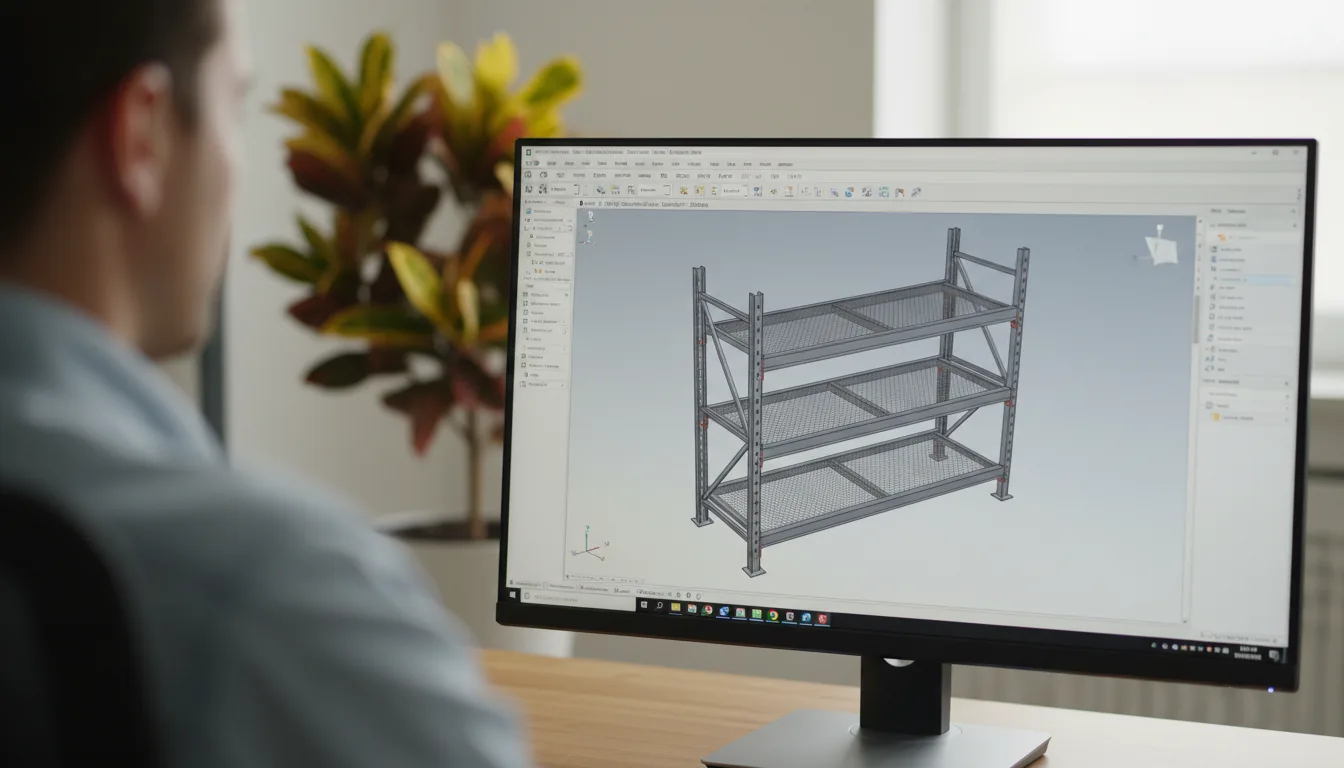
How to Stop SolidWorks from Crashing: A Practical Troubleshooting Guide
Engineering
-
How to Stop SolidWorks from Crashing: A Practical Troubleshooting Guide
Engineering
How to Stop SolidWorks from Crashing: A Practical Troubleshooting Guide
Engineering
-
Table of Contents
Right after a fresh solidworks download, everything feels hopeful. The interface loads fast. Commands snap open instantly. You almost convince yourself that this install will finally be the stable one. And for a little while, it is.
Then you open something tiny. A bracket. A clip. A hinge with three features total. You go to adjust a simple sketch and the whole window locks up without warning. No spinning cursor. No polite error message. Just silence.
That’s the moment every SolidWorks user knows too well. The moment you stare at the screen thinking, “How can this possibly crash? It’s barely a part.”
Beginners get hit even harder. Someone learning through edrawings or edrawingsviewer opens a file and the preview looks fine, so they assume the part must be light. Students using SolidWorks for students versions on older laptops expect at least small parts to behave, because they’re not touching assemblies yet. Then their first crash happens during something as harmless as dragging a dimension. And suddenly they don’t know if the file is bad, if the laptop is bad, or if they did something wrong.
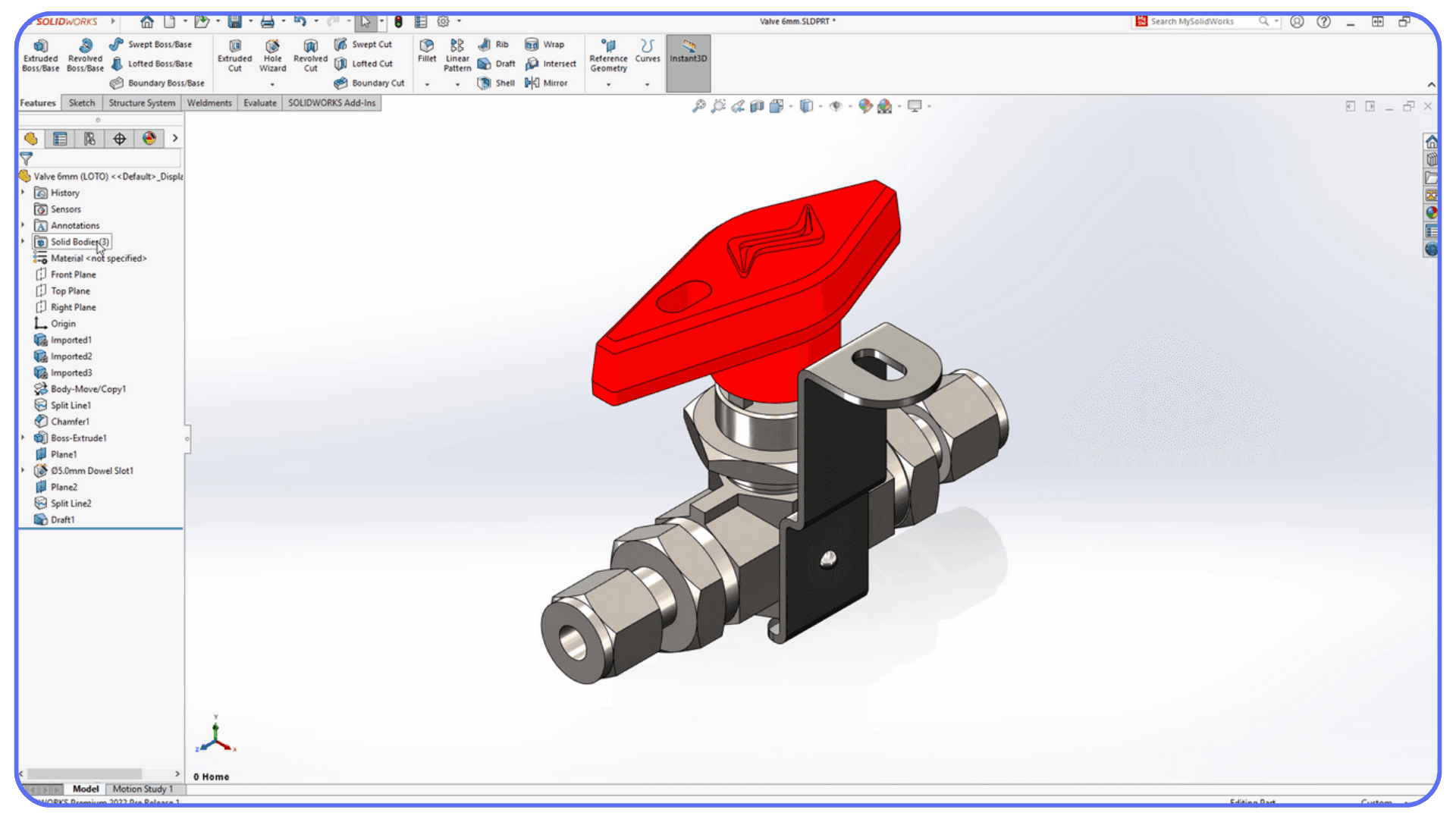
Tiny files crash for reasons that aren’t obvious on the surface. A simple imported STEP could hide thousands of faces. A bad driver might be running in the background. An add-in could be fighting the graphics engine. The file might have come from someone else’s project and brought hidden instability with it.
It feels random, but it rarely is. And once you start understanding the patterns behind these early crashes, the whole thing becomes much less mysterious.
The Real Reasons SolidWorks Crashes More Than People Think
Most SolidWorks users blame the software the second it freezes. I get it. When a model locks up right as you’re editing a sketch or rotating a part, it feels like SolidWorks just decided to quit on you. But most crashes have a very specific cause hiding underneath. Sometimes it’s obvious once you know what to look for. Sometimes you only notice it after losing an hour of work.
Here’s where the majority of problems actually come from.
#1. Hidden Geometry and Tiny Files That Aren’t Tiny
A small imported STEP model can look perfectly harmless until you run Import Diagnostics and realize it’s carrying tens of thousands of faces. Hardware tries to handle it anyway, SolidWorks pretends it’s fine, and then the moment you rotate the view it collapses.
Vendor models are the worst offenders. A simple bolt downloaded from a supplier can have unnecessary fillets, micro edges, or patterns that balloon the part size without showing anything unusual in the feature tree.
On the surface? A tiny part.
Under the hood? Enough geometry to make a workstation sweat.
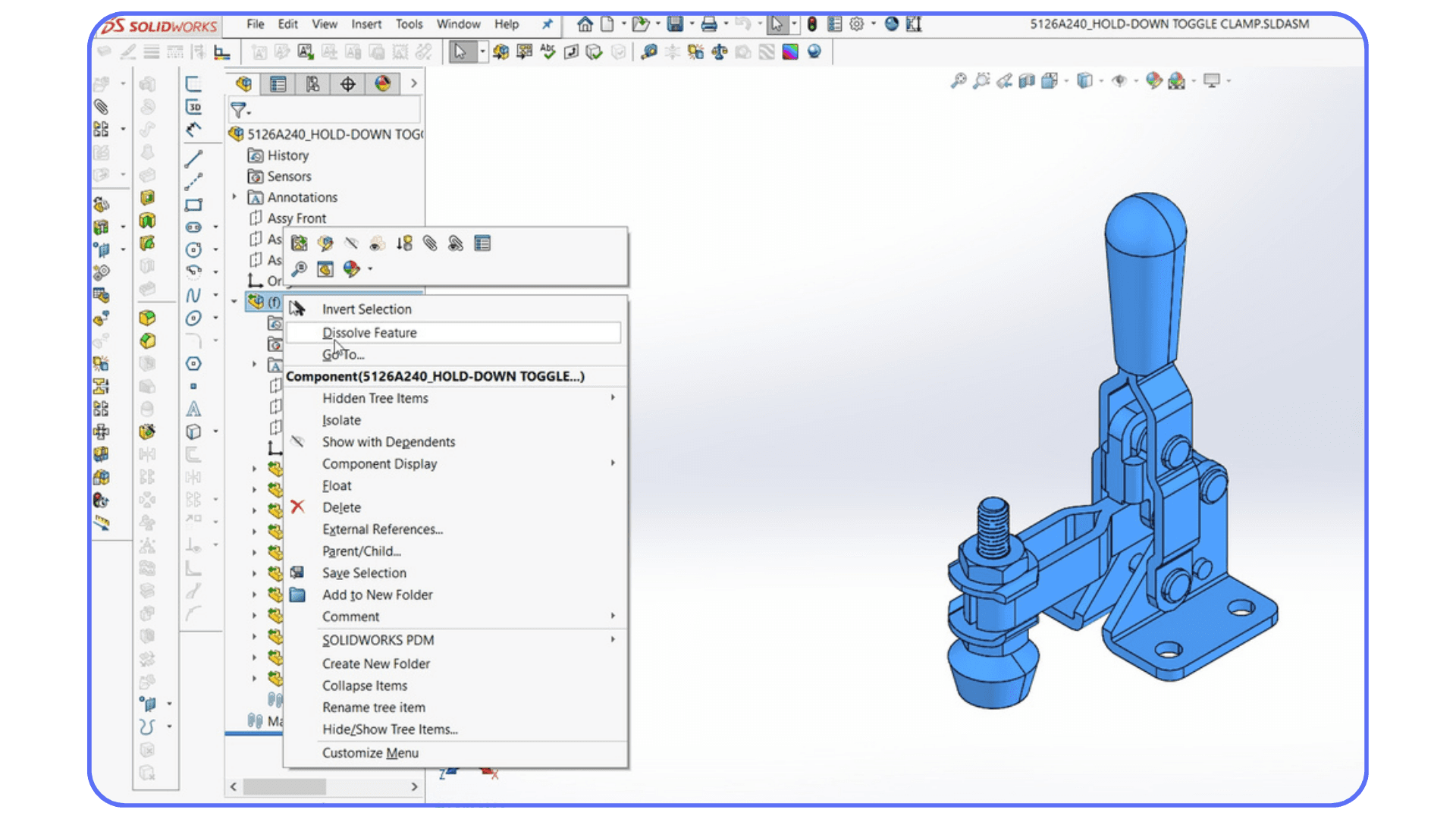
#2. Hardware That Doesn’t Match SolidWorks Needs
SolidWorks is incredibly picky about graphics cards. An uncertified GPU might work for weeks before suddenly causing a viewport crash. This hits laptop users a lot, especially anyone trying to run SolidWorks on a MacBook through virtualization or workarounds. It works well enough for basic modeling, but as soon as a file uses heavy appearances or imported geometry, the whole setup becomes fragile.
Then there’s RAM. SolidWorks will happily let you open assemblies long after your memory has run out. Once Windows starts juggling page files, one extra rebuild is enough to freeze everything.
Most people don’t realize their machine is the bottleneck until the crash happens right in front of them.

If crashes often happen when rotating models or rendering previews, it might be time to check whether your GPU is holding you back. We broke down the options in our guide to the best GPUs for SolidWorks.
#3. Installations That Get Messy
A rushed SolidWorks software download update can leave behind old registry keys or conflicting components. Suddenly a new install is sitting on top of an old environment. Everything feels fine until a feature rebuild touches something from the previous version and SolidWorks decides to quit.
This is insanely common when people upgrade year after year without doing a clean uninstall.
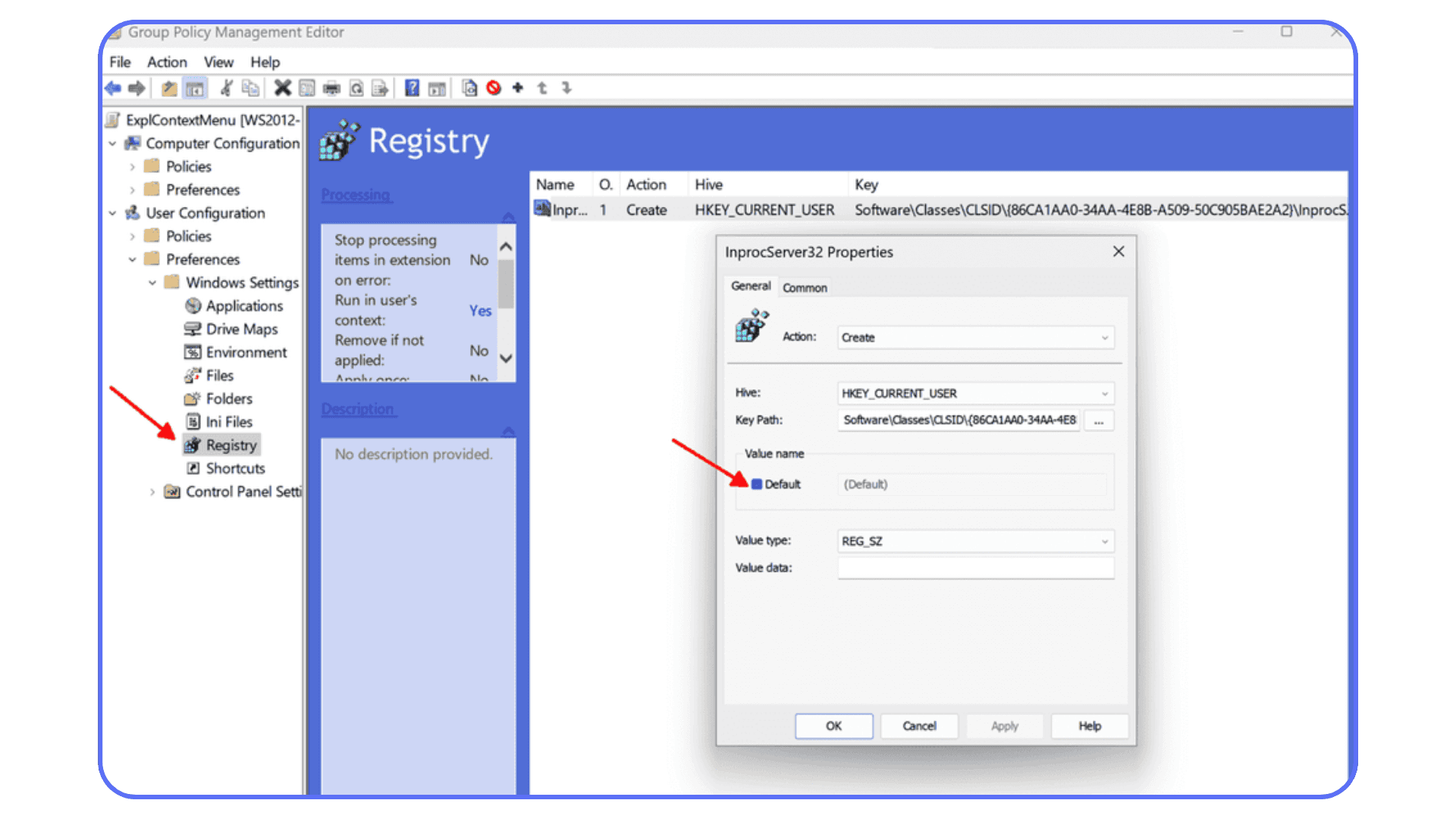
#4. Add-ins and Tools That Quietly Break Things
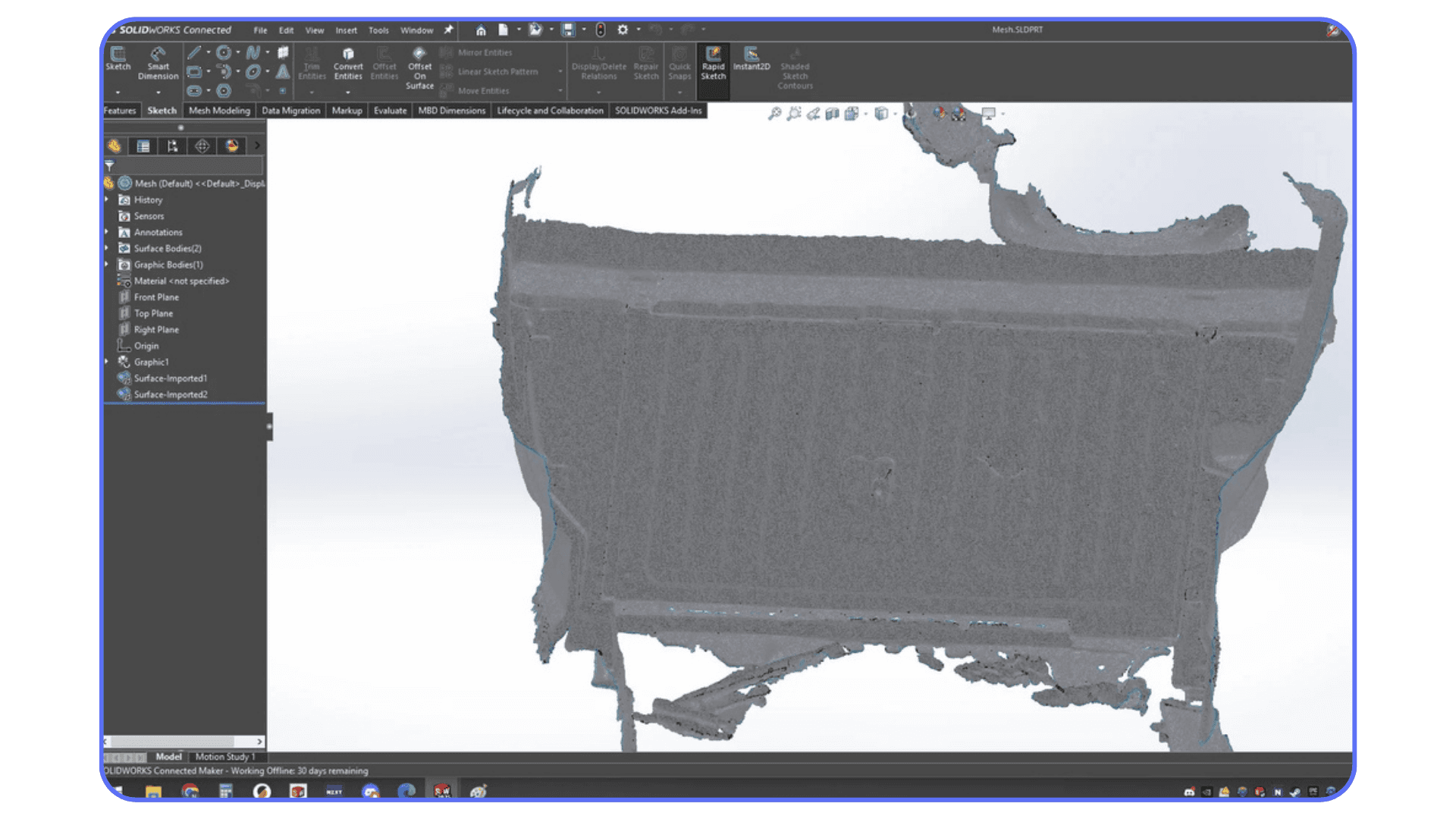
Toolbox, ScanTo3D, simulation add-ins, even things like Visualize plugins can nudge the system into instability. One add-in loads at startup with a corrupted setting, and you won’t see a warning. The crash just shows up later when you try to edit a sketch or insert a part.
The worst part is you often never suspect the add-in. It seems too small to be guilty.
#5. PDM and 3DEXPERIENCE Conflicts
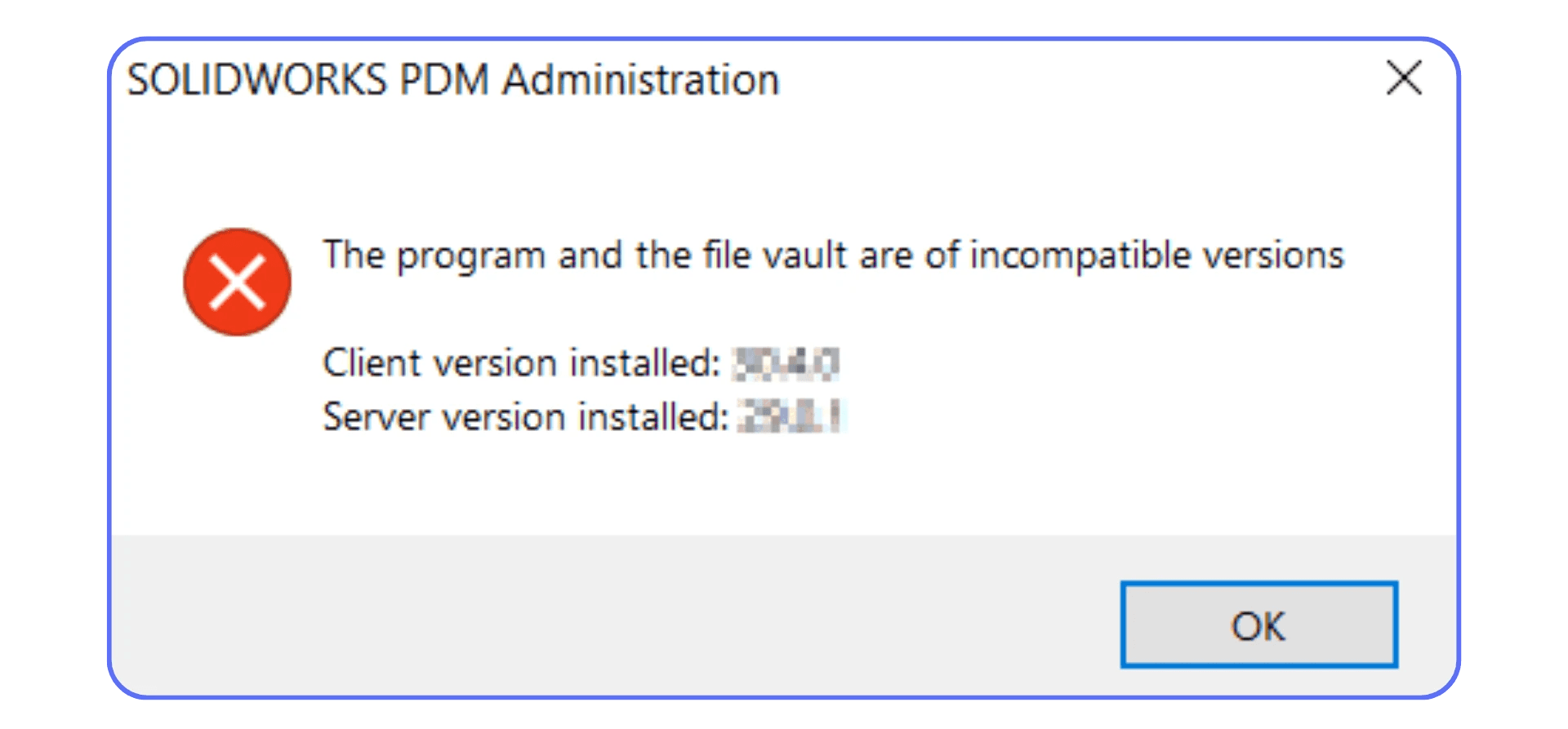
Teams using pdm software solidworks have powerful tools for file control, but they also introduce new ways for things to break. Version mismatches. Files checked out incorrectly. References pointing to old revisions. Any one of these can turn a stable assembly into something that falls apart the moment you try to open it.
3dexperience SolidWorks users deal with a different flavor of chaos. Sync problems. Outdated connectors. Files that jump between cloud and local storage without updating metadata properly.
These issues almost always look like random crashes when they happen, but they’re anything but random.
#6. Network Drives Silently Causing Issues
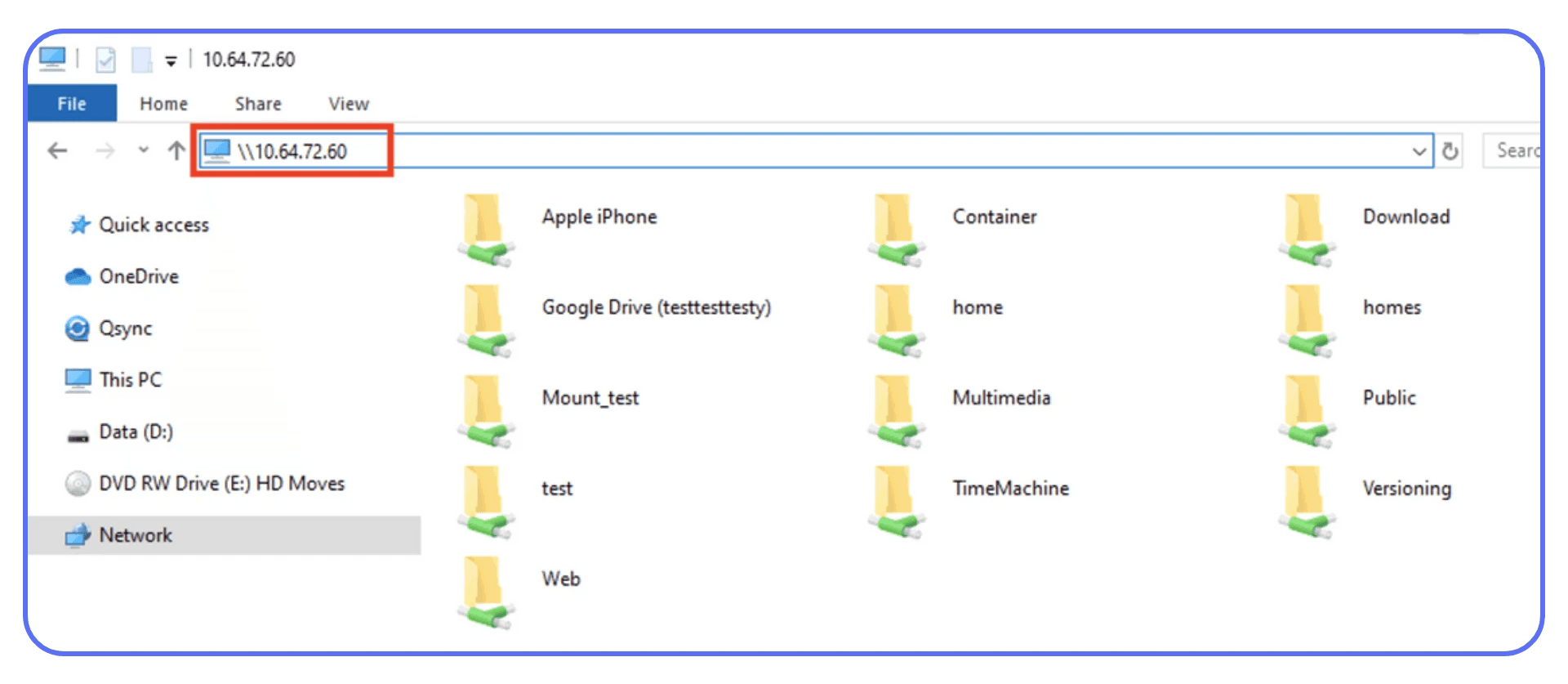
This might be the sneakiest cause of all. Working directly off a shared network folder feels convenient until your connection drops for half a second. SolidWorks tries to autosave, can’t find the file, and crashes without explanation.
You reopen SolidWorks thinking the program failed, when the real problem was the folder it was writing to.
Fixes That Actually Solve Most Crashes
At some point every SolidWorks user asks the same question: Is there a fix that actually works, or am I just destined to crash forever?
The good news is that most crashes come from a small set of issues, and once you clean those up, SolidWorks becomes a lot more predictable. Not perfect, but predictable.
Let’s walk through the fixes that tend to make the biggest difference in real projects, not just on paper.
#1. Use SolidWorks Rx to Figure Out What’s Actually Breaking
Most people ignore SolidWorks Rx the way they ignore warranty manuals. But it’s the quickest way to see whether you’re dealing with a graphics problem or an add-in problem.
Rx has two safe modes:
One tests SolidWorks without hardware acceleration.
The other tests SolidWorks without add-ins.
If the crash disappears in one of these modes, you already know where the issue lives. A lot of beginners running SolidWorks for students don’t realize their GPU isn’t certified, so they keep crashing during simple view changes. Rx exposes this instantly.
It’s also useful when something goes wrong after a solidworks software download update. If your old add-in settings are fighting the new version, Safe Mode will reveal it.
If your workstation struggles with even medium assemblies, upgrading your setup can make a massive difference. You can see recommended machines in our best PC for SolidWorks guide.
#2. Clear Out Temp Files and Old References
This sounds boring. It also fixes more crashes than any other single step.
SolidWorks stores backups, autosaves, temp bodies, preview files, and all kinds of debris in:
AppData folders
Swtools
Hidden autosave locations
When those pile up, SolidWorks starts getting confused about which file is the newest version. On older systems, especially in computer labs where multiple students use one machine, this leads to corrupt autosaves. That’s why SolidWorks for students machines often feel unstable after a few weeks of use.
Cleaning these folders out regularly gives SolidWorks breathing room again.
#3. Repair or Reset the Installation
If your issues started right after a new solidworks download or update, this should be your first big move.
A repair reinstall replaces broken registry keys, mismatched components, and corrupted templates. It’s faster than a full uninstall and solves a surprising number of weird behaviors.
If that doesn’t help, a clean reinstall usually does. Especially if older versions were stacked on top of each other for years.
#4. Disable Add-ins You Never Use
Toolbox, ScanTo3D, Routing, CAM plugins, PDM add-ins… they all load at startup whether you want them to or not. And if even one of them is in a bad state, SolidWorks will crash in ways that appear random.
Turn everything off except what you absolutely need.
Re-enable only the essentials.
Crashes usually stop right there.
#5. Fix Imported Models Before You Build on Them
Imported geometry is a silent killer. Some of the smallest parts in your assembly might be carrying the biggest hidden load.
Using tools like:
Import Diagnostics
Heal Edges
Feature Recognition (only sometimes)
you can dramatically reduce instability. Cleaning a part with 40,000 faces down to 2,000 is like removing a backpack full of bricks from your workstation.
And if you skip this step? SolidWorks crashes during what feels like unrelated actions, such as rotating the model or editing another part entirely.
For beginners who keep running into strange crashes or feature errors, learning the fundamentals properly helps more than people expect. We collected structured learning paths here.
#6. Rebuild Sketch Features That Are Secretly Unstable
Sketches that look fine aren’t always fine.
Things that trigger crashes later:
Zero-length lines
Micro edges
Conflicting constraints
Patterns referencing unstable geometry
Fixing these early keeps the whole part tree solid. Bad sketches are like hairline cracks in concrete. They’ll hold for a while, and then one day they won’t.
#7. Adopt Habits That Keep Your Assemblies Healthy
These are the things people know they should do but never actually do:
Keep vendor models simplified
Use SpeedPak for large assemblies
Organize reference folders
Don’t work directly off a network drive
Share files through edrawings or edrawingsviewer when possible
Better habits mean fewer projects collapsing at the worst possible moment. And managing your solidworks licenses properly across machines prevents version chaos that leads to file corruption.
If you’re trying to run SolidWorks on a MacBook and dealing with virtualization issues or graphics instability, this guide walks through the safest methods.
Strange Crash Patterns That Actually Make Sense
Some SolidWorks crashes feel so unpredictable that you start believing the software has moods. One day a file behaves perfectly. The next day it collapses the moment you rotate it. But when you look a little closer, even the weirdest crashes usually follow a pattern.
Let’s break down the ones that confuse people the most.
#1. The File That Crashes Only on One Workstation
You open the part on your laptop and everything’s fine.
Your coworker opens the same file on their machine and SolidWorks folds instantly.
This almost always comes down to:
Different GPU drivers
Different SolidWorks versions
Missing appearances or materials
Mismatched templates
PDM vs non-PDM environments
One machine renders something the other machine can’t interpret correctly. It doesn’t feel logical, but the root cause is almost always version mismatch or a graphics conflict hiding under the surface.
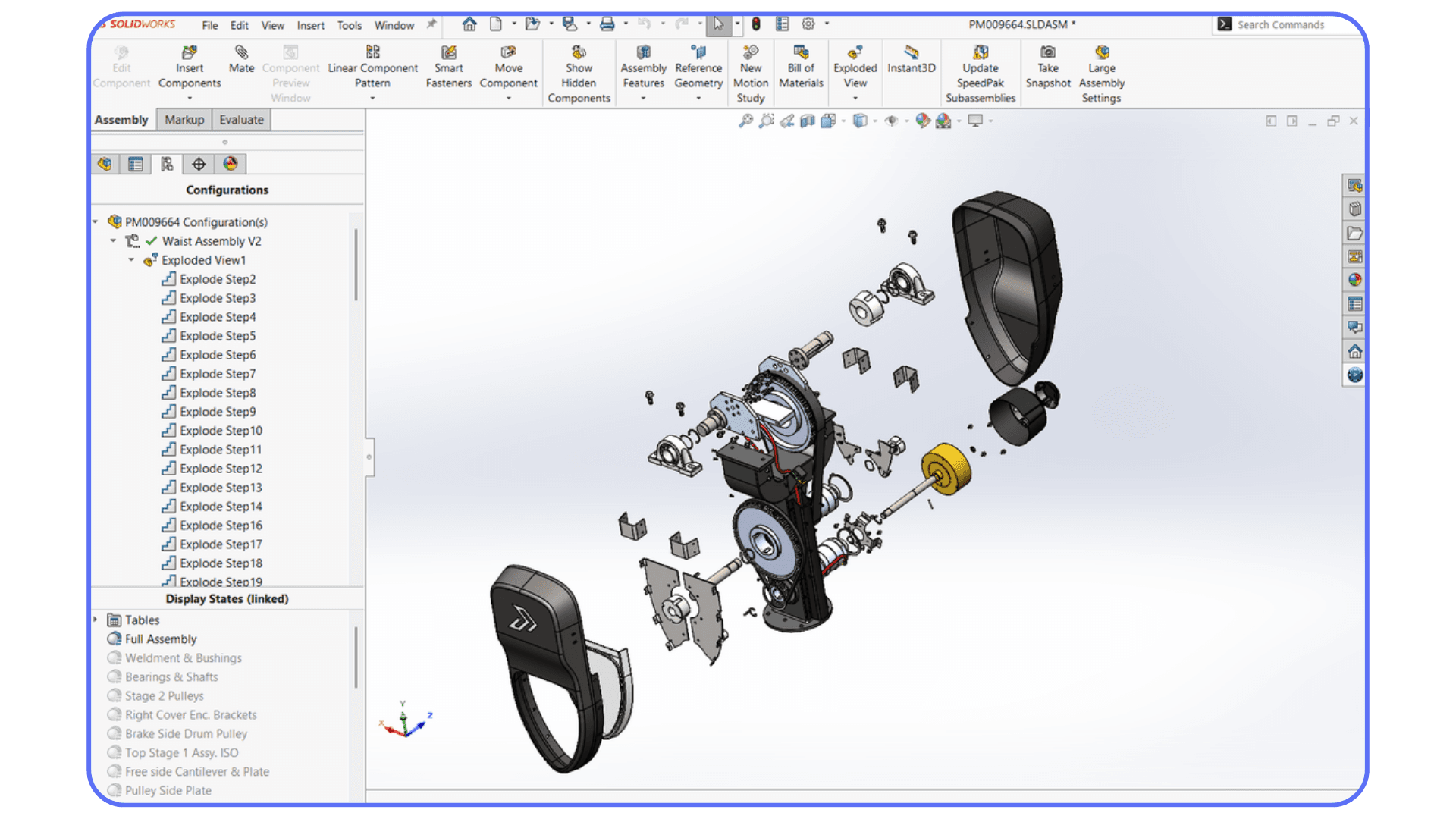
#2. Assemblies That Freeze Only While Rotating
This one feels supernatural the first time it happens. Static view works. Rebuild works. Mates work. But the moment you rotate the model, SolidWorks vanishes.
The usual causes:
Large texture maps
Corrupted display states
Face-level appearances imported from STEP files
A GPU trying to run RealView when it really shouldn’t
In other words, the geometry is fine, but the rendering is not. SolidWorks tries to draw something your GPU can’t process and taps out.
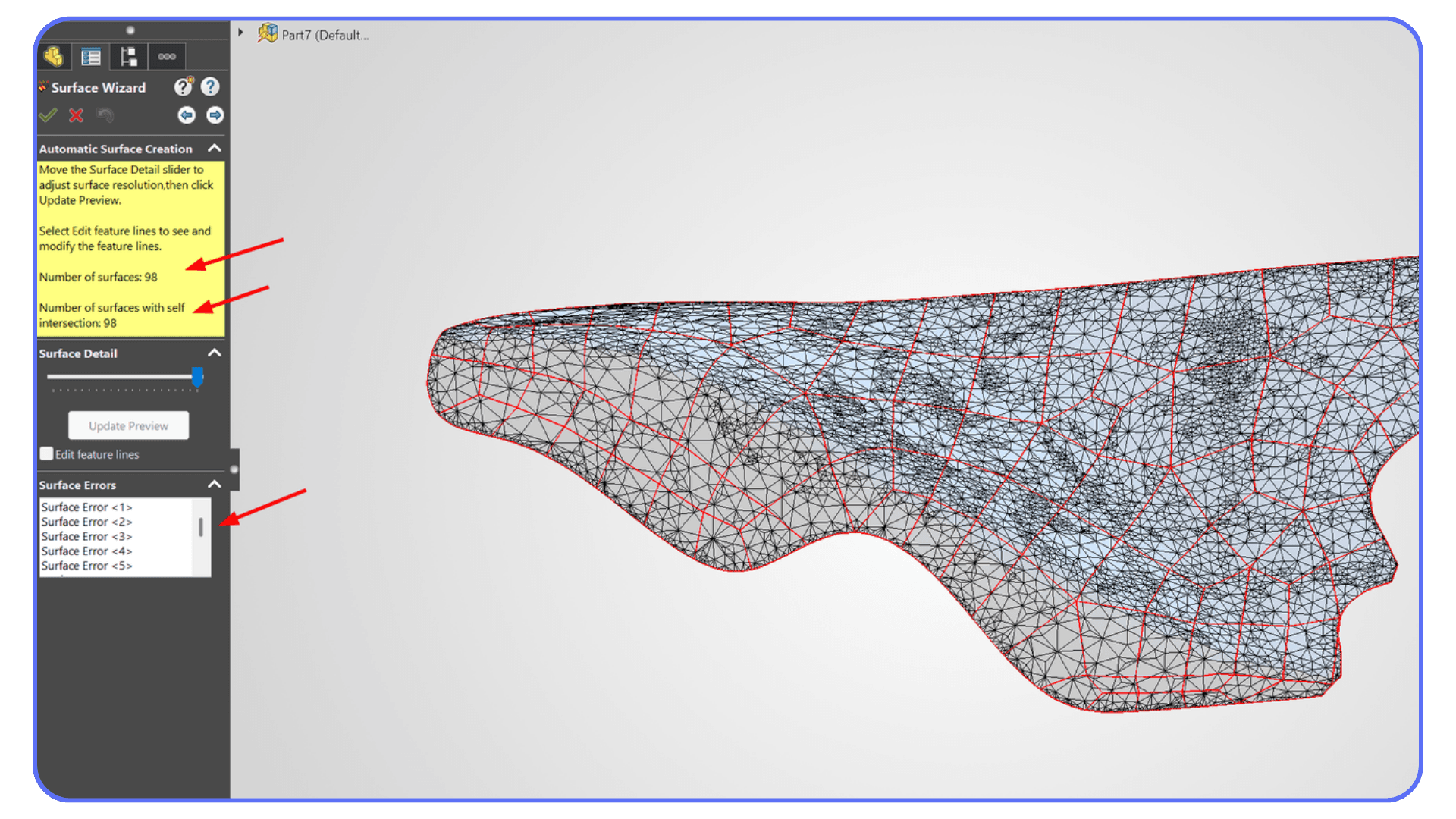
#3. Simulation Crashes That Look Random
Simulation failures are notorious for looking chaotic, but they follow consistent triggers:
Mesh corruption
Element size too small for the hardware
RAM limits
Page file too small
Add-ins fighting for memory
People often assume the study is set up wrong, when the real limiter is simply the workstation not having the resources to solve the mesh.
#4. Files That Behave Differently Depending on Where They’re Stored
Working locally feels stable.
Working from a network folder feels cursed.
That’s because even a tiny delay during autosave can break the file reference chain. SolidWorks can't write fast enough, thinks the file disappeared, and quits.
PDM helps with this, but pdm software solidworks also introduces its own challenges. If a file isn’t checked in properly or two users have mismatched revisions, the assembly can explode the next time you open it.
3dexperience SolidWorks adds a different layer. Cloud-to-local sync issues can corrupt metadata just enough for SolidWorks to crash when it tries to interpret what should have been updated.
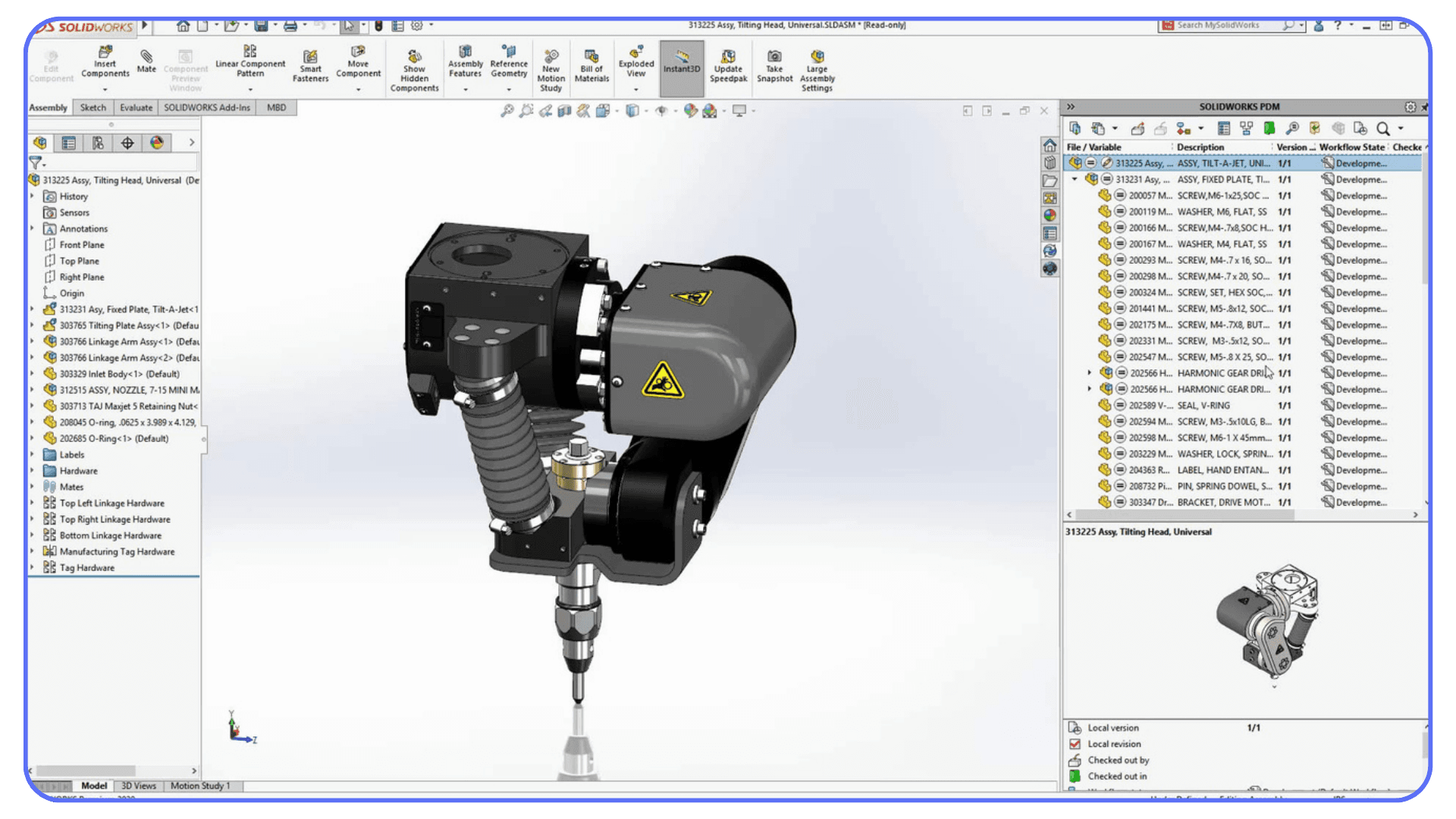
Sometimes crashes happen simply because a feature is used in a way SolidWorks doesn’t like. If you want cleaner workflows, these SolidWorks tutorials help build those habits.
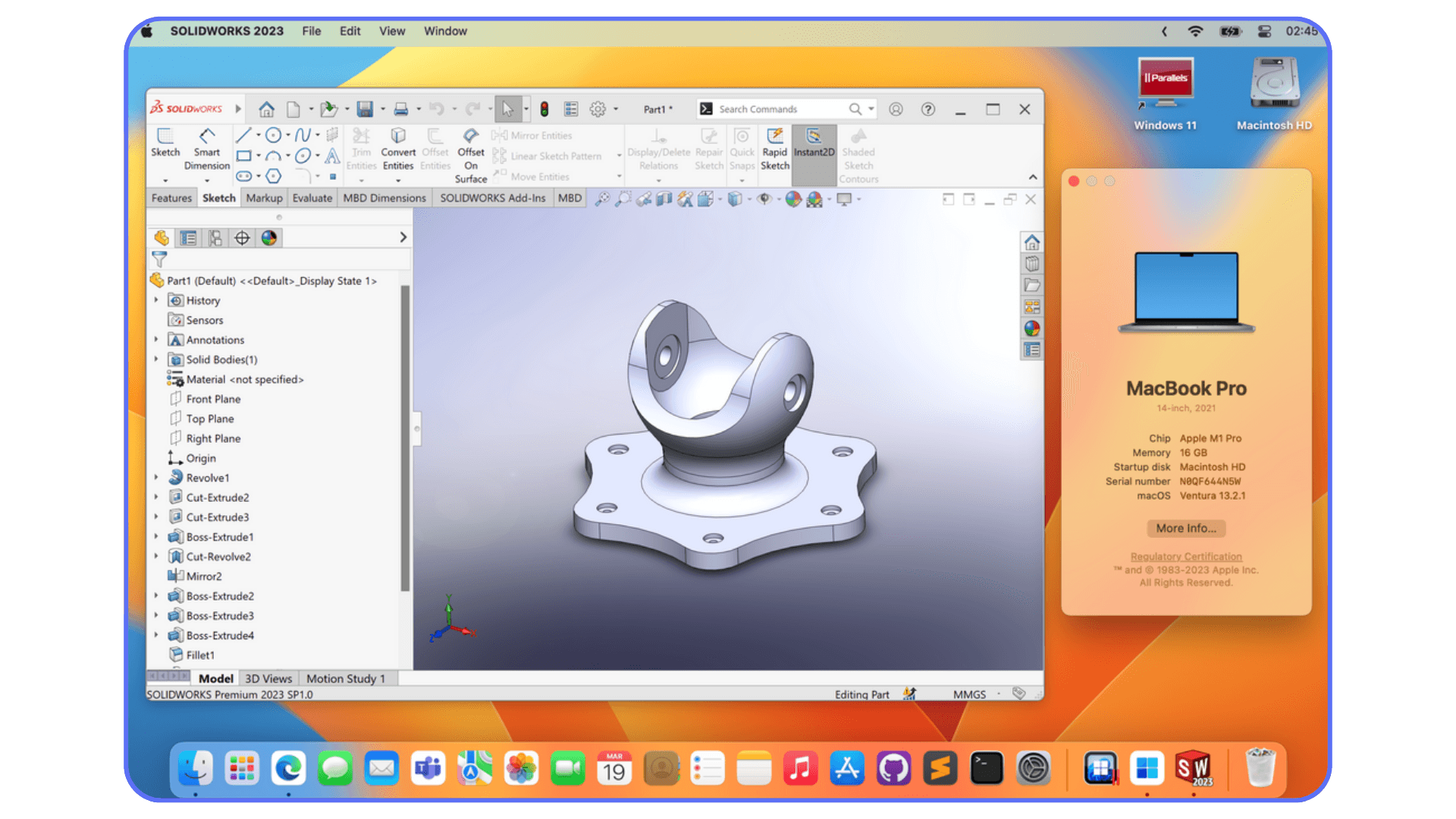
#5. Mac or Virtualized Setups Causing Path Conflicts
SolidWorks doesn’t run natively on macOS, so anyone using a SolidWorks MacBook setup with virtualization sees a unique flavor of errors:
File paths that break when switching between macOS and Windows
Display glitches under virtual GPUs
Crashes during imports or heavy rebuilds
These aren’t SolidWorks bugs. They’re workflow side effects.
Once you see these patterns, SolidWorks stops feeling random. There’s a reason behind almost every freeze, and once you know how to spot them, you can stop wasting time blaming the wrong thing.
When Cloud Workstations Become the Smarter Move
There’s a point where you realize the problem isn’t SolidWorks at all. It’s the machine you’re running it on. If your laptop keeps throttling, if assemblies feel heavy even when they shouldn’t, or if your SolidWorks MacBook setup crashes the moment you import a detailed STEP file, you’re basically fighting your hardware more than the software.
This is where Vagon Cloud Computer becomes a practical fix instead ovf a luxury. You open your browser, launch a workstation with real GPU power, and SolidWorks suddenly feels stable again. No lag when rotating models. No disappearing viewports. No simulation studies that collapse halfway through because your RAM hit the ceiling.
It’s the kind of experience you expect from SolidWorks but rarely get on regular laptops.
For students, freelancers, and teams juggling different solidworks licenses across random machines, Vagon makes things easier. Everyone works on the same performance level, and the crashes caused by weak hardware simply stop happening.
You don’t need to replace your laptop. You just need a place where SolidWorks can actually breathe.
If you work across multiple CAD tools and need a GPU that performs well outside SolidWorks too, our best GPUs for AutoCAD guide compares performance trends that also apply to SolidWorks users.
Final Thoughts
Every SolidWorks user has that moment when the software freezes and you’re left staring at the screen, wondering what just went wrong. It’s frustrating, but it’s also part of the reality of working with a tool that carries this much power under the hood. Once you understand the patterns behind those crashes, the whole thing becomes easier to control. Tiny imported parts stop surprising you. Add-ins stop sabotaging your sessions. Your hardware stops feeling like an unpredictable variable.
A lot of the stability comes from habits. Cleaning up geometry. Keeping your installation healthy. Knowing when your laptop has had enough. SolidWorks doesn’t need perfection to run smoothly, just an environment that isn’t constantly fighting it.
And when the model grows or your machine starts falling behind, having access to a stronger workstation makes a bigger difference than most people expect. Whether it’s your own hardware or a cloud setup you launch when things get heavy, the goal is the same: spend more time actually modeling and less time recovering from crashes.
At the end of the day, SolidWorks will always test your patience a bit. But once you know how to read the signs and make a few smart adjustments, it starts feeling like the tool it was meant to be instead of a gamble every time you hit rebuild.
FAQs
1. Why does SolidWorks crash even when the model looks tiny?
Because “tiny” in appearance doesn’t always mean tiny in geometry. A small imported STEP file can hide tens of thousands of faces, broken edges, or micro-features that overload the graphics engine. It’s one of the most common sources of crashes, especially for SolidWorks for students users working on older laptops.
2. Is my GPU the reason SolidWorks keeps freezing?
Very possibly. SolidWorks relies heavily on certified GPUs, and when the system switches between integrated and dedicated graphics, things get unstable fast. You’ll see this a lot on laptops and SolidWorks MacBook setups running virtualization. Viewport freezes during rotation usually point to a graphics issue rather than a modeling mistake.
3. Why does SolidWorks crash right after an update or reinstall?
If you installed a new version using a quick solidworks software download without removing the previous one, old registry keys or templates can conflict with the new build. A repair install usually helps. Worst case, you do a clean uninstall and reinstall to rebuild the environment.
4. Can add-ins really cause crashes?
Definitely. Toolbox, ScanTo3D, simulation tools, even third-party plugins can break something small that SolidWorks depends on. If you crash only when certain features open, try disabling unnecessary add-ins and see if the problem goes away.
5. Why do assemblies crash only on one computer but not another?
Usually version mismatches. Different driver versions, different SolidWorks templates, conflicting solidworks licenses, or a PDM environment that one machine is configured for and the other isn’t. When a file crashes only on one workstation, it’s almost always something in the setup, not the file.
6. Does using network drives affect SolidWorks stability?
Yes. A short network hiccup during autosave can corrupt a part instantly. PDM helps, but pdm software solidworks environments still need clean version control. If you're not using PDM, working locally and syncing manually is safer.
7. Why does my simulation keep crashing?
Most of the time it’s hardware. Simulations need RAM and compute stability. If your machine is running hot or doesn’t have enough memory, SolidWorks crashes halfway through meshing or solving. Mesh corruption is another common trigger.
8. Can running SolidWorks on the cloud actually reduce crashes?
If your local hardware is the bottleneck, yes. A workstation with a certified GPU and enough RAM eliminates a lot of random instability. That’s where options like Vagon Cloud Computer make sense. You open a high-performance environment in your browser, and SolidWorks handles heavy assemblies, imported geometry, and simulations without the laptop-level limitations.
9. Is SolidWorks download size related to stability issues?
Not directly, but installations that get interrupted or layered on top of older versions can break components. A clean solidworks download and install solves many invisible issues, especially on systems that haven’t been refreshed in years.
10. Does edrawings or edrawingsviewer affect performance?
They don’t cause crashes themselves, but they’re often the first tools beginners use when previewing parts. If the file looks normal in edrawings but crashes during edits in SolidWorks, the file is probably carrying hidden geometry problems. Edrawings hides the complexity; SolidWorks has to deal with it.
Right after a fresh solidworks download, everything feels hopeful. The interface loads fast. Commands snap open instantly. You almost convince yourself that this install will finally be the stable one. And for a little while, it is.
Then you open something tiny. A bracket. A clip. A hinge with three features total. You go to adjust a simple sketch and the whole window locks up without warning. No spinning cursor. No polite error message. Just silence.
That’s the moment every SolidWorks user knows too well. The moment you stare at the screen thinking, “How can this possibly crash? It’s barely a part.”
Beginners get hit even harder. Someone learning through edrawings or edrawingsviewer opens a file and the preview looks fine, so they assume the part must be light. Students using SolidWorks for students versions on older laptops expect at least small parts to behave, because they’re not touching assemblies yet. Then their first crash happens during something as harmless as dragging a dimension. And suddenly they don’t know if the file is bad, if the laptop is bad, or if they did something wrong.
Tiny files crash for reasons that aren’t obvious on the surface. A simple imported STEP could hide thousands of faces. A bad driver might be running in the background. An add-in could be fighting the graphics engine. The file might have come from someone else’s project and brought hidden instability with it.
It feels random, but it rarely is. And once you start understanding the patterns behind these early crashes, the whole thing becomes much less mysterious.
The Real Reasons SolidWorks Crashes More Than People Think
Most SolidWorks users blame the software the second it freezes. I get it. When a model locks up right as you’re editing a sketch or rotating a part, it feels like SolidWorks just decided to quit on you. But most crashes have a very specific cause hiding underneath. Sometimes it’s obvious once you know what to look for. Sometimes you only notice it after losing an hour of work.
Here’s where the majority of problems actually come from.
#1. Hidden Geometry and Tiny Files That Aren’t Tiny
A small imported STEP model can look perfectly harmless until you run Import Diagnostics and realize it’s carrying tens of thousands of faces. Hardware tries to handle it anyway, SolidWorks pretends it’s fine, and then the moment you rotate the view it collapses.
Vendor models are the worst offenders. A simple bolt downloaded from a supplier can have unnecessary fillets, micro edges, or patterns that balloon the part size without showing anything unusual in the feature tree.
On the surface? A tiny part.
Under the hood? Enough geometry to make a workstation sweat.
#2. Hardware That Doesn’t Match SolidWorks Needs
SolidWorks is incredibly picky about graphics cards. An uncertified GPU might work for weeks before suddenly causing a viewport crash. This hits laptop users a lot, especially anyone trying to run SolidWorks on a MacBook through virtualization or workarounds. It works well enough for basic modeling, but as soon as a file uses heavy appearances or imported geometry, the whole setup becomes fragile.
Then there’s RAM. SolidWorks will happily let you open assemblies long after your memory has run out. Once Windows starts juggling page files, one extra rebuild is enough to freeze everything.
Most people don’t realize their machine is the bottleneck until the crash happens right in front of them.
If crashes often happen when rotating models or rendering previews, it might be time to check whether your GPU is holding you back. We broke down the options in our guide to the best GPUs for SolidWorks.
#3. Installations That Get Messy
A rushed SolidWorks software download update can leave behind old registry keys or conflicting components. Suddenly a new install is sitting on top of an old environment. Everything feels fine until a feature rebuild touches something from the previous version and SolidWorks decides to quit.
This is insanely common when people upgrade year after year without doing a clean uninstall.
#4. Add-ins and Tools That Quietly Break Things
Toolbox, ScanTo3D, simulation add-ins, even things like Visualize plugins can nudge the system into instability. One add-in loads at startup with a corrupted setting, and you won’t see a warning. The crash just shows up later when you try to edit a sketch or insert a part.
The worst part is you often never suspect the add-in. It seems too small to be guilty.
#5. PDM and 3DEXPERIENCE Conflicts
Teams using pdm software solidworks have powerful tools for file control, but they also introduce new ways for things to break. Version mismatches. Files checked out incorrectly. References pointing to old revisions. Any one of these can turn a stable assembly into something that falls apart the moment you try to open it.
3dexperience SolidWorks users deal with a different flavor of chaos. Sync problems. Outdated connectors. Files that jump between cloud and local storage without updating metadata properly.
These issues almost always look like random crashes when they happen, but they’re anything but random.
#6. Network Drives Silently Causing Issues
This might be the sneakiest cause of all. Working directly off a shared network folder feels convenient until your connection drops for half a second. SolidWorks tries to autosave, can’t find the file, and crashes without explanation.
You reopen SolidWorks thinking the program failed, when the real problem was the folder it was writing to.
Fixes That Actually Solve Most Crashes
At some point every SolidWorks user asks the same question: Is there a fix that actually works, or am I just destined to crash forever?
The good news is that most crashes come from a small set of issues, and once you clean those up, SolidWorks becomes a lot more predictable. Not perfect, but predictable.
Let’s walk through the fixes that tend to make the biggest difference in real projects, not just on paper.
#1. Use SolidWorks Rx to Figure Out What’s Actually Breaking
Most people ignore SolidWorks Rx the way they ignore warranty manuals. But it’s the quickest way to see whether you’re dealing with a graphics problem or an add-in problem.
Rx has two safe modes:
One tests SolidWorks without hardware acceleration.
The other tests SolidWorks without add-ins.
If the crash disappears in one of these modes, you already know where the issue lives. A lot of beginners running SolidWorks for students don’t realize their GPU isn’t certified, so they keep crashing during simple view changes. Rx exposes this instantly.
It’s also useful when something goes wrong after a solidworks software download update. If your old add-in settings are fighting the new version, Safe Mode will reveal it.
If your workstation struggles with even medium assemblies, upgrading your setup can make a massive difference. You can see recommended machines in our best PC for SolidWorks guide.
#2. Clear Out Temp Files and Old References
This sounds boring. It also fixes more crashes than any other single step.
SolidWorks stores backups, autosaves, temp bodies, preview files, and all kinds of debris in:
AppData folders
Swtools
Hidden autosave locations
When those pile up, SolidWorks starts getting confused about which file is the newest version. On older systems, especially in computer labs where multiple students use one machine, this leads to corrupt autosaves. That’s why SolidWorks for students machines often feel unstable after a few weeks of use.
Cleaning these folders out regularly gives SolidWorks breathing room again.
#3. Repair or Reset the Installation
If your issues started right after a new solidworks download or update, this should be your first big move.
A repair reinstall replaces broken registry keys, mismatched components, and corrupted templates. It’s faster than a full uninstall and solves a surprising number of weird behaviors.
If that doesn’t help, a clean reinstall usually does. Especially if older versions were stacked on top of each other for years.
#4. Disable Add-ins You Never Use
Toolbox, ScanTo3D, Routing, CAM plugins, PDM add-ins… they all load at startup whether you want them to or not. And if even one of them is in a bad state, SolidWorks will crash in ways that appear random.
Turn everything off except what you absolutely need.
Re-enable only the essentials.
Crashes usually stop right there.
#5. Fix Imported Models Before You Build on Them
Imported geometry is a silent killer. Some of the smallest parts in your assembly might be carrying the biggest hidden load.
Using tools like:
Import Diagnostics
Heal Edges
Feature Recognition (only sometimes)
you can dramatically reduce instability. Cleaning a part with 40,000 faces down to 2,000 is like removing a backpack full of bricks from your workstation.
And if you skip this step? SolidWorks crashes during what feels like unrelated actions, such as rotating the model or editing another part entirely.
For beginners who keep running into strange crashes or feature errors, learning the fundamentals properly helps more than people expect. We collected structured learning paths here.
#6. Rebuild Sketch Features That Are Secretly Unstable
Sketches that look fine aren’t always fine.
Things that trigger crashes later:
Zero-length lines
Micro edges
Conflicting constraints
Patterns referencing unstable geometry
Fixing these early keeps the whole part tree solid. Bad sketches are like hairline cracks in concrete. They’ll hold for a while, and then one day they won’t.
#7. Adopt Habits That Keep Your Assemblies Healthy
These are the things people know they should do but never actually do:
Keep vendor models simplified
Use SpeedPak for large assemblies
Organize reference folders
Don’t work directly off a network drive
Share files through edrawings or edrawingsviewer when possible
Better habits mean fewer projects collapsing at the worst possible moment. And managing your solidworks licenses properly across machines prevents version chaos that leads to file corruption.
If you’re trying to run SolidWorks on a MacBook and dealing with virtualization issues or graphics instability, this guide walks through the safest methods.
Strange Crash Patterns That Actually Make Sense
Some SolidWorks crashes feel so unpredictable that you start believing the software has moods. One day a file behaves perfectly. The next day it collapses the moment you rotate it. But when you look a little closer, even the weirdest crashes usually follow a pattern.
Let’s break down the ones that confuse people the most.
#1. The File That Crashes Only on One Workstation
You open the part on your laptop and everything’s fine.
Your coworker opens the same file on their machine and SolidWorks folds instantly.
This almost always comes down to:
Different GPU drivers
Different SolidWorks versions
Missing appearances or materials
Mismatched templates
PDM vs non-PDM environments
One machine renders something the other machine can’t interpret correctly. It doesn’t feel logical, but the root cause is almost always version mismatch or a graphics conflict hiding under the surface.
#2. Assemblies That Freeze Only While Rotating
This one feels supernatural the first time it happens. Static view works. Rebuild works. Mates work. But the moment you rotate the model, SolidWorks vanishes.
The usual causes:
Large texture maps
Corrupted display states
Face-level appearances imported from STEP files
A GPU trying to run RealView when it really shouldn’t
In other words, the geometry is fine, but the rendering is not. SolidWorks tries to draw something your GPU can’t process and taps out.
#3. Simulation Crashes That Look Random
Simulation failures are notorious for looking chaotic, but they follow consistent triggers:
Mesh corruption
Element size too small for the hardware
RAM limits
Page file too small
Add-ins fighting for memory
People often assume the study is set up wrong, when the real limiter is simply the workstation not having the resources to solve the mesh.
#4. Files That Behave Differently Depending on Where They’re Stored
Working locally feels stable.
Working from a network folder feels cursed.
That’s because even a tiny delay during autosave can break the file reference chain. SolidWorks can't write fast enough, thinks the file disappeared, and quits.
PDM helps with this, but pdm software solidworks also introduces its own challenges. If a file isn’t checked in properly or two users have mismatched revisions, the assembly can explode the next time you open it.
3dexperience SolidWorks adds a different layer. Cloud-to-local sync issues can corrupt metadata just enough for SolidWorks to crash when it tries to interpret what should have been updated.
Sometimes crashes happen simply because a feature is used in a way SolidWorks doesn’t like. If you want cleaner workflows, these SolidWorks tutorials help build those habits.
#5. Mac or Virtualized Setups Causing Path Conflicts
SolidWorks doesn’t run natively on macOS, so anyone using a SolidWorks MacBook setup with virtualization sees a unique flavor of errors:
File paths that break when switching between macOS and Windows
Display glitches under virtual GPUs
Crashes during imports or heavy rebuilds
These aren’t SolidWorks bugs. They’re workflow side effects.
Once you see these patterns, SolidWorks stops feeling random. There’s a reason behind almost every freeze, and once you know how to spot them, you can stop wasting time blaming the wrong thing.
When Cloud Workstations Become the Smarter Move
There’s a point where you realize the problem isn’t SolidWorks at all. It’s the machine you’re running it on. If your laptop keeps throttling, if assemblies feel heavy even when they shouldn’t, or if your SolidWorks MacBook setup crashes the moment you import a detailed STEP file, you’re basically fighting your hardware more than the software.
This is where Vagon Cloud Computer becomes a practical fix instead ovf a luxury. You open your browser, launch a workstation with real GPU power, and SolidWorks suddenly feels stable again. No lag when rotating models. No disappearing viewports. No simulation studies that collapse halfway through because your RAM hit the ceiling.
It’s the kind of experience you expect from SolidWorks but rarely get on regular laptops.
For students, freelancers, and teams juggling different solidworks licenses across random machines, Vagon makes things easier. Everyone works on the same performance level, and the crashes caused by weak hardware simply stop happening.
You don’t need to replace your laptop. You just need a place where SolidWorks can actually breathe.
If you work across multiple CAD tools and need a GPU that performs well outside SolidWorks too, our best GPUs for AutoCAD guide compares performance trends that also apply to SolidWorks users.
Final Thoughts
Every SolidWorks user has that moment when the software freezes and you’re left staring at the screen, wondering what just went wrong. It’s frustrating, but it’s also part of the reality of working with a tool that carries this much power under the hood. Once you understand the patterns behind those crashes, the whole thing becomes easier to control. Tiny imported parts stop surprising you. Add-ins stop sabotaging your sessions. Your hardware stops feeling like an unpredictable variable.
A lot of the stability comes from habits. Cleaning up geometry. Keeping your installation healthy. Knowing when your laptop has had enough. SolidWorks doesn’t need perfection to run smoothly, just an environment that isn’t constantly fighting it.
And when the model grows or your machine starts falling behind, having access to a stronger workstation makes a bigger difference than most people expect. Whether it’s your own hardware or a cloud setup you launch when things get heavy, the goal is the same: spend more time actually modeling and less time recovering from crashes.
At the end of the day, SolidWorks will always test your patience a bit. But once you know how to read the signs and make a few smart adjustments, it starts feeling like the tool it was meant to be instead of a gamble every time you hit rebuild.
FAQs
1. Why does SolidWorks crash even when the model looks tiny?
Because “tiny” in appearance doesn’t always mean tiny in geometry. A small imported STEP file can hide tens of thousands of faces, broken edges, or micro-features that overload the graphics engine. It’s one of the most common sources of crashes, especially for SolidWorks for students users working on older laptops.
2. Is my GPU the reason SolidWorks keeps freezing?
Very possibly. SolidWorks relies heavily on certified GPUs, and when the system switches between integrated and dedicated graphics, things get unstable fast. You’ll see this a lot on laptops and SolidWorks MacBook setups running virtualization. Viewport freezes during rotation usually point to a graphics issue rather than a modeling mistake.
3. Why does SolidWorks crash right after an update or reinstall?
If you installed a new version using a quick solidworks software download without removing the previous one, old registry keys or templates can conflict with the new build. A repair install usually helps. Worst case, you do a clean uninstall and reinstall to rebuild the environment.
4. Can add-ins really cause crashes?
Definitely. Toolbox, ScanTo3D, simulation tools, even third-party plugins can break something small that SolidWorks depends on. If you crash only when certain features open, try disabling unnecessary add-ins and see if the problem goes away.
5. Why do assemblies crash only on one computer but not another?
Usually version mismatches. Different driver versions, different SolidWorks templates, conflicting solidworks licenses, or a PDM environment that one machine is configured for and the other isn’t. When a file crashes only on one workstation, it’s almost always something in the setup, not the file.
6. Does using network drives affect SolidWorks stability?
Yes. A short network hiccup during autosave can corrupt a part instantly. PDM helps, but pdm software solidworks environments still need clean version control. If you're not using PDM, working locally and syncing manually is safer.
7. Why does my simulation keep crashing?
Most of the time it’s hardware. Simulations need RAM and compute stability. If your machine is running hot or doesn’t have enough memory, SolidWorks crashes halfway through meshing or solving. Mesh corruption is another common trigger.
8. Can running SolidWorks on the cloud actually reduce crashes?
If your local hardware is the bottleneck, yes. A workstation with a certified GPU and enough RAM eliminates a lot of random instability. That’s where options like Vagon Cloud Computer make sense. You open a high-performance environment in your browser, and SolidWorks handles heavy assemblies, imported geometry, and simulations without the laptop-level limitations.
9. Is SolidWorks download size related to stability issues?
Not directly, but installations that get interrupted or layered on top of older versions can break components. A clean solidworks download and install solves many invisible issues, especially on systems that haven’t been refreshed in years.
10. Does edrawings or edrawingsviewer affect performance?
They don’t cause crashes themselves, but they’re often the first tools beginners use when previewing parts. If the file looks normal in edrawings but crashes during edits in SolidWorks, the file is probably carrying hidden geometry problems. Edrawings hides the complexity; SolidWorks has to deal with it.
Get Beyond Your Computer Performance
Run applications on your cloud computer with the latest generation hardware. No more crashes or lags.

Trial includes 1 hour usage + 7 days of storage.
Summarize with AI

Ready to focus on your creativity?
Vagon gives you the ability to create & render projects, collaborate, and stream applications with the power of the best hardware.

Vagon Blog
Run heavy applications on any device with
your personal computer on the cloud.
San Francisco, California
Solutions
Vagon Teams
Vagon Streams
Use Cases
Resources
Vagon Blog
How to Run Unreal Engine on Googlebook
How to Run Blender on Googlebook
How to Run After Effects on Googlebook
How to Use SketchUp With Codex: MCP and Computer Use
How to Use SketchUp With Claude: MCP and Computer Use
How to Use ComfyUI With Codex: MCP and Computer Use
How to Use Godot With Codex: MCP & Computer Use Guide
How to Use Houdini With Codex: MCP, Computer Use & RBD
How to Use Cinema 4D With Codex: MCP & Computer Use
Vagon Blog
Run heavy applications on any device with
your personal computer on the cloud.
San Francisco, California
Solutions
Vagon Teams
Vagon Streams
Use Cases
Resources
Vagon Blog
How to Run Unreal Engine on Googlebook
How to Run Blender on Googlebook
How to Run After Effects on Googlebook
How to Use SketchUp With Codex: MCP and Computer Use
How to Use SketchUp With Claude: MCP and Computer Use
How to Use ComfyUI With Codex: MCP and Computer Use
How to Use Godot With Codex: MCP & Computer Use Guide
How to Use Houdini With Codex: MCP, Computer Use & RBD
How to Use Cinema 4D With Codex: MCP & Computer Use
Vagon Blog
Run heavy applications on any device with
your personal computer on the cloud.
San Francisco, California
Solutions
Vagon Teams
Vagon Streams
Use Cases
Resources
Vagon Blog