Instant Connection for Pixel Streaming
— New Feature Automated Setup
SolidWorks Hotkeys That Actually Change How You Work
Engineering
SolidWorks Hotkeys That Actually Change How You Work
Engineering
SolidWorks Hotkeys That Actually Change How You Work
Engineering
Table of Contents
Ever spent ten minutes hunting for a toolbar item in SolidWorks CAD instead of actually modeling the part? You know the moment. Cursor floating. Brain half switched off. You were in the zone thirty seconds ago, and now you’re negotiating with the interface.
If you’re still clicking menus in SolidWorks, I’m about to save you hours. Not in a motivational way. In a very boring, very practical way. The kind that shows up at the end of the week when you realize you got more done without feeling rushed.
This isn’t about becoming a keyboard ninja or memorizing a cheat sheet the size of a poster. It’s about cutting out the tiny interruptions that quietly drain your focus. The ones you barely notice until they pile up.
Let’s get into it.
Why Solidworks Hotkeys Matter
I didn’t start caring about hotkeys because I wanted to be faster. I started caring because I was getting annoyed. Constantly. Not by big crashes or corrupted files, but by the small stuff. The little pauses. The moments where SolidWorks CAD pulled me out of my own head because I had to go look for something.
At first, I worked the way most people do. Mouse-heavy. Menus. Toolbars. I knew roughly where things were, so it felt fine. But over long sessions, especially sketching and feature-heavy parts, something felt off. I was tired in a way that didn’t match the work I’d done.
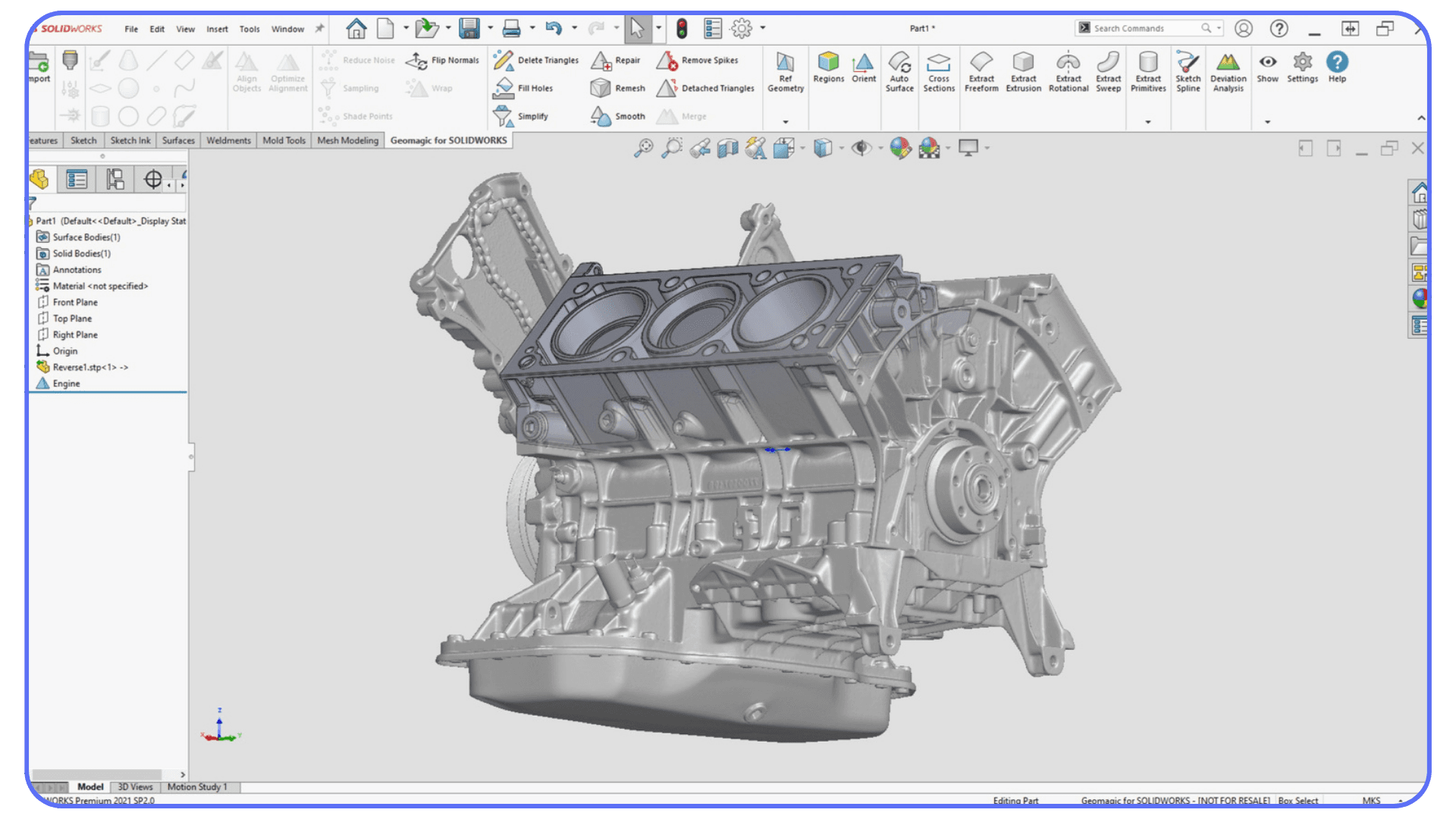
The shift happened when I stopped “learning” hotkeys and started letting them happen automatically. Undo without thinking. Rebuild without hesitation. Repeat last command without even glancing at the keyboard. That’s the difference most tutorials don’t talk about. Knowing a shortcut isn’t the same as internalizing it.
Once hotkeys turn into muscle memory, SolidWorks changes character. You’re not navigating software anymore. You’re shaping geometry. Your eyes stay on the model. Your hands stop negotiating with the interface. The work feels quieter. Smoother.
I’ve noticed this most clearly during sketch work. Constraints, trims, small corrections, repeating the same action over and over. If each of those steps involves a menu click, the friction stacks up fast. You don’t feel it immediately, but by the end of the session, your focus is gone.
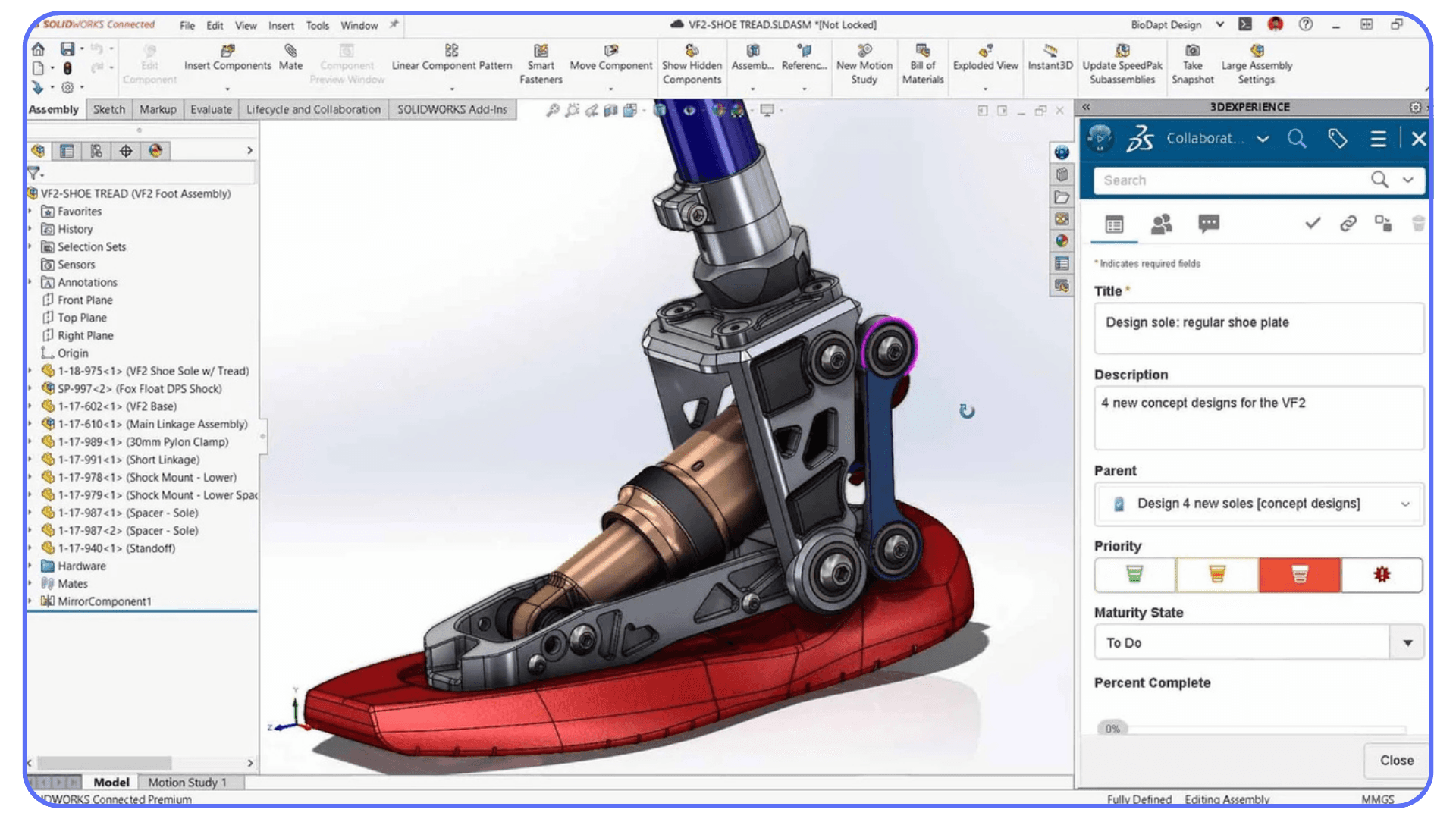
Some people push back here. “Clicking doesn’t slow me down. I know where everything is.” And sure, for simple parts or quick edits, that can be true. But once assemblies grow, rebuilds matter, and you’re jumping between files, that approach stops scaling. That’s usually when SolidWorks starts getting blamed for problems it didn’t create.
Hotkeys don’t make you smarter. They make your decisions cheaper. Trying an idea costs less. Undoing a mistake is instant. Rebuilding doesn’t feel like a commitment. That freedom changes how you design.
And no, this isn’t about memorizing everything. That’s a fast way to burn out. The real gains come from a small set of shortcuts you use constantly. The ones that quietly save seconds dozens of times a day.
Those seconds add up. That’s where the difference actually shows.
This kind of keyboard-driven thinking isn’t unique to SolidWorks either; once you’ve worked in multiple CAD tools, you start to notice how much interface design shapes the way you think.
Core Keyboard Shortcuts Everyone Should Know
This is where things get practical. No encyclopedic lists. No “learn 120 shortcuts in one sitting” nonsense. Just the keys that remove friction immediately. The ones you’ll use so often they stop feeling like shortcuts and start feeling like instincts.
#1. File & Project Basics
These are boring. Which is exactly why they matter.
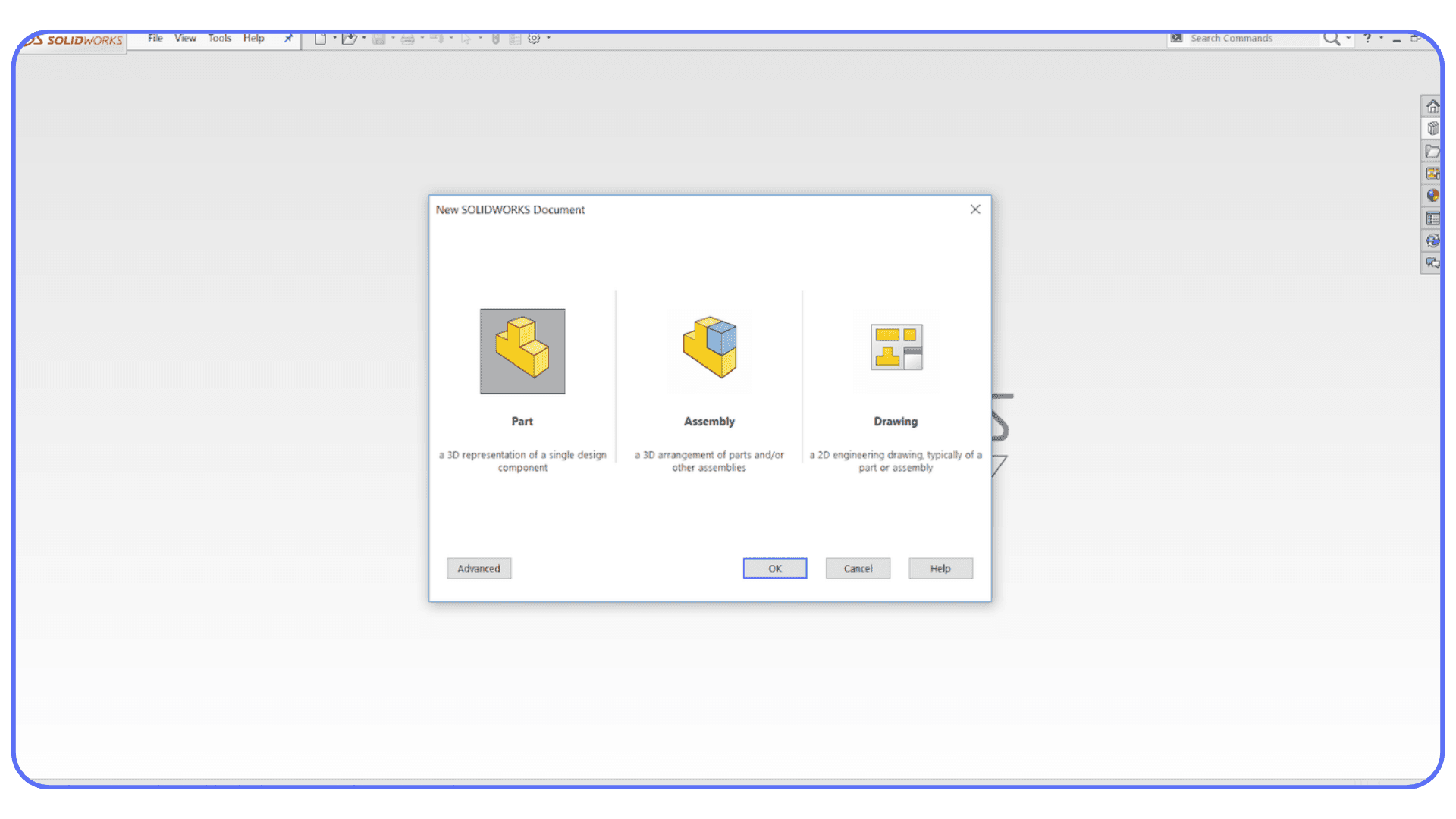
Ctrl + O opens a file.
Ctrl + N creates a new part, assembly, or drawing.
Ctrl + S saves. Early. Often. Automatically, once you trust yourself.
Everyone knows these. Not everyone uses them consistently. I’ve watched people reach for the mouse to open files hundreds of times a day. It doesn’t feel slow. Until you add it up.
After about a week, these disappear from conscious thought. That’s the goal. If you still notice yourself using them, keep going.
#2. Editing & Modeling Flow
This is where hotkeys start paying rent.
Ctrl + Z / Ctrl + Y for undo and redo. Obvious, yes. But also the backbone of experimentation.
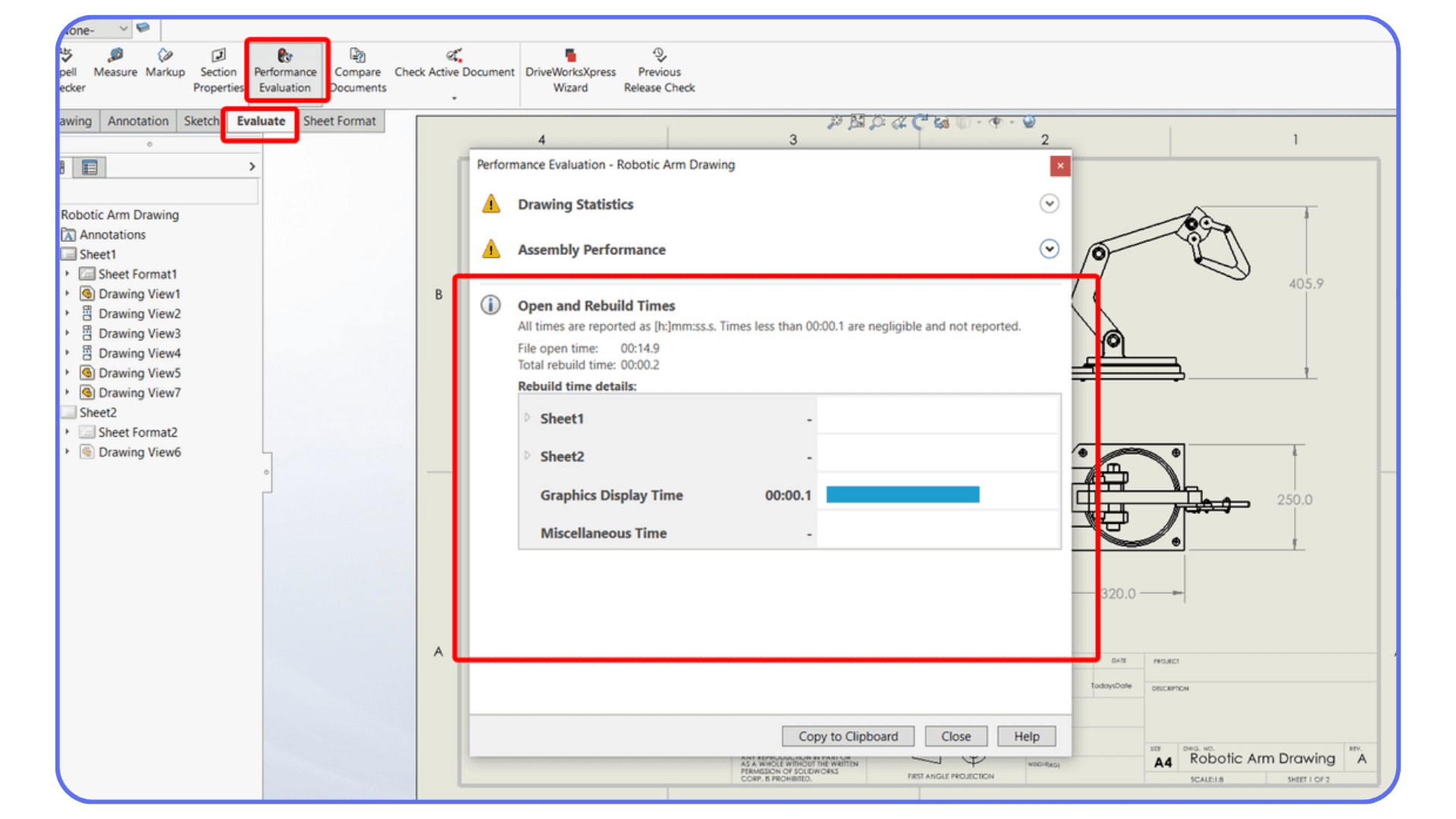
Ctrl + Q forces a rebuild. If you don’t use this, you’re flying blind more often than you think.
Enter repeats the last command. This one is criminally underused.
That last one deserves emphasis. Repeat last command means fewer clicks, fewer menu dives, and fewer interruptions. Sketching multiple lines. Applying the same feature again. Trimming repeatedly. Once this clicks, your workflow speeds up without feeling rushed.
In my experience, Ctrl + Q alone saves more frustration than almost any other shortcut. Especially when features don’t update the way you expect and you’re not sure why.
#3. Views and Navigation
Most people lose momentum here without realizing it.
F zooms to fit. Use it constantly.
Spacebar opens the view orientation menu. Faster than hunting icons.
Ctrl + arrow keys pan the model cleanly.
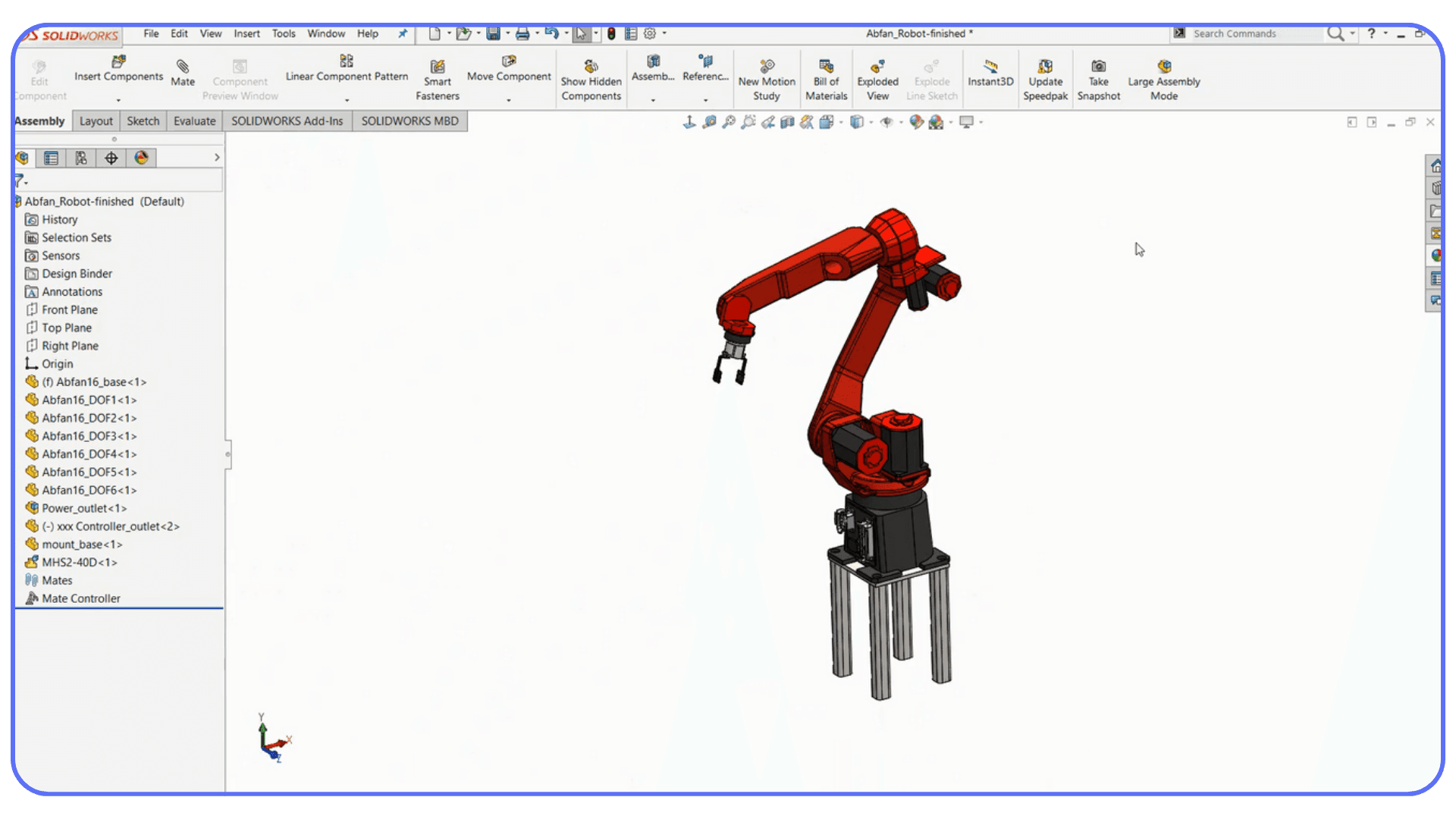
Ctrl + 1 through 8 jump to standard views like front, top, isometric, and normal-to.
View changes are tiny moments, but they break flow fast if they’re clumsy. If rotating, zooming, or snapping to a view feels slow, everything else feels slow too. Good navigation shortcuts keep your eyes on the geometry instead of the UI.
Once these are muscle memory, assemblies feel smaller. Even when they aren’t.
#4. Sketch and Feature Tools
This is where SolidWorks really rewards keyboard-driven work.
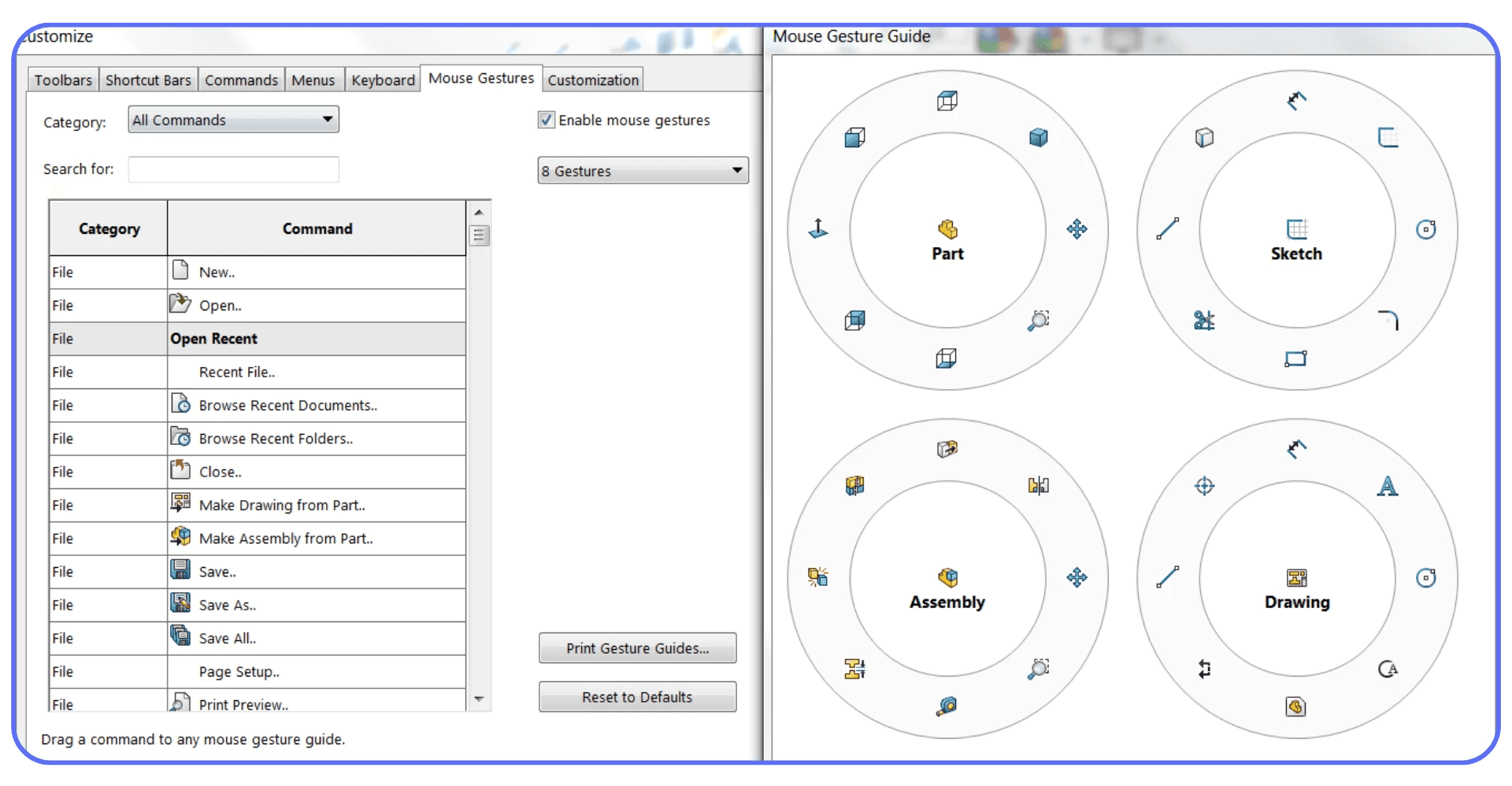
S opens the shortcut bar. If you only learn one thing from this article, make it this.
A cycles entity types while sketching.
L, E, N handle lines, edge filters, and edge selection depending on context.
The shortcut bar is powerful because it adapts. Sketch mode. Part mode. Assembly mode. Different tools, same key. You don’t need to remember where commands live. You just call them when you need them.
Most people either ignore it or overload it. Keep it lean. Put the tools you actually use there, not the ones you think you should use.
#5. Combo Tricks You’ll Actually Use
These are small, but they stack fast.
Ctrl + Tab switches between open documents. Perfect when juggling parts and drawings.
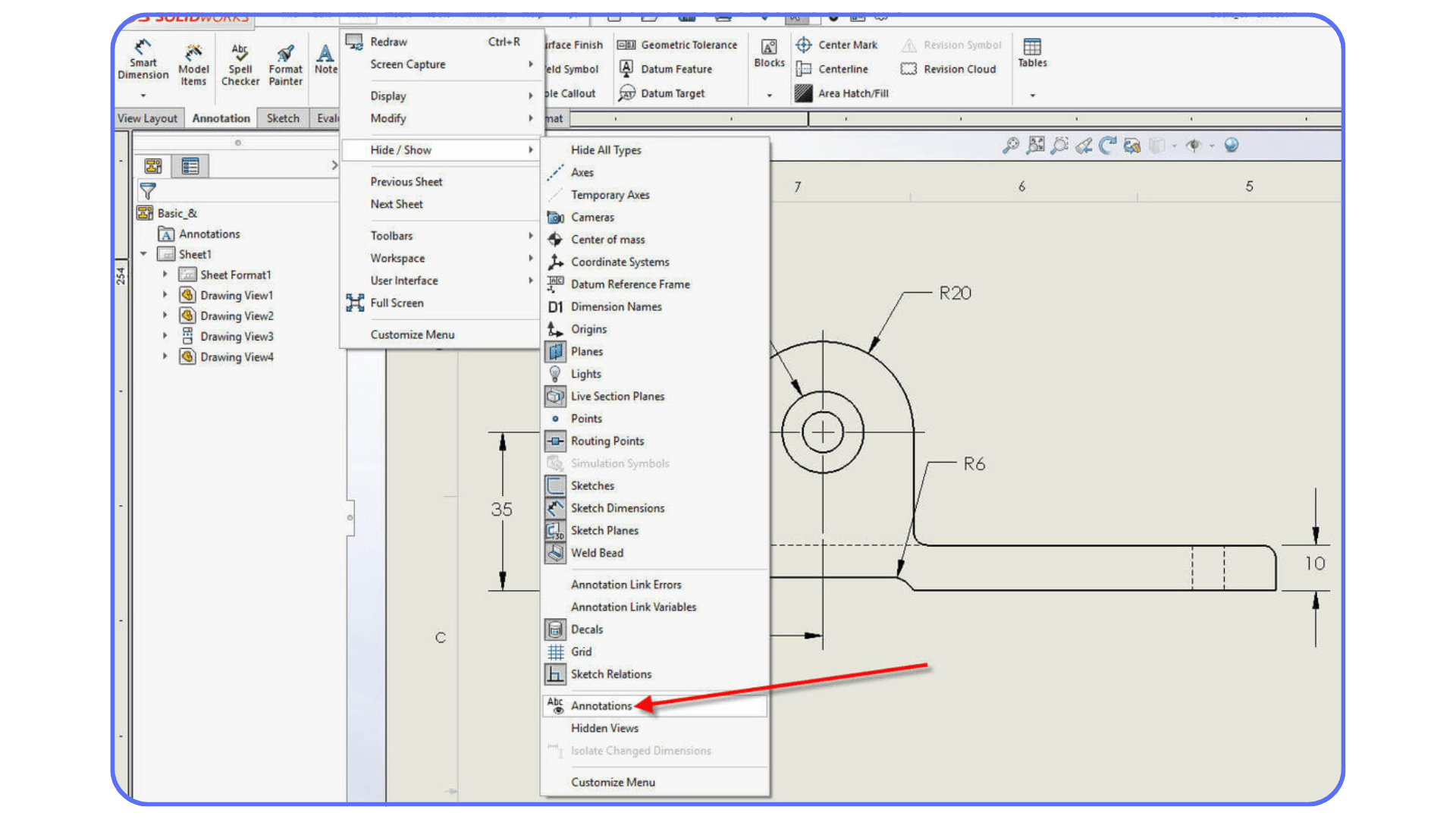
Shift + Tab hides or shows components in assemblies instantly.
Ctrl + drag copies features or geometry on the fly.
None of these feel dramatic on their own. But together, they remove tiny delays that add up across a session. Less waiting. Less hunting. Less friction.
A quick note here. Don’t try to memorize this entire section in one go. Pick three. Use them for a few days. Then add two more. That’s how this stuff sticks.
For visualization-heavy workflows, exporting SolidWorks models into real-time rendering tools is often where performance and workflow efficiency really start to matter.
Hidden Shortcuts Most People Don’t Use
This is the part where most people raise an eyebrow. Not because these shortcuts are exotic or obscure, but because SolidWorks never really pushes them in your face. You usually learn them by watching someone else work and thinking, wait… how did you just do that?
#1. Shift While Sketching
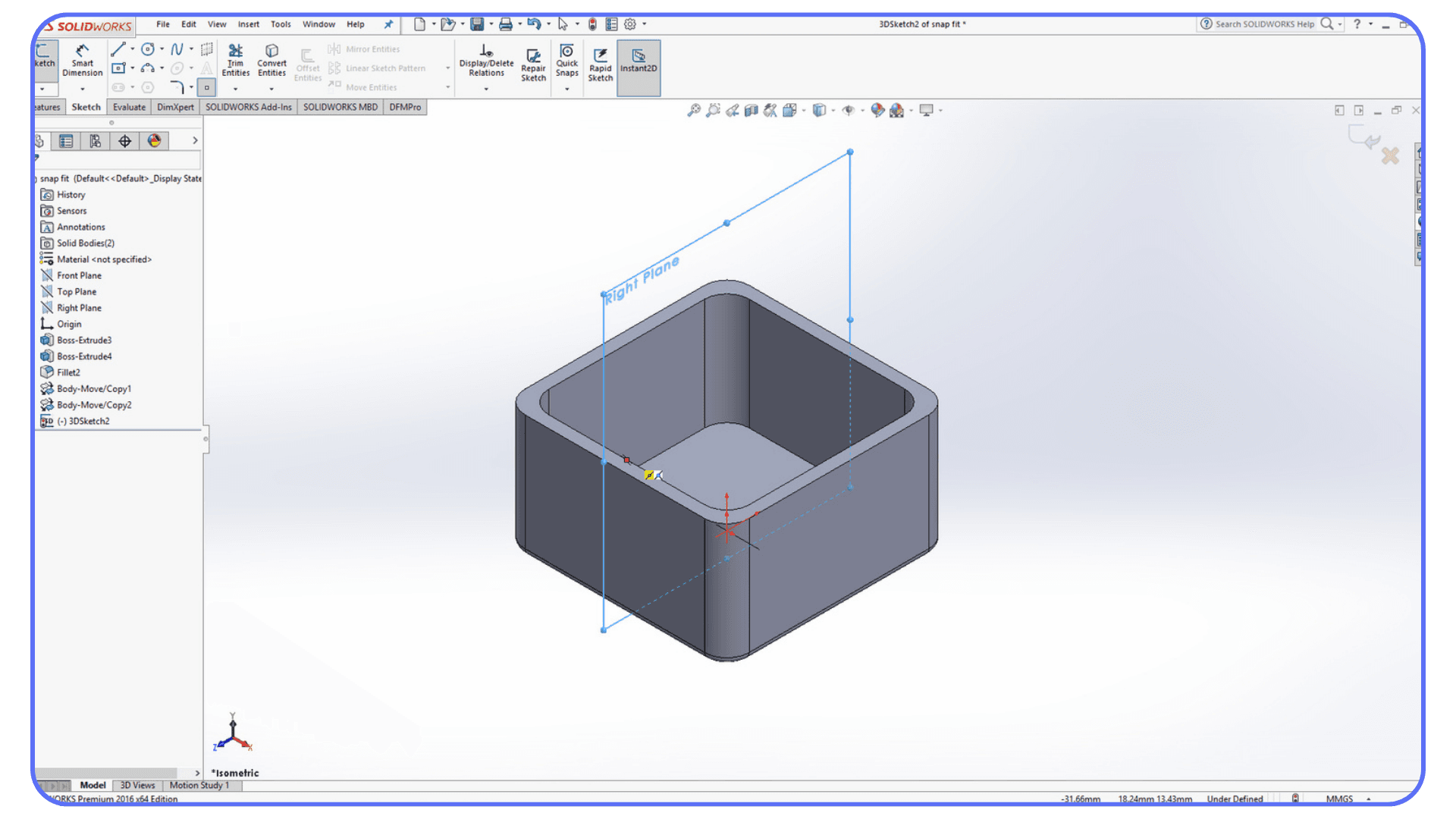
Hold Shift while sketching to temporarily turn snapping off or to copy entities without breaking your flow. It sounds small. It isn’t.
If you sketch a lot, this one quietly saves you from fighting constraints and accidental snaps. I use it constantly when cleaning up geometry or nudging something into place without committing to a full constraint rethink.
Once you notice it, you’ll miss it every time you forget to use it.
#2. Alt + Middle Mouse Drag
This one feels like cheating the first time you try it.
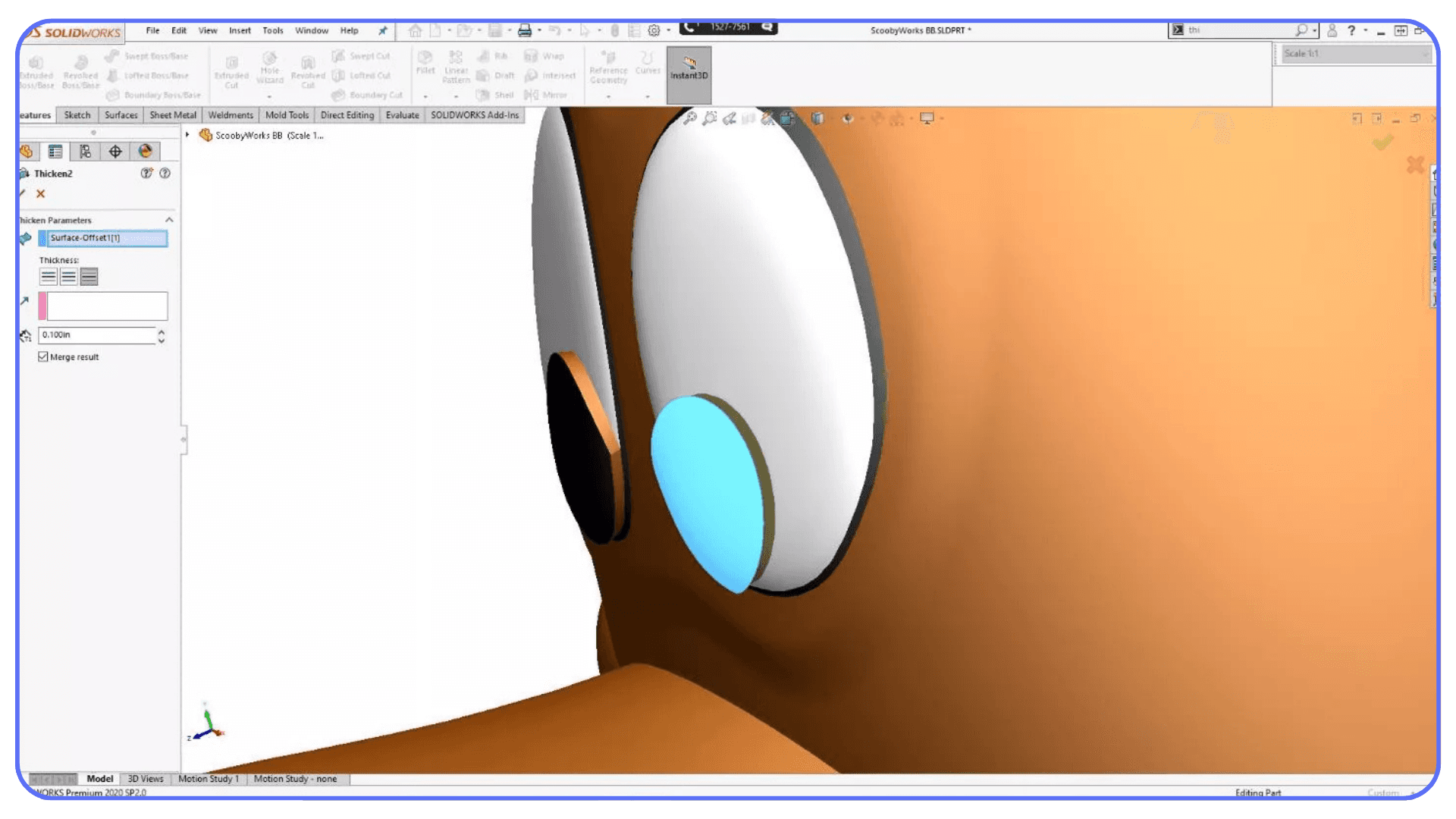
Hold Alt and drag with the middle mouse button to create a section view with a magnifying effect. It’s fast, visual, and incredibly useful when inspecting internal features without setting up a formal section.
For quick checks, it beats building a section plane every time. Especially during reviews or when you’re sanity-checking a complex part before moving on.
#3. Shift + Arrow Keys
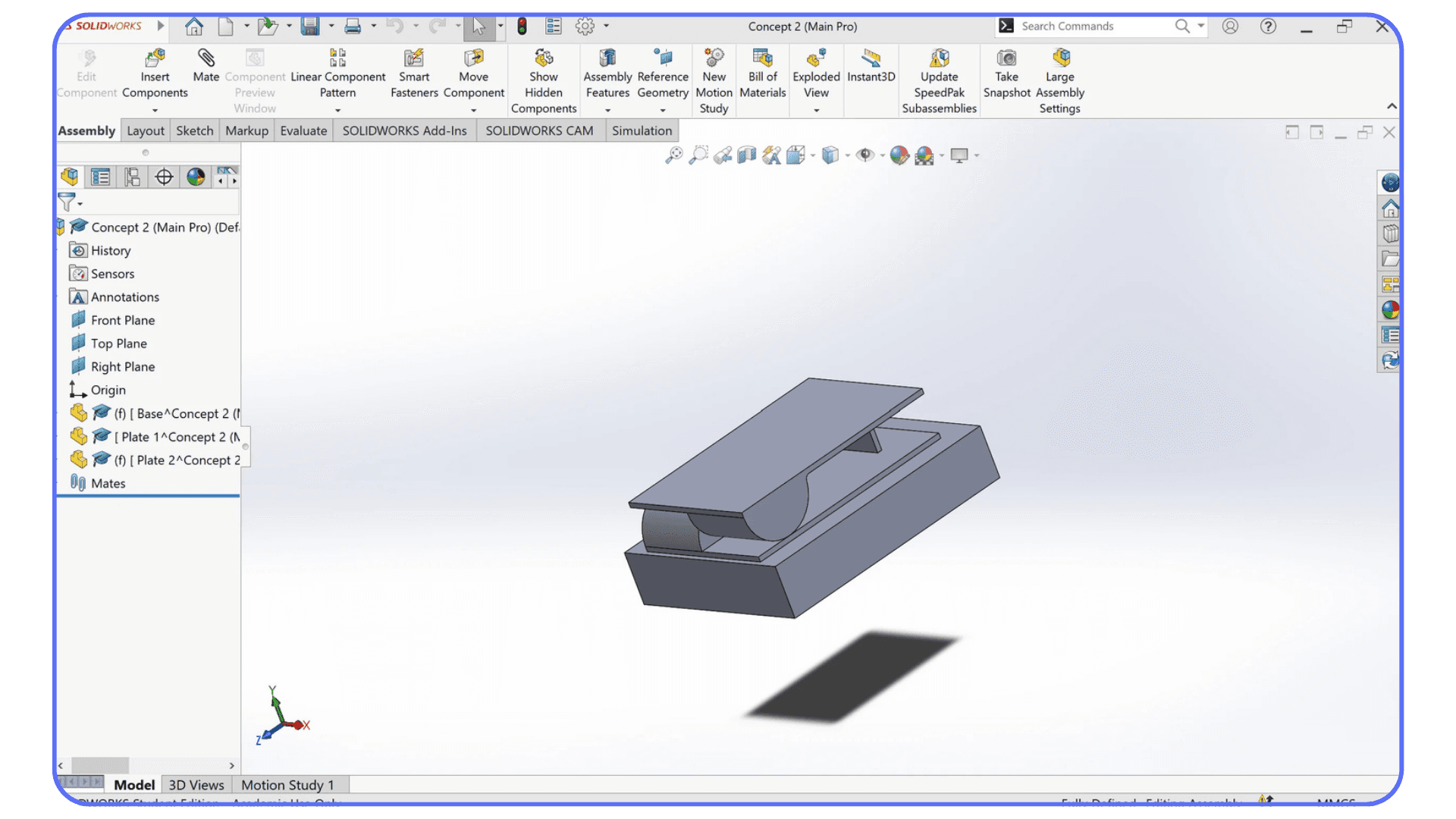
Hold Shift and use the arrow keys to rotate views in clean 90-degree steps.
If you’ve ever tried to eyeball a “perfect” orientation with the mouse and ended up slightly off, you already know why this matters. It’s precise. Predictable. And once you get used to it, it’s hard to go back to freehand rotations for certain tasks.
#4. The Unofficial Shortcuts
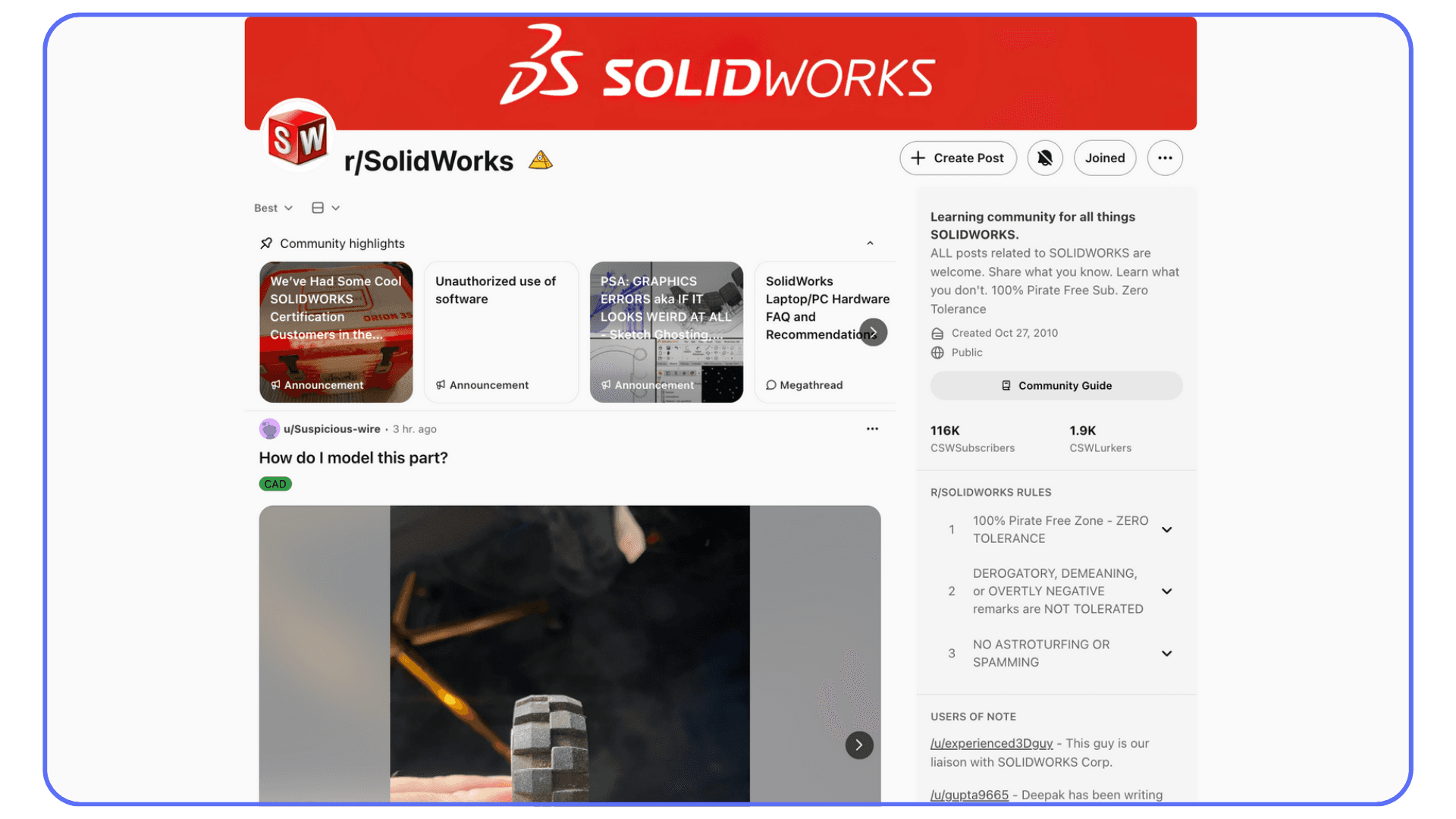
Some of the best tips don’t come from manuals at all. They come from coworkers, forums, and long Reddit threads where people casually drop workflow gold like it’s obvious.
Things like using filters aggressively to avoid misclicks in dense assemblies. Or combining hide and show shortcuts to isolate problem areas in seconds. None of these feel groundbreaking alone. Together, they change how confident you feel inside large models.
That’s the pattern you’ll see over and over. The shortcuts that matter most aren’t flashy. They’re quiet. They remove friction you didn’t even realize you were tolerating.
If you’re still early in your SolidWorks journey, combining hotkey habits with structured learning resources can accelerate progress much faster than trial and error alone.
SolidWorks Workflow Tools Worth Knowing
Hotkeys speed up how you work inside a file. But once you step outside a single part or sketch, the surrounding tools start to matter just as much. This is where a lot of SolidWorks users feel friction and often blame themselves for it.
Most of the time, it’s not you. It’s the workflow.
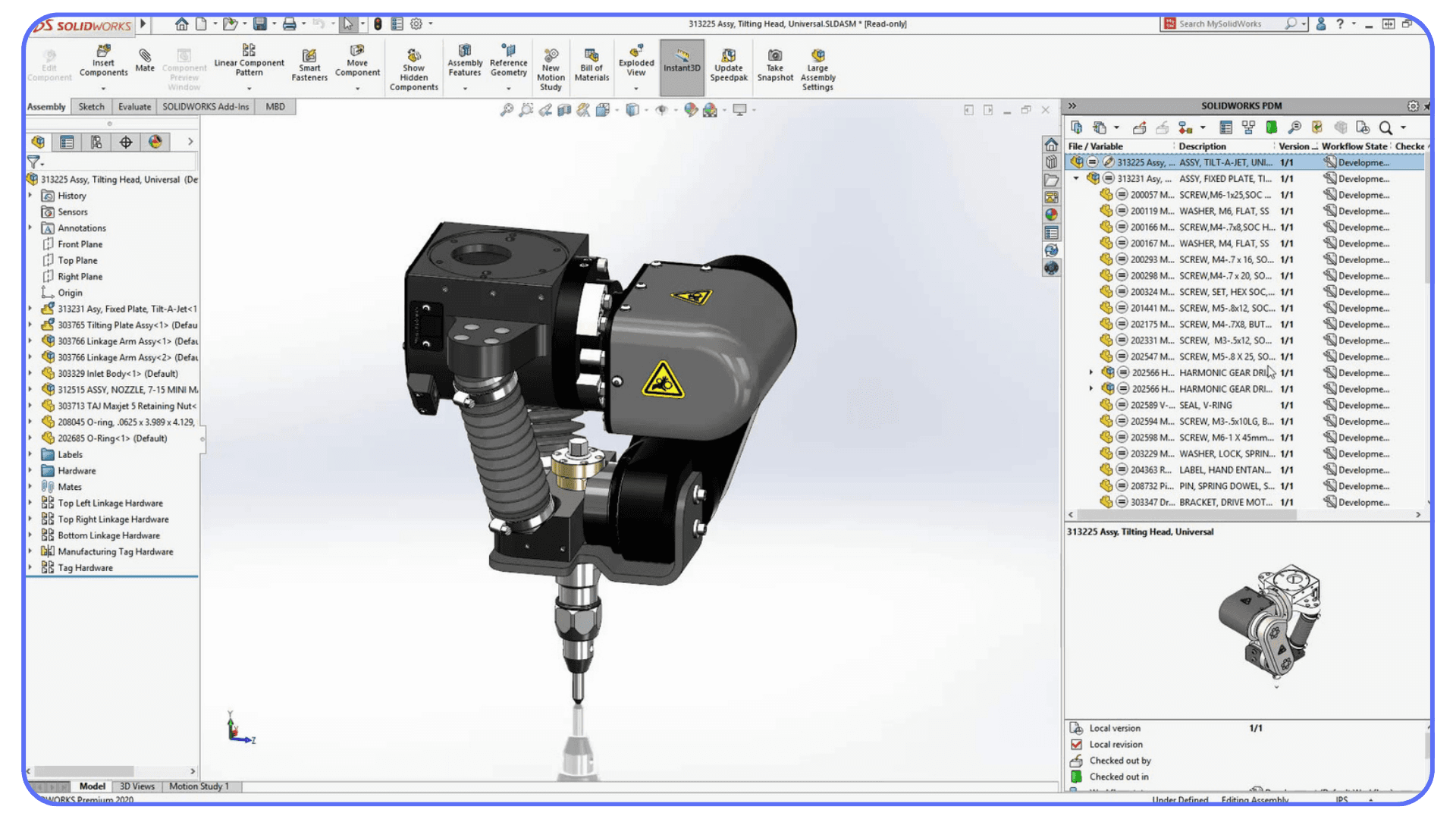
SolidWorks PDM
If you’ve ever opened the wrong version of a file and only realized it after making changes, you already understand why SolidWorks PDM exists. Version control sounds boring until it saves you from overwriting a week of work.
Using SolidWorks PDM changes how shortcuts feel too. Navigating file trees, checking files in and out, switching between revisions. All of that gets faster when you’re comfortable on the keyboard. Mouse-heavy habits break down quickly once you’re working inside structured vaults.
This is where PDM software SolidWorks users usually fall into two camps. People who treat it like a filing cabinet. And people who actually integrate it into their daily flow. The second group relies on shortcuts more than they realize, especially when juggling assemblies with dozens of linked parts.
eDrawings and Viewers
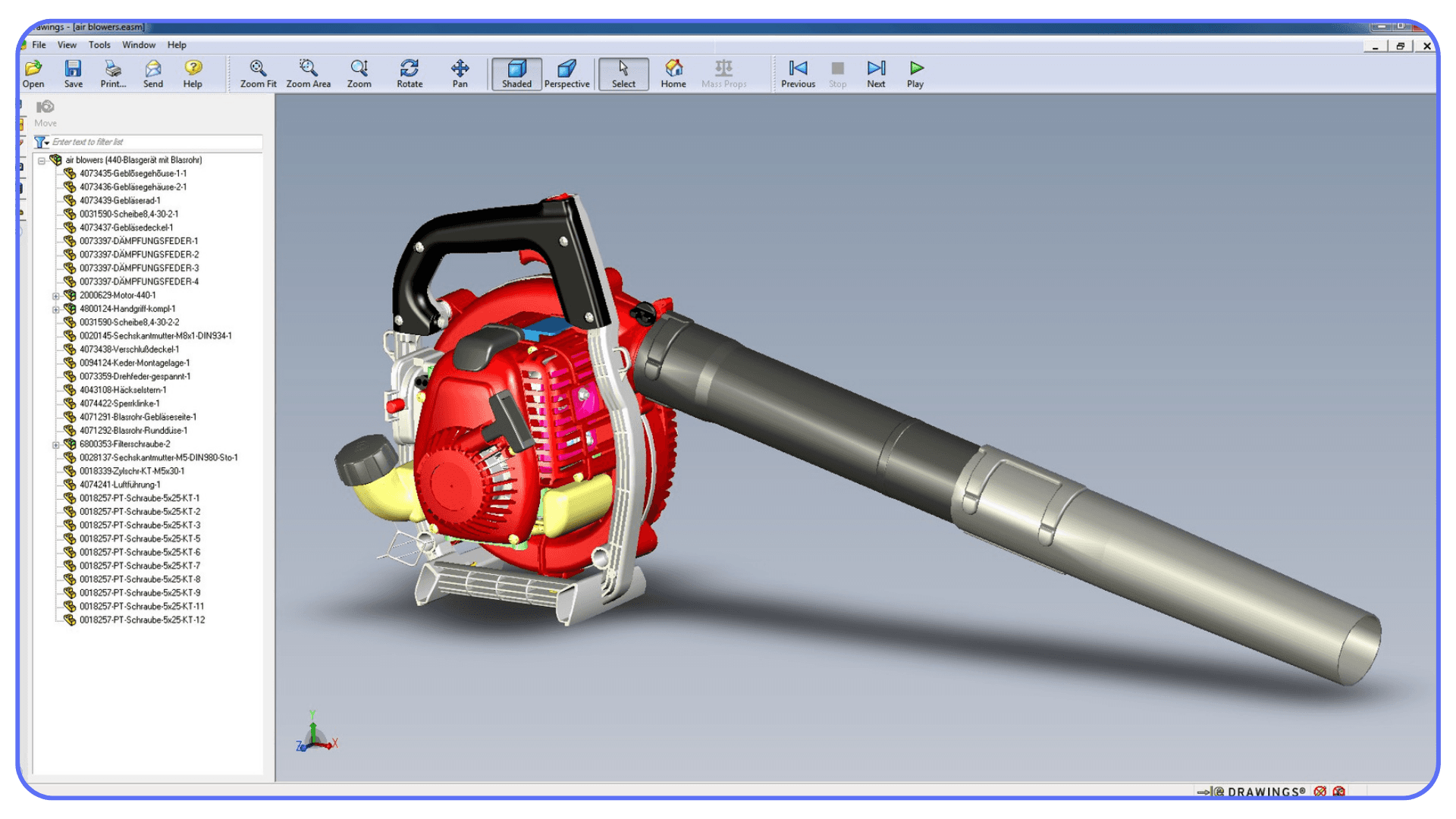
Not everyone who needs to look at your model needs a full SolidWorks software download. And honestly, they probably shouldn’t have one.
That’s where eDrawings and eDrawingsViewer come in. They’re lightweight, fast, and perfect for sharing designs with teammates, clients, or manufacturing without turning every review into a CAD session. No feature trees to break. No accidental edits.
Knowing this changes how you work inside SolidWorks CAD. You stop over-preparing files for people who just need to inspect, measure, or comment. And yes, keyboard shortcuts still matter here. Clean navigation, quick views, fast isolation. Same habits, lower stakes.
3DEXPERIENCE SolidWorks
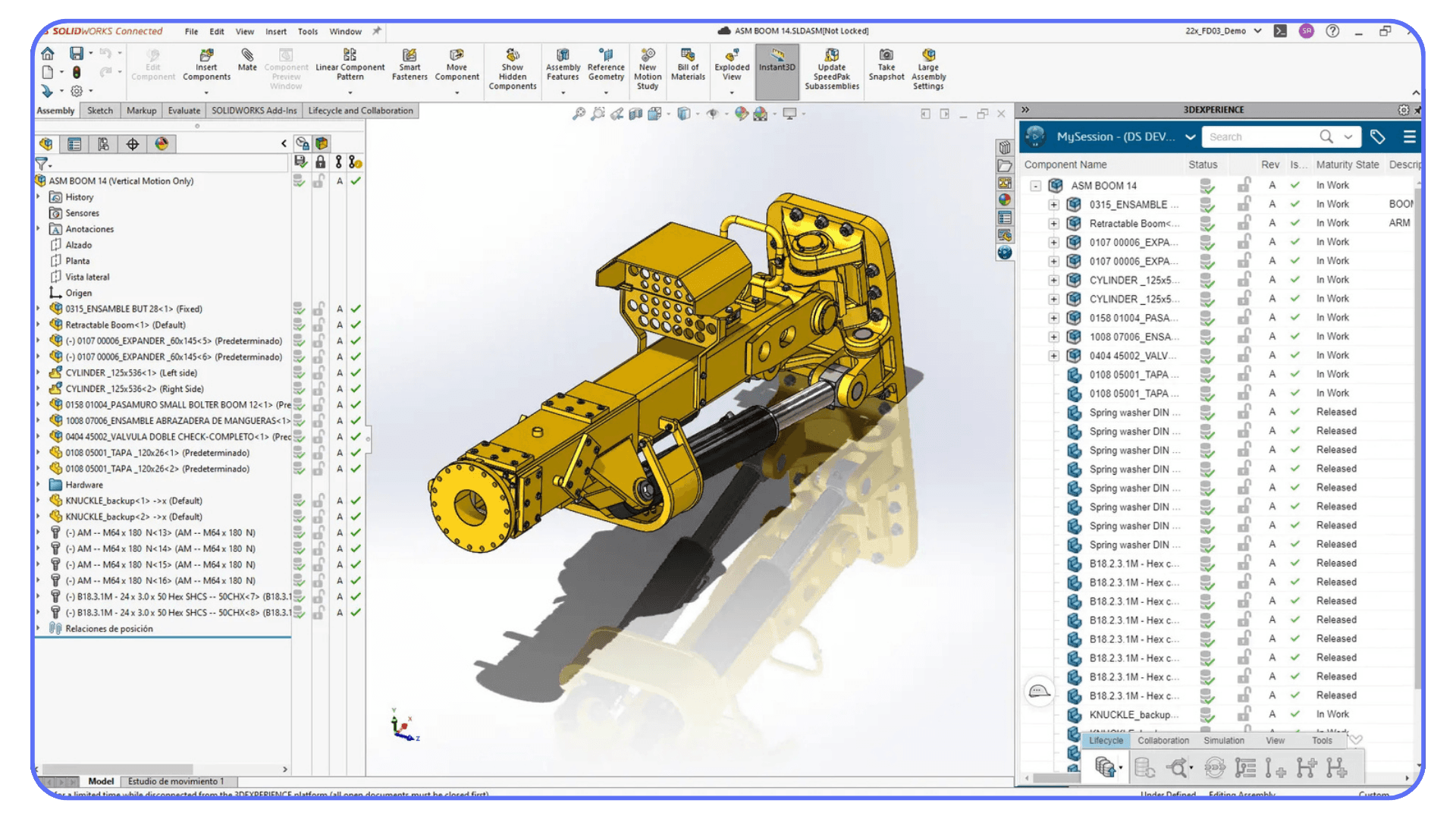
Some users never touch 3DEXPERIENCE SolidWorks. Others build their entire workflow around it. Either way, the interface logic doesn’t suddenly change. Hotkeys still apply. Muscle memory still matters.
What does change is context. Cloud-connected files, collaboration layers, version tracking that lives beyond your local machine. If your workflow is already efficient at the keyboard level, adapting to 3DEXPERIENCE feels far less disruptive.
If it isn’t, everything feels heavier than it needs to.
A Quick Reality Check on Pricing
People searching for SolidWorks download or SolidWorks software download usually ask the same question right after. How much does SolidWorks actually cost?
The answer depends. SolidWorks price varies based on licensing type, usage, and whether you’re a student, freelancer, or enterprise team. That’s why discussions around SolidWorks cost are often confusing. You’re not just paying for features. You’re paying for how and where you work.
And that’s the part people overlook. If you invest in SolidWorks but struggle with slow workflows, clunky file handling, or constant friction, the software feels expensive fast. Efficient habits and the right surrounding tools stretch that investment much further.
Which brings us to an uncomfortable truth.
Even with perfect hotkeys and clean workflows, things still fall apart when the hardware can’t keep up.
If you’re moving between different design tools, it’s also worth understanding how hardware requirements shift depending on the software you use, since performance bottlenecks don’t show up the same way everywhere.
Common Hotkey Mistakes and How to Avoid Them
This is the part most guides skip, and it’s usually why people give up on hotkeys after a week.
The first mistake is trying to learn everything at once. It feels productive for about ten minutes. Then your brain starts hesitating. Was it Ctrl or Shift? Was that bound to A or S? That hesitation is worse than clicking a menu, because now you’re thinking about the shortcut instead of the model.
The fix is boring but effective. Pick a handful. Three to five max. Use them until they’re automatic. Only then add more. Hotkeys are supposed to disappear from your awareness, not demand attention.
The second mistake is copying someone else’s setup blindly. You’ll see screenshots of “ultimate SolidWorks hotkey layouts” and think that’s the goal. It isn’t. A layout built for surfacing work can feel awful for assemblies. A setup optimized for drawings might slow you down in sketches.
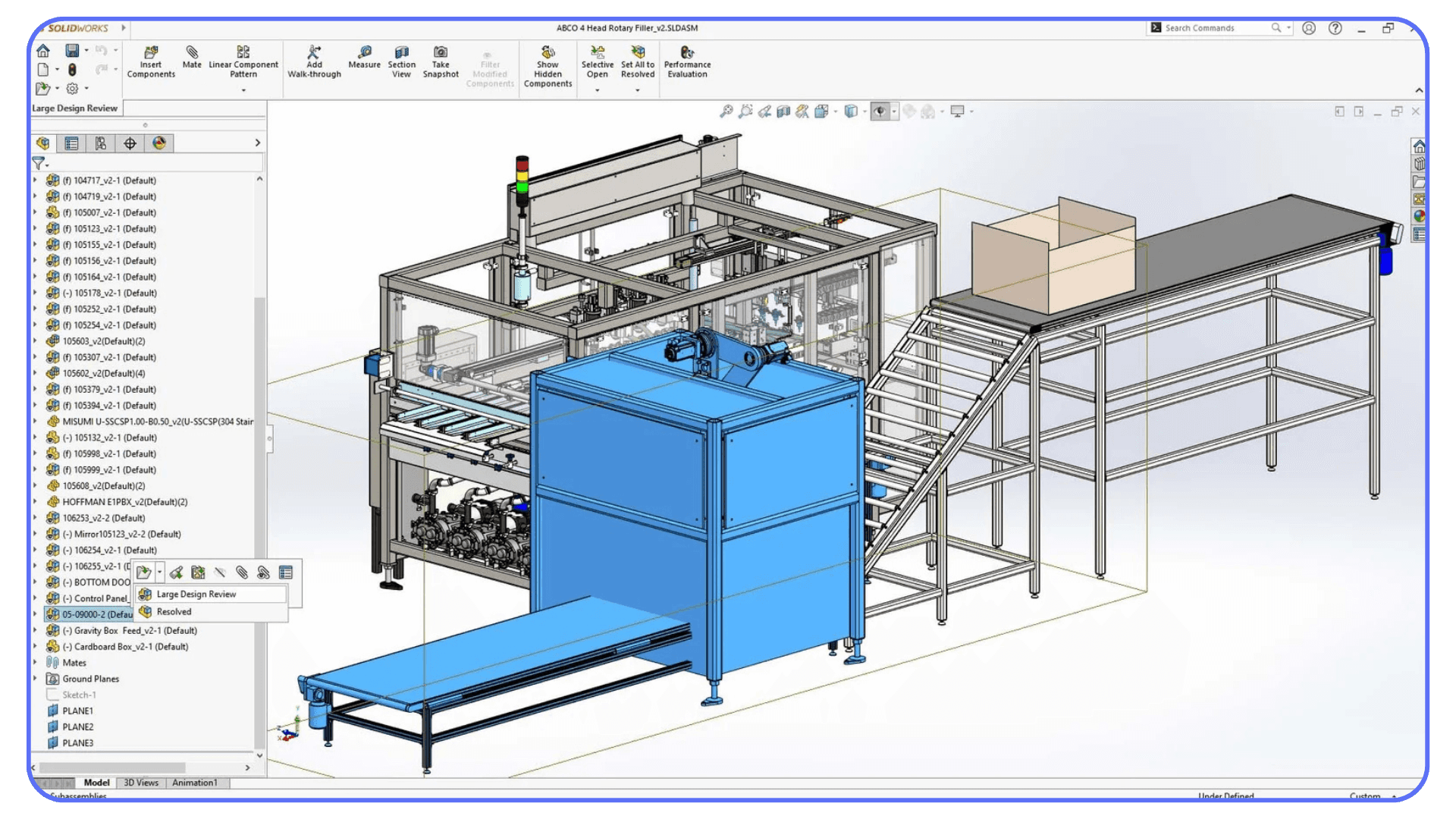
In my experience, the best setups look a little unremarkable. They’re shaped around what you do every day, not what looks impressive in a screenshot.
Another common trap is assuming hotkeys will fix everything. They won’t. If your system struggles with rebuilds, large assemblies, or view updates, you’ll still feel friction. You’ll just hit it faster. That’s when people start blaming SolidWorks itself, even though the bottleneck lives somewhere else.
There’s also the temptation to customize too early. Before you really understand which tools you rely on, customization turns into guesswork. Let the pain points reveal themselves first. The shortcuts that matter most usually announce themselves by how often you reach for them.
And finally, there’s perfectionism. Waiting until you have the “ideal” shortcut setup before committing. That day never comes. What works evolves as your projects change. Accept that, and things get easier.
Hotkeys work best when they grow with you. Slow. Practical. Slightly messy.
When Your Hardware Starts Slowing You Down
This is the point where a lot of people get confused. They’ve learned the hotkeys. Their workflow is cleaner. They’re not fighting menus anymore. And yet… SolidWorks still feels heavy.
Rebuilds take longer than they should. Rotating an assembly isn’t smooth. Switching between parts has a slight delay that pulls you out of focus. None of this feels dramatic on its own, but together it kills momentum.
Hotkeys can’t fix that.
They make you faster at issuing commands, but they don’t make your machine any more capable of handling large assemblies, complex feature trees, or detailed drawings. If you work with big models, lots of references, or multiple files open at once, hardware becomes part of the workflow whether you like it or not.
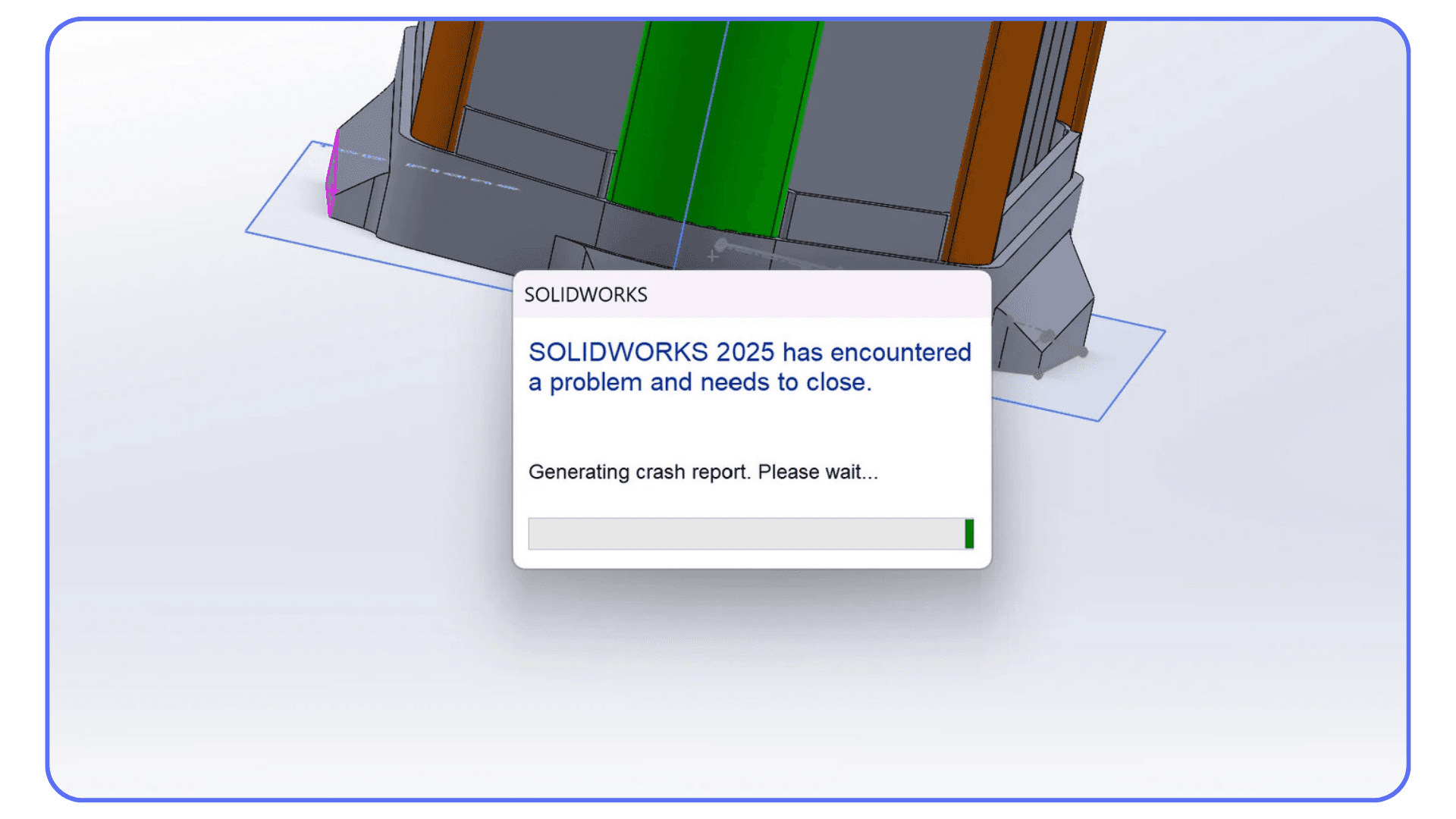
This is where people start second-guessing themselves. Maybe the file is messy. Maybe the model is too detailed. Maybe SolidWorks CAD just “runs like this.” In reality, it’s usually a resource issue. CPU limits during rebuilds. GPU struggling with view updates. RAM filling up quietly in the background.
At that point, it’s worth stepping back and looking at your entire setup, because SolidWorks performance is usually a balance between CPU, GPU, memory, and how well they work together.
And the frustrating part is that once your habits are efficient, the bottlenecks become more obvious. You notice every pause. Every hitch. Every delay that interrupts the flow you just worked hard to build.
Which brings us to an option more SolidWorks users are quietly exploring.
If you’re consistently working with large assemblies or complex features, choosing the right GPU matters more than most people think, especially once rebuilds and view performance start to drag.
Try Your Experience Anywhere — Vagon Cloud Computer
Cloud workflows don’t fix bad habits. Vagon Cloud Computer isn’t here to teach you SolidWorks CAD or magically clean up messy models. What it does is remove the physical limits that get in the way once your workflow is already solid.
With Vagon, you’re opening the same SolidWorks environment from anywhere. Same shortcuts. Same muscle memory. Same setup. The difference is that you’re not tied to the weakest machine in the room. Heavy assemblies don’t feel like a gamble. Large drawings don’t turn into waiting games. You stop managing hardware and just work.
This matters more than people expect. Especially when projects grow. Sharing access without shipping massive files around. Jumping between devices without breaking continuity. Running demanding models without worrying whether your local machine will choke halfway through a rebuild. That flexibility changes how confidently you move through a project.
Vagon Cloud Computer makes sense not as a replacement for learning SolidWorks properly, but as an extension of it. Everything you’ve built. Your hotkeys. Your workflow habits. Your speed. They all carry over. The only thing that changes is the performance ceiling.
And no, it’s not for everyone. If you’re doing light parts on a strong workstation and never feel friction, local is perfectly fine. But if you’re dealing with large assemblies, collaborating remotely, or working across different machines, cloud access keeps SolidWorks responsive in ways a single system sometimes can’t.
Here’s the part that matters most.
Hotkeys give you speed. Vagon Cloud Computer gives you stability.
When those two work together, SolidWorks stops feeling like something you constantly manage and starts feeling like something you trust. That’s when the work gets easier. And honestly, a lot more enjoyable.
This becomes even more relevant if you’re working on macOS, where running SolidWorks locally isn’t straightforward and cloud access often ends up being the most practical option.
Final Thoughts
Hotkeys aren’t a trick. They’re not a badge of expertise either. They’re just a quieter way to work.
If you take anything away from this, let it be this. You don’t need to learn everything. You don’t need the perfect setup. You don’t need to turn SolidWorks into a keyboard-only experience. Start with a few shortcuts that remove friction from things you already do every day. Let them settle in. Build from there.
Once that happens, SolidWorks CAD feels different. You stop negotiating with the interface. You stop breaking focus for small actions. Design decisions feel lighter because trying, undoing, and rebuilding don’t carry the same mental cost.
And when your workflow is efficient, the limits become clearer. Not in a frustrating way, but in an honest one. You can tell when the slowdown is you and when it’s the machine. That’s where tools like Vagon Cloud Computer make sense. Not as a shortcut, but as support for the way you already work.
The best setups aren’t flashy. They’re comfortable. They fade into the background and let you think about the model instead of the software.
Start with five shortcuts. Use them for a week. See what changes.
It usually does.
FAQs
1. Do hotkeys really make that much difference in SolidWorks?
Yes, but not in a dramatic, overnight way. Hotkeys save small amounts of time repeatedly. Undoing, rebuilding, changing views, repeating commands. Those seconds stack up fast. More importantly, they reduce mental friction. You stay focused on the model instead of the interface, which is where most people actually lose productivity.
2. How many SolidWorks hotkeys should I learn at once?
Very few. Three to five is ideal. If you try to learn dozens at once, you’ll hesitate, forget them, and fall back to clicking menus. Pick shortcuts tied to actions you already do every day. Once they’re automatic, add a few more.
3. Should I customize my hotkeys or stick with defaults?
Defaults are a good starting point, especially if you’re new. Customization makes sense once you notice repeated pain points. If you keep reaching for the same tool, that’s your cue. Don’t copy someone else’s layout blindly. What works for assemblies may feel terrible for sketch-heavy work.
4. Do hotkeys work the same across SolidWorks versions?
Most core shortcuts stay consistent across versions, including newer setups like 3DEXPERIENCE SolidWorks. Some interface details change, but muscle memory around core actions usually carries over without issues.
5. Are hotkeys useful if I’m just viewing models?
Absolutely. Tools like eDrawings and eDrawingsViewer still benefit from keyboard-driven navigation. Even if someone doesn’t need a full SolidWorks software download, smooth view control and quick inspection shortcuts make reviews faster and less frustrating.
6. Why does SolidWorks still feel slow even after learning hotkeys?
Because hotkeys don’t fix hardware limits. They make you faster at issuing commands, not faster at rebuilding large assemblies or rendering complex views. If you’re working with heavy models, SolidWorks PDM environments, or large datasets, performance bottlenecks become more noticeable once your workflow improves.
7. Is cloud computing actually practical for SolidWorks?
For many users, yes. Especially those dealing with large assemblies, remote collaboration, or multiple devices. With something like Vagon Cloud Computer, you keep your hotkeys, your setup, and your workflow, but you’re no longer limited by local hardware. It’s not mandatory for everyone, but it solves a real problem for many SolidWorks users.
8. How much does SolidWorks cost, and does that affect workflow choices?
SolidWorks price and SolidWorks cost depend on licensing type. Student, standard, and enterprise licenses all come with different expectations and constraints. People searching for SolidWorks download or SolidWorks software download often underestimate how much workflow efficiency matters after the purchase. The smoother your setup, the more value you get from the software you’re already paying for.
Ever spent ten minutes hunting for a toolbar item in SolidWorks CAD instead of actually modeling the part? You know the moment. Cursor floating. Brain half switched off. You were in the zone thirty seconds ago, and now you’re negotiating with the interface.
If you’re still clicking menus in SolidWorks, I’m about to save you hours. Not in a motivational way. In a very boring, very practical way. The kind that shows up at the end of the week when you realize you got more done without feeling rushed.
This isn’t about becoming a keyboard ninja or memorizing a cheat sheet the size of a poster. It’s about cutting out the tiny interruptions that quietly drain your focus. The ones you barely notice until they pile up.
Let’s get into it.
Why Solidworks Hotkeys Matter
I didn’t start caring about hotkeys because I wanted to be faster. I started caring because I was getting annoyed. Constantly. Not by big crashes or corrupted files, but by the small stuff. The little pauses. The moments where SolidWorks CAD pulled me out of my own head because I had to go look for something.
At first, I worked the way most people do. Mouse-heavy. Menus. Toolbars. I knew roughly where things were, so it felt fine. But over long sessions, especially sketching and feature-heavy parts, something felt off. I was tired in a way that didn’t match the work I’d done.
The shift happened when I stopped “learning” hotkeys and started letting them happen automatically. Undo without thinking. Rebuild without hesitation. Repeat last command without even glancing at the keyboard. That’s the difference most tutorials don’t talk about. Knowing a shortcut isn’t the same as internalizing it.
Once hotkeys turn into muscle memory, SolidWorks changes character. You’re not navigating software anymore. You’re shaping geometry. Your eyes stay on the model. Your hands stop negotiating with the interface. The work feels quieter. Smoother.
I’ve noticed this most clearly during sketch work. Constraints, trims, small corrections, repeating the same action over and over. If each of those steps involves a menu click, the friction stacks up fast. You don’t feel it immediately, but by the end of the session, your focus is gone.
Some people push back here. “Clicking doesn’t slow me down. I know where everything is.” And sure, for simple parts or quick edits, that can be true. But once assemblies grow, rebuilds matter, and you’re jumping between files, that approach stops scaling. That’s usually when SolidWorks starts getting blamed for problems it didn’t create.
Hotkeys don’t make you smarter. They make your decisions cheaper. Trying an idea costs less. Undoing a mistake is instant. Rebuilding doesn’t feel like a commitment. That freedom changes how you design.
And no, this isn’t about memorizing everything. That’s a fast way to burn out. The real gains come from a small set of shortcuts you use constantly. The ones that quietly save seconds dozens of times a day.
Those seconds add up. That’s where the difference actually shows.
This kind of keyboard-driven thinking isn’t unique to SolidWorks either; once you’ve worked in multiple CAD tools, you start to notice how much interface design shapes the way you think.
Core Keyboard Shortcuts Everyone Should Know
This is where things get practical. No encyclopedic lists. No “learn 120 shortcuts in one sitting” nonsense. Just the keys that remove friction immediately. The ones you’ll use so often they stop feeling like shortcuts and start feeling like instincts.
#1. File & Project Basics
These are boring. Which is exactly why they matter.
Ctrl + O opens a file.
Ctrl + N creates a new part, assembly, or drawing.
Ctrl + S saves. Early. Often. Automatically, once you trust yourself.
Everyone knows these. Not everyone uses them consistently. I’ve watched people reach for the mouse to open files hundreds of times a day. It doesn’t feel slow. Until you add it up.
After about a week, these disappear from conscious thought. That’s the goal. If you still notice yourself using them, keep going.
#2. Editing & Modeling Flow
This is where hotkeys start paying rent.
Ctrl + Z / Ctrl + Y for undo and redo. Obvious, yes. But also the backbone of experimentation.
Ctrl + Q forces a rebuild. If you don’t use this, you’re flying blind more often than you think.
Enter repeats the last command. This one is criminally underused.
That last one deserves emphasis. Repeat last command means fewer clicks, fewer menu dives, and fewer interruptions. Sketching multiple lines. Applying the same feature again. Trimming repeatedly. Once this clicks, your workflow speeds up without feeling rushed.
In my experience, Ctrl + Q alone saves more frustration than almost any other shortcut. Especially when features don’t update the way you expect and you’re not sure why.
#3. Views and Navigation
Most people lose momentum here without realizing it.
F zooms to fit. Use it constantly.
Spacebar opens the view orientation menu. Faster than hunting icons.
Ctrl + arrow keys pan the model cleanly.
Ctrl + 1 through 8 jump to standard views like front, top, isometric, and normal-to.
View changes are tiny moments, but they break flow fast if they’re clumsy. If rotating, zooming, or snapping to a view feels slow, everything else feels slow too. Good navigation shortcuts keep your eyes on the geometry instead of the UI.
Once these are muscle memory, assemblies feel smaller. Even when they aren’t.
#4. Sketch and Feature Tools
This is where SolidWorks really rewards keyboard-driven work.
S opens the shortcut bar. If you only learn one thing from this article, make it this.
A cycles entity types while sketching.
L, E, N handle lines, edge filters, and edge selection depending on context.
The shortcut bar is powerful because it adapts. Sketch mode. Part mode. Assembly mode. Different tools, same key. You don’t need to remember where commands live. You just call them when you need them.
Most people either ignore it or overload it. Keep it lean. Put the tools you actually use there, not the ones you think you should use.
#5. Combo Tricks You’ll Actually Use
These are small, but they stack fast.
Ctrl + Tab switches between open documents. Perfect when juggling parts and drawings.
Shift + Tab hides or shows components in assemblies instantly.
Ctrl + drag copies features or geometry on the fly.
None of these feel dramatic on their own. But together, they remove tiny delays that add up across a session. Less waiting. Less hunting. Less friction.
A quick note here. Don’t try to memorize this entire section in one go. Pick three. Use them for a few days. Then add two more. That’s how this stuff sticks.
For visualization-heavy workflows, exporting SolidWorks models into real-time rendering tools is often where performance and workflow efficiency really start to matter.
Hidden Shortcuts Most People Don’t Use
This is the part where most people raise an eyebrow. Not because these shortcuts are exotic or obscure, but because SolidWorks never really pushes them in your face. You usually learn them by watching someone else work and thinking, wait… how did you just do that?
#1. Shift While Sketching
Hold Shift while sketching to temporarily turn snapping off or to copy entities without breaking your flow. It sounds small. It isn’t.
If you sketch a lot, this one quietly saves you from fighting constraints and accidental snaps. I use it constantly when cleaning up geometry or nudging something into place without committing to a full constraint rethink.
Once you notice it, you’ll miss it every time you forget to use it.
#2. Alt + Middle Mouse Drag
This one feels like cheating the first time you try it.
Hold Alt and drag with the middle mouse button to create a section view with a magnifying effect. It’s fast, visual, and incredibly useful when inspecting internal features without setting up a formal section.
For quick checks, it beats building a section plane every time. Especially during reviews or when you’re sanity-checking a complex part before moving on.
#3. Shift + Arrow Keys
Hold Shift and use the arrow keys to rotate views in clean 90-degree steps.
If you’ve ever tried to eyeball a “perfect” orientation with the mouse and ended up slightly off, you already know why this matters. It’s precise. Predictable. And once you get used to it, it’s hard to go back to freehand rotations for certain tasks.
#4. The Unofficial Shortcuts
Some of the best tips don’t come from manuals at all. They come from coworkers, forums, and long Reddit threads where people casually drop workflow gold like it’s obvious.
Things like using filters aggressively to avoid misclicks in dense assemblies. Or combining hide and show shortcuts to isolate problem areas in seconds. None of these feel groundbreaking alone. Together, they change how confident you feel inside large models.
That’s the pattern you’ll see over and over. The shortcuts that matter most aren’t flashy. They’re quiet. They remove friction you didn’t even realize you were tolerating.
If you’re still early in your SolidWorks journey, combining hotkey habits with structured learning resources can accelerate progress much faster than trial and error alone.
SolidWorks Workflow Tools Worth Knowing
Hotkeys speed up how you work inside a file. But once you step outside a single part or sketch, the surrounding tools start to matter just as much. This is where a lot of SolidWorks users feel friction and often blame themselves for it.
Most of the time, it’s not you. It’s the workflow.
SolidWorks PDM
If you’ve ever opened the wrong version of a file and only realized it after making changes, you already understand why SolidWorks PDM exists. Version control sounds boring until it saves you from overwriting a week of work.
Using SolidWorks PDM changes how shortcuts feel too. Navigating file trees, checking files in and out, switching between revisions. All of that gets faster when you’re comfortable on the keyboard. Mouse-heavy habits break down quickly once you’re working inside structured vaults.
This is where PDM software SolidWorks users usually fall into two camps. People who treat it like a filing cabinet. And people who actually integrate it into their daily flow. The second group relies on shortcuts more than they realize, especially when juggling assemblies with dozens of linked parts.
eDrawings and Viewers
Not everyone who needs to look at your model needs a full SolidWorks software download. And honestly, they probably shouldn’t have one.
That’s where eDrawings and eDrawingsViewer come in. They’re lightweight, fast, and perfect for sharing designs with teammates, clients, or manufacturing without turning every review into a CAD session. No feature trees to break. No accidental edits.
Knowing this changes how you work inside SolidWorks CAD. You stop over-preparing files for people who just need to inspect, measure, or comment. And yes, keyboard shortcuts still matter here. Clean navigation, quick views, fast isolation. Same habits, lower stakes.
3DEXPERIENCE SolidWorks
Some users never touch 3DEXPERIENCE SolidWorks. Others build their entire workflow around it. Either way, the interface logic doesn’t suddenly change. Hotkeys still apply. Muscle memory still matters.
What does change is context. Cloud-connected files, collaboration layers, version tracking that lives beyond your local machine. If your workflow is already efficient at the keyboard level, adapting to 3DEXPERIENCE feels far less disruptive.
If it isn’t, everything feels heavier than it needs to.
A Quick Reality Check on Pricing
People searching for SolidWorks download or SolidWorks software download usually ask the same question right after. How much does SolidWorks actually cost?
The answer depends. SolidWorks price varies based on licensing type, usage, and whether you’re a student, freelancer, or enterprise team. That’s why discussions around SolidWorks cost are often confusing. You’re not just paying for features. You’re paying for how and where you work.
And that’s the part people overlook. If you invest in SolidWorks but struggle with slow workflows, clunky file handling, or constant friction, the software feels expensive fast. Efficient habits and the right surrounding tools stretch that investment much further.
Which brings us to an uncomfortable truth.
Even with perfect hotkeys and clean workflows, things still fall apart when the hardware can’t keep up.
If you’re moving between different design tools, it’s also worth understanding how hardware requirements shift depending on the software you use, since performance bottlenecks don’t show up the same way everywhere.
Common Hotkey Mistakes and How to Avoid Them
This is the part most guides skip, and it’s usually why people give up on hotkeys after a week.
The first mistake is trying to learn everything at once. It feels productive for about ten minutes. Then your brain starts hesitating. Was it Ctrl or Shift? Was that bound to A or S? That hesitation is worse than clicking a menu, because now you’re thinking about the shortcut instead of the model.
The fix is boring but effective. Pick a handful. Three to five max. Use them until they’re automatic. Only then add more. Hotkeys are supposed to disappear from your awareness, not demand attention.
The second mistake is copying someone else’s setup blindly. You’ll see screenshots of “ultimate SolidWorks hotkey layouts” and think that’s the goal. It isn’t. A layout built for surfacing work can feel awful for assemblies. A setup optimized for drawings might slow you down in sketches.
In my experience, the best setups look a little unremarkable. They’re shaped around what you do every day, not what looks impressive in a screenshot.
Another common trap is assuming hotkeys will fix everything. They won’t. If your system struggles with rebuilds, large assemblies, or view updates, you’ll still feel friction. You’ll just hit it faster. That’s when people start blaming SolidWorks itself, even though the bottleneck lives somewhere else.
There’s also the temptation to customize too early. Before you really understand which tools you rely on, customization turns into guesswork. Let the pain points reveal themselves first. The shortcuts that matter most usually announce themselves by how often you reach for them.
And finally, there’s perfectionism. Waiting until you have the “ideal” shortcut setup before committing. That day never comes. What works evolves as your projects change. Accept that, and things get easier.
Hotkeys work best when they grow with you. Slow. Practical. Slightly messy.
When Your Hardware Starts Slowing You Down
This is the point where a lot of people get confused. They’ve learned the hotkeys. Their workflow is cleaner. They’re not fighting menus anymore. And yet… SolidWorks still feels heavy.
Rebuilds take longer than they should. Rotating an assembly isn’t smooth. Switching between parts has a slight delay that pulls you out of focus. None of this feels dramatic on its own, but together it kills momentum.
Hotkeys can’t fix that.
They make you faster at issuing commands, but they don’t make your machine any more capable of handling large assemblies, complex feature trees, or detailed drawings. If you work with big models, lots of references, or multiple files open at once, hardware becomes part of the workflow whether you like it or not.
This is where people start second-guessing themselves. Maybe the file is messy. Maybe the model is too detailed. Maybe SolidWorks CAD just “runs like this.” In reality, it’s usually a resource issue. CPU limits during rebuilds. GPU struggling with view updates. RAM filling up quietly in the background.
At that point, it’s worth stepping back and looking at your entire setup, because SolidWorks performance is usually a balance between CPU, GPU, memory, and how well they work together.
And the frustrating part is that once your habits are efficient, the bottlenecks become more obvious. You notice every pause. Every hitch. Every delay that interrupts the flow you just worked hard to build.
Which brings us to an option more SolidWorks users are quietly exploring.
If you’re consistently working with large assemblies or complex features, choosing the right GPU matters more than most people think, especially once rebuilds and view performance start to drag.
Try Your Experience Anywhere — Vagon Cloud Computer
Cloud workflows don’t fix bad habits. Vagon Cloud Computer isn’t here to teach you SolidWorks CAD or magically clean up messy models. What it does is remove the physical limits that get in the way once your workflow is already solid.
With Vagon, you’re opening the same SolidWorks environment from anywhere. Same shortcuts. Same muscle memory. Same setup. The difference is that you’re not tied to the weakest machine in the room. Heavy assemblies don’t feel like a gamble. Large drawings don’t turn into waiting games. You stop managing hardware and just work.
This matters more than people expect. Especially when projects grow. Sharing access without shipping massive files around. Jumping between devices without breaking continuity. Running demanding models without worrying whether your local machine will choke halfway through a rebuild. That flexibility changes how confidently you move through a project.
Vagon Cloud Computer makes sense not as a replacement for learning SolidWorks properly, but as an extension of it. Everything you’ve built. Your hotkeys. Your workflow habits. Your speed. They all carry over. The only thing that changes is the performance ceiling.
And no, it’s not for everyone. If you’re doing light parts on a strong workstation and never feel friction, local is perfectly fine. But if you’re dealing with large assemblies, collaborating remotely, or working across different machines, cloud access keeps SolidWorks responsive in ways a single system sometimes can’t.
Here’s the part that matters most.
Hotkeys give you speed. Vagon Cloud Computer gives you stability.
When those two work together, SolidWorks stops feeling like something you constantly manage and starts feeling like something you trust. That’s when the work gets easier. And honestly, a lot more enjoyable.
This becomes even more relevant if you’re working on macOS, where running SolidWorks locally isn’t straightforward and cloud access often ends up being the most practical option.
Final Thoughts
Hotkeys aren’t a trick. They’re not a badge of expertise either. They’re just a quieter way to work.
If you take anything away from this, let it be this. You don’t need to learn everything. You don’t need the perfect setup. You don’t need to turn SolidWorks into a keyboard-only experience. Start with a few shortcuts that remove friction from things you already do every day. Let them settle in. Build from there.
Once that happens, SolidWorks CAD feels different. You stop negotiating with the interface. You stop breaking focus for small actions. Design decisions feel lighter because trying, undoing, and rebuilding don’t carry the same mental cost.
And when your workflow is efficient, the limits become clearer. Not in a frustrating way, but in an honest one. You can tell when the slowdown is you and when it’s the machine. That’s where tools like Vagon Cloud Computer make sense. Not as a shortcut, but as support for the way you already work.
The best setups aren’t flashy. They’re comfortable. They fade into the background and let you think about the model instead of the software.
Start with five shortcuts. Use them for a week. See what changes.
It usually does.
FAQs
1. Do hotkeys really make that much difference in SolidWorks?
Yes, but not in a dramatic, overnight way. Hotkeys save small amounts of time repeatedly. Undoing, rebuilding, changing views, repeating commands. Those seconds stack up fast. More importantly, they reduce mental friction. You stay focused on the model instead of the interface, which is where most people actually lose productivity.
2. How many SolidWorks hotkeys should I learn at once?
Very few. Three to five is ideal. If you try to learn dozens at once, you’ll hesitate, forget them, and fall back to clicking menus. Pick shortcuts tied to actions you already do every day. Once they’re automatic, add a few more.
3. Should I customize my hotkeys or stick with defaults?
Defaults are a good starting point, especially if you’re new. Customization makes sense once you notice repeated pain points. If you keep reaching for the same tool, that’s your cue. Don’t copy someone else’s layout blindly. What works for assemblies may feel terrible for sketch-heavy work.
4. Do hotkeys work the same across SolidWorks versions?
Most core shortcuts stay consistent across versions, including newer setups like 3DEXPERIENCE SolidWorks. Some interface details change, but muscle memory around core actions usually carries over without issues.
5. Are hotkeys useful if I’m just viewing models?
Absolutely. Tools like eDrawings and eDrawingsViewer still benefit from keyboard-driven navigation. Even if someone doesn’t need a full SolidWorks software download, smooth view control and quick inspection shortcuts make reviews faster and less frustrating.
6. Why does SolidWorks still feel slow even after learning hotkeys?
Because hotkeys don’t fix hardware limits. They make you faster at issuing commands, not faster at rebuilding large assemblies or rendering complex views. If you’re working with heavy models, SolidWorks PDM environments, or large datasets, performance bottlenecks become more noticeable once your workflow improves.
7. Is cloud computing actually practical for SolidWorks?
For many users, yes. Especially those dealing with large assemblies, remote collaboration, or multiple devices. With something like Vagon Cloud Computer, you keep your hotkeys, your setup, and your workflow, but you’re no longer limited by local hardware. It’s not mandatory for everyone, but it solves a real problem for many SolidWorks users.
8. How much does SolidWorks cost, and does that affect workflow choices?
SolidWorks price and SolidWorks cost depend on licensing type. Student, standard, and enterprise licenses all come with different expectations and constraints. People searching for SolidWorks download or SolidWorks software download often underestimate how much workflow efficiency matters after the purchase. The smoother your setup, the more value you get from the software you’re already paying for.
Get Beyond Your Computer Performance
Run applications on your cloud computer with the latest generation hardware. No more crashes or lags.

Trial includes 1 hour usage + 7 days of storage.
Summarize with AI

Ready to focus on your creativity?
Vagon gives you the ability to create & render projects, collaborate, and stream applications with the power of the best hardware.

Run heavy applications on any device with
your personal computer on the cloud.
San Francisco, California
Solutions
Vagon Teams
Vagon Streams
Use Cases
© 2026 Vagon. All rights reserved.
Run heavy applications on any device with
your personal computer on the cloud.
San Francisco, California
Solutions
Vagon Teams
Vagon Streams
Use Cases
© 2026 Vagon. All rights reserved.
Run heavy applications on any device with
your personal computer on the cloud.
San Francisco, California
Solutions
Vagon Teams
Vagon Streams
Use Cases
© 2026 Vagon. All rights reserved.