Instant Connection for Pixel Streaming
— New Feature Automated Setup

How to Use Godot With Claude: MCP & Computer Use
GameDev
How to Use Godot With Claude: MCP & Computer Use
GameDev
How to Use Godot With Claude: MCP & Computer Use
GameDev
Table of Contents
A collectible can disappear from a Godot scene while the score stays at zero. The script may parse correctly, yet the signal is connected to the wrong node, the HUD references an outdated path, or the running scene differs from the one you edited. Writing more GDScript does not necessarily reveal which part failed.
Using Claude with Godot becomes more useful when it can inspect the project, make a targeted change, and check the result. A compatible MCP server can expose tools for creating scenes, running projects, and reading debug output. Some bridges also provide access to the live Editor or runtime scene tree, but those capabilities depend on the connector.
Computer Use adds a separate visual layer. With a supported Claude setup and your permission, Claude can interact with the Editor or game window to investigate clipped menus, broken navigation, and other problems that logs cannot explain.
This guide combines those approaches around practical Godot workflows, with clear boundaries between editing files, controlling the engine, and verifying what the player actually sees.

Source: Godot Engine Documentation
Give Claude the Right Kind of Access
Before connecting Claude to Godot, decide what it needs to observe. Reading a saved scene, inspecting the open Editor, and checking the running game are different tasks. A connection that supports one does not automatically support the others.
Project files and terminal access
Claude Code can work directly with GDScript files, text-based scenes, resources, and project.godot. This is useful for tracing script dependencies, reviewing signal connections saved in a .tscn file, or making a focused change across related files.
Terminal access also lets Claude invoke Godot’s command-line tools. However, editing files and launching the engine do not give Claude continuous visibility into the Editor’s selection, unsaved changes, or runtime state.

Source: Godot Engine Documentation
Structured tools through MCP
An MCP connection exposes operations supplied by a particular server. These might include reading project information, creating nodes, running a scene, or retrieving debug output.
Check the tool list before assigning work. A server that modifies saved scenes cannot necessarily inspect the scene currently open in Godot. Live Editor access generally requires an appropriate bridge, while runtime inspection may require another component inside the running game.
Start with a read-only request:
Identify the project directory and Godot version. Explain which tools access saved files, the open Editor, and the running game. Report any unavailable capabilities before making changes.
Visual interaction through Computer Use
Computer Use lets Claude inspect and interact with approved application windows on supported setups. Use it when the question concerns visible behavior: whether a menu clips, a button receives focus, or restarting actually resets the HUD.
A screenshot returned by a Godot MCP tool is not proof that desktop control is enabled. Likewise, Computer Use does not automatically expose node properties or signal connections.
For this guide, Claude Code handles project work and MCP examples. Visual tasks require a separately enabled, supported Computer Use environment.
Connect a Godot MCP Server and Verify Its Limits
Start with a connector whose documented capabilities match your task. Coding-Solo’s Godot MCP server provides a straightforward example: it can launch the Editor, run projects, retrieve debug output, and perform scene operations using bundled GDScript. It does not require a live Editor plugin for this architecture.
Register the server in Claude Code
The repository lists Godot, Node.js 18 or newer, and npm as prerequisites. Confirm that the Godot executable points to the version your project uses, especially if several versions are installed.
Register the server from your project’s working directory:
This command runs third-party software through npm. Review the repository and package before executing it. For a reproducible team setup, use a reviewed, pinned package version rather than relying indefinitely on the latest release.
If automatic Godot detection fails, provide the executable path:
Replace the placeholder with the executable, not the project folder. On macOS, that executable is inside the application bundle. On Windows, use the full executable path, quoted when it contains spaces.
Verify more than the configuration
Open a new Claude Code session and use /mcp to check the server’s connection and available tools. A saved configuration alone does not prove that the process starts or that Godot is reachable.
Give Claude a deliberately limited first task:
Use the Godot MCP tools to identify the engine version and inspect the project at this absolute path. Confirm that it contains project.godot. List the available scene, execution, and debugging operations. Do not create files, modify scenes, or start the game yet.
Check that the reported path and version are correct before authorizing changes. An unexpected project directory is a reason to stop, not something to resolve by letting Claude search and edit broadly.
When you need live Editor access
A different architecture is necessary if your task requires inspecting the open scene or observing runtime nodes. For example, slangwald’s Godot MCP bridge documents a Godot 4.6 Editor plugin and a separate game Autoload for runtime tools.
Those components expose different state. The Editor plugin handles scene operations, while the runtime bridge supplies game screenshots and runtime-tree inspection. They are connector-specific capabilities, not features automatically added by the registration command above.
Choose one architecture for the workflow, follow its installation instructions, and keep any local bridge ports off the public internet.
Build One Interaction From Collision to HUD
A small collectible mechanic is a useful first task because it crosses several Godot systems without requiring a whole game. Claude must understand the scene hierarchy, physics interaction, signal connections, and UI update, not just produce a script.
Start with an existing test level and a player that already moves. Ask Claude to inspect both before adding anything.
Source: Godot Engine Documentation
Define the scene and its responsibilities
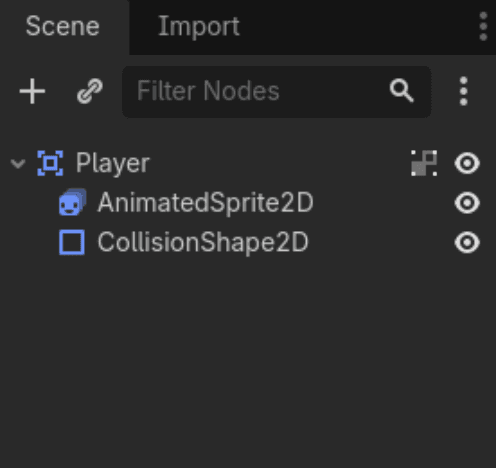
A reusable collectible scene can have a simple structure:
The Area2D detects the player, while the shape defines the detection region. The sprite does not provide collision by itself. Claude should check that monitoring is enabled and that the area’s collision mask includes the player’s collision layer.
Keep score ownership outside the collectible. The collectible announces that it was collected; the level or another existing score owner receives that event and updates the HUD. Godot signals support this separation without requiring every collectible to know the HUD’s node path.
A focused request gives Claude architectural boundaries:
Inspect the player, level, and HUD first. Create a reusable Area2D collectible using the existing project conventions. Emit a collected signal, connect each instance to the level’s score handler, and update the existing HUD. Do not introduce a global Autoload unless the project already uses one for score.
Source: Godot Engine Documentation
Prevent duplicate collection
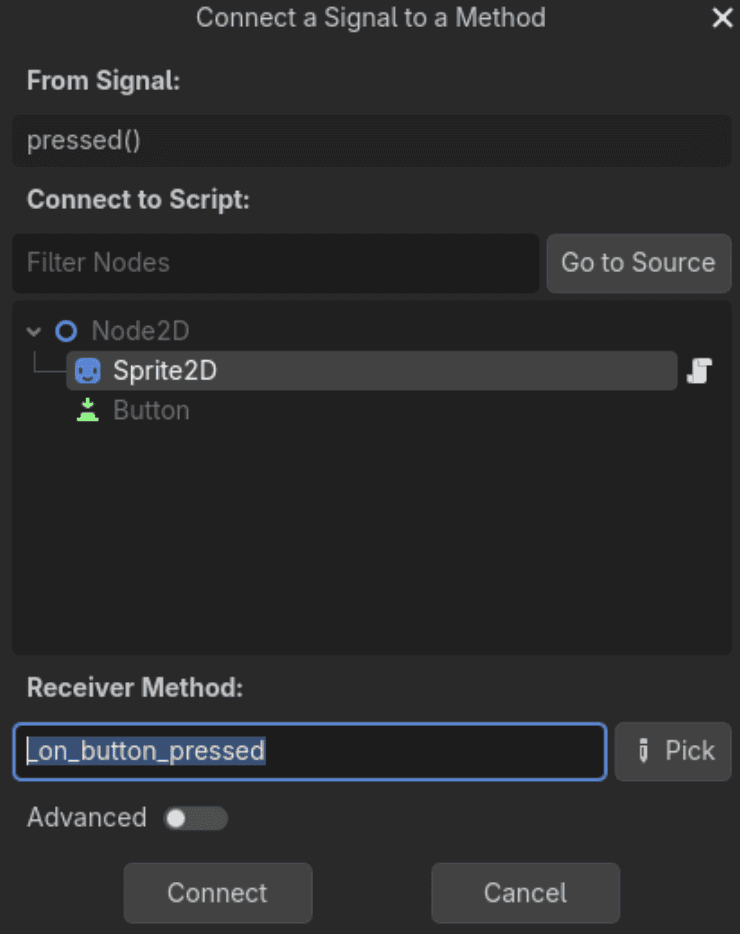
For a player implemented as a physics body, the collectible might use this pattern:
This assumes the player belongs to the player group and body_entered is connected to the handler. Claude must verify both. The guard prevents repeated scoring before deferred deletion finishes.
The receiving handler increments the score and refreshes the existing label. Claude should inspect the actual HUD path instead of inventing one, and avoid connecting the same signal in both the scene file and startup code.
Verify the complete interaction
Run the level and collect two separate instances. Each should increase the score once, disappear, and produce no new runtime errors. Restart the level and confirm that the score resets as intended.
Saving the scene proves persistence. Playing through the interaction proves behavior. Require both before calling the task complete.
Debug the Running Scene, Not Just the Script
If the collectible disappears but the score stays unchanged, ask Claude to trace the event rather than rewrite the mechanic. The useful question is where the chain breaks: collision detection, signal emission, the receiving handler, or the HUD update.
Start with a request that preserves the failing state:
Reproduce the score failure without changing files. Check for runtime errors, identify the active level instance, and trace the collectible’s signal to its receiver. Report the first broken step and the evidence supporting it.
Compare saved structure with runtime state
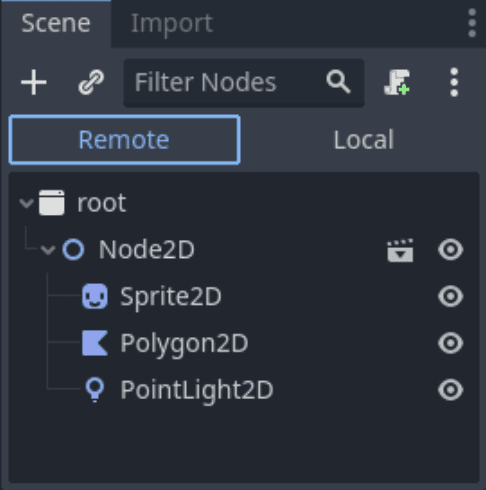
Godot’s Scene dock provides Local and Remote views while a game runs. Local shows the scene being edited; Remote exposes nodes in the running project. The debugging tools documentation explains how runtime properties can be inspected and changed.
This distinction matters when code creates nodes dynamically, switches scenes, or uses a different main scene than expected. A HUD present in the saved scene may not be the HUD instance receiving updates.
With a runtime-capable MCP bridge, Claude can inspect that hierarchy through structured tools. Without one, it can use debug output and, where supported, Computer Use to inspect the Remote view. It should state which evidence it actually obtained.
Check for a missing receiver, an outdated NodePath, or duplicate signal connections. If the collectible never detects the player, inspect collision layers and masks first.
Source: Godot Engine Documentation
Use checks for the questions they answer
A targeted GDScript parse check can help isolate syntax problems:
Here, godot assumes the executable is available on your PATH. According to the command-line reference, --check-only parses the specified script. It does not prove that signals are connected or gameplay works.
After a focused fix, repeat the original failure case. If a runtime property adjustment resolved the issue, apply the intended change to the saved scene or resource, then restart and verify again. A temporary runtime correction is not a persistent fix.
Use Computer Use to Catch What Logs Miss
A clean Output panel cannot tell you whether a pause menu covers the score, a button disappears at a narrow window size, or keyboard navigation leaves the player stranded. These are useful tasks for Computer Use because Claude can observe the application rather than infer its appearance from files.
Enable visual control separately from your Godot MCP connection. Current Claude Computer Use documentation distinguishes the macOS CLI environment from Desktop support on macOS and Windows. In supported Claude Code CLI sessions, enable computer-use through /mcp, grant the required operating-system permissions, and approve the applications Claude needs.

Source: Godot Engine Documentation
Follow a complete menu journey
Start with a short sequence whose expected outcomes are explicit:
Launch the game and choose Start. Collect one item, open the pause menu, resume, then restart. Verify that pausing stops gameplay, resuming preserves the score, and restarting resets it. Capture any failure before editing the project.
This tests transitions that isolated screenshots miss. A pause overlay may look correct while the player keeps moving underneath it. Restart may reload the level but leave score state in an Autoload.
Claude should report what it observed, including anything it could not verify. Seeing a pause menu is not sufficient evidence that every gameplay system stopped.
Reproduce layout failures at specific sizes
Ask Claude to inspect the game at two defined window sizes, such as 1280 × 720 and 960 × 540. Specify window dimensions rather than assuming the rendered viewport uses identical dimensions under every stretch configuration.
Useful observations include clipped text, overlapping controls, an inaccessible close button, or a HUD positioned outside the visible area. Request screenshots of the failing and corrected states at the same size.
When a separate game window is available, testing it can help separate game layout problems from the space occupied by Godot’s surrounding Editor panels.
Check keyboard navigation without assuming controller support
A menu that works with a mouse can still fail with keyboard input. Ask Claude to navigate using the project’s configured UI actions and verify that focus remains visible, moves in a sensible order, and returns appropriately after closing a submenu.
Do not describe this as controller testing unless the setup can actually supply and observe controller input. Desktop clicks and keyboard actions do not automatically exercise a physical gamepad.
Inspect collision mismatches visually
Enable Godot’s Visible Collision Shapes during a test run. Claude can compare the displayed shape with the collectible artwork and investigate obvious offsets or unexpected detection boundaries.
Keep these tasks bounded. Computer Use is useful for reproducing visible failures, not for guaranteeing frame-perfect inputs, measuring precise reaction times, or exhaustively testing gameplay. Pair its screenshots with runtime properties and logs before deciding what to change.

Source: Godot Engine Documentation
Fix UI and Input Without Fighting Godot
Once Claude reproduces a visual failure, the next step is to inspect the rules controlling that interface. Moving a button until it looks right in one screenshot can hide the problem without fixing it.
Let Containers control their children
Godot’s Container nodes arrange child Controls automatically. If a menu uses a VBoxContainer, manually changing a button’s position is usually the wrong approach: the Container can recalculate that position.
Ask Claude to inspect the parent layout, size flags, minimum sizes, and theme spacing before changing individual controls. For Controls outside Containers, anchors and offsets may determine how they respond to resizing.
Use a constraint-based request:
Fix the clipped pause menu at the tested window sizes. Preserve the existing Container hierarchy where practical. Inspect minimum sizes, size flags, and spacing before introducing fixed positions. Repeat the same visual checks after the change.
A successful fix should remain usable at both sizes, not simply reproduce the original screenshot.

Source: Godot Engine Documentation
Trace input through the interface
Godot’s input system maps events to actions through InputMap. Claude should inspect existing actions before adding new ones, particularly when gameplay and menus share a key.
For a menu navigation failure, check whether the controls accept focus, whether an initial control receives focus when the menu opens, and whether explicit focus neighbors point to valid controls. Mouse filtering also matters when an overlapping Control prevents a button from receiving clicks.
For pause behavior, inspect the relevant nodes’ process_mode. The menu must remain interactive while the intended gameplay systems are paused.
Keep the repair targeted: correct the layout or input rule responsible for the observed failure, then rerun the same sequence. Avoid changing InputMap, node hierarchy, and pause logic simultaneously unless the evidence shows all three need adjustment.
Measure Performance and Check the Export
“Optimize this project” gives Claude too little direction. A useful performance task identifies a repeatable scene, an observable slowdown, and a measurement that can be compared before and after a change.
Establish a baseline before editing
Choose a test sequence, such as spawning a fixed number of enemies and moving through the same area. Record the Godot version, renderer, window size, and test hardware. Keep those conditions consistent between runs.
Ask Claude to investigate rather than immediately optimize:
Run the same test scene with the same object count. Inspect the profiler and identify the largest relevant processing costs. Propose one targeted change, then repeat the test under identical conditions. Report the measurements and any behavioral differences.
Godot’s Profiler helps investigate script and engine processing time. Rendering bottlenecks require appropriate rendering measurements; a screenshot or low FPS reading alone cannot establish whether scripts, physics, or GPU work caused the slowdown.
If the MCP server does not expose profiling data, Claude can examine provided captures or use supported visual access. It should not invent measurements from code inspection. Likewise, a headless run does not reproduce the graphical workload of a visible game.

Source: Godot Engine Documentation
Test the exported game separately
An Editor run is not the final delivery environment. Before exporting, verify that the project has the required export templates and a configured preset.
A command-line export can use an existing preset:
The preset name must match the project, and the destination directory must exist. Platform requirements vary, as explained in Godot’s export documentation.
After export, launch the executable on a compatible system. Repeat a short smoke test: start, collect, pause, restart, and quit. Check for missing assets, input problems, and unexpected startup errors.
Keep export validation distinct from publishing. Claude can prepare and inspect a build without permission to upload it to a storefront or replace a released version.

Source: Godot Engine Documentation
Keep Changes Reviewable and Recoverable
Before Claude changes a working project, create a Git checkpoint or another recoverable backup. Keep unrelated edits outside the task, and specify which scenes, scripts, and resources Claude may modify.
A practical boundary looks like this:
Fix the pause-menu layout only. Do not change gameplay scripts, input mappings, renderer settings, or addons. Ask before deleting files or replacing resources. Summarize every modified file and the tests performed.
Review .tscn and .tres changes alongside GDScript. A small code adjustment can accompany unintended node changes, resource overrides, or signal connections. If Claude edits files while Godot has unsaved changes, resolve that conflict before saving either version over the other.
Godot’s generated .godot directory is not equivalent to the project’s source assets. Do not authorize broad cleanup simply because Claude finds unfamiliar files. Preserve source resources and version-relevant UID files according to the project’s conventions.
Treat an MCP server or Editor plugin as executable third-party code. Review its source, installation steps, and filesystem access before enabling it. Local bridge ports should remain local unless a deliberately secured remote architecture requires otherwise.
Finally, distinguish permission to investigate from permission to mutate. Inspecting a broken scene does not authorize deleting nodes, importing addons, or uploading a build. Require a change summary that separates saved modifications, temporary runtime adjustments, and observations that still need verification.
Give Larger Godot Projects More Room on Vagon
A lightweight 2D prototype may run comfortably on your laptop. A larger 3D project with detailed environments, complex shaders, and multiple development tools open can place very different demands on it. If hardware limitations interrupt testing, improving the working environment can be more useful than repeatedly asking Claude to simplify the project.
Vagon Cloud Computer gives you access to a GPU-powered cloud desktop without requiring a workstation upgrade. For heavier Godot workflows, that means room to develop scenes, inspect graphical changes, and run the game while keeping your development tools available.
Keep Godot, the project files, and the MCP server on the same cloud machine where practical. This keeps executable paths and local connections within one environment. Claude running on your laptop cannot automatically reach a server bound to the cloud computer’s localhost.
Computer Use needs separate planning. Claude Code’s native CLI screen control currently supports macOS, so installing the CLI on a Windows cloud desktop does not enable that feature. Use a supported Desktop setup where available, or a compatible connector with clearly documented capabilities.
Vagon’s hardware supports the work performed inside the cloud computer, not Claude’s cloud-based model inference. It also does not replace target-device testing. A game that runs smoothly on a powerful cloud GPU can still struggle on a player’s integrated graphics.
Use the additional headroom to iterate comfortably, then validate performance on the hardware your audience actually uses.
FAQs
Can Claude edit Godot scenes as well as GDScript?
Yes. Claude Code can edit text-based .tscn scenes and .tres resources alongside scripts. A compatible MCP server may also expose scene operations such as creating nodes or assigning resources. Available tools vary, so verify the connector’s capabilities before requesting changes.
Does every Godot MCP server access the live scene tree?
No. Some servers operate on saved files and launch Godot processes. Others use an Editor plugin to inspect the open scene. Access to the running game’s scene tree may require an additional runtime bridge. These are separate capabilities, not interchangeable descriptions of “Godot access.”
Can Claude test a running Godot game visually?
On a supported setup, Computer Use can help Claude inspect menus, interact with controls, and reproduce visible failures. Some Godot MCP bridges also provide viewport screenshots or simulated input. Neither approach automatically guarantees exhaustive gameplay testing, controller coverage, or frame-perfect interaction.
Do you need the .NET version of Godot?
Not for every integration. GDScript-based connectors can work without the .NET edition, subject to their documented requirements. C# projects and connectors implemented with C# may require Godot’s .NET build and a compatible SDK. Follow the requirements of your project and chosen connector.
Can a headless check replace gameplay testing?
No. Headless checks are useful for tasks such as script parsing, resource imports, and automated tests designed for that environment. They do not establish that the interface is usable, rendering is correct, or player interactions behave as intended. Combine them with runtime inspection and visible testing.
A collectible can disappear from a Godot scene while the score stays at zero. The script may parse correctly, yet the signal is connected to the wrong node, the HUD references an outdated path, or the running scene differs from the one you edited. Writing more GDScript does not necessarily reveal which part failed.
Using Claude with Godot becomes more useful when it can inspect the project, make a targeted change, and check the result. A compatible MCP server can expose tools for creating scenes, running projects, and reading debug output. Some bridges also provide access to the live Editor or runtime scene tree, but those capabilities depend on the connector.
Computer Use adds a separate visual layer. With a supported Claude setup and your permission, Claude can interact with the Editor or game window to investigate clipped menus, broken navigation, and other problems that logs cannot explain.
This guide combines those approaches around practical Godot workflows, with clear boundaries between editing files, controlling the engine, and verifying what the player actually sees.
Source: Godot Engine Documentation
Give Claude the Right Kind of Access
Before connecting Claude to Godot, decide what it needs to observe. Reading a saved scene, inspecting the open Editor, and checking the running game are different tasks. A connection that supports one does not automatically support the others.
Project files and terminal access
Claude Code can work directly with GDScript files, text-based scenes, resources, and project.godot. This is useful for tracing script dependencies, reviewing signal connections saved in a .tscn file, or making a focused change across related files.
Terminal access also lets Claude invoke Godot’s command-line tools. However, editing files and launching the engine do not give Claude continuous visibility into the Editor’s selection, unsaved changes, or runtime state.
Source: Godot Engine Documentation
Structured tools through MCP
An MCP connection exposes operations supplied by a particular server. These might include reading project information, creating nodes, running a scene, or retrieving debug output.
Check the tool list before assigning work. A server that modifies saved scenes cannot necessarily inspect the scene currently open in Godot. Live Editor access generally requires an appropriate bridge, while runtime inspection may require another component inside the running game.
Start with a read-only request:
Identify the project directory and Godot version. Explain which tools access saved files, the open Editor, and the running game. Report any unavailable capabilities before making changes.
Visual interaction through Computer Use
Computer Use lets Claude inspect and interact with approved application windows on supported setups. Use it when the question concerns visible behavior: whether a menu clips, a button receives focus, or restarting actually resets the HUD.
A screenshot returned by a Godot MCP tool is not proof that desktop control is enabled. Likewise, Computer Use does not automatically expose node properties or signal connections.
For this guide, Claude Code handles project work and MCP examples. Visual tasks require a separately enabled, supported Computer Use environment.
Connect a Godot MCP Server and Verify Its Limits
Start with a connector whose documented capabilities match your task. Coding-Solo’s Godot MCP server provides a straightforward example: it can launch the Editor, run projects, retrieve debug output, and perform scene operations using bundled GDScript. It does not require a live Editor plugin for this architecture.
Register the server in Claude Code
The repository lists Godot, Node.js 18 or newer, and npm as prerequisites. Confirm that the Godot executable points to the version your project uses, especially if several versions are installed.
Register the server from your project’s working directory:
This command runs third-party software through npm. Review the repository and package before executing it. For a reproducible team setup, use a reviewed, pinned package version rather than relying indefinitely on the latest release.
If automatic Godot detection fails, provide the executable path:
Replace the placeholder with the executable, not the project folder. On macOS, that executable is inside the application bundle. On Windows, use the full executable path, quoted when it contains spaces.
Verify more than the configuration
Open a new Claude Code session and use /mcp to check the server’s connection and available tools. A saved configuration alone does not prove that the process starts or that Godot is reachable.
Give Claude a deliberately limited first task:
Use the Godot MCP tools to identify the engine version and inspect the project at this absolute path. Confirm that it contains project.godot. List the available scene, execution, and debugging operations. Do not create files, modify scenes, or start the game yet.
Check that the reported path and version are correct before authorizing changes. An unexpected project directory is a reason to stop, not something to resolve by letting Claude search and edit broadly.
When you need live Editor access
A different architecture is necessary if your task requires inspecting the open scene or observing runtime nodes. For example, slangwald’s Godot MCP bridge documents a Godot 4.6 Editor plugin and a separate game Autoload for runtime tools.
Those components expose different state. The Editor plugin handles scene operations, while the runtime bridge supplies game screenshots and runtime-tree inspection. They are connector-specific capabilities, not features automatically added by the registration command above.
Choose one architecture for the workflow, follow its installation instructions, and keep any local bridge ports off the public internet.
Build One Interaction From Collision to HUD
A small collectible mechanic is a useful first task because it crosses several Godot systems without requiring a whole game. Claude must understand the scene hierarchy, physics interaction, signal connections, and UI update, not just produce a script.
Start with an existing test level and a player that already moves. Ask Claude to inspect both before adding anything.
Source: Godot Engine Documentation
Define the scene and its responsibilities
A reusable collectible scene can have a simple structure:
The Area2D detects the player, while the shape defines the detection region. The sprite does not provide collision by itself. Claude should check that monitoring is enabled and that the area’s collision mask includes the player’s collision layer.
Keep score ownership outside the collectible. The collectible announces that it was collected; the level or another existing score owner receives that event and updates the HUD. Godot signals support this separation without requiring every collectible to know the HUD’s node path.
A focused request gives Claude architectural boundaries:
Inspect the player, level, and HUD first. Create a reusable Area2D collectible using the existing project conventions. Emit a collected signal, connect each instance to the level’s score handler, and update the existing HUD. Do not introduce a global Autoload unless the project already uses one for score.
Source: Godot Engine Documentation
Prevent duplicate collection
For a player implemented as a physics body, the collectible might use this pattern:
This assumes the player belongs to the player group and body_entered is connected to the handler. Claude must verify both. The guard prevents repeated scoring before deferred deletion finishes.
The receiving handler increments the score and refreshes the existing label. Claude should inspect the actual HUD path instead of inventing one, and avoid connecting the same signal in both the scene file and startup code.
Verify the complete interaction
Run the level and collect two separate instances. Each should increase the score once, disappear, and produce no new runtime errors. Restart the level and confirm that the score resets as intended.
Saving the scene proves persistence. Playing through the interaction proves behavior. Require both before calling the task complete.
Debug the Running Scene, Not Just the Script
If the collectible disappears but the score stays unchanged, ask Claude to trace the event rather than rewrite the mechanic. The useful question is where the chain breaks: collision detection, signal emission, the receiving handler, or the HUD update.
Start with a request that preserves the failing state:
Reproduce the score failure without changing files. Check for runtime errors, identify the active level instance, and trace the collectible’s signal to its receiver. Report the first broken step and the evidence supporting it.
Compare saved structure with runtime state
Godot’s Scene dock provides Local and Remote views while a game runs. Local shows the scene being edited; Remote exposes nodes in the running project. The debugging tools documentation explains how runtime properties can be inspected and changed.
This distinction matters when code creates nodes dynamically, switches scenes, or uses a different main scene than expected. A HUD present in the saved scene may not be the HUD instance receiving updates.
With a runtime-capable MCP bridge, Claude can inspect that hierarchy through structured tools. Without one, it can use debug output and, where supported, Computer Use to inspect the Remote view. It should state which evidence it actually obtained.
Check for a missing receiver, an outdated NodePath, or duplicate signal connections. If the collectible never detects the player, inspect collision layers and masks first.
Source: Godot Engine Documentation
Use checks for the questions they answer
A targeted GDScript parse check can help isolate syntax problems:
Here, godot assumes the executable is available on your PATH. According to the command-line reference, --check-only parses the specified script. It does not prove that signals are connected or gameplay works.
After a focused fix, repeat the original failure case. If a runtime property adjustment resolved the issue, apply the intended change to the saved scene or resource, then restart and verify again. A temporary runtime correction is not a persistent fix.
Use Computer Use to Catch What Logs Miss
A clean Output panel cannot tell you whether a pause menu covers the score, a button disappears at a narrow window size, or keyboard navigation leaves the player stranded. These are useful tasks for Computer Use because Claude can observe the application rather than infer its appearance from files.
Enable visual control separately from your Godot MCP connection. Current Claude Computer Use documentation distinguishes the macOS CLI environment from Desktop support on macOS and Windows. In supported Claude Code CLI sessions, enable computer-use through /mcp, grant the required operating-system permissions, and approve the applications Claude needs.
Source: Godot Engine Documentation
Follow a complete menu journey
Start with a short sequence whose expected outcomes are explicit:
Launch the game and choose Start. Collect one item, open the pause menu, resume, then restart. Verify that pausing stops gameplay, resuming preserves the score, and restarting resets it. Capture any failure before editing the project.
This tests transitions that isolated screenshots miss. A pause overlay may look correct while the player keeps moving underneath it. Restart may reload the level but leave score state in an Autoload.
Claude should report what it observed, including anything it could not verify. Seeing a pause menu is not sufficient evidence that every gameplay system stopped.
Reproduce layout failures at specific sizes
Ask Claude to inspect the game at two defined window sizes, such as 1280 × 720 and 960 × 540. Specify window dimensions rather than assuming the rendered viewport uses identical dimensions under every stretch configuration.
Useful observations include clipped text, overlapping controls, an inaccessible close button, or a HUD positioned outside the visible area. Request screenshots of the failing and corrected states at the same size.
When a separate game window is available, testing it can help separate game layout problems from the space occupied by Godot’s surrounding Editor panels.
Check keyboard navigation without assuming controller support
A menu that works with a mouse can still fail with keyboard input. Ask Claude to navigate using the project’s configured UI actions and verify that focus remains visible, moves in a sensible order, and returns appropriately after closing a submenu.
Do not describe this as controller testing unless the setup can actually supply and observe controller input. Desktop clicks and keyboard actions do not automatically exercise a physical gamepad.
Inspect collision mismatches visually
Enable Godot’s Visible Collision Shapes during a test run. Claude can compare the displayed shape with the collectible artwork and investigate obvious offsets or unexpected detection boundaries.
Keep these tasks bounded. Computer Use is useful for reproducing visible failures, not for guaranteeing frame-perfect inputs, measuring precise reaction times, or exhaustively testing gameplay. Pair its screenshots with runtime properties and logs before deciding what to change.
Source: Godot Engine Documentation
Fix UI and Input Without Fighting Godot
Once Claude reproduces a visual failure, the next step is to inspect the rules controlling that interface. Moving a button until it looks right in one screenshot can hide the problem without fixing it.
Let Containers control their children
Godot’s Container nodes arrange child Controls automatically. If a menu uses a VBoxContainer, manually changing a button’s position is usually the wrong approach: the Container can recalculate that position.
Ask Claude to inspect the parent layout, size flags, minimum sizes, and theme spacing before changing individual controls. For Controls outside Containers, anchors and offsets may determine how they respond to resizing.
Use a constraint-based request:
Fix the clipped pause menu at the tested window sizes. Preserve the existing Container hierarchy where practical. Inspect minimum sizes, size flags, and spacing before introducing fixed positions. Repeat the same visual checks after the change.
A successful fix should remain usable at both sizes, not simply reproduce the original screenshot.
Source: Godot Engine Documentation
Trace input through the interface
Godot’s input system maps events to actions through InputMap. Claude should inspect existing actions before adding new ones, particularly when gameplay and menus share a key.
For a menu navigation failure, check whether the controls accept focus, whether an initial control receives focus when the menu opens, and whether explicit focus neighbors point to valid controls. Mouse filtering also matters when an overlapping Control prevents a button from receiving clicks.
For pause behavior, inspect the relevant nodes’ process_mode. The menu must remain interactive while the intended gameplay systems are paused.
Keep the repair targeted: correct the layout or input rule responsible for the observed failure, then rerun the same sequence. Avoid changing InputMap, node hierarchy, and pause logic simultaneously unless the evidence shows all three need adjustment.
Measure Performance and Check the Export
“Optimize this project” gives Claude too little direction. A useful performance task identifies a repeatable scene, an observable slowdown, and a measurement that can be compared before and after a change.
Establish a baseline before editing
Choose a test sequence, such as spawning a fixed number of enemies and moving through the same area. Record the Godot version, renderer, window size, and test hardware. Keep those conditions consistent between runs.
Ask Claude to investigate rather than immediately optimize:
Run the same test scene with the same object count. Inspect the profiler and identify the largest relevant processing costs. Propose one targeted change, then repeat the test under identical conditions. Report the measurements and any behavioral differences.
Godot’s Profiler helps investigate script and engine processing time. Rendering bottlenecks require appropriate rendering measurements; a screenshot or low FPS reading alone cannot establish whether scripts, physics, or GPU work caused the slowdown.
If the MCP server does not expose profiling data, Claude can examine provided captures or use supported visual access. It should not invent measurements from code inspection. Likewise, a headless run does not reproduce the graphical workload of a visible game.
Source: Godot Engine Documentation
Test the exported game separately
An Editor run is not the final delivery environment. Before exporting, verify that the project has the required export templates and a configured preset.
A command-line export can use an existing preset:
The preset name must match the project, and the destination directory must exist. Platform requirements vary, as explained in Godot’s export documentation.
After export, launch the executable on a compatible system. Repeat a short smoke test: start, collect, pause, restart, and quit. Check for missing assets, input problems, and unexpected startup errors.
Keep export validation distinct from publishing. Claude can prepare and inspect a build without permission to upload it to a storefront or replace a released version.
Source: Godot Engine Documentation
Keep Changes Reviewable and Recoverable
Before Claude changes a working project, create a Git checkpoint or another recoverable backup. Keep unrelated edits outside the task, and specify which scenes, scripts, and resources Claude may modify.
A practical boundary looks like this:
Fix the pause-menu layout only. Do not change gameplay scripts, input mappings, renderer settings, or addons. Ask before deleting files or replacing resources. Summarize every modified file and the tests performed.
Review .tscn and .tres changes alongside GDScript. A small code adjustment can accompany unintended node changes, resource overrides, or signal connections. If Claude edits files while Godot has unsaved changes, resolve that conflict before saving either version over the other.
Godot’s generated .godot directory is not equivalent to the project’s source assets. Do not authorize broad cleanup simply because Claude finds unfamiliar files. Preserve source resources and version-relevant UID files according to the project’s conventions.
Treat an MCP server or Editor plugin as executable third-party code. Review its source, installation steps, and filesystem access before enabling it. Local bridge ports should remain local unless a deliberately secured remote architecture requires otherwise.
Finally, distinguish permission to investigate from permission to mutate. Inspecting a broken scene does not authorize deleting nodes, importing addons, or uploading a build. Require a change summary that separates saved modifications, temporary runtime adjustments, and observations that still need verification.
Give Larger Godot Projects More Room on Vagon
A lightweight 2D prototype may run comfortably on your laptop. A larger 3D project with detailed environments, complex shaders, and multiple development tools open can place very different demands on it. If hardware limitations interrupt testing, improving the working environment can be more useful than repeatedly asking Claude to simplify the project.
Vagon Cloud Computer gives you access to a GPU-powered cloud desktop without requiring a workstation upgrade. For heavier Godot workflows, that means room to develop scenes, inspect graphical changes, and run the game while keeping your development tools available.
Keep Godot, the project files, and the MCP server on the same cloud machine where practical. This keeps executable paths and local connections within one environment. Claude running on your laptop cannot automatically reach a server bound to the cloud computer’s localhost.
Computer Use needs separate planning. Claude Code’s native CLI screen control currently supports macOS, so installing the CLI on a Windows cloud desktop does not enable that feature. Use a supported Desktop setup where available, or a compatible connector with clearly documented capabilities.
Vagon’s hardware supports the work performed inside the cloud computer, not Claude’s cloud-based model inference. It also does not replace target-device testing. A game that runs smoothly on a powerful cloud GPU can still struggle on a player’s integrated graphics.
Use the additional headroom to iterate comfortably, then validate performance on the hardware your audience actually uses.
FAQs
Can Claude edit Godot scenes as well as GDScript?
Yes. Claude Code can edit text-based .tscn scenes and .tres resources alongside scripts. A compatible MCP server may also expose scene operations such as creating nodes or assigning resources. Available tools vary, so verify the connector’s capabilities before requesting changes.
Does every Godot MCP server access the live scene tree?
No. Some servers operate on saved files and launch Godot processes. Others use an Editor plugin to inspect the open scene. Access to the running game’s scene tree may require an additional runtime bridge. These are separate capabilities, not interchangeable descriptions of “Godot access.”
Can Claude test a running Godot game visually?
On a supported setup, Computer Use can help Claude inspect menus, interact with controls, and reproduce visible failures. Some Godot MCP bridges also provide viewport screenshots or simulated input. Neither approach automatically guarantees exhaustive gameplay testing, controller coverage, or frame-perfect interaction.
Do you need the .NET version of Godot?
Not for every integration. GDScript-based connectors can work without the .NET edition, subject to their documented requirements. C# projects and connectors implemented with C# may require Godot’s .NET build and a compatible SDK. Follow the requirements of your project and chosen connector.
Can a headless check replace gameplay testing?
No. Headless checks are useful for tasks such as script parsing, resource imports, and automated tests designed for that environment. They do not establish that the interface is usable, rendering is correct, or player interactions behave as intended. Combine them with runtime inspection and visible testing.
Get Beyond Your Computer Performance
Run applications on your cloud computer with the latest generation hardware. No more crashes or lags.

Trial includes 1 hour usage + 7 days of storage.
Summarize with AI

Ready to focus on your creativity?
Vagon gives you the ability to create & render projects, collaborate, and stream applications with the power of the best hardware.

Run heavy applications on any device with
your personal computer on the cloud.
San Francisco, California
Solutions
Vagon Teams
Vagon Streams
Use Cases
© 2026 Vagon. All rights reserved.
Run heavy applications on any device with
your personal computer on the cloud.
San Francisco, California
Solutions
Vagon Teams
Vagon Streams
Use Cases
© 2026 Vagon. All rights reserved.
Run heavy applications on any device with
your personal computer on the cloud.
San Francisco, California
Solutions
Vagon Teams
Vagon Streams
Use Cases
© 2026 Vagon. All rights reserved.