Instant Connection for Pixel Streaming
— New Feature Automated Setup

Persistent VDI: Setup, Costs, and Trade-offs

Persistent VDI: Setup, Costs, and Trade-offs
Teams & IT

Persistent VDI: Setup, Costs, and Trade-offs
Table of Contents
Persistent VDI is usually the right choice for users who need a dedicated desktop that keeps their applications, settings, and workspace over time. Non-persistent VDI is often better for standardized, temporary, or shared workflows where desktops can be reset from a common image.
The choice is not simply about whether a desktop “saves” changes. It also depends on how your team manages images, user profiles, applications, storage, security, and support. For some teams, a mixed environment with both persistent and non-persistent desktops is the most practical approach.
What Is The Difference Between Persistent And Non-Persistent VDI?
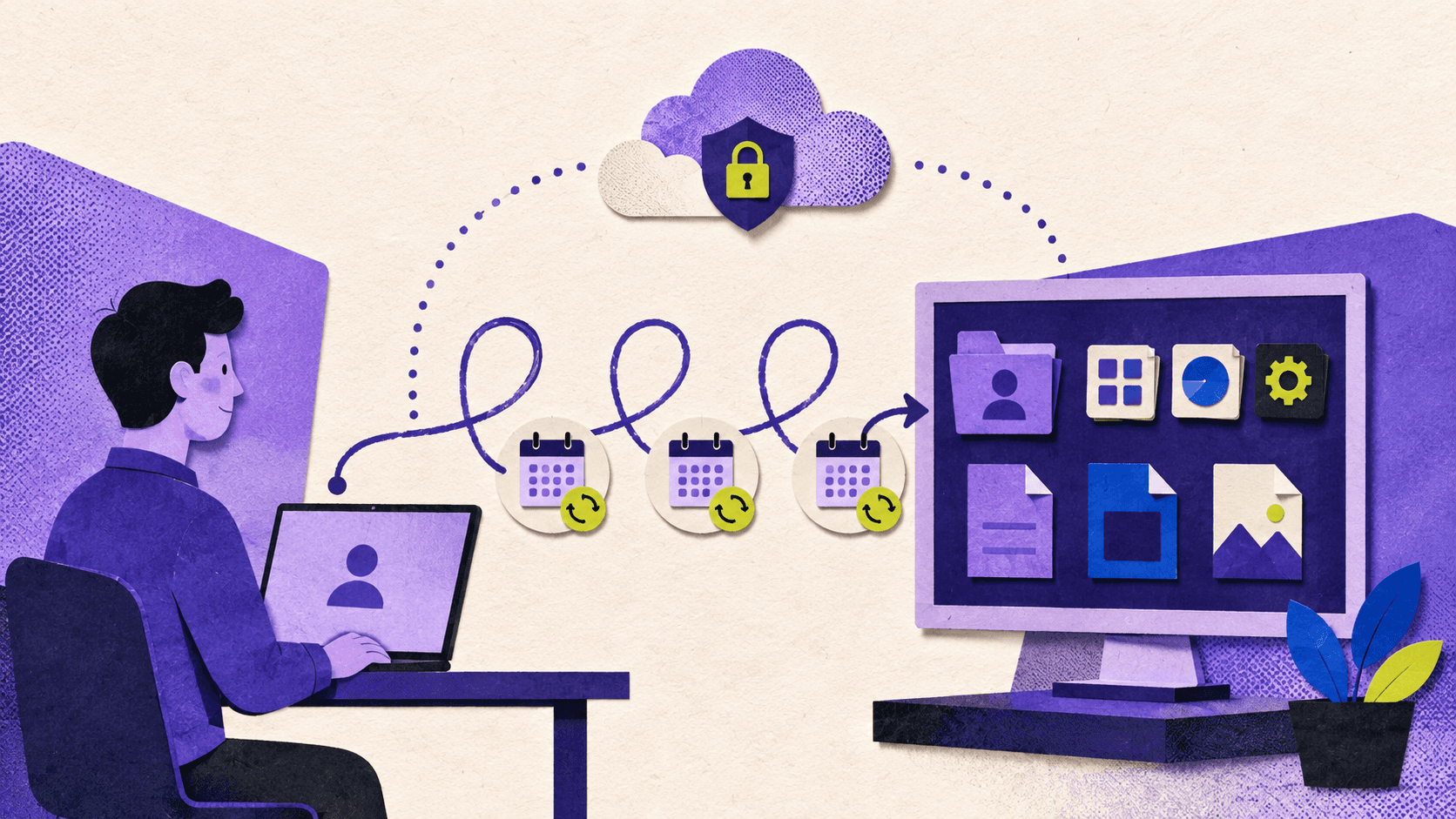
Persistent VDI assigns a desktop to a specific user. That desktop usually retains its operating system state, installed applications, settings, and user changes between sessions. The user experience is closer to working on a personal computer, even though the desktop runs remotely.
A persistent desktop can be useful for employees who install role-specific tools, maintain complex project environments, or need their workspace to remain consistent from one session to the next. Developers, engineers, designers, analysts, and power users often have requirements that make a dedicated desktop more convenient.
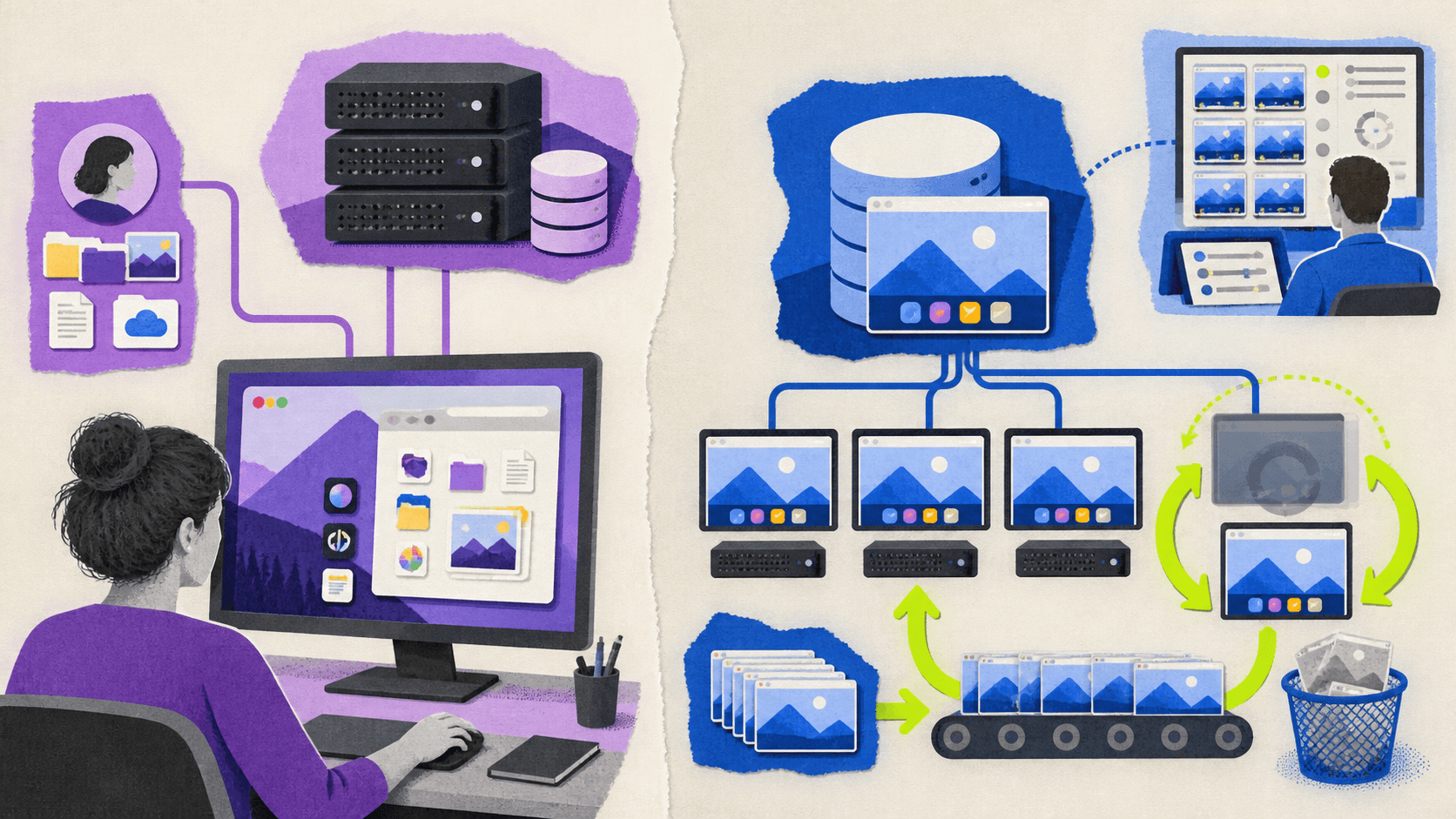
Non-persistent VDI uses a shared desktop image or pool. A user may connect to an available desktop during a session, but changes to the operating system are typically discarded when the desktop restarts or is refreshed. The next session begins from a known configuration.
According to Citrix documentation on VDI desktop types, random non-persistent desktops are selected from a pool and changes are lost when the machine restarts. This behavior helps organizations maintain standardized environments and reduce configuration drift.
The difference can be summarized simply:
Persistent VDI prioritizes continuity and personalization.
Non-persistent VDI prioritizes standardization, reset capability, and centralized control.
These are not completely separate technologies. Both models can use virtual machines, desktop images, identity services, application delivery, and remote access protocols. The difference is how the desktop state is assigned, stored, maintained, and restored.
Which VDI Model Should Your Team Choose?
Persistent VDI is usually a better fit when users need a stable environment that follows their role and projects. Non-persistent VDI is usually a better fit when users need access to the same standardized tools and do not need to keep changes inside the desktop itself.
Factor | Persistent VDI | Non-persistent VDI |
|---|---|---|
User experience | Dedicated desktop with a consistent personal workspace | Standardized desktop from a shared pool |
Provisioning | Desktop assigned to a specific user | Desktop selected from an available pool |
Personalization | High, with user-specific applications and settings | Limited unless profiles or personalization layers are added |
Patching | Requires careful management across assigned desktops | Centralized image updates can simplify patching |
Storage | Usually requires more user-specific storage | Base desktops can be more uniform and easier to replace |
Security | Requires control over accumulated changes and data | Reset behavior can reduce configuration drift |
Scalability | Can require more resources per user | Can improve efficiency through pooled resources |
Administration | More individual desktop lifecycle work | More centralized image and pool management |
Best fit | Developers, engineers, designers, analysts, and power users | Task workers, classrooms, contractors, call centers, and shared environments |
Persistent VDI is not automatically more secure, and non-persistent VDI is not automatically cheaper. A persistent desktop can accumulate outdated software or unmanaged changes if it is not maintained properly. A non-persistent desktop still needs secure identity, network, application, and data controls.
Many organizations should also consider a mixed model. For example, finance and customer support teams may use non-persistent desktops, while developers and designers receive persistent desktops with dedicated resources.
How Do Desktop Pools, Golden Images, And User Profiles Affect VDI?
The persistence of a desktop is only one part of the design.
A desktop pool is a group of desktops or session hosts managed together. Pooled environments generally aim to provide users with a consistent experience from a common configuration. Personal or dedicated environments assign a specific desktop to a user.
A golden image is the base image used to create or update desktops. It can include the operating system, security tools, drivers, applications, and configuration settings. Even persistent desktops may be created from a golden image during initial deployment.
User profiles are separate from the base desktop image. Profile systems can store settings, application preferences, and other user-specific data outside the operating system disk. This is why a non-persistent desktop can still provide some continuity between sessions.
Citrix, for example, documents a user personalization layer that can preserve selected user data and locally installed applications in a non-persistent machine catalog. The feature provides a persistent workspace experience without making the entire desktop persistent. Citrix’s user personalization layer documentation explains the relationship between non-persistent catalogs and user-specific storage.
This distinction matters during planning. If users need access to files, settings, or application data after a reset, those elements must be stored and managed separately. Desktop persistence alone does not determine where every file or profile is located.
How To Set Up Persistent VDI
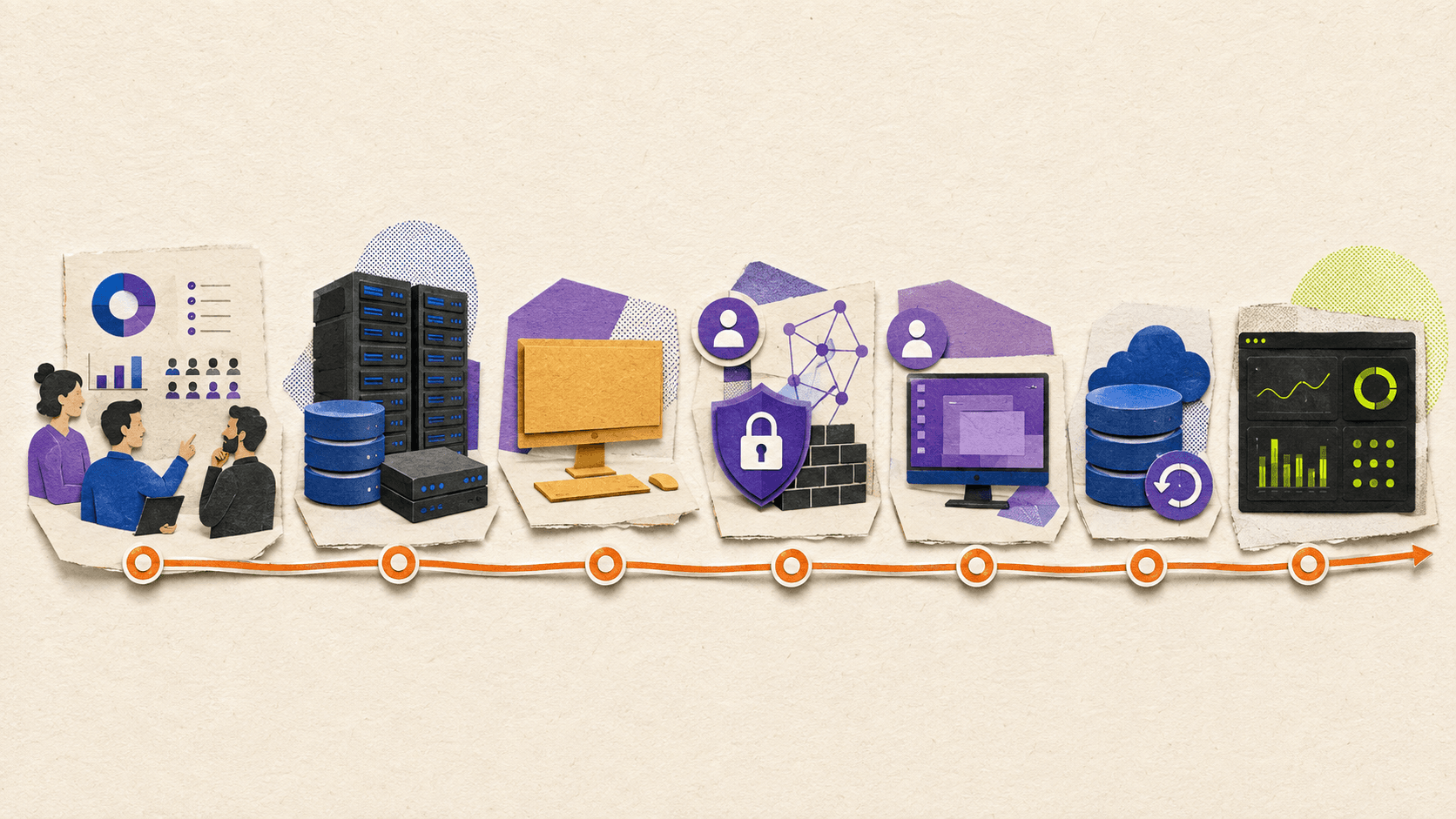
The answer to “how to set up persistent VDI” depends on the platform, hosting model, and workload. The general architecture process, however, usually follows the same sequence.
#1. Assess users and workloads
Start by grouping users according to how they work. Identify which users need dedicated desktops, which applications they use, how much storage they require, and whether their work involves GPU-intensive applications or large project files.
Do not size the environment only by headcount. A designer working with 3D software may have very different compute and storage requirements from an employee using browser-based applications.
#2. Select the hosting and management model
Decide whether the desktops will run on on-premises infrastructure, a public cloud, a private cloud, or a hybrid environment. The decision affects cost, control, network design, regional availability, support, and responsibility for infrastructure operations.
For example, Azure Virtual Desktop supports personal host pools for individually assigned desktops and pooled host pools for shared session environments. Its deployment guidance also includes configuration for personal desktop assignment. Microsoft’s Azure Virtual Desktop deployment documentation provides a platform-specific example of this model.
#3. Size compute, storage, and networking
Estimate CPU, memory, storage, GPU, bandwidth, and concurrency requirements. Persistent VDI usually requires more attention to storage because each user may have an individual desktop state, profile, or application data.
Network latency also affects the user experience. Test access from the locations where employees actually work, particularly when users connect across regions or use graphics-heavy applications.
#4. Build the golden image
Create a base image with the operating system, security configuration, drivers, core applications, and required management agents. Keep the image controlled and document changes so that future updates can be tested consistently.
A golden image should not become the place where every user-specific preference is stored. Personal settings and user data should be handled through appropriate profile, file, and application management systems.
#5. Configure identity and access
Connect the VDI platform to the organization’s identity provider. Define authentication, authorization, group membership, multifactor authentication, desktop assignment, and access policies.
This stage also includes decisions about administrator access, user roles, network segmentation, internet access, clipboard behavior, file transfers, and application permissions.
#6. Assign desktops and define data protection
Assign personal desktops to users and determine where user files, profiles, backups, and recovery points will live. Define what happens when an employee changes roles, leaves the company, or needs a replacement desktop.
Persistent VDI requires a clear recovery plan. A dedicated desktop that retains user state is useful only if that state can be protected and restored.
#7. Pilot with representative users
Run a pilot with different types of users rather than testing only with standard office workloads. Include at least one power user, one user with specialized applications, and users connecting from different locations.
Measure login times, application performance, storage growth, support issues, and user experience. Use the pilot to identify problems before expanding the environment.
#8. Monitor and maintain the environment
Persistent VDI still requires image updates, application patching, security monitoring, capacity planning, backup checks, and desktop lifecycle management.
Track which desktops are active, which resources are underused, and where users encounter recurring problems. Monitoring should support both technical operations and cost management.
What Are The Main Trade-offs Of Persistent And Non-Persistent VDI?
Persistent VDI provides a familiar experience because users return to the same environment. This can reduce friction for people who depend on custom tools, local settings, saved application state, or long-running projects.
The cost is operational complexity. Each desktop can become a separate lifecycle to manage. Storage, backup, patching, troubleshooting, and configuration drift may increase as the environment grows.
Non-persistent VDI makes standardization easier. Administrators can update the base image, replace unhealthy desktops, and return users to a known configuration. This is particularly useful when users perform repeatable tasks with a controlled application set.
The trade-off is that user continuity must be designed separately. Profiles, files, application data, and personalization layers need their own storage and management systems. If those systems are not configured correctly, users may lose settings or work when the desktop resets.
Security also works differently in each model. Persistent desktops may require stronger controls against unmanaged changes and outdated software. Non-persistent desktops can reduce long-term configuration drift, but they still require secure authentication, data protection, and access policies.
The total cost should include more than infrastructure or licensing. Consider storage, backup, support, image management, desktop administration, monitoring, and the time required to troubleshoot user environments.
What Does “Citrix non persistent dirty desktops” Mean?
“Citrix non persistent dirty desktops” does not appear to be standard official Citrix terminology. Citrix documentation generally uses terms such as random non-persistent desktops, static non-persistent desktops, pooled desktops, and user personalization layers.
The phrase is likely an informal search query for a desktop that has accumulated changes during use but has not yet been reset. In that context, “dirty” means the desktop is no longer in the clean state defined by its base image.
For a random non-persistent desktop, the user may connect to a different desktop from the pool during the next session. Changes made to the operating system are generally lost when the machine restarts. A static non-persistent desktop may continue assigning the same desktop to a user, but changes can still be discarded at restart.
This behavior is different from user profile persistence. A platform may reset the desktop while preserving selected files, settings, or applications through a separate personalization layer. Teams should therefore verify exactly what survives logout, reboot, refresh, and machine replacement.
Which Teams Benefit From Each Model?
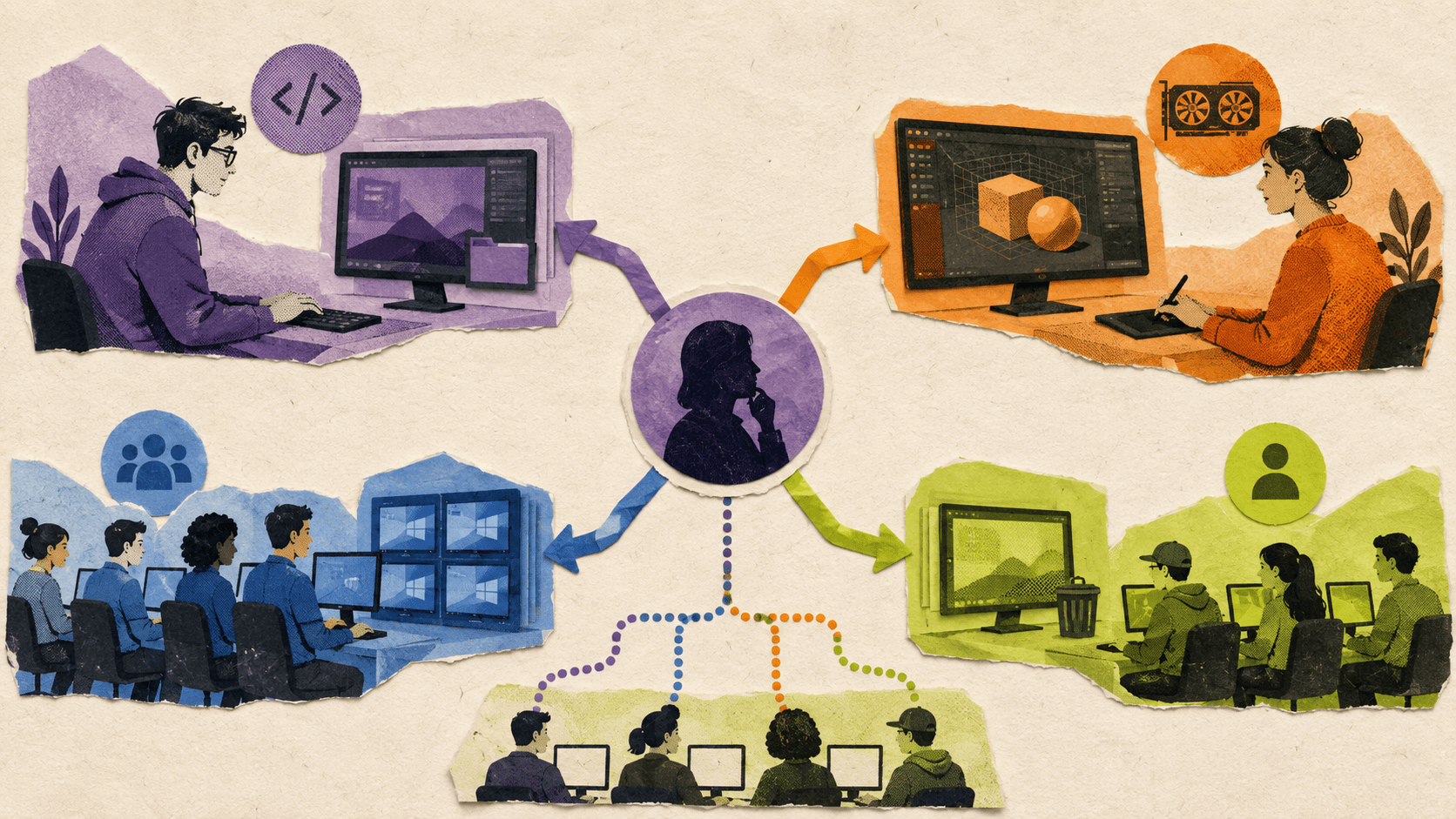
Persistent VDI is often suitable for developers and engineers who need stable tools, SDKs, project settings, and operating system configurations. It can also help users who work with specialized applications that are difficult to reinstall or configure repeatedly.
Creative and GPU-heavy teams need an additional layer of evaluation. They should test GPU performance, application compatibility, storage throughput, display quality, and network latency before choosing between persistent VDI and other cloud workstation options.
Standardized task workers, call center agents, classrooms, and training environments often benefit from non-persistent desktops. These users typically need the same applications and policies rather than a highly personalized desktop.
Contractors and temporary workers may also be good candidates for non-persistent VDI because access can be limited and desktops can be reset after use. This can simplify onboarding and reduce the amount of user-specific state that must be maintained.
Organizations with strict security or compliance requirements may need a dedicated VDI architecture with detailed control over identity, infrastructure, policies, audit processes, and data location. In those environments, the desktop model should be selected as part of a broader security and governance design.
Where Does Vagon Teams Fit?
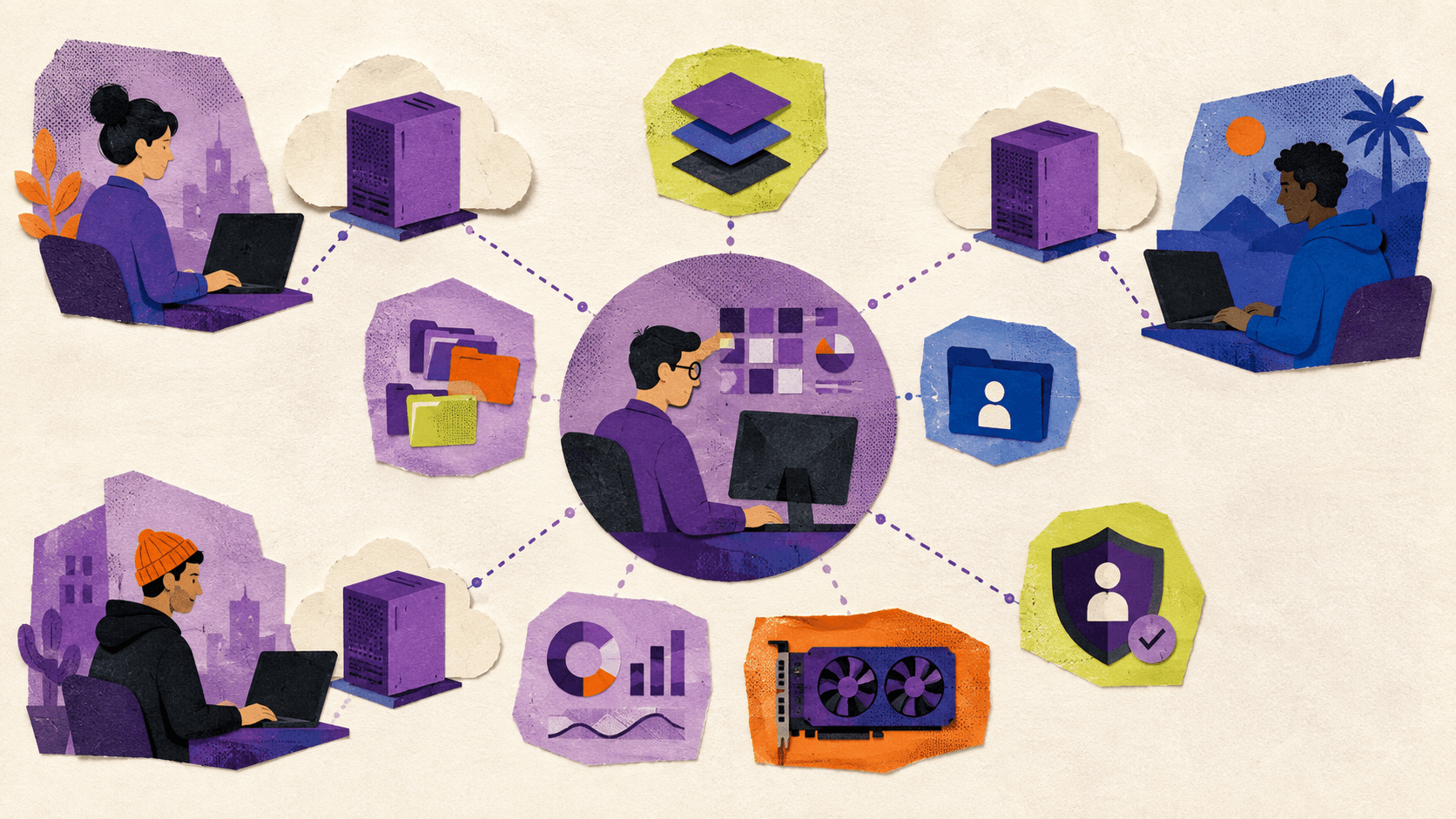
Vagon Teams is designed for organizations that need assigned, high-performance cloud computers without purchasing and maintaining a physical workstation for every team member.
This makes it relevant for distributed creative, engineering, architecture, development, game production, and technical teams. These teams often face practical problems that traditional VDI projects can make unnecessarily complex:
Employees may have underpowered laptops for demanding applications.
New team members may wait too long for suitable hardware.
Project assignments may change frequently.
Administrators may need to reassign computers between users.
Remote teams may need separate work environments with centralized controls.
With Vagon Teams, administrators can invite team members, create cloud computers, assign or reassign computers, and manage access from a central workspace. The platform also supports reusable computer templates with pre-installed applications and configurations, which can help teams create consistent workstations for different roles. Vagon’s computer template documentation explains how templates can be created from the application catalog or an existing computer.
Vagon Teams can also support team workflows through individual and shared file storage, computer permissions, usage plans, and application usage monitoring. Administrators can control settings such as public internet access, file transfers, clipboard access, and other computer-level permissions according to the available configuration. Vagon Teams documentation provides the current overview of these capabilities.
The important distinction is that Vagon Teams should not automatically be described as persistent VDI. It offers assigned cloud computers and team administration, but a dedicated VDI platform may still be more appropriate for organizations that need deep identity integrations, private infrastructure ownership, large-scale desktop pools, complex policy control, or formal compliance requirements.
If your team mainly needs reliable access to powerful individual workstations, faster onboarding, flexible reassignment, and centralized administration, create a Vagon Teams workspace and evaluate the workflow with your own applications and users.
Final Recommendation
Persistent VDI is a strong fit for users who need continuity, personalization, and a dedicated workspace. Non-persistent VDI is a strong fit for standardized, temporary, or shared workflows where fast reset and centralized image control are more important.
The best architecture may combine both models. Give power users persistent desktops, provide standardized workers with non-persistent desktops, and use separate profile and file systems when users need continuity without fully persistent machines.
FAQs
Is persistent VDI more secure than non-persistent VDI?
Not automatically. Persistent VDI provides more user-specific state, which may require additional patching, monitoring, and backup controls. Non-persistent VDI can reduce configuration drift through reset behavior, but it still requires strong identity, network, application, and data security controls.
Can non-persistent VDI preserve user profiles and files?
Yes. Profiles, files, and selected application data can be stored separately from the desktop image. Citrix’s user personalization layer is one example of a system designed to preserve selected user data in a non-persistent environment.
Is persistent VDI more expensive?
It can require more storage, backup capacity, and desktop lifecycle management. The total cost depends on the platform, infrastructure, licensing, workload requirements, user concurrency, and administration effort.
How often should a persistent VDI image be updated?
There is no universal schedule. Updates should follow the organization’s security requirements, application release cycle, testing process, and change-management policy. Teams should test image updates before applying them broadly.
What is the difference between a personal host pool and a pooled host pool?
A personal host pool assigns desktops to individual users. A pooled host pool distributes sessions across a group of available hosts. Microsoft provides an overview of these models in its Azure Virtual Desktop terminology guide.
Can Vagon Teams be used as persistent VDI?
Vagon Teams provides assigned cloud computers that can support a persistent-style individual workstation workflow. It should not automatically be classified as a full persistent VDI platform. Teams with advanced enterprise VDI, compliance, or infrastructure requirements should evaluate dedicated VDI solutions.
When should an organization use a mixed VDI model?
A mixed model makes sense when users have different requirements. Power users may need persistent desktops, while task workers, contractors, classrooms, or temporary users may work better with non-persistent desktops.
What happens to user-installed applications in non-persistent VDI?
They may be removed when the desktop resets unless the platform provides a supported personalization, application layering, or profile mechanism. Teams should verify which application types and user changes are preserved before deployment.
Persistent VDI is usually the right choice for users who need a dedicated desktop that keeps their applications, settings, and workspace over time. Non-persistent VDI is often better for standardized, temporary, or shared workflows where desktops can be reset from a common image.
The choice is not simply about whether a desktop “saves” changes. It also depends on how your team manages images, user profiles, applications, storage, security, and support. For some teams, a mixed environment with both persistent and non-persistent desktops is the most practical approach.
What Is The Difference Between Persistent And Non-Persistent VDI?
Persistent VDI assigns a desktop to a specific user. That desktop usually retains its operating system state, installed applications, settings, and user changes between sessions. The user experience is closer to working on a personal computer, even though the desktop runs remotely.
A persistent desktop can be useful for employees who install role-specific tools, maintain complex project environments, or need their workspace to remain consistent from one session to the next. Developers, engineers, designers, analysts, and power users often have requirements that make a dedicated desktop more convenient.
Non-persistent VDI uses a shared desktop image or pool. A user may connect to an available desktop during a session, but changes to the operating system are typically discarded when the desktop restarts or is refreshed. The next session begins from a known configuration.
According to Citrix documentation on VDI desktop types, random non-persistent desktops are selected from a pool and changes are lost when the machine restarts. This behavior helps organizations maintain standardized environments and reduce configuration drift.
The difference can be summarized simply:
Persistent VDI prioritizes continuity and personalization.
Non-persistent VDI prioritizes standardization, reset capability, and centralized control.
These are not completely separate technologies. Both models can use virtual machines, desktop images, identity services, application delivery, and remote access protocols. The difference is how the desktop state is assigned, stored, maintained, and restored.

Which VDI Model Should Your Team Choose?
Persistent VDI is usually a better fit when users need a stable environment that follows their role and projects. Non-persistent VDI is usually a better fit when users need access to the same standardized tools and do not need to keep changes inside the desktop itself.
Factor | Persistent VDI | Non-persistent VDI |
|---|---|---|
User experience | Dedicated desktop with a consistent personal workspace | Standardized desktop from a shared pool |
Provisioning | Desktop assigned to a specific user | Desktop selected from an available pool |
Personalization | High, with user-specific applications and settings | Limited unless profiles or personalization layers are added |
Patching | Requires careful management across assigned desktops | Centralized image updates can simplify patching |
Storage | Usually requires more user-specific storage | Base desktops can be more uniform and easier to replace |
Security | Requires control over accumulated changes and data | Reset behavior can reduce configuration drift |
Scalability | Can require more resources per user | Can improve efficiency through pooled resources |
Administration | More individual desktop lifecycle work | More centralized image and pool management |
Best fit | Developers, engineers, designers, analysts, and power users | Task workers, classrooms, contractors, call centers, and shared environments |
Persistent VDI is not automatically more secure, and non-persistent VDI is not automatically cheaper. A persistent desktop can accumulate outdated software or unmanaged changes if it is not maintained properly. A non-persistent desktop still needs secure identity, network, application, and data controls.
Many organizations should also consider a mixed model. For example, finance and customer support teams may use non-persistent desktops, while developers and designers receive persistent desktops with dedicated resources.
How Do Desktop Pools, Golden Images, And User Profiles Affect VDI?
The persistence of a desktop is only one part of the design.
A desktop pool is a group of desktops or session hosts managed together. Pooled environments generally aim to provide users with a consistent experience from a common configuration. Personal or dedicated environments assign a specific desktop to a user.
A golden image is the base image used to create or update desktops. It can include the operating system, security tools, drivers, applications, and configuration settings. Even persistent desktops may be created from a golden image during initial deployment.
User profiles are separate from the base desktop image. Profile systems can store settings, application preferences, and other user-specific data outside the operating system disk. This is why a non-persistent desktop can still provide some continuity between sessions.
Citrix, for example, documents a user personalization layer that can preserve selected user data and locally installed applications in a non-persistent machine catalog. The feature provides a persistent workspace experience without making the entire desktop persistent. Citrix’s user personalization layer documentation explains the relationship between non-persistent catalogs and user-specific storage.
This distinction matters during planning. If users need access to files, settings, or application data after a reset, those elements must be stored and managed separately. Desktop persistence alone does not determine where every file or profile is located.

How To Set Up Persistent VDI
The answer to “how to set up persistent VDI” depends on the platform, hosting model, and workload. The general architecture process, however, usually follows the same sequence.
#1. Assess users and workloads
Start by grouping users according to how they work. Identify which users need dedicated desktops, which applications they use, how much storage they require, and whether their work involves GPU-intensive applications or large project files.
Do not size the environment only by headcount. A designer working with 3D software may have very different compute and storage requirements from an employee using browser-based applications.
#2. Select the hosting and management model
Decide whether the desktops will run on on-premises infrastructure, a public cloud, a private cloud, or a hybrid environment. The decision affects cost, control, network design, regional availability, support, and responsibility for infrastructure operations.
For example, Azure Virtual Desktop supports personal host pools for individually assigned desktops and pooled host pools for shared session environments. Its deployment guidance also includes configuration for personal desktop assignment. Microsoft’s Azure Virtual Desktop deployment documentation provides a platform-specific example of this model.
#3. Size compute, storage, and networking
Estimate CPU, memory, storage, GPU, bandwidth, and concurrency requirements. Persistent VDI usually requires more attention to storage because each user may have an individual desktop state, profile, or application data.
Network latency also affects the user experience. Test access from the locations where employees actually work, particularly when users connect across regions or use graphics-heavy applications.
#4. Build the golden image
Create a base image with the operating system, security configuration, drivers, core applications, and required management agents. Keep the image controlled and document changes so that future updates can be tested consistently.
A golden image should not become the place where every user-specific preference is stored. Personal settings and user data should be handled through appropriate profile, file, and application management systems.
#5. Configure identity and access
Connect the VDI platform to the organization’s identity provider. Define authentication, authorization, group membership, multifactor authentication, desktop assignment, and access policies.
This stage also includes decisions about administrator access, user roles, network segmentation, internet access, clipboard behavior, file transfers, and application permissions.
#6. Assign desktops and define data protection
Assign personal desktops to users and determine where user files, profiles, backups, and recovery points will live. Define what happens when an employee changes roles, leaves the company, or needs a replacement desktop.
Persistent VDI requires a clear recovery plan. A dedicated desktop that retains user state is useful only if that state can be protected and restored.
#7. Pilot with representative users
Run a pilot with different types of users rather than testing only with standard office workloads. Include at least one power user, one user with specialized applications, and users connecting from different locations.
Measure login times, application performance, storage growth, support issues, and user experience. Use the pilot to identify problems before expanding the environment.
#8. Monitor and maintain the environment
Persistent VDI still requires image updates, application patching, security monitoring, capacity planning, backup checks, and desktop lifecycle management.
Track which desktops are active, which resources are underused, and where users encounter recurring problems. Monitoring should support both technical operations and cost management.

What Are The Main Trade-offs Of Persistent And Non-Persistent VDI?
Persistent VDI provides a familiar experience because users return to the same environment. This can reduce friction for people who depend on custom tools, local settings, saved application state, or long-running projects.
The cost is operational complexity. Each desktop can become a separate lifecycle to manage. Storage, backup, patching, troubleshooting, and configuration drift may increase as the environment grows.
Non-persistent VDI makes standardization easier. Administrators can update the base image, replace unhealthy desktops, and return users to a known configuration. This is particularly useful when users perform repeatable tasks with a controlled application set.
The trade-off is that user continuity must be designed separately. Profiles, files, application data, and personalization layers need their own storage and management systems. If those systems are not configured correctly, users may lose settings or work when the desktop resets.
Security also works differently in each model. Persistent desktops may require stronger controls against unmanaged changes and outdated software. Non-persistent desktops can reduce long-term configuration drift, but they still require secure authentication, data protection, and access policies.
The total cost should include more than infrastructure or licensing. Consider storage, backup, support, image management, desktop administration, monitoring, and the time required to troubleshoot user environments.
What Does “Citrix non persistent dirty desktops” Mean?
“Citrix non persistent dirty desktops” does not appear to be standard official Citrix terminology. Citrix documentation generally uses terms such as random non-persistent desktops, static non-persistent desktops, pooled desktops, and user personalization layers.
The phrase is likely an informal search query for a desktop that has accumulated changes during use but has not yet been reset. In that context, “dirty” means the desktop is no longer in the clean state defined by its base image.
For a random non-persistent desktop, the user may connect to a different desktop from the pool during the next session. Changes made to the operating system are generally lost when the machine restarts. A static non-persistent desktop may continue assigning the same desktop to a user, but changes can still be discarded at restart.
This behavior is different from user profile persistence. A platform may reset the desktop while preserving selected files, settings, or applications through a separate personalization layer. Teams should therefore verify exactly what survives logout, reboot, refresh, and machine replacement.

Which Teams Benefit From Each Model?
Persistent VDI is often suitable for developers and engineers who need stable tools, SDKs, project settings, and operating system configurations. It can also help users who work with specialized applications that are difficult to reinstall or configure repeatedly.
Creative and GPU-heavy teams need an additional layer of evaluation. They should test GPU performance, application compatibility, storage throughput, display quality, and network latency before choosing between persistent VDI and other cloud workstation options.
Standardized task workers, call center agents, classrooms, and training environments often benefit from non-persistent desktops. These users typically need the same applications and policies rather than a highly personalized desktop.
Contractors and temporary workers may also be good candidates for non-persistent VDI because access can be limited and desktops can be reset after use. This can simplify onboarding and reduce the amount of user-specific state that must be maintained.
Organizations with strict security or compliance requirements may need a dedicated VDI architecture with detailed control over identity, infrastructure, policies, audit processes, and data location. In those environments, the desktop model should be selected as part of a broader security and governance design.
Where Does Vagon Teams Fit?
Vagon Teams is designed for organizations that need assigned, high-performance cloud computers without purchasing and maintaining a physical workstation for every team member.
This makes it relevant for distributed creative, engineering, architecture, development, game production, and technical teams. These teams often face practical problems that traditional VDI projects can make unnecessarily complex:
Employees may have underpowered laptops for demanding applications.
New team members may wait too long for suitable hardware.
Project assignments may change frequently.
Administrators may need to reassign computers between users.
Remote teams may need separate work environments with centralized controls.
With Vagon Teams, administrators can invite team members, create cloud computers, assign or reassign computers, and manage access from a central workspace. The platform also supports reusable computer templates with pre-installed applications and configurations, which can help teams create consistent workstations for different roles. Vagon’s computer template documentation explains how templates can be created from the application catalog or an existing computer.
Vagon Teams can also support team workflows through individual and shared file storage, computer permissions, usage plans, and application usage monitoring. Administrators can control settings such as public internet access, file transfers, clipboard access, and other computer-level permissions according to the available configuration. Vagon Teams documentation provides the current overview of these capabilities.
The important distinction is that Vagon Teams should not automatically be described as persistent VDI. It offers assigned cloud computers and team administration, but a dedicated VDI platform may still be more appropriate for organizations that need deep identity integrations, private infrastructure ownership, large-scale desktop pools, complex policy control, or formal compliance requirements.
If your team mainly needs reliable access to powerful individual workstations, faster onboarding, flexible reassignment, and centralized administration, create a Vagon Teams workspace and evaluate the workflow with your own applications and users.

Final Recommendation
Persistent VDI is a strong fit for users who need continuity, personalization, and a dedicated workspace. Non-persistent VDI is a strong fit for standardized, temporary, or shared workflows where fast reset and centralized image control are more important.
The best architecture may combine both models. Give power users persistent desktops, provide standardized workers with non-persistent desktops, and use separate profile and file systems when users need continuity without fully persistent machines.
FAQs
Is persistent VDI more secure than non-persistent VDI?
Not automatically. Persistent VDI provides more user-specific state, which may require additional patching, monitoring, and backup controls. Non-persistent VDI can reduce configuration drift through reset behavior, but it still requires strong identity, network, application, and data security controls.
Can non-persistent VDI preserve user profiles and files?
Yes. Profiles, files, and selected application data can be stored separately from the desktop image. Citrix’s user personalization layer is one example of a system designed to preserve selected user data in a non-persistent environment.
Is persistent VDI more expensive?
It can require more storage, backup capacity, and desktop lifecycle management. The total cost depends on the platform, infrastructure, licensing, workload requirements, user concurrency, and administration effort.
How often should a persistent VDI image be updated?
There is no universal schedule. Updates should follow the organization’s security requirements, application release cycle, testing process, and change-management policy. Teams should test image updates before applying them broadly.
What is the difference between a personal host pool and a pooled host pool?
A personal host pool assigns desktops to individual users. A pooled host pool distributes sessions across a group of available hosts. Microsoft provides an overview of these models in its Azure Virtual Desktop terminology guide.
Can Vagon Teams be used as persistent VDI?
Vagon Teams provides assigned cloud computers that can support a persistent-style individual workstation workflow. It should not automatically be classified as a full persistent VDI platform. Teams with advanced enterprise VDI, compliance, or infrastructure requirements should evaluate dedicated VDI solutions.
When should an organization use a mixed VDI model?
A mixed model makes sense when users have different requirements. Power users may need persistent desktops, while task workers, contractors, classrooms, or temporary users may work better with non-persistent desktops.
What happens to user-installed applications in non-persistent VDI?
They may be removed when the desktop resets unless the platform provides a supported personalization, application layering, or profile mechanism. Teams should verify which application types and user changes are preserved before deployment.
Scalable Remote Desktop for your Team
Create cloud computers for your Team, manage their access & permissions in real-time. Start in minutes & scale.

Trial includes 1 hour usage + 7 days of
storage for first 2 seats.
Scalable Remote Desktop for your Team
Create cloud computers for your Team, manage their access & permissions in real-time. Start in minutes & scale.
Trial includes 1 hour usage + 7 days of
storage for first 2 seats.
Summarize with AI

Ready to focus on your creativity?
Vagon gives you the ability to create & render projects, collaborate, and stream applications with the power of the best hardware.

Vagon Blog
Run heavy applications on any device with
your personal computer on the cloud.
San Francisco, California
Solutions
Vagon Teams
Vagon Streams
Use Cases
Resources
Vagon Blog
Citrix Pricing: License Cost and Hidden Hardware Expenses
Persistent VDI: Setup, Costs, and Trade-offs
VDI vs VM vs DaaS: Which One Does Your Team Need?
Best Unity Asset Store Assets & 3D Models in 2026
Best Revit Tutorials in 2026 for Beginners and BIM Pros
Best Photoshop Tutorials in 2026: Beginner Learning Guide
Best SketchUp Tutorials in 2026: Free & Paid Courses
Best TeamViewer, AnyDesk & Splashtop Alternatives (2026)
8 Best Paperspace Alternatives After the DigitalOcean Migration
Vagon Blog
Run heavy applications on any device with
your personal computer on the cloud.
San Francisco, California
Solutions
Vagon Teams
Vagon Streams
Use Cases
Resources
Vagon Blog
Citrix Pricing: License Cost and Hidden Hardware Expenses
Persistent VDI: Setup, Costs, and Trade-offs
VDI vs VM vs DaaS: Which One Does Your Team Need?
Best Unity Asset Store Assets & 3D Models in 2026
Best Revit Tutorials in 2026 for Beginners and BIM Pros
Best Photoshop Tutorials in 2026: Beginner Learning Guide
Best SketchUp Tutorials in 2026: Free & Paid Courses
Best TeamViewer, AnyDesk & Splashtop Alternatives (2026)
8 Best Paperspace Alternatives After the DigitalOcean Migration
Vagon Blog
Run heavy applications on any device with
your personal computer on the cloud.
San Francisco, California
Solutions
Vagon Teams
Vagon Streams
Use Cases
Resources
Vagon Blog