Instant Connection for Pixel Streaming
— New Feature Automated Setup
How to Add Fonts to Photoshop (Windows, Mac, Adobe Fonts & Fixes)
DigitalArt
How to Add Fonts to Photoshop (Windows, Mac, Adobe Fonts & Fixes)
DigitalArt
How to Add Fonts to Photoshop (Windows, Mac, Adobe Fonts & Fixes)
DigitalArt
Table of Contents
Ever download a font, install it, open Photoshop… and it’s nowhere to be found?
That moment hits fast. You scroll the font list again. And again. At this point, most people assume Photoshop is glitching or lagging. It isn’t.
This happens more often than you’d think, even if you’ve been using Photoshop for years. Fonts feel simple, but Photoshop doesn’t manage them directly. It only sees fonts your system has fully installed or fonts activated through Adobe Fonts. If it’s not registered at the system level, Photoshop ignores it.
So when a font “disappears,” it’s usually not a bug. It’s a mismatch between what you think is installed and what your computer actually recognizes.
The fix is straightforward once you know where to look.
How Photoshop Actually Finds Fonts
This is the part most people skip. And it’s usually why they get stuck.
Photoshop doesn’t have its own font library. It doesn’t import fonts. It doesn’t scan folders. It simply asks the operating system, “What fonts are available right now?” and uses that list. That’s it.
Which means two things.
First, if a font isn’t installed at the system level, Photoshop will never see it. Previewing a font file doesn’t count. Dragging it into a random folder doesn’t count either. The font has to be properly installed so your OS trusts it.
Second, Photoshop only checks that font list when it launches. Install a font while Photoshop is already open? It won’t show up until you restart the app. I’ve seen people reinstall the same font three times before realizing Photoshop just needed a refresh.
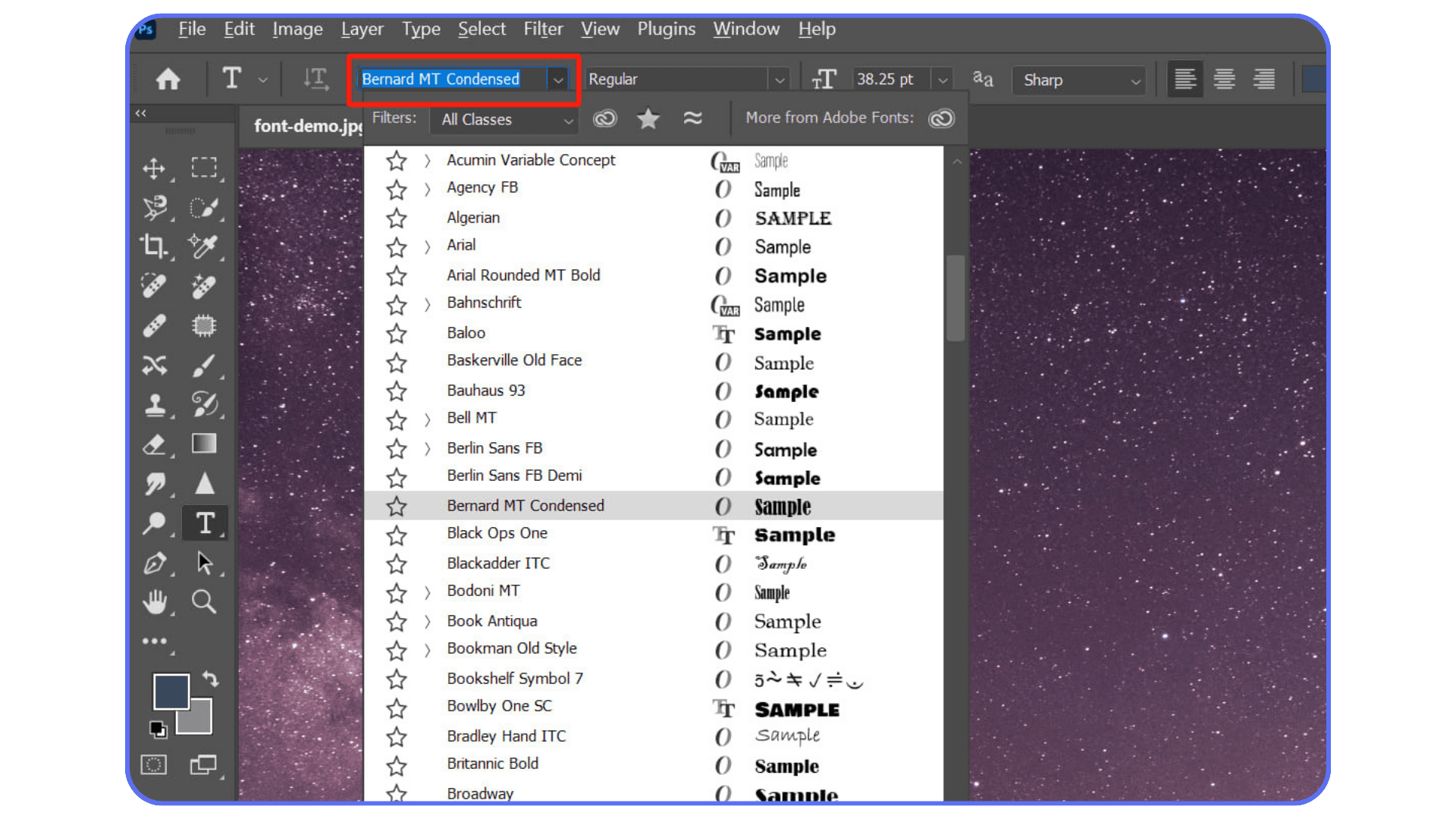
Adobe Fonts works a little differently, but the idea is the same. When you activate a font through Creative Cloud, it’s synced to your system in the background. Once the system sees it, Photoshop does too. No manual install, but still system-based.
One more thing that trips people up. Fonts are tied to machines, not files. If you open a PSD on another computer that doesn’t have the same font installed, Photoshop substitutes it. That’s why text suddenly looks off even though “nothing changed.”
Once you accept that Photoshop is basically a guest in your operating system’s font house, a lot of weird behavior starts making sense.
Font File Types You’ll Run Into
Most font problems start before Photoshop ever enters the picture. Right at the file level.
The two formats you’ll see almost everywhere are OTF and TTF. OpenType and TrueType. Both work in Photoshop. Both are safe. If you’re choosing between them and everything else is equal, I usually go with OTF. In my experience, they handle advanced typography a bit better. Ligatures, alternates, that sort of thing. Not a dealbreaker, just nicer when available.
Then there are the files you should be suspicious of.
If you come across old Type 1 or PostScript fonts, that’s trouble. Modern versions of Photoshop don’t support them anymore. You can install them, sure, but Photoshop will pretend they don’t exist. This catches people off guard when they’re opening legacy brand files or digging through ancient font folders.
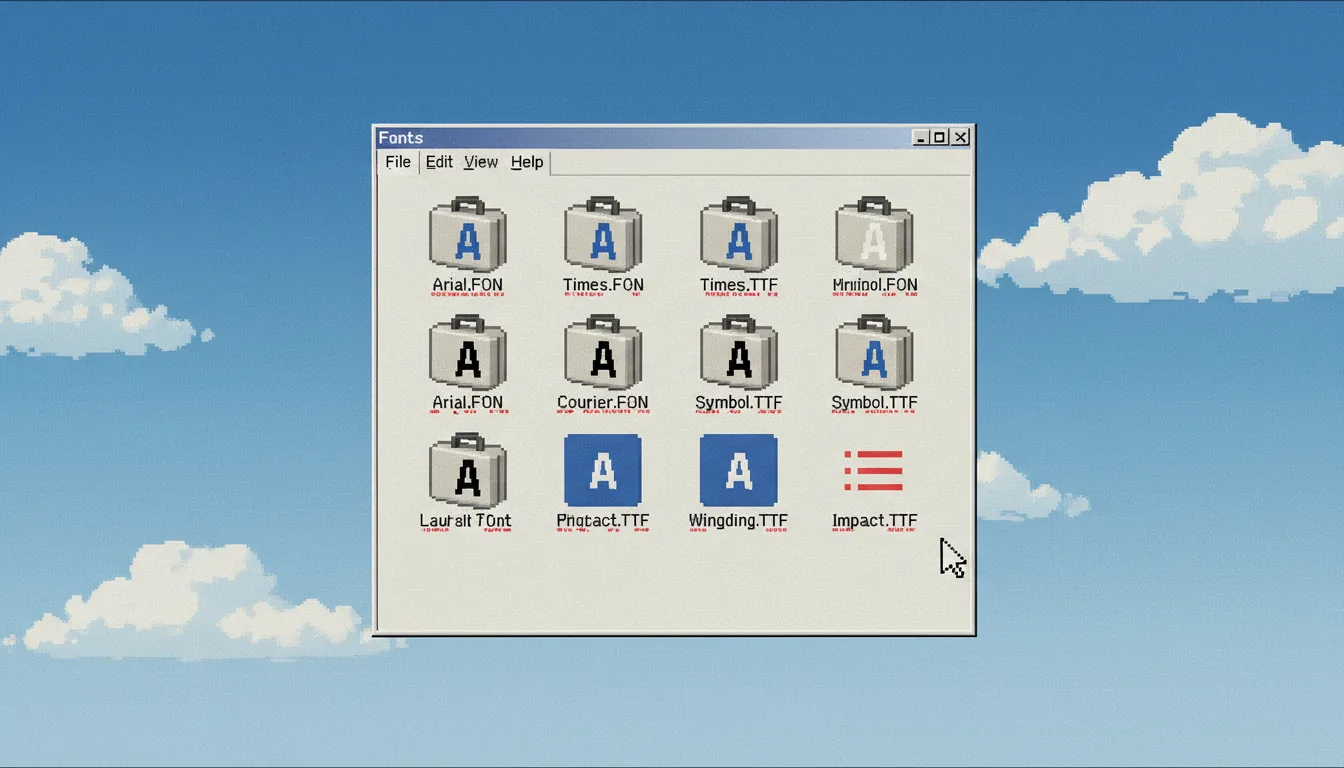
Another quiet issue is corrupted or incomplete font files. Free font sites are notorious for this. The font installs, shows up in the system, but behaves oddly in Photoshop. Missing weights. Broken characters. Random crashes when you select it. If a font feels cursed, it probably is.
Licensing matters too. Some fonts install fine but restrict embedding or commercial use. Photoshop won’t warn you about that. You only find out later, usually at the worst possible moment.
Quick rule of thumb:
OTF or TTF from a reputable source? You’re good.
Old formats or sketchy downloads? Expect friction.
If Photoshop can’t read the font file cleanly, no amount of reinstalling will fix it. You’re better off replacing the font entirely and moving on.
How to Add Fonts to Photoshop on Windows
On Windows, adding fonts is simple. But simple doesn’t mean foolproof.
First, download the font file. It’ll usually come as a ZIP. Right-click and extract it. Inside, you’re looking for .otf or .ttf files. Ignore anything else for now.
The fastest way to install is to right-click the font file and choose Install. That’s it. Windows registers the font system-wide, and Photoshop can see it the next time it launches.
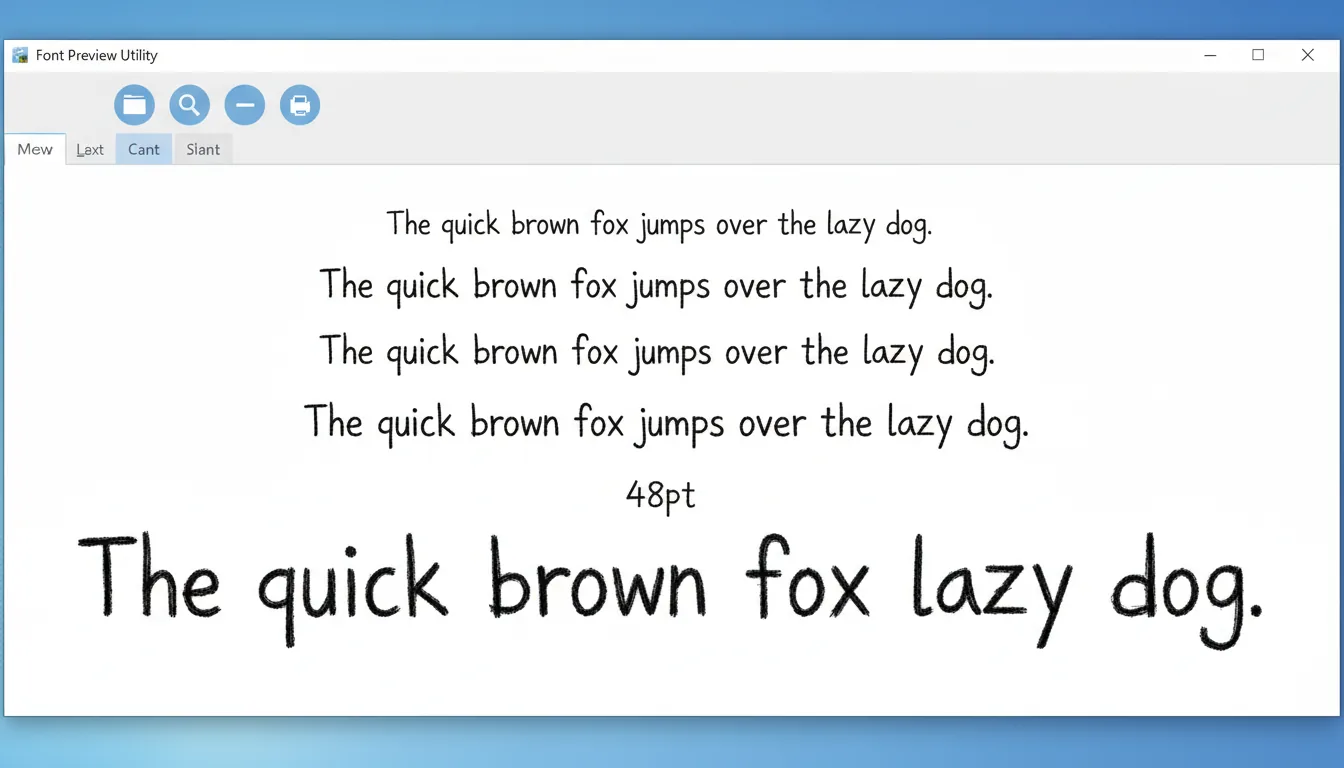
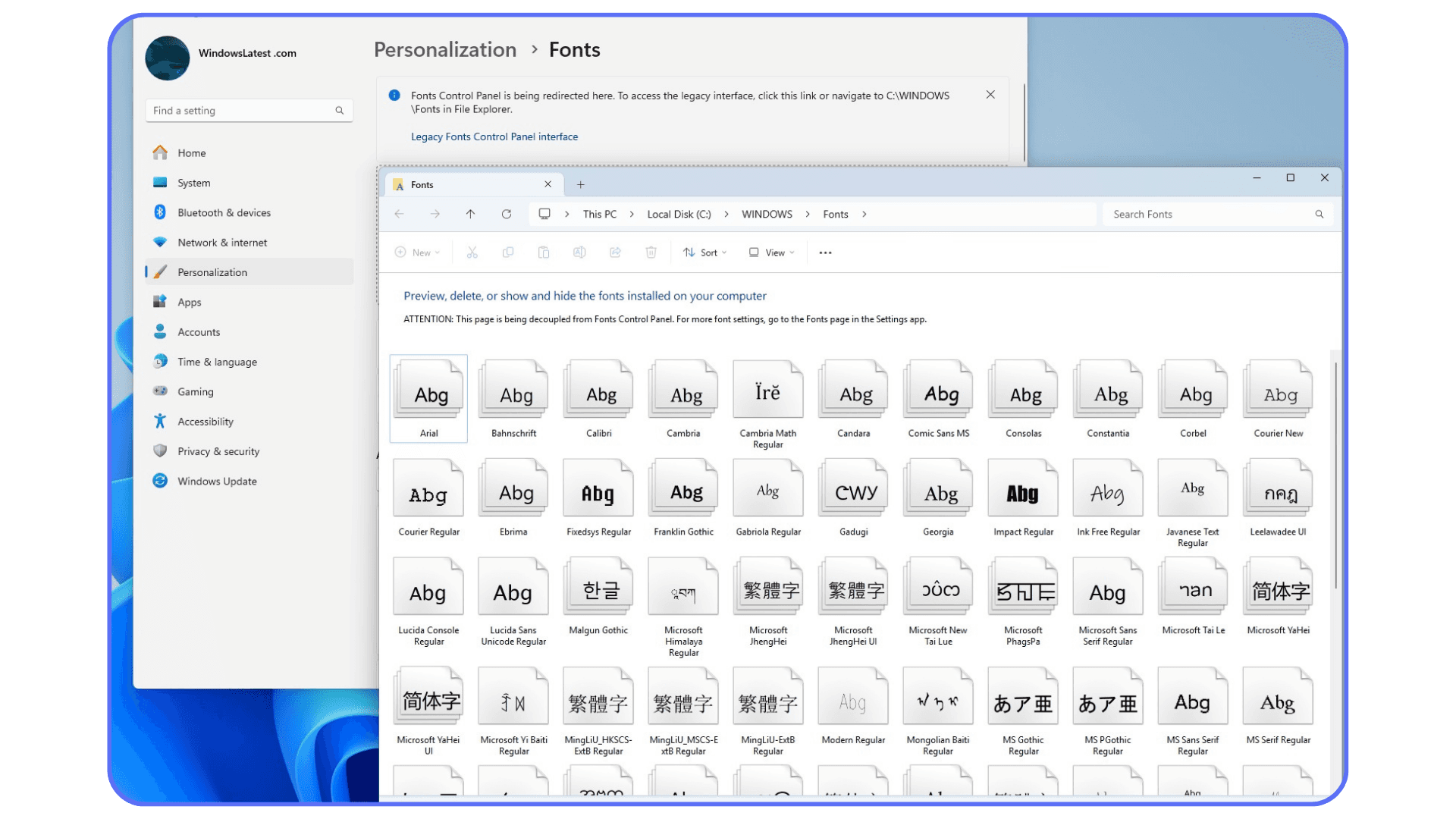
There’s another method that works just as well. Open Settings → Personalization → Fonts, then drag the font file into that window. Windows copies it to the system fonts folder and registers it properly. Same result, different path.
Two things trip people up here.
One, installing fonts while Photoshop is open. Photoshop won’t refresh automatically. Close it. Reopen it. The font shows up. I promise.
Two, permissions. If you’re on a work machine or using a restricted account, the font may install only for your user profile. That usually still works, but it can cause issues with shared setups or remote sessions.
If you want to double-check, open the Fonts panel in Windows and search for the font name. If it’s there, Photoshop isn’t the problem.
Once Windows sees the font, Photoshop follows along. Always.
How to Add Fonts to Photoshop on macOS
macOS handles fonts a little more politely than Windows. When it works. When it doesn’t, it’s quietly infuriating.
Download the font, unzip it, and double-click the .otf or .ttf file. Font Book opens automatically. Click Install Font. That’s the whole process.
By default, macOS installs fonts either for the current user or system-wide. For most Photoshop work, either option is fine. But if you collaborate, share machines, or use remote setups, system fonts are safer. Fewer surprises.
If the font doesn’t show up in Photoshop, check two things.
First, make sure Photoshop was closed when you installed it. Same rule as Windows. Restart fixes most issues.
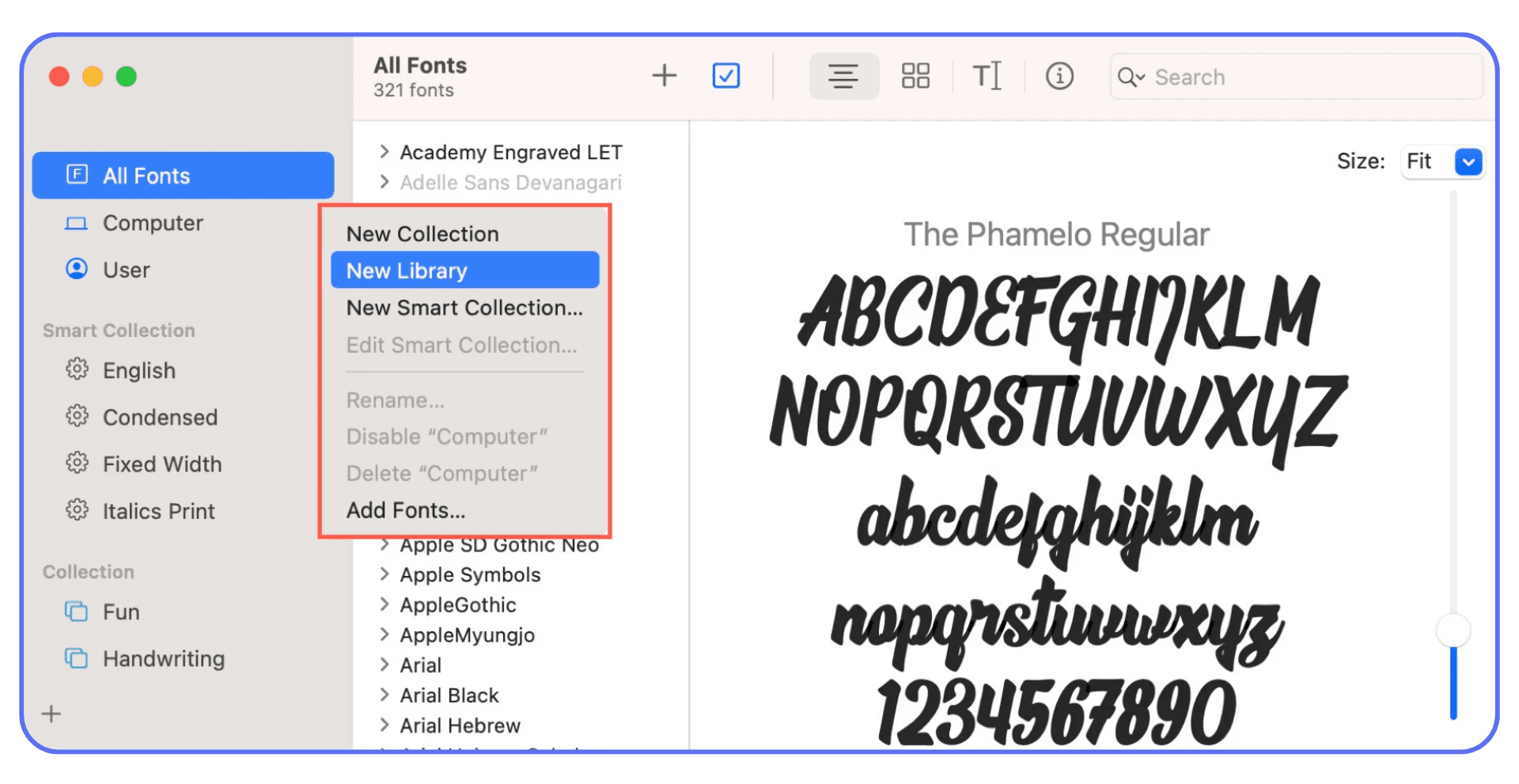
Second, open Font Book and search for the font. If it’s marked with a warning icon, the file may be corrupt or duplicated. Font Book will even tell you. Resolve the conflict or remove the bad version. Photoshop hates duplicates.
One thing I’ve noticed on macOS: installing massive font libraries at once is a bad idea. Hundreds of fonts can slow down Photoshop’s font menu and increase the chance of conflicts. Install what you actually need. Future you will be grateful.
If Font Book sees the font and it looks clean, Photoshop will too. If not, no amount of refreshing inside Photoshop will help. The fix always starts at the system level.
Font issues are only one piece of the stability puzzle. If Photoshop feels unreliable in general, there are other factors that can cause trouble. We’ve covered the most frequent ones in our breakdown of common Photoshop crash reasons.
Using Adobe Fonts Inside Photoshop
Adobe Fonts is the low-effort option. Sometimes that’s exactly what you want.
If you’re signed into Creative Cloud, you already have access to thousands of fonts. No downloads. No ZIP files. No manual installs. You just open the Fonts panel, activate what you need, and Photoshop takes care of the rest.
Behind the scenes, Adobe Fonts still installs the font at the system level. You just don’t see the process. Once it’s activated, it behaves like any other installed font. Close Photoshop, reopen it, and it’s there. Simple.
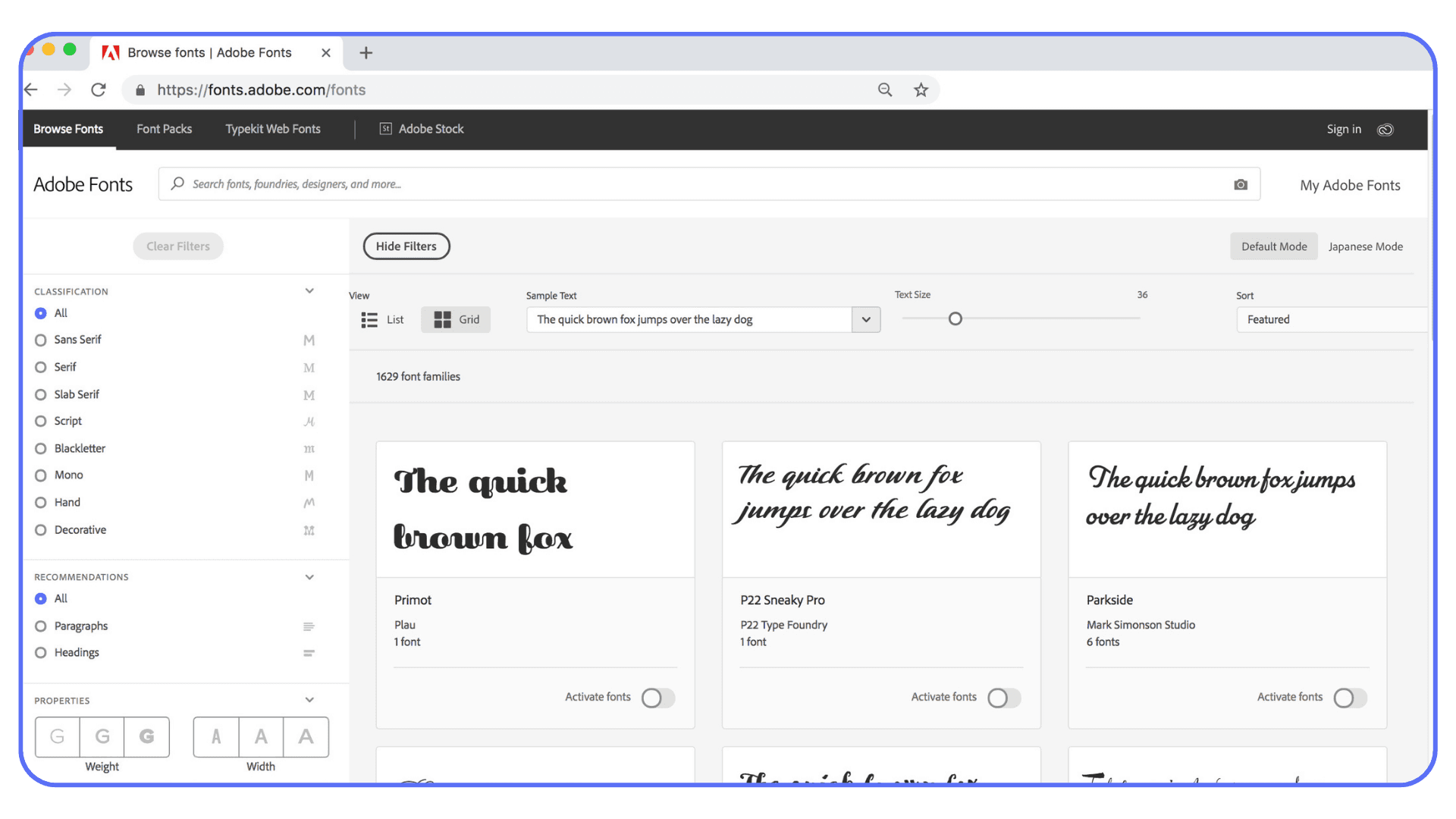
Where Adobe Fonts really shines is consistency. If you’re logged into the same Creative Cloud account on multiple machines, the fonts sync automatically. Open a PSD on another device and the typography stays intact. That alone saves hours over the course of a project.
There are limits, though.
You can’t export Adobe Fonts for use outside the Adobe ecosystem. If a project needs to move into another app or be handed off to someone without Creative Cloud, you’ll need a licensed font instead. And if Adobe ever removes a font from the library, you’ll need a backup plan.
I use Adobe Fonts when speed matters or when I’m collaborating heavily inside Adobe apps. For long-term brand work or client deliverables, I still prefer owning the font files outright. Different tools for different jobs.
This becomes even more noticeable if you work across devices. For example, typography behaves a bit differently when you’re switching between desktop and mobile workflows, especially if you’re using Photoshop on iPad.
Problems That Make Fonts Disappear
This is the section people usually wish they’d read first.
If a font is installed but not showing up in Photoshop, the most common cause is timing. You installed it while Photoshop was open. Close the app. Reopen it. Done.
If that doesn’t work, check for duplicates. Having multiple versions of the same font installed is a silent killer. macOS is especially sensitive to this. Font Book will flag conflicts. On Windows, the Fonts panel will show duplicates with slightly different names. Remove all but one.
Corrupt fonts are another headache. Free fonts are the usual suspects. The font installs, appears in the list, but selecting it causes Photoshop to freeze, substitute another font, or render missing characters. At that point, troubleshooting isn’t worth it. Delete the font and move on.
Then there’s licensing. Some fonts restrict embedding or commercial use. Photoshop won’t warn you. Everything looks fine until a printer rejects the file or a client asks for editable assets. Always check the license, especially for client work.
One more thing people overlook: system trust. If your operating system doesn’t fully validate the font, Photoshop won’t use it reliably. Reinstalling the font from a clean source often fixes this.
When fonts disappear, it’s rarely random. There’s almost always a clear cause. Once you know the usual suspects, fixing the problem takes minutes instead of hours.
If Photoshop starts freezing or crashing when you select certain fonts, it’s not always the font itself. Hardware limitations can play a role too, especially in heavier projects. We’ve broken this down in more detail in our guide on choosing the best GPU for Photoshop.
Using Vagon Cloud Computer for a Consistent Photoshop Setup
Up to this point, everything we’ve talked about assumes one thing. That Photoshop lives on your local machine.
And that’s where font issues start multiplying.
Fonts are tied to systems, not files. So the moment you switch devices, collaborate with someone else, or juggle multiple environments, things get fragile. One machine has the font. Another doesn’t. Someone opens the PSD and Photoshop substitutes it. Suddenly spacing shifts, layouts break, and nobody’s sure why.
This is where a cloud-based setup like Vagon Cloud Computer makes a real difference.
Instead of installing fonts on every device you touch, you install them once on your cloud computer. Photoshop runs there. The fonts live there. Your plugins, settings, and preferences live there too. You’re not syncing environments. You’re accessing the same one every time.
Here’s what that looks like in practice.
You generate images with AI, bring them into Photoshop, experiment with typography, save the PSD, then open it again later from a different laptop. Or you share access with a teammate. Or you jump between home and office. The fonts don’t disappear because nothing changed underneath. Same system. Same setup.
This becomes especially useful with heavier projects. Large PSD files, multiple font families, experimental type work. Your local machine doesn’t need to be powerful enough to handle it all. It just needs a browser.
It’s not about replacing Photoshop or changing how you design. It’s about removing the environment-related friction that fonts love to cause.
One underrated benefit of running Photoshop in the cloud is that your local hardware matters far less. Even if your laptop doesn’t have a dedicated graphics card, it’s still possible to run Photoshop smoothly without a GPU when the heavy lifting happens elsewhere.
Final Thoughts
Adding fonts to Photoshop isn’t complicated. But workflows are.
Most font problems aren’t user error. They’re side effects of how Photoshop relies on the system it’s running on. Once you understand that relationship, the mystery disappears and the fixes get obvious.
And as projects get more complex, especially with AI-generated assets and remote collaboration, the setup you work in matters more than ever. A consistent environment saves time, prevents mistakes, and keeps creative momentum intact.
Less troubleshooting. More designing. That’s the goal.
FAQs
1. Why doesn’t my font show up in Photoshop after I install it?
Most of the time, Photoshop was already open when you installed the font. Photoshop only checks available fonts when it launches. Close it. Reopen it. That fixes the issue more often than people want to admit. If that doesn’t work, confirm the font is actually installed at the system level, not just previewed. Double-clicking a font file and seeing a sample doesn’t always mean it’s installed.
2. Do I need to restart my computer after installing fonts?
Almost never. Restarting Photoshop is enough in 99 percent of cases. A full system restart is only necessary if your OS is acting strange or the font manager didn’t register the font correctly.
3. Why does my font work on one computer but not another?
Because fonts are machine-specific. A PSD file doesn’t carry font files with it. If the second computer doesn’t have the font installed or activated through Adobe Fonts, Photoshop substitutes it. Same file. Different environment.
4. What’s better: OTF or TTF?
Both work fine in Photoshop. If you have the choice, OTF is usually better. It tends to support more advanced typographic features like ligatures and alternates. Not mandatory, but nice to have.
5. Can I add fonts directly inside Photoshop?
Not manually. Photoshop doesn’t import font files. The only exception is Adobe Fonts, which installs fonts through Creative Cloud behind the scenes. Otherwise, fonts must be installed through your operating system.
6. Why does Photoshop crash or lag when I select a specific font?
That’s almost always a bad font file. Corrupt downloads and poorly made free fonts are common causes. If selecting a font causes weird behavior, remove it immediately and replace it with a clean version.
7. Are free fonts safe to use for client work?
Sometimes. Sometimes not. “Free” doesn’t always mean free for commercial use. Always check the license. Photoshop won’t warn you, and clients won’t care why the font caused a problem later.
8. Why does Adobe Fonts feel easier than installing fonts manually?
Because Adobe Fonts handles installation and syncing automatically. You don’t touch the files. The trade-off is flexibility. You can’t export Adobe Fonts for non-Adobe tools, and you don’t actually own the font files.
9. What’s the fastest way to avoid font problems altogether?
Install fonts properly. Avoid duplicates. Use reputable sources. Restart Photoshop when needed. And if you’re constantly switching devices or collaborating, work in a consistent environment instead of rebuilding it over and over.
Ever download a font, install it, open Photoshop… and it’s nowhere to be found?
That moment hits fast. You scroll the font list again. And again. At this point, most people assume Photoshop is glitching or lagging. It isn’t.
This happens more often than you’d think, even if you’ve been using Photoshop for years. Fonts feel simple, but Photoshop doesn’t manage them directly. It only sees fonts your system has fully installed or fonts activated through Adobe Fonts. If it’s not registered at the system level, Photoshop ignores it.
So when a font “disappears,” it’s usually not a bug. It’s a mismatch between what you think is installed and what your computer actually recognizes.
The fix is straightforward once you know where to look.
How Photoshop Actually Finds Fonts
This is the part most people skip. And it’s usually why they get stuck.
Photoshop doesn’t have its own font library. It doesn’t import fonts. It doesn’t scan folders. It simply asks the operating system, “What fonts are available right now?” and uses that list. That’s it.
Which means two things.
First, if a font isn’t installed at the system level, Photoshop will never see it. Previewing a font file doesn’t count. Dragging it into a random folder doesn’t count either. The font has to be properly installed so your OS trusts it.
Second, Photoshop only checks that font list when it launches. Install a font while Photoshop is already open? It won’t show up until you restart the app. I’ve seen people reinstall the same font three times before realizing Photoshop just needed a refresh.
Adobe Fonts works a little differently, but the idea is the same. When you activate a font through Creative Cloud, it’s synced to your system in the background. Once the system sees it, Photoshop does too. No manual install, but still system-based.
One more thing that trips people up. Fonts are tied to machines, not files. If you open a PSD on another computer that doesn’t have the same font installed, Photoshop substitutes it. That’s why text suddenly looks off even though “nothing changed.”
Once you accept that Photoshop is basically a guest in your operating system’s font house, a lot of weird behavior starts making sense.
Font File Types You’ll Run Into
Most font problems start before Photoshop ever enters the picture. Right at the file level.
The two formats you’ll see almost everywhere are OTF and TTF. OpenType and TrueType. Both work in Photoshop. Both are safe. If you’re choosing between them and everything else is equal, I usually go with OTF. In my experience, they handle advanced typography a bit better. Ligatures, alternates, that sort of thing. Not a dealbreaker, just nicer when available.
Then there are the files you should be suspicious of.
If you come across old Type 1 or PostScript fonts, that’s trouble. Modern versions of Photoshop don’t support them anymore. You can install them, sure, but Photoshop will pretend they don’t exist. This catches people off guard when they’re opening legacy brand files or digging through ancient font folders.
Another quiet issue is corrupted or incomplete font files. Free font sites are notorious for this. The font installs, shows up in the system, but behaves oddly in Photoshop. Missing weights. Broken characters. Random crashes when you select it. If a font feels cursed, it probably is.
Licensing matters too. Some fonts install fine but restrict embedding or commercial use. Photoshop won’t warn you about that. You only find out later, usually at the worst possible moment.
Quick rule of thumb:
OTF or TTF from a reputable source? You’re good.
Old formats or sketchy downloads? Expect friction.
If Photoshop can’t read the font file cleanly, no amount of reinstalling will fix it. You’re better off replacing the font entirely and moving on.
How to Add Fonts to Photoshop on Windows
On Windows, adding fonts is simple. But simple doesn’t mean foolproof.
First, download the font file. It’ll usually come as a ZIP. Right-click and extract it. Inside, you’re looking for .otf or .ttf files. Ignore anything else for now.
The fastest way to install is to right-click the font file and choose Install. That’s it. Windows registers the font system-wide, and Photoshop can see it the next time it launches.
There’s another method that works just as well. Open Settings → Personalization → Fonts, then drag the font file into that window. Windows copies it to the system fonts folder and registers it properly. Same result, different path.
Two things trip people up here.
One, installing fonts while Photoshop is open. Photoshop won’t refresh automatically. Close it. Reopen it. The font shows up. I promise.
Two, permissions. If you’re on a work machine or using a restricted account, the font may install only for your user profile. That usually still works, but it can cause issues with shared setups or remote sessions.
If you want to double-check, open the Fonts panel in Windows and search for the font name. If it’s there, Photoshop isn’t the problem.
Once Windows sees the font, Photoshop follows along. Always.
How to Add Fonts to Photoshop on macOS
macOS handles fonts a little more politely than Windows. When it works. When it doesn’t, it’s quietly infuriating.
Download the font, unzip it, and double-click the .otf or .ttf file. Font Book opens automatically. Click Install Font. That’s the whole process.
By default, macOS installs fonts either for the current user or system-wide. For most Photoshop work, either option is fine. But if you collaborate, share machines, or use remote setups, system fonts are safer. Fewer surprises.
If the font doesn’t show up in Photoshop, check two things.
First, make sure Photoshop was closed when you installed it. Same rule as Windows. Restart fixes most issues.
Second, open Font Book and search for the font. If it’s marked with a warning icon, the file may be corrupt or duplicated. Font Book will even tell you. Resolve the conflict or remove the bad version. Photoshop hates duplicates.
One thing I’ve noticed on macOS: installing massive font libraries at once is a bad idea. Hundreds of fonts can slow down Photoshop’s font menu and increase the chance of conflicts. Install what you actually need. Future you will be grateful.
If Font Book sees the font and it looks clean, Photoshop will too. If not, no amount of refreshing inside Photoshop will help. The fix always starts at the system level.
Font issues are only one piece of the stability puzzle. If Photoshop feels unreliable in general, there are other factors that can cause trouble. We’ve covered the most frequent ones in our breakdown of common Photoshop crash reasons.
Using Adobe Fonts Inside Photoshop
Adobe Fonts is the low-effort option. Sometimes that’s exactly what you want.
If you’re signed into Creative Cloud, you already have access to thousands of fonts. No downloads. No ZIP files. No manual installs. You just open the Fonts panel, activate what you need, and Photoshop takes care of the rest.
Behind the scenes, Adobe Fonts still installs the font at the system level. You just don’t see the process. Once it’s activated, it behaves like any other installed font. Close Photoshop, reopen it, and it’s there. Simple.
Where Adobe Fonts really shines is consistency. If you’re logged into the same Creative Cloud account on multiple machines, the fonts sync automatically. Open a PSD on another device and the typography stays intact. That alone saves hours over the course of a project.
There are limits, though.
You can’t export Adobe Fonts for use outside the Adobe ecosystem. If a project needs to move into another app or be handed off to someone without Creative Cloud, you’ll need a licensed font instead. And if Adobe ever removes a font from the library, you’ll need a backup plan.
I use Adobe Fonts when speed matters or when I’m collaborating heavily inside Adobe apps. For long-term brand work or client deliverables, I still prefer owning the font files outright. Different tools for different jobs.
This becomes even more noticeable if you work across devices. For example, typography behaves a bit differently when you’re switching between desktop and mobile workflows, especially if you’re using Photoshop on iPad.
Problems That Make Fonts Disappear
This is the section people usually wish they’d read first.
If a font is installed but not showing up in Photoshop, the most common cause is timing. You installed it while Photoshop was open. Close the app. Reopen it. Done.
If that doesn’t work, check for duplicates. Having multiple versions of the same font installed is a silent killer. macOS is especially sensitive to this. Font Book will flag conflicts. On Windows, the Fonts panel will show duplicates with slightly different names. Remove all but one.
Corrupt fonts are another headache. Free fonts are the usual suspects. The font installs, appears in the list, but selecting it causes Photoshop to freeze, substitute another font, or render missing characters. At that point, troubleshooting isn’t worth it. Delete the font and move on.
Then there’s licensing. Some fonts restrict embedding or commercial use. Photoshop won’t warn you. Everything looks fine until a printer rejects the file or a client asks for editable assets. Always check the license, especially for client work.
One more thing people overlook: system trust. If your operating system doesn’t fully validate the font, Photoshop won’t use it reliably. Reinstalling the font from a clean source often fixes this.
When fonts disappear, it’s rarely random. There’s almost always a clear cause. Once you know the usual suspects, fixing the problem takes minutes instead of hours.
If Photoshop starts freezing or crashing when you select certain fonts, it’s not always the font itself. Hardware limitations can play a role too, especially in heavier projects. We’ve broken this down in more detail in our guide on choosing the best GPU for Photoshop.
Using Vagon Cloud Computer for a Consistent Photoshop Setup
Up to this point, everything we’ve talked about assumes one thing. That Photoshop lives on your local machine.
And that’s where font issues start multiplying.
Fonts are tied to systems, not files. So the moment you switch devices, collaborate with someone else, or juggle multiple environments, things get fragile. One machine has the font. Another doesn’t. Someone opens the PSD and Photoshop substitutes it. Suddenly spacing shifts, layouts break, and nobody’s sure why.
This is where a cloud-based setup like Vagon Cloud Computer makes a real difference.
Instead of installing fonts on every device you touch, you install them once on your cloud computer. Photoshop runs there. The fonts live there. Your plugins, settings, and preferences live there too. You’re not syncing environments. You’re accessing the same one every time.
Here’s what that looks like in practice.
You generate images with AI, bring them into Photoshop, experiment with typography, save the PSD, then open it again later from a different laptop. Or you share access with a teammate. Or you jump between home and office. The fonts don’t disappear because nothing changed underneath. Same system. Same setup.
This becomes especially useful with heavier projects. Large PSD files, multiple font families, experimental type work. Your local machine doesn’t need to be powerful enough to handle it all. It just needs a browser.
It’s not about replacing Photoshop or changing how you design. It’s about removing the environment-related friction that fonts love to cause.
One underrated benefit of running Photoshop in the cloud is that your local hardware matters far less. Even if your laptop doesn’t have a dedicated graphics card, it’s still possible to run Photoshop smoothly without a GPU when the heavy lifting happens elsewhere.
Final Thoughts
Adding fonts to Photoshop isn’t complicated. But workflows are.
Most font problems aren’t user error. They’re side effects of how Photoshop relies on the system it’s running on. Once you understand that relationship, the mystery disappears and the fixes get obvious.
And as projects get more complex, especially with AI-generated assets and remote collaboration, the setup you work in matters more than ever. A consistent environment saves time, prevents mistakes, and keeps creative momentum intact.
Less troubleshooting. More designing. That’s the goal.
FAQs
1. Why doesn’t my font show up in Photoshop after I install it?
Most of the time, Photoshop was already open when you installed the font. Photoshop only checks available fonts when it launches. Close it. Reopen it. That fixes the issue more often than people want to admit. If that doesn’t work, confirm the font is actually installed at the system level, not just previewed. Double-clicking a font file and seeing a sample doesn’t always mean it’s installed.
2. Do I need to restart my computer after installing fonts?
Almost never. Restarting Photoshop is enough in 99 percent of cases. A full system restart is only necessary if your OS is acting strange or the font manager didn’t register the font correctly.
3. Why does my font work on one computer but not another?
Because fonts are machine-specific. A PSD file doesn’t carry font files with it. If the second computer doesn’t have the font installed or activated through Adobe Fonts, Photoshop substitutes it. Same file. Different environment.
4. What’s better: OTF or TTF?
Both work fine in Photoshop. If you have the choice, OTF is usually better. It tends to support more advanced typographic features like ligatures and alternates. Not mandatory, but nice to have.
5. Can I add fonts directly inside Photoshop?
Not manually. Photoshop doesn’t import font files. The only exception is Adobe Fonts, which installs fonts through Creative Cloud behind the scenes. Otherwise, fonts must be installed through your operating system.
6. Why does Photoshop crash or lag when I select a specific font?
That’s almost always a bad font file. Corrupt downloads and poorly made free fonts are common causes. If selecting a font causes weird behavior, remove it immediately and replace it with a clean version.
7. Are free fonts safe to use for client work?
Sometimes. Sometimes not. “Free” doesn’t always mean free for commercial use. Always check the license. Photoshop won’t warn you, and clients won’t care why the font caused a problem later.
8. Why does Adobe Fonts feel easier than installing fonts manually?
Because Adobe Fonts handles installation and syncing automatically. You don’t touch the files. The trade-off is flexibility. You can’t export Adobe Fonts for non-Adobe tools, and you don’t actually own the font files.
9. What’s the fastest way to avoid font problems altogether?
Install fonts properly. Avoid duplicates. Use reputable sources. Restart Photoshop when needed. And if you’re constantly switching devices or collaborating, work in a consistent environment instead of rebuilding it over and over.
Get Beyond Your Computer Performance
Run applications on your cloud computer with the latest generation hardware. No more crashes or lags.

Trial includes 1 hour usage + 7 days of storage.
Summarize with AI

Ready to focus on your creativity?
Vagon gives you the ability to create & render projects, collaborate, and stream applications with the power of the best hardware.

Run heavy applications on any device with
your personal computer on the cloud.
San Francisco, California
Solutions
Vagon Teams
Vagon Streams
Use Cases
© 2026 Vagon. All rights reserved.
Run heavy applications on any device with
your personal computer on the cloud.
San Francisco, California
Solutions
Vagon Teams
Vagon Streams
Use Cases
© 2026 Vagon. All rights reserved.
Run heavy applications on any device with
your personal computer on the cloud.
San Francisco, California
Solutions
Vagon Teams
Vagon Streams
Use Cases
© 2026 Vagon. All rights reserved.