Instant Connection for Pixel Streaming
— New Feature Automated Setup
How to Fix “Scratch Disks Are Full” in Photoshop
DigitalArt
How to Fix “Scratch Disks Are Full” in Photoshop
DigitalArt
How to Fix “Scratch Disks Are Full” in Photoshop
DigitalArt
Table of Contents
I was in the middle of a huge composite, about 120 layers, a couple of masked groups, and a handful of “let’s hope this works” adjustments. The kind of photoshop image editing session where your laptop starts sounding like it’s preparing for takeoff. And right as I hit a simple Transform, everything froze. Not a gentle pause, a full, silent, screen-locked “you messed up” moment.
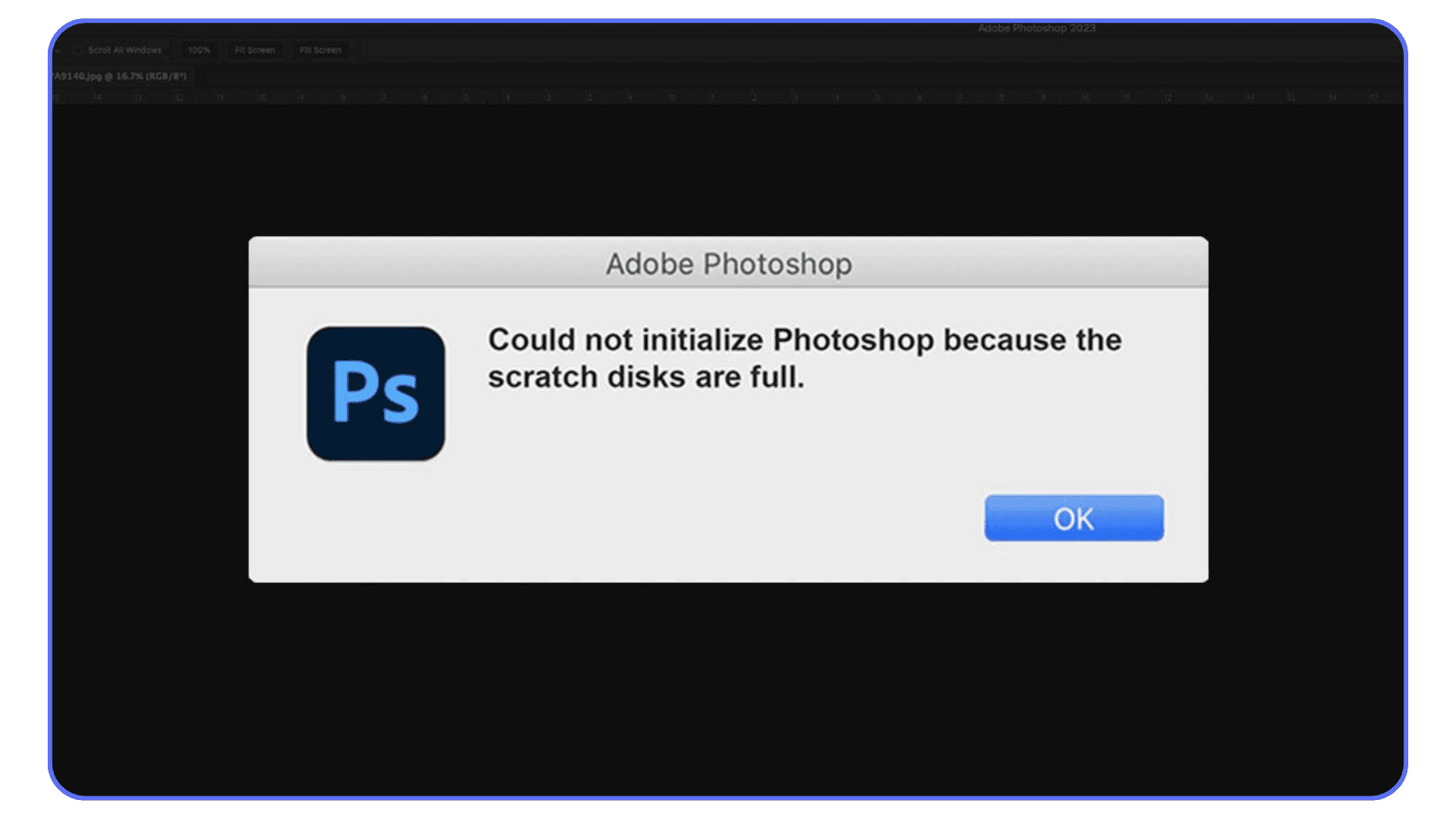
Then it popped up. That tiny grey message every Photoshop user meets eventually: “Scratch Disks Are Full.” I swear Photoshop waited until the exact second I hadn’t saved for 20 minutes just to make it hurt more.
And here’s the thing, this one doesn’t care who you are. Beginners, pros, people who use Photoshop remove background all day, even folks doing light touch-ups… everyone gets hit at some point.
So if Photoshop has ever yelled at you about scratch disks, welcome. You’re in very good company. And the good news? This mess is completely fixable.
What a Scratch Disk Actually Is
Photoshop has a habit of acting like it has unlimited appetite, and the scratch disk is basically its backup stomach. When your RAM fills up, which happens fast during heavy work, even simple stuff like running photo editor Photoshop tools or stacking a ton of adjustment layers, Photoshop starts using your drive as temporary memory. That drive space is the “scratch disk.”
It stores all the messy behind-the-scenes data: history states, previews, clipboard content, cached layers, temporary files, everything. If you’ve ever wondered why a single 250 MB file somehow balloons into gigabytes of activity, this is why. Photoshop writes a ridiculous amount of temporary info while working, especially during things like large brushes, content-aware edits, and AI-assisted features.
Here’s the part many people miss: the scratch disk fills up way faster than you expect. Even a simple photoshop remove background on a huge RAW can generate hundreds of megabytes in temp files. Multiply that by multiple layers, masks, smart objects… and suddenly your system drive is gasping for space.
When the scratch disk runs out of room, Photoshop doesn’t negotiate or warn gently. It just throws the error, freezes, or refuses to launch. So understanding what the scratch disk does, and why it fills, is the first step to fixing the problem permanently.
Why the “Scratch Disk Full” Error Happens
This error looks dramatic, but the reasons behind it are usually pretty simple, and annoyingly common. The biggest one? Not enough free space. Photoshop eats storage like it’s a hobby, and if your drive drops below 20–50 GB of free space, the scratch disk starts suffocating.
Another typical culprit is using the same drive for everything: your OS, your apps, your giant downloads, and of course Photoshop itself. When your system drive is doing all the heavy lifting, even basic photoshop image editing tasks can choke it. If you’ve stuffed your main drive with big project folders, Lightroom catalogs, or huge photoshop lightroom presets, you’re basically asking for trouble.
Photoshop temp files also pile up like dust bunnies under a bed. If the app crashes or you force quit during a heavy operation, it leaves behind gigabytes of leftovers. These files don’t delete themselves, they sit hidden in your temp directories and quietly fill the scratch disk.
Document size is another silent killer. One wrong setting, like creating a canvas in inches instead of pixels, can create a monster file that ballooned way past what your drive can handle. Same goes for overly high resolution or massive panoramas.
Then there’s Photoshop’s own settings. Too many history states, too many cache levels, autosave firing every few minutes, all of these multiply the amount of temporary data Photoshop produces. And sometimes, corrupted preferences just make everything worse.
Whether you’re using Photoshop locally, experimenting with online Photoshop tools, or juggling multiple apps, the scratch disk error always boils down to the same thing: Photoshop needs space, and your machine doesn’t give it enough room to breathe.
If Photoshop still crashes or behaves strangely after fixing your scratch disk, here’s a look at the common crash reasons for Photoshop and how to deal with them.
#1. Free Up Space on Your Scratch Disk
The fastest way to stop the scratch disk meltdown is to give Photoshop some breathing room. It sounds obvious, I know, but freeing space works more often than any other fix, and it’s the one pros end up doing right before deadlines hit.
First thing: check how much free space you actually have. Most people think they have “plenty,” then open their drive and realize they’ve been surviving on 8 GB without noticing. Photoshop hates that. Realistically, you want at least 50 GB free, especially if you’re working on big composites or bouncing between photo editing software Photoshop and Lightroom.
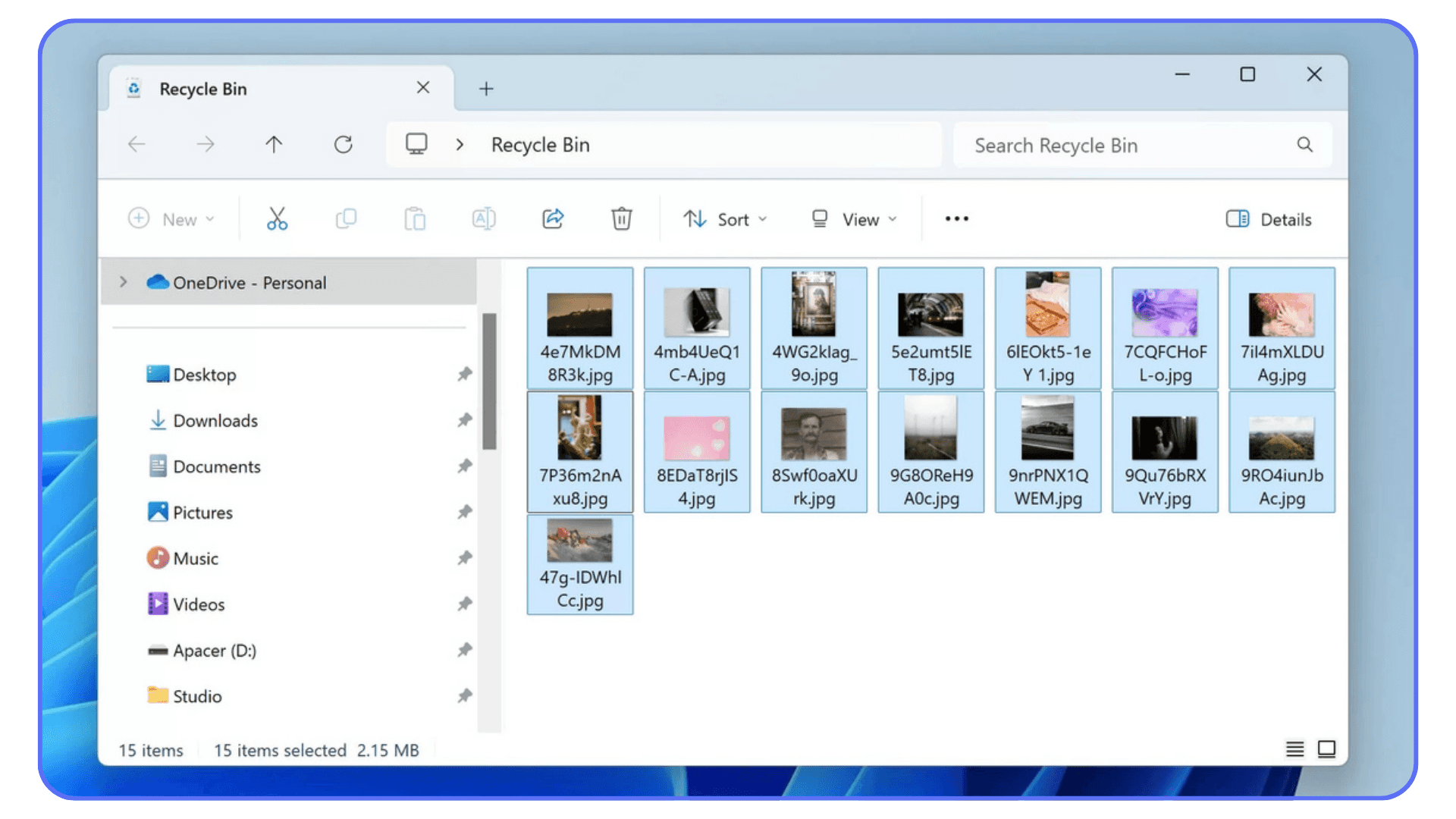
Start with the easy stuff: delete old exports, move large video files or RAW folders off your OS drive, empty your recycle bin or trash. If you haven’t cleaned your Downloads folder since 2018, now’s the time.
Then, clear out your temp files. Photoshop leaves a surprising amount of leftovers, especially after crashes or forced quits. On Windows, look inside the temp folder (%temp%) and sort by size. Anything named like Photoshop Temp#### is safe to delete. On Mac, check your hidden /private/var/tmp and user-level cache folders. Some people find 10, 20, even 40 GB sitting there doing nothing but blocking Photoshop.
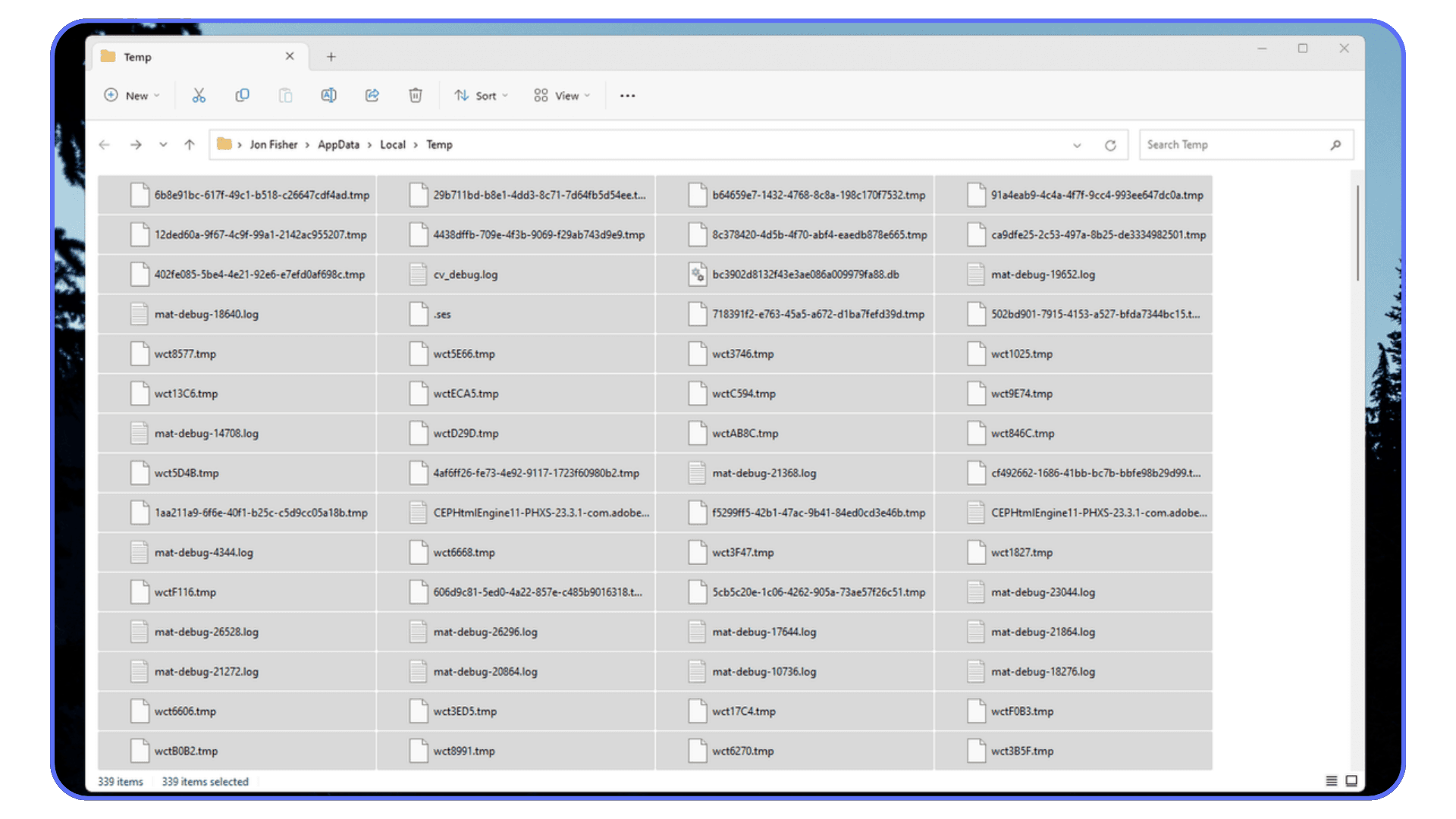
If you’ve been experimenting with photoshop lightroom presets or stacking huge RAW edits, those previews and cached files can add up too. Clearing Lightroom’s cache can indirectly free up room for Photoshop’s scratch needs.
The goal here isn’t to Marie Kondo your life, just open enough space for Photoshop to operate without panicking. Think of it like clearing your desk before you start a big project. The cleaner the space, the less chaos you’re going to deal with.
#2. Change or Add a Dedicated Scratch Disk
Freeing space helps, but if your main drive is constantly crowded, the smarter move is to point Photoshop to a different disk altogether. Photoshop lets you pick where it stores its scratch data, and choosing the right drive can instantly stop 90% of these errors.
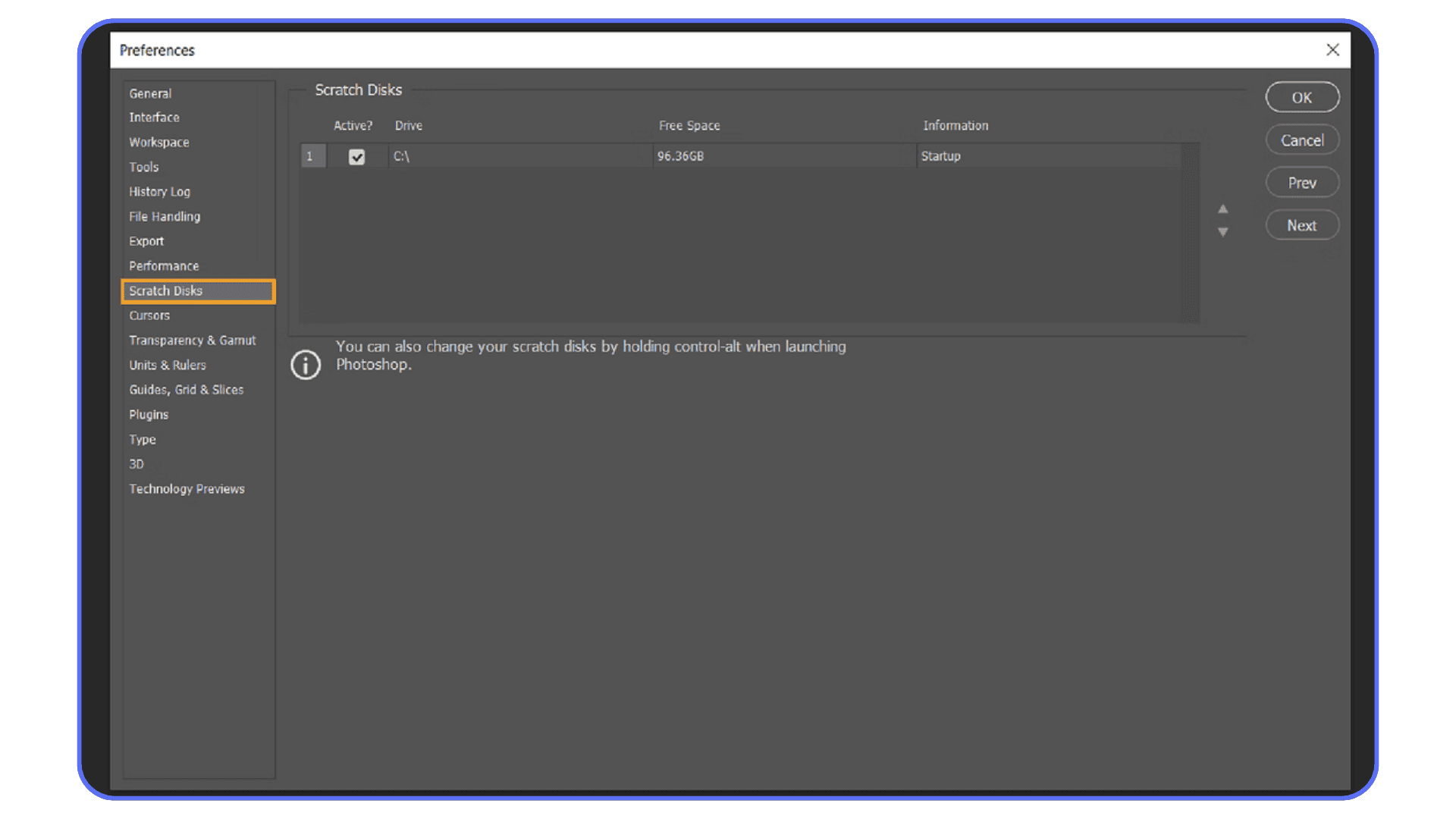
Open Photoshop, go to Preferences → Performance → Scratch Disks, and you’ll see a list of available drives. If you want the quick way, launch Photoshop while holding Ctrl + Alt (Windows) or Cmd + Option (Mac), it takes you straight to the scratch disk selection window.
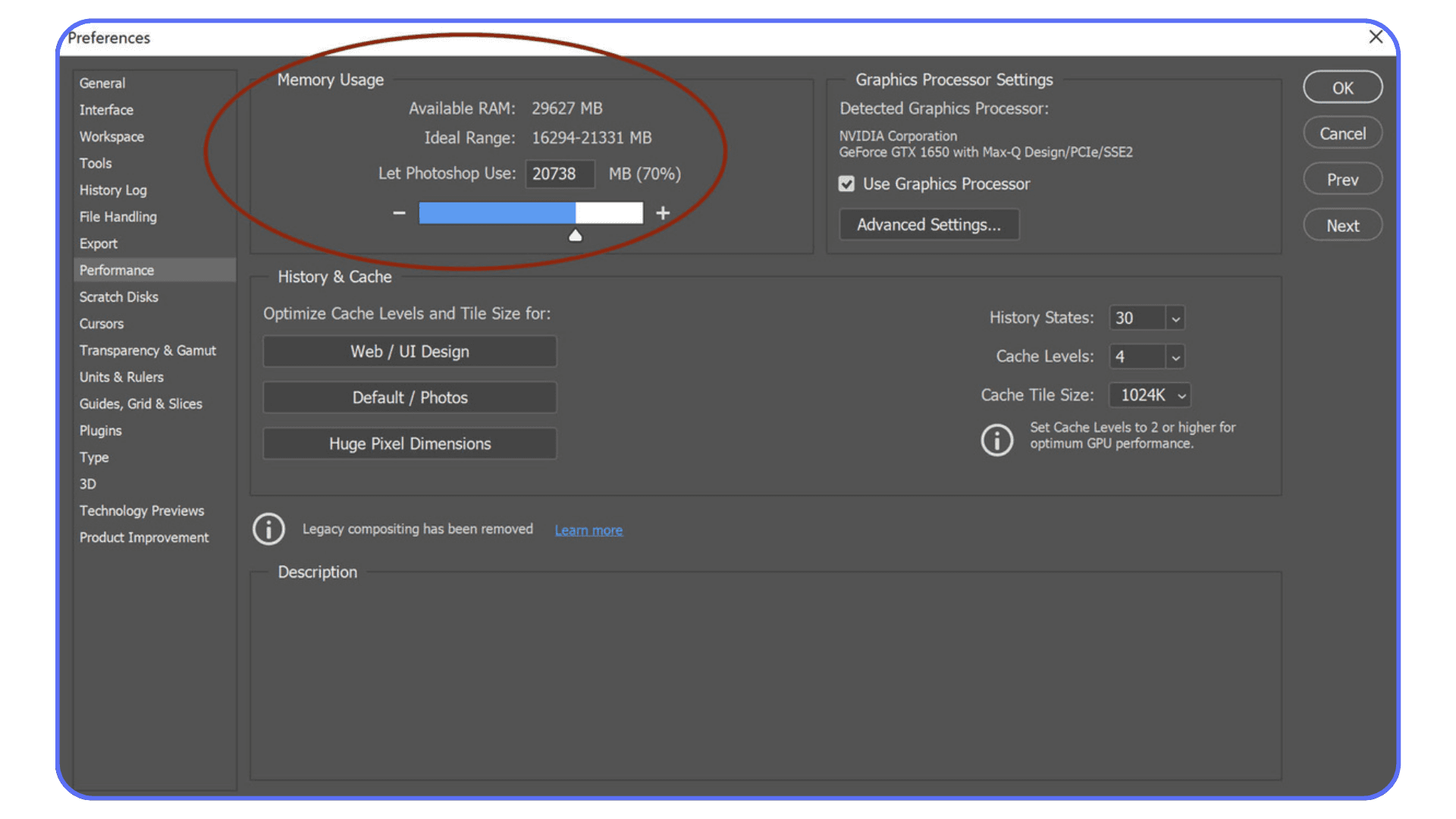
If you have multiple drives, pick the one with the most free space and, ideally, the fastest read/write speed. An SSD is perfect. An HDD works, but you’ll feel the slowdown, especially during heavy photoshop image editing or when stacking layers. External drives are an option too, but only if they’re fast and connected through USB-C or Thunderbolt; otherwise, Photoshop will feel like it’s editing through a straw.
What I’ve found works best is dedicating a drive purely for scratch, no apps, no downloads, no random project folders. It doesn’t have to be massive; even a 256 GB SSD can make your workflow feel brand new. If you’re someone who jumps between photo editor Photoshop tasks, huge composites, or AI features, having a dedicated scratch disk is one of those upgrades that pays off immediately.
Once you switch drives, restart Photoshop and give it a quick test. You’ll know right away if the new setup fixed your problem, the app stops wheezing and starts behaving like it should’ve all along.
#3. Reduce Photoshop’s Disk / Memory Usage
Even with plenty of free space, Photoshop can still act like it’s starving. A lot of that comes down to its internal settings. Photoshop loves keeping history states, previews, caches, clipboard data, basically everything you touch, and all of that eats scratch disk space fast.
Start with History States. Most people never change the default, which is usually 50. That means Photoshop is storing 50 versions of your document at once. Unless you’re time-traveling through every brush stroke, you don’t need that many. Drop it down to 20 or even 10. You’ll barely notice the difference, but your scratch disk absolutely will.
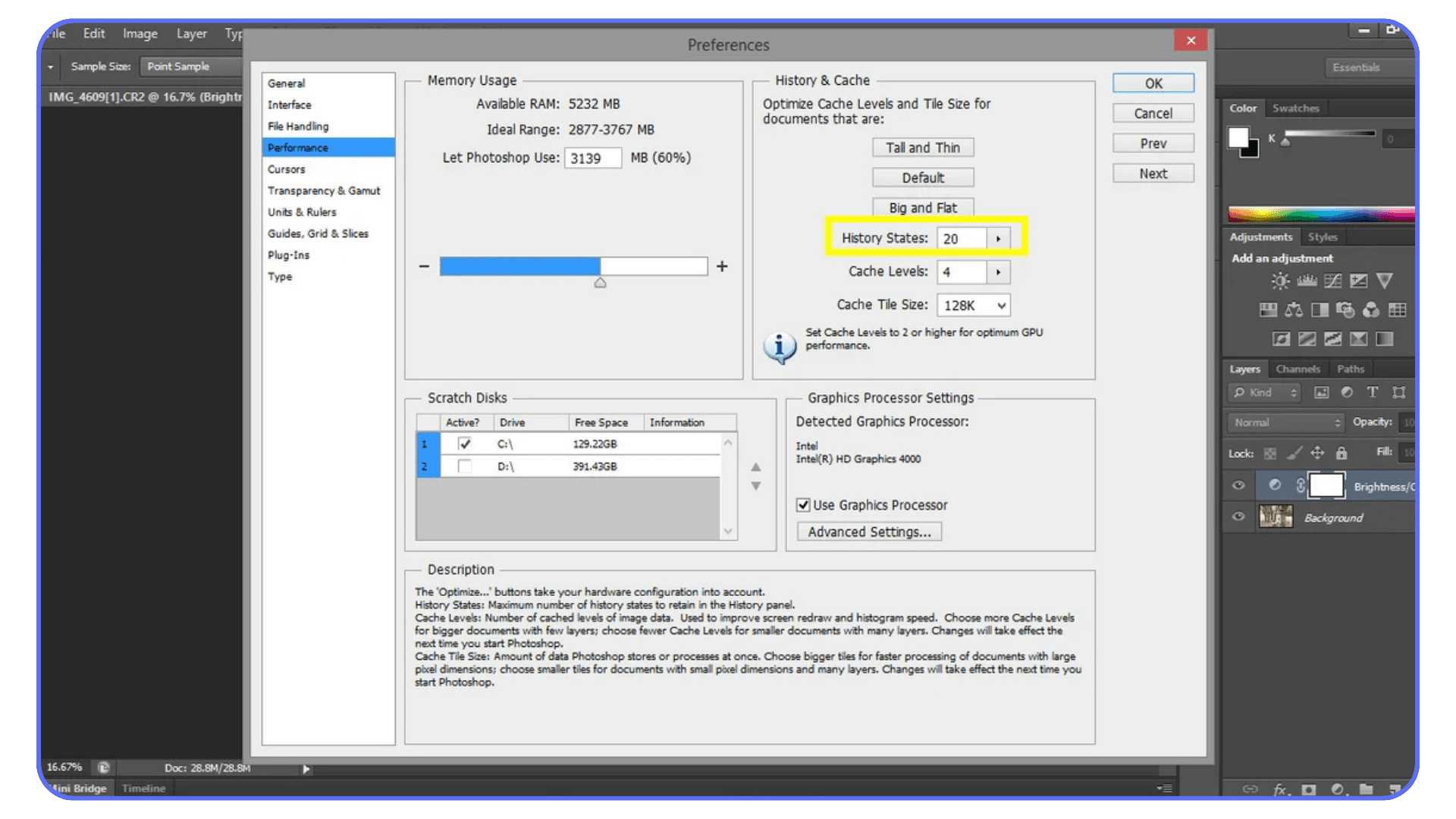
Then check Cache Levels. If you’re doing large images, panoramas, or anything high-resolution, higher cache levels help. But if you’re working on smaller graphics, social posts, UI, thumbnails, or online Photoshop style tasks, lowering cache levels reduces how much data Photoshop stores in the background.
Auto-Recovery is the next sneaky one. Photoshop autosaves every few minutes, and each autosave creates temporary files. If your machine is already tight on space, frequent autosaves can actually trigger the error faster. You don’t need to disable it entirely, but increasing the interval from 5 minutes to 10 or 15 helps balance safety and performance.
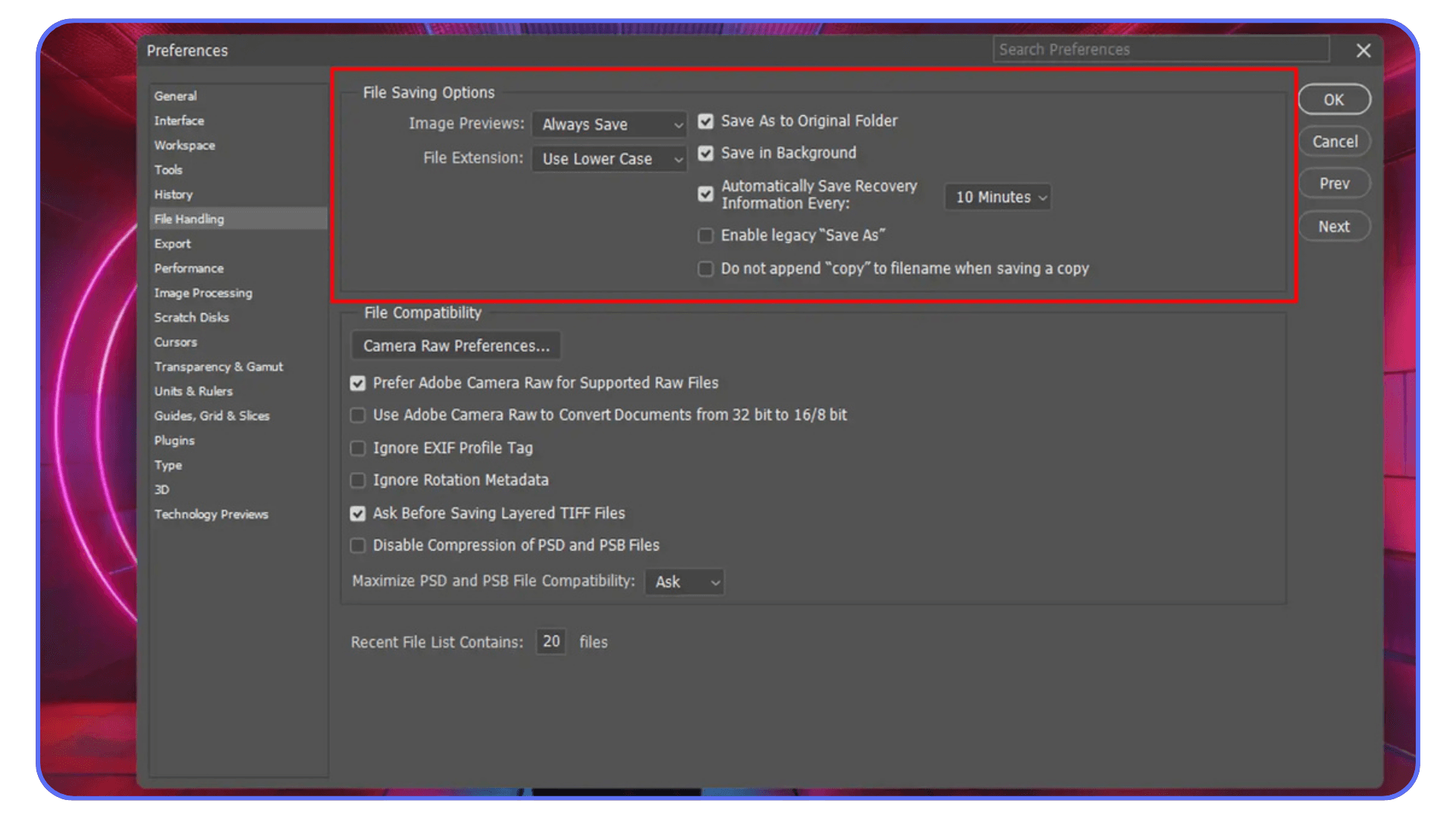
And then there’s Purge. When things feel sluggish, go to Edit → Purge and clear History, Clipboard, or All. Just be aware, once you purge, your Undo history is gone. Still, it’s a lifesaver when Photoshop is choking and you just need it to breathe.
If you’re someone who uses heavy features, smart objects, big brushes, or AI operations similar to photoshop remove background but on steroids, lowering these settings can prevent scratch disk buildup before it even starts.
The idea here is simple: the less unnecessary data Photoshop hoards, the longer your scratch disk stays free. And honestly, most people never touch these settings again after the first install… which is usually why they run into this error in the first place.
#4. Reset Photoshop Preferences
If you’ve cleaned space, switched drives, and tweaked all the settings you can think of, and Photoshop still throws the scratch disk tantrum, you might be dealing with corrupted preferences. It happens more often than people think. One bad shutdown or a buggy plugin can mess with Photoshop’s internal settings and cause weird behavior, including refusing to use available scratch space.
Resetting preferences is basically telling Photoshop, “Start fresh. Forget all the chaos.” It wipes custom shortcuts, interface layouts, some performance settings, and a bunch of hidden files that may have gone rogue.
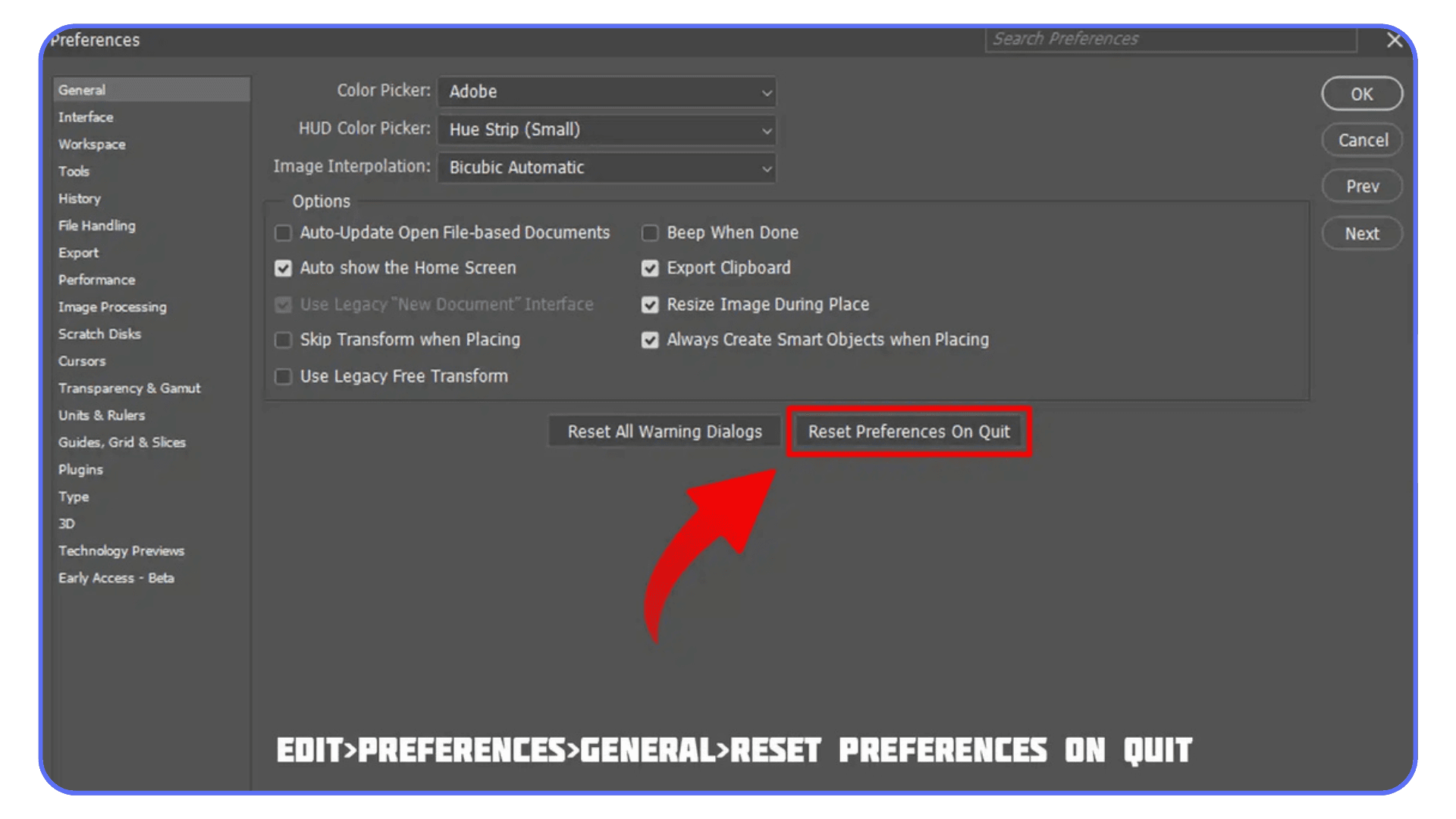
Here’s how to do it the quick way:
Close Photoshop, then launch it while holding Ctrl + Alt + Shift (Windows) or Cmd + Option + Shift (Mac). Photoshop will ask if you want to delete the settings file. Say yes. That’s the reset.
If you prefer doing it manually, you can delete the preferences file from your user library. But honestly, the shortcut method is easier and avoids digging through folders where one wrong delete can break more things than it fixes.
Once you reset, Photoshop boots up like a clean install, the same feeling you get after doing a full Photoshop download without actually reinstalling the whole app. Just remember you’ll need to re-enter some settings afterward, like your scratch disk choices and performance sliders.
A preference reset isn’t something you should do weekly, but when Photoshop behaves like it’s haunted, this is the fastest way to clear out the ghosts. It fixes a surprising number of issues that look unrelated, and for many people, it’s the final step that stops the scratch disk errors for good.
And if you’re working on a machine without a dedicated graphics card, this guide explains how to run Photoshop smoothly without a GPU so you can still get consistent performance.
#5. Prevent It From Happening Again
Once you fix the scratch disk problem, the real win is making sure it doesn’t come back. Because nothing is worse than solving it today and seeing the same message pop up tomorrow while you’re deep into another photoshop image editing session.
The easiest habit? Keep your drives from getting stuffed. Drives work best with breathing room, especially SSDs. If you can keep 15–20% of your main drive free, Photoshop runs smoother and your scratch space stays stable. It sounds small, but this single habit saves people more headaches than any fancy optimization trick.
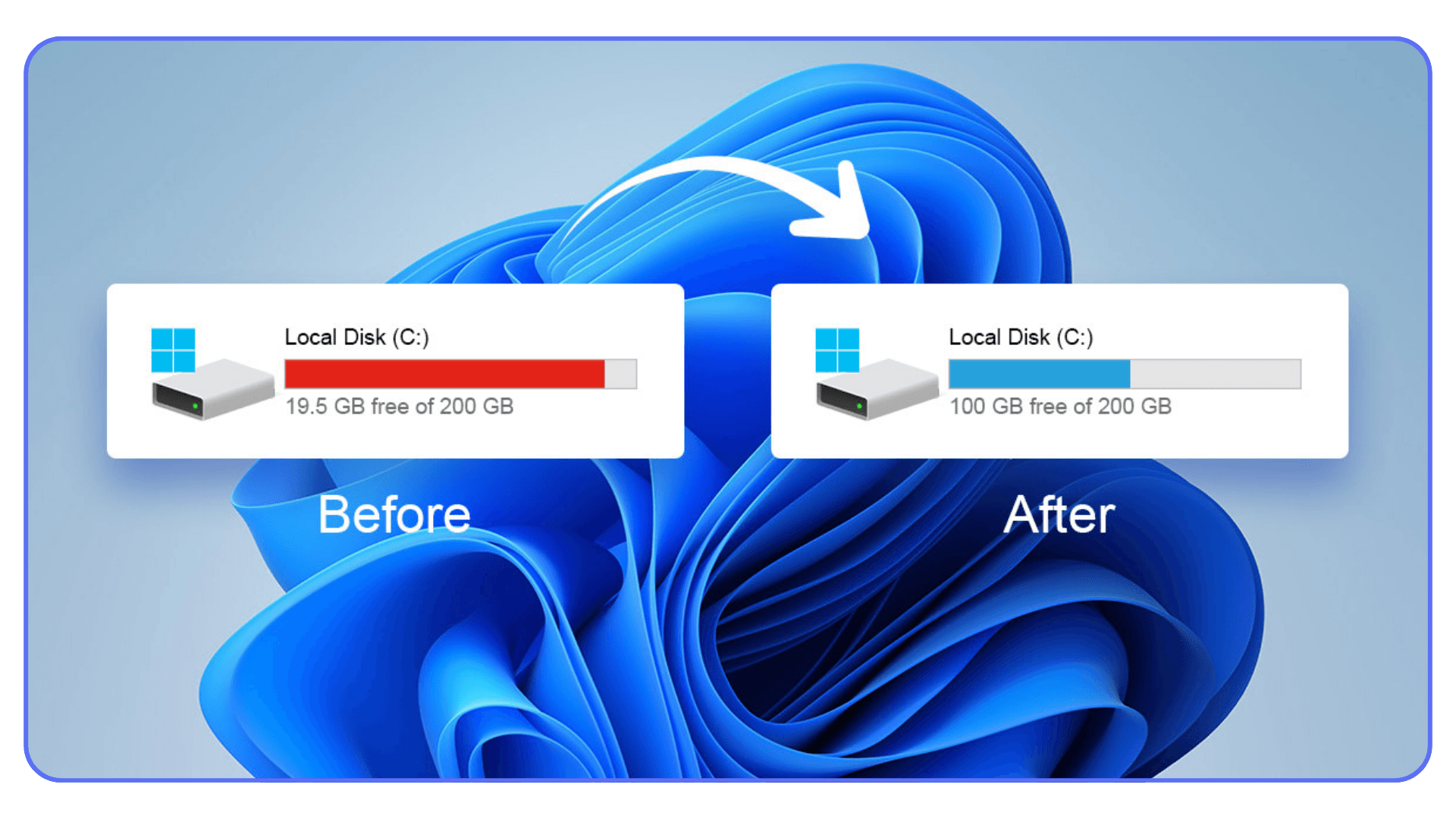
Next, stop letting giant files live on your OS drive. Move old projects, RAW folders, exports, and unused photoshop lightroom presets to an external SSD or a secondary internal drive. The system drive should not be your archive; it’s your working desk. Keep it clean.
It also helps to get in the habit of clearing temporary files regularly. You don’t need to turn into a digital minimalist, just check your temp directories once every week or two. Photoshop temp files accumulate quietly, especially when you force quit or crash mid-task. A quick cleanup prevents those files from stacking up until they choke your scratch disk again.
If your hardware is older, consider upgrading to an SSD or adding a second internal drive dedicated to scratch use. Even a small SSD makes a huge difference for frequent users of photo editor Photoshop, especially when running large composites, smart objects, or AI tools. HDDs technically work, but they struggle under modern workflows.
And finally, watch your document size. A surprising number of scratch disk issues come from creating a canvas in inches instead of pixels or accidentally working at 600 DPI when you only need 150. One wrong setting and suddenly your file is 10 times larger than necessary.
These aren’t glamorous habits, but they keep Photoshop from slipping back into meltdown mode. The goal isn’t perfection, just enough structure so Photoshop doesn’t decide to sabotage your deadline again.
If upgrading your hardware is on your mind, here’s a solid breakdown of the best GPU for Photoshop depending on what kind of work you do.
Why This Error Still Haunts Photoshop Users
Even after doing everything “right,” this error still manages to sneak back into people’s lives. And honestly, I get why. Photoshop is one of the hungriest apps ever made. It feels lightweight when you’re doing simple stuff, but the moment you work with big files, smart objects, high-res textures, or AI-assisted edits, it turns into an absolute storage vacuum.
Part of the problem is that Photoshop doesn’t just need free space, it needs contiguous free space. Meaning one big uninterrupted block of room on your disk. You might have 40 GB free in total, but if it’s scattered in little chunks all over your drive, Photoshop still throws the scratch disk error. Drives get fragmented over time, especially if you constantly install, delete, copy, and move big files around. This is one of those behind-the-scenes issues most people never think about.
There’s also a popular myth that keeps floating around: “If I buy more RAM, Photoshop won’t use the scratch disk as much.” I wish that were true. RAM helps, sure, but Photoshop will always offload huge temporary data to your disk no matter how much memory you add. It’s just how the program works. Even photographers who mainly use photoshop lightroom presets run into this when working with large RAW batches, the temp data grows ridiculously fast.
Another overlooked issue is external drives. A lot of people try to fix the problem by using a USB external drive as a scratch disk. Sometimes it works, sometimes it makes things worse. If the drive is slow, old, or connected through a weak port, Photoshop struggles. It’s basically trying to sprint while wearing ankle weights. Not ideal during heavy workflows like photoshop image editing or multi-layer retouching.
And here’s the slightly unpopular opinion: for very light users, the ones who do quick social media graphics, simple touch-ups, maybe the occasional alternative Photoshop task, the whole scratch disk ecosystem doesn’t matter much. They might never hit the error at all. But anyone working with big images, layered projects, or advanced tools will eventually run into it. It’s not a question of “if,” it’s a question of “when.”
So yes, you can fix the scratch disk error. And yes, you can prevent it. But understanding why it happens, the fragmentation, the temp file bloat, the unrealistic expectations about RAM, the overworked system drives, that’s what keeps it from surprising you again.
If you’re not sure whether Photoshop is actually using your graphics card correctly, this guide shows how to use GPU on Adobe Photoshop in a way that actually improves performance.
Or… Skip the Headache Entirely with Vagon Cloud Computer
At a certain point, constantly clearing space and resetting preferences starts to feel like performing maintenance on a machine that’s just too small for the job. Photoshop keeps getting heavier, especially with AI tools, massive canvases, and high-resolution photoshop image editing, yet most laptops are still running on the same limited storage they had years ago. And no, even online Photoshop alternatives don’t magically avoid scratch disk problems once you’re dealing with real production-sized files.
This is exactly why I lean on Vagon Cloud Computer for heavy projects. Instead of shrinking my workflow to fit my hardware, I run Photoshop on a machine that actually has the breathing room it needs. Clean environment, fast SSD storage acting like a huge scratch disk, far more power than most personal laptops, and none of the slowdowns that come from years of cached junk.
What I like most is the consistency. Every time you launch your Vagon computer, it feels fresh, no leftover temp files, no random performance bugs, no “please free space” warnings. It just works. And because the hardware is scalable, you can upgrade instantly when you’re dealing with big composites, RAW retouching, large AI-generated layers, or those 2-GB PSDs that make normal machines panic.
It’s also incredibly convenient if you move between devices. Start on a Mac, continue on a Windows laptop, check something from a tablet, Photoshop opens exactly where you left off, without installs or file syncing gymnastics. The workflow freedom alone saves hours.
Of course, there’s a realistic caveat: a bad internet connection will slow things down, and uploading multi-gigabyte files takes a moment. But once the files are in your Vagon workspace, the hardware stops being the bottleneck. You get a smooth, stable session every time, something most local setups just can’t guarantee anymore.
So if your laptop wheezes through heavy edits or you’re tired of seeing the scratch disk warning pop up right when you’re in the zone, running Photoshop on Vagon is the most direct way to skip the entire problem. Instead of fighting your hardware, you simply use better hardware, and the difference is obvious the moment you start working.

Final Thoughts
The “Scratch Disks Are Full” message feels dramatic the first time you see it, but once you understand what’s happening under the hood, the whole thing becomes way less mysterious. Photoshop isn’t malfunctioning, it’s just running out of room to breathe. And once you give it space, whether by cleaning your drive, adjusting settings, or setting up a dedicated scratch disk, the app suddenly starts acting like the tool it’s supposed to be.
What matters most is fixing it before it ruins another edit. Nobody wants to be halfway through a 120-layer project or retouching a massive RAW file only to get blindsided by an error that could’ve been prevented with a bit of prep. The truth is, once your scratch disk setup is solid, Photoshop feels noticeably smoother. Zooming is cleaner, brushes respond better, and big composites stop feeling like torture.
And if your machine simply isn’t built for these workloads, it’s completely fine to let something else handle the heavy lifting. Spinning up a workstation-level environment on Vagon Cloud Computer takes the pressure off your hardware and gives you a clean, powerful space for every kind of workflow, from quick touch-ups to full-on photoshop image editing sessions.
So try the fixes. Clear your drive, adjust your settings, set up your scratch disks. And once everything’s running smoothly again, enjoy that rare moment when Photoshop quietly does its job without yelling at you. It’s a good feeling, one you definitely deserve.
If you ever need to work on the go, here’s a breakdown of how to use Photoshop on iPad without losing access to your main tools.
FAQs
1. Does clearing space really fix the scratch disk error, or do I need to reinstall Photoshop?
Most of the time, clearing space is enough. Photoshop just needs room to create temporary files, and when your drive is full, it throws the error. Reinstalling rarely solves anything unless your preferences are corrupted. Before going nuclear, give Photoshop at least 40–50 GB of free space and restart it.
2. Will using Photoshop free alternatives help avoid scratch disk issues?
Free editors can be useful for quick tasks, but once you’re doing big layered projects or working with RAW files, the same storage limitations show up. Even free or online Photoshop clones need temporary space. If you’re doing light touch-ups, sure, a photoshop free option works. For real production work? You’ll run into the same limits.
3. Does Adobe Photoshop Photo Editor use the scratch disk differently than the desktop version?
No. Whether you’re using the full desktop app or a lighter adobe photoshop photo editor build, Photoshop still relies on available drive space to handle previews, history states, and temporary data. The UI might look different, but the underlying engine still leans hard on storage.
4. Can I store my project files in Photoshop Adobe Stock libraries to reduce scratch disk usage?
Storing files in photoshop adobe stock (or any cloud storage) helps free your local drive, which indirectly helps Photoshop. But remember: Photoshop still creates temp files locally while you work. Saving your final files to Adobe Stock is smart, but it won’t eliminate scratch disk usage during editing.
5. If I start the free trial of Adobe Photoshop, will I still get the scratch disk error?
Yes, the free trial of Adobe Photoshop uses the same engine as the full version. If your drive is cramped or your settings are misconfigured, you’ll hit the same scratch disk warnings. The trial doesn’t change how Photoshop manages memory or storage.
6. Does using Photoshop background remove tools create large temp files?
Absolutely. Tools like photoshop background remove might look simple, but they generate a ton of temporary data behind the scenes, especially with large PNGs, RAW files, or images with lots of detail. If you run background removal repeatedly, your scratch disk can fill up much faster than you’d expect.
7. Will switching to Vagon Cloud Computer eliminate scratch disk errors entirely?
Yes, because your local storage is no longer part of the equation. Photoshop runs inside a clean, high-performance environment with large SSD space dedicated to temp files. As long as your internet connection is stable, scratch disk errors disappear completely.
8. Can I just use an external SSD as my scratch disk?
You can, and it works well if the drive is fast enough. USB-C or Thunderbolt drives perform best. Slow external HDDs, on the other hand, can create more lag. If your external drive is as slow as your main one, you’re not gaining much.
I was in the middle of a huge composite, about 120 layers, a couple of masked groups, and a handful of “let’s hope this works” adjustments. The kind of photoshop image editing session where your laptop starts sounding like it’s preparing for takeoff. And right as I hit a simple Transform, everything froze. Not a gentle pause, a full, silent, screen-locked “you messed up” moment.
Then it popped up. That tiny grey message every Photoshop user meets eventually: “Scratch Disks Are Full.” I swear Photoshop waited until the exact second I hadn’t saved for 20 minutes just to make it hurt more.
And here’s the thing, this one doesn’t care who you are. Beginners, pros, people who use Photoshop remove background all day, even folks doing light touch-ups… everyone gets hit at some point.
So if Photoshop has ever yelled at you about scratch disks, welcome. You’re in very good company. And the good news? This mess is completely fixable.
What a Scratch Disk Actually Is
Photoshop has a habit of acting like it has unlimited appetite, and the scratch disk is basically its backup stomach. When your RAM fills up, which happens fast during heavy work, even simple stuff like running photo editor Photoshop tools or stacking a ton of adjustment layers, Photoshop starts using your drive as temporary memory. That drive space is the “scratch disk.”
It stores all the messy behind-the-scenes data: history states, previews, clipboard content, cached layers, temporary files, everything. If you’ve ever wondered why a single 250 MB file somehow balloons into gigabytes of activity, this is why. Photoshop writes a ridiculous amount of temporary info while working, especially during things like large brushes, content-aware edits, and AI-assisted features.
Here’s the part many people miss: the scratch disk fills up way faster than you expect. Even a simple photoshop remove background on a huge RAW can generate hundreds of megabytes in temp files. Multiply that by multiple layers, masks, smart objects… and suddenly your system drive is gasping for space.
When the scratch disk runs out of room, Photoshop doesn’t negotiate or warn gently. It just throws the error, freezes, or refuses to launch. So understanding what the scratch disk does, and why it fills, is the first step to fixing the problem permanently.
Why the “Scratch Disk Full” Error Happens
This error looks dramatic, but the reasons behind it are usually pretty simple, and annoyingly common. The biggest one? Not enough free space. Photoshop eats storage like it’s a hobby, and if your drive drops below 20–50 GB of free space, the scratch disk starts suffocating.
Another typical culprit is using the same drive for everything: your OS, your apps, your giant downloads, and of course Photoshop itself. When your system drive is doing all the heavy lifting, even basic photoshop image editing tasks can choke it. If you’ve stuffed your main drive with big project folders, Lightroom catalogs, or huge photoshop lightroom presets, you’re basically asking for trouble.
Photoshop temp files also pile up like dust bunnies under a bed. If the app crashes or you force quit during a heavy operation, it leaves behind gigabytes of leftovers. These files don’t delete themselves, they sit hidden in your temp directories and quietly fill the scratch disk.
Document size is another silent killer. One wrong setting, like creating a canvas in inches instead of pixels, can create a monster file that ballooned way past what your drive can handle. Same goes for overly high resolution or massive panoramas.
Then there’s Photoshop’s own settings. Too many history states, too many cache levels, autosave firing every few minutes, all of these multiply the amount of temporary data Photoshop produces. And sometimes, corrupted preferences just make everything worse.
Whether you’re using Photoshop locally, experimenting with online Photoshop tools, or juggling multiple apps, the scratch disk error always boils down to the same thing: Photoshop needs space, and your machine doesn’t give it enough room to breathe.
If Photoshop still crashes or behaves strangely after fixing your scratch disk, here’s a look at the common crash reasons for Photoshop and how to deal with them.
#1. Free Up Space on Your Scratch Disk
The fastest way to stop the scratch disk meltdown is to give Photoshop some breathing room. It sounds obvious, I know, but freeing space works more often than any other fix, and it’s the one pros end up doing right before deadlines hit.
First thing: check how much free space you actually have. Most people think they have “plenty,” then open their drive and realize they’ve been surviving on 8 GB without noticing. Photoshop hates that. Realistically, you want at least 50 GB free, especially if you’re working on big composites or bouncing between photo editing software Photoshop and Lightroom.
Start with the easy stuff: delete old exports, move large video files or RAW folders off your OS drive, empty your recycle bin or trash. If you haven’t cleaned your Downloads folder since 2018, now’s the time.
Then, clear out your temp files. Photoshop leaves a surprising amount of leftovers, especially after crashes or forced quits. On Windows, look inside the temp folder (%temp%) and sort by size. Anything named like Photoshop Temp#### is safe to delete. On Mac, check your hidden /private/var/tmp and user-level cache folders. Some people find 10, 20, even 40 GB sitting there doing nothing but blocking Photoshop.
If you’ve been experimenting with photoshop lightroom presets or stacking huge RAW edits, those previews and cached files can add up too. Clearing Lightroom’s cache can indirectly free up room for Photoshop’s scratch needs.
The goal here isn’t to Marie Kondo your life, just open enough space for Photoshop to operate without panicking. Think of it like clearing your desk before you start a big project. The cleaner the space, the less chaos you’re going to deal with.
#2. Change or Add a Dedicated Scratch Disk
Freeing space helps, but if your main drive is constantly crowded, the smarter move is to point Photoshop to a different disk altogether. Photoshop lets you pick where it stores its scratch data, and choosing the right drive can instantly stop 90% of these errors.
Open Photoshop, go to Preferences → Performance → Scratch Disks, and you’ll see a list of available drives. If you want the quick way, launch Photoshop while holding Ctrl + Alt (Windows) or Cmd + Option (Mac), it takes you straight to the scratch disk selection window.
If you have multiple drives, pick the one with the most free space and, ideally, the fastest read/write speed. An SSD is perfect. An HDD works, but you’ll feel the slowdown, especially during heavy photoshop image editing or when stacking layers. External drives are an option too, but only if they’re fast and connected through USB-C or Thunderbolt; otherwise, Photoshop will feel like it’s editing through a straw.
What I’ve found works best is dedicating a drive purely for scratch, no apps, no downloads, no random project folders. It doesn’t have to be massive; even a 256 GB SSD can make your workflow feel brand new. If you’re someone who jumps between photo editor Photoshop tasks, huge composites, or AI features, having a dedicated scratch disk is one of those upgrades that pays off immediately.
Once you switch drives, restart Photoshop and give it a quick test. You’ll know right away if the new setup fixed your problem, the app stops wheezing and starts behaving like it should’ve all along.
#3. Reduce Photoshop’s Disk / Memory Usage
Even with plenty of free space, Photoshop can still act like it’s starving. A lot of that comes down to its internal settings. Photoshop loves keeping history states, previews, caches, clipboard data, basically everything you touch, and all of that eats scratch disk space fast.
Start with History States. Most people never change the default, which is usually 50. That means Photoshop is storing 50 versions of your document at once. Unless you’re time-traveling through every brush stroke, you don’t need that many. Drop it down to 20 or even 10. You’ll barely notice the difference, but your scratch disk absolutely will.
Then check Cache Levels. If you’re doing large images, panoramas, or anything high-resolution, higher cache levels help. But if you’re working on smaller graphics, social posts, UI, thumbnails, or online Photoshop style tasks, lowering cache levels reduces how much data Photoshop stores in the background.
Auto-Recovery is the next sneaky one. Photoshop autosaves every few minutes, and each autosave creates temporary files. If your machine is already tight on space, frequent autosaves can actually trigger the error faster. You don’t need to disable it entirely, but increasing the interval from 5 minutes to 10 or 15 helps balance safety and performance.
And then there’s Purge. When things feel sluggish, go to Edit → Purge and clear History, Clipboard, or All. Just be aware, once you purge, your Undo history is gone. Still, it’s a lifesaver when Photoshop is choking and you just need it to breathe.
If you’re someone who uses heavy features, smart objects, big brushes, or AI operations similar to photoshop remove background but on steroids, lowering these settings can prevent scratch disk buildup before it even starts.
The idea here is simple: the less unnecessary data Photoshop hoards, the longer your scratch disk stays free. And honestly, most people never touch these settings again after the first install… which is usually why they run into this error in the first place.
#4. Reset Photoshop Preferences
If you’ve cleaned space, switched drives, and tweaked all the settings you can think of, and Photoshop still throws the scratch disk tantrum, you might be dealing with corrupted preferences. It happens more often than people think. One bad shutdown or a buggy plugin can mess with Photoshop’s internal settings and cause weird behavior, including refusing to use available scratch space.
Resetting preferences is basically telling Photoshop, “Start fresh. Forget all the chaos.” It wipes custom shortcuts, interface layouts, some performance settings, and a bunch of hidden files that may have gone rogue.
Here’s how to do it the quick way:
Close Photoshop, then launch it while holding Ctrl + Alt + Shift (Windows) or Cmd + Option + Shift (Mac). Photoshop will ask if you want to delete the settings file. Say yes. That’s the reset.
If you prefer doing it manually, you can delete the preferences file from your user library. But honestly, the shortcut method is easier and avoids digging through folders where one wrong delete can break more things than it fixes.
Once you reset, Photoshop boots up like a clean install, the same feeling you get after doing a full Photoshop download without actually reinstalling the whole app. Just remember you’ll need to re-enter some settings afterward, like your scratch disk choices and performance sliders.
A preference reset isn’t something you should do weekly, but when Photoshop behaves like it’s haunted, this is the fastest way to clear out the ghosts. It fixes a surprising number of issues that look unrelated, and for many people, it’s the final step that stops the scratch disk errors for good.
And if you’re working on a machine without a dedicated graphics card, this guide explains how to run Photoshop smoothly without a GPU so you can still get consistent performance.
#5. Prevent It From Happening Again
Once you fix the scratch disk problem, the real win is making sure it doesn’t come back. Because nothing is worse than solving it today and seeing the same message pop up tomorrow while you’re deep into another photoshop image editing session.
The easiest habit? Keep your drives from getting stuffed. Drives work best with breathing room, especially SSDs. If you can keep 15–20% of your main drive free, Photoshop runs smoother and your scratch space stays stable. It sounds small, but this single habit saves people more headaches than any fancy optimization trick.
Next, stop letting giant files live on your OS drive. Move old projects, RAW folders, exports, and unused photoshop lightroom presets to an external SSD or a secondary internal drive. The system drive should not be your archive; it’s your working desk. Keep it clean.
It also helps to get in the habit of clearing temporary files regularly. You don’t need to turn into a digital minimalist, just check your temp directories once every week or two. Photoshop temp files accumulate quietly, especially when you force quit or crash mid-task. A quick cleanup prevents those files from stacking up until they choke your scratch disk again.
If your hardware is older, consider upgrading to an SSD or adding a second internal drive dedicated to scratch use. Even a small SSD makes a huge difference for frequent users of photo editor Photoshop, especially when running large composites, smart objects, or AI tools. HDDs technically work, but they struggle under modern workflows.
And finally, watch your document size. A surprising number of scratch disk issues come from creating a canvas in inches instead of pixels or accidentally working at 600 DPI when you only need 150. One wrong setting and suddenly your file is 10 times larger than necessary.
These aren’t glamorous habits, but they keep Photoshop from slipping back into meltdown mode. The goal isn’t perfection, just enough structure so Photoshop doesn’t decide to sabotage your deadline again.
If upgrading your hardware is on your mind, here’s a solid breakdown of the best GPU for Photoshop depending on what kind of work you do.
Why This Error Still Haunts Photoshop Users
Even after doing everything “right,” this error still manages to sneak back into people’s lives. And honestly, I get why. Photoshop is one of the hungriest apps ever made. It feels lightweight when you’re doing simple stuff, but the moment you work with big files, smart objects, high-res textures, or AI-assisted edits, it turns into an absolute storage vacuum.
Part of the problem is that Photoshop doesn’t just need free space, it needs contiguous free space. Meaning one big uninterrupted block of room on your disk. You might have 40 GB free in total, but if it’s scattered in little chunks all over your drive, Photoshop still throws the scratch disk error. Drives get fragmented over time, especially if you constantly install, delete, copy, and move big files around. This is one of those behind-the-scenes issues most people never think about.
There’s also a popular myth that keeps floating around: “If I buy more RAM, Photoshop won’t use the scratch disk as much.” I wish that were true. RAM helps, sure, but Photoshop will always offload huge temporary data to your disk no matter how much memory you add. It’s just how the program works. Even photographers who mainly use photoshop lightroom presets run into this when working with large RAW batches, the temp data grows ridiculously fast.
Another overlooked issue is external drives. A lot of people try to fix the problem by using a USB external drive as a scratch disk. Sometimes it works, sometimes it makes things worse. If the drive is slow, old, or connected through a weak port, Photoshop struggles. It’s basically trying to sprint while wearing ankle weights. Not ideal during heavy workflows like photoshop image editing or multi-layer retouching.
And here’s the slightly unpopular opinion: for very light users, the ones who do quick social media graphics, simple touch-ups, maybe the occasional alternative Photoshop task, the whole scratch disk ecosystem doesn’t matter much. They might never hit the error at all. But anyone working with big images, layered projects, or advanced tools will eventually run into it. It’s not a question of “if,” it’s a question of “when.”
So yes, you can fix the scratch disk error. And yes, you can prevent it. But understanding why it happens, the fragmentation, the temp file bloat, the unrealistic expectations about RAM, the overworked system drives, that’s what keeps it from surprising you again.
If you’re not sure whether Photoshop is actually using your graphics card correctly, this guide shows how to use GPU on Adobe Photoshop in a way that actually improves performance.
Or… Skip the Headache Entirely with Vagon Cloud Computer
At a certain point, constantly clearing space and resetting preferences starts to feel like performing maintenance on a machine that’s just too small for the job. Photoshop keeps getting heavier, especially with AI tools, massive canvases, and high-resolution photoshop image editing, yet most laptops are still running on the same limited storage they had years ago. And no, even online Photoshop alternatives don’t magically avoid scratch disk problems once you’re dealing with real production-sized files.
This is exactly why I lean on Vagon Cloud Computer for heavy projects. Instead of shrinking my workflow to fit my hardware, I run Photoshop on a machine that actually has the breathing room it needs. Clean environment, fast SSD storage acting like a huge scratch disk, far more power than most personal laptops, and none of the slowdowns that come from years of cached junk.
What I like most is the consistency. Every time you launch your Vagon computer, it feels fresh, no leftover temp files, no random performance bugs, no “please free space” warnings. It just works. And because the hardware is scalable, you can upgrade instantly when you’re dealing with big composites, RAW retouching, large AI-generated layers, or those 2-GB PSDs that make normal machines panic.
It’s also incredibly convenient if you move between devices. Start on a Mac, continue on a Windows laptop, check something from a tablet, Photoshop opens exactly where you left off, without installs or file syncing gymnastics. The workflow freedom alone saves hours.
Of course, there’s a realistic caveat: a bad internet connection will slow things down, and uploading multi-gigabyte files takes a moment. But once the files are in your Vagon workspace, the hardware stops being the bottleneck. You get a smooth, stable session every time, something most local setups just can’t guarantee anymore.
So if your laptop wheezes through heavy edits or you’re tired of seeing the scratch disk warning pop up right when you’re in the zone, running Photoshop on Vagon is the most direct way to skip the entire problem. Instead of fighting your hardware, you simply use better hardware, and the difference is obvious the moment you start working.
Final Thoughts
The “Scratch Disks Are Full” message feels dramatic the first time you see it, but once you understand what’s happening under the hood, the whole thing becomes way less mysterious. Photoshop isn’t malfunctioning, it’s just running out of room to breathe. And once you give it space, whether by cleaning your drive, adjusting settings, or setting up a dedicated scratch disk, the app suddenly starts acting like the tool it’s supposed to be.
What matters most is fixing it before it ruins another edit. Nobody wants to be halfway through a 120-layer project or retouching a massive RAW file only to get blindsided by an error that could’ve been prevented with a bit of prep. The truth is, once your scratch disk setup is solid, Photoshop feels noticeably smoother. Zooming is cleaner, brushes respond better, and big composites stop feeling like torture.
And if your machine simply isn’t built for these workloads, it’s completely fine to let something else handle the heavy lifting. Spinning up a workstation-level environment on Vagon Cloud Computer takes the pressure off your hardware and gives you a clean, powerful space for every kind of workflow, from quick touch-ups to full-on photoshop image editing sessions.
So try the fixes. Clear your drive, adjust your settings, set up your scratch disks. And once everything’s running smoothly again, enjoy that rare moment when Photoshop quietly does its job without yelling at you. It’s a good feeling, one you definitely deserve.
If you ever need to work on the go, here’s a breakdown of how to use Photoshop on iPad without losing access to your main tools.
FAQs
1. Does clearing space really fix the scratch disk error, or do I need to reinstall Photoshop?
Most of the time, clearing space is enough. Photoshop just needs room to create temporary files, and when your drive is full, it throws the error. Reinstalling rarely solves anything unless your preferences are corrupted. Before going nuclear, give Photoshop at least 40–50 GB of free space and restart it.
2. Will using Photoshop free alternatives help avoid scratch disk issues?
Free editors can be useful for quick tasks, but once you’re doing big layered projects or working with RAW files, the same storage limitations show up. Even free or online Photoshop clones need temporary space. If you’re doing light touch-ups, sure, a photoshop free option works. For real production work? You’ll run into the same limits.
3. Does Adobe Photoshop Photo Editor use the scratch disk differently than the desktop version?
No. Whether you’re using the full desktop app or a lighter adobe photoshop photo editor build, Photoshop still relies on available drive space to handle previews, history states, and temporary data. The UI might look different, but the underlying engine still leans hard on storage.
4. Can I store my project files in Photoshop Adobe Stock libraries to reduce scratch disk usage?
Storing files in photoshop adobe stock (or any cloud storage) helps free your local drive, which indirectly helps Photoshop. But remember: Photoshop still creates temp files locally while you work. Saving your final files to Adobe Stock is smart, but it won’t eliminate scratch disk usage during editing.
5. If I start the free trial of Adobe Photoshop, will I still get the scratch disk error?
Yes, the free trial of Adobe Photoshop uses the same engine as the full version. If your drive is cramped or your settings are misconfigured, you’ll hit the same scratch disk warnings. The trial doesn’t change how Photoshop manages memory or storage.
6. Does using Photoshop background remove tools create large temp files?
Absolutely. Tools like photoshop background remove might look simple, but they generate a ton of temporary data behind the scenes, especially with large PNGs, RAW files, or images with lots of detail. If you run background removal repeatedly, your scratch disk can fill up much faster than you’d expect.
7. Will switching to Vagon Cloud Computer eliminate scratch disk errors entirely?
Yes, because your local storage is no longer part of the equation. Photoshop runs inside a clean, high-performance environment with large SSD space dedicated to temp files. As long as your internet connection is stable, scratch disk errors disappear completely.
8. Can I just use an external SSD as my scratch disk?
You can, and it works well if the drive is fast enough. USB-C or Thunderbolt drives perform best. Slow external HDDs, on the other hand, can create more lag. If your external drive is as slow as your main one, you’re not gaining much.
Get Beyond Your Computer Performance
Run applications on your cloud computer with the latest generation hardware. No more crashes or lags.

Trial includes 1 hour usage + 7 days of storage.
Summarize with AI

Ready to focus on your creativity?
Vagon gives you the ability to create & render projects, collaborate, and stream applications with the power of the best hardware.

Run heavy applications on any device with
your personal computer on the cloud.
San Francisco, California
Solutions
Vagon Teams
Vagon Streams
Use Cases
© 2026 Vagon. All rights reserved.
Run heavy applications on any device with
your personal computer on the cloud.
San Francisco, California
Solutions
Vagon Teams
Vagon Streams
Use Cases
© 2026 Vagon. All rights reserved.
Run heavy applications on any device with
your personal computer on the cloud.
San Francisco, California
Solutions
Vagon Teams
Vagon Streams
Use Cases
© 2026 Vagon. All rights reserved.