Instant Connection for Pixel Streaming
— New Feature Automated Setup

SketchUp Crash Guide: Common Problems, Hidden Triggers, and Reliable Fixes
Architecture
-
SketchUp Crash Guide: Common Problems, Hidden Triggers, and Reliable Fixes
Architecture
SketchUp Crash Guide: Common Problems, Hidden Triggers, and Reliable Fixes
Architecture
-
Table of Contents
A few weeks ago I opened a tiny living room mockup I had been playing with. Nothing complex. A couple chairs, a rug, a few lights. The kind of scene that should load instantly. It reminded me of those old days messing around in google sketchup when even clumsy models felt light.
I zoomed in to adjust a table leg, and everything froze. No warning. No spinning cursor. Just a quiet stop, like SketchUp needed a minute to collect itself.
At first I thought I clicked something wrong. A lot of people feel that way, especially if they’re working in the browser versions like sketchup web. When it locks up, you immediately assume you pushed the model too far or did something careless.
But crashes like this usually follow patterns. They look random on the surface, but something inside the file is almost always responsible. A stray texture. A component that carries more weight than it shows. A subtle issue that only becomes obvious when the screen stops moving.
At that moment, staring at the frozen window, I knew the problem wasn’t me. It just took me a while to learn how to see what SketchUp was reacting to.
Why SketchUp Crashes More Than People Admit
One thing I’ve learned after helping countless people with their models is that everyone assumes the same thing when SketchUp freezes: “My file must be too big.”
But size is almost never the real issue.
SketchUp tends to crash when something inside the model behaves in a way the software doesn’t expect. I’ve opened files that looked tiny and found a single object inside with a texture so large it could cover a billboard. I’ve seen clean looking scenes break because someone imported a piece of furniture that carried a dozen hidden layers from its original CAD file. I’ve seen a simple kitchen plan crash the moment it opened because an outdated plugin was silently fighting with the current version of SketchUp.

People using lighter setups like sketchup free feel this even more because they don’t have as much system memory to work with. But the underlying pattern is the same across every version. SketchUp reacts strongly to imperfect geometry, messy imports, mismatched extensions, and heavy textures, even when the overall scene looks harmless.
Crashes feel random at the moment. They aren’t. The cause is almost always tucked away somewhere you wouldn’t think to check, which is why they’re so frustrating until you know what to look for.
Once you understand that, SketchUp starts to feel a lot less mysterious.
If you’re switching between tools and wondering how SketchUp behaves compared to others, this breakdown of Rhino 3D vs SketchUp gives a clearer picture of where modeling complexity tends to sneak in.
The Silent Killers Inside Your Scene
When someone sends me a model that keeps crashing, the first thing they always say is, “It’s really simple, I swear.”
Then I open it, and the truth shows up pretty quickly.
SketchUp rarely breaks because of what you can see. It breaks because of the things hiding inside the groups and components. Little details that don’t look like trouble until SketchUp tries to process them all at once.
Here are the usual culprits.
#1. Components That Look Light but Aren’t
I’ve opened models where a single chair was responsible for every crash. It looked clean in the viewport, but inside it carried thousands of tiny edges and a texture so large it barely fit in memory. Sometimes these issues come from objects pulled while browsing sketchup online or from older project files that were never cleaned up.
SketchUp loads every bit of geometry, even the stuff you never see, so one object can tip the whole file over.
#2. Plugins With Unpredictable Moods
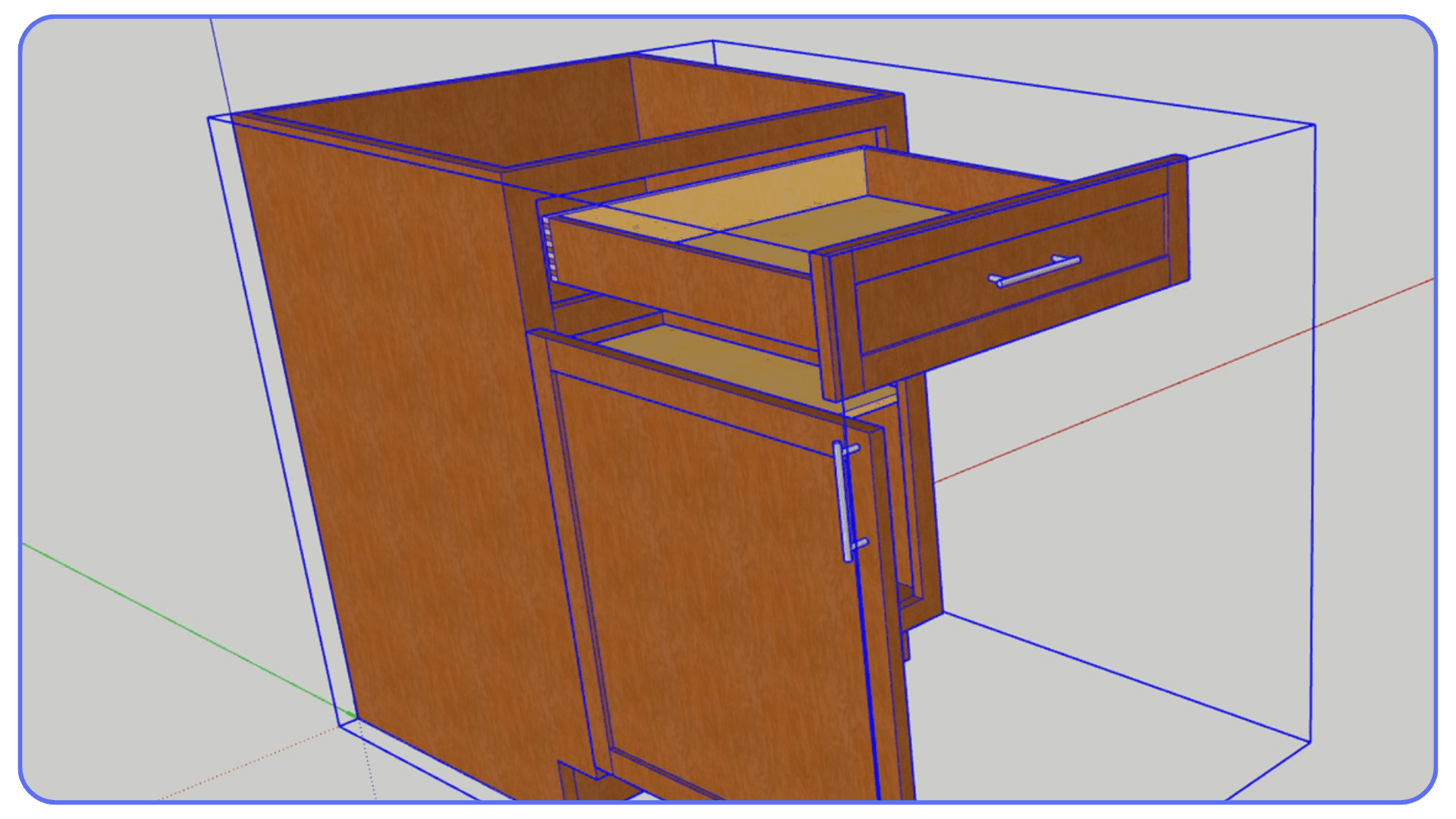
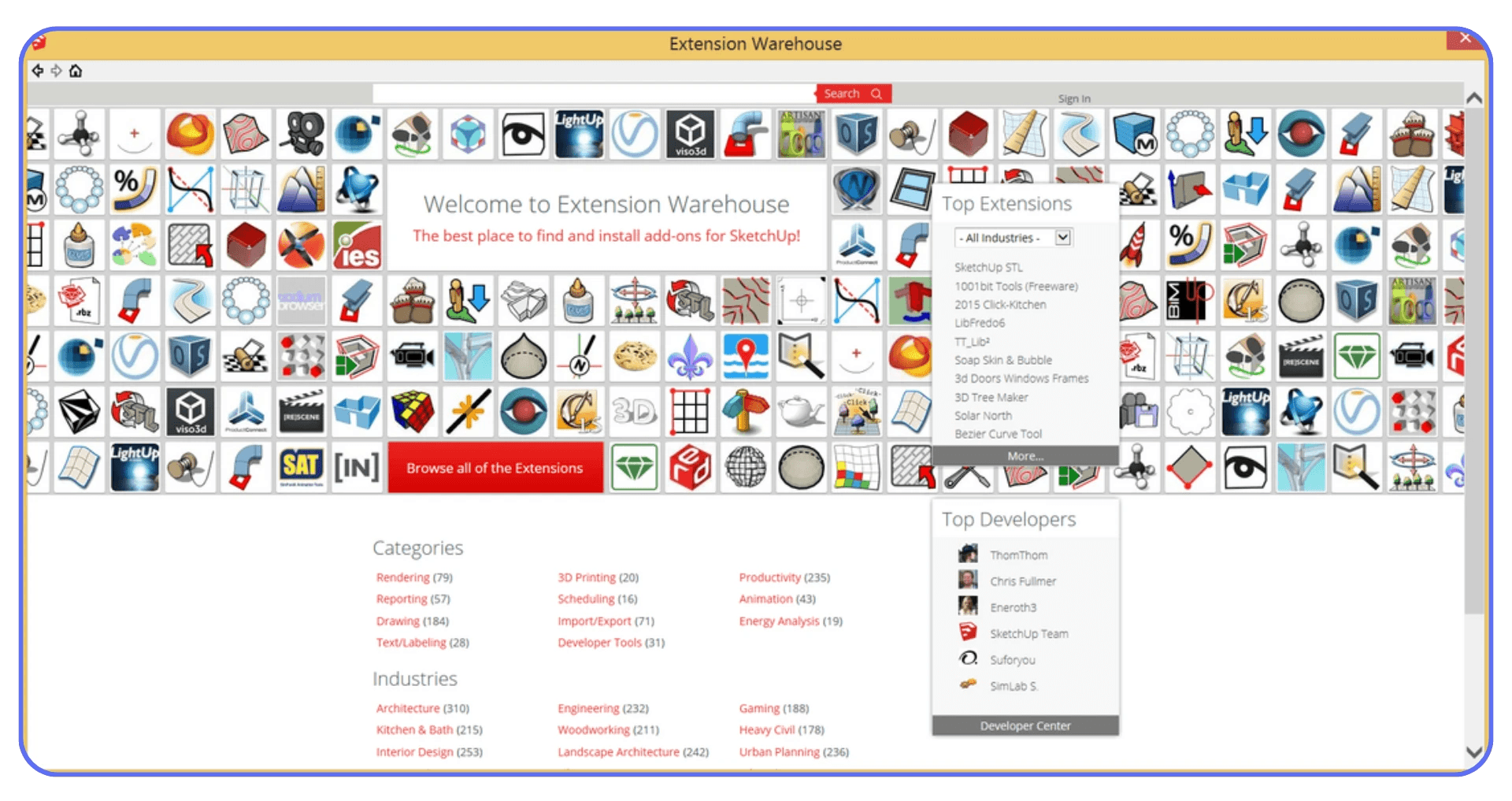
Extensions are fantastic until one of them goes out of sync. A rendering plugin, a modeling helper, a material tool, anything. When the version doesn’t match your SketchUp build, it can cause freezes that feel completely random.
What makes this tricky is that SketchUp doesn’t tell you which plugin misbehaved. It just stops responding. So people assume the file is broken when the real problem is a small extension that forgot how to behave after an update.
#3. GPU Quirks That SketchUp Doesn’t Warn You About
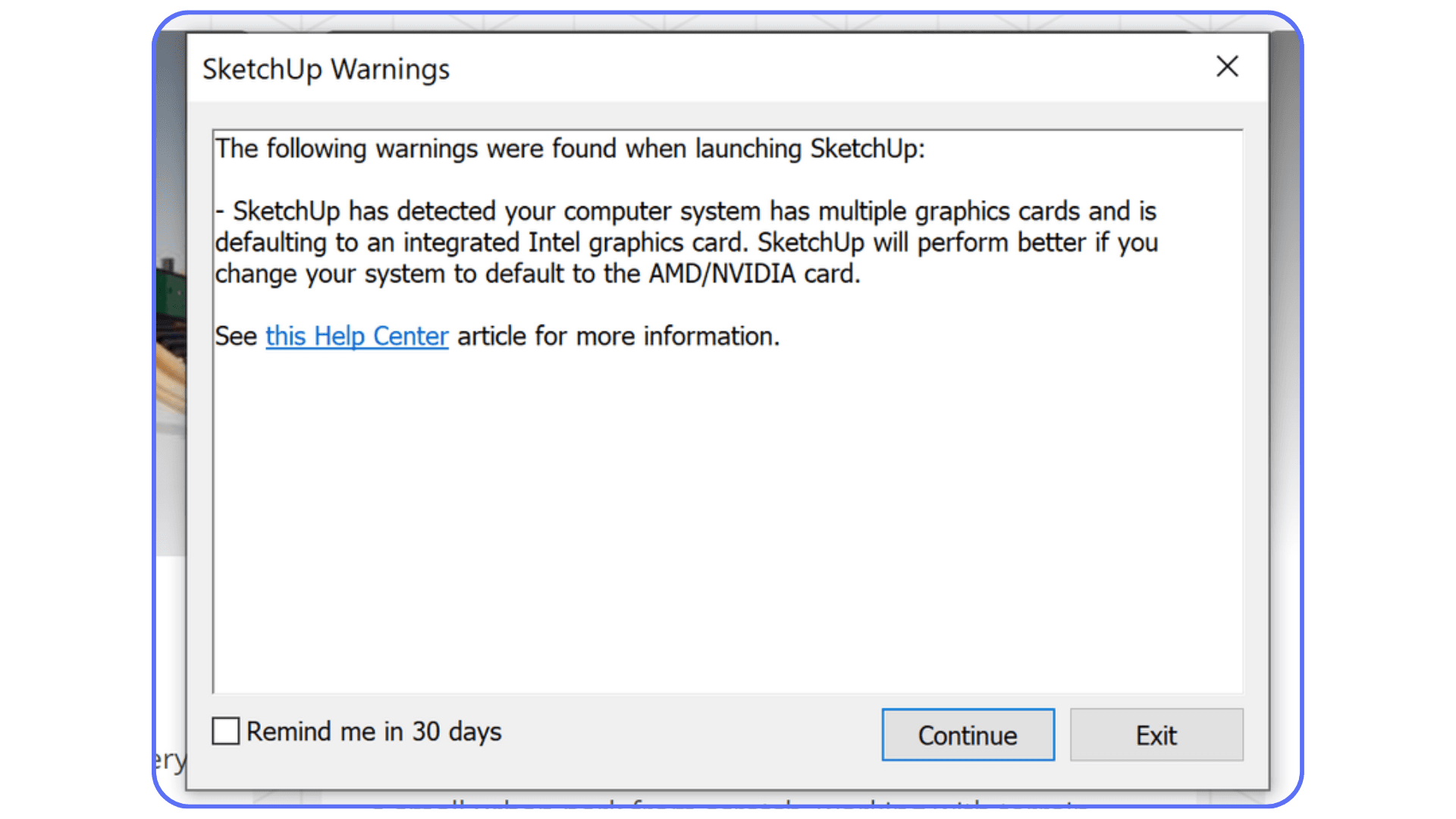
If your computer quietly switches between integrated and dedicated graphics, SketchUp doesn’t always pick the one you want. Orbiting gets laggy, shadows flicker, and eventually the viewport gives up.
I’ve seen this happen on brand new laptops and older machines alike. When the GPU falls behind, SketchUp doesn’t send an alert. It simply freezes.
#4. Textures and Imports That Carry Hidden Baggage
One oversized texture can slow SketchUp to a crawl. I once found an 8K image mapped to the back of a cabinet that no one ever zoomed into. It looked innocent until the model was opened, then everything locked up.
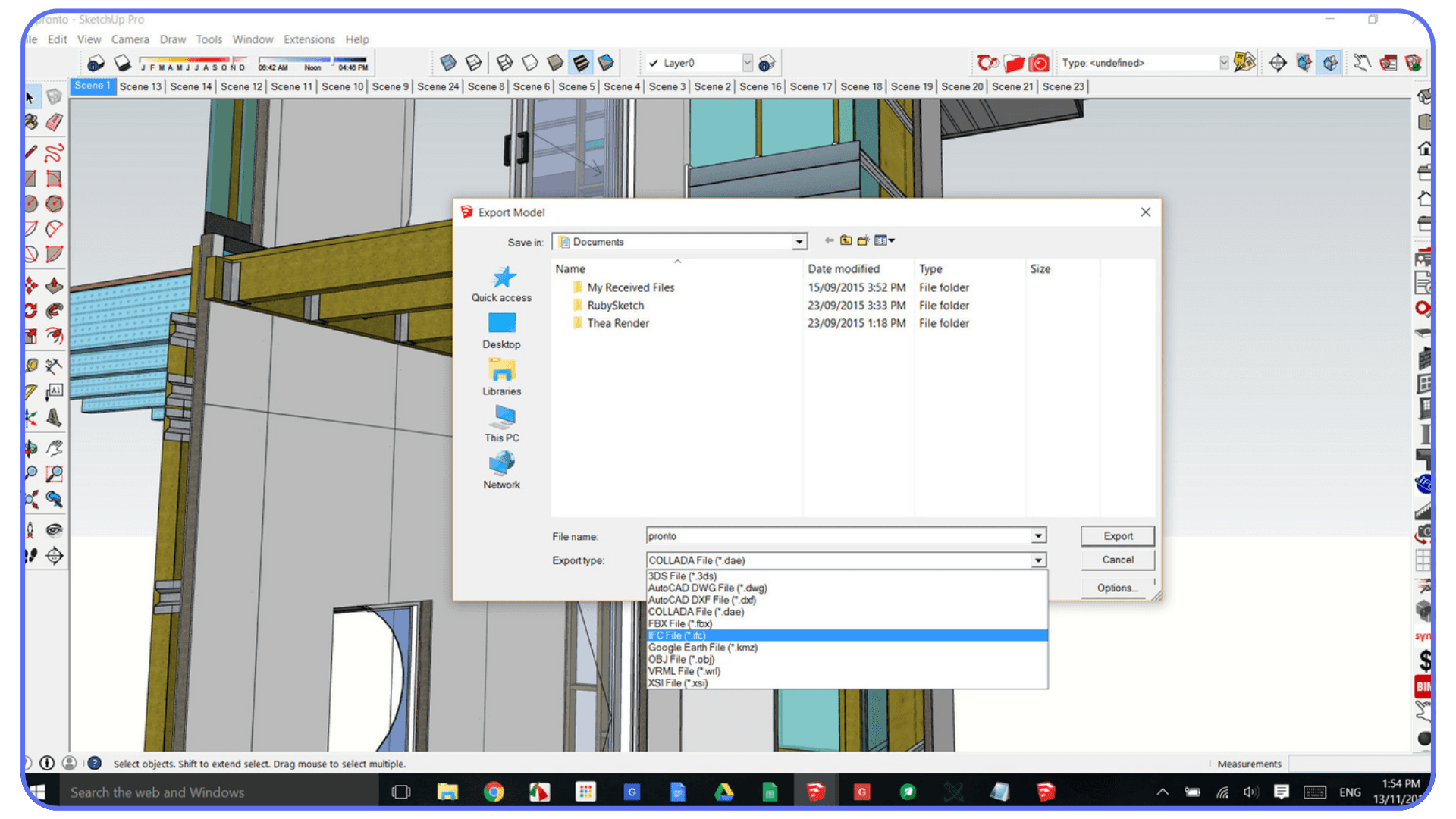
Imports from other programs behave the same way. Revit, Rhino, CAD. If the file isn’t cleaned before importing, SketchUp has to interpret every tiny piece, and sometimes it just can’t.
Most people never see these problems on the surface, which is why the crashes feel so confusing. Once you know where to look, the patterns become obvious.
If you rely on extensions a lot, you might want to check out this guide on essential SketchUp plugins to make sure the tools you’re using are stable and updated.
Fixes That Actually Work
When SketchUp freezes, it feels like you have to start over or rebuild the whole scene. You don’t. Most crashes come from a handful of small problems, and once you clear them out, SketchUp usually settles down. These are the fixes that consistently help.
#1. Give Your Model Some Room to Breathe
A file can look tiny and still crash if it’s cluttered inside.
Purge unused items.
Reduce texture sizes.
Turn off tags until only part of the model is visible, then see when the freezing stops.
This helps you track down the trouble spot. Sometimes it’s a single imported piece. Sometimes it’s a leftover material hiding deep in the hierarchy. I’ve even seen nearly empty scenes crash because someone copied a huge texture from sketchup web without realizing it.
Small cleanups often make SketchUp feel brand new again.
#2. Test Your Plugins One by One
If you have extensions installed, treat them as suspects.
Disable everything non essential.
Restart SketchUp.
Re-enable them one at a time.
The moment the crashing returns, you’ve found the culprit. Rendering plugins, animation tools, older Ruby extensions, even material managers can break quietly after an update. SketchUp doesn’t usually point to the plugin causing the issue, so this slow approach is the most reliable.
#3. Update Your Graphics Drivers Properly
SketchUp depends heavily on your GPU. Outdated drivers cause more silent crashes than people expect.
Don’t rely on automatic system updates.
Download the newest driver directly from the GPU manufacturer.
On laptops, make sure SketchUp is using the dedicated GPU and not the integrated chip. This one simple change has fixed more “mystery crashes” than I can count.
Once the GPU is set up correctly, orbiting feels smoother and stability improves right away.
#4. Recover Or Rebuild Damaged Files
Sometimes the file itself is unstable, even if it looks fine.
Try opening SketchUp first, then load the file from inside the app.
Try importing the broken file into a clean, empty scene.
Switch to monochrome mode to expose bad faces or corrupted materials.
Autosave often contains a usable version from right before the crash, so check that folder before giving up. Many “lost” files aren’t lost at all.
#5. Fixes For The Browser Versions
If you’re working in the browser, the rules shift. SketchUp Free and the web version rely entirely on the browser’s memory.
Close every unnecessary tab.
Disable extensions that affect graphics.
Reload the model with nothing else running.
When the browser is clean, these versions run surprisingly well. When it’s overloaded, they freeze instantly.
Some users coming from AutoCAD run into completely different bottlenecks, and this comparison of AutoCAD vs SketchUp explains why their files behave the way they do.
Prevent Crashes Before They Happen
Most SketchUp crashes feel sudden, but they usually come from habits that slowly overload the file. A few small changes in how you build and manage your scenes can make SketchUp far more stable, no matter which version you use.
#1. Build Better Habits With Imported Components
A surprising number of crashes come from components that look simple but carry hidden detail inside. I’ve opened scenes where one bookshelf was responsible for all the trouble because it was modeled with thousands of micro edges or had an oversized texture tucked away inside it.
Get into the habit of checking what you’re bringing into your scene. When you browse models or test something in SketchUp Free, you never see the actual weight until you drop it into the file. If a model feels slow right after inserting a new object, that new object is almost always the reason.
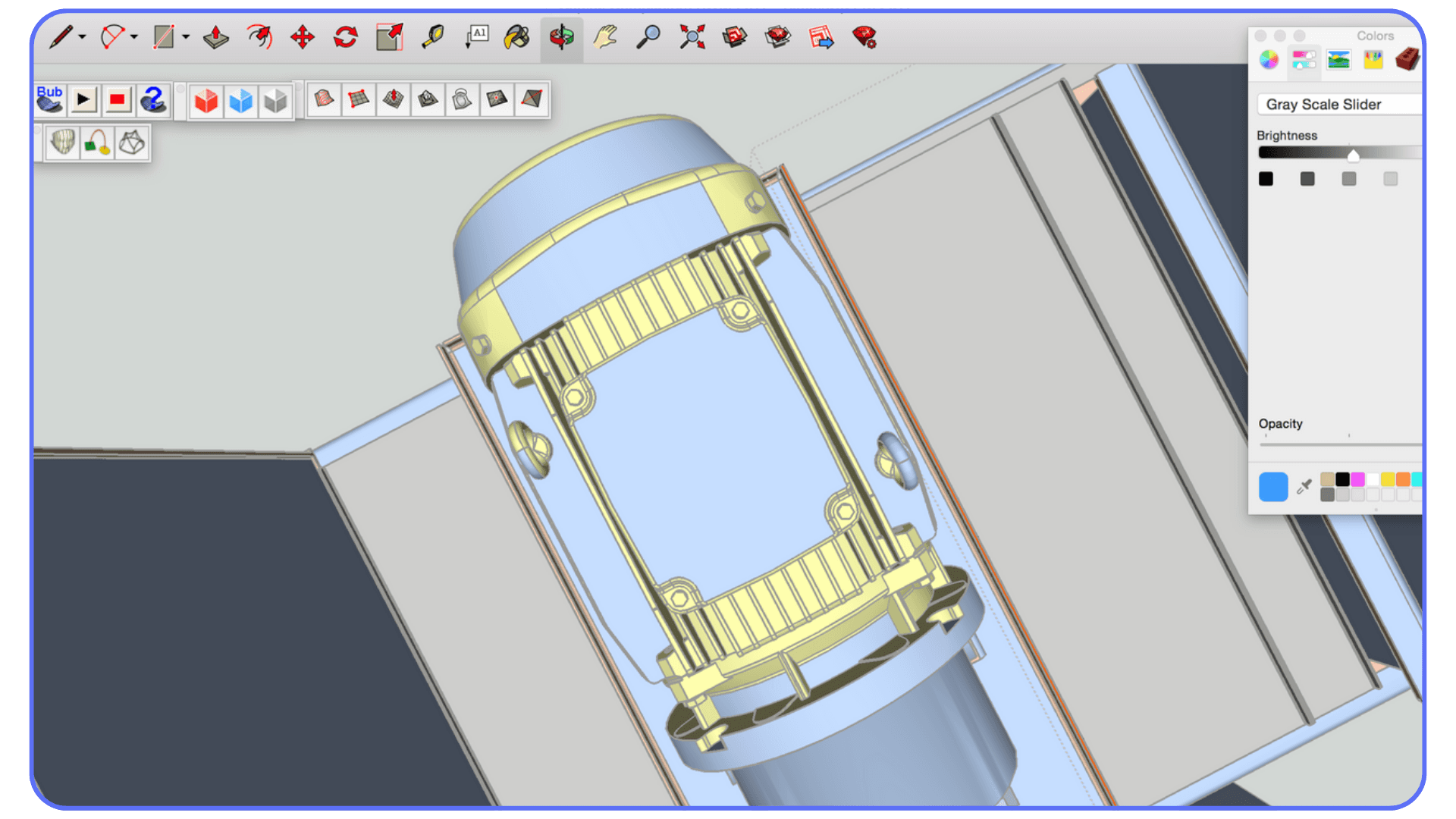
#2. Keep Texture Sizes Under Control
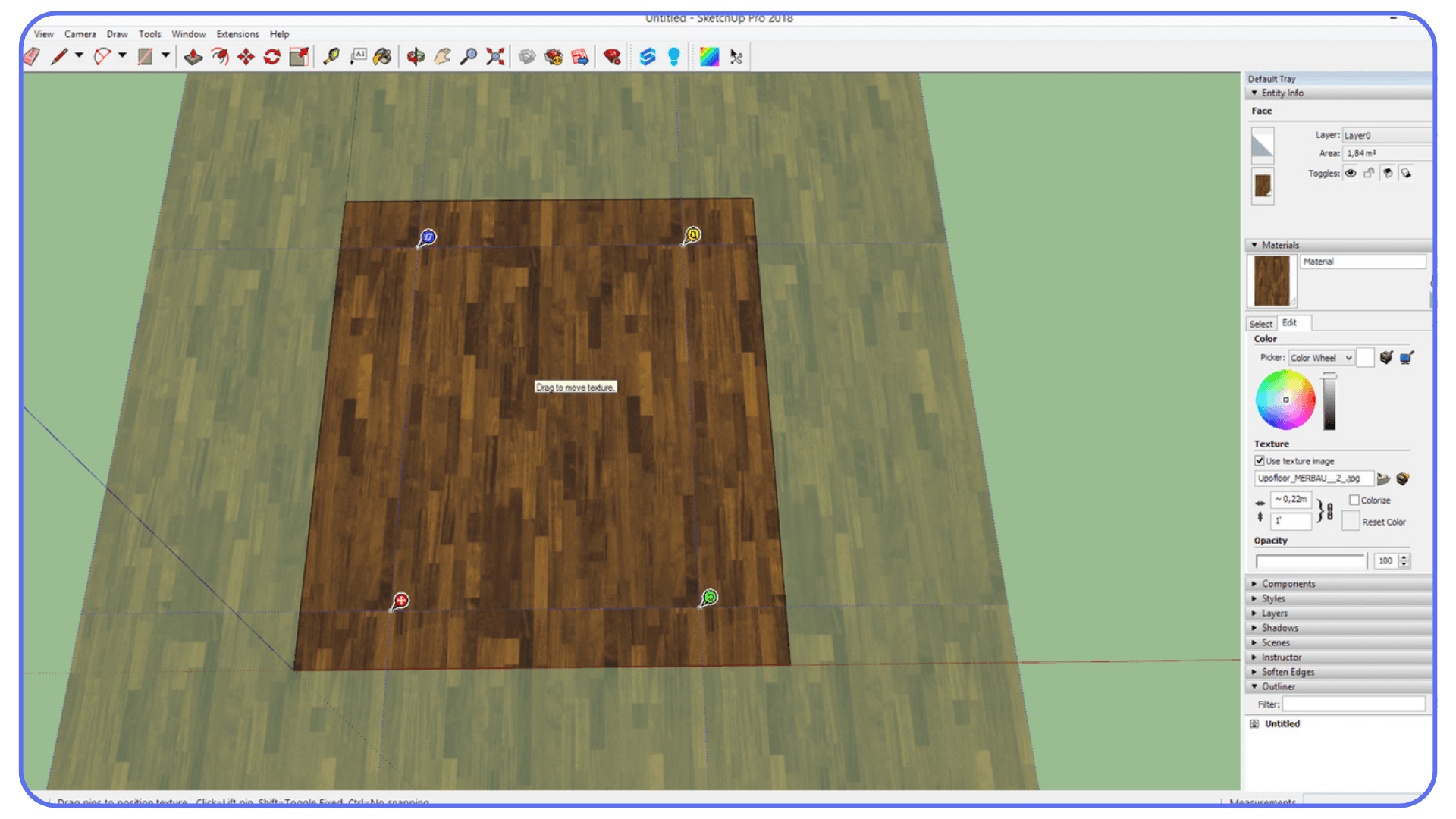
Textures are responsible for more freezes than geometry. Even a small room can lock up if one material uses a giant image. The weird part is that you might not even see the texture. It could be mapped to the underside of a cabinet or buried inside a group you never open.
If an object won’t ever be viewed up close, keep its textures small. When in doubt, downscale them. SketchUp handles reasonable texture sizes extremely well. It struggles when a single image tries to carry the whole file.
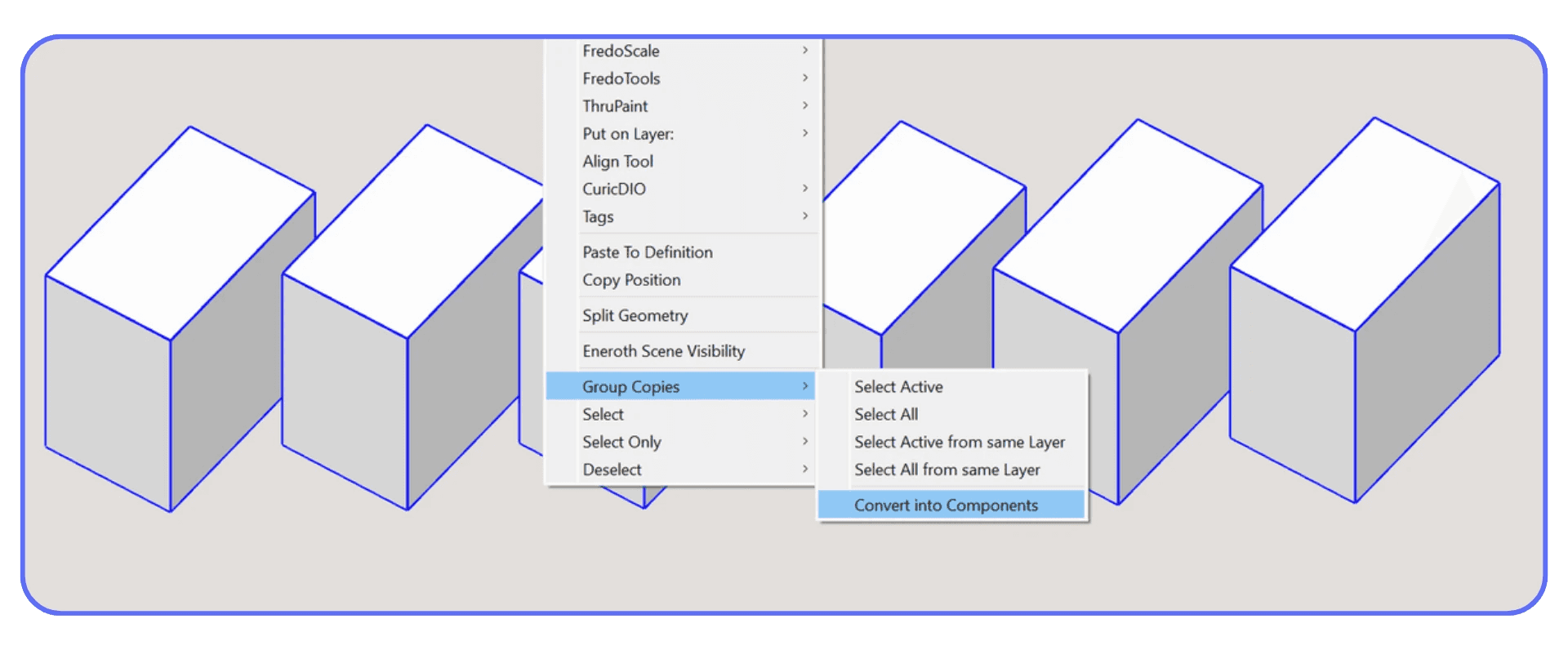
#3. Structure Your Scene In A Way SketchUp Likes
SketchUp loves order. Grouping, tagging, and breaking your model into logical pieces makes a huge difference. When everything lives in its own clean container, SketchUp can process the scene more smoothly.
Large architectural projects benefit the most. I’ve seen entire buildings saved by splitting them into exterior, interior, and site files. Even on lighter setups like sketchup web, structured scenes perform noticeably better because the browser has less to juggle at once.
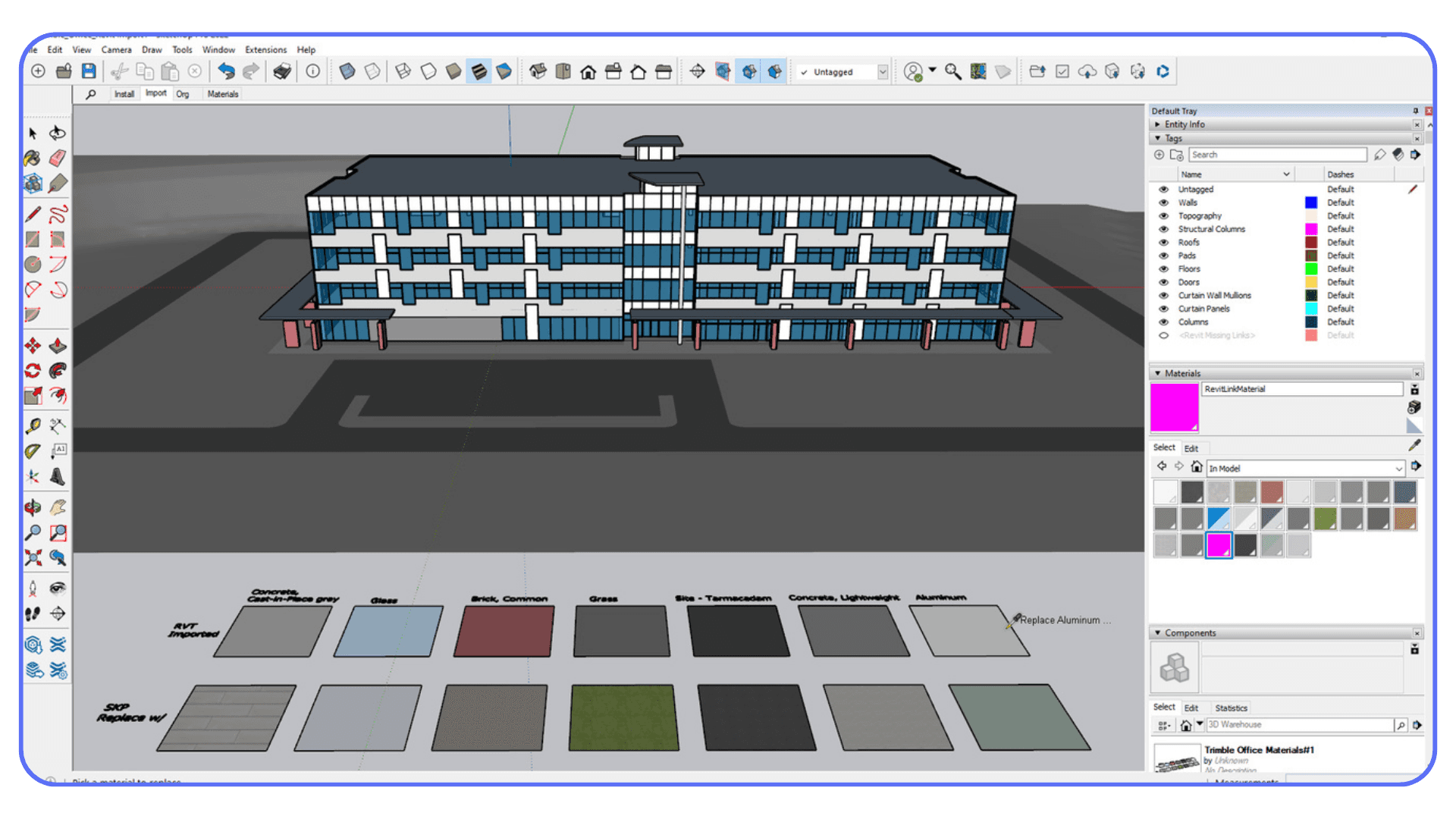
#4. Clean Your Imports Before Bringing Them Into SketchUp
Revit, Rhino, CAD, Blender models… they all carry clutter when imported directly. Tiny slivers of geometry, strange layers, unnecessary curves. SketchUp tries to interpret everything, and if the import is messy, it slows to a crawl or crashes outright.
Clean the model in the original program first. Strip out anything you don’t need. The lighter the import, the happier SketchUp becomes.
#5. Save In Versions, Not Just Overwrites
Incremental saving is underrated. Instead of overwriting the same file, create small version steps. Something like livingroom_v3.skp. If the newest version breaks, you still have the last stable one a click away.
Autosave helps, but don’t depend on it entirely. Especially in browser sessions, where refreshing a tab can end your work instantly.

Small adjustments can speed things up a lot, and if rendering is part of your workflow, this article on how to render faster in SketchUp has practical tips that help keep scenes lighter and more stable.
When The Crash Isn’t Your Fault
Every once in a while, you run into a crash that has nothing to do with your model, your workflow, or anything you clicked. SketchUp has its own quirks, and when they show up, even the cleanest file can fall apart without warning.
I’ve seen this across almost every setup. New laptops, older desktops, browser sessions, even simple projects in sketchup web. The user swears the file is small and tidy, and they’re right. The issue lives somewhere deeper in the software.
Sometimes it’s tied to a specific SketchUp release. One update might tighten how graphics are handled, and suddenly machines that were stable last week begin to freeze. Another release might introduce a rare bug where a particular tool or export format behaves unpredictably. None of these have anything to do with how you built your scene.
There are also cases where a crash appears because SketchUp is reacting to something external. A Windows update changes how the GPU is accessed. A browser update shifts how WebGL allocates memory. A background app takes resources SketchUp quietly relies on. The file isn’t broken. The environment around it changed.
When this sort of crash happens, it’s frustrating because you don’t get a clear explanation. SketchUp simply stops responding. But understanding that not all crashes come from your model helps you troubleshoot smarter. Instead of tearing your scene apart, you check the surroundings. Drivers. Updates. Extensions. The machine itself.
Sometimes the problem isn’t inside the file at all. It’s everything around it.
If you ever feel limited by SketchUp’s model library, this roundup of alternatives to SketchUp for 3D modeling shows how different programs handle imported assets and geometry.
A Realistic Look At Hardware Limits
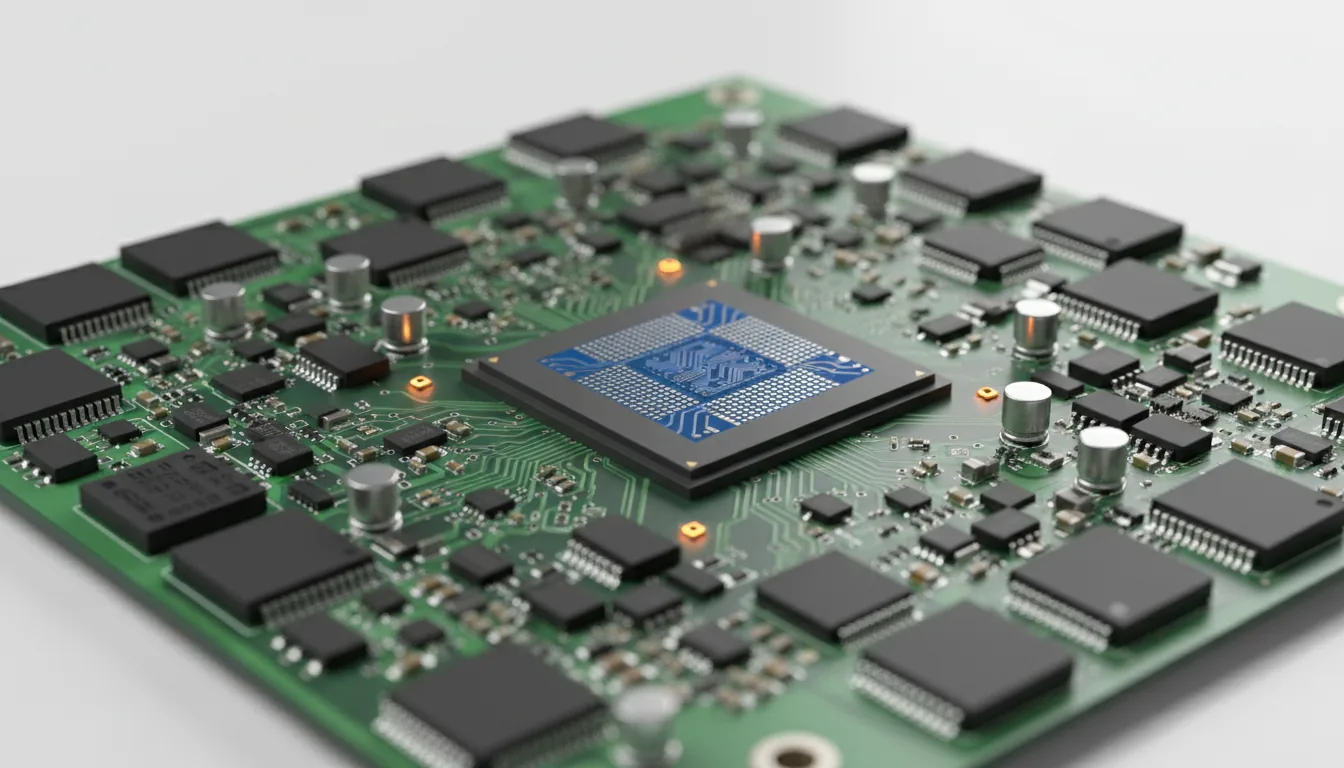
There’s a point where SketchUp isn’t crashing because something is wrong with your model. It’s crashing because your computer simply can’t keep up. This happens more often now, mostly because the average SketchUp file has grown heavier over the years. More detailed furniture, higher resolution textures, more imports from other software. Even a simple house can feel like a workout for older machines.
I see this a lot with laptops that rely on integrated graphics. They handle small scenes without trouble, then someone adds a detailed component or switches to a heavier shading mode, and SketchUp slows to a crawl. The model hasn’t changed in any dramatic way. The hardware just hit its ceiling.
It shows up in browser sessions too. People think SketchUp Free is unstable, but the reality is that the browser has its own limits. If you have too many tabs open, or if your system is low on memory, SketchUp feels it immediately. A file that runs perfectly on one computer might freeze instantly on another, simply because the environment around it is tighter.
Rendering plugins make the gaps even clearer. Turning on shadows or textures can push weaker GPUs over the edge. On stronger machines, the same tools feel smooth and predictable.
SketchUp doesn’t warn you when the hardware is the bottleneck. It just slows down, hesitates, or stops responding altogether. And because there’s no message explaining what went wrong, people often blame themselves or the file.
Sometimes the file is fine. The machine isn’t.
If you’re unsure whether your machine is part of the problem, this guide on choosing the right PC for SketchUp breaks down the hardware specs that actually make a difference.
When You’re Tired Of Crashes, You Have Options
There comes a point where fighting with your computer stops being part of the learning curve and starts becoming the thing that slows you down. You fix the textures, clean the imports, reorganize the model, update the drivers, restart everything, and SketchUp still locks up right when you're trying to get real work done. At that point, the problem usually isn’t your file. It’s your hardware.
SketchUp leans heavily on the GPU, and when your machine runs out of power, heat, or memory, the crashes feel endless. I’ve seen people jump between SketchUp Pro and SketchUp Free thinking one might behave better, but both will hit the same wall if the computer underneath is struggling.
If you’re tired of that cycle, there’s a simpler path.
Just stop relying on your local hardware.
Vagon Cloud Computer gives you a high performance machine in seconds, and SketchUp runs on it the same way it runs on your desktop. No installs to manage, no drivers to fix, no overheating laptop sitting in front of you. You just open your session, load your file, and work. Smooth orbiting, stable shading, fast exports. None of the usual "please don't crash right now" anxiety.
It isn’t about switching software. It’s about giving SketchUp the environment it deserves. And if you’re someone who wants to focus on modeling instead of babysitting your machine, Vagon is honestly the easiest fix you can try.
Final Thoughts
SketchUp is one of those tools that feels simple on the surface and incredibly particular once you start digging into it. Most crashes aren’t random. They come from textures that are too big, imports that weren’t cleaned, plugins that fell out of sync, or hardware that’s stretched thin. Once you understand those patterns, SketchUp becomes much easier to manage.
And if you’ve been blaming yourself for every freeze, you can stop. Even small models can break when something inside them behaves the wrong way. I’ve seen experienced architects, beginners using SketchUp Free, and everyone in between run into the same issues.
The good news is that you have options. You can clean your workflow, build better habits, and keep your scenes lighter. Or, if you’re tired of worrying about crashes altogether, you can hand the heavy lifting to something like Vagon Cloud Computer and work without that constant background stress.
Either way, once you know what SketchUp reacts to, the app starts to feel less unpredictable and a lot more enjoyable. And that’s the whole point. Modeling should feel like creating, not troubleshooting.
FAQs
1. Why does SketchUp crash even when my model looks small?
Because “small” on the screen doesn’t always mean small inside the file. One object can carry huge textures, messy geometry, or leftover data from another program. SketchUp tries to load all of it, even the parts you never see.
2. Does using the browser version make SketchUp less stable?
Sometimes. The browser has tighter memory limits, so if you have lots of tabs open or your laptop is low on resources, SketchUp can freeze sooner. The modeling experience is similar, the environment around it is not.
3. Can plugins really cause crashes?
Yes. A single outdated extension can break an otherwise perfect file. SketchUp doesn’t always point to the plugin, so the safest way to test is disabling everything and turning them back on one at a time.
4. How do I know if my GPU is the problem?
If orbiting feels jerky, shadows flicker, or the viewport locks up under simple actions, the GPU might be struggling. Laptops that switch between integrated and dedicated graphics tend to show this first.
5. Are big textures really that dangerous?
Absolutely. A single high resolution texture can overwhelm SketchUp much faster than a complex model can. Downscaling textures is one of the simplest ways to prevent crashes.
6. Why do imported models break SketchUp so often?
Files from Revit, Rhino, CAD, or Blender can bring in tiny geometry, strange layers, or curves SketchUp doesn’t interpret well. Cleaning the model before importing makes a huge difference.
7. How do I fix a corrupted SKP file?
Try opening SketchUp first, then load the file. If that fails, import it into a blank scene. Checking the autosave folder is also worth it. Many “lost” files are sitting in there untouched.
8. When should I consider switching to a cloud setup?
When crashes stop being occasional and start being part of your daily workflow. If your laptop overheats, your browser runs out of memory, or SketchUp hesitates under normal work, giving it stronger hardware through Vagon Cloud Computer removes a lot of that pressure.
A few weeks ago I opened a tiny living room mockup I had been playing with. Nothing complex. A couple chairs, a rug, a few lights. The kind of scene that should load instantly. It reminded me of those old days messing around in google sketchup when even clumsy models felt light.
I zoomed in to adjust a table leg, and everything froze. No warning. No spinning cursor. Just a quiet stop, like SketchUp needed a minute to collect itself.
At first I thought I clicked something wrong. A lot of people feel that way, especially if they’re working in the browser versions like sketchup web. When it locks up, you immediately assume you pushed the model too far or did something careless.
But crashes like this usually follow patterns. They look random on the surface, but something inside the file is almost always responsible. A stray texture. A component that carries more weight than it shows. A subtle issue that only becomes obvious when the screen stops moving.
At that moment, staring at the frozen window, I knew the problem wasn’t me. It just took me a while to learn how to see what SketchUp was reacting to.
Why SketchUp Crashes More Than People Admit
One thing I’ve learned after helping countless people with their models is that everyone assumes the same thing when SketchUp freezes: “My file must be too big.”
But size is almost never the real issue.
SketchUp tends to crash when something inside the model behaves in a way the software doesn’t expect. I’ve opened files that looked tiny and found a single object inside with a texture so large it could cover a billboard. I’ve seen clean looking scenes break because someone imported a piece of furniture that carried a dozen hidden layers from its original CAD file. I’ve seen a simple kitchen plan crash the moment it opened because an outdated plugin was silently fighting with the current version of SketchUp.
People using lighter setups like sketchup free feel this even more because they don’t have as much system memory to work with. But the underlying pattern is the same across every version. SketchUp reacts strongly to imperfect geometry, messy imports, mismatched extensions, and heavy textures, even when the overall scene looks harmless.
Crashes feel random at the moment. They aren’t. The cause is almost always tucked away somewhere you wouldn’t think to check, which is why they’re so frustrating until you know what to look for.
Once you understand that, SketchUp starts to feel a lot less mysterious.
If you’re switching between tools and wondering how SketchUp behaves compared to others, this breakdown of Rhino 3D vs SketchUp gives a clearer picture of where modeling complexity tends to sneak in.
The Silent Killers Inside Your Scene
When someone sends me a model that keeps crashing, the first thing they always say is, “It’s really simple, I swear.”
Then I open it, and the truth shows up pretty quickly.
SketchUp rarely breaks because of what you can see. It breaks because of the things hiding inside the groups and components. Little details that don’t look like trouble until SketchUp tries to process them all at once.
Here are the usual culprits.
#1. Components That Look Light but Aren’t
I’ve opened models where a single chair was responsible for every crash. It looked clean in the viewport, but inside it carried thousands of tiny edges and a texture so large it barely fit in memory. Sometimes these issues come from objects pulled while browsing sketchup online or from older project files that were never cleaned up.
SketchUp loads every bit of geometry, even the stuff you never see, so one object can tip the whole file over.
#2. Plugins With Unpredictable Moods
Extensions are fantastic until one of them goes out of sync. A rendering plugin, a modeling helper, a material tool, anything. When the version doesn’t match your SketchUp build, it can cause freezes that feel completely random.
What makes this tricky is that SketchUp doesn’t tell you which plugin misbehaved. It just stops responding. So people assume the file is broken when the real problem is a small extension that forgot how to behave after an update.
#3. GPU Quirks That SketchUp Doesn’t Warn You About
If your computer quietly switches between integrated and dedicated graphics, SketchUp doesn’t always pick the one you want. Orbiting gets laggy, shadows flicker, and eventually the viewport gives up.
I’ve seen this happen on brand new laptops and older machines alike. When the GPU falls behind, SketchUp doesn’t send an alert. It simply freezes.
#4. Textures and Imports That Carry Hidden Baggage
One oversized texture can slow SketchUp to a crawl. I once found an 8K image mapped to the back of a cabinet that no one ever zoomed into. It looked innocent until the model was opened, then everything locked up.
Imports from other programs behave the same way. Revit, Rhino, CAD. If the file isn’t cleaned before importing, SketchUp has to interpret every tiny piece, and sometimes it just can’t.
Most people never see these problems on the surface, which is why the crashes feel so confusing. Once you know where to look, the patterns become obvious.
If you rely on extensions a lot, you might want to check out this guide on essential SketchUp plugins to make sure the tools you’re using are stable and updated.
Fixes That Actually Work
When SketchUp freezes, it feels like you have to start over or rebuild the whole scene. You don’t. Most crashes come from a handful of small problems, and once you clear them out, SketchUp usually settles down. These are the fixes that consistently help.
#1. Give Your Model Some Room to Breathe
A file can look tiny and still crash if it’s cluttered inside.
Purge unused items.
Reduce texture sizes.
Turn off tags until only part of the model is visible, then see when the freezing stops.
This helps you track down the trouble spot. Sometimes it’s a single imported piece. Sometimes it’s a leftover material hiding deep in the hierarchy. I’ve even seen nearly empty scenes crash because someone copied a huge texture from sketchup web without realizing it.
Small cleanups often make SketchUp feel brand new again.
#2. Test Your Plugins One by One
If you have extensions installed, treat them as suspects.
Disable everything non essential.
Restart SketchUp.
Re-enable them one at a time.
The moment the crashing returns, you’ve found the culprit. Rendering plugins, animation tools, older Ruby extensions, even material managers can break quietly after an update. SketchUp doesn’t usually point to the plugin causing the issue, so this slow approach is the most reliable.
#3. Update Your Graphics Drivers Properly
SketchUp depends heavily on your GPU. Outdated drivers cause more silent crashes than people expect.
Don’t rely on automatic system updates.
Download the newest driver directly from the GPU manufacturer.
On laptops, make sure SketchUp is using the dedicated GPU and not the integrated chip. This one simple change has fixed more “mystery crashes” than I can count.
Once the GPU is set up correctly, orbiting feels smoother and stability improves right away.
#4. Recover Or Rebuild Damaged Files
Sometimes the file itself is unstable, even if it looks fine.
Try opening SketchUp first, then load the file from inside the app.
Try importing the broken file into a clean, empty scene.
Switch to monochrome mode to expose bad faces or corrupted materials.
Autosave often contains a usable version from right before the crash, so check that folder before giving up. Many “lost” files aren’t lost at all.
#5. Fixes For The Browser Versions
If you’re working in the browser, the rules shift. SketchUp Free and the web version rely entirely on the browser’s memory.
Close every unnecessary tab.
Disable extensions that affect graphics.
Reload the model with nothing else running.
When the browser is clean, these versions run surprisingly well. When it’s overloaded, they freeze instantly.
Some users coming from AutoCAD run into completely different bottlenecks, and this comparison of AutoCAD vs SketchUp explains why their files behave the way they do.
Prevent Crashes Before They Happen
Most SketchUp crashes feel sudden, but they usually come from habits that slowly overload the file. A few small changes in how you build and manage your scenes can make SketchUp far more stable, no matter which version you use.
#1. Build Better Habits With Imported Components
A surprising number of crashes come from components that look simple but carry hidden detail inside. I’ve opened scenes where one bookshelf was responsible for all the trouble because it was modeled with thousands of micro edges or had an oversized texture tucked away inside it.
Get into the habit of checking what you’re bringing into your scene. When you browse models or test something in SketchUp Free, you never see the actual weight until you drop it into the file. If a model feels slow right after inserting a new object, that new object is almost always the reason.
#2. Keep Texture Sizes Under Control
Textures are responsible for more freezes than geometry. Even a small room can lock up if one material uses a giant image. The weird part is that you might not even see the texture. It could be mapped to the underside of a cabinet or buried inside a group you never open.
If an object won’t ever be viewed up close, keep its textures small. When in doubt, downscale them. SketchUp handles reasonable texture sizes extremely well. It struggles when a single image tries to carry the whole file.
#3. Structure Your Scene In A Way SketchUp Likes
SketchUp loves order. Grouping, tagging, and breaking your model into logical pieces makes a huge difference. When everything lives in its own clean container, SketchUp can process the scene more smoothly.
Large architectural projects benefit the most. I’ve seen entire buildings saved by splitting them into exterior, interior, and site files. Even on lighter setups like sketchup web, structured scenes perform noticeably better because the browser has less to juggle at once.
#4. Clean Your Imports Before Bringing Them Into SketchUp
Revit, Rhino, CAD, Blender models… they all carry clutter when imported directly. Tiny slivers of geometry, strange layers, unnecessary curves. SketchUp tries to interpret everything, and if the import is messy, it slows to a crawl or crashes outright.
Clean the model in the original program first. Strip out anything you don’t need. The lighter the import, the happier SketchUp becomes.
#5. Save In Versions, Not Just Overwrites
Incremental saving is underrated. Instead of overwriting the same file, create small version steps. Something like livingroom_v3.skp. If the newest version breaks, you still have the last stable one a click away.
Autosave helps, but don’t depend on it entirely. Especially in browser sessions, where refreshing a tab can end your work instantly.
Small adjustments can speed things up a lot, and if rendering is part of your workflow, this article on how to render faster in SketchUp has practical tips that help keep scenes lighter and more stable.
When The Crash Isn’t Your Fault
Every once in a while, you run into a crash that has nothing to do with your model, your workflow, or anything you clicked. SketchUp has its own quirks, and when they show up, even the cleanest file can fall apart without warning.
I’ve seen this across almost every setup. New laptops, older desktops, browser sessions, even simple projects in sketchup web. The user swears the file is small and tidy, and they’re right. The issue lives somewhere deeper in the software.
Sometimes it’s tied to a specific SketchUp release. One update might tighten how graphics are handled, and suddenly machines that were stable last week begin to freeze. Another release might introduce a rare bug where a particular tool or export format behaves unpredictably. None of these have anything to do with how you built your scene.
There are also cases where a crash appears because SketchUp is reacting to something external. A Windows update changes how the GPU is accessed. A browser update shifts how WebGL allocates memory. A background app takes resources SketchUp quietly relies on. The file isn’t broken. The environment around it changed.
When this sort of crash happens, it’s frustrating because you don’t get a clear explanation. SketchUp simply stops responding. But understanding that not all crashes come from your model helps you troubleshoot smarter. Instead of tearing your scene apart, you check the surroundings. Drivers. Updates. Extensions. The machine itself.
Sometimes the problem isn’t inside the file at all. It’s everything around it.
If you ever feel limited by SketchUp’s model library, this roundup of alternatives to SketchUp for 3D modeling shows how different programs handle imported assets and geometry.
A Realistic Look At Hardware Limits
There’s a point where SketchUp isn’t crashing because something is wrong with your model. It’s crashing because your computer simply can’t keep up. This happens more often now, mostly because the average SketchUp file has grown heavier over the years. More detailed furniture, higher resolution textures, more imports from other software. Even a simple house can feel like a workout for older machines.
I see this a lot with laptops that rely on integrated graphics. They handle small scenes without trouble, then someone adds a detailed component or switches to a heavier shading mode, and SketchUp slows to a crawl. The model hasn’t changed in any dramatic way. The hardware just hit its ceiling.
It shows up in browser sessions too. People think SketchUp Free is unstable, but the reality is that the browser has its own limits. If you have too many tabs open, or if your system is low on memory, SketchUp feels it immediately. A file that runs perfectly on one computer might freeze instantly on another, simply because the environment around it is tighter.
Rendering plugins make the gaps even clearer. Turning on shadows or textures can push weaker GPUs over the edge. On stronger machines, the same tools feel smooth and predictable.
SketchUp doesn’t warn you when the hardware is the bottleneck. It just slows down, hesitates, or stops responding altogether. And because there’s no message explaining what went wrong, people often blame themselves or the file.
Sometimes the file is fine. The machine isn’t.
If you’re unsure whether your machine is part of the problem, this guide on choosing the right PC for SketchUp breaks down the hardware specs that actually make a difference.
When You’re Tired Of Crashes, You Have Options
There comes a point where fighting with your computer stops being part of the learning curve and starts becoming the thing that slows you down. You fix the textures, clean the imports, reorganize the model, update the drivers, restart everything, and SketchUp still locks up right when you're trying to get real work done. At that point, the problem usually isn’t your file. It’s your hardware.
SketchUp leans heavily on the GPU, and when your machine runs out of power, heat, or memory, the crashes feel endless. I’ve seen people jump between SketchUp Pro and SketchUp Free thinking one might behave better, but both will hit the same wall if the computer underneath is struggling.
If you’re tired of that cycle, there’s a simpler path.
Just stop relying on your local hardware.
Vagon Cloud Computer gives you a high performance machine in seconds, and SketchUp runs on it the same way it runs on your desktop. No installs to manage, no drivers to fix, no overheating laptop sitting in front of you. You just open your session, load your file, and work. Smooth orbiting, stable shading, fast exports. None of the usual "please don't crash right now" anxiety.
It isn’t about switching software. It’s about giving SketchUp the environment it deserves. And if you’re someone who wants to focus on modeling instead of babysitting your machine, Vagon is honestly the easiest fix you can try.
Final Thoughts
SketchUp is one of those tools that feels simple on the surface and incredibly particular once you start digging into it. Most crashes aren’t random. They come from textures that are too big, imports that weren’t cleaned, plugins that fell out of sync, or hardware that’s stretched thin. Once you understand those patterns, SketchUp becomes much easier to manage.
And if you’ve been blaming yourself for every freeze, you can stop. Even small models can break when something inside them behaves the wrong way. I’ve seen experienced architects, beginners using SketchUp Free, and everyone in between run into the same issues.
The good news is that you have options. You can clean your workflow, build better habits, and keep your scenes lighter. Or, if you’re tired of worrying about crashes altogether, you can hand the heavy lifting to something like Vagon Cloud Computer and work without that constant background stress.
Either way, once you know what SketchUp reacts to, the app starts to feel less unpredictable and a lot more enjoyable. And that’s the whole point. Modeling should feel like creating, not troubleshooting.
FAQs
1. Why does SketchUp crash even when my model looks small?
Because “small” on the screen doesn’t always mean small inside the file. One object can carry huge textures, messy geometry, or leftover data from another program. SketchUp tries to load all of it, even the parts you never see.
2. Does using the browser version make SketchUp less stable?
Sometimes. The browser has tighter memory limits, so if you have lots of tabs open or your laptop is low on resources, SketchUp can freeze sooner. The modeling experience is similar, the environment around it is not.
3. Can plugins really cause crashes?
Yes. A single outdated extension can break an otherwise perfect file. SketchUp doesn’t always point to the plugin, so the safest way to test is disabling everything and turning them back on one at a time.
4. How do I know if my GPU is the problem?
If orbiting feels jerky, shadows flicker, or the viewport locks up under simple actions, the GPU might be struggling. Laptops that switch between integrated and dedicated graphics tend to show this first.
5. Are big textures really that dangerous?
Absolutely. A single high resolution texture can overwhelm SketchUp much faster than a complex model can. Downscaling textures is one of the simplest ways to prevent crashes.
6. Why do imported models break SketchUp so often?
Files from Revit, Rhino, CAD, or Blender can bring in tiny geometry, strange layers, or curves SketchUp doesn’t interpret well. Cleaning the model before importing makes a huge difference.
7. How do I fix a corrupted SKP file?
Try opening SketchUp first, then load the file. If that fails, import it into a blank scene. Checking the autosave folder is also worth it. Many “lost” files are sitting in there untouched.
8. When should I consider switching to a cloud setup?
When crashes stop being occasional and start being part of your daily workflow. If your laptop overheats, your browser runs out of memory, or SketchUp hesitates under normal work, giving it stronger hardware through Vagon Cloud Computer removes a lot of that pressure.
Get Beyond Your Computer Performance
Run applications on your cloud computer with the latest generation hardware. No more crashes or lags.

Trial includes 1 hour usage + 7 days of storage.
Summarize with AI

Ready to focus on your creativity?
Vagon gives you the ability to create & render projects, collaborate, and stream applications with the power of the best hardware.

Vagon Blog
Run heavy applications on any device with
your personal computer on the cloud.
San Francisco, California
Solutions
Vagon Teams
Vagon Streams
Use Cases
Resources
Vagon Blog
How to Use DaVinci Resolve With Codex: MCP & Computer Use
How to Use ComfyUI With Claude: MCP & Computer Use Guide
How to Use Rhino With Codex: MCP & Computer Use Guide
How to Use KiCad With Codex: MCP & Computer Use Guide
How to Use KiCad With Claude: MCP & Computer Use Guide Meta
How to Use FreeCAD With Codex: MCP & Computer Use
How to Use FreeCAD With Claude: MCP & Computer Use
How to Use 3ds Max With Codex: MCP & Computer Use
How to Use Houdini With Claude: MCP & Computer Use
Vagon Blog
Run heavy applications on any device with
your personal computer on the cloud.
San Francisco, California
Solutions
Vagon Teams
Vagon Streams
Use Cases
Resources
Vagon Blog
How to Use DaVinci Resolve With Codex: MCP & Computer Use
How to Use ComfyUI With Claude: MCP & Computer Use Guide
How to Use Rhino With Codex: MCP & Computer Use Guide
How to Use KiCad With Codex: MCP & Computer Use Guide
How to Use KiCad With Claude: MCP & Computer Use Guide Meta
How to Use FreeCAD With Codex: MCP & Computer Use
How to Use FreeCAD With Claude: MCP & Computer Use
How to Use 3ds Max With Codex: MCP & Computer Use
How to Use Houdini With Claude: MCP & Computer Use
Vagon Blog
Run heavy applications on any device with
your personal computer on the cloud.
San Francisco, California
Solutions
Vagon Teams
Vagon Streams
Use Cases
Resources
Vagon Blog